CMSC 425
Game Programming
1
David M. Mount
Department of Computer Science
University of Maryland
Spring 2013
1Copyright, David M. Mount, 2013, Dept. of Computer Science, University of Maryland, College Park, MD, 20742. These lecture notes were prepared by David Mount for the course CMSC 425, Game Programming, at the University of Maryland. Permission to use, copy, modify, and distribute these notes for educational purposes and without fee is hereby granted, provided that this copyright notice appear in all copies.
Lecture 1: Introduction to Game Programming
Sources: Further information can be found in the first chapter of Introduction to Game Development (2nd edition), ed. S. Rabin, 2009.
Computer Game Programming: The famous game design Sid Meier once defined a computer game as “a series of interesting and meaningful choices made by the player in pursuit of a clear and compelling goal.” A somewhat more concrete definition of a computer game, due to Mark Overmars, is “a software program in which one or more players make decisions through the control of game objects and resources, in pursuit of a goal.” This course is concerned with the theory, practice, and technologies underlying the development of modern computer games of all varieties.
A Brief History: Today’s computer games constitute a multi-billion dollar industry. There is an incredible variety of game genres: strategy, sports, shooter, role-playing, racing, adventure, and so on. Some games induce their players to dedicate long hours in pursuit of a distant goal, and others can be picked up and played for just a few minutes. Some games create astoundingly realistic and complex three-dimensional worlds and others involve little more than a simple 2-dimensional grid and very primitive computer graphics. Some games engage tens of thousands simultaneous users, and some involve a single user. How did we get here?
The Early Days: Computer games are as old as computers. One of the oldest examples was from 1958. It was a Pong-like game called Tennis for Two, which was developed by William Higinbotham of Brookhaven National Lab in 1958 and was played on an oscilloscope. Another example was a game developed in 1961 by a group of students at MIT, called Spacewar. It was programmed on the PDP 1. When the Arpanet (forerunner to the Internet) was developed, this program was available disseminated to a number of universities (where grad students like me would play them when their supervisors weren’t watching). It is credited as the first influential computer game, but the influence was confined to academic and research institutions, not the general public.
Prior to the 1970s arcade games were mechanical, with the most popular being the many varieties of pinball. The computer game industry could be said to start with the first arcade computer game, called Computer Space. It was developed in 1971 by Nolan Bushnell and Ted Dabney, who founded Atari. One of Atari’s most popular arcade games was Pong. There was a boom of 2-dimensional arcade games from the mid 1970s to the early 1980s, which was led by well-known games such as Asteroids, Space Invaders, Galaxian, and numerous variations In 1980, a popular game in Japan, called Puck Man, was purchased by Bally for US distribution. They recognized the enticement for vandalism by changing “Puck” into another well known 4-letter word, so they changed the name to “Pac-Man.” They game became extremely successful.
The 70’s and 80’s: During the 1970s, computer games came into people’s homes with the development of the Atari game console. Its popularity is remarkable, given that the early technology of the day supported nothing more sophisticated than Pong. One of the popular features of later game consoles, like the Atari 2600, is that it was possible to purchase additional cartridges, which looked like 8-track tapes, allowing users to upload new games.
The game industry expanded rapidly throughout the 1970s and early 1980s, but took an abrupt downturn in 1983. The industry came roaring back. One reason was the popularity of a game developed by Shiguero Miyamoto for Nintendo, called Donkey Kong, which featured a cute Italian “everyman” character, named Mario, who would jump over various obstacles to eventually save his lady from an evil kidnapping gorilla. Mario went on to become an icon of the computer game industry, and Donkey Kong generated many spin-offs involving Mario, notably Super Mario Bros. Eventually Donkey Kong was licensed to the Coleco company for release in their home game console and Super Mario Bros. was one of the top sellers on the Nintendo Entertainment System (NES).
Consoles, Handhelds, and MMOs: The 1990s saw the development of many game consoles with ever increas-ing processincreas-ing and graphical capabilities. We mentioned the Nintendo NES above with Donkey Kong.
Also, the early 1990s saw the release of the Sega Genesis and its flagship game Sonic the Hedgehog. Another example is the Sony Playstation, with the very popular game Final Fantasy (version VII and on). In the early 2000s came the rise of so called sixth generation game consoles, which include the very popular Sony Playstation 2 (and the hit game Resident Evil) and the Microsoft XBox and their seventh-generation follow-ups, the Playstation 3 and XBox 360 and Nintendo Wii, which dominate the market today. A parallel thread through this has been the development of hand-held game consoles. These include the Nintendo Game Boy, which was released in the late 1980s and early 1990s, the Nintendo DS in the mid 1990s, and the Playstation Portable in the mid 2000s. Modern times have seen more games move to general purpose hand-held devices, like the iPhone.
Elements of Computer Games: While computer games are fun to play, they can be terrifically challenging to imple-ment. These challenges arise from the confluence of a number of elements that are critical to the execution and performance of the game. These include the following:
Real-time 3-dimensional computer graphics: Most high-end computer games involve the generation of photo-realistic imagery at the rate of 30–60 frames per second. This process is complicated by the following issues:
Large, complex geometric models: Large-scale models, such as factories, city-scapes, forests and jun-gles, and crowds of people, can involve vast numbers of geometric elements.
Complex geometry: Many natural objects (such as hair, fur, trees, plants, water, and clouds) have very sophisticate geometric structure, and they move and interact in complex manners.
Complex lighting: Many natural objects (such as human hair and skin, plants, and water) reflect light in complex and subtle ways.
Artificial intelligence: The game software controls the motions and behaviors of nonplayer entitites. Achieving realistic behavior involves an understanding of artificial intelligence.
Motion and Navigation: Nonplayer entities need to be able to plan their movement from one location to an-other. This can involve finding a shortest route from one location to another, moving in coordination with a number of other nonplayer entities, or generating natural-looking motion for a soccer player in a sports game.
Physics: The phyical objects of a game interact with one another in accordance with the laws of physics. Implicit in this is the capabiity to efficiently determine when objects collide with one another, and how they should move in response to these collisions.
Networking: Multiplayer online games use a network to communicate the current game state between players. Due to the latency inherent in network communication, the games states that individual players perceive are momentarily inconsistent. The game software must hide this latency and conceal these inconsistencies from the players.
Databases: The game state, especially for multiplayer online games, is maintained in a database. The database receives requests for updates of the game state from multiple sources, and it must maintain a consistent state throughout.
Security: Since the origin of games, there have been people who have sought ways of circumventing the games. This is particularly an issue in multiplayer games, where one player’s cheating behavior degrades the experience for an honest player. For this reason, game software needs to be vigilant to detect and obstruct illicit game interaction.
The Scope of this Course: There has been a great deal of software produced to aid in the generation of large-scale software systems for computer games: geometric modelers, game engines, physics engines, and more. Employ-ees of a large game software companies do not design games from first principles, but rather by these tools. Unfortunately, teaching to the technology is not really our interest here. The technology that is current today may be obsolete in a few years. Our focus in this course will not be on how to use existing software systems,
but rather on the principles that underlie them. As in most upper-division computer science courses, our interest is not in how to use these tools, but rather how to build these systems. In particular, we will discuss the theory and practice that underlies the implementation of these systems.
Of course, the amount of material is vast, and we could easily fill a number of courses covering this material. This semester, we will touch upon only a subset of these issues. For each, we will discuss how concepts from computer science (and other areas such as mathematics and physics) can be applied to address the challenging elements that underlie game implementation.
Course Overview: In this course, we will provide an overview of what might be called the “theory of computer games.” In particular, we will see how concepts developed in computer science can be applied to address the aforementioned elements of computer games. These include the following.
Game structure: The structure of a generic game and basic components of game engines.
Interactive computer graphics: Interactive 2- and 3-dimensinoal computer graphics, including how GPUs work, basic OpenGL and GLUT, event-driven I/O, simple illumination models, and texture mapping. Modeling for games: Geometric models and representations, and algorithms for manipulating them.
AI for games: Agents and how to control them. Agent state transition, navigation algorithms, flocking behav-ior.
Physics for games: A short introduction to kinematics and kinetics, integration methods, and the elements of a typical physics engine.
Networking for games: Basic elements of network programming, including sockets, ports, and basic proto-cols, such as IP and UDP, and latency hiding.
Security: Common methods of cheating in online games and approaches for detecting and counteracting them.
Lecture 2: Computer Game and Graphics System Architectures
Sources: The first half of the lecture is taken from Chapt 1 of Gregory, Game Engine Architecture. The second half comes from any modern computer graphics text.
Computer Game Architecture: A large computer game is a significant technical undertaking, involving a large num-ber of interacting components. Of course, not all computer games require the same level of complexity. Dif-ferent genres of games require difDif-ferent capabilities. The combination of components used for a simple casual 2-dimensional game (e.g., Tetris, Mahjong, or Bejewled) is very different from a high-end 3-dimensional first-person shooter game (e.g., Unreal, Call of Duty, or Halo).
In order to show the contrast of requirements among different games, here are some examples of a few common game genres and the typical technical elements required to implement these games.
First-Person Shooters (FPS): These games involve simulating a relatively slow entity moving on foot through a highly structured world, typified by passageways and corridors. Modern versions can include more complex types of locomotion, such as climbing. Typicial features of these games include:
• real-time rendering of large 3-dimensional virtual worlds • highly responsive camera control/aiming mechanics
• high fidelity animations of player’s virtual arms and weapons
• availability of a separate (through the scope) camera mode for accurate aiming • a range of hand-held weapons
• forgiving player character motion and a loose collision model, which gives the feeling of floating, • high fidelity animations of non-player characters (both enemies and team members)
• multiplayer capabilities
In order to achieve real-time rendering of complex environments, these games frequently limit player movement to well-defined regions, and use various culling techniques that allow the game to draw only the small amount of the total world, which is visible to the player. This is among the most challenging genres from the perspective of the complexity and scale of the technologies required.
Platform Games: This genre is typified by games like Donkey Kong, Super Mario Bros and Sonic the
Hedge-hog. The player controls an animated character that is seen externally, that is, from a third-person per-spective. This character moves through an obstacle course in pursuit of a goal. This may involve running, jumping, swinging, and climbing. Features of these games include:
• moving platforms, ladders, ropes, trellises and generally a variety of locomotion modes • puzzle-like environmental elements
• third-person camera follows the player character
• (particularly for 3-dimensional platform games) complex camera collision system that ensures that the player character is alwars in view
In contrast to FPS games, accuracy in locomotion is a key element to the game play. Players must ac-curately time their jumps, or combine running with jumping to avoid specific obstacles. In order to keep the player character continuously in view, it may be necessary to “cheat” on the geometry by allowing the camera to see through obstacles (e.g., walls) that are very close to the character, since they would otherwise block the player’s ability to see the character.
Fighting Games: These involve two players contolling humanoid characters that battle one another. Common examples include Street Fighter, Tekken, and includes sports boxing games like Fight Night. Features of these games include:
• a variety of fighting animations • accurate hit detection
• input system capable of complex button/joystick combinations • simple backgrounds
• simple camera motion focused on the center of the action
Racing Games: These games involve simulating driving a vehicle (typically an automobile) on a track. These include realistic games, such as Need for Speed and Gran Turismo. and cartoonish ones, such as Mario Kart. Like FPS games, these are highly linear. (Note that this does not include games like Grand Theft Auto (GTA). Although GTA involves driving simulation, it is not considered racing since the driving is not on a track. Games like GTA where the player can explore vast regions of the world are referred to as open world games.) Some features of racing games include:
• real-time rendering of highly detailed backgrounds that are moving very rapidly through the field of view (which means that various tricks can be used to render them, since the viewer cannot focus on them for long)
• the AI for nonplaying vehicles can be simplified due to the need to stick to the racing circuit
• camera may follow the vehicle from a third-person perspective or may be situated behind the steering wheel from a first-person perspective
• to accurately render the effects of collisions, vehicle modeling may need to be flexible to render dented or scratched vehicle bodies
Computer Game Engine Architecture: One way to better understand the software structure underlying a generic game is to understand the structure of a typical game engines. Game engines arose in the mid-1990s. In particular, the software for the popular game Doom provided a separation between:
• art assets (models, textures, animations) • rules of play
This separation made it easy for users to modify, or “modding”, the game, and provided a framework for adding new elements. This model was extended to other games, including Quake, Unreal, and Unreal Tournament (all FPS games). At some point, these simple “modding systems” became generic enough that it was possible to implement a wide variety of very different games based on a common core set of components, the game engine. Examples of modern game engines include the Unreal Engine, Microsoft’s XNA Game Studio, and Ogre3D. Game engines vary along a spectrum of ease of use and flexibility. Simple game engines can generate only a single type of game, but are generally easy to pick up and use. Complex game engines can generate a great variety of games, but it can take quite a bit of time to master their various capabilities.
The following is a summary of the basic components of a modern game engine. We think of the engine as being designed in a number of layers, ranging from the lower levels (hardware and operating system) up to the higher levels (game specific entities like rules). Here is a summary of the levels, from low to high.
System: This is the hardware and operating system on which the game runs, such as general personal computers (running, say, Microsoft Windows, Linux, or Mac OS), game consoles (XBox, Playstation, Wii), or mobile devices (handheld game consoles or smart-phones).
Third-Party SDKs and Middleware: These are libraries and sofware development toolkits (SDKs), usually provided from a third party. Examples include graphics (OpenGL and DirectX), physics (Havok, PhysX), basic algorithms and data structures (C++ STL, Boost++), character animation (Granny), networking sup-port (Unix sockets).
Platform Independence Layer: Since most games are developed to run on many different platforms, this layer provides software to translate between game specific operations and their system-dependent implementa-tions.
Core System: These include basic tools necessary in any software development environment, including as-sertion testing, unit testing, memory allocation/deallocation, mathematics library, debugging aids, parsers (e.g., for xml-based input files), file I/O, video playback.
Resource Manager: Large graphics programs involve accessing various resources, such as geometric models for characters and buildings, texture images for coloring these geometric models, maps representing the game’s world. The job of the resource manager is to allow the program to load these resources. Since resources may be compressed to save space, this may also involve decompression.
Rendering Engine: This is one of the largest and most complex components of any real-time 3-dimensional game. This involves all aspects of drawing, and may involve close interaction with the graphics processing unit (GPU) for the sake of enhanced efficiency.
Low-Level Renderer: This comprises the most basic elements of producing images. As we will see below when we discuss OpenGL, your program interacts with the GPU by asking it to render objects. Each object may be a single triangle (or generally a polygon) or a mesh consisting of many triangular elements. Objects are specified according to their coordinates in 3-dimensional space. Your program also informs the GPU what colors (or what image textures) to apply to these objects, where lights are positioned, and where the camera is positioned.
It is then the job of the GPU to perform the actual rendering (projection, coloring, shading) of the objects. In particular, it determines where each object projects onto the 2-dimensional image plane, which objects are visible and which are hidden from view, what is the color and brightness of each object. Your program needs to convey all this information to the GPU. In our discussion of OpenGL, we will discuss how this is done. This also includes elements like displaying text messages and subdi-viding the window into subwindows (called viewports) for the purposes of showing status information or maps.
Graphics Device Interface: Since the graphics device requires updating 30–60 times per second, but some operations (such as displaying messages to the user) occurs at a significantly different time scale (of multiple seconds), these components shield the programmer from some of the low-level timing issues when dealing with the graphics system.
Scene Graph: Game entities are naturally organized into hierarchical structures. This is true for dynamic and static objects. For example, a human body consists of a head, torso, arms, legs; an arm consists of a hand, lower-arm, and upper-arm; a hand consists of fingers. Thus, there is a natural structure in the form of a rooted tree.
In general, all the entities of the games world can be represented in a large tree, where the root rep-resents the entire world, and the nodes of the tree implicitly represent the subtrees that are descended from these nodes. This makes it possible to perform operations easily on an entire portion of the tree. For example, we could “render the objects rooted at nodeu” or “rotate the object rooted at nodev.” We can also create multiple instances, as in “create 200 instances of the zombie object at nodez.” This software component is responsible for creating, modifying, rendering, manipulating, and deleting elements of the scene graph. Another feature of using a scene graph is that it allows us to remove, or cull, entities that are not visible to the camera. For example, if the camera is located in a room represented by some nodev, we need only render the objects lying within this room or that are visible through the room’s doors and windows. Because game worlds are so large and complex, efficient rendering demands that we only attempt to draw the things that might be visible to the camera. Visual Effects: This includes support for a number of complex effects such as:
• particle systems (which are used for rendering smoke, water, fire, explosions)
• decal systems (for painting bullet holes, damage scratches, powder marks from explosions, foot prints, etc)
• complex lighting, shadowing, and reflections • image processing effects
Others: This includes visual elements of the user interface, such as displaying menus or debugging aids (for the developer) and video playback for generating the back story.
Collisions and Physics: These components simulate the movement of objects over time, detect when objects collide with one another, and determine the appropriate response in the event of a collision (like knocking down the houses where the little pigs live). Except in very simple physical phenomena, like a free-falling body, physical simulation can be very difficult. For this reason, it is often handled by a third-party physics SDK.
Animation: While the game may direct a character to move from one location to another, the job of the anima-tion system is to make this moanima-tion look natural, for example, by moving the arms and legs in a manner that is consistent with a natural walking behavior. The typical process for most animals (including humans) involves developing a skeletal representation of the object and wrapping flesh (which is actually a mixture of skin and clothing) around this skeleton. The skeleton is moved by specifying the changes in the angles of the various joints. This approach is called a skin and bones representation.
Input Handlers: These components process inputs from the user, including keyboard, mouse, and game troller inputs. Some devices also provide feedback to users (such as the vibration in some game con-trollers). Modern vision based systems, such as the XBox Kinect, add a whole new level of complexity to this process.
Audio: Audio components handle simple things like playback for background music, explosions, car engines, tire squealing, but they may also generate special audio effects, such as stereo effects to give a sense of location, echo effects to give a sense of context (inside versus outside), and other audio effects (such as creating a feeling of distance by filtering out high-frequency components).
Multiplayer/Networking: Multiplayer and online games require a number of additional supporting compo-nents. For example, multiplayer games may have a split-screen capability. Online games require support for basic network communication (serialization of structures into packets, network protocol issues, hiding
network latency, and so on). This also includes issues in the design of game servers, such as services for maintaining registered users and their passwords, matching players with one another, and so on.
Gameplay Foundation System: The term gameplay refers to the rules that govern game play, that is, the player’s possible actions and the consequences of these actions. Since this varies considerably from one game to another, designing a system that works for a wide variety of games can be quite daunting. Often, these systems may be designed to support just a single genre of games, such as FPS games. There are a number of subcomponents:
Game Worlds and Object Models: This consistutes the basic entities that make up the game’s world. Here are some examples:
• static background objects (buildings, terrain, roads)
• (potentially) dynamic background objects (rocks, chairs, doors and windows) • player characters (PCs) and non-player characters (NPCs)
• weapons and projectiles • vehicles
• graphics elements (camera and lights)
The diversity of possible game objects is a major challenge to programmers trained in object-oriented methods. Objects share certain universal qualities (e.g., they can be created and destroyed), common qualities (e.g., they can be rendered), and more specialized qualities (e.g., gun-like objects can be shot, chair-like objects can be sat on).
Event System: Game objects need to communicate with one another. This is often handled by a form of message passing. When a message arrives, we can think of it as implicitly signaling an event to occur, which is to be processed by the entity. Game objects can register their interest in various events, which may affect their behavior. (For example, characters need to be made aware of explosions occurring in their vicinity. When such an explosion occurs, the system informs nearby characters by sending them a message...“you’re toast, buddy.”)
Scripting System: In order to allow game developers to rapidly write and test game code, rather than have them write in a low-level programming language, such as C++, it is common to have them produce their code in a scripting language, like Python. A sophisticated scripting system can handle the editing of scripts and reloading a script into a game while it is running.
Artificial Intelligence: These components are used to control the behavior of non-player characters. They are typically modeled as AI agents. As we will discuss later, an agent is an object that can sense its environment, maintain a memory (or state), and can respond in potentially complex ways depending on the current input and state.
Game Specific Systems: This is a catch-all for any components that are so specific to a given game that they don’t fall into one of the other categories. This may include aspects like the mechanics controlling a player’s state, the algorithms by which a camera moves throughout the world, the specific goals of the game’s non-player characters, the properties of various weapons, and so on.
Interactive 3-dimensional Graphics: In order to get a quick jump into game development, we will start by discussing the basic elements of interactive computer graphics systems. This will require that we understand a bit about how graphics processing units work and will lead us eventually into a discussion of OpenGL.
Anyone who has played a computer game is accustomed to interaction with a graphics system in which the principal mode of rendering involves 3-dimensional scenes. Producing highly realistic, complex scenes at inter-active frame rates (at least 30 frames per second, say) is made possible with the aid of a hardware device called a graphics processing unit, or GPU for short. GPUs are very complex things, and we will only be able to provide a general outline of how they work.
Like the CPU (central processing unit), the GPU is a critical part of modern computer systems. It has its own memory, separate from the CPU’s memory, in which it stores the various graphics objects (e.g., object
coordinates and texture images) that it needs in order to do its job. Part of this memory is called the frame buffer, which is a dedicated chunk of memory where the pixels associated with your monitor are stored. Another entity, called the video controller, reads the contents of the frame buffer and generates the actual image on the monitor. This process is illustrated in schematic form in Fig. 1.
CPU
GPU
System
Memory
I/O Devices
System bus
Memory
Frame
buffer
Video
controller
Monitor
Fig. 1: Architecture of a simple GPU-based graphics system.
Traditionally, GPUs are designed to perform a relatively limited fixed set of operations, but with blazing speed and a high degree of parallelism. Modern GPUs are programmable, in that they provide the user the ability to program various elements of the graphics process. For example, modern GPUs support programs called vertex shaders and fragment shaders, which provide the user with the ability to fine-tune the colors assigned to vertices and fragments.
Recently there has been a trend towards what are called general purpose GPUs (GPGPUs), which can perform not just graphics rendering, but general scientific calculations on the GPU. Since we are interested in graphics here, we will focus on the GPUs traditional role in the rendering process.
The Graphics Pipeline: The key concept behind all GPUs is the notion of the graphics pipeline. This is conceptual tool, where your user program sits at one end sending graphics commands to the GPU, and the frame buffer sits at the other end. A typical command from your program might be “draw a triangle in 3-dimensional space at these coordinates.” The job of the graphics system is to convert this simple request to that of coloring a set of pixels on your display. The process of doing this is quite complex, and involves a number of stages. Each of these stages is performed by some part of the pipeline, and the results are then fed to the next stage of the pipeline, until the final image is produced at the end.
Broadly speaking the pipeline can be viewed as involving four major stages. (This is mostly a conceptual aid, since the GPU architecture is not divided so cleanly.) The process is illustrated in Fig. 2.
Vertex
processing
Rasterization
Fragment
processing
Blending
User Program
Frame-buffer
image
Transformed
geometry
Fragments
Fig. 2: Stages of the graphics pipeline.
Vertex Processing: Geometric objects are introduced to the pipeline from your program. Objects are described in terms of vectors in 3-dimensional space (for example, a triangle might be represented by three such
vectors, one per vertex). In the vertex processing stage, the graphics system transforms these coordinates into a coordinate system that is more convenient to the graphics system. For the purposes of this high-level overview, you might imagine that the transformation projects the vertices of the three-dimensional triangle onto the 2-dimensional coordinate system of your screen, called screen space.
This stage involves other tasks as well. For one, clipping is performed to snip off any parts of your geometry that lie outside the viewing area of the window on your display. Another operation is lighting, where computations are performed to determine the colors and intensities of the vertices of your objects. (How the lighting is performed depends on commands that you send to the GPU, indicating where the light sources are and how bright they are.)
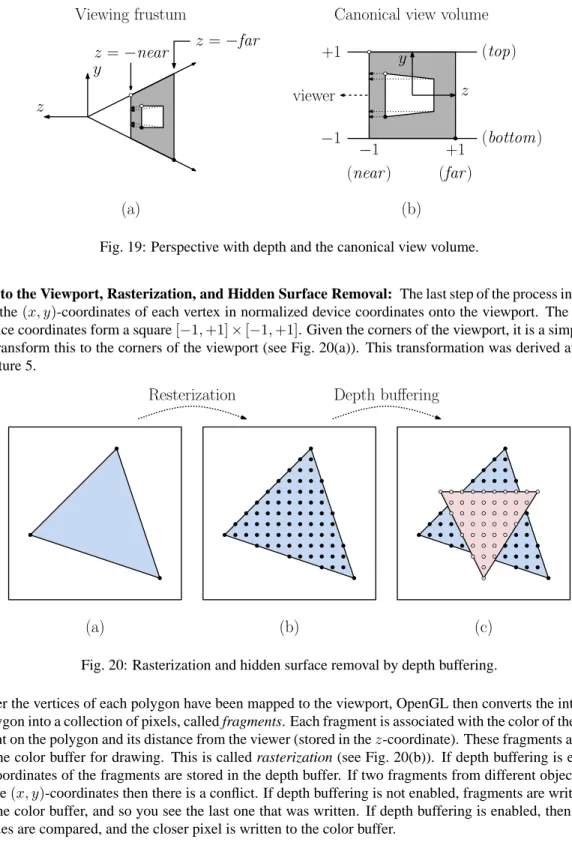
Rasterization: The job of the rasterizer is to convert the geometric shape given in terms of its screen coordinates into individual pixels, called fragments.
Fragment Processing: Each fragment is then run through various computations. First, it must be determined whether this fragment is visible, or whether it is hidden behind some other fragment. If it is visible, it will then be subjected to coloring. This may involve applying various coloring textures to the fragment and/or color blending from the vertices, in order to produce the effect of smooth shading.
Blending: Generally, there may be a number of fragments that affect the color of a given pixel. (This typically results from translucence or other special effects like motion blur.) The colors of these fragments are then blended together to produce the final pixel color. The final output of this stage is the frame-buffer image.
Lecture 3: Basic Elements of OpenGL and GLUT
Sources: See any standard reference on OpenGL or GLUT.Graphics Libraries: In this lecture we will discuss programming a 3-dimensional interactive graphics system. In particular, we will discuss OpenGL and GLUT. The essence of producing interactive graphics involves gener-ating a description of the scene being rendered, and repegener-ating this process at a rate of roughly 30 frames per second. We call each such redrawing a display cycle or a refresh cycle, since your program is refresh the current contents of the image.
In modern graphics systems, the image is generated by the graphics processing unit (GPU), and the job of your program is to describe the scene to be displayed to the GPU so it can be rendered. The commands sent to the GPU take the form of procedure calls made by your program to a graphics library. The procedures of the library are defined according to an application programmer’s interface (API). There are a few common graphics APIs. Generally, they come in two different types:
Retained Mode: The system maintains the state of the computation in its own internal data structures. With each refresh cycle, this data is transmitted to the GPU for rendering. A scene graph is typically employed as the method for storing this information. Examples of retained-mode systems include Java3d, Ogre3D, and Open Scenegraph. The principal advantage is that global optimizations can be performed, since all the scene information is known to the system. This approach is less well suited to time-varying data sets, since the internal representation of the data set needs to be updated frequently.
Immediate Mode: In this sort of system, your program provides all the information needed to draw each scene with each display cycle. In other words, your program transmits commands directly to the GPU for ex-ecution. Examples of immediate-mode systems include OpenGL and DirectX. Immediate-mode systems tend to be more efficient, since they provide closer control of the hardware. The principal disadvantage is that it not possible for the system to perform the sort of global optimizations (such as culling non-visible entities), which is possible with retained-mode approaches.
OpenGL: OpenGL is a widely used industry standard graphics API. It has been ported to virtually all major systems, and can be accessed from a number of different programming languages (C, C++, Java, Python, . . . ). Because it
works across many different platforms, it is very general. This is in contrast to the principal alternative, DirectX, which has been designed to work primarily on Microsoft systems.
For the most part, OpenGL operates in immediate mode, which means that each function call results in a com-mand being sent directly to the GPU. There are some retained elements, however. For example, transformations, lighting, and texturing need to be set up, so that they can be applied later in the computation.
Because of the design goal of being independent of the window system and operating system, OpenGL does not provide capabilities for windowing tasks or user input and output. For example, there are no commands in OpenGL to create a window, to resize a window, to determine the current mouse coordinates, or to detect whether a keyboard key has been hit. Everything is focused just on the process of generating an image. In order to achieve these other goals, it is necessary to use an additional toolkit. There are a number of different toolkits, which provide various capabilities. We will cover a very simple one in this class, called GLUT, which stands for the GL Utility Toolkit. GLUT has the virtue of being very simple, but it does not have a lot of features. To get these features, you will need to use a more sophisticated toolkit.
There are many, many tasks needed in a typical large graphics system. As a result, there are a number of software systems available that provide utility functions. For example, suppose that you want to draw a sphere. OpenGL does not have a command for drawing spheres, but it can draw triangles. What you would like is a utility function which, given the center and radius of a sphere, will produce a collection of triangles that approximate the sphere’s shape. OpenGL provides a simple collection of utilities, called the GL Utility Library or GLU for short.
Since we will be discussing a number of the library functions for OpenGL, GLU, and GLUT during the next few lectures, let me mention that it is possible to determine which library a function comes from by its prefix. Functions from the OpenGL library begin with “gl” (as in “glTriangle”), functions from GLU begin with “glu” (as in “gluLookAt”), and functions from GLUT begin with “glut” (as in “glutCreateWindow”).
The Main Program: Before discussing how to draw shapes, we will begin with the basic elements of how to create a window. OpenGL was intentionally designed to be independent of any specific window system. Consequently, a number of the basic window and system operations are not provided. This is the principal reason for GLUT. This toolkit which provides the necessary tools for requesting that windows be created and providing interaction with I/O devices.
Let us begin by considering a typical main program (see the following code fragment). Throughout, we will assume that programming is done in C/C++, but our examples can be readily adapted to other languages. (Do not worry for now if you do not understand the meanings of the various calls. We will discuss them in greater detail below.) This program creates a window that is 400 pixels wide and 300 pixels high, located in the upper left corner of the display.
Note that the call toglutMainLoopturns control over to the system. After this, the only return to your program will occur due to various events, called callbacks. (The final “return 0” is only there to keep the compiler from issuing a warning.) Here is an explanation of these functions.
glutInit: The arguments given to the main program (argcandargv) are the command-line arguments supplied to the program. This assumes a typical Unix environment, in which the program is invoked from a com-mand line. We pass these into the main initialization procedure, glutInit. This procedure must be called before any others. It processes (and removes) command-line arguments that may be of interest to GLUT (e.g., allowing the user to override the default window size) and the window system and does general initializations. Any remaining arguments are then left for the user’s program to interpret, if desired.
glutInitDisplayMode: This performs initializations informing OpenGL how to set up its frame buffer. Recall that the frame buffer is a special 2-dimensional array in the GPU’s memory where the graphical image is stored. OpenGL maintains an enhanced version of the frame buffer with additional information. For example, this includes depth information for hidden surface removal. The system needs to know how we are representing colors of our general needs in order to determine the depth (that is, the number of bits)
Typical OpenGL/GLUT Main Program
#include <GL/glut.h> // GLUT, GLU, and OpenGL defs
int main(int argc, char** argv) // program arguments {
glutInit(&argc, argv); // initialize glut and openGL // double buffering and RGBA glutInitDisplayMode(GLUT_DOUBLE | GLUT_RGBA);
glutInitWindowSize(400, 300); // initial window size glutInitWindowPosition(0, 0); // initial window position
glutCreateWindow(argv[0]); // create window
...initialize callbacks here (described below)...
myInit(); // your own initializations
glutMainLoop(); // turn control over to glut
return 0; // we never return here; this just keeps the compiler happy }
to assign for each pixel in the frame buffer. The argument toglutInitDisplayModeis a logical-or (using the operator “|”) of a number of possible options, which are given in Table 1.
Display Mode Meaning
GLUT RGB Use RGB colors
GLUT RGBA Use RGB plusα(recommended)
GLUT INDEX Use colormapped colors (not recommended)
GLUT DOUBLE Use double buffering (recommended)
GLUT SINGLE Use single buffering (not recommended)
GLUT DEPTH Use depth buffer (needed for hidden surface removal)
Table 1: Arguments toglutInitDisplayMode. (Constants defined in glut.h) .
Let us discuss each of these elements in greater detail.
Color: We need to tell the system how colors will be represented. There are three methods, of which two are fairly commonly used: GLUT RGBorGLUT RGBA. The first uses standard RGB colors (24-bit color, consisting of 8 bits of red, green, and blue), and is the default. The second requests RGBA coloring. In this color system there is a fourth component (designated “A” orα), which indicates the opaqueness of the color (1 = fully opaque, 0 = fully transparent). This is useful in creating transparent effects. We will discuss how this is applied later this semester. (It turns out that there is no advantage in trying to save space usingGLUT RGBoverGLUT RGBA, since according to the GLUT documentation, both are treated the same.)
Single or Double Buffering: The next option specifies whether single or double buffering is to be used,
GLUT SINGLEorGLUT DOUBLE, respectively. To explain the difference, we need to understand a bit more about how the frame buffer works. In raster graphics systems, whatever is written to the frame buffer is immediately transferred to the display. This process is repeated frequently, say 30–60 times a second. To do this, the typical approach is to first erase the old contents by setting all the pixels to some background color, say black. After this, the new contents are drawn. However, even though it might happen very fast, the process of setting the image to black and then redrawing everything produces a noticeable flicker in the image.
Double buffering is a method to eliminate this flicker. In double buffering, the system maintains two separate frame buffers. The front buffer is the one which is displayed, and the back buffer is the other
one. Drawing is always done to the back buffer. Then to update the image, the system simply swaps the two buffers (see Fig. 3). The swapping process is very fast, and appears to happen instantaneously (with no flicker). Double buffering requires twice the buffer space as single buffering, but since memory is relatively cheap these days, it is the preferred method for interactive graphics.
Front
Redrawing
Monitor
Front
Redrawing
Monitor
Swap buffers
Fig. 3: Double buffering.
Depth Buffer: One other option that we will need later with 3-dimensional graphics will be hidden sur-face removal. Virtually all raster-based interactive graphics systems perform hidden sursur-face removal by an approach called the depth-buffer orz-buffer. In such a system, each fragment stores its distance from the eye. When fragments are rendered as pixels only the closest is actually drawn. The depth buffer is enabled with the optionGLUT DEPTH. For this program it is not needed, and so has been omitted. When there is no depth buffer, the last pixel to be drawn is the one that you see.
glutInitWindowSize: This command specifies the desired width and height of the graphics window. The general form isglutInitWindowSize(int width, int height). The values are given in numbers of pixels.
glutInitPosition: This command specifies the location of the upper left corner of the graphics window. The form isglutInitWindowPosition(int x, int y)where the(x, y)coordinates are given relative to the upper left corner of the display. Thus, the arguments(0,0)places the window in the upper left corner of the display. Note thatglutInitWindowSizeandglutInitWindowPositionare both considered to be only suggestions to the system as to how to where to place the graphics window. Depending on the window system’s policies, and the size of the display, it may not honor these requests.
glutCreateWindow: This command actually creates the graphics window. The general form of the command is
glutCreateWindow(char* title), wheretitleis a character string. Each window has a title, and the argument is a string which specifies the window’s title. We pass inargv[0]. In Unixargv[0]is the name of the program (the executable file name) so our graphics window’s name is the same as the name of our program. Asynchonous Creation: Note that the call glutCreateWindow does not really create the window, but rather
merely sends a request to the system that the window be created. Why do you care? In some OpenGL implementations, certain operations cannot be performed unless the window (and the associated graphics context) exists. Such operations should be performed only after your program has received notification that the window really exists. Your program is informed of this event through an event callback, either reshape or display. We will discuss them below.
The general structure of an OpenGL program using GLUT is shown in Fig. 4. (Don’t worry if some elements are unfamiliar. We will discuss them below.)
Event-driven Programming and Callbacks: Virtually all interactive graphics programs are event driven. Unlike traditional programs that read from a standard input file, a graphics program must be prepared at any time for
glutInit
glutInitDisplayMode
glutInitWindowSize/Position
glutCreateWindow
glutReshapeFunc:
if (first call)
{
OpenGL initializations
}
(re)set viewport/projection
glutPostRedisplay
glutDisplayFunc:
clear buffers
redraw scene
glutSwapBuffers
other event callbacks:
update internal state
glutPostRedisplay
initialize callbacks
initialize callbacks
your internal initializations
glutMainLoop
Fig. 4: General structure of an OpenGL program using GLUT.
input from any number of sources, including the mouse, or keyboard, or other graphics devises such as trackballs and joysticks.
In OpenGL this is done through the use of callbacks. The graphics program instructs the system to invoke a particular procedure whenever an event of interest occurs, say, the mouse button is clicked. The graphics program indicates its interest, or registers, for various events. This involves telling the window system which event type you are interested in, and passing it the name of a procedure you have written to handle the event. Note: If you program in C++, note that the Glut callback functions you define must be “standard” procedures; they cannot be class member functions.
Types of Callbacks: Callbacks are used for two purposes, user input events and system events. User input events include things such as mouse clicks, the motion of the mouse (without clicking) also called passive motion, keyboard hits. Note that your program is only signaled about events that happen to your window. For example, entering text into another window’s dialogue box will not generate a keyboard event for your program. Here are some common examples. A summary is given in Table 2. There are a number of others as well (special keys, status of shift/control/alt, detecting key releases.)
System Event Callback request User callback function prototype (returnvoid) (Re)display glutDisplayFunc myDisplay()
(Re)size window glutReshapeFunc myReshape(int w, int h)
Timer event glutTimerFunc myTimer(int id)
Idle event glutIdleFunc myIdle()
Input Event Callback request User callback function prototype (returnvoid) Mouse button glutMouseFunc myMouse(int b, int s, int x, int y)
Mouse motion glutPassiveMotionFunc myMotion(int x, int y)
Keyboard key glutKeyboardFunc myKeyboard(unsigned char c, int x, int y)
Table 2: Common callbacks and the associated registration functions.
Display Event: At a minimum, every OpenGL program must handle this event. It is invoked when the system senses that the contents of the graphics window need to be redrawn, for example:
• the window is created initially or it has been resized,
• the window system has determined that the graphics window has been “damaged” (which might occur, for example, if an obscuring window has been moved away, thus revealing all or part of the graphics window),
• the program explicitly requests redrawing, for example, because the internal state has changed in a way that affects the scene, by callingglutPostRedisplay.
Recall from above that the commandglutCreateWindowdoes not actually create the window, but merely requests that creation be started. In order to inform your program that the creation has completed, the system generates a display event. This is how you know that you can now start drawing into the graphics window.
Reshape Event: This happens whenever the window’s size is altered, including its initial creation. The callback provides information on the new size of the window. Recall that your initial call toglutInitWindowSizeis only taken as a suggestion of the actual window size. When the system determines the actual size of your window, it generates such a callback to inform you of the actual size.
Idle/Timer Events: Often in an interactive graphics program, the user may not be providing any input at all, but it may still be necessary to update the image. For example, in a flight simulator the plane keeps moving forward, even without user input. To do this, the program goes to sleep and requests that it be awakened in order to draw the next image. There are two ways to do this, a timer event and an idle event. An idle event is generated every time the system has nothing better to do. This is often fine, since it means that your program wastes no cycles.
Often, you want to have more precise control of timing (e.g., when trying to manage parallel threads such as artificial intelligence and physics modeling). If so, an alternate approach is to request a timer event. In a timer event you request that your program go to sleep for some period of time and that it be “awakened” by an event some time later, say 1/50 of a second later. InglutTimerFuncthe first argument gives the sleep time as an integer in milliseconds and the last argument is an integer identifier, which is passed into the callback function.
Input Events: These events include keyboard key presses and mouse key presses and mouse motion. When any such event occurs, the system will inform you which key has been pressed (or released), and where the cursor is at the instant of the event. Here are the principal input events your program can listen for. For example, the function calls shown in the code fragment below shows how to register for the following events: display events, reshape events, mouse clicks, keyboard strikes, and timer events. The functions likemyDrawand
myReshapeare supplied by the user, and will be described later.
Typical Callback Setup int main(int argc, char** argv)
{ ...
glutDisplayFunc(myDraw); // set up the callbacks
glutReshapeFunc(myReshape); glutMouseFunc(myMouse); glutKeyboardFunc(myKeyboard);
glutTimerFunc(20, myTimeOut, 0); // timer in 20/1000 seconds ...
}
Most of these callback registrations simply pass the name of the desired user function to be called for the corresponding event. The one exception isglutTimeFuncwhose arguments are the number of milliseconds to wait (an unsigned int), the user’s callback function, and an integer identifier. The identifier is useful if there are multiple timer callbacks requested (for different times in the future), so the user can determine which one caused this particular event.
Callback Functions: What does a typical callback function do? This depends entirely on the application that you are designing. Some examples of general form of callback functions is shown below.
Examples of Callback Functions for System Events
void myDraw() { // called to display window
// ...insert your drawing code here ...
glutSwapBuffers(); // make the new stuff visible
}
void myReshape(int w, int h) { // called if reshaped
windowWidth = w; // save new window size
windowHeight = h;
// ...may need to update the projection ...
glutPostRedisplay(); // request window redisplay
}
void myTimeOut(int id) { // called if timer event
// ...advance the state of animation incrementally...
glutTimerFunc(20, myTimeOut, 0); // schedule next timer event }
Note that the timer callback and the reshape callback both invoke the functionglutPostRedisplay. This proce-dure informs OpenGL that the state of the scene has changed and should be redrawn (by calling your drawing procedure). This might be requested in other callbacks as well.
Examples of Callback Functions for User Input Events // called if mouse click
void myMouse(int b, int s, int x, int y) {
switch (b) { // b indicates the button
case GLUT_LEFT_BUTTON:
if (s == GLUT_DOWN) // button pressed // ...
else if (s == GLUT_UP) // button released // ...
break;
// ... // other button events
} }
// called if keyboard key hit void myKeyboard(unsigned char c, int x, int y) {
switch (c) { // c is the key that is hit
case ’q’: // ’q’ means quit
exit(0); break;
// ... // other keyboard events
} }
Note that each callback function is provided with information associated with the event. For example, a reshape event callback passes in the new window width and height. A mouse click callback passes in four arguments, which button was hit (b: left, middle, right), what the buttons new state is (s: up or down), the(x, y)coordinates of the mouse when it was clicked (in pixels). The various parameters used forbandsare described in Table 3. A keyboard event callback passes in the character that was hit and the current coordinates of the mouse. The timer event callback passes in the integer identifier, of the timer event which caused the callback. Note that each call toglutTimerFunccreates only one request for a timer event. (That is, you do not get automatic repetition of
timer events.) If you want to generate events on a regular basis, then insert a call toglutTimerFuncfrom within the callback function to generate the next one.
GLUT Parameter Name Meaning
GLUT LEFT BUTTON left mouse button
GLUT MIDDLE BUTTON middle mouse button
GLUT RIGHT BUTTON right mouse button
GLUT DOWN mouse button pressed down
GLUT UP mouse button released
Table 3: GLUT parameter names associated with mouse events. (Constants defined in glut.h)
Lecture 4: More about OpenGL and GLUT
Sources: See any standard reference on OpenGL or GLUT.Basic Drawing: In the previous lecture, we showed how to create a window in GLUT, how to get user input, but we have not discussed how to get graphics to appear in the window. Here, we begin discussion of how to use OpenGL to draw objects.
Before being able to draw a scene, OpenGL needs to know the following information: what are the objects to be drawn, how is the image to be projected onto the window, and how lighting and shading are to be performed. To begin with, we will consider a very the simple case. There are only 2-dimensional objects, no lighting or shading. Also we will consider only relatively little user interaction.
Idealized Drawing Window: Because we generally do not have complete control over the window size, it is a good idea to think in terms of drawing on a rectangular idealized drawing region, whose size and shape are completely under our control. Then we will scale this region to fit within the actual graphics window on the display. There are many reasons for doing this. For example, if you design your program to work specifically for400×400 window, but then the user resizes the window, what do you do? It is a much better idea to assume a window of arbitrary size. For example, you could define two variableswandh, that indicate the width and height of the window, respectively. The values wandhcould be measured in whatever units are most natural to your application: pixels, inches, light years, microns, furlongs or fathoms.
OpenGL allows for the grahics window to be broken up into smaller rectangular subwindows, called viewports. We will then have OpenGL scale the image drawn in the idealized drawing region to fit within the viewport. The main advantage of this approach is that it is very easy to deal with changes in the window size.
We will consider a simple drawing routine for the picture shown in the figure. We assume that our idealized drawing region is a unit square over the real interval [0,1]×[0,1]. (Throughout the course we will use the notation[a, b]to denote the interval of real valueszsuch thata≤z≤b. Hence,[0,1]×[0,1]is a unit square whose lower left corner is the origin.) This is illustrated in Fig. 5.
GLUT uses the convention that the origin is in the upper left corner and coordinates are given as integers. This makes sense for GLUT, because its principal job is to communicate with the window system, and most window systems use this convention. On the other hand, OpenGL uses the convention that coordinates are (generally) floating point values and the origin is in the lower left corner. Recalling the OpenGL goal is to provide us with an idealized drawing surface, this convention is mathematically more elegant.
The Display Callback: Recall that the display callback function is the function that is called whenever it is necessary to redraw the image, which arises for example:
0
0.5
1
0
0.5
1
blue
red
Fig. 5: Drawing produced by the simple display function.
• (possibly) whenever the window is uncovered by the removal of some overlapping window,
• whenever your program explicitly requests that it be redrawn, through the use of the function glutPostRe-display
The display callback function for our program is shown in the following code block. We first erase the contents of the image window, then do our drawing, and finally swap buffers so that what we have drawn becomes visible. (Recall double buffering from the previous lecture.) This function first draws a red diamond and then (on top of this) it draws a blue rectangle. Let us assume double buffering is being performed, and so the last thing to do is invokeglutSwapBuffers()to make everything visible.
Sample Display Function
void myDisplay() { // display function
glClear(GL_COLOR_BUFFER_BIT); // clear the window
glColor3f(1.0, 0.0, 0.0); // set color to red
glBegin(GL_POLYGON); // draw a diamond
glVertex2f(0.90, 0.50); glVertex2f(0.50, 0.90); glVertex2f(0.10, 0.50); glVertex2f(0.50, 0.10); glEnd();
glColor3f(0.0, 0.0, 1.0); // set color to blue
glRectf(0.25, 0.25, 0.75, 0.75); // draw a rectangle
glutSwapBuffers(); // make it all visible
}
Clearing the Window: The commandglClear()clears the window, by overwriting it with the background color. The background color is black by default, but generally it may be set by the call:
glClearColor(GLfloat Red, GLfloat Green, GLfloat Blue, GLfloat Alpha).
The type GLfloatis OpenGL’s redefinition of the standardfloat. To be correct, you should use the approved OpenGL types (e.g. GLfloat, GLdouble, GLint) rather than the obvious counterparts (float, double, and int). Typically the GL types are the same as the corresponding native types, but not always.
Colors components are given as floats in the range from 0 to 1, from dark to light. Recall that the A(orα) value is used to control transparency. For opaque colorsAis set to 1. Thus to set the background color to black, we would useglClearColor(0.0, 0.0, 0.0, 1.0), and to set it to blue useglClearColor(0.0, 0.0, 1.0, 1.0). (Tip:
When debugging your program, it is often a good idea to use an uncommon background color, like a random shade of pink, since black can arise as the result of many different bugs.) Since the background color is usually independent of drawing, the function glClearColor()is typically set in one of your initialization procedures, rather than in the drawing callback function.
Clearing the window involves resetting information within the drawing buffer. As we mentioned before, the drawing buffer may store different types of information. This includes color information, of course, but depth or distance information is used for hidden surface removal. Typically when the window is cleared, we want to clear everything. (Occasionally it is useful to achieve certain special effects by clearing only some of the buffers.) TheglClear()command allows the user to select which buffers are to be cleared. In this case we only have color in the depth buffer, which is selected by the optionGL COLOR BUFFER BIT. If we had a depth buffer to be cleared it as well we could do this by combining these using a “bitwise or” operation:
glClear(GL COLOR BUFFER BIT|GL DEPTH BUFFER BIT)
Drawing Attributes: The OpenGL drawing commands describe the geometry of the object that you want to draw. More specifically, all OpenGL is based on drawing convex polygons, so it suffices to specify the vertices of the object to be drawn. The manner in which the object is displayed is determined by various drawing attributes (color, point size, line width, etc.).
The command glColor3f()sets the drawing color. The arguments are threeGLfloat’s, giving the R, G, and B components of the color. In this case, RGB = (1,0,0)means pure red. Once set, the attribute applies to all subsequently defined objects, until it is set to some other value. Thus, we could set the color, draw three polygons with the color, then change it, and draw five polygons with the new color.
This call illustrates a common feature of many OpenGL commands, namely flexibility in argument types. The suffix “3f” means that three floating point arguments (actuallyGLfloat’s) will be given. For example,glColor3d()
takes three double(orGLdouble) arguments, glColor3ui()takes three unsigned intarguments, and so on. For floats and doubles, the arguments range from 0 (no intensity) to 1 (full intensity). For integer types (byte, short, int, long) the input is assumed to be in the range from 0 (no intensity) to its maximum possible positive value (full intensity).
But that is not all! The three argument versions assume RGB color. If we were using RGBA color instead, we would useglColor4d()variant instead. Here “4” signifies four arguments. (Recall that the A or alpha value is used for various effects, such an transparency. For standard (opaque) color we setA= 1.0.)
In some cases it is more convenient to store your colors in an array with three elements. The suffix “v” means that the argument is a vector. For exampleglColor3dv()expects a single argument, a vector containing three
GLdouble’s. (Note that this is a standard C/C++ style array, not the classvectorfrom the C++ Standard Template Library.) Using C’s convention that a vector is represented as a pointer to its first element, the corresponding argument type would be “const GLdouble∗”.
Whenever you look up the prototypes for OpenGL commands, you often see a long list with various suffixes to indicate the argument types. Some examples forglColorare shown in the following code block.
Drawing commands: OpenGL supports drawing of a number of different types of objects. The simplest isglRectf(), which draws a filled rectangle. All the others are complex objects consisting of a (generally) unpredictable number of elements. This is handled in OpenGL by the constructsglBegin(mode)andglEnd(). Between these two commands a list of vertices is given, which defines the object. The sort of object to be defined is determined by the mode argument of theglBegin()command. Some of the possible modes are illustrated in Fig. 6. For details on the semantics of the drawing methods, see the reference manuals.
Note that in the case ofGL POLYGONonly convex polygons (internal angles less than 180 degrees) are sup-ported. You must subdivide nonconvex polygons into convex pieces, and draw each convex piece separately.
glBegin(mode);
glVertex(v0); glVertex(v1); ... glEnd();
Changing arguments types in OpenGL void glColor3d(GLdouble red, GLdouble green, GLdouble blue)
void glColor3f(GLfloat red, GLfloat green, GLfloat blue) void glColor3i(GLint red, GLint green, GLint blue)
... (and forms for byte, short, unsigned byte and unsigned short) ... void glColor4d(GLdouble red, GLdouble green, GLdouble blue, GLdouble alpha) ... (and 4-argument forms for all the other types) ...
void glColor3dv(const GLdouble *v)
... (and other 3- and 4-argument forms for all the other types) ...
GL POINTS GL LINES GL LINE STRIP GL LINE LOOP GL POLYGON v5 v3 v2 v1 v0 v4 v5 v3 v2 v1 v0 v4 v5 v3 v2 v1 v0 v4 v5 v3 v2 v1 v0 v4 v5 v3 v2 v1 v0 v4
GL TRIANGLES GL TRIANGLE STRIP GL TRIANGLE FAN GL QUADS GL QUAD STRIP v5 v3 v2 v1 v0 v4 v4 v3 v1 v0 v2 v5 v6 v6 v3 v2 v1 v0 v4 v5 v7 v3 v2 v1 v0 v5 v6 v4 v4 v3 v1 v0 v2 v6 v5 v7 GL QUADS GL TRIANGLE STRIP GL TRIANGLE FAN
Fig. 6: Some OpenGL object definition modes. (It is a good idea to draw primitives using a consistent direction, say counterclockwise.)
In the example above we only defined the x- and y-coordinates of the vertices. How does OpenGL know whether our object is 2-dimensional or 3-dimensional? The answer is that it does not know. OpenGL represents all vertices as 3-dimensional coordinates internally. This may seem wasteful, but remember that OpenGL is designed primarily for 3-d graphics. If you do not specify thez-coordinate, then it simply sets thez-coordinate to0.0. By the way,glRectf()always draws its rectangle on thez= 0plane.
Between anyglBegin()...glEnd()pair, there is a restricted set of OpenGL commands that may be given. This includesglVertex()and also other command attribute commands, such asglColor3f(). At first it may seem a bit strange that you can assign different colors to the different vertices of an object, but this is a very useful feature. Depending on the shading model, it allows you to produce shapes whose color blends smoothly from one end to the other.
There are a number of drawing attributes other than color, but until we start discussing lighting and 3-dimensional drawing, color is by far the most common attribute. (See the OpenGL documentation for other examples.) After drawing the diamond, we change the color to blue, and then invokeglRectf()to draw a rectangle. This procedure takes four arguments, the(x, y)coordinates of any two opposite corners of the rectangle, in this case (0.25,0.25)and(0.75,0.75). (There are also versions of this command that takes double or int arguments, and vector arguments as well.) We could have drawn the rectangle by drawing a GL POLYGON, but this form is easier to use.
Viewports: OpenGL does not assume that you are mapping your graphics to the entire window. Often it is desirable to subdivide the graphics window into a set of smaller subwindows and then draw separate pictures in each window. The subwindow into which the current graphics are being drawn is called a viewport. The viewport is
typically the entire display window, but it may generally be any rectangular subregion.
The size of the viewport depends on the dimensions of our window. Thus, every time the window is resized (and this includes when the window is created originally) we need to readjust the viewport to ensure proper transformation of the graphics. For example, in the typical case, where the graphics are drawn to the entire window, the reshape callback would contain the following call which resizes the viewport, whenever the window is resized.
Setting the Viewport in the Reshape Callback void myReshape(int winWidth, int winHeight) // reshape window
{ ...
glViewport (0, 0, winWidth, winHeight); // reset the viewport ...
}
The other thing that might typically go in themyReshape()function would be a call toglutPostRedisplay(), since you will need to redraw your image after the window changes size.
The general form of the command is
glViewport(GLint x, GLint y, GLsizei width, GLsizei height),
where(x, y)are the pixel coordinates of the lower-left corner of the viewport, as defined relative to the lower-left corner of the window, and width and height are the width and height of the viewport in pixels.
For example, suppose you had aw×hwindow, which you wanted to split in half by a vertical line to produce two different drawings. This is presented in the following code block.
Setting up viewports for a split screen glClear(GL_COLOR_BUFFER_BIT); // clear the window
glViewport (0, 0, w/2, h); // set viewport to left half // ...drawing commands for the left half of window
glViewport (w/2, 0, w/2, h); // set viewport to right half // ...drawing commands for the right half of window
glutSwapBuffers(); // swap buffers
Projection Transformation: In the simple drawing procedure, we said that we were assuming that the “idealized” drawing area was a unit square over the interval[0,1]with the origin in the lower left corner. The transformation that maps the idealized drawing region (in 2- or 3-dimensions) to the window is called the projection. We did this for convenience, since otherwise we would need to explicitly scale all of our coordinates whenever the user changes the size of the graphics window.
However, we need to inform OpenGL of where our “idealized” drawing area is so that OpenGL can map it to our viewport. This mapping is performed by a transformation matrix called the projection matrix, which OpenGL maintains internally. (In future lectures, we will discuss OpenGL’s transformation mechanism in greater detail. In the mean time some of this may seem a bit arcane.)
Since matrices are often cumbersome to work with, OpenGL provides a number of relatively simple and natural ways of defining this matrix. For our 2-dimensional example, we will do this by simply informing OpenGL of the rectangular region of two dimensional space that makes up our idealized drawing region. This is handled by the command
First note that the prefix is “glu” and not “gl”, because this procedure is provided by the GLU library. Also, note that the “2D” designator in this case stands for “2-dimensional.” (In particular, it does not indicate the argument types, as with, say,glColor3f()).
All arguments are of type GLdouble. The arguments specify the x-coordinates (left and right) and the y -coordinates (bottom and top) of the rectangle into which we will be drawing. Any drawing that we do outside of this region will automatically be clipped away by OpenGL. The code to set the projection is given below.
Setting a Two-Dimensional Projection glMatrixMode(GL_PROJECTION); // set projection matrix mode
glLoadIdentity(); // initialize to identity
gluOrtho2D(0.0, 1.0, 0.0, 1.0); // map unit square to viewport glMatrixMode(GL_MODELVIEW); // set matrix mode back to default
The first command tells OpenGL that we are modifying the projection transformation. (OpenGL maintains three different types of transformations, as we will see later.) Most of the commands that manipulate these matrices do so by multiplying some matrix times the current matrix. Thus, we initialize the current matrix to the identity, which is done byglLoadIdentity(). This code usually appears in some initialization procedure or possibly in the reshape callback.
Where does this code fragment go? It depends on whether the projection will change or not. If we make the simple assumption that are drawing will always be done relative to the[0,1]2unit square, then this code can go in some initialization procedure. If our program decides to change the drawing area (for example, growing the drawing area when the window is increased in size) then we would need to repeat the call whenever the projection changes.
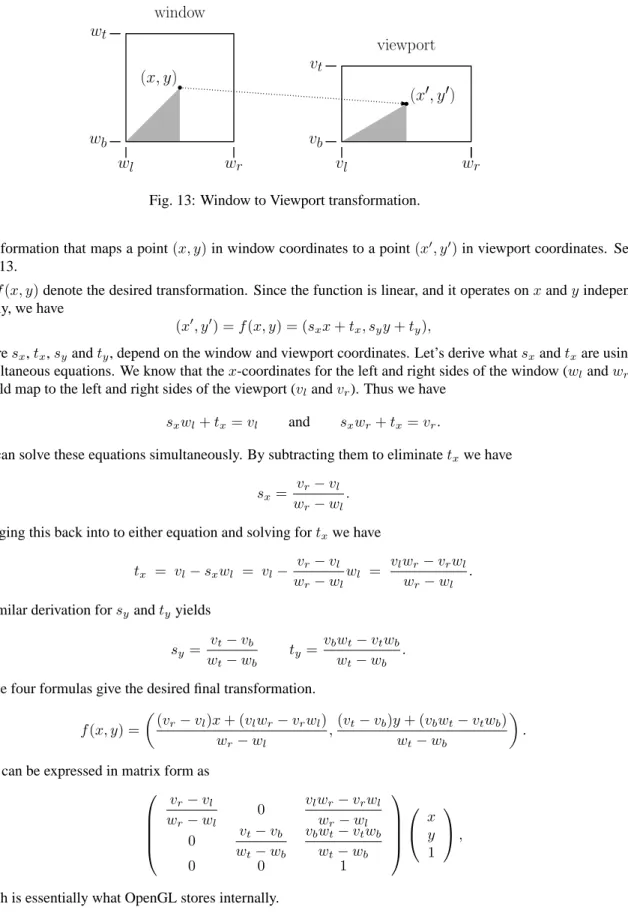
At first viewports and projections may seem confusing. Remember that the viewport is a rectangle within the actual graphics window on your display, where you graphics will appear. The projection defined bygluOrtho2D()
simply defines a rectangle in some “ideal” coordinate system, which you will use to specify the coordinates of your objects. It is the job of OpenGL to map everything that is drawn in your ideal window to the actual viewport on your screen. This is illustrated in Fig. 7.
l r b t drawing region w h viewport
drawing gluOrtho2d(l, r, b, t) glViewport(x, y, w, h)
x y
Fig. 7: Projection and viewport transformations. The complete program is shown in the code block below.
Lecture 5: Drawing in OpenGL: Transformations
Sources: See any standard reference on OpenGL or GLUT.Complex Drawing in OpenGL: So far we have discussed how to draw simple 2-dimensional objects using OpenGL. Suppose that we want to draw more complex scenes. For example, we w