AT&T
999-507-144
MERLIN
®
PIus
COMMUNICATIONS SYSTEM
Welcome...
...to the magic of MERLIN. Your MERLIN®
Plus Communications System is ready when you are. Once it's installed, you can begin using it immediately. You can use the MERLIN Plus system voice terminals the same way you use ordinary telephones.
But sooner or later you'll want to take advantage of the system's advanced technology and customize it to meet your business needs. This manual shows you how to choose from the MERLIN Plus system's many options and features to design a system that fits the way you do business. In no time you'll have at hand the most efficient and economical telecommunications system available for your business anywhere today...
...and it's amazingly easy to use!
The people in your business can start using their phones right away. Give each person one of the user's cards at the back of this book for quick reference. Then have them look through the training guide included in this package when they have a few free minutes during the day.
If you'll have an attendant handling most of your incoming calls, give that person Section 4, "Using the Attendant Console," to read.
Now...
CALL:
TO ORDER COPIES OF THIS MANUAL
Cincinnati Contract Service Organization
Document Distribution Center on 800-252-4076.
F A X : 513-352-7031
ATTMAIL: Free form to !docdist
Please include your name and telephone number with your order information
Contents
Section 1: Introduction
What's in This Manual 1-1 How to Use This Manual 1-3
The MERLIN Plus Communications System 1-5
Section 2: Planning the System Introduction 2-1
System Configuration Form 2-3 Line Assignments Form 2-7
Call Restrictions and Allowed Lists Directory 2-13 System Speed Dial Directory 2-17
FORMS:
System Configuration Form 2-21 Line Assignments Form 2-23
Call Restrictions and Allowed Lists Directory 2-25 System Speed Dial Directory 2-27
Section 3: Administering the System Introduction 3-1
Administration Preview 3-3 Basic Administration 3-11
Customized Line Assignments 3-13 Systemwide Options 3-17
Section 4: Using The Attendant Console Overview 4-1
Handling Calls 4-5
Section 5: Reference Overview 5-1
MERLIN Plus System Features 5-3 Accessory Equipment 5-85
Section 6: Quick Reference Guides
Quick Reference Guide to System Administration 6-1 Quick Reference Guide to Administration Codes 6-7 Quick Reference Guide to Voice Terminal Features 6-9 Quick Reference Guide to Programming Codes 6-12
Section 7: Troubleshooting the System Troubleshooting Procedures 7-1 General Test 7-11
Section 8: Installation
MERLIN Plus System Installation 8-1
What's in This Manual
You'll find the information in this MERLIN®
Plus Communications System manual convenient y divided into eight sections, as described below. You'll also find ten copies of the MERLIN Plus System User's Card in the back of this binder. In addition to the manual, this package also includes a MERLIN Plus
System Training Manual.
SECTION 1. INTRODUCTION
This section tells you what's in the manual and how to use it. It also offers a brief introduction to the system's control unit and the voice terminals
(telephones).
SECTION 2. PLANNING THE SYSTEM
Use the information in this section to make some key decisions about how you want the system operate. This section includes planning forms to record your decisions. If someone else will be system administrator, have that person fill out the planning forms.
SECTION 3.
ADMINISTERING THE SYSTEM
This section tells you how to use the information on the planning forms to customize the system to your business needs. If someone else will be system administrator, have that person administer the system following the steps in this section.
SECTION 4.
USING THE ATTENDANT CONSOLE
If our system will have an attendant to manage incoming call traffic, that person can find some helpful information in this section on using the aministrator/attendant telephone.
SECTION 5. REFERENCE
This section contains a detailed discussion of every component, option, and feature in the MERLIN Plus system. The entries are organized alphabetically to help you find the information you need quickly. As you become familiar with the system, you'll probably go to this section first when you want to change a system setting or a voice terminal feature, or when you simply want to find out more about some aspect of the system.
SECTION 6.
QUICK REFERENCE GUIDES
The guides in this section offer quick access to administration and
programming procedures. Use them when you want to find a particular procedure fast.
SECTION 7.
TROUBLESHOOTING THE SYSTEM
The tables in this section can help you isolate and solve most of the technical problems that may cause your system to malfunction.
SECTION 8. INSTALLATION
USER'S CARD This card is a handy reference for anyone who uses a MERLIN Plus system voice terminal (telephone) on the job. Give one to everyone in your business who uses a voice terminal.
MERLIN PLUS SYSTEM This guide offers self-paced instructions on using the MERLIN Plus system TRAINING MANUAL features. Make the guide available to everyone in your business who uses a
voice terminal, and encourage them to use it.
How to Use This Manual
ADMINISTERING A NEW SYSTEM?
MAKING CHANGES TO A RUNNING SYSTEM?
MANAGING INCOMING CALL TRAFFIC AS SYSTEM ATTENDANT?
USING A VOICE TERMINAL FOR THE FIRST TIME?
HAVING TROUBLE WITH THE SYSTEM?
How you should use this manual at any particular time depends on what you want to do, as the following information suggests.
Use the information in Section 2, "Planning the System," to decide which options and features you want for your system. Then follow the instructions in Section 3, "Administering the System, " and in Section 5, "Reference," to set up the system with the options and features you've selected.
Change the planning forms to reflect the changes you want to make. Then see the relevant entries in Section 5, "Reference," and Section 6, "Quick Reference Guides," to make the changes.
See Section 4, "Using the Attendant Console," for information on how to use the attendant's telephone to handle incoming calls.
See the relevant entries in Section 5, "Reference," and the Quick Reference Guide to Voice Terminal Features in Section 6-and keep the MERLIN Plus
System User's Card handy. Then, when you have time, follow the self-paced
instructions in the MERLIN Plus System Training Manual.
The MERLIN Plus Communications System
THE CONTROL UNIT
THE VOICE TERMINALS
5-Button
The basic MERLIN Plus system supports up to four outside telephone lines and eight voice terminals (MERLIN system telephones). To accommodate your growing communications needs, the system expands easily and economically to support up to eight outside lines and 20 voice terminals. And if your business eventually outgrows even the fully expanded MERLIN Plus system, you can protect your investment in voice terminals, accessory equipment, and training time by moving up to a larger MERLIN system.
The paragraphs that follow offer a brief introduction to the system's control unit and voice terminals. The optional equipment you can add to your system is described under the heading "Accessory Equipment" in Section 5,
"Reference."
The control unit is the system's brain. It manages all incoming, outgoing, and
intercom call traffic. It makes all of the system's decisions and controls all of the system's responses. For an illustration of the control until with its major
components labeled, see "Administration Preview" in Section 3, "Administering the System."
A voice terminal is a MERLIN system telephone that provides basic telephone functions and allows you to take advantage of the special MERLIN system features. Your MERLIN Plus system works best with the following voice terminals:
●
●
●
●
●
5-Button Voice Terminal
10-Button Voice Terminal
10-Button Hands-Free Answer on Intercom (HFAI) Voice Terminal
34-Button Deluxe Voice Terminal
34-Button Built-In Speakerphone (BIS) Voice Terminal.
All of these voice terminals have buttons for fixed features such as
Conference, Drop, Transfer, and Hold. They differ from one another in the number of buttons above and to the right of the dial pad that can be used for outside lines and programmable features. Some also have additional built-in speakerphones. The illustrations that follow should help acquaint you with these voice terminals.
The 5-button voice terminal has an Intercom button and four additional buttons above the dial pad that you can use for outside lines and/or programmable features.
10-Button
10-Button HFAI
34-Button Deluxe
34-Button BIS
The 10-button voice terminal has an Intercom button and nine additional buttons above the dial pad that you can use for outside lines and
programmable features.
The 10-button HFAI voice terminal has a built-in speaker that allows you to answer and talk on intercom calls without liking the handset. It also has an Intercom button and nine additional buttons above the dial pad for outside lines and programmable features.
The 34-button deluxe voice terminal has two rows of five buttons located above the dial pad and two rows of 12 buttons to the right of the dial pad. You can use the buttons above the dial pad for lines and programmable features. You can use the 24 buttons to the right of the dial pad for programmable features. The system attendant usually has this model voice terminal.
The 34-button BIS voice terminal has a built-in speakerphone that allows you to answer and talk on both outside and intercom calls without using the handset. Above the dial pad are an Intercom button and nine additional buttons for outside lines and programmable features. The 24 buttons to the right of the dial pad can be used for programmable features.
Programming a feature onto a voice terminal is easy. Just follow the simple programming instructions in the entry for the feature in Section 5,
Introduction
You can begin making and receiving calls as soon as your MERLIN®
Plus Communications System is installed. But to take full advantage of the system's power, you should customize it to fit your business needs. Customizing the system is called administering the system throughout this manual.
Administering the system involves entering information into the system's memory about how you want the system to operate. You enter this
information by pressing buttons and dialing numbers on the telephone referred to in this manual as the administrator/attendant console.
This section of the manual helps you decide what information you want to enter into the system's memory and shows you how to record that information on forms. A checklist of the forms appears below. You can find copies at the end of this section. Remove them now, make a photocopy of each, and put the originals back in this binder. Keep the copies at hand so you can fill them out as you plan your system.
❑
❑
❑
❑
System Configuration Form
Line Assignments Form
Call Restrictions and Allowed Lists Directory
System Speed Dial Directory
System Configuration Form
DIAL SIGNALS
LONG DISTANCE DIALING
VOICE TERMINALS
Use the System Configuration Form to record information about the following:
● Dial Signals
● Long Distance Dialing
● Voice Terminals
● Outside Telephone Lines
The following information should help you make the appropriate entries for your system on the System Configuration Form.
Touch-Tone telephone lines can carry both Touch-Tone and rotary (pulse) dial signals. But rotary-only telephone lines cannot carry Touch-Tone dial signals. If you don't know whether your outside telephone lines are Touch-Tone or rotary-only, ask your local telephone company.
The MERLIN Plus system is set to generate Touch-Tones when you dial an outside call. This means that if one or more of your outside telephone lines can transmit only rotary (pulse) signals, you have to set the system for rotary dialing during system administration. Otherwise you won't be able to dial out over the rotary-only lines.
NOTE: If some of your outside lines are Touch-Tone and some rotary, you may want to ask your local telephone company to replace the rotary lines with Touch-Tone lines.
Under "Dial Signals" on the form . . .
Check the box next to "Touch-Tone" if all the outside telephone lines connected to your system are Touch-Tone lines.
Check the box next to "Rotary (Pulse)" if one or more of the outside lines connected to your system are rotary-only lines.
Under "Long Distance Dialing" . . .
Check the box next to "Toll-Prefix" if you have to dial a toll prefix (1 or 0) before the area code when you dial the telephone number for a long distance call.
Check the box next to "Area Code Only" if you do not have to dial a toll prefix (1 or 0) before the area code when you dial the telephone number for a long distance call.
Each MERLIN Plus system voice terminal (telephone) in your system will have a two-digit intercom number. These intercom numbers allow easy dialing between phones within the system.
The intercom numbers for a system with 10 or fewer voice terminals run from 10 to 19. For a system with more than 10 voice terminals, the intercom numbers are 10 through 29.
Intercom 10
Intercom 19
Intercoms 11 through 29
PAGING GROUPS
By design, the intercom 10 position is the primary call-handling position in the system, and it is also the system administration point. You must, therefore, assign intercom number 10 to the voice terminal at the system attendant's location. For easy system administration, the voice terminal assigned intercom 10 should be a 34-button deluxe model, but a 10-button model will also work.
Under "Voice Terminals" . . .
Write in the name of the system attendant and the attendant's location on the line next to number 10.
Notice that "Call Report" appears in parentheses in the "Name" column next to intercom 19 on the form. If your system has the Call Report option, the system automatically reserves the intercom 19 position for the data collector and printer required to print call reports. You can designate an intercom number other than 19 for the Call Report equipment when you administer the system, but you cannot assign both the Call Report equipment and a voice terminal the same intercom number. (For more information on the Call Report option and equipment, see "Administer the Call Report Option" under
"Systemwide Options" in Section 3, "Administering the System," and also the "Call Report" entry in Section 5, "Reference.")
Under "Voice Terminals" . . .
Do not write in a name next to intercom number 19 if your system has the Call Report option (unless you plan to assign an intercom number other than 19 to the Call Report equipment when you administer the system.) Cross out "(Call Report)" next to intercom 19 if your system does not have the Call Report option, and treat intercom 19 just like any other intercom number as you assign intercom numbers below.
To simplify system administration, you should assign consecutive intercom numbers beginning with 11 to the remaining voice terminals in your system.
Under "Voice Terminals" . . .
Write in the names of the people to be assigned voice terminals and their work locations next to the remaining intercom numbers.
The MERLIN Plus system lets you page the people in your business through the speakers on their voice terminals. You don't need an external paging system for this feature.
The system also assigns intercoms 10 through 19 to Paging Group 1 and intercoms 20 through 29 to Paging Group 2. You can keep these groups as they are, or you can change the makeup of Paging Groups 1 and 2 during system administration to fit the needs of your business.
You can assign as few or as many voice terminals as you want to Groups 1 and 2. You can also assign the same voice terminal to both groups.
Under "Paging Groups" . . .
Check the appropriate column(s) next to the intercom number, name, and location of each person to indicate the Paging Group(s) you plan to assign the person to.
OUTSIDE TELEPHONE LINES
The local telephone company gives you the telephone numbers for your outside lines. The control unit jacks where the outside lines connect to the system are labeled alphabetically: A through D for a system with four or fewer outside lines, and A through H for a system with five to eight outside lines.
To simplify system administration, plan to assign your outside lines to an unbroken sequence of jacks beginning with jack A. Begin with the lines for your local published telephone numbers. Group special lines types such as WATS lines together in the sequence, and place any personal lines at the end of the sequence.
Under "Outside Telephone Lines" . . .
Write in the telephone number and the line type for each of your outside lines next to the appropriate letter.
You should now have a completed System Configuration Form.
Line Assignments Form
OUTSIDE TELEPHONE The information in the lower area of the Line Assignments Form, under the LINES heading "Outside Telephone Lines," is almost identical to the information
under the same heading on the System Configuration Form you've already completed. The only difference is that the leftmost column is headed "Control Unit Jacks" on the System Configuration Form and "Lines" on the Line Assignments From. This slight difference is to remind you that your outside lines get their identifiers (A, B, C, etc.) from the control unit jacks they are plugged into.
Under "Outside Telephone Lines" on the Line Assignments Form . . .
Copy the information already entered in the corresponding area of your System Configuration Form.
NAME AND INTERCOM NUMBER
You can also use the information already entered on your System
Configuration Form to complete this part of the Line Assignments Form.
In the "Name" column on the form . . .
Write the names of the people in your business next to their intercom numbers.
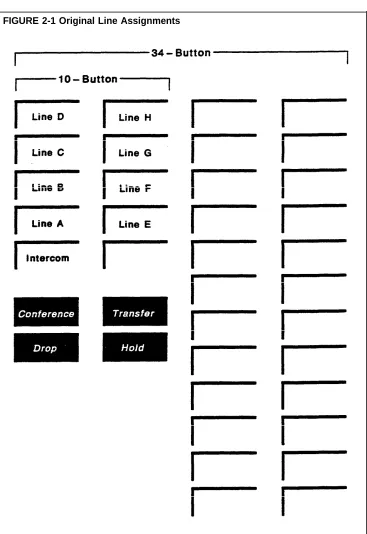
LINE ASSIGNMENTS When your system is first installed, before you do any system administration, all your outside telephone lines appear on the same buttons on every voice terminal in the system. These are the voice terminals' original line
FIGURE 2-1 Original Line Assignments
MERLIN Plus system line administration offers you these options:
● Customize the line assignments on some or all of your voice terminals.
● Keep the original line assignments on some or all of your voice
terminals.
The following paragraphs offer guidelines for choosing a line assignment option for each voice terminal and recording your choices on the form.
Customized Line As you decide whether to customize the line assignments to one or more voice Assignments terminals, review your business calling patterns and each person's telephoning
responsibilities. You may find that customizing line assignments can help you control costs and increase the efficiency of your communications system.
Let's say, for example, that you are the MERLIN Plus system administrator for a branch office of a large company. Your system has six outside telephone lines:
●
●
●
●
Lines A, B, and C are local, general purpose lines with your office's published telephone numbers. They're listed first, second, and third respectively in directories and advertisements.
Line D is a WATS line to the distant area where most of your company's suppliers are located.
Line E is a foreign exchange (FX) line to the distant city where the company's headquarters are located.
Line F is a general purpose line with an unpublished telephone number that the branch manager wants as a personal line.
Figure 2-1 shows how these lines appear on all voice terminals before any line administration.
Now let's consider the following facts about the calling requirements of three people in the office: the buyer, the branch manager, and the clerk.
●
●
●
Most of the buyer's outgoing calls are to suppliers in the area served by the WATS line and to the purchasing and accounting departments at company headquarters. The buyer receives relatively few incoming calls, but they are usually important.
The branch manager calls company headquarters often and wants a personal line for other calls.
The clerk handles most of the incoming calls from customers and prospective customers, and has no need to call suppliers or the headquarters offices.
Figure 2-2 shows how you might customize the line assignments to the buyer's, the manager's, and the clerk's voice terminals to best meet their individual needs and responsibilities.
FIGURE 2-2 Customized Line Assignments
Line A = Primary listed telephone number Line B = Second listed telephone number Line C = Third listed telephone number Line D = WATS line
Line E = FX line
Line F = Manager's personal line
Original Line Assignments
AUTOMATIC LINE
SELECTION SEQUENCE
Review the responsibilities of the people in your business and the special characteristics of your outside lines. Then decide which, if any, should have customized line assignments. (Your System Configuration Form shows the telephone number and line type for each of your outside telephone lines.)
In the "Intercom No." column . . .
Find the intercom numbers for the people for whom you want customized line assignments.
Check the appropriate boxes to the right of the intercom numbers to indicate which lines you want to assign to each person.
You can keep the original line assignments on the voice terminals of those people who need access to every outside line in the system.
In the "Intercom No." column . . .
Find the intercom numbers for the people who should retain the original line assignments.
Check the appropriate boxes to the right of the intercom numbers to indicate that every line will appear at each of those voice terminals.
When you lift the voice terminal handset to make an outside call, the system automatically scans the outside telephone lines in the order in which they appear on your voice terminal's line buttons until it finds a free line for your call. For example, if your voice terminal has the original line assignments, the system gives you Line A, if it's free, when you lift the handset. If Line A is busy, the system tries Line B, and so on in alphabetical order until it finds a free line for your call. Likewise, if your voice terminal has customized line assignments, the system will search for a free line following the customized sequence.
In most cases, you probably want a voice terminal's automatic line selection sequence to be the same as the sequence in which the lines appear on the voice terminal's line buttons. If, however, you want a special automatic line selection sequence for a voice terminal, you can program that sequence when you administer the system's outside lines.
NOTE: A special automatic line selection sequence for a voice terminal can contain any or all of the lines that appear on the voice terminal's line buttons.
Immediate Ring
Delayed Ring
No Ring
In the "Intercom No. " column . . .
Find the intercom numbers for the voice terminals you want to program with special line selection sequences.
Write the line selection sequences in the appropriate spaces in the
"Automatic Line Selection Sequence" column. (For example, if you want the voice terminal with intercom number 14 to have the automatic line selection sequence D, C, A, B, write DCAB in the space for intercom number 14 in the "Automatic Line Selection Sequence" column.)
Unless you program the voice terminal line buttons differently, calls coming in on each outside line ring immediately at every voice terminal with a line button for that line. But you can program voice terminal line buttons so that calls coming in on the lines assigned to those buttons will ring either after a delay or not at all.
Those people with primary responsibility for answering calls coming in on a shared line should have the button for that line programmed for immediate ring.
Those people with backup responsibility for answering calls coming in on a shared line should have the button for that line programmed for delayed ring. Then a call coming in on that line will ring only after it has gone unanswered elsewhere for two rings.
Those people who do not answer incoming calls on a shared line (for example, someone whose calls are screened) should have the button for that line
programmed for no ring. This option is also useful for a voice terminal located in a lobby or conference room.
NOTE: Even though a line button has been programmed for delayed ring or no ring, the green light next to the button still begins to flash immediately when a call comes in on the line.
To the right of each intercom number, in the boxes containing check marks . . .
Write in the appropriate letter from the following list to indicate the ringing option you want for each line.
R = Immediate Ring D = Delayed Ring N = No Ring
You should now have a completed Line Assignments Form. Keep it in a place where you can find it when you want to administer the system or program individual voice terminals.
Call Restrictions and Allowed Lists Directory
OUTWARD RESTRICTED
TOLL RESTRICTION
You can use call restrictions to prevent some or all voice terminals from making outside calls (both local and long distance) or from making long distance calls. Then you can use allowed lists of numbers and/or special speed dial codes to permit restricted voice terminals to call specified telephone numbers, local exchanges, or area codes. By combining call restrictions with selected exceptions, you can control your outgoing call traffic and costs without placing unreasonable constraints on the people in your business. (Both allowed lists and system speed dial codes are explained in detail later in this section of the manual.)
NOTE: Call restrictions do not affect a voice terminal's ability to receive incoming calls or to make intercom calls.
Some people in your business may have little need to make any outside calls, either local or long distance. You can place an outward call restriction on their
voice terminals during system administration, and the system will ignore attempts to dial outside telephone numbers from those voice terminals. Then if you want these people to be able to make local calls in business or personal emergencies, you can assign them an allowed list of local exchanges and, perhaps, emergency numbers such as 911 when you assign the call restrictions.
You can also use system speed dial codes with restriction override (called passwords in some telephone systems) to allow restricted voice terminals to call selected local or long distance telephone numbers. You simply mark the numbers for restriction override and store them in the system's memory under speed dial codes when you administer the system. Then anyone in your system, including those with restricted voice terminals, can use the speed dial codes to call the stored numbers.
Under "Call Restrictions" on the form . . .
Put a check mark in the "Outward Restricted" column next to the intercom numbers for the voice terminals you want to place outward restrictions on when you administer the system.
Some people in your business may need to be able to call any local telephone number but have little need to make long distance calls. You can place a toll
call restriction on their voice terminals. The system will allow local calls from
those voice terminals but ignore attempts to dial long distance numbers. Then if there are certain areas of the country these people have to call on business, you can set up an allowed list of those long distance area codes and assign the list to the toll restricted voice terminals when you administer the system. You can also mark selected long distance telephone numbers for restriction override and store them under speed dial codes in the system's memory. Then anyone in your system, including those with toll restricted voice terminals, can use the speed dial codes to dial those long distance numbers.
ALLOWED LISTS
●
●
●
●
Allowed Lists Named
Under "Call Restrictions" . . .
Put a check mark in the "Toll Restricted" column next to the intercom numbers for those voice terminals you want to place toll restrictions on when you administer the system.
If you plan to administer the system with a 10-button voice terminal, you
cannot assign allowed lists to restricted voice terminals. Go on to "System
Speed Dial Directory."
When you assign an allowed list of numbers to a voice terminal, the person using the voice terminal can call the numbers on the list regardless of any call restriction placed on the voice terminal.
The system can store up to eight allowed lists of numbers with up to 10 entries in each list. Each entry can have up to six digits. You might, therefore, want to create one or more allowed lists with entries such as the following:
Local exchange codes
A local exchange code is the first three digits in a 7-digit telephone number.
Long distance area codes
Although you probably have to dial a 1 before the area code when you dial a long distance number, you do not have to add the 1 to the area
code in your allowed list entries.
Area codes plus local exchange codes
An area code plus a local exchange code amounts to the maximum allowed six digits.
Emergency numbers with six or fewer digits
For example, 911 is a multipurpose emergency number in many areas.
Once you've decided how many allowed lists you want and what numbers should be included in each, you may want to identify each list by name (for example, "New England Customers" or "local Emergency Numbers") in addition to the numbers that already appear on the form (List 01, List 02, etc.).
Under "Allowed Lists" . . .
Write the name, if any, that you want to use to identify each list on the line next to the list's code number (List 01, List 02, List 03, etc.)
Allowed Lists Created
Allowed Lists Assigned
Under "Allowed Lists" . . .
Write area codes, local exchange codes, etc., on the lines next to the "Item" numbers to create your allowed lists.
Now that you've created some allowed lists, you should decide how you want to assign them to restricted voice terminals when you administer the system.
Under "Call Restrictions," in the "Allowed Lists Assigned" column . . .
Write the allowed list number(s) (01, 02, 03, etc.) on the line for each restricted voice terminal you want to assign one or more lists to when you administer the system.
System Speed Dial Directory
You can assign system speed dial codes to frequently called telephone numbers. Then people in your business can call any of these telephone numbers by dialing its 3-character code. You can also assign these codes to account numbers that you want to print out on call reports if your system has the Call Report (often referred to as Station Message Detail Recording [SMDR]) feature. People can then dial an account's 3-character code during a call to add the account number to the information on the call report for that call.
Forty speed dial codes (#60 through #99) are available for assignment to telephone numbers and/or account numbers. Each number can have up to 16 characters, including any of the following special characters:
● p for pause
● r for a switchhook flash (Recall)
● s for stop
● t for Touch-Tone enable
See the "System Speed Dial" entry in Section 5, "Reference," to find out how to use these special characters.
TELEPHONE NUMBERS
In the "Telephone Number" column on the form . . .
Write the telephone numbers you want to encode next to the 3-character dial codes (#60, #61, #62, etc.).
In the "Name" column . . .
Write the name of the person or organization to identify each telephone number.
RESTRICTION OVERRIDE
When you encode the telephone numbers in this directory during system administration, you can mark some or all of them for restriction override. Then people with restricted voice terminals can call these marked numbers by dialing the 3-character system speed dial codes.
In the "Restriction Override" column . . .
Put a check mark on the line for each telephone number you want to mark for restriction override when you administer the system.
If your system does not have the Call Report feature, you should now have a complete set of planning forms. You can go on to Section 3 and administer the system. If you do have the Call Report feature, read the following before going on to Section 3.
CALL REPORT With the Call Report feature, your system prints out a report on every call that meets the criteria you set during system administration. Figure 2-3 shows
C 08/21/86 11:01 C 08/21/86 11:05 C 08/21/86 13:15 C 08/21/86 14:05 C 08/22/86 09:43 C 08/22/86 10:12 C 08/22/86 11:15 C 08/22/86 14:25 C 08/23/86 11:15 C 08/24/86 08:10
9090334 7879096565 110869685679714? 4697896 IN 8889914321 IN 110869685679714? 4697896 #67 00:01:13 00:06:24 00:13:06 00:09:00 00:02:16 00:12:18 00:17:09 00:08:15 00:19:11 00:12:14 8 6 4 3 4 7 3 4 3 5 11 15 11 12 11 14 12 11 12 18 32145677 63354324 63354324 Notes:
1 Column headings (DATE, TIME, etc.) do not appear on Call Report printouts.
2 An IN in the Called Number column indicates an incoming call. 3 A ? at the end of a number in the Called Number column indicates that thte number called had more than 15 reported digits.
Marked Telephone Numbers
Account Numbers
a printout that contains several typical call reports. Each line beginning with "C" represents an individual call report.
FlGURE 2-3 A Printout of Typical Call Reports
DATE TIME CALLED NUMBER DURATION LN STN ACCOUNT
As you can see from the reports in Figure 2-3, the system prints the number of each outgoing cdl. If there's a telephone number you'd like to keep private— say a number containing a long distance access code—you can give the
number a system speed dial code and mark it for privacy when you enter it during system administration. Then the system will print the system speed dial code instead of the telephone number on call reports, as the last call report in Figure 2-3 shows.
In the "Telephone Number" column on the form . . .
Put a star (*) in front of those numbers you want to mark for privacy when you administer the system.
You can also store account numbers under system speed dial codes. Then you can use the speed dial code to add the account number to a call report in order to identify the person or organization to whom the call should be charged. Figure 2-3 shows three examples of account numbers printed out on call reports.
In the "Account Number" column . . .
Write the account numbers next to 3-character dial codes that do not already have telephone numbers next to them.
In the "Name" column . . .
Write the name of the person or organization to identify each account number.
You should now have a complete set of planning forms. Keep them together in a safe place until you are ready to install and administer your system.
System Configuration Form
Dial Signals Long Distance Dialing ❑ Touch-Tone ❑ Toll Prefix
❑ Rotary (pulse) ❑ Area Code Only
Voice Terminals
Intercom
Number Name Location
10 (Attendant)
11 12 13 14 15 16 17 18
19 (Call Report)
20 21 22 23
24 25 26 27 28 29
Outside Telephone Lines
Paging Groups Group 1 Group 2
Control Unit Jack Telephone Number Line Type
A B C D E F G H
Line Assignments Form
Automatic Line Selection Sequence NameI c o m No. Line A Line B Line C Line D
L i n e E
Line F
L i n e G Line H 10 11 12 13 14 15 16 17 18 19 20 21 22 23 24 25 26 27 28 29
Outside Telephone Lines
Lines Telephone Number Line Type
A B C D E F G H
Call Restrictions and Allowed Lists Directory
Call Restrictions
Intercom
Number Unrestricted
T o l l Restricted
Outward
Restricted Allowed Lists Assigned
10 11 12 13 14 15 16 17 18 19 20 21 22 23 24 25 26 27 28 29
Allowed Lists
List 01 List 02
Item Number I t e m Number
01 02 03 04 05 06 07 08 09 10 01 02 03 04 05 06 07 08 09 10
List 03 List 04
Item Number I t e m Number
01 02 03 04 05 06 07 08 09 10 01 02 03 04 05 06 07 08 09 10
List 05 List 06
Item Number I t e m Number
01 02 03 04 05 06 07 08 09 10 01 02 03 04 05 06 07 08 09 10
List 07 List 08
Item Number I t e m Number
01 02 03 04 05 06 07 08 09 10 01 02 03 04 05 06 07 08 09 10
System Speed Dial Directory
Dial Restriction
Code Telephone Number Account Number Name Override
Introduction
●
●
INITIAL
ADMINISTRATION
You can begin using your MERLIN®
Plus Communications System right now. Just make sure the system is set to generate the right dial signals for your outside telephone lines and to recognize the long distance dialing procedure for your area. To make these simple checks, see "Dial Signals" and "Long Distance Dialing" under "Basic Administration" later in this section.
To take full advantage of your system's advanced technology, however, you should plan to customize your system to fit the needs of your business. You don't have to do it all at once. Look through this section for options and features that best suit the way your business operates, and make the most important settings first. You can add others later.
Before you begin to customize your system, you should understand the meaning of the terms "administer" and "program" as they are used in this manual:
Administer means to establish options and features that have
systemwide impact, such as assigning the outside lines each voice terminal can access or defining system speed dial codes for everyone to use.
Program means to assign features to an individual voice terminal. Most people will probably program their own voice terminals. But you may want to program certain features that can affect the calling patterns of your business.
As you begin to set up your newly installed system, see the information under the following headings for time-saving advice and instructions.
● Administration Preview
● Basic Administration
● Customized Line Assignments
● Systemwide Options
ONGOING
Administration Preview
PLANNING FORMS The information about your system recorded on the planning forms listed
KEY SYSTEM COMPONENTS
Control Unit
below is important to both initial and ongoing system administration.
● System Configuration Form
● Line Assignments Form
● Call Restrictions and Allowed Lists Directory
● System Speed Dial Directory
If you haven't filled out any planning forms yet, you should do so now. It won't take long, and it will save you time later. Section 2, "Planning the System," contains copies of the forms and instructions for completing them. When you've completed the forms you need for your system, go on to "Key System Components."
If this is the first time you've administered the MERLIN Plus system, you should take a few minutes now to get acquainted with the system's control unit and the administrator/attendant console.
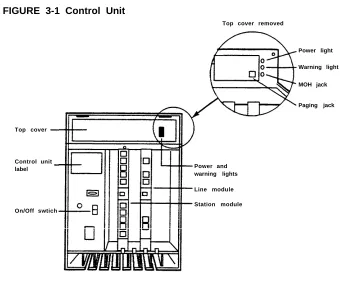
The control unit is the vital core of the system. It provides the power and intelligence for all voice terminals, and it directs all incoming and outgoing call traffic. All the system's memory, including system-wide administration and voice terminal programming, resides in the control unit. Figure 3-1 shows the control unit with the front cover removed.
FIGURE 3-1 Control Unit
Top cover removed
Power light
Warning light
MOH jack
Paging jack
Top cover
Control unit
label Power and
warning lights Line module Station module On/Off swtich
Administrator/Attendant Console
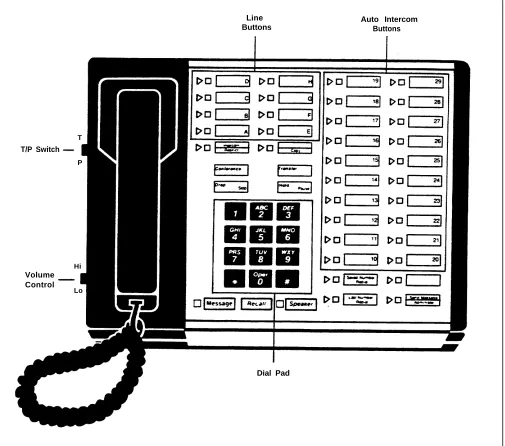
A 34-button deluxe voice terminal (Figure 3-2), which has a button with lights every outside line and voice terminal, is the ideal administrator/attendant console. The Line Buttons (above the dial pad) and the Auto Intercom Buttons (to the right of the dial pad) give you one-touch access to each line and voice terminal. The lights allow you to keep track of administration procedures as well as changes in the status of the voice terminals is and the outside lines.
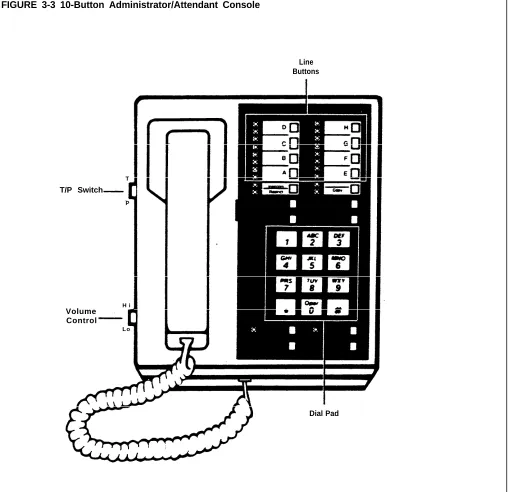
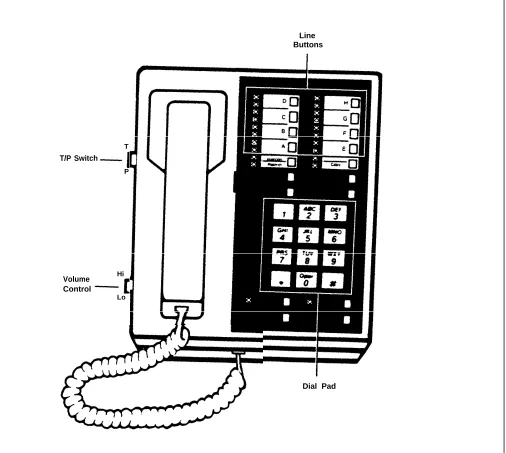
You can perform most (but not all) administration procedures with a 10-button voice terminal (Figure 3-3). Specifically, you cannot do the following with a 10-button set:
●
●
●
Change the makeup of paging groups
(See the "Group Page" entry in Section 5, "Reference," for details.)
Assign allowed lists to restricted phones
(See the "Allowed Lists" entry in Section 5 for details.)
Change the intercom number (and control unit jack) assignment for the Call Report data collecter and printer
(See the "Call Report" entry in Section 5 for details.)
You administer the system and, if you choose, program the other voice terminals in the system with the console in the administration mode (the Test/Program [T/P] switch on the left side of the console set to P [down]). You perform the everyday monitoring and call-handling tasks of the system attendant with the console in the normal mode (the T/P switch set to the center position).
The functions of some buttons on the administrator/attendant console change as you switch from one mode to the other. The double entries on some of the button labels shown in Figure 3-2 and Figure 3-3 indicate these changes in function. The button's function in the normal call-handling mode is shown
FIGURE 3-2 34-Button Administrator/Attendant Console
Line Buttons
Auto Intercom Buttons
T T/P Switch
P
H i Volume Control
Lo
Dial Pad
FIGURE 3-3 10-Button Administrator/Attendant Console
Line Buttons
T T/P Switch
P
H i Volume
Control L o
ADMINISTRATION MODE
As you just learned, you administer the system from the
administrator/attendant position with the console in administration mode. The information under the next three headings tells you how to:
● Make button labels for the administrator/attendant console
● Enter administration mode,
● Leave administration mode
The button labels on your administrator/attendant console have to show how the functions of certain buttons change when you shift from the normal call-handling mode to the administration mode. Figure 3-2 shows you what the button labels shouId look like for a 34-button voice terminal. Figure 3-3 shows the button labels for a 10-button voice terminal.
To make button labels for the voice terminal you plan to use as your administrator/attendant console, do the foIlowing:
Button Labels
1
2
3
Remove the blank button labels from the voice terminal according to the instructions that came with the voice terminal.
Fill in the button labels with pencil or erasable ink.
– For a 34-button voice terminal, follow the button labeling shown in Figure 3-2.
– For a 10-button voice terminal, follow the button labeling shown in Figure 3-3.
Reinsert the labels following the instructions that came with the voice terminal.
On the button labels divided by a horizontal line, the term above the line identifies the button's function when the console is in the normal call-handling mode. The term below the line identifies the button's function in administration mode. Note that there is no Send Message/Administer button on a 10-button voice terminal.
You have to enter administration mode to set up the system initially and again each time you use the attendant console to administer the system. Follow the
instructions in the box on the next page whenever you have to enter administration mode.
Entering Administration Mode
Entering Administration Mode
To enter administration mode:
1
2
Slide the T/P switch on the left side of the console to P (down).
The green lights next to the line buttons begin flashing.
The console rings every five seconds to remind you that it's in programming mode.
Touch Administer, or dial #01.
The green lights go off.
The red lights go on steady next to Administer and Restrict.
NOTE: A 10-button voice terminal doesn't have a button labeled
Administer. If you are using a 10-button voice terminal at the intercom
10 position, dial the 3-character code #01 in step 2.
Leaving Administration Mode
Follow the boxed instructions below when you've finished an administration session.
Leaving Administration Mode
To leave administration mode:
1 Slide the T/P switch on the left side of the console to the center position.
The red lights next to Administer and Restrict go off. The red light goes on next to a line button.
CENTRALIZED PROGRAMMING
Centralized Programming
COPY
To program voice terminals from the administrator/attendant console. do the following:
1
2
3
4
5
Enter administration mode.
Touch the Auto Intercom button or dial the intercom number for the first voice terminal you want to program.
Touch Conference.
Program the voice terminal according to the instructions in the Training Manual or in Section 5, "Reference."
Leave administration mode, or select another voice terminal for programming as follows:
a
b
c
d
Touch Conference.
Touch the Auto Intercom button or dial the intercom number for the next voice terminal.
Touch Conference.
Program the voice terminal.
If you want to copy outside line assignments and programmable features from one voice terminal ( the source ) onto the same buttons on another voice terminal ( the target ), the boxed instructions on the next page tell you how to do so. But first you should understand the following points about the Copy procedure:
●
●
●
The Copy procedure copies the following from the source
— — — — — — Line assignments
Automatic line selection sequence
Call restrictions
Line ringing options
Personalized ring
Voice announcement enable/disable
The Copy procedure also copies most other programmable features from the source onto the same buttons on the target, overwriting any
features previously programmed onto those buttons on the target.
The Copy procedure does not copy allowed list assignments.
C o p y
To copy line assignments, call restrictions, and most programmable features from one voice terminal ( the source ) to another voice terminal ( the target ), do the following:
1 Enter administration mode.
2 Touch the Auto Intercom button or dial the intercom number of the target voice terminal.
3 Touch Copy.
4 Touch the Auto Intercom number or dial the intercom number of the source voice terminal.
5 Continue to administer the system, or leave administration mode.
NOTE: If you want to copy from one source to several targets, you have to repeat steps 2, 3, and 4 for each target voice terminal.
CONFIRMATION AND ERROR SIGNALS
Confirmation Signal
Error Signal
Many of the administration and programming procedures described in this manual require you to enter a star code (that is, dial * plus one or more digits). Many procedures also require you to enter intercom numbers or other sequences of digits.
If you enter a star code the system recognizes and then enter intercom numbers or another sequence of digits consistent with the star code, the console beeps twice when you touch Administer to conclude the procedure. The two beeps confirm allowable input.
If you dial a star code the system does not recognize, enter a nonexistent intercom number, or enter one or more digits inconsistent with the
administration or programming procedure, the attendant console beeps once to signal that you have made an error.
To recover from the error, do as follows:
1 Touch Administer.
2 Begin the procedure again.
Basic Administration
DIAL SIGNALS
Reversing the Procedure
LONG DISTANCE DIALING
Reversing the Procedure
SYSTEMWIDE LINE ASSIGNMENTS
Basic administration should take no more than a few minutes. All the information you need should be on your System Configuration Form.
Locate the column headed "Dial Signals" on the System Configuration Form. Is the box next to "Touch-Tone" checked? If so, you don't have to do anything
here. Your system is factory set to generate Touch-Tones when you dial an
outside call on any of your outside telephone lines.
But if the box next to "Rotary (Pulse)" is checked, you have to set the system to generate rotary (pulse) signals when you dial outside calls. Set system for pulse dialing as follows:
1 Enter Administration Mode.
The red lights go on the steady next to Administer and Restrict.
2 Dial *39
3 Touch Administer.
The console beeps twice.
Continue with administration, or leave administration mode.
If you ever have to reset the system for Touch-Tone dialing, follow the above procedure, but dial *38 instead of *39 in step 2.
Locate the column headed "Long Distance Dialing" on the System Configuration Form. Is the box next to "Toll Prefix" checked? If so, you
don't have to do anything here. Your system is factory set for this type of
long-distance dialing: toll prefix (1 or 0) + area code + telephone number.
But if the box next to "Area Code Only" has a check, you have to set the system for this type of long-distance dialing (area code + telephone number) as follows:
1 Enter administration mode.
The red lights go on steady next to Administer and Restrict.
2 Dial *37.
3 Touch Administer.
The console beeps twice.
4 Continue to administer the system, or leave administration mode.
If you ever have to reset your system to toll-prefix dialing, follow the above procedure but dial *36 instead of *37 in step 2.
This simple procedure tells the control unit how many outside telephone lines your system has. But it works only if your outside lines are plugged into an unbroken sequence of line jacks on the control unit beginning with line jack A. The System Configuration Form shows the number of lines you have and the control unit line jack for each line under the heading "Outside Telephone Lines."
PAGING GROUPS
To set the systemwide line assignments, do the following:
1
2
3
4
5
Enter administration mode.
The red lights go on next Administer and Restrict.
Dial *4.
Dial the number of outside telephone lines in your system.
Touch Administer.
The console beeps twice.
Continue to administer the system, or leave administration mode.
When you filled in the "Paging Groups" columns on the System Configuration Form, you learned the following about paging groups:
●
●
●
●
All voice terminals are automatically assigned to a single paging group, the Page-All Group, which you cannot change.
Intercoms 10 through 19 are automatically assigned to Page Group 1; intercoms 20 through 29 are automatically assigned to Page Group 2.
You can change the makeup of Page Groups 1 and 2 if you are using a 34-button voice terminal as your administrator/attendant console. (You
cannot use a 10-button voice terminal to change a paging group's makeup.)
You can assign the same voice terminal to both paging groups.
Look at the "Paging Groups" columns on the System Configuration Form. If you plan to keep intercoms 10 through 19 in Page Group 1 and the remaining intercoms in Page Group 2, you don't have to do anything here.
If you plan to change the makeup of the paging groups, do the following:
1 2 3 4 5 6 7
Enter administration mode.
The red lights go on next to Administer and Restrict.
Dial the code for the paging group you want to change (*71 for Group 1 or *72 for group 2).
The green light goes on next to the Auto Intercom button for each voice terminal currently assigned to the group.
Touch Drop to remove all voice terminals from the group.
All the green lights next to Auto Intercom buttons go off.
One after another, touch the Auto Intercom buttons for the voice terminals you want to include in the paging group.
The green lights next to the Auto Intercom buttons go on as you touch the corresponding buttons.
Touch Administer.
The console beeps twice.
Repeat steps 2 through 5 to change the makeup of the other paging group.
Continue to administer the system or leave administration mode
If you want to change a paging group later on, see the "Group Page" entry in Section 5, "Reference," or the Quick Reference Guide to System
Administration in Section 6.
This concludes basic administration. You can use your system now, just as it is, and leave further administration until later. Or you can go on and
Customized Line Assignments
As you filled out the Line Assignments Form, you learned that customizing line assignments to voice terminals can help control costs and increase the efficiency of your communications system. All the information you need to customize line assignments should be on the Line Assignments Form.
When you enter administration mode and touch the Auto Intercom button for a voice terminal, the green lights next to the line buttons on the console show you which outside lines are currently assigned to that voice terminal.
Green light on = line is assigned m the voice terminal Green light off = line is not assigned so the voice terminal
Your system comes from the factory configured so that all your outside lines appear on the same line buttons on every voice terminal. These are the system's original line assignments. A voice terminal retains its original line assignments until someone administers it differently. If this is the first time anyone has administered your system, all your voice terminals should have their original line assignments.
NOTE: If you have not performed the "Systemwide Line Assignments" procedure described under "Basic Administration" earlier in this section, the green lights next to the line buttons on your
administrator/attendant console may show that your system has more outside lines than it really has. If this is the case, go back now to "Basic Administration" and enter the correct number of outside lines following the instructions under "Systemwide Line Assignments."
MERLIN Plus system line administration offers two choices:
●
●
You can keep the original line assignments on some or all of your voice terminals.
You can customize the line assignments to some or all of your voice terminals to better suit the needs of your business and individual voice terminal users.
KEEP THE ORIGINAL LINE ASSIGNMENTS
On the Line Assignments Form, there should be a check mark for each
outside line in the system to the right of the intercom numbers for those voice terminals keeping their original line assignments. To make sure these voice terminals have the original line assignments, do the following:
1
2
3
Enter administration mode.
The red lights go on next to Administer and Restrict.
One after another, touch the Auto Intercom buttons for each of these voice terminals.
The green lights next to the line buttons should show that all of your outside lines appear on each of these voice terminals. If you discover that one or more lines do not appear on a voice terminal designated to keep the original line assignments, you can use the procedure under the next heading, "Customize Line Assignments," to give that voice terminal the original line assignments.
Leave administration mode.
CUSTOMIZE LINE ASSIGNMENTS
The check marks to the right of the intercom numbers on the Line Assignments Form should show how you plan to customize the line assignments to voice terminals.
Customizing a voice terminal's line assignments is simply a matter of removing and adding lines. But keep the following points in mind:
●
●
●
●
On every voice terminal, the button directly above Conference is always the Intercom button. You can't assign a line or feature to it.
On every voice terminal, the button above Transfer is always a programmable feature button. You can't assign a line to it.
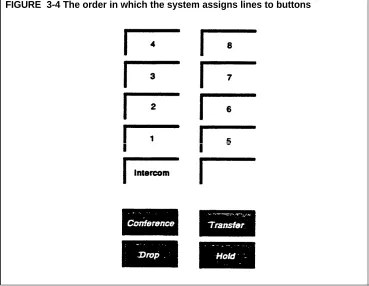
When you assign lines to a voice terminal, the system assigns them to line buttons in the order shown in Figure 3-4 below. This sequence is also the voice terminal's automatic line selection sequence—the order in which the system selects lines for the voice terminal's outgoing calls-unless you program a defferent automatic line selection sequence.
On any voice terminal, line buttons without lines assigned to them can become programmable feature buttons.
FIGURE 3-4 The order in which the system assigns lines to buttons
To customize line assignments to voice terminals as indicated on the Line Assignments Form, do as follows:
1 Enter administration mode.
The red lights go on next to Administer and Restrict.
2 Touch the Auto Intercom button or dial the intercom number for the first voice terminal.
3
4
5
6
Remove all the lines from the voice terminal.
To do this, touch each line button that has a green light on next to it.
The green lights go off as you touch the the corresponding line buttons.
Assign lines to the voice terminal in the order in which you want the lines to appear on the voice terminal's line buttons.
NOTE: This should be the order shown for the voice terminal in the "Automatic Line Selection Sequence" column on the Line Assignments Form, unless you have a reason for programming a different automatic line selection sequence.
To do this, touch the button for the line you want to appear on the first line button on the voice terminal (button number 1, just above Intercom, in Figure 34.) Then touch the button for the line you want to appear on the second line button (number 2 in Figure 3-4), and so on until the line assignments on the voice terminal match the line assignments for that voice terminal on the Line Assignments Form.
The green lights go on as you touch the corresponding line buttons.
Touch the Auto Intercom button or dial the intercom number for the next voice terminal you want to customize, and repeat steps 3 and 4.
Continue to administer the system, or leave administration mode.
NOTE: If you want to program an automatic line selection sequence for a voice terminal that is different from the sequence in which outside lines appear on the voice termird's line buttons, see the entry for
"Automatic Line Selection Sequence" in Section 5, "Reference."
ASSIGN BUTTON-FREE LINE OPERATION
You can used this option to assign outside lines to a voice terminal without assigning them to specific line buttons. This leaves the voice terminal's buttons free for programmable features. See the entry for "Button-Free Line Operation" in Section 5, "Reference," for more information about assigning this option to a voice terminal.
This concludes outside line administration. You can go on now to
"Systemwide Options," or you can leave further administration for another time.
Systemwide Options
ASSIGN CALL RESTRICTIONS TO VOICE TERMINALS 4 5 ADMINISTER ALLOWED LISTSThis concluding phase of initial system administration includes instructions for. administering the following systemwide options:
● ● ● ● ● Call Restrictions Allowed Lists
Call Reports (often referred to as SMDR)
System Feature Reports
System Speed Dial
The Call Restrictions and Allowed Lists Directory should show whether you plan to restrict any of your voice terminals. Under "Call Restrictions" on the form, the check marks to the right of the intercom numbers should show the type of restriction, if any, you plan to place on each voice terminal.
When your system is first installed, all voice terminals are unrestricted. For those voice terminals with a check mark in the "Unrestricted" column on the form, you don't have to do anything here.
To assign outward call restrictions or toll call restrictions to voice terminals, do the following:
1 Enter administration mode.
The red lights go on next to Administer and Restrict.
2 Touch the Auto Intercom button or dial the intercom number for the first voice terminal you want to restrict.
3 Touch Restrict repeatedly until the green light next to Restrict displays
the signal for the type of call restriction shown for the voice terminal on the Call Restrictions and Allowed Lists Directory.
Steady green light on = Unrestricted (all calls permitted)
Flashing green light = Toll restricted (only intercom and local calls permitted) Green light off = Outward restricted (only intercom calls permitted)
Touch Administer.
The console beeps twice.
Repeat steps 2 through 4 for the next voice terminal, or leave administration mode.
If you plan to assign allowed lists of numbers to restricted voice terminals, you should-have filled in one or more of the lists on the Call Restrictions and Allowed Lists Directory. As the directory shows, you can have up to eight allowed lists with up to 10 enties on each list. An entry can have up to six digits.
The instructions that follow tell you how to:
●
●
●
●
Set up allowed lists
Delete a number from an allowed list
Remove all numbers from an allowed list
NOTE: You cannot administer this feature with a 10-button voice terminal. You must have a 34-button administrator/attendant console to assign allowed lists to voice terminals.
In order to assign an allowed list to a restricted voice terminal, you first have to set up the allowed list in the system's memory. To set up an allowed list, do the following:
Set Up Allowed Lists
1 2 3 4 5 6 7
Enter administration mode.
The red lights go on next to Administer and Restrict.
Dial the code for the list you want to set up.
(The codes are *01 through *08 for List 01 through 08 in the directory.)
Dial the 2-digit "Item" number (01 through 10 in the Allowed List Directory) for the number you are adding to the list.
Dial the number you are adding to the list (a maximum of six digits).
The console beeps twice on the sixth digit to confirm the entry and remind you that you can't enter another digit to this list entry.
The console does not beep when you enter a number with fewer than six digits to the list.
Touch Administer.
The console beeps twice.
To add another number to the same list, repeat steps 2 through 5.
NOTE: You must begin each entry to List 01 by dialing *01, each entry to List 02 by dialing *02, etc.
Repeat steps 2 to 6 to set up another list, or leave administration mode.
Delete a Number from an Allowed List
To delete a number from an allowed list already in the system's memory, do the following:
Remove All Numbers from an Allowed List
1 2 3 4 5 6
Enter administration mode.
The red lights go on next to Administer and Restrict.
Dial the code for the list.
(The codes for Lists 01 through 08 are *01 through *08.)
Dial the "Item" number (01 through 10) of the number you want to delete.
Touch Drop.
Touch Administer.
The console beeps twice.
Continue to administer the system, or leave administration mode.
1
2
3
4
5
To clear all entries from a list, do the following:
Enter administration mode.
The red lights go on next to Administer and Restrict.
Dial the code for the list you want to clear.
(The dial codes for Lists 01 through 08 are *01 through *08.)
Touch Drop.
Touch Administer.
The console beeps twice.
Continue with administration, or leave administration mode.
Assign or Remove Allowed Lists
Use this procedure to assign an allowed list to a voice terminal or to remove an allowed list from a voice terminal. Your Call Restrictions and Allowed Lists Directory should show which lists to assign to each voice terminal.
To 1 2 3 4 5 6
assign or remove an allowed list, do the following:
Enter administration mode.
The red lights go on next to Administer and Restrict.
Dial the code for the list you want to assign.
(The codes for Lists 01 through 08 are *01 through *08.)
Dial 00.
Green lights go on next to the Auto Intercom buttons for the voice terminals to which this list is already assigned.
Touch the Auto Intercom button for the voice terminal to which you want to assign the list.
Green light on = the list is assigned to the voice terminal Green light off = the list is not assigned to the voice terminal
Touch Administer.
The console beeps twice.
Continue to administer the system, or leave administration mode.
If your system does not have the Call Report option, go on now to
"Administer the System Speed Dial Option." If you do have the Call Report option, find out how to make it work the way you want in "Administer the Call Report Option."
ADMINISTER THE CALL REPORT OPTION
You must have a MERLIN Plus System Data Collector and a printer (AT&T 475 or equivalent) to print out call reports. With the Call Report option, your system prints out a report on every call that meets the criteria you set during this phase of system administration. Figure 2-3 in Section 2, "Planning the System," shows some typical call reports.
For the Call Report option to operate correctly, you have to set the following:
●
●
●
●
Current date and time
Control unit jack for the printer
Minimum length of reported calls
Type of calls reported
Date and Time Set the current date and time as follows:
1 2 3 4 5 6
Enter administration mode.
The red lights go on next to Administer and Restrict.
Dial *80.
Dial two digits for the month (01 through 12).
Dial two digits for the day (01 through 31).
Dial two digits for the year (00 through 99).
Touch Administer.
Control Unit Jack
Minimum Length of Reported Calls 7 8 9 10 11 Dial *81.
Dial two digits for the hour (00 through 23).
Dial two digits for the minute (00 through 59).
Touch Administer.
The console beeps twice.
Go on to assign Call Report to a control unit jack, or leave administration m o d e .
The system automatically assigns station jack number 19 on the control unit to the data collector and printer for the Call Report option. If you want to keep jack number 19 for the Call Report equipment, you don't have to do
anything here. Go on to "Minimum Length of Reported Calls."
If you want to assign the data collector and printer to a control unit jack other than 19, do as follows:
1 If you haven't already done so, enter administration mode.
2 Dial *82.
The green light goes on next to the Auto Intercom button for the control unit station jack to which the data collector and printer are currently assigned (jack 19 unless the setting has alredy been changed).
3 Touch the Auto Intercom button for the control unit station jack you want to use to connect the data collector and printer to the system.
The green light next to the Auto Intercom button you touch goes on. The green light next to Auto Intercom button 19 goes off.
4