Concurrent
CP/M-86™
Concurrent
CP/M-86™
Operating System
User's Guide
Copyright
©
1982Digital Research
P.O. Box -579 160 Central Avenue Pacific Grove, CA 93950
(408) 649-3896 TWX 910 360 5001
COPYRIGHT
Copyr ight
©
1982 by Digi tal Research. All r igh ts reserved. No part of this pUblication may be reproduced, transmitted, transcribed, stored in a retrieval system, or translated into any language or compu ter language, in any form or by any means, electronic, mechanical, magnetic, optical, chemical, manual or otherwise, without the prior written permiss ion of Digital Research, Post Off ice Box 579, Pacific Grove, California, 93950.This manual is, however, tutorial in nature. Thus, the reader is granted permission to include the example programs, either in whole or in part, in his own programs.
DISCLAIMER
Digital Research makes no representations or warranties with respect to the contents hereof and specifically disclaims any ,implied warranties of merchantabil i ty or fitness for any particular purpose. Further, Digital Research reserves the right to revise this publication and to make changes f rom time to time in the content hereof wi thou t obligation of Digital Research to notify any person of such revision or changes.
TRADEMARKS
CP/M is a registered trademark of Digital Research. ASM-86, CP/M-86, Concurrent CP/M-86 and DDT-86 are trademarks of Digital Research. ED and TEX are utilities of Digital Research. Intel is a registered trademark of Intel Corporation. The IBM Personal Computer is a trade name of International Business Machines. Digital Equipment Corporation is a registered trademark. The VT-52 CRT is a product of Digital Equipment Corporation. of
The Concurrent CP/M-86 Operating System User's Guide was prepared using the Digital Research TEX-80 Text Formatter and printed in the United States of America by Commercial Press/Monterey.
Foreword
Welcome to the world of microcomputers opened to you by your
IBM Personal Computer. Welcome also to the world of application
software accessible through Digital Research Concurrent CP/M-86T,M,.
Digital Research desi2ned this version of Concurrent CP/M-86
especially for the Intel 8088 microprocessor that is the heart of
your IBM Personal Computer.
Concurrent CP/M-86 lets you do two or more jobs with your
computer at the same time. If you want to edit a paper (or two!)
and also look at another, Concurrent CP/M-86 takes care of the details, lets you switch from one task to another with a touch of a
key. You can even print one or more documents while you edit or
review others. Concurrent CP/M-86 lets you make the most of your
IBM Personal Computer and makes you more productive.
What Concurrent CP/M-86 Does For You
Concurrent CP/M-86 manages information stored magnetically on your diskettes by grouping this information into files of programs, which are sequences of computer instructions, and data, which is the
raw material programs use to do work. Concurrent CP/M-86 can copy
files from a diskette to the IBM Personal Computer's memory, or to a
peripheral device such as a printer. Concurrent CP/M-B6 performs
these and other tasks by executing various programs according to commands you enter at your keyboard.
Once in memory, a program runs through a set of steps that instructs your computer to perform a certain task. The advantage of using Concurrent CP/M-86 on your IBM Personal Computer is that you can create your own Concurrent CP/M-B6 programs to entertain, educate, or solve your own commercial or scientific problems.
What You Need To Run Concurrent CP/M-86 On The IBM Personal Computer
The minimum IBM Personal Computer consists of a System unit
wi th 16K of memory, a keyboard, and a screen device. However,
Concurrent CP/M-B6 needs some additional features to operate properly.
To star t, Concurrent CP/M-86 needs at least two diskette
drives. You can have up to four diskette drives. You also need at
least 256K bytes of memory.
If you expand your system beyond these minimum requirements, you will appreciate that Concurrent CP/M-B6 support many other
f ea tures that can be added to your IBM Per sonal Computer. For
How This Book Is Organized
This book introduces you to Concurrent CP/M-86 and tells you
how to use i t . The book assumes you have read the Guide to
Operations that accompanied your IBM Personal Computer and are familiar with the parts of your computer, how to set i t up and turn it on, and how to handle, insert, and store diskettes. However, i t does not assume you have had a great deal of exper ience wi th computers.
Section 1 tells how to start Concurrent CP/M-86 and enter
commands. Section 2 discusses diskettes, files, diskette drives,
and other devices associated wi th your IBM Personal Computer.
Section 3 develops the Concurrent CP/M-86 command concepts you need
to understand the command summary in Section 4. Section 4 lists all commands in alphabetical order, descr ibing every command and program
supplied with Concurrent CP/M-86. Section 5 tells you how to use
ED, the Concurrent CP/M-86 file editor. With ED you can create and edit program, text, and data files.
When you become more familiar with your IBM Personal Computer's 8088 microprocessor instructions and you decide to write assembly
language programs, will find that ASM-86~M. , the Digital Research
Assembler, simplifies the process. The companion program to ASM-86 is DDT-86T
.M., the Dynamic Debugging Tool. DDT-86 makes it easy to
track down and eliminate errors in your assembly language programs. The companion manual of the Concurrent CP/M-86 Operating System User's Guide, the Concurrent CP/M-86 Operating System Programmer's
Guide, describes ASM-86 and DDT-86 in detail.
Appendix A lists the error messages Concurrent CP/M-86 displays
when i t encounters special conditions. If the condition requ~res
correction, Appendix A can also tell you what actions you should take before you proceed.
Appendix B is a glossary of computer terms that explains the concepts you encounter in learning about your Personal Computer.
Appendix C summar izes Concurrent CP/M-86 commands, and Appendix D summar i zes Concurrent CP/M-86 control characters. Appendix D also describes the way some Concurrent CP/M-86 control keys differ from
their counterparts in CP/M-86~M. • Appendix E describes the various
Concurrent CP/M-86 filetypes.
Appendix F is a list of items to check if you have problems with your files. Appendix G summarizes the kinds of drive and file
status information Concurrent CP/M-86 returns to you. AppendixH
lists the console escape sequences.
If you are new to computers, you might find some of these
topics confusing. Hang in there. Half the fun of an IBM Personal
Computer is learning more about how to use i t in your home,
business, research, or school. This book proceeds step-by-step, so
Table of Contents
1 Introduction to Concurrent CP/M-86
1.1
1.2
1.3
1.4
What Concurrent CP/M-S6 Is .
1.1.1 1.1. 2 1.1.3
Virtual Consoles Dynamic Mode
Buffered Mode • • .
How To Get Concurrent CP/M-S6 Started
1. 2.1 1.2.2 1. 2.3 1.2.4
System Reset Sign-On Message . Status Line • • System Prompt .
Concurrent CP/M-S6 Commands
Concurrent CP/M-S6 Line-editing Control Characters •
2 Files, Diskettes, Drives, and Devices
2.1 2.2 2.3 2.4 2.5 2.6 2.7 2.S
What is a File?
How Are Files Created? • .
How Are Files Named? .
How Are Files Accessed?
2.4.1 2.4.2
Wildcard Characters • Start-up Files
Passwords
How Are Files Organized And Protected? .
2.6.1 User Numbers 2.6.2 File Attributes
Back Up Your Files!
2.7.1 2.7.2 2.7.3 2.7.4
Single- and Double-Sided Diskettes Initializing Diskettes . . • • Copying Diskettes . • • • DSKMAINT Error Messages
How Are Files Stored On Diskettes?
2.9
Table of Contents
( continued)
Changing Diskettes •
2.10 Changing The Default Drive.
2.11 More Concurrent CP/M-86 Drive Features .
2.12 Other Concurrent CP/M-86 Devices
3 Concurrent CP/M-86 Command Concepts
3.1
3.2
3.3
3.4
How Concurrent CP/M-86 Searches for Commands
Control Character Commands •
Programmable Function Keys •
Concurrent CP/M-86 Command Summary .
4 Concurrent CP/M-86 Command Summary
4.1 4.2 4.3 4.4 4.5 4.6 4.7 4.8
Command Specifications • . .
How Commands Are Described
The ABORT Command
ASM86 (Assembler) Command •
The CONFIG Command
4.5.1 4.5.2 4.5.3
Interactive Mode • • • • . Command Line Mode • . • • • Serial Port Connection
The DDT86 Command
The DIR Command
The DSKMAINT Command •
4.8.1 4.8.2 4.8.3 4.8.4
Single- and Double-Sided Diskettes
Formatting Diskettes • • • • • • • • • • Copying Diskettes • • • • • • •
4.9
Table of Contents
( continued)
The DSKRESET Command .
4.10 The ED (Character File Editor) Command.
4.11 The ERA Command
4.12 The ERAQ (Erase with Query) Command
4.13 The FUNCTION Command
Using the FUNCTION Menu Nonprinting Characters •
Terminating Input • •
4.13.1 4.13.2 4.13.3 4.13.4 4.13.5
Using FUNCTION with a Command File . Specifying the Key to be Programmed
4.14 The GENCMD Command .
4.15 The HELP Command.
4.16 The PIP Command
4.17 4.18 4.19 4.20 4.16.1 4.16.2 4.16.3 4.16.4 4.16.5 4.16.6
Single File Copy • • • • • •
Multiple File Copy • • • • .
Combining Files • • • • • •
Copy Files to and from Auxiliary Multiple Command Mode
Using Options With PIP • • • • •
The PRINTER Command
.
.
The REN Command
The SDIR Command
.
.
4.19.1 SDIR Full Format
4.19.2 SDIR Size Format
.
.
4.19.3 SDIR Short Format
4.19.4 SDIR Options
.
The SET Command
Password Protection •
Devices
4.20.1 4.20.2 4.20.3
Turning On Password Protection • Assigning Passwords to Files • • •
4.20.4 4.20.5 4.20.6 4.20.7 4.20.8 4.20.9 4.20.10 4.20.11 4.20.12 4.20.13 4.20.14 4.20.15
Table of Contents
( continued)
Default Password • • • • • • . • . 98
Date and Time Stamping of Files 99
Time Stamping of New Files . • • • . • • 99
Time Stamping of Existing Files . 101
Setting File and diskette Attributes. • 102
The Read-Only Attribute . . • • . 102
The System Attribute • • • • • • • • • 103
The Archive Attribute. . . • 103
The User-Definable Attributes • • • • 103
Naming Diskettes • • • . . 104
The SET Help Option • . • 104
Additional Examples • . • • • • 104
4.21 The SHOW Command. • 106
4.22 The STAT Command.
Set a Drive to Read-Only Mode Free Space on Diskette •
• 109
. • • • . 109 · 109 4.22.1 4.22.2 4.22.3 4.22.4 4.22.5 4.22.6
Files--Disp1ay Space Used and Access Mode Set File Access Modes (Attributes) • •
Display Diskette Status • . • •
· 110 · 113 • . 114 Display User Numbers With Active Files . • • 115
4.23 The SUBMIT Command .
4.24 The SYSDISK Command
4.25 The TOD Command
4.26 The TYPE Command • .
4.27 The USER Command.
4.28 The VCMODE Command •
5 ED, The Concurrent CP/M-86 Context Editor
5.1
5.2
5.3
Introduction to ED •
Starting ED
ED Operation • .
5.3.1 Appending Text into the Buffer.
5.3.2 ED Exit. • • . . • • • • .
. . • • 116
· 119
. . . 120
· 122
· 123
. • • 124
• • 127
• 127
· 128
5.4
5.5
5.6
5.7
Table of Contents
(continued)
Basic Editing Commands • . • • • • . . • . · 132
• 133 5.4.1
5.4.2 5.4.3 5.4.4 5.4.5
Moving the Character Pointer
Displaying Memory Buffer Contents • • • • . • 135 Deleting Characters • . •
Inserting Characters into Replacing Characters
• 136 the Memory Buffer • 138 . • • • • • • • . • 139
Combining ED Commands
5.5.1 5.5.2 5.5.3
Moving the Character Pointer Displaying Text .
Edi ting • • •
Advanced ED Commands • •
5.6.1 5.6.2 5.6.3 5.6.4
Moving the CP and Displaying Text Finding and Replacing Character Strings Moving Text Blocks • • . • •
Saving or Abandoning Changes: ED Exit
ED Error Messages
• 140
· 140 · 141 · 142
· 142
• 142 • 144 · 147 · 149
Appendixes
A Concurrent CP/M-86 Error Messages . . • . . • • • . . . . 153
B User's Glossary . • • • • • • . . . • • . • . . . • • 171
C Concurrent CP/M-86 Command Summary • • . . . . • • • . . . 181
D Concurrent CP/M-86 Control Character Summary . . . 189
E Fi1etypes . . • . • • . . . • . • • • . . . • . • . . 191
F Checklist for Using Files • . . • . . . • • . . . 193
G Drive and File Status Summary . . . • • . . . • 195
Section 1
Introduction to Concurrent CP /M-86
This section discusses the fundamentals of your IBM Personal
Computer and its new operating system, Concurrent CP/M-86. It
starts by describing Concurrent CP/M-86, tells you how to start it up, and shows what the initial messages look like on the screen. The remaining sections introduce the Concurrent CP/M-86 commands and line-editing control characters.
1.1 What Concurrent CP/M-86 Is
Concurrent CP/M-86 is a single-user, multitasking operating
system for the IBM Personal Computer. It offers you a number of
innovations that increase your productivity and make it easy--and fun--to get your work done.
1.1.1 Virtual Consoles
Concurrent CP/M-86 lets you execute several programs at one
time (concur r en tly) by crea ti ng up to four virtual consoles.
Virtual consoles are channels that you can switch back and forth between as you would switch channels on a television.
Wi th a television, one channel might be broadcasting the
news, another a sports event, and so on. With Concurrent CP/M-86,
you control what you see on your terminal screen. On one channel
you can write a letter, while another channel shows a directory of all your text files and other channels perform other tasks.
When a console is switched-in, appearing on your screen, we
say that i t is in the foreground. When a console is switched-out,
invisible to you, we describe i t as in the background.
You can switch from one vir tual console to another by pressing the CTRL key while pressing 0, 1, 2, or 3 on the keypad. Press CTRL-O to call Console 0, CTRL-l for Console 1, CTRL-2 for Console 2, or CTRL-3 for Console 3.
1.1.2 Dynamic Mode
When a virtual console is in the Dynamic mode, all letters
and numbers (characters) sent to i t appear on the screen
immediately. If you were editing a letter, for example, you would
see the text of the letter on your screen and your changes would
appear as you made them. If you switch-out a virtual console in the
Dynamic Mode while characters are appearing on the screen, those characters are lost.
Concurrent CP/M-86 User's Guide 1.1 What Concurrent CP/M-86 Is
1.1.3 Buffered Mode
If a virtual console is switched out, none of the characters generated by a running program appear on your screen. In Buffered mode, Concurrent CP/M-86 creates storage for this information. All characters that go to the screen if the terminal is switched in are instead saved in a temporary file on a floppy diskette. When you switch in this virtual console the saved characters appear on your terminal screen. You do not lose a thing. You can let one program turn out pages of text while you work on another project, then return to see how the first program is doing.
Section 4.28, the VCMODE command, tells you how to use the VCMODE instruction to switch your consoles between Dynamic and Buffered Modes.
1.2 How To Get Concurrent CP/M-86 Started
Starting or loading Concurrent CP/M-86 means reading a copy of it from your boot diskette into your computer's memory. You can start Concurrent CP/M-86 in one of two ways, depending on whether your computer is powered on or off.
If power is off, insert your Concurrent CP/M-86 boot diskette with the label facing upward into drive A, the built-in drive on the left side of the System Unit, and place the Concurrent CP/M-86 command diskette in drive B, the built-in drive on the right side. Close the drive door. When you turn the power on, your IBM Personal Computer automatically loads CP/M-86 into memory after a few moments of self-testing. (If you just powered off but want to use your computer again, you should count slowly to five between turning the power. off and then back on.)
1.2.1 System Reset
If power is on and you want to restart Concurrent CP/M-86, first make sure your Concurrent CP/M-86 diskettes are in their proper drives, hold down the CTRL and ALT keys, and press the DEL key. Release all three keys. When you press these keys in this way, the Personal Computer performs a System Reset. This means that any internal processing the Personal Computer is doing stops. The computer returns to the state it was in immediately after power-up; Concurrent CP/M-86 is then reloaded from the diskettes.
1.2.2 Sign-On Message
Concurrent CP/M-86 User's Guide 1.2 Starting Concurrent CP/M-86
Hardware Supported:
Diskette (s) 2
Parallel Printer Port(s) 1
Serial Printer Port(s) 1
Main Memory (Kb) 320
Concurrent CP/M-86 V.V [release date] Copyright (c) 1982 Digital Research
The release number, represented above by V.V, tells you the major and minor revision level of the Concurrent CP/M-86 version
that you own.
1.2.3 Status Line
Concurrent CP/M-86 writes a status line at the bottom line of
your screen. This status line communicates various important
information about what Concurrent CP/M-86 is doing, which features are currently invoked, and where output from the Personal Computer will go.
Look at the status line from left to right as you read these descriptions.
The first message is "Console = n", where n is the current
virtual console. Concurrent CP/M-86 comes up in virtual console O.
You can watch the console number change by pressing the CTRL key and numbers 0, 1, 2, or 3 on the keypad at the right of the keyboard.
The next message to the right is the mode for that virtual
console {discussed in Section 1.1}. As you switch from virtual
consoLe 0 to 1 to 2 to 3, you see the default mode message appear for each virtual console; they are all initially set to Dynamic. You can change the mode to Buffered with the VCMODE command described in section 4.28.
To the right of the background mode message is the Printer
message. When you press CTRL-P, Concurrent CP/M-86 copies the
contents of the screen to the current printer. The printer message
tells the number of the current printer. The default printer is
printer number 0, as you see, and you can change it with the PRINTER command {descr ibed in Section 4.17}. Next to the pr inter message is
a space for a AP=n. The AP=n appears when you press CTRL-P, telling
you that output from the current virtual console is going to the
printer and to your screen, and showing the printer number. Press
CTRL-P again to turn printing off •
. Next to the printer messages you see the process name
message. This is the name of the process currently executing on
your virtual console. If you just loaded Concurrent CP/M-86, you
see "Tmp 0" here. This tells you that Concurrent CP/M-86 is
currently running no user programs at this console, but the TMP
Concurrent CP/M-86 User's Guide 1.2 Starting Concurrent CP/M-86
Processor) is looking at the keyboard, waiting for your commands (The Concurrent CP/M-86 Programmer's Guide has more details about the TMP and its activities).
To the right of the process name message appears the TOD (Time of Day) message. This is a 24-hour clock that indicates the current
time in hh:mm:ss format. The TOD command sets this clock to a
specified time. (See Section 4.25 for more about TOD.)
Next to the clock you see "Wrap". This tells you that the screen is set to wrap lines of text from the right edge of the screen over to the left if you type more than 80 characters without
a carriage return, ~ If you disable Wrap by pressing ESC and w
at the same time, Wrap disappears, and if you type more than 80 characters the balance are not displayed. You can turn Wrap back on with an ESC-v.
To the right of Wrap is "Caps", which indicates if you have
pressed the Caps Lock key. This action sets the letter keys on the
keyboard to all capital letters. Press i t again to restore the
keyboard to both upper- and lower-case.
Next to Caps is "Num", a message indicating what happens when
you press the keypad keys. The Num Loc~ key switches the keypad
keys back and forth; when Num appears in the Status Line, pressing a
keypad key generates that number. Pressing the shift key, ~, and a
keypad key generates the function specified for that key by the FUNCTION command (described in Section 4.13). If there's no Num in the status line, the reverse is true: pressing the shift key returns the number, and pressing the key alone generates the programmed
function. Try pressing a few keys to become familiar with them.
To the right of Num is a space for a AS. Sometimes Concurrent
CP/M-86 reports text or data to you faster than the human eye can
follow. When this happens, you can stop the text from rolling off
the top of your screen (scrolling upwards) by pressing the CTRL key and the S key simultaneously, or by pressing the Scroll Lock key. This stops the screen in its tracks. When you press CTRL-S, the AS indicator comes on, and none of the individual keys on the keyboard
do anything but beep if you press them. To get going again, press
CTRL and Q, or SHIFT-Scroll Lock.
The last message field, at the extreme right of the status line, shows if you have any open (currently being used) files on a particular drive. The characters that appear are A and B for these two diskette drives, and C and D if you have a four-drive system, M for the MDISK if you have implemented it, and an asterisk (*) for
any further drives you have installed yourself. If you are new to
Concurrent CP/M-86 and you have not encountered the expressions file and MDISK, and diskette drives before, do not worry; Section 2
explains what these terms mean. You will find this message more
Concurrent CP/M-86 User's Guide 1.2 Starting Concurrent CP/M-86
1.2.4 System Prompt
After Concurrent CP/M-86 is loaded, you see this three-character message:
OA>
TCl.L;:' .L~ ... system prompt telling you Concurrent CP/M-86 is
ready and waiting to read a command from your keyboard. It also
tells you that drive A is your default drive. This means that until you tell Concurrent CP/M-86 to do otherwise, it first looks for your
program and data files on the diskette in drive A. If the file is
not found Concurrent CP/M-86 looks elsewhere, following the search rules described in Section 3.1.
1.3 Concurrent CP/M-86 Commands
Concurrent CP/M-86 performs certain tasks according to commands
that you type at your keyboard. A Concurrent CP/M-86 command line
is composed of a command keyword, an optional command tail, and a carriage return keystroke. The command keyword identifies a command
(program) to be executed. The command tail can contain extra
information for the command such as a filename or parameter. To end
the command line, you must press the carriage return key, ~.
As you type characters at the keyboard, they appear on your
screen and the cursor moves to the right. If you make a typing
error, push the backspace key,
+-,
to move the cursorto
the leftand correct the error.
You can type the keyword and command tail in any combination of
upper-case and lower-case letters. Concurrent CP/M-86 treats all
letters in the command line as upper case.
Generally, you type a command line directly after the system
prompt. However, Concurrent CP/M-86 does allow spaces between the
prompt and the command keyword.
A command keyword identifies commands. Concurrent CP/M-86
commands are actually the names of program files stored on your
system diskette. They must be loaded into memory to perform their
task.
When you request a command program, Concurrent CP/M-B6 checks
the command keyword. If you include a command tail, Concurrent
CP/M-86 passes it to the utility without checking i t because many utilities require unique command tails.
Let us look at how Concurrent CP/M-86 serves a request to run
DIR. This command tells Concurrent CP/M-86 to display the names of
diskette files on your screen. Type the DIR keyword after the
system prompt, omit the command tail, and press carriage return:
OA>DIR
Concurrent CP/M-86 User's Guide 1.3 Concurrent CP/M-86 Commands
Concurrent CP/M-86 responds to this command by writing the names of all the files you have stored on the diskette in drive B. For example, if you have your Concurrent CP/M-86 system diskette in drive A, these filenames, among others, appear on your screen:
OIR CMO
FUNCTION CMO
STAT CMO
Concurrent CP/M-86 recognizes only correctly spelled command
keywords. I f you make a typing er ror and press car r iage return
before correcting your mistake, Concurrent CP/M-86 echoes the
command line with a question mark at the end. For example, if you
accidentally mistype the OIR command, Concurrent CP/M-86 responds,
OA>DJR
OJR: ?Can't find Command
telling you that it does not understand the command keyword.
OIR accepts a filename as a command tail. You can use OIR with
a filename to see if a spec if ic file is on the diskette. For
example, to check that the utility program PIP.CMO is on your command diskette, type:
OA>OIR PIP .CI·ID
Concurrent CP/M-86 performs this task by writing either the name of the file you specified or, if the file is not on the
diskette, the message FILE NOT FOUN~.
Be sure to type at least one space after OIR to separate the
command keyword from the command tail. If you do not, Concurrent
CP/M-86 responds with:
OA>DIRPIP .Clm
OIRPIP.CMO?
Some of the utility programs display messages that require a
response. When you type your answer, you must press the carriage
return key to send the response to the program.
1.4 Concurrent CP/M-86 Line-editing Control Characters
You can correct simple typing mistakes with the backspace, . - ,
key. However, Concurrent CP/M-86 provides the following control
character commands to help you edit more efficiently. You can use these control characters to edit command lines or input lines to most programs if you want to change them before pressing carriage
return. To type a control character, hold down the CTRL key and
press the required letter key. Release both keys. The following
Concurrent CP/M-86 User's Guide 1.4 Line Editing
Table 1-1. Concurrent CP/M-86 Control Characters
Control Meaning
Character
CTRL-E
CTRL-H
CTRL-I
CTRL-J
CTRL-M
CTRL-R
CTRL-U
CTRL-X
moves the cursor to the beginning of the following line without erasing your previous input.
moves the cursor left one character position
and deletes the character. The same as the
backspace ( ~ ) key.
moves the cursor to the next tab stop, where tab stops are automatically placed at each
eighth column. ~ame as the ~ key.
moves the cursor to the left of the current line and sends the command line to Concurrent
CP/M-86. Same as a carriage return ( ~ )
keystroke.
moves the cursor to the left of the current line and sends the command line to Concurrent
CP /M-86. Same as an car r iage return ( ~ )
keystroke.
types a # at the current cursor location, moves the cursor to the next line, and retypes any partial command you have typed so far.
discards all the characters in the command line
that you have typed so far, types a # at the
current cursor position, and moves the cursor to the next command line.
discards all the characters in the command line that you have typed so far and moves the cursor back to the beginning of the current line.
Some control characters have the same meaning. For example,
the CTRL-J and CTRL-M keystrokes have the same effect as pressing
the carr iage return key. All three send the command line to
Concurrent CP/M-86 for processing. Also, pressing CTRL-H has the
same effect as pressing the backspace ( ~ ) key.
End of Section 1
Section 2
Files, Diskettes, Drives, and Devices
Concurrent CP/M-86' s most important task is to access and
maintain files on your diskettes. It can create, read, write, and
erase program and data files. This section tells you what a file
is, how to create, nam~, and access a file, and how files are stored
on your diskettes. It also tells how to indicate to Concurrent
CP/M-86 that you have changed diskettes or that you want to change your default drive.
2.1 What is a File?
A Concurrent CP/M-86 file is a collection of related
information stored on a diskette. Every file must have a unique
name because Concurrent CP/M-86 uses that name to find that file. A directory is also stored on each diskette. The directory contains a l i s t of the file specifications stored on that diskette and the locations of each file on the diskette.
In general, there are two kinds of files: program files and
data files. A program file is an executable file, a series of
instructions the computer can follow step-by-step. A data file is usually a collection of information; a list of names and addresses, the inventory of a store, the accounting records of a business, the
text of a document, or similar information. For example, your
computer cannot execute names and addresses, but i t can execute a program that prints names and addresses on mailing labels.
A data file can contain the source code for a program. Usually, a program source file must be processed by an Assembler or
Compiler before it becomes an executable program file. In most
cases, an executing program processes a data file. However, there
are times when an executing program processes an executable program
file. For example, the DDT-86 program can both edit and execute a
command file.
2.2 How Are Files Created?
There are many ways to create a file. You can create a file by copying an existing file to a new location, perhaps renaming it in
the process. With Concurrent CP/M-86, you can use the PIP utility
program to copy and rename files. Another way to create a file is
by using a text editor. The Concurrent CP/M-86 text editor ED
creates files and assigns them the names you specify. Finally, some programs, such as ASM-86, create output files as they process input files.
Concurrent CP/M-86 User's Guide 2.3 How are Files Named?
2.3 How Are Files Named?
Concurrent CP/M-86 identifies every file by its unique file specification. A file specification can have four parts: a drive specification, a filename, a filetype, and a password. We recommend that you create file specifications made up of letters and numbers.
A file specification can be simply a one to eight character filename, such as:
MYFILE2
When you make up a filename, choose a name that tells you something about what the file contains. For example, if you have a list of customer names for your business, you could name the file,
CUSTOMER
so that the name is eight or fewer characters and also gives you some idea of what is in the file.
As you begin to use your IBM Personal Computer with Concurrent CP/M-86, you find that files fall naturally into families. To keep file families separated, Concurrent CP/M-86 allows you to add a family name, called a filetype, to the filename. For example, you could add the following filetype to the file that contains a list of customer names:
CUSTOMER.NAM
The executable program files that Concurrent CP/M-86 loads into memory from a diskette have different filenames, but are in the family of programs that run with Concurrent CP/M-86. The filetype .CMD identifies this family of executable programs.
A filetype can be up to three characters long. Try to use three letters that tell something about the file's family. When you type a file specification for Concurrent CP/M-86 to read, separate the filetype from the filename with a period. When Concurrent CP/M-86 lists file specifications for you to read in response to a DIR command, it separates the filename from the filetype with blanks so that you can compare filetypes quickly.
Concurrent CP/M-86 has already established several file families. Table 2-1 lists their filetypes with a short description of each
Concurrent CP/M-86 User's Guide 2.3 How are Files Named?
Table 2-1. Concurrent CP/M-86 Filetypes
Filetypes
I
Description.CMD 8088 Machine Language Program
.LST Printable output from ASM-86
.$$$ Temporary
.A86 ASM-86 Source Program
.H86 Assembled ASM-86 Program in hexadecimal
format
.SUB List of commands to be executed by SUBMIT
A complete file specification containing all possible elements consists of a drive specification, a primary filename, a filetype, and a password, all separated by their appropriate delimiters, as shown below:
A:DOCUMENT.LAWiSUSAN
Note: the Syntax descr iptions in Section 4 use the term filespec to indicate any valid combination of the elements included in the file specification: a drive specification, a primary filename, and a
filetype. Valid combinations are:
• filename • filename.typ • d:filename • d:filename.typ • d:filenameipassword • d:filename.tYPipassword
The characters in the Table 2-2 have special meanings in
Concurrent CP/M-86. Do not use these characters in file
specifications. All other characters are allowed.
Table 2-2. Special Characters
Character
I
Meaning<
= ,
file specification delimiterstab space carriage return
drive delimiter in file specification
filetype delimiter in file specification
Concurrent CP/M-86 User's Guide 2.3 How are Files Named?
Table 2-2. (continued)
Character
J
Meaning*
?< > &
/ $
password delimiter in file specification
wildcard characters in file specification
reserved
option list delimiters
del imi ter s for mul tiple mod i f iers in
option list
option delimiters
comment delimiter in column one
The less than, equal, comma, tab, space, and carriage return characters separate file references and other items in the command line.
The colon and period separate c}rive specifications and filetypes in file specifications.
A semicolon in a file reference delimits a password.
The aster isk and question mark characters,
*
and ?, arewildcard characters in ambiguous file specifications (see Section 2.4.1) •
The less than and greater than characters, < and >, are
reserved for future use.
Square brackets, [ and], isolate an option or option list from its command keyword (global option) , or from its file specification
(local option).
Parentheses, ( and), isolate a list of more than one modifier, inside the square brackets, for options that have modifiers (see the SDIR utility in Section 4.19).
The slash, / , and dollar sign, $, are reserved for the
specification of options in the command line.
Concurrent CP/M-86 User's Guide 2.4 How Are Files Accessed?
2.4 How Are Files Accessed?
When you type a file specification in a command tail, the utility looks for the file on the diskette in the drive named by the system prompt, called the default drive. For example, if you type the command,
OA>dir myprog.1st
Concurrent CP/M-86 looks in the directory of the diskette in drive A for MYPROG.LST. If not found there, DIR searches the system drive for the specified file (Section 3.1 describes the search pattern in detail).
You also need a way to tell Concurrent CP/M-86 to access the diskette in another drive, if your file happens to be elsewhere. For this reason, Concurrent CP/M-86 lets you precede a filename with a dr ive specification, which is the drive letter followed by a colon. For example, in response to the command,
OA>dir b:myfi1e.lib
Concurrent CP/M-86 looks for the file MYFILE.LIB in the directory of the diskette in drive B.
You can also precede an executable program filename with a disk specif ication, even if you are using the program filename as a command keyword. For example, if you type,
OA>b:sort.cmd
Concurrent CP/M-86 looks in the directory of the diskette in the B drive for the file SORT.CMD. If Concurrent CP/M-86 finds SORT on drive B, it loads SORT into memory and executes it.
Unlike the filename and fi1etype, which are stored in the diskette directory, the drive specification for a file changes as you move the diskette from one drive to another. Therefore, a file has a different file specification when you move the diskette from one drive to another.
Concurrent CP/M-86 handles programs with the SYS attribute, such as PIP, DIR, and other .CMD files residing on your system diskette, somewhat differently. Section 3.1 explains how Concurrent CP/M-86 looks around to find these programs, even if you do not specify the drive they reside in.
2.4.1 Accessing More Than One File: Wildcard Characters
Certain Concurrent CP/M-86 utilities select and process several files when special wildcard characters are included in the filename or filetype. A file specification containing wildcards can refeor to more than one file because it gives Concurrent CP/M-86 a pattern to match. Concurrent CP/M-86 searches the diskette directory and selects any file whose filename or filetype matches the pattern.
Concurrent CP/M-86 User's Guide 2.4 How Are Files Accessed?
The two wildcard characters are ?, which matches any single
letter in the same position, and *, which matches any character at
that position, and any other characters remaining in the filename or
filetype. The rules for using wildcards are listed below.
• A ? matches any character in a name, including a space character.
• A
*
must be the last, or only, character in the filename orfiletype. Concurrent CP/M-86 internally replaces a
*
with?characters to the end of the filename or filetype.
• When the filename to match is shorter than eight characters, Concurrent CP/M-86 treats the name as if it ends with spaces.
• When the filetype to match is shorter than three characters, Concurrent CP/M-86 treats the filetype as if it ends wi th spaces.
Suppose, for example, you have a diskette with six files named:
A.CMD, AA.CMD, AAA.CMD, B.CMD, A.A86, and B.A86
Several cases are listed below where a name with wildcards matches all, or a portion of, these files:
*.* is treated as ???????????
??????????? matches all six names
*.CMD is treated as ????????CMD
????????CMD matches the first four names
?CMD matches A.CMD and B.CMD
?* is treated as ????
???? matches A.CMD, B.CMD, A.A86, and B.A86
A?CMD matches A.CMD and AA.CMD
A*.CMD is treated as A???????CMD
A???????CMD matches A.CMD, AA.CMD, and AAA.CMD
Remember that Concurrent CP/M-86 uses wildcard patterns only
while searching a di sket te directory. Therefore, wildcards are
Concurrent CP/M-86 User's Guide 2.4 How Are Files Accessed?
2.4.2 Start-up Files
You can execute a command automatically upon loading the system if you provide a start-up file for a particular virtual console. Each virtual console accepts a one-line command contained in a start-up file automatically loaded and executed when the system begins operation.
This command string is any Concurrent CP/M-86 command such as
DIR, STAT, or VCMODE. If you want to execute more than one command,
you can specify the SUBMIT command with a filespec, and Concurrent CP/M-86 then reads and executes the contents of your specified
SUBMIT file. This SUBMIT file can be as long and complex as you
want. Once the single line or SUBMIT file has finished execution,
you see the familiar system prompt reappear, and you can enter
further instructions. .
When you boot the system, Concurrent CP/M-86 looks for a start-up file on drive A with the name $n$.SUP, where n is the number of a virtual console: $0$ .SUP controls console 0, $1$ .SUP controls console 1, and so forth.
Create these start-up files with ED, the Concurrent CP/M-86
text editor (described in Section 5), or with another word
processor. If you issue a SUBMIT command to direct execution from a SUBMIT file, follow the SUBMIT rules descr ibed in Section 4.23. You can not SUBMIT the .SUP file itself; you can only load this file automatically on start up.
Start-up files are useful. For example, you can automatically reset the background mode for an individual virtual console, redefine the function keys to support a particular word processor, set serial printer characteristics, or transfer command files from
your system disk to the MDISK. Sophisticated users can create
start-up files that load automatically and relieve less knowledgeable users from such programming tasks.
2.5 Passwords
Concurrent CP/M-86 lets you protect files with passwords. If
more than one person uses your system, passwords enable all users to protect their files from accidental damage by other users. Passwords also let managers and systems personnel limit access to a particular file for security.
A password is an optional part of the file specification. It
always appears next to the filename in a command line, separated
from the filename by a semicolon. Consider the password part of
the file specification when you enter drive specifications or options in command lines.
The PASSWORD option of the SET command assigns a password to any file (see Section 4.20). All executable programs, commands, and
data files can have individual password protection. Furthermore,
Concurrent CP/M-86 User's Guide 2.5 Passwords
the commands ED, ERA, ERAQ, PIP, REN, and TYPE accommodate passwords
with your specified filename. In these cases, a command line can
require multiple passwords to execute properly. The first password permits access to the command program; the second password permits access to the file specified in the command tail. In the following examples of command lines with passwords, assume that all files have been assigned the password XYZ.
OA>TYFE;XYZ PAYROLL.LSTiXYZ OA>TYFEiXYZ B:CAT.ASH;XYZ
OA> REN i XYZ NEmmHE. TYF = OLDNAI·IE. TYF i XYZ OA>EDiXYZ DOCUHENT.LAWiXYZ
OA>ERAiXYZ C:*.*;XYZ
Some Concurrent CP/M-86 commands and most word processing, accounting packages, and other applications programs running under Concurrent CP/M-86 do not accept passwords in the command tail. If you want to access password-protected files without typing the password each time you access the file, set the default password before executing the application program. For example, if you first issue the following set default password command, you do not have to specify the password XYZ in the above examples (See the SET command in Section 4.20).
SET [DEFAULT = XYZ]
Concurrent CP/M-86 displays an error message when you violate password syntax usage. For example, the following example fails to supply a necessary password:
OA>TYFE CLOCK.A86
This example gives the XYZ password in the TYPE invocation, but lacks the XYZ password in the filespec:
OA>TYFEiXYZ READQUE.A86
This example shows a mistyped password in the TYPE invocation:
OA>TYFEiXYX INITIAL.A86iXYZ
All of these incorrect commands return the following error message:
Bdos Err On d: Password Error
Bdos Function: 15 File: FILENAME.TYP
Passwords can contain any characters except those listed in
Table 2-2, Special Characters, in Section 2.3. All passwords are
converted to upper-case when entered in file specifications or in
the standard Concurrent CP/M-86 utilities. Application programs
Concurrent CP/M-86 User's Guide 2.6 File Organization
2.6 How Are Files Organized And Protected?
Under Concurrent CP/M-86 you can organize your files into groups, protect your files from accidental change, and specify how
your files are displayed in response to a DIR command. Concurrent
CP/M-86 supports these features by assigning user numbers and attributes to files and recording them in the diskette directory.
2.6.1 User Numbers
You can use user numbers to separate your files into 16 file groups. All files are identified by a user number that ranges from
a
to 15. Concurrent CP/M-86 assigns a user number to a file whenthe file is created. Generally, the file is assigned the current
user number. You can change the current user number with the USER
command described in Section 4.27.
Most commands can access only those files tha t have the current
user number. For example, if the current user number is 7, a DIR
command displays only the files that were created under user number
7. The exception to this is the PIP command. PIP can copy a file
with one user number and send the copy to another user number. See
the discussion of PIP in Section 4.16.
2.6.2 File Attributes
File attributes control how a file can be accessed. There are two kinds of file attributes. The first attribute can be either DIR
(Directory) or SYS (System). When you create a file, i t is
automatically marked with the DIR attribute. You can display the
name of a file marked with the DIR attribute only if the file has
the current user number. If you give a file the SYS attribute, i t
is not displayed in response to a DIR command; you must use SDIR (described in Section 4.19).
If you give a file with user number
a
the SYS attribute, youcan read and execute that file from any user number. This feature
gives you a convenient way to make your commonly-used programs
available under any user number. However, note that a user
a
SYSfile does not appear in response to a SDIR command unless
a
is thecurrent user number.
The second file attribute can be set to either R/W (Read-Write)
or R/O (Read-Only). If a file is marked R/O, any attempt to write
data to that file produces a Read-Only error message. Therefore,
you can use the R/O attribute to protect important files. A file
with the R/W attribute can be read or written to at any time, unless there is a tab over the write protect notch on the diskette, or
unless the drive containing the diskette is set to Read-Only. You
can use the STAT and SET programs to assign attributes to a file.
Concurrent CP/M-86 User's Guide 2.7 Back-up Files
2.7 Back Up Your Files!
Humans have faults, and so do computers. Human or computer
errors sometimes destroy valuable programs or data files. By
mistyping a command, for example, you could accidentally erase a program that you just created. A similar disaster could result from an electronic component failure.
Data processing professionals avoid losing programs and data by making copies of valuable files, called making back-up copies or just making back-ups. Always make a working copy of any new program you purchase and save the original. If the program is accidentally erased from the working copy, you can easily restore i t from the original.
Professionals also make frequent copies of new programs or data files when they are developing them. The frequency of making copies varies with each programmer, but as a general rule, make a copy at the point where i t takes ten to twenty times longer to reenter the information than i t takes to make the copy.
You can make back-ups in two ways. You can back up files one
a t a time, or you can can make a complete copy of the entire
diskette. The choice is usually made based on the number of files
on the diskette that need to be backed up. Copying an entire
diskette takes little more time than backing up three or four files.
2.7.1 Sing1e- and Double-Sided Diskettes
If you want to copy an entire diskette with DSKMAINT, you must copy between two diskettes of the same type: between two single-sided diskettes or between two double-single-sided diskettes. Look at the package of diskettes or at the diskette label to see if a particular diskette is single- or double-sided.
To make a double-sided copy of a single-sided diskette, follow the steps below to initialize your double-sided diskette. Then use PIP to copy individual files between the two dissimilar diskettes. The ini tialization process copies the necessary system loader tracks onto your new diskette.
2.7.2 Initializing Diskettes
When you take a new diskette out of its box, i t is not ready to
use yet. You must initialize (prepare) the diskette for use with
the Personal Computer. If you have an old diskette that you want to
reuse, follow these instructions to remove all the old data on the diskette and reformat it as if i t were new.
First, the diskette must be formatted so the Personal Computer
can read and write data to it in an orderly fashion. The diskette
must be verified to ensure that the formatting information is
Concurrent CP/M-86 User's Guide 2.7 Back-up Files
information needed to make Concurrent CP/M-86 run. The DSKMAINT
utility does all of this with one subcommand.
Before you call DSKMAINT, be sure your current virtual console is in Dynamic mode. Set it to Dynamic mode with VCMODE. When you give the command,
OA>dskmaint
the screen in Figure 2-1 appears. Once this screen appears, you can remove diskettes from the dr ives. Place your unini tialized diskette in the appropriate drive.
Concurrent CP/M-8G Disk M<lintenClnce Progr<lm version 1.0
M<llrl Menu SELECT FUNCTION
EJ -
Verify Cl disketteEJ -
Reproduce one diskette onto <lnottlcrEJ -
Format one sided disketteEJ -
Form<lt two sided disketteB -
EXit this progr<lmConsole 0 Dyn<lmlc Prlrlter'O DSKMAINT 145650
Figure 2-1. DSKMAINT Main Menu
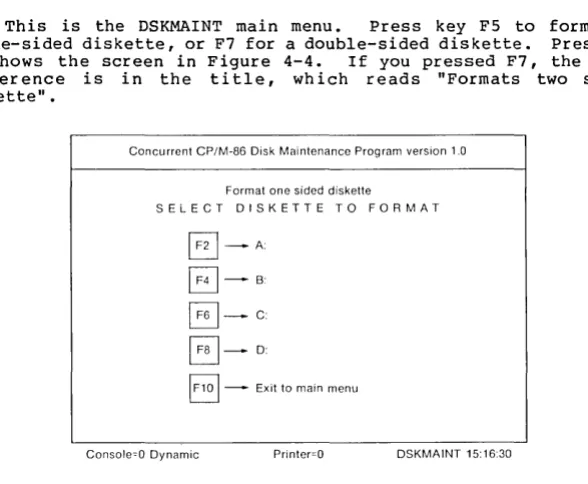
This is called the DSKMAINT main menu. Your task is formatting one or more new diskettes, so press key F5 if you have a single-sided diskette, or F7 if you have a double-single-sided diskette. Pressing F5 shows the screen in Figure 2-2. If you pressed F7, the only difference is in the title, which reads "Formats two sided diskette".
Concurrent CP/M-86 User's Guide 2.7 Back-up Files
Concurrent CP/M-86 Disk Maintenance Program version 1.0
Format one sided diskette
SELECT DISKETTE TO FORMAT
@]-A:
B-B:
~-C:
B-D:
EJ -
Exit to main menuConsole=O Dynamic Printer=O DSKMAINT 15:16:30
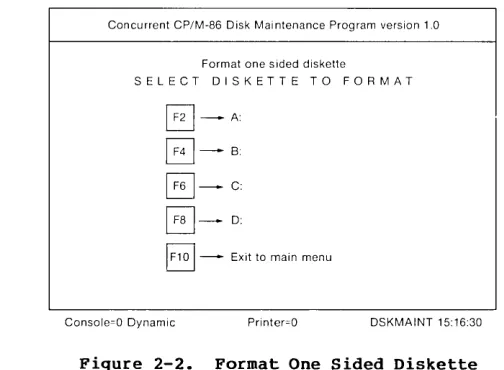
Figure 2-2. Format One Sided Diskette
Press the key that specifies the drive containing your disk; F2 for drive A, F4 for drive B, and so forth. This screen disappears and the screen in Figure 2-3 appears:
Concurrent CP/M-86 Disk Maintenance Program version 1.0
Formatting the diskette in drive B: Formatting track 00
Console=O Dynamic Printer=O DSKMAINT 15:12:20
[image:31.468.122.374.79.264.2] [image:31.468.146.374.337.518.2]Concurrent CP/M-86 User's Guide 2.7 Back-up Files
When DSKMAINT has finished formatting your diskette track by track, it automatically writes the Concurrent CP/M-86 system loader information to it, then verifies the diskette contents track by track, counting down the tracks as it works. The "Formatting track n" message changes to "Ver ifying track n". When the ver if ication is through, the screen returns to the main menu.
Now that you have one or more new initialized diskettes, you are ready to duplicate your diskettes.
2.7.3 Copying Diskettes
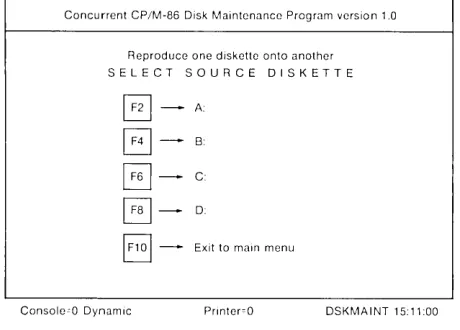
Once you have called DSKMAINT as described above and replaced old diskettes with the diskettes you want to copy across, press F3 to copy diskettes. The screen in Figure 2-4 appears:
Concurrent CP/M-86 Disk Maintenance Program version 1.0 Reproduce one diskette onto another SELECT SOURCE DISKETTE
~-A:
6 -
B6 -
CEJ-
D:EJ -
Exit to main menuConsolecO Dynamic Pfinter=O DSKMAINT 15:11:00
Figure 2-4. Reproduce Diskette: Select Source Diskette
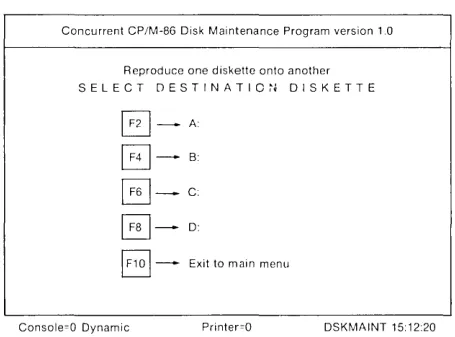
This screen asks you to specify which drive contains the source diskette with the original files to copy. Press the appropriate key; F2 for drive A, F4 for drive B, and so forth. This screen is replaced by the screen in Figure 2-5, which asks you to specify the drive containing the destination diskette. The destination diskette receives the copied files.
[image:32.468.112.342.224.389.2]Concurrent CP/M-86 User's Guide 2.7 Back-up Files
Concurrent CP/M-86 Disk Maintenance Program version 1.0
Reproduce one diskette onto another S E L E C T [) EST I NAT I 0 ~J DIS K E T T E
@]_A
B-B·
B-c:
GJ-
D:B -
Exit to main menuConsole=O Dynamic Printer=O DSKMAINT 15:12:20
Figure 2-5. Reproduce Diskette: Select Destination Diskette
As the copying operation takes place DSKMAINT informs you of its progress. The screen in Figure 2-6 tells you which disk is the source and which is the destination, noting the tracks as they are written, verified, and then reread to confirm proper operation.
Concurrent CP/M-86 Disk Maintenance Program version 10
Console=O Dynamic
Reproducing from the diskette in drive A to the diskette in drive B: Verifying track 30
Printer=O DSKMAINT 15:15:30
[image:33.469.147.375.73.242.2] [image:33.469.145.371.344.528.2]Concurrent CP/M-86 User's Guide 2.7 Back-upFiles
After DSKMAINT finishes copying, the main menu returns to the screen.
2.7.4 DSKMAINT Error Messages
Before you call DSKMAINT, be sure your current virtual console
is in Dynamic mode. Set i t to Dynamic mode with VCMODE.
You might see an error message while performing a DSKMAINT operation; these messages appear in the status line at the bottom of
your screen. This message is:
Disk Error Accept/Retry/Ignore/Details?
Type A for Accept. DSKMAINT returns to the main menu and shows the
BAD DISK TRY ANOTHER ONE error message printed in reverse video (black letters on a green strip) in the location shown in Figure
2-7. Remove the appropriate diskette, replace it with another, and
try the operation again.
If you have double- and single-sided diskettes in your drives and try to copy across them, you obtain the following error message shown in the same location and format as the BAD DISK message above:
Source and destination diskette are not the same type
Concurrent CP/M-86 Disk Maintenance Program version 1.0 ~3~.,;,~~~""!T:·t~ .1~1:~:{i(; ~~t~(: ;,:F~.j~; ·fiiD
Reproduce one diskette onto another SELECT SOURCE DISKETTE
~_ A'
EJ-
B:~-C
~_D:
B -
Exit to main menuConsole=O Dynamic Printer=O DSKMAINT 15:14:00
Figure 2-7. Source and Destination Diskettes not Same Type
Concurrent CP/M-86 User's Guide 2.8 Diskette File Storage
2.8 How Are Files Stored On Diskettes?
Concurrent CP/M-86 stores files on a single-sided or
double-sided diskette in the same manner. Concurrent CP/M-86 records the
filename, filetype, user number, and attributes of each file in a
special area of the diskette called the directory. In the
diredtory, Concurrent CP/M-86 also records which diskette sectors belong to which file, and which diskette sectors are still free. The directory is large enough to store this data for up to 64 files, whether the diskette is single-sided or double-sided.
Concurrent CP/M-86 sets aside directory and storage space for a
file only as the file grows. When you erase a file, Concurrent
CP/M-86 reclaims this allocated space in two ways: it makes the
file directory space available to catalog a different file, and it frees the file storage space for later use.
This dynamic allocation feature makes Concurrent CP/M-8~
powerful. You do not have to tell Concurrent CP/M-86 how big your
file will become, because Concurrent CP/M-86 automatically allocates more storage for a file as i t is needed and releases the storage for
reallocation when the file is erased.
2.9 Changing Diskettes
Concurrent CP/M-86 cannot, of course, do anything to a file unless the diskette that holds the file is inserted into a drive and the drive door is closed. When a diskette is in a drive, i t is on-line, and Concurrent CP/M-86 can read its directory.
At some time, you have to take a diskette out of a drive and
insert another that contains different files. You must tell
Concurrent CP/M-86 that you changed a diskette by giving the
DSKRESET command directly after the system prompt. In response,
Concurrent CP/M-86 logs in the new diskette.
If you forget to issue the DSKRESET command after you change a diskette, Concurrent CP/M-86 automatically protects the new diskette
by setting it to Read-Only (R/O). You can run a text editor or
copying program and try to write to the new diskette, but when you do, Concurrent CP/M-86 notices that the original diskette is no longer in the drive and writes the message,
Bdos Err on d: R/O
Bdos Function : nn File: filespec.typ
where d: is the drive specification of the new diskette. If you get this message, type DSKRESET after the system prompt returns.
There are times when it is appropr iate to load a command program into memory and then change a diskette while the program in memory has paused for the change. At these times, the new diskette
tha t you inser t in the dr i ve must be of the same type as the
diskette you have removed from the drive. If it is not of the same
Concurrent CP/M-86 User's Guide 2.9 Changing Diskettes
To sum up, there are two things to note when chang i ng a diskette after loading a program into memory:
• You must replace the diskette you removed with a diskette of the same type, either single-sided or double-sided .
• Concurrent CP/M-86 can read from the changed diskette but cannot write to a diskette unless it has been logged in at system star t-up or with a DSKRESET following the system prompt.
Whenever you have one or more virtual consoles operating in the Buffered mode, Concurrent CP/M-86 opens and maintains one or more buffer files dedicated to these consoles. These files retain data output to the screen by the program running on the buffered console. When you switch virtual consoles and bring a background console into
the foreground, all of this data can be written to the screen.
Concurrent CP/M-86 puts these buffer files on your system drive, which is your highest-lettered drive: on a two-drive system, in drive B; on a three-drive system, drive C; on a four-drive system, drive D.
However, if you installed memory into the memory locations reserved for MDISK (described in detail in Section 2.11.1), Concurrent CP/M-86 uses this memory for buffered file storage. You can then use your system diskette like any other.
Do not remove your system diskette from its drive while any virtual consoles are in Buffered mode with open files. If you do remove this diskette, programs on a background Buffered-mode console cease execution until switched to the foreground.
If you try to replace your system diskette with another diskette, Concurrent CP/M-86 checks the new diskette's directory and decides it is new. In this case, no buffer ing occurs until the drive is set to Read/Write with the DSKRESET command.
To avoid this, use the DSKRESET command (explained in Section 4.9). If you want to remove your system diskette, give the DSKRESET command first. If any buffered console files are open, Concurrent CP/M-86 returns an error message similar to this example,
Disk reset denied, Drive B: Console 2 Program VOUT2
and you must wait until these files close.
2.10 Changing The Default Drive
At any given time during Concurrent CP/M-86 operation, there is one drive called the default drive associated with each virtual console. Unless you put a drive specification in your command line, Concurrent CP/M-86 and the utilities look in the directory of the