IBM Tealeaf cxConnect for Web Analytics
Version 9 Release 0.1
December 4, 2014
cxConnect for Web Analytics
Administration Manual
Note
Before using this information and the product it supports, read the information in “Notices” on page 25.
Contents
cxConnect for Web Analytics
Administration Manual . . . v
Chapter 1. cxConnect for Web Analytics
Overview . . . 1
Chapter 2. Integration with Tealeaf
through cxConnect . . . 3
cxConnect integration through data insertion . . . 3
cxConnect integration through segment files . . . . 4
Examples . . . 5 Example 1 . . . 5 Example 2 - Omniture . . . 6 Example 3 - Coremetrics . . . 6 Configuring Tealeaf . . . 6 Segment Builder . . . 6
Chapter 3. Segment Builder Service. . . 7
Uploading Segment queries . . . 7
via Portal . . . 7
via File Directory . . . 7
Operations . . . 7
Creating Segments for integration . . . 7
Query options . . . 7
Query format . . . 9
Monitoring Segment Builder Service . . . 10
Configuring Segment Builder Service . . . 10
Access permissions . . . 10
Chapter 4. Omniture Integration
Solutions . . . 11
Integration method 1 - segment file . . . 11
Examples . . . 11
Configuring Tealeaf. . . 12
Configuration and usage in Omniture . . . . 12
Chapter 5. WebTrends Integration
Solution . . . 15
Overview of WebTrends . . . 15
Current WebTrends offerings . . . 15
Integration example . . . 16
WebTrends data collection . . . 16
Tealeaf integration with WebTrends Analytics . . . 16
Pre-Requisites . . . 17
Integration solution. . . 17
Report creation . . . 17
Report export. . . 19
Import report as Tealeaf segment . . . 20
Chapter 6. IBM Tealeaf documentation
and help . . . 23
Notices
. . . 25
Trademarks . . . 27
Privacy Policy Considerations . . . 27
cxConnect for Web Analytics Administration Manual
IBM Tealeaf cxConnect for Web Analytics enables easy integration of Tealeaf session data with third-party web analytics applications to reveal trends and anomalies while leveraging your enterprise's investments. Through these third-party suites, web analytics can review reports and drill-down into Tealeaf sessions for further investigation. You may also submit session segments that are generated from your Web Analytics suite to Tealeaf to create a matching set of sessions within Tealeaf.
The IBM Tealeaf cxConnect for Data Analysis product line contains the following products:
v "cxConnect for Data Analysis Administration Manual" in theIBM Tealeaf
cxConnect for Data Analysis Administration Manual
v cxConnect for Web Analytics Administration Manual
v "cxConnect for Voice of Customer Administration Manual" in theIBM Tealeaf
cxConnect for Voice of Customer Administration Manual
v "cxConnect for Multivariate Testing Administration Manual" in theIBM Tealeaf
cxConnect for Multivariate Testing Administration Manual
Chapter 1. cxConnect for Web Analytics Overview
IBM Tealeaf cxConnect for Web Analytics enables easy integration of Tealeaf session data with third-party web analytics applications to reveal trends and anomalies while leveraging your enterprise's investments.
Note: IBM Tealeaf cxConnect for Web Analytics is a separately licensable
component of the IBM Tealeaf cxConnect for Data Analysis product from Tealeaf. please contact your IBM Tealeaf representative.
When Tealeaf data is integrated into these suites, your web analysts can review existing funnel reports and drill down into Tealeaf sessions for further
investigation. In this manner, Tealeaf's rich data set provides aggregated insight and the support details down to the individual field.
From any of the web analytics products listed below, you can define a session segment based upon search criteria you provide. This query is submitted to the IBM Tealeaf CX server via the Segment Builder Service, and IBM Tealeaf cxConnect for Web Analytics automatically generates a session segment containing the
matching set of sessions.
v See "Segment Builder Service" in theIBM Tealeaf cxConnect for Web Analytics
Administration Manual.
From this segment, you can replay individual sessions or perform further analysis on the segment.
Chapter 2. Integration with Tealeaf through cxConnect
This document describes the methods for integrating third-party applications with the IBM Tealeaf CX platform using IBM Tealeaf cxConnect for Data Analysis. The available methods for integration are as follows:
Table 1. Integrating with Tealeaf through cxConnect
Method IBM Tealeaf cxConnect for Data Analysis Product
Description
Replay Link Voice of Customer Allows replay of a single session. See cxConnect Integration through replay links.
Data Insertion Voice of Customer Allows external data (events) to be inserted into a session through a customizable image request. See “cxConnect integration through data insertion.”
Segment File Web Analytics Allows creation of a Tealeaf®
session segment from a list of supplied session identifiers. See "cxConnect Integration through Segment Files" in theIBM Tealeaf cxConnect for Web Analytics Administration Manual.
cxConnect integration through data insertion
The data insertion method of integration is used to associate website content and customer experience data, delivered by third-party and/or internal systems, with Tealeaf captured sessions, where the information to integrate is not included in the HTTP stream that is captured by Tealeaf.
The data association is accomplished by making a request, which includes the data to be associated as query string parameters, for an image file located on the web infrastructure that is automatically captured by Tealeaf.
Note: The only modification to the requested web infrastructure is the inclusion of the image file. The image file must be namedtl_img.html.
For performance and data optimization reasons, by default the Tealeaf system filters all requests for common binary formats, such as.gif, and drops them from the captured data stream. To bypass this filter, the .htmlextension is used for the image file, ensuring that the request and all included data pass through the Tealeaf system.
The URL for the image request is as follows:
http://<HostPathToImage>/tl_img.html?Source=<Source>&Event=<Event>&SidName= <SidName>&SidValue=<SidValue>&Custom1=<Custom1>&Custom2=<Custom2>
Note: Any number of custom name/value pairs can be included in the query string parameters of the request. In all cases, values without spaces are preferred.
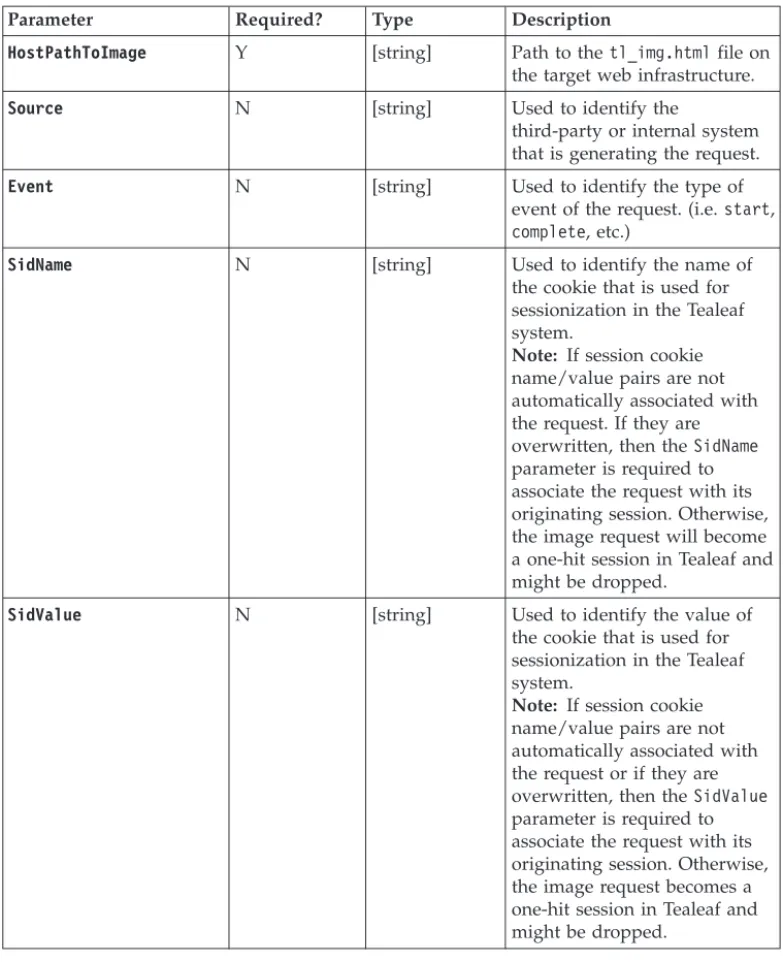
Table 2. cxConnect Integration through Data Insertion
Parameter Required? Type Description
HostPathToImage Y [string] Path to thetl_img.htmlfile on the target web infrastructure.
Source N [string] Used to identify the
third-party or internal system that is generating the request.
Event N [string] Used to identify the type of
event of the request. (i.e.start, complete, etc.)
SidName N [string] Used to identify the name of the cookie that is used for sessionization in the Tealeaf system.
Note: If session cookie name/value pairs are not automatically associated with the request. If they are overwritten, then theSidName parameter is required to associate the request with its originating session. Otherwise, the image request will become a one-hit session in Tealeaf and might be dropped.
SidValue N [string] Used to identify the value of the cookie that is used for sessionization in the Tealeaf system.
Note: If session cookie name/value pairs are not automatically associated with the request or if they are overwritten, then theSidValue parameter is required to associate the request with its originating session. Otherwise, the image request becomes a one-hit session in Tealeaf and might be dropped.
cxConnect integration through segment files
The segment file integration method is used to automate the creation of a Tealeaf session segment that corresponds to a segment defined in a third-party system. The integration and automation is accomplished by supplying a file containing a list of values that identify unique customer sessions to the configured Tealeaf Segment Builder. Once created by the Segment Builder, the session segment is available for review and analysis via the Tealeaf Portal.
v For more information on configuring Segment Builder, see the Integration
Examples
The following examples show how session segments are created in IBM Tealeaf.
Example 1
In the following example, we show how a session list generated from Google Analytics is used to create a session segment in Tealeaf.
The following JavaScript functions enables the cookie value used for identifying unique customer sessions in Tealeaf to be included in and exported from Google Analytics reports:
v We assume the cookie used for identifying unique sessions is namedTLTSIDand
the Google Analytics tracker ID isUA-4040192-1.
<!-- BEGIN TEALEAF INTEGRATION CODE --> <script type="text/javascript"> <!--// Begin example Tealeaf integration
// Function retrieves the specified cookie value used for identifying unique // customer sessions.
function TLGetCookie(c_name) {if (document.cookie.length>0) {
c_start=document.cookie.indexOf(c_name + "=");if (c_start!=-1) {
c_start=c_start + c_name.length+1;
c_end=document.cookie.indexOf(";",c_start);if (c_end==-1) c_end=document.cookie.length;return unescape(document.cookie.substring(c_start,c_end)); }
}return ""; } --> </script>
<!-- END TEALEAF INTEGRATION CODE --> <!-- BEGIN GOOGLE ANALYTICS CODE -->
<script type="text/javascript">var gaJsHost = (("https:" == document.location.protocol) ? "https://ssl." : "http://www.");
document.write("\<script src=’" + gaJsHost
+ "google-analytics.com/ga.js’ type=’text/javascript’>\<\/script>" ); </script>
<script type="text/javascript">var pageTracker = _gat._getTracker("UA-4040192-1"); pageTracker._initData();
_var TLSessionizationName=’TLTSID’;
__var TLSessionizationValue=TLGetCookie(TLSessionizationName);_ pageTracker._setVar("TLSessID/" + TLSessionizationValue); </script>
<!-- END GOOGLE ANALYTICS CODE -->
By including the pageTracker._setVar("TLSessID/" + TLSessionizationValue);
tracking call, we are creating a user-defined segment in Google Analytics for data analysis and eventual export.
Currently, the Google Analytics limitation for data export is 50,000 rows. To include the aforementioned value used to define unique visits:
1. You must select the User Definedsegment option. This option displays all
TLSessID/values in the first column of the report.
2. To ensure that the first 50,000 values are exported (not just those that are currently displayed on the screen),
you must append &limit=50000to the URL GET parameters and execute the HTTP GET prior to completing a.csvexport.
3. After export, you must removeTLSessID/from the dataset.
4. You must place the clean file in the configured Segment Builder directory.
Example raw export file
User Defined Value,Visits,Pages/Visit,Avg. Time on Site,% New Visits, Bounce Rate,Visits,Completed Orders,Goal Conversion Rate,
Per Visit Goal Value,Visits,Revenue,Transactions,Average Value, Ecommerce Conversion Rate,Per Visit Value
TLSessID/293E9A5E5CAF105C000DEE7EE2F16E35,8,1,0,1,0,8,0,0,0,8,0,0,0,0,0 TLSessID/ECFEF562531B10530476BA91ED9DBC59,4,5.5,45.5,0,0,4,0,0,0,4,0,0,0,0,0 TLSessID/0DBDEE1C5A7D105A0573E16571F7F785,2,3,12,0.5,0,2,0,0,0,2,0,0,0,0,0 TLSessID/138F2D98586F105800E7CC06F65018AE,2,4,208,0.5,0,2,0,0,0,2,0,0,0,0,0 TLSessID/277D7D6C527C1052088CADA14E296CFB,2,12,135,0,0,2,0,0,0,2,0,0,0,0,0
TLSessID/347DB4E45279105207DDDEE1E6FF8C80,2,5,197.5,0,0,2,0,0,0,2,0,0,0,0,0 TLSessID/3D476522570910570004E16571F7F785,2,3.5,85.5,0,0,2,0,0,0,2,0,0,0,0,0 TLSessID/4A28CAFE526010520213B3668C2E53B0,2,3.5,36.5,0,0,2,0,0,0,2,0,0,0,0,0
Example export file post data cleansing
293E9A5E5CAF105C000DEE7EE2F16E35 ECFEF562531B10530476BA91ED9DBC59 0DBDEE1C5A7D105A0573E16571F7F785 138F2D98586F105800E7CC06F65018AE 277D7D6C527C1052088CADA14E296CFB 347DB4E45279105207DDDEE1E6FF8C80 3D476522570910570004E16571F7F785 4A28CAFE526010520213B3668C2E53B0
Example 2 - Omniture
1. TagTLSessID2. Define segment in Omniture.
3. Define DataWarehouse export task in Omniture.
a. FTP location
4. Define company procedure for retrieving, cleaning, and moving export.
Example 3 - Coremetrics
1. TagTLSessID or Client Session IDconversion event.
a. Add JS file that includesClient Session ID conversion event as part of
cmCreateTechPropsTagfunction.
b. Add cmCreateConversionEventTag(TLSessID, "2", "TLSessIDEvent", "100").
2. Define segment in Coremetrics®.
3. Define FTP destination in Coremetrics.
4. Define Key Segment in Coremetrics.
5. Define Export Builder task in Coremetrics:
a. Recurring
b. Completed Events
c. Session-based
6. Define company procedure for retrieving, cleaning, and moving export.
Configuring Tealeaf
Some additional parameters need to be configured to complete the integration. See “Segment Builder” for more information.
Segment Builder
To complete the configuration of the segment file integration method the Segment Builder parameters must be set via the Tealeaf Portal.
v For more information, see the Integration section of "CX Settings" in theIBM
Chapter 3. Segment Builder Service
The Tealeaf Segment Builder service can be used to create session segments based on externally specified queries of Tealeaf session data. For example, a third-party application can specify a set of queries in a file, which are then executed to generate a new session segment.
Note: The Segment Builder Service is a component of IBM Tealeaf cxConnect for Web Analytics, a separately licensable component of the IBM Tealeaf CX system. please contact your IBM Tealeaf representative.
Uploading Segment queries
This service polls a preconfigured directory inside the Tealeaf install directory for query files, executes the queries, and assembles the returned session data into a session segment. The segment is then available through the Portal.
v When the license key permits use of the service, the Segment Builder Service is
started by the Data Service automatically.
via Portal
The preferred method is to upload the file to the directory via the Tealeaf Portal. See "Managing Session Segments" in the IBM Tealeaf cxResults User Manual.
via File Directory
Prepared segment queries are retrieved from the following directory:
<Tealeaf install directory>\Integration\Segments
Operations
When the Segment Builder polls theSegmentsdirectory, it attempts to turn the
.txt,.csv, or.zipfiles in the directory into sets of queries of the Tealeaf session dataset. If the process is successful:
1. The segment becomes available through the Managing Session Segments page. See "Managing Session Segments" in theIBM Tealeaf cxResults User Manual.
2. The source file is moved to the following directory:
<Tealeaf install directory>\Integration\Completed
3. If there is a failure, the file is moved to the completed directory and the error is logged in the log file. In this case, no session segment is created.
Creating Segments for integration
The Segment Builder service can create segments out of source files in the following formats:
v .txt v .csv
v .zip, which contains content in.txtor.csvformat
Query options
If desired, you can specify the import settings for the queries in the session file. Otherwise, the default settings are applied.
Note: Unless specified in the import file, query parameters for the imported segments utilize the default parameter values as configured in the Portal. If you are regularly using the Segment Builder Service to import segments from a single external system, you should configure the Portal default values to support this integration, instead of manually configuring each import file to insert these values, as described below. For more information on the definitions of each setting and its default value, see "Managing Session Segments" in theIBM Tealeaf cxResults User Manual.
The following is an example query, as it would appear in a text file. In this example below, the search field that is queried is ordernumfor the valuesA123,
B456, orC789.
In the file, each query must be listed on a single, separate line:
#Options #!MD5=N
#!DATA_COLUMN=0 #!DELIMITER=| #!ID_PREFIX=NOTHING
#!SEGMENT_NAME=Order Number Search #!DATE_SPAN=3 #!SEARCH_TERM=ordernum #!SEGMENT_OWNER=admin #!ID_PREFIX_USE=N #!SHARE_SEGMENT=N A123 B456 C789 Option Description
MD5 If set to Y, an MD5 hash is applied to the query string to normalize it for query execution.
DATA_COLUMN
The column in the data file that contains the search term values. If each line is a single value, then set this value to0.
DELIMITER
The column delimiter in the query file. The following values are supported:
v |(pipe) v ,(comma)
v (tab) - use keywordTAB
ID_PREFIX
The integration ID prefix that is used to identify search terms. If no integration ID prefix is used (ID_PREFIX_USE=N), set this value toNOTHING.
v For more information on this value, see "CX Settings" in theIBM Tealeaf
cxImpact Administration Manual.
SEGMENT_NAME
The name of the segment as it appears in the Portal after a successful import.
DATE_SPAN
The number of days preceding the current date that are searched for matching data.
SEARCH_TERM
The variable name in the request data for which to search for matching values.
SEGMENT_OWNER
After import, this value identifies the owner of the segment among Tealeaf users.
ID_PREFIX_USE
Set this value toYto use an integration ID prefix to mark the beginning of fields in the data.
v The value of the prefix is defined in theID_PREFIXoption above. v The end of each field's data is defined by a delimiter (defined in the
parameter DELIMITERabove) or the end of the line.
SHARE_SEGMENT
To share this segment with all Tealeaf users after it is successfully imported, set this value toY.
values You may specify values for which to search the field inSEARCH_TERM as individual lines for each value.
Query format
Each line in a segment file represents a different query of the Tealeaf database. The following options and settings dictate format:
Formatting Options Description
MD5=N Data in text file for the search query is used. The MD5 hash is not applied before the search begins.
DATA_COLUMN=0
When this value is set to 0, the resulting file is expected to be a single column of values.
DATE_SPAN=20
The query is created to search the preceding 20 days of data.
SEARCH_TERM
This value indicates the request variable field for which to search for values matching the column of data.
ID_PREFIX=N
No integration ID prefix is in use. The column of data just contains clear-text values.
The following options and settings are not relevant to this query:
v DELIMITER
v ID_PREFIX=NOTHING
After the query has executed and returned some sessions, the following settings are applied to the generated segment:
Option Description SEGMENT_NAME
The user-readable name (Testing onlyin the above example) appears in the Managing Session Segments page.
SEGMENT_OWNER
The Tealeaf user ID of the owner of the generated segment: joeuser.
SHARE_SEGMENT
Since this value is set toN, the segment is a private segment visible only to
joeuser and Tealeaf administrators.
Monitoring Segment Builder Service
You can monitor the progress of the Segment Builder Service through the Managing Session Segments page in the Tealeaf Portal.
The service detects any new files in the segment directory and processes them immediately. When the queries are finished, the assembled session segment is available through the Managing Session Segments page.
Note: For any imported segment in the Managing Session Segments page, verify that the Session Count column contains a non-zero value. In this column, a value of 0indicates that the queries failed.
See "Managing Session Segments" in the IBM Tealeaf cxResults User Manual.
Configuring Segment Builder Service
All options for configuring the Segment Builder service are available through the Portal.
1. In the Portal menu, selectTealeaf>Portal Management.
2. In the left pane, selectIBM Tealeaf CX Settings.
3. Select the Integration category.
See "CX Settings" in the IBM Tealeaf cxImpact Administration Manual.
Access permissions
For more information on configuring access permissions for segments, see "Report Access Permissions" in the IBM Tealeaf cxImpact Administration Manual.
Chapter 4. Omniture Integration Solutions
This document describes the methods for integrating the IBM Tealeaf CX platform with Omniture. The integration leverages the segment file integration approach.
Note: This integration solution requires the IBM Tealeaf cxConnect for Web Analytics product, a separately licensable component of the IBM Tealeaf CX system. please contact your IBM Tealeaf representative.
v “Integration method 1 - segment file”- Allows for the creation of a Tealeaf
session segment from a file containing a list of supplied values.
Integration method 1 - segment file
The segment file integration method is used to automate the creation of a Tealeaf session segment that corresponds to a segment defined in a third-party system. The integration and automation is accomplished by supplying a file, containing a list of values that identify unique customer sessions, to the configured Tealeaf Segment Builder. Once created by the Segment Builder, the session segment is available for review and analysis via the Tealeaf portal.
Examples
For all examples, assume the following integration key parameters:
Prefix: TLTIID_
Delimiter: ,
See "CX Settings" in the IBM Tealeaf cxImpact Administration Manual.
Example 1
The following example highlights how session segments are created in Tealeaf, based on daily scheduled reports that are generated by a business analyst. In addition to being delivered to specific individuals via email, the daily reports are also placed on a shared internal directory. As part of the example, an internal process that copies the daily reports to the configured Tealeaf integration directory has already been defined and implemented. Every morning the business analyst reviews and analyzes the pre-build segment via the Tealeaf portal.
Example report (ScheduledDailyOrders20090117.csv)
CustomerId,IntegrationKey,Visits,Pages/Visit,AvgTime,Orders,Revenue 2313182512,TLTIID_293E9A5E5CAF105C000DEE7EE2F16E35,1,14.4,172.8,1,78.11 8388107683,TLTIID_ECFEF562531B10530476BA91ED9DBC59,2,20.1,215.07,3,64.12 6970467013,TLTIID_0DBDEE1C5A7D105A0573E16571F7F785,3,24,343.2,3,177.4 1466584925,TLTIID_138F2D98586F105800E7CC06F65018AE,3,28.8,429.12,3,169.22 6254196733,TLTIID_277D7D6C527C1052088CADA14E296CFB,1,18.4,97.52,3,83.69 7396376859,TLTIID_347DB4E45279105207DDDEE1E6FF8C80,2,24.9,488.04,2,58.47 9624778192,TLTIID_3D476522570910570004E16571F7F785,3,17.3,167.81,1,101.02 9710688245,TLTIID_4A28CAFE526010520213B3668C2E53B0,3,26.1,195.75,1,234.59
Steps
To view the session segments,
1. Log in to the Tealeaf Portal.
2. In the Portal menu, navigate to the Session Segments page by clickingAnalyze
>Session Segments>Manage Session Segments. See "Managing Session Segments" in theIBM Tealeaf cxResults User Manual.
3. ClickView Session Listto review the customer sessions.
Example 2
The following example highlights how session segments are created in Tealeaf, based on ad-hoc reports. Example 2 articulates how a business analyst can
manually import, then subsequently review and analyze, session segments via the Tealeaf portal.
Example Report (AdHocDailyOrders20090117.csv)
CustomerId,IntegrationKey,Visits,Pages/Visit,AvgTime,Orders,Revenue 2313182512,TLTIID_293E9A5E5CAF105C000DEE7EE2F16E35,1,14.4,172.8,1,78.11 8388107683,TLTIID_ECFEF562531B10530476BA91ED9DBC59,2,20.1,215.07,3,64.12 6970467013,TLTIID_0DBDEE1C5A7D105A0573E16571F7F785,3,24,343.2,3,177.4 1466584925,TLTIID_138F2D98586F105800E7CC06F65018AE,3,28.8,429.12,3,169.22 6254196733,TLTIID_277D7D6C527C1052088CADA14E296CFB,1,18.4,97.52,3,83.69 7396376859,TLTIID_347DB4E45279105207DDDEE1E6FF8C80,2,24.9,488.04,2,58.47 9624778192,TLTIID_3D476522570910570004E16571F7F785,3,17.3,167.81,1,101.02 9710688245,TLTIID_4A28CAFE526010520213B3668C2E53B0,3,26.1,195.75,1,234.59
Steps
1. Log in to the Tealeaf Portal.
2. Navigate to the Manage Session Segments page by clickingAnalyze>Session Segments>Manage Session Segments. See "Managing Session Segments" in theIBM Tealeaf cxResults User Manual.
3. ClickImport a segment to begin importing a session segment.
4. After the session segment has been imported, you can review the segment. See Managing Session Segments for more information.
Configuring Tealeaf
To complete the configuration of the segment file integration method the Segment Builder parameters need to be set through the Tealeaf portal.
Segment Builder
For more information on the segment builder, see:
v "Segment Builder Service" in theIBM Tealeaf cxConnect for Web Analytics
Administration Manual
v "CX Settings" in theIBM Tealeaf cxImpact Administration Manual
Configuration and usage in Omniture
This section describes the configuration and usage in Omniture.
Pre-requisites
v SiteCatalyst v13 or greater
v Available custom conversion variable (eVar)
v DataWarehouse (if monthly session count exceeds 500K) v Discover (Optional)
Integration steps
1. Determine shared integration key to be used. Often, this key is the cookie used for sessionization in Tealeaf.
2. Modify web site tagging framework to pass integration key to a pre-defined variable in
SiteCatalyst, which is often a custom eVar.
Note: Tealeaf recommends prependingTLTIID_to the key. The custom conversion variable (eVar48) is populated with the integration key.
var IntegrationKey = "TLTIID_" + TLGetCookie("TLTSID"); s.eVar48=IntegrationKey;
3. Add the integration key to the Integration settings in Tealeaf. See "CX Settings" in theIBM Tealeaf cxImpact Administration Manual.
4. Configure a descriptive alias in SiteCatalyst for the variable used for integration.
5. SiteCatalyst:If you are using SiteCatalyst, configure the sub-relation for the variable used in the integration.
6. DataWarehouse:If you are using DataWarehouse, configure the FTP delivery destination.
7. If you are using FTP delivery, define an internal process for retrieving the DataWarehouse reports and moving them to the configured Tealeaf integration directory.
Usage through SiteCatalyst
1. Log into Omniture and navigate to SiteCatalyst.
2. During analysis of website performance, navigate to sub-relation report based on variable used for integration.
Note: The integration variable sub-relation must be pre-configured. See “Integration steps.”
3. Download report data in CSV format and save file to local file system.
4. Log in to Tealeaf and import sub-relation report data using theImport Segmentoption of the Manage Session Segments screen. See "Managing Session Segments" in theIBM Tealeaf cxResults User Manual.
5. After the segment builder process has completed, analyze and manage the customer experience and behavior of the visitor segment identified by the imported sub-relation report data.
Usage through DataWarehouse
1. Log in to Omniture and navigate to DataWarehouse.
2. Define one time, scheduled reports, or both reports to extract segments of interest.
Note: Reports must include the pre-determined integration variable. See “Integration steps.”
Note: Reports configured for FTP delivery will leverage the pre-defined FTP retrieval process.
3. Log in to the Tealeaf Portal to analyze and manage the customer experience and behavior of the visitor segment identified by a pre-configured
DataWarehouse report.
4. If DataWarehouse reports are configured for email delivery, download and import them into Tealeaf via the Import Segment option of the Manage Session Segments interface. See "Managing Session Segments" in theIBM Tealeaf cxResults User Manual.
Chapter 5. WebTrends Integration Solution
The section outlines a technique for integrating Tealeaf with your WebTrends Analytics solution. After an outline of the WebTrends solution set, the document focuses on methods of integration with WebTrends Analytics that uses the Segment Builder Service in Tealeaf to import segments of sessions generated by WebTrends.
v See "Segment Builder Service" in theIBM Tealeaf cxConnect for Web Analytics
Administration Manual.
Overview of WebTrends
WebTrends was one of the pioneering solutions in the Web Analytics marketplace and has retained its leadership in that market. The solution set has evolved over time from a basic software-based hit counter into a complex enterprise Web Analytics solution that can be delivered in either a software as a service (SAAS) model or as an installed software product.
Current
®WebTrends offerings
The current WebTrends suite has a number of product offerings in the Web Analytics space:
1. WebTrends Analytics.The core web analytics solution provided by WebTrends, this product is in use by the vast majority of WebTrends customers. It can be delivered in as hosted software as a service (known as WebTrends OnDemand) or as an installed software product.
2. WebTrends Marketing Warehouse. This foundation layer for WebTrends high-end visitor analysis modules is a relational SQL Server Data mart with a published schema.
v It contains tables holding individual visitor records (typically identified
through the use of WebTrends first party visitor cookie) and also
"transaction" tables that log specific "events" that occur during a users visit (based on tags).
v It contains lookup tables that can be populated from external systems (e.g.
product SKU details, campaign details, customer names, addresses etc).
v Warehouse data can be accessed through WebTrends new query tool that has
a business abstraction layer for ease of use by business users or by writing SQL directly to the database (this is restricted if using the OnDemand version - have to get queries written by WebTrends and they charge for each query definition). Data extracts can also be scheduled and sent to FTP, email etc. The other access methods are Visitor Intelligence (see below) and Explore - which is a decision tree based segmentation tool.
v Marketing Warehouse can be implemented as a hosted (OnDemand) or
On-Premise software solution.
3. WebTrends Visitor Intelligence.Visitor Intelligence is an analysis layer based on Microsoft's Analysis Services OLAP technology. It allows a business user to slice and dice a predefined cube of data to segment and analyze visitor behavior.
v Mostly used to identify micro-segments for targeted marketing campaigns,
Visitor Intelligence is loaded on a scheduled basis a few times a day from the Marketing Warehouse database. It is most useful for small to medium
eCommerce sites.
v Visitor Intelligence is ONLY available in hosted form (OnDemand). v Visitor Intelligence requires Marketing Warehouse.
4. WebTrends Score.This product is used to measure visitor engagement. Scores are attributed to individual visitors based on their activity on the website. The scores are stored in the Marketing Warehouse and can be queried from there or analyzed in the Visitor Intelligence cubes.
v This solution enables visitor segmentation based on engagement with the site
or with specific areas (e.g. visitors who regularly shop for shoes).
v There is no defined best practice on this form of scoring, and most
organizations are still struggling to get the basics of web visitor segmentation implemented.
v WebTrends Score requires Marketing Warehouse.
Integration example
For example purposes, this section focuses on integrating Tealeaf with the
WebTrends Analytics, the flagship Analytics solution. It is also the most prevalent solution in use
Note: Tealeaf is technically capable of integrating with Marketing Warehouse. However, this integration solution has not yet been tested. For more information, please contact Tealeaf Professional Services.
WebTrends data collection
The most common method of data collection for WebTrends is to use JavaScript tagging.
v A standard JavaScript tag is inserted into the page, which is typically an include
file called by<SCRIPT>tags in the page.
v Meta data to supply additional information about the page is implemented in
the form of<META>tags in the<HEAD>section of the page.
v There is no need to create JavaScript variables within the<BODY>of the page
itself.
For example, in WebTrends, pages can be assigned to content groups, which WebTrends uses to aggregate pages under a single reference. To assign a page to the Products content group, you would include the following <META>tag:
<META name=WT.cg_n content="Products"/>
There are a number of standard WebTrends<META>tag names that are used to populate reports around specific functionality in WebTrends. For example, for funnel steps use WT.si_x. For Revenue, useWT.tx_s, and so on.
It is also possible to populate completely custom<META>tags for any custom data on which you wish to report in WebTrends.
Note: It is currently best practice to use theWT.zprefix for these custom variables. The DCSextprefix can also be used.
Tealeaf integration with WebTrends Analytics
The Tealeaf integration method outlined below has been validated for the WebTrends Analytics product.
v Some steps below are required changes in the integration if the WebTrends
solution is hosted.
Pre-Requisites
There are a number of pre-requisites for integrating your WebTrends solution with Tealeaf:
1. Any WebTrends Analytics product (software or OnDemand) that includes the Custom Reports capability. Supported products:
v WebTrends Analytics Advanced Analysis (software) v WebTrends Analytics Advanced Marketing (OnDemand) v WebTrends Analytics Commerce Edition (OnDemand)
v Any version of WebTrends Analytics with the additional Custom Reports
pack applied to it.
2. JavaScript tagging must be used as the data collection method for WebTrends.
v It is possible to use Web Server Logs as a data source for WebTrends
on-premise software. This data collection method is not currently supported for WebTrends integration with Tealeaf.
Integration solution
To facilitate the integration, your web application must issue a session identifier that can be used by both Tealeaf and WebTrends. This session identifier needs to be inserted into the proper <META>tag for use by WebTrends. Tealeaf can be
configured to extract and use this session identifier as Tealeaf's session identifier. Defining this session identifier may require involvement with your web
development team. For more information, please contact Tealeaf Professional Services.
The integration of WebTrends with Tealeaf depends on a custom <META>tag being implemented in each page of the web application that contains the session ID used by Tealeaf. This inclusion enables reports to be created in WebTrends that can be exported as session segments, which can be imported into Tealeaf through the Portal on an ad-hoc basis or in batch mode using the Tealeaf Segment Builder Service.
See "Segment Builder Service" in theIBM Tealeaf cxConnect for Web Analytics Administration Manual.
Integration
<META>
tag
It is recommended that you use a custom<META>tag namedWT.z_tl_sessionid. This tag should be used to capture the Tealeaf Session ID.
On each page, this identifier is implemented as a<META>tag that looks like following:
<META name=WT.z_tl_sessionid content="_insert session identifier here_"/>
When this tag has been implemented and deployed to each appropriate page on the web application, WebTrends begins collecting the report data necessary for export.
Report creation
When the data has been collected, the next step is to create the report on which the session segment export is based.
WebTrends Analytics includes a custom report building facility. Within the custom report builder, the WebTrends user must complete the following steps:
1. Create a Custom Dimension based on theWT.z_tl_sessionid parameter. This dimension should be configured to count on the first occurrence during the Visit.
2. Create a Custom Report with the new Custom Dimension as the first dimension in the report.
v It is possible to have up to 2 dimensions in a single report, and you can also
apply custom filters to the report.
v It is not important which metric is used in the report. Useful examples are
Visits or Page Views.
Table limits
WebTrends Analytics reports are limited by a concept called table limits. In WebTrends,table limitsplace limits around the report so that the reporting interface and underlying proprietary data structures provide a high level of
performance. These parameters limit the amount of data that can be populated into the report at any one time
v When the limit is reached, WebTrends either auto-trims the least popular entries
or stops populating with new data, depending on the report structure. A report containing session identifiers as the first dimension is likely to be very large, and the table limits are likely to be encountered very quickly. If the report reaches its table limits, the course of action depends on whether the hosted or software version of WebTrends is being used:
v Hosted (WebTrends OnDemand).The WebTrends Administrator must contact
WebTrends Technical Support and ask them to increase the limits on the specific reports used to export session segments for Tealeaf. For more information on configuring the limits, see “Reporting best practices for Tealeaf Integration reports.”
v Installed software.Your WebTrends Administrator can modify table limits for
reports and can increase them for specific reports. However, you should still review and following the best practices listed below.
Reporting best practices for Tealeaf Integration reports
Recommended practices for Tealeaf Integration Reports:
1. Create a separate WebTrends Profile for the Tealeaf Integration reports. A WebTrends profile is a set of standard and custom reports that have common rules and settings applied to them when they are processed. A Integration profile specific to Tealeaf should be created. It should only contain the Tealeaf Integration reports.
2. Set the WebTrends Profile to create reports based at the smallest time interval as possible. You can configure a profile to calculate and aggregate data on a daily, weekly, monthly, quarterly or yearly basis. Verify that the profile only aggregates at a daily level or at the smallest time interval as possible. When aggregating on a daily basis, the table limits are re-cycled each day, which minimizes the chance of reaching table limits for the report.
3. Verify that the custom report is based on a single dimension, the Tealeaf Session Identifier, which increases the efficiency of the data processing and decreases the chance of data loss due to reaching the table limits.
Report export
The next step in the process is to export the report as a .CSV, after which it can retrieved and made available to the directory used by the Segment Builder Service on the Tealeaf server.
The following report export methods are supported:
1. Ad-Hoc export:Any report in WebTrends can be exported on an ad-hoc basis to a basic.CSVfile. This report can be saved as a file, sent via email or sent to an FTP server. See “Ad-hoc export.”
2. Scheduled export:You may export as a.CSVfile to an FTP location or via email. See “Scheduled export.”
Ad-hoc export
To export the report in .CSVformat to a file, email or FTP location, please complete the following steps.
Steps:
The ad-hoc export process is as follows:
1. When viewing the report in WebTrends, clickExport Reportsat the top of the screen.
2. SelectCSV File.
3. De-selectExport Enhanced csv data.
4. Select the number of rows required for the first and (if applicable) second dimensions.
v To select all rows, use the *wildcard.
5. Select the method of export:
v Saved to File v Sent via email v sent via FTP
6. At this point, you may define the export file location, define an FTP server location or define the email recipients for the report.
7. To export the configured repot, clickExport Now.
Note: If you do not have the WebTrends Report Exporter client installed on your local desktop, you must download and install it. This process may take a few minutes.
8. The report is downloaded, emailed or FTP'ed to the designated destinations.
v If you chose to download the report to a local file, it is loaded in Microsoft
Excel.
9. You may now import the report as a Tealeaf segment. See “Import report as Tealeaf segment” on page 20.
Scheduled export
WebTrends provides a scheduled data export facility that can export as a .CSVfile to a a nominated FTP location or as an email to designated recipients on a scheduled basis.
Steps:
The process for creating this scheduled report in WebTrends is as follows:
1. Create a new Scheduled Job in WebTrends.
2. Select Reporting Profile to be used.
3. Select an output type of.CSV.
4. Define FTP or Email Destination of Report.
5. Select Report Template. A template is a WebTrends technique for grouping reports together in a table of contents that provides a pre-configured view onto the reports for users.
6. Select Report to be Exported.
7. Define the Time Range for report.
8. Define the schedule for report to be exported.
9. When the configured schedule time is reached, the report is generated and exported to the designated directory.
10. You may now import the report as a Tealeaf segment. See “Import report as Tealeaf segment.”
Import report as Tealeaf segment
To import the exported report into Tealeaf as a segment, the .CSVfile must be copied to a specific directory in the Tealeaf directory structure, or you can import the.CSVthrough the Tealeaf Portal on an ad-hoc basis.
Note: You must perform this copy from the output directory to the Tealeaf directory. A number of automated tools can be configured to automate this copy.
Ad-hoc import
You can import individual.CSVfiles through the Tealeaf Portal through the Manage Session Segments page.
To import a segment file
1. From the Portal menu, selectAnalyze>Segments>Manage Session Segments.
2. ClickImport Segment.
3. Navigate your local computer to find the.CSVfile to import.
4. Specify import properties as needed.
5. ClickUpload. See "Managing Session Segments" in theIBM Tealeaf cxResults User Manual.
Importing in batch mode through the Segment Builder Service
Note: When segments are imported through the Segment Builder Service, they utilize all of the configured properties in the Portal. These properties should be reviewed before you import any segments. See "CX Settings" in theIBM Tealeaf cxImpact Administration Manual.On the Tealeaf server, you must copy the.CSVfile to the following directory:
<Tealeaf install directory>\Integration\Segments
When the .CSVfile is copied to the above directory, the Segment Builder Service renders into a segment. You can determine when the segment has been completed by checking the following directory:
<Tealeaf install directory>\Integration\Completed
Accessing the imported segment
When the segment has been created in Tealeaf, you can see this segment under the
Analyze > Segments > Manage Segmentsmenu.
v You may choose to list the sessions for this segment or to replay specific
sessions.
v You may also analyze this segment to understand factors and patterns that are
common between the sessions in the segment. See "Managing Session Segments" in theIBM Tealeaf cxResults User Manual.
Chapter 6. IBM Tealeaf documentation and help
IBM Tealeaf provides documentation and help for users, developers, and administrators.
Viewing product documentation
All IBM Tealeaf product documentation is available at the following website: https://tealeaf.support.ibmcloud.com/
Use the information in the following table to view the product documentation for IBM Tealeaf:
Table 3. Getting help
To view... Do this...
Product documentation On the IBM Tealeaf portal, go to?>Product Documentation.
Help for a page on the IBM Tealeaf Portal On the IBM Tealeaf portal, go to?>Help for This Page.
Help for IBM Tealeaf CX PCA On the IBM Tealeaf CX PCA web interface, selectGuideto access theIBM Tealeaf CX PCA Manual.
Available documents for IBM Tealeaf products
Use the following table to view a list of available documents for all IBM Tealeaf products:
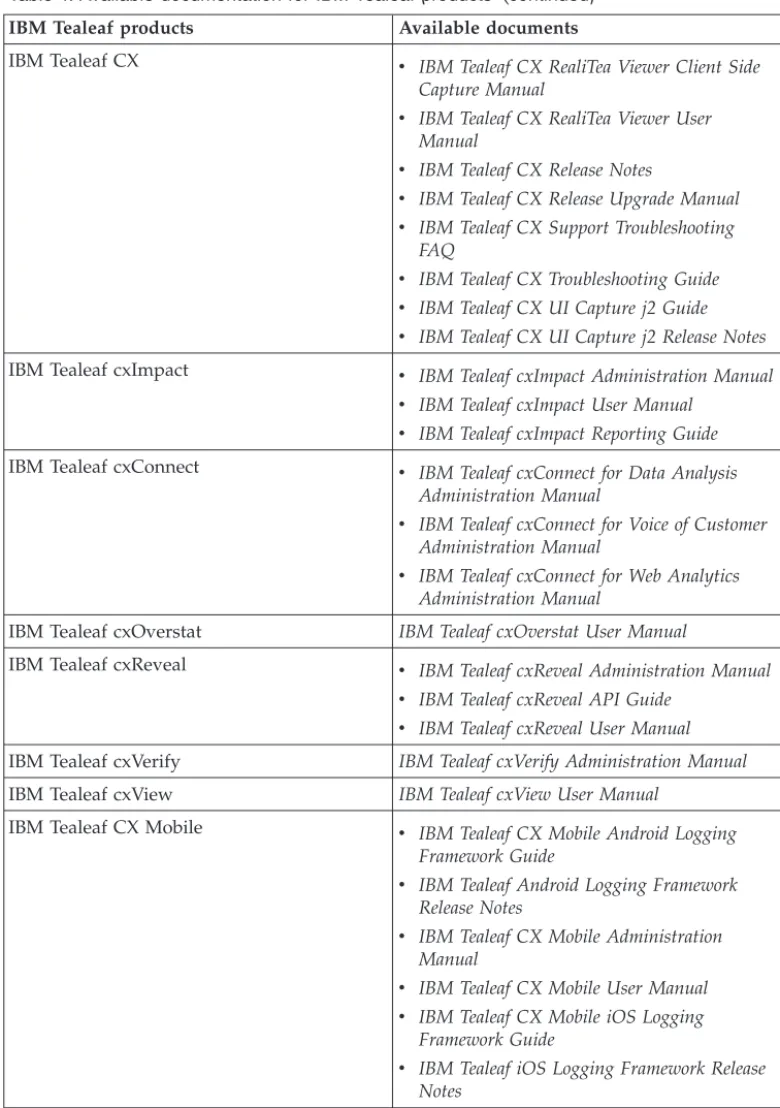
Table 4. Available documentation for IBM Tealeaf products
IBM Tealeaf products Available documents
IBM Tealeaf CX v IBM Tealeaf Customer Experience Overview
Guide
v IBM Tealeaf CX Client Framework Data
Integration Guide
v IBM Tealeaf CX Configuration Manual v IBM Tealeaf CX Cookie Injector Manual v IBM Tealeaf CX Databases Guide v IBM Tealeaf CX Event Manager Manual v IBM Tealeaf CX Glossary
v IBM Tealeaf CX Installation Manual v IBM Tealeaf CX PCA Manual v IBM Tealeaf CX PCA Release Notes
Table 4. Available documentation for IBM Tealeaf products (continued) IBM Tealeaf products Available documents
IBM Tealeaf CX v IBM Tealeaf CX RealiTea Viewer Client Side
Capture Manual
v IBM Tealeaf CX RealiTea Viewer User
Manual
v IBM Tealeaf CX Release Notes
v IBM Tealeaf CX Release Upgrade Manual v IBM Tealeaf CX Support Troubleshooting
FAQ
v IBM Tealeaf CX Troubleshooting Guide v IBM Tealeaf CX UI Capture j2 Guide v IBM Tealeaf CX UI Capture j2 Release Notes
IBM Tealeaf cxImpact v IBM Tealeaf cxImpact Administration Manual v IBM Tealeaf cxImpact User Manual
v IBM Tealeaf cxImpact Reporting Guide
IBM Tealeaf cxConnect v IBM Tealeaf cxConnect for Data Analysis
Administration Manual
v IBM Tealeaf cxConnect for Voice of Customer
Administration Manual
v IBM Tealeaf cxConnect for Web Analytics
Administration Manual
IBM Tealeaf cxOverstat IBM Tealeaf cxOverstat User Manual
IBM Tealeaf cxReveal v IBM Tealeaf cxReveal Administration Manual v IBM Tealeaf cxReveal API Guide
v IBM Tealeaf cxReveal User Manual
IBM Tealeaf cxVerify IBM Tealeaf cxVerify Administration Manual IBM Tealeaf cxView IBM Tealeaf cxView User Manual
IBM Tealeaf CX Mobile v IBM Tealeaf CX Mobile Android Logging
Framework Guide
v IBM Tealeaf Android Logging Framework
Release Notes
v IBM Tealeaf CX Mobile Administration
Manual
v IBM Tealeaf CX Mobile User Manual v IBM Tealeaf CX Mobile iOS Logging
Framework Guide
v IBM Tealeaf iOS Logging Framework Release
Notices
This information was developed for products and services offered in the U.S.A. IBM®may not offer the products, services, or features discussed in this document in other countries. Consult your local IBM representative for information on the products and services currently available in your area. Any reference to an IBM product, program, or service is not intended to state or imply that only that IBM product, program, or service may be used. Any functionally equivalent product, program, or service that does not infringe any IBM intellectual property right may be used instead. However, it is the user's responsibility to evaluate and verify the operation of any non-IBM product, program, or service.
IBM may have patents or pending patent applications covering subject matter described in this document. The furnishing of this document does not grant you any license to these patents. You can send license inquiries, in writing, to: IBM Director of Licensing
IBM Corporation North Castle Drive Armonk, NY 10504-1785 U.S.A.
For license inquiries regarding double-byte (DBCS) information, contact the IBM Intellectual Property Department in your country or send inquiries, in writing, to: Intellectual Property Licensing
Legal and Intellectual Property Law IBM Japan, Ltd.
19-21, Nihonbashi-Hakozakicho, Chuo-ku Tokyo 103-8510, Japan
The following paragraph does not apply to the United Kingdom or any other country where such provisions are inconsistent with local law: INTERNATIONAL BUSINESS MACHINES CORPORATION PROVIDES THIS PUBLICATION "AS IS" WITHOUT WARRANTY OF ANY KIND, EITHER EXPRESS OR IMPLIED,
INCLUDING, BUT NOT LIMITED TO, THE IMPLIED WARRANTIES OF
NON-INFRINGEMENT, MERCHANTABILITY OR FITNESS FOR A PARTICULAR PURPOSE. Some states do not allow disclaimer of express or implied warranties in certain transactions, therefore, this statement may not apply to you.
This information could include technical inaccuracies or typographical errors. Changes are periodically made to the information herein; these changes will be incorporated in new editions of the publication. IBM may make improvements and/or changes in the product(s) and/or the program(s) described in this publication at any time without notice.
Any references in this information to non-IBM Web sites are provided for
convenience only and do not in any manner serve as an endorsement of those Web sites. The materials at those Web sites are not part of the materials for this IBM product and use of those Web sites is at your own risk.
IBM may use or distribute any of the information you supply in any way it believes appropriate without incurring any obligation to you.
Licensees of this program who wish to have information about it for the purpose of enabling: (i) the exchange of information between independently created programs and other programs (including this one) and (ii) the mutual use of the information which has been exchanged, should contact:
IBM Bay Area Lab
1001 E Hillsdale Boulevard Foster City, California 94404 U.S.A.
Such information may be available, subject to appropriate terms and conditions, including in some cases, payment of a fee.
The licensed program described in this document and all licensed material
available for it are provided by IBM under terms of the IBM Customer Agreement, IBM International Program License Agreement or any equivalent agreement between us.
Any performance data contained herein was determined in a controlled
environment. Therefore, the results obtained in other operating environments may vary significantly. Some measurements may have been made on development-level systems and there is no guarantee that these measurements will be the same on generally available systems. Furthermore, some measurements may have been estimated through extrapolation. Actual results may vary. Users of this document should verify the applicable data for their specific environment.
Information concerning non-IBM products was obtained from the suppliers of those products, their published announcements or other publicly available sources. IBM has not tested those products and cannot confirm the accuracy of
performance, compatibility or any other claims related to non-IBM products. Questions on the capabilities of non-IBM products should be addressed to the suppliers of those products.
All statements regarding IBM's future direction or intent are subject to change or withdrawal without notice, and represent goals and objectives only.
This information contains examples of data and reports used in daily business operations. To illustrate them as completely as possible, the examples include the names of individuals, companies, brands, and products. All of these names are fictitious and any similarity to the names and addresses used by an actual business enterprise is entirely coincidental.
COPYRIGHT LICENSE:
This information contains sample application programs in source language, which illustrate programming techniques on various operating platforms. You may copy, modify, and distribute these sample programs in any form without payment to IBM, for the purposes of developing, using, marketing or distributing application programs conforming to the application programming interface for the operating platform for which the sample programs are written. These examples have not been thoroughly tested under all conditions. IBM, therefore, cannot guarantee or
programs are provided "AS IS", without warranty of any kind. IBM shall not be liable for any damages arising out of your use of the sample programs.
Trademarks
IBM, the IBM logo, and ibm.com® are trademarks or registered trademarks of International Business Machines Corp., registered in many jurisdictions worldwide. Other product and service names might be trademarks of IBM or other companies. A current list of IBM trademarks is available on the Web at “Copyright and trademark information” at www.ibm.com/legal/copytrade.shtml.
Privacy Policy Considerations
IBM Software products, including software as a service solutions, ("Software Offerings") may use cookies or other technologies to collect product usage information, to help improve the end user experience, to tailor interactions with the end user or for other purposes. A cookie is a piece of data that a web site can send to your browser, which may then be stored on your computer as a tag that identifies your computer. In many cases, no personal information is collected by these cookies. If a Software Offering you are using enables you to collect personal information through cookies and similar technologies, we inform you about the specifics below.
Depending upon the configurations deployed, this Software Offering may use session and persistent cookies that collect each user's user name, and other
personal information for purposes of session management, enhanced user usability, or other usage tracking or functional purposes. These cookies can be disabled, but disabling them will also eliminate the functionality they enable.
Various jurisdictions regulate the collection of personal information through cookies and similar technologies. If the configurations deployed for this Software Offering provide you as customer the ability to collect personal information from end users via cookies and other technologies, you should seek your own legal advice about any laws applicable to such data collection, including any requirements for providing notice and consent where appropriate.
IBM requires that Clients (1) provide a clear and conspicuous link to Customer's website terms of use (e.g. privacy policy) which includes a link to IBM's and Client's data collection and use practices, (2) notify that cookies and clear gifs/web beacons are being placed on the visitor's computer by IBM on the Client's behalf along with an explanation of the purpose of such technology, and (3) to the extent required by law, obtain consent from website visitors prior to the placement of cookies and clear gifs/web beacons placed by Client or IBM on Client's behalf on website visitor's devices
For more information about the use of various technologies, including cookies, for these purposes, See IBM's Online Privacy Statement at: http://www.ibm.com/ privacy/details/us/en section entitled "Cookies, Web Beacons and Other Technologies."