CONTENTS
1.EUI Overview . . . 3
2.Working with the Default EUI Templates . . . 5
3.Using Default Searches . . . 22
4.Permissions and Visibility in the EUI . . . 24
5.Macros, Methods, and Conditionals . . . 32
6.EUI Template Reference . . . 36
End users use an end user license and access a special interface called the End User Interface (EUI). All end users belong to an end user group, which is defined in the Group Permissions wizard, and end users in different groups may see different EUIs. For instance, end users who are external customers can be shown a different EUI and be in a different group than end users who are company employees. In either case, end users are users who typically submit records or requests but do not work on them, which is reflected in the EUI.
The default EUI covers a range of common uses, such as support applications, contract management, and document management. However, the EUI can also be highly customized depending on the needs of your users. You can reconstruct different screen layouts, provide your own style of toolbar and different options on the main page, as well as add your own fonts, color scheme, logo, and buttons using standard HTML and CSS. Each group can have its own interface with a different home page and navigation options.
End users can access the EUI in several ways. For example, the standard knowledgebase login page allows users to select End User as the interface type and log in with a username and password. End users can also access the system through a web portal or another indirect means, such as a hotlink sent through email, which are typically how users access the EUI in practice. In these cases, end users do not need to choose the interface, and the system automatically logs them into the EUI with a view of the tables and records based on their group membership.
Once in the EUI, the default setup shows users tables and links based on the their group membership. For example, users in the Customer group see links to the Support Cases they've submitted, which can be accessed on the Home tab and the View drop-down menu.
Depending on their permissions and your setup, end users may also use the EUI to complete other tasks, such as the following:
Search, view, and print FAQs Submit new items in any table
Edit items defined as their own in any table
View items in any table, as well as run and save simple and complex searches Edit their user profile
EUI Overview
The EUI is customized by editing EUI templates, which determine how different parts of the EUI look. For example, one template determines how the navigation menu looks and the items that are included, another template determines the items in the search area, and so on. Not all templates stand alone, and some are
or included in other pages. For instance, the , , and
used by other templates header.htm footer.htm menu.
templates are included in every page of the EUI. htm
All EUI templates are stored as records in the EUI Templates table, and editing the templates allows you to customize different parts of the EUI. However, before editing anything in the EUI, we strongly recommend that you have a basic understanding of CSS and HTML. W3 Schools is a helpful online resource for learning about those topics. Once you have a grasp of HTML and CSS, you'll find it easier to make changes to individual EUI templates. One you understand CSS in particular, you can make global formatting changes by editing the
template file. style.css
For more information about how to customize some of the main EUI templates, see Working with the Default
. For general information about the EUI templates, see .
EUI Templates EUI Template Reference
Macros
The main template for the home page is main.php, but this template doesn't directly contain the elements displayed on the home page. Instead, it uses the macro #ew_include() to pull in the contents of three other template records: header.htm home.htm, , and footer.htm. In turn, header.htm uses the same macro to include the template menu.htm, and home.htm includes search-form.htm. The header.htm file also uses macros to reference to the logo, plus user information and a logout link in the upper-right corner. When you're customizing the EUI, understanding how macros work is important. For more information on macros, see Macros, Methods, and Conditionals.
Customizing the EUI
In addition to the HTML-based EUI that uses EUI templates, Agiloft offers a Legacy EUI with limited functionality.
Editing EUI Templates
When you make changes to any record in the EUI Templates table, save a copy of the text so that you can revert the code back to its original state if necessary.
This topic provides instructions on how to control which tables are displayed on the home page of the End
(EUI), as well as which tables and tabs appear in the navigation menu. The tables and tabs that
User Interface
the EUI displays are controlled by records in the EUI Templates table, which also control the functionality and appearance of the EUI. For information on changing any text that appears on the EUI, see Text and
.
Localization in the EUI
In addition to working with specific EUI templates, use these pages to learn more about other aspects of the EUI that involve working with templates:
Creating a New Page Tutorial: Learn how to manually add a new record submission form for a table.
EUI Portal Tutorial: Learn to create a very basic EUI portal from scratch.
Prepopulating Records in the EUI: Learn how to use parameters and macros in the EUI to create records that are populated with content. This page requires knowledge of web development and JavaScript.
EUI Setup Tips: Learn about some additional setup tips regarding single sign-on, chat, drop[-down menus, language selection, and browser pop-ups.
For more information on getting started with the EUI, and to complete interactive practice exercises, we highly recommend signing up for the online training and completing the EUI chapter in Unit 2.
The EUI has three predefined home page template files that determine the layout of the home page. Two of the template files are mutually exclusive and display multiple tables to the user, whereas the third file is used when the user only has permission to view a single table. This third file is used because the other two
template files are not optimized for viewing a single table. The system automatically calculates the tables available to the user and displays the appropriate home page.
Working with the Default EUI Templates
Prerequisites
Before making changes to the EUI, we recommend that you have a basic understanding of the following topics:
HTML CSS
Macros, methods, and conditionals, as they're used in the EUI For more information on HTML and CSS, visit W3 Schools.
home.htm—Default Layout
The default home.htm template file provides a dynamic two-column display. The system dynamically calculates the layout to list the available tables in order from left to right and top to down. Available links to create or view items appear under each table heading.
home-1column.htm—Alternate Layout
The alternate home-1column.htm template file arranges each table on its own row with the links in a second column to the right.
home-1table.htm—Default Single-Table Layout
The home-1table.htm template uses a similar layout to the home-1column.htm template. The primary differences are larger icons and text in home-1table.htm, as well as an additional block of text to fill space on the page.
The home page template file that the system uses is configured in the translation.properties file, which is located in the EUI Templates table. By changing one or more variables in translation.properties, you can choose the home page that the EUI uses. The translation.properties file has three variables near the top that define the home page template files:
global.home.file: Defines the main home page file. The default value is home.htm. If you prefer the alternate layout, change the variable to home-1column.htm. If neither of the predefined home pages suit your needs, you can also create your own home page and enter the template name here.
global.home.one.table.file: Defines a third home page file that's displayed if the user who logs in only has access to a single table. The default value is home-1table.htm.
global.search.file: Defines the file that controls the tables displayed in the global search area. The
default value is home-multiple-search.htm.
Taken together, the template files defined by these variables determine which tables are shown to users, the ordering of the tables, and other formatting. Although some page components are static, such as the Logout link, other links and headings are controlled by a combination of user permissions, variables defined in
, and code in the template files. translations.properties
To change the default home page:
1. a. b. 2. 3. 4.
If you want to use an entirely new home page, copy and edit one of the default home page files in the EUI Templates table, or create a new template record. Skip this step if you want to change the home page to one of the predefined template files.
Make any changes to the code as desired. Save the file.
Open translation.properties.
Update one or both of the global.home and global.home.one.table variables to point to the new home page file.
Click Save.
Each table included in the home page has its own block of code. In the default home page, each block of table code looks like the following:
#if ($ewText.get("show.incidents")=="yes" && ($ewPermission. table("incident","view_own") || $ewPermission.table("incident"," v_own_with_ssearch") || $ewPermission.table("incident","view_others") || $ewPermission.table("incident","v_oth_with_ssearch"))) #set($rowcount=$rowcount+1) ... #end
Notice that the code begins with an #if directive and ends with an #end directive. The order of these code sections determines the order in which tables are displayed to users. The alternate home page follows a similar logic, but the code looks slightly different.
To change the order of the tables on the home page:
The system counts the number of tables available to a user by using code in the menu.htm template file. If the table count results in a total value of 1, the main.php template file displays the single-table home page. Otherwise, the main home page file is displayed.
1.
2.
3.
Open the desired home page file.
Cut and paste one table’s section above or below another section. Be careful to include all of the section related to the table. Pay special attention to nested #if and #end directives so that you cut and paste in the correct location.
Click Save.
For more information on how permissions are used in the home page to display tables to users, see .
Permissions and Visibility in the EUI
The following section is a snippet of code for a single table in the default home.htm template. It contains added comments that explain the purpose of the code, so if you want to make manual adjustments to your home page, use the comments to help you know how each block of code affects the page.
Support Cases Table
#if ($ewText.get("show.support.cases")=="yes" && ($ewPermission.table("case","view_own") ||
$ewPermission.table("case","v_own_with_ssearch") || $ewPermission.table("case"," view faq") || $ewPermission.table("case","view faq_with_ss")))
#set($rowcount=$rowcount+1) <td class="home-section"> <div class="home-cont"> <div>
<img src="#ew_image('/gif/light_orange_red_20/master_light_orange_red_20_57.png')" style="vertical-align: bottom" width="20" height="20" alt=""/> $ewText. get('home.sc.h3')</div>
<div class="home-sm-link">
Before making changes to any code, create a copy of the existing text so that you can revert the code back to its original state if necessary.
If the show.support.cases variable is set to Yes and the user’s record-level permissions include view own, view own with saved search, view FAQs, or view FAQs with saved search, then the code sets the row count and displays the table heading.
#if($ewPermission.table("case","create")) <img src="#ew_image('/gif/light_orange_red_16/master_light_orange_red_16_96.png')" alt=""/> <a href='#ew_forward("new_supportcase.html")'>$ewText.get('home.sc.new.link')</a> <br /> #end
If the user has create permissions, the Create a Support Case link is displayed.
#if ($ewPermission.table("case","view_own") || $ewPermission.table("case"," v_own_with_ssearch")) <img src="#ew_image('/gif/light_orange_red_16/master_light_orange_red_16_02.png')" alt=""/> <a href='#ew_forward("my_supportcases.html")'>$ewText.get('home.sc.my.link')</a><br /> #end
If the user has view own or view own with saved search record permissions, the View My Support Cases link is displayed.
#if ($ewText.get("show.sc.faqs")=="yes" && ($ewPermission.table("case","view faq") || $ewPermission.table("case","view faq_with_ss"))) <img src="#ew_image('/gif/light_orange_red_16/master_light_orange_red_16_157.png')" alt=""/> <a href='#ew_forward("supportcases-faq.html")'>$ewText.get('home.sc.faq.link')< /a> #end
If the show.sc.faqs variable is set to Yes and the user has view FAQs or view FAQs with saved search permissions, the FAQs link is displayed.
</div> </div> </td> #if ($rowcount%2==0) </tr> <tr> <td class="h-line"></td> <td></td> <td class="h-line"></td> </tr> <tr> #else <td class="v-line"></td> #end #end
1. 2. 3.
4.
1.
Depending on the table's location in the code and the row count, this defines whether it's placed in the first or second column and inserts the appropriate vertical or horizontal lines.
The navigation menu refers to series of tabs and drop-downs in the top-right of the default home page. Its contents are defined in the menu.htm template and translation.properties files.
The tabs on the navigation menu are controlled by menu.htm and variables in translation.properties. You can control whether the New, View, FAQs, and My Profile tabs appear at all or only to certain users. To control which tabs can appear at all:
In the EUI Templates table, open translation.properties.
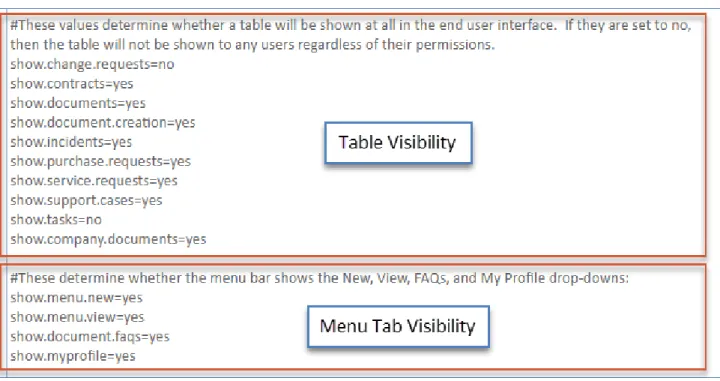
Find the note beginning with "#These determine whether the menu bar shows..." and notice the variables immediately below the note.
If you do or do not want to display a tab, change the corresponding variable to Yes or No, respectively. For example, if you don't want to display the View tab, the variable would look like the following:
show.menu.view=no
Click Save.
To control which tabs are visible depending on a user's group, team, or permissions:
In the EUI Templates table, open translation.properties.
Working with the Navigation Menu
Change the Navigation Menu Tabs
If the variable for a tab is set to Yes, users might not see the tab if you've applied conditional visibility to it in menu.htm. See the steps below for more information.
2. 3. 4. 5. 6. 7. 8.
Find the note beginning with "#These determine whether the menu bar shows..." and notice the variables immediately below the note.
For tabs you want to display to at least some users, make sure the corresponding variable is set to Yes. If the variable is set to No, users will not be able to see the tab, regardless of any conditions you create. For example, if you want to display the New, View, and My Profile tabs to some users, but you don't want to display the FAQs tab to any users, the variables would look like this:
show.menu.new=yes show.menu.view=yes show.document.faqs=no show.myprofile=yes Click Save. Open menu.htm.
Find the beginning line that corresponds to the tab you want to make conditionally visible. For example, the New tab begins with the following line:
#if ($ewText.get("show.menu.new")=="yes")
On the same line, add a logical operator and an appropriate method to define the type of conditional visibility you want to use. For example, if you only want users in the Contract Creator group to see the New tab, your code would look like this:
#if ($ewText.get("show.menu.new")=="yes" && $ewUser.isInGroup("Contract Creator"))
For more information on using conditionals and methods, see Macros, Methods, and Conditionals and .
EUI Method Reference
Click Save.
Like the navigation menu tabs themselves, the links they contain are controlled by menu.htm and variables in .
translation.properties
Change the Links under the Navigation Menu
Tabs
1. 2. 3. 4. 1. 2. 3. 4. 5. 6.
You can control whether a link appears at all or only to certain users. In most cases, it's better to make the links appear to only certain users by creating conditions that check a user's team, group, or table permissions. This is because the method to control whether a link can appear at all also controls whether a table may appear at all in the EUI. For example, if you prevent the Support Case link from appearing at all by setting the
variable to No, you also prevent the Support Cases table from appearing on the EUI. show.support.cases
However, if a table is no longer in use or end users shouldn't have access to it, it can sometimes be useful to completely remove the table and its associated links from the EUI.
To control which links can appear at all:
In the EUI Templates table, open translation.properties.
Find the note beginning with "#These values determine whether a table..." and notice the variables immediately below the note.
If you do or do not want to display a link, change the corresponding variable to Yes or No, respectively. Each variable may control multiple links. For example, if you set the show.support.cases variable to No, both the Support Case and My Support Cases links are removed.
Click Save.
To control which links are visible depending on a user's group, team, or permissions:
In the EUI Templates table, open translation.properties.
Find the note beginning with "#These values determine whether a table..." and notice the variables immediately below the note.
For links you want to display to any users, make sure the corresponding variable is set to Yes. If the variable is set to No, users will not be able to view the link, regardless of the condition.
Click Save. Open menu.htm.
Find the link that you want to make conditionally visible. Each link uses a few lines of code, and it's placed within a section of code for the corresponding tab. For example, lines 4 - 6 of the code below refer to the Service Request link, and the rest of the code indicates that it's within the New tab on the navigation menu:
#if ($ewText.get("show.menu.new")=="yes")
<li id="new" class="submenu"><a>$ewText.get('menu.new')</a> <ul>
#if ($ewText.get("show.service.requests")=="yes" && $ewPermission.table ("helpdesk_case","create")) <li><a href='#ew_forward("new_servicerequest.html")'>$ewText. get('menu.new.sr')</a></li> #end ... </ul> </li> #end
If the variable for a table is set to Yes, users might still not see any related links if you've applied conditional visibility in menu.htm. See the steps below for more information.
7.
8.
1.
Edit the existing conditional to define the type of conditional visibility you want to use. For example, the
above example requires that the show.service.requests variable in translation.properties is
set to Yes and that the user has permission in the Service Requests table to create records. If you also want to require that the user is in the Service Manager group, your code would look like this:
#if ($ewText.get("show.menu.new")=="yes")
<li id="new" class="submenu"><a>$ewText.get('menu.new')</a> <ul>
#if ($ewText.get("show.service.requests")=="yes" && $ewPermission.table ("helpdesk_case","create") && $ewUser.isInGroup("Service Manager"))
<li><a href='#ew_forward("new_servicerequest.html")'>$ewText. get('menu.new.sr')</a></li> #end ... </ul> </li> #end
For more information on creating conditionals, see Macros, Methods, and Conditionals. Click Save.
The header refers to the top area of the EUI that includes the company logo, language drop-down, user information, and logout link. It's controlled by header.htm and variables in translation.properties. The navigation menu is not considered part of the header and is controlled separately with menu.htm.
One of the first changes you may want to make is to replace the existing logo in the EUI with your company logo. You can do this by editing the #ew_image macro and changing its file path.
You first need to add the image to the server, so go to Setup > Look and Feel > End User Schemes and edit any existing scheme.
Working with the Header
2. 3. 4. 5. a. b. 6. 1. 2. 3. 4.
Upload the new logo on the Icons tab of the Look and Feel wizard and click Finish. This makes it available in the image directory so that it can be referenced by the #ew_image macro.
Go to the EUI Templates table and edit header.htm. In the Body field, locate the following line:
<a href='#ew_forward("main.php")'><img src="#ew_image('/gif/agiloft-logo.
png')" width="185" height="75" alt="Agiloft" style="vertical-align: middle" / < /a>
To change the logo, replace the reference to agiloft-logo.png in the #ew_image macro with the new file name.
Change the alt attribute value from "Agiloft" to the new logo name. This is the text that screen readers use and that appears when you hover over the image.
Change the width and height properties to match the new logo dimensions, or leave out the dimensions to display it at its full size.
For example, your new code may look like the following:
<a href='#ew_forward("main.php")'><img src="#ew_image('/gif/sample-logo. png')" width="225" height="100" alt="Company logo" style="vertical-align: middle" /></a>
Click Save. The new logo will be visible when you log into the EUI.
Customize the Logo with Conditional Branding
Suppose you want to display a different logo to users in a particular group or team. You can achieve this by adjusting the code in the previous section.
Follow the steps in the previous section to upload a second image. Go to the EUI Templates table and edit header.htm.
In the Body field, locate the line you edited earlier. From the previous example, it looks like this:
<a href='#ew_forward("main.php")'><img src="#ew_image('/gif/sample-logo.png')" width="225" height="100" alt="Company logo" style="vertical-align: middle" />< /a>
Create a conditional that displays each logo to the appropriate users:
If you want to display one logo to users in a certain group and the other logo to everyone else, your code might look like this:
4.
5.
#if ($ewUser.isInGroup("Contract Creator"))
<img src="#ew_image('/gif/sample-logo.png')" width="225" height="100" alt="Company logo" style="vertical-align: middle" />
#else
<img src="#ew_image('/gif/new-logo.png')" width="220" height="150" alt=" New logo" style="vertical-align: middle" />
#end
If you want to display one logo to users in a certain team and the other logo to everyone else, your code might look like this:
#if ($ewUser.isInTeam("Contract Creator Team"))
<img src="#ew_image('/gif/sample-logo.png')" width="225" height="100" alt="Company logo" style="vertical-align: middle" />
#else
<img src="#ew_image('/gif/new-logo.png')" width="220" height="150" alt=" New logo" style="vertical-align: middle" />
#end
For more information on creating conditionals, see Macros, Methods, and Conditionals. Click Save.
The EUI comes with several default tables already included. Each table has individual template files for each of its pages in the EUI, as well as variables in the translation.properties template file that these and other pages use. For example, the Support Cases table has template files that allow users to create new support cases, view support cases, and search support cases. The text that these pages use, such as the header or search label, is defined with variables in translation.properties.
You can edit the template files to change the formatting and content of individual EUI pages. For example, you can move or resize a page's header, or you can apply a different saved search. Some changes, like resizing the header, require only a basic knowledge of HTML. Other changes, like applying a different saved search, require an understanding of the macros used in the EUI. For more information on applying a new saved search to a page, see Using Default Searches. For more information on macros in general, see Macros,
.
Methods, and Conditionals
If you want to add a table to the EUI that is not included in the default setup, you must update the EUI templates to provide this access. To do so, you can either add the code manually or generate the code using the New EUI Table Excel template. We strongly recommend that you use the Excel template, which you can download here. Using the template is much easier and much less likely to result in errors than entering the code manually. The steps below use the Excel template.
Working with Tables
1. 2. 3. 4. 5. 6. 7.
Update translation.properties
The first step to adding a new table is to create the variables used in the translation.properties file. If you have a multilingual knowledgebase, you need to update the translation.properties file for each language, using the same variables created below but with appropriately translated values.
Download the New EUI Table Excel template.
Click the Table Name sheet, located on the bottom of the Excel window.
Enter the table information, including the name; plural label; a unique, three-letter abbreviation; and the logical table name. You can use any three-letter abbreviation you want, but it must be unique and not match any existing table abbreviations in translation.properties.
Click the translation.properties sheet and copy the code from Column N. Don't close the spreadsheet until this entire process is complete because you still need code from the other Excel sheets.
In your knowledgebase, go to the EUI Templates table and open translation.properties.
Paste the code from Column N into the bottom of the Body field.
Click Save.
Create the New Template Files
Next, create the template files for the pages that the new table will use.
Before you start, go to Setup [Table Name] for the table you're adding and note the following information on the General tab:
The plural table label The logical table name
The code in translation.properties is separated into sections and listed in alphabetical
order, but this is only for readability. The code works anywhere you place it, but it's typically good practice to keep code organized.
1. a. b. c. d. 2. 3. 4. a. b. c. d. 5. 1.
Next, create the template files for the pages that the new table will use. Create the first template file:
Go to the EUI Templates table and click New. This template will be for displaying all records in the table.
In the Name field, enter a name like all_records.html or all_widgets.html. Provide a Description, but leave the Body field blank for now.
Click Save.
Repeat the previous steps to create pages for creating new records, viewing the user's own records, and using searches on the table. For example, you might create pages titled new_record.html, my_records. html, and my_records-search.htm. The search page must end in ".htm" and the other three pages must end in ".html" for the table to be correctly added.
Go to the table in your knowledgebase and create a search called "My [Plural Table Label]" that finds all records assigned to the currently logged in user. For example, you might name it My Records or My Widgets.
Retrieve the code for the first template file:
In the Excel spreadsheet, click the EUI Templates_import sheet.
Copy the code from cell D2 and paste it into a Word document or other word processor. You must paste it into a word processor before pasting it into the template file. Otherwise, Excel automatically includes quotation marks that prevent the HTML from working properly. Copy the code from the Word document, go the the EUI Templates table, and open the
page you created. all_records.html
Paste the code into the Body field and click Save.
Repeat the previous steps and use cells D3, D4, and D5 to retrieve and insert the correct code for the respective pages.
Add the Table to the Home Page
After you've created the new template files, edit the home page template file so that the new table appears on the home page.
In the Excel spreadsheet, click the home.htm sheet.
Although the tables can be titled anything you like, we recommend that you follow a consistent naming convention throughout the EUI.
If you are using the alternate home page or a custom home page, you need to manually enter the code in the template file. To help prevent errors, use the the code for existing tables as a model when you add the new table.
2. 3. 4. 5. 6. 1. 2. a.
Copy the code from cell B1 and paste it into a Word document or other word processor. As before, you must paste it into a word processor before pasting it into the template file.
Copy the code from the Word document, go the the EUI Templates table, and open home.htm.
Scroll down to find the the last two #end directives that are directly after one another, and place your cursor after the second #end directive.
Press Enter and paste the code from the Word document. Make sure the code is placed after the second #end directive but before the </tr> tag.
Click Save.
Create Links from the Navigation Menu
Now that users can view the table on the home page, add some links to the navigation menu. Following these steps creates links to let users create new records in the table and view records that they own, assuming they have the appropriate permissions.
In the Excel spreadsheet, click the menu.htm sheet.
Copy the code in cell B1 and paste it into a Word document.
2. b. c. d. 3. a. b. c. d. 1.
Find the last #end directive in the first unordered list. An unordered list begins with a <ul> tag and ends with a matching </ul> tag.
Place your cursor directly after the #end directive and press Enter.
Paste the code from the Word document. Make sure the code is placed after the #end directive and before the </ul> tag. Don't close the record yet.
Go back to the Excel spreadsheet, copy the code in cell B2, and paste it into a Word document.
Copy the code from the Word document and go back to menu.htm.
Find the last #end directive in the second unordered list, which is near the bottom of the field.
Place your cursor directly after the #end directive, press Enter, and paste the code. Make sure the
is placed after the directive and before the tag.
code #end </ul>
Click Save.
Add the Table to the Single-Table Home Page
The new table is almost completely added to the EUI. The final step is to add the table to the single-table home page, which is displayed in cases where the user only has access to this table.
2. 3. 4. 5. 6. 7.
Copy the code in cell B1 and paste it into a Word document.
Copy the code from the Word document, go to the EUI Templates table, and open home-1table.htm.
Find the last #end directive in the table element. It's very near the bottom of the page and preceded by two </div> tags.
Place your cursor directly after the #end directive and press Enter.
Paste the code from the Word document. Make sure the code is placed after the #end directive and before the </td> tag.
Click Save.
The new table is now added to the EUI. If you'd like to add the table to the global search block, see Updating
. If you want to adjust how the table appears on the home page or edit the links on the
the Global Search Block
1.
Default searches can be configured on specific pages in the EUI to determine the records that are displayed. For example, when a user clicks a page, you might only want to display records that are assigned to them.
To update the default search, you can use an existing saved search or create a new saved search. Navigate to the table that contains the records on which you want to run the search.
Using Default Searches
Prerequisites
Before making changes to the EUI, we recommend that you have a basic understanding of the following topics:
HTML CSS
Macros, methods, and conditionals, as they're used in the EUI For more information on HTML and CSS, visit W3 Schools.
Updating the Default Search
2. Hover over the down arrow on the Search drop-down. Note the name of the search you'd like to use as the new default search, or click New to create a new saved search that you want to use.
3. 4.
5.
Navigate to the EUI Templates table.
Edit the .html record that corresponds to the page in the EUI on which you'd like the search to run.
Locate the line of code beginning with #set that lists the current default search: #set ($defaultsearch="My Incidents")
<div class="wrapper">
<div class="top-space"></div> <div class="main">
#ew_include("header.htm") <div class="content">
<div style="float: left"><h2>$ewText.get('myinc.header')</h2> <div class="title-desc"></div></div>
#ew_include("my_incidents-search.htm") #ew_status()
<div id="main_frame">
#ew_table("incident" "" $defaultsearch ""
By default, the .html records you need to edit are named after the page titles in the EUI. For
example, the My Service Requests page is my_servicerequests.html, the My Incidents page
6.
7.
8.
Following ($defaultsearch= in the first line, replace the name in quotation marks with the name of the new default search.
, ensure
In the last line of the code block shown above $defaultsearch is listed in the second set of
quotation marks after #ew_table.
User permissions determine which elements on the EUI are visible to each user. Oftentimes, you may have several groups of users, and you want the different groups to see different elements on the interface. In other cases, you may want the same user to see different parts of a record based on the the page they're viewing. For example, when a user is submitting a support case, you might not show the Created By field because it
. In either case, understanding how permissions control visibility in the EUI can help you create isn't relevant
an interface that suits your needs.
The interface that a user sees depends on two factors: Their group permissions.
The status of a table or menu tab in the translation.properties file. Tables and menu tabs can be if their value is No. If a table or menu tab is not turned on, turned on if their value is Yes and turned off
end users will not see it, regardless of their permissions.
To illustrate this, the three images below show the home page contents for three different users: one in the Admin group, one in the Document Creator group, and one in the Customer group. Each user sees a different interface based on their permissions. Notice that not even the user in the Admin group sees the Change Requests or Tasks tables, which are turned off in these examples.
Permissions and Visibility in the EUI
Prerequisites
Before making changes to the EUI, we recommend that you have a basic understanding of the following topics:
HTML CSS
Macros, methods, and conditionals, as they're used in the EUI For more information on HTML and CSS, visit W3 Schools.
A user in the Document Creator group sees four tables and sets of links: A user in the Admin group sees six tables and sets of links:
1. 2. 3.
4. 5.
When users log in, the system checks their group permissions and uses the $ewPermission.table method
to determine which EUI elements they see. This method requires two parameters, the logical table name and the permission type, which take the form $ewPermission.table("table","permission"). For example,
returns “true” if the currently logged in user user has $ewPermission.table("case","view_own")
permission to view their own records in the Support Cases table.
You can insert the $ewPermission.table method in a conditional that surrounds an element, such as a link or menu item. Conditionals are used throughout the records in the EUI Templates table to dynamically control element visibility based on group permissions. For example, consider the following conditional:
#if ($ewPermission.table("case","view_own"))
<li><a href='#ew_forward("my_supportcases.html")'>$ewText.get('menu.view. mysc')</a></li>
#end
If the user has permission to view their own records in the Support Cases table, the system shows the user a menu item to view a page containing support cases that they own.
To control which permissions control the display of an element: In the EUI Templates table, open the desired template file. Find the method that relates to the relevant table and element.
Edit the permission in the second parameter, or add a logical operator to expand the conditional. For a complete list of permission types, see Permission Parameters below. For more information on
conditionals and the available logical operators, see Macros, Methods, and Conditionals. Click Save.
View the EUI page with the relevant user to verify that the element visibility is working as intended.
Control Visibility with Permissions
The logical table name might be different from the table name that's displayed. To find the logical table name, open the Table wizard for the desired table and check the General tab.
1. 2. 3. 4.
5.
The translation.properties file in the EUI Templates table controls the global visibility for tables and menu tabs by turning on or turning off specific tables and tabs. For users to see a table or menu tab in the EUI, it must be turned on in translation.properties. To prevent all users from seeing a table or menu tab, you can turn it off.
Table visibility is controlled near the top of the template file, and menu tab visibility is controlled just below the table visibility section. If the show.[table.or.tab] key is set to Yes for a given table or tab, then it's included in the interface for those users with permission to view it. If show.[item] is set to No, it's not shown on the home page or navigation menu to any users, regardless of their permissions.
To control global visibility for tables and tabs:
In the EUI Templates table, open translation.properties.
Set the relevant table and menu tab keys to Yes or No. Click Save.
If other languages are in use, open any other versions of translation.properties and repeat the process.
View the EUI to confirm that changes have taken effect.
Control Visibility with translation.properties
Th translation.properties file has alternate versions for other languages, which allow for a multilingual environment. If your KB is available in multiple languages, be sure to update the keys in each translation file when making changes. For more information on localization and the EUI, see Text
.
and Localization in the EUI
Keep in mind that whether a user can actually view a table or the items within a tab still depends on the user’s group permissions.
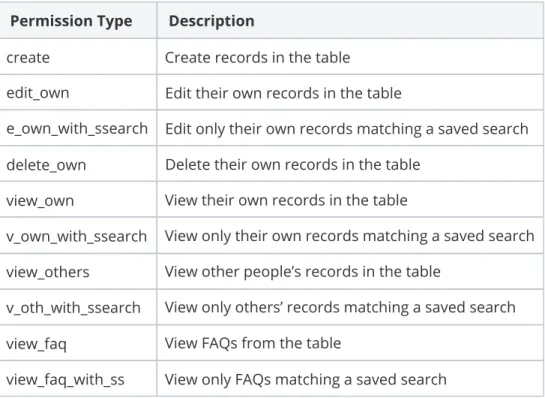
The table below lists the most common permission-based parameters for use with the $ewPermission.
method. Each of these values corresponds to a permission setting in the .
table Table Permissions wizard
Permission Type Description
create Create records in the table
edit_own Edit their own records in the table
e_own_with_ssearch Edit only their own records matching a saved search
delete_own Delete their own records in the table
view_own View their own records in the table
v_own_with_ssearch View only their own records matching a saved search
view_others View other people’s records in the table
v_oth_with_ssearch View only others’ records matching a saved search
view_faq View FAQs from the table
view_faq_with_ss View only FAQs matching a saved search
The table below lists the complete list of permission-based parameters. Permission Type Description
Record Permissions
create Allow user to create a new record
delete_own Allow user to delete own records
delete_others Allow user to delete others’ records
mass_delete Allow user to delete multiple records
dele_oth_if_pub_y Delete others’ records if published field is yes
massedit Allow user to perform mass edit
import_multiple Allows import of multiple records from a file
export_multiple Allows export of multiple records to a file
print_recs Print records using the printer icon View and Edit Permissions
view_own Allow user to view own records
view_others Allow user to view others’ records
view_own_if_pub_y View own records if published field is yes.
view_oth_if_pub_y View others’ records if published field is yes.
edit_own Allow user to edit own records
edit_others Allow user to edit others’ records
Saved Search Permissions
mod_own_s_searches Allow user to modify/delete saved searches that they created
mod_all_s_searches Allow user to modify/delete all saved searches
mod_own_s_views Allow user to modify/delete saved views that they created
mod_all_s_views Allow user to modify/delete all saved views
mod_own_s_reports Allow user to modify/delete saved reports that they created
mod_all_s_reports Allow user to modify/delete all saved reports
pub_s_reports Allow user to publish saved reports
v_own_with_ssearch View own entries that satisfy the saved search
v_oth_with_ssearch View others’ entries that satisfy the saved search
e_own_with_ssearch Edit own entries that satisfy the saved search
e_oth_with_ssearch Edit others’ entries that satisfy the saved search
d_oth_with_ssearch delete others’ entries that satisfy the saved search
acc_oth_ss Allow access to others’ saved searches
acc_oth_ss_py Allow access to others’ saved searches if Published=Yes
FAQ Permissions
view_faq Allow user to view FAQs
view_faq_with_ss View FAQs that satisfy the saved search
omit_table_label Allow user to set show label on view/editing on General tab
copy_recs Copy $table-label-plural
show_in_main_tabs Allow user to see it in main tabs
allow_sel_ed_flds Allow user to select editable fields in view they can edit
apply_to_subtabls Apply changes to subtables (in groups wizard)
apply_all_to_subtabls Apply everything to subtables (in groups wizard)
Custom Report Permissions
create_calendar Create calendar records on specific subtype
c_cal_with_ssearch Create calendars on records that satisfy the saved search
view_own_calendar View own calendar entries
v_own_cal_with_ssearch View own entries that satisfy the saved search
view_others_calendar View other peoples’ calendar entries
others_cal_with_ssearch View other peoples’ entries that satisfy the saved search
edit_own_calendar Edit own calendar entries
e_own_cal_with_ssearch Edit own entries that satisfy the saved search
edit_others_calendar Edit other peoples’ calendar entries
e_others_cal_with_ssearch Edit other peoples’ entries that satisfy the saved search
delete_own_calendar Delete own calendar entries
d_own_cal_with_ssearch Delete own entries that satisfy the saved search
delete_others_calendar Delete other peoples’ calendar entries
d_others_cal_with_ssearch Delete other peoples’ entries that satisfy the saved search
Email Permissions
view_comm_from View outgoing email address FROM
edit_comm_from Edit outgoing email address FROM
view_comm_replyto View send-back email address REPLY-TO
edit_comm_replyto Edit send-back email address REPLY-TO
Email Template Permissions
mod_own_eml_tmpl Allow users to modify/delete own email templates
mod_all_eml_tmpl Allow users to modify/delete all email templates
viewsend_own_eml_tmpl Allow viewing/sending only their own email templates
viewsend_ownpublished_eml_tmpl Allow viewing/sending own and published email templates
viewsend_ownpublished_eml_tmpl Allow viewing/sending own and published email templates
viewsend_all_eml_tmpl Allow viewing/sending of all email templates
publish_eml_tmpl Allow user to publish email templates
Print Template Permissions
cr_mod_own_ptmpl Create/modify own print templates
cr_mod_all_ptmpl Create/modify all print templates
use_all_ptmpl Use all print templates
use_ownpub_ptmpl Use/own/publish print templates
Macros are short, reusable pieces of code that represent a longer set of instructions for the software or
browser to run. Macros allow developers to save time and simplify their code. In the Agiloft EUI, macros are
shorthand instructions for linking to pages, requesting data from the system, creating table views, and other operations.
Macros are often combined with methods and conditional statements, or conditionals, to control the visibility of a macro's content. Methods typically function as the actual condition of a conditional, and the conditional determines what the user sees on the EUI. For example, consider two macros that each display an image. A conditional might tell the system to use one macro to show image A if the user is in group A and use the other macro to display image B if the user is in group B. In this case, the method checks the user's group, and the conditional is the entire statement that uses the user's group membership to determine which image is displayed.
Understanding how macros, methods, and conditionals work in the EUI is helpful if you plan to make any customizations to the interface. Each of these elements is an essential part to how the EUI functions, so knowing how they work can help you create an EUI that suits your needs.
uses the (VTL) template engine to process macros, which uses a special
Agiloft Velocity Template Language
syntax:
#macro_name("$param1" "$param2" "$param3" ...)
Macros begin with a "#" sign followed by the name of the macro, and many macros also require one or more parameters, which function as additional instructions. Parameters immediately follow the macro name and are enclosed in parentheses. Parameters are each further enclosed in single or double quotes, depending on context. Although the actual name of a parameter includes a dollar sign, in practice the parameter does not typically use a dollar sign when it's replaced by a value.
Macros, Methods, and Conditionals
When a macro uses multiple parameters, the order of the parameters is important. The system uses the parameter order to determine which parameter you're setting. Even if you're not setting a specific parameter, or if you're leaving it at its default value, you need to leave a space for it in the code so that you retain the correct parameter order. Parameters that aren't set or that are left at their default value are indicated with a pair of empty quotation marks.
In practice, a macro with several parameters may look like this: #ew_table("contract" "" $defaultsearch ""
"showToolBar=false&showNavigation=true&showfastsearch=false" "my_table" "")
This macro contains seven parameters. One parameter, $defaultsearch, is a special variable parameter that references a saved search and uses a dollar sign but doesn't require quotation marks. See Using Default
for more information on how this parameter works. You can find the other six parameters by
Searches
counting the pairs of quotation marks. Notice that three parameters are empty, meaning that they use a default value. For more information on this macro and its parameters, as well as other macros, see EUI Macro
.
Reference
In the default EUI setup, each of the basic page types corresponds to an Agiloft macro that uses parameters to reference the table, record, or form. The macros can also apply search filters or set additional parameters.
Table views, such as the My Support Cases or All Documents pages, use the #ew_table macro, which creates an iframe and displays an Agiloft table inside it.
Record editing pages, such as the My Profile page, use the #ew_edit_record macro.
Submission forms, such as the Create a Support Case page, use the #ew_create_record macro.
FAQ pages, such as the Document / FAQs page, use the #ew_faq macro. For more information on these macros, see EUI Macro Reference.
Macros with Multiple Parameters
In addition to specialized macros, the Velocity Template Language (VTL) also has prebuilt directives for creating conditional statements, or conditionals. You can use conditionals within the body of an EUI template to show or hide HTML elements and macros. Conditionals are typically combined with methods, which are ways of checking the conditions, making decisions, and retrieving information. Our discussion only covers the basics, so reference the VTL user manualif you need more information.
Before including methods, let's first consider conditionals on their own: #if(condition A is true)
<p>Welcome!</p> #end
This conditional displays the text "Welcome!" only if the condition is true; otherwise, nothing happens.
Conditionals start with the #if directive and end with the #end directive, like in this example. However, they
can also be combined with #else and #elseif directives, as well as logical operators, to create more
complex conditionals. For instance, consider this example:
#if([condition A is true] && [condition B is true]) <p>Welcome!</p>
#else
<p>Hello!</p> #end
This conditional displays the text "Welcome!" if both the conditions are true. Otherwise, it displays the text "Hello!" Similarly, consider this example:
#if([condition A is true] || [condition B is true]) <p>Welcome!</p>
#else
<p>Hello!</p> #end
This conditional displays the same "Welcome!" text, but this time the text is displayed if either condition is true. If neither condition is true, it displays the text "Hello!"
Conditionals and Methods
Logical Operators
These are the logical operators you can use when comparing conditions within a conditional: Operator Definition || Or && And ! Not < Less than > Greater than == Is equal to
Methods often function as the actual condition of a conditional. For instance, some common methods check a user's group membership, team membership, and permission settings, and the conditional uses the result to determine what the user sees. Methods begin with a dollar sign and, like macros, contain one or more parameters. Parameters immediately follow the method name and are enclosed in parentheses, and each parameter is further enclosed in double quotes and separated by commas. For instance, a method might look like this:
$ewUser.isInGroup("group name")
This method checks the current user's group membership to see if they're a member of the specified group. Notice that this method only has a single parameter, which contains the group name. When a method is used
with a conditional and a macro, it might look like this:
#if ($ewUser.isInGroup("Contract Creator") || $ewUser.isInGroup("Contract Manager")) <img src="#ew_image('/gif/contract-team-logo.png')" />
#else
<img src="#ew_image('/gif/main-logo.png')" /> #end
This conditional uses the method to check if the current user is in the Contract Creator or Contract Manager
groups. If they are, the system uses some HTML with a macro to display contract-team-logo.png. If the
user is not in either of these groups, the system displays sample-logo.png.
For a list of common methods used in the EUI, see EUI Method Reference.
The Agiloft EUI is managed by a set of HTML files stored as records in the EUI Templates table. Using HTML, you can redesign the interface in any number of ways to match your branding and web design. This article contains a description for each of the main EUI templates. To see the code for each template, go to the EUI Templates table in your knowledgebase and open the desired template. For more detailed instructions on editing the templates, see Working with Default EUI Templates.
Each page of the EUI has a corresponding record in the EUI Templates table. The Name field shows the full template name including the file extension, such as .htm, .html, .css, .php, or .properties.
The Body field holds the code, and modifying the code makes changes to the EUI. For this reason, we recommend making a copy before editing any template records so that you can revert to the old code if necessary.
Some EUI templates don't stand alone as separate pages, but are used by other templates or included in other pages. For instance, the templates header.htm footer.htm, and menu.htm are included in every page of the EUI. Here are other examples of these "helper" files:
iresize.js: Contains a piece of JavaScript
search-form.htm: Contains the search block found on every home page meta.htm: Holds meta data included in every page
The standard login pages provided by Agiloft are set to direct a user to main.php when logging into the custom portal. The following wireframe image shows how the elements contained in the main.php page fit together:
The main.php file does not directly contain the elements that are displayed to the user on the page. Instead,
uses the to pull in the contents of three other HTML files:
main.php #ew_include()macro
header.htm home.htm footer.htm
Header.htm in turn includes the file menu.htm, and home.htm pulls in search-form.htm Header.htm. also contains the reference to the logo, plus user information and a logout link in the upper right corner.
Although a login page does have to specify which page a user is taken to, it does not have to be the main.php page. Different login pages for the same project could even direct users to different landing pages.
The home.htm template file is the main part of the page that users see when they log in to the EUI. It makes heavy use of conditionals to show different tables to different user groups. An HTML table lines up the Agiloft tables in columns and rows. On the EUI, the horizontal and vertical lines are table cells with particular CSS classes designated. Using conditionals with this type of layout provides a relatively compact presentation when there are only a few options for each user.
You do not have to use home.htm if it is not suitable for your needs. In main.php, you can replace the reference to home.htm with a different EUI template to serve as your main home page. See Working with
for more .
Home Pages information
The menu.htm template file creates the navigation menu, or the tabs across the top of the screen.
Each tab of the menu is held in an unordered HTML list in menu.htm. The template file also contains a script near the bottom that highlights the current tab. If you add any extra tabs to the EUI, ensure that you give each
a unique ID
new item in the script.
The area used by the tabs expands to accommodate any extra tabs added. If the area used by the tabs becomes larger than the area available to the menu, it creates a second line, which generally looks bad. For this reason, we recommend that you limit the number of tabs you add, use shorter tab names, or add line breaks into the tab names so that users see a limited number of tabs. You can also create drop-down menus for the extra items. For more information on how to do this, see the EUI Setup Tips page.
The header.htm template file controls the appearance of the EUI header and also references menu.htm to display the navigation menu. Header.htm contains the reference to the logo, plus user information and a logout link in the upper right corner. The $ewText.get method uses the userinfo.name.label and
userinfo.logout.linkvariables to retrieve the words "User:" and "Logout," respectively, from the
file.
translation.properties
home.htm
menu.htm
The translation.properties file is actually part of a family of files. The default Agiloft setup includes
, , and . These
translation.properties translation_ru.properties translation_zh.properties
records hold the text retrieved by the $ewText.get method for English, Russian, and Chinese, respectively. For more information about translation.properties, localization, and the EUI, see Text and Localization
.
in the EUI
The style.css file contains the CSS code for the EUI, which defines the page formatting and can be updated as desired. By default, style.css is already referenced on each page by including the meta.htm file, which calls style.css along with several other standard scripts. You can use this same shortcut on pages you create.
translation.properties
style.css
When editing the CSS, keep in mind that by default the <divs> in home.htm have their location This means that the location of a determined by the HTML table and do not use relative positioning.
particular <div> on the page is determined by its placement within the HTML table. If you want to update the style.css to use positioning, then you must remove the HTML table in home.htm or your positioning will not work as intended.
1.
2. 3.
The EUI uses the $ewText.get method, along with key and value pairs in translation.properties, to display text on the interface. When the $ewText.get method contains a particular key, the key's
corresponding value is inserted wherever that key appears. This allows the EUI to provide support for multiple languages and facilitate localization. By using these key and value pairs, a full translation of the EUI can be created by simply copying the translation.properties file and translating the value for each key.
Displaying text in the EUI with key and value pairs also creates consistency and allows you to easily make changes. If you need to make a terminology change, it's easier when the text values are contained a single file that each page can reference. For example, if you decide to change the name of a table from Support Cases to Support Tickets, you can go to translation.properties and make that change in one place to propagate the change anywhere the table name appears.
If you want to change text on the EUI, you need to edit the key to which the text corresponds in
. Although it is possible to enter text directly on an EUI page, we recommend translation.properties
using the key-value pairs in translation.properties for consistency across the EUI templates, as well as to facilitate any future localization efforts.
To change text on the interface:
Open translation.properties and search for the text you want to change.
Make the change to the text. Be careful not to remove the equals sign (=) or the text that precedes it. Click Save.
Text and Localization in the EUI
The translation.properties file only allows you to create a full translation of the system text, such as menus, tabs, buttons, and page titles. You cannot translate the text contained in records with this method.
Prerequisites
Before making changes to the EUI, we recommend that you have a basic understanding of the following topics:
HTML CSS
Macros, methods, and conditionals, as they're used in the EUI For more information on HTML and CSS, visit W3 Schools.
Working with Text
4. Open the corresponding EUI page and confirm that the text is updated. Remember, if the key to which the text corresponds is used in more than one place, the updated text will appear in the EUI in more than one place too.
The purpose of the $ewText.get() method and the translation.properties file is to allow for a
multilingual environment. This is possible because translation.properties is actually a part of a family of
files, with the default setup also including translation_ru.properties and translation_zh.
. These latter two files hold the text for Russian and Chinese, respectively, and
properties translation.
holds the text for English. properties
When the system sets the locale for each user session, the $ewText.get method checks the session locale and uses that to determine which translation.properties file to use. For instance, consider this key and
text value pair from translation.properties:
home.hc.my.link=My Cases
The key is home.hc.my.link, which is followed by an equals sign ( ), which is then followed by the text value = "My Cases." Whenever $ewText.get("home.hc.my.link") appears in an EUI template, "My Cases"
is displayed in the EUI when English is the locale. However, if the locale is Russian or Chinese, the value displayed in the EUI is whatever translation of "My Cases" is in translation_ru.properties or
, respectively. translation_zh.properties
There are a few common ways to set the session locale: Add lang=XX to the login URL.
Use the #ew_languages macro in main.php to display a list of available languages for the user. Use the #ew_locale macro in main.php to set the locale.
If a locale is not set, the default translation.properties file is used, which is typically English but could in principle be other languages. For more information on Agiloft's localization-related macros, see EUI Macro
.
Reference
Localization with ewText.get and
translation.properties
If you add other languages to the system, the corresponding language file must be named where XX is a proper Java locale code. You can find a list of translation_XX.properties,
supported Java locale codes here. For more information on the localization process, see Localization.