A complete guide to shell scripting, using Bash
Mendel Cooper
Brindlesoft
Revision History
Revision 0.1
14 June 2000
Revised by: mc
Initial release.
Revision 0.2
30 October 2000
Revised by: mc
Bugs fixed, plus much additional material and more example scripts.
Revision 0.3
12 February 2001
Revised by: mc
Another major update.
Revision 0.4
08 July 2001
Revised by: mc
More bugfixes, much more material, more scripts − a complete revision and expansion of the book.
Revision 0.5
03 September 2001
Revised by: mc
Major update. Bugfixes, material added, chapters and sections reorganized.
Revision 1.0
14 October 2001
Revised by: mc
Bugfixes, reorganization, material added. This book has finally reached the point where it can be designated
a stable release.
This tutorial assumes no previous knowledge of scripting or programming, but progresses rapidly toward an
intermediate/advanced level of instruction (...all the while sneaking in little snippets of UNIX wisdom and
lore). It serves as a textbook, a manual for self−study, and a reference and source of knowledge on shell
scripting techniques. The exercises and heavily−commented examples invite active reader participation,
under the premise that the only way to really learn scripting is to write scripts.
The latest update of this document, as an archived "tarball" including both the SGML source and rendered
HTML, may be downloaded from the author's home site. See the change log for a revision history.
Dedication
Table of Contents
Chapter 1. Why Shell Programming?...1
Chapter 2. Starting Off With a Sha−Bang...3
2.1. Invoking the script...5
2.2. Preliminary Exercises...6
Part 2. Basics...6
Chapter 3. Exit and Exit Status...7
Chapter 4. Special Characters...9
Chapter 5. Introduction to Variables and Parameters...23
5.1. Variable Substitution...23
5.2. Variable Assignment...25
5.3. Bash Variables Are Untyped...26
5.4. Special Variable Types...27
Chapter 6. Quoting...31
Chapter 7. Tests...37
7.1. Test Constructs...37
7.2. File test operators...42
7.3. Comparison operators (binary)...45
7.4. Nested if/then Condition Tests...50
7.5. Testing Your Knowledge of Tests...51
Chapter 8. Operations and Related Topics...52
8.1. Operators...52
8.2. Numerical Constants...58
Part 3. Beyond the Basics...58
Chapter 9. Variables Revisited...60
9.1. Internal Variables...60
9.2. Manipulating Strings...75
9.3. Parameter Substitution...79
9.4. Typing variables: declare or typeset...87
9.5. Indirect References to Variables...88
9.6. $RANDOM: generate random integer...90
9.7. The Double Parentheses Construct...94
Chapter 10. Loops and Branches...96
10.1. Loops...96
10.2. Nested Loops...106
10.3. Loop Control...106
10.4. Testing and Branching...109
Chapter 11. Internal Commands and Builtins...115
11.1. Job Control Commands...130
Table of Contents
Chapter 12. External Filters, Programs and Commands...134
12.1. Basic Commands...134
12.2. Complex Commands...137
12.3. Time / Date Commands...143
12.4. Text Processing Commands...145
12.5. File and Archiving Commands...162
12.6. Communications Commands...170
12.7. Terminal Control Commands...173
12.8. Math Commands...174
12.9. Miscellaneous Commands...177
Chapter 13. System and Administrative Commands...184
Chapter 14. Command Substitution...206
Chapter 15. Arithmetic Expansion...209
Chapter 16. I/O Redirection...210
16.1. Using exec...212
16.2. Redirecting Code Blocks...212
16.3. Applications...216
Chapter 17. Here Documents...218
Chapter 18. Recess Time...223
Part 4. Advanced Topics...223
Chapter 19. Regular Expressions...225
19.1. A Brief Introduction to Regular Expressions...225
19.2. Globbing...227
Chapter 20. Subshells...229
Chapter 21. Restricted Shells...232
Chapter 22. Process Substitution...234
Chapter 23. Functions...236
23.1. Complex Functions and Function Complexities...238
23.2. Local Variables and Recursion...245
Chapter 24. Aliases...247
Chapter 25. List Constructs...250
Chapter 26. Arrays...253
Chapter 27. Files...264
Table of Contents
Chapter 28. /dev and /proc...265
28.1. /dev...265
28.2. /proc...265
Chapter 29. Of Zeros and Nulls...270
Chapter 30. Debugging...273
Chapter 31. Options...279
Chapter 32. Gotchas...282
Chapter 33. Scripting With Style...286
33.1. Unofficial Shell Scripting Stylesheet...286
Chapter 34. Miscellany...289
34.1. Interactive and non−interactive shells and scripts...289
34.2. Shell Wrappers...290
34.3. Tests and Comparisons: Alternatives...293
34.4. Optimizations...294
34.5. Assorted Tips...294
34.6. Oddities...297
34.7. Portability Issues...298
Chapter 35. Bash, version 2...299
Chapter 36. Endnotes...303
36.1. Author's Note...303
36.2. About the Author...303
36.3. Tools Used to Produce This Book...303
36.3.1. Hardware...303
36.3.2. Software and Printware...303
36.4. Credits...304
Bibliography...305
Appendix A. Contributed Scripts...309
Appendix B. A Sed and Awk Micro−Primer...327
B.1. Sed...327
B.2. Awk...329
Appendix C. Exit Codes With Special Meanings...330
Appendix D. A Detailed Introduction to I/O and I/O Redirection...332
Appendix E. Localization...333
Appendix F. A Sample .bashrc File...335
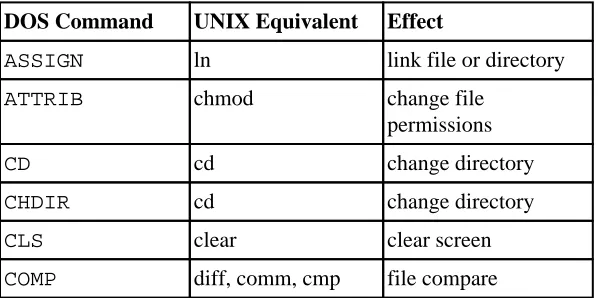
Appendix G. Converting DOS Batch Files to Shell Scripts...344
Appendix H. Exercises...347
Appendix I. Copyright...350
A working knowledge of shell scripting is essential to everyone wishing to become reasonably adept at
system administration, even if they do not anticipate ever having to actually write a script. Consider that as a
Linux machine boots up, it executes the shell scripts in /etc/rc.d to restore the system configuration and
set up services. A detailed understanding of these startup scripts is important for analyzing the behavior of a
system, and possibly modifying it.
Writing shell scripts is not hard to learn, since the scripts can be built in bite−sized sections and there is only
a fairly small set of shell−specific operators and options [1] to learn. The syntax is simple and
straightforward, similar to that of invoking and chaining together utilities at the command line, and there are
only a few "rules" to learn. Most short scripts work right the first time, and debugging even the longer ones is
straightforward.
A shell script is a "quick and dirty" method of prototyping a complex application. Getting even a limited
subset of the functionality to work in a shell script, even if slowly, is often a useful first stage in project
development. This way, the structure of the application can be tested and played with, and the major pitfalls
found before proceeding to the final coding in C, C++, Java, or Perl.
Shell scripting hearkens back to the classical UNIX philosophy of breaking complex projects into simpler
subtasks, of chaining together components and utilities. Many consider this a better, or at least more
esthetically pleasing approach to problem solving than using one of the new generation of high powered
all−in−one languages, such as Perl, which attempt to be all things to all people, but at the cost of forcing you
to alter your thinking processes to fit the tool.
When not to use shell scripts
resource−intensive tasks, especially where speed is a factor (sorting, hashing, etc.)
•
procedures involving heavy−duty math operations, especially floating point arithmetic, arbitrary
precision calculations, or complex numbers (use C++ or FORTRAN instead)
•
cross−platform portability required (use C instead)
•
complex applications, where structured programming is a necessity (need typechecking of variables,
function prototypes, etc.)
•
mission−critical applications upon which you are betting the ranch, or the future of the company
•
situations where security is important, where you need to guarantee the integrity of your system and
protect against intrusion, cracking, and vandalism
•
project consists of subcomponents with interlocking dependencies
•
extensive file operations required (Bash is limited to serial file access, and that only in a particularly
clumsy and inefficient line−by−line fashion)
•
need multi−dimensional arrays
•
need data structures, such as linked lists or trees
•
need to generate or manipulate graphics or GUIs
•
need direct access to system hardware
•
need port or socket I/O
•
need to use libraries or interface with legacy code
•
proprietary, closed−source applications (shell scripts are necessarily Open Source)
•
If any of the above applies, consider a more powerful scripting language, perhaps Perl, Tcl, Python, or
possibly a high−level compiled language such as C, C++, or Java. Even then, prototyping the application as a
shell script might still be a useful development step.
We will be using Bash, an acronym for "Bourne−Again Shell" and a pun on Stephen Bourne's now classic
Bourne Shell. Bash has become a de facto standard for shell scripting on all flavors of UNIX. Most of the
principles dealt with in this book apply equally well to scripting with other shells, such as the Korn Shell,
from which Bash derives some of its features, [2] and the C Shell and its variants. (Note that C Shell
programming is not recommended due to certain inherent problems, as pointed out in a news group
posting by Tom Christiansen in October of 1993).
The following is a tutorial in shell scripting. It relies heavily on examples to illustrate features of the shell. As
far as possible, the example scripts have been tested, and some of them may actually be useful in real life.
The reader should use the actual examples in the the source archive (something−or−other.sh),
[3] give them execute permission (chmod u+rx scriptname), then run them to see what happens.
Should the source archive not be available, then cut−and−paste from the HTML, pdf, or text rendered
versions. Be aware that some of the scripts below introduce features before they are explained, and this may
require the reader to temporarily skip ahead for enlightenment.
Unless otherwise noted, the book author wrote the example scripts that follow.
In the simplest case, a script is nothing more than a list of system commands stored in a file. At the very least,
this saves the effort of retyping that particular sequence of commands each time it is invoked.
Example 2−1. cleanup: A script to clean up the log files in /var/log
# cleanup
# Run as root, of course.
cd /var/log
cat /dev/null > messages cat /dev/null > wtmp echo "Logs cleaned up."
There is nothing unusual here, just a set of commands that could just as easily be invoked one by one from
the command line on the console or in an xterm. The advantages of placing the commands in a script go
beyond not having to retype them time and again. The script can easily be modified, customized, or
generalized for a particular application.
Example 2−2. cleanup: An enhanced and generalized version of above script.
#!/bin/bash
# cleanup, version 2 # Run as root, of course.
LOG_DIR=/var/log
ROOT_UID=0 # Only users with $UID 0 have root privileges. LINES=50 # Default number of lines saved.
E_XCD=66 # Can't change directory? E_NOTROOT=67 # Non−root exit error.
if [ "$UID" −ne "$ROOT_UID" ] then
echo "Must be root to run this script." exit $E_NOTROOT
fi
if [ −n "$1" ]
# Test if command line argument present (non−empty). then
lines=$1 else
lines=$LINES # Default, if not specified on command line. fi
# Stephane Chazelas suggests the following,
#+ as a better way of checking command line arguments,
#+ but this is still a bit advanced for this stage of the tutorial. #
# E_WRONGARGS=65 # Non−numerical argument (bad arg format) #
# case "$1" in
# "" ) lines=50;;
# *[!0−9]*) echo "Usage: `basename $0` file−to−cleanup"; exit $E_WRONGARGS;; # * ) lines=$1;;
# esac #
#* Skip ahead to "Loops" to understand this.
cd $LOG_DIR
if [ `pwd` != "$LOG_DIR" ] # or if [ "$PWD" != "LOG_DIR" ] # Not in /var/log?
then
echo "Can't change to $LOG_DIR." exit $E_XCD
fi # Doublecheck if in right directory, before messing with log file.
# far better is: # −−−
# cd /var/log || {
# echo "Cannot change to necessary directory." >&2 # exit $E_XCD;
# }
tail −$lines messages > mesg.temp # Saves last section of message log file. mv mesg.temp messages # Becomes new log directory.
# cat /dev/null > messages
#* No longer needed, as the above method is safer.
cat /dev/null > wtmp # > wtemp has the same effect. echo "Logs cleaned up."
exit 0
# A zero return value from the script upon exit #+ indicates success to the shell.
Since you may not wish to wipe out the entire system log, this variant of the first script keeps the last section
of the message log intact. You will constantly discover ways of refining previously written scripts for
increased effectiveness.
The sha−bang ( #!) at the head of a script tells your system that this file is a set of commands to be fed to the
command interpreter indicated. The #! is actually a two−byte [4] "magic number", a special marker that
designates a file type, or in this case an executable shell script (see man magic for more details on this
fascinating topic). Immediately following the sha−bang is a path name. This is the path to the program that
interprets the commands in the script, whether it be a shell, a programming language, or a utility. This
command interpreter then executes the commands in the script, starting at the top (line 1 of the script),
ignoring comments. [5]
#!/bin/sh #!/bin/bash #!/usr/bin/perl #!/usr/bin/tcl #!/bin/sed −f #!/usr/awk −f
Each of the above script header lines calls a different command interpreter, be it /bin/sh, the default shell
(bash in a Linux system) or otherwise. [6] Using #!/bin/sh, the default Bourne Shell in most commercial
variants of UNIX, makes the script portable to non−Linux machines, though you may have to sacrifice a few
Bash−specific features (the script will conform to the POSIX [7] sh standard).
Note that the path given at the "sha−bang" must be correct, otherwise an error message, usually "Command
not found" will be the only result of running the script.
#! can be omitted if the script consists only of a set of generic system commands, using no internal shell
directives. Example 2, above, requires the initial #!, since the variable assignment line, lines=50, uses a
shell−specific construct. Note that #!/bin/sh invokes the default shell interpreter, which defaults to
/bin/bash on a Linux machine.
This tutorial encourages a modular approach to constructing a script. Make
note of and collect "boilerplate" code snippets that might be useful in future
scripts. Eventually you can build a quite extensive library of nifty routines.
As an example, the following script prolog tests whether the script has been
invoked with the correct number of parameters.
if [ $# −ne Number_of_expected args ] then
echo "Usage: `basename $0` whatever" exit $WRONG_ARGS
fi
2.1. Invoking the script
Having written the script, you can invoke it by
sh scriptname
, [8] or alternately
bash scriptname
.
(Not recommended is using sh <scriptname, since this effectively disables reading from stdin within
the script.) Much more convenient is to make the script itself directly executable with a chmod.
Either:
chmod 555 scriptname (gives everyone read/execute permission) [9]
or
chmod +rx scriptname
(gives everyone read/execute permission)
chmod u+rx scriptname (gives only the script owner read/execute permission)
Having made the script executable, you may now test it by ./scriptname. [10] If it begins with a
"sha−bang" line, invoking the script calls the correct command interpreter to run it.
As a final step, after testing and debugging, you would likely want to move it to /usr/local/bin (as
root, of course), to make the script available to yourself and all other users as a system−wide executable. The
script could then be invoked by simply typing scriptname [ENTER] from the command line.
2.2. Preliminary Exercises
System administrators often write scripts to automate common tasks. Give instances where such
scripts would be useful.
1.
Write a script that upon invocation shows the time and date, lists all logged−in users, and gives the
system uptime. The script then saves this information to a logfile.
2.
Part 2. Basics
Table of Contents
3. Exit and Exit Status
4. Special Characters
5. Introduction to Variables and Parameters
5.1. Variable Substitution
5.2. Variable Assignment
5.3. Bash Variables Are Untyped
5.4. Special Variable Types
6. Quoting
7. Tests
7.1. Test Constructs
7.2. File test operators
7.3. Comparison operators (binary)
7.4. Nested if/then Condition Tests
7.5. Testing Your Knowledge of Tests
8. Operations and Related Topics
8.1. Operators
8.2. Numerical Constants
...there are dark corners in the Bourne shell, and
people use all of them.
Chet Ramey
The exit command may be used to terminate a script, just as in a C program. It can also return a value, which
is available to the script's parent process.
Every command returns an exit status (sometimes referred to as a return status ). A successful command
returns a 0, while an unsuccessful one returns a non−zero value that usually may be interpreted as an error
code. Well−behaved UNIX commands, programs, and utilities return a 0 exit code upon successful
completion, though there are some exceptions.
Likewise, functions within a script and the script itself return an exit status. The last command executed in
the function or script determines the exit status. Within a script, an exit nnn command may be used to
deliver an nnn exit status to the shell (nnn must be a decimal number in the 0 − 255 range).
When a script ends with an exit that has no parameter, the
exit status of the script is the exit status of the last
command executed in the script (not counting the exit).
$? reads the exit status of the last command executed. After a function returns, $? gives the exit status of the
last command executed in the function. This is Bash's way of giving functions a "return value". After a script
terminates, a $? from the command line gives the exit status of the script, that is, the last command executed
in the script, which is, by convention,
0
on success or an integer in the range 1 − 255 on error.
Example 3−1. exit / exit status
#!/bin/bash
echo hello
echo $? # Exit status 0 returned because command successful.
lskdf # Unrecognized command.
echo $? # Non−zero exit status returned.
echo
exit 113 # Will return 113 to shell.
# To verify this, type "echo $?" after script terminates.
# By convention, an 'exit 0' indicates success,
# while a non−zero exit value means an error or anomalous condition.
$? is especially useful for testing the result of a command in a script (see Example 12−8 and Example 12−12).
The !, the logical "not" qualifier, reverses the outcome of a test or command, and
this affects its exit status.
Example 3−2. Negating a condition using !
true # the "true" builtin.
echo "exit status of \"true\" = $?" # 0
! true
echo "exit status of \"! true\" = $?" # 1 # Note that the "!" needs a space.
# !true leads to a "command not found" error
# Thanks, S.C.
Certain exit status codes have reserved meanings and
should not be user−specified in a script.
Special Characters Found In Scripts and Elsewhere
#
Comments. Lines beginning with a # (with the exception of #!) are comments.
# This line is a comment.
Comments may also occur at the end of a command.
echo "A comment will follow." # Comment here.
Comments may also follow whitespace at the beginning of a line.
# A tab precedes this comment.
A command may not follow a comment on the
same line. There is no method of terminating the
comment, in order for "live code" to begin on
the same line. Use a new line for the next
command.
Of course, an escaped # in an echo statement does not begin a comment.
Likewise, a # appears in certain parameter substitution constructs and in
numerical constant expressions.
echo "The # here does not begin a comment." echo 'The # here does not begin a comment.' echo The \# here does not begin a comment. echo The # here begins a comment.
echo ${PATH#*:} # Parameter substitution, not a comment. echo $(( 2#101011 )) # Base conversion, not a comment.
# Thanks, S.C.
The standard quoting and escape characters (" ' \) escape the #.
Certain pattern matching operations also use the #.
;
Command separator. [Semicolon] Permits putting two or more commands on the same line.
echo hello; echo there
Note that the ";" sometimes needs to be escaped.
;;
Terminator in a case option. [Double semicolon]
case "$variable" in
abc) echo "$variable = abc" ;; xyz) echo "$variable = xyz" ;; esac
.
"dot" command. [period] Equivalent to source (see Example 11−14). This is a bash builtin.
In a different context, as part of a regular expression, a "dot" matches a single character.
In yet another context, a dot is the filename prefix of a "hidden" file, a file that an ls will not normally
show.
bash$ touch .hidden−file bash$ ls −l
total 10
−rw−r−−r−− 1 bozo 4034 Jul 18 22:04 data1.addressbook −rw−r−−r−− 1 bozo 4602 May 25 13:58 data1.addressbook.bak −rw−r−−r−− 1 bozo 877 Dec 17 2000 employment.addressbook
bash$ ls −al total 14
drwxrwxr−x 2 bozo bozo 1024 Aug 29 20:54 ./ drwx−−−−−− 52 bozo bozo 3072 Aug 29 20:51 ../
−rw−r−−r−− 1 bozo bozo 4034 Jul 18 22:04 data1.addressbook −rw−r−−r−− 1 bozo bozo 4602 May 25 13:58 data1.addressbook.bak −rw−r−−r−− 1 bozo bozo 877 Dec 17 2000 employment.addressbook −rw−rw−r−− 1 bozo bozo 0 Aug 29 20:54 .hidden−file
"
partial quoting. [double quote] "STRING" preserves (from interpretation) most of the special
characters within STRING. See also Chapter 6.
'
full quoting. [single quote] 'STRING' preserves all special characters within STRING. This is a
stronger form of quoting than using ". See also Chapter 6.
,
comma operator. The comma operator links together a series of arithmetic operations. All are
evaluated, but only the last one is returned.
let "t2 = ((a = 9, 15 / 3))" # Set "a" and calculate "t2".
\
escape. [backslash] \X "escapes" the character X. This has the effect of "quoting" X, equivalent to
'X'. The \ may be used to quote " and ', so they are expressed literally.
See Chapter 6 for an in−depth explanation of escaped characters.
/
Filename path separator. [forward slash] Separates the components of a filename (as in
/home/bozo/projects/Makefile).
This is also the division arithmetic operator.
`
command substitution. [backticks] `command` makes available the output of command for setting a
variable. This is also known as backticks or backquotes.
:
null command. [colon] This is the shell equivalent of a "NOP" (no op, a do−nothing operation). It
may be considered a synonym for the shell builtin true. The ":" command is a Bash builtin, and its
exit status is "true" (0).
:
echo $? # 0
Endless loop:
while : do
operation−1 operation−2 ...
operation−n done
# Same as: # while true # do
# ... # done
Placeholder in if/then test:
if condition
then : # Do nothing and branch ahead else
take−some−action fi
Provide a placeholder where a binary operation is expected, see Example 8−1 and default parameters.
: ${username=`whoami`}
# ${username=`whoami`} without the leading : gives an error
# unless "username" is a command or builtin...
Provide a placeholder where a command is expected in a here document. See Example 17−8.
Evaluate string of variables using parameter substitution (as in Example 9−9).
: ${HOSTNAME?} ${USER?} ${MAIL?}
#Prints error message if one or more of essential environmental variables not set.
Variable expansion / substring replacement.
In combination with the > redirection operator, truncates a file to zero length, without changing its
permissions. If the file did not previously exist, creates it.
: > data.xxx # File "data.xxx" now empty.
# Same effect as cat /dev/null >data.xxx
# However, this does not fork a new process, since ":" is a builtin.
See also Example 12−10.
In combination with the >> redirection operator, updates a file access/modification time (: >>
new_file). If the file did not previously exist, creates it. This is equivalent to touch.
This applies to regular files, not pipes,
symlinks, and certain special files.
May be used to begin a comment line, although this is not recommended. Using # for a comment
turns off error checking for the remainder of that line, so almost anything may be appear in a
comment. However, this is not the case with :.
: This is a comment that generates an error, ( if [ $x −eq 3] ).
The ":" also serves as a field separator, in /etc/passwd, and in the $PATH variable.
bash$ echo $PATH
/usr/local/bin:/bin:/usr/bin:/usr/X11R6/bin:/sbin:/usr/sbin:/usr/games
!
reverse (or negate) the sense of a test or exit status. The ! operator inverts the exit status of the
command to which it is applied (see Example 3−2). It also inverts the meaning of a test operator.
This can, for example, change the sense of "equal" ( = ) to "not−equal" ( != ). The ! operator is a Bash
keyword.
In a different context, the ! also appears in indirect variable references.
*
wild card. [asterisk] The * character serves as a "wild card" for filename expansion in globbing, as
well as representing any number (or zero) characters in a regular expression.
A double asterisk, **, is the exponentiation operator.
?
wild card (single character). [question mark] The ? character serves as a single−character "wild
card" for filename expansion in globbing, as well as representing one character in an extended
regular expression.
Within a double parentheses construct, the ? serves as a C−style trinary operator. See Example 9−21.
$
Variable substitution.
var1=5
var2=23skidoo
echo $var1 # 5
echo $var2 # 23skidoo
In a regular expression, a $ matches the end of a line.
${}
Parameter substitution.
$*, $@
positional parameters.
()
command group.
(a=hello; echo $a)
A listing of commands within parentheses starts a subshell.
Variables inside parentheses, within the subshell, are not visible to the rest
of the script. The parent process, the script, cannot read variables created
in the child process, the subshell.
a=123
( a=321; )
echo "a = $a" # a = 123
# "a" within parentheses acts like a local variable.
array initialization.
Array=(element1 element2 element3)
{xxx,yyy,zzz,...}
Brace expansion.
grep Linux file*.{txt,htm*}
# Finds all instances of the work "Linux"
# in the files "fileA.txt", "file2.txt", "fileR.html", "file−87.htm", etc.
A command may act upon a comma−separated list of file specs within braces. [11] Filename
expansion (globbing) applies to the file specs between the braces.
No spaces allowed within the braces unless the spaces
are quoted or escaped.
echo {file1,file2}\ :{\ A," B",' C'}
file1 : A file1 : B file1 : C file2
: A file2 : B file2 : C
{}
Block of code. [curly brackets] Also referred to as an "inline group", this construct, in effect, creates
an anonymous function. However, unlike a function, the variables in a code block remain visible to
the remainder of the script.
bash$ { local a; a=123; }
bash: local: can only be used in a function
a=123 { a=321; }
echo "a = $a" # a = 321 (value inside code block)
# Thanks, S.C.
The code block enclosed in braces may have I/O redirected to and from it.
Example 4−1. Code blocks and I/O redirection
#!/bin/bash
# Reading lines in /etc/fstab.
File=/etc/fstab
{
read line1 read line2 } < $File
echo "First line in $File is:" echo "$line1"
echo
echo "Second line in $File is:" echo "$line2"
exit 0
Example 4−2. Saving the results of a code block to a file
#!/bin/bash # rpm−check.sh
# Queries an rpm file for description, listing, and whether it can be installed. # Saves output to a file.
#
# This script illustrates using a code block.
SUCCESS=0 E_NOARGS=65
if [ −z "$1" ] then
echo "Usage: `basename $0` rpm−file" exit $E_NOARGS
fi
{ echo
echo "Archive Description:"
rpm −qpi $1 # Query description. echo
echo "Archive Listing:"
rpm −qpl $1 # Query listing. echo
rpm −i −−test $1 # Query whether rpm file can be installed. if [ "$?" −eq $SUCCESS ]
then
echo "$1 can be installed." else
echo "$1 cannot be installed." fi
echo
} > "$1.test" # Redirects output of everything in block to file.
echo "Results of rpm test in file $1.test"
# See rpm man page for explanation of options.
exit 0
Unlike a command group within (parentheses), as
above, a code block enclosed by {braces} will
not normally launch a subshell. [12]
{} \;
pathname. Mostly used in find constructs. This is not a shell builtin.
The ";" ends the −exec option of a
find command sequence. It needs to be escaped to
protect it from interpretation by the shell.
[ ]
test.
Test expression between [ ]. Note that [ is part of the shell builtin test (and a synonym for it), not a
link to the external command /usr/bin/test.
[[ ]]
test.
Test expression between [[ ]] (shell keyword).
See the discussion on the [[ ... ]] construct.
(( ))
integer expansion.
Expand and evaluate integer expression between (( )).
See the discussion on the (( ... )) construct.
> >& >> <
redirection.
scriptname >filename redirects the output of scriptname to file filename. Overwrite
filename if it already exists.
command >&2 redirects output of command to stderr.
scriptname >>filename appends the output of scriptname to file filename. If
filename does not already exist, it will be created.
process substitution.
(command)>
<(command)
In a different context, the "<" and ">" characters act as string comparison operators.
In yet another context, the "<" and ">" characters act as integer comparison operators. See also
Example 12−6.
<<
redirection used in a here document.
|
pipe. Passes the output of previous command to the input of the next one, or to the shell. This is a
method of chaining commands together.
echo ls −l | sh
# Passes the output of "echo ls −l" to the shell, #+ with the same result as a simple "ls −l".
cat *.lst | sort | uniq
# Merges and sorts all ".lst" files, then deletes duplicate lines.
A pipe, as a classic method of interprocess communication, sends the stdout of one process to
the stdin of another. In a typical case, a command, such as cat or echo, pipes a stream of data to
a filter for processing.
cat $filename | grep $search_word
The output of a command or commands may be piped to a script.
#!/bin/bash
# uppercase.sh : Changes input to uppercase.
tr 'a−z' 'A−Z'
# Letter ranges must be quoted
#+ to prevent filename generation from single−letter filenames.
exit 0
Now, let us pipe the output of ls −l to this script.
bash$ ls −l | ./uppercase.sh
−RW−RW−R−− 1 BOZO BOZO 109 APR 7 19:49 1.TXT −RW−RW−R−− 1 BOZO BOZO 109 APR 14 16:48 2.TXT −RW−R−−R−− 1 BOZO BOZO 725 APR 20 20:56 DATA−FILE
The stdout of each process in a pipe must be read as the stdin of the next.
If this is not the case, the data stream will block, and the pipe will not behave
as expected.
cat file1 file2 | ls −l | sort
# The output from "cat file1 file2" disappears.
A pipe runs as a child process, and therefore cannot alter script variables.
variable="initial_value"
echo "new_value" | read variable
echo "variable = $variable" # variable = initial_value
If one of the commands in the pipe aborts, this prematurely terminates
execution of the pipe. Called a broken pipe, this condition sends a
SIGPIPE signal.
>|
force redirection (even if the noclobber option is set). This will forcibly overwrite an existing file.
&
Run job in background. A command followed by an & will run in the background.
bash$ sleep 10 & [1] 850
[1]+ Done sleep 10
A command run in the background within a
script may cause the script to hang, waiting for a
keystroke. Fortunately, there is a remedy for this.
−
redirection from/to stdin or stdout. [dash]
(cd /source/directory && tar cf − . ) | (cd /dest/directory && tar xpvf −) # Move entire file tree from one directory to another
# [courtesy Alan Cox <[email protected]>, with a minor change]
# 1) cd /source/directory Source directory, where the files to be moved are.
# 2) && "And−list": if the 'cd' operation successful, then execute the next command. # 3) tar cf − . The 'c' option 'tar' archiving command creates a new archive,
# the 'f' (file) option, followed by '−' designates the target file as stdout, # and do it in current directory tree ('.').
# 4) | Piped to... # 5) ( ... ) a subshell
# 6) cd /dest/directory Change to the destination directory. # 7) && "And−list", as above
# 8) tar xpvf − Unarchive ('x'), preserve ownership and file permissions ('p'), # and send verbose messages to stdout ('v'),
# reading data from stdin ('f' followed by '−'). #
# Note that 'x' is a command, and 'p', 'v', 'f' are options. # Whew!
# More elegant than, but equivalent to: # cd source−directory
# tar cf − . | (cd ../target−directory; tar xzf −) #
# cp −a /source/directory /dest also has same effect.
bunzip2 linux−2.4.3.tar.bz2 | tar xvf −
# −−uncompress tar file−− | −−then pass it to "tar"−− # If "tar" has not been patched to handle "bunzip2",
# this needs to be done in two discrete steps, using a pipe.
# The purpose of the exercise is to unarchive "bzipped" kernel source.
Note that in this context the "−" is not itself a Bash operator, but rather an option recognized by
certain UNIX utilities that write to stdout, such as tar, cat, etc.
Where a filename is expected, − redirects output to stdout (sometimes seen with tar cf), or
accepts input from stdin, rather than from a file. This is a method of using a file−oriented utility as
a filter in a pipe.
bash$ file
Usage: file [−bciknvzL] [−f namefile] [−m magicfiles] file...
By itself on the command line, file fails with an error message.
bash$ file −
#!/bin/bash
standard input: Bourne−Again shell script text executable
This time, it accepts input from stdin and filters it.
The − can be used to pipe stdout to other commands. This permits such stunts as prepending lines
to a file.
Using diff to compare a file with a section of another:
grep bash file1 | diff file2 −
Finally, a real−world example using − with tar.
Example 4−3. Backup of all files changed in last day
#!/bin/bash
# Backs up all files in current directory modified within last 24 hours # in a "tarball" (tarred and gzipped file).
NOARGS=0 E_BADARGS=65
if [ $# = $NOARGS ] then
echo "Usage: `basename $0` filename" exit $E_BADARGS
fi
tar cvf − `find . −mtime −1 −type f −print` > $1.tar gzip $1.tar
# Stephane Chazelas points out that the above code will fail # if there are too many files found
# or if any filenames contain blank characters.
# He suggests the following alternatives:
# −−−−−−−−−−−−−−−−−−−−−−−−−−−−−−−−−−−−−−−−−−−−−−−−−−−−−−−−−−−−− # find . −mtime −1 −type f −print0 | xargs −0 tar rvf "$1.tar" # using the GNU version of "find".
# find . −mtime −1 −type f −exec tar rvf "$1.tar" '{}' \; # portable to other UNIX flavors, but much slower.
exit 0
Filenames beginning with
−
may cause problems when coupled with the
− redirection operator. A script should check for this and pass such
filenames as ./−FILENAME or $PWD/−FILENAME.
If the value of a variable begins with a −, this may likewise create
problems.
var="−n"
echo $var
# Has the effect of "echo −n", and outputs nothing.
−
previous working directory. [dash] cd − changes to previous working directory. This uses the
$OLDPWD environmental variable.
This is not to be confused with the "−" redirection
operator just discussed. The interpretation of the
"−" depends on the context in which it appears.
−
Minus. Minus sign in an arithmetic operation.
=
Equals. Assignment operator
a=28
echo $a # 28
In a different context, the "=" is a string comparison operator.
+
Plus. Addition arithmetic operator.
In a different context, the + is a Regular Expression operator.
%
modulo. Modulo (remainder of a division) arithmetic operation.
In a different context, the % is a pattern matching operator.
~
home directory. [tilde] This corresponds to the $HOME internal variable. ~bozo is bozo's home
directory, and ls ~bozo lists the contents of it. ~/ is the current user's home directory, and ls ~/ lists
the contents of it.
bash$ echo ~bozo /home/bozo
bash$ echo ~ /home/bozo
bash$ echo ~/ /home/bozo/
bash$ echo ~: /home/bozo:
bash$ echo ~nonexistent−user ~nonexistent−user
~+
current working directory. This corresponds to the $PWD internal variable.
~−
previous working directory. This corresponds to the $OLDPWD internal variable.
Control Characters
change the behavior of the terminal or text display. A control character is a CONTROL +
key combination.
Ctl−C
♦
Terminate a foreground job.
♦
Ctl−D
Log out from a shell (similar to exit).
"EOF" (end of file). This also terminates input from stdin.
Ctl−G
♦
"BEL" (beep).
Ctl−H
♦
Backspace.
Ctl−J
♦
Carriage return.
Ctl−L
♦
Formfeed (clear the terminal screen). This has the same effect as the clear command.
Ctl−M
♦
Newline.
Ctl−U
♦
Erase a line of input.
Ctl−Z
♦
Pause a foreground job.
Whitespace
functions as a separator, separating commands or variables. Whitespace consists of either spaces,
tabs, blank lines, or any combination thereof. In some contexts, such as variable assignment,
whitespace is not permitted, and results in a syntax error.
Blank lines have no effect on the action of a script, and are therefore useful for visually separating
functional sections.
$IFS, the special variable separating fields of input to certain commands, defaults to whitespace.
Parameters
Variables are at the heart of every programming and scripting language. They appear in arithmetic operations
and manipulation of quantities, string parsing, and are indispensable for working in the abstract with symbols
− tokens that represent something else. A variable is nothing more than a location or set of locations in
computer memory that holds an item of data.
5.1. Variable Substitution
The name of a variable is a placeholder for its value, the data it holds. Referencing its value is called variable
substitution.
$
Let us carefully distinguish between the name of a variable and its value. If variable1 is the name
of a variable, then $variable1 is a reference to its value, the data item it contains. The only time a
variable appears "naked", without the $ prefix, is when declared or assigned, when unset, when
exported, or in the special case of a variable representing a signal (see Example 30−4). Assignment
may be with an = (as in var1=27), in a read statement, and at the head of a loop (for var2 in 1 2 3).
Enclosing a referenced value in double quotes (" ") does not interfere with variable substitution. This
is called partial quoting, sometimes referred to as "weak quoting". Using single quotes (' ') causes the
variable name to be used literally, and no substitution will take place. This is full quoting, sometimes
referred to as "strong quoting". See Chapter 6 for a detailed discussion.
Note that $variable is actually a simplified alternate form of ${variable}. In contexts where
the $variable syntax causes an error, the longer form may work (see Section 9.3, below).
Example 5−1. Variable assignment and substitution
#!/bin/bash
# Variables: assignment and substitution
a=375 hello=$a
#−−−−−−−−−−−−−−−−−−−−−−−−−−−−−−−−−−−−−−−−−−−−−−−−−−−−−−−−−−−−−−−−−−−−−−−−− # No space permitted on either side of = sign when initializing variables.
# If "VARIABLE =value",
#+ script tries to run "VARIABLE" command with one argument, "=value".
# If "VARIABLE= value",
#+ script tries to run "value" command with
#+ the environmental variable "VARIABLE" set to "".
#−−−−−−−−−−−−−−−−−−−−−−−−−−−−−−−−−−−−−−−−−−−−−−−−−−−−−−−−−−−−−−−−−−−−−−−−−
echo hello # Not a variable reference, just the string "hello".
echo $hello
echo ${hello} #Identical to above.
echo "$hello" echo "${hello}"
# hello="A B C D"
# Now, echo $hello and echo "$hello" give different results. # Quoting variable preserves whitespace.
echo '$hello'
# Variable referencing disabled by single quotes, #+ which causes the "$" to be interpreted literally.
# Notice the effect of different types of quoting.
hello= # Setting it to a null value. echo "\$hello (null value) = $hello"
# Note that setting a variable to a null value is not the same as #+ unsetting it, although the end result is the same (see below).
# −−−−−−−−−−−−−−−−−−−−−−−−−−−−−−−−−−−−−−−−−−−−−−−−−−−−−−−−−−−−−−
# It is permissible to set multiple variables on the same line, #+ if separated by white space.
# Caution, this may reduce legibility, and may not be portable.
var1=variable1 var2=variable2 var3=variable3 echo
echo "var1=$var1 var2=$var2 var3=$var3"
# May cause problems with older versions of "sh".
# −−−−−−−−−−−−−−−−−−−−−−−−−−−−−−−−−−−−−−−−−−−−−−−−−−−−−−−−−−−−−−
echo; echo
numbers="one two three" other_numbers="1 2 3"
# If whitespace within a variable, then quotes necessary. echo "numbers = $numbers"
echo "other_numbers = $other_numbers" echo
echo "uninitialized_variable = $uninitialized_variable" # Uninitialized variable has null value (no value at all). uninitialized_variable= # Declaring, but not initializing it
#+ (same as setting it to a null value, as above). echo "uninitialized_variable = $uninitialized_variable"
# It still has a null value.
uninitialized_variable=23 # Set it. unset uninitialized_variable # Unset it.
echo "uninitialized_variable = $uninitialized_variable" # It still has a null value.
echo
exit 0
An uninitialized variable has a "null" value − no
assigned value at all (not zero!). Using a variable
before assigning a value to it will inevitably
cause problems.
5.2. Variable Assignment
=
the assignment operator (no space before & after)
Do not confuse this with = and −eq, which test,
rather than assign!
Note that = can be either an assignment or a test
operator, depending on context.
Example 5−2. Plain Variable Assignment
#!/bin/bash
echo
# When is a variable "naked", i.e., lacking the '$' in front? # When it is being assigned, rather than referenced.
# Assignment a=879
echo "The value of \"a\" is $a"
# Assignment using 'let' let a=16+5
echo "The value of \"a\" is now $a"
echo
# In a 'for' loop (really, a type of disguised assignment) echo −n "The values of \"a\" in the loop are "
for a in 7 8 9 11 do
echo −n "$a " done
echo echo
# In a 'read' statement (also a type of assignment) echo −n "Enter \"a\" "
read a
echo "The value of \"a\" is now $a"
echo
exit 0
Example 5−3. Variable Assignment, plain and fancy
#!/bin/bash
a=23 # Simple case echo $a
b=$a echo $b
# Now, getting a little bit fancier...
a=`echo Hello!` # Assigns result of 'echo' command to 'a' echo $a
a=`ls −l` # Assigns result of 'ls −l' command to 'a' echo $a
exit 0
Variable assignment using the $(...) mechanism (a newer method than backquotes)
# From /etc/rc.d/rc.local R=$(cat /etc/redhat−release) arch=$(uname −m)
5.3. Bash Variables Are Untyped
Unlike many other programming languages, Bash does not segregate its variables by "type". Essentially,
Bash variables are character strings, but, depending on context, Bash permits integer operations and
comparisons on variables. The determining factor is whether the value of a variable contains only digits.
Example 5−4. Integer or string?
#!/bin/bash
# int−or−string.sh # Integer or string?
a=2334 # Integer. let "a += 1"
echo "a = $a " # Integer, still. echo
b=${a/23/BB} # Transform into a string. echo "b = $b" # BB35
declare −i b # Declaring it an integer doesn't help. echo "b = $b" # BB35, still.
let "b += 1" # BB35 + 1 = echo "b = $b" # 1
echo
c=BB34
echo "c = $c" # BB34
d=${c/BB/23} # Transform into an integer. echo "d = $d" # 2334
let "d += 1" # 2334 + 1 = echo "d = $d" # 2335
# Variables in Bash are essentially untyped.
exit 0
Untyped variables are both a blessing and a curse. They permit more flexibility in scripting (enough rope to
hang yourself) and make it easier to grind out lines of code. However, they permit errors to creep in and
encourage sloppy programming habits.
The burden is on the programmer to keep track of what type the script variables are. Bash will not do it for
you.
5.4. Special Variable Types
local variables
variables visible only within a code block or function (see also local variables in functions)
environmental variables
variables that affect the behavior of the shell and user interface
In a more general context, each process has an
"environment", that is, a group of variables that
hold information that the process may reference.
In this sense, the shell behaves like any other
process.
Every time a shell starts, it creates shell variables
that correspond to its own environmental
variables. Updating or adding new shell variables
causes the shell to update its environment, and all
the shell's child processes (the commands it
executes) inherit this environment.
The space allotted to the environment is limited. Creating too many environmental
variables or ones that use up excessive space may cause problems.
bash$ eval "`seq 10000 | sed −e 's/.*/export var&=ZZZZZZZZZZZZZZ/'`"
bash$ du
bash: /usr/bin/du: Argument list too long
(Thank you, S. C. for the clarification, and for providing the above example.)
If a script sets environmental variables, they need to be "exported", that is, reported to the
environment local to the script. This is the function of the export command.
A script can export variables only to child
processes, that is, only to commands or processes
which that particular script initiates. A script
invoked from the command line cannot export
variables back to the command line environment.
Child processes cannot export variables back to the
parent processes that spawned them.
−−−
positional parameters
arguments passed to the script from the command line − $0, $1, $2, $3... $0 is the name of the script
itself, $1 is the first argument, $2 the second, $3 the third, and so forth. [13] After $9, the arguments
must be enclosed in brackets, for example, ${10}, ${11}, ${12}.
Example 5−5. Positional Parameters
#!/bin/bash
# Call this script with at least 10 parameters, for example # ./scriptname 1 2 3 4 5 6 7 8 9 10
echo
echo "The name of this script is \"$0\"." # Adds ./ for current directory
echo "The name of this script is \"`basename $0`\"." # Strips out path name info (see 'basename')
echo
if [ −n "$1" ] # Tested variable is quoted. then
echo "Parameter #1 is $1" # Need quotes to escape # fi
if [ −n "$2" ] then
echo "Parameter #2 is $2" fi
if [ −n "$3" ] then
echo "Parameter #3 is $3" fi
# ...
if [ −n "${10}" ] # Parameters > $9 must be enclosed in {brackets}.
then
echo "Parameter #10 is ${10}" fi
echo
exit 0
Some scripts can perform different operations, depending on which name they are invoked with. For
this to work, the script needs to check $0, the name it was invoked by. There must also exist
symbolic links to all the alternate names of the script.
If a script expects a command line parameter but
is invoked without one, this may cause a null
variable assignment, generally an undesirable
result. One way to prevent this is to append an
extra character to both sides of the assignment
statement using the expected positional
parameter.
variable1_=$1_
# This will prevent an error, even if positional parameter is absent.
critical_argument01=$variable1_
# The extra character can be stripped off later, if desired, like so.
variable1=${variable1_/_/} # Side effects only if $variable1_ begins with "_". # This uses one of the parameter substitution templates discussed in Chapter 9. # Leaving out the replacement pattern results in a deletion.
# A more straightforward way of dealing with this is
#+ to simply test whether expected positional parameters have been passed. if [ −z $1 ]
then
exit $POS_PARAMS_MISSING fi
−−−
Example 5−6. wh, whois domain name lookup
#!/bin/bash
# Does a 'whois domain−name' lookup on any of 3 alternate servers: # ripe.net, cw.net, radb.net
# Place this script, named 'wh' in /usr/local/bin
# Requires symbolic links:
# ln −s /usr/local/bin/wh /usr/local/bin/wh−ripe # ln −s /usr/local/bin/wh /usr/local/bin/wh−cw # ln −s /usr/local/bin/wh /usr/local/bin/wh−radb
if [ −z "$1" ] then
echo "Usage: `basename $0` [domain−name]" exit 65
fi
case `basename $0` in
# Checks script name and calls proper server "wh" ) whois [email protected];; "wh−ripe") whois [email protected];; "wh−radb") whois [email protected];; "wh−cw" ) whois [email protected];;
* ) echo "Usage: `basename $0` [domain−name]";; esac
exit 0
−−−
The shift command reassigns the positional parameters, in effect shifting them to the left one notch.
$1 <−−− $2, $2 <−−− $3, $3 <−−− $4, etc.
The old $1 disappears, but $0 does not change. If you use a large number of positional parameters to
a script, shift lets you access those past 10, although {bracket} notation also permits this (see
Example 5−5).
Example 5−7. Using shift
#!/bin/bash
# Using 'shift' to step through all the positional parameters.
# Name this script something like shft,
# and invoke it with some parameters, for example # ./shft a b c def 23 skidoo
until [ −z "$1" ] # Until all parameters used up... do
echo −n "$1 " shift
done
echo # Extra line feed.
exit 0
Quoting means just that, bracketing a string in quotes. This has the effect of protecting special characters in
the string from reinterpretation or expansion by the shell or shell script. (A character is "special" if it has an
interpretation other than its literal meaning, such as the wild card character, *.)
bash$ ls −l [Vv]*
−rw−rw−r−− 1 bozo bozo 324 Apr 2 15:05 VIEWDATA.BAT −rw−rw−r−− 1 bozo bozo 507 May 4 14:25 vartrace.sh −rw−rw−r−− 1 bozo bozo 539 Apr 14 17:11 viewdata.sh
bash$ ls −l '[Vv]*'
ls: [Vv]*: No such file or directory
Certain programs and utilities can still reinterpret or expand special characters in
a quoted string. This is an important use of quoting, protecting a command−line
parameter from the shell, but still letting the calling program expand it.
bash$ grep '[Ff]irst' *.txt
file1.txt:This is the first line of file1.txt. file2.txt:This is the First line of file2.txt.
Of course, grep [Ff]irst *.txt would not work.
When referencing a variable, it is generally advisable in enclose it in double quotes (" "). This preserves all
special characters within the variable name, except $, ` (backquote), and \ (escape). Keeping $ as a special
character permits referencing a quoted variable ("$variable"), that is, replacing the variable with its
value (see Example 5−1, above).
Use double quotes to prevent word splitting. [14] An argument enclosed in double quotes presents itself as a
single word, even if it contains whitespace separators.
variable1="a variable containing five words"
COMMAND This is $variable1 # Executes COMMAND with 7 arguments: # "This" "is" "a" "variable" "containing" "five" "words"
COMMAND "This is $variable1" # Executes COMMAND with 1 argument: # "This is a variable containing five words"
variable2="" # Empty.
COMMAND $variable2 $variable2 $variable2 # Executes COMMAND with no arguments. COMMAND "$variable2" "$variable2" "$variable2" # Executes COMMAND with 3 empty arguments. COMMAND "$variable2 $variable2 $variable2" # Executes COMMAND with 1 argument (2 spaces).
# Thanks, S.C.
Enclosing the arguments to an echo statement in double
quotes is necessary only when word splitting is an issue.
Example 6−1. Echoing Weird Variables
#!/bin/bash
# weirdvars.sh: Echoing weird variables.
var="'(]\\{}\$\""
echo $var # '(]\{}$"
echo "$var" # '(]\{}$" Doesn't make a difference.
IFS='\'
echo $var # '(]\{}$" \ converted to space. echo "$var" # '(] {}$"
# Examples above supplied by S.C.
exit 0
Single quotes (' ') operate similarly to double quotes, but do not permit referencing variables, since the special
meaning of $ is turned off. Within single quotes, every special character except ' gets interpreted literally.
Consider single quotes ("full quoting") to be a stricter method of quoting than double quotes ("partial
quoting").
Since even the escape character (\) gets a literal interpretation within single quotes, trying to
enclose a single quote within single quotes will not yield the expected result.
echo "Why can't I write 's between single quotes"
echo
# The roundabout method.
echo 'Why can'\''t I write '"'"'s between single quotes' # |−−−−−−−| |−−−−−−−−−−| |−−−−−−−−−−−−−−−−−−−−−−−|
# Three single−quoted strings, with escaped and quoted single quotes between.
# This example courtesy of Stephane Chazelas.
Escaping is a method of quoting single characters. The escape (\) preceding a character tells the shell to
interpret that character literally.
With certain commands and utilities, such as echo and
sed, escaping a character may have the opposite effect −
it can toggle on a special meaning for that character.
Special meanings of certain escaped characters
used with echo and sed
\n
means newline
\r
means return
\t
means tab
\v
means vertical tab
\b
means backspace
\a
means "alert" (beep or flash)
\0xx
translates to the octal ASCII equivalent of 0xx
Example 6−2. Escaped Characters
#!/bin/bash
# escaped.sh: escaped characters
echo; echo
echo "\v\v\v\v" # Prints \v\v\v\v
# Must use the −e option with 'echo' to print escaped characters. echo −e "\v\v\v\v" # Prints 4 vertical tabs.
echo −e "\042" # Prints " (quote, octal ASCII character 42).
# Bash, version 2 and later, permits using the $'\xxx' construct. echo $'\n'
echo $'\a'
echo $'\t \042 \t' # Quote (") framed by tabs.
# Assigning ASCII characters to a variable. # −−−−−−−−−−−−−−−−−−−−−−−−−−−−−−−−−−−−−−−− quote=$'\042' # " assigned to a variable.
echo "$quote This is a quoted string, $quote and this lies outside the quotes."
echo
# Concatenating ASCII chars in a variable.
triple_underline=$'\137\137\137' # 137 is octal ASCII code for "_". echo "$triple_underline UNDERLINE $triple_underline"
ABC=$'\101\102\103\010' # 101, 102, 103 are octal A, B, C. echo $ABC
echo; echo
escape=$'\033' # 033 is octal for escape. echo "\"escape\" echoes as $escape"
echo; echo
exit 0
See Example 35−1 for another example of the $' ' string expansion construct.
\"
gives the quote its literal meaning
echo "Hello" # Hello
echo "\"Hello\", he said." # "Hello", he said.
\$
gives the dollar sign its literal meaning (variable name following \$ will not be referenced)
echo "\$variable01" # results in $variable01
\\
gives the backslash its literal meaning
echo "\\" # results in \
The behavior of \ depends on whether it is itself escaped, quoted, or appearing
within a here document.
echo \z # z echo \\z # \z echo '\z' # \z echo '\\z' # \\z echo "\z" # \z echo "\\z" # \z echo `echo \z` # z echo `echo \\z` # z echo `echo \\\z` # \z echo `echo \\\\z` # \z echo `echo \\\\\\z` # \z echo `echo \\\\\\\z` # \\z echo `echo "\z"` # \z echo `echo "\\z"` # \z
cat <<EOF \z EOF # \z
cat <<EOF \\z EOF # \z
# These examples supplied by Stephane Chazelas.
Escaping a space can prevent word splitting in a command's argument list.
file_list="/bin/cat /bin/gzip /bin/more /usr/bin/less /usr/bin/emacs−20.7" # List of files as argument(s) to a command.
# Add two files to the list, and list all.
ls −l /usr/X11R6/bin/xsetroot /sbin/dump $file_list
echo "−−−−−−−−−−−−−−−−−−−−−−−−−−−−−−−−−−−−−−−−−−−−−−−−−−−−−−−−−−−−−−−−−−−−−−−−−"
# What happens if we escape a couple of spaces? ls −l /usr/X11R6/bin/xsetroot\ /sbin/dump\ $file_list
# Error: the first three files concatenated into a single argument to 'ls −l' # because the two escaped spaces prevent argument (word) splitting.
The escape also provides a means of writing a multi−line command. Normally, each separate line constitutes
a different command, but an escape at the end of a line escapes the newline character, and the command
sequence continues on to the next line.
(cd /source/directory && tar cf − . ) | \ (cd /dest/directory && tar xpvf −)
# Repeating Alan Cox's directory tree copy command, # but split into two lines for increased legibility.
# As an alternative:
tar cf − −C /source/directory | tar xpvf − −C /dest/directory # See note below.
# (Thanks, Stephane Chazelas.)
If a script line ends with a |, a pipe character, then a \, an
escape, is not strictly necessary. It is, however, good
programming practice to always escape the end of a line of
code that continues to the following line.
echo "foo bar" #foo #bar
echo
echo 'foo
bar' # No difference yet. #foo
#bar
echo
echo foo\
bar # Newline escaped. #foobar
echo
echo "foo\
bar" # Same here, as \ still interpreted as escape within weak quotes.
#foobar
echo
echo 'foo\
bar' # Escape character \ taken literally because of strong quoting. #foor\
#bar
# Examples suggested by Stephane Chazelas.
Every reasonably complete programming language can test for a condition, then act according to the result of
the test. Bash has the test command, various bracket and parenthesis operators, and the if/then construct.
7.1. Test Constructs
An if/then construct tests whether the exit status of a list of commands is 0 (since 0 means
"success" by UNIX convention), and if so, executes one or more commands.
•
There exists a dedicated command called [ (left bracket special character). It is a synonym for test,
and a builtin for efficiency reasons. This command considers its arguments as comparison
expressions or file tests and returns an exit status corresponding to the result of the comparison (0 for
true, 1 for false).
•
With version 2.02, Bash introduced the [[ ... ]] extended test command, which performs comparisons
in a manner more familiar to programmers from other languages. Note that [[ is a keyword, not a
command.
•
Bash sees [[ $a −lt $b ]] as a single element, which returns an exit status.
The (( ... )) and let ... constructs also return an exit status of 0 if the arithmetic expressions they
evaluate expand to a non−zero value. These arithmetic expansion constructs may therefore be used to
perform arithmetic comparisons.
let "1<2" returns 0 (as "1<2" expands to "1") (( 0 && 1 )) returns 1 (as "0 && 1" expands to "0")
An if can test any command, not just conditions enclosed within brackets.
•
if cmp a b > /dev/null # Suppress output. then echo "Files a and b are identical." else echo "Files a and b differ."
fi
if grep −q Bash file
then echo "File contains at least one occurrence of Bash." fi
if COMMAND_WHOSE_EXIT_STATUS_IS_0_UNLESS_ERROR_OCCURRED then echo "Command succeeded."
else echo "Command failed." fi
An if/then construct can contain nested comparisons and tests.
•
if echo "Next *if* is part of the comparison for the first *if*."
if [[ $comparison = "integer" ]] then (( a < b ))
else
[[ $a < $b ]] fi
then
echo '$a is less than $b' fi
This detailed "if−test" explanation courtesy of Stephane Chazelas.
Example 7−1. What is truth?
#!/bin/bash
echo
echo "Testing \"0\"" if [ 0 ] # zero then
echo "0 is true." else
echo "0 is false." fi
echo
echo "Testing \"NULL\""
if [ ] # NULL (empty condition) then
echo "NULL is true." else
echo "NULL is false." fi
echo
echo "Testing \"xyz\"" if [ xyz ] # string then
echo "Random string is true." else
echo "Random string is false." fi
echo
echo "Testing \"\$xyz\""
if [ $xyz ] # Tests if $xyz is null, but...
# it's only an uninitialized variable. then
echo "Uninitialized variable is true." else
echo "Uninitialized variable is false." fi
echo
echo "Testing \"−n \$xyz\""
if [ −n "$xyz" ] # More pedantically correct. then
echo "Uninitialized variable is true." else
echo "Uninitialized variable is false." fi
echo
xyz= # Initialized, but set to null value.
echo "Testing \"−n \$xyz\"" if [ −n "$xyz" ]
then
echo "Null variable is true." else
echo "Null variable is false." fi
echo
# When is "false" true?
echo "Testing \"false\""
if [ "false" ] # It seems that "false" is just a string. then
echo "\"false\" is true." #+ and it tests true. else
echo "\"false\" is false." fi
echo