1 Introduction... 3
2 Overview... 3
2.1 Accessing COLT Portal ... 3
2.2 Changing the COLT Portal country and language... 5
2.3 Downloading files from COLT Portal ... 6
3 Running Reports ... 7
4 Editing your profile... 7
5 Changing your service... 8
1 Introduction
COLT Portal provides you with in-depth reporting and analysis of your COLT service. After logging in to COLT Portal, you can run reports that provide you with graphical snapshots of the health of your service. COLT Portal is even flexible enough so that you can create your own custom reports around key performance indicators. In addition, you can download forms to change your existing service or order additional services as well as download the user guides that supply you with the step-by-step instructions that you need to fully manage your service.
2 Overview
COLT Portal has been designed to be used by customers for the following COLT products:
• COLT Total
• IP Access
• IP VPN
• IP Mail
• IP Webspace
COLT Portal gives you access to a range of documentation such as product descriptions and user guides as well as management tools for these products, including:
• InfoVista
• Firewall log files
• Health Check tool
• IP Mail Administrator’s interface
• IP Webspace Administrator’s interface
2.1 Accessing COLT Portal
The following prerequisites must be met to access COLT Portal:
• Internet Explorer 5.5 or Mozilla Firefox 1.0 must be installed
• Internet Explorer 6 with Sun Java Version 1.4.2_03 must be installed for Performance Reporting
To access COLT Portal, perform the following steps.
1. Open your web browser and type http://portal.colt.net in the address field. The COLT Portal home page appears as shown in the following figure.
Figure 1: COLT Portal home page
2. In the Customer region, enter your user name in the format of username@domain in the Username field and your password provided by COLT in the Password field.
Figure 2: Logging in to COLT Portal
Note: To access the specific tools associated with your service, you must log in to COLT Portal. Use the user name and password given to you when your service was activated. If you have not received a user name and password for COLT Portal, contact the COLT help desk.
3. After your credentials have been successfully authenticated, the list of services provided by COLT appears as shown in the following figure.
Note: Available services depend on the option that you have selected.
Table 1: COLT Portal
Link Description Choose Country &
Language
Change country and language settings and click Go
Contact Us View COLT’s Help Desk Contact Details
Help Download information about COLT Portal
Welcome region
Edit Profile Edit your profile, change your password, and modify your
email address
Logout Log out of COLT Portal
Current Services region
Details column Access applications available to each service by clicking the
links in the Details column of your service list
Our Products region
Product Details Displays products available on COLT Portal. Click the
product to display a product description.
User Guides Access and download product documents
Manage Your Services region
Current Services View your current list of services
Change Services Access service change request forms
What’s New region
News links Access news regarding COLT
2.2 Changing the COLT Portal country and language
You can change the COLT Portal country and the language in which COLT Portal is displayed. You do not need to log in to do this.
To change the COLT Portal country and language, perform the following steps. 1. Access COLT Portal as described in Accessing COLT Portal.
2. Select your country from the list of values in the Choose Country & Language field as shown in the following figure.
Figure 3: Changing the COLT Portal country and language
3. The associated language is populated in the field. Change this by selecting a different value and clicking Go.
The COLT Portal page is refreshed for the country and language that you selected.
2.3 Downloading
files from COLT Portal
You can download user guides and product documentation from COLT Portal even before you log in.
To download files from COLT Portal, perform the following steps. 1. Access COLT Portal as described in Accessing COLT Portal.
2. To download information about products, expand the Product Details link in the Our Products region in the left side of the page by clicking it.
3. Select a product for which you want to download information by clicking the link for that product. The page refreshes and a Download link appears as shown in the following figure.
Figure 4: Downloading product information
6. Select a product for which you want to download the user guide by clicking the link for that product. The page refreshes and a Download link appears for all available user guides.
7. Click the Download link. You are prompted to open or save the file.
3 Running
Reports
After you have logged in to COLT Portal, the page refreshes and your service and the administrative tools associated with your service are displayed. Depending on the service that you have purchased, you can view performance reports, review firewall log files or view events in addition to performing other tasks.
See Downloading files from COLT Portal for information about downloading the user guides for your service.
4 Editing
your
profile
After you have logged in to COLT Portal, you can modify your personal details such as first name, surname, password, and email address.
To edit your profile, perform the following steps.
1. Access COLT Portal and log in as described in Accessing COLT Portal.
2. Click Edit Profile in the Welcome region as shown in the following figure. The Edit Profile page appears.
Figure 5: Accessing the Edit Profile page
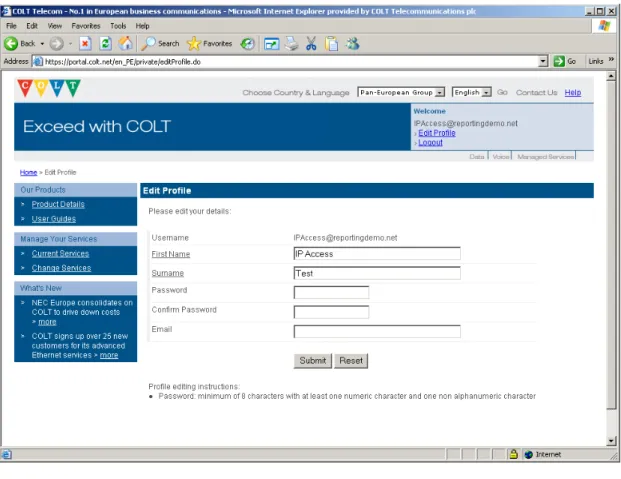
3. In the Edit Profile page, enter data for the fields as shown in the following figure. The First Name and Surname fields are required.
Figure 6: Editing your profile
4. Click Submit. A confirmation appears if you have successfully updated your profile. 5. Click the Current Services link in the Manage Your Services region to display your
service and administration tools available for your service.
5 Changing
your
service
If you want to modify our service or request a new service, you can request changes by clicking the Change Services link.
To change your service, perform the following steps.
1. Access COLT Portal and log in as described in Accessing COLT Portal.
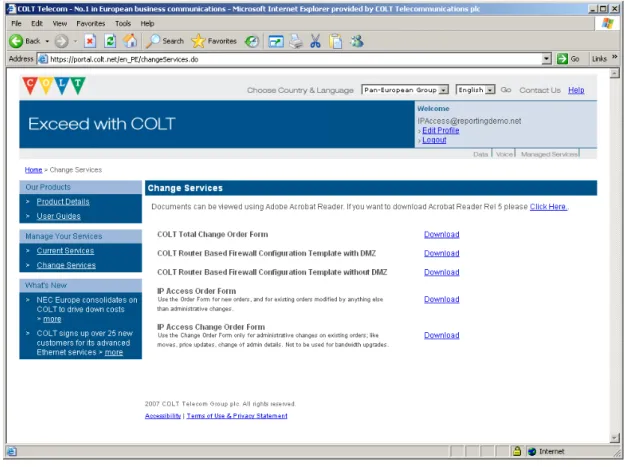
2. Click the Change Services link in the Manage Your Services region. The page shown in the following figure appears.
Figure 7: Changing your service
3. Click Download to obtain a copy of the relevant form. Complete this form and submit it to COLT via your Account Executive or COLT Partner.
4. Click the Current Services link to in the Manage Your Services region display your service and administration tools available for your service.
6 Logging out of COLT Portal
After you have finished using COLT Portal, log out to ensure that there is no unauthorised access to the administrative tools for your service.
To log out of COLT Portal, perform the following steps.
1. Access COLT Portal and log in as described in Accessing COLT Portal. 2. Perform the actions in COLT Portal as allowed by your service.
3. Click Logout in the Welcome region as shown in the following figure.