Many organizations are adopting Windows 7, and as they do so, they are taking the opportunity to consider how they deploy and manage desktop PCs. They want to make people productive—anytime, anywhere, on an array of devices—while maintaining compliance and controlling costs.
01 Microsoft Desktop Virtualization
03 Flexibility to Work Everywhere
04 Improve Compliance and Business Continuity 05 Simplify Management and Delivery
06 Desktop Virtualization Technologies
07 User State Virtualization 08 Application Virtualization 09 Operating System Virtualization 11 Enterprise Management
12 Comparing VDI and RDS Session Virtualization 13 Enabling Microsoft Desktop Virtualization Scenarios
14 Flexibility to Work Everywhere
14 Flexible Access to Windows 15 Anywhere Productivity
16 Maximize Hardware Investments
16 Improve Compliance and Business Continuity
17 Secure Corporate Data 17 Avoid Business Disruptions
19 Simplify Management and Delivery
19 Accelerate Deployment
22 Centralized and Unified Infrastructure 24 Microsoft Desktop Virtualization Summary
The consumerization of information technology (IT) is impacting how organizations manage their desktop environment. Users expect seamless, reliable, and secure on-demand access to applications and desktops from any location and from a wide range of devices, including Windows desktops, laptops, slates, and non-Windows-based devices.
The challenge for IT is to provide users with a consistent experience that works across locations and devices while avoiding business disruptions and securing confidential corporate data. Because modern workers expect access to new capabilities in days or weeks instead of months, IT must provision users with those corporate resources quickly. IT also needs to streamline Windows 7 deployment while maintaining users’ access to their critical business applications.
Microsoft Desktop Virtualization
Microsoft Desktop Virtualization is a comprehensive suite of solutions that helps organizations give their employees the flexibility to work everywhere on a range of devices. It offers a consistent, secure, and personalized experience across locations and devices while helping to improve compliance through centralized control and secure access to confidential data.
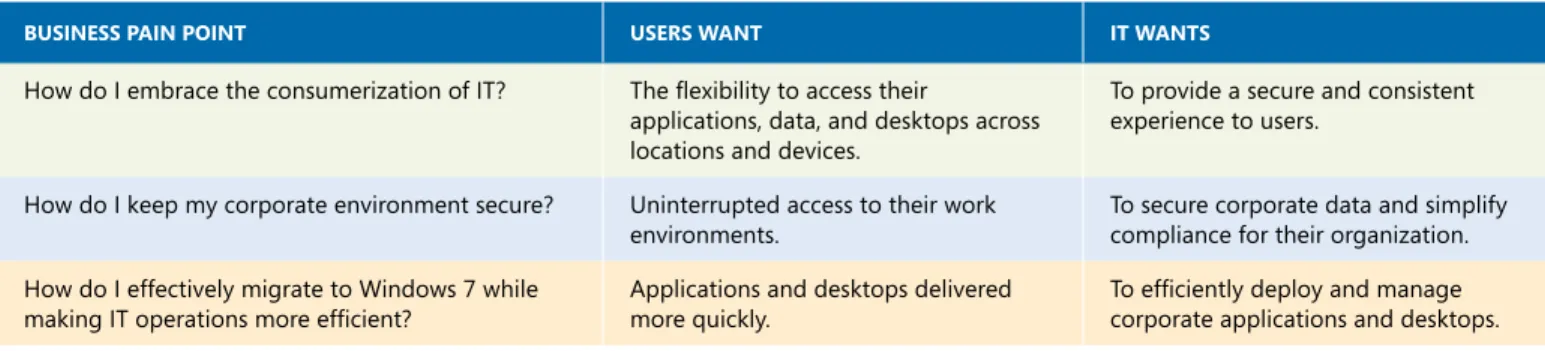
business pain point users want it wants
How do I embrace the consumerization of IT? The flexibility to access their
applications, data, and desktops across locations and devices.
To provide a secure and consistent experience to users.
How do I keep my corporate environment secure? Uninterrupted access to their work
environments. To secure corporate data and simplify compliance for their organization.
How do I effectively migrate to Windows 7 while
making IT operations more efficient? Applications and desktops delivered more quickly. To efficiently deploy and manage corporate applications and desktops.
Microsoft Desktop Virtualization solutions empower IT to simplify management by unifying IT operations onto a single and centralized infrastructure. It enables instant provisioning of corporate applications and desktops, which gets users up and running sooner, and it equips IT to provide access to legacy applications during the migration to Windows 7. Microsoft Desktop Virtualization integrates fully with Microsoft System Center to help manage both physical and virtual environments with the same management infrastructure, and automatically detect device configurations and network conditions to deliver the most appropriate services to each user.
Microsoft Desktop Virtualization
Benefits and Scenarios
Simpli
fy Management and Deliv
er
y CLICK ON THE TABS TO LEARN MORE
Impr
ov
e Compliance
& Business Continuity
Flexible Access to Windows Anywhere Productivity Maximize Hardware Investments Secure Corporate Data Avoid Business Disruptions Accelerate Deployment Centralized and Unified Infrastructure Flexibility t o W ork Ev er ywher e
Benefits and Scenarios / Microsoft Desktop Virtualization is a comprehensive suite of solutions that can give users the flexibility to work everywhere, improve compliance and business continuity, and simplify management and delivery. Microsoft Desktop Virtualization is a comprehensive suite of solutions that offers flexibility to employees while empowering IT.
Microsoft is unique as it provides the right set of Desktop Virtualization solutions that organizations need to solve their specific business pain points efficiently, thus maximizing their return on investment. The following sections describe the scenarios that Microsoft Desktop Virtualization solutions can help organizations enable:
Flexibility to Work Everywhere
Microsoft Desktop Virtualization enables the following scenarios to give users the flexibility to work everywhere:
• Flexible Access to Windows. Microsoft Desktop Virtualization solutions provide secure access to Windows from many connected devices (desktops, laptops, mobile devices, and non-Windows-based devices1). It provides
users the flexibility to access their desktops from the connected devices they choose, giving them the freedom to work anywhere. At the same time, it empowers IT to keep users happy by providing them a consistent and personalized experience across multiple devices while making sure the corporate environment is secure.
• Anywhere Productivity. Microsoft Desktop Virtualization solutions provide secure access to applications, data, and personal settings on any corporate PC. It enables applications, data, and personal settings to follow users, keeping them productive when they switch PCs and even when they are disconnected from the network. IT can keep users happy by providing them access to their personalized Windows experiences across multiple
connected or disconnected PCs.
1 Access to non-Windows-based devices is enabled through joint Microsoft and Citrix solutions
Microsoft Desktop Virtualization gives users secure access to their desktops and applications across locations and devices.
• Maximize Hardware Investments. Microsoft Desktop Virtualization solutions can help maximize hardware investments by providing access to multiple Windows environments (e.g., business and personal environment; or development and test environments) from a single device. It enables organizations to pursue Bring Your Own PC (BYOPC) programs, in which employees can use their own devices for work. IT can secure the corporate environment even when unmanaged devices access it.
Improve Compliance and Business Continuity
Microsoft Desktop Virtualization enables the following scenarios to improve compliance and business continuity:
• Secure Corporate Data. Microsoft Desktop Virtualization solutions help secure corporate data by centralizing desktops in the data center and removing applications and data from the endpoint. IT can provide comprehensive and secure remote access to corporate resources for employees, partners, and vendors on both managed and unmanaged devices.
• Avoid Business Disruptions. Microsoft Desktop Virtualization can improve business continuity by ensuring uninterrupted access to corporate
applications and data. In the event of business disruptions (including lost or dysfunctional PCs, natural disasters, and power outages), it helps users remain productive by instantly provisioning user applications and data. IT can store business information centrally to prepare for unforeseen events, and users can access it at any time.
Microsoft Desktop Virtualization can help secure corporate data and avoid business disruptions by centralizing desktops, applications, and data in the data center.
Simplify Management and Delivery
Microsoft Desktop Virtualization enables the following scenarios to simplify management and delivery:
• Accelerate Deployment. Microsoft Desktop Virtualization solutions can accelerate on-demand provisioning of virtual applications and desktops based on users’ identities and roles. It reduces the time and effort required to deploy corporate applications and desktops to users. It allows users to self-provision applications based on their identity, device and network connection from which they are accessing their corporate resources. IT can deliver applications or desktops to users as services with infrastructure that is hosted on premises, by a third party, or in the public cloud.
• Centralized and Unified Infrastructure. Microsoft Desktop Virtualization solutions provide a centralized platform for managing both physical and virtual environments. With Microsoft System Center, IT can realize the benefits of desktop virtualization without increasing the cost or complexity of management by consolidating security and management applications into a unified platform. By using a single platform, IT can inventory, patch, and configure physical and virtual desktops. IT can deliver agility and efficiency through automation, and self-service.
Microsoft Desktop Virtualization helps streamline application and desktop deployment. It works with System Center to also centralize and unify the deployment and management infrastructure.
Desktop Virtualization Technologies
As an only company that has significant presence in both business and consumer markets, Microsoft is in a unique position to understand and provide guidance to customers on responsibly embracing consumerization while simplifying compliance and management by leveraging Microsoft Desktop Virtualization solutions in their organization. The following sections offer an overview of the Microsoft Desktop Virtualization technology stack.
Ent
erpr
ise Management
Desktop Virtualization
Technology Stack
User Stat
e
Ent
erpr
ise
Management
Applications
Operating Syst
em
CLICK ON THE TABS TO LEARN MORE
Microsoft Desktop Virtualization Technology Stack / Microsoft Desktop Virtualization decouples user state, applications, and operating systems from the PC, allowing IT to manage each layer individually.
User State Virtualization
With user state virtualization, user data and settings are centralized in the data center, thus eliminating the constraints of local storage and giving users the ability to access their data and settings from any PC. It makes backing up, securing, and managing the availability of users’ data and settings easier for IT. In Windows 7, three technologies support user state virtualization:
• Roaming user profiles give IT the ability to store user profiles (i.e., files stored in C:\Users\Username, including the registry) in a network share, and then synchronize them with users’ computers whenever they log on using their domain credentials.
• Folder Redirection centralizes user folders (e.g., Documents, Pictures, and Videos) in the data center, making these folders accessible to users from any PC they log on to by using their login ID. The important distinction between roaming user profiles and Folder Redirection is that IT uses roaming user profiles primarily for settings and Folder Redirection for documents.
• Offline Files makes files and folders located on a server accessible to users even when they are disconnected from the network. To do so, Offline Files caches copies of the files and folders locally, then synchronizes changes the next time a connection is available.
“[Because of user state virtualization,] we save time with increased productivity.” John Freden
IT/IS Manager XR Logistics
Application Virtualization
Microsoft Application Virtualization (App-V), part of the Microsoft Desktop Optimization Pack (MDOP), enables enterprises to meet user and IT needs by empowering anywhere productivity and accelerated application deployment. It provides users access to applications that are dynamically available anywhere on any authorized PC without installs or reboots.
With App-V, virtual applications run in their own self-contained virtual environments on users’ PCs. This eliminates application conflicts and allows enterprises to reduce application-compatibility testing time, resulting in faster application deployment and updates. Virtual applications and user settings are preserved whether users are online or offline. Combined with user state virtualization, App-V provides a consistent experience and reliable access to applications and business data, regardless of users’ locations.
Organizations can deploy virtual application packages by using App-V servers, which stream the virtual applications on demand to users’ PCs and cache them locally so they can be used offline. Another option is to use System Center Configuration Manager to deploy, upgrade, and track usage of both physical and virtual applications in a single management experience. As a result, IT can use existing processes, workflow, and infrastructure to deliver virtual
applications to users.
Another way to virtualize and deliver centrally hosted applications is RemoteApp, a Windows Server 2008 R2 feature that is based on session virtualization. It enables IT to make applications accessed remotely through Remote Desktop Services (RDS). RemoteApp programs run in their own resizable windows, can be dragged between multiple monitors, and have their own icons on the Start menu or taskbar.
App-V TCO WhiTe pAper
Application virtualization helps organizations save $82/PC annually across the desktop application lifecycle. Please read the App-V TCO white paper for more details.
total economic imact study Forrester provided additional insight via their Total Economic Impact (TEI) Study for App-V. Customers can use the TEI spreadsheet to model the value for their company.
“Microsoft App-V integrates well with System Center Configuration Manager. It offers the easiest, most cost-effective, reliable approach for managing and deploying virtual and physical applications to users in widely dispersed locations.”
dr. martin rudolph
Product Manager, Office Applications BMW Group
Operating System Virtualization
The Microsoft Desktop Virtualization stack includes:
• Microsoft Virtual Desktop Infrastructure (VDI). VDI is an alternative desktop delivery model that gives users secure access to centrally managed
desktops running in the data center. VDI virtualizes an entire desktop environment within Windows Server 2008 R2 Hyper-V; that provide users a rich and personalized desktop experience with an option to have full administrative control. With VDI, users can access their desktops from any connected device, improving their ability to be productive even in the case of disaster. VDI presents the user interface (UI) to users’ devices by using the Remote Desktop Protocol (RDP) with RemoteFX to provide a rich desktop experience.
VDI offers enterprises a superior value by providing a high-performance virtual desktop platform while reducing the cost of deploying server hosted desktops. Innovations such as Dynamic Memory in Windows Server 2008 R2 with SP1 Hyper-V and application virtualization help reduce the amount of hardware required to deploy VDI. Additionally, VDI empowers enterprises with unified management of centralized desktops and corporate data through System Center technology. IT can extend existing management tools and processes to the virtual desktop environment as well, reducing management overhead while still enabling rapid deployment and patching by managing images centrally.
Partner technology, such as Citrix XenDesktop, adds value to VDI by offering additional scale and flexibility to enterprises. With Citrix technologies, users can access their Windows environment even from
non-Windows devices. MICROSOFT VDI TCO STUDY
“The VDI solution will help us save millions of dollars while enabling us to provide secure resources and support for our employees and dealers in a much more efficient, timely way.”
carlo Filangieri Head of IT Infrastructure Telecom Italia Group
Using App-V in a VDI environment gives organizations the ability to make VDI images generic. With App-V, users can connect to any available VDI session and have access to the applications they need to be productive. Another advantage to App-V in a VDI environment is the App-V read-only shared cache. Without App-V, organizations install applications directly into each virtual machine (VM) image—a scenario that increases the amount of storage required on the Storage Area Network (SAN). With the App-V read-only shared cache, organizations can point many VMs to a single copy of an application on disk, thereby reducing storage requirements on the SAN significantly by eliminating redundant application binaries. Also, user state virtualization maintains users’ data and settings across physical and virtual sessions.
• Remote Desktop Services (RDS) Session Virtualization. RDS Session Virtualization is a desktop and application delivery model that provides users access to applications, data, and shared desktops centralized in the data center. RDS gives employees the flexibility to access Windows from the location and device of their choice, giving users access to centrally hosted applications and desktops from a web page, through a SharePoint portal, on a local desktop, or over the Internet. RDS is a server role in Windows Server 2008 R2 that enables users to access Windows-based programs installed on a Remote Desktop Session Host (RD Session Host) server or to access the full Windows desktop. RDS Session Virtualization simplifies business and regulatory compliance through centralized control of desktops and applications. It allows IT to efficiently deploy and maintain software from a central location in an enterprise environment.
“With Windows Server 2008 R2, we can run a very lean IT operation. In contrast to VMware, we are able to run our Hyper-V environment with the same tools with which we’re already familiar.”
John bowdin
CIO & VP, Information Technologies Lifetime Products
• Microsoft Enterprise Desktop Virtualization (MED-V). Part of MDOP, MED-V can remove barriers to Windows 7 upgrades by resolving application incompatibility. MED-V enables large-scale deployment of VMs running Windows XP with SP3 to PCs running Windows 7. It does this in a way that is completely seamless for the user. Applications appear and function as though they are installed locally. Legacy applications running in a VM share seamless access to users’ documents, network printers, and USB devices such as flash drives and smart card readers.
Enterprise Management
As enterprise environments become more virtualized, they face growing complexity in managing both physical and virtual assets; System Center provides a comprehensive management solution for managing the enterprise IT lifecycle. System Center Configuration Manager helps IT to simplify
management and reduce IT costs by consolidating and streamlining IT operations onto a unified infrastructure that integrates client security and management across physical and virtual environments. Configuration Manager provides asset, application, usage, and desired-configuration management for physical and virtual desktops.
Additionally, System Center Virtual Machine Manager enables IT to configure and deploy new VMs and centrally manage the virtual infrastructure (Hyper-V) from one console. For organizations with Citrix VDI solutions, Virtual Machine Manager manages VMs and server utilization across the data center. Virtual Machine Manager integrates with System Center Operations Manager to provide enhanced management for VDI scenarios, allowing performance and resource-based allocation of VMs. Operations Manager enables end-to-end service management of VDI through numerous views that show state, health, and performance to ensure uptime.
“With MED-V, we can resolve Internet Explorer 6/Windows 7 compatibility issues in minutes. We just add the web address to our list of URLs that are accessible through MED-V, and it’s done.”
Jose grullon Senior IT Project Manager Royal Caribbean Cruises, Ltd.
“With System Center Virtual Machine Manager 2008 R2, we no longer have to view each virtual server individually ... information is aggregated ....”
alan bourassa Chief Information Officer
Comparing VDI and RDS Session Virtualization
Both VDI and RDS Session Virtualization are core components of desktop virtualization, and they satisfy specific computing requirements and scenarios with deployment readiness and flexibility. For task workers and information workers who need access to single or limited line-of-business (LOB) applications to carry out well-defined tasks (e.g., entering data or reporting status) RDS Session Virtualization is sufficient. Typical scenarios for RDS include providing access to centrally hosted applications to call center workers, insurance agents, and so on.
However, a knowledge worker who performs complex or unstructured routines (e.g., analyzing data or designing a product) will likely require full access to a desktop to assure productivity, and deploying a virtual desktop is one solution. Typical scenarios for VDI include companies that have a need to deliver a personalized, rich desktop experience to users while addressing highly sensitive data requirements (e.g., stock traders or doctors) or those that want to ensure business continuity in the event of a weather disruption or unplanned outage.
product licensing
User State Virtualization Built in to Windows 7 Professional, Enterprise, and Ultimate
Application Virtualization • MDOP as add-on subscription for Software Assurance
• App-V For Hosters via Service Provider License Access (SPLA)
Virtual Desktop Infrastructure Microsoft VDI Standard Suite or Premium Suite plus
Software Assurance or Virtual Desktop Access (VDA)
Remote Desktop Services • Windows Server 2008 R2 license for each server instance
plus Remote Desktop Services Client Access License (RDS CAL)
• RDS for Hosters via Service Provider License Access (SPLA) Microsoft Enterprise Desktop
Virtualization MDOP as add-on subscription for Software Assurance
TABle 2. MiCrOSOfT DeSkTOp VirTuAlizATiOn liCenSing
Although VDI is flexible, it requires more server hardware resources than the traditional RDS Session Virtualization approach. In general, VDI typically requires an upfront investment in server and storage hardware to store and execute all needed VMs. To ensure that users are able to access virtual desktops, the network supporting VDI needs to be highly available.
Enabling Microsoft Desktop
Virtualization Scenarios
This white paper has described how Microsoft Desktop Virtualization can help companies embrace consumerization, keep their corporate environments secure, and effectively migrate to Windows 7 while making IT operations more efficient. Additionally, it has described each layer of the Microsoft Desktop Virtualization technology stack. Now, the following sections describe how Microsoft Desktop Virtualization specifically enables the scenarios that you learned about earlier in this white paper.
rds (session-based) VDi (VM-BASeD)
Technology Maturity Proven and Mature Emerging
Scalability Higher ratio of users/server Lower ratio users/server
Isolation/Security/
Personalization • Session-based isolation • Shared OS across users
• Must run as standard user • Lower personalization
• VM-based isolation • Dedicated OS per user • Can run as administrator • Higher personalization
Application Compatibility Windows Server OS Windows desktop OS
Flexibility to Work Everywhere
Microsoft Desktop Virtualization solutions can give users the flexibility to access their applications, data, and desktops across locations and devices while enabling IT to provide a secure and consistent experience to users. The
following sections describe the technologies in the Microsoft Desktop Virtualization stack that address the Flexible Access to Windows, Anywhere Productivity, and Maximize Hardware Investments scenarios.
Flexible Access to Windows
VDI provides users with seamless access to their rich desktops running in VMs in the data center. Organizations can accelerate and extend deployment of desktops and applications to a wide range of client devices, including Windows-based PCs, tablets, and slates, as well as non-Windows-based devices2. By using VDI, users can be more productive from any location. RDS
Session Virtualization and RemoteApp help simplify application and desktop deployment by making those resources available to Windows clients.
Key investments in Windows Server 2008 R2 with SP1 Hyper-V that enhance this scenario are:
• RemoteFX. With RemoteFX, IT can provide remote users a rich and responsive desktop experience that is almost like a local experience. RemoteFX uses the power of virtualized graphics resources and advanced codecs to recreate the fidelity of hardware-assisted graphics acceleration, including support for 3D content and Windows Aero, on remote users’ devices.
“We needed to have a solution where people weren’t required to be at their machines in their offices to be productive.”
ted esplin
Vice President, Sales & Marketing OEM Lifetime Products
• Dynamic Memory. Dynamic Memory allows the allocation of a range of memory to individual VMs, enabling the system to dynamically adjust the VM’s memory usage based on demand. This provides more consistency in system performance and enables better manageability for administrators. Dynamic Memory can improve VM density by up to 40 percent for the VDI.
Anywhere Productivity
App-V enables anywhere access to applications that are dynamically available on any authorized PC without application installation—online or offline—even over the Internet. Additionally, user state virtualization helps users’ data and settings follow them from PC to PC—physical or virtual—ensuring that their documents and Windows experiences are consistently available. Combined, App-V and user state virtualization enable IT to provide users reliable access to applications and business data and consistent experiences across locations and devices.
DirectAccess, a Windows 7 Enterprise feature, gives users a persistent connection to the intranet any time they have an Internet connection. It seamlessly authenticates their access without requiring a VPN connection or smart card authentication. Combining App-V and user state virtualization with DirectAccess helps users work as productively out of the office as when they are in the office.
Combined with user state virtualization, App-V offers users reliable access to their applications and business data from most locations and devices.
Maximize Hardware Investments
By using VDI, users can access multiple, isolated and rich Windows environments from a single physical device. For example, users can have separate development and test environments, or business and personal environments, and they can access both from a single PC. VDI can eliminate the need to own or carry multiple desktop or laptop PCs for different
purposes. Additionally, users have full control of and can fully customize their desktops.
Like VDI, RDS Session Virtualization and RemoteApp provide access to centralized applications and entire desktop environments that are configured and controlled by IT. Sessions run remotely on shared environments. The benefits are similar—they can eliminate the need for users to use multiple PCs for different purposes or for compliance reasons.
With Windows Thin PC (WinTPC), IT can repurpose already-owned PCs running Windows 7 as thin clients (available as Microsoft Software Assurance benefit) for accessing multiple VDI desktops. WinTPC can reduce the cost of VDI and maximize IT investment in PCs.
Improve Compliance and Business Continuity
Microsoft Desktop Virtualization solutions can provide users uninterrupted access to their work environments and enable IT to secure corporate data and simplify compliance for their organizations. The following sections describe the technologies in the Microsoft Desktop Virtualization stack that enable the Secure Corporate Data and Avoid Business Disruptions scenarios.
VDI can give users access to multiple, separate, rich desktops from a single physical device, helping businesses maximize their hardware investments.
Secure Corporate Data
VDI can help keep critical data highly secure by moving applications and data from endpoint devices into the data center—locking them down. The result is a reduced risk of having sensitive data exposed to unauthorized users. Organizations can protect their confidential information and maintain
compliance with business and regulatory policies—even when users lose their devices.
As with VDI, applications and data remain in the data center with RDS Session Virtualization and RemoteApp. This technology transmits only encrypted keystrokes and mouse movements over the network, keeping the data secure. RDS can help eliminate the risk of laptop data theft, while it securely delivers critical applications and data to connected workers.
IT can reduce the risk of local data storage by using WinTPC (available as a Microsoft Software Assurance benefit) to repurpose existing PCs as thin clients for access to centralized desktops. This reduces the attack surface and can improve security. Alternatively, IT can purchase Windows Embedded-based thin clients to achieve the same benefit.
Avoid Business Disruptions
Most of the technologies that this white paper has already described also help avoid business disruptions and keep users productive and happy. These technologies include:
• App-V. App-V enables business continuity because users can quickly
retrieve applications on a new PC without requiring application installations or experiencing conflicts.
“With VDI, the applications and data associated with desktops never leave the data center … [which] helps our organization keep intellectual property secure.” carlo Filangieri
Head of IT Infrastructure Telecom Italia Group
App-V and user state virtualization can minimize business disruptions by helping users return to work quickly in the event of a hardware failure, natural, or other disaster.
• User State Virtualization. User state virtualization helps organizations reduce the risk of lost productivity due to failure of the local hard drive or lost/stolen hardware. User state virtualization replicates users’ data and settings centrally, and users can retrieve them quickly if the device is lost. Workers can get up and running quickly on a replacement or shared PC, keeping their files and desktop settings.
• VDI. Desktop environments centralized in the data center improve business continuity and provide faster return to productivity in disaster-recovery scenarios. Users can access their personal desktop even when their primary workplace is not available due to extreme situations (e.g., inclement weather or power outage) or when their physical devices are not available (e.g., lost, stolen, or dysfunctional).
• RDS Session Virtualization and RemoteApp. RDS Session Virtualization and RemoteApp provide access to centrally hosted desktops and applications from any location. They help users stay productive even when they are not in their primary workplace or when their physical devices are not available (e.g., lost, stolen, or dysfunctional).
• WinTPC and Windows Embedded Thin Clients. IT can use WinTPC
(available as a Microsoft Software Assurance benefit) to repurpose existing PCs running Windows 7 as thin clients to reduce the cost of disaster recovery. Alternatively, IT can leverage Windows Embedded-based thin clients to provide users with a secure and familiar Windows experience on devices at a disaster-recovery site.
Microsoft Desktop Virtualization can help IT provide users with a secure and familiar Windows desktop when they are not in their primary workplace or when their physical devices are not available.
Simplify Management and Delivery
Microsoft Desktop Virtualization can give users faster application and desktop delivery while helping IT to efficiently deploy and manage corporate
applications and desktops. The following sections describe the technologies in the Microsoft Desktop Virtualization stack that enable the Accelerate
Deployment and Centralized and Unified Infrastructure scenarios.
Accelerate Deployment
App-V increases business agility through faster application adoption,
deployment, and updates with no user interruptions for installation or reboot. Applications are never installed and yet are available to users anywhere on demand. App-V minimizes conflicts between applications (e.g., business and personal applications), allowing enterprises to reduce application-compatibility testing time.
Additionally, a Services Provider License Agreement (SPLA) enables service providers to use App-V to deliver independent software vendor (ISV)–
developed applications to their customers via the Software as a Service (SaaS) model. Using the flexibility of SaaS and the power of App-V, businesses can deploy rich applications with high reliability, low risk, and without the capital or operational costs of an on-premises IT infrastructure.
VDI can also help accelerate deployment. It enables rapid deployment and patching by managing images centrally in the data center and not locally on endpoint devices. Users have access to their personal desktops with faster upgrades to new Windows versions and applications through App-V as well as self-service applications through integration with Configuration Manager.
“With App-V we reduced the time to deploy applications by 60 percent. Instead of taking about a week to package, test, and deploy applications, now the entire provisioning process—including sequencing—takes just two days.” Jeron mehi
IT Manager
With VDI deployed on a private cloud, customers can take advantage of a highly scalable and elastic pool of resources to meet the changing demands of users. A private cloud can also provide the ability to implement a usage-based model with charge-back capabilities. Organizations can host private clouds on premises or in a third-party data center on dedicated hardware. In either case, they retain the security benefits of a traditional VDI solution.
Like VDI, RDS Session Virtualization and RemoteApp deploy applications and desktops once in the data center, instead of installing them locally on the client PC. They reduce client-side application regression testing, patching, and operating system conflicts. Microsoft App-V for RDS Session Virtualization virtualizes applications on the RDS Host Server, thus isolating them. IT can quickly and easily connect remote workers with critical applications when users need them.
Additionally, the RDS SPLA enables third-party hosting companies to offer a managed desktop deployment model. It allows the customer to consume hosted applications or shared desktops without the need for new infrastructure in their own data center or customer-owned desktop licensing.
Whereas VDI, RDS Session Virtualization, and RemoteApp virtualize desktops and applications in the data center, MED-V virtualizes desktops on the local PC to remove barriers to Windows 7 adoption by resolving application
incompatibility. It delivers applications in a VM running Windows XP with SP3 in a way that is completely seamless for the user. Applications appear and function as though they were installed natively.
To manage this entire infrastructure, Microsoft offers Configuration Manager. Configuration Manager provides comprehensive deployment of operating systems, applications, and software and hardware updates across physical and virtual clients, servers, and mobile devices—regardless of their locations. It also helps facilitate seamless migration and ensures that systems stay current and that security features continue working. Configuration Manager 2012
(currently in beta) empowers people to get the applications or IT services they need on demand by simply browsing for them and subscribing to them. Approved applications and services are then delivered to them instantly. Key capabilities are:
• Optimized, Personalized Experience. Configuration Manager 2012 delivers applications in the most appropriate way for the user—such as locally, streaming, or from a presentation server—by automatically detecting and responding to system conditions, as well as user, device, and location information.
• The Right Software, the Right Way. Configuration Manager 2012 assesses all characteristics and capabilities of the device the person is currently using and delivers the forms of applications that can be successfully or optimally run in that environment. The most common characteristics will be device class (e.g., smartphones, VDI sessions), system prerequisites for the application, and network.
• Mobile Device Enabled. Configuration Manager 2012 integrates with Citrix XenApp to extend application management to a broader user base and new class of devices. This integration allows people to access any
application managed by Configuration Manager 2012 from corporate- or employee-owned assets across a number of mobile platforms with Windows, Mac, or Linux operating systems.
• WinTPC and Windows Embedded Thin Clients. IT can use Configuration Manager 2012 to centrally manage WinTPC devices as well as Windows Embedded thin clients, including role-based access and delivery of applications, security patches, updates, and data.
“Our infrastructure is now flexible enough to accommodate new hardware devices and new applications. This helps employees be more creative and the business be more agile.”
glen COzine
Senior Technical Specialist General Mills
Centralized and Unified Infrastructure
The System Center suite can help organizations centralize and unify their infrastructures. Three System Center products in particular can simplify management of the Microsoft Desktop Virtualization stack:
• System Center Configuration Manager. Configuration Manager helps IT to measurably reduce costs by consolidating and streamlining operations onto a unified infrastructure that integrates client security and management across physical and virtual environments. It offers these benefits across the full lifecycle (e.g., provisioning assets, imaging and delivering applications, maintaining, patching, remediating, and supporting the decommissioning of devices). This single infrastructure for managing operations provides advanced control over application delivery, device management, and vulnerability protection.
• System Center Virtual Machine Manager. Virtual Machine Manager enables IT to configure and deploy new VMs and centrally manage virtual
infrastructures (Hyper-V) from one console. Virtual Machine Manager 2008 R2 helps enable centralized management of physical and virtual IT
infrastructure, increased server utilization, and dynamic resource
optimization across multiple virtualization platforms. It includes end-to-end capabilities such as planning, deploying, managing, and optimizing the virtual infrastructure.
• System Center Operations Manager. Operations Manager enables end-to-end service management of VDI through numerous views that show state, health, and performance to ensure uptime and reduce cost of
management. By generating alerts for identified availability, performance, configuration, or security situations, operators can gain rapid insight into the state of the IT environment and the IT services running across different systems and workloads.
Microsoft VDI Suites RDS Session Virtualization Microsoft Enterprise Desktop Virtualization Microsoft Application Virtualization
Microsoft User State Virtualization
System Center Configuration Manager
System Center Virtual Machine Manager System Center Operations Manager
VDI
RDS
MED-V
APP-V
USV
CM
VMM
OM
Solutions KeyMicrosoft Desktop
Virtualization Solutions
Flexibility t o W ork Ev er ywher e Impr ov e Compliance& Business Continuity
Simpli
fy Management and Deliv
er
y
Flexible Access
to Windows ProductivityAnywhere Maximize HardwareInvestments
Secure Corporate Data
Avoid Business Disruptions
Accelerate
Deployment Unified InfrastructureCentralized and
VDI RDS VDI RDS VDI RDS VDI RDS APP-V USV APP-V USV VDI RDS MED-V APP-V CM VMM CM OM
CLICK ON THE BOXES TO LEARN MORE
Technologies for Scenarios / The Microsoft Desktop Virtualization technology stack includes technologies to enable each of the scenarios this white paper describes.
Microsoft Desktop Virtualization Summary
Microsoft offers IT the ability to manage all desktop scenarios: physical or virtual. To take advantage of desktop virtualization, organizations should start by identifying the business problems they are trying to solve and then
understanding how different desktop virtualization solutions can address their specific business needs. One size does not fit all.
Organizations that want to provide a personalized Windows experience across any connected or offline corporate PC, and simplify management and
accelerate deployment of corporate applications to users on demand, should begin by adopting App-V and user state virtualization. Both technologies apply to every desktop, because they work across all physical and virtual instances of Windows whether they are running locally or hosted in the data center. Throughout the application lifecycle, App-V can save organizations 27 percent in labor, or $823 per PC annually.
Choosing an operating-system virtualization technology depends on the scenario that an organization is trying to address. Microsoft offers IT a choice of VDI or RDS Session Virtualization. Microsoft recommends VDI and RDS Session Virtualization for scenarios in which the primary business requirements are enabling flexible access to Windows from multiple managed or
unmanaged devices; enhancing business security and compliance; and centralizing desktop management. RDS Session Virtualization is better suited to providing users access to centrally hosted LOB applications with high degrees of scalability. VDI is more beneficial when users need a high level of personalization, operating-system isolation, and application compatibility.
App-V and user state virtualization apply to every desktop. Together, they provide a personalized Windows experience across any connected or offline corporate PC, and simplify management and accelerate deployment of corporate applications to users on demand.
3 Savings may vary per organization; results are based on respondents’ answers and applied to the Microsoft App-V TCO study. Please find the whitepaper at http://go.microsoft.com/?linkid=9722838
VDI and RDS Session Virtualization are both built on Remote Desktop Services in Windows Server 2008 R2, saving organizations time and resources by delivering two solutions with a single platform. When considering VDI,
companies should take into account potential investments required to expand their data center and the network bandwidth required to give users rich, uninterrupted access to hosted virtual desktops. Hence, VDI and RDS Session Virtualization are good for every company but not necessarily for every desktop. Additionally, MED-V can help organizations deploy Windows 7 more quickly by resolving application incompatibility.
Whatever your user and IT needs, Microsoft offers solutions to ensure that you have the right desktop virtualization technology for any scenario. For more information, see Microsoft Desktop Virtualization.
VDI and RDS Session Virtualization are good for every company but not necessarily for every desktop. RDS Session Virtualization is better suited to providing users access to centrally hosted LOB applications with high degrees of scalability. VDI is more beneficial when users need a high level of personalization, operating-system isolation, and application compatibility.
This document is provided “as-is.” Information and views expressed in this document, including URL and other Internet Web site references, may change without notice. You bear the risk of using it.
Some examples depicted herein are provided for illustration only and are fictitious. No real association or connection is intended or should be inferred.
This document does not provide you with any legal rights to any intellectual property in any Microsoft product. You may copy and use this document for your internal reference purposes.