INSTALL & USER
GUIDELINES
IntelliClick Batch Email Processor For GoldMine
Application Purpose...3
GoldMine Consideration ...4
GM Batch Mailer System Requirements...5
GM Batch Mailer Installation ...5
GM Batch Mailer Configuration...6
GM Batch Mailer Use...8
Possible Errors During Processing ...10
GM Batch Mailer from IntelliClick
Figure 1 GM Batch Mailer (Mail Que) Tab
Application Purpose
GM Batch Mailer is a utility to be used in conjunction with GoldMine 7.0
Corporate Edition or higher, data store on SQL 2000, SQL 2005 server. The use with GoldMine 6.7 Corporate on SQL2000 is possible with modifications of the SQL server; see (Special Considerations for GoldMine 6.7 Corporate.)
GM Batch Mailer’s purpose is to facilitate the sending of emails that have been queued for later delivery within GoldMine. The sending of these emails will be staggered across a time frame that may be configured by the user.
GM Batch Mailer is NOT a mail application or spam utility and should not be used to SPAM or otherwise harass Internet mail users. The user of this utility should abide to all Internet email commerce laws and the use should be for legitimate advertisements and marketing purposes.
Emails sent with this utility should allow the recipient to “Opt Out” or otherwise initiate a procedure that will facilitate a cease of emails being sent to the recipient.
Keeping this in mind, GM Batch Mailer has a configuration option that allows the user to assign an Opt Out character string, that when the same character string is placed in the notes of the email address of the GoldMine Contact, the email will not be sent to that contact’s email address. See (GM Batch Mailer
Configuration), for details.
GoldMine Consideration
As stated before this application is a utility to be used in conjunction with Goldmine, in that, the user should setup a GoldMine user account to be used specifically for the purpose of sending marketing emails.
The user should then log in to GoldMine using this account and create the marketing or advertisements email. The user then should mail merge this marketing document and queue for later delivery.
Email should be sent as HTML (not plain text). There are two forms of html email Full HTML where graphic images are stored on a web server available to the public. Full HTML is the best method and should be used primarily when sending emails with GM Batch Mailer.
The second HTML email is HTML with inline images and is the less preferred method and could cause unexpected delivery results. Older mail packages and some web based email packages read inline images differently and may have security settings to void the display of these types of inline images and may attach images as well as display within the document and/or not display the images at all.
GM Batch Mailer System Requirements
GM Batch Mailer is a utility to be used in conjunction with GoldMine; therefore system requirements are similar to GMPE 8.5, the latest release of GoldMine.
• GoldMine 7.0 Corporate edition or higher full install on system note: see (Special Considerations for GoldMine 6.7 Corporate), for details on using GM Batch mailer with GMCE 6.7, as of this writing GM Batch Mailer has not been tested with GMPE 8.5)
• Access to open SMTP server or simple authentication SMTP Server • Microsoft Windows® XP, Windows Vista™ note: (as of this writing not yet tested with Windows Vista)
• 1 GB of memory for Windows XP or 2 GB or more recommended for Microsoft
Windows Vista™
• 250 MB of available hard drive space (500 MB or more recommended) • 1.5 GHz or faster CPU (Intel or AMD)
GM Batch Mailer Installation
GM Batch Mailer should be installed on a system that has a full install of Goldmine, see (GM Batch Installation System Requirements)
Execute the MicroSoft Installation file, GMBatchMailerSetup.msi and follow the prompted screens.
GMBatchMailer will install to the default folder C:\Programs
GM Batch Mailer Configuration
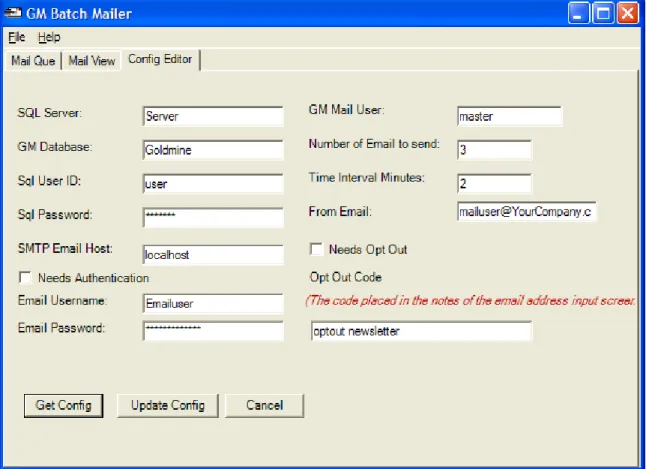
After installation, the first thing the user should do is start the application by clicking on the shortcut icon created on the desktop or on the programs menu and begin configuration per the user’s goldmine configuration. The user may access this screen by menu: File | Config, Click [Get Config].
Figure 2 GM Batch Mailer (Sample Config Editor) Tab
• SQL Server: Set this option to the SQL Server that stores the goldmine
database.
• GM DataBase: Set this option to the name of your Goldmine Database • Sql User ID: Set this option to a SQL Username that has read/write
access to the database. Note: (This ID will require public user permissions if installing with GMCE 6.7)
• SMTP Email Host: Set this option to our local or external SMTP Host, note
this server has to be open or require simple authentication.
• Needs Authentication – Check this box, if your SMTP server requires
simple authentication.
• Email Username: Set this option to SMTP Username. • Email Password: Set this option to SMTP Password.
• GM Mail User: Set this option to the GoldMine Username that queued the
Goldmine emails for delivery.
• Number of emails to send: Set this option to the total number of email you
would like to send for each interval of time.
• Time Interval Minutes: Set this option to the number of minutes you would
like to wait between each batch of emails.
• Needs Opt Out -- Check this box if you would like to activate the “Opt Out”
function, selecting this checkbox will cause a routine to run and delete the emails in the outbox where the contact has requested not to emailed for this campaign.
• Opt Out Code: Set this option to the code, string of characters, entered
into the notes field of the email address declaration in Goldmine which determines the Opt Out for the email batch
• From Email: Set this option to an email address that you would like to
have the contact respond back to.
Once the user clicks the [Update Config] button the application will shut down and require the user to restart the application to apply the new settings.
GM Batch Mailer Use
Once the user configures GM Batch Mailer, the application is ready for use. Start the application as usual. Click [Get Mail] button. This action will retrieve the list of emails waiting for delivery. Click [Start Mail] to begin the interval email
process.
Figure 3 GM Batch Mailer (Mail Que) Tab after process initiation
Once the mail interval process has begun the controls of the application will be lock to prevent unintended interruption. The Start -- information display will be changed to show the current date and time as well as the number of emails in the queue.
Figure 4 GM Batch Mailer (Mail Que) After Processing Completes
After the email queue has been processed, the controls to the application will be unlocked, and the End – information display will be updated with the date and time as well as the number of email sent.
During the processing, the information fields in the lower left hand corner of the application will be updated after each interval is completed.
• # Emails to Send: The number of emails queued for delivery, whether these
are good and qualified emails or not.
• # Opt Out Emails: The number of emails that were found, designated to not be
sent due to the “Opt Out” configuration setting.
• # Emails Sent: The number of emails actually sent to clients.
• # Bad format Emails: The number of emails that were queued with bad
Possible Errors During Processing
During the processing the user may encounter errors if GoldMine Mail is not configured correctly or the user is attempting to use GM Batch Mailer in a way that it was not intended. A few of these situations are listed below:
1. User is attempting to send an email as text only. Error Received:
Figure 5 GM Batch Mailer Error: Sending text only email Remedy:
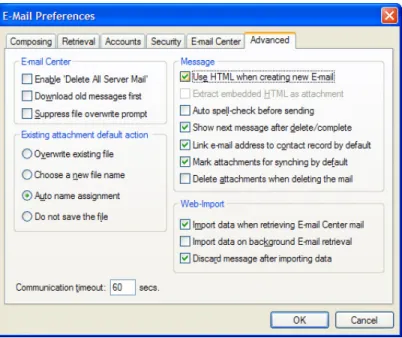
Stop execution of the application, Delete the queued emails from the outbox in GoldMine mail, and ensure the following setting in GoldMine.
GMPE 8.0 or higher Select Options menu | E-Mail Tab | More Options.. Button | Advanced Tab, set the Use HTML when creating new E-Mail to true, (check the box)
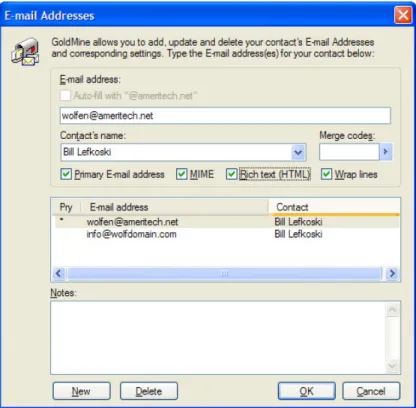
And/or change the setting Rich text (HTML) to true under the recipient’s email address.
Figure 6 GoldMine E-mail Addresses (Rich text (HTML))
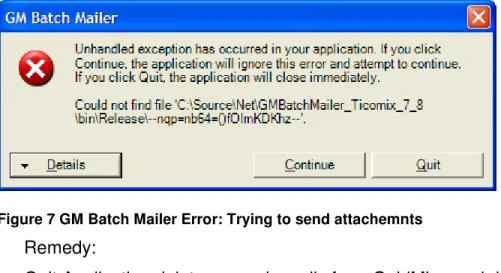
2. The user may have tried to send an email with attachments.
Attachments are not allowed in this Utility and should not be sent as a mass email for marketing purposes, to prevent malicious use of GM Batch Mailer; we have left this function out, to prevent someone from using the application to send viruses with this utility.
Figure 7 GM Batch Mailer Error: Trying to send attachemnts Remedy:
Quit Application delete queued emails from GoldMine and do not attempt to send attachments with GM Batch Mailer.
Special Considerations for GoldMine 6.7 Corporate
If you are currently a GMCE 6.7 user you should you the specific installer for the batch mailer for this GoldMine version. In addition, you need to perform the following to use GM Batch Mailer; (this should be preformed by your GoldMine VAR, to ensure proper installation and configuration.)
Installing the GM5S32.dll as Extended stored Procedure
All that is needed to install these procedures is to open each procedure file into a query tool, like Query Analyzer, and run them. MSSQL will load them to the database you have selected.
All procedures should be installed to any MSSQL database that stores GoldMine data.
You will also need to copy the GM5S32.DLL and GM5SQL.DLL to your
MSSQL\BINN folder on your server. Finally, add an extended stored procedure in your Master database for the GMW_NewRecID function in the GM5SQL.DLL. This procedure needs to be named xp_GMNewRecid