VMware Image for Linux
Software Developers Kit (SDK)
Quick Start Guide
EDS1100/2100
VMware Image for Linux Software Developers Kit (SDK) Quick Start Guide 2
Copyright and Trademark
© 2010 Lantronix. All rights reserved. No part of the contents of this book may be transmitted or reproduced in any form or by any means without the written permission of Lantronix.
Linux is a registered trademark of Linus Torvalds. µClinux is a registered trademark of Arcturus Networks Inc. Ubuntu is a registered trademark of Canonical Ltd. The Fedora trademark is a trademark of Red Hat, Inc.
Contacts
Lantronix Corporate Headquarters
167 Technology Irvine, CA 92618, USA Phone: 949-453-3995 Fax: 949-450-7249 Technical Support Online: Sales Offices
For a current list of our domestic and international sales offices, go to the Lantronix Web site at
Disclaimer
The information in this guide may change without notice. The manufacturer assumes no responsibility for any errors that may appear in this guide.
Revision History
Date
Rev.
Comments
6/10 A Initial document
For supporting product documentation, or the most current version of this document, please visit the
Contents
Copyright and Trademark ... 2
Contacts ... 2
Disclaimer ... 2
Revision History ... 2
1.
Introduction
4
Overview ... 42.
Installing VMware Player
5
3.
Building Images with the SDK
6
4.
Loading Firmware Images
9
5.
SDK Forum Information
11
List of Figures
Figure 2-1. Lantronix Desktop Login Prompt ...5Figure 3-1. Lantronix Desktop Login Screen ...6
Figure 3-2. Applications Menu ...6
Figure 3-3. Terminal Window ...7
Figure 3-4. Configuration Profile Menu ...7
Figure 3-5. Configuration Prompts ...8
Figure 3-6. Installed Images ...8
VMware Image for Linux Software Developers Kit (SDK) Quick Start Guide 4
1
1
.
.
I
I
n
n
t
t
r
r
o
o
d
d
u
u
c
c
t
t
i
i
o
o
n
n
This Quick Start Guide explains the basics of installing and using the VMware Appliance pre-installed with the Linux SDK. For more detailed information, refer to the User Guide, located in the Documentation
section of the SDK or our Lantronix Web site
Overview
The Lantronix Linux Software Developer's Kit (SDK) is an embedded hardware and software suite that enables Linux developers to create applications for Lantronix DeviceLinx products such asMatchPort AR, XPort Pro, EDS1100 and EDS2100. The Linux SDK has to be installed on Linux Host environment to develop Kernel and applications.
Using the Linux SDK requires Linux to be installed on a Host PC and the host PC environment needs to be setup prior to the installation. The VMware Image for Linux SDK is the Virtual PC Image of the Linux Host environment needed by the SDK. The SDK and all host dependencies are pre-installed to create a ready-to-use setup that can also run on a Windows based PC under VMware.
2
2
.
.
I
I
n
n
s
s
t
t
a
a
l
l
l
l
i
i
n
n
g
g
V
V
M
M
w
w
a
a
r
r
e
e
P
P
l
l
a
a
y
y
e
e
r
r
To use the VMware Image you must first prepare Windows or Linux for VMware Player.
To prepare Windows or Linux for running VMware Image:
1. Download the VMware Player executable file from the VMware Web site
2. Run the VMware Player Installer and follow the on-screen instructions.
3. Unzip the VMware Image for Linux SDK archive into a working directory on the PC and switch to the working directory.
4. Execute the *.vmx file to start the VMware Image.
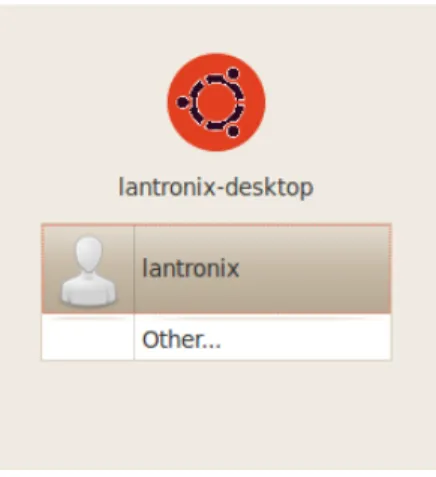
5. Select Copied, if a message prompt appears asking if the *.vmx file has been moved or copied. The login prompt appears.
Figure 2-1. Lantronix Desktop Login Prompt
The VMware image is ready for use. Refer to the following section Building Images with the SDK for more information.
VMware Image for Linux Software Developers Kit (SDK) Quick Start Guide 6
3
3
.
.
B
B
u
u
i
i
l
l
d
d
i
i
n
n
g
g
I
I
m
m
a
a
g
g
e
e
s
s
w
w
i
i
t
t
h
h
t
t
h
h
e
e
S
S
D
D
K
K
To build a VMware Image with the SDK:
1. From the development host, login using the following credentials: User Name: lantronix
Default Password: PASS
Figure 3-1. Lantronix Desktop Login Screen
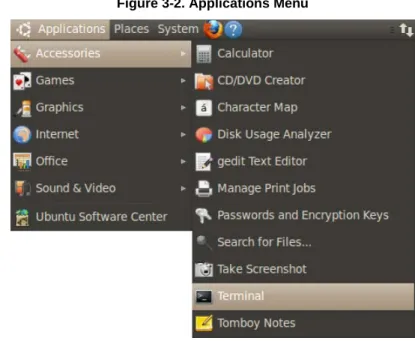
2. From the Applications menu, click Accessories and select Terminal. Figure 3-2. Applications Menu
3 Building Images with the SDK
3. Change the directory to linuxsdk.
$ cd linuxsdk
Figure 3-3. Terminal Window
4. Source the environment file.
$ . env_m68k-µClinux
5. Issue the make command.
$ make
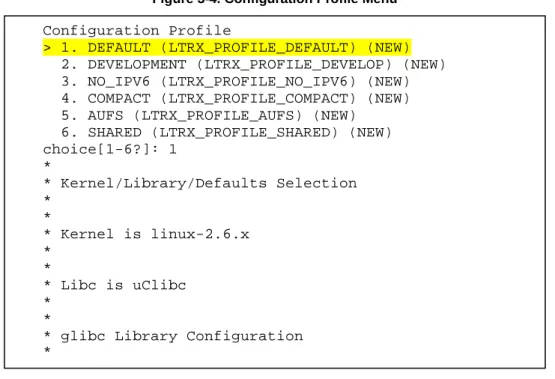
6. Select a configuration profile when prompted. NOTE
If you are unsure of the which configuration profile to use, begin with the DEFAULT profile. Figure 3-4. Configuration Profile Menu
Configuration Profile
> 1. DEFAULT (LTRX_PROFILE_DEFAULT) (NEW) 2. DEVELOPMENT (LTRX_PROFILE_DEVELOP) (NEW) 3. NO_IPV6 (LTRX_PROFILE_NO_IPV6) (NEW) 4. COMPACT (LTRX_PROFILE_COMPACT) (NEW) 5. AUFS (LTRX_PROFILE_AUFS) (NEW)
6. SHARED (LTRX_PROFILE_SHARED) (NEW) choice[1-6?]: 1
*
* Kernel/Library/Defaults Selection *
3 Building Images with the SDK
VMware Image for Linux Software Developers Kit (SDK) Quick Start Guide 8
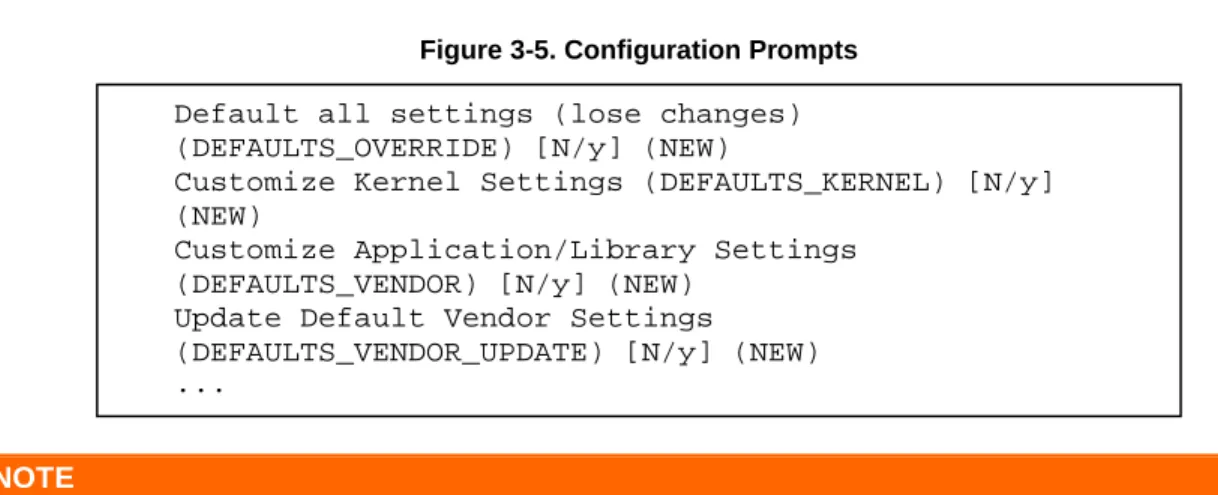
7. Press Enter to accept the default options for the remaining prompts. Figure 3-5. Configuration Prompts
NOTE
The build process may take several minutes to complete.
8. Once the build process is complete, verify that the images listed below are under <install directory>/linux/images/.
$ ls linux/images/
Figure 3-6. Installed Images
9. Build the root file system for NFS from the installation directory.
$ mkdir linux/nfs $ make
10. Copy the built images to tftp directory.
$ cp linux/images/* /tftpboot/
image.bin imageu.bin imagez.bin linux.bin linuxz.bin image.without_header linux.without_header romfs.img rootfs.img romfs-inst.log
Default all settings (lose changes) (DEFAULTS_OVERRIDE) [N/y] (NEW)
Customize Kernel Settings (DEFAULTS_KERNEL) [N/y] (NEW)
Customize Application/Library Settings (DEFAULTS_VENDOR) [N/y] (NEW)
Update Default Vendor Settings
(DEFAULTS_VENDOR_UPDATE) [N/y] (NEW) ...
4
4
.
.
L
L
o
o
a
a
d
d
i
i
n
n
g
g
F
F
i
i
r
r
m
m
w
w
a
a
r
r
e
e
I
I
m
m
a
a
g
g
e
e
s
s
To load the Linux firmware images on the target:
1. From the host computer, open a terminal emulation program for the serial port. 2. Configure the following serial port settings:
baud rate: 115200 data length: 8 parity: None stop bit: 1
flow control: None
3. Turn the power on to the target board.
4. Use the set command at the dBUG> prompt for the following:
dBUG> set watchdog off dBUG> set base hex dBUG> set baud 115200 dBUG> set autoboot net
dBUG> set server <TFTP server address(e.g. 192.168.0.10)> dBUG> set client <target IP address(e.g. 192.168.0.1)> dBUG> set gateway <gateway address(e.g. 0.0.0.0)> dBUG> set netmask <network mask(e.g. 255.255.255.0]> dBUG> set filename image.bin
dBUG> set filetype image dBUG> set ethaddr default
dBUG> set dns <DNS server address(e.g. 0.0.0.0)> dBUG> set kcl rootfstype=romfs
5. Download image.bin.
dBUG> dn dBUG> go
4 Loading Firmware Images
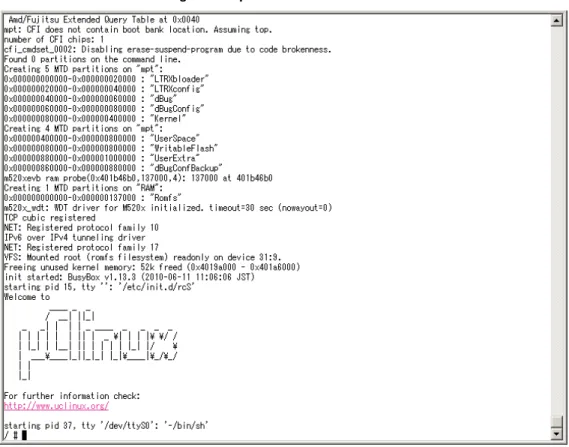
VMware Image for Linux Software Developers Kit (SDK) Quick Start Guide 10 Figure 4-1. µClinux Welcome Screen
5
5
.
.
S
S
D
D
K
K
F
F
o
o
r
r
u
u
m
m
I
I
n
n
f
f
o
o
r
r
m
m
a
a
t
t
i
i
o
o
n
n
The Lantronix Linux SDK forum Web sit
updated revisions of the SDK. The SDK and related documentation are also available via the Downloads
page
determine if a more current version of the SDK is available.
Individual forum topics are monitored by Lantronix engineers and technical support staff and may be used to ask questions regarding any aspect of the SDK. Complete the registration process to obtain a logon ID and post your question. If enabled in your user profile, you will receive an email message when a
response to your post is available. Other options for interacting with the forum are described on the forum site itself.