Summer Student Programme Report
FCC Management Project
Author: Alexandros Arvanitidis Main Supervisor: Dr. Johannes Gutleber Second Supervisor:BrunoSilva de Sousa
Contents
1 System Description 2
2 Initial Goals & Requirements 2
2.1 The problems . . . 2
2.2 Trial & Error . . . 3
3 Results 3 4 Conclusion 5 Appendices 6 A Manual 6 A.1 Link a Sharepoint list to Microsoft Access . . . 6
A.2 Search, Filtering & Pagination . . . 8
A.3 Modal attributes . . . 9
1
System Description
CERN is undertaking an integral design study for post-LHC particle accelerator options in a global context. The Future Circular Collider (FCC) study has an emphasis on proton-proton and electron-positron (lepton) high-energy frontier machines. It is exploring the potential of hadron and lepton circular colliders, performing an in-depth analysis of infrastructure and operation concepts and considering the technology research and development programs that would be required to build a future circular collider.
I was asked to create a Javascript web application, to visualize data from different tables, referring to the tasks created within the FCC project, the institutes that participate in the experiment and the human resources that are being used. The end-user should be able to perform various procedures on the application. I was also asked to transfer the raw data from Excel, to the Sharepoint infrastructure that is being used on the FCC experiment.
The final system is an online web application, that can be found under the FCC
collab-oration website. AngularJS framework[1] was used to utilize the capabilities of a clientside
MVW framework. The lists were stored on the Sharepoint[4] framework.
2
Initial Goals & Requirements
The initial goal of the project was a better organization of the data provided for the man-agement of the FCC tasks. The data were being stored at an Excel spreadsheet, divided by tabs. The problem was that the migration of the offline Excel data to the Sharepoint collaboration website was difficult with the tools that were provided by the platform. The Sharepoint lists were used, to transfer the offline excel data to the online FCC collaboration website.
2.1 The problems The main problems were:
a) Sharepoint migration was semi-automatic, that is, it needed manual changes every time a user uploaded a new version of the spreadsheet onto a list.
b) The lack of structure of the data, connection between some columns and separation into sub-tables.
c) The excel spreadsheet was not readable, as it consisted of many columns and needed extra effort by the end-user in order to lookup something specific (e.g. scrolling, searching etc.)
We managed to overcome these problems by using the Sharepoint link with Access feature1, thus editing the data looked exactly like the Excel spreadsheet, but with a live-update feature. Every time the user saves the data on the access database, they’re saved on
1
http://office.microsoft.com/en-001/access-help/import-from-or-link-to-a-sharepoint-list-HA001230313. aspx
the Sharepoint website as well. Furthermore, we updated the database structure, adding connections between the lists, making it easier to add/remove data and providing a reference key per task, to avoid duplicate entries on the lists.
To solve c) we created a web application with 4 different views and various procedures that the end-user can use, in order to find what he wants on the data. A grid structure is provided on each view, that shows data taken live from the Sharepoint lists of the website. 2.2 Trial & Error
To achieve the final product we passed through different stages of implementation, as the requirements were continuously changing, depending on the progress of the application. At first, a tree implementation[2] was adopted, which was used for the first month. After adding real data to the application, we realized that it’s not scalable for many tree nodes. Therefore, we reorganized the requirements, to be able to solve the initial problem with the most efficient way. DataTables library[3] was used, to provide us with the functionality needed. Searching, sorting, filtering and other custom methods were provided nearly out of the box, whereas custom extensions of the library were used accordingly.
3
Results
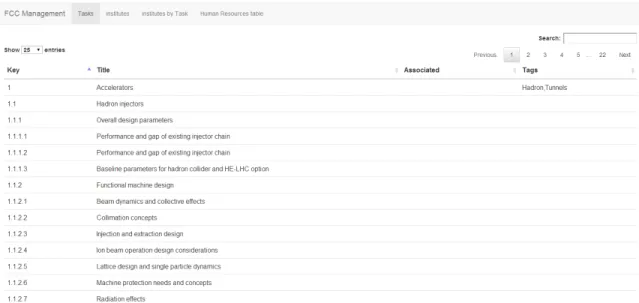
The final application consists of 4 tabs (Tasks, Institutes, Institutes by Tasks, Human Resources). Each view shows different data according to the requirements.
Figure 1: Screenshot of the app on the first tab (Tasks) For each view the table has the following features:
• Instant selection of page number, if the user wants to jump on a page • Filter on all fields of the table
• Filter per column. This feature was extended to show only 1 entry when the key column is being filtered and the pattern matches the #.#.# etc, where ’#’ is a number. If the string entered is for example ”1.2.3” only the task with the key ”1.2.3” will be shown, whereas if the user enters ”1.2.3.” or ”.1.2.3” all values that contain this string will be shown for the key column.
• Clicking a row will show more specific data for this specific row on a modal window. The data that are shown by clicking each column are edited by the user on the respective lists for that matter. For example, the ShowdataTasklist is a list that selects which attributes of the rows on the tasklist table are viewed. The app makes a request on this list to show only the attributes that are written on this list.
Table 1: Description of each view of the application, its contents and the list that represents them. The modal attributes list represents the list that contains the attributes, which will be shown if a row is clicked on that view
Views Description
View List Description Modal Attributes
List Tasks Tasklist All the tasks, description,
as-sociated institutes and their tags
ShowdataTasklist
Institutes TasksInstitutes All institutes and the tasks on which they participate with their role
ShowdataInstitutes
Institutes by Tasks
TasksInstitutes All tasks and the institutes that participate on them
ShowdataTasksInstitutes Human
Re-sources
HR All tasks, their status and the current workload depend-ing on the human resources
ShowdataHR
On Table 1 a summary of the views of the application can be shown. The ”Tasks” tab shows information only about the tasks, their Description, Associated institutes and tags. When a row is clicked more information is provided depending on what values the ShowdataTasklist has. The tags column was added as a lookup, so that they can be directly edited when linked with Access. To add more tags you just have to add more rows on the Tags list.
The ”Institutes” tab shows information about each institute and to what tasks it par-ticipates and what role. The roles are eXecutes, Supports, Review, Informed and Needed. Row clicking data depends on the ShowdataInstitutes list.
For the ”Institutes by Tasks” tab, the values are being calculated from the TasksInsti-tutes list. While the ”InstiTasksInsti-tutes” tab provides data for each institute, this tab shows which institutes participate for each task. Row clicking data depends on the ShowdataTasksInsti-tutes list.
The ”Human Resources” tab, refers to the percentage of humans working on each task per year until 2019. The percentage on each task is a sum of its subtasks, e.g. if task 1.1 has a value of 0.5 and task 1 has a value of 0.2, then on task 1 the value is the sum of these 2, thus 0.7.
4
Conclusion
Overall, I would rate the project successful and the co-operation with my supervisors a rewarding experience. It was the first project, where I was in charge of the whole operation by myself, which meant setting the requirements after each meeting and estimating the speed and efficiency constraints of the final system.
Although the system had to be changed quite a few times to fit our needs, the final implementation seems to raise productivity and save the amount of time needed before, to add data or search through the database.
I really hope that the app will be used at least for the next 5 years or maybe for more if it can be extended by someone.
References
[1] Google. Angularjs. http://angularjs.org.
[2] JimLiu. angular-ui-tree. https://github.com/JimLiu/angular-ui-tree, 2013. [3] SpryMedia Ltd. Datatables. http://www.datatables.net/, 2007.
[4] Microsoft. Sharepoint 2013. http://office.microsoft.com/en-001/sharepoint/ sharepoint-2013-overview-collaboration-software-features-FX103789323. aspx, 2013.
Appendices
A
Manual
A.1 Link a Sharepoint list to Microsoft Access
In this section you can see how to link an online list with Access and edit the data live. To open a list click the gear on the top right corner and select Site contents.
Select the list you want to link with Access. For this example we select Tasklist.
From the top menu select List and then click Open with Access. Note: You have to use Internet Explorer for this option to be available. Also you need to have Microsoft Access installed.
A pop-up will show up asking if you want to link the online data with Access. Select Link to data on the Sharepoint Site.
Voila! You have connected the online database with Access. Now you can edit the data and when you click save they will be saved online as well. Your environment should look like this:
Data validation also occurs on the database, dropdowns will show-up if the column is defined as a lookup or as a choice and you can also copy data from excel to this database. It works just by copying the cells on excel and pasting them on Access as if it’s another spreadsheet. Beware, if the data you paste is not valid Access won’t let you add them on the database.
If you make changes on the list through Sharepoint you can click the ”Refresh All” button to view them.
close and reopen the table.
A.2 Search, Filtering & Pagination
Search and filtering is really easy using the native functions of DataTables. You can use live search using the top right corner field of the table.
To use the pagination features you can either select how many elements will be shown on this page and jump to a page from the upper right corner.
To filter per column you can go to the bottom of the table and write your search string.
For the key column a special filter was added, to match the #.# pattern. If this is matched e.g. 1.3.3, then a single element is returned, otherwise all elements that contain the string are returned as shown below.
All elements that contain the string ”1.3.3.”
but when the string ”1.3.3.3” is entered, only the row with that key is returned
A.3 Modal attributes
The modals show more attributes for the row that was selected as described in previous sections. The attributes that are viewed are drawn from the special lists for that purpose:
• ShowdataTasklist →Tasks • ShowdataInstitutes → Institutes
• ShowdataTasksInstitutes→ Institutes by tasks • ShowdataHR→ Human Resources
Let’s see an example using the ”ShowdataTasklist” list. Its rows are:
That means that when you click a row on the Tasks view, you will see Description, Associated and Tags column.
and the modal that shows up:
Now let’s add a new row on the ”ShowdataTasklist” list.
This means that we want the Status column to be displayed on the Tasks modal as well. Clicking the modal on the table now shows the Status as well!
A.4 Code Summary
The code as mentioned in previous sections was created using the Angular JS framework. The structure can be seen on Figure 2. The main file is index.htm, where all CSS and Javascript libraries are included, and then angular js app files, functions and controllers. The main view of the application is also defined here.
1 < d i v >
2 < d i v u i - v i e w> < / d i v > 3 < / d i v >
Angular JS then changes the content of this ui-view, without changing the page. The routing works as well with this as described later. To overcome an Internet Explorer 9 issue, an iframe was used, which disabled routing due to the nature of the iframe.
The angular-ui ui-router library2 was used, to handle the routing changes within the app and to be able to add the nested views feature. This was picked, because the first implementation with the hierarchical structure needed the tree to remain intact on the left side of the screen, and when a node is selected only the content on the right side is changed. This was achieved with ui-router. This library is generally used within angular apps, to improve functionality.
2
The structure then is as follows:
• app.js is the cornerstone of the application, where the app is initialized and the additional libraries are being included
• directives.js is where the angular directives3 are being used. For this app one di-rective was created called ’bnDelegate’, which adds the ”on click” event on each row, and as an attribute it passes the parent element of that tr.
• In globalFunctions.js the rootScope functions are declared. Rootscope object is a parent of each scope, thus the functions added at the rootScope object are inherited by each child/scope. That’s why these functions are global, as they can be used in every controller.
• requests.js contains all the requests that are made on the Sharepoint API. Most of the requests are hard-coded, given that the FCC website will remain the same. Also some extra arguments were added on some requests, if for example a lookup column is contained within a list. Sharepoint API does not return the data for this lookup column, unless you add a select value for these fields, as well as an expand argument. In the code snippet below you can see the construction of the url. After the list the $select is added, as well as the $expand afterwards, for the lookup columns to be returned in the response object.
1 var l o o k u p C o l u m n s = [" T a g s / T i t l e "," A s s o c i a t e d / T i t l e "]; 2 var l i s t N a m e = " T a s k l i s t ";
3 var url = s i t e U R L + api + " g e t b y t i t l e (\'" + l i s t N a m e + " \') / i t e m s ?$t o p = 1 0 0 0 &$s e l e c t = * , "; 4 5 for (var i = 0; i < l o o k u p C o l u m n s . l e n g t h ; i ++) { 6 url += ( i != l o o k u p C o l u m n s . l e n g t h - 1) ? l o o k u p C o l u m n s [ i ] + " , " : l o o k u p C o l u m n s [ i ]; 7 } 8 //$e x p a n d 9 url += " &$e x p a n d = "; 10 for (var i = 0; i < l o o k u p C o l u m n s . l e n g t h ; i ++) { 11 url += i == l o o k u p C o l u m n s . l e n g t h - 1 ? l o o k u p C o l u m n s [ i ] : l o o k u p C o l u m n s [ i ] + " , "; 12 }
• routing.js is the file that each route is defined, along with its respective controller and HTML template.
• In the templates/ folder the HTML templates for each route are defined.
• In the controllers/ folder the javascript code for each template is defined. The table controllers look alike, as the functionality on each table is mostly the same. The
3
differences on each of the controllers are on the request that is being made and on the handling of the data, as e.g. in the HR tab, where the data are manipulated before they’re added to the table dataset.
• The modal windows are implemented using the angular ui bootstrap library4 which uses the bootstrap library modals in combination with the angular js framework. • The libraries that were included were JQuery5, Bootstrap 3.06, jQuery DataTables7
and the loading-bar lib8, which watches the requests that are being made and shows a progress bar and a loading .gif during a request.
4http://angular-ui.github.io/bootstrap/ 5 http://jquery.com/ 6 http://getbootstrap.com/ 7 http://www.datatables.net/ 8 http://chieffancypants.github.io/angular-loading-bar/