Blackboard
®
FOR
DUMmIES
‰Blackboard
®
FOR
Blackboard
®
FOR
DUMmIES
‰About the Authors
Howie Southworthis an experienced teacher, trainer, and facilitator with a background in both student and instructor development. His academic degrees are in computer science (BA) and higher education administration (MA). He has been consulting on the use of online course management sys-tems for the past 5 years, and teaching people how to teach for the past 15. Howie has been invited to teach across the United States, Asia, and Europe. He is the director of education for the Disaster Recovery Institute
International in Washington, D.C.
Yianna Vovidesholds a PhD in instructional design and technology and works at The George Washington University, Washington, D.C. Dr. Vovides assists faculty with the integration of instructional technologies in teaching and learning. She is the lead instructor in the use of the Blackboard Learning System and Blackboard Content System and designs and implements learning environments for both blended-hybrid and fully online courses.
Kemal Cakicihas expertise in designing and implementing information sys-tems solutions in the contexts of education and healthcare and has worked as a consultant in industry. He has taught business, information systems, and engineering courses as a faculty member. His academic degrees are in mechanical engineering (BS and MS). He is completing his doctoral studies in information and decision systems focusing on predicting the acceptance and usage of Web-based information systems. Kemal is working as a senior con-sultant for IMS Government Solutions.
Authors’ Acknowledgments
Susan Zvacek wishes to acknowledge the support, patience, and good humor of her husband, Tony Miller, along with her exemplary staff in instructional development and support at the University of Kansas.
Kemal Cakici wishes to acknowledge the endless friendships of his co-authors Yianna Vovides and Howie Southworth and the long-distance moral support of his mother, Zehra Cakici, and his brother, Husam Cakici.
Yianna Vovides wishes to acknowledge her family and her col-leagues at The George Washington University’s Instructional Technology Lab. Go, gang!
Howie Southworth wishes to acknowledge his family — Floridian, Nor’easter, and Canine included. He would especially like to thank his wife, Jessica Finnefrock, for supporting the work of a few real Dummies!
Contents at a Glance
Introduction ...1
Part I: What’s Blackboard All About?...7
Chapter 1: Your First Look at Blackboard ...9
Chapter 2: The Course-Development Process ...23
Part II: Easing into Blackboard...43
Chapter 3: Got Learners? (Getting People into Your Course) ...45
Chapter 4: Making the Course Your Own ...61
Chapter 5: Building Your Class Materials...85
Chapter 6: Connecting with Learners ...113
Part III: Earning Your Blackboard Black Belt ...147
Chapter 7: Getting the Most from Blackboard...149
Chapter 8: Assessing Learner Progress ...161
Chapter 9: Course Implementation ...227
Chapter 10: Course Management ...253
Part IV: The Part of Tens ...271
Chapter 11: Ten Superimportant “Think Abouts” for Building Your Course ...273
Chapter 12: Ten Strategies for Organizing an Outstanding Course in Blackboard...279
Chapter 13: Ten Ways to Keep Learners Involved by Using Blackboard Communication Features ...287
Chapter 14: Ten Ways to Assess Learning...295
Chapter 15: Ten Questions to Ask Your Blackboard System Administrator...301
Chapter 16: Ten Things to Look Forward to in Blackboard Learning System 7.1 ...307
Part V: Appendixes ...311
Appendix A: Real-Life Issues in Teaching with Technology ...313
Appendix B: An Overview of the Blackboard Content System...319
Appendix C: A Blackboard Course-Building Checklist ...323
Appendix D: Additional Resources on the Web...327
Glossary...329
Table of Contents
Introduction...1
Who Should Buy This Book?...1
Foolish Assumptions ...2
What’s in This Book? ...3
Part I: What’s Blackboard All About?...3
Part II: Easing into Blackboard ...3
Part III: Earning Your Blackboard Black Belt...4
Part IV: The Part of Tens...4
Part V: Appendixes...4
Conventions Used in This Book ...4
Icons Used in This Book...6
Where to Go from Here...6
Part I: What’s Blackboard All About? ...7
Chapter 1: Your First Look at Blackboard . . . .9
Logging In to Blackboard ...10
Navigating Your Way Around Blackboard ...11
Traversing the course Control Panel ...12
Comparing Edit view and Display view ...19
Chapter 2: The Course-Development Process . . . .23
A Quick-Start Guide: Get on the Fast Track with the Fab Four ...24
Post your syllabus...25
Give online assignments...27
Set up your Gradebook...28
Start discussion topics ...30
The bridge ...31
Starting a Brand-New Course...33
Facilitating a Course ...38
Ending the Party: Life in the After-Course ...40
Part II: Easing into Blackboard ...43
Chapter 3: Got Learners? (Getting People into Your Course) . . . .45
Managing Learner Accounts ...45
Enrolling Users ...48
Exporting and Importing the Goods ...263
Exporting a course ...263
Importing a package...266
Creating an Archive ...270
Part IV: The Part of Tens ...271
Chapter 11: Ten Superimportant “Think Abouts”
for Building Your Course . . . .273
Where Are Your Learners: At a Distance or with You? ...273
What Are the Learning Styles of Your Learners? ...274
What Do Learners Know about Your Content before They Arrive in Class? ...276
What Are Your Learning Goals and Objectives? ...276
How Is Your Course Organized? ...277
How Accessible Are You to Your Learners?...277
How Do You Communicate with Learners?...278
How Do You Assess Your Learners? ...278
Chapter 12: Ten Strategies for Organizing
an Outstanding Course in Blackboard . . . .279
Plan, Plan, and Then Plan Some More ...279
Get to Know Blackboard Inside and Out ...281
Consider Learners’ First Impression of Your Blackboard Course ...281
Brainstorm about Your Course Structure ...282
Organize It! ...283
Create Your Course Structure...283
Develop Your Course ...284
Take Your Course for a Test-Drive ...284
Make Adjustments ...285
Plan, Plan, and Then Plan Some More (Reprise)...285
Chapter 13: Ten Ways to Keep Learners Involved
by Using Blackboard Communication Features . . . .287
Let Learners Practice with Communication Tools Early in the Course ...287
Put Learners in Charge (Sort of) ...288
Use a Rubric to Grade Discussion Forum Postings ...289
Provide a Model “Excellent Posting” ...289
Determine Your Presence in Discussion Forums ...290
Use Disagreements or Conflicts As Teachable Moments...290
Hold Learners Accountable for Topics Discussed within Blackboard..291
Submission Reports for Verification...309
New Language Packs...310
Part V: Appendixes ...311
Appendix A: Real-Life Issues in Teaching with Technology . . . .313
Who Owns Your Stuff? ...313
Copyright Issues...314
Online Privacy Rights ...316
Academic Dishonesty ...316
Appendix B: An Overview of the Blackboard Content System . . . . .319
Managing Files and Content...319
Using Versioning to Keep Track of Files...320
Putting e-Portfolios to Good Use...320
Tracking Activity Progress with Workflow...320
Using Collaborative, Web-Enabled File Storage ...320
Cataloging Learning Objects...321
Searching for Shared Files, Folders, and E-Portfolios...321
Gaining Library Know-How through E-Reserves...321
Appendix C: A Blackboard Course-Building Checklist . . . .323
Announcements (refer to Chapter 6) ...323
Faculty and staff information (refer to Chapter 6) ...323
Syllabus (refer to Chapter 4) ...324
Course content (refer to Chapter 5) ...324
Assessment (refer to Chapter 8) ...325
Communication (refer to Chapter 6) ...325
Evaluation (refer to Chapter 8) ...325
Appendix D: Additional Resources on the Web . . . .327
Help from the Folks at Blackboard, Inc. ...327
Course Materials from Around the Web...327
Good Practices for Teaching Online ...328
Necessary Knowledge about Online Copyright Protection ...328
Glossary ...329
Introduction
O
n your way to class with another three-foot stack of handouts to dole out? Just told to add a 16th office hour to your already hectic calendar? Wrist cramping from grading all those exams? The Blackboard Learning System can help you out! This rich, online course-management system pro-vides you, the instructor, with the tools to easily present class materials on the Web, communicate online with an entire class, and track what the heck they’re learning in there — from the comfort of your laptop, if that’s where you’re working. Blackboard For Dummiesis a kinder, gentler way to learn how to use Blackboard as an instructor. This book isn’t designed to be read from cover to cover (we won’t tell anyone if you really want to, though) — it’s the handy desk reference you’ve been looking for. Feel free to skip right to the essentials!Who Should Buy This Book?
The real answer to this question is everyone. This book has terrific charac-ters and edge-of-your-seat suspense, and it’s a real page-turner. The yellow-and-black motif goes superbly with your collection of bumblebees. Okay, seriously, whether you’re teaching a fully online course, a hybrid course (part classroom, part online), or a fully live course (with online dreams), Blackboard For Dummiesprovides you with the necessary tools of the trade.
Those who have access to teaching with Blackboard probably already know it. Typically, your school’s, university’s, or organization’s contract with Blackboard, Inc., gives you the access you need. The following list describes the types of Blackboard licenses you might have within your reach:
coun-⻬You’re responsible for putting together a course, a training workshop, or something close to education.We’re all about helping you in the heat of the moment while you’re pulling together materials, setting up your environment, and communicating with those about to learn something from you. If you’re not teaching until next semester and won’t be devel-oping your course until a month from now, we’re still happy to see you buy this book. Just don’t forget where you put it. (Maybe that’s why it’s the color of sunrays.)
⻬Depending on how Blackboard is laid out or managed at your institu-tion, you might or might not have access to a feature or two that we describe in this book.Some institutions take on administrative tasks themselves and don’t need instructors to enroll their own learners in their courses, for example. We wrote this book on the assumption that all features are turned on. If you start to try something out and notice that it doesn’t work, simply go to your Blackboard system administrator (your best friend) and find out what else might be turned off.
What’s in This Book?
Blackboard For Dummiesattempts to make the Blackboard Learning System easy to understand and use for all instructors, everywhere. It’s written to keep the average user from pulling out what’s left of his hair, the mid-level user from forgetting where everything is, and the advanced user from losing interest as she starts using the newest version of the program. We won’t go too deep, and we promise that it won’t hurt a bit.
Part I: What’s Blackboard All About?
Quick — call the course-creation squad! Ah, it’s the stuff of dreams. Assuming that you’re building a course on your own and (like most of the civilized world) might not have lots of time on your hands, you need one or two things: a guide to get you moving quickly and perhaps a suggested path to complete course development for the Web. The first part of this book hands over these two solutions on a silver platter and gets you going in a meaning-ful (and heartfelt) way. You’ll walk into Part I with a vision and walk out with the start of a beautiful product.
Part II: Easing into Blackboard
and beamed out to the screens of your audience without reinventing the wheel. We start out nice and easy with the topic of getting learners online and rarin’ to go. We continue with the nuts and bolts of uploading course materi-als. Then, we round out everything with a stirring rendition about how to communicate with your class through Blackboard.
Part III: Earning Your Blackboard
Black Belt
You’ve done well, young grasshopper. You have grabbed the fly with your chopsticks and will now be quickly be transformed into a Blackboard Master. This part of the book takes you beyond the program’s simple features and empowers you to leverage Blackboard to improve learning. It’s huge.You’ll also figure out how to give out a quiz that you don’t have to grade by hand. After presenting a virtual laundry list of additional tools, we’ll show you the magic that is online grading and demonstrate how to reuse the same course over and over again. To quizzes . . . and beyond!
Part IV: The Part of Tens
This traditional part of a For Dummiesbook is chock-full of additional tips from the twisted brains of the authors. This part extols the virtues of a well-tuned course menu, the true value of good organization (don’t stop reading just because of that one), the best questions to ask your system administra-tor, and the “vroom vroom” effect of good online communication, among other tried-and-true ideas from the minds of genius.
Part V: Appendixes
The appendixes in the back of this book supplement your Blackboard experi-ence by adding all kinds of useful information. You can read about teaching with the help of technology, get an overview of the Blackboard Content System, and fill out a handy checklist of items you might have forgotten or want to add later. We even give you a guide to handy resources on the Web so that you can continue to add to your information arsenal. Finally, the glossary clues you in to the meaning of all kinds of Blackboard terms.
Conventions Used in This Book
Icons Used in This Book
Above and beyond our step-by-step instructions for using Blackboard lies a set of great ideas from your dutiful authors. We look at these tips like icing on the cake. (When was the last time you scraped icing off your cake?) We think that they’re wonderful.
Like the Tip icon, the Remember icon points you toward key ingredients to using Blackboard in a smart way. These paragraphs mostly point out things we think you should always keep in mind.
If we think that you might mess something up, we warn you. Trust us. We trust you quite a bit, mostly because you’re reading, or considering reading, this book, so we throw in only a scant few warnings for good measure throughout the text. Frankly, a few tasks within Blackboard qualify as tricky, and we want only the best for your experience.
This icon doesn’t appear much, and it’s not for the weak of heart. Are you scared yet? The technical stuff we talk about usually refers to something out-side of Blackboard that might affect the way things work inout-side Blackboard. One example is the types of files you might want to upload, and another is the way Blackboard handles filenames differently on PCs and Macs.
You’re not alone in the universe. Blackboard is being used in higher educa-tion, in K–12 educaeduca-tion, in the military, in corporate life, and on Mars, with the unfortunate but suspicious exception of that last one. In addition to get-ting tips from your lovely yet rugged authors, throughout this book you can find ideas contributed by instructors, teachers, and trainers from around the globe. You might even read the wisdom of an instructor just like you. How’s that for service?
Where to Go from Here
Part I
In this part . . .
T
his part of the book is only the beginning of some-thing wonderful for both you and your learners. Trust us, and we’ll make your life easy (at least the online part of your academic life!). The inaugural part of Blackboard For Dummiesstarts you off nice and easy with a first-timer’s look at the real deal and finishes off with a loud round of applause from you, the reader. We’ll take you to a place where you’re the superorganized instructor, prepared to delve into the very heart of every Blackboard use.Chapter 1 hands to you a brief overview of what you see on the inside of Blackboard. Call it a geography course that presents a visual guide through the elements on your Blackboard screen that you’ll want to know about before diving in. What does your Control Panel look like? What are bread crumbs, anyhow? Look forward to answers to these questions and many more.
Chapter 2 begins with a quick-start guide to using Blackboard at a minimum, from uploading a syllabus file to entering grades into the Gradebook. The chapter con-cludes by giving you a methodical path to walk that includes all the grand details of planning a comprehensive Blackboard course, from soup to nuts.
Chapter 1
Your First Look at Blackboard
In This Chapter
䊳Introducing Blackboard
䊳Finding your way in the course
䊳Mapping out the Control Panel
䊳Discovering a few shortcuts
W
e understand that finding how to use a new application or even stay-ing up-to-date with upgrades and new features can be overwhelmstay-ing, especially with Web-based applications. You may ask, “Why is that?” The reason is that, depending on which browser you use, you may or may not encounter problems for some items versus others, and some features are supported in one browser and not in another. The list of issues can seem endless at times.You may also be wondering why we’re starting out this chapter with a less-than-motivational introduction. The reason is that what you will love about Blackboard may also be the source of some frustration, much like in other Web-based applications you may be using. Remember that you’re working on the Web, and keep in mind the four concepts in the following list. (The first letter of each concept combines to create, sort of, the acronym AKA Bb— or “also known as Blackboard” — so we use that as a mnemonic device to help you remember.) Here’s our list:
⻬Access — get connected: To access Blackboard, you need to have Internet access. That’s the beauty of Web-based applications such as Blackboard: After you get connected to the Internet, you can access your Blackboard account from any Internet-connected computer anywhere.
⻬Address — remember your Blackboard URL: You probably know many ways to access your Blackboard login page and have already book-marked all of them, right? Just in case your memory fails you, write down your Blackboard Web address and keep it in your back pocket so that you can access it from any Internet-connected computer anywhere. Also keep your institution’s IT help desk number handy, just in case you have no idea what the address is.
⻬Be aware and beware. Make yourself aware of the instructional tools that Blackboard offers, and keep in mind that you should test your course environment thoroughly before releasing it to your learners.
If you haven’t taught online, be sure to consult the appendixes in this book for some additional support in using Blackboard effectively. Blackboard is designed to offer you much flexibility in your course design, so take advan-tage of it!
Logging In to Blackboard
Blackboardis a secure Web-based application that requires all its users to enter their unique login information (username and password) in order to access the courses they are either teaching or are enrolled in (see Figure 1-1). To be able to log in to Blackboard at your institution, find out what that login information is. Your Blackboard administrator or your institution’s IT help desk should be able to provide you with this information. While you’re at it, find out what the URL is for the Blackboard login page at your institution. You need to have these two key pieces of information at hand to get your first look at Blackboard.
The Visual Text Box Editor (WYSIWYG) editor in Blackboard works only with Internet Explorer. Although Blackboard supports all major browsers for all other functionalities, the Visual Text Box Editor doesn’t display all available functions if you use another browser to access Blackboard.
Figure 1-1:
Navigating Your Way
Around Blackboard
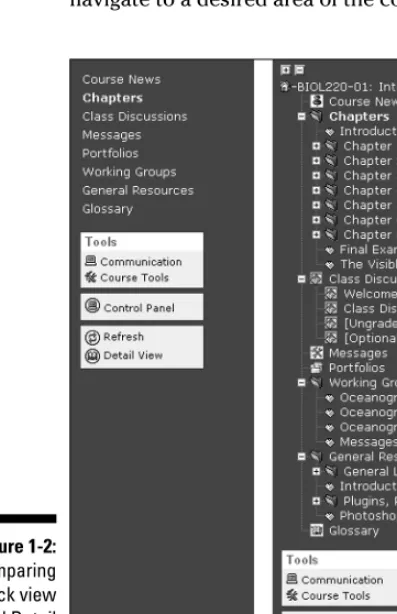
In every Blackboard course, you, the instructor, can customize the course menu to your liking and in effect allow or disallow navigation options for your learners. In other words, Blackboard allows you to include a course map as part of the menu. Because the course mapis a navigational map, a user can jump to any item in the course. In addition, you can display the course menu in either Quick view or Detail view. When both views are enabled, therefore, a user can either expand the menu in Detail view (thus making it more like the course map) or use Quick view to click the menu items (buttons or text) to navigate to a desired area of the course (see Figure 1-2).
Figure 1-2:
As you’re building your Blackboard course, you should keep track of your bread crumb trail. No, we don’t mean to insult your eating habits; we’re referring to the trail of links at the top of the page in any Blackboard course. You may have noticed this type of link in other Web environments. The deeper you get into a course, the more the trail expands and the more easily you can navigate back to where you came from by using the bread crumb links (see Figure 1-3).
Get in the habit of using the bread crumbs as an orienting tool in the course while adding or modifying content items. After you develop this habit, which, by the way, is a good habit to have for any Web-based application, you don’t make mistakes when you’re adding folders and items and end up wasting your time. You can simply look up, check your bread crumb trail, and know whether you’re in the correct location in the course before you start adding content.
Clicking the course title always takes you to the entry page of the course, which is basically to the view that learners have.
Traversing the course Control Panel
In your Blackboard course, you have access to the Control Panel — and your learners don’t (see Figure 1-4). You therefore have the power to add, modify, copy, and remove content; turn course tools on or off; and decide how to dis-play the Course Menu and in what language (or locale). With the power to manage the Control Panel comes great responsibility: to provide your learn-ers with a well-designed learning environment.
Note that your first look at your Blackboard course is determined by what the powers that be at your institution decided to include on the Course Menu. With Control Panel access, however, you can customize your learners’ first look at your Blackboard course. So, plan before you implement.
To help you plan, think of the course Control Panel as being composed of these areas:
⻬Course administration ⻬Course materials
⻬Communication and collaboration ⻬Assessment
Figure 1-3:
Course administration
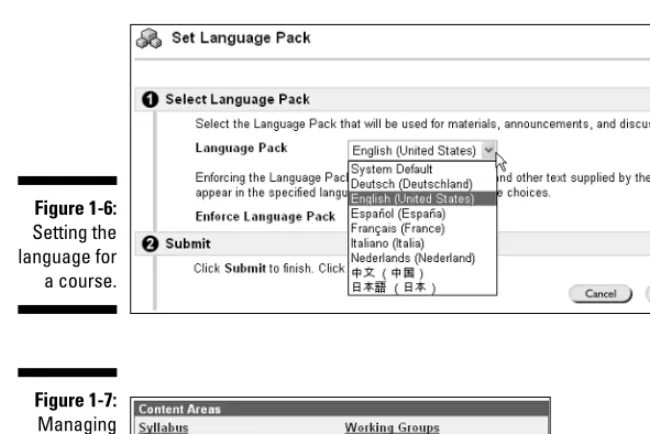
Your course administration options (see Figure 1-5) reside mostly in the Course Options pane. You can use these options to customize the course menu, enable or disable course tools, change the course availability and entry page, and import, copy, export, and archive your course. In addition to all these instructor administration options in your course, we have good news for lan-guage instructors and international readers: You can now customize your Blackboard course interface so that it’s displayed in one of eight languages.
If your institution or organization has the Blackboard Academic Suite or the Blackboard Learning System (but not the Basic Edition), you as an instructor can set the language of the course independently from the language setting of the overall system. Blackboard supports English, Spanish, French, Italian, German, Dutch, Portuguese, Japanese, and simplified Chinese (see Figure 1-6).
Depending on how your institution handles user accounts and course cre-ation and modificcre-ation, you may or may not be able to create and modify user accounts, create courses, and enroll or remove users from a course. These options are available in the User Management pane.
Course materials
Course materials — such as your syllabus, readings, assignments, and tests — can be added to the Content Areas of your course (see Figure 1-7).
Figure 1-5:
Course administra-tion opadministra-tions.
Figure 1-4:
In any Content Area, in fact, you can use these options to perform a task:
⻬Item:Create content and upload files. ⻬Folder:Layer or organize content.
⻬Course Link: Create links to other areas within the same course. ⻬External Link:Create links to an external Web site.
⻬Test:Add a test.
⻬Learning Unit:Develop a sequential set of items or a tutorial. ⻬Survey:Survey your learners or take a poll.
⻬Assignment:Add an assignment for paperless feedback and grading. ⻬Offline Content:Access offline content on a CD-ROM, for example. ⻬Syllabus:Create a new syllabus and lessons.
You can also perform these tasks in any Content Area:
⻬Import SCORM, IMS, or NLN content by using the desired content-packaging option.
⻬Select a tool option to link to individual tools, such as Discussion Boards, Chat, Virtual Classroom, Group, and more.
If your institution uses the Blackboard Learning System, Basic Edition, you cannot include SCORM objects.
Figure 1-7:
Managing the course materials.
Figure 1-6:
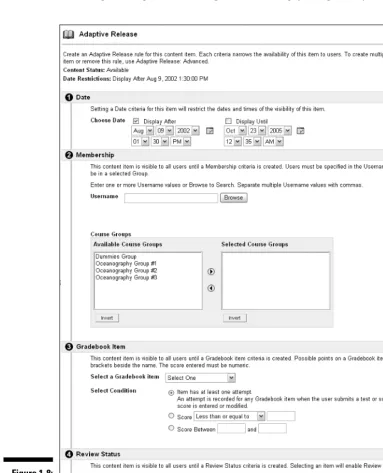
Note that when you use these options to add content to your course, you can also manage the content item by enabling Adaptive Release of Content, accessing tracking, and reviewing status tracking (see Figure 1-8).
Figure 1-8:
Additional options may be available to you as part of the Content Area inter-face, depending on whether your institution has added third-party products or building blocks within the Blackboard course environment.
Communication and collaboration tools
Communication tools — such as announcements, collaboration, e-mail, a dis-cussion board, and messages — are available in your course Control Panel and can be included as links within Content Areas or as course links on the course menu (see Figure 1-9).
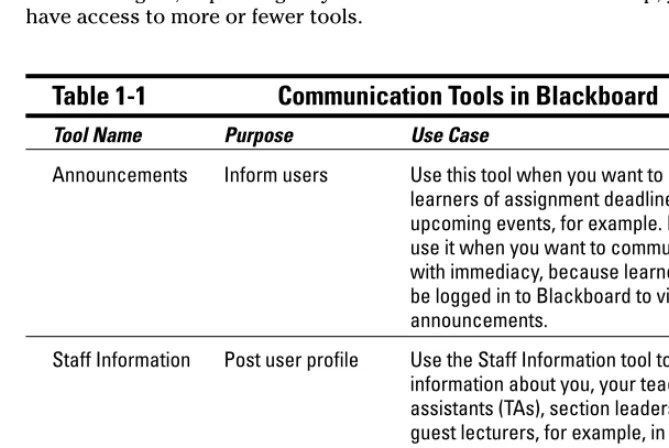
Some of the tools available to you in the Course Tools pane are highlighted in Table 1-1. Again, depending on your institution’s Blackboard setup, you may have access to more or fewer tools.
Table 1-1
Communication Tools in Blackboard
Tool Name Purpose Use Case
Announcements Inform users Use this tool when you want to remind learners of assignment deadlines or upcoming events, for example. Don’t use it when you want to communicate with immediacy, because learners must be logged in to Blackboard to view your announcements.
Staff Information Post user profile Use the Staff Information tool to post information about you, your teaching assistants (TAs), section leaders, and guest lecturers, for example, in the course. Don’t use the Staff Information tool if your goal is to have your learners post their own, personal profiles; direct them to use the Student Homepage instead.
Figure 1-9:
Table 1-1 (continued)
Tool Name Purpose Use Case
Collaboration Carry out group Use the Chat or Virtual Classroom discussion options in the Collaboration tool to hold synchronously virtual office hours and to replace or
supplement face-to-face class time, for example. Don’t use Chat or Virtual Classroom with large groups unless you’re a whiz! Having more than a handful of folks in a Collaboration room can get chaotic, if you don’t manage it well.
Assessment tools
The Assessment options available to you in Blackboard are extensive and flexible, with more than 15 different question types for creating tests, sur-veys, and question pools. In addition, you can upload your own questions all at one time and select questions from existing assessments or pools in your course.
The Gradebook allows you to use weights for your assessment items; display grades in score, letter, percentage, or text entry; or create your own cus-tomized display of the grade. You can modify the range of scores within the Gradebook settings so that it conforms to your own course-grading criteria for displaying letter grades. You can download the Gradebook, modify it in a spreadsheet program, such as Excel, and upload it back into Blackboard. Your learners can then view their individual grades by using their My Grades tool.
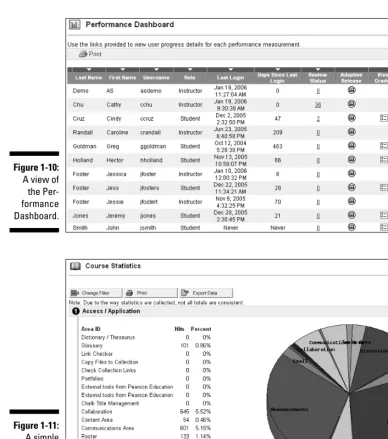
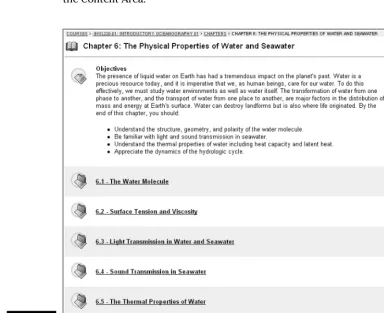
We have to mention a couple more things about the Assessment options in your Blackboard course: the Performance Dashboard (see Figure 1-10) and Course Statistics (see Figure 1-11). The Performance Dashboard allows you to view an individual user’s access of content utilizing adaptive release and/or review.
The Course Statistics screen offers you a summary of access data for overall or specific tools and pages in the course.
Comparing Edit view and Display view
As we mention earlier in this chapter, in the section “Traversing the course Control Panel,” the Control Panel offers you the ability to take control of your Web-based course environment, much like, if you please, a captain at the helm of a ship. It’s not like you’re steering the Titanic,but rather like guiding Darwin’s Beagle,or Columbus’s Nina, Pinta,and Santa Maria.Figure 1-11:
A simple view of Course Statistics.
Figure 1-10:
To make adding and editing your content in the Content Areas more flexible, Blackboard also offers you two views of your course: Edit and Display. Think of these views as shortcuts into and out of the Control Panel (much like a wormhole — too much, right?). As you navigate in your course by using the Course Menu, as though you were a learner in the course, notice in the Content Areas the Edit View link, to the right of the bread crumb trail, in the upper-right area of the screen.
Clicking the Edit View link, in the upper-right corner of the screen, enables you to edit the content items you have in the Content Area you’re in without having to access that area by clicking the Control Panel link and then clicking the Content Area’s name from the Content Areas pane. After you’re in Edit view (see Figure 1-12), you can add new content and modify, remove, manage, copy, and move existing content items by using the tools available to you in the Content Area.
Figure 1-12:
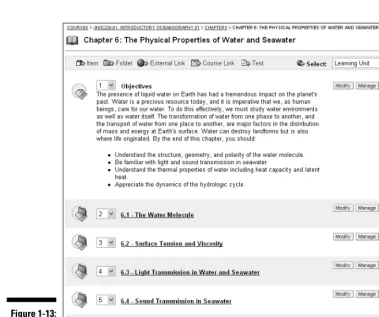
Note that after you’re in Edit view, the link name changes to Display View. Clicking the Display View link allows you to view the Content Area without all the editing and tool options displayed. After you’re back in Display view (see Figure 1-13), you again navigate your Blackboard course much like the rest of the passengers onboard the ship (okay, fine — much like your learners in the course).
Figure 1-13:
Chapter 2
The Course-Development Process
In This Chapter
䊳Getting on the fast track quickly
䊳Starting course development from scratch
䊳Smoothing the way through a course
䊳Experiencing life after the course ends
T
his chapter provides you with the necessary tools to get the course ball rolling in an efficient and smart way. If you’re the type of person who thinks in a mystery-novel-like manner, you probably already read Chapter 1 and got yourself comfortable with the new scenery. Now that you know the lay of Blackboard Land, you’re at the next natural step: Put it to good use.Because of a heavy process focus within course development, this chapter (and only this chapter!) veers away from the standard Dummiesreference concept a little and assumes that you’re reading the chapter mostly in order. This statement is especially true of the quick-start guide in the first half of this chapter. In the second half of this chapter, we describe the most impor-tant ways (and Blackboard has a ton of them) that you can customize your course to fit your instructional needs. Believe it or not, putting these two halves together yourself sets you apart from the average instructor!
After you’re familiar with the ton of ways in which you can engage quick and methodical course development within Blackboard, you definitely will want to explore some features in greater detail. Look in Parts II and III for detailed, step-by-step instructions and time-tested ideas for using Blackboard effectively.
For all of the features described in this chapter, you should start at your course Control Panel. We like to call it “home base” when no one else is around. Follow these steps to get where you need to be:
1. Log in to Blackboard using your username and password.
Assuming that your Web browser is open and you navigated your way to your institution’s Blackboard start page, this step shouldn’t be a prob-lem. If it is, refer to Chapter 1 and remind yourself about your first time navigating through Blackboard. (Ah, memories.)
2. On your Course List page, click the name of your course.
Your course name is a hyperlink, in blue text and underlined. This step also helps you see the way your learners will experience your course.
3. Click the Control Panel link.
Locate this link at the bottom of the course menu, on the left side of your screen. Your gut should tell you to click this link every time you want to do something important in your Blackboard course.
A Quick-Start Guide: Get on the
Fast Track with the Fab Four
As we promise in the introduction to this chapter, we dive in head-first, by helping you work through our own personal Fab Four:
⻬Post your syllabus. ⻬Give online assignments. ⻬Set up your Gradebook. ⻬Start online discussions.
This section does exactly what it promises: It gets you going quickly.We skip over many of the details and get right to the most popular functions within Blackboard.
Because this section is simply a quick-start guide, we have to assume some basic information about you. If our assumptions aren’t correct, check out the areas we specify and then come back to this section to get started. We assume that you
⻬Have a Blackboard account (refer to Chapter 1 if you don’t).
⻬Have at least one course already on your list (see the section “Starting a Brand-New Course,” later in this chapter).
Tracy Russo, assistant professor of communication studies at the University of Kansas, says, “If you and your students are new to Blackboard, don’t try to use all the features at once. It’s better for instructors and students to start with just a few elements and learn how they work for the particular topic and class. It can be tonic for a class to incorporate other elements later in the semester.”
Post your syllabus
First, you have to post your course syllabus. How else can your audience know that you give 10 bonus points just for showing up? Follow these simple steps:
1. Save a digital (electronic) copy of the syllabus on your computer.
Save this file somewhere that you can find later, like on your desktop or your My Documents folder (in Windows). This file is most often created with a word processor application, like Word or WordPerfect. You might have gone that extra mile already and created a .pdf file from the original.
2. Go to your Blackboard Control Panel.
If you didn’t read the Tip paragraph, about starting at your Control Panel, at the beginning of this chapter, read it now and come back.
3. In the Content Areas box, select the area in which you want to upload the syllabus.
You can simply select the Course Information area in which to place your syllabus. If your institution has customized the default menu so that it doesn’t include a Course Information link, choose the most appropriate Content Area for your syllabus. Hey, it might even be a Syllabus link!
4. Click the Item button on the Add bar near the top of the page.
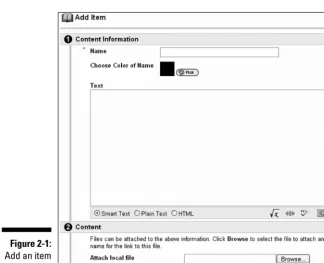
Although the Add Item page has many sections, for quick-start pur-poses, you need to do only two things: Name the item and upload the file (see Figure 2-1).
5. Enter the name of your syllabus in the Name text field.
6. Scroll down to Section 2 and click the Browse button to find the saved document. Select (highlight) it and click the Open button.
7. Enter an instruction in the Name of Link to File box.
Type whatever you want learners to see as a link to the document, such as Click here to see the syllabus.
8. Scroll toward the bottom of the page to Section 4.
You can skip past Section 3 for now and try out the Section 3 options later. (If you would rather do them now, though, you have our blessing.)
9. Click the Submit button.
That’s it. Easy, isn’t it? Congratulations — you posted, or uploaded,your syllabus into your Blackboard course! You know that you’re successful when you see the receipt page.
Not tired yet? If you really want to do more, click OK to return to the Control Panel so that you can start posting some assignments.
You can also stay in this Content Area and post more items for learners, or even go back to the Control Panel and choose a different Content Area in which to do the same.
Figure 2-1:
Give online assignments
Suppose that you want to post an assignment for learners to turn in (and for you to collect and grade) online. Here’s how:
1. From the Control Panel, select the Content Area link where you want to post the assignment.
You can simply select the Assignments area in which to place your assignment. If your institution has customized the default menu so that it doesn’t have an Assignments link, choose the most appropriate Content Area for your assignment.
2. From the drop-down menu on the right side of the Add bar atop the page, select Assignment and click the Go button.
Although the Add Assignment screen has several sections, for our pur-poses in this quick-start guide, we focus on only three specific actions: Name the assignment, give it a point value, and add instructions (see Figure 2-2).
3. Type the title of the assignment in the Name text box.
4. In the Points Possible text box, type — you guessed it! — the maxi-mum number of points a learner can earn on this assignment.
Figure 2-2:
5. In the Instructions text box, type (or copy and paste, if the instructions are in another document) the instructions you want learners to see.
If the directions for learners are already beautifully displayed in a docu-ment (a word processing docudocu-ment or a .pdf file, for example) saved to your computer, continue to Steps 6 and 7. Otherwise, skip to Step 8.
6. Click the Browse button to find the saved assignment document on your computer, select the document, and click Open.
7. In the Name of Link to File text field, enter whatever you want the link to the assignment instructions to say.
Type whatever you want learners to see as a link to the document; for example, Click here to see the homework assignment.
8. Click the Submit button.
Good job! You gave an online assignment that you can now collect through Blackboard. You know that you’re all-powerful when you see the receipt page.
Sharon Widmayer, a high school English teacher from Fairfax County Public Schools, in Virginia, says, “What are my technology skills? Let’s say for exam-ple, you want to create a quiz with pictures. Do you have a digital camera or a scanner that you know how to use? Do you know how to upload the pictures? My point here is that your great idea may need to be scaled back, at least ini-tially, to what you can easily do and maintain. You want the Blackboard site to be flawless for your students, so it is best to stick to what you can do well rather than risk something not working right or something not finished.”
Now that you’re on a roll, click OK to return to the Control Panel so that you can set up your Gradebook.
The assignment you just posted now appears as a column title in your Gradebook. Yes, it’s that easy.
Set up your Gradebook
Okay, to save time later in your course, it’s time to set up Item columns in your Gradebook so that you have to worry only about entering earned points for each learner. Here’s what to do:
1. On the Control Panel, click the Gradebook link in the Assessment pane.
2. Click the Add Item link.
If you added an assignment in the preceding section, it was entered automatically as a Gradebook item. Neat, huh? Now, you can add some other graded items, such as Class Participation or Quiz 1.
3. Choose the item name, category, and number of possible points.
Enter the name of the graded item (Quiz 1 or Homework 2, for example), select the appropriate item type (Exam or Project, for example) from the category drop-down menu, and enter a value (10, 100, or 1000, for exam-ple) in the Points Possible field.
4. Click the Submit button in the lower-right corner of the form.
5. Click OK on the receipt page to return to your Gradebook spreadsheet.
After you return to the Gradebook spreadsheet, you can add more items, modify item information, or assign grades to learners. We get much deeper into the powerful Gradebook tools in Chapter 9.
You might want to start communicating with your learners at this point, even before the course begins.
Mary Bold, PhD, an assistant professor of family studies at Texas Woman’s University, says, “Trust your students to be patient with you. Be open and forthright about your novice status in online teaching, and you will enlist stu-dent support for each new experiment. In a first semester online, every week qualifies as a new experiment. I remember replying to a student request for grades in the Gradebook in my first semester online: ‘Yes, you’ll see those grades just as soon as I figure out how to put them there.’ Even after master-ing the basics of Blackboard, I continue to share experiments with students. In some classes, I build in a menu item called Beta, and that’s where I post new efforts, inviting students to give me feedback.”
Figure 2-3:
Start discussion topics
Communicating with learners in Blackboard takes several forms. A discussion works like an office bulletin board. For this task, you establish a discussion forum and start the conversation as shown in these steps:
1. On the Blackboard Control Panel, click the Discussion Board link.
2. Click the Add Forum button.
When you click Add Forum, you see the page shown in Figure 2-4. It sets up a space for you and your learners to trade notes for the rest of the class to view.
3. Enter a name for the forum in the Title text field.
4. In the Description text box, type a brief explanation of the topic to be discussed in this forum.
This text appears below the link (the forum title) for learners to read before proceeding to the messages within this forum.
5. Enable or disable the check boxes in the Forum Settings field.
After you scroll down the page to the next section, you can turn options on or off specifically for this forum. You can find more information about these options in Chapter 4.
6. Click the Submit button to create the forum.
Figure 2-4:
7. Click OK on the receipt page that appears.
This action returns you to the Discussion Forums page. After you create the forum, your next task is to post the first note to which you want learners to reply.
8. Click the forum name you just created to enter this topic area.
9. Click the Add New Thread button.
Now that you’re inside the forum you created, the conversation can begin.
10. Enter the subject in the Subject text field, and the message in the Message text box.
This is your first message to the class of learners who will read this discussion forum.
11. Click the Submit button.
Figure 2-5 shows you what your initial message looks like on the board inside the forum, after a learner posts a reply.
Kevin Dunn, chef instructor of advanced food preparation at Grand Rapids Community College, says, “I used Blackboard to help with the continuity. My students are required to use Blackboard each week. I grade them on their Discussion Boards as they relate to external links and new topics of interest. I also utilize photos in a large way through my Blackboard course. I have stu-dents critique their own food plating. This improves the overall plating per-formance and culinary skills.”
The bridge
Now that you have (or haven’t) read about what a quick-start guide can do for you, the remainder of this chapter is dedicated to giving you a slightly more in-depth look at how to nurture a course from sapling to sprawling supertree with succulent fruit, powerful branches, and enormous leaves — wait. This description seems extreme, and perhaps overly colorful, but the remainder of this chapter does tell you how to create a truly elegant course from the bottom up. If reading the quick-start guide made you say “I got it,” reading the rest of this chapter will make you say “Now I reallyget it.” Figure 2-5:
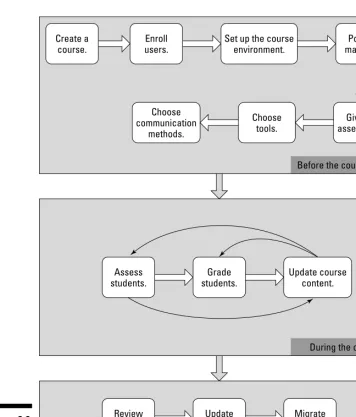
Figure 2-6 outlines the Before, During, and After stages of a traditional course-development process. Basically, you begin by spreading the seeds of a course and end by sharing the fruit across terms and semesters.
Create a course.
Enroll users.
Set up the course environment.
Post the materials.
Choose tools.
Give pre-assessments. Choose
communication methods.
Update course content.
Before the course starts
During the course Grade
students. Assess
students.
Update course.
Migrate course. Review
course.
After the course
Figure 2-6:
Starting a Brand-New Course
“Where, oh, where should I begin a Blackboard course?” This is the age-old question. Or, is it “Which came first, Black or the Board?” Whichever the question, the answer, we believe, is the same: Everything starts from the beginning. Start by making the space, continue by filling that space with things, and round it all out by putting the filled-up space to good use. Our first stage in the course-development process, in certain terms, is to build your course from scratch.
Before we get started, we have to mention (again) that all the steps in this section assume that you’re already logged in to Blackboard and are looking at the Control Panel in one of your courses. Refer to Chapter 1, which holds all the secrets of getting here. In truth, there’s not a whole lot of magic in Chapter 1, but it definitely gives you the 411 about how you can go about get-ting yourself into Blackboard and navigaget-ting easily around it.
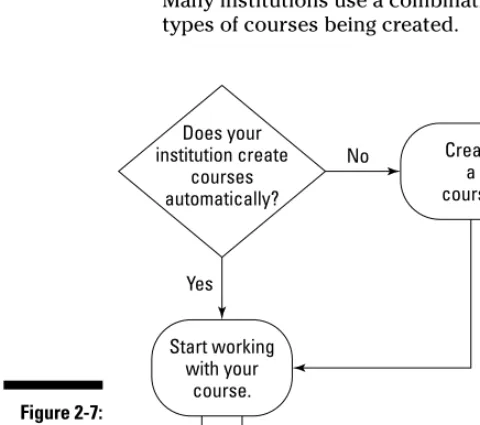
1. Create a course.
In this step (see Figure 2-7), some institutions automatically generate courses for their instructors, some create Blackboard courses by request, and others let instructors create their own Blackboard courses. Many institutions use a combination of these approaches, based on the types of courses being created.
Start working with your
course. Does your institution create
courses automatically?
to Enrolling Students
step
Create a course. No
Yes
Figure 2-7:
2. Enroll users.
See Figure 2-8 for a sample visual representation of the enrollment process. For a deep understanding of the Blackboard enrollment fea-tures, see Chapter 3.
Depending on how Blackboard is set up at your institution, you, as an instructor, might enroll learners by clicking the Enroll Users link from your course Control Panel to display the Enroll Users page (see Figure 2-9). Some institutions require learners to enroll themselves in courses, or the institution might enroll learners automatically in the Blackboard courses in which they’re already registered with the school.
Your Blackboard system administrator is your best friend. Ask her how learners get into your course on Blackboard.
One creative and quick way to view current enrollments in your course is to click the Gradebook link on the Control Panel. Even if no grades are entered, you see all your learners’ names.
Figure 2-9:
Enrolling users, if you need to, is as easy
as pie.
Continue to setting up your
course. Does your institution enroll
students automatically?
Enroll students manually or let students enroll themselves. No
Yes
Figure 2-8:
3. Set up the course environment.
You can customize your course menu based on what learners need to do in the course, and what kind of information they need to access and interact with. Yes, that’s right: You can add menu items, take some away, and even alter the colors that learners see onscreen. You customize menu items from the course Control Panel (see Figure 2-10) by using the Manage Course Menu link (see Figure 2-11). Chapter 4 covers all the steps involved in customizing the course menu.
4. Post course material.
You’re likely to post most of your course materials by using the Add bar (see Figure 2-12) within any Content Area page. You can post your syllabus, Figure 2-11:
Monkeying with your course menu.
Figure 2-10:
readings, documents, photos, or spreadsheets, for example. From the Control Panel, you click the Content Area link in which you want to add some materials. Chapter 5 gives you all the grand details of how to use Content Areas to their fullest.
Blackboard provides folders and learning units to help you stay orga-nized. Within them, you can arrange your content according to class ses-sions, lectures, tutorials, or topics.
5. Give pre-assessments.
Finding out what your learners already know when they start your course allows you to gauge your introductory overview of the course content. The following Blackboard tools help you do that. Chapter 6 gives you detailed steps for using these tools:
•Discussion Board:Gather responses from learners by using a Discussion Forum. Using discussions, you can choose to run an anonymous or named online back-and-forth conversation.
•Survey Manager:Whether you want to carry out a quick two-question poll or conduct a ten-two-question survey, the Survey Manager is a powerful tool to gather this type of data about your class. All surveys are anonymous.
•Assignment:Use a nongraded assignment to find out what learners already know about the subject. Or, you can use a graded assign-ment and really freak them out. (Kidding.)
•Test Manager:Give learners a test as soon as they start the course? Isn’t that barbaric? Or, is it insight into a learner’s mind to help you teach more effectively or better begin your first class ses-sion? Only you can decide!
6. Choose the proper tools for your course.
Blackboard offers a variety of tools to help you as an instructor and a set of tools to help learners take away something from the course. Think of the Course Tools as teaching and learning support. (By the way, you can access these tools, some of which are shown in Figure 2-13, from the Blackboard Control Panel.)
Figure 2-12:
Before starting a course, consider what you’re going to do to keep the course moving along smoothly. Perhaps you’re using the Course Calendar to help your learners manage their time? Maybe you’re using the Tasks tool to accomplish the same goal? Chapters 6 and 7 apply a full-court press to uses and abuses of the Course Tools.
If you plan to use a tool, such as Calendar or Tasks, to help your learners along the path to enlightenment, include it on the course menu. See Chapter 4 for the grand details.
7. Choose your communication methods.
Blackboard offers the following communication tools (see Chapter 6) that you can use to facilitate both one-way and two-way communication for interaction that’s either synchronous(in real time, like on a phone) or asynchronous(not in real time, like on a bulletin board).
•Discussion Board:Post ideas, questions, and theories, and allow learners to do the same. All responses can be viewed by everyone in the class, or by specific groups reading the Discussion Board (see Figure 2-14).
•Collaboration (or chat room):Use this tool to allow learners to connect with each other synchronously (at the same time).
•Send Email:Send messages to all users, some users, or one user from within Blackboard.
Many institutions require their learners to use only their institu-tional e-mail addresses in order to use the Blackboard e-mail com-munication features, and other institutions allow learners to use any e-mail address (such as AOL, Hotmail, Yahoo, or Gmail, for example).
Figure 2-13:
•Messages:Send notes to the whole class, and receive messages from class members. This feature is really just like e-mail. Yet, these messages are internal to Blackboard, which means that learners don’t have to divulge their e-mail addresses to receive and send messages. This option isn’t available in the Basic edition.
Before starting your course, think about the selection of the communication tools that you and your learners will use during the course and for what pur-pose, and make these expectations clear to your learners. It’s also a great idea to simply tell your learners how you will, and will not, use the Blackboard communications features.
Again, Chapter 6 fully describes the options and steps in setting up and using these communication tools.
Facilitating a Course
Blackboard provides features to help you spend your time efficiently during the life of the course. The process of seeing a course through to its end involves a few tried and true teaching tasks:
1. Assess learners.
Several features in Blackboard allow you, the instructor, to create both formative and summative assessments. See Chapter 8 for detailed steps for using these tools:
•Test Manager:Use this tool to create practice tests or graded tests.
•Survey Manager:Create anonymous surveys that provide insight into knowledge gaps and learner satisfaction about your course. Figure 2-14:
•Pool Manager:Create question poolsthat allow you to compile tests of varying questions across the class and to offer a flexible way to create make-up tests.
•Assignment tool:Go totally paperless, from paperless assignment submission to paperless instructor feedback (see Figure 2-15). To make life even easier, the Assignment feature is also connected to the Gradebook feature.
•Discussion Boards:Set up a collaborative environment for assess-ment. It can be in the form of peer reviews or self-assessments, for example.
2. Provide feedback about learner progress.
The Blackboard Gradebook helps instructors manage all the grades involved in a course (see Figure 2-16). On the learner side, the Blackboard My Grades page allows learners to see all their grades for the course.
Figure 2-16:
A small sneak preview
of the Gradebook.
Figure 2-15:
The tools described in Step 1 are integrated with the Gradebook so that if you use the Test Manager to include a test in your course, a column is automatically created in your Blackboard Gradebook that allows you to enter grades and do much more. You can also provide feedback to learn-ers for assignments that use the Assignment tool by either typing your comments or attaching a file.
The flexibility of the Gradebook in Blackboard makes it a must-use tool for course facilitation. The Gradebook helps you keep track of the grades you give and provides learners with a clear summary of how they’re doing in your course.
Again, Chapter 9 outlines the Gradebook functionalities and how to use them.
If you use objective question types (true/false, multiple choice, or order-ing, for example) on a test created and administered through Blackboard, the Blackboard system grades those questions automatically based on the number of points you determine each question is worth.
Third-party test-preparation software and question banks are available that plug into Blackboard. We recommend that you contact the publish-ers of your favorite textbooks because many larger companies now have Blackboard-friendly question sets.
3. Update course content.
During course facilitation, as you may have already discovered, you must update your course content — whether you modify existing content, add new content, or remove content. Blackboard offers you the ability to change any content item that you include in your course by providing the following buttons, which appear next to each item you add:
•Modify:Change some aspect of the item’s text, point value, or questions, for example.
•Copy:Duplicate the item or move it to a different area of the same course or another course that you’re teaching.
•Remove:Just get rid of the item already!
Changing or updating content might confuse learners or throw them off track. Be sure to communicate with your learners if you alter anything about your course in midstream.
Ending the Party: Life
in the After-Course
whining to endure. Wait — those are the good things about the After stage. Whew! After you’re done using a Blackboard course for a term or semester, you have a chance to breathe in the aroma of freshly baked course evalua-tions, take stock in the academic life, and regenerate, because you must do it all again very soon. The following list of tasks to complete should make life in the “after-course” less macabre than it sounds:
1. Review your course.
After the course is over, you should review the course itself, by basing your review on learner course evaluations and your own reflections about the success of the course. You might want to take on updates as a project and keep notes for yourself throughout a term so that when the course has ended, you locate your notes and update them in one fell swoop.
2. Update the course.
When you update your course, consider creating a master course as a template for future offerings of the same course. If you already have a master course, be sure to update the master based on the review action items (refer to Step 1).
Remember to keep a record of learner work and grades. You can do this by downloading your Gradebook and either printing or saving files sub-mitted by your learners throughout the course. We tell you how to do that in Chapter 9.
3. Migrate the course.
Blackboard offers several ways to migrate a course for reuse: Course Copy, Export Course (coupled with Import Package), and Archive Course. Using the Course Copy feature (see Figure 2-17) is by far the simplest option if you intend to reuse your course within the same institution.
Figure 2-17:
The Export Course feature produces a compressed (.zip) file with all course materials that can be saved on your computer, CD-ROM, USB key, thumb drive, or other type of removable media. Your intention might be to take your course with you to another institution (that uses Blackboard). We cover all these course-management features in Chapter 10.
Your institution might take care of copying, exporting, and archiving courses for you, in which case these options might not be available to you. Check with your Blackboard System Administrator to find out who’s responsible for taking care of these tasks. Remember your best friend!
Part II
In this part . . .
W
e would bet that you’re reading this book because you want to create a Blackboard course five min-utes ago, right? Well, this section focuses on the “how-to” of that process — all the button clicks and fill-in-the-blanks that get you an online learning environment full of all the essential elements!Chapter 3 introduces the steps for managing your list of learners, from adding and removing them from the course to putting them into project groups. If your institution does this work for you, you’re off the hook.
Chapter 4 discusses changing the look of your Blackboard course and choosing the tools that will engage learners with your course in a meaningful way. This chapter is really about structure and matching your Blackboard course to your instructional needs and style.
Chapter 5 gets right to the heart of the matter: your course content. For many instructors, putting course materials (notes, graphics, and readings, for example) online is a great place to start with a Blackboard course. If that’s true of you, get a move on!
In Chapter 6, you’ll find step-by-step instructions for the many communication options in Blackboard. If one of your goals is to get students talking — ideally, about your course content — run, don’t walk, to this chapter and try out the tools for interaction.
Chapter 3
Got Learners?
(Getting People into Your Course)
In This Chapter
䊳Keeping track of learners’ access to your course
䊳Enhancing the collaborative experience
W
hat would your course be without students? It would be perhaps a chance for you to teach yourself something, but we wouldn’t recom-mend Blackboard for that! Whether you’re presenting a course for students or the workforce, Blackboard makes getting learners up and going quickly a fairly easy task. This chapter takes you through the process of creating users (students, instructors, and teaching assistants, for example) in your Blackboard system and adding them to your course. After you create them in the course, you can also group them for projects and the like.“Manage my own users? Get out of town! I don’t even see them on my Control Panel!” If you read the first half of this chapter and sound like this, just stick with us. Some schools lock instructors out of these functions because enroll-ment is done either automatically or by system administrators who are locked away in a lonely towers (or, usually, basements). It sounds scary, but it saves you some work if you’re one of those lucky ones.
Managing Learner Accounts
To get started, go to your Blackboard course and choose Control Panel from the course menu. All the functions you need for managing user accounts are in the User Management pane of the Control Panel (see Figure 3-1).
Don’t be surprised if your institution doesn’t allow you to create accounts — most don’t (for all sorts of reasons). However, if this capability is available to you, you need to know how to use it. Follow these steps:
1. Click the Create User link in the User Management pane of the Control Panel.
Not surprisingly, this step takes you to the Create User page, where you build this user’s account. Four sections are on this page:
• Personal Information
• Account Information
• Personal Information (yes, a second one)
• Role and Availability
2. Enter the user’s first name, last name, e-mail address, and student ID in the corresponding fields in Section 1.
Although only first and last names are designated as required fields, you want to include the e-mail address so that you can send e-mail by using Blackboard. You might also be expected to include a student ID to avoid confusion between users with the same names.
3. Enter a username for this individual in Section 2.
Figure 3-1:
Your institution might have a standard template for creating usernames (for example, first initial followed by last name), or you might be allowed to create your own.
4. Enter the password for the user to access the Blackboard course.
5. Reenter the password for verification (see Figure 3-2).
When you type the password, bullets appear rather than the characters you type.
6. In Section 3 of the page, determine which fields you want (or need) to fill in and enter the appropriate information for Section 3.
None of these areas is required in order to create a user account, but your institution might expect you to fill in some of them for other reasons.
7. Click the appropriate radio button next to the role the user will play in the course.
The default role is Student. We cover the other roles a few pages down the road. (Feel free to peek ahead, if you’re curious.)
8. Choose Yes or No from the drop-down menu under the line Available (This Course Only).
Figure 3-2:
Choosing Yes, as shown in Figure 3-3, makes the account available to the user immediately. Choosing No creates the account, but it remains unavailable to the user until you activate it.
9. Click the Submit button.
The next screen you see confirms the addition of this account by provid-ing, under the heading List/Modify Users, a summary of the user infor-mation that has been added.
10. Click the OK button.
You return to the Create User page, where you can create more users, if you like.
Creating users in this way does two things at a time: creates the user account and enrolls that user in your course. So, after you complete this step, you can skip right over the next section, which talks about enrolling users, because you’ve already done it.
To return to the Control Panel, click the Cancel button (in the lower-right corner) or click the Control Panel link in the bread crumb trail at the top of the screen.
Enrolling Users
Although few instructors are expected to create user accounts, there’s a greater chance that you need to enroll users in your Blackboard course. To enrollsimply means that you provide users who already have accounts on the Blackboard system with access to the course, whether they’re students or teaching assistants or are filling some other role in your course. Follow these steps:
1. From the Control Panel, click the Enroll User link in the User Management pane.
Figure 3-3:
This step brings up a rather empty-looking page, where you can search for the user you want to add.
2. Enter the last name of the user in the corresponding text field and click the Search button.
Blackboard generates a list of system users (everyone who has an account within this Blackboard system) with that last name, from which you can select the appropriate individual to add to your site (see Figure 3-4).
For common names, the list might extend across two or more pages. Use the bread crumbs in the lower-left corner of the page to move to the next set of users.
You can search instead by username or e-mail address, if you want. This capability can be useful in narrowing your search if a user has a common last name. To search by username or e-mail address, simply click the appropriate radio button on the Search By line and enter the username or e-mail address.
3. Click to enable the check box to the left of the user’s name in the list, and then click the Submit button.
The next screen you see (labeled Receipt: Success) tells you that this individual is enrolled in your course with the role of Student (see Figure 3-5).
4. Click the OK button to return to the Control Panel.
Figure 3-4:
If you attempt to enroll an individual who is already listed in your Blackboard course roster, the system (unfortunately) doesn’t inform you. Rather than tell you, “Hey, Sherlock, this person is already on the roster!” the system simply doesn’t find the account. So, if you search and can’t find someone, check to make sure that he’s not already included on the roster.
“Who’s in My Course?”
How can you tell whether someone is on the course roster? Start at the Control Panel, of course. To get there, choose Control Panel from the course menu and follow these steps:
1. Click the List/Modify Users link.
This step displays a page similar to the Enroll User page, with a field you can use to search for a specific individual on your course roster.
2a. Enter the user’s last name (or username or e-mail address) in the field and click the Search button.
This step generates a list of everyone with that last name on your course roster.
2b. Alternatively, to list the entire roster rather than only one person, click the List All tab, above the Search field.
The note on the List All tab warns you that processing a large class might take a while. Are you patient? Determined to see the entire roster?
3. Click the List All button.
The names appear in alphabetical order by last name, with 25 names per page. The total number of users appears at the beginning of the list, and additional information (username, e-mail addr