Guest Operating System
Installation Guide
March 10, 2011
GSTOS-ENG-Q110-200-1
Note:The contents of the Guest Operating System Installation Guide have changed. The new version of this guide contains information and instructions applicable only to installing guest operating systems. For guest operating system support data, see the new Guest/Host OS VMware Compatibility Guide. For VMware Tools information, see the applicable product documentation on the VMware Documentation Web site http://www.vmware.com/support/pubs/.
For known issues, see the VMware Knowledge Base located at http://kb.vmware.com/.
The deprecated Guest Operating System Installation Guide, the new version of the Guest Operating System Installation Guide, and the new Guest/Host OS VMware Compatibility Guide are all located at
VMware, Inc.
3401 Hillview Ave. Palo Alto, CA 94304 www.vmware.com
You can find the most up-to-date technical documentation on the VMware Web site at:
http://www.vmware.com/support/
The VMware Web site also provides the latest product updates.
If you have comments about this documentation, submit your feedback to:
© Copyright 2006–2011 VMware, Inc. All rights reserved. This product is protected by U.S. and international copyright and intellectual property laws. VMware products are covered by one or more patents listed at
http://www.vmware.com/go/patents.
Contents
About
This
Book 7
Installing
Guest
Operating
Systems 11
Latest Updates 11Operating Systems That the Operating System Vendor No Longer Supports 12 General Guidelines for Supported Guests 13
Determining Memory Settings for a Virtual Machine 13 Using Sound Adapters on GSX and VMware Servers 13 Running a Guest Operating System 13
64‐Bit Linux Guests and Execute Disable Functionality 13 VMware Tools 13
General Installation Instructions for All VMware Products 13 Typical Installation 14
ISO Installation 14 PXE Installation 14 Windows 7 14
Windows Preinstallation Environment 15
VMware Tools Support in Windows Preinstallation Environment 15 Windows Recovery Environment 16
VMware Tools in Windows Recovery Environment 16 Windows Server 2008 R2 16
Windows Server 2008 16 Windows Vista 17
Missing Multimedia Audio Controller in a Windows Vista Guest 17 Screen Resolution in a Windows Vista Guest 17
Windows Server 2003 17
Missing Multimedia Audio Controller in a Windows Server 2003 Guest 18
Windows XP 18
Windows 2000 19
VMware Tools in a Windows 2000 Guest 19
Windows NT 4.0 20
Enable DMA Transfer Support 20
Enabling Networking After Installing Windows NT 4.0 21 VMware Tools in a Windows NT 4.0 Guest 21
Windows Me 21
Windows 98 22
Enabling Networking After Installing Windows 98 22
Windows 95 23
Enable DMA Transfers 24
Enable Networking After Windows 95 Installation in a Virtual Machine 24 Troubleshooting Windows 95 Installations in a Virtual Machine 25
MS‐DOS 6.22 and Windows 3.1x 25
Install MS‐DOS 6.22 25 Install Windows 3.1x 26
Post Installation Considerations for MS‐DOS 6.22 and Windows 3.1x 26 VMware Tools in a MS‐DOS 6.22 and Windows 3.1x Guest 26
Asianux Server 3.0 26
CentOS 5 27
VMware Tools 28 CentOS 4 28
VMware Tools in a CentOS 4 Guest 28 Debian 5 28
Debian 4 29 eComStation 1.0 29
VMware Tools in a eComStation 1.0 30 IBM OS/2 Warp 4.5.2 30
Create Boot Disks 31
VMware Tools in a IBM OS/2 Wrap 4.5.2 31 IBM OS/2 Warp 4.0 31
Create Boot Disks 32
VMware Tools in a IBM OS/2 Wrap 4.0 32 Mac OS X Server 10.5 and Mac OS X Server 10.6 32 Mandriva Corporate 4 33
Mandriva Linux 2009 33 Mandriva Linux 2008 34 Mandriva Linux 2007 35 Mandriva Linux 2006 36 Mandrake Linux 10 36
Mandrake Linux 9.x 37
Mandrake Linux 8.x 39
Set Up a Symbolic Link to XFree86 40 Novell Linux Desktop 9 40
Oracle Enterprise Linux 5 and Oracle Enterprise Linux 6 40
VMware Tools in an Oracle Enterprise Linux 5 and Oracle Enterprise Linux 6 Guest 41 Oracle Enterprise Linux 4 41
VMware Tools in an Oracle Enterprise Linux 4 Guest 42 Red Hat Enterprise Linux 6 42
VMware Tools in a Red Hat Enterprise Linux 6 Guest 42 Red Hat Enterprise Linux 5 42
VMware Tools in a Red Hat Enterprise Linux 5 Guest 43 Red Hat Enterprise Linux 4 43
VMware Tools in a Red Hat Enterprise Linux 4 Guest 44 Red Hat Enterprise Linux 3 44
VMware Tools in a Red Hat Enterprise Linux 3 Guest 45 Red Hat Enterprise Linux 2.1 46
VMware Tools in a Red Hat Enterprise Linux 2.1 Guest 47
Red Hat Linux 9.0 47
VMware Tools in a Red Hat Linux 9.0 Guest 48
Red Hat Linux 8.0 48
VMware Tools in a Red Hat Linux 8.0 Guest 49 Red Hat Linux 7 49
VMware Tools in a Red Hat Linux 7 Guest 50
Red Hat Linux 6.2 50
Sun Java Desktop System 2 51 SCO OpenServer 5.0 51
Install Maintenance Pack 5 53
VMware Tools in a SCO OpenServer 5.0 Guest 53 SCO UnixWare 7 53
SUSE Linux Enterprise 11 54 SUSE Linux Enterprise 10 54 SUSE Linux Enterprise Server 9 55 SUSE Linux Enterprise Server 8 55 SUSE Linux Enterprise Server 7 56 openSUSE Linux 11.x 56
VMware Tools in an openSUSE Linux 11.x Guest 57
openSUSE Linux 10.x 57
SUSE Linux10.x 58
SUSE Linux 9.x 58
Run SaX2 Configuration Utility 59
SUSE Linux 8.x 59
Run SaX2 Configuration Utility 59
SUSE Linux 7.3 60
VMware Tools in a SUSE Linux 7.3 Guest 60 Turbolinux 11 60
Turbolinux 10 61 Turbolinux 8 61 Turbolinux 7.0 62
VMware Tools in a Turbolinux 7.0 Guest 62 Ubuntu 10.04 and Ubuntu 10.10 62
VMware Tools in an Ubuntu 10.04 and Ubuntu 10.10 Guest 63
Enable Root in a Virtual Machine Running Ubuntu Server Edition 63 Ubuntu 9.10 63
VMware Tools in an Ubuntu 9.10 Guest 63
Enable Root in a Virtual Machine Running Ubuntu Server Edition 64 Ubuntu 9.04 64
VMware Tools in an Ubuntu 9.04 Guest 64
Enable Root in a Virtual Machine Running Ubuntu Desktop Edition 64 Ubuntu 8.10 65
VMware Tools in an Ubuntu 8.10 Guest 65
Enable Root in a Virtual Machine Running Ubuntu Server Edition 65 Enable Root in a Virtual Machine Running Ubuntu Desktop Edition 65 Ubuntu 8.04 LTS 66
VMware Tools in an Ubuntu 8.04 LTS Guest 66
Enable Root in a Virtual Machine Running Ubuntu Server Edition 66 Enable Root in a Virtual Machine Running Ubuntu Desktop Edition 66 Ubuntu Linux 7.10 67
VMware Tools in an Ubuntu 7.10 Guest 67
Enable Root in a Virtual Machine Running Ubuntu Server Edition 67 Enable Root in a Virtual Machine Running Ubuntu Desktop Edition 67 Ubuntu Linux 7.04 68
VMware Tools in an Ubuntu 7.04 Guest 68
Enable Root in a Virtual Machine Running Ubuntu Server Edition 68 Enable Root in a Virtual Machine Running Ubuntu Desktop Edition 68 Ubuntu Linux 6.10 69
VMware Tools in an Ubuntu 6.10 Guest 69
Enable Root in a Virtual Machine Running Ubuntu Server Edition 69 Enable Root in a Virtual Machine Running Ubuntu Desktop Edition 69 Ubuntu Linux 6.06 70
VMware Tools in an Ubuntu 6.06 Guest 70
VMware Tools in an Ubuntu 5.10 Guest 71
Enable Root in a Virtual Machine Running Ubuntu Server Edition 71 Enable Root in a Virtual Machine Running Ubuntu Desktop Edition 71 VMware Tools and 64‐bit Version of Ubuntu Linux 5.10 72
Ubuntu Linux 5.04 72
VMware Tools in an Ubuntu 5.04 Guest 72 FreeBSD 8 73
Known Limitation for FreeBSD 8 73 FreeBSD 7.x 73
VMware Tools in a FreeBSD 7.x Guest 73 FreeBSD 6.x 74
FreeBSD 5.x 74 FreeBSD 4.x 74
Installation Instructions for FreeBSD 4.11, 4.10, and 4.9 75 Installation Instructions for FreeBSD 4.3, 4.2, 4.1, and 4.0 75
Set the Disk Geometry Manually 75 NetWare 6.5 Server 76
VMware Tools in a NetWare 6.6 Server Guest 77
NetWare 6.0 Server 77
VMware Tools in a NetWare 6.0 Server Guest 79
NetWare 5.1 Server 79
VMware Tools in a NetWare 5.1 Server Guest 81 NetWare 4.2 Server 81
VMware Tools in a NetWare 4.2 Server Guest 83 Solaris 10 Operating System x86 Platform Edition 83
VMware Tools in a Solaris 10 Guest 83
Solaris 9 Operating System x86 Platform Edition 84 Configure the X Server 84
VMware Tools in a Solaris 9 Guest 85
Solaris 8 Operating System x86 Platform Edition 85 Configure the X Server 86
Adding a SCSI Driver 86
Creating an ITU Driver Disk Using Solaris 86 Detect the SCSI Hard Drive 87
VMware Tools in a Solaris 8 Guest 87
The Guest Operating System Installation Guide provides users of VMware® ESX Server, VMware GSX Server,
VMware Server, VMware ACE, VMware Workstation, and VMware Fusion™ information about installing
guest operating systems in VMware virtual machines.
Revision History
This guide is revised with each newly supported guest operating system that requires installation instructions.
[image:7.612.97.529.326.676.2]About This Book
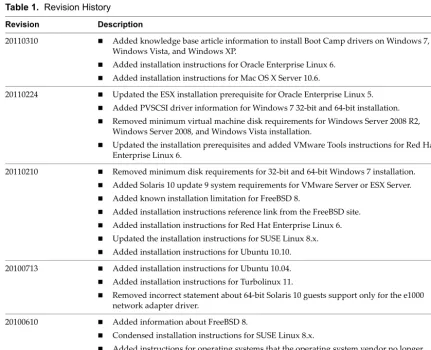
Table 1. Revision History
Revision Description
20110310 Added knowledge base article information to install Boot Camp drivers on Windows 7,
Windows Vista, and Windows XP.
Added installation instructions for Oracle Enterprise Linux 6. Added installation instructions for Mac OS X Server 10.6.
20110224 Updated the ESX installation prerequisite for Oracle Enterprise Linux 5.
Added PVSCSI driver information for Windows 7 32‐bit and 64‐bit installation.
Removed minimum virtual machine disk requirements for Windows Server 2008 R2,
Windows Server 2008, and Windows Vista installation.
Updated the installation prerequisites and added VMware Tools instructions for Red Hat
Enterprise Linux 6.
20110210 Removed minimum disk requirements for 32‐bit and 64‐bit Windows 7 installation.
Added Solaris 10 update 9 system requirements for VMware Server or ESX Server.
Added known installation limitation for FreeBSD 8.
Added installation instructions reference link from the FreeBSD site.
Added installation instructions for Red Hat Enterprise Linux 6.
Updated the installation instructions for SUSE Linux 8.x. Added installation instructions for Ubuntu 10.10.
20100713 Added installation instructions for Ubuntu 10.04. Added installation instructions for Turbolinux 11.
Removed incorrect statement about 64‐bit Solaris 10 guests support only for the e1000
network adapter driver.
20100610 Added information about FreeBSD 8.
Condensed installation instructions for SUSE Linux 8.x.
Added instructions for operating systems that the operating system vendor no longer
Intended Audience
This guide if for those responsible for installing operating systems on VMware virtual machines.
VMware Technical Publications Glossary
VMware Technical Publications provides a glossary of terms that might be unfamiliar to you. For definitions
of terms as they are used in VMware technical documentation go to http://www.vmware.com/support/pubs.
Document Feedback
VMware welcomes your suggestions for improving our documentation. If you have comments, send your
feedback to [email protected].
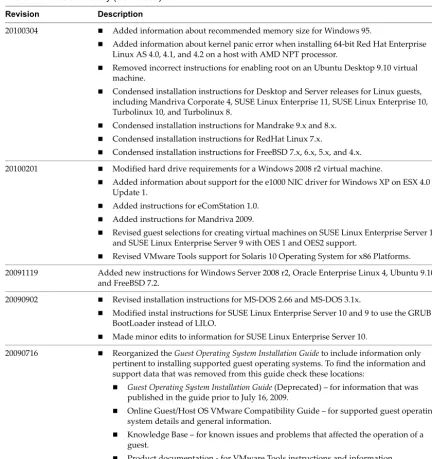
20100304 Added information about recommended memory size for Windows 95.
Added information about kernel panic error when installing 64‐bit Red Hat Enterprise
Linux AS 4.0, 4.1, and 4.2 on a host with AMD NPT processor.
Removed incorrect instructions for enabling root on an Ubuntu Desktop 9.10 virtual
machine.
Condensed installation instructions for Desktop and Server releases for Linux guests,
including Mandriva Corporate 4, SUSE Linux Enterprise 11, SUSE Linux Enterprise 10,
Turbolinux 10, and Turbolinux 8.
Condensed installation instructions for Mandrake 9.x and 8.x. Condensed installation instructions for RedHat Linux 7.x.
Condensed installation instructions for FreeBSD 7.x, 6.x, 5.x, and 4.x. 20100201 Modified hard drive requirements for a Windows 2008 r2 virtual machine.
Added information about support for the e1000 NIC driver for Windows XP on ESX 4.0
Update 1.
Added instructions for eComStation 1.0. Added instructions for Mandriva 2009.
Revised guest selections for creating virtual machines on SUSE Linux Enterprise Server 10
and SUSE Linux Enterprise Server 9 with OES 1 and OES2 support.
Revised VMware Tools support for Solaris 10 Operating System for x86 Platforms. 20091119 Added new instructions for Windows Server 2008 r2, Oracle Enterprise Linux 4, Ubuntu 9.10,
and FreeBSD 7.2.
20090902 Revised installation instructions for MS‐DOS 2.66 and MS‐DOS 3.1x.
Modified instal instructions for SUSE Linux Enterprise Server 10 and 9 to use the GRUB
BootLoader instead of LILO.
Made minor edits to information for SUSE Linux Enterprise Server 10.
20090716 Reorganized the Guest Operating System Installation Guide to include information only
pertinent to installing supported guest operating systems. To find the information and
support data that was removed from this guide check these locations:
Guest Operating System Installation Guide (Deprecated) – for information that was
published in the guide prior to July 16, 2009.
Online Guest/Host OS VMware Compatibility Guide – for supported guest operating
system details and general information.
Knowledge Base – for known issues and problems that affected the operation of a
guest.
[image:8.612.97.530.62.521.2] Product documentation ‐ for VMware Tools instructions and information. Table 1. Revision History (Continued)
Technical Support and Education Resources
The following sections describe the technical support resources available to you. To access the current version
of this book and other books, go to http://www.vmware.com/support/pubs.
Online and Telephone Support
To use online support to submit technical support requests, view your product and contract information, and
register your products, go to http://www.vmware.com/support.
Customers with appropriate support contracts should use telephone support for the fastest response on
priority 1 issues. Go to http://www.vmware.com/support/phone_support.html.
Support Offerings
To find out how VMware support offerings can help meet your business needs, go to http://www.vmware.com/support/services.
VMware Professional Services
VMware Education Services courses offer extensive hands‐on labs, case study examples, and course materials designed to be used as on‐the‐job reference tools. Courses are available onsite, in the classroom, and live online. For onsite pilot programs and implementation best practices, VMware Consulting Services provides offerings to help you assess, plan, build, and manage your virtual environment. To access information about
The Guest Operating System Installation Guide includes installation instructions for installing supported guest operating systems on the following VMware products:
VMware ESX Server 2.0 and later
VMware ESXi/ESX 3.5 and later
VMware Workstation 4.0 and later
VMware Server 1.0 and later
VMware Fusion1.0 and later
VMware ACE 1.0 and later
VMware GSX Server 3.0 and later
If you are using VMware® Workstation 3.x, VMware GSX Server 2.x, VMware ESX Server 1.x or an earlier
VMware product, see the user’s manual that came with your product for installation instructions for the guest operating systems supported by that product.
Operating systems that are not included in this guide are not supported.
See “General Installation Instructions for All VMware Products” on page 13 for information that might apply
to the guest you are installing and see “Latest Updates” on page 11 for the most recent changes to this guide.
Latest Updates
Find the latest version of the guide on the VMware Web site at: http://www.vmware.com/support/pubs. Check
the date on the cover page to determine if your copy of the guide is current. These are the changes or updates made to the Guest Operating System Installation Guide since it was last published.
Added knowledge base article information to install Boot Camp drivers on Windows 7, Windows Vista,
and Windows XP. See “Windows 7” on page 14, “Windows Vista” on page 17, and “Windows XP” on
page 18.
Added installation instructions for Oracle Enterprise Linux 6. See “Oracle Enterprise Linux 5 and Oracle
Enterprise Linux 6” on page 40.
Added installation instructions for Mac OS X Server 10.6. See “Mac OS X Server 10.5 and Mac OS X Server
10.6” on page 32.
Updated the ESX installation prerequisite for Oracle Enterprise Linux 5. See “Oracle Enterprise Linux 5
and Oracle Enterprise Linux 6” on page 40.
Added PVSCSI driver information for Windows 7 32‐bit and 64‐bit installation. See“Windows 7” on
page 14.
Removed minimum virtual machine disk requirements for Windows Server 2008 R2, Windows Server
2008, and Windows Vista installation. See “Windows Server 2008 R2” on page 16, “Windows Server 2008”
on page 16, and “Windows Vista” on page 17.
Updated the installation prerequisites and added VMware Tools instructions for Red Hat Enterprise
Linux 6. See “Red Hat Enterprise Linux 6” on page 42.
Removed minimum virtual machine disk requirements for 32‐bit and 64‐bit Windows 7 installation. See
“Windows 7” on page 14.
Added Solaris 10 update 9 system requirements for VMware Server or ESX Server. See “Solaris 10
Operating System x86 Platform Edition” on page 83.
Added known installation limitation for FreeBSD 8. See “FreeBSD 8” on page 73.
Added installation instructions reference link from the FreeBSD site. See “FreeBSD 7.x” on page 73,
“FreeBSD 6.x” on page 74, “FreeBSD 5.x” on page 74, and “FreeBSD 4.x” on page 74.
Added installation instructions for Red Hat Enterprise Linux 6. See “Red Hat Enterprise Linux 6” on
page 42.
Updated the installation instructions for SUSE Linux 8.x. See “SUSE Linux 8.x” on page 59.
Added installation instructions for Ubuntu 10.10. See “Ubuntu 10.04 and Ubuntu 10.10” on page 62.
Added installation instructions for Ubuntu 10.04. See “Ubuntu 10.04 and Ubuntu 10.10” on page 62.
Added installation instructions for TurboLinux 11. See “Turbolinux 11” on page 60.
Removed incorrect statement about 64‐bit Solaris 10 guests support only for the e1000 network adapter
driver. See “Solaris 10 Operating System x86 Platform Edition” on page 83.
Added installation instructions for FreeBSD 8. See “FreeBSD 8” on page 73.
Added information about recommended memory size for Windows 95. See “Windows 95” on page 23.
Added information about kernel panic error when installing 64‐bit Red Hat Enterprise Linux AS 4.0, 4.1,
and 4.2 on a host with an AMD NPT processor. See “Red Hat Enterprise Linux 4” on page 43.
Removed incorrect instructions for enabling root on an Ubuntu Desktop 9.10 virtual machine. See
“Ubuntu 9.10” on page 63.
Condensed installation instructions for Desktop and Server releases for Linux guests, including
“Mandriva Corporate 4” on page 33, “SUSE Linux Enterprise 11” on page 54 and “SUSE Linux Enterprise 10” on page 54, “Turbolinux 10” on page 61 and “Turbolinux 8” on page 61.
Condensed installation instructions for Mandrake 9.x and 8.x. Start with “Mandrake Linux 9.x” on
page 37.
Condensed installation instructions for RedHat Linux 7.x. See “Red Hat Linux 7” on page 49.
Condensed installation instructions for SUSE Linux 10.x, 9.x, 8.x. Start with “SUSE Linux Enterprise 10”
on page 54.
Condensed installation instructions for FreeBSD 7.x, 6.x, 5.x, and 4.x. Start with “FreeBSD 7.x” on page 73.
Operating Systems That the Operating System Vendor No Longer Supports
General Guidelines for Supported Guests
Configurations, support, and hardware influence how you install a supported guest operating system.
Determining Memory Settings for a Virtual Machine
When you configure the memory settings for a virtual machine, you should consult the documentation for the guest operating system you plan to run in that virtual machine. The user interface of your VMware product provides general guidelines for the amount of memory required. If the interface and the operating system documentation do not agree, you should rely on the operating system documentation.
Using Sound Adapters on GSX and VMware Servers
Sound adapters by default are not installed in a virtual machine for GSX or VMware Servers. To add a sound
adapter, use the virtual machine settings editor (VM > Settings) after you have installed the operating system.
For instructions on configuring sound for a virtual machine on a GSX or VMware Server, see the corresponding server documentation.
Running a Guest Operating System
For information about running a guest operating system and using its features, see the documentation provided by the operating system vendor.
64-Bit Linux Guests and Execute Disable Functionality
When running a 64‐bit Linux guest operating system on EM64T hardware, make sure that you have Execute Disable functionality enabled in the host BIOS. This functionality helps to ensure that the Linux guest operating system runs without interruption.
VMware Tools
VMware Tools must be installed in most guest operating systems. For an overview of VMware Tools and for
a list of the manuals that contain installation instructions for VMware Tools, see knowledge base article 340 at
http://kb.vmware.com/kb/340.
General Installation Instructions for All VMware Products
Installing a guest operating system in a virtual machine is essentially the same as installing it on a physical computer.
Before installing a guest operating system, create a virtual machine and ensure that its devices are setup correctly. For example, install networking software when you install the guest operating system, and configure and enable the Ethernet adapter for the virtual machine.
The tool or interface you used to configure the virtual machine depends on the VMware product you are running.
A new virtual machine is like a physical computer with a blank hard disk. Before you can use it, you must partition and format the virtual disk and install an operating system. The operating system installation program might handle the partitioning and formatting steps for you.
Typical Installation
The basic steps to install a typical operating system:
1 Start your VMware product and connect to the virtual machine.
2 Insert the installation CD‐ROM or disc of the guest operating system in to the CD‐ROM or disc drive
connected to the virtual machine.
ESX Server 2.x. You must insert the installation CD‐ROM or disc in the drive on the server where the virtual machine is running. You cannot use the drives on the management workstation.
GSX Server. If your guest operating system requires a disc, you must insert it in the drive on the server where the virtual machine is running. You cannot use the disc drive on the management workstation.
3 Turn on your virtual machine by clicking Power On.
4 Follow the instructions provided by the operating system vendor.
As with physical computers, operating systems require separate licenses for each virtual machine that you run.
Some Microsoft Windows OEM discs included with new computers are customized for those computers and include device drivers and other utilities specific to the hardware system. Even if you can install that Windows operating system on your physical computer, you might not be able to install it in a virtual machine. You might need to purchase a new copy of Windows to install in a virtual machine.
5 Install VMware Tools.
ISO Installation
Rather than booting from a physical CD‐ROM, you can create an ISO image file from the installation CD‐ROM. You can store the ISO file on the host machine or on a network drive accessible from the host machine. Use the configuration tool for your VMware product to connect the virtual machine CD drive to the ISO image file, and turn on the virtual machine.
Using an ISO image file is convenient to install the same operating system in multiple virtual machines. It can also help you avoid a problem in host configurations, in which the virtual machine cannot boot from the installation CD‐ROM.
PXE Installation
If you plan to use a PXE server to install the guest operating system over the network, you do not need the operating system installation media. When you turn on the virtual machine, the virtual machine detects the PXE server.
PXE booting is supported for guest operating systems that are listed in the VMware Guest Operating System Compatibility list and whose operating system vendor supports PXE booting of the operating system.
Windows 7
Install Windows 7 in a virtual machine using the corresponding Windows 7 distribution CD.
Before you begin, verify that the following tasks are complete:
Read “General Guidelines for Supported Guests” on page 13.
Create and configure a new virtual machine.
Virtual machine. 1GB or more of RAM for 32‐bit guests and 2GB or more of RAM for 64‐bit guests. Installation Steps
3 (Optional) If you are using VMware Paravirtual as the default SCSI controller, you can install Windows 7
32‐bit using pvscsi-windows2003.flp driver and Windows 7 64‐bit using pvscsi-windows2008.flp
driver.
4 Follow the prompts to complete the installation.
5 Install VMware Tools.
6 (Optional) On VMware Fusion, install Boot Camp drivers so that the guest operating system can access
hardware devices on the physical machine.
Windows 7 32‐ bit supports only Boot Camp 3 drivers and Windows 7 64‐bit requires Boot Camp drivers to be installed individually.
Refer to knowledge base article 1012885 at http://kb.vmware.com/kb/1012885 for more information.
Windows Preinstallation Environment
Before you begin, verify that the following tasks are complete:
Read “General Installation Instructions for All VMware Products” on page 13.
Create and configure a new virtual machine. During virtual machine creation, select Windows Vista for
the guest operating system. A Windows PE selection is not available.
Download and install Windows AIK 1.1 (WAIK1.1) software (build from Windows Server 2008 kernel)
from the Microsoft Web site:
http://www.microsoft.com/downloads/details.aspx?familyid=94BB6E34‐D890‐4932‐81A5‐5B50C657DE0 8&displaylang=en
Create a Windows PE 2.1 ISO image.
To Create a Windows PE 2.1 ISO Image
1 Select Start > All Programs > Microsoft Windows AIK > Windows PE Tools Command Prompt to open
the Windows PE Tools Command Prompt.
2 Type one of the following commands to create a Windows PE build environment for an x86 or amd64
machine in the winpe-x86 folder.
3 Create a Windows PE 2.1 bootable ISO image by entering the following command:
oscdimg -n -h -bc:\winpe-x86\etfsboot.com c:\winpe-x86\iso c:\winpe-x86\winpe-x86.iso
Installation Steps
1 Boot the virtual machine from a Windows PE 2.1 ISO image.
After the boot process completes, a command prompt appears.
2 Use Windows PE to prepare your virtual machine to install a Windows operating system.
VMware Tools Support in Windows Preinstallation Environment
VMware Tools does not support Windows Preinstallation Environment.
Platform Command
32‐bit copype x86 C:\Winpe-x86
Windows Recovery Environment
Read “General Installation Instructions for All VMware Products” on page 13.
For instructions specific to the Windows Recovery Environment, see the accompanying operating system documentation.
VMware Tools in Windows Recovery Environment
There is no version of VMware Tools that supports Windows Recovery Environment.
Windows Server 2008 R2
You can install the Windows Server 2008 R2 in a virtual machine using the Windows Server 2008 R2 distribution CD.
Before you begin, verify that the following tasks are complete:
Read “General Installation Instructions for All VMware Products” on page 13.
Create and configure a new virtual machine.
Virtual machine. 512MB or more of RAM.
Host computer. 512MB or more of RAM. Installation Steps
1 Insert the Windows Server 2008 R2 CD in the CD‐ROM drive.
2 Power on the virtual machine to start installing Windows Server 2008 R2.
3 Follow the prompts to complete the installation.
4 Install VMware Tools.
Windows Server 2008
You can install the Windows Server 2008 in a virtual machine using the Windows Server 2008 distribution CD.
Before you begin, verify that the following tasks are complete:
Read “General Installation Instructions for All VMware Products” on page 13.
Create and configure a new virtual machine.
Virtual machine. 512MB or more of RAM.
Host computer. 512MB or more of RAM.
Consider these support and configuration issues for Windows Server 2008:
If an Internet connection is not available while installing a 32‐bit Windows Server 2008 guest, the driver
for the multimedia audio controller will not be installed. The Windows Device Manager will indicate that the driver for the multimedia audio controller is missing. To install the required driver, configure an Internet connection, and run Windows Update on the Windows Server 2008 virtual machine.
ESX supports the Server Core role available in the Standard, Datacenter, and Enterprise editions of
Windows 2008 Server. VMware Tools still apply, unless Server Core disables parts of the operating system that are specifically supported by VMware Tools. See the Microsoft Developer Network Web site for more
information about Server Core: http://msdn.microsoft.com/en‐us/library/ms723891(VS.85).aspx
Installation Steps
3 Follow the prompts to complete the installation.
4 Install VMware Tools.
Windows Vista
You can install Windows Vista in a virtual machine using the corresponding Windows Vista distribution CD.
Before you begin, verify that the following tasks are complete:
Read “General Installation Instructions for All VMware Products” on page 13.
Create and configure a new virtual machine.
Virtual machine. 512MB or more of RAM.
Host computer. 512MB or more of RAM. Installation Steps
1 Insert the Windows Vista CD in the CD‐ROM drive.
2 Power on the virtual machine to start installing Windows Vista.
3 Follow the prompts to complete the installation.
4 Install VMware Tools.
5 (Optional) On VMware Fusion, install Boot Camp drivers so that the guest operating system can access
hardware devices on the physical machine.
Refer to knowledge base article 1012885 at http://kb.vmware.com/kb/1012885 for more information.
After installation, consider the following support and configuration issues for a Windows Vista guest.
Missing Multimedia Audio Controller in a Windows Vista Guest
If an Internet connection is not available while installing a 32‐bit Windows Vista guest, the driver for the multimedia audio controller is not installed. The Windows Device Manager indicates that the driver for the multimedia audio controller is missing. To install the required driver, configure an Internet connection, and run Windows Update on the Windows Vista virtual machine.
Screen Resolution in a Windows Vista Guest
After installing VMware Tools on a Windows Vista Service Pack (SP1) virtual machine, the screen resolution does not change to 1024 by 768 pixels automatically. See VMware Knowledge Base article 1004780 at http://kb.vmware.com/kb/1004780 for information on modifying the screen resolution manually.
Windows Server 2003
You can install Windows Server 2003 in a virtual machine using the corresponding Windows Server 2003 distribution CD.
Before you begin, verify that the following tasks are complete:
Read “General Installation Instructions for All VMware Products” on page 13.
Create and configure a new virtual machine.
If you are using the virtual LSI Logic SCSI adapter, Windows Server 2003 installs the SCSI driver when you
install the guest operating system. If you are using the virtual BusLogic SCSI adapter, you need a special
SCSI driver available from the download section of the VMware Web site at www.vmware.com/download.
If you have a virtual machine with a SCSI virtual disk and an earlier Windows guest operating system and want to upgrade it to Windows Server 2003, install the new SCSI driver before upgrading the operating system.
Manually configure the e1000 network adapter driver in ESX 3.0.2 to support Windows Server 2003
Datacenter Edition. Refer to knowledge base article 1003020 at http://kb.vmware.com/kb/1003020.
Installation Steps
1 Insert the Windows Server 2003 CD in the CD‐ROM drive.
2 Power on the virtual machine to start installing Windows Server 2003.
3 If you are using the virtual BusLogic SCSI driver downloaded from the VMware Web site, you must add
an additional driver.
a As the Windows Server 2003 installer loads, press the F6 key.
This allows you to select the additional SCSI driver required for installation.
b Press S to specify the additional driver.
c Press Enter to continue with the installation.
4 Follow the prompts to complete the installation.
5 Install VMware Tools.
After installation, consider the following support and configuration issues for a Windows Server 2003 guest.
Missing Multimedia Audio Controller in a Windows Server 2003 Guest
If an Internet connection is not available while installing a Windows Server 2003 guest, the driver for the multimedia audio controller is not installed. The Windows Device Manager indicates that the driver for the multimedia audio controller is missing. To install the required driver, configure an Internet connection, and run Windows Update on the Windows Server 2003 virtual machine.
Windows XP
You can install Windows XP Home Edition or Professional in a virtual machine using the corresponding Windows XP distribution CD.
Before you begin, verify that the following tasks are complete:
Read “General Installation Instructions for All VMware Products” on page 13.
Create and configure a new virtual machine
ESX, VMware Workstation, VMware ACE, and GSX Server. To use the virtual BusLogic SCSI adapter in a Windows XP virtual machine, you need a special SCSI driver available from the download section of the
VMware Web site at www.vmware.com/download. Follow the instructions on the Web site to use the
driver with a fresh installation of Windows XP.
ESX and GSX Server. If you are using the virtual LSI Logic SCSI adapter in a Windows XP virtual machine, download the driver from the download center at the LSI Logic Web site. Go to
http://www.lsi.com/cm/DownloadSearch.do?locale=EN and download the LSI20320‐R SCSI adapter driver for your guest operating system.
The LSI Logic Web site also provides a guide for installing the drivers. Go to http://www.lsi.com/.
SelectSupport & Downloads > Documentation. Enter the search term Fusion MPT to find the Fusion‐MPT
ESX. You can use the vmscsi SCSI driver for the virtual BusLogic SCSI adapter provided on the Windows XP Professional floppy image that is included with the ESX software. Although supported by ESX 4.0 Update 1, the e1000 NIC driver is not provided with the 32‐bit version of Windows XP Professional. For support, download the driver from the Intel Web site. See knowledge base article 1016456 at http://kb.vmware.com/kb/1016456.
If you have a virtual machine with a SCSI virtual disk and an earlier Windows guest operating system,
and want to upgrade the virtual machine to Windows XP, install the new SCSI driver before upgrading the operating system.
Installation Steps
1 Insert the installation CD in the CD‐ROM drive.
2 Power on the virtual machine to start installing the guest operating system.
3 If you are using the virtual BusLogic SCSI driver downloaded from the VMware Web site or the LSI Logic
SCSI driver downloaded from the LSI Logic Web site, you must install an additional driver.
a As the Windows XP installer loads, press the F6 key.
This allows you to select the additional SCSI driver required for installation.
b Press S to specify the additional driver, and press Enter to continue with the installation.
4 Follow the prompts to complete the installation.
5 Install VMware Tools.
6 (Optional) On VMware Fusion, install Boot Camp drivers so that the guest operating system can access
hardware devices on the physical machine.
Refer to knowledge base article 1012885 at http://kb.vmware.com/kb/1012885 for more information.
Windows 2000
You can install a supported version of Windows 2000 in a virtual machine using the corresponding Windows 2000 distribution CD.
Before you begin, verify that the following tasks are complete:
Read “General Installation Instructions for All VMware Products” on page 13.
Create and configure a new virtual machine.
ESX Server, VirtualCenter, or vCenter Server. If you are using the virtual LSI Logic SCSI adapter, you must download the driver from the download center at the LSI Logic Web site. Go to
http://www.lsi.com/cm/DownloadSearch.do?locale=EN and download the LSI20320‐R SCSI adapter driver for your guest operating system.
Installation Steps
1 Insert the Windows 2000 CD in the CD‐ROM drive.
2 Power on the virtual machine to start installing Windows 2000.
3 Follow the prompts to complete the installation.
4 Install VMware Tools.
VMware Tools in a Windows 2000 Guest
Windows NT 4.0
You can install Windows NT 4.0 (Workstation or Server) in a virtual machine using the standard Windows NT CD.
Before you begin, verify that the following tasks are complete:
Read “General Installation Instructions for All VMware Products” on page 13.
Create and configure a new virtual machine.
To set up a virtual machine running Windows NT 4.0 and using multiple disks, you must first create a
virtual machine with only one disk. Install Windows NT on that disk. Then use the configuration tools in your VMware product to add the additional disks.
If you have a Windows NT 4.0 guest with a SCSI virtual disk, you cannot add both an additional SCSI disk
and an IDE disk to the configuration.
If you intend to run a Windows NT virtual machine with IDE virtual disks on a multiprocessor host
computer, you might notice slower than expected disk input/output performance. For more information, see Disk Performance in Windows NT Guests on Multiprocessor Hosts in the GSX Server documentation.
Installation Steps
1 Insert the Windows NT 4.0 CD in the CD‐ROM drive.
2 Power on the virtual machine to start installing Windows NT 4.0.
3 Follow the prompts to complete the installation.
4 Install VMware Tools.
After installation, consider the following configurations.
Enable DMA Transfer Support
Virtual disks support DMA transfers for better performance. You can enable DMA after installing Windows NT 4.0. DMA is always enabled on SCSI virtual disks.
Before you begin, verify that the following task is complete:
The NT Service Pack 3 or 4 CD is required to enable this option.
To Enable DMA Transfer Support
1 Power on the virtual machine.
2 Insert the SP3 or SP4 CD in the drive.
3 Run DMACHECK.EXE from the \SUPPORT\UTILS\I386 folder on the CD and click Enabled for the IDE
controller and channel that is configured with the virtual disk.
Typically, the controller and channel is channel 0, unless the virtual machine is configured with multiple virtual disks.
4 (Optional) If you have a virtual disk and a CD‐ROM attached as master and slave to the primary IDE
controller (channel 0) and you want to enable DMA, power off the virtual machine and use the
Configuration Editor to move the CD‐ROM to the secondary IDE controller (channel 1) at IDE 1:0. Then
boot the virtual machine with Windows NT, run DMACHECK and enable DMA for channel 0 only.
Enabling Networking After Installing Windows NT 4.0
If networking was disabled at the time you installed Windows NT, you can enable it after installing the operating system.
Before you begin, verify that the following tasks are complete:
Shut down Windows NT and power off the virtual machine.
Add the network adapter to the virtual machine’s configuration.
To Install the Network Driver in the Windows NT Guest OS
1 Power on the virtual machine.
2 While Windows NT is booting, insert the Windows NT 4.0 CD in the CD‐ROM drive.
3 Log on to Windows NT and install the AMD PCNET driver.
a Open the Network properties page by double‐clicking the Network icon in Control Panel.
b Click the Adapters tap to change to the Network Adapters screen.
c Click Add and select AMD PCNET Family Ethernet Adapter.
d Specify the \i386 folder on the CD in the path you enter (for example, type D:\i386 if the CD is in
drive D).
e Click Continue.
Windows NT setup prompts you for the Windows NT files again.
f Click Continue.
g Use the default adapter settings. Windows NT setup prompts you again for a path to the
Windows NT files.
h Click Continue to finish installing the driver.
VMware Tools in a Windows NT 4.0 Guest
To view VMware Tools online help in a Windows NT 4.0 guest, Windows NT 4.0 must have Internet Explorer 4.0 or greater installed.
Windows Me
You can install Windows Millennium Edition in a virtual machine using the standard Windows Me CD.
Before you begin, verify that the following tasks are complete:
Read “General Installation Instructions for All VMware Products” on page 13.
Create and configure a new virtual machine.
The recommended memory size for Windows Me is 64MB. If you use more than 512MB, you might
encounter problems. Consult the Microsoft Web site for a workaround. See http://support.microsoft.com/default.aspx?scid=kb;EN‐US;253912
Installation Steps
1 Insert the Windows Me CD in the CD‐ROM drive.
2 Power on the virtual machine to start installing Windows Me.
3 Choose to boot from CD‐ROM.
4 Select Start Windows Me Setup from CD‐ROM.
5 Choose to boot from CD‐ROM again.
6 Select Start Windows Me Setup from CD‐ROM.
The setup program continues installing Windows Me.
7 Follow the prompts to complete the installation.
8 Install VMware Tools.
Windows 98
You can install Windows 98 in a virtual machine using the standard Windows 98 CD.
Before you begin, verify that the following tasks are complete:
Read “General Installation Instructions for All VMware Products” on page 13.
The recommended memory size for Windows 98 is 64MB. If you use more than 512MB you might
encounter problems. Consult the Microsoft Web site for a workaround. See http://support.microsoft.com/default.aspx?scid=kb;EN‐US;253912
Installation Steps
1 Insert the Windows 98 CD in the CD‐ROM drive.
2 If you have a Windows 98 package that requires that you boot from a floppy disk, insert the boot floppy
in the floppy disk drive.
a Follow the on‐screen instructions.
b Run FDISK and FORMAT when the installer prompts you to do so
3 Power on the virtual machine.
4 Choose to boot from CD‐ROM, and then select the option Start Windows 98 Setup from CD‐ROM. The
setup program runs FDISK and reboots.
5 Once again, choose to boot from CD‐ROM, and then select the option Start Windows 98 Setup from
CD‐ROM. The setup program continues installing Windows 98.
6 Follow the prompts to complete the installation.
7 Install VMware Tools.
After installation, consider the following configuration.
Enabling Networking After Installing Windows 98
If networking was disabled at the time you installed Windows 98, you can enable it after the operating system has been installed.
To Enable Networking After Installing Windows 98
1 Power off the virtual machine.
2 Add a network adapter to the configuration.
3 Power on the virtual machine.
Windows 98 automatically detects an AMD PCNET Family Ethernet Adapter (PCI‐ISA) and prompts the Windows 98 CD‐ROM to install drivers. The default Ethernet adapter settings typically do not need to be changed.
Windows 95
You can install Windows 95 in a virtual machine using a standard Windows 95 boot floppy and CD‐ROM.
Before you begin, verify that the following tasks are complete:
Read “General Installation Instructions for All VMware Products” on page 13.
The recommended memory size for Windows 95 is 64MB. If you use more than 512MB you might
encounter problems. Consult the Microsoft Web site for a workaround. See http://support.microsoft.com/default.aspx?scid=kb;EN‐US;253912
You must run the FDISK and FORMAT utilities on the virtual hard disk drives before running Windows 95
setup. (Some Windows 95 distributions provide instructions that do not include the steps to FDISK and
FORMAT a C: drive.)
The installation instructions are for the simplest case of one virtual IDE hard drive and one virtual IDE
CD‐ROM drive. If you configured the virtual machine with more than one IDE hard drive, run FDISK and
FORMAT utilities on these drives before installing Windows 95. If you configured the virtual machine with
more than one virtual hard drive or more than one virtual CD‐ROM, you might need to use device letters that are different from those in the instructions.
Installation Steps
1 Insert the Windows 95 CD‐ROM Setup Boot Disk in floppy drive A: used by your virtual machine and
insert the Windows 95 CD in the CD‐ROM drive.
2 Power on the virtual machine.
3 After the virtual machine boots, if you are presented with a choice of CD‐ROM drivers, select the first IDE
driver option available (even if your computer has a SCSI CD‐ROM drive).
4 Partition the virtual disk.
A:\> FDISK
5 Answer the questions.
6 If you create a primary partition that is smaller than the full size of the virtual disk, mark the partition as
active.
7 Reboot Windows 95.
a If the cursor is not already within the virtual machine window, click in the virtual machine display,
and then press Ctrl+Alt+Ins on a Windows host or Ctrl+Alt+Del on a Linux host.
b If prompted on reboot to select a CD‐ROM driver, select the first IDE CD‐ROM driver from the list.
8 Format the C: drive.
A:\> FORMAT C: /S
9 Start the Windows 95 installation.
10 If the virtual machine’s Ethernet adapter is enabled, manually add an Ethernet driver because Windows 95
does not detect it during the Analyzing Computer phase (even if you selected the Network Adapter
detection option).
a Continue with the Windows 95 installation until you get to the Windows 95 Setup Wizard/Setup
Options screen. Change the default setting from Typical to Custom and click Next to continue.
b From the Network Configuration screen, click Add, select the Adapter component, select Advanced
Micro Devices from the manufacturer window and AMD PCNET Family Ethernet Adapter
(PCI&ISA) from the network adapter window.
c If you need TCP/IP networking, add it from the Network Configuration screen (Windows 95 Setup
does not enable TCP/IP by default).
11 Verify that the Microsoft NetBEUI protocol is installed. It might not be installed by default.
12 Finish the Windows 95 installation.
13 Install VMware Tools.
After installation, consider the following configurations.
Enable DMA Transfers
VMware virtual disks support DMA transfers for better performance. The feature can be enabled after you have installed Windows 95 on a virtual IDE disk.
To Enable DMA Transfers
1 Right‐click My Computer and select Properties.
2 From the System Properties dialog box, click the Device Manager tab.
3 Double‐click the Disk Drives device category.
4 Double‐click the GENERIC IDE DISK TYPE01 device.
5 Click the Settings tab and select the DMA check box.
Enable Networking After Windows 95 Installation in a Virtual Machine
If networking was disabled at the time you installed Windows 95, you can enable it after installing the operating system. Shut down Windows 95 and power off the virtual machine. Add the network adapter to the virtual machine’s configuration, and install the network driver in the Windows 95 guest operating system.
To Enable Networking After Windows 95 Installation in a Virtual Machine
1 Power on the virtual machine.
When Windows 95 reboots, it auto‐detects an AMD PCNET Family Ethernet Adapter (PCI&ISA) and prompts for the Windows 95 CD‐ROM to install drivers.
2 Accept he default Ethernet adapter settings.
3 Double‐click the Network icon in the Control Panel to view or change network settings.
For example, you might want to add the TCP/IP protocol because Windows 95 does not install it by default.
Troubleshooting Windows 95 Installations in a Virtual Machine
An intermittent problem can occur during Windows 95 installations in a virtual machine. Shortly after the Windows 95 Setup program is started, Scandisk runs to completion, and when the Windows 95 Setup program should start its graphical user interface, the virtual machine returns to an MS‐DOS prompt. Reboot the virtual
machine and rerun Windows 95 Setup. You do not need to run the FDISK or FORMAT utilities on the drive again.
If this problem occurs and it is reproducible, report it to VMware technical support.
MS-DOS 6.22 and Windows 3.1x
Before you begin, verify that the following tasks are complete:
Read “General Installation Instructions for All VMware Products” on page 13.
A new configured virtual machine.
Full version of the Microsoft MS‐DOS 6.22 installation disks.
Windows 3.1x standard installation disks.
CD‐ROM drivers. By default the OAKCDROM.sys driver is provided with MS‐DOS startup disks. You can
also use other drivers that are available to you, for example AOATAPI.SYS, or else you can download
drivers from the web. These drivers are typically loaded at system startup by making a series of entries in
the C:\CONFIG.SYS and C:\AUTOEXEC.BAT machine files.
Install MS-DOS 6.22
You can install MS‐DOS 6.22 in a virtual machine using the Microsoft full‐version MS‐DOS 6.22 installation disks. If you have the upgrade disks, you must install an earlier version of MS‐DOS 6.22 before you upgrade.
The following articles provide information for configuring networking in a DOS 6.22 environment:
Load DOS Network drivers in virtual machine – http://communities.vmware.com/message/109168
Create a VMware Workstation Network Boot Disk – http://communities.vmware.com/message/38060
To install MS-DOS 6.22
1 Insert the MS‐DOS disk into the disk drive.
2 Power on the virtual machine and begin installing MS‐DOS.
3 After the installation is complete, reboot the guest.
The command prompt appears.
4 Verify that the following files are installed in the root directory of the boot device:
MSCDEX.EXE, AUTOEXEC.BAT, and CONFIG.SYS file in C:\
5 Copy the OAKCDROM.SYS CD‐ROM driver file to a disk.
6 Insert the disk with the driver file in the disk drive and connect it to the guest from the VM > Settings
menu.
7 From the command prompt, copy the contents from drive A to drive C.
A:\OAKCDROM.SYS C:DOS\
8 Open the MS‐DOS AUTOEXEC.BAT file and add the following line:
LH C:\DOS\MSCDEX.EXE /D:mscd001 /l:D
9 Save the file and exit.
10 Open the CONFIG.SYS file and add the following lines:
DEVICE=C:\DOS\HIMEM.SYS
DEVICEHIGH=C:\DOS\oakcdrom.sys /D:mscd001 LAST DRIVE=Z
11 Save the file and exit.
12 Restart the MS‐DOS 6.22 virtual machine.
As the installation configures the AUTOEXEC.BAT and CONFIG.SYS files, the CD‐ROM drive appears in the
guest.
Install Windows 3.1x
VMware Workstation, VMware ACE, and GSX Server virtual machines support the networking features found
in Windows 3.11 (or Windows for Workgroups). After installation, select the Advanced Micro Devices
PCNET Family (NDIS2/NDIS3) Ethernet driver for the networking option.
The following articles provide information for configuring networking in a Win 3.1x environment:
Load DOS Network drivers in virtual machine – http://communities.vmware.com/message/109168
Create a VMware Workstation Network Boot Disk – http://communities.vmware.com/message/38060
To install Windows 3.1x
1 Insert the Windows 3.1x Standard Installation Disks into the disk drive. and connect it to the guest from
the VM > Settings menu.
2 Run the SETUP program.
3 Follow the prompts to complete the installation.
4 When the installation completes, restart the guest.
Post Installation Considerations for MS-DOS 6.22 and Windows 3.1x
After you install MS‐DOS 6.22, VMware recommends that you install a CPU idle program in the virtual machine. Most versions of MS‐DOS 6.22 do not idle the CPU when they are idle. As a result, when you run MS‐DOS 6.22 in a virtual machine, the virtual machine takes up CPU time on the host even when MS‐DOS 6.22
is idle. VMware products rely on the guest operating system to use the Halt instruction or advanced power
management to unschedule the virtual machine when it is idle.
Run Windows 3.1x in full screen mode to avoid intermittent and erratic mouse behavior.
VMware Tools in a MS-DOS 6.22 and Windows 3.1x Guest
No VMware Tools package exists for MS‐DOS 6.22 or Windows 3.1x guest operating systems. As a result, Windows 3.1x is limited to VGA mode graphics, and you must always use the Ctrl+Alt key combination to release the mouse from a MS‐DOS 6.22 or Windows 3.1x virtual machine.
Asianux Server 3.0
The easiest method of installing Asianux Server 3.0 in a virtual machine is to use the standard Asianux distribution CD. Installing Asianux 3.0 via the boot floppy/network method is also supported.
Before you begin, verify that the following tasks are complete:
Read “General Installation Instructions for All VMware Products” on page 13.
Installation Steps
1 Insert the Asianux Server 3.0 CD‐ROM in the CD‐ROM drive.
2 Power on the virtual machine to start installing Asianux Server 3.0.
3 Follow the prompts to complete the installation.
4 In the Package Group Selection screen, choose Software Development and select individual packages.
5 In the Individual Package Selection screen, use the arrow keys to navigate to System
Environment/Kernel and press Enter.
Verify that kernel‐smp is deselected. No asterisk should appear between the brackets. The SMP kernel is not supported in a virtual machine. You do not need to change any other selections.
6 Select Automatic Partitioning screen, or partition the virtual disk manually if you do not want to use the
Asianux defaults.
You might see a warning that begins “The partition table on device <devicename> was
unreadable. To create new partitions it must be initialized, causing the loss of ALL
DATA on the drive.” This does not mean that anything is wrong with the hard drive on your physical
computer. It means that the virtual hard drive in your virtual machine must be partitioned and formatted.
7 Click Yes to partition the drive.
8 If your computer is connected to a LAN that provides DHCP support, in the Network Configuration
screen, you can choose one of the following options.
Select Use bootp/dhcp.
Set the networking parameters manually.
9 Install VMware Tools.
VMware Tools in a Asianux Server 3.0 Guest
Do not start the X server in the guest operating system until you install VMware Tools.
CentOS 5
The easiest method of installing CentOS 5 in a virtual machine is to use the standard CentOS distribution CD. Installing CentOS 5 via the boot floppy/network method is also supported.
Before you begin, verify that the following tasks are complete:
Read “General Installation Instructions for All VMware Products” on page 13.
If available, select CentOS 4/5 (32‐bit) or CentOS 4/5 (64‐bit) option for the guest operating system when
creating the virtual machine, otherwise select Red Hat Enterprise Linux 5 (32‐bit) or Red Hat Enterprise
Linux 5 (64‐bit).
Use the LSI Logic SCSI adapter. CentOS 5 does not include a driver for the BusLogic SCSI adapter.
On a Linux host with an XFree86 3.x X server, do not run a screen saver in the guest operating system.
Guest screen savers that demand a lot of processing power can cause the X server on the host to freeze.
Installation Steps
1 Insert the CentOS 5 CD‐ROM in the CD‐ROM drive.
2 Power on the virtual machine to start installing CentOS 5.
3 Follow the prompts to complete the installation.
4 Do not select the Virtualization Option during the installation.
5 Select Automatic Partitioning, or partition the virtual disk manually if you do not want to use the CentOS defaults.
You might see a warning that begins “The partition table on device <devicename> was
unreadable. To create new partitions it must be initialized, causing the loss of ALL
DATA on the drive.” This does not mean that anything is wrong with the hard drive on your physical
computer. It means that the virtual hard drive in your virtual machine needs to be partitioned and formatted.
6 Click Yes to partition the drive.
7 Install VMware Tools.
VMware Tools
Do not start the X server in the guest operating system until you install VMware Tools.
CentOS 4
The easiest method of installing CentOS 4 in a virtual machine is to use the standard CentOS distribution CD. You can also install CentOS 4 with the boot floppy/network method.
Before you begin, verify that the following tasks are complete:
Read “General Installation Instructions for All VMware Products” on page 13.
If available, select CentOS 4/5 (32‐bit) or CentOS 4/5 (64‐bit) option for the guest operating system when
creating the virtual machine, otherwise select Red Hat Enterprise Linux 4 (32‐bit) or Red Hat Enterprise
Linux 4 (64‐bit).
Select the LSI Logic SCSI adapter. CentOS 4 does not include a driver for the BusLogic SCSI adapter.
Installation Steps
1 Insert the CentOS 4 CD‐ROM in the CD‐ROM drive.
2 Power on the virtual machine to start installing CentOS 4.
3 Follow the prompts to complete the installation.
4 Select Automatic Partitioning, or partition the virtual disk manually if you do not want to use the CentOS
defaults.
You might see a warning that begins “The partition table on device <devicename> was
unreadable. To create new partitions it must be initialized, causing the loss of ALL
DATA on the drive.” This does not mean that anything is wrong with the hard drive on your physical
computer. It means that the virtual hard drive in your virtual machine needs to be partitioned and formatted.
5 Click Yes to partition the drive.
6 Install VMware Tools.
VMware Tools in a CentOS 4 Guest
Do not start the X server in the guest operating system until you install VMware Tools.
Debian 5
The easiest method of installing Debian 5 in a virtual machine is to use the standard Debian 5 distribution CD.
Before you begin, verify that the following tasks are complete:
With many Linux guest operating systems, various problems have been observed when the BusLogic virtual SCSI adapter is used with VMware virtual machines. VMware recommends that you use the LSI Logic virtual SCSI adapter with this guest operating system.
Installation Steps
1 Insert the Debian 5 CD in the CD‐ROM drive.
2 Power on the virtual machine.
3 Follow the prompts to complete the installation.
As the installation progresses, the message Configuring apt/ Scanning the mirror appears
indicating that the network is being scanned. If your site uses an HTTP proxy, this message might persist for 10 minutes or longer, indicating that the installation has been delayed. If you wait, network scanning eventually stops and the installation resumes
4 When the installation completes, in the Debian 5 user interface, choose System > Preferences > Network
Proxy to set the HTTP proxy in the Network Proxy Preferences dialog box.
5 Install VMware Tools using the tar installer.
Debian 4
The easiest method of installing Debian 4 in a virtual machine is to use the standard Debian 4 distribution CD.
Before you begin, verify that the following tasks are complete:
Read “General Installation Instructions for All VMware Products” on page 13.
With many Linux guest operating systems, various problems have been observed when the BusLogic
virtual SCSI adapter is used with VMware virtual machines. VMware recommends that you use the LSI Logic virtual SCSI adapter with this guest operating system.
Installation Steps
1 Insert the Debian 4 CD in the CD‐ROM drive.
2 Power on the virtual machine to start installing Debian 4.
3 Follow the prompts to complete the installation.
As the installation progresses, the message Configuring apt/ Scanning the mirror appears
indicating that the network is being scanned. If your site uses an HTTP proxy, this message might persist for 10 minutes or longer, indicating that the installation has been delayed. If you wait, network scanning eventually stops and the installation resumes
4 When the installation completes, in the Debian 4 user interface, choose System > Preferences > Network
Proxy to set the HTTP proxy in the Network Proxy Preferences dialog box.
5 Install VMware Tools using the tar installer.
eComStation 1.0
The easiest method of installing eComStation 1.0 in a virtual machine is to use the standard eComStation 1.0 distribution CD.
Before you begin, verify that the following tasks are complete:
Read “General Installation Instructions for All VMware Products” on page 13.
When configuring the virtual machine, select eComStation for the Guest Operating System version in the
New Virtual Machine Wizard. If this selection is not available, select OS/2 or Other.
If you have access to eComStation 1.2R in the pre‐boot menu, you can select the IBM IDE driver instead
Installation Steps
1 Insert the eComStation 1.0 CD in the CD‐ROM drive.
2 Power on the virtual machine to start installing eComStation 1.0.
3 Follow the prompts to complete the installation.
4 After you power on eComStation 1.0, instead of booting the installation disk with the default values, select
boot with menu for own values.