Wireless-B USB
Network Adapter
Use this guide to install:
COPYRIGHT & TRADEMARKS
Specifications are subject to change without notice. Linksys is a registered trademark or trademark of Cisco Systems, Inc. and/or its affiliates in the U.S. and certain other coun-tries. Copyright © 2003 Cisco Systems, Inc. All rights reserved. Other brands and prod-uct names are trademarks or registered trademarks of their respective holders.
LIMITED WARRANTY
Linksys warrants to the original end user purchaser ("You") that, for a period of one year, (the "Warranty Period”). Your Linksys product will be free of defects in materials and workmanship under normal use. Your exclusive remedy and Linksys's entire liability under this warranty will be for Linksys at its option to repair or replace the product or refund Your purchase price less any rebates.
If the product proves defective during the Warranty Period call Linksys Technical Support in order to obtain a Return Authorization Number. BE SURE TO HAVE YOUR PROOF OF PUR-CHASE ON HAND WHEN CALLING. When returning a product, mark the Return Authorization Number clearly on the outside of the package and include a copy of your original proof of pur-chase. RETURN REQUESTS CANNOT BE PROCESSED WITHOUT PROOF OF PURCHASE. You are responsible for shipping defective products to Linksys. Linksys pays for UPS Ground shipping from Linksys back to You only. Customers located outside of the United States of America and Canada are responsible for all shipping and handling charges.
ALL IMPLIED WARRANTIES AND CONDITIONS OF MERCHANTABILITY OR FITNESS FOR A PARTICULAR PURPOSE ARE LIMITED TO THE DURATION OF THE WARRANTY PERIOD. ALL OTHER EXPRESS OR IMPLIED CONDITIONS, REPRESENTATIONS AND WARRANTIES, INCLUDING ANY IMPLIED WARRANTY OF NON-INFRINGEMENT, ARE DISCLAIMED. Some jurisdictions do not allow limitations on how long an implied warranty lasts, so the above limi-tation may not apply to You. This warranty gives You specific legal rights, and You may also have other rights which vary by jurisdiction.
TO THE EXTENT NOT PROHIBITED BY LAW, IN NO EVENT WILL LINKSYS BE LIABLE FOR ANY LOST DATA, REVENUE OR PROFIT, OR FOR SPECIAL, INDIRECT, CONSEQUENTIAL, INCIDENTAL OR PUNITIVE DAMAGES, HOWEVER CAUSED REGARDLESS OF THE THEORY OF LIABILITY, ARISING OUT OF OR RELATED TO THE USE OF OR INABILITY TO USE THE PRODUCT, EVEN IF LINKSYS HAS BEEN ADVISED OF THE POSSIBILITY OF SUCH DAM-AGES. IN NO EVENT WILL LINKSYS' LIABILITY EXCEED THE AMOUNT PAID BY YOU FOR THE PRODUCT.
The foregoing limitations will apply even if any warranty or remedy provided under this Section fails of its essential purpose. Some jurisdictions do not allow the exclusion or limitation of inci-dental or consequential damages, so the above limitation or exclusion may not apply to You. Please direct all inquiries to: Linksys, P.O. Box 18558, Irvine, CA 92623.
FCC STATEMENT
This IWireless-B USB Network Adapter has been tested and complies with the specifications for a Class B digital device, pursuant to Part 15 of the FCC Rules. These limits are designed to provide reasonable protection against harmful interference in a residential installation. This equipment generates, uses, and can radiate radio frequency energy and, if not installed and used according to the instructions, may cause harmful interference to radio communications. However, there is no guarantee that interference will not occur in a particular installation. If this equipment does cause harmful interference to radio or television reception, which is found by turning the equipment off and on, the user is encouraged to try to correct the interference by one or more of the following measures:
• Reorient or relocate the receiving antenna
• Increase the separation between the equipment or devices • Connect the equipment to an outlet other than the receiver’s
• Consult a dealer or an experienced radio/TV technician for assistance
FCC Caution: Any changes or modifications nor expressly approved by the party responsible for compliance could void the user's authority to operate this equipment.
This device complies with Part 15 of the FCC Rules. Operation is subject to the following two conditions: (1) This device may not cause harmful interference, and (2) This device must accept any interference received, including interference that may cause undesired operation. FCC RF Radiation Exposure Statement
This device and its antenna(s) must operate with a separation distance of at least 20 cm from all persons and must not be co-located or operating in conjunction with any other antenna or transmitter. End-users must be provided with specific operations for satisfying RF exposure compliance.
INDUSTRY CANADA (CANADA)
This Class B digital apparatus complies with Canadian IC-03.
Cet appareil numérique de la classe B est conforme à la norme NMB-003 du Canada. The use of this device in a system operating either partially or completely outdoors may require the user to obtain a license for the system according to the Canadian regulations. EC DECLARATION OF CONFORMITY (EUROPE)
Linksys Group declares that the product included conforms to the specifications listed below, following the provisions of the EMC Directive 89/336/EEC and Low Voltage Directive 73/23/EEC:
ETS 301489-17, 301 489-1 General EMC requirements for Radio equipment. EN 609 50 Safety
ETS 300-328-2 Technical requirements for Radio equipment.
Note: This equipment is intended to be used in all EU and EFTA countries. Outdoor use may be restricted to certain frequencies and/or may require a license for operation. For more details, contact Linksys Corporate Compliance.
Note: Combinations of power levels and antennas resulting in a radiated power level of above 100 mW are considered as not compliant with the above mentioned directive and are not allowed for use within the European community and countries that have adopted the European R&TTE directive 1999/5/EC and/or the CEPT recommendation Rec 70.03. For more details on legal combinations of power levels and antennas, contact Linksys Corporate Compliance.
Table of Contents
Chapter 1: Introduction 1
The Wireless-B USB Network Adapter 1
Features 1
Chapter 2: Planning Your Wireless Network 2
Network Topology 2
Ad-Hoc versus Infrastructure Mode 2
Chapter 3: Getting to Know the Wireless USB
Network Adapter 4
The Wireless-B USB Network Adapter’s Port and LEDs 4 Chapter 4: Software Installation and Configuration
for Windows 98SE, Me, and 2000 5
Overview 5
Instructions for Windows 98SE, Me, and 2000 6 Chapter 5: Hardware Installation 10
Connecting the Adapter 10
Using the Adapter’s Wall Mount 11
Chapter 6: Driver Installation and Configuration
for Windows XP 14
Overview 14
Driver Installation for Windows XP 14
Windows XP Wireless Zero Configuration 16
Chapter 7: Using the WLAN Monitor for
Windows 98SE, Me, and 2000 17
Overview 17
Starting the WLAN Monitor 17
Link Information 18
Site Survey 20
Profiles 22
Creating a New Profile 24
• Linksys Group vakuuttaa täten että USB Network Adapter tyyppinen laite on direktiivin 1999/5/EY, direktiivin 89/336/EEC ja direktiivin 73/23/EEC oleellisten vaatimusten ja sitä koskevien näiden direktiivien muiden ehtojen mukainen.
• Linksys Group déclare que l’adaptateur réseau USB est conforme aux conditions essentielles et aux dispositions relatives à la directive 1999/5/EC, la directive 89/336/EEC, et à la directive 73/23/EEC.
• Belgique B L’utilisation en extérieur est autorisé sur le canal 11 (2462 MHz), 12 (2467 MHz), et 13 (2472 MHz).
Dans le cas d’une utilisation privée, à l’extérieur d’un bâtiment, au-dessus d’un espace public, aucun enregistrement n’est nécessaire pour une distance de moins de 300m. Pour une distance supérieure à 300m un enregistrement auprès de l’IBPT est requise. Pour une utilisation publique à l’extérieur de bâtiments, une licence de l’IBPT est req-uise. Pour les enregistrements et licences, veuillez contacter l’IBPT.
• France F: Bande de fréquence restreinte: seuls les canaux 10, 11, 12, 13 (2457, 2462, 2467, et 2472 MHz respectivement) doivent être utilisés en France. Toute utilisation, qu'elle soit intérieure ou extérieure, est soumise à autorisation. Vous pouvez contacter l'Autorité de Régulation des Télécommuniations (http://www.art-telecom.fr) pour la procédure à suivre.
• France F: Restricted frequency band: only channels 10, 11, 12, 13 (2457, 2462, 2467, and 2472 MHz respectively) may be used in France. License required for every indoor and outdoor installations. Please contact ART for procedure to follow.
• Deutschland D: Anmeldung im Outdoor-Bereich notwending, aber nicht genehmi-gungspflichtig. Bitte mit Händler die Vorgehensweise abstimmen.
• Germany D: License required for outdoor installations. Check with reseller for proce-dure to follow.
• Italia I: E' necessaria la concessione ministeriale anche per l'uso interno. Verificare con i rivenditori la procedura da seguire. L'uso per installazione in esterni non e' permessa. • Italy I: License required for indoor use. Use with outdoor installations not allowed. • the Netherlands NL License required for outdoor installations. Check with reseller for
procedure to follow.
• Nederlands NL Licentie verplicht voor gebruik met buitenantennes. Neem contact op met verkoper voor juiste procedure.
Chapter 1: Introduction
Connect your USB-equipped desktop or notebook computer to a wireless net-work with the Linksys Wireless-B USB Netnet-work Adapter, without the trouble of opening up the case of your desktop computer.
To install, simply plug the Adapter into any available USB port. It gets its power through the USB connection, so no power cord is necessary. The includ-ed Setup Wizard walks you through configuring the Adapter to your wireless network settings, step by step. And your wireless communications can be pro-tected by 128-bit encryption, so your data stays secure.
The Wireless-B USB Network Adapter's high-gain antenna lets you put your computer almost anywhere in the building, without the cost and hassle of run-ning cables. Now you don't have to drill holes in your walls and climb through the attic or cellar to get connected to the network. Once you're connected, you can keep in touch with your e-mail, access the Internet, use instant messaging to chat with friends, and share files and other resources such as printers and hard disk storage space with other computers on the network.
So don't hassle with running cables through your house -- get connected the easy way with the Wireless-B USB Network Adapter.
• Up to 11Mbps, High-Speed Data Transfer Rate • Plug-and-Play Operation Provides Easy Setup
• Interoperable with 802.11b (DSSS) 2.4GHz-Compliant Equipment • Compatible with Windows 98SE, Me, 2000, and XP
• Capable of up to 128-bit WEP Encryption
• Integrated Equalizer Recovers Weak Signals and Enhances Sensitivity • Movable External Antenna Improves Signal Quality
• USB Port Powers Your Adapter—No Power Supply Needed! • User-Friendly Setup Software Provides Hassle-Free Configuration • Works with All Standard Internet Applications
• Free Software Driver Upgrades
• Free Technical Support—24 Hours a Day, 7 Days a Week, Toll-Free US Calls
• 1-Year Limited Warranty
The Wireless-B USB Network Adapter
Features
1
Appendix A: Troubleshooting 30
Common Problems and Solutions 30
Frequently Asked Questions 30
Appendix B: Glossary 34
Appendix C: Specifications 39
Environmental 39
Appendix D: Warranty Information 41 Appendix E: Contact Information 42
If the wireless network is relatively small and needs to share resources only with the other computers on the wireless network, then the ad-hoc mode can be used. (See Figure 2-2.) Ad-hoc mode allows computers equipped with wire-less transmitters and receivers to communicate directly with each other, elimi-nating the need for an access point. The drawback of this mode is that, in Ad-Hoc mode, wireless-equipped computers are not able to communicate with computers on a wired network. And, of course, communication between the wireless-equipped computers is limited by the distance and interference direct-ly between them.
3 2
Figure 2-2
Chapter 2: Planning Your Wireless
Network
A wireless local area network (WLAN) is exactly like a regular local area net-work (LAN), except that each computer in the WLAN uses a wireless device to connect to the network. Computers in a WLAN share the same frequency channel and SSID, which is an identification name for wireless devices.
Unlike wired networks, wireless networks have two different modes in which they may be set up: infrastructureand ad-hoc. An infrastructure configura-tion is a WLAN and wired LAN communicating to each other through an access point. An ad-hoc configuration is wireless-equipped computers com-municating directly with each other. Choosing between these two modes depends on whether or not the wireless network needs to share data or periph-erals with a wired network or not.
If the computers on the wireless network need to be accessed by a wired network or need to share a peripheral, such as a print-er, with the wired network computers, the wireless network should be set up in infrastructure mode. (See Figure 2-1.) The basis of infrastructure mode centers around an access point, which serves
as the main point of communications in a wireless network. Access points transmit data to PCs equipped with wireless network cards, which can roam within a certain radial range of the access point. Multiple access points can be arranged to work in succession to extend the roaming range, and can be set up to communicate with your Ethernet (wired) hardware as well.
Network Topology
Ad-Hoc versus Infrastructure Mode
5 4
Chapter 4: Software Installation
and Configuration for Windows
98SE, Me, and 2000
The Wireless Wireless-B USB Network Adapter Setup Wizard will guide you through the installation procedure for Windows 98SE, Me, and 2000. The Setup Wizard will install the WLAN Monitor and driver, as well as configure the Adapter.
Insert the Setup Wizard CD-ROM into your CD-ROM drive. The Setup Wizard should run automatically, and the Welcomescreen should appear. If it does not, click the Start button and choose Run. In the field that appears, enter
D:\setup.exe(if “D” is the letter of your CD-ROM drive).
Note for Windows 98SE, Me, and 2000 users:You must run the Setup Wizard to install the software before installing the hardware.
Figure 4-1
Note for Windows XP users: Do NOT run the Wireless-B USB Network Adapter Setup Wizard. Proceed directly to “Chapter 5: Hardware Installation.”
Overview
Chapter 3: Getting to Know the
Wireless USB Network Adapter
Port
USB The Adapter’s USB port is located on the side of the Adapter. You will attach the included USB cable to this port. The other end of the cable will connect to your PC’s USB port.
LED Indicators
Power Green. The PowerLED lights up when the Adapter is pow-ered on.
Link Green. The Link LED lights up when the Adapter has an active connection.
The Wireless USB Network Adapter’s Port and LEDs
Figure 3-1
7 6
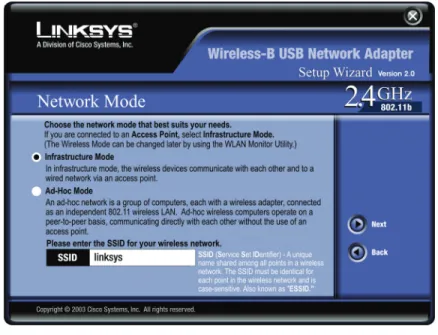
3. The Setup Wizard will ask you to choose a network mode. Click the
Infrastructure Moderadio button if you want your wireless computers to network with computers on your wired network using a wireless access point. Click the Ad-Hoc Moderadio button if you want multiple wireless computers to network directly with each other.
In the SSIDfield, enter the SSIDof your wireless network. The SSID must be identical for all devices in the network. The default setting is linksys (all lowercase). Click the Nextbutton.
Figure 4-3
On the Welcomescreen, you have the following choices:
• Install- Click the Install button to begin the software installation process. • User Guide- Click the User Guidebutton to open the PDF file of this User
Guide.
• Exit- Click the Exitbutton to exit the Setup Wizard.
1. To install the Adapter, click the Installbutton on theWelcomescreen. 2. After reading the License Agreement, click the Nextbutton if you agree, or
click the Cancelbutton to end the installation.
Instructions for Windows 98SE, Me, and 2000
9 8
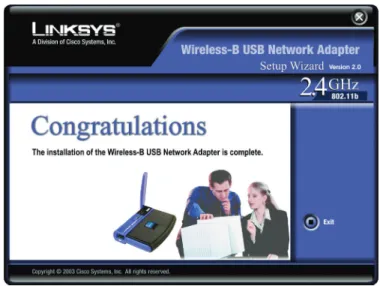
6. After the software has been successfully installed, the screen in Figure 4-6 will appear. Click the Exitbutton.
Proceed to “Chapter 5: Hardware Installation.”
Figure 4-6
4. If you chose Infrastructure Mode,go to Step 5 now. If you chose Ad-Hoc Mode, select the correct operating channel for your network. The channel you choose should match the channel set on the other devices in your wire-less network. Then click the Nextbutton.
5. The Setup Wizard will ask you to review your settings before it starts to copy files. Click the Nextbutton to save these settings, or click the Backbutton to change any settings.
Figure 4-4
11 10
2. The Power LED should light up when the Adapter is plugged in. (Make sure your PC is powered on.)
3. Raise the antenna. Make sure the antenna is positioned straight up into the air, at a 90º angle from the Adapter (see Figure 5-5). This will ensure optimum wireless operating range and performance.
If your PC is running Windows XP, proceed to “Chapter 6: Driver Installation and Configuration for Windows XP.”
If your PC is running Windows 98SE, Me, or 2000, the installation of the Wireless-B USB Network Adapter is complete. If you want to check the
link information, search for available wireless networks, or make addi-tional configuration changes, proceed to “Chapter 7: Using the WLAN
Monitor for Windows 98SE, Me, and 2000.”
The Adapter’s Wall Mount (see Figure 5-6) allows you to easily attach the Adapter onto your wall for better reception and more convenient placement.
Figure 5-4
Chapter 5: Hardware Installation
1. The Adapter comes with the USB cable you will use to connect the Adapter to your PC. (See Figure 5-1.)
Connect one end of the USB cable to the USB port of the Adapter (see Figure 5-2).
Connect the other end of the USB cable to one of the USB ports on your computer (see Figure 5-3).
Important for Windows 98SE, Me, and 2000 users:You must run the Setup Wizard to install the software before installing the hardware.
Important for Windows XP users:You must install the Adapter’s hardware before installing the software.
Figure 5-1
Figure 5-2
Figure 5-3
Figure 5-5
Using the Adapter’s Wall Mount Connecting the Adapter
Note:If you want to attach the Adapter onto your wall, go to the next section, “Using the Adapter’s Wall Mount,” before proceeding to the appropriate chapter for your PC’s operating system.
Wireless-B USB Network Adapter
STEP C
3. Using the velcro strip on the Adapter’s Wall Mount, attach the Adapter to the velcro strip on your wall.
If your PC is running Windows XP, proceed to “Chapter 6: Driver Installation and Configuration for Windows XP.”
If your PC is running Windows 98SE, Me, or 2000, the installation of the Wireless-B USB Network Adapter is complete. If you want to check the
link information, search for available wireless networks, or make addi-tional configuration changes, proceed to “Chapter 7: Using the WLAN
Monitor for Windows 98SE, Me, and 2000.”
13
1. Attach the separate adhesive strip of vel-cro to the wall where you will be mount-ing the Adapter.
2. To attach the Wall Mount to the Adapter, slide the Wall Mount into the grooves on the back panel of the Adapter, as shown in Steps A, B, and C.
STEP A
STEP B
12
Figure 5-6
Figure 5-7
Figure 5-8