PROGRESS
D
ATABASE
ON
W
INDOWS
NT S
ERVER
78-0357 MFG/PRO Version 9.0 Printed in the U.S.A. March 1999
QAD Inc. The information contained in this document is subject to change without notice. QAD Inc. provides this material as is and makes no warranty of any kind, expressed or implied, including, but not limited to, the implied warranties of merchantability and fitness for a particular purpose. QAD Inc. shall not be liable for errors contained herein or for incidental or consequential damages (including lost profits) in connection with the furnishing, performance, or use of this material whether based on warranty, contract, or other legal theory.
Some states do not allow the exclusion of implied warranties or the limitation or exclusion of liability for incidental or consequential damages, so the above limitations and exclusion may not be applicable.
MFG/PRO® is a registered trademark of QAD Inc.
PROGRESS® and ProVISION SA® are registered trademarks of Progress Software Corporation.
Oracle® is a registered trademark of Oracle Corporation.
UNIX® is a registered trademark of UNIX System Laboratories, Inc. Novell™ is a trademark of Novell, Inc.
Windows™ is a trademark of Microsoft Corporation.
Windows NT® and MS-DOS® are registered trademarks of Microsoft Corporation. PC/NFS® is a registered trademark of Sun Microsystems, Inc.
PathWay® is a registered trademark of Wollongong Corp. Copyright © 1999 by QAD Inc.
78-0357 QAD Inc. 6450 Via Real Carpinteria, California 93013 Phone (805) 684-6614 Fax (805) 684-1890
P
REFACE. . . 1
Using This Guide . . . 2
Audience . . . 2
Installation Errata . . . 2
Release Bulletin . . . 2
QAD Web Site . . . 3
Other MFG/PRO Version 9.0 Documentation . . . 3
Document Conventions . . . 3
QAD’s Global Technical Services . . . 4
C
HAPTER1
I
NSTALLATIONO
VERVIEW. . . 5
Installation and Conversion Summary . . . 6
Preinstallation . . . 6
Database Server Setup . . . 6
Loading Client Media . . . 6
Windows GUI and Character Client PC Setup . . . 7
Existing Database Conversion (optional) . . . 7
Loading Service Pack Media . . . 8
Multiple Language Installation Overview . . . 9
Client/Server Environment . . . 10
MFG/UTIL and MFG/CONV . . . 11
MFG/PRO Databases . . . 12
Database Sets . . . 13
User License Overview . . . 15
User Licensing System . . . 15
User Licensing Programs . . . 16
Named and Concurrent User Licensing . . . 16
Online Help Options . . . 17
C
HAPTER2
S
YSTEMR
EQUIREMENTSANDS
IZING. . . 19
Minimum System Requirements . . . 20
Database Server Hardware–Minimum Requirements . . . 20
Database Server Software . . . 20
File Server . . . 21
Windows GUI Client Hardware—Minimum Requirements . . . 21
Windows GUI Client Software . . . 22
Windows Character Client Hardware–Minimum Requirements . . . 22
Windows Character Client Software . . . 22
Network . . . 23
Sizing of Hardware and Databases . . . 23
Disk Space Requirements . . . 23
Memory Size Formula . . . 24
Database Size . . . 24
Disk Layout . . . 25
CPU/Server and Client Sizing . . . 26
Network Design and Optimization . . . 26
C
HAPTER3
D
ATABASES
ERVERS
ETUP. . . 29
Installation Assumptions . . . 30
Optimizing Windows NT Server . . . 30
Loading Media and Setting Up the Database Server . . . 32
Configure Server Database Sets . . . 36
Loading Service Pack Media . . . 44
Modifying Hosts and Services Files . . . 44
Modify the Hosts File on the Server . . . 45
Modify the Services File on the Server . . . 45
Performing Additional Optimization . . . 46
C
HAPTER4
L
OADINGC
LIENTM
EDIA. . . 47
Loading Windows GUI Client Files on a File Server . . . 48
Loading Windows Character Client Files on a File Server . . . 52
Loading Service Pack Client Media . . . 55
C
HAPTER5
W
INDOWSGUI
ANDC
HARACTERC
LIENTS
ETUP. . . 57
Configuring Windows GUI or Character Clients . . . 58
Setup Prerequisites . . . 58
Client Setup . . . 59
If Files Are Missing . . . 69
Starting and Registering MFG/PRO . . . 70
Registering the License . . . 71
Using Express Setup for Client PCs . . . 72
Changing a Client’s PROPATH After Setup . . . 73
Additional Windows Character Client Setup . . . 74
C
HAPTER6
M
ULTIPLEL
ANGUAGES
ETUP. . . 75
Multiple Language Assumptions . . . 76
Loading an Additional Language on the Database Server . . . 76
Loading an Additional Language for Windows Clients . . . 78
Windows GUI and Character Client Setup . . . 78
Updating Translated System Data . . . 79
Loading Menus and Messages . . . 79
Loading Translated Online Help . . . 80
Loading for Other Databases . . . 80
Replacing the GUI Database . . . 81
Adding a Compile Database Set . . . 82
Setting Up Users and Testing the Language Installation . . . 84
Language Test . . . 84
C
HAPTER7
A
DDITIONALS
ETUP. . . 85
Managing MFG/PRO with MFG/UTIL . . . 86
Using MFG/UTIL to Set Up Training Databases . . . 87
Using MFG/UTIL to Compile . . . 91
Loading the Source Code Cross-Reference (Optional) . . . 94
Batch Processes with PROGRESS Prowin32 Batch Client . . . 94
Overview . . . 94
Editing the Batch Program and Input Control File . . . 95
Copying and Editing the progress.ini File . . . 96
Modifying the batch.pf File . . . 97
Creating Unique Batch Directories . . . 98
Defining Batch IDs for MRP and Hotbatch . . . 99
Submitting Batch Jobs in MFG/PRO . . . 101
Scheduling Batch Jobs in Windows NT . . . 102
C
HAPTER8
C
ONVERTANE
XISTINGD
ATABASE. . . 107
Conversion Overview . . . 108
Source and Target Database Conversions . . . 109
Features Introduced in Version 8.5 . . . 109
Features Introduced in Version 8.6 . . . 110
Features Introduced in Version 9.0 . . . 110
Choose a Full or Incremental Conversion . . . 110
Conversion Prerequisites . . . 111
Dump Files . . . 112
1: Preparing Source Version Data . . . 112
To Prepare Service/Support Management (SSM) . . . 113
To Prepare Global Shipping . . . 113
To Prepare Product Change Control . . . 114
To Prepare for Euro Data Conversion . . . 114
To Prepare for Specialized Conversions . . . 114
2: Preparing Reports for Data Verification . . . 115
3: Preserving Custom Default Data . . . 116
Menus and Messages . . . 116
Dump Custom MFG/PRO for Windows Settings . . . 117
4: Starting MFG/CONV and Answering Prompts . . . 118
Starting MFG/CONV . . . 118
Answering Prompts . . . 120
5: Running Source Version Reports . . . 126
Custom Menus and Messages Reports . . . 126
Field Service Reports . . . 127
6: Performing a Full Conversion Dump and Load . . . 129
Preparation for Full Conversion . . . 130
Data Dump . . . 131
Bulkload and Index Rebuild for Full Conversion . . . 131
7: Performing an Incremental Conversion Dump and Load . . . 133
Preparation for Incremental Conversion . . . 133
Update Production Database Schema . . . 135
Bulkload and Index Rebuild for Incremental Conversion . . . 137
8: Preparing Data in the Target Version . . . 139
Co-products/By-products Preparation . . . 139
Service/Support Management (SSM) Preparation . . . 139
Currency Dependent Rounding (CDR) Preparation . . . 140
Global Shipping Preparation . . . 141
9: Running Target Version Conversions . . . 141
Revise and Launch Target Database Startup . . . 141
Revise and Launch MFG/CONV Start Up . . . 142
10: Performing Post-Conversion Steps . . . 146
Loading Service Pack Media . . . 146
MRP to Repetitive Approval . . . 147
ISO 8601 Utilities . . . 148
If You Performed Global Shipping Conversion . . . 149
If You Performed SSM Conversion . . . 150
If You Performed Sales Order Pricing Conversion . . . 152
If You Performed Product Change Control (PCC) Conversion . . . 152
If You Performed Euro Data Conversion . . . 153
If You Performed Corporate Commodity Codes Conversion . . . 153
If You Performed Supplier Performance Conversion . . . 153
Window Printer Type . . . 154
11: Restoring Custom Default Data . . . 154
Custom Menus and Messages . . . 154
Custom Online Help . . . 154
MFG/PRO for Windows Custom Data . . . 155
12: Converting GL Report Writer and Intrastat . . . 157
13: Converting Operations Planning . . . 160
C
HAPTER9
C
ONVERSIONP
ROGRAMR
EFERENCE. . . 161
Conversion Program Overview . . . 162
Compliance . . . 163
Purpose . . . 163
Outcome . . . 163
New Database Elements . . . 163
Co-products/By-products . . . 164
Purpose . . . 164
Outcome . . . 164
New Database Elements . . . 164
Sales Order Pricing: Price List Conversion . . . 165
Purpose . . . 165
Outcome . . . 165
New Database Elements . . . 166
Sales Order Pricing: Price List History Conversion . . . 166
Purpose . . . 166
Outcome . . . 166
Service/Support Management (SSM) . . . 167
Purpose . . . 167
Outcome . . . 167
Currency Dependent Rounding (CDR) . . . 168
Purpose . . . 168
Program Operations Summary . . . 168
Externally Reported Records . . . 169
Non-Base Currency Accounts . . . 171
Evaluated Receipts Settlement (ERS) Conversion . . . 172 Purpose . . . 172 Program Operations . . . 172 Conversion Prompt . . . 173 Global Shipping . . . 173 Purpose . . . 173 Outcome . . . 173
Global Tax Management Conversion . . . 175
Purpose . . . 175
Outcome . . . 175
Product Change Control (PCC) Conversion . . . 177
Purpose . . . 177
Outcome . . . 177
Euro Data Conversion . . . 179
Purpose . . . 180
Outcome . . . 180
New Database Elements . . . 181
Corporate Commodity Codes . . . 183
Purpose . . . 183
Outcome . . . 183
New Database Elements . . . 183
Supplier Performance Conversion . . . 183
Purpose . . . 183
Outcome . . . 184
New Database Elements . . . 184
Logistics Data Conversion . . . 185
Purpose . . . 185
Outcome . . . 185
New Database Elements . . . 185
ECommerce Data Conversion . . . 186
Purpose . . . 186
C
HAPTER10 I
NSTALLATIONR
EFERENCE. . . 187
Adding MFG/PRO Modules . . . 188
Editing Data Definitions for Schema Update . . . 189
Converting a Database’s PROGRESS Version . . . 190
Command Line Bulkload and Index Rebuild . . . 191
Bulkload for Full Conversion . . . 192
Index Rebuild for Full Conversion . . . 194
Bulkload for Incremental Conversion . . . 195
Index Rebuild for Incremental Conversion . . . 196
C
HAPTER11 PROGRESS P
ROC
ONTROLU
TILITY. . . 197
ProControl Overview . . . 198
Example Database Setup Using ProControl . . . 199
Set Up First Database . . . 201
Set Up Other Databases and Global Variables . . . 204
Start and Stop Databases . . . 206
ProControl Event Logging . . . 207
Other Capabilities . . . 207
G
LOSSARY. . . 209
Using This Guide 2 Document Conventions 3
Using This Guide
Use this guide to install MFG/PRO for Windows NT® Version 9.0 on Intel-based and Digital Alpha®Windows NT systems.
The instructions in this guide include how to:
• Install the server software for MFG/PRO Version 9.0
• Install Windows GUI and character clients for MFG/PRO Version 9.0 • Convert an MFG/PRO Version 7.4, 8.5, or 8.6 production database to
MFG/PRO Version 9.0
Audience
These instructions are for the MFG/PRO system administrator who manages the MFG/PRO database and is familiar with Microsoft Windows NT, networking, and PROGRESS® software.
Installation Errata
In addition to these instructions, you may receive a supplementary errata sheet with changes and additional instructions. Check your product package.
Release Bulletin
In conjunction with these instructions, see the MFG/PRO 9.0 Release
Bulletin for additional utilities required for the modules you use. These
utilities, which are related to a particular programming patch (ECO), correct possible corruptions in your data.
QAD Web Site
For QAD customers with a Web account, MFG/PRO documentation is available for review or downloading at:
http://support.qad.com/documentation/ To obtain a QAD Web account, go to:
http://support.qad.com/
Other MFG/PRO Version 9.0 Documentation
• For an overview of new features and software updates, see the
Release Bulletin.
• For instructions on navigating the MFG/PRO environment, see the
User Interface Guide.
• For information on the entire system, see the User Guides. • For technical details, see the File Relationships and Database
Definitions.
• For system administration information, see the System Administration
Reference Guide.
• To view documents online in PDF format, see the Documents on CD.
Document Conventions
This document uses the conventions listed in the following table. If you see: It means:
monospaced text
A command or file name.
italicized monospaced text
Italicized monospaced text indicates a variable name for a value you enter as part of an operating system command. For example, YourCDROMDir.
indented command line
A long command that you enter as one line (although it appears in the text as two lines).
QAD’s Global Technical Services
MFG/PRO installations have a wide variety of configuration possibilities, are highly scalable, and are easily customized. While this guide provides basic installation and conversion information, it cannot consider every possible MFG/PRO computing environment or configuration.
To take full advantage of MFG/PRO’s flexibility and potential in your specific environment, contact your QAD support representative for information on the installation and customization offerings supplied by QAD’s Global Technical Services. These offerings include performance enhancements—such as multiple-volume and split-schema databases—as well as technical and administration training and support for MFG/PRO conversions.
Installation Overview
This product is defined as MFG/PRO running against a PROGRESS database installed on an Intel or Digital Alpha machine running Windows NT. This chapter presents basic concepts that you should understand when completing the installation.Installation and Conversion Summary 6 Multiple Language Installation Overview 9 Client/Server Environment 10
MFG/UTIL and MFG/CONV 11 MFG/PRO Databases 12 Database Sets 13
MFG/PRO and PROGRESS Directories 14 User License Overview 15
Installation and Conversion Summary
The basic MFG/PRO installation consists of the following major tasks.
Preinstallation
• Install PROGRESS for the database server and client PCs. • Set up the network.
Database Server Setup
• Optimize the Windows NT server.
• Run the installation program to load database server media, including Windows character client programs, and create database start-up icons.
ÏSee “Loading Service Pack Media” on page 8.
• Install the Service Pack Server media onto the server, if applicable. • Set up HOSTS and SERVICES files.
Loading Client Media
Because MFG/PRO Version 9.0 is a client/server product, you perform installations on both the database server and client machines. Installation of client machines typically involves loading MFG/PRO programs to a network file server machine. You can install two types of clients:
• Windows character clients with a character user interface (CHUI) • Windows GUI clients with a graphical user interface (GUI)
Note The MFG/PRO code used for Windows character clients is the
same code used to run batch processes. Therefore, it is automatically installed along with the database server files.
The following major tasks are required to load client media. For Windows GUI clients:
• Load the Windows GUI client media onto a file server.
• Load the Service Pack Windows Client media onto the file server, if applicable.
For Windows character clients:
• Optionally, load the Windows character client media onto a file server.
• Load the Service Pack Server media onto the file server, if applicable.
Note Because Windows character client code is the same code used to run batch processes, it is contained on the Service Pack Server media.
Windows GUI and Character Client PC Setup
• Set up the needed files and start-up icons on the first PC. • Set up all other PCs; you can use the express setup feature.
Existing Database Conversion (optional)
Conversions are possible from MFG/PRO Versions 7.4 through 8.6 to MFG/PRO Version 9.0. If you are converting to MFG/PRO 9.0, read the prerequisites in Chapter 8, “Convert an Existing Database,” on page 107
before you begin the MFG/PRO installation. The prerequisites explain
differences in the way you should install MFG/PRO 9.0 depending upon the conversion you are performing.
Loading Service Pack Media
ÏSee the Service Pack installation instructions in your product package for specific proce-dures.
Service Packs contain MFG/PRO product updates issued between releases. Service Packs include important patches, code updates, system administration tools, drivers, and additional components. Service Packs offer a distinct advantage over the single-patch delivery mechanism by bundling a carefully controlled group of fixes and updates in an easily installed and well-documented package.
Service Packs are not offered for every release of MFG/PRO. If your product package does not contain Service Pack media, your release does not currently have a Service Pack.
If you are performing a new installation, the following major tasks are required to load Service Pack media.
• Load the Service Pack Server media onto your MFG/PRO database server after installing and configuring your MFG/PRO databases. • Load the Service Pack Windows Client media onto each Windows
client or onto your network file server, depending upon your MFG/PRO configuration.
• If you have MFG/PRO Windows character clients, load the Service Pack Server media, which contains the updates and fixes for Windows character clients, onto each client or onto a network file server, depending upon your MFG/PRO configuration.
If you are performing a conversion or upgrade to an MFG/PRO release with a Service Pack, the following major tasks are required to load Service Pack media.
• Load the Service Pack media onto your MFG/PRO database server after completing your conversion or upgrade.
• Load the Service Pack Windows Client media onto each Windows client or onto your network file server, depending upon your MFG/PRO configuration.
• If you have MFG/PRO Windows character clients, load the Service Pack Server media, which contains the updates and fixes for Windows character clients, onto each client or onto a network file server, depending upon your MFG/PRO configuration.
Multiple Language Installation Overview
ÏFor instructions, see “Multiple Language Setup” on page 75.
To install multiple languages, repeat the following installation tasks for each language.
• Load the MFG/PRO NT server CD-ROM on the database server. • Load the Windows client CD-ROM on the file server.
• Load translated system data and online help.
• Create a set of language-specific databases for use in compiling. Another factor in multi-language environments is the language codepage, which controls how PROGRESS stores and retrieves data. A codepage applies to one or more languages; for example, codepage ibm850 applies to all western European languages. Because data storage and retrieval must use a single codepage, the languages in a multi-language
environment must be in the same codepage family. The correct codepage for data storage and retrieval is assigned during installation.
Note If you use the European Monetary Union’s currency, the euro, your choice of codepage may change.
MFG/PRO Language Codes
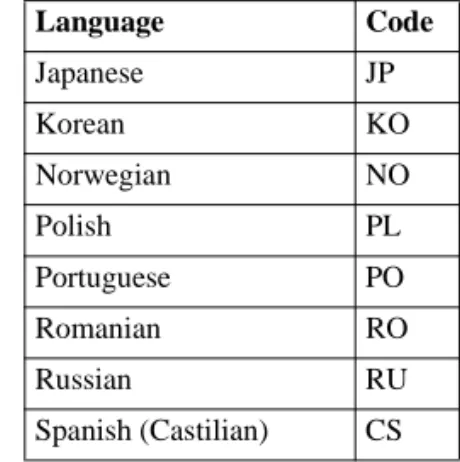
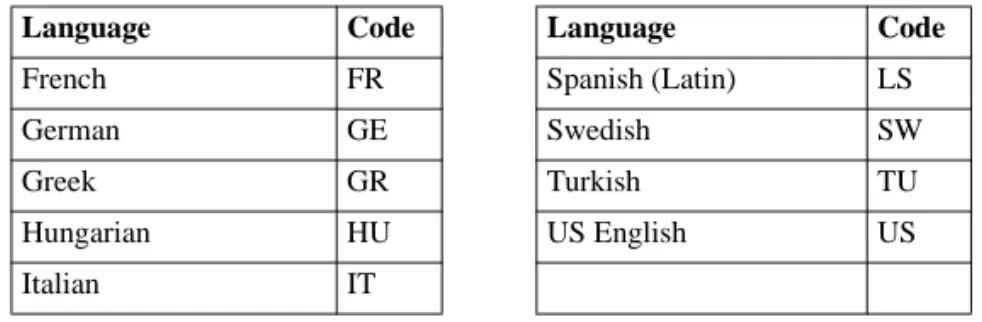
During installation and user setup, you use an MFG/PRO language code to specify which language you are installing. Table 1.1 lists all of the MFG/PRO language codes. (Some languages may not be available for this release.) The language code also appears on the label of your product media.
Table 1.1
MFG/PRO Language Codes
Language Code Language Code
Arabic AR Japanese JP
Bulgarian BU Korean KO
Chinese (Traditional) TW Norwegian NO
Chinese (Simplified) CH Polish PL
Czech CZ Portuguese PO
Danish DA Romanian RO
Dutch DU Russian RU
How Language Sessions Operate
After installation, you assign a language code to each user to determine which language they use. Based on the language code, the user connects to a language-specific set of programs and accesses language-specific system data including menus, messages, and help.
Client/Server Environment
A client/server installation is mandatory for running MFG/PRO for Windows NT. The clients are personal computers (PCs) that run MFG/PRO software programs locally. The database server is an Intel-based or Digital Alpha system running Microsoft Windows NT and the PROGRESS relational database management system (RDBMS). The database server is connected to the client PCs and file server using a network.
Note The client programs can be Windows-based or character-based. Character-based clients require the PROGRESS Win32 Intel-Character Client software.
QAD recommends using a network file server to store programs because it alleviates storing programs on each PC. This enables you to update programs at a central location instead of updating each PC. Although the file server and database server can be the same machine, performance is better with the file server as a separate machine.
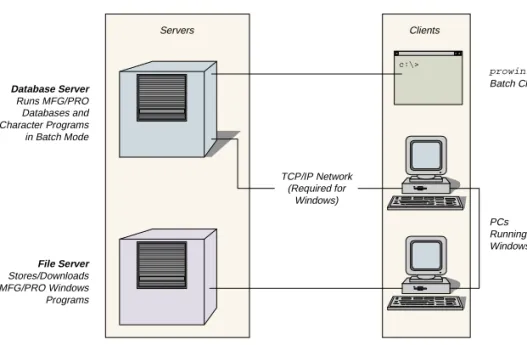
Figure 1.1 shows a sample network configuration for an MFG/PRO for Windows NT Version 9.0 client/server environment.
French FR Spanish (Latin) LS
German GE Swedish SW
Greek GR Turkish TU
Hungarian HU US English US
Italian IT
Fig. 1.1
Windows NT Client/Server Network Configuration
Warning Do not use an MFG/PRO for Windows client to run MRP,
batch reports, and other large processes. This places extra demand on network communications and degrades system performance. Instead, use a batch mode client on the database server.
MFG/UTIL
and MFG/CONV
MFG/PRO Version 9.0 has two programs to control the installation and conversion. These programs are MFG/UTIL and MFG/CONV.
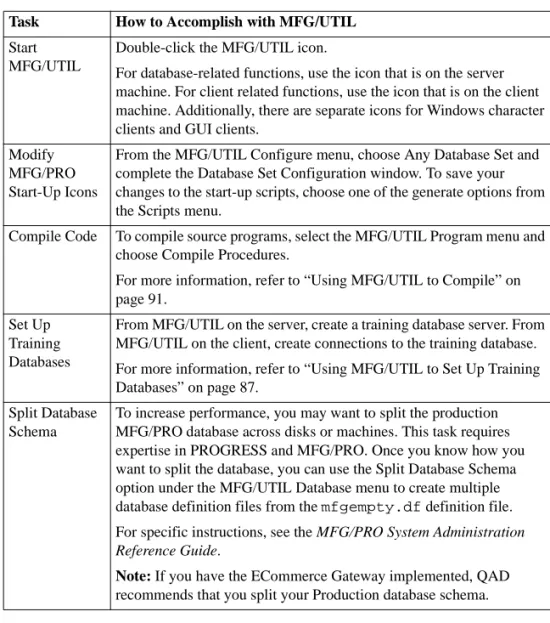
MFG/UTIL is the installation and system management tool for MFG/PRO, which performs most of the server and client installation processes. It is loaded on your server during installation. There is also a Windows version of MFG/UTIL loaded when you set up each client PC. With the MFG/UTIL system management tools, you can compile programs, create dump and load procedures, update schemas, and create start-up and shutdown icons for databases and clients.
MFG/CONV is the conversion program for MFG/PRO that is installed on your database server during installation. For more information, see “Convert an Existing Database” on page 107.
prowin32 Batch Client PCs Running Windows Servers Clients Database Server Runs MFG/PRO Databases and Character Programs in Batch Mode File Server Stores/Downloads MFG/PRO Windows Programs TCP/IP Network (Required for Windows) c:\>
MFG/UTIL Log Files
MFG/UTIL logs the progress, results, and any errors encountered for most operations. These logs are displayed on the screen as the functions are progressing. They are also saved in an ASCII text file for later examination. Each time MFG/UTIL runs a prolonged task such as compiling or loading a .df file, it creates a new log file.
The most recent log file is always called mfgutil.log. Older log files are named with the convention mfgulog.xxx, where xxx is a number from 001 through 999. The lower the number, the older the file. For example, these files are listed newest to oldest:
mfgutil.log mfgulog.002 mfgulog.001
MFG/UTIL does not delete or purge any log files. If you want to delete any older log files, use standard operating system commands.
MFG/PRO Databases
The installation loads the following pre-built databases. Several of the databases come in pairs: an empty version that contains only the schema and a full version that contains default data in addition to the schema.
Table 1.2
Databases Created
During Installation Databases Notes
mfgempty and mfg The mfgempty database consists of only the MFG/PRO schema with no system data. The mfg database is a copy of mfgempty, to which data from the mfg directory has been loaded. This data includes the default menus, messages, and minimum data required to start MFG/PRO. The mfg database is copied to make your production database.
hlpempty and mfghelp A single help database is usually shared by a number of production or test databases. The mfghelp database is a copy of hlpempty with help data added to it.
guiempty and gui The gui database includes the data needed to run MFG/PRO for Windows and all object programs. It is therefore required for character clients. The gui database is a copy of guiempty with data from the gui directory added to it.
Database Sets
One of the functions of MFG/UTIL is to configure start-up parameters using the concept of database sets. A database set defines the connection parameters for a group of databases. To run MFG/PRO, a database set must contain at least the following.
• Production, demonstration, or training database • Help database
• Gui database
• Configurator database if you want to use the Component Configurator module
Optionally, you can also include custom side databases.
You can set up different database sets for different purposes. For example, in a Production set, you can connect to your production database, a help database, and a gui database. In a training database set, you can connect to a training database and the same help and gui databases used in the Production set.
MFG/UTIL uses the database set information to create server andclient start-up icons. It also creates a Windows initialization file (for example, progress.svg) and a start-up parameter file (for example,
producti.pf). The parameter file contains the required connection parameters for your databases.
cfempty and cfg The cfg (Configurator) database stores the data from the Component Configurator maintenance programs. This module enables you to customize MFG/PRO object programs. The cfg database is a copy of cfempty with data from the cfg directory added to it.
mfgtrain A copy of mfgempty, to which data from the mfgtrain directory has been loaded.
mfgdemo A copy of mfgempty, to which data from the mfgdemo directory has been loaded.
tritrain A copy of mfgempty, to which data from the tritrain directory has been loaded.
MFG/PRO and PROGRESS Directories
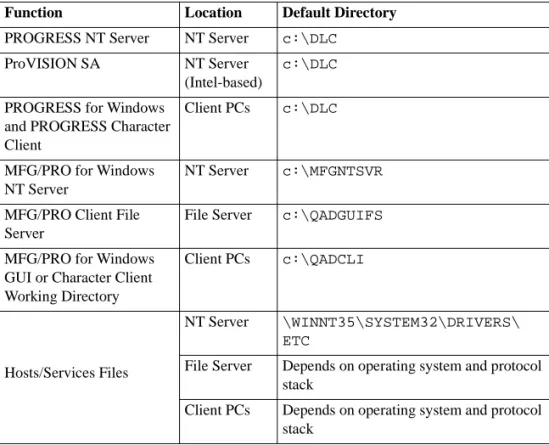
The following table lists the default directory names for various MFG/PRO and PROGRESS components.
If you use the Windows NT file system (NTFS) and compression, all of the files will fit on one 2GB disk drive. However, for optimum
performance, spread your files and databases across multiple disk drives.
Table 1.3
MFG/PRO and PROGRESS Directories
Function Location Default Directory
PROGRESS NT Server NT Server c:\DLC
ProVISION SA NT Server
(Intel-based)
c:\DLC
PROGRESS for Windows and PROGRESS Character Client
Client PCs c:\DLC
MFG/PRO for Windows NT Server
NT Server c:\MFGNTSVR
MFG/PRO Client File Server
File Server c:\QADGUIFS
MFG/PRO for Windows GUI or Character Client Working Directory
Client PCs c:\QADCLI
Hosts/Services Files
NT Server \WINNT35\SYSTEM32\DRIVERS\
ETC
File Server Depends on operating system and protocol stack
Client PCs Depends on operating system and protocol stack
User License Overview
MFG/PRO user licensing tracks user counts and alerts QAD customers to license violations. Additionally, user licensing alerts customers to the expiration of MFG/PRO evaluation software.
License utilities do not currently restrict the total number of users that can log into MFG/PRO. This means that a user is not prevented from logging in when the total number of licensed users is exceeded. User counts are tracked according to the two licensing schemes QAD currently sells: concurrent and named users.
Note The user license utility applies only to MFG/PRO modules licensed by user count. For example, it does not apply to the EDI module.
User Licensing System
When QAD ships an order, a license code is supplied for each site. This license code, which is comprised of several numbers, identifies to MFG/PRO the number of users for which the site is licensed.
When the software is first installed, the first user logging into MFG/PRO (typically, the system administrator) is prompted to enter the supplied license code.
When a user logs in and the number of logged in users exceeds licensed users, two error messages display. The user must press OK or Enter to exit each message.
When a user logs in within 10 days of evaluation software’s expiration date, a warning displays. After expiration, no users can log in and the customer must contact their distributor or QAD for a renewal or temporary license code.
User Licensing Programs
The programs related to user licensing are on the Database Management Menu (36.16). They are:
• License Registration (36.16.10): program to modify the license code • License Violation Report (36.16.11): a report showing system logins
that violate the user license count
• User Inquiry (36.16.12): a browse to monitor the activity of users
Named and Concurrent User Licensing
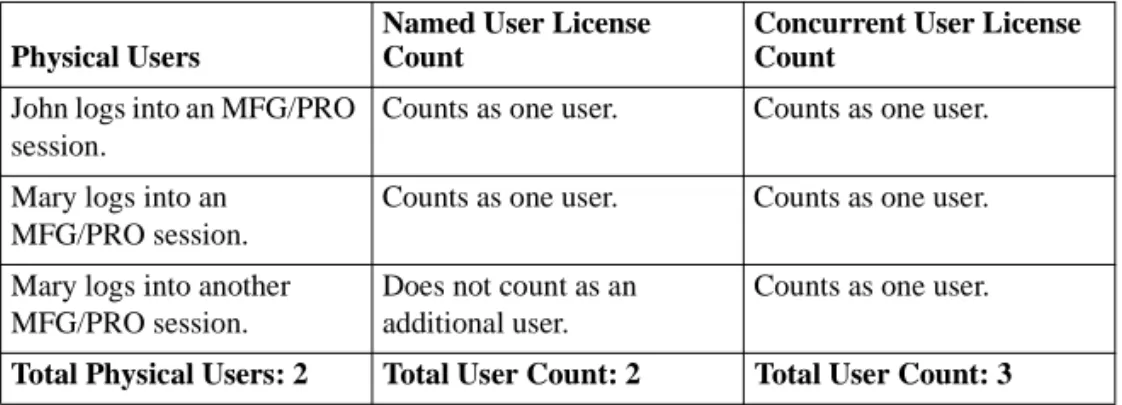
The user count is calculated differently depending on whether you purchased concurrent or named user licensing. In concurrent user licensing, each concurrent login to MFG/PRO is counted as a concurrent user. If a single user logs into multiple MFG/PRO sessions
simultaneously, each login is counted separately. In named user licensing, each physical user logging into MFG/PRO is counted as one user, regardless of how many simultaneous sessions they have.
Table 1.4 is an example of QAD licensing schemes.
Table 1.4
Licensing Schemes
Physical Users
Named User License Count
Concurrent User License Count
John logs into an MFG/PRO session.
Counts as one user. Counts as one user. Mary logs into an
MFG/PRO session.
Counts as one user. Counts as one user. Mary logs into another
MFG/PRO session.
Does not count as an additional user.
Counts as one user.
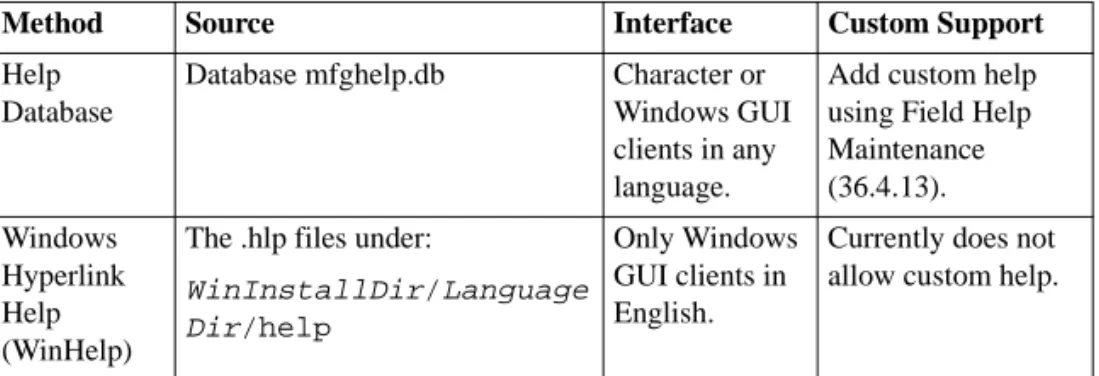
Online Help Options
During installation and implementation, keep in mind the two
mechanisms for displaying MFG/PRO online help: the help database and Windows hyperlink files (WinHelp). Although the display methods differ, the help content is the same.
Table 1.5
Comparison of Online Help Methods
You can control which type of help displays for each user through User Interface Profile (36.20.4).
Do not confuse a similar maintenance program, Window Help
Maintenance (36.4.21), with the Windows hyperlink help. Window Help Maintenance controls a look-up feature called scrolling windows and does not affect the Windows hyperlink help.
Method Source Interface Custom Support
Help Database
Database mfghelp.db Character or
Windows GUI clients in any language.
Add custom help using Field Help Maintenance (36.4.13). Windows Hyperlink Help (WinHelp)
The .hlp files under:
WinInstallDir/Language Dir/help
Only Windows GUI clients in English.
Currently does not allow custom help.
System Requirements
and Sizing
Minimum System Requirements 20 Sizing of Hardware and Databases 23 Network Design and Optimization 26
Minimum System Requirements
The following are the recommended minimum configurations for MFG/PRO Version 9.0 for Windows NT.
Database Server Hardware–Minimum Requirements
• Must run Microsoft Windows NT Server Version 4.0.
• Must be at least P6 Intel Pentium Pro or Digital AlphaServer 300 (or larger) machine with 128MB (or larger) RAM. If Intel-based, it should be SMP-capable with at least one 200MHz processor. Two processors are recommended if you plan to run concurrent batch processing.
• At least one 4.0GB drive and three 2.0GB drives (see also “Disk Layout” on page 25).
• At least two disk controller channels. • ISO9660 CD-ROM drive.
• 32-bit Windows NT-supported network card.
• It is also highly recommended to configure the server with a 4mm DAT tape drive for database backups.
• Should be directly connected to a high-speed network backbone.
Database Server Software
Note Listed here are PROGRESS version numbers only. Contact your
PROGRESS or MFG/PRO sales representative for the specific lettered release best suited to your hardware.
• Microsoft Windows NT Server Version 4.0 is required. • PROGRESS Version 8.3 Enterprise Database Server for
Windows NT, licensed for the appropriate number of users. There is a version for Intel-based servers and a different version for Digital Alpha-based NT servers.
• PROGRESS Version 8.3 ProVISION or 4GL for MS-Windows, single-user license. ProVISION or 4GL is required to run
conversions, the MFG/UTIL compile option, and other MFG/UTIL options.
These products are not yet available on the DEC Alpha. If you have a DEC Alpha, install ProVISION or 4GL on an Intel-based machine instead and perform administration over the network.
• One copy of PROGRESS Network client installed in the ProVISION directory to enable you to connect to NT databases.
• MFG/PRO Version 9.0 server media.
• Additional Recommendation: Windows NT Resource Kit is strongly recommended. The resource kit provides additional tools for
managing the Windows NT environment.
File Server
ÏFor PROGRESS network setup details, see the PROGRESS installation instructions.
The software used by Windows GUI clients can be installed either on each client PC for best performance or on a shared network drive for easier maintenance. If you use a network file server, the recommended network operating system is Microsoft Windows NT. Keep in mind that PROGRESS requires additional steps for network setup.
Windows GUI Client Hardware—Minimum Requirements
The recommended configuration for the client workstation is: • 166MHz (or faster) Intel Pentium processor
• RAM: 64MB • Super VGA video • 32-bit network card
Windows GUI Client Software
ÏFor details, see “File Server” on page 21.
This software can be installed on each client PC or a shared network drive (file server).
Note Listed here are PROGRESS version numbers only. Contact your
PROGRESS or MFG/PRO sales representative for the specific lettered release best suited to your hardware.
• Microsoft NT Workstation, Windows 95 or 98. • PROGRESS Query Version 8.3.
• PROGRESS Client Networking Version 8.3.
• MFG/PRO Version 9.0 Windows media. The Windows software must correspond to the same release of the server software.
Windows Character Client Hardware–Minimum
Requirements
• 90MHz (or faster) Intel Pentium processor.
• RAM: 16MB for Windows 95 or 32MB for Windows NT Workstation or Windows 98.
• Super VGA video. • 32-bit network card.
Windows Character Client Software
ÏFor details, see “File Server” on page 21.
This software can be installed on each client PC or a shared network drive (file server).
Note Listed here are PROGRESS version numbers only. Contact your
PROGRESS or MFG/PRO sales representative for the specific lettered release best suited to your hardware.
• Microsoft NT Workstation, Windows 95 or 98.
• PROGRESS Query Version 8.3.
• PROGRESS Client Networking Version 8.3.
• MFG/PRO Version 9.0 character media, shipped on the MFG/PRO for Windows NT Server CD-ROM.
Network
• Software: The network should be a WINSOCK-compliant 1.1 TCP/IP protocol stack, such as MS TCP/IP or PC-TCP from FTP software. • Topology: 10Mbit Ethernet or 16Mbit token ring network or faster. The network should be a high-speed backbone with the client PCs attached via switched shared media segments.
Sizing of Hardware and Databases
In considering system sizing for the MFG/PRO server, the key areas are: • Disk space requirements
• Memory size formula • Database size • Disk layout • Server CPU sizing
Disk Space Requirements
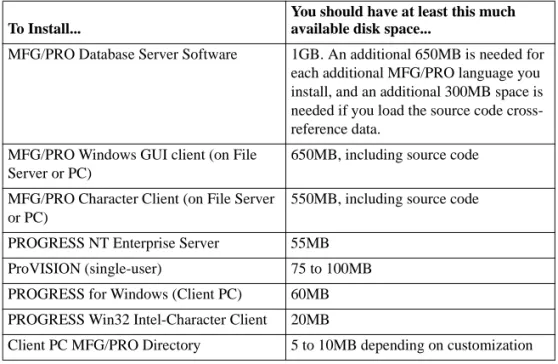
Disk space requirements change as your production databases grow or as you reconfigure your system for performance. If you are unsure of the actual disk space required, always overestimate the amount needed for installation. Use Table 2.1 as a guideline for the initial installation. These estimates are based on the Windows NT (NTFS) disk format. If you use the file allocation table (FAT) disk format, you will need more disk space; however, a FAT disk format is not recommended for the database server or file server.
Table 2.1
Disk Space Requirements
Memory Size Formula
The memory size formula is:
[(6 x Number_of_Concurrent_Users) + 32 + (Number_DBs x 48)] x 1.2 = MB
Here is an example with 50 users and 2 production databases:
[(6 x 50) + 32 + (2 x 48)] x 1.2 = 519.4MB
Database Size
For a site with 50 users, the database can be up to 1000MB (1 gigabyte). This estimate is based on the following assumptions:
• Most MFG/PRO modules are being used, except Service/Support Management.
• General Ledger (GL) consolidations are done after period closing. • One year of rolling history is kept online. For each additional year of
history to be kept online, increase the database size by 50% of original size identified.
To Install...
You should have at least this much available disk space...
MFG/PRO Database Server Software 1GB. An additional 650MB is needed for each additional MFG/PRO language you install, and an additional 300MB space is needed if you load the source code cross-reference data.
MFG/PRO Windows GUI client (on File Server or PC)
650MB, including source code MFG/PRO Character Client (on File Server
or PC)
550MB, including source code
PROGRESS NT Enterprise Server 55MB
ProVISION (single-user) 75 to 100MB
PROGRESS for Windows (Client PC) 60MB
PROGRESS Win32 Intel-Character Client 20MB
Disk Layout
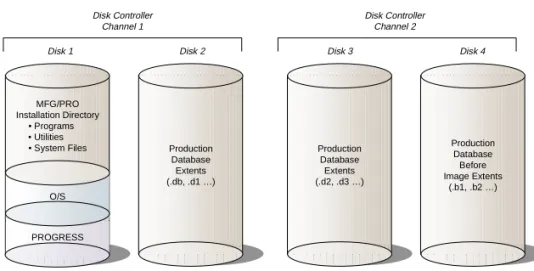
This system should have at least four physical disk drives, minimum 2GB each, and at least two controller channels. For better performance, spread the production database across additional drives.
For an example disk layout, see Figure 2.1.
Fig. 2.1
Example Disk Layout
There should not be more than four disk spindles per disk input/output channel with SCSI or SCSI II drives. Fast and Wide SCSI drives might handle five or six disk spindles.
Mirroring is strongly suggested on all drives except the drive containing the operating system, PROGRESS, and MFG/PRO programs.
Note Although RAID5 offers a cost advantage over mirroring, it does not resolve disk I/O issues caused by write-intensive applications. For this reason, mirroring is preferred over RAID5.
MFG/PRO Installation Directory • Programs • Utilities • System Files O/S PROGRESS Production Database Extents (.db, .d1 …) Production Database Extents (.d2, .d3 …) Production Database Before Image Extents (.b1, .b2 …) Disk Controller Channel 1
Disk 1 Disk 2 Disk 3 Disk 4
Disk Controller Channel 2
Before-Image File Relocation
By default, the installation places the database .bi file in the same directory as the .db file. It is recommended that you relocate the .bi file and modify start-up and shut-down scripts to redirect the system to the proper .bi location. This is done by using the -g parameter, along with the .bi file name and location, on the script execution statement. Perform this relocation after you install, but be aware before you install that your hardware must be prepared and configured for this relocation. While an additional production database can share the disk drive of another, there should be a separate drive for the additional .bi file.
CPU/Server and Client Sizing
CPU sizing varies depending on the installation model, number of users, number of transactions, and so on. For instance, if client/server is the primary model, then approximately 30% less CPU capacity would be required than for the host-based model. Several hardware vendors can make CPU recommendations with their equipment. MFG/PRO and PROGRESS support Symmetric Multiprocessing environments and can use them very effectively for interactive functionality.
Network Design and Optimization
An important key to client/server performance is proper network design and flexibility. When designing the network, pay particular attention to configuration flexibility and utilization measurement capability. Unfortunately, it is difficult to predict what the access patterns or departmental utilization will be. Network performance is a dynamic and evolving target.
The initial network should consist of a high-speed backbone with switched-shared media segments. Initially, you should plan on between 10 and 12 PCs per 10Mbps local-area network (LAN) segment. The usage of each segment should be measured and adjusted as the MFG/PRO users begin to establish their access patterns.
After installation, the network must be constantly measured and adjusted to provide the most appropriate service to each user. For example, you might find that a certain LAN segment is over or under utilized, or you might upgrade a user or group of users from a 10Mbps to a 100Mbps network connection.
There are many ways to design a network to accomplish good
client/server response time. Figure 2.2 illustrates a sample network design capable of supporting both power users and occasional users.
Fig. 2.2
Network Design Example
This sample network configuration is a LAN design. Take additional care if you are planning to have GUI or character mode client/server users log in over a wide-area network (WAN). There are other solutions, such as WinFrame® by Citrix, that can provide acceptable client/server
performance over a WAN. Power Users Occasional Users Intel or Digital Alpha GUI File Server (Optional) 100 Mbps Direct 100 Base-T Hub 100 Mbps Switch or FDDI 100 Base-T Hub Ethernet Intel or Digital Alpha Database Server High Speed Backbone
Database Server
Setup
Use this chapter to load MFG/PRO database server media and set up the necessary databases.ÏSee “Loading Client Media” on page 47.
Note You can simultaneously load Windows client media on a file server while setting up the database server. The Windows client media may take longer than the others, especially if you load MFG/PRO source code.
Installation Assumptions 30 Optimizing Windows NT Server 30
Loading Media and Setting Up the Database Server 32 Loading Service Pack Media 44
Modifying Hosts and Services Files 44 Performing Additional Optimization 46
Installation Assumptions
The installation procedures in this section assume that:
• Microsoft Windows NT Server 4.0 is installed on your server. • TCP/IP is the network protocol.
• The required PROGRESS products are installed on the Windows NT Server: ProVISION, Enterprise DB Server, and Client Networking. • You know the directory name where you will store the MFG/PRO for
Windows NT Version 9.0 product.
The default directory is MFGNTSVR; you should choose a more descriptive name, such as MFGNTSVR90. These instructions refer to this directory as InstallDir.
Before installing MFG/PRO for Windows NT, be sure you know the: • Microsoft Windows NT Computer Name—referred to as the Host
Name during the MFG/PRO installation.
• Directory name where you have installed PROGRESS 8.3 components. The PROGRESS installation default is C:\DLC.
Optimizing Windows NT Server
Use the following steps to configure your server to maximize throughput for network applications. This procedure reserves NT resources for your RDBMS and is recommended for client/server applications.
1 Choose the Control Panel icon from the Start button’s Settings menu. 2 From the Control Panel window, select Network.
3 From the Network window, select the Services tab.
4 Highlight Server in the Network Services list and choose Properties.
5 In the Server window, select Maximize Throughput for Network Applications and make sure that Make Browser Broadcasts to LAN Manager 2.x Clients is not selected. Choose OK.
6 The Network window reappears. Choose Close. Select this check box
only if there is a LAN Manager 2.x server on your network and you want that server to browse shared resources on this computer.
7 At this point, the Network Settings Change window appears. You can restart your server now or wait until later.
Note Your changes do not take effect until you restart the server.
Loading Media and Setting Up the
Database Server
You can start the installation from File Manager, Explorer, or the Start button. The copy process takes between 45 and 90 minutes, depending on your hardware configuration.
1 Insert the MFG/PRO for Windows NT Version 9.0 Server CD-ROM in the CD-ROM drive.
2 Run the install.exe program using File Manager, Explorer, or the Start button.
CD-ROMDriveName:\install.exe
4 From the installation type selection, choose the option MFG_PRO DB and Character File Server.
5 In the following window, choose the components to install by selecting the item and pressing Space Bar. Also specify the destination directory. Choose Next when you are finished.
Destination Directory
You should specify a directory that identifies the MFG/PRO version; for example, C:\MFGNTSRV90. Choose Browse to select an alternate directory.
6 Specify your PROGRESS Windows NT Server directory when the following window appears. Use the Browse button to search for the directory. Choose Next to continue.
7 When the next window appears, specify the directory containing ProVISION. This is the same directory defined in the previous step. Choose Next to continue.
8 At the confirmation window, verify that the installation information is correct. Choose Next to begin installing, or choose Back to make changes.
9 Choose Yes at the following prompt when you are ready.
Configure Server Database Sets
1 After the files are copied, the MFG/UTIL Company Information window appears. Enter at least the Host Name. (This is also called the Microsoft Windows NT Computer Name.)
Note The Host Name is used to start your MFG/PRO for Windows NT
Version 9.0 database servers.
2 Choose OK. The Installation Log Window appears, behind the Physical Database Name window, with ongoing installation status information.
3 In the Physical Database Name window, enter the name of your new production database.
ÏFor details, see Chapter 8, “Convert an Existing Database,” on page 107. Note If you are performing an incremental conversion, you will not need
a new production database because you still maintain your prior database. In this case, enter a “dummy” name. MFG/UTIL creates a new production database with this name; however, you will not use it. After the
installation, you can delete the new production database.
4 Choose OK. The Installation Log Window indicates the successful creation of the new production database.
The following message appears along with the Installation Log Window.
5 Choose OK.
The Database Set Configuration window appears with Demonstration highlighted in the Select a Database Set portion of the window.
Note Because the steps are the same for all four database sets, only the Demonstration database is described in this document. You can use the following steps for Training, Compile, and Production database sets by replacing the information shown in the samples with the appropriate data.
6 If the Active flag in the Select a Database Set part of the Database Set Configuration window is set to Yes, MFG/UTIL will build a server start-up icon for that database set. To change the setting of the Active flag, double-click on the database set name. The Database Sets window displays. Click on the Active field to select Yes or No. Note that these
databases are under a language code directory. Highlight the database set to be modified. Databases within the database set appear here. Do not choose OK until you have finished.
7 Configure the Demonstration database by selecting mfgdemo in the Database Set Configuration window and choosing Edit Server. a At the Database Parameters window, move to the Service field
and enter the service name for the mfgdemo database. Usually, it is the same name as the database—in this case, mfgdemo.
Note Any service names entered during the initial installation are added to the Windows NT services file by MFG/UTIL. You can print the mfgutil log file, located in the root directory, for a list of service names and TCP/IP socket numbers assigned by MFG/UTIL.
8 Configure the Help database by selecting mfghelp in the Database Set Configuration window and choosing Edit Server.
a At the Database Parameters window, move to the Service field and enter the service name for the mfghelp database, usually mfghelp.
9 Configure the gui database by selecting gui in the Database Set Configuration window and choosing Edit Server.
a At the Database Parameters window, move to the Service field and enter the service name for the gui database, usually gui.
10 Set up the Configurator database by selecting cfg in the Database Set Configuration window and choosing Edit Server.
a At the Database Parameters window, move to the Service field and enter the service name for the Configurator database, usually cfg.
b Choose OK.
11 After entering information for all the database sets you are
12 The Installation Log Window appends messages indicating steps completed by the installation program. Choose Close.
13 After MFG/UTIL closes, the following window appears; choose Finish.
14 Examine the MFG/NT Server icon window. It should contain server Startup and Shut Down icons for the database sets.
ÏFor instructions, see “PROGRESS ProControl Utility” on page 197.
Note QAD highly recommends that you run the databases as registered
Windows NT services. You can use the information stored in the server start-up batch files as examples of the parameters to enter in the ProControl configuration options.
Loading Service Pack Media
ÏSee “Loading Service Pack Media” on page 8.
If your release of MFG/PRO has a Service Pack, use the installation instructions provided with the Service Pack Server media to load and update your new MFG/PRO databases.
Modifying Hosts and Services Files
If this is the first installation of MFG/PRO on your Windows NT Server, you must tailor your hosts and services files to enable database connections. MFG/UTIL updated your services file during installation. However, if you add any new services names after installation, you must modify your services file manually.
For TCP/IP client connections, each client PC must have the services file updated to match the service name and port numbers assigned by MFG/UTIL during the installation process. In addition, each client PC must have the server name and TCP/IP address added to its hosts file.
Modify the Hosts File on the Server
Note You do not need to modify the hosts file if you are using DNS or WINS name resolution on your network.
The hosts file can be found in the following sub-directory on the Windows NT Server:
%SystemRoot%:\NTInstallDir\SYSTEM32\DRIVERS\ETC
You must enter the host name specified during the MFG/PRO for Windows NT Version 9.0 installation and the user-assigned IP address. (See your network administrator for IP address assignments.) You must enter your Microsoft Windows NT Computer Name and IP address for each NT Server. The following hosts file example shows
qad_nt_server as the computer name with an IP address of
200.100.100.004. The hosts file information must be updated on each client PC.
Modify the Services File on the Server
MFG/UTIL updated your services file during installation. However, if you add any new services names after installation, you must modify your services file manually. The services file must include all the database services names as specified in the MFG/UTIL database set configuration.
Note The service name must be limited to 16 characters.
The services file is in the same sub-directory as the hosts file. You can use any unused service port numbers. The following table shows example services names and port numbers for the demonstration database set.
IP Address Host Name Comment
127.0.0.1 localhost
200.100.100.001 perf_lab1
200.100.100.004 qad_nt_server # MFG/PRO NT DB Server
Service Name Port No./Protocol Comment
mfghelp 5501/tcp # Help Database
mfgdemo 5511/tcp # Demonstration Database
Note To allow for PROGRESS processing, make sure there are at least five numbers between each port number. The more users you expect to have, the more numbers you should leave open.
Modify the Hosts and Services Files on Client PCs
For each client workstation to be configured, you must edit the hosts and services files. The hosts and services names and TCP/IP addresses and port numbers must match those specified when you installed the MFG/PRO for Windows NT Version 9.0 server.
Performing Additional Optimization
After the installation, you should perform some additional steps to optimize your system performance. The main optimization steps are outlined below.
Note If you are performing a database conversion, follow the conversion instructions before you optimize your system.
1 Set up your production database as a multi-volume database according to the directions in the PROGRESS documentation. This step is optional but highly recommended.
2 If you create a multi-volume database, spread your database extents across multiple disk drives. See “Disk Layout” on page 25 for a recommended configuration.
ÏFor details, see “Before-Image File Relocation” on page 26.
3 Move the before-image (.bi) file of your production database to a separate disk drive.
4 Use MFG/UTIL or ProControl to modify the start-up parameters for your servers. Include the necessary parameters for a multivolume environment, as described in the PROGRESS documentation. For example, you may need the -g parameter if your .bi file is on a separate disk.
Loading Client Media
This chapter explains how to load Windows GUI and Windowscharacter client files on a file server.
Note You should load the client software—either GUI, character, or both—on a file server separate from the database server, especially under heavy client activity.
Loading Windows GUI Client Files on a File Server 48 Loading Windows Character Client Files on a File Server 52 Loading Service Pack Client Media 55
Loading Windows GUI Client Files on a
File Server
Before you install the client files from your CD-ROM, you should: • Know the drive and directory name where you will store the
MFG/PRO for Windows files.
• Log on to your network with write permission for this directory. 1 Insert the MFG/PRO for Windows CD-ROM in the CD-ROM drive
of the file server.
2 Run the install.exe program using File Manager, Explorer, or the Start button.
CD-ROMDriveName:\install.exe
4 In the following window, choose the components to install by selecting the item and pressing Spacebar. Also specify the destination directory. Choose Next when finished.
Destination Directory
You should specify a directory that identifies the MFG/PRO version; for example, C:\mfggui90. Choose Browse to select an alternate directory.
5 At the confirmation window, verify that the installation information is correct. Choose Next to begin installing, or choose Back to make changes.
6 Choose Yes at the following prompt when you are ready.
7 After the files are copied, the following window appears; choose Finish.
8 If you have multiple languages, repeat the preceding steps for each language, starting with step 1. However, note the following differences.
• Specify a different installation directory; for example, qadfrgui (where fr is the French language code).
• When the second language is loaded, open File Manager or Windows Explorer and find the two-letter language code directory under the new installation directory. For example, fr is for French.
• Copy the language code sub-directory into the first installation directory. The language directories must be on the same directory level.
Loading Windows Character Client Files
on a File Server
Loading Windows character client media is optional, because it is automatically loaded along with the database server media. However, to improve performance under heavy client activity, you should load Windows character client media on a separate file server machine. Before you install the client files from your CD-ROM, you should: • Know the drive and directory name where you will store the
MFG/PRO for Windows files.
• Log on to your network with write permission for this directory. 1 Insert the MFG/PRO for Windows NT Version 9.0 Server CD-ROM
in the CD-ROM drive of the file server.
2 Run the install.exe program using File Manager, Explorer, or the Start button.
CD-ROMDriveName:\install.exe
4 From the installation type selection, choose the option MFG_PRO Character File Server Only.
5 In the following window, choose the components to install by selecting the item and pressing Spacebar. Also specify the destination directory. Choose Next when finished.
Destination Directory
You should specify a directory that identifies the MFG/PRO version; for example, C:\mfgch90. Choose Browse to select and alternate directory.
Disk Space This button shows available disk space on any connected drive.
Choose this option.
6 At the confirmation window, verify that the installation information is correct. Choose Next to begin installing or Back to make changes. 7 Choose Yes at the following prompt when you are ready.
During the load, the following window appears.
8 After the files are copied, the following window appears; choose Finish.
9 If you have multiple languages, repeat the preceding steps for each language, starting with step 1. However, note the following differences.
• Specify a different installation directory; for example, mfgchfr (where fr is the French language code).
• Once the second language is loaded, open File Manager or Windows Explorer and find the two-letter language code directory under the new installation directory. For example, fr is for French.
• Copy the language code sub-directory into the first installation directory. The language directories must be on the same directory level.
Loading Service Pack Client Media
ÏSee “Loading Service Pack Media” on page 8.
If your MFG/PRO release has a Service Pack, after installing your MFG/PRO client files, use the installation instructions provided with the Service Pack media to load client update files on your file server.
Note Because MFG/PRO Windows character client code is the same
code used for batch processing, the Service Pack update files for Windows character clients are contained on the Service Pack Server media.
Windows GUI and
Character Client Setup
This chapter explains how to set up either the Windows GUI orWindows character clients for MFG/PRO for Windows NT. You can choose to set up either type of client; the same instructions apply to both setups.
Configuring Windows GUI or Character Clients 58 Starting and Registering MFG/PRO 70
Using Express Setup for Client PCs 72 Changing a Client’s PROPATH After Setup 73 Additional Windows Character Client Setup 74
Configuring Windows GUI or Character
Clients
After installing the client files on the file server, you must configure each client PC. The goal of configuration is to copy needed files onto the client PC and create start-up icons. Creating the start-up icons requires setting up database sets.
ÏSee “Database Sets” on page 13 for more infor-mation.
Once you define a database set for the first time, MFG/UTIL gives you the option of storing your settings on the file server so that subsequent client PC installations can reuse the same settings. This feature is called
express setup.
Note Express setup works only for clients of the same type. For example, you cannot use the settings for a Windows GUI client to set up character clients. Each client type has its own express setup definition file.
If you encounter an error when running MFG/PRO or need to change the database sets after you first define them, choose Any Database Set from the MFG/UTIL Configure menu, make your changes, and choose Generate User Startup from the Scripts menu.
Note These steps assume you have loaded the Windows client programs
onto a file server—not on each client PC.
Setup Prerequisites
Before setting up Windows clients, verify that you have met the following prerequisites.
• You have met the hardware requirements for Windows clients. • You have set up hosts and services files on the database server and
client machines.
• Your network is operating.
• You have loaded the MFG/PRO Windows GUI or character client programs. It is recommended that you load them onto a file server.
• You have installed PROGRESS client software on each client PC or accessible network drive. The required products are Query, Client Networking, and, if you have Windows character clients, the Win32 Intel Character Client.
• You have mapped network drives for any components installed on a file server. Networked components may include PROGRESS, MFG/PRO GUI, or MFG/PRO Character media.
• The first client PC has write access to the file server installation directory. Write access is needed to use the Express Setup feature. • If you have a DEC Alpha server, you need to set up a client to
perform system administration. In this case, the client must have PROGRESS ProVISION and must have share access to the MFG/PRO installation directory on the DEC Alpha server.
Client Setup
1 Start on any PC connected to the network file server. For Windows GUI clients, verify that your display resolution is no greater than 800 x 600dpi. If you are using a higher resolution, follow the procedures for your video card to change the resolution to 800 x 600dpi.
2 Start the GUI or character client setup.exe program using File Manager, Explorer, or the Start button.
For Windows GUI clients, use the following command, where
WinInstallDir is the directory containing Windows GUI client
media.
InstallDrive:\WinInstallDir\setup.exe
For Windows character clients, use the following command, where CharInstallDir is the directory containing character client media.
InstallDrive:\CharInstallDir\charactr\setup.exe