202-10059-03 January 2012 v5.0
NETGEAR, Inc.
350 East Plumeria Drive San Jose, CA 95134 USA
FVS318v3 Reference
Manual
NETGEAR and the NETGEAR logo are trademarks of NETGEAR, Inc.
Microsoft, Windows, and Windows NT are registered trademarks of Microsoft Corporation. Other brand and product names are registered trademarks or trademarks of their respective holders. Statement of Conditions
In the interest of improving internal design, operational function, and/or reliability, NETGEAR reserves the right to make changes to the products described in this document without notice.
NETGEAR does not assume any liability that may occur due to the use or application of the product(s) or circuit layout(s) described herein.
Federal Communications Commission (FCC) Compliance Notice: Radio Frequency Notice This equipment has been tested and found to comply with the limits for a Class B digital device, pursuant to
part 15 of the FCC Rules. These limits are designed to provide reasonable protection against harmful interference in a residential installation. This equipment generates, uses, and can radiate radio frequency energy and, if not installed and used in accordance with the instructions, may cause harmful interference to radio communications. However, there is no guarantee that interference will not occur in a particular installation. If this equipment does cause harmful interference to radio or television reception, which can be determined by turning the equipment off and on, the user is encouraged to try to correct the interference by one or more of the following measures:
• Reorient or relocate the receiving antenna.
• Increase the separation between the equipment and receiver.
• Connect the equipment into an outlet on a circuit different from that to which the receiver is connected. • Consult the dealer or an experienced radio/TV technician for help.
EN 55 022 Declaration of Conformance
This is to certify that the ProSafe VPN Firewall is shielded against the generation of radio interference in accordance with the application of Council Directive 89/336/EEC, Article 4a. Conformity is declared by the application of EN 55 022 Class B (CISPR 22).
Bestätigung des Herstellers/Importeurs
Es wird hiermit bestätigt, daß das ProSafe VPN Firewall gemäß der im BMPT-AmtsblVfg 243/1991 und Vfg 46/1992 aufgeführten Bestimmungen entstört ist. Das vorschriftsmäßige Betreiben einiger Geräte (z.B. Testsender) kann jedoch gewissen Beschränkungen unterliegen. Lesen Sie dazu bitte die Anmerkungen in der Betriebsanleitung.
Das Bundesamt für Zulassungen in der Telekommunikation wurde davon unterrichtet, daß dieses Gerät auf den Markt gebracht wurde und es ist berechtigt, die Serie auf die Erfüllung der Vorschriften hin zu überprüfen.
Certificate of the Manufacturer/Importer
Voluntary Control Council for Interference (VCCI) Statement
This equipment is in the second category (information equipment to be used in a residential area or an adjacent area thereto) and conforms to the standards set by the Voluntary Control Council for Interference by Data Processing Equipment and Electronic Office Machines aimed at preventing radio interference in such residential areas. When used near a radio or TV receiver, it may become the cause of radio interference.
Read instructions for correct handling. Product and Publication Details
Model Number: FVS318v3
Publication Date: January 2012
Product Family: VPN Firewall
Product Name: ProSafe VPN Firewall
Home or Business Product: Business
Language: English
Publication Part Number: 202-10059-03
About This Manual
Conventions, Formats and Scope ... xi How to Print this Manual ... xii Revision History ...xiii
Chapter 1 Introduction
Key Features of the VPN Firewall ...1-1 A Powerful, True Firewall with Content Filtering ...1-2 Security ...1-2 Autosensing Ethernet Connections with Auto Uplink ...1-2 Extensive Protocol Support ...1-3 Easy Installation and Management ...1-3 Maintenance and Support ...1-4 Package Contents ...1-4 The FVS318v3 Front Panel ...1-5 The FVS318v3 Rear Panel ...1-6 NETGEAR-Related Products ...1-7 NETGEAR Product Registration, Support, and Documentation ...1-7
Chapter 2
Connecting the Firewall to the Internet
Prepare to Install Your ProSafe VPN Firewall ...2-1 First, Connect the FVS318v3 ...2-1 Now, Configure the FVS318v3 for Internet Access ...2-4 Troubleshooting Tips ...2-6 Accessing the VPN Firewall Overview ...2-7 Logging On to the FVS318v3 After Configuration Settings Have Been Applied ...2-9 Bypassing the Configuration Assistant ...2-10
Chapter 3
Firewall Protection and Content Filtering
Firewall Protection and Content Filtering Overview ...3-1 Block Sites ...3-2 Using Rules to Block or Allow Specific Kinds of Traffic ...3-3 Inbound Rules (Port Forwarding) ...3-5 Inbound Rule Example: A Local Public Web Server ...3-6 Inbound Rule Example: Allowing a Videoconference from Restricted
Addresses ...3-6 Considerations for Inbound Rules ...3-7 Outbound Rules (Service Blocking) ...3-7 Order of Precedence for Rules ...3-9 Default DMZ Server ...3-9 Respond to Ping on Internet WAN Port ...3-10 Services ...3-10 Using a Schedule to Block or Allow Specific Traffic ...3-13 Getting E-Mail Notifications of Event Logs and Alerts ...3-15 Viewing Logs of Web Access or Attempted Web Access ...3-17
Chapter 4
Basic Virtual Private Networking
Overview of VPN Configuration ...4-2 Client-to-Gateway VPN Tunnels ...4-2 Gateway-to-Gateway VPN Tunnels ...4-2 Planning a VPN ...4-3 VPN Tunnel Configuration ...4-5 Setting Up a Client-to-Gateway VPN Configuration ...4-5 Step 1: Configuring the Client-to-Gateway VPN Tunnel on the FVS318v3 ...4-6 Step 2: Configuring the NETGEAR ProSafe VPN Client on the Remote PC ...4-9 Monitoring the Progress and Status of the VPN Client Connection ...4-17 Transferring a Security Policy to Another Client ...4-18 Exporting a Security Policy ...4-18
Using the VPN Status Page to Activate a VPN Tunnel ...4-27 Pinging the Remote Endpoint ...4-28 Verifying the Status of a VPN Tunnel ...4-30 Deactivating a VPN Tunnel ...4-31 Deleting a VPN Tunnel ...4-33
Chapter 5
Advanced Virtual Private Networking
Overview of FVS318v3 Policy-Based VPN Configuration ...5-1 Using Policies to Manage VPN Tunnel Traffic ...5-1 IKE Policy Automatic Key and Authentication Management ...5-2 VPN Policy Configuration for Auto Key Negotiation ...5-5 VPN Policy Configuration for Manual Key Exchange ...5-9 Using Digital Certificates for IKE Auto-Policy Authentication ...5-13 Trusted Certificates ...5-13 Certificate Revocation List (CRL) ...5-14 VPN Configuration Scenarios for the FVS318v3 ...5-14 FVS318v3 Scenario 1: Gateway-to-Gateway with Preshared Secrets ...5-15 FVS318v3 Scenario 2: FVS318v3 to FVS318v3 with RSA Certificates ...5-21 Checking VPN Connections ...5-26
Chapter 6 Maintenance
Viewing VPN Firewall Status Information ...6-1 Viewing a List of Attached Devices ...6-5 Upgrading the Firewall Software ...6-5 Configuration File Management ...6-6 Backing Up the Configuration ...6-7 Restoring the Configuration ...6-7 Erasing the Configuration ...6-7 Changing the Administrator Password ...6-8
Chapter 7
Advanced Configuration
How to Configure Dynamic DNS ...7-1 Using the LAN IP Setup Options ...7-2
Using Address Reservation ...7-4 Configuring Static Routes ...7-5 Enabling Remote Management Access ...7-7
Chapter 8 Troubleshooting
Basic Functioning ...8-1 Power LED Not On ...8-1 LEDs Never Turn Off ...8-1 LAN or Internet Port LEDs Not On ...8-2 Troubleshooting the Web Configuration Interface ...8-2 Troubleshooting the ISP Connection ...8-3 Troubleshooting a TCP/IP Network Using a Ping Utility ...8-5 Testing the LAN Path to Your Firewall ...8-5 Testing the Path from Your PC to a Remote Device ...8-6 Restoring the Default Configuration and Password ...8-6 Problems with Date and Time ...8-7
Appendix A
Technical Specifications and Factory Default Settings Appendix B
Related Documents Appendix C
Sample VPN Configurations with FVS318v3
Case Study Overview ... C-1 Gathering the Network Information ... C-1 Configuring the Gateways ... C-2 Activating the VPN Tunnel ... C-5 The FVS318v3-to-FVS318v3 Case ... C-5 Configuring the VPN Tunnel ... C-6 Viewing and Editing the VPN Parameters ... C-8 Initiating and Checking the VPN Connections ... C-11 The FVS318v3-to-FVS318v2 Case ... C-12
Configuring the VPN Tunnel ... C-19 Viewing and Editing the VPN Parameters ... C-21 Initiating and Checking the VPN Connections ... C-24 The FVS318v3-to-VPN Client Case ... C-25 Client-to-Gateway VPN Tunnel Overview ... C-26 Configuring the VPN Tunnel ... C-26 Initiating and Checking the VPN Connections ... C-33
The NETGEAR®ProSafe™ VPN Firewall FVS318v3 Reference Manual describes how to install, configure and troubleshoot the ProSafe VPN Firewall . The information in this manual is intended for readers with intermediate computer and Internet skills.
Conventions, Formats and Scope
The conventions, formats, and scope of this manual are described in the following paragraphs: • Typographical Conventions. This manual uses the following typographical conventions:
• Formats. This manual uses the following formats to highlight special messages: Italics Emphasis, books, CDs, URL names
Bold User input
Fixed Screen text, file and server names, extensions, commands, IP addresses
Note: This format is used to highlight information of importance or special interest.
Tip: This format is used to highlight a procedure that will save time or resources.
Warning: Ignoring this type of note may result in a malfunction or damage to the equipment.
Danger: This is a safety warning. Failure to take heed of this notice may result in personal injury or death.
• Scope. This manual is written for the VPN firewall according to these specifications:
For more information about network, Internet, firewall, and VPN technologies, see the links to the NETGEAR website in .Appendix B, “Related Documents”
How to Print this Manual
To print this manual you can choose one of the following several options, according to your needs. • Printing from PDF. Your computer must have the free Adobe Acrobat reader installed in
order to view and print PDF files. The Acrobat reader is available on the Adobe Web site at
http://www.adobe.com.
– Printing a PDF Chapter. Use the PDF of This Chapter link at the top left of any page. • Click the PDF of This Chapter link at the top left of any page in the chapter you want
to print. The PDF version of the chapter you were viewing opens in a browser window.
• Click the print icon in the upper left of your browser window.
– Printing a PDF version of the Complete Manual. Use the Complete PDF Manual link at the top left of any page.
• Click the print icon in the upper left of your browser window.
Product Version ProSafe VPN Firewall Manual Publication Date January 2012
Note: Product updates are available on the NETGEAR, Inc. website at
http://support.netgear.com/app/products/model/a_id/2423.
Tip: If your printer supports printing two pages on a single sheet of paper, you can save paper and printer ink by selecting this feature.
Revision History
Part Number VersionNumber Description
202-10059-02 4.0 Documenation change only: (a) Corrected VPN client screen captures and (b) deleted use of Schedules for Block Sites.
Introduction
This chapter describes the features of the NETGEAR ProSafe VPN Firewall .
Key Features of the VPN Firewall
The ProSafe VPN Firewall with eight-port switch connects your local area network (LAN) to the Internet through an external access device such as a cable modem or DSL modem.
The FVS318v3 is a complete security solution that protects your network from attacks and intrusions. Unlike simple Internet sharing firewalls that rely on Network Address Translation (NAT) for security, the FVS318v3 uses stateful packet inspection for Denial of Service attack (DoS) protection and intrusion detection. The FVS318v3 allows Internet access for up to 253 users. The VPN firewall provides you with multiple Web content filtering options, plus browsing activity reporting and instant alerts — both via e-mail. Parents and network administrators can establish restricted access policies based on time-of-day, Web site addresses and address keywords, and share high-speed cable/DSL Internet access for up to 253 personal computers. In addition to NAT, the built-in firewall protects you from hackers.
With minimum setup, you can install and use the firewall within minutes. The VPN firewall provides the following features:
• Easy, Web-based setup for installation and management. • Content filtering and site blocking security.
• Built-in eight-port 10/100 Mbps switch.
• Ethernet connection to a WAN device, such as a cable modem or DSL modem. • Extensive protocol support.
• Login capability.
• Front panel LEDs for easy monitoring of status and activity. • Flash memory for firmware upgrade.
A Powerful, True Firewall with Content Filtering
Unlike simple Internet sharing NAT firewalls, the FVS318v3 is a true firewall, using stateful packet inspection to defend against hacker attacks. Its firewall features include:
• DoS protection.
Automatically detects and thwarts DoS attacks such as Ping of Death, SYN Flood, LAND Attack, and IP Spoofing.
• Blocks unwanted traffic from the Internet to your LAN.
• Blocks access from your LAN to Internet locations or services that you specify as off-limits. • Logs security incidents.
The FVS318v3 logs security events such as blocked incoming traffic, port scans, attacks, and administrator logins. You can configure the firewall to email the log to you at specified intervals. You can also configure the firewall to send immediate alert messages to your e-mail address or email pager whenever a significant event occurs.
• With its content filtering feature, the FVS318v3 prevents objectionable content from reaching your PCs. The firewall allows you to control access to Internet content by screening for keywords within Web addresses. You can configure the firewall to log and report attempts to access objectionable Internet sites.
Security
The VPN firewall is equipped with several features designed to maintain security, as described in this section.
• PCs Hidden by NAT. NAT opens a temporary path to the Internet for requests originating from the local network. Requests originating from outside the LAN are discarded, preventing users outside the LAN from finding and directly accessing the PCs on the LAN.
• Port Forwarding with NAT. Although NAT prevents Internet locations from directly accessing the PCs on the LAN, the firewall allows you to direct incoming traffic to specific PCs based on the service port number of the incoming request, or to one designated “DNS” host computer. You can specify forwarding of single ports or ranges of ports.
Autosensing Ethernet Connections with Auto Uplink
With its internal eight-port 10/100 switch, the FVS318v3 can connect to either a 10 Mbps standard Ethernet network or a 100 Mbps Fast Ethernet network. Both the LAN and WAN interfaces are
The firewall incorporates Auto UplinkTM technology. Each Ethernet port automatically senses whether the Ethernet cable plugged into the port should have a normal connection such as to a PC or an uplink connection such as to a switch or hub. That port then configures itself to the correct configuration. This feature also eliminates the need to worry about crossover cables, as Auto Uplink will accommodate either type of cable to make the right connection.
Extensive Protocol Support
The VPN firewall supports the Transmission Control Protocol/Internet Protocol (TCP/IP) and Routing Information Protocol (RIP). For further information about TCP/IP, refer to “Internet
Networking and TCP/IP Addressing” in Appendix B, “Related Documents.”
• IP Address Sharing by NAT. The VPN firewall allows several networked PCs to share an Internet account using only a single IP address, which may be statically or dynamically assigned by your Internet service provider (ISP). This technique, known as NAT, allows the use of an inexpensive single-user ISP account.
• Automatic Configuration of Attached PCs by DHCP. The VPN firewall dynamically assigns network configuration information, including IP, gateway, and Domain Name Server (DNS) addresses, to attached PCs on the LAN using the Dynamic Host Configuration Protocol (DHCP). This feature greatly simplifies configuration of PCs on your local network.
• DNS Proxy. When DHCP is enabled and no DNS addresses are specified, the firewall provides its own address as a DNS server to the attached PCs. The firewall obtains actual DNS addresses from the ISP during connection setup and forwards DNS requests from the LAN. • Point-to-Point Protocol over Ethernet (PPPoE). PPPoE is a protocol for connecting remote
hosts to the Internet over a DSL connection by simulating a dial-up connection. This feature eliminates the need to run a login program such as Entersys or WinPOET on your PC.
Easy Installation and Management
You can install, configure, and operate the ProSafe VPN Firewall within minutes after connecting it to the network. The following features simplify installation and management tasks:
• Browser-based management. Browser-based configuration allows you to easily configure your firewall from almost any type of personal computer, such as Windows, Macintosh, or Linux. A user-friendly Setup Wizard is provided and online help documentation is built into the browser-based Web Management Interface.
• Smart Wizard. The VPN firewall automatically senses the type of Internet connection, asking you only for the information required for your type of ISP account.
• Diagnostic functions. The firewall incorporates built-in diagnostic functions such as Ping, DNS lookup, and remote reboot.
• Remote management. The firewall allows you to login to the Web Management Interface from a remote location on the Internet. For security, you can limit remote management access to a specified remote IP address or range of addresses, and you can choose a nonstandard port number.
• Visual monitoring. The VPN firewall’s front panel LEDs provide an easy way to monitor its status and activity.
Maintenance and Support
NETGEAR offers the following features to help you maximize your use of the VPN firewall: • Flash memory for firmware upgrade.
• Free technical support seven days a week, 24 hours a day.
Package Contents
The product package should contain the following items: • ProSafe VPN Firewall .
• AC power adapter.
• Category 5 (Cat 5) Ethernet cable. • Installation Guide.
• Resource CD, including: – This guide.
– Application Notes and other helpful information. • Registration and Warranty Card.
If any of the parts are incorrect, missing, or damaged, contact your NETGEAR dealer. Keep the carton, including the original packing materials, in case you need to return the firewall for repair.
Note: The FVS318v3 firmware is not backward compatible with earlier versions of the FVS318 firewall.
The FVS318v3 Front Panel
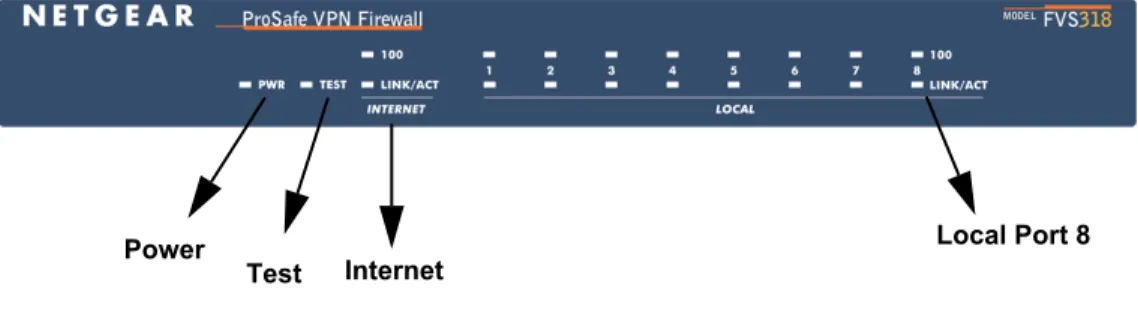
The front panel of the VPN firewall contains the status LEDs described below.
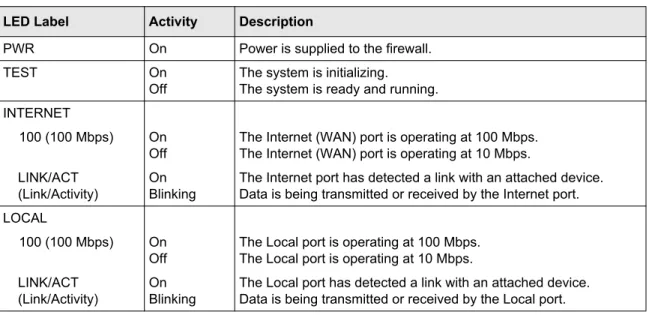
You can use some of the LEDs to verify connections. Viewed from left to right, Table 1-1
describes the LEDs on the front panel of the firewall. These LEDs are green when lit. Figure 1-1
Table 1-1. LED Descriptions
LED Label Activity Description
PWR On Power is supplied to the firewall.
TEST On
Off
The system is initializing.
The system is ready and running. INTERNET
100 (100 Mbps) On Off
The Internet (WAN) port is operating at 100 Mbps. The Internet (WAN) port is operating at 10 Mbps. LINK/ACT
(Link/Activity)
On Blinking
The Internet port has detected a link with an attached device. Data is being transmitted or received by the Internet port. LOCAL
100 (100 Mbps) On Off
The Local port is operating at 100 Mbps. The Local port is operating at 10 Mbps. LINK/ACT
(Link/Activity)
On Blinking
The Local port has detected a link with an attached device. Data is being transmitted or received by the Local port.
The FVS318v3 Rear Panel
The rear panel of the VPN firewall contains the port connections listed below.
Viewed from left to right, the rear panel contains the following features: • Factory default reset push button
• Eight Ethernet LAN ports
• Internet Ethernet WAN port for connecting the firewall to a cable or DSL modem • DC power input
• ON/OFF switch Figure 1-2
FACTORY DEFAULTS
NETGEAR-Related Products
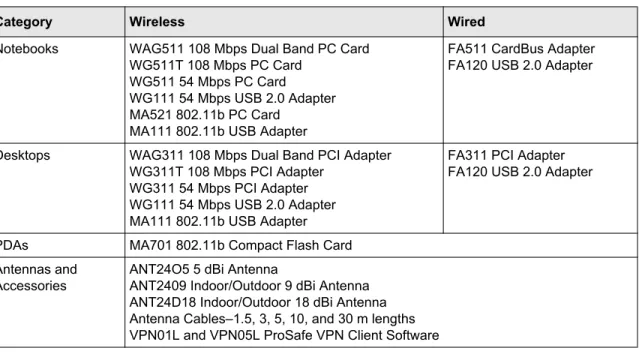
NETGEAR products related to the FVS318v3 are listed in the following table:
NETGEAR Product Registration, Support, and
Documentation
Register your product at http://www.NETGEAR.com/register. Registration is required before you can use our telephone support service.
Product updates and Web support are always available by going to: http://kbserver.netgear.com. Documentation is available on the Resource CD and at http://kbserver.netgear.com.
When the VPN firewall is connected to the Internet, click the KnowledgeBase or the
Documentation link under the Web Support menu to view support information or the online
Reference Manual for the VPN firewall. Table 1-2. NETGEAR-Related Products
Category Wireless Wired
Notebooks WAG511 108 Mbps Dual Band PC Card WG511T 108 Mbps PC Card
WG511 54 Mbps PC Card WG111 54 Mbps USB 2.0 Adapter MA521 802.11b PC Card
MA111 802.11b USB Adapter
FA511 CardBus Adapter FA120 USB 2.0 Adapter
Desktops WAG311 108 Mbps Dual Band PCI Adapter WG311T 108 Mbps PCI Adapter
WG311 54 Mbps PCI Adapter WG111 54 Mbps USB 2.0 Adapter MA111 802.11b USB Adapter
FA311 PCI Adapter FA120 USB 2.0 Adapter
PDAs MA701 802.11b Compact Flash Card Antennas and
Accessories
ANT24O5 5 dBi Antenna
ANT2409 Indoor/Outdoor 9 dBi Antenna ANT24D18 Indoor/Outdoor 18 dBi Antenna Antenna Cables–1.5, 3, 5, 10, and 30 m lengths VPN01L and VPN05L ProSafe VPN Client Software
Connecting the Firewall to the Internet
This chapter describes how to set up the firewall on your LAN, connect to the Internet, perform basic configuration of your ProSafe VPN Firewall using the Setup Wizard, or how to manually configure your Internet connection.
Follow these instructions to set up your firewall.
Prepare to Install Your ProSafe VPN Firewall
• For Cable Modem Service. When you perform the VPN firewall setup steps be sure to use the computer you first registered with your cable ISP.
• For DSL Service. You may need information such as the DSL login name/e-mail address and password in order to complete the VPN firewall setup.
Before proceeding with the VPN firewall installation, familiarize yourself with the contents of the
Resource CD, especially this manual and the animated tutorials for configuring networking on PCs.
First, Connect the FVS318v3
1. Connect the cables between the FVS318v3, computer, and modem
a. Turn off your computer.
b. Turn off the cable or DSL broadband modem.
d. Disconnect the cable at the computer end only, point A in the diagram.
e. Look at the label on the bottom of the VPN firewall. Locate the Internet port. Securely insert the Ethernet cable from your modem (Cable 1 in the diagram below) into the Internet port of the VPN firewall as shown in point B of the diagram.
f. Securely insert the blue cable that came with your VPN firewall (the blue NETGEAR cable in the diagram below) into a LOCAL port on the firewall such as LOCAL port 8 (point C in the diagram), and the other end into the Ethernet port of your computer (point
D in the diagram). Figure 2-1
Figure 2-2
Modem
Cable 1
Internet
Computer
A
Modem
Cable 1
Internet
Internet
port
Firewall
Your network cables are connected and you are ready to restart your network.
2. Restart your network in the correct sequence.
g. Now, plug in the power cord to your VPN firewall and wait one minute.
h. Last, turn on your computer. Figure 2-3
Warning: First, turn on the broadband modem and wait 2 minutes.
Note: For DSL customers, if software logs you in to the Internet, do not run that software. You may need to go to the Internet Explorer Tools menu, Internet Options, Connections tab page where you can select “Never dial a
connection.”
Local Ports Blue NETGEAR Cable
Internet
Modem Computer
Firewall
C
D
i. Check the VPN firewall status lights to verify the following:
• PWR: The power light should turn solid green. If it does not, see “Troubleshooting Tips” on page 2-6.
• TEST: The test light blinks when the firewall is first turned on then goes off. If after two minutes it is still on, see “Troubleshooting Tips” on page 2-6.
• INTERNET: The Internet LINK light should be lit. If not, make sure the Ethernet cable is securely attached to the VPN firewall Internet port and the modem, and the modem is powered on.
• LOCAL: A LOCAL light should be lit. Green on the 100 line indicates your computer is communicating at 100 Mbps; off on the 100 line indicates 10 Mbps. If a LOCAL light is not lit, check that the Ethernet cable from the computer to the firewall is securely attached at both ends, and that the computer is turned on.
Now, Configure the FVS318v3 for Internet Access
1. From the Ethernet connected PC you just set up, open a browser such as Internet Explorer or Netscape® Navigator.
With the VPN firewall in its factory default state, your browser will automatically display the NETGEAR Smart Wizard Configuration Assistant welcome page.
Figure 2-4 Power
Test Internet
.
If you cannot connect to the VPN firewall, verify your computer networking setup. It should be set to obtain both IP and DNS server addresses automatically, which is usually so. For help with this, see Appendix B, “Related Documents” and click on the link to “Preparing a
Computer for Network Access” or the animated tutorials on the Resource CD.
2. Click OK. Follow the prompts to proceed with the Smart Wizard Configuration Assistant to connect to the Internet.
3. Click Done to finish. If you have trouble connecting to the Internet, see “Troubleshooting Tips” on page 2-6 to correct basic problems.
Figure 2-5
Note: If you do not see this page, type http://www.routerlogin.net in the browser address bar and press Enter. If you still cannot see this screen, see “Bypassing the Configuration Assistant” on page 2-10
You are now connected to the Internet!
Troubleshooting Tips
Here are some tips for correcting simple problems you may have. Be sure to restart your network in this sequence:
1. Turn off the VPN firewall, shut down the computer, and unplug and turn off the modem.
2. Turn on the modem and wait two minutes
3. Turn on the VPN firewall and wait one minute Figure 2-6
Note: The Smart Wizard Configuration Assistant only appears when the firewall is in its factory default state. After you configure the VPN firewall, it will not appear again. You can always connect to the firewall to change its settings. To do so, open a browser such as Internet Explorer and go to http://
www.routerlogin.net. Then, when prompted, enter admin as the user name and password for the password both in lower case letters.
• The Internet link light on the VPN firewall will be lit if the Ethernet cable to the VPN firewall from the modem is plugged in securely and the modem and VPN firewall are turned on. • For each powered on computer connected to the VPN firewall with a securely plugged in
Ethernet cable, the corresponding VPN firewall LOCAL port link light will be lit. The labels on the front and back of the VPN firewall identify the number of each LOCAL port.
Make sure the network settings of the computer are correct.
• LAN connected computers must be configured to obtain an IP address automatically via DHCP. Please see “Preparing Your Network for Network Access” in Appendix B, “Related Documents” or the animated tutorials on the Resource CD for help with this.
• Some cable modem ISPs require you to use the MAC address of the computer registered on the account. If so, in the Router MAC Address section of the Basic Settings menu, select “Use this Computer’s MAC Address.” The firewall will then capture and use the MAC address of the computer that you are now using. You must be using the computer that is registered with the ISP. Click Apply to save your settings. Restart the network in the correct sequence. Use the status lights on the front of the FVS318v3 to verify correct firewall operation.
If the FVS318v3 power light does not turn solid green or if the test light does not go off within two minutes after turning the firewall on, reset the firewall according to the instructions in
“Backing Up the Configuration” on page 6-7.
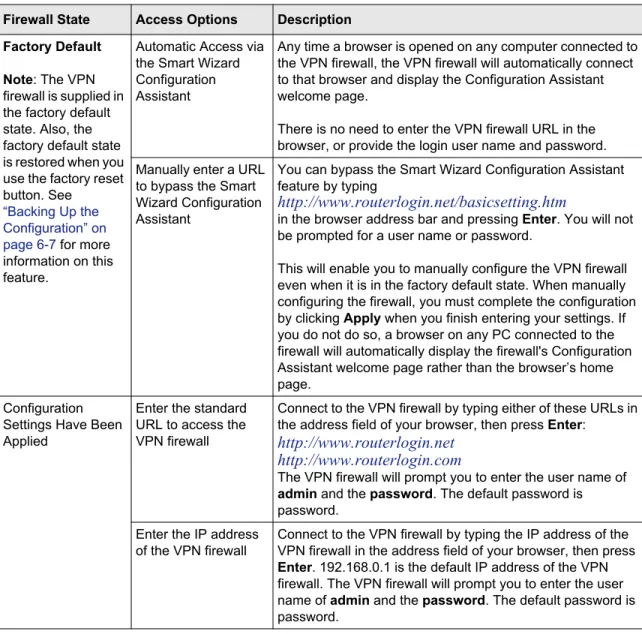
Accessing the VPN Firewall Overview
The table below describes how you access the VPN firewall, depending on the state of the VPN firewall.
Table 2-1. Ways to access the firewall
Firewall State Access Options Description Factory Default
Note: The VPN firewall is supplied in the factory default state. Also, the factory default state is restored when you use the factory reset button. See
“Backing Up the Configuration” on page 6-7 for more information on this feature.
Automatic Access via the Smart Wizard Configuration Assistant
Any time a browser is opened on any computer connected to the VPN firewall, the VPN firewall will automatically connect to that browser and display the Configuration Assistant welcome page.
There is no need to enter the VPN firewall URL in the browser, or provide the login user name and password. Manually enter a URL
to bypass the Smart Wizard Configuration Assistant
You can bypass the Smart Wizard Configuration Assistant feature by typing
http://www.routerlogin.net/basicsetting.htm
in the browser address bar and pressing Enter. You will not be prompted for a user name or password.
This will enable you to manually configure the VPN firewall even when it is in the factory default state. When manually configuring the firewall, you must complete the configuration by clicking Apply when you finish entering your settings. If you do not do so, a browser on any PC connected to the firewall will automatically display the firewall's Configuration Assistant welcome page rather than the browser’s home page.
Configuration Settings Have Been Applied
Enter the standard URL to access the VPN firewall
Connect to the VPN firewall by typing either of these URLs in the address field of your browser, then press Enter:
http://www.routerlogin.net http://www.routerlogin.com
The VPN firewall will prompt you to enter the user name of
admin and the password. The default password is password.
Enter the IP address of the VPN firewall
Connect to the VPN firewall by typing the IP address of the VPN firewall in the address field of your browser, then press
Enter. 192.168.0.1 is the default IP address of the VPN firewall. The VPN firewall will prompt you to enter the user name of admin and the password. The default password is password.
Logging On to the FVS318v3 After Configuration Settings Have
Been Applied
1. Connect to the VPN firewall by typing http://www.routerlogin.net in the address field of your browser, then press Enter.
2. For security reasons, the firewall has its own user name and password. When prompted, enter
admin for the firewall user name and password for the firewall password, both in lower case letters. To change the password, see “Changing the Administrator Password” on page 6-8.
A login window like the one shown below opens.
Once you have entered your user name and password, your Web browser should find the VPN firewall and display the home page as shown below.
Figure 2-7
Note: The firewall user name and password are not the same as any user name or password you may use to log in to your Internet connection.
When the VPN firewall is connected to the Internet, click the KnowledgeBase or the
Documentation link under the Web Support menu to view support information or the documentation for the VPN firewall.
If you do not click Logout, the VPN firewall will wait five minutes after there is no activity before it automatically logs you out.
Bypassing the Configuration Assistant
1. When the VPN firewall is in the factory default state, typehttp://www.routerlogin.net/basicsetting.htm in your browser, then press Enter. When the VPN firewall is in the factory default state, a user name and password are not required.
2. The browser then displays the FVS318v3 settings home page shown in “When the VPN firewall is connected to the Internet, click the KnowledgeBase or the Documentation link under the Web Support menu to view support information or the documentation for the VPN
If you do not click Logout, the VPN firewall waits five minutes after there is no activity before it automatically logs you out.
Using the Smart Setup Wizard
You can use the Smart Setup Wizard to assist with manual configuration or to verify the Internet connection. The Smart Setup Wizard is not the same as the Smart Wizard Configuration Assistant (as illustrated in Figure 2-5) that only appears when the firewall is in its factory default state. After you configure the VPN firewall, the Smart Wizard Configuration Assistant will not appear again. To use the Smart Setup Wizard to assist with manual configuration or to verify the Internet connection settings, follow this procedure.
1. Connect to the VPN firewall by typing http://www.routerlogin.net in the address field of your browser, then press Enter.
2. For security reasons, the firewall has its own user name and password. When prompted, enter
admin for the firewall user name and password for the firewall password, both in lower case letters. To change the password, see “Changing the Administrator Password” on page 6-8.
Once you have entered your user name and password, your Web browser should find the VPN firewall and display the home page as shown in Figure .
3. Click Setup Wizard on the upper left of the main menu.
4. Click Next to proceed. Input your ISP settings, as needed.
5. At the end of the Setup Wizard, click the Test button to verify your Internet connection. If you have trouble connecting to the Internet, use the Troubleshooting Tips “Troubleshooting Tips” on page 2-6 to correct basic problems, or refer to Chapter 8, “Troubleshooting.”
Manually Configuring Your Internet Connection
You can manually configure your Product Family using the menu below, or you can allow the Setup Wizard to determine your configuration as described in the previous section.
Note: The firewall user name and password are not the same as any user name or password you may use to log in to your Internet connection.
To manually configure the Product Family using the Basic Settings menu shown in Figure 2-10:
1. Log in to the Product Family at its default address of http://www.routerlogin.net using a browser like Internet Explorer or Netscape® Navigator.
2. Click the Basic Settings link under the Setup section of the main menu. Figure 2-10
3. If your Internet connection does not require a login, click No at the top of the Basic Settings
menu and fill in the settings according to the instructions below. If your Internet connection does require a login, click Yes, and skip to the procedure requiring a login.
a. Enter your Account Name (may also be called Host Name) and Domain Name. These parameters may be necessary to access your ISP’s services such as mail or news servers.
b. In the Internet IP Address section, if your ISP has assigned your PC a permanent, fixed (static) IP address, select Use static IP address. Enter the IP address that your ISP assigned. Also enter the netmask and the Gateway IP address. The Gateway is the ISP’s firewall to which your Product Family will connect.
c. In the Domain Name Server (DNS) Address section, if you know that your ISP does not automatically transmit DNS addresses to the Product Family during login, select Use these DNS servers and enter the IP address of your ISP’s Primary DNS Server. If a Secondary DNS Server address is available, enter it also.
Note: After completing the DNS configuration, restart the computers on your network so that these settings take effect.
4. Change the MAC address of your PC to your firewall’s MAC address by selecting Use this Computer’s MAC address. The Product Family will then capture and use the MAC address of the PC that you are now using. You must be using the PC that is allowed by your ISP. If you are not using this PC, select Use this MAC address and enter the MAC address of the PC that your ISP will recognize.
This section determines the Ethernet MAC address that will be used by the Product Family on the Internet port. Some ISPs will register the Ethernet MAC address of the network interface card in your PC when your account is first opened. Your IP will then only accept traffic from the MAC address of that PC. This feature allows your Product Family to masquerade as that PC by “cloning” its MAC address.
5. Click Apply to save your settings.
If your Internet connection does require a login, fill in the following settings:
1. Select Yes if you normally must launch a login program such as Enternet or WinPOET in order to access the Internet.
Note: After you finish setting up your Product Family, you will no longer need to launch the ISP’s login program on your PC in order to access the Internet. When you start an Internet application, your Product Family will automatically log you in.
2. For connections that require a login using protocols such as PPPoE, PPTP, Telstra Bigpond Cable broadband connections, select your Internet service provider from the drop-down menu
3. The screen will change according to the ISP settings requirements of the ISP you select. Fill in the parameters for your ISP according to the Wizard-detected procedures starting on page 2-11.
4. Click Apply to save your settings. Figure 2-11
Firewall Protection and Content Filtering
This chapter describes how to use the content filtering features of the ProSafe VPN Firewall to protect your network. These features can be found by clicking on the Security heading in the main menu of the browser interface.
Firewall Protection and Content Filtering Overview
The ProSafe VPN Firewall provides you with Web content filtering options, plus browsing activity reporting and instant alerts via e-mail. Parents and network administrators can establish restricted access policies based on time-of-day, Web addresses and Web address keywords. You can also block Internet access by applications and services, such as chat or games.
A firewall is a special category of router that protects one network (the trusted network, such as your LAN) from another (the untrusted network, such as the Internet), while allowing
communication between the two. A firewall incorporates the functions of a NAT (Network Address Translation) router, while adding features for dealing with a hacker intrusion or attack, and for controlling the types of traffic that can flow between the two networks. Unlike simple Internet sharing NAT routers, a firewall uses a process called stateful packet inspection to protect your network from attacks and intrusions. NAT performs a very limited stateful inspection in that it considers whether the incoming packet is in response to an outgoing request, but true stateful packet inspection goes far beyond NAT.
To configure these features of your firewall, click on the subheadings under the Security heading in the main menu of the browser interface. The subheadings are described below:
Block Sites
The FVS318v3 allows you to restrict access based on Web addresses and Web address keywords. Up to 64 entries are supported in the Keyword list. The Block Sites menu is shown in below.
To enable Block Sites features:
1. Enable keyword blocking by checking the Turn keyword blocking on radio box.
2. Add a keyword or domain name by typing it in the Add Keyword field and clicking Add Keyword. Each keyword or domain name added will appear in the Block sites containing these keywords or domain names field
3. Add a trusted IP by checking the Turn trusted ip on radio box and enterting its address in the
Trusted IP Address field.
4. Click Apply to save your changes and additions. To delete a keyword or domain:
1. Select the keyword or domain name from the keywords and domain names list and click Figure 3-1
2. Click Apply to save your changes. Keyword application examples:
• If the keyword “XXX” is specified, the URL http://www.badstuff.com/xxx.html is blocked, as is the newsgroup alt.pictures.XXX.
• If the keyword “.com” is specified, only Web sites with other domain suffixes (such as .edu or .gov) can be viewed.
• If you wish to block all Internet browsing access, enter the keyword “.”.
To specify a Trusted User, enter that PC’s IP address in the Trusted User box and click Apply. You may specify one Trusted User, which is a PC that will be exempt from blocking and logging. Since the Trusted User will be identified by an IP address, you should configure that PC with a fixed or reserved IP address.
Using Rules to Block or Allow Specific Kinds of Traffic
Firewall rules are used to block or allow specific traffic passing through from one side to the other. Inbound rules (WAN to LAN) restrict access by outsiders to private resources, selectively allowing only specific outside users to access specific resources. Outbound rules (LAN to WAN) determine what outside resources local users can have access to.
A firewall has two default rules, one for inbound traffic and one for outbound. The default rules of the FVS318v3 are:
• Inbound: Block all access from outside except responses to requests from the LAN side. • Outbound: Allow all access from the LAN side to the outside.
These default rules are shown in the Rules table of the Rules menu shown below.
You may define additional rules that specify exceptions to the default rules. By adding custom rules, you can block or allow access based on the service or application, source or destination IP addresses, and time of day. You can also choose to log traffic that matches or does not match the rule you have defined.
To create a new rule, click the Add button.
To edit an existing rule, select its button on the left side of the table and click Edit. To delete an existing rule, select its button on the left side of the table and click Delete.
To move an existing rule to a different position in the table, select its button on the left side of the table and click Move. At the script prompt, enter the number of the desired new position and click OK.
An example of the menu for defining or editing a rule is shown in Figure 3-3. The parameters are: • Service. From this list, select the application or service to be allowed or blocked. The list
already displays many common services, but you are not limited to these choices. Use the Services menu to add any additional services or applications that do not already appear. Figure 3-2
• Action. Choose how you would like this type of traffic to be handled. You can block or allow always, or you can choose to block or allow according to the schedule you have defined in the Schedule menu.
• Source Address. Specify traffic originating on the LAN (outbound) or the WAN (inbound), and choose whether you would like the traffic to be restricted by source IP address. You can select Any, a Single address, or a Range. If you select a range of addresses, enter the range in the start and finish boxes. If you select a single address, enter it in the start box.
• Destination Address.The Destination Address will be assumed to be from the opposite (LAN or WAN) of the Source Address. As with the Source Address, you can select Any, a Single address, or a Range unless NAT is enabled and the destination is the LAN. In that case, you must enter a Single LAN address in the start box.
• Log. You can select whether the traffic will be logged. The choices are: • Never – no log entries will be made for this service.
• Match – traffic of this type that matches the parameters and action will be logged.
Inbound Rules (Port Forwarding)
Because the FVS318v3 uses Network Address Translation (NAT), your network presents only one IP address to the Internet, and outside users cannot directly address any of your local computers. However, by defining an inbound rule you can make a local server (for example, a Web server or game server) visible and available to the Internet. The rule tells the firewall to direct inbound traffic for a particular service to one local server based on the destination port number. This is also known as port forwarding.
Remember that allowing inbound services opens holes in your VPN firewall. Only enable those ports that are necessary for your network. Following are two application examples of inbound rules:
Note: Some residential broadband ISP accounts do not allow you to run any server processes (such as a Web or FTP server) from your location. Your ISP may periodically check for servers and may suspend your account if it discovers any active services at your location. If you are unsure, refer to the Acceptable Use Policy of your ISP.
Inbound Rule Example: A Local Public Web Server
If you host a public Web server on your local network, you can define a rule to allow inbound Web (HTTP) requests from any outside IP address to the IP address of your Web server at any time of day. This rule is illustrated below.
Inbound Rule Example: Allowing a Videoconference from Restricted Addresses If you want to allow incoming videoconferencing to be initiated from a restricted range of outside IP addresses, such as from a branch office, you can create an inbound rule. In the example shown in Figure 3-4, CU-SEEME connections are allowed only from a specified range of external IP addresses. In this case, we have also specified logging of any incoming CU-SeeMe requests that do not match the allowed parameters.
Considerations for Inbound Rules
• If your external IP address is assigned dynamically by your ISP, the IP address may change periodically as the DHCP lease expires. Consider using the Dynamic DNS feature in the Advanced menus so that external users can always find your network.
• If the IP address of the local server PC is assigned by DHCP, it may change when the PC is rebooted. To avoid this, use the Reserved IP address feature in the LAN IP menu to keep the PC’s IP address constant.
• Each local PC must access the local server using the PC’s local LAN address (192.168.0.11 in the example in Figure 3-4). Attempts by local PCs to access the server using the external WAN IP address will fail.
Outbound Rules (Service Blocking)
The FVS318v3 allows you to block the use of certain Internet services by PCs on your network. This is called service blocking or port filtering. You can define an outbound rule to block Internet access from a local PC based on:
• IP address of the local PC (source address)
• IP address of the Internet site being contacted (destination address) • Time of day
• Type of service being requested (service port number) Figure 3-4
If you want to block Instant Messenger usage by employees during working hours, you can create an outbound rule to block that application from any internal IP address to any external address according to the schedule that you have created in the Schedule menu. You can also have the firewall log any attempt to use Instant Messenger during that blocked period.
Order of Precedence for Rules
As you define new rules, they are added to the tables in the Rules table, as shown below.
For any traffic attempting to pass through the firewall, the packet information is subjected to the rules in the order shown in the Rules table, beginning at the top and proceeding to the default rules at the bottom. In some cases, the order of precedence of two or more rules may be important in determining the disposition of a packet. The Move button allows you to relocate a defined rule to a new position in the table.
Default DMZ Server
Incoming traffic from the Internet is normally discarded by the firewall unless the traffic is a response to one of your local computers or a service for which you have configured an inbound rule. Instead of discarding this traffic, you can have it forwarded to one computer on your network. This computer is called the Default DMZ Server.
The Default DMZ Server feature is helpful when using some online games and videoconferencing applications that are incompatible with NAT. The firewall is programmed to recognize some of these applications and to work properly with them, but there are other applications that may not function well. In some cases, one local PC can run the application properly if that PC’s IP address is entered as the Default DMZ Server.
To assign a computer or server to be a Default DMZ server:
1. Click Default DMZ Server.
2. Type the IP address for that server.
3. Click Apply.
Respond to Ping on Internet WAN Port
If you want the firewall to respond to a ping from the Internet, click the Respond to Ping on Internet WAN Port check box. This should only be used as a diagnostic tool, since it allows your firewall to be discovered. Don't check this box unless you have a specific reason to do so.
Services
Services are functions performed by server computers at the request of client computers. For example, Web servers serve Web pages, time servers serve time and date information, and game hosts serve data about other players’ moves. When a computer on the Internet sends a request for
Note: For security, NETGEAR strongly recommends that you avoid using the Default DMZ Server feature. When a computer is designated as the Default DMZ Server, it loses much of the protection of the firewall, and is exposed to many exploits from the Internet. If compromised, the computer can be used to attack your network.
Note: In this application, the use of the term “DMZ” has become common, although it is a misnomer. In traditional firewalls, a DMZ is actually a separate physical network port. A true DMZ port is for connecting servers that require greater access from the outside, and will therefore be provided with a different level of security by the firewall. A better term for our application is Exposed Host.
service to a server computer, the requested service is identified by a service or port number. This number appears as the destination port number in the transmitted IP packets. For example, a packet that is sent with destination port number 80 is an HTTP (Web server) request.
The service numbers for many common protocols are defined by the Internet Engineering Task Force (IETF) and published in RFC1700, “Assigned Numbers.” Service numbers for other applications are typically chosen from the range 1024 to 65535 by the authors of the application. Although the FVS318v3 already holds a list of many service port numbers, you are not limited to these choices. Use the Services menu to add additional services and applications to the list for use in defining firewall rules. The Services menu shows a list of services that you have defined, as shown below:
Figure 3-7
To define a new service, first you must determine which port number or range of numbers is used by the application. This information can usually be determined by contacting the publisher of the application or from user groups of newsgroups.
To add a service:
1. When you have the port number information, go the Services menu and click on the Add Custom Service button. The Add Services menu appears as shown in Figure 3-8:
Figure 3-8
2. Enter a descriptive name for the service so that you will remember what it is.
3. Select whether the service uses TCP or UDP as its transport protocol. If you can’t determine which is used, select both.
4. Enter the lowest port number used by the service.
5. Enter the highest port number used by the service.
If the service only uses a single port number, enter the same number in both fields.
6. Click Apply.
The new service now appears in the Services menu, and in the Service name selection box in the Rules menu.
Using a Schedule to Block or Allow Specific Traffic
If you defined an inbound rule or an outbound rule to use a schedule, you can set up a schedule for when access is restricted or allowed. The firewall allows you to specify access by configuring the Schedule page shown below:
Figure 3-9
To implement a firewall rule based on a schedule, select Every Day or select one or more days. If you want the firewall rule to limit access or allow access completely for the selected days, select All Day. Otherwise, you can allow access or restrict access during certain times for the selected days by typing a Start Blocking time and an End Blocking time.
Be sure to click Apply when you have finished configuring this page.
The VPN firewall uses the Network Time Protocol (NTP) to obtain the current time and date from one of several Network Time Servers on the Internet. In order to localize the time for your log entries, you must specify your Time Zone:
• Time Zone. Select your local time zone. This setting will be used for the blocking schedule and for time-stamping log entries.
• Daylight Savings Time. Check this box for daylight savings time.
Note: If your region uses Daylight Savings Time, you must manually select Adjust for Daylight Savings Time on the first day of Daylight Savings Time, and unselect it at the end. Enabling Daylight Savings Time will add one hour to the standard time.
Be sure to click Apply when you have finished configuring this menu.
Note: Enter the values as 24-hour time. For example, to specify 10:30 am, enter 10 hours and 30 minutes; for 10:30 pm, enter 22 hours and 30 minutes.
Getting E-Mail Notifications of Event Logs and Alerts
In order to receive logs and alerts by e-mail, you must provide your e-mail information in the Send alerts and logs by e-mail area:
Figure 3-10
• Turn e-mail notification on. Check this box if you wish to receive e-mail logs and alerts from the firewall.
• Send alerts and logs by e-mail. If your enable e-mail notification, these boxes cannot be blank. Enter the name or IP address of your ISP’s outgoing (SMTP) mail server (such as mail.myISP.com). You may be able to find this information in the configuration menu of your e-mail program. Enter the e-mail address to which logs and alerts are sent. This e-mail address will also be used as the From address. If you leave this box blank, log and alert messages will not be sent via e-mail.
• Send E-mail alerts immediately. You can specify that logs are immediately sent to the specified e-mail address when any of the following events occur:
– If a Denial of Service attack is detected. – If a Port Scan is detected.
– If a user on your LAN attempts to access a Web site that you blocked using the Block Sites menu.
• Send logs according to this schedule. You can specify that logs are sent to you according to a schedule. Select whether you would like to receive the logs None, Hourly, Daily, Weekly, or When Full. Depending on your selection, you may also need to specify:
– Day for sending log
Relevant when the log is sent weekly or daily. – Time for sending log
Relevant when the log is sent daily or weekly.
If the Weekly, Daily or Hourly option is selected and the log fills up before the specified period, the log is automatically e-mailed to the specified e-mail address. After the log is sent, the log is cleared from the firewall’s memory. If the firewall cannot e-mail the log file, the log buffer may fill up. In this case, the firewall overwrites the log and discards its contents. Be sure to click Apply when you have finished configuring this menu.
Viewing Logs of Web Access or Attempted Web Access
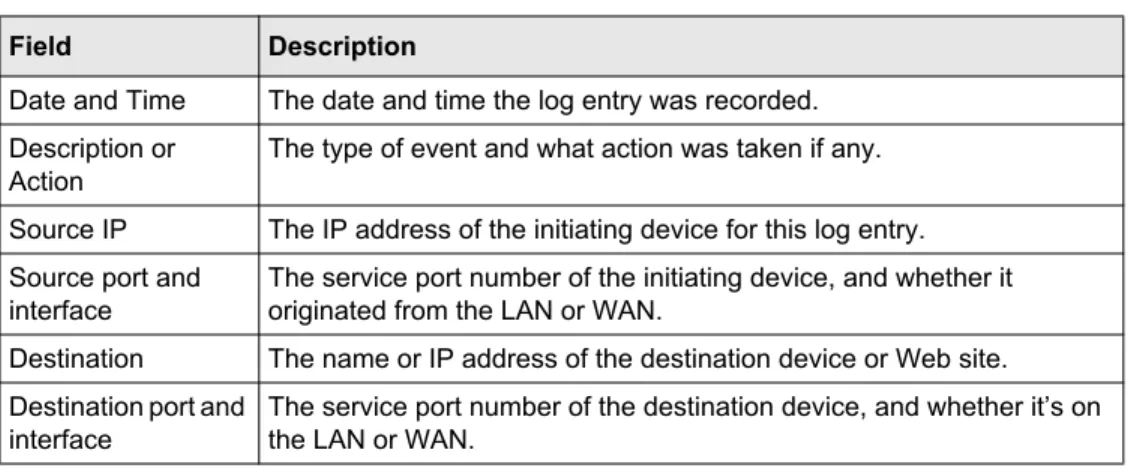
The firewall logs security-related events such as denied incoming and outgoing service requests, hacker probes, and administrator logins. If you enable content filtering in the Block Sites menu, the Log page will also show you when someone on your network tried to access a blocked site. If you enabled mail notification, you'll receive these logs in an mail message. If you don't have e-mail notification enabled, you can view the logs here. An example is shown in Figure 3-11:Log entries are described in Table 3-1
Log action buttons are described in Table 3-2
You can configure the firewall to send system logs to an external PC that is running a syslog logging program. Enter the IP address of the logging PC and click the Enable Syslog check box. Logging programs are available for Windows, Macintosh, and Linux computers.
Table 3-1. Log entry descriptions
Field Description
Date and Time The date and time the log entry was recorded. Description or
Action
The type of event and what action was taken if any. Source IP The IP address of the initiating device for this log entry. Source port and
interface
The service port number of the initiating device, and whether it originated from the LAN or WAN.
Destination The name or IP address of the destination device or Web site. Destination port and
interface
The service port number of the destination device, and whether it’s on the LAN or WAN.
Table 3-2. Log action buttons
Button Description
Refresh Refresh the log screen. Clear Log Clear the log entries. Send Log Email the log immediately.
Basic Virtual Private Networking
This chapter describes how to use the virtual private networking (VPN) features of the VPN firewall. VPN communications paths are called tunnels. VPN tunnels provide secure, encrypted communications between your local network and a remote network or computer.
The VPN information is organized as follows:
• “Overview of VPN Configuration” on page 4-2 provides an overview of the two most common VPN configurations: client-to-gateway and gateway-to-gateway.
• “Planning a VPN” on page 4-3 provides the VPN Committee (VPNC) recommended default parameters set by the VPN Wizard.
• “VPN Tunnel Configuration” on page 4-5 summarizes the two ways to configure a VPN tunnel: VPN Wizard (recommended for most situations) and Advanced (see Chapter 5, “Advanced Virtual Private Networking).
• “Setting Up a Client-to-Gateway VPN Configuration” on page 4-5 provides the steps needed to configure a VPN tunnel between a remote PC and a network gateway using the VPN Wizard and the NETGEAR ProSafe VPN Client.
• “Setting Up a Gateway-to-Gateway VPN Configuration” on page 4-21 provides the steps needed to configure a VPN tunnel between two network gateways using the VPN Wizard. • “Activating the VPN Tunnel” on page 4-27 provides the step-by-step procedures for
activating, verifying, deactivating, and deleting a VPN tunnel once the VPN tunnel has been configured.
• Chapter 5, “Advanced Virtual Private Networking” provides the steps needed to configure VPN tunnels when there are special circumstances and the VPNC recommended defaults of the VPN Wizard are inappropriate.
• “Virtual Private Networking (VPN)” in Appendix B, “Related Documents” discusses – Virtual Private Networking (VPN) Internet Protocol security (IPSec). IPSec is one of the
most complete, secure, and commercially available, standards-based protocols developed for transporting data.
• Appendix C, “Sample VPN Configurations with FVS318v3” presents a case study on how to configure a secure IPSec VPN tunnel from a NETGEAR FVS318v3 to a FVL328. This case study follows the VPN Consortium interoperability profile guidelines (found at
http://www.vpnc.org/InteropProfiles/Interop-01.html).
Overview of VPN Configuration
Two common scenarios for configuring VPN tunnels are between a remote personal computer and a network gateway and between two or more network gateways. The FVS318v3 supports both of these types of VPN configurations. The VPN firewall supports up to eight concurrent tunnels.
Client-to-Gateway VPN Tunnels
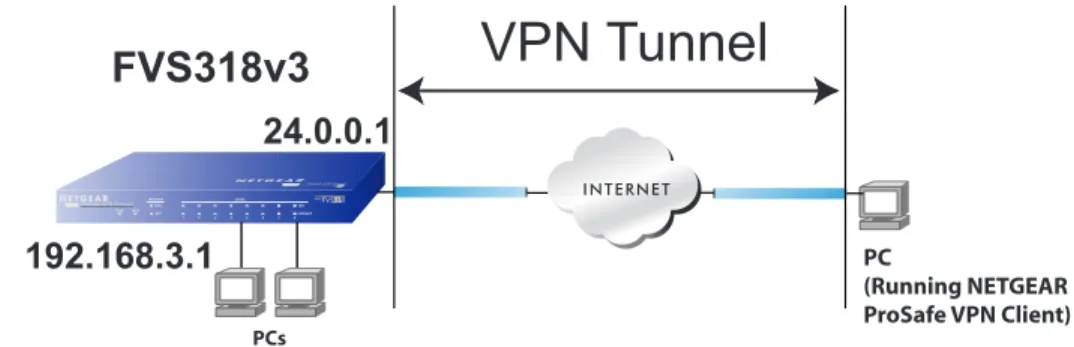
Client-to-gateway VPN tunnels provide secure access from a remote PC, such as a telecommuter connecting to an office network (see Figure 4-1).
Figure 4-1
A VPN client access allows a remote PC to connect to your network from any location on the Internet. In this case, the remote PC is one tunnel endpoint, running the VPN client software. The VPN firewall on your network is the other tunnel endpoint. See “Setting Up a Client-to-Gateway VPN Configuration” on page 4-5 to set up this configuration.
Gateway-to-Gateway VPN Tunnels
• Gateway-to-gateway VPN tunnels provide secure access between networks, such as a branch or home office and a main office (see Figure 4-2).
192.168.3.1
VPN Tunnel
FVS318
24.0.0.1
Figure 4-2
A VPN between two or more NETGEAR VPN-enabled firewalls is a good way to connect branch or home offices and business partners over the Internet. VPN tunnels also enable access to network resources across the Internet. In this case, use FVS318v3s on each end of the tunnel to form the VPN tunnel end points. See “Setting Up a Gateway-to-Gateway VPN Configuration” on page 4-21
to set up this configuration.
Planning a VPN
To set up a VPN connection, you must configure each endpoint with specific identification and connection information describing the other endpoint. You must configure the outbound VPN settings on one end to match the inbound VPN settings on other end, and vice versa.
This set of configuration information defines a security association (SA) between the two VPN endpoints. When planning your VPN, you must make a few choices first:
• Will the local end be any device on the LAN, a portion of the local network (as defined by a subnet or by a range of IP addresses), or a single PC?
• Will the remote end be any device on the remote LAN, a portion of the remote network (as defined by a subnet or by a range of IP addresses), or a single PC?
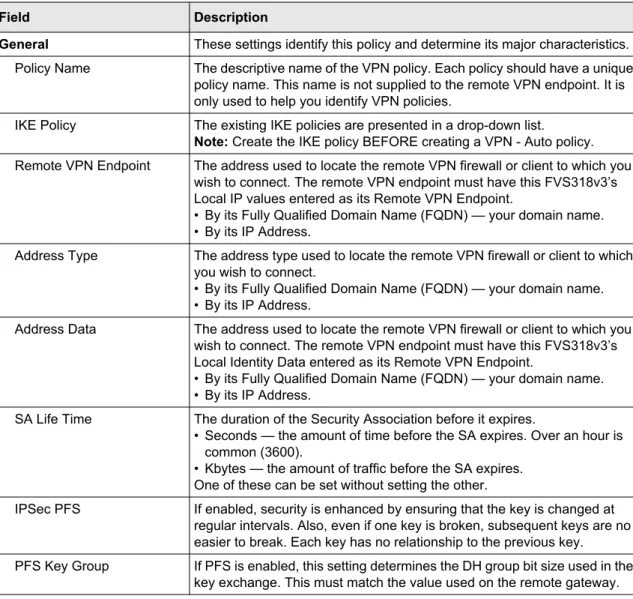
• Will either endpoint use Fully Qualified Domain Names (FQDNs)? Many DSL accounts are provisioned with DHCP addressing, where the IP address of the WAN port can change from time to time. Under these circumstances, configuring the WAN port with a dynamic DNS (DynDNS) service provider simplifies the configuration task. When DynDNS is configured on the WAN port, configure the VPN using FDQN.
VPN Gateway A
VPN Gateway B
VPN Tunnel
FQDNs supplied by Dynamic DNS providers can allow a VPN endpoint with a dynamic IP address to initiate or respond to a tunnel request. Otherwise, the side using a dynamic IP address must always be the initiator.
• What method will you use to configure your VPN tunnels? – The VPN Wizard using VPNC defaults (see Table 4-1)
– Advanced methods (see Chapter 5, “Advanced Virtual Private Networking”)
• What level of IPSec VPN encryption will you use?
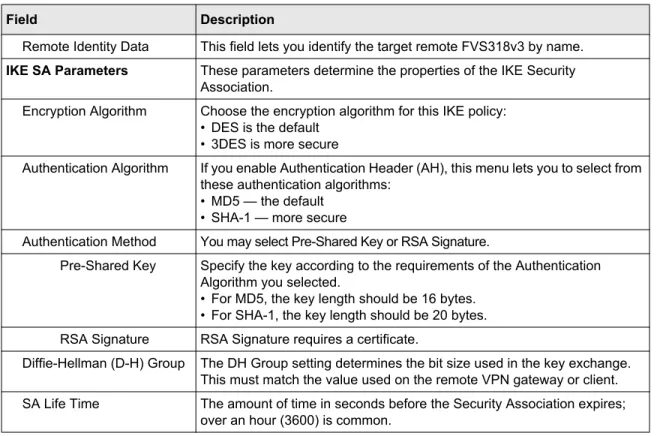
– DE – The Data Encryption Standard (DES) processes input data that is 64 bits wide, encrypting these values using a 56 bit key. Faster but less secure than 3DES.
– 3DES – (Triple DES) achieves a higher level of security by encrypting the data three times using DES with three different, unrelated keys.
– AES
• What level of authentication will you use? – MDS – 128 bits, faster but less secure. – SHA-1 – 160 bits, slower but more secure.
Table 4-1. Parameters recommended by the VPNC and used in the VPN Wizard
Parameter Factory Default
Secure Association Main Mode
Authentication Method Pre-shared Key
Encryption Method 3DES
Authentication Protocol SHA-1
Diffie-Hellman (DH) Group Group 2 (1024 bit)
Key Life 8 hours
IKE Life Time 24 hours
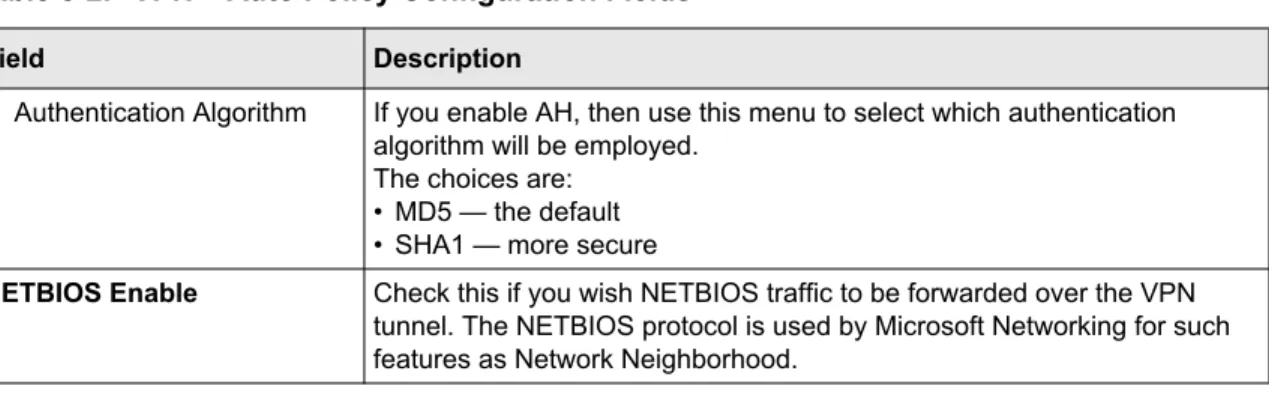
NETBIOS Enabled
Note: NETGEAR publishes additional interoperability scenarios with various gateway and client software products.
VPN Tunnel Configuration
There are two tunnel configurations and three ways to configure them:
• Use the VPN Wizard to configure a VPN tunnel (recommended for most situations): – See “Setting Up a Client-to-Gateway VPN Configuration” on page 4-5.
– See “Setting Up a Gateway-to-Gateway VPN Configuration” on page 4-21.
• See Chapter 5, “Advanced Virtual Private Networking” when the VPN Wizard and its VPNC defaults (see Table 4-1 on page 4-4) are not appropriate for your special circumstances.
Setting Up a Client-to-Gateway VPN Configuration
Setting up a VPN between a remote PC running the NETGEAR ProSafe VPN Client and a network gateway (see Figure 4-3) involves the following two steps:
• “Step 1: Configuring the Client-to-Gateway VPN Tunnel on the FVS318v3” on page 4-6 uses the VPN Wizard to configure the VPN tunnel between the remote PC and network gateway. • “Step 2: Configuring the NETGEAR ProSafe VPN Client on the Remote PC” on page 4-9
configures the NETGEAR ProSafe VPN Client endpoint.
Figure 4-3
192.168.3.1
VPN Tunnel
FVS318v3
24.0.0.1
PC
(Running NETGEAR ProSafe VPN Client)
Step 1: Configuring the Client-to-Gateway VPN Tunnel on the
FVS318v3
This section uses the VPN Wizard to set up the VPN tunnel using the VPNC default parameters listed in Table 4-1 on page -4. If you have special requirements not covered by these VPNC-recommended parameters, refer to Chapter 5, “Advanced Virtual Private Networking” to set up the VPN tunnel.
Follow this procedure to configure a client-to-gateway VPN tunnel using the VPN Wizard.
1. Log in to the FVS318v3 at its LAN address of http://192.168.0.1 with its default user name of
admin and password of password. Click the VPN Wizard link in the main menu to display this screen. Click Next to proceed.
Figure 4-4
2. Fill in the Connection Name and the pre-shared key, select the type of target end point, and click Next to proceed.
Note: The Connection Name is arbitrary and not relevant to how the configuration functions.