PBS Professional User’s Guide, Altair PBS Professional 11.1, Updated: 7/ 1/11. Edited by: Anne Urban
Copyright © 2003-2011 Altair Engineering, Inc. All rights reserved.
PBS™, PBS Works™, PBS GridWorks®, PBS Professional®, PBS Analyt-ics™, PBS Catalyst™, e-Compute™, and e-Render™ are trademarks of Altair Engineering, Inc. and are protected under U.S. and international laws and trea-ties. All other marks are the property of their respective owners.
ALTAIR ENGINEERING INC. Proprietary and Confidential. Contains Trade Secret Information. Not for use or disclosure outside ALTAIR and its licensed clients. Information contained herein shall not be decompiled, disassembled, duplicated or disclosed in whole or in part for any purpose. Usage of the soft-ware is only as explicitly permitted in the end user softsoft-ware license agree-ment.
Copyright notice does not imply publication. For more information, contact Altair at: Web: www.pbsworks.com Email: [email protected]
Technical Support
This document is proprietary information of Altair Engineering, Inc.
Location Telephone e-mail
North America +1 248 614 2425 [email protected] China +86 (0)21 6117 1666 [email protected] France +33 (0)1 4133 0992 [email protected] Germany +49 (0)7031 6208 22 [email protected] India +91 80 66 29 4500 [email protected] Italy +39 0832 315573 +39 800 905595 [email protected] Japan +81 3 5396 2881 [email protected] Korea +82 31 728 8600 [email protected] Scandinavia +46 (0)46 286 2050 [email protected] UK +44 (0)1926 468 600 [email protected]
Table of Contents
Acknowledgements
ix
About PBS Documentation
xi
1 Concepts and Components
1
1.1
PBS Components . . . 2
2 Getting Started With PBS
5
2.1
New Features in PBS Professional 11.1. . . 6
2.2
New Features in PBS Professional 11.0. . . 6
2.3
New Features in PBS Professional 10.4. . . 7
2.4
New Features in PBS Professional 10.2. . . 7
2.5
New Features in Version 10.1 . . . 8
2.6
New Features in Recent Releases. . . 9
2.7
Deprecations. . . 10
2.8
Backward Compatibility . . . 10
2.12 Usernames Under PBS . . . 14
2.13 Setting Up Your UNIX/Linux Environment . . . 14
2.14 Setting Up Your Windows Environment . . . 16
2.15 Environment Variables. . . 20
2.16 Temporary Scratch Space: TMPDIR . . . 22
3 Submitting a PBS Job
23
3.1
Vnodes: Virtual Nodes . . . 23
3.2
PBS Resources . . . 24
3.3
PBS Jobs. . . 27
3.4
Submitting a PBS Job. . . 33
3.5
Requesting Resources . . . 36
3.6
Placing Jobs on Vnodes . . . 50
3.7
Submitting Jobs Using Select & Place: Examples . . 58
3.8
Backward Compatibility . . . 64
3.9
How PBS Parses a Job Script. . . 67
3.10 A Sample PBS Jobs . . . 68
3.11 Changing the Job’s PBS Directive . . . 70
3.12 Windows Jobs . . . 71
3.13 Job Submission Options . . . 74
3.14 Failed Jobs . . . 92
4 Using the xpbs GUI
93
4.1
Using the
xpbs
command . . . 93
4.2
Using xpbs: Definitions of Terms . . . 95
4.3
Introducing the xpbs Main Display . . . 96
4.4
Setting xpbs Preferences . . . 104
4.5
Relationship Between PBS and xpbs . . . 105
4.6
How to Submit a Job Using xpbs . . . 106
4.7
Exiting xpbs . . . 110
4.8
The xpbs Configuration File . . . 110
4.9
xpbs Preferences. . . 110
5.1
Modifying Job Attributes . . . 115
5.2
Holding and Releasing Jobs . . . 119
5.3
Deleting Jobs . . . 122
5.4
Sending Messages to Jobs . . . 123
5.5
Sending Signals to Jobs . . . 124
5.6
Changing Order of Jobs . . . 125
5.7
Moving Jobs Between Queues . . . 126
5.8
Converting a Job into a Reservation Job . . . 128
5.9
Using Job History Information. . . 129
6 Checking Job / System Status
133
6.1
The
qstat
Command . . . 133
6.2
Viewing Job / System Status with xpbs . . . 153
6.3
The qselect Command . . . 154
6.4
Selecting Jobs Using xpbs . . . 155
6.5
Using xpbs TrackJob Feature. . . 156
7 Advanced PBS Features
159
7.1
UNIX Job Exit Status. . . 159
7.2
Changing UNIX Job umask . . . 160
7.3
Requesting qsub Wait for Job Completion . . . 160
7.4
Specifying Job Dependencies. . . 161
7.5
Delivery of Output Files. . . 165
7.6
Input/Output File Staging. . . 166
7.7
The pbsdsh Command . . . 180
7.8
Advance and Standing Reservation of Resources . 181
7.9
Dedicated Time . . . 199
7.10 Using Comprehensive System Accounting . . . 200
7.11 Running PBS in a UNIX DCE Environment . . . 201
7.12 Running PBS in a UNIX Kerberos Environment. . 202
7.13 Support for Large Page Mode on AIX . . . 203
8.1
Definitions . . . 205
8.2
qsub: Submitting a Job Array. . . 208
8.3
Job Array Attributes . . . 209
8.4
Job Array States . . . 210
8.5
PBS Environmental Variables . . . 210
8.6
File Staging . . . 210
8.7
PBS Commands . . . 216
8.8
Other PBS Commands Supported for Job Arrays . 224
8.9
Job Arrays and xpbs . . . 225
8.10 More on Job Arrays . . . 225
8.11 Job Array Caveats . . . 228
9 Multiprocessor Jobs
229
9.1
Job Placement. . . 229
9.2
Submitting SMP Jobs . . . 230
9.3
Submitting MPI Jobs . . . 230
9.4
OpenMP Jobs with PBS . . . 232
9.5
Hybrid MPI-OpenMP Jobs. . . 232
9.6
MPI Jobs with PBS . . . 235
9.7
MPI Jobs on the Altix. . . 269
9.8
PVM Jobs with PBS. . . 271
9.9
Checkpointing SGI MPI Jobs. . . 272
10 HPC Basic Profile Jobs
273
10.1 Definitions . . . 273
10.2 How HPC Basic Profile Jobs Work . . . 274
10.3 Environmental Requirements for HPCBP . . . 275
10.4 Submitting HPC Basic Profile Jobs . . . 276
10.5 Managing HPCBP Jobs . . . 282
10.6 Errors, Logging and Troubleshooting . . . 283
10.7 Advice and Caveats . . . 289
10.8 See Also . . . 291
11.1 Introduction . . . 293
11.2 PBS Jobs on the Cray . . . 293
11.3 PBS Resources for the Cray . . . 294
11.4 Rules for Submitting Jobs on the Cray. . . 302
11.5 Techniques for Submitting Cray Jobs . . . 305
11.6 Viewing Cray Job Information. . . 311
11.7 Caveats and Advice . . . 314
11.8 Errors and Logging. . . 317
12 Using Provisioning
321
12.1 Definitions . . . 321
12.2 How Provisioning Works . . . 322
12.3 Requirements and Restrictions. . . 325
12.4 Using Provisioning. . . 326
12.5 Caveats and Errors . . . 328
Appendix A: Converting NQS to PBS
331
13.1 Converting Date Specifications . . . 332
Appendix B: License Agreement
333
Acknowledgements
PBS Professional is the enhanced commercial version of the PBS software originally developed for NASA. The NASA version had a number of cor-porate and individual contributors over the years, for which the PBS devel-opers and PBS community is most grateful. Below we provide formal legal acknowledgements to corporate and government entities, then special thanks to individuals.
The NASA version of PBS contained software developed by NASA Ames Research Center, Lawrence Livermore National Laboratory, and MRJ Technology Solutions. In addition, it included software developed by the NetBSD Foundation, Inc., and its contributors as well as software devel-oped by the University of California, Berkeley and its contributors. Other contributors to the NASA version of PBS include Bruce Kelly and Clark Streeter of NERSC; Kent Crispin and Terry Heidelberg of LLNL; John Kochmar and Rob Pennington of Pittsburgh Supercomputing Center;
No list of acknowledgements for PBS would possibly be complete without special recognition of the first two beta test sites. Thomas Milliman of the
Space Sciences Center of the University of New Hampshire was the first beta tester. Wendy Lin of Purdue University was the second beta tester and holds the honor of submitting more problem reports than anyone else out-side of NASA.
About PBS
Documenta-tion
Where to Keep the Documentation
To make cross-references work, put all of the PBS guides in the same directory.
What is PBS Professional?
PBS is a workload management system that provides a unified batch queu-ing and job management interface to a set of computqueu-ing resources.
The PBS Professional Documentation
PBS Professional Administrator’s Guide
Provides the PBS administrator with the information required to con-figure and manage PBS Professional (PBS).
PBS Professional Quick Start Guide:
Provides a quick overview of PBS Professional installation and license file generation.
PBS Professional Installation & Upgrade Guide:
Contains information on installing and upgrading PBS Professional.
PBS Professional User’s Guide:
Covers user commands and how to submit, monitor, track, delete, and manipulate jobs.
PBS Professional Programmer’s Guide:
Discusses the PBS application programming interface (API).
PBS Professional Reference Guide:
Contains PBS reference material.
PBS Manual Pages:
Describe PBS commands, resources, attributes, APIs
Ordering Software and Publications
To order additional copies of this manual and other PBS publications, or to purchase additional software licenses, contact your Altair sales representa-tive. Contact information is included on the copyright page of this book.
Document Conventions
PBS documentation uses the following typographic conventions:
abbreviation
The shortest acceptable abbreviation of a command or subcommand is underlined.
command
input
Command-line instructions
manpage(x)
File and path names. Manual page references include the section num-ber in parentheses appended to the manual page name.
formats
Formats
Attributes
Attributes, parameters, objects, variable names, resources, types
Values
Keywords, instances, states, values, labels
Definitions
Terms being defined
Output
Output or example code File contents
Chapter 1
Concepts and
Components
PBS is a distributed workload management system. As such, PBS handles the management and monitoring of the computational workload on a set of one or more computers. Modern workload management solutions like PBS Professional include the features of traditional batch queueing but offer greater flexibility and control than first generation batch systems (such as NQS).
Workload management systems have three primary roles:
Queuing
The collecting together of work or tasks to be run on a com-puter. Users submit tasks or “jobs” to the resource manage-ment system where they are queued up until the system is
Scheduling
The process of selecting which jobs to run, when, and where, according to a predetermined policy. Sites balance competing needs and goals on the system(s) to maximize efficient use of resources (both computer time and people time).
Monitoring
The act of tracking and reserving system resources and enforcing usage policy. This includes both software
enforcement of usage limits and user or administrator moni-toring of scheduling policies to see how well they are meet-ing stated goals.
1.1
PBS Components
PBS consist of two major component types: user-level commands and sys-tem daemons/services. A brief description of each is given here to help you understand how the pieces fit together, and how they affect you.
Scheduler MOM Server Jobs PBS Commands Kernel Batch Job
Commands
PBS supplies both command line programs that are POSIX 1003.2d conforming and a graphical interface. These are used to submit, monitor, modify, and delete jobs. These cli-ent commands can be installed on any system type sup-ported by PBS and do not require the local presence of any of the other components of PBS.
There are three command classifications: user commands, which any authorized user can use, operator commands, and manager (or administrator) commands. Operator and man-ager commands which require specific access privileges are discussed in the PBS Professional Administrator’s Guide.
Server
The Job Server daemon/service is the central focus for PBS. Within this document, it is generally referred to as the Server or by the execution name pbs_server. All commands and the other daemons/services communicate with the Server via an Internet Protocol (IP) network. The Server’s main function is to provide the basic batch services such as receiving/creating a batch job, modifying the job, and run-ning the job. Normally, there is one Server managing a given set of resources. However if the Server Failover fea-ture is enabled, there will be two Servers.
Job Executor (MOM)
The Job Executor or MOM is the daemon/service which actually places the job into execution. This process,
pbs_mom, is informally called MOM as it is the mother of all executing jobs. (MOM is a reverse-engineered acronym that stands for Machine Oriented Mini-server.) MOM places a job into execution when it receives a copy of the job from a Server. MOM creates a new session that is as identical to a user login session as is possible. (For example under UNIX, if the user’s login shell is csh, then MOM creates a session
in which .login is run as well as .cshrc.) MOM also
has the responsibility for returning the job’s output to the user when directed to do so by the Server. One MOM runs
Scheduler
The Job Scheduler daemon/service, pbs_sched, implements the site’s policy controlling when each job is run and on which resources. The Scheduler communicates with the var-ious MOMs to query the state of system resources and with the Server for availability of jobs to execute. The interface to the Server is through the same API as used by the client commands. Note that the Scheduler interfaces with the Server with the same privilege as the PBS manager.
Getting Started With
PBS
This chapter introduces the user to PBS Professional. It describes new user-level features in this release, explains the different user interfaces, intro-duces the concept of a PBS “job”, and shows how to set up your environ-ment for running batch jobs with PBS.
2.1
New Features in PBS Professional
11.1
2.1.1
Support for Interlagos Hardware
You can request Interlagos hardware for your jobs. See section 11.5.10 “Requesting Interlagos Hardware” on page 311.
2.2
New Features in PBS Professional
11.0
2.2.1
Improved Cray Integration
PBS is more tightly integrated with Cray systems. You can use the PBS select and place language when submitting Cray jobs. See section “Sub-mitting Cray Jobs” on page 293.
2.2.2
Enhanced Job Placement
PBS allows job submitters to scatter chunks by vnode in addition to scatter-ing by host. PBS also allows job submitters to reserve entire hosts via a job’s placement request. See section 3.6 “Placing Jobs on Vnodes” on page 50.
2.3
New Features in PBS Professional
10.4
2.3.1
Estimated Job Start Times
PBS can estimate the start time and vnodes for jobs. See section 6.1.21 “Viewing Estimated Start Times For Jobs” on page 152.
2.3.2
Unified Job Submission
PBS allows users to submit jobs using the same scripts, whether the job is submitted on a Windows or UNIX/Linux system. See section 3.3.3.1 “Python Job Scripts” on page 29.
2.4
New Features in PBS Professional
10.2
2.4.1
Provisioning
PBS provides automatic provisioning of an OS or application on vnodes that are configured to be provisioned. When a job requires an OS that is available but not running, or an application that is not installed, PBS provi-sions the vnode with that OS or application. See Chapter 12, "Using Provi-sioning", on page 321Chapter 12, "Using ProviProvi-sioning", on page 321.
2.4.2
Walltime as Checkpoint Interval
Measure
2.4.3
Employing User Space Mode on IBM
InfiniBand Switches
PBS allows users submitting POE jobs to use InfiniBand switches in User Space mode. See section 9.6.3 “MPI Jobs Using AIX, POE” on page 236.
2.5
New Features in Version 10.1
2.5.1
Submitting HPCBP Jobs
PBS Professional can schedule and manage jobs on one or more HPC Basic Profile compliant servers using the Grid Forum OGSA HPC Basic Profile web services standard. You can submit a generic job to PBS, so that PBS can run it on an HPC Basic Profile Server. This chapter describes how to use PBS for HPC Basic Profile jobs. See Chapter 10, "HPC Basic Pro-file Jobs", on page 273.
2.5.2
Using Job History Information
PBS Professional can provide job history information, including what the submission parameters were, whether the job started execution, whether execution succeeded, whether staging out of results succeeded, and which resources were used. PBS can keep job history for jobs which have fin-ished execution, were deleted, or were moved to another server. See sec-tion 5.9 “Using Job History Informasec-tion” on page 129.
2.5.3
Reservation Fault Tolerance
PBS attempts to reconfirm reservations for which associated vnodes have become unavailable. See section 7.8.8.1.1 “Reservation Fault Tolerance” on page 195.
2.6
New Features in Recent Releases
2.6.1
Path to Binaries (10.0)
The path to the PBS binaries may have changed for your system. If the old path was not one of /opt/pbs, /usr/pbs, or /usr/local/pbs, you may need to add /opt/pbs/default to your PATH environment variable.
2.6.2
Using job_sort_key (10.0)
The sort_priority option to job_sort_key is replaced with the job_priority option.
2.6.3
Job-Specific Staging and Execution
Directories (9.2)
PBS can now provide a staging and execution directory for each job. Jobs have new attributes sandbox and jobdir, the MOM has a new option
$jobdir_root, and there is a new environment variable called
PBS_JOBDIR. If the job’s sandbox attribute is set to PRIVATE, PBS creates a job-specific staging and execution directory. If the job’s sand-box attribute is unset or is set to HOME, PBS uses the user’s home direc-tory for staging and execution, which is how previous versions of PBS behaved. See section 7.6 “Input/Output File Staging” on page 166.
2.6.4
Standing Reservations (9.2)
PBS now provides a facility for making standing reservations. A standing reservation is a series of advance reservations. The pbs_rsub command is used to create both advance and standing reservations. See section 7.8 “Advance and Standing Reservation of Resources” on page 181.
2.7
Deprecations
For a list of deprecations, see section 1.3, "Deprecations" on page 10 in the PBS Professional Administrator’s Guide.
2.8
Backward Compatibility
2.8.1
Job Dependencies Affected By Job
History
Enabling job history changes the behavior of dependent jobs. If a job j1 depends on a finished job j2 for which PBS is maintaining history than j1 will go into the held state. If job j1 depends on a finished job j3 that has been purged from the historical records than j1 will be rejected just as in previous versions of PBS where the job was no longer in the system.
2.8.2
PBS path information no longer saved in
AUTOEXEC.BAT
Any value for PATH saved in AUTOEXEC.BAT may be lost after installa-tion of PBS. If there is any path informainstalla-tion that needs to be saved, AUTOEXEC.BAT must be edited by hand after the installation of PBS. PBS path information is no longer saved in AUTOEXEC.BAT.
2.9
Using PBS
From the user's perspective, a workload management system allows you to make more efficient use of your time. You specify the tasks you need exe-cuted. The system takes care of running these tasks and returning the
results to you. If the available computers are full, then the workload man-agement system holds your work and runs it when the resources are avail-able.
With PBS you create a batch job which you then submit to PBS. A batch job is a file (a shell script under UNIX or a cmd batch file under Windows)
containing the set of commands you want to run on some set of execution machines. It also contains directives which specify the characteristics (attributes) of the job, and resource requirements (e.g. memory or CPU time) that your job needs. Once you create your PBS job, you can reuse it if you wish. Or, you can modify it for subsequent runs. For example, here is a simple PBS batch job:
UNIX: #!/bin/sh #PBS -l walltime=1:00:00 #PBS -l mem=400mb,ncpus=4 ./my_application Windows: #PBS -l walltime=1:00:00 #PBS -l mem=400mb,ncpus=4 my_application
Don’t worry about the details just yet; the next chapter will explain how to create a batch job of your own.
2.10
PBS Interfaces
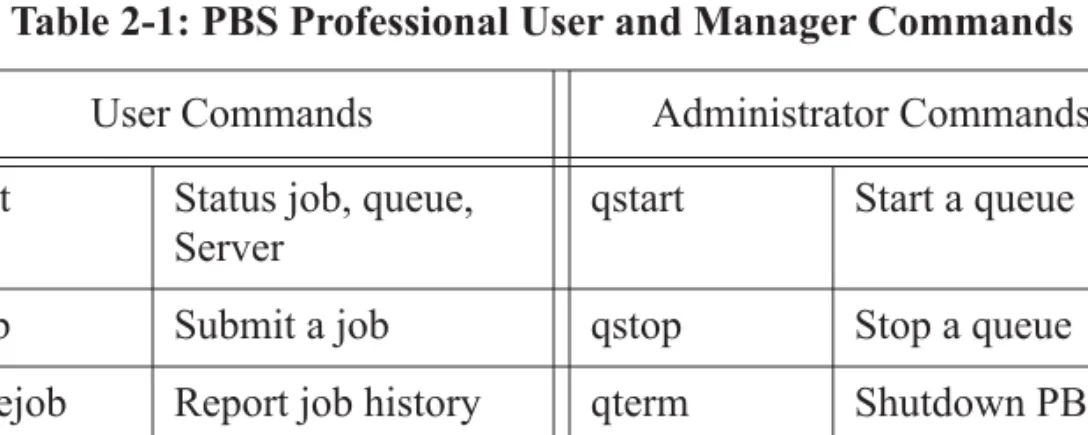
PBS provides two user interfaces: a command line interface (CLI) and a graphical user interface (GUI). The CLI lets you type commands at the sys-tem prompt. The GUI is a graphical point-and-click interface. The “user commands” are discussed in this book; the “administrator commands” are discussed in the PBS Professional Administrator’s Guide. The subse-quent chapters of this book will explain how to use both the CLI and GUI
.
Table 2-1: PBS Professional User and Manager Commands
User Commands Administrator Commands
Command Purpose Command Purpose
nqs2pbs Convert from NQS pbs-report Report job statis-tics
pbs_rdel Delete a Reservation
pbs_rstat Status a Reservation pbs_hostn Report host name(s) pbs_
password
Update per user / per server password1
pbs_migrate _users
Migrate per user / per server pass-words 1
pbs_rsub Submit a Reserva-tion
pbs_probe PBS diagnostic tool
pbsdsh PBS distributed shell
qalter Alter job pbs_tclsh TCL with PBS API
qdel Delete job pbsfs Show fairshare usage
qhold Hold a job pbsnodes Vnode manipula-tion
qmove Move job printjob Report job details qmsg Send message to job qdisable Disable a queue qorder Reorder jobs qenable Enable a queue qrls Release hold on job qmgr Manager
inter-face qselect Select jobs by
crite-ria
qrerun Requeue running job
qsig Send signal to job qrun Manually start a job
Notes:
1 Available on Windows only.
2.11
User’s PBS Environment
In order to have your system environment interact seamlessly with PBS, there are several items that need to be checked. In many cases, your system administrator will have already set up your environment to work with PBS. In order to use PBS to run your work, the following are needed:
• User must have access to the resources/hosts that the site has configured for PBS
• User must have a valid account (username and group) on the execution hosts
• User must be able to transfer files between hosts (e.g. via rcp or scp)
• User’s time zone environment variable must be set correctly in order to use advance and standing reservations. See section 7.8.9.1 “Setting the Submission Host’s Time Zone” on page 196.
The subsequent sections of this chapter discuss these requirements in detail, and provide various setup procedures.
qstat Status job, queue, Server
qstart Start a queue qsub Submit a job qstop Stop a queue tracejob Report job history qterm Shutdown PBS xpbs Graphical User
Interface
xpbsmon GUI monitoring tool
Table 2-1: PBS Professional User and Manager Commands
2.12
Usernames Under PBS
By default PBS will use your login identifier as the username under which to run your job. This can be changed via the “-u” option to qsub. See
section 3.13.14 “Specifying Job User ID” on page 87. The user submitting the job must be authorized to run the job under the execution user name (whether explicitly specified or not).
IMPORTANT:
PBS enforces a maximum username length of 15 characters. If a job is submitted to run under a username longer than this limit, the job will be rejected.
2.13
Setting Up Your UNIX/Linux
Environment
2.13.1
Setting PBS_EXEC on UNIX/Linux
In order to make it easier to submit a job script, you can set up your envi-ronment so that the correct value for PBS_EXEC is used automatically.
Under sh or bash, do the following:
2.13.2
Preventing Problems
A user's job may not run if the user's start-up files (i.e .cshrc, .login,
or .profile) contain commands which attempt to set terminal
character-istics. Any such command sequence within these files should be skipped by testing for the environment variable PBS_ENVIRONMENT. This can be
done as shown in the following sample .login:
setenv MANPATH /usr/man:/usr/local/man:$MANPATH if ( ! $?PBS_ENVIRONMENT ) then
do terminal settings here
endif
You should also be aware that commands in your startup files should not generate output when run under PBS. As in the previous example, com-mands that write to stdout should not be run for a PBS job. This can be done as shown in the following sample .login:
setenv MANPATH /usr/man:/usr/local/man:$MANPATH if ( ! $?PBS_ENVIRONMENT ) then
do terminal settings here run command with output here endif
When a PBS job runs, the “exit status” of the last command executed in the job is reported by the job’s shell to PBS as the “exit status” of the job. (We will see later that this is important for job dependencies and job chaining.) However, the last command executed might not be the last command in your job. This can happen if your job’s shell is csh on the execution host
and you have a .logout there. In that case, the last command executed is
from the .logout and not your job. To prevent this, you need to preserve
the job’s exit status in your .logout file, by saving it at the top, then
doing an explicit exit at the end, as shown below:
set EXITVAL = $status
previous contents of .logout here exit $EXITVAL
Warning: no access to tty, thus no job control in this shell
This message is produced by many csh versions when the shell
deter-mines that its input is not a terminal. Short of modifying csh, there is no
way to eliminate the message. Fortunately, it is just an informative mes-sage and has no effect on the job.
2.13.2.1
Interactive Jobs
An interactive job comes complete with a pseudotty suitable for running those commands that set terminal characteristics. But more importantly, it does not caution the user that starting something in the background that would persist after the user has exited from the interactive environment might cause trouble for some moms. They could believe that once the inter-active session terminates, all the user's processes are gone with it. For example, applications like ssh-agent background themselves into a new session and would prevent a CPU set-enabled mom from deleting the CPU set for the job. This in turn might cause subsequent failed attempts to run new jobs, resulting in them being placed in a held state.
2.13.3
Setting MANPATH on SGI Systems
The PBS “man pages” (UNIX manual entries) are installed on SGI systems under /usr/bsd, or for the Altix, in /usr/pbs/man. In order to find
the PBS man pages, users will need to ensure that /usr/bsd is set within
their MANPATH. The following example illustrates this for the C shell:
setenv MANPATH /usr/man:/usr/local/man:/usr/ bsd:$MAN-PATH
2.14
Setting Up Your Windows
Environment
This section discusses the setup steps needed for running PBS Professional in a Microsoft Windows environment, including host and file access, pass-words, and restrictions on home directories.
2.14.1
Setting PBS_EXEC on Windows
In order to make it easier to submit a job script, you can set up your envi-ronment so that the correct value for PBS_EXEC is used automatically. Under Windows, do the following:
1.Look into "C:\Program Files\PBS Pro\pbs.conf", and get the value of PBS_EXEC. It will be something like “C:\Program
Files\PBS Pro\exec”.
2.Set your environment accordingly:
cmd> set PBS_EXEC=”<path>”
For example,
cmd> set PBS_EXEC=”C:\Program Files\PBS Pro\exec"
2.14.2
Windows User's HOMEDIR
Each Windows user is assumed to have a home directory (HOMEDIR)
where his/her PBS jobs are initially started.
If a user has not been explicitly assigned a home directory, then PBS will use this Windows-assigned default as the base location for the user’s default home directory. More specifically, the actual home path will be:
[PROFILE_PATH]\My Documents\PBS Pro
For instance, if a userA has not been assigned a home directory, it will default to a local home directory of:
\Documents and Settings\userA\My Documents\PBS Pro
Note that Windows can return as PROFILE_PATH one of the following
forms:
\Documents and Settings\username
\Documents and Settings\username.local-host
name
\Documents and Settings\username.local-host
name.00N
where N is a number
\Documents and Settings\username.domain-name
2.14.3
Windows Usernames and Job
Submission
A PBS job is run from a user account and the associated username string must conform to the POSIX-1 standard for portability. That is, the user-name must contain only alphanumeric characters, dot (.), underscore (_), and/or hyphen “-”. The hyphen must not be the first letter of the username. If “@” appears in the username, then it will assumed to be in the context of a Windows domain account: username@domainname. An exception to
the above rule is the space character, which is allowed. If a space character appears in a username string, then it will be displayed quoted and must be specified in a quoted manner. The following example requests the job to run under account “Bob Jones”.
qsub -u “Bob Jones” my_job
2.14.4
Windows rhosts File
The Windows rhosts file is located in the user's [PROFILE_PATH], for
example: \Documents and Settings\username\.rhosts,
with the format:
IMPORTANT:
Be sure the .rhosts file is owned by user or an
adminis-trator-type group, and has write access granted only to the owning user or an administrator or group.
This file can also determine if a remote user is allowed to submit jobs to the local PBS Server, if the mapped user is an Administrator account. For example, the following entry in user susan’s .rhosts file on the server
would permit user susan to run jobs submitted from her workstation
wks031:
wks031 susan
Furthermore, in order for Susan’s output files from her job to be returned to her automatically by PBS, she would need to add an entry to her .rhosts
file on her workstation naming the execution host Host1.
Host1 susan
If instead, Susan has access to several execution hosts, she would need to add all of them to her .rhosts file:
Host1 susan Host2 susan Host3 susan
Note that Domain Name Service (DNS) on Windows may return different permutations for a full hostname, thus it is important to list all the names that a host may be known. For instance, if Host4 is known as "Host4", "Host4.<subdomain>", or "Host4.<subdomain>.<domain>" you should list all three in the .rhosts file.
Host4 susan
Host4.subdomain susan
Host4.subdomain.domain susan
As discussed in the previous section, usernames with embedded white space must also be quoted if specified in any hosts.equiv or .rhosts
files, as shown below.
2.14.5
Windows Mapped Drives and PBS
In Windows XP, when you map a drive, it is mapped "locally" to your ses-sion. The mapped drive cannot be seen by other processes outside of your session. A drive mapped on one session cannot be un-mapped in another session even if it's the same user. This has implications for running jobs under PBS. Specifically if you map a drive, chdir to it, and submit a job
from that location, the vnode that executes the job may not be able to deliver the files back to the same location from which you issued qsub.
The workaround is to use the “-o” or “-e” options to qsub and specify a
local (non-mapped) directory location for the job output and error files. For details see section 3.13.2.2 “Specifying Path for Output and Error Files” on page 77.
2.15
Environment Variables
There are a number of environment variables provided to the PBS job. Some are taken from the user’s environment and carried with the job. Oth-ers are created by PBS. Still othOth-ers can be explicitly created by the user for exclusive use by PBS jobs. All PBS-provided environment variable names start with the characters “PBS_”. Some are then followed by a capital O
(“PBS_O_”) indicating that the variable is from the job’s originating
of the PBS Professional Reference Guide for a full listing of all environ-ment variables provided to PBS jobs and their meaning. The following short example lists some of the more useful variables, and typical values.
PBS_O_HOME=/u/user1 PBS_O_LOGNAME=user1 PBS_O_PATH=/usr/new/bin:/usr/local/bin:/bin PBS_O_SHELL=/sbin/csh PBS_O_HOST=cray1 PBS_O_WORKDIR=/u/user1 PBS_O_QUEUE=submit PBS_JOBID=16386.cray1 PBS_QUEUE=crayq PBS_ENVIRONMENT=PBS_INTERACTIVE
There are a number of ways that you can use these environment variables to make more efficient use of PBS. In the example above we see
PBS_ENVIRONMENT, which we used earlier in this chapter to test if we
were running under PBS. Another commonly used variable is
PBS_O_WORKDIR which contains the name of the directory from which
the user submitted the PBS job.
There are also two environment variables that you can set to affect the behavior of PBS. The environment variable PBS_DEFAULT defines the
name of the default PBS Server. Typically, it corresponds to the system name of the host on which the Server is running. If PBS_DEFAULT is not
set, the default is defined by an administrator established file (usually / etc/pbs.conf on UNIX, and [PBS Destination
Folder]\pbs.conf on Windows).
The environment variable PBS_DPREFIX determines the prefix string
which identifies directives in the job script. The default prefix string is “#PBS”; however the Windows user may wish to change this as discussed
2.16
Temporary Scratch Space:
TMPDIR
PBS creates an environment variable, TMPDIR, which contains the full
path name to a temporary “scratch” directory created for each PBS job. The directory will be removed when the job terminates.
Under Windows, TMP will also be set to the value of %TMPDIR%. The
tem-porary directory will be created under either \winnt\temp or \win-dows\temp, unless an alternative directory was specified by the
administrator in the MOM configuration file.
Users can access the job-specific temporary space, by changing directory to it inside their job script. For example:
UNIX:
cd $TMPDIR
Windows:
Submitting a PBS Job
This chapter describes virtual nodes, how to submit a PBS job, how to use resources for jobs, how to place your job on vnodes, job attributes, and sev-eral related topics.
3.1
Vnodes: Virtual Nodes
A virtual node, or vnode, is an abstract object representing a set of resources which form a usable part of a machine. This could be an entire host, or a nodeboard or a blade. A single host can be made up of multiple vnodes. Each vnode can be managed and scheduled independently. PBS views hosts as being composed of one or more vnodes. Jobs run on one or more vnodes. See the pbs_node_attributes(7B) man page.
3.1.1
Relationship Between Hosts, Nodes, and
Vnodes
A host is any computer. Execution hosts used to be called nodes. However, some machines such as the Altix can be treated as if they are made up of separate pieces containing CPUs, memory, or both. Each piece is called a vnode. Some hosts have a single vnode and some have multiple vnodes. PBS treats all vnodes alike in most respects. Chunks cannot be split across hosts, but they can be split across vnodes on the same host.
Resources that are defined at the host level are applied to vnodes. A host-level resource is shared among the vnodes on that host. This sharing is managed by the MOM.
3.1.2
Vnode Types
What were called nodes are now called vnodes. All vnodes are treated alike, and are treated the same as what were called “time-shared nodes”. The types “time-shared” and “cluster” are deprecated. The :ts suffix is deprecated. It is silently ignored, and not preserved during rewrite. The vnode attribute ntype is only used to distinguish between PBS and Glo-bus vnodes. It is read-only.
3.2
PBS Resources
Resources can be available on the server and queues, and on vnodes. Jobs can request resources. Resources are allocated to jobs, and some resources such as memory are consumed by jobs. The scheduler matches requested resources with available resources, according to rules defined by the administrator. PBS can enforce limits on resource usage by jobs.
PBS provides built-in resources, and in addition, allows the administrator to define custom resources. The administrator can specify which resources are available on a given vnode, as well as at the server or queue level (e.g.
floating licenses.) Vnodes can share resources. The administrator can also specify default arguments for qsub. These arguments can include
resources. See the qsub(1B) man page.
Resources made available by defining them via resources_available at the server level are only used as job-wide resources. These resources (e.g. walltime, server_dyn_res) are requested using -l RESOURCE=VALUE. Resources made available at the host (vnode) level are only used as chunk resources, and can only be requested within chunks using -l
select=RESOURCE=VALUE. Resources such as mem and ncpus can only be used at the vnode level.
Resources are allocated to jobs both by explicitly requesting them and by applying specified defaults. Jobs explicitly request resources either at the vnode level in chunks defined in a selection statement, or in job-wide resource requests. See the pbs_resources(7B) manual page. Jobs are assigned limits on the amount of resources they can use. These limits apply to how much the job can use on each vnode (per-chunk limit) and to how much the whole job can use (job-wide limit). Limits are derived from both requested resources and applied default resources.
Each chunk's per-chunk limits determine how much of any resource can be used in that chunk. Per-chunk resource usage limits are the amount of per-chunk resources requested, both from explicit requests and from defaults. Job resource limits set a limit for per-job resource usage. Job resource lim-its are derived in this order from:
1.explicitly requested job-wide resources (e.g. -l resource=value)
2.the select specification (e.g. -l select =...)
3.the queue’s resources_default.RES
4.the server’s resources_default.RES
5.the queue’s resources_max.RES
6.the server’s resources_max.RES
The server’s default_chunk.RES does not affect job-wide limits.
Various limit checks are applied to jobs. If a job's job resource limit exceeds queue or server restrictions, it will not be put in the queue or accepted by the server. If, while running, a job exceeds its limit for a con-sumable or time-based resource, it will be terminated.
A “consumable” resource is one that is reduced by being used, for exam-ple, ncpus, licenses, or mem. A “non-consumable” resource is not reduced through use, for example, walltime or a boolean resource.
Resources are tracked in server, queue, vnode and job attributes. Servers, queues and vnodes have two attributes, resources_available.RESOURCE and resources_assigned.RESOURCE. The
resources_available.RESOURCE attribute tracks the total amount of the resource available at that server, queue or vnode, without regard to how much is in use. The resources_assigned.RESOURCE attribute tracks how much of that resource has been assigned to jobs at that server, queue or vnode. Jobs have an attribute called resources_used.RESOURCE which tracks the amount of that resource used by that job.
The administrator can set server and queue defaults for resources used in chunks. See the PBS Professional Administrator’s Guide and the pbs_server_attributes(7B) and pbs_queue_attributes(7B) manual pages. For a thorough discussion of PBS resources, see section , "PBS Resources" on page 317 in the PBS Professional Administrator’s Guide.
3.2.1
Unset Resources
When job resource requests are being matched with available resources, a numerical resource that is unset on a host is treated as if it were zero, and an unset string cannot be matched. An unset Boolean resource is treated as if it is set to “False”. An unset resource at the server or queue is treated as if it were infinite.
3.2.2
Resource Names
The resource name is any string made up of alphanumeric characters, where the first character is alphabetic. Resource names must start with an alphabetic character and can contain alphanumeric, underscore (“_”), and dash (“-”) characters.
3.2.3
Specifying Resource Values
• Resource values which contain commas, quotes, plus signs, equal signs, colons, or parentheses must be quoted to PBS. The string must be enclosed in quotes so that the command (e.g. qsub, qalter) will parse it correctly.
• When specifying resources via the command line, any quoted strings must be escaped or enclosed in another set of quotes. This second set of quotes must be different from the first set, meaning that double quotes must be enclosed in single quotes, and vice versa.
• If a string resource value contains spaces or shell metacharacters, enclose the string in quotes, or otherwise escape the space and meta-characters. Be sure to use the correct quotes for your shell and the behavior you want.
3.2.4
Resource Types
See “Resource Data Types” on page 347 of the PBS Professional Reference Guide for a description of resource types.
3.2.5
Built-in Resources
See “Built-in Resources” on page 350 of the PBS Professional Reference Guide for a list of built-in resources.
3.3
PBS Jobs
3.3.1
Rules for Submitting Jobs
specifica-tion. See section 3.6 “Placing Jobs on Vnodes” on page 50.
• A "select" specification cannot be used with a "nodes" specification.
• A "select" specification cannot be used with old-style resource requests such as -lncpus, -lmem, -lvmem, -larch, -lhost.
• The built-in resource "software" is not a vnode-level resource. See “Built-in Resources” on page 350 of the PBS Professional Reference Guide.
• A PBS job can be submitted at the command line or via xpbs.
• At the command line, the user can create a job script, and submit it. During submission it is possible to override elements in the job script. Alternatively, PBS will read from input typed at the command line.
3.3.2
Introduction to the PBS Job Script
3.3.2.1
Contents of a Job Script
A PBS job script consists of:
• An optional shell specification
• PBS directives
• Tasks (programs or commands)
3.3.2.2
Types of Job Scripts
PBS allows you to use various kinds of job scripts. You can use any of the following:
• A Python script that can run under Windows or UNIX/Linux
• A UNIX shell script that runs under UNIX/Linux
3.3.2.3
Submitting a Job Script
Before submitting a job script using these instructions, be sure to set your environment appropriately If you want the correct value for PBS_EXEC to
be used automatically, see section 2.13.1 “Setting PBS_EXEC on UNIX/ Linux” on page 14 and section 2.14.1 “Setting PBS_EXEC on Windows” on page 17.
To submit a PBS job, type the following: UNIX/Linux shell script:
qsub <name of shell script>
UNIX/Linux Python script:
qsub -S $PBS_EXEC/bin/pbs_python <python job script>
Windows command script:
qsub <name of job script>
Windows Python script:
qsub -S %PBS_EXEC%\bin\pbs_python.exe <python job script>
If the path contains any spaces, it must be quoted, for example:
qsub -S “%PBS_EXEC%\bin\pbs_python.exe” <python job script>
3.3.3
The Job Script
3.3.3.1
Python Job Scripts
PBS allows you to submit jobs using a Python script. You can use the same Python script under Windows or UNIX/Linux. PBS includes a Python package, allowing Python job scripts to run; you do not need to install Python. To run a Python job script:
Windows:
qsub -S %PBS_EXEC%\bin\pbs_python.exe <script name>
If the path contains any spaces, it must be quoted, for example:
qsub -S “%PBS_EXEC%\bin\pbs_python.exe” <python job script>
You can include PBS directives in a Python job script as you would in a UNIX shell script. For example:
% cat myjob.py
#PBS -l select=1:ncpus=3:mem=1gb #PBS -N HelloJob
print “Hello”
Python job scripts can access Win32 APIs, including the following mod-ules:
• Win32api
• Win32con
• Pywintypes
3.3.3.1.1 Windows Python Caveat
If you have Python natively installed, and you need to use the win32api, make sure that you import pywintypes before win32api, otherwise you will get an error. Do the following:
cmd> pbs_python >> import pywintypes >> import win32api
3.3.3.2
UNIX Shell Scripts
Since the job file can be a shell script, the first line of a shell script job file specifies which shell to use to execute the script. The user’s login shell is the default, but you can change this. This first line can be omitted if it is acceptable for the job file to be interpreted using the login shell.
3.3.3.3
Windows Command Scripts
If the job file is a shell script, specify the shell in the first line of the job file.
3.3.3.3.1 Windows Caveats
In Windows, if you use notepad to create a job script, the last line does
not automatically get newline-terminated. Be sure to put one explicitly, otherwise, PBS job will get the following error message:
More?
when the Windows command interpreter tries to execute that last line.
3.3.3.4
Perl Scripts Under Windows
PBS jobs execute under the native cmd environment, and not under cyg-win. To run a Perl script under Windows, you must specify the path to Perl in your job script.
Format:
<path to Perl> my_job.pl [arguments to script]
3.3.3.5
PBS Directives
PBS directives are at the top of the script file. They are used to request resources or set attributes. A directive begins with the default string “#PBS”. Attributes can also be set using options to the qsub command,
which will override directives. The limit for a PBS directive is 2048 char-acters.
3.3.3.6
The User’s Tasks
These can be programs or commands. This is where the user specifies an application to be run.
3.3.3.7
Setting Job Attributes
Job attributes can be set by either of the following methods:
• Using PBS directives in the job script
• Giving options to the qsub command at the command line
These two methods have the same functionality. Options to the qsub com-mand will override PBS directives, which override defaults. Some job attributes have default values preset in PBS. Some job attributes’ default values are set at the user’s site.
After the job is submitted, you can use the qalter command to change
the job’s characteristics.
Job attributes are case-insensitive.
3.3.3.8
Debugging Job Scripts
You can run Python interactively, outside of PBS, to debug a Python job script. You use the Python interpreter to test parts of your script.
Under UNIX/Linux, use the -i option to the pbs_python command, for
example:
/opt/pbs/default/bin/pbs_python -i <return>
Under Windows, the -i option is not necessary, but can be used. For exam-ple, either of the following will work:
C:\Program Files\PBS Pro\exec\bin\pbs_python.exe <return>
C:\Program Files\PBS Pro\exec\bin\pbs_python.exe -i <return>
When the Python interpreter runs, it presents you with its own prompt. For example:
% /opt/pbs/default/bin/pbs_python -i <return> >> print “hello”
3.3.4
Job Script Names
It is recommended to avoid using special characters in a job script name. If you must use them, on UNIX/Linux you must escape them using the back-slash (“\”) character.
3.4
Submitting a PBS Job
There are a few ways to submit a PBS job using the command line. The first is to create a job script and submit it using qsub.
3.4.1
Submitting a Job Script
For example, with job script “myjob”, the user can submit it by typing
qsub myjob
16387.foo.exampledomain
PBS returns a job identifier (e.g. “16387.foo.exampledomain” in
the example above.) Its format will be:
sequence-number.servername
or, for a job array,
sequence-number[].servername.domain
You’ll need the job identifier for any actions involving the job, such as checking job status, modifying the job, tracking the job, or deleting the job. If “my_job” contains the following, the user is naming the job “testjob”, and running a program called “myprogram”.
#!/bin/sh
#PBS -N testjob ./myprogram
3.4.1.1
Overriding Directives
PBS directives in a script can be overridden by using the equivalent options to qsub. For example, to override the PBS directive naming the job, and name it “newjob”, the user could type
qsub -N newjob my_job
3.4.1.2
Submitting a Simple Job
Jobs can also be submitted without specifying values for attributes. The simplest way to submit a job is to type
qsub myjobscript <ret>
If myjobscript contains #!/bin/sh
./myapplication
the user has simply told PBS to run myapplication.
3.4.1.3
Passing Arguments to Job Scripts
If you need to pass arguments to a job script, you can either use the -v option to qsub, where you set and use environment variables, or use stan-dard input. When using stanstan-dard input, any #PBS directives in the job script will be ignored. You can replace directives with the equivalent options to qsub. To use standard input, you can either use this form:
echo "jobscript.sh -a foo -b bar" | qsub -l select=...
or you can use this form:
qsub [option] [option] ... <ret> ./jobscript.sh foo <^d> 152.mymachine
With this form, you can type the #PBS directives on lines the name of the job script. If you do not use the -n option to qsub, or specify it via a #PBS directive (second form only), the job will be named STDIN.
3.4.2
Jobs Without a Job Script
There are two ways to submit PBS jobs without using a job script. You can run a PBS job by specifying an executable and its arguments instead of a job script. You can also specify that qsub read input from the keyboard.
3.4.2.1
Submitting Jobs by Specifying Executables
When you specify only the executable with any options and arguments, PBS starts a shell for you. To submit a job from the command line, the for-mat is the following:
qsub [options] -- executable [arguments to executable] <return>
For example, to run myprog with the arguments a and b:
qsub -- myprog a b <return>
To run myprog with the arguments a and b, naming the job JobA,
qsub -N JobA -- myprog a b <return>
3.4.2.2
Submitting Jobs Using Keyboard Input
It is possible to submit a job to PBS without first creating a job script file. If you run the qsub command, with the resource requests on the command
line, and then press “enter” without naming a job file, PBS will read input from the keyboard. (This is often referred to as a “here document”.) You can direct qsub to stop reading input and submit the job by typing on a
line by itself a control-d (UNIX) or control-z, then enter
(Win-dows).
Note that, under UNIX, if you enter a control-c while qsub is reading
input, qsub will terminate the process and the job will not be submitted.
depend-ing on the command prompt used, cause qsub to submit the job to PBS. In
such case, a control-break sequence will usually terminate the qsub
command. qsub <ret> [directives] [tasks] ctrl-D
3.5
Requesting Resources
PBS provides built-in resources, and allows the administrator to define cus-tom resources. The administrator can specify which resources are avail-able on a given vnode, as well as at the queue or server level (e.g. floating licenses.) See “Built-in Resources” on page 350 of the PBS Professional Reference Guide for a listing of built-in resources.
Resources defined at the queue or server level apply to an entire job. If they are defined at the vnode level, they apply only to the part of the job running on that vnode.
Jobs request resources, which are allocated to the job, along with any defaults specified by the administrator.
Custom resources are used for application licenses, scratch space, etc., and are defined by the administrator. See section 5.14, "Custom Resources", on page 352 of the PBS Professional Administrator’s Guide of the PBS Professional Administrator’s Guide. Custom resources are used the same way built-in resources are used.
Jobs request resources in two ways. They can use the select statement to define chunks and specify the quantity of each chunk. A chunk is a set of resources that are to be allocated as a unit. Jobs can also use a job-wide resource request, which uses resource=value pairs, outside of the
select statement. Format:
qsub (non-resource portion of job)
-l <resource>=<value> (this is the job-wide request) -l select=<chunk>[+<chunk>] (this is the selection statement)
See section 3.5.2 “Requesting Resources in Chunks” on page 38 and sec-tion 3.5.3 “Requesting Job-wide Resources” on page 39.
The qsub, qalter and pbs_rsub commands are used to request resources. However, custom resources which were created to be invisible or unrequestable cannot be requested. See section 3.5.15 “Resource Per-missions” on page 49.
The -lnodes= form is deprecated, and if it is used, it will be converted into a request for chunks and job-wide resources. Most jobs submitted with "-lnodes" will continue to work as expected. These jobs will be auto-matically converted to the new syntax. However, job tasks may execute in an unexpected order, because vnodes may be assigned in a different order. Jobs submitted with old syntax that ran successfully on versions of PBS Professional prior to 8.0 can fail because a limit that was per-chunk is now job-wide. This is an example of a job submitted using -lnodes=X
-lmem=M that would fail because the mem limit is now job-wide. If the following conditions are true:
a. PBS Professional 9.0 or later using standard MPICH b. The job is submitted with qsub -lnodes=5 -lmem=10GB c. The master process of this job tries to use more than 2GB
The job will be killed, where in <= 7.0 the master process could use 10GB before being killed. 10GB is now a job-wide limit, divided up into a 2GB limit per chunk.
For more information see the qsub(1B), qalter(1B),
pbs_rsub(1B) and pbs_resources(7B) manual pages.
Do not use an old-style resource or node specification (lnodes=”) with “-lselect” or “-lplace”. This will produce an error.
Each kind of resource plays a specific role, which is either inside chunks or outside of them, but not both. Some resources, e.g. ncpus, can only be used at the host (chunk) level. The rest, e.g. walltime, can only be used at the job-wide level. Therefore, no resource can be requested both inside and outside of a selection statement. Keep in mind that requesting, for exam-ple, -lncpus is the old form, which cannot be mixed with the new form.
3.5.1
Resource Allocation
Resources are allocated to jobs both because jobs explicitly request them and because specified default resources are applied to jobs. Jobs explicitly request resources either at the vnode level in chunks defined in a selection statement, or in job-wide resource requests, outside of a selection state-ment. An explicit resource request can appear in the following, in order of precedence:
1.qalter
2.qsub
3.PBS job script directives
3.5.2
Requesting Resources in Chunks
A chunk declares the value of each resource in a set of resources which are to be allocated as a unit to a job. It is the smallest set of resources that will be allocated to a job. All of a chunk must be taken from a single host. A chunk request is a vnode-level request. Chunks are described in a tion statement, which specifies how many of each kind of chunk. A selec-tion statement has this form:
-l select=[N:]chunk[+[N:]chunk ...]
If N is not specified, it is taken to be 1. No spaces are allowed between chunks.
A chunk is one or more resource_name=value statements separated by a colon, e.g.:
ncpus=2:mem=10GB:host=Host1 ncpus=1:mem=20GB:arch=linux
Example of multiple chunks in a selection statement:
-l select= 2:ncpus=1:mem=10GB +3:ncpus=2:mem=8GB:arch=solaris
Host-level resources can only be requested as part of a chunk. Server or queue resources cannot be requested as part of a chunk. They must be requested outside of the selection statement.
3.5.3
Requesting Job-wide Resources
A job-wide resource request is for resource(s) at the server or queue level. This resource must be a server-level or queue-level resource. A job-wide resource is designed to be used by the entire job, and is available to the complex, not just one execution host.
Job-wide resources are requested outside of a selection statement, in this form:
-l keyword=value[,keyword=value ...]
where keyword identifies either a consumable resource or a time-based resource such as walltime.
Job-wide resources are used for requesting floating licenses or other resources not tied to specific vnodes, such as cput and walltime. Job-wide resources can only be requested outside of chunks.
A resource request “outside of a selection statement” means that the resource request comes after “-l”, but not after “-lselect=”.
3.5.4
Boolean Resources
A resource request can specify whether a boolean resource should be true or false. For example, if some vnodes have green=true and some are red=true, a selection statement for two vnodes, each with one CPU, all green and no red, would be:
The next example Windows script shows a job-wide request for walltime and a chunk request for ncpus and memory.
#PBS -l walltime=1:00:00 #PBS -l select=ncpus=4:mem=400mb #PBS -j oe date /t .\my_application date /t
Keep in mind the difference between requesting a vnode-level boolean and a job-wide boolean.
qsub -l select=1:green=True
will request a vnode with green set to True. However,
qsub -l green=True
will request green set to True on the server and/or queue.
3.5.5
Default Resources
Jobs get default resources, both job-wide and per-chunk, with the follow-ing order of precedence, from
1.Default qsub arguments
2.Default queue resources
3.Default server resources
For each chunk in the job's selection statement, first queue chunk defaults are applied, then server chunk defaults are applied. If the chunk request does not specify a resource listed in the defaults, the default is added. For a resource RESOURCE, a chunk default is called
For example, if the queue in which the job is enqueued has the following defaults defined:
default_chunk.ncpus=1 default_chunk.mem=2gb
a job submitted with this selection statement:
select=2:ncpus=4+1:mem=9gb
will have this specification after the default_chunk elements are applied:
select=2:ncpus=4:mem=2gb+1:ncpus=1:mem=9gb.
In the above, mem=2gb and ncpus=1 are inherited from default_chunk. The job-wide resource request is checked against queue resource defaults, then against server resource defaults. If a default resource is defined which is not specified in the resource request, it is added to the resource request.
3.5.6
Requesting Application Licenses
Application licenses are set up as resources defined by the administrator. PBS doesn't actually check out the licenses, the application being run inside the job's session does that.
3.5.6.1
Floating Licenses
PBS queries the license server to find out how many floating licenses are available at the beginning of each scheduling cycle. If you wish to request a site-wide floating license, it will typically have been set up as a server-level (job-wide) resource. To request an application license called AppF, use:
qsub -l AppF=<number of licenses> <other qsub arguments>
If only certain hosts can run the application, they will typically have a host-level boolean resource set to True. To request the application license and the vnodes on which to run the application, use:
qsub -l AppF=<number of licenses> <other qsub arguments> -l select=haveAppF=True
PBS doesn't actually check out the licenses, the application being run inside the job's session does that.
3.5.6.2
Node-locked Licenses
Per-host node-locked licenses are typically set up as either a boolean resource on the vnode(s) that are licensed for the application. The resource request should include one license for each host. To request a host with a per-host node-locked license for AppA in one chunk:
qsub -l select=1:runsAppA=1 <jobscript>
Per-use node-locked licenses are typically set up so that the host(s) that run the application have the number of licenses that can be used at one time. The number of licenses the job requests should be the same as the number of instances of the application that will be run. To request a host with a per-use node-locked license for AppB, where you’ll run one instance of AppB on two CPUs in one chunk:
qsub -l select=1:ncpus=2:AppB=1
Per-CPU node-locked licenses are set up so that the host has one license for each licensed CPU. You must request one license for each CPU. To request a host with a node-locked license for AppC, where you’ll run a job using two CPUs in one chunk:
3.5.7
Requesting Scratch Space
Scratch space on a machine is set up as a host-level dynamic resource. The resource will have a name such as “dynscratch”. To request 10MB of scratch space in one chunk, a resource request would include:
-l select=1:ncpus=N:dynscratch=10MB
3.5.8
Requesting GPUs
Your PBS job can request GPUs. Your administrator can configure PBS to support any of the following:
• Job uses non-specific GPUs and exclusive use of a node
• Job uses non-specific GPUs and shared use of a node
• Job uses specific GPUs and either shared or exclusive use of a node
3.5.8.1
Binding to GPUs
PBS Professional allocates GPUs, but does not bind jobs to any particular GPU; the application itself, or the CUDA library, is responsible for the actual binding.
3.5.8.2
Requesting Non-specific GPUs and Exclusive Use
of Node
If your job needs GPUs, but does not require specific GPUs, and can request exclusive use of GPU nodes, you can request GPUs the same way you request CPUs.
Your administrator can set up a resource to represent the GPUs on a node. We recommend that the GPU resource is called ngpus.
You submit jobs, for example “my_gpu_job”, requesting one node with
two GPUs and one CPU, and exclusive use of the node, in the following manner: