585-300-121
Comcode 108356072
Issue 1
complete and accurate at the time of printing. However, information is subject to change.
Your Responsibility for Your System’s Security
Toll fraud is the unauthorized use of your telecommunications system by an unauthorized party, for example, persons other than your com-pany’s employees, agents, subcontractors, or persons working on your company’s behalf. Note that there may be a risk of toll fraud associated with your telecommunications system and, if toll fraud occurs, it can result in substantial additional charges for your telecommunications services.
You and your system manager are responsible for the security of your system, such as programming and configuring your equipment to pre-vent unauthorized use. The system manager is also responsible for reading all installation, instruction, and system administration docu-ments provided with this product in order to fully understand the fea-tures that can introduce risk of toll fraud and the steps that can be taken to reduce that risk. Lucent Technologies does not warrant that this product is immune from or will prevent unauthorized use of com-mon-carrier telecommunication services or facilities accessed through or connected to it. Lucent Technologies will not be responsible for any charges that result from such unauthorized use.
Lucent Technologies Fraud Intervention
If you suspect you are being victimized by toll fraud and you need technical support or assistance, call the appropriate BCS National Cus-tomer Care Center telephone number. Users of the MERLIN®, PART-NER®, and System 25 products should call 1 800 628 2888. Users of the System 75, System 85, DEFINITY® Generic 1, 2 and 3, and DEFINITY® ECS products should call 1 800 643 2353. Customers outside the continental United States should contact their local Lucent representative, or call one of the above numbers in the following man-ner:
• Dial the International Access Code; for example, 011. • Dial the country code for the U.S., that is, 01.
• Lastly, dial either of the telephone numbers provided above. Lucent Technologies Web Page
The world wide web home page for Lucent Technologies is: http://www.lucent.com
Federal Communications Commission Statement
Part 15: Class A Statement. This equipment has been tested and found to comply with the limits for a Class A digital device, pursuant to Part 15 of the FCC Rules. These limits are designed to provide rea-sonable protection against harmful interference when the equipment is operated in a commercial environment. This equipment generates, uses, and can radiate radio-frequency energy and, if not installed and used in accordance with the instructions, may cause harmful interfer-ence to radio communications. Operation of this equipment in a resi-dential area is likely to cause harmful interference, in which case the user will be required to correct the interference at his own expense.
Le Présent Appareil Nomérique n’émet pas de bruits radioélectriques dépassant les limites applicables aux appareils numériques de la class A préscrites dans le reglement sur le brouillage radioélectrique édicté par le Industrie Canada.
Trademarks
See the preface of this document. Ordering Information
Call: Lucent Technologies BCS Publications Center
Voice 1 800 457-1235 International Voice 317 322-6791 Fax 1 800 457-1764 International Fax 317 322-6699 Write: Lucent Technologies BCS Publications Center
2855 N. Franklin Road Indianapolis, IN 46219 Order: Document No. 585-300-121
Comcode 108356072 Issue 1, May 1999
For additional documents, refer to the section in “About This Docu-ment” entitled “Related Resources.”
You can be placed on a standing order list for this and other documents you may need. For more information on standing orders, or to be put on a list to receive future issues of this document, contact the Lucent Tech-nologies Publications Center.
Obtaining Products
To learn more about Lucent Technologies products and to order prod-ucts, contact Lucent Direct, the direct-market organization of Lucent Technologies Business Communications Systems. Access their web site at www.lucentdirect.com. Or call the following numbers: custom-ers 1 800 451 2100, account executives 1 888 778 1880 (voice) or 1 888 778 1881 (fax).
Warranty
Lucent Technologies provides a limited warranty on this product. Refer to the “Limited Use Software License Agreement” card provided with your package.
European Union Declaration of Conformity
The “CE” mark affixed to the equipment means that it conforms to the following directives. Lucent Technologies Business Communications Systems declares that DEFINITY AUDIX System equipment specified in this document conforms to the referenced European Union (EU) Directives and Harmonized Standards listed below:
EMC Directive 89/336/EEC Low-Voltage Directive73/23/EEC Acknowledgment
Contents
Contents
iii
About This Document
vii
■
Intended Audiences
vii
■
How This Document Is Organized
vii
■
Related Resources
viii
■
How to Comment on This Document
viii
1
Repair Orientation
1-1
■
System Specifications
1-3
■
Physical Description
1-5
TN568 hardware circuit pack
1-5
Disk drive
1-5
Magneto-optical (MO) disk drive
1-5
Faceplate
1-5
Cables
1-6
■
System Operation
1-7
■
System States
1-8
■
Maintenance Connections
1-10
Maintenance Screens and Usage
1-15
Screen Accessing
1-15
Function and Arrow Key Equivalents
1-18
Data Entry
1-18
■
Maintenance Login Procedure
1-19
■
Forms You Will Use
1-19
■
Placing Test Calls
1-32
2
Maintenance Strategy
2-1
■
Begin Troubleshooting
2-2
■
Feature Problems Reported by Subscriber
2-3
3
TN568 Circuit Pack
3-1
■
MF_BD Alarms, Repair Procedures and Errors
3-1
■
Alarm Origination
3-11
■
System Time
3-14
4
SCSI Devices
4-1
■
Magneto-Optical Drive Problems
4-1
On-Site Task: MO Disk Replacement
4-5
■
Hard Disk Problems
4-6
■
Disk/MO Drive Replacement Procedures
4-8
Jumper Settings
4-11
5
Voice, Control, and LAN Links
5-1
■
Voice Port Problems
5-1
■
Voice Group Problems
5-7
■
Link Ports Problems
5-8
■
Switch (Remote DCS Switch) Problems
5-10
■
Switch Link (Control Link) Problems
5-12
■
LAN Problems
5-16
6
Digital Networking
6-1
■
Networking Port Alarms
6-1
Networking Port Errors
6-3
■
Networking Port Test Results
6-4
■
Remote Machine Alarms
6-7
■
Remote Machine Errors
6-8
■
Remote Machine Test
6-8
7
Filesystems
7-1
■
Customer Storage Problems
7-2
■
Master Data Problems
7-4
■
System Data Problems
7-6
8
Software
8-1
9
Audits, Shutdown Codes
9-1
■
Audits
9-1
10
Utilities, On-Site Diagnosis
10-1
■
Standalone Utilities
10-1
Unbootable System
10-3
Lost Generic Files
10-4
Replacing the Hard Disk Drive
10-6
System Change to Native Mode
10-8
Updating to a Later Dot Release of Release 4.0
10-9
11
Administration Log
11-1
ABB
Abbreviations
ABB-1
GL
Glossary
GL-1
About This Document
This document contains the basic information needed to diagnose, repair, and
maintain the DEFINITY
®AUDIX
®Release 4.0 system.
Intended Audiences
This document is provided for the following audiences:
■
On-site technicians who have access to the maintenance forms at the
customer site using a local maintenance terminal. The on-site technician
also has access to information shown on the system faceplate.
■
Customer system administrators who perform functions such as MO disk
replacement.
■
Lucent Technologies engineers who maintain and diagnose the system on
a remote computer terminal.
How This Document Is Organized
This document is divided into the following chapters.
■
Chapter 1, ‘‘Repair Orientation’’
, gives a brief description of system
hardware, maintenance connections, strategy, forms, and states of
operation.
■
Chapter 2, ‘‘Maintenance Strategy’’
, briefly discusses problems that might
be reported by the phone user and considerations for beginning the
troubleshooting process.
■
Chapter 3, ‘‘TN568 Circuit Pack’’
, lists fault and error codes, alarm levels,
■
Chapter 4, ‘‘SCSI Devices’’
, lists fault and error codes, alarm levels,
resources, and repair actions for the Magneto-optical (MO) disk drive and
the hard disk drive. It also lists ongoing maintenance procedures for the
MO drive, and replacement procedures for both drives.
■
Chapter 5, ‘‘Voice, Control, and LAN Links’’
, lists fault and error codes,
alarm levels, resources, and repair actions that affect the voice ports.
■
Chapter 6, ‘‘Digital Networking’’
,
discusses Digital networking in the
DEFINITY AUDIX System. It includes alarms, repair procedures, errors,
and tests for networking ports and remote machines
■
Chapter 7, ‘‘Filesystems’’
, lists fault and error codes, alarm levels,
resources, and repair actions that apply to the filesystems.
■
Chapter 8, ‘‘Software’’
, lists fault and error codes, alarm levels, resources,
and repair actions that apply to system software.
■
Chapter 9, ‘‘Audits, Shutdown Codes’’
, lists fault and error codes, alarm
levels, resources, and repair actions that apply to system audits. It also
discusses system shutdown codes and possible repair actions.
■
Chapter 10, ‘‘Utilities, On-Site Diagnosis’’
, discusses the Standalone
Utilities and repair/upgrade scenarios using the Standalone Utilities. It
also discusses the alarm messages that appear in the system
administration log.
This document also includes a list of abbreviations, a glossary, and an index.
Related Resources
For a list of documents related to the DEFINITY AUDIX System, see the Lucent
Technologies Product Publications Catalog website at
www.lucent.com/enterprise/documentation.
How to Comment on This Document
We are interested in your suggestions for improving this document. Please send
your comments and suggestions to:
Lucent Technologies
OMD Technical Publications
Room 22-2X57
11900 North Pecos Street
Denver, Colorado 80234
Send email comments to:
1
Repair Orientation
Figure 1-1.
DEFINITY AUDIX System
Emer R eset
Shut down
ckdx568 KLC 110598
Hard disk drive
H600-501
Magneto-optical
disk drive
TN568
Circuit pack
LEDs
Securing
latch
H600-502
System Specifications
Table 1-1
defines the basic specifications of the DEFINITY AUDIX System.
Table 1-1.
Capacities, Requirements, Limitations
Physical Dimensions
■Weight: 3.85 pounds
■
Length: 13.77 inches
■Height: 7.6 inches
■Width: 1.44 inches
Power Requirements
The DEFINITY AUDIX takes its power from two buses on
the switch backplane.
■
-48 volt bus—Maximum: 20 watts
■5 volt bus—Maximum: 11 watts
Switch Integrations
■Control Link Operation — System communicates with
switch’s DCIU link.
■
Display Set Operation — System communicates with
switch by emulating digital phone set.
■
Non-Native Support — Switch sees system as a
TN746B, TN754, or TN2181.
■
Native Support — Switch sees system as a TN568
(DEFINITY AUDIX board)
Digital Networking Capacity
■1 port
Internet Capacity
■500 Transmission Control Protocol/Internet Protocol
(TCP/IP) sessions
■
32 login sessions
Disk Storage Capacities
and Number of Subscribers
■
Minimum 10 hours of storage capacity that can be
increased by increments of 5 hours to a maximum of
100 hours of storage capacity.
■
1 to 2,000 subscribers.
Temperature
Requirements
11
For altitudes above 5,000 feet, subtract 1° F from the maximum temperature for every 1,000 feet
over 5,000.
■
65° F to 85° F
■18° C to 29° C
Relative Humidity
■20 to 80 percent (noncondensing)
Table 1-3
lists the voice port capacity.
Table 1-2.
Switches and Switch Software Releases Compatible with the DEFINITY
AUDIX System
Switch
Switch Releases
Supports the DEFINITY AUDIX
System in Native Mode
System 75
11
These switch versions do not support multifunction analog telephones (MFATs).
R1V3, R1V3n
No
G1
G1.1, G1.1n
No
G3vs
22
The Transfer Out of AUDIX feature is not supported on G3 switches prior to G3V2g.04.5.0.099.
V1–V4, R5–R6
No
G3s
2V1–V3
No
G3i
2V1–V3
No
G3si
V4, R5–R6
R7 or greater
No
Yes
G3r
2V1–V4, R5–R6
R7 or greater
No
Yes
ProLogix R6
R7 or greater
No
Yes
Table 1-3.
Voice Port Limits
Switch Type
Maximum Number of
Voice Ports with Digital
Networking
Maximum Number of
Voice Ports without
Digital Networking
All compatible
switches
8 ports
12 ports
Physical Description
Figure 1-1
shows the main hardware components of the DEFINITY AUDIX
System. A description of each component follows.
TN568 hardware circuit pack
The TN568 is the single DEFINITY AUDIX 4.0 circuit pack. It is a 386 EX-based
processor circuit pack with on-board RAM, a SCSI disk interface, TDM bus,
ethernet connectivity, three digital signal processors and three RS-232 ports.
One of these ports is used for console connection and another is used for the
maintenance modem connection.
Disk drive
The system includes a 3½” 1 GB hard disk used to store customer data, boot the
system, and log system error information. The hard disk will store from 10 to 100
hours of customer data depending upon the capacity purchased.
Magneto-optical (MO) disk drive
The MO drive is used to store nightly and weekly backups of customer data,
install new software releases, restore the system and transfer maintenance
information to the RSC. The system is shipped with two 640MB rewritable MO
disk for backups.
Faceplate
The system faceplate contains the following items:
■
Light Emitting Diodes (LEDs) — Three LEDs indicate the health of the
system and can be used to identify alarms and collect preliminary
diagnostic information. See
‘‘System States’’
later in this chapter for more
information.
■
Recessed Maintenance Buttons — The recessed maintenance buttons on
the DEFINITY AUDIX system’s faceplate perform two functions that turn
the DEFINITY AUDIX system off and then turn it back on:
■
Shutdown
■Emergency reset
The effects of pressing the Emer. Reset button, on the other hand, may be
similar to pulling the DEFINITY AUDIX system out of the switch while the
system is running. The system cuts its power and reboots without saving
its active memory or closing its programs first.
!
CAUTION:
The emergency reset button should only be depressed by a Lucent
Technologies technician or at the advice of the Remote Services
Center (RSC). Pressing this button could result in a substantial loss
of the system’s memory.
The faceplate also includes a slot to insert and remove the MO disk, a securing
latch for the circuit pack, and a button for removing the MO disk.
Cables
Cables include:
■
Small Computer Systems Interface (SCSI) bus cables — One
fifty-conductor ribbon cable connects the MO drive to the TN568.One
sixty-eight-conductor ribbon cable connects the hard disk drive to the
TN568.
■
Power cables — Two cables provide 12 VDC and 5 VDC power to the hard
disk drive and MO drive from the power module on the TN568.
■
Adapter cable — One system adapter cable is connected to the TN568
through the back of the switch. This cable provides switch integration,
administration/maintenance terminal connections, an Ethernet connection
to a Local Area Network, an Amphenol connection to a remote
System Operation
The DEFINITY AUDIX System automatically performs in-line and background
maintenance procedures (MPs) on itself. These tests do not disrupt service to the
user, nor do they make an idle resource unavailable for service for more than 10
seconds. These tests may include scheduled, periodic, diagnostic, initialization,
and shutdown tests.
Audits also run automatically on a periodic basis to keep the system database
sane, consistent, and clean. See
Chapter 9
for a description of system audits. An
audit may replace lost data with default values. Whenever error conditions are
found and fixed in the database being audited, the condition is logged in the
event log.
Problems not corrected by the automatic maintenance tests and periodic audits
may first appear as errors; these errors, if generated enough times, will set an
alarm.
System States
The DEFINITY AUDIX System initializes, operates, shuts down, and is diagnosed
and maintained in different states. These states are indicated by the LEDs as
shown in
Figure 1-2
.
Figure 1-2.
LED Display
Table 1-4
describes LED indications.
Some LED diagnostic information is only available when you are in the firmware
state. You can tell that you are in firmware state when both the green and yellow
LEDs are off. When in the firmware state, press the Shutdown
button on the
faceplate to display the additional LED diagnostic information.
!
CAUTION:
Do not press the Shutdown button to display diagnostics information unless
the green and yellow LEDs are both off, indicating that you are in the
firmware state. Pressing the Shutdown button while either the green or
yellow LED is on will interrupt service to subscribers until the system shuts
down and reboots.
Emer Reset
Shutdown
Red
Green
Yellow
Table 1-4.
System States
Red LED
Green
LED
Yellow
LED
Activity
Normal Expected Sequence
On
On
On
“Dead Board” state, main CPU is not running.
On
On
Flashing
Firmware running diagnostic preboot.
Any Value
On
Off
Booting software.
Any Value
Off
Flashing
UNIX is up and running.
Any Value
Off
On
AUDIX is up and running.
Any Value
Flashing
On
Operation, Administration & Maintenance
(OA&M) Activity.
Any Value
Flashing
Flashing
Software shutting down.
Any Value
Off
Off
Shutdown completed in firmware state.
Alarms Software State
On
Any Value
Any Value
Major Alarm.
Flashing
Any Value
Any Value
Minor Alarm.
Alarms Firmware State
On
Off
Off
Hardware failure.
Flashing
Off
Off
Software failure.
State Information
Any Value
Off
Off
Safe to pull board, all drivers are down.
Diagnostic Information
(To display this information, press the Shutdown
button. First see the Caution above this table.)
Off
On
Flashing
Firmware is running diagnostic mode.
On
Flashing
Flashing
+12 volts power failure.
Flashing
Flashing
Flashing
Bad disk drive.
Flashing
On
Flashing
Bad book block.
Maintenance Connections
Common types of console terminals are used for both switch and local DEFINITY
AUDIX maintenance, allowing the same baud rates and parity to be used.
Although a local maintenance terminal is required, it does not have to be
dedicated to the DEFINITY AUDIX System.
Terminals that can be connected locally or remotely to the DEFINITY AUDIX
System include: 715 (shipped with new DEFINITY AUDIX Systems); 513; 4410;
5410; 4425; 5425; 4415; 610 and 615 (using 513, 4410, or 4425 emulation
cartridge only); PC (using 513 or 4410 emulation package); the Cross-Talk
software tool or the Terranova software tool (via 513 emulation). Terminals and
emulators not listed here are not supported on a maintenance contract.
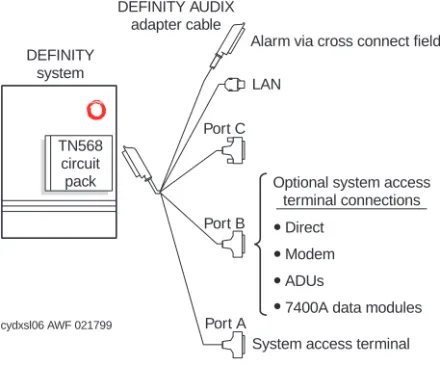
When the system is operating in Control Link mode, Port A on the system adaptor
cable provides the connection to the maintenance (and administration) terminal.
Port B is attached to the switch.
When the system is operating in Display Set mode, Port A on the system adaptor
cable is connected to the maintenance (and administration) terminal. Port B is
free to be attached to an optional terminal.
An external modem is required for the remote maintenance terminal and alarm
origination.
.
Figure 1-3.
Control Link and Terminal Configurations
CL Mode
Most switches except G3r and Prologix
TN765 Processor
Interface
All switches except G3r and Prologix
TN765 Processor
Interface TN754 Digital Line
Interface
cydxcnt7 AWF 021999
DEFINITY system
TN568 circuit pack
DEFINITY AUDIX adapter cable
Port B Port C
Port A
Alarm via cross connect field
LAN
System access terminal
Connecting hardware
7400D Direct
IDI
G3r Only
*
Administered connection†
†
Other excluded switches are: duplicated G3i, switches on DC power, System 75 R1V3 without a PI/EIA port, and switches using the EIA connector on the PI board for another adjunct (such as CMS).
TN577 Packet Gateway
TN754
7400D
DSUs
IDI
TN754 Digital Line
Interface
7400D
Figure 1-4
, shows the terminal configurations available with a DEFINITY AUDIX
System in DS mode.
Figure 1-4.
Terminal Configurations
DSMode
The 470, 570, and 580 series of printers can be used optionally with the
maintenance and administration terminal when hard-copy readouts are needed.
Table 1-5
lists the general requirements of the local and remote maintenance
terminals. Always refer to the terminal and printer manuals that accompany each
machine to make cable connections, set up option settings, and program
function keys.
DEFINITY system
TN568 circuit pack
DEFINITY AUDIX adapter cable
Port B Port C
Port A
Optional system access terminal connections
Direct
Modem
ADUs
7400A data modules
cydxsl06 AWF 021799
Alarm via cross connect field
LAN
Table 1-5.
Maintenance Terminal Hookups
Local RS-232C Hookup
(Direct Connection)
Remote RS-232C Hookup
(Through External Modem)
Baud Rate:
■9600 bps
Baud Rates:
■1200 bps
■2400 bps
Option settings: (On all terminals)
■
Send Parity = space
■Check Parity = no
■RETURN key = CR
■Newline on LF = no
■ENTER key = ec[2a
(ec is ESCAPE key)
Option settings: (On all terminals)
■Send Parity = space
■
Check Parity = no
■RETURN key = CR
■Newline on LF = no
■ENTER key = ec[2a
(ec is ESCAPE key)
Printer option settings:
■Speed = 1200
■Printer Model =470
(for a 475 or 572 also)
■
Flow Control = DC1DC3
(XON/XOFF)
■
Alarm = pin 20 (or none)
Printer option settings:
■Speed = 1200
■
Printer Model = 470 (for a 475 or 572 also)
■Flow Control = DC1DC3 (XON/XOFF)
■Alarm = pin 20 (or none)
Accesses:
■
AUDIX screens
■MFB Flashware
■
Operating System Shell
■Standalone Utilities
Accesses:
■
AUDIX screens
■MFB Flashware
■
Operating System Shell
■Standalone Utilities
■
Dedicated port for Alarm Origination calls
to RSC and calls to assigned AUDIX
extension (incoming and outgoing calls
cannot be made simultaneously)
Specific options for setting up the 715 terminal are included in
Table 1-6
. Port 1 is
the (parallel) printer port. Port 2 is used to connect the local maintenance
terminal (LCT) cable. To turn on the printer, use the
User Preference
screen. For
a complete list of options, refer to the terminal manual that accompanies the 715.
Table 1-6.
715 Port Options
Port 2
Port mapping
Port 1
Host
Port service
Printer
9600
Baud rate
9600
1 bit
Stop bit
1 bit
7 bits
Data bits
7 bits
Space
Send parity
Even
No
Check parity
No
Off
Local echo
Off
Encoding
Xon/Xoff
Generate flow
Xon/Xoff
Xon/Xoff
Receive flow
Xon/Xoff
240
X off at
240
No
Transmit limit
Yes
Answer back on connect
Maintenance Screens and Usage
DEFINITY AUDIX screens use a verb-to-object approach. Refer to
Figure 1-5
,
Screen Layout
, for a sample screen layout. Screens used for maintenance are
described later.
Figure 1-5.
Screen Layout
Screen Accessing
Table 1-7
describes the information that appears on the DEFINITY AUDIX screen
shown above when you access a DEFINITY AUDIX System.
1 2 3 4 5 6 7 8 9 10 11 12 13 14 15 16 17 18 19 20 21 22 23 24
AUDIX STATUS: System Status Line Command History Line
Activity Window
Help/Error Message Line enter command: Command Line
Table 1-7.
Screen Usage
Screen Area
Definition
Status Line
Shows:
■
alarms:
w
(Warning);
M
(Major);
m
(Minor);
A
(Administrative)
■
logins: 1
(one terminal);
2
(two terminals);
3
(three
terminals)
■
thresholds:
—
lower:
Indicates that the lower preset space threshold
across all
voice text
filesystems has been exceeded, for
example, 50% (default 75%).
—
middle:
Indicates that the middle preset space
threshold across all
voice text
filesystems has been
exceeded, for example, 60% (default 85%).
—
upper:
Indicates that the upper preset space
threshold across all
voice text
has been exceeded, for
example, 70% (default 95%).
—
filesystem:
Indicates that more than 85% of the
space within at least one filesystem has been used.
Command
History Line
The title of what appears in the
Activity Window
. Includes
the current page number and page count of the screens, for
example,
Page 1 of 2.
Activity
Window
Used for:
■
Display of screens for administration and maintenance
data entry
■
Display of reports (forms in which data entry is not
allowed)
■
Display of screen and field help
■
Display of menus for command entry brought up with
the Choices key
Help/Error
Message Line
Displays short error messages and prompts.
Command
Line
Where the user enters commands to the system.
— On the command line, displays the previous
command entered.
— On the command line, displays the next command if
one was previously entered.
Function Keys/
(Control Key
Equivalents)/
Function
■
Cancel
— In a screen, aborts the current activity
and returns the user to the command line. On the
command line, erases the entire contents listed there.
■
Refresh
— Repaints the screen.
■
Enter
— In a screen, submits a completed screen
for the action specified on the command line. On the
command line, requests execution of the command or
posting of the requested screen. The RETURN key is
identical to Enter on the command line only.
■
ClearFld
— Clears an entire field in a screen or a
single keyword from the command line.
■
Help
— On the command line, this is identical to the
HELP command, which displays a screen explaining
what types of help are available. In a screen, this
displays information about the screen.
■
Choices
— On the command line, this requests a
menu of valid entries for command-line keywords. If a
Choices menu is already displayed, depressing this key
again will select the current item from the menu.
■
NextPage
— Navigates forward through
multiple-page screens, reports, or help and back to the
first page.
■
PrevPage
— Navigates backward through
multiple-page screens or help and to the last page from
the first page.
Table 1-7.
Screen Usage —
Continued
Screen Area
Definition
Continued on next page
F1F2
F3
F4
F5
F6
F7
Function and Arrow Key Equivalents
Keyboard equivalents are available for users whose terminals cannot
accommodate the DEFINITY AUDIX function keys.
Data Entry
When a screen with data-entry fields is active, the following additional keys can
be used for navigating through the screen and entering data in fields:
Table 1-8.
Function and Arrow Key Equivalents
Function
/Arrow
Key
Screen
Label
Control
Key
Purpose
1
Cancel
cntl-x
Cancel current operation.
2
Refresh
cntl-l
Refresh (repaint) current screen.
3
Enter
cntl-e
Execute current command or enter current
data.
4
Clear Fld
cntl-k
Clear data in current field.
5
Help
cntl-w
Get Screen Help.
6
Choices
cntl-c
Get Field help (and display field choices, if
any).
7
Next Page
cntl-n
Go to next page (if any).
8
Prev Page
cntl-p
Go to previous page (if any).
cntl-u
On the command line, displays the previous
command entered. On a screen, moves to
the closest field in the previous line.
cntl-d
On the command line, displays the next
command if one was previously entered. On
a screen, moves to the closest field on the
next line.
Key
What it Does
or
Moves the cursor to the next field. From the bottom field, wraps to
the top field.
Moves to the previous field. From top field, wraps to the bottom
field.
Moves to the next field. From bottom field, wraps to the top field.
TAB
RETURN
Maintenance Login Procedure
When the DEFINITY AUDIX System is rebooted, a login prompt appears briefly,
followed immediately by the following lines:
System name: audix
login: Phase 2 file check PASSED
Phase 3 file check PASSED
Phase 4 file check PASSED
Phase 5 file check PASSED
DOTRACE=yes
TRACELOG=/var/spool/audix/tracelog
TRACECMD=-s 60 -o /var/spool/audix/tracelog.a -o
/var/spool/audix/tracelog.b
TRACEOUTPUT=/dev/null
Save output to Trace process
OLDTRACELOG=/var/spool/audix/oldtrace
When the last line appears, press
. You will get another login prompt. At
this point, you can log in.
To login, type cust, or craft at the prompt, and press
. Type your
password and press
. If required, type your system password and press
.
Forms You Will Use
Table 1-9
lists the screens that will allow you to maintain, repair, and diagnose a
DEFINITY AUDIX System from the local or remote maintenance terminal.
Once you are logged into the system, type the name of the screen and press
. If needed, refer to the HELP for each screen to ensure proper action.
Moves to the next field to the previous field. From top field, wraps
to the bottom field.
Moves to the nearest field on the previous line. From top field,
wraps to the bottom field.
Moves to the nearest field on the next line. From bottom field,
wraps to the top field.
Deletes the last character entered in the current field.
Key
What it Does
backspace
RETURN
RETURN
RETURN
RETURN
Table 1-9.
Maintenance Screens and Their Use
Form/Available Logins
Purpose
display alarms
craft
(onsite technician)
cust
(customer)
Displays active or resolved
MAJOR, MINOR
, or
WARNING
alarms. Indicates by resource type
what part of a DEFINITY AUDIX System may be
faulty, and when and if it was automatically
resolved. Can be activated if the system is in
administrative shutdown mode. Troubleshoot the
first alarm listed, as this may resolve the other
alarms. Problems are listed in this manual
according to resource type.
display errors
craft
(onsite technician)
Lists errors that occur during automatic inline and
maintenance procedure testing. Repeated errors
will set an alarm. Can be activated if the system is
in administrative shutdown mode.
display events
craft
(onsite technician)
Lists all reported maintenance events including
inline errors, maintenance procedure failures,
alarms, and errors. An entry is made in this log
whenever a transition is made into or out of the
AUDIX or OA&M state. Maintenance engineers
use this when the system needs an in-depth
diagnosis.
display/restore
backups
craft
(onsite technician)
cust
(customer)
Display backups lists the backups stored on the
MO disk that were made on a nightly and weekly
basis. Backups include those done automatically
and manually, and also include announcements,
voice filesystems, Lucent software, and system
(panic/crash) dumps. The system saves up to two
weeks of backups depending on the space
available on the MO disk and the amount of data
being saved.
Restore backups restores a complete backup
from an MO disk to the hard disk. This action can
be done only in the OA&M state.
display
administration-log
craft
(onsite technician)
cust
(customer)
Displays the DEFINITY AUDIX administration
alarms reported to maintenance. Reports the date,
time, and type of alarm. (See
Chapter 10
for a list
of administration alarm messages and repair
actions.)
display/change
switch-link
craft
(onsite technician)
cust
(customer)
For CL mode, display/change the Logical
Channel, Switch Port, and Data Link for the
switches using this DEFINITY AUDIX System.
Also, display/change the host switch number and
AUDIX machine number known by the switch. For
DS mode, display/change the call-answer timeout
extension and parameters. Also, display/change
the host switch number and AUDIX machine
number known by the switch.
display/change
link-log
craft
(onsite technician)
(Control Link only)
Displays the link-log parameters: enable/disable
link-log data collection and the maximum number
of link-log entries.
display/change
network-group
Displays or changes the digital networking port
and extension.
The networking port administered must match the
networking port administered on the switch.
Table 1-9.
Maintenance Screens and Their Use —
Continued
Form/Available Logins
Purpose
status
network-group
craft
(onsite technician)
cust
(customer)
Displays the status of the network port. Can be
executed from any user id and is available only if a
networking port is purchased (from the
“system-parameters customer-options” form). Updates the
displayed status every 3 seconds until the user
presses the CANCEL key.
For an inactive port, the State-Reason field is as
for the busyout/release commands and the
remaining fields are blank.
For an active port the status fields are:
■
State-Reason: ISB-IN, ISB-OUT, OSP-C, or
OOS-T
■
Machine: name of remote machine to which
the port is connected (or “TRANSITION”
during call setup)
■
Activity: current activity on the port (TEST-IN,
TEST -OUT, ADMIN-OUT, IN,
VMAIL-OUT, STATUS-IN, STATUS-VMAIL-OUT, UPDATE-IN,
UPDATE-OUT, NAMES-IN, NAMES-OUT
■
Speed: current line speed
(64000,56000,19200,9600,4800,2400,1200)
■
Mode: DMI mode (M1,M2,M3)
status mo-disk
craft
(onsite technician)
cust
(customer)
Displays the current status of the drive and MO
disk. It also performs SCSI self-diagnostics tests
to the MO drive and MO disk. The SCSI-level
diagnostics include write, read and verify tests.
See
Chapter 4
for a description of the status and
results reported.
Table 1-9.
Maintenance Screens and Their Use —
Continued
Form/Available Logins
Purpose
test board [long]
craft
(onsite technician)
A demand test that checks the following:
■
Operation of the TN568’s major circuitry
components (hardware clock, switch
backplane interface, etc.)
■
System time vs. switch time
■Status of usart devices
■
Operation of switch control link
■Long test only
■
port test for each administered voice port
■operation of the Digital Signal Processor
circuits
■
Long or short test (as administered)
■each administered voice port
■the administered networking port.
test machine (name)
craft
(onsite technician)
cust
(customer)
Places a test call to remote AUDIX machine
(name) and sends a test message. Displays call
progress and gives a pass-fail indication.
test mo-disk
craft
(onsite technician)
cust
(customer)
The demand test runs a non-destructive test of the
MO drive.
■
Performs a UNIX filesystem check. If there are
filesystem corrections that result in data loss or
if there is a general failure in the filesystem
check, an error is logged and an alarm is
raised.
■
Also performs a read/write test to the MO disk.
■If successful, the test resolves all media
alarms against the MO disk. However, if the
filesystem check corrects the MO disk file
system and there is data lost, the MO disk
filesystem alarm will remain active until the
disk is removed.
Table 1-9.
Maintenance Screens and Their Use —
Continued
Form/Available Logins
Purpose
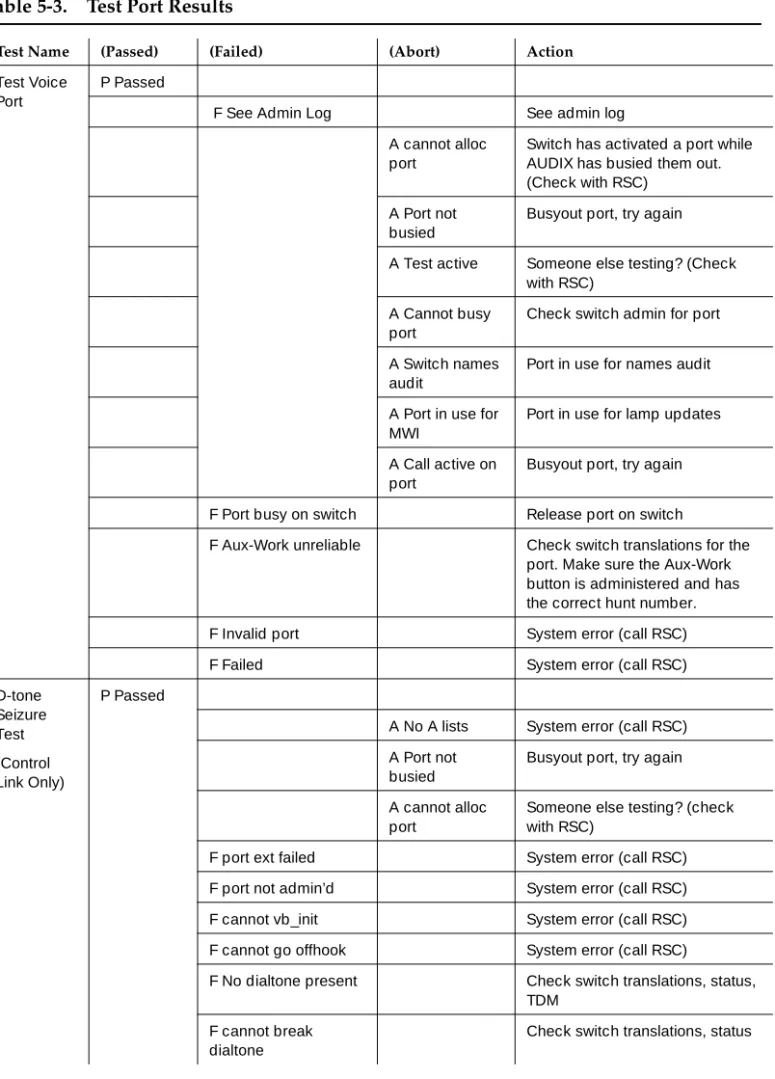
test port
craft
(onsite technician)
A demand test that checks the following:
■
Switch-line response (DS mode only) —
Verifies that a DEFINITY AUDIX port can go
off-hook, can read the display, and go back
on-hook.
■
Message waiting indicator updates (DS mode
only) — Verifies that a DEFINITY AUDIX port
can update a message waiting light.
■
Dial tone seizure (CL mode only) — Verifies
that dial tone is received from the switch when
a DEFINITY AUDIX port goes off-hook.
This test will not execute until all ports are
manually busied out.
test
alarm-origination
craft
(onsite technician)
Indicates the status of the remote access port,
then attempts to place a test call to the
administered reporting station. The test can be
executed remotely, giving the user a chance to
put the test in the background and hang up.
test switch-link
craft
(onsite technician)
cust
(customer)
(Control Link only)
The long demand test checks the complete path
to the switch. The looparound test checks to an
external loopback plug.
Table 1-9.
Maintenance Screens and Their Use —
Continued
Form/Available Logins
Purpose
test lan
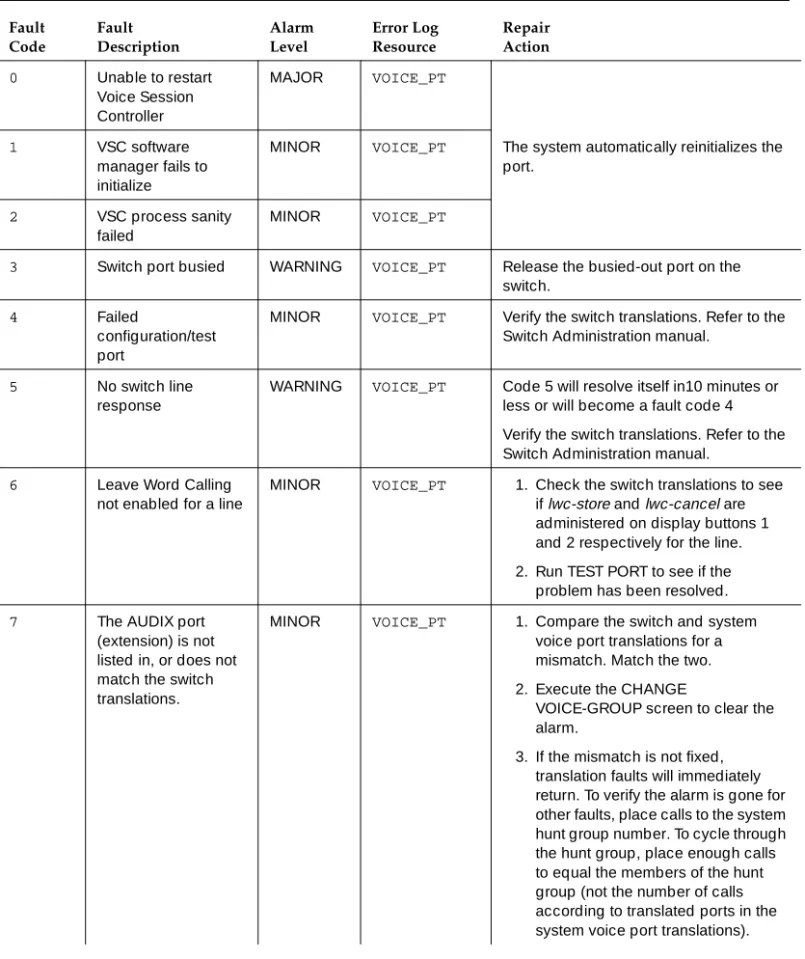
craft
(onsite technician)
cust
(customer)
The short non-destructive demand test verifies
that the AUDIX System is connected to the local
area network (LAN). It invokes or provides:
■
A readout of the ethernet hardware’s
checksum/version/hardware id
■
Tests the AUDIX Interaction Server (AIS)
software process
■
An external looparound (a test message to see
if the normal communication route across LAN
is open)
The long destructive demand test resets and then
verifies the LAN connection. It will cause
connection failure errors for any active Message
Manager users but does not affect voice interface
users. Besides performing the short tests, it:
■
Kills and restarts the AIS process and its post
box
■
Does hardware and firmware looparounds
■Resets the ethernet chip
The dest
{nnn.nnn.nnn.nnn}
non-destructive test
executes a UNIX ping of the given address and
reports its success or failure on the screen.
busyout/release
switch-link
craft
(onsite technician)
cust
(customer)
(Control Link only)
The busyout function places the switch link out of
service. The AUDIX switch link stops sending or
receiving messages from the switch within five
seconds. Retires all alarms against the switch link
except for the WARNING alarm indicating it is
busied out. The release function releases the
switch link from craft busyout.
busyout/release
port
craft
(onsite technician)
cust
(customer)
The busyout function places a designated voice
port out of service prior to testing (see test port).
Retires all alarms against the voice port except for
the WARNING alarm indicating it is busied out.
The release function releases a single voice port
after BUSYOUT PORT has been invoked. Release
of a voice port does not reset the MFB or alarm
board.
Table 1-9.
Maintenance Screens and Their Use —
Continued
Form/Available Logins
Purpose
busyout/release
voice-group
craft
(onsite technician)
cust
(customer)
The busyout function places all voice ports on the
DEFINITY AUDIX System out of service. Testing
can now take place. Does not retire the alarms
against the voice group.
The release function releases all ports from
testing. Voice port locations are displayed on the
screen.
status voice-group
craft
(onsite technician)
cust
(customer)
The
status
voice group function provides status
and translation data for each voice port in the
system.
reset system oa&m
craft
(onsite technician)
cust
(customer)
Takes the system to the OA&M state from the
AUDIX state. Entered when core processes of the
Multifunction Board must be accessed, or when
customer data must be restored. Call activity and
subscriber administration become impossible in
this state. Using the camp-on option stops any
new calls from coming in and waits until all calls in
progress have completed. The forced option idles
ports immediately. Customers should first be
informed through a broadcast message that the
system is being shut down.
reset system
shutdown
craft
(onsite technician)
cust
(customer)
Takes the system to the shutdown state from the
AUDIX or OA&M state. The shutdown state must
be entered prior to powering down the switch
carrier. Can be done in a camp-on or forced
manner from the AUDIX state. Using the camp-on
option is the graceful way to shut down the
system. Customers should first be informed
through a broadcast message that the system is
being shut down. A critical error condition can
also bring the system to this state.
reset system
restart
craft
(onsite technician)
Restarts the system software immediately if in the
OA&M state, or in a camp-on or forced manner if
in the AUDIX state.
reset system reboot
craft
(onsite technician)
cust
(customer)
Reboots the operating system and restarts
software in a camp-on or forced manner if in the
AUDIX state, or immediately if in the OA&M state.
Table 1-9.
Maintenance Screens and Their Use —
Continued
Form/Available Logins
Purpose
change/display
voice group
craft
(onsite technician)
cust
(customer)
The change/display function administers the
DEFINITY AUDIX System voice-port extensions
and locations.
change/display
system-parameters
maintenance
craft
(onsite technician)
cust
(customer)
Used to display or change system parameters
such as system location, alarm reporting phone
number, alarm origination activation and access,
system notes, alarm action matrices, and the
maximum number of event log entries.
audit
switch-translations
craft
(onsite technician)
cust
(customer)
A demand audit that examines and updates
internal data used by the Service Dispatcher. If
the audit finds that no voice port translations exist,
an error will be logged that results in the activation
of an alarm. Also checks the switch translations
database.
audit
maintenance-log
craft
(onsite technician)
cust
(customer)
A demand audit that performs internal checks on
maintenance logs. For instance, corrects
resource types in the active and resolved alarm
logs after a system upgrade.
Table 1-9.
Maintenance Screens and Their Use —
Continued
Form/Available Logins
Purpose
audit
subscriber-data
craft
(onsite technician)
cust
(customer)
A demand audit that:
■
Validates the contents of the delivery lists
associated with current outgoing messages,
and timestamps the profiles of remote
subscribers that appear in these lists.
■
Validates fields in class-of-service templates,
subscriber profiles, and automated attendant
profiles.
■
Counts subscribers.
■
Checks for conflicts between the system guest
password and individual subscriber
passwords, making an entry in the Admin log if
a match exists.
■
Removes subscriber IDs of deleted
subscribers from message headers,
mailboxes, mailing lists, and personal
directories.
■
Deletes remote subscribers.
■
Cross checks extensions, names, touch-tone,
user directory, and remote node list translation
files for consistency with the subscriber
profiles.
audit network-data
craft
(onsite technician)
cust
(customer)
A demand audit that checks network and machine
translations, and displays the results.
Table 1-9.
Maintenance Screens and Their Use —
Continued
Form/Available Logins
Purpose
audit mailboxes
craft
(onsite technician)
cust
(customer)
A demand audit that:
■
Deletes old messages.
■
Clears broadcast deleted messages.
■Validates mailbox structure and checks for
valid message IDs.
■
Logs an error for each local subscriber
missing a mailbox, and creates an empty
mailbox for that subscriber.
■
Makes space-accounting corrections on a
per-subscriber and system basis.
audit mailing-lists
craft
(onsite technician)
cust
(customer)
A demand audit that:
■
Counts entries on the subscriber mailing lists,
and the lists themselves.
■
Examines and updates the system’s
rescheduling increment administration.
■
Audits the delivery manager queues, and
makes deleted subscriber entries
undeliverable.
audit
personal-direc
tories
craft
(onsite technician)
cust
(customer)
This demand audit cleans subscribers’ personal
lists for internal consistency.
audit names
craft
(onsite technician)
cust
(customer)
This demand audit:
■
Ensures that every voiced name corresponds
to a valid subscriber.
■
Logs messages in the Admin log for the first
20 local subscribers who do not have a voiced
name.
Table 1-9.
Maintenance Screens and Their Use —
Continued
Form/Available Logins
Purpose
audit voice-files
craft
(onsite technician)
cust
(customer)
This demand audit:
■
Deletes any voice file without a message
header.
■
Removes references to nonexistent voice files
from each message header.
audit switch-names
craft
(onsite technician)
cust
(customer)
(Display Set only)
When the system is in the Display Set mode,
builds a map to allow the DEFINITY AUDIX System
to derive extensions of calling parties and
subscribers.
save nightly
craft
(onsite technician)
cust
(customer)
Used to perform an immediate backup of the data
backed up automatically each night. The backup
consists of subscriber data including subscriber
profiles, message headers, mailing lists, user
directory file, and message waiting lamp status.
This screen can be activated while in the OA&M or
AUDIX state.
■
The save nightly command adds the backup
to the existing backups on the MO disk.
■
The save nightly initialize command removes
all data currently on the MO disk before
backing up the data.
save weekly
craft
(onsite technician)
cust
(customer)
Used to perform an immediate backup of the data
backed up automatically on a weekly basis. This
backup consists of all voiced-in subscriber names
including those of remote subscribers. This
screen can be activated while in the OA&M or
AUDIX state.
■
The save weekly command adds the backup
to the existing backups on the MO disk.
■
The save weekly initialize command removes
all data currently on the MO disk before
backing up the data.
Table 1-9.
Maintenance Screens and Their Use —
Continued
Form/Available Logins
Purpose
save announcements
craft
(onsite technician)
cust
(customer)
Used to perform a manual backup of the
announcements filesystem. This screen can be
activated while in the OA&M or AUDIX state.
■
The save announcements command adds
the backup to the existing backups on the MO
disk.
■
The save announcements initialize removes
all data on the MO disk before backing up the
data.
save voice
craft
(onsite technician)
cust
(customer)
Used to perform a manual backup of the voice
filesystem. This screen can be activated while in
the OA&M or AUDIX state.
■
The save voice command adds the backup to
the existing backups on the MO disk.
■
The save voice initialize command removes
all data on the MO disk before backing up the
data.
status switch-link
craft
(onsite technician)
cust
(customer)
(Control Link only)
■
Displays type, speed, and location of switch
link.
■
Displays state of operation:
ISB
(In service,
busy)
Table 1-9.
Maintenance Screens and Their Use —
Continued
Form/Available Logins
Purpose
Placing Test Calls
To place a test call, first busyout the DEFINITY AUDIX voice port that you want to
test. Then place a priority call to the port extension. Check the switch
administration for the feature access code for initiating a priority call.
2
Maintenance Strategy
This chapter briefly discusses normal steps to take when problems occur with
the DEFINITY AUDIX System. Feature problems that may be reported by the
subscriber are also listed, with possible solutions.
!
CAUTION:
Begin Troubleshooting
Refer to
Figure 2-1
,
Resolving Alarms
, when trouble calls are placed and alarms
will have to be resolved.
Figure 2-1.
Resolving Alarms
TSC: You receive
trouble call
Is AUDIX system out of service?
Log in and go to display
alarms form Consider customer complaints See next section MF_BD ALARM_ORIG SYS_TIME MO_DISK DISK VOICE_PT VOICE_GRP LINK_PORTS SWITCH SWITCHLINK LANINTF NET_PORT MACHINE STORAGE M_DATA (master data) S_DATA (system data)
SOFTWARE AUDIT (shutdown codes) -Reboot -Test board -Replace board -Set time
-Test alarm origination
fcdxalm LJK 030999
Basic repair actions Displayed resource types
See chapter 3
See chapter 4 -Reboot
-Test MO disk -Status disk -Restore from backup/generic -Replace device -Restart/reboot -Test port
-Change voice group -Test switch-link -Test LAN
See chapter 5
-Test network port -Test machine -Restart/reboot See chapter 6 -Decrease file system size -Reboot
-Restore file system from backup See chapter 7 -Restart -Reboot -Restore generic file systems See chapter 8 -Restart
-Run audits See
chapter 9 Is there a problem
with the switch? Consider: Power outage, fluctuation Improper translation, port distribution Overheating Circuit, circuit pack failure
!
!
Feature Problems Reported by
Subscriber
Are DEFINITY AUDIX subscribers reporting feature problems through the system
administrator; AUDIX Subscriber; AUDIX System Administrator, Customer Care
Center (RSC)?
Table 2-1
,
Customer Reported Feature Problems
, lists the most
common feature problems the customer may report. In considering these,
customer contact may be needed to get more explicit details of the problem.
Table 2-1.
Customer Reported Feature Problems
Feature Problem What to Consider
After dialing the AUDIX extension (for a Voice Mailbox call), a subscriber hears ringback tone but the AUDIX system never answers.
1. Verify the functioning of the switch? Place a test call: — Dial the switch extension related to the AUDIX port. — Check switch translations for hunt group, voice ports and
coverage paths.
— Listen for ringing, go off-hook and verify a dial tone. — Break the dial tone to ensure that the switch port listens. — If a call cannot be placed, check the alarm log.
2. Is a voice port out of service? (See Chapter 5.) 3. Is the system clock set? (See Chapter 3.) 4. Do filesystems exist? (See Chapter 7.)
5. Is the system hardware bad or improperly seated? (See
Chapter 3.)
6. If the problem persists and no alarms are present, check for errors in the error log. Compare these with past alarms. A subscriber dials for a Call
Answer call, receives a ringback tone, but the AUDIX system never answers.
1. Is the call-coverage translation correct? (See Chapter 5.) 2. Is the subscriber set up with Call Answer permission? The
administrator should check this.
3. Is the switch port open? Place a test call. If the call cannot be placed, check the alarm log.
4. Have the filesystem thresholds been exceeded? Is the voice text filesystem out of space? (See Chapter 7.)
5. Is the disk drive operating? (See Chapter 4.)
6. If the problem persists and no alarms are present, check for errors in the error log. Compare these with past alarms.
The subscriber dials the AUDIX system, but it answers only after many ringings.
1. This is normal during heavy traffic conditions. The
subscriber is being placed in a waiting queue. Verify heavy traffic activity by checking the port usage/peg count data on the LIST MEASUREMENTS LOAD HOUR screen.
2. If a port has not been used for some time, check the STATUS VOICE-GROUP screen to verify that ports are in service. 3. Check the CHANGE/DISPLAY VOICE-GROUP screen to see
if voice port locations and extensions are correct.
4. If the problem persists and no alarms are present, check the error log for any voice-group errors. (See Chapter 5.) The subscriber dials the
AUDIX system and hears static or abnormal noise.
1. Is the call internal or external? If external, the local telephone facilities need to deal with this.
2. Run the TEST BOARD LONG. When making a Voice Mail
or Call Answer call, the subscriber is connected to the AUDIX system but receives no system announcements, wrong announcements, garbled announcements, or announcements out of order.
1. If the problem occurs rarely or occasionally, check for a faulty AUDIX port.
2. If bad announcements occur frequently or always, the system may not be able to access the Storage filesystem. (See Chapter 7.)
— Check the DISPLAY ANNOUNCEMENT screen for active announcements. If this field is empty, recover the filesystem from the backup MO disk. (See Chapter 7.)
— If the filesystem appears intact, check the status of the disk using the STATUS DISK screen. (See Chapter 4.)
The subscriber’s message waiting lamp (MWL) may not light or extinguish properly.
■ The lamp does not light in response to a sent message: Place
a test call to check the switch voice port. Also check that MWL translations are correct. (See Installation and Switch
Administration for the DEFINITY AUDIX System Release 4.0,
585-300-122.)
■ Check the STATUS SWITCH-LINK screen to see that the datalink is in-service and in data-transfer.
■ The lamp does not extinguish: Check the MWL translations
for the subscriber’s phone.
■ CL only. Check the adjunct name field on the subscriber’s switch station form. The value should be the same as the adjunct name on the hunt group form.
When scanning messages, the subscriber may hear "There is no message to play back." On a Call Answer call, this announcement may be followed by a standard system greeting instead of a personal greeting.
1. Check the DISPLAY ALARMS/ERRORS logs for a corrupted voice text filesystem (See Chapter 7) or a bad disk. (See
Chapter 4.)
2. Check the logs for intermittent errors and alarms (those that resolve themselves and then become active again).
Table 2-1.
Customer Reported Feature Problems —
Continued
Feature Problem What to Consider
When trying to create a message, the subscriber hears "There is no room in your mailbox."
1. The subscriber should delete unneeded messages in response to the warning message.
2. If the subscriber’s mailbox is not full, the system administrator should check the subscriber’s maximum message lengths. Also, minimum requirements for subscribers should be checked.
3. Check for extra voice data and text files in the Storage filesystem. (See Chapter 7.)
The subscriber receives a reorder tone (fast-busy) after dialing the system.
1. Will occur if you were working on the AUDIX system and all the voice ports were busied out.
2. Will occur if you were not doing service, but the system was out of service because of a restart. Check the alarm and error logs for restart errors. (See Chapter 3 for hardware errors and
Chapter 8 for software errors.)
3. Check the STATUS SWITCH-LINK screen to see that the datalink is in-service and in data-transfer.
4. Check the logs for intermittent errors and alarms. 5. Check the hunt group translations.
A CL-mode system answers in standalone mode (subscriber hears “Use touchtones to reenter the number you called”).
1. Check the STATUS SWITCH-LINK screen to see that the datalink is in-service and in data-transfer.
2. Check the switch translations, particularly the message center field to ensure it is set to audix in the hunt group.
A subscriber complains that voice mail messages are not being sent to users on a remote system.
1. Use DISPLAY REMOTE to determine to which remote machine the user is sending.
2. Use LIST MEASUREMENTS REMOTE MACHINE DAY to determine if any messages are being sent or received to or from that machine.
3. Use TEST MACHINE (NAME) to place a test call to that machine. If it fails, check the phone number and switch translations or if ok, the trouble may be in the remote machine.
4. Check that the Send to Non-Administered Recipients field on the MACHINE PROFILE screen is set to y.
5. Check the activity log.
Table 2-1.
Customer Reported Feature Problems —
Continued
Feature Problem What to Consider
3
TN568 Circuit Pack
MF_BD Alarms, Repair Procedures
and Errors
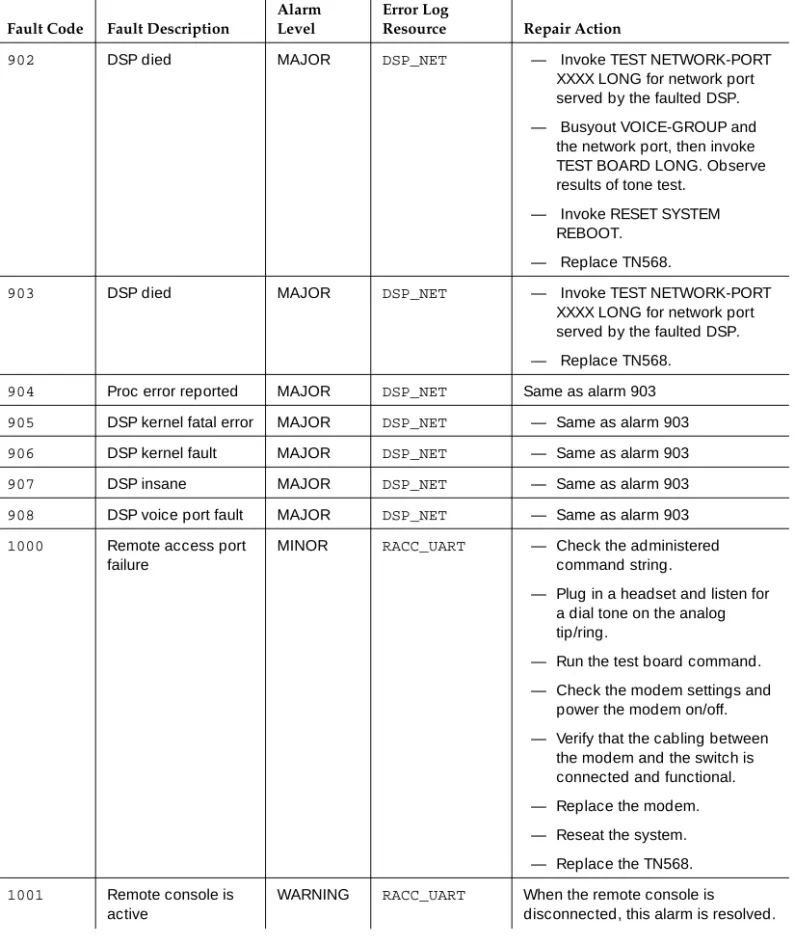
Table 3-1
lists alarms and repair procedures assigned to the Multifunction Board
(MF_BD) fault resource. Repair actions are performed one at a time until the
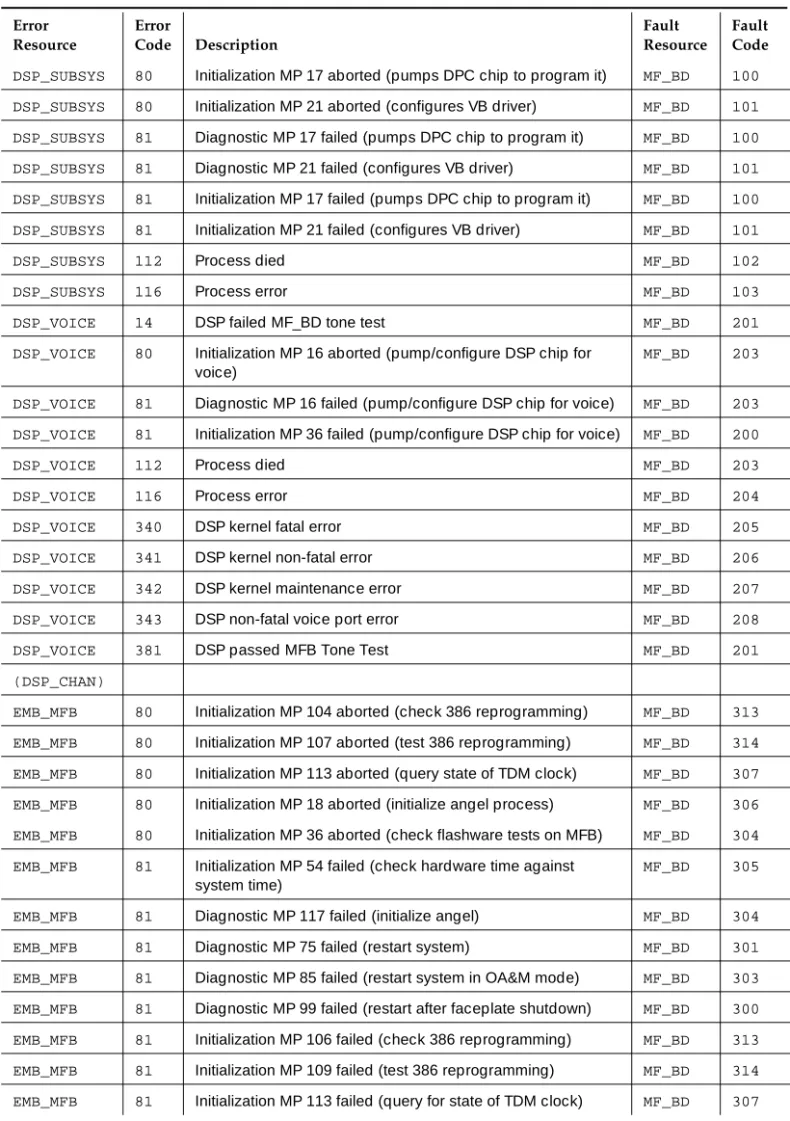
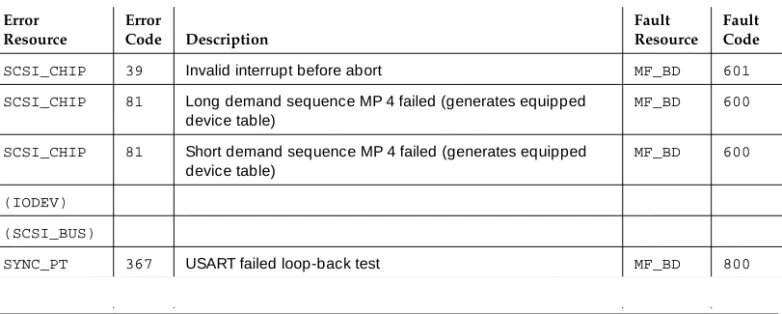
problem is solved. If the problem reoccurs, refer to
Table 3-2
to better
understand the errors that may be triggering the alarms.
Alarms appear in the
DISPLAY ALARMSscreen under the resource type:
Table 3-1.
MF_BD Alarms and Repair Procedures
Fault Code Fault Description
Alarm Level
Error Log
Resource Repair Action
100 Unable to pump DSP Parallel Controller
MAJOR DSP_SUBSYS — Invoke RESET SYSTEM REBOOT.
If system does not return to AUDIX state, or error/fault reoccurs, shut down the system, and replace the TN568.
101 Failed to configure Voice Buffer driver
MAJOR DSP_SUBSYS
102 DSP Parallel Controller process died
MAJOR DSP_SUBSYS
103 Process error No alarm DSP_SUBSYS Used internally. Alarm is never active 200 Firmware detected
faulty Digital Signal processor
MAJOR DSP_VOICE Replace TN568.
201 Digital Signal Processor failed tone test
MAJOR DSP_VOICE — Invoke test board long. — Replace TN568.
202 Reached maximum repumps allowed
MAJOR DSP_VOICE — System resets Digital Signal Processor automatically. — Invoke test board long. — Invoke reset system reboot. — If system alarm reoccurs,
replace TN568. 203 Digital Signal
Processor failed
MAJOR DSP_VOICE
204 Process error reported
MAJOR DSP_VOICE — System resets Digital signal Processor automatically. — If system alarm reoccurs,
replace TN568.
205 Digital Signal Processor kernel fatal error
MAJOR DSP_VOICE — System resets Digital Signal Processor automatically. — If system alarm reoccurs,
replace TN568.
206 Digital Signal Processor kernel fault
MAJOR DSP_VOICE
207 Digital Signal Processor insane
MAJOR DSP_VOICE
208 Digital Signal Processor voice port fault
MAJOR DSP_VOICE
300 Going to Shutdown state
301 Restarting system MAJOR EMB_MFB — Invoke RESET SYSTEM REBOOT.
— If system does not return to AUDIX state, or error/fault reoccurs, shut down the system, and replace the TN568. 302 Restart w/o angel
initialization
MAJOR EMB_MFB
303 Go to OA&M MAJOR EMB_MFB
304 Flashware tests failed
MAJOR EMB_MFB Shut down the system, and replace the TN568.
305 Clock Hardware failed
MAJOR EMB_MFB — Run TEST BOARD LONG — If the alarm is still active, alert
the RSC.
306 Initialization angel failed
MAJOR EMB_MFB — If system does not return to AUDIX state, or error/fault reoccurs, shut down the system, and replace the TN568. — If system initializes to OA&M
state, boot from the MO disk. — If system does not return to
AUDIX state, or error/fault reoccurs, shut down the system, and replace the TN568.
307 Time-Division Multiplexing clock failed
MAJOR EMB_MFB — Verify the TDM clock is operational on th