80200INS01 September 2000
Hardware Manual
This manual has been developed by Nitsuko America. It is intended for the use of its customers and service personnel, and should be read in its entirety before attempting to install or program the system. Any com-ments or suggestions for improving this manual would be appreciated. Forward your remarks to:
Nitsuko America, Telecom Division 4 Forest Parkway
Shelton, CT 06484
Attention: Manager, Technical Publications
Nothing contained in this guide shall be deemed to be, and this guide does not constitute, a warranty of, or representation with respect to, any of the equipment covered. This guide is subject to change without notice and Nitsuko America has no obligation to provide any updates or corrections to this guide. Further, Nitsuko America also reserves the right, without prior notice, to make changes in equipment design or components as it deems appropriate. No representation is made that this guide is complete or accurate in all respects and Nitsuko America shall not be liable for any errors or omissions. In no event shall Nitsuko America be liable for any incidental or consequential damages in connection with the use of this guide.
©2000 by Nitsuko America. All Rights Reserved
Printed in U.S.A.
1-1
Section 1, INSTALLATION BASICS
In this section
. . .
Page
Grounding the Cabinet . . . .1-8
Attaching the Ground Wire . . . 1-8Installing the Battery and
Expansion Board . . . .1-9
Removing the Top Panel. . . 1-9 Installing the Battery . . . 1-10 Replacing the Battery . . . 1-11 Installing the Expansion Board . . . 1-12In this section
. . .
Page
Installing the Cabinet . . . .1-3
Unpacking . . . 1-3 Before Installing . . . 1-3 Site Requirements. . . 1-3System Configuration . . . .1-4
System Configuration . . . 1-4 System Load Factor Calculations . . . 1-4Installing the Cabinet . . . .1-5
Planning the Installation . . . 1-5 Removing the Cover. . . 1-6 Hanging the Cabinet . . . 1-71-2
1-3
Unpacking
Unpack the equipment and check it against your equipment lists. Inspect for physical damage. If you are not sure about a compo-nent’s function, review the Product Description Manual. Contact your Sales Representative if you have additional questions.
Have the appropriate tools for the job on hand, including: a test set, a punch down tool and a digital voltmeter.
Before Installing
Make sure you have a building plan showing the location of the common equipment, extensions, the telco demarcation and earth ground. In addition, the installation site must meet the requirements outlined in the Standard Practices Manual.
Site Requirements
The common equipment is contained in the wall-mounted Main Equipment Cabinet. Choose a central location for the cabinet that allows enough space for the equipment — and provides enough room for you to comfortably work. The Installation Layout (Figure 1-1) shows you about how much space your sys-tem requires.
1-4
System Configuration
Using the factory installed default configuration, your DS1000 system provides:
Base Expansion Total
Trunks 3 3 6
Digital Extensions 8 8 16
Analog Extensions 4 4 8
Analog Door Boxes 1 1 2
Relays 1 1 2
Page Output 1 - 1
Music Input 1 - 1
Turn to page 1-9 for more installing the Expansion PCB.
System Load Factor Calculations
The combination of extensions, trunks, Digital Door Boxes and DSS Consoles you can connect to your system may be limited by the System Load Factor. Use the DS1000 System Load Factor
Calculations chart at right to verify your system’s configuration.
To check your system configuration:
1. Indicate the quantity for each item installed in the Qtycolumn.
2. For each item, multiply the Qtytimes and Load Factorand enter the value in the Total Loadcolumn.
3. Add all the values in the Total Loadcolumn and enter the value in row 1.
4. Compare the entry in row 2to your entry in row 1. Row 1
must always be equal to or less than the entry in row 2.
Do not operate your system if the System Load Factor total (row 1) exceeds the allowable load of 30 (row 2).
SYSTEM CONFIGURATION
DS1000 System Load Factor Calculations
Item Load Factor Qty Total Load
Digital Telephone and Digital Door Box
1
Analog Telephone 1
Analog Door Box 0
24-Button DSS Console 1
110-Button DSS Console 2
Total DSS Consoles installed cannot exceed 4.
1. Total load for this configuration:
1-5
INSTALLING THE CABINET
Planning the Installation (Figure 1-1)
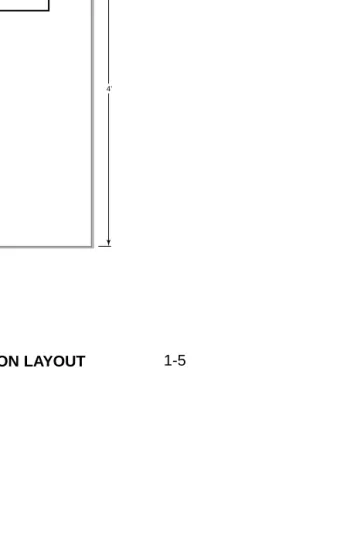
Before installing the common equipment, you should mount a Main Distribution Frame (MDF) plywood backboard in a centrally located spot. A 1/2 sheet of plywood (4’ x 4’) should be more than adequate. Mount this backboard using suitable fasteners, taking care to adhere to standard installation practices and local codes.
The equipment cabinet requires a three-prong, dedicated 110 VAC 60 Hz circuit (NEMA 5-15 receptacle) located within 4 1/2’ feet of the AC receptacle.
Normally, you install the extension blocks and trunk/AUX jacks to the right of the Main Cabinet.
!! Important !!
Local codes may prohibit you from installing extensions, trunks and optional equipment in the same blocks.
Figure 1-1 INSTALLATION LAYOUT
80200 - 37
Plywood backboard
Trunk/AUX Jacks 4’
4’
Station Blocks
Dedicated AC Outlet Surge
Protector To telco
ground
!! Warning !!
Do not plug in the 25-pair extension cable with power applied.
1-6
INSTALLING THE CABINET
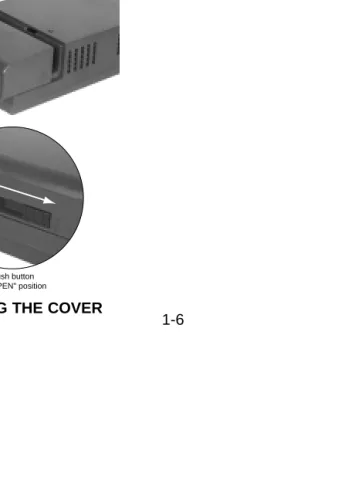
Removing the Cover (Figure 1-2)
You must remove the Main Equipment Cabinet cover to get access to the extension, trunk and auxiliary connections.
1. Slide the cover button to OPEN.
2. Slide the cover away from the Main Equipment Cabinet.
Figure 1-2 REMOVING THE COVER
80200 - 2
1-7
Hanging the Cabinet (Figure 1-3)
1. Screw suitable fasteners 11 3/16” apart in a convenient loca-tion on the MDF. Be sure to leave the fasteners “backed out” about 3/16” from the MDF backboard.
2. Hang the cabinet as shown in Figure 1-3.
Figure 1-3 HANGING THE CABINET
80200 - 3
1-8
GROUNDING THE CABINET
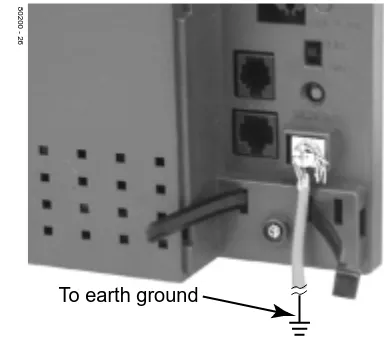
Attaching the Ground Wire (Figure 1-4)
!! Important !!
You must connect your system to a known earth ground accord-ing the followaccord-ing instructions.
1. Loosen the lug on the cabinet’s ground connection. 2. Following Figure 1-4, run a 12 AWG stranded copper wire
from the ground lug to a known earth ground. 4. Firmly retighten the lug loosened in step 1 above.
Figure 1-4 ATTACHING THE GROUND WIRE
To earth ground
1-9
INSTALLING THE BATTERY AND EXPANSION BOARD
Removing the Top Panel (Figure 1-5)
You must remove the top panel in order to install the system battery and Expansion Board.
In the event of commercial AC power failure, the battery pro-vides short-term backup of system memory and the system time and date (Real Time Clock). The battery will hold memory and time and date for up to 10-14 days.
The Expansion Board provides an additional 3 analog trunks, 8 digital extensions, 4 analog extensions and 1 analog door box. With the expansion board installed, the capacity of your system is 6 analog trunks, 16 digital extensions, 8 analog extensions, and 2 analog door boxes.
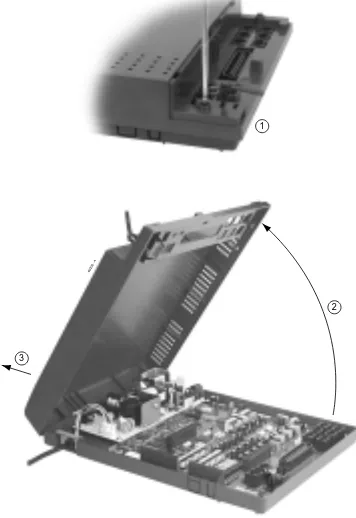
●To remove the top panel:
1. Be sure your system’s power cord is unplugged, then unscrew the 2 captive screws that secure the cabinet top panel to the base.
2. Lift up the top panel as shown at right.
3. Remove the top panel.
Figure 1-5 REMOVING THE TOP PANEL
80200 - 4
1
2
1-10
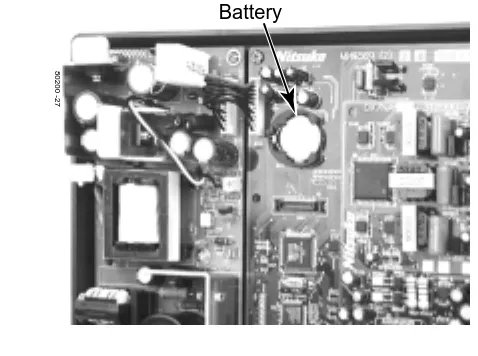
Installing the Battery (Figure 1-6)
●To install the battery:
1. Insert the battery into the battery clips as shown at right.
2. Replace and resecure the top panel. OR
Go to page 1-12 and install the Expansion Board.
Figure 1-6 INSTALLING THE BATTERY
Battery
80200 -27
1-11
Replacing the Battery
●To replace an existing battery:
You should only need to replace your battery if it fails to hold a charge (i.e., no longer backs up memory and the Real Time Clock).
1. Do not power down the system.
If you power down the system and remove the battery, programmed data and the Real Time Clock will reset to the factory-installed default settings.
2. Following Figure 1-6, gently push down on the battery and remove it.
3. Replace the battery with a Sony CR2032 3 Volt Lithium cell battery or equivalent. (This battery is not available from Nitsuko.)
4. Verify that the system’s programmed data is intact.
5. Discard the old battery.
!! Important !!
Take proper precautions when discarding the battery. It may be considered hazardous material in some areas.
!! Caution !!
Danger of explosion if battery is incorrectly replaced.
Replace only with the same or equivalent type recommended by the manufacturer. Dispose of used batteries according to the manufacturer’s instructions.
1-12
Installing the Expansion Board (Figure 1-7)
●To install the Expansion Board:
1. Be sure your system’s power cord is unplugged.
The Expansion Board is not hot-swappable.
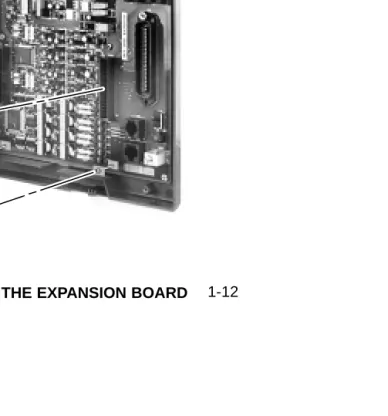
2. Plug in the Expansion Board as shown at right.
Be sure to snap the Expansion Board into the plastic standoffs that are supplied with the Expansion Board.
3. Replace and resecure the top panel.
Figure 1-7 INSTALLING THE EXPANSION BOARD
80200 - 32
2-1
Section 2, EXTENSION AND TRUNK CABLING
In this section . . .
Page
Before You Start Cabling . . . .2-3
Reviewing the Installation Method . . . 2-3The Extension Block . . . .2-4
Installing the Extension Block . . . 2-4Trunk and AUX Mod Jacks . . . .2-8
Installing Trunk and AUX Mod Jacks . . . 2-8!! Important !!
2-2
2-3
BEFORE YOU START CABLING
Reviewing the Installation Method
Your system uses a different installation method for extensions and trunk/AUX connections:
●Extension Blocks
The system uses a 66M1-50 extension block and a second 66M1-50 cross connect block for connecting extensions. See The Extension Block on page 2-4 and the illustration on page 2-5.
●Trunk/AUX Mod Jacks
You’ll use up to 6 mod jacks for the trunk/AUX connections. Turn to Trunk and AUX Mod Jacks on page 2-8 for more on this method.
Your telco normally provides trunks in RJ-11C, RJ-14C, or RJ-25C modular jacks.
THE EXTENSION BLOCK
2-4
Installing The Extension Block (Figures 2-1
through 2-3).
●To connect to the extension block:
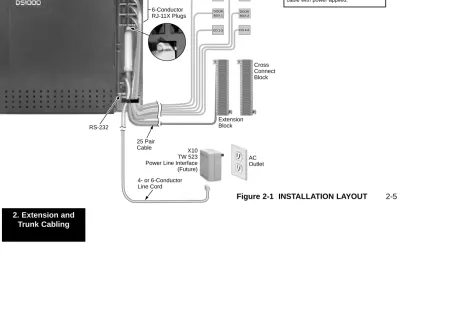
1. Arrange your extension and extension cross-connect blocks according to the illustration below.
2. Following Figure 2-2 on page 2-6, punch down a standard 25-pair cable on the extension block.
THE EXTENSION BLOCK
Cross Connect Block 6-Conductor RJ-11X Plugs 25 Pair Cable Extension Block80200 - 8
PTF/MD AUDIO DOOR1 CO 1-3 X10 RS 232 CO 4-6 DOOR2 AC Outlet
4- or 6-Conductor Line Cord
X10 TW 523 Power Line Interface (Future) Trunk/AUX Jacks CO 4-6 DOOR BOX 2 PFT MDM RS-232 CO 1-3 AUDIO DOOR BOX 1 2-5
Figure 2-1 INSTALLATION LAYOUT
!! Warning !!
THE EXTENSION BLOCK
2-62-6n
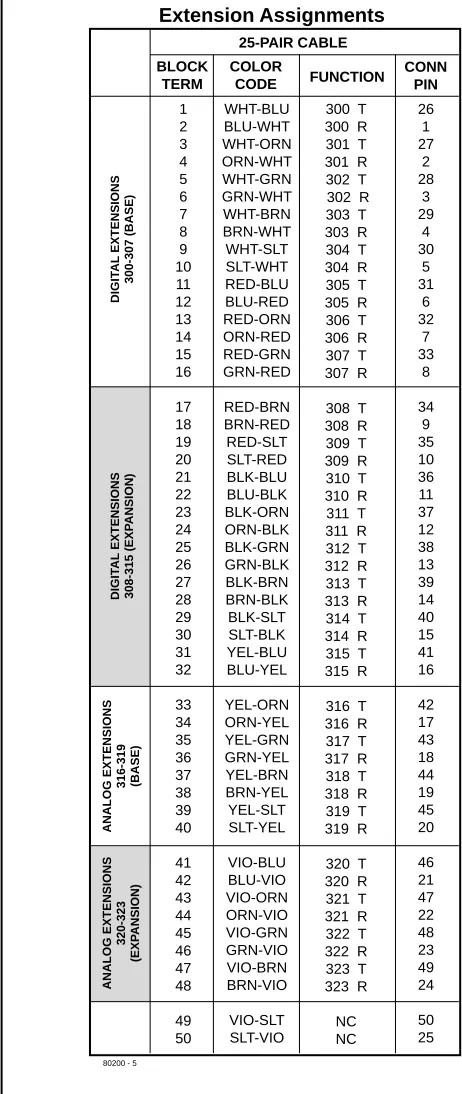
l-WHT-BLU BLU-WHT WHT-ORN ORN-WHT WHT-GRN GRN-WHT WHT-BRN BRN-WHT WHT-SLT SLT-WHT RED-BLU BLU-RED RED-ORN ORN-RED RED-GRN GRN-RED RED-BRN BRN-RED RED-SLT SLT-RED BLK-BLU BLU-BLK BLK-ORN ORN-BLK BLK-GRN GRN-BLK BLK-BRN BRN-BLK BLK-SLT SLT-BLK YEL-BLU BLU-YEL YEL-ORN ORN-YEL YEL-GRN GRN-YEL YEL-BRN BRN-YEL YEL-SLT SLT-YEL VIO-BLU BLU-VIO VIO-ORN ORN-VIO VIO-GRN GRN-VIO VIO-BRN BRN-VIO VIO-SLT SLT-VIO 1 2 3 4 5 6 7 8 9 10 11 12 13 14 15 16 17 18 19 20 21 22 23 24 25 26 27 28 29 30 31 32 33 34 35 36 37 38 39 40 41 42 43 44 45 46 47 48 49 50 26 1 27 2 28 3 29 4 30 5 31 6 32 7 33 8 34 9 35 10 36 11 37 12 38 13 39 14 40 15 41 16 42 17 43 18 44 19 45 20 46 21 47 22 48 23 49 24 50 25 300 T 300 R 301 T 301 R 302 T 302 R 303 T 303 R 304 T 304 R 305 T 305 R 306 T 306 R 307 T 307 R
308 T 308 R 309 T 309 R 310 T 310 R 311 T 311 R 312 T 312 R 313 T 313 R 314 T 314 R 315 T 315 R
316 T 316 R 317 T 317 R 318 T 318 R 319 T 319 R
320 T 320 R 321 T 321 R 322 T 322 R 323 T 323 R
NC NC BLOCK TERM 25-PAIR CABLE COLOR CODE FUNCTION CONN PIN DIGIT AL EXTENSIONS 300-307 (BASE) DIGIT AL EXTENSIONS 308-315 (EXP ANSION) ANALOG EXTENSIONS 320-323 (EXP ANSION) ANALOG EXTENSIONS 316-319 (BASE)
80200 - 5
Extension Assignments
Figure 2-2 EXTENSION
2-7
THE EXTENSION BLOCK
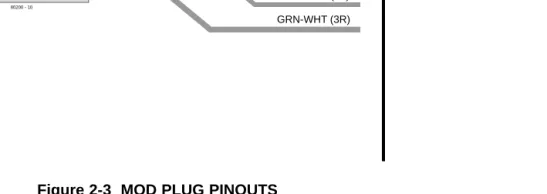
Figure 2-3 MOD PLUG PINOUTS RJ-25C
Pin
Latch faces up
6-Pin Mod Jack
Port
Designation WHT-BLU (1T) BLU-WHT (1R)
WHT-ORN (2T)
ORN-WHT (2R)
WHT-GRN (3T)
GRN-WHT (3R) 80200 - 10
TRUNK AND AUX MOD JACKS
2-8
Installing Trunk and AUX Mod Jacks (Figures 2-1
and 2-4).
●To connect to trunk mod jacks:
1. Arrange your mod jacks trunk according to Figure 2-1 on page 2-5.
2. Using standard 6-conductor line cords, connect each mod jack to the appropriate plug in the Main Equipment Cabinet.
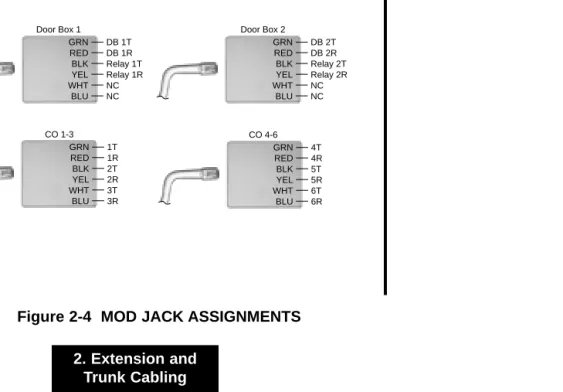
3. Figure 2-4 shows the pinouts for each mod jack.
2-9
TRUNK AND AUX MOD JACKS
Figure 2-4 MOD JACK ASSIGNMENTS
GRN RED BLK YEL WHT BLU CO 1-3 1T 1R 2T 2R 3T 3R GRN RED BLK YEL WHT BLU Audio Page T Page R Music T Music R NC NC GRN RED BLK YEL WHT BLU Door Box 2
GRN RED BLK YEL WHT BLU CO 4-6 4T 4R 5T 5R 6T 6R GRN RED BLK YEL WHT BLU Door Box 1
DB 1T DB 1R Relay 1T Relay 1R NC NC GRN RED BLK YEL WHT BLU PFT/MDM PFT/MDM T PFT/MDM R NC NC NC NC
80200 - 9
2-10
In this section . . .
Page
Connecting Extensions . . . .3-2
Connecting Extensions . . . 3-2Connecting Trunks . . . .3-3
Connecting Analog Trunks . . . 3-3Power Up the System . . . .3-4
Power-Up . . . 3-4Finishing the Installation . . . .3-5
Reinstalling the Cover . . . 3-53-2
CONNECTING EXTENSIONS
Connecting Extensions (Figure 3-1)
The base system connects 8 digital extensions and 4 analog extensions. With the Expansion Board installed, the system pro-vides a total of 16 digital extensions and 8 analog extensions. 1. Install a modular jack for each extension within 6 feet of the
telephone’s location.
3. For each extension, run one-pair 24 AWG station cable from the cross-connect block to the modular jack.
4. Terminate the station cable WHT/BLU - BLU/WHT leads to the RED and GRN lugs in the modular jack.
5. Back at the main equipment location, run one pair of cross-connect wire between the pins on the extension block and cross-connect block to complete the connection.
6. Install bridging clips as required.
Figure 3-1 CONNECTING EXTENSIONS 625
Modular Jack
BLK YEL
RED GRN
BLU-WHT WHT-BLU
Cross Connect
Block One-Pair Cross Connect
Station Block
3-3
CONNECTING TRUNKS
Connecting Analog Trunks (Figure 3-2)
The base system connects 3 loop start CO trunks. With the Expansion Board installed, the system provides a total of 6 loop start CO trunks.
1. Using Figure 3-2 as a guide, install additional modular jacks as required.
The telco may provide your trunks in a single RJ-25C jack or in multiple RJ-11C jacks. Review the installa-tion at right.
2. Wire the additional modular jacks as shown.
3. Plug line cords from the telco mod jacks to the system mod jacks as shown.
Figure 3-2 ANALOG TRUNKS BLK 1T 3R 2T 2R 3T 1R BLUE GRN BLK BLUE GRN YEL
To CO 1-3 on DS1000 Cabinet
(Connections for CO 1-3 shown)
From Telco RJ-25C WHT RED YEL WHT RED
80200 - 13
BLK BLUE GRN
BLK BLUE GRN YEL
3-4
POWERING UP THE SYSTEM
Power-Up (Figures 3-3 and 3-4)
Now that you have cabled the system, it is time to power-up.
●To power up the system:
1. Make sure the system is properly grounded. 2. Install a surge protector in the AC outlet.
3. Plug the main cabinet’s AC power cord into its surge protector. 4. Turn on the cabinet’s power switch.
After a brief interval, the system will start and the power LED will flash slowly (green).
Figure 3-3 POWER SWITCH Figure 3-4 POWER LED
80200 - 14
3-5
FINISHING THE INSTALLATION
P
C
A
Reinstalling the Cover (Figure 3-5)
Now that your cabling is complete and the system is up and run-ning, you should reinstall the cover.
1. Slide the cover onto the Main Equipment Cabinet as shown.
2. Slide the cover button to LOCK.
Figure 3-5 REINSTALLING THE COVER
80200 - 15
Push button to "LOCK" position
3-6
Section 4, OPTIONAL EQUIPMENT
In this section . . .
Page
Power Failure Telephone . . . .4-14
Power Failure Cut-Through . . . 4-14DSS Console . . . .4-16
Installing a DSS Console . . . 4-16 Programming DSS Consoles. . . 4-16Wall-Mount Kit . . . .4-18
Installing the Wall-Mount Kit . . . 4-18 Installing the Wall-Mount Handset Hanger . . 4-18 Wall-Mounting a Key Telephone. . . 4-19Desk Stand . . . .4-23
Using the Desk Stand . . . 4-23REJ Recording Jack . . . .4-24
Installing the REJ Recording Jack. . . 4-24In this section . . .
Page
External Paging . . . .4-3
Installing External Paging. . . 4-3Analog Door Box . . . .4-5
Installing the Analog Door Box . . . 4-4Digital Door Box . . . .4-8
Installing the Digital Door Box. . . 4-8Door Box Programming . . . .4-10
Programming the Door Box . . . 4-10Door Box Operation . . . .4-11
Operating the Door Box . . . 4-11Music Source . . . .4-12
Installing a Music Source . . . 4-12 Programming Background Music . . . 4-13 Programming Music on Hold . . . 4-134-2
4-3
EXTERNAL PAGING
Installing External Paging (Figure 4-1)
Your system provides an External Paging output. You connect the Paging output to audio inputs on customer provided Paging systems. Zone 1 and All Call Paging announcements broadcast from the External Paging output.
Be sure the connected Paging equipment is compatible with the following page output specifications:
Output Impedance: 600 Ohms Output Level: 0 dBr @ 1.0 kHz
●To connect an External Paging amplifier:
1. Connect the external Paging amplifier to the GRN and RED lugs on the Audio modular jack.
2. Plug a 6-conductor line cord into the AUDIO jack on the cabinet and into the Audio modular jack.
Figure 4-1 INSTALLING EXTERNAL PAGING BLK BLUE GRN
YEL To AUDIO in
DS1000 cabinet
WHT RED
80200 - 17
Page T Page R Music T Music R
Page Output
Music Input NC
4-4
EXTERNAL PAGING
External Paging Relay Control
You can alternately use the 2 Door Box relays to control an External Paging amplifier. Figure 4-2 on page 4-7 shows you the location of the Door Box relays. Note that if you use a relay for External Paging Control, you cannot also use it for Door Box strike control.
!! Important !!
Be sure the devices connected to the system’s relay contacts are compatible with the following specifications.
Contact Configuration . . . Normally Open Maximum Load . . . 0.5A @ 120 VAC
1 A @ 24 VDC Maximum Initial Contact Resistance . . . 100 mOhms
Connecting the Relays for External Paging Control
1. If you are using the Door 1 relays, connect the BLK and YEL lugs on the Door Box 1 modular jack to the relay that controls the External Paging system.
2. If you are using the Door 2 relays, connect the BLK and YEL lugs on the Door Box 2 modular jack to the relay that controls the External Paging system.
Connecting the Relays for External Paging Control
● In 0201: Door 1 Relay, to assign the Door 1 Relay for External Paging control, enter 2.
● In 0201: Page Zone (Door 1 Relay), enter the Page Zone (1-7) that should activate the Door 1 relay. Note that Zone 1 and All Call Paging announcements broadcast from the External Paging output.
● In 0201: Door 2 Relay, to assign the Door 2 Relay for External Paging control, enter 2.
4-5
ANALOG DOOR BOX
Installing the Analog Door Box (Figure 4-2)
Do not connect an Analog Door Box to a digital station port.
The Analog Door Box (P/N 92245) is a self-contained Intercom unit typically used to monitor an entrance door. A visitor at the door can press the Analog Door Box call button (like a door bell). The Door Box then sends chime tones to all extensions programmed to receive chimes. To answer the chime, the called extension user just lifts the handset. This lets the extension user talk to the visitor at the Door Box.
You can connect up to 2 Analog Door Boxes to your system. The base system provides an Analog Door Box and associated relay at extension 324. If you have the Expansion Board installed, you have a second Analog Door Box and associated relay at extension 325. Analog Door Boxes do not add to the System Load Factor.
Each Analog Door box also has an associated control relay. You can use this relay to release an electric strike on the entrance door. After answering the Door Box chimes, the extension user can press FLASH or a soft key to enable the Analog Door Box’s relay, which in turn unlocks the door.
The Analog Door Box is a weather-tight unit, with an operating temperature range of -20 to 60 degrees C (-4 to 140 degrees F) and a relative humidity of 10-95%, non-condensing.
!! Important !!
Be sure the devices connected to the system’s relay contacts are compatible with the following specifications.
Contact Configuration . . . Normally Open Maximum Load . . . 0.5A @ 120 VAC
4-6
ANALOG DOOR BOX
●To connect an Analog Door Box:
Door Box Audio
1. Connect the GRN and RED lugs on the Door Box 1 modular jack to terminals 1 and 2 on Analog Door Box 1 (324). 2. Connect the GRN and RED lugs on the Door Box 2 modular
jack to terminals 1 and 2 on Analog Door Box 2 (325). Door Relays
1. Connect the BLK and YEL lugs on the Door Box 1 modular jack to the relay that controls the door strike associated with Analog Door Box 1 (324).
2. Connect the BLK and YEL lugs on the Door Box 2 modular jack to the relay that controls the door strike associated with Analog Door Box 2 (325).
Also see Programming the Door Box on page 4-10 and
4-7
ANALOG DOOR BOX
BLK BLUE GRN
YEL To DOOR1 in
DS1000 cabinet
WHT RED
80200 - 30
NC NC
Door Box 1
Door Box 1 Relay Door Box 1T Door Box 1R Relay 1T Relay 1R
4-8
DIGITAL DOOR BOX
Installing the Digital Door Box (Figure 4-3)
Do not connect a Digital Door Box to an Analog Door Box port.
The Digital Door Box (P/N 80560) is a self-contained Intercom unit typically used to monitor an entrance door — similar in operation to an Analog Door Box. A visitor at the door can press the Door Box call button (like a door bell). The Door Box then sends chime tones to all extensions programmed to receive chimes. To answer the chime, the called extension user just lifts the handset. This lets the extension user talk to the visitor at the Door Box. The Door Box is convenient to have at a delivery entrance, for example. It is not necessary to have company per-sonnel monitor the delivery entrance; they just answer the Door Box chimes instead.
The number of Digital Door Boxes you can install is limited by the System Load Factor. (See page 1-4).
A Digital Door Box can control the relay contacts in the Door 1 and Door 2 connectors — just like an Analog Door Box. Connection (see Door Relays on page 4-6), programming (see
Door Box Relay Control on page 4-10), and operation (see Operating the Door Box on page 4-11) are identical.
The Digital Door Box is a weather-tight unit, with an operating temperature range of 0 to 45 degrees C (32 to 113 degrees F) and a relative humidity of 10-95%, non-condensing. It is not intended for outdoor installation.
Any available digital extension port can support a Digital Door Box.
●To install the Digital Door Box:
1. Snap open the Door Box case.
2. Punch down one end of a two-pair twisted station cable on the extension block as shown in Figure 4-3.
3. Run the station cable through the hole in the back of the Door Box.
When wall mounting, use the two holes in the base of the Door Box for the mounting screws.
4. Strip the conductors back about 1/2 inch and connect to the Door Box terminals.
5. Snap the Door Box cover back onto the base.
Also see Programming the Door Box on page 4-10 and
4-9
Figure 4-3 CONNECTING A DOOR BOX 80000 - 39A
9 10 11 12 13 14
White/Blue
Mounting screws (Customer provided)
Digital Door Box (P/N 80560) Digital Door Box
(Extension 304)
Station Cable Lead Designations
Blue/White
White/Blue Blue/White TT
4-10
DOOR BOX PROGRAMMING
Programming the Door Box
Door Box Setup
You must assign the circuit type and chime pattern to each installed Door Box.
● In 1801: Extension Circuit Type, enter 10 to assign the extension as a Door Box. (By default, this assignment is already made for the Analog Door Boxes.)
● In 1801: Door Chime, enter the Door Chime type.
0 = Normal Ring Group ringing. 1 = Low pitch chime pattern. 2 = Mid range pitch chime pattern. 3 = High pitch chime pattern.
If you enter Door Chime type 0 (normal ring) above, you can set up Call Coverage keys for the Ring Group. This allows extensions that are not members of the Ring Group to answer Door Box calls. Extensions with Call Coverage keys to the Door Box Ring Group can also activate the relay (see Door Box Relay Control below).
Door Box Ringing
When a visitor at the door presses the Door Box call button, the Door Box will alert (chime) all the extensions in the Ring
Group to which the Door Box belongs. For example, if the Door Box and extensions 301 and 302 are in Ring Group 1, pressing the call button alerts 301 and 302.
● In 1802: Ring Group Number, assign the Door Box and the extensions that should alert to the same Ring Group.
● In 0511: Ring Group Master Extension Numbers and
Names, assign a Ring Group master number to the Ring
Group assigned in the previous step.
Door Box Relay Control
For Analog Door Boxes, you normally set up Door Box 1 to control the Door 1 relays, and Door Box 2 to control the Door 2 relays (see 1801: Relay Owner below). If the Relay Owner is a Digital Door Box instead, it can control either relay.
● In 0201: Door 1 Relay, to assign the Door 1 Relay for door strike control, enter 1.
● In 0201: Door 2 Relay, to assign the Door 2 Relay for door strike control, enter 1.
● In 1801: Relay Owner, for the Door Box extension (324, 325, or the Digital Door Box extension number):
4-11
DOOR BOX OPERATION
Operating the Door Box
To place a call from the Door Box:
1. Press the Door Box call button.
2. When someone inside the building answers your call, speak toward the Door Box.
To place a call to the Door Box:
1. Lift handset and press ICM.
2. Dial the Door Box extension number.
To answer the Door Box chimes from a keyset:
1. Lift handset or press SPK.
To control the system relay which in turn controls the door strike:
Once set up in programming, this option is available to any member of the Door Box Ring Group as well as any extension with a Call Coverage Key for the Door Box Ring Group.
1. To open the relay, press FLASHkey or OPENsoft key.
4-12
MUSIC SOURCE
Installing a Music Source (Figure 4-4)
Your system provides connection for a customer provided music source. Use this music source for Background Music and Music on Hold.
Be sure the connected music source is compatible with the fol-lowing music input specifications:
Input Impedance: 10K Ohms
Output Level: +18 dBr @ 1.0 KHz
●To connect a music source:
1. Connect the music source to the BLK and YEL lugs on the Audio modular jack.
2. Plug a 6-conductor line cord into the AUDIO jack on the cabinet and into the Audio modular jack.
Figure 4-4 INSTALLING A MUSIC SOURCE BLK BLUE GRN
YEL To AUDIO in
DS1000 cabinet
WHT RED
80200 - 17 Page T
Page R Music T Music R
Page Output
Music Input NC
4-13
MUSIC SOURCE
Programming Background Music
●0201: Background Music
Enter Y to enable Background Music system-wide.
●1802: BGM
Enter Y to enable Background Music at the extension.
Programming Music on Hold
●0201: Music on Hold
Enter Y to enable Music on Hold system-wide.
●0201: MOH on Transfer
4-14
POWER FAILURE TELEPHONE
Power Failure Cut-Through (Figure 4-5)
(Check the Release Notes that came with your system for the availability of this option.)
When AC power fails, the system can automatically cut through to a Power Failure Telephone connection.
●To install Power Failure Cut-Through:
1. Connect the GRN and RED lugs on the PFT/MDM modular jack to the GRN and RED lugs on the Power Failure Telephone’s mod jack.
●To test the Power Failure Telephone:
1. Connect a power failure telephone per Figure 4-5.
2. Power down the system.
3. At the Power Failure Telephone, lift the handset.
You should hear dial tone from trunk 1.
4. Place a test call.
If power is restored while a cut-through call is in progress, the call is maintained until the user hangs up the Power Failure Telephone.
4-15
POWER FAILURE TELEPHONE
PFT
PFR Power FailureTelephone
BLK YEL
GRN RED
Power Failure Telephone
BLU-WHT WHT-BLU
625 Modular Jack
BLK BLUE GRN
YEL
To PFT/MDM in DS1000 cabinet
WHT RED
80200 - 21
NC NC
NC NC
4-16
DSS CONSOLE
Installing a DSS Console (Figures 4-6 and 4-7)
The DSS Console gives a keyset user a Busy Lamp Field (BLF) and one-button access to extensions, trunks and system features. Keep the following in mind when installing DSS Consoles:
● You can only connect 4 DSS Consoles.
● You can only connect DSS Consoles to Super Display or 34-Button Display telephones.
● A DSS Console does not require a separate station port – it connects directly to the keyset.
●To install a DSS Console:
1. Turn the telephone upside down and remove the plastic filler plug from the DSS modular connector.
2. Plug the DSS Console’s 8-pin modular line cord into the telephone’s DSS connector.
3. Plug the other end of the 8-pin line cord into the DSS Console’s 8-pin jack.
4. If you have a 24-Button DSS Console, attach the metal plate to both the DSS Console and telephone as shown.
Programming DSS Consoles
●1801: DSS Type
For the extension to which you have connected the DSS Console, enter 1 for 24-button, 2 for 110-button and 0 for unassigned.
●1801: DSS Block Number
For the extension to which you have connected the DSS Console, enter the number of the block that corresponds to the connected console. A block is a unique DSS Console assign-ment. The system provides up to 4 blocks; one for each console.
Your consoles can share the same block if you want them to have the same programming. They will still have unique Personal Speed Dial numbers, since a DSS Console uses the Personal Speed Dial for the extension to which it is attached.
●1704: DSS Console Key Assignment
4-17
DSS CONSOLE
Figure 4-6 INSTALLING A 110-BUTTON DSS CONSOLE Figure 4-7 INSTALLING A 24-BUTTON DSS CONSOLE
80000 - 47
To 625 Modular Jack
DSS Console Keyset
80000 - 44
To 625 Modular Jack
4-18
WALL-MOUNT KIT
Installing the Wall-Mount Kit
You can use a wall-mount kit to attach any key telephone to a wall. The mount kit includes a mounting bracket, wall-mount screws and a handset hanger.
Installing the Wall-Mount Handset Hanger (Figure 4-8)
1. Remove the rubber plug that covers the slots for the handset hanger. Store the plug in a safe place.
2. Insert the handset hanger in the slot provided beneath the telephone’s hookswitch.
4-19
WALL-MOUNT KIT
Wall-Mounting a Key Telephone (Figures 4-9
through 4-11)
●To mount the telephone on the wall (Figure 4-9):
1. Using the screws provided, attach the wall-mount bracket to the wall in the desired location.
2. Plug in the telephone’s modular line cord.
3. Run the telephone’s line cord through one of the slots in the bottom of the wall-mount bracket.
4. Plug the line cord into the telephone’s 625 modular jack.
5. Place the telephone on top of the wall-mount bracket and snap into place.
Figure 4-9 INSTALLING THE WALL MOUNT BRACKET
80000 - 42
To wall jack
Tab on phone must snap into cutout on wall mount bracket Run cord
4-20
WALL-MOUNT KIT
●To mount the telephone on a wall plate (Figure 4-10):
1. Snap the wall-mount bracket onto the wall plate.
2. Plug the telephone’s line cord into the jack in the wall plate and into the telephone.
3. Place the telephone on top of the wall-mount bracket and snap into place.
Figure 4-10 MOUNTING ON A WALL PLATE
80000 - 43
4-21
WALL-MOUNT KIT
●To remove the telephone from the wall mount kit
(Figure 4-11):
1. From the front of the phone, grab the tabs that secure the telephone to the wall-mount kit.
2. While pressing in the tabs, lift up the phone until it snaps clear of the wall-mount kit.
Figure 4-11 REMOVING THE WALL MOUNT BRACKET
80000 - 45
4-22
4-23
Using the Desk Stand (Figure 4-12)
Each telephone has an integrated desk stand. You can extend the desk stand in one of two positions: low and high.
●To use the desk stand low position:
1. Flip up each telephone leg until it snaps into place.
●To use the desk stand high position:
1. Flip up each telephone leg into the low position.
2. Push out the leg extender.
3. Slide the extender up, then down until it locks in place as shown at right.
Figure 4-12 USING THE DESK STAND
80000 - 46
4-24
REJ RECORDING JACK
Installing the REJ Recording Jack (Figure 4-13)
Use the REJ Recording Jack (P/N 80175) to connect a Super Display or 34-Button Display Telephone to an external tape recorder or amplifier. The REJ output is a mono sub-miniature jack which connects directly to an AUX level input. The REJ broadcasts both sides of your conversation (i.e., your voice and your caller’s voice) whenever you lift your handset. The REJ does not broadcast Paging announcements or activate for Handsfree calls.
CAUTION
Be sure the connected audio device provides a standard AUX level input.
●To install the REJ Recording Jack:
1. Unplug the telephone line cord and handset cord, and turn the telephone face down on a non-abrasive surface. 2. Remove the 4 screws that secure the telephone base. 3. Separate the telephone faceplate from the telephone base. 4. On the left side of the telephone base, remove the plastic
molding that covers the hole for the REJU connector. You
only need to remove the top half of the molding.
5. Install the REJ as shown (with the components facing down). 6. Secure with the supplied screw.
●To connect the REJ Recording Jack:
1. Route the REJ wires through the guides in the telephone base. 2. Plug the REJ cable into the connector in the telephone PCB.
The connector is keyed so you can’t plug in the cable the wrong way.
3. Reassemble the telephone, plug in the handset, and recon-nect the line cord.
4. Using an audio cable, connect the REJ to the amplifier’s mono AUX input.
4-25
REJ RECORDING JACK
Figure 4-13 INSTALLING THE REJ
80000 - 48
To mono AUX input on amplifier
4-26
REJ RECORDING JACK
5-1
Section 5, MAINTENANCE OPTIONS AND SMDR
In this section . . .
Page
Making your own Data Cables . . . .5-6
System Reset . . . .5-7
Resetting Your System . . . 5-7In this section . . .
Page
5-2
SMDR
Installing SMDR (Figure 5-1)
Station Message Detail Recording (SMDR) provides a record of the system’s outside calls. Once set up in programming, SMDR automatically outputs from the system’s RS-232 (serial) port to a customer-provided printer, terminal or SMDR data collection device.
You can also connect a PC to the system serial port to collect call history data.
●To connect an SMDR device:
1. Plug one end of a mod-8 (standard 8 conductor) patch cord into the system’s RS-232 port.
2. Plug the other end of the mod-8 patch cord into the DB9 to Mod-8 Adaptor (P/N 85980).
3. Plug the adaptor into the DB9M COM connector on the back of your PC.
The default communications parameters of the CPU serial port are 19200 8 N 1 (19200 baud, eight data bits, no parity and 1 stop bit).
If you have a PC connected to collect history data, press Shift 1 to turn history on and off.
Programming SMDR
●0301: CPU Baud Rate
Assign the baud rate for the RS-232-C port on the CPU. The options are 0 (1200), 1 (2400), 2 (4800), 3 (9600), 4 (19200), and 5 (38400).
You can also press Ctrl Break on a PC connected to the system serial port to toggle through the available system baud rates.
●0301: SMDR Port
Enter 1 to enable SMDR output from the system’s RS-232-C port.
●0301: Print SMDR Header
Enter Y to have the beginning of the SMDR report include the column header data. Enter N to have the SMDR report only include the call data (without the header).
●1001: Print SMDR
5-3
SMDR
Figure 5-1 CONNECTING SMDR
80200 - 23
DB9M COM PORT RS-232 Port
P/N 85980 Mod 8
5-4
MODEM INSTALLATION
Installing a Modem (Figure 5-2)
You can connect a modem to the system’s serial port to remote-ly collect history data and/or SMDR.
●To connect a modem:
1. Plug one end of a mod-8 (standard 8 conductor) patch cord into the system’s RS-232 port.
2. Plug the other end of the mod-8 patch cord into the DB25 to Mod-8 Adaptor (P/N 85981).
3. Plug the other end of the adaptor into the DB25F connector on the back of your modem.
The default communications parameters of the system’s serial port are 19200 8 N 1 (19200 baud, eight data bits, no parity and 1 stop bit).
If you have a PC connected to collect history data, press Shift 1 to turn history on and off.
●To call from a PC at a remote site:
The remote PC must have a modem connected. Also, the default communications parameters of the system’s serial port are 19200 8 N 1 (19200 baud, eight data bits, no parity and 1 stop bit).
1. Using commercially available communications software, dial the phone number of the trunk connected to the modem at the telephone system site.
2. To test history, type Shift 1 on the remote PC.
5-5
MODEM INSTALLATION
Figure 5-2 CONNECTING A MODEM
80200 - 24
RS-232 Port
Mod 8 Patch Cord
To trunk
5-6
MAKING YOUR OWN DATA CABLES
80200 - 35
1 Mod-8 1 2 3 4 5 6 7 8 DSR DCD DTR SG RD TD CTS RTS DTR DCD DSR SG TD RD RTS CTS R1 DB-9 4 1 6 5 3 2 7 8 9 8 9 6 5 1 80200-36 1 8 14 25 1 13 Mod-8 1 2 3 4 5 6 7 8 DSR DCD DTR SG RD TD CTS RTS DSR DCD DTR SG RD TD CTS RTS DB-25 6 8 20 7 3 2 5 4
5-7
SYSTEM RESET
Resetting Your System (Figure 5-4)
You may need to reset your system for troubleshooting purposes.
●To reset your system:
1. Make sure the RUN/LOAD switch is set to RUN.
2. Following the illustration at right, press the red reset switch.
Your system will automatically restart.
FIGURE 5-4 RESETTING YOUR SYSTEM
Reset Switch
80200 - 31
5-8
6-1
Section 6, SPECIFICATIONS AND PARTS LIST
In this section . . .
Page
6-2
SPECIFICATIONS
System Capacities
Power Failure Telephones: 1
DSS Consoles: 1 max. per keyset, 4 max. per system
External Paging Zones: 1
Internal Paging Zones: 8 (7 and All Call) Page Audio Output: 1
Music Input: 1
Conference Circuits Conference circuits dynam-ically allocated, with 8 par-ties max. per Conference. REJ Recording Jack Units 1 max. per keyset
System Capacities
Cabinets: 1
Talk Timeslots (Intercom/line): Non-blocking Analog Trunks (CO/PBX lines): Base: 3
Expansion: 3 Total: 6 Digital Telephones: Base: 8
Expansion: 8 Total: 16 Analog Telephones: Base: 4
Expansion: 4 Total: 8
Door Boxes (digital): 1 per digital station port Door Boxes (analog) Base: 1
6-3
SPECIFICATIONS
Electrical Specifications
Power Supply: 120 VAC ±- 10% @ 50-60 Hz
Output Power 35 W
Input Current 550 mA
VA 66 VA
Kwh .066 KwH
BTU 225 BTU
Grounding Requirements: 12 AWG copper wire
Environmental Specifications
Cabinet, Key Telephones and Digital Door Box
Temperature: 0-45oC (32-113oF) Humidity: 10-95% (non-condensing)
Digital Door Box not intended for outdoor installation.
Analog Door Box
Temperature: -20-60oC (4-140oF) Humidity: 10-95% (non-condensing)
Power Requirements
A dedicated 110 VAC 60 Hz circuit located within 4 1/2 feet of the cabinet is required.
Environmental Requirements
Meeting established environmental standards maximizes the life of the system. Refer to the Standard Practices Manual for further information. Be sure that the site is not:
1. In direct sunlight or in hot, cold or humid places.
2. In dusty areas or in areas where sulfuric gases are produced. 3. In places where shocks or vibrations are frequent or strong. 4. In places where water or other fluids comes in contact with
the main equipment.
6-4
SPECIFICATIONS
Relay Contacts
Contact Configuration: Normally open Maximum Load: 0.5A @ 120 VAC
1A @ 24 VDC Maximum Carry Current 2A
Maximum Switched Voltage 120 VAC or 60 VDC Maximum Switched Power 60 VA or 24 W Minimum Switched Current 1 mA
Minimum Switched Voltage 1 VDC Minimum Switched Power 0.05 mW Maximum Initial Contact Resistance:100 mOhms
External Paging
Output Impedance: 600 Ohm Output Level: 0 dBr @ 1.0 KHz
Mechanical Specifications
Equipment Width Depth Height Weight
6-5
SPECIFICATIONS
Cabling Requirements
1. Do not run station cable parallel with the AC source, telex or com-puter, etc. If the cables are near cable runs to those devices, use shielded cable with grounded shields or install the cable in conduit. 2. When cables must be run on the floor, use cable protectors. 3. Cable runs for key telephones, single line telephones, Door Boxes
and 3-ACI Modules must be a dedicated, isolated cable pair.
Device Cable Type Cable Run Length (ft) Notes
Key Telephone & 2-wire 26 AWG 650 Digital Door Box 2-wire 24 AWG 1000
Single Line 2-wire 26 AWG 8000 at constant 20 mA Telephone 2-wire 24 AWG 12,000 at constant 20 mA 2-wire 22 AWG 16,000 at constant 20 mA Analog Door Box 2-wire 24 AWG 330
2-wire 22 AWG 550
FCC Registration Information
Model: DS1000
Manufacturer: Nitsuko FCC Part 15 Registration: Class A
FCC Registration Number: 1ZDTHA-35391-KF-E 1ZDTHA-35392-MF-E Industry Canada
Certificate (DOC) Number TBD
Reg. FIC Mfrs. Port Network
Status Identifier Jacks
Original 02LS2 80200 REN 0.6B RJ11C
BGM/MOH Music Source Input
Input Impedance: 10K Ohms
6-6
PARTS LIST
Common Equipment
Description Part Number
DS1000 3 x 8 x 4 Cabinet 80200 DS1000 3 x 8 x 4 Expansion Board 80221
DB9 to Mod-8 Adaptor 85980
DB25 to Mod-8 Adaptor 85981
Peripheral Station Equipment
Description Part Number
Digital Door Box 80560
Analog Door Box 92245
Station Equipment
Description Part Number
34-Button Super Display Telephone 80673 34-Button Display Telephone 80663
22-Button Telephone 80570
22-Button Display Telephone 80573 24-Button DSS Console 80556 110-Button DSS Console 80555
Wall Mount Kit 80579
6-7
PARTS LIST
Replacement Parts
Description Part Number
Handset and Cord Assembly 80150 Noise Cancelling Handset 80150NC 22 Button Clear Plastic Cover 80600-22 34 Button Clear Plastic Cover 80600-34 34 Button Super Display Clear Plastic Cover 80600-S34 110 Button DSS Clear Plastic Cover 80600-DSS 24 Button DSS Clear Plastic Cover 80600-24DSS
Directory Tray 92602
9’ Handset Coil Cord 92297-9 13’ Handset Coil Cord 92297-13 25’ Handset Coil Cord 92297-25 7’ Telephone Line Cord 82476-7 14’ Telephone Line Cord 82476-14 Wall Mount Handset Clip Holder 80578
6-8
Nitsuko America, Telecom Division
4 Forest Parkway
Shelton, CT 06484
TEL: 203-926-5400 FAX: 203-929-0535
Other Important Telephone Numbers
Sales: . . . .203-926-5450 Customer Service: . . . .203-926-5444 Customer Service FAX: . . . .203-926-5454 Technical Service: . . . .203-925-8801 Discontinued Product Service: . . . .900-990-2541 Technical Training: . . . .203-926-5430 Emergency Technical Service (After hours) . . . .203-929-7920
(Excludes discontinued products)
Nitsuko Canada, Division of Nitsuko America
165 Matheson Blvd. E., Unit #4-6
Mississauga, Ontario Canada L4Z 3K2
4 Forest Parkway Shelton, CT 06484
TEL:203-926-5400 FAX:203-929-0535
165 Matheson Blvd. E., Unit #4-6, Mississauga, Ontario Canada L4Z 3K2