Getting Started with vCloud Air Object
Storage powered by Google Cloud
Platform
vCloud Air
This document supports the version of each product listed and
supports all subsequent versions until the document is
replaced by a new edition. To check for more recent editions
of this document, see http://www.vmware.com/support/pubs.
2 VMware, Inc. You can find the most up-to-date technical documentation on the VMware Web site at:
http://www.vmware.com/support/
The VMware Web site also provides the latest product updates.
If you have comments about this documentation, submit your feedback to: [email protected]
Copyright © 2015 VMware, Inc. All rights reserved. Copyright and trademark information.
VMware, Inc.
3401 Hillview Ave. Palo Alto, CA 94304 www.vmware.com
Contents
1
About this Guide 5
2
About the Object Storage powered by Google Cloud Platform Service 7
Storage Plans 7 Service Concepts 8 Service Billing 9
3
Service Account Setup 11
How to Sign-up? 11 Authentication 12 Add Access Account 12
4
Access the Object Storage powered by Google Cloud Platform Service 19
Access the Service using CLI 19 Manage Buckets and Objects 20 Best Practices 20
About this Guide
1
The vCloud Air – Object Storage powered by Google Cloud Platform (hereafter, referred to as Object Storage powered by Google Cloud Platform) Getting Started Guide provides information about the Object Storage powered by Google Cloud Platform service by VMware, Inc.This guide provides information about how to sign-up for the Object Storage powered by Google Cloud Platform service, setup your service accounts using the vCloud Air Web User Interface (UI), and authenticate those accounts for use with the Google Cloud Storage APIs to create and manage buckets, upload objects and so on.
Intended Audience
This document is intended for vCloud Air Virtual Private Cloud OnDemand users who want to write applications for storing and retrieving data using the Object Storage powered by Google Cloud Platform service. They must be familiar with technologies such as, gsutil, JSON, CLI, XML, REST APIs, and the Windows or Linux operating system.
Related Documentation
In addition to this guide, see the following documentation for the Object Storage powered by Google Cloud Platform service:
n vCloud Air Object Storage powered by Google Cloud Platform Release Notes n vCloud Air Object Storage FAQs
n Google Cloud Storage Documentation
VMware Technical Publications Glossary
VMware Technical Publications provides a glossary of terms that might be unfamiliar to you. For definitions of terms as they are used in VMware technical documentation, go to
About the Object Storage powered by
Google Cloud Platform Service
2
Object Storage powered by Google Cloud Platform is a powerful, simple and cost effective object storage service. You can store, retrieve and manage a large amount of unstructured data that can be accessed from anywhere globally via the Google Cloud Storage APIs.
The main features of the service are:
n Scalability: Instance, ondemand storage capacity (petabytes)
n Simple: API access to integrate your applications or leverage third-party applications n Resilient: Highly available within a datacenter and a region
n Cost-effective: Pay-as-you-go service that only charges for the storage consumed
The vCloud Air Web UI is only used to create a service (or access) account and get API access to manage data. The service usage includes (but is not limited to):
n Creation of several users and roles
n Controlled access to projects, buckets and objects
You can use the service to expose data publicly or externally outside your organization, or privately for internal application storage.
NOTE Although Google Cloud Storage is not S3 compatible, Google provides a method to migrate
applications from S3 to Google APIs. This chapter includes the following topics:
n “Storage Plans,” on page 7 n “Service Concepts,” on page 8 n “Service Billing,” on page 9
Storage Plans
There are three storage options provided by the Object Storage powered by Google Cloud Platform service, which are offered under a single Service Plan. Within the API you can choose between the three options on a per-bucket basis.
n Standard (default): For workloads that require high-levels of speed, performance, availability and
durability, and hence costs higher than the other two storage options.
n Durable Reduced Availability: For workloads that can run on lower-levels of speed, performance and
availability but require high durability and is lower in cost as compared to Standard storage.
n Nearline: For long term storage of infrequently accessed data (for example, archived data) that require
Service Concepts
The below list contains a collection of terms relevant to understanding the Object Storage powered by Google Cloud Platform service. These terms are included because they might be new to the reader, uncommon, or specialized.
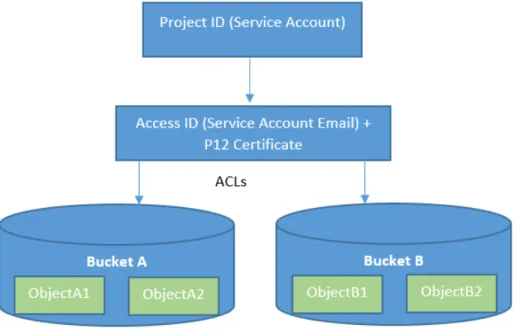
Service Accounts: Are special accounts that represent software rather than people. These are
used to authenticate your application. Service accounts have a unique identifier that looks like a long email address, and is called an Access ID. Every project has a service account associated with it, which may be used for authentication and to enable advanced features such as Signed URLs and browser uploads using the POST call.
Project: Is a logical entity used to group Google resources, including buckets, service
accounts, and settings. Every Project has a unique ID assigned by VMware at its creation time. Each vCloud Air project can have multiple service accounts.
Buckets: Are containers that hold your data. By default, all API users within a project
can see all buckets including read and write access. Buckets can be created with reduced permissions. Every bucket has a globally-unique name and is associated with a particular geographic region as well as storage plan.
Objects: Is data that is stored within a bucket and can be accessed by users. By
default, an object adopts the bucket's permissions. Objects can be created with reduced permissions via APIs.
P12 Certificate: Is a credential, similar to a password, used by a service account to
authenticate to Google Cloud Services. Like a password, this information must be kept secret.
Figure 2‑1. High-level Diagram of Service Concepts
Service Billing
Similar to other vCloud Air Virtual Private Cloud OnDemand services, VMware will meter and bill customers for the Object Storage powered by Google Cloud Platform service consumption. The service available under VMware vCloud Air terms of service (ToS), and is fully supported by VMware’s Global Shared Services (GSS) team.
With the pay-as-you-go model, you pay for only the services you actually use, on a metered, charge-back basis with flexible payment options (credit card or SPPs). The billing depends on the storage amount (GB per month), outbound data transfer (in GB), number of transactions (API calls), and the type of support (online or production) selected.
n For Virtual Private Cloud OnDemand billing information, see Metering Resource Usage. n For budgetary guidance and to review pricing, see pricing calculator.
n For other charges (depending on stroage plan) by Google Cloud Platform, see Cloud Platform SKUs.
Service Account Setup
3
You will need to sign-up for a vCloud Air Virtual Private Cloud OnDemand account in order to access the Object Storage powered by Google Cloud Platform service.Once you have created your account and authenticated it with Google Cloud Storage (described in the following sections), you can start using the service via APIs.
NOTE For more information, see the Google Cloud Storage API guide.
This chapter includes the following topics:
n “How to Sign-up?,” on page 11 n “Authentication,” on page 12 n “Add Access Account,” on page 12
How to Sign-up?
The vCloud Air Virtual Private Cloud OnDemand users will be able to use their existing credentials to get access to the Object Storage powered by Google Cloud Platform service.
Procedure
1 If you are currently a Virtual Private Cloud OnDemand user, you will see the Object Storage powered
by Google Cloud Platform tile when you sign in to your vCloud Air account.
2 If you do not have a Virtual Private Cloud OnDemand account, you can sign-up by going to: http://vcloud.vmware.com/service-offering/virtual-private-cloud-ondemand
NOTE You will require to provide a credit card during the sign-up process. After signing-up, you will
receive $300 credit for use within 90 days.
The sign-up wizard walks you through the MyVMware and the Virtual Private Cloud OnDemand account creation process.
3 Once you have successfully created your Virtual Private Cloud OnDemand account, you will receive a confirmation email.
4 After you receive access confirmation, login to the vCloud Air UI.
The Object Storage powered by Google Cloud Platform tile is displayed along with any other vCloud Air service that you might have signed-up for.
You now have a Virtual Private Cloud OnDemand account with access to the Object Storage powered by Google Cloud Platform service.
Once you have signed-up for the service and received access, you can add accounts and download the P12 certificate.
Authentication
The service uses the concept of service accounts to integrate and authenticate with Google Cloud Storage. Service accounts are used for machines and applications accessing the service. This helps customers leveraging third-party applications that provide storage gateway or backup and archiving capabilities to access the Object Storage powered by Google Cloud Platform service. The P12 certificate is the key
mechanism used for authenticating users. This certificate can be generated and accessed via the vCloud Air UI.
Add Access Account
The Project ID, Access ID (auto-generated serviceaccount email) and P12 certificate are used to identify and authenticate access to the service. Once you have signed-up for the service and received access, you can add accounts and download the P12 certificate.
Prerequisites
Ensure you have signed up for a vCloud Air Virtual Private Cloud OnDemand account and the Object Stroage powered by Google Cloud Platform service has been activated for your account.
Procedure
1 Login to your vCloud Air account.
2 Click the Object Storage Powered by Google tile, which provisions a Project (one project per Service ID).
3 The Resource Usage tab is displayed. As this is a first time log-in and no data has been uploaded, the values will be 0.
The usage statistics displayed under the Resource Usage tab depend on the storage plan you have selected and are updated once per 24-hour day once you start using the service.
4 Click the API Access tab, which provisions a Service Account (projectid).
5 Now, click the Service Information icon [ ] located in the upper-right corner below the Tools menu. The Service Information contains the Project ID (name with which the project was created in Google Cloud Storage) and API URL. You will need this Project ID while creating buckets and uploading objects using gsutil in Google Cloud Storage.
6 Next, click Add in the upper-left corner of the UI to add an Access Account.
NOTE Although the Name and Description fields are optional, it is recommended you enter a relevant
name (for example, department or project name) and a short description for the account, that'll help you remember how each one is used in your applications. You can add up to 64 accounts.
7 Click the Generate & Download button (this creates a service account in Google Cloud Storage).
8 You will be prompted to download the P12 Certificate for this particular service account and an Access
ID will be displayed in the UI. Copy and save the P12 Certificate and Access ID in a safe place. You will
need to use this information while accessing Google Cloud Storage using gsutil or gcloud.
NOTE
n You will get the option to download the P12 certificate only once as it can only be downloaded at
the time of service account creation.
n The P12 certificate gets created and downloaded automatically to the default download destination
folder of your computer.
n You should take immediate steps to make sure the P12 certificate is safe from disclosure from
unauthorized parties, and safe from accidental deletion.
n If your P12 certificate gets lost or deleted, you must create a new one, and reconfigure your
application to use it.
9 By default, only one P12 certificate gets generated when a service account is created. However, you can add another P12 certificate to the same service account. Select the service account to which you want to add a new P12 certificate and click the Edit link.
11 You can add more Access Accounts by following steps 6 through 8. The new accounts will be listed below the first account.
12 To remove an account, select the account and click Delete. Then, click Yes to confirm. Once deleted you can no longer access that account in Google Cloud Storage. This action does not delete the P12
certificate that was downloaded for this account. You will need to manually delete the certificate.
13 The Certificate Fingerprint is used to identify the P12 certificate for a particular account. A part of the fingerprint string is included in the P12 certificate name.
Your access account (service account) setup is complete.
What to do next
Using the combination of Access ID, and P12 certificate you can configure either the command-line tool (gcloud) or SDK to access Google Cloud Storage and create buckets, upload objects and so on.
NOTE If you are using your vCloud Air account, you do not need a Google email address to access Google
Cloud Storage.
Access the Object Storage powered
by Google Cloud Platform Service
4
The Object Storage powered by Google Cloud Platform service supports th same set of APIs from Google. You can use the Google Cloud Storage APIs to allow users to manage their storage and create external object API users. Although the service comes with APIs in JSON or XML, VMware recommends the use of JSON. You can access the service via CLI, however, object storage APIs would be called directly or via a third-party application (such as a backup or storage gateway).
NOTE For more information, see the Google Cloud Storage API guide and the Reference guide.
This chapter includes the following topics:
n “Access the Service using CLI,” on page 19 n “Manage Buckets and Objects,” on page 20 n “Best Practices,” on page 20
Access the Service using CLI
You primarily access the Object Storage powered by Google Cloud Platform service via APIs. However, for debugging purposes, you may access the service using the Command Line Interface (CLI).
Prerequisites
Install gsutil. If you have already installed Google Cloud SDK, then you already have gsutil installed.
Procedure
1 Double-click in the Access ID field and copy the Access ID.
2 Copy the P12 certificate name from the location where it was downloaded.
gcloud auth activate-service-account [Access ID] --key-file KEY_FILE Certificate path/[P12_CERTIFICATE] --project [PROJECT_ID]
5 Alternately, you can run gsutil config -e to access the service using your Project ID, Access ID
(serviceaccount email) and P12 certificate.
6 Once the account credentials are activated for your service account, it is ready to be used with Google Cloud Storage.
Manage Buckets and Objects
Currently, you cannot manage buckets and upload objects via the vCloud Air UI.
You can create buckets and upload objects via APIs provided by Google by following the steps listed at: https://cloud.google.com/storage/docs/getting-started-gsutil.
About Buckets
n The storage class is selected at the bucket-level. By default, the Standard Storage class is selected. You
can change to a different class via APIs. When you select a different class, the objects are moved to a different bucket in the newly selected class. The resource usage and billing will also change
accordingly.
Example: gsutil mb -c DRA gs://<bucket-name>
n The service is available globally. However, "US" is selected as the default location if no location is
specified. You can change the location to "EU" or "ASIA" via APIs. When you select a different location, the objects are copied to a different bucket in the newly selected location.
Example: gsutil mb -l "EU" gs://<bucket-name>
n Ensure you follow DNS naming conventions while naming buckets. As all buckets are in the same
namespace, every bucket name must be unique across the entire Google Cloud Storage namespace.
About Objects
n Objects cannot be edited. If you edit an object, the new version replaces or overwrites the original one. n Objects are consistent. They are either available or not available. You cannot access partial or corrupted
files. There is no variance in the file irrespective of the location from where it is accessed.
n Object names mimic file structures.
Example:
n /europe/france/paris.jpg n /europe/france/cannes.jpg
Best Practices
VMware recommends a few best practices to be followed while using the service:
n Create different Service Accounts for different projects or teams and not combine service accounts.
Example: An HR department and Finance department within an organization should have their own
separate service account.
n While creating buckets, ensure that only those buckets are available to that particular Service Account.
This prevents unauthorized access to data and prevents other teams from being able to list or write into that bucket.
Example:
n gsutil acl get gs://<bucket-name> n gsutil acl set private gs://bucket
n gsutil acl ch -u [email protected]:WRITE gs://example-bucket
n gsutil acl ch -u [email protected]:W gs://example-bucket
Index
A
access account, account 12
API 7
API, access 12, 19
API, account 11
authenticate, account 12
B
best practice, service 20
billing, service 9
buckets, manage 20
C
CLI, access 19
concepts 8
D
definitions 8
G
glossary 5
Google Cloud Storage 7
I
intended audience 5
J
JSON, API 19
O
objects, manage 20
P
plans, nearline 7
plans, standard 7
plans, DRA 7
R
related documentation 5
resource usage, billing 12
S
S3 7
service 7
setup, account 11
signup, account 11
storage plans, plans 7
W
Web UI 7