first Big Data application with InfoSphere
BigInsights
Cynthia M. Saracco ([email protected]) Senior Solutions Architect
IBM
Daniel Kikuchi ([email protected]) Executive IT Specialist
IBM
Thomas Friedrich ([email protected]) Staff Software Engineer
IBM
Skill Level: Introductory Date: 27 Sep 2012
Developing your first Big Data application and deploying it across your distributed computing environment doesn't have to be a daunting task. Learn how to use Eclipse-based tools for InfoSphere® BigInsights™ to expedite application development, package your application for publication in a web-based catalog, and deploy your application so that business staff and others can easily launch it. If you're new to Big Data application development and want to get started quickly, you may want to explore tools provided with IBM's InfoSphere BigInsights Enterprise Edition, a platform based on the open source Apache Hadoop project. The
BigInsights Eclipse tools include wizards, code generators, context-sensitive help, and a test environment to simplify your development efforts. With these tools, you can quickly "publish" your application in the BigInsights web-based catalog. Then you can use the BigInsights web console to deploy the application on your cluster so authorized users can launch it.
This article introduces the BigInsights application development life cycle and describes how to create, publish, and deploy your first simple application with minimal effort. You'll even see how you can later upgrade that application with new features and redeploy it.
The application you'll build will use Jaql (a query and scripting language that uses a data model based on JSON) to retrieve data about the IBM Watson research project from a social media site, manipulate that information, and store the results in your distributed file system. We won't cover the specifics of Jaql here because these details were covered in another article (see the Resources section for details). However, many of the BigInsights application development techniques described here are not specific to Jaql. Indeed, the BigInsights tools and samples can help you create a variety of applications and software components involving Java MapReduce, Hive, Pig, and text analytics.
Background
If you're not familiar with BigInsights, it's a software platform designed to help organizations discover and analyze business insights hidden in large volumes of a diverse range of data — data often ignored or discarded because it's too impractical or difficult to process using traditional means. Examples of such data include social media data, news feeds, log records, click streams, electronic sensor output, and even some transactional data.
To help companies derive value from such data in an efficient manner, the
Enterprise Edition of BigInsights includes several open source projects, including Apache Hadoop, and a number of IBM-developed technologies. Hadoop and its complementary projects provide an effective software framework for data-intensive applications that exploit distributed computing environments to achieve high
scalability. IBM technologies provided with the Enterprise Edition enrich this open source framework with analytical software, enterprise software integration, platform extensions, and tools. IBM-provided technologies include a web-based application catalog and Eclipse tools for application development. For more information about BigInsights, see the Resources section.
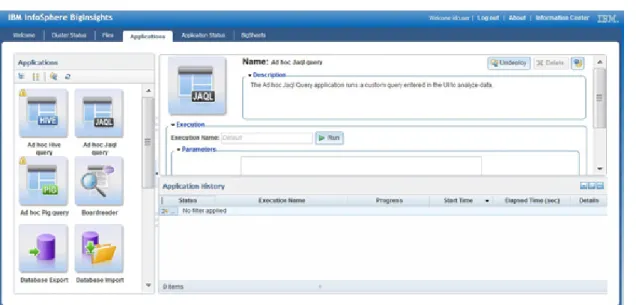
The application catalog, accessed through the Applications tab of the BigInsights web console, includes several IBM-provided sample applications as well as any third-party or user-written applications that an administrator has added. Figure 1 depicts a subset of the application catalog at left. Each application published in the catalog has an icon and a name. A triangle in the upper-left corner of the icon indicates that the application has yet to be deployed on the BigInsights cluster. (In Figure 1, the Ad hoc Hive query and Ad hoc Pig query applications have not been deployed.)
When a user selects an application to run, a launch panel appears in the upper-right pane. All applications published in the catalog present a consistent interface to users that enables them to specify appropriate invocation information. Such
Figure 1. The Applications tab of the BigInsights web console
In this article, you'll see how to publish your application in this catalog and control the information required for its launch. You'll also launch your application from the catalog and, optionally, inspect the results.
Preparing to develop your first application
To begin developing BigInsights applications using Eclipse, download the prerequisite Eclipse version and the Eclipse Data Tools platform. If needed, consult the product's Information Center for details. The Resources section provides links to the product InfoCenter, as well as a download site for Eclipse. For our test scenario, we installed Eclipse Helios Service Release 2 and Eclipse Data Tools 1.9.1.x on a Linux®
system. (While you can use a Windows®-based Eclipse environment for BigInsights application development tasks, a Linux or UNIX® Eclipse installation is required for
Step 3: Test your application.) Our target BigInsights deployment environment was BigInsights Enterprise Edition 1.4.
Once you have your Eclipse environment installed and access to a BigInsights Enterprise Edition server, launch the BigInsights web console. In the Quick Links section on the Welcome tab, click Enable your Eclipse development environment
for BigInsights application development, as shown in Figure 2. A new window will appear with detailed instructions for downloading and installing the BigInsights tools into your Eclipse environment.
Figure 2. The web console links to information about configuring BigInsights Eclipse tools
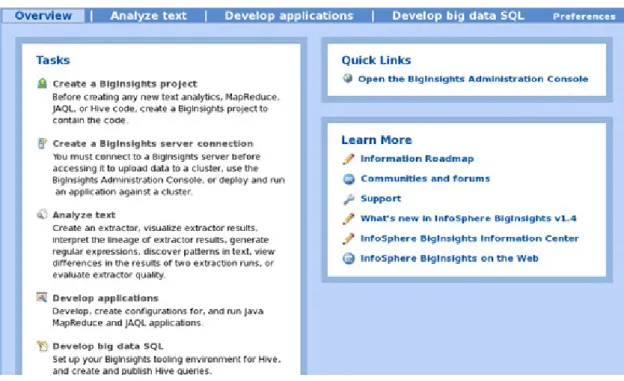
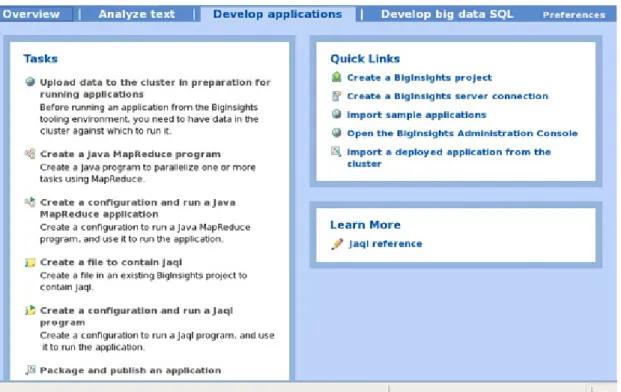
When you launch Eclipse, a new BigInsights perspective will be accessible. This perspective provides an InfoSphere BigInsights Task Launcher to guide you through various tasks. The Overview tab of the Task Launcher, shown in Figure 3, is a good starting point. However, for this article, you'll spend most of your time working with wizards launched through the Develop applications tab shown in Figure 4.
Figure 4. Develop applications tab of the BigInsights Task Launcher
Once your Eclipse environment is configured with the BigInsights tools, you're ready to develop your first BigInsights application.
In keeping with previously published articles on BigInsights, you'll develop a simple application to support a social media analysis scenario involving IBM Watson, a research project that performs complex analytics to answer questions presented in a natural language. An earlier article on Jaql explored how to retrieve a small number of recent messages related to IBM Watson from a social media site, filter and transform data of interest, and write that data to the distributed file system (see Resources). While that Jaql scenario was simplistic and not ideally suited for gathering large amounts of social media data for production use, it will serve as an acceptable means of introducing the BigInsights application development, publication, and deployment process. So, to help you focus on the task at hand, let's imagine that you want to code the Jaql logic into an application so business users won't have to write Jaql queries to obtain recent messages about IBM Watson.
Step 1: Create a BigInsights project
As you might expect from any Eclipse-based application development effort, you need to create an appropriate project for your application. Here's one way to do that:
1. If needed, launch Eclipse and open the BigInsights perspective (click Window > Open Perspective > BigInsights).
2. If needed, invoke the BigInsights Task Launcher (click Help > InfoSphere BigInsights Task Launcher). Click on the Develop applications tab. Your screen should appear similar to Figure 4.
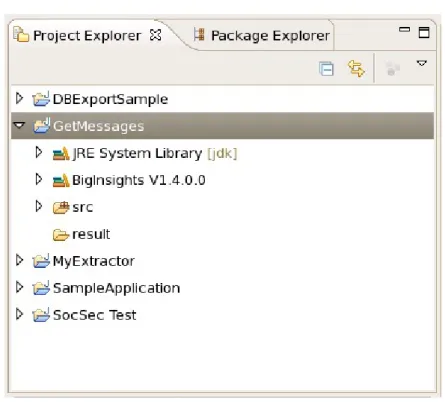
3. Click the Create a BigInsights project link in the Quick Links section at upper right. When prompted, name your project GetMessages and click Finish. The
new project will appear in the Project Explorer pane at left. See Figure 5.
Figure 5. BigInsights Project Explorer pane with the new GetMessages project highlighted
Step 2: Create and populate a Jaql file with your application
logic
Since you're writing a Jaql application, you need to create a Jaql file within your new project and include appropriate Jaql statements. In this section, you'll develop a simple Jaql application with no input parameters. Later, you'll upgrade this application to be more flexible and accept user input when launched.
To develop this application:
1. From the Tasks section of the BigInsights Task Launcher (shown in Figure 4), click Create a file to contain Jaql.
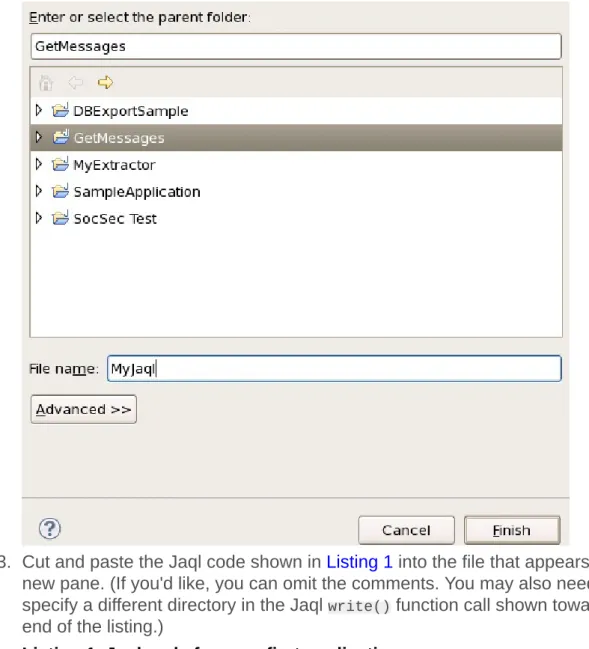
2. When prompted, select your GetMessage project as the parent folder for the file and enter MyJaql as the filename (see Figure 6). Click Finish.
Figure 6. Creating a Jaql file using the BigInsights wizard
3. Cut and paste the Jaql code shown in Listing 1 into the file that appears in a new pane. (If you'd like, you can omit the comments. You may also need to specify a different directory in the Jaql write() function call shown toward the
end of the listing.)
Listing 1. Jaql code for your first application
// Query Twitter for the 15 most recent messages about "IBM Watson"
tweets = read(http("http://search.twitter.com/search.json?q=IBM+Watson")); // Get the current system time
time=now();
// Extract selected fields from JSON data returned by Twitter tweetRecords = tweets[0].results ->
transform { created_at: $.created_at, geo: $.geo,
id: $.from_user_id_str,
iso_language_code: $.iso_language_code, text: $.text };
// Write the results of the Jaql query as a delimited file in HDFS. // Change the directory shown here to fit your environment.
// Call dateMillis() function to append unique time to file name. // Wrap with serialize() to cast function results as a string.
tweetRecords -> write(del("/user/idcuser/sampleData/twitter/WatsonTweets" + serialize(dateMillis(time)) + ".del",
schema=schema {created_at, geo, id, iso_language_code, text}));
Very briefly, the first statement defines a tweets variable with an expression that
retrieves the 15 most recent Twitter posts about "IBM Watson" by accessing a REST-based Twitter service. The second statement defines a time variable
with an expression that returns the current system time. The third statement defines a tweetRecords variable that uses Jaql expressions to extract and
transform information contained in the first element of the array that tweets
represents. Within the first element of this array, there is a results array
containing JSON data retrieved from Twitter, a subset of which is of particular interest to us. The final statement writes the query results represented by
tweetRecords as a delimited file in a specific path managed by the BigInsights
distributed file system. The filename begins with WatsonTweets followed by
a string representation of the current system time in milliseconds; the file's extension is .del. The schema information defines the fields contained in the new JSON records within the newly written file.
4. Save your file (click Ctrl > S.)
Step 3: Test your application
To test your application, define a connection to an existing BigInsights cluster and configure your application's runtime properties. (As of this writing, a Linux or UNIX Eclipse installation is required for the work described in this step.)
Follow these steps to test your application:
1. From the Quick Links section of the BigInsights Task Launcher, click the
Create a BigInsights server connection link.
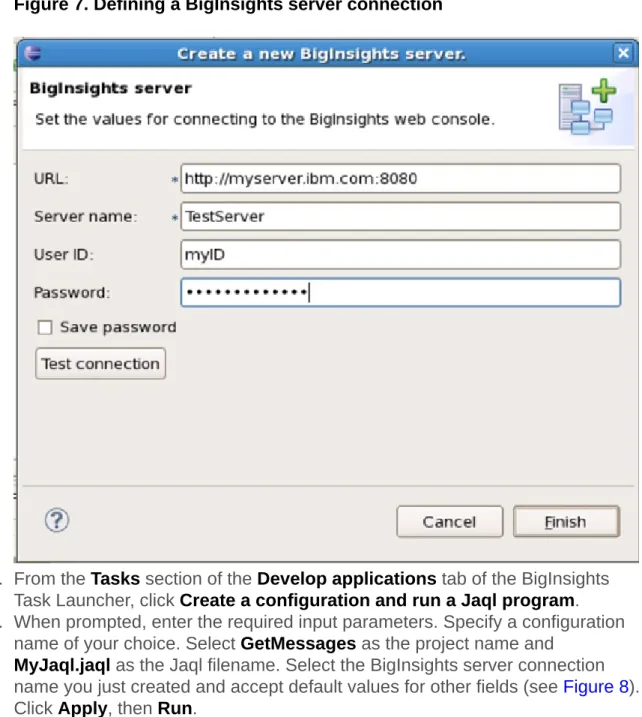
2. When prompted, specify the URL for your BigInsights web console. Provide a server name of your choice, and enter a valid BigInsights user ID and password. See Figure 7, which depicts sample connection properties for a BigInsights cluster configured without SSL access to the web console. (By default, an SSL-based installation would have a URL similar to https:// myserver.ibm.com:8443.) Optionally, click the Test connection button to verify that you can connect to the BigInsights server you just defined. Click Finish.
Figure 7. Defining a BigInsights server connection
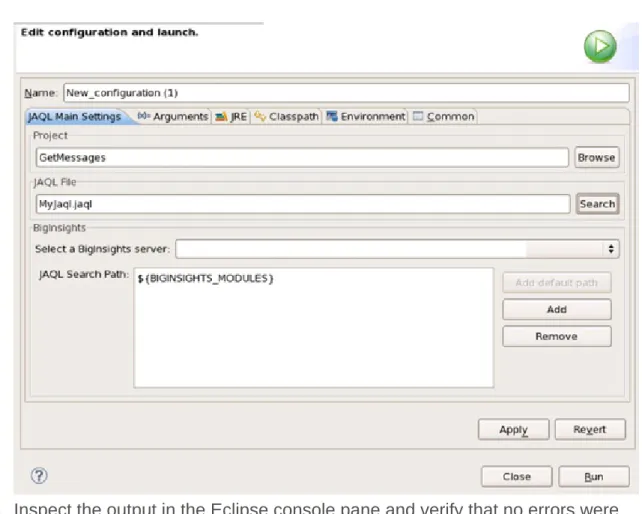
3. From the Tasks section of the Develop applications tab of the BigInsights Task Launcher, click Create a configuration and run a Jaql program. 4. When prompted, enter the required input parameters. Specify a configuration
name of your choice. Select GetMessages as the project name and
MyJaql.jaql as the Jaql filename. Select the BigInsights server connection name you just created and accept default values for other fields (see Figure 8). Click Apply, then Run.
Figure 8. Configuring and running your Jaql application
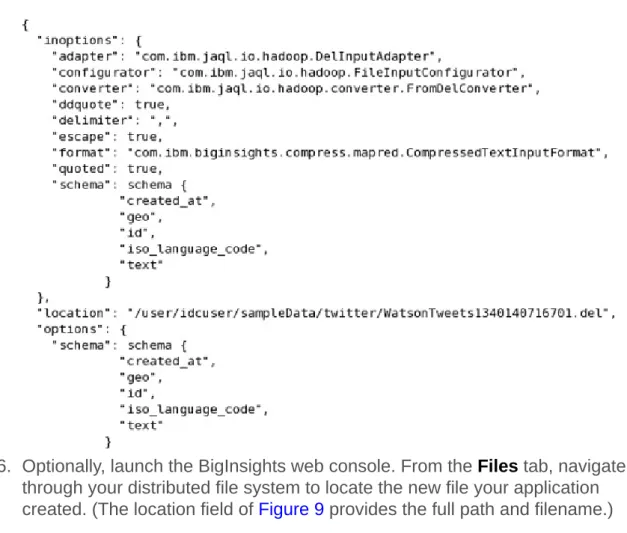
5. Inspect the output in the Eclipse console pane and verify that no errors were reported. Figure 9 illustrates a subset of sample output that should appear.
Figure 9. The Eclipse console displays your application's output
6. Optionally, launch the BigInsights web console. From the Files tab, navigate through your distributed file system to locate the new file your application created. (The location field of Figure 9 provides the full path and filename.) As an aside, once you have defined a BigInsights server connection and created a Jaql program run configuration, you can quickly test Jaql statements directly from your MyJaql.jaql file. Simply highlight the Jaql statement(s) of interest, right-click, and select Run the Jaql statement.
Step 4: Publish your application in the BigInsights catalog
After testing your application and verifying that it functions as you intended, you're ready to publish it in the BigInsights application catalog. Packaging and publishing your application enables you to identify the application's icon and name, define the application's workflow, specify input parameters, and perform related tasks.
Here's how you can publish this application:
1. From the Tasks section of the BigInsights Task Launcher, click the Package and publish an application link. A wizard will appear, guiding you through several steps.
2. When prompted, specify the GetMessages project name, select the BigInsights server connection name and click Next. (Depending on your security
configuration, you may be prompted to enter a BigInsights user ID and password.)
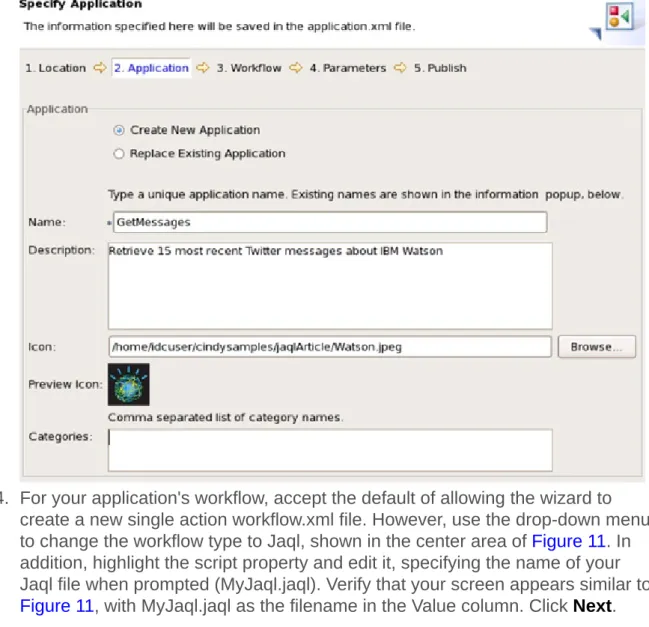
3. Select the Create New Application radio button and specify GetMessages as your application's name. Optionally, provide a brief description and specify an icon file (JPEG, GIF, or PNG format) in your local file system to serve as your application's icon. (We downloaded an image associated with IBM Watson from an IBM website. If you prefer, you can use the default image provided.) You can also specify one or more application categories if you'd like, such as "test" (see
Figure 10). When you're ready, click Next.
Figure 10. Specifying basic application information prior to publishing
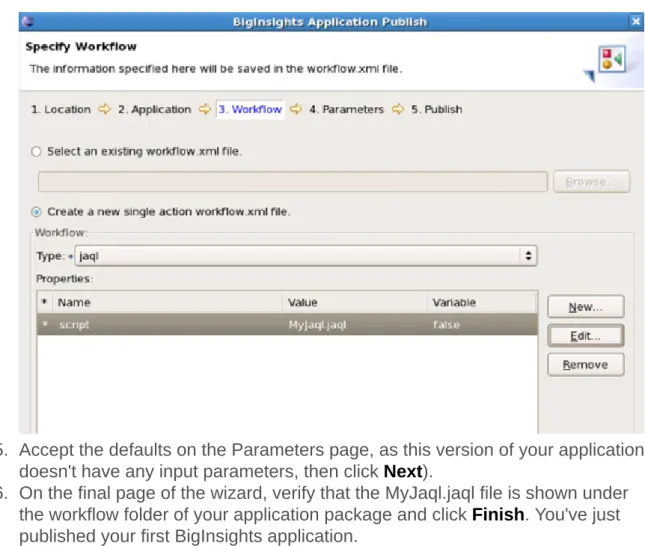
4. For your application's workflow, accept the default of allowing the wizard to create a new single action workflow.xml file. However, use the drop-down menu to change the workflow type to Jaql, shown in the center area of Figure 11. In addition, highlight the script property and edit it, specifying the name of your Jaql file when prompted (MyJaql.jaql). Verify that your screen appears similar to
Figure 11. Specifying workflow parameters for your application
5. Accept the defaults on the Parameters page, as this version of your application doesn't have any input parameters, then click Next).
6. On the final page of the wizard, verify that the MyJaql.jaql file is shown under the workflow folder of your application package and click Finish. You've just published your first BigInsights application.
Step 5: Deploy and run your application on the cluster
Once your application has been published in the BigInsights catalog, an administrator can deploy it on the cluster and authorize users to launch it. This section assumes you have appropriate administrative privileges for BigInsights and guides you through the application deployment process.
To deploy and run your application on BigInsights:
1. Launch the web console and click the Applications tab.
2. Locate your GetMessages application, as shown in Figure 12. (The icon for your application may differ from the example shown here. We downloaded a specific JPEG file from an IBM Watson-related site to use for our application.) Note that a yellow triangle appears in the upper-left corner of your application icon, indicating that the application hasn't been deployed on the cluster.
Figure 12. Your new application is displayed in the BigInsights catalog
3. Click on the application. At upper right, the application's launch pane will appear (see Figure 13). Click Deploy to deploy it on your cluster.
Figure 13. Preparing to deploy your published application
4. Click the application configuration button (just to the right of the Delete button shown in Figure 13). A pop-up window will appear, enabling you to specify security restrictions for your application. Select all available groups and click
Save. Now any BigInsights user will be able to launch your application. Users can even schedule regular runs of the application by expanding the Schedule and Advanced Settings dialog box shown in the middle of Figure 13.
5. Test your application on the cluster. Specify an Execution Name, such as Test-GetMessages, in the application's launch pane (shown in Figure 13) and click
Run.
6. Inspect the Application History section at lower right to monitor the job's progress. Optionally, when the job completes, click the arrow in the Details
section (shown at right in Figure 14) to display further information about the workflow and your job.
Figure 14. Application History pane displays the progress of your application's run
7. If desired, click on the Files tab of the web console and locate the file your application created. If you click on the file, you'll see it displayed in text format in a pane on your right. Optionally, create a BigSheets collection from this file, specifying comma-separated values (CSV) as the reader type, unchecking the
Headers included box. See the Resources section, if needed, for an article that discusses how to create and analyze BigSheets collections.
Step 6: Upgrade your application
Now let's upgrade your application to make it more flexible. In particular, we'll change the application to accept two input parameters: a search term to submit to Twitter and a filename to store the application's results.
1. Undeploy the application from the BigInsights catalog. From the application's launch pane, click Undeploy. (In order to be able to replace an application with a new version, an application needs to be undeployed first to ensure that no user is running the application when trying to replace it.)
2. In Eclipse, create a backup copy of your GetMessages project, if desired. Then return to the GetMessages project and edit MyJaql.jaql, as shown in Listing 2. Ignore any errors that may appear, as these will be resolved later when the application is published. Save your file.
Listing 2. Revised version of Jaql code
// Block 1
// Declare external variables extern TERM;
extern OUTPUT;
// Search term (provided by user) term=[TERM];
// Full path + file name for output (provided by user) output=[OUTPUT];
// Block 2
// Query Twitter for recent messages about user-supplied search term
// Note that a multi-word term needs to conform to the search engine's syntax // E.g., instead of IBM Watson, a user would need to enter IBM+Watson
tweets = read(http("http://search.twitter.com/search.json?q="+term[0])); // Extract selected fields from JSON data returned by Twitter
tweetRecords = tweets[0].results ->
transform { created_at: $.created_at, geo: $.geo,
id: $.from_user_id_str,
iso_language_code: $.iso_language_code, text: $.text };
// Block 3
// Write to results of social media query as a delimited file tweetRecords->write(del(output[0],
schema=schema {created_at, geo, id, iso_language_code, text}));
Block 1 declares two external variables (TERM and OUTPUT) that represent input
parameters that will become part of the application's UI. Each parameter is assigned to a Jaql variable (term and output). Block 2 incorporates the user's
3. Locate your project in the Project Explorer pane. Right-click and select
BigInsights Application Publish to launch the publication wizard. (Alternately, you can launch this wizard from the BigInsights Task Launcher, as we described in the section titled "Step 4: Publishing your application in the BigInsights
catalog.")
4. Select the same BigInsights server used when publishing the application the first time and click Next.
5. On the Specify Application page, verify that the Replace Existing Application button is checked. Optionally, change the application's description. Accept the existing values for the remaining items and click Next.
6. On the Workflow menu, select the radio button to create a new single action workflow.xml file. (Because you're introducing new input parameters, you cannot accept the default of using the existing workflow.)
7. Follow the same process described earlier to create a workflow for the Jaql script named MyJaql.jaql (see Figure 11).
8. Select New to enter a new property for the workflow. When a new window appears, use the drop-down menu for the Name field to select eval. Jaql expressions in the eval property are run before the supplied Jaql script is
executed and can be used to assign values to external variables defined in the Jaql script. For our application, assign the eval property the value shown in
Listing 3.
Listing 3. Setting input property values for your application workflow
TERM="${jsonEncode(term)}";OUTPUT="${jsonEncode(output)}";
As a brief explanation, when running the application, we want to provide values for the variables TERM and OUTPUT (included in Listing 2). To do so, we must
assign an Oozie variable to each Jaql variable. Oozie is used as the workflow engine that executes the application. An Oozie parameter is enclosed within
${}. To be able to easily correlate the Oozie variables with the Jaql parameters,
we use the same variable names for the Oozie parameters term and output (all lowercase). It is recommended to use the jsonEncode function to encode input
provided by the user through the web console to escape special characters and avoid code injection. For detailed information on how to specify parameters in Jaql applications, see the link to the BigInsights InfoCenter in the Resources
section.
Figure 15. Specify Jaql expressions in the eval property
Click OK and Next.
9. On the Parameters page, note that all Oozie parameters specified in the
previous workflow page are listed — in this case, the parameter name term and output. You need to select each parameter and edit its properties to provide information on how each parameter should be displayed in the web console UI and what parameter type is expected.
10. Edit the term parameter. Set its display name to Search term and its type to
String. Specify IBM+Watson as the default value. If desired, provide a brief description. Ensure that the Required box is checked and click OK.
11. Edit the output parameter. Set its display name to Output file and its type to
File Path. If desired, provide a brief description. Ensure that the Required box is checked and click OK.
12. After completing your edits, verify that the Parameters page looks similar to
Figure 16. Click Next and Finish.
Figure 16. List of application parameters
a pop-up window appears, set its security characteristics; in particular, select all available groups and click Save.)
15. Launch your application. Note that your application now expects the user to specify a search term or phrase and offers a default value of IBM+Watson. In
addition, your application requires the user to specify an output file. As shown in Figure 17, if you provided a description for either of your input parameters, that description will display as context-sensitive help information when the user hovers over the field.
Figure 17. New version of the application showing required input parameters
16. Specify an execution name for your application, such as Test-GetMessages-New.
In addition, specify a path and filename for the application's output. You can use the Browse button next to the Output file input field and select an existing file in the distributed file system. Or you can update the input field manually with a file location. Accept the default search term of IBM+Watson, and run your application.
17. Optionally, inspect the distributed file system to locate your output file after the application successfully executes. To do that, click on the Files tab and navigate to the location you specified for the output file.
18. Optionally, return to your GetMessages project in Eclipse. Expand the BIApp > application folder and double-click on the workflow.xml file that the BigInsights tool generated for you. Inspect the file's contents. Using the Design tab of the XML editor, expand the workflow > action > jaql sections. Note that the values you set earlier for the workflow properties (including script and eval) are reflected here. Similarly, inspect the application.xml file that the
BigInsights tool generated for you. You'll find this file in the BIApp > application
folder of your project. Double-click on the file to display its contents. Using the
Design tab of the XML editor, expand the application-template > properties > property sections. Note that the values you set for your two input parameters are reflected here.
Diagnosing runtime application problems
To demonstrate how to diagnose a problem, run the application again, but provide an input parameter that will cause the application to fail.
Launch the application, accepting the default value for the search term. For the output file, enter a filename under a directory in the distributed file system that your BigInsights user has no write access to. For example, if you're logged onto a secure BigInsights cluster as user1 (a member of the "user" group), specify a file under the directory /user/biadmin/ or any other user ID other than user1. Then click Run to execute the application again. Once the application execution finished, it should show the status in the Application History section as a red error icon (see Figure 18).
Figure 18. Application failed with an error
Depending on the type of error, information about what caused it to fail will be
surfaced in different areas of the application workflow. An application workflow starts one or more actions that run at least one job. Each job performs one or more tasks, each task consisting of at least one task attempt. The BigInsights web console
enables you to drill down into each level and access logs and other files that can help you diagnose the problem.
To navigate into the details of the workflow, click on the arrow under the Details column of the workflow in the Application History section. The workflow summary displays some basic information about the workflow, lists all the actions that ran and provides entry points to the workflow configuration file, log file, and job details (see
Figure 19).
Figure 19. Workflow summary
Figure 20. Workflow configuration
Once you have verified that all values were passed in to the Oozie workflow, you can click on the Workflow Log button to access the log file of the workflow or click anywhere in the table row in the middle of the screen to see information about a specific action of the workflow. In our example, the workflow consists of only one Jaql action. The action information provides an error code, message, and details about the workflow action (see Figure 21). Depending on the type of action, the information is more or less detailed. In some instances, this dialog might reveal the problem, but in the case of the Jaql action, the message is too generic to tell what exactly caused the problem. Nevertheless, we can verify that the Jaql expression in the eval
property is a valid Jaql statement after substituting the Oozie parameters with the actual values from the workflow configuration.
Figure 21. Error code, message, and action information of the failed Jaql action
Because the information from the workflow level wasn't sufficient to determine the problem, we need to look at the individual jobs of the Jaql action and drill down to the task attempt logs. To get into the job details view, click on the arrow in the Job Details column of the Jaql action (see Figure 19). The Jobs view will display a list of all the jobs of the action (see Figure 22). In our example, the action consisted of one job. To see all the tasks of the job, click anywhere within the row of the job. The tasks are categorized by type (setup, map, reduce, and cleanup), and you can click on any row
to drill down further. Click on the row for the map tasks and keep going further into the details until you reached the attempt log level.
Figure 22. Detailed jobs and tasks information
The logs for each attempt are contained in different sections. The stdout section contains environment information like the class path, Java system properties, the Oozie action configuration, and, in the case of a Jaql action, the Jaql command arguments are also included. The error information is listed under the stderr section. If no error occurs, this section will be empty. However, in our case we see a stack trace with an error message (see Figure 23). Because we specified an output file in a folder that our user has no write access to, the application failed with an
AccessControlException: Permission denied error.
Figure 23. Log for attempt that shows the error information
Summary
To simplify Big Data application development, BigInsights Enterprise Edition provides Eclipse tools (plug-ins) that feature wizards, code generators, context-sensitive help, and a test environment. This article provided a quick tour of the application development life cycle for BigInsights, showing you how to quickly develop, test, publish, and deploy your own Big Data application. You even saw how you can easily upgrade your application to satisfy new requirements, publish these upgrades, and deploy the new version of your application on your BigInsights cluster.
Acknowledgements
Resources
Learn• Read "Understanding InfoSphere BigInsights" to learn more about the product's architecture and underlying technologies.
• Check out the Big Data: Frequently Asked Questions for IBM InfoSphere BigInsights video to listen to Cindy Saracco discuss some of the frequently asked questions about IBM's Big Data platform and InfoSphere BigInsights. • Read "Analyzing social media and structured data with InfoSphere BigInsights"
to learn more about BigSheets, a spreadsheet-style tool provided with BigInsights.
• Learn about the BigInsights web console by reading the article "Exploring your InfoSphere BigInsights cluster and sample applications."
• Learn how to use Jaql by reading "Query social media and structured data with InfoSphere BigInsights."
• Visit the BigInsights Technical Enablement Wiki for links to technical materials, demos, training courses, news items, and more.
• Learn about the IBM Watson research project and its post-Jeopardy! activities. • Check out BigData University for free courses on Hadoop and Big Data.
• Refer to the BigInsights InfoCenter for documentation about the product. In particular, you may find the Jaql reference and Jaql application development
sections useful.
• Order a copy of Understanding Big Data: Analytics for Enterprise Class Hadoop and Streaming Data for details on two of IBM's key Big Data technologies. • Learn more about Twitter APIs by visiting their developer site.
• Visit Eclipse.org for information about the platform and links for software downloads.
• Learn more about Information Management at the developerWorks Information Management zone. Find technical documentation, how-to articles, education, downloads, product information, and more.
• Stay current with developerWorks technical events and webcasts. • Follow developerWorks on Twitter.
Get products and technologies
• Build your next development project with IBM trial software, available for download directly from developerWorks.
• Now you can use DB2 for free. Download DB2 Express-C, a no-charge version of DB2 Express Edition for the community that offers the same core data
features as DB2 Express Edition and provides a solid base to build and deploy applications.
Discuss
• Check out the developerWorks blogs and get involved in the developerWorks community.
About the authors
Cynthia M. SaraccoCynthia M. Saracco works on database management and XML technologies at IBM's Silicon Valley Lab. She has co-authored three books and taught university-level courses on various software technologies.
Daniel Kikuchi
Daniel Kikuchi is an IBM executive IT specialist on the Big Data
Development Enablement team. He has successfully completed many WebSphere, Lotus, and Big Data proof-of-concepts for customers to demonstrate how IBM software can address their business goals. He is based in Research Triangle Park, N.C., and is a Distinguished IT Specialist with The Open Group.
Thomas Friedrich
Thomas Friedrich works as a staff software engineer in the Information Management Administration Tooling team at IBM's Silicon Valley Lab in San Jose, CA. He holds a Master's degree in Computer Science from the University of Applied Sciences in Leipzig, Germany. His current development responsibilities include the development of the tooling support for replication. Before that, he worked on stored procedure and user-defined function tooling support in Rational Data Architect and DB2 Developer Workbench.
© Copyright IBM Corporation 2012
(www.ibm.com/legal/copytrade.shtml)
Trademarks