ABSTRACT
BUTLER, COLIN GRANT. Exploring Bimanual Tool-Based Interaction in a Drawing Environment. (Under the direction of Robert A. St. Amant.)
EXPLORING BIMANUAL TOOL-BASED INTERACTION IN A DRAWING ENVIRONMENT
by
COLIN BUTLER
A thesis submitted to the Graduate Faculty of North Carolina State University
in partial fulfillment of the requirements for the Degree of
Master of Science
COMPUTER SCIENCE
Raleigh 2004
APPROVED BY:
___________________________________ ___________________________________ ___________________________________
Biography
Colin Grant Butler was born in Beaumont, Texas on November 25, 1980. His family moved to Springfield, Missouri in 1986 and then to Clemmons, North Carolina in 1993. After four years at West Forsyth High School, he decided that he wanted to study Computer Science at North Carolina State University in Raleigh.
Colin spent four years earning a Bachelor of Science degree in Computer Science with a minor in English, graduating Magna Cum Laude in May 2002. He has spent the past two years researching applications of tool use in novel user interfaces for his Master’s Degree at NCSU under Dr. Robert St. Amant.
Table of Contents
LIST OF TABLES LIST OF FIGURES 1. INTRODUCTION 2. RELATED WORK
2.1. Bimanual interaction 2.2. Tool use
3. SYSTEM DESIGN 3.1. Theory
a. Direct manipulation b. Bimanual interaction c. Tool use
i. A tool taxonomy
ii. Characteristics of tool use 3.2. History
a. HabilisDraw v1.0 b. HabilisDraw v2.0 3.3. Hardware
3.4. Software
a. Conceptual overview b. Class structure c. Implementation notes 4. EXPERIMENT
5. RESULTS
5.1. Action observations 5.2. Object observations 5.3. Interface observations 5.4. Approach observations 6. ANALYSIS
7. CONCLUSION
8. REFERENCE MATERIALS Appendices
A. Study Questionnaire B. Questionnaire Responses
LIST OF TABLES
Table 1: A qualitative comparison between drawing environment
interactions in HabilisDraw DT and standard direct manipulation interfaces.
Table 2: Quantitative overview of survey demographics and responses
LIST OF FIGURES
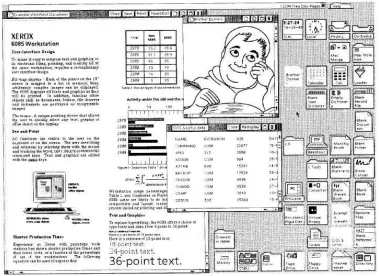
Figure 1: The Xerox Star interface. Figure 2: The tools of HabilisDraw v1.0 Figure 3: A composite tool for creating spirals. Figure 4: The default HabilisDraw DT desktop.
Figure 5: Holding an object (in this case, a pen) shows a transparent “iconic display” of the object in hand
Figure 6: An expert drawing done with HabilisDraw DT.
Figure 7: A user performing a pattern matching task in HabilisDraw DT. Figure 8: A user creating a house in HabilisDraw DT.
Figure 9: The selection of experiment patterns.
1 17 19 25
Figure 1: The Xerox Star interface.
1. INTRODUCTION
without consulting a user manual and learning by rote. Since then, research has continued to search for ways of improving usability and learnability in user interfaces. Even very strictly limited subsets of a human’s output capabilities far surpass the ability of most interfaces to capture and interpret input. If interface designers can capitalize on this strength, the conceptual and practical domain of user interaction could very well extend far beyond the limitations of current mouse and keyboard methods.
2. RELATED WORK 2.1 Bimanual Interaction
The most familiar work on bimanual interaction is probably due to Xerox PARC, in the Toolglass™ and Magic Lenses™ system [Bier, et al., 1993]. The design of this system uses a trackball for the non-dominant hand, controlling a transparent tool palette; and a mouse for the dominant hand, controlling the primary cursor. The palette can be configured to provide one of many functionalities, either active (e.g. click-through tool functionality) or passive (e.g. Magic Lenses™). By selecting a tool for the palette and positioning it over the object of interest with one hand and clicking “through” the palette with the other hand, many of the inefficiencies of a modal interface are streamlined into an intuitive bimanual interface. Alternatively, the palette can be configured to act as a “Magic Lens™,” representing some alternative mode of display for all objects beneath it.
In other bimanual interaction related work, Cutler et al. developed a system called the Responsive Workbench [Cutler, et al., 1997], for which they developed a two-handed three-dimensional user interface for medical training and automotive design applications. Both hands are used to manipulate both the user’s perspective and the virtual objects on a 3D tabletop display. The system supports a set of unimanual actions and sets of both bimanual symmetric and asymmetric actions. The various actions are represented as tools in a toolbox, where the user can choose an operation and apply it via hand gestures.
2.2 Tool Use
up and manipulated like other objects in the interface, in contrast to more common menu- or palette-based “tool mode” designs. The system uses multiple mice to provide a collaborative storytelling interface where children can use Bederson’s own “local tools” to develop stories comprised of images, text, and spatial arrangement.
Later, I will discuss another tool-based project, the original HabilisDraw [St. Amant and Horton, 2002], which is a tool-based 2D drawing program developed by Robert St. Amant and Thomas Horton upon which HabilisDraw DT is based.
There are several projects that focus on bimanual interaction, and a limited number of these projects use tools, but there are very few projects that use tool-based bimanual interfaces. The Toolglass project previously mentioned is arguably tool-based, but also bears several characteristics of a standard interface with a special tool provided for the non-dominant hand. Roope Raisamo’s alignment stick project [Raisamo, 1999] is one project that currently supports bimanual interaction in a specifically tool-based environment. Raisamo’s system allows users to create drawings by manipulating a set of tools in the form of various types of stick. The primary difference between Raisamo’s interface and the HabilisDraw DT interface is that the HabilisDraw DT system uses the MERL DiamondTouch to provide interaction through direct contact.
whatsoever. This approach easily and effectively addresses the formidable issue of capturing a user’s natural ability to operate upon multiple degrees of freedom concurrently.
3. SYSTEM DESIGN 3.1 Theory
3.1.1 Direct Manipulation
In 1983, Ben Shneiderman [Shneiderman, 1983] outlined a new interaction model for what he called “direct manipulation.” The principle of direct manipulation is somewhat self-explanatory: it values direct interaction and locality over abstraction and obfuscation. The three fundamental properties of a direct manipulation system are as follows:
1. Continuous representation of the object of interest
2. Physical actions or labeled button presses instead of complex syntax
3. Rapid incremental reversible operations whose impact on the object of interest is immediately visible.
By defining this new model, Shneiderman provided a set of principles by which users could easily associate objects with their states and actions with their effects. Since then, direct manipulation has been one of the dominant models in interface design.
3.1.2 Bimanual Interaction
Soon after Buxton and Myers’ study, Yves Guiard wrote a paper in 1987 [Guiard, 1987] proposing a new theory of bimanual action, in which the non-dominant hand is regarded as a lower-ranking motor in the kinematic chain of action, ranking directly below the dominant hand and performing supporting actions that are temporally and spatially precedent as well as relatively spatially coarse with respect to the higher ranking motor that is the dominant hand. In forming a basis for this proposition, Guiard argues that defending the claim that any human manual action is executed entirely by one hand with no role whatsoever performed by the other is difficult, if not impossible. The claim effectively reduces the classification of manual tasks from unimanual, bimanual symmetric, or bimanual asymmetric to a simple distinction between symmetric and asymmetric, where actions formerly classed as unimanual are assigned to the class of bimanual asymmetric actions, assuming that the non-dominant hand plays some sort of subtle balancing, supporting, or positioning role in the task at hand.
3.1.3 Tool Use
3.1.3.1 Tool Taxonomy
environment, but then act as a compensating tool when one constrains a pencil line against its edge.
• Effective tools. An effective tool is a tool that produces a persistent effect on
another entity within the environment, including the environment itself. This category includes many of the most popular physical tools such as hammers, saws, screwdrivers, and any other tool designed to facilitate an action or magnify an applied force.
• Instruments. The category of instruments includes any tool whose purpose is
to provide information about the environment that might otherwise be less available or less reliable. Measuring tools, magnifying tools, finders, and diagnostic equipment fall under this category.
• Compensating tools. Tools which aid in the application of effective tools by
constraining motion or limiting the application of an effective tool are called compensating tools. The class of compensating tools encompasses clamps, stencils, guides, and supports. St. Amant also points out that many tools have an inherent compensation factored into their design. A handsaw, for instance, cuts a long groove into which the blade fits in repeated strokes. This groove maintains the angle and consistency of the cut’s progress, thus compensating for any instability that might otherwise yield a change in the direction of the cut. In saws designed to accommodate changes in the direction of the cut, the blade is much narrower, relaxing the constraint.
• Demarcating tools. These tools are designed to mark or differentiate between
distinguish or navigate. Demarcating tools are categorized separately from effective tools because all tools in the set do not necessarily leave a permanent mark, but the goal of demarcation is common across the entire set. Grease pencils, flags, and marked or graduated surfaces all belong to the set of demarcating tools.
3.1.3.2 Characteristics of Tool Use
Besides modeling how the tools act, a fully tool-based interface must model how the user interacts with the tools in the general case. For this purpose, St. Amant describes a set of characteristics of tool use that define user interactions with tools and tool interactions with other objects in the environment. Applying this set of characteristics to HabilisDraw DT ensures a user experience that is markedly more consistent with the use of tools in the real world than most interfaces. The following list describes each characteristic and how HabilisDraw DT attempts to implement it in a virtual environment.
• Object status and manipulability. All entities in HabilisDraw DT (except for
indicators of left- and right-hand contents) are physically manifest objects, and as such are manipulable in most cases. The only non-manipulable object is the trash can, which is locked in place and cannot be used or affected by other objects.
• Affordance. Gibson [Gibson, 1979] and Norman [Norman, 1999] have
familiarity with the physical versions of the tools and the affordances associated with each can be used in place of direct input-to-object affordances. • Specialized action. This denotes a link between the spatial characteristics of
the object and the action required to use it. Given the limited scope of motions available on a two-dimensional surface, HabilisDraw DT attempts to support specialized action for all manipulable tools. The set of motions a single finger can execute is limited to: initiating contact, terminating contact, and moving in two dimensions. If we consider initiating and terminating contact to be opposing motions on the z axis, then many basic three-dimensional physical actions can be approximated. For a tool such as the cutting arm, the executing action is a motion on the z axis, so it is activated by initiating contact. For tape, the executing action is a motion between objects. In HabilisDraw DT, all objects are situated on the x-y plane, so motion on that plane between two or more objects operates the tape.
• Open-loop versus closed-loop action. Closed-loop actions are actions in
which the feedback is incorporated into mental operations to refine the action for future use. Taking “practice swings” in golf or with a hammer are examples of closed-loop actions. Open loop actions occur post-calibration, when the output of the action is the desired effect. This equates to the final stroke in which the user hits the golf ball or strikes the nail into the board. • Effect locality. Physical objects cannot affect objects that do not share contact
eventually to a local interaction at the target. These cases are potentially visually deceptive (with no other cues, objects pushed by air give little indication of the cause of their motion), so HabilisDraw DT ignores this case. For most tools, the tool itself must come in direct contact with its target to have an effect. If swinging a hammer through the air would drive a nail into a board in another room, tool use would be a difficult task for nearly anyone. Many interfaces ignore the concept of effect locality, letting dialog boxes alter the properties of an object whose location is completely independent of the dialog’s location. HabilisDraw DT respects locality by letting objects only affect objects that are in contact with each other. This requires the assumption that when an object is “picked up,” its location is instantaneously associated with the index finger contact of the hand that is holding it.
• Iteration. Due to locality, many actions must be repeated for iterative
progress or multiple targets. A hammer cannot hit every nail in a board at the same time without being unrealistically large. HabilisDraw DT, in supporting locality, supports iteration as well.
• Material consolidation. Sometimes it is beneficial to consolidate materials as
such as cutting multiple sheets of paper to equal lengths and marking across multiple sheets of paper.
• Variation and duplication. Using a magnetic screwdriver with
interchangeable bits can save space in a workshop, but having a set of non-configurable screwdrivers can be considerably more efficient than changing bits every time a different size of screw is encountered. In the case of a large or messy workshop, having multiple sets of screwdrivers would further improve efficiency by providing more instances of each screwdriver and thus making it easier to find the screwdriver needed for the task at hand. In HabilisDraw DT, pens, paper and inkwells all support variation and duplication. All of these can be varied in color, and multiple instances of each are provided; in the case of the paper, a limitless supply is available to the user.
• Adjustability and composability. Composability can be expressed both by
augmentation has been demonstrated in an observational study by the alignment of a ruler with the cutting arm to improve the accuracy of cuts.
One result of designing a fully tool-based interface is an inclination towards non-modal operation. In the case of a graphics package such as Adobe Photoshop, tools are designated by buttons that alter the user’s interaction mode. By clicking the marquee tool, the mouse cursor becomes a selection tool and the command set provided by the keyboard and menus is configured to support the selection task. When operating in the selection-creation mode initiated by selecting the marquee tool, for example, clicking and dragging creates a new selection and the shift key can be used to constrain the aspect ratio of the selection to 1:1. Upon selecting a region, the interaction mode changes to a selection-manipulation mode, at which point clicking and dragging creates a new selection that replaces the existing selection and the shift key can now be used to select a Boolean union of the existing selection. Each mode change immediately annuls the effects of the previous mode. Since a tool represents nothing more than a mode change, no interaction at all is supported between tools.
application of the tool, leading to a style of interaction more closely mimicking a global mode change rather than the selection of a single non-modal tool. The design of HabilisDraw attempts to compensate for the loss of complexity suffered in providing non-modal tools by supporting parallelism through bimanual interaction as well as tool composability.
As we will see later, there are many benefits and disadvantages to applying a strict tool-based approach to interface design. However, by doing so, we can isolate the effects of tool use from the idiosyncrasies of an interface and determine how we can improve future interfaces through the intelligent application of some of the principles inherent to tool-based designs.
3.2 History
3.2.1 HabilisDraw v1.0
Version 1.0 of HabilisDraw provides the user with a set of tools and a drawing environment in which he or she can create, position, and use these tools. Using a pen, the user can draw a freehand line. By positioning a ruler in the workspace, the pen can be constrained to draw along the edge of the ruler. Such actions demonstrate the interaction between tools in the system, defying hierarchical or subdivided classification of the available tools. The user can interact with a tool in a relatively non-modal context (picking up a tool could technically be considered modal and mouse-down effects could similarly be seen as modal, but actions are generally effected via a non-modal “hand”) and the tools can interact with each other to produce complex behavior. Tools do not necessarily need to be “activated” to have an effect on other elements of the system (e.g. a ruler acts as a straightedge without requiring activation), but effective tools can be moved and positioned freely without interacting with the environment accidentally.
Figure 2: The tools of HabilisDraw v1.0
• Pens. When activated over the drawing surface, a pen in HabilisDraw will leave a
mark in its specified ink color. When used in conjunction with a ruler or a compass, the pencil’s motion can be constrained to a straight line or either a circle or an arc, respectively. By activating the pen over an inkwell, the pen can be “dipped” to acquire the color of the ink in the well, and multiple instances of different colors of the pen tool can be left on the workspace, but only one can be activated at a time. • Inkwells. Inkwells can be used in conjunction with pens to change the color of the
pen as described previously, or to change the color of a shape. When the user picks up and activates an inkwell over a drawn object, the object changes color to that of the ink in the well.
• Pushpins. Pushpins can be placed on an object to provide handles by which the
object’s position can be manipulated by hand if the user moves the pushpin itself or constrained if the user attempts to move the object under the pushpin.
• Compasses. By placing the center of the compass, adjusting the length of the arm and
the pen. The compass constrains the attached pen to a circle around the compass center of the radius specified by the arm length. By clicking the center of the compass, the user can toggle the ability to sweep out filled arc instead of an outline. • Rulers. A ruler in HabilisDraw has two handles, one at either end. By dragging a
handle, one end of the ruler will move and the other will remain stationary, allowing the user to rotate and adjust the length of the ruler. If the user drags anywhere on the ruler except for the handles, the ruler can be dragged anywhere on the workspace without changing its orientation or length. While moving or stationary, the ruler constrains objects against its edge, allowing the user to draw straight lines with a pen or align objects by pushing the ruler against them.
• Lenses. A lens allows the user to magnify a section of the workspace. The
magnification level is user-adjustable and the lens can be freely positioned by hand over any part of the workspace.
from the original toolset of HabilisDraw, but there still exist a number of tools shared between the two: namely, pens, inkwells, and the ruler.
3.2.2 HabilisDraw v2.0
Shortly after the initial development of HabilisDraw v1.0 completed, the project was extended by John Daughtry [Daughtry and St. Amant, 2003] to include several new tools under the class “power tools,” which improved composability and added a level of automation to the original design. Where version 1.0 of HabilisDraw is mostly limited to freehand, straight lines, and arcs all drawn by hand, version 2.0 added the ability to create a rigid bar, attach pens to it, and combine it with movers and rotators to automatically draw lines according to the motion defined by the attached movers and rotators. These extensions allow for the creation of regular designs, such as spirals, that would otherwise be very difficult to create in any drawing environment. Additionally, by attaching pens to a bar tool and manipulating the bar, repetition can be spared when multiple identical markings are desired.
• Bar tool. The bar tool allows the user to draw a line that then becomes an
object in the environment to which several tools can be attached via pushpins. By attaching a pen, the bar can be used as a constraint for that pen. If multiple pens are attached, they are constrained relative to the bar and each other so that the user can draw multiple lines in parallel.
• Bezier bar tool. Similar to the normal bar tool, the Bezier bar tool can be used
to create a rigid bar object, except that the bar can be specified as a Bezier interpolated curve. Once defined, it behaves exactly like a regular bar.
• Mover. The mover is a tool that can be placed on the work surface and
configured to move linearly, pushing objects along its way. By attaching a mover to a bar tool, the bar can be made to trace out a straight line across the desktop. In addition, the bar tool can provide a linear impetus to the end of a bar, shrinking or enlarging it over time.
• Rotator. Similar to the mover, the rotator can be used to set other tools in
motion. A rotator attached to a bar tool can provide an automated method for drawing circles. Adding a mover to the end of the bar to change its length as it rotates allows the user to create spirals, which are otherwise extremely difficult to create.
HabilisDraw and the more complicated functionality of commercial graphics packages. HabilisDraw DT’s design does not take power tools into account, taking a step back from a functionality-oriented design to explore some of the more fundamental concepts advanced by version 1.0 of the system, but adding an additional layer of interactivity through a more literal simulation of a desktop workspace. By examining the application of these novel interaction principles, I hope to provide some degree of insight for future research on the best way to begin increasing the power and complexity of the tool set.
3.3 Hardware
Tracking multiple inputs on a computer can be extremely difficult. Multiple pointers are often distracting and hard to track and controlling these pointers with mice or trackballs requires a large amount of space in addition to the display. In 2001, Mitsubishi Electronics Research Lab released a paper and prototype for the DiamondTouch multi-user collaborative input device [Dietz and Leigh, 2001]. The design provided a touch-sensitive display surface that supports input from multiple users simultaneously. Since then, the device has been developed into a release state and has seen limited distribution. The current form of the device comes in two models: DT88 and DT108, with 88cm and 108cm diagonal measurements respectively. Display is provided by an overhead-mounted projector aimed (or reflected) at the reflective white input surface, allowing users to operate an interface by simply touching various components directly.
that allows that user’s contact to be distinguished from another’s. This signal is typically applied by having the users sit on specially designed chair mats. For HabilisDraw DT’s purposes, however, this is insufficient. HabilisDraw DT requires two distinct, unambiguous points of contact for each hand and while all aspects of the interface are operable with a single hand, the benefits of bimanual interaction cannot be explored without at least two hands of two contact points each. Since the DiamondTouch hardware has support for eight inputs, this means that HabilisDraw DT can feasibly be extended to accommodate two users simultaneously.
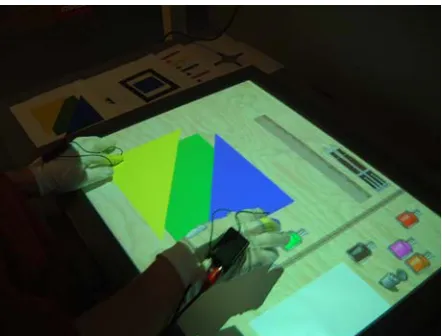
The primary difficulty in designing and implementing an interface that supports bimanual direct manipulation with three degrees of freedom (translation on x and y axes, rotation in x-y plane) was allowing one user to provide four unambiguous contact points on the DiamondTouch surface. The DiamondTouch uses two one-dimensional antenna arrays to return capacitive couplings that exceed a user-configurable threshold. This approach allows the user to register a single unambiguous point or a range of ambiguous x and y values. An application could attempt to match each significant x value with the appropriate y value by considering a combination of contact time and changes in reported signal power, but there are certain situations that could be ambiguous with respect to the number or location of contacts. Additionally, multiple contacts in close proximity on one axis could lead to a loss of precision in locating each point. Because of these difficulties, a pair of gloves was designed by which a single user can user two inputs per hand: one on the thumb and one on the index finger.
RCA female jacks. The DiamondTouch device also uses RCA female jacks for inputs, so a simple RCA stereo cable or mono audio/video cable can be used to connect the gloves to it. Because the fingertip contacts require a certain amount of flexibility as well as electrical conductivity, aluminum foil is used for the contact surface. The foil can wear out with repeated use, so the fingertip contacts are held under a sleeve where they can be removed and replaced easily.
3.4 Software
3.4.1 Conceptual Overview
One of the key assertions made in HabilisDraw DT’s design is that what are commonly referred to as “tools” and what commonly act as objects of these tools belong in the same classification. The reasoning behind this is that humans have a natural inclination towards opportunistic tool use. Tool use is where one approaches a task aided by the application of some object to increase his or her own effectiveness. Opportunistic tool use is when that object is chosen as a tool based solely on the affordances it provides rather than its classification as a tool suited for the purpose to which it is applied. For example, a person may need to drive a screw, but lacking the ability to drive it effectively by hand, improves his or her effectiveness by inserting a dime into the head of the screw to increase the torque behind the turning motion. The dime is used as a tool for driving the screw, but a dime is not explicitly a screwdriver. It simply has a limited grasping affordance and a symmetry with the slot on the head of the screw that inform the user of its potential to be used as a tool for this particular task. HabilisDraw DT attempts to encourage this sort of opportunistic tool use by starting all objects off with the same basic physical attributes and behaviors, by which the user can form his or her own conceptual model and apply the objects to whatever end he or she desires. Special “tools” that behave according to a particular design, such as pens and tape, are extended from the basic object model with functional attributes that enable the tool’s specific behavior.
Figure 4: The default HabilisDraw DT desktop.
1. Two pens, blue and black – Pens can mark on any object designated as “drawable.”
Objects that can reasonably be expected to receive a mark from a pen are marked as drawable: desktop, paper, ruler, etc. Pens have an outline around them that shows the color of the ink they contain.
2. Ruler – The ruler can be positioned freely around the desktop. When in place, it
constrains pen lines to its edges if the line started from off the ruler. If the line starts on the ruler, the user is free to make marks on its face.
3. Cutting arm (fixed) – The cutting arm is fixed in place on the right of the workspace.
When the handle is pressed, any pieces of paper spanning the vertical line traced by the arm are bisected along that line.
4. Eight inkwells of different colors – The inkwells at the right of the desktop represent
5. Two empty inkwells – These inkwells are provided for the user to fill and alter at will.
The only difference between the empty inkwells and the filled inkwells is that they begin empty. Filled inkwells can be emptied at the user’s discretion.
6. Trash can (fixed) – The trash can can be used to destroy any piece(s) of paper or to
empty inkwells.
7. Stack of paper – The stack of paper represents an infinite supply of rectangular sheets
of white paper. By dragging off the top of the stack, the user can spawn a new sheet of paper quickly and easily.
8. Tape dispenser – When the user picks up the tape dispenser and uses it in a line across the desktop, all pieces of paper under the line are instantly joined together and their relative orientations are fixed. Thus when two sheets of paper are taped together and one is rotated, the other rotates with it.
The object class in HabilisDraw DT provides a certain level of functionality for every object unless it is specifically disallowed by the specification of the object. For example, most objects can be moved and rotated unless they are marked otherwise. The general set of actions allowed by the interface is as follows:
• Moving an object – The user can move an object by simply placing any thumb or
forefinger down on an object and sliding it along the desktop. The orientation of the object is not affected by this movement; only its position changes.
• Rotating an object – The user can rotate an object by placing both the thumb and
object positions itself to best match the relative positioning of the two points, given any movement.
o Aligning an object – By dragging an object that allows rotation to the edge of
the desktop, the face that comes into contact with the edge can be aligned against it. This action is provided as a convenience to the user. The action is not an expected capability of the interface, but it is somewhat afforded by the fact that the display surface of the DiamondTouch device is lowered from the frame, leaving a raised edge against which objects could be aligned. To prevent clutter, once an object is aligned against the edge of the display, it is allowed to slide past the boundary.
• Picking up an object – By placing both contact points of one hand down and bringing
them closer to each other, the topmost object between the two points is then picked up by that hand. Early trials showed that users often forgot whether or not they held an object, so an unobtrusive semi-transparent display of what each hand holds appears when an object is picked up (Figure 5).
• Dropping an object – By placing the thumb onto the surface followed by the
forefinger, a held object can be placed back onto the desktop without invoking its action (in the case of pens, tape, etc.). Lifting the fingers immediately will only pick the object back up, but if the user spreads his or her fingers in the reverse of the picking up motion, the object will be dropped back onto the desktop.
• Using an object – Due to the variety of objects represented and the different ways one
o Pick up and use – This involves picking up an object, such as a pen, and using
it by placing the forefinger of the hand which holds the object down onto the surface. For a pen, this draws a line. For the tape, it marks a green line between the start of the motion and the end of the motion, under which all intersecting objects are joined. For an inkwell, this “adds ink” to the target object, which affects different objects accordingly: paper is colored completely, pens change their ink color, empty inkwells are filled with ink, and filled inkwells change colors gradually to simulate mixing inks.
o Touch – Touching some tools causes an action to be performed. The cutting
arm cuts all paper intersecting its blade when touched. In the case of an inkwell, touching it with a pen in hand will change the pen’s ink color, simulating dipping the pen. For the stack of paper, touching it will instantiate a new sheet of paper, simulating dragging a sheet off the top of a limitless stack. Finally, holding a piece of paper or inkwell and touching it to the trash can will dispose of the paper or empty the inkwell, respecitvely.
o Drag onto – Dragging is only supported by the trash can. Dragging a piece of
Figure 5: Holding an object (in this case, a pen) shows a
transparent “iconic display” of the object in hand.
3.4.2 Code Structure
The software side of HabilisDraw DT is coded in C++, using OpenGL, Microsoft Windows API, and DirectInput along with the MERL DiamondTouch SDK v1.2 for display and input. No code was recycled from prior projects or external libraries. The class structure is minimally hierarchical, taking more of an interface layer approach. The structure of the major functional classes in the application is described in the following outline.
Top-level object classes
• Renderer – The renderer class handles displaying objects and information. It
additionally provides certain functions that affect the global object set.
o Overlay – The overlay class is a subclass of the renderer, which allows
• DiamondTouch – The DiamondTouch class packages input from the DiamondTouch device into a data structure that can be polled from other classes.
• DirectInput – The DirectInput class wraps Microsoft’s DirectInput interface to
provide support for basic keystroke input. When the DiamondTouch is not functioning properly, it also provides debug mouse input.
• Hand – The hand class links to the renderer and input classes to provide and interpret gestural input into commands for the objects and renderer.
• Object2D – The 2D object class represents a single instance of an object in the
environment. An important note is that this class encompasses both environment objects as well as objects that would be classified as “tools.” Object2D methods encompass most of the functions that affect a single object. Using the copyObject() function, a 2D object can generate an exact replica of itself, down to the custom edit texture.
Helper objects
• Matrix, Vector, and Point3/Point2 – The matrix, vector, and point classes
serve simply to provide storage and mathematical operators for various data structures.
• Font – The font class wraps an OpenGL texture, style parameters, and font
• Monitor – Used for debug purposes, the monitor class contains a position in
2D, a pointer to a font, and a void pointer and pointer type to designate a value in memory to monitor. Once instantiated and registered with the overlay, a monitor displays the current value of the data to which it points.
• CoordList – The coordinate list class stores and maintains a list of 2D points.
Every 2D object maintains a list of its vertices stored in a coordinate list in order of right-hand winding (counter-clockwise).
• Timer – The timer class keeps an instance of the Microsoft Windows
millisecond timer and helps maintain current and delta values for timing calculations.
3.4.3 Implementation notes
marking underneath an occluding object, and a line is drawn to the object’s edit texture at the pen’s transformed location. The drawing process is then iterated on all objects positioned under the pen. This process allows the pen to draw correctly on any drawable object in any orientation and only on the topmost object at any given pixel.
Figure 6: An expert drawing done with HabilisDraw DT.
4. EXPERIMENT
subjects were asked to perform the following tasks, then fill out a questionnaire about their performance.
Figure 7: A user performing a pattern matching task in HabilisDraw DT.
1. Drag a piece of paper off the stack 2. Pick up a pen in one hand.
3. Pick up an ink bottle in the other hand. 4. Make a pen mark on the paper.
5. Pour ink on the paper.
6. Fill an empty ink bottle with a color.
7. Blend the new ink bottle color with another color of ink. 8. Change the pen color to the new color and test it on the paper. 9. Empty the new blended ink into the trash.
11. Rotate one piece of the paper 90 degrees and tape it to the other piece. 12. Throw away the paper
13. Drag the ruler down and make a pen mark along its edge.
At this point, the program was reset and the user was provided a clean desktop.
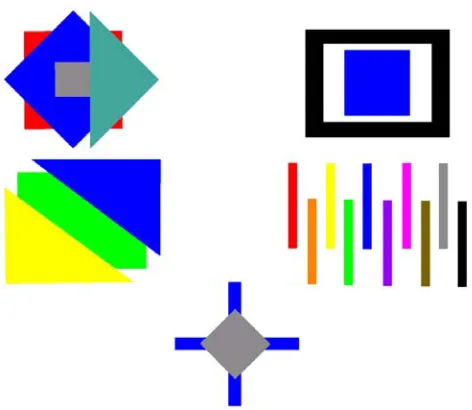
14. Choose two of the provided patterns and copy them as closely as possible. The program was reset after each pattern.
15. Draw or otherwise “create” two of the following images however you choose: House
Sailboat
Person (Stick figure/humanoid) Telephone
The program was reset after each drawing.
The patterns provided for step 14 are shown in Figure 9. The questionnaire is provided in Appendix A and responses are provided in Appendix B. Subjects generally completed the test in 30-60 minutes, though some took longer. The time spent on the test does not tell us anything about the interface, however, because the users that took longest spent more time carefully crafting their drawings while the faster users tended to approach their tasks with less time and effort spent on details.
Figure 9: The selection of experiment patterns.
5. RESULTS
The study provided many interesting insights into how users approach the drawing task using the HabilisDraw DT interface and how the interface might be used or improved in the future. Some of the more pertinent observations made during the experiment will be listed in this section. The observations will be divided into the following categories:
2. Objects – This section details observations about how users dealt with the objects and tools in the interface.
3. Interface – This section details observations about how users interacted with the interface itself.
4. Approaches – This section details observations about how users approached the tasks with respect to the interface and environment.
5.1 Action Observations
• Despite the fact that HabilisDraw DT’s action gestures were designed to be familiar and intuitive (e.g. picking up an object by pinching it and lifting the hand off the surface), some people confused the pick-up and put-down gestures, trying repeatedly to pick up an object with the put-down action, for example.
• Most subjects used the edge alignment capability sparingly, despite being made aware of the ability early in the experiment.
• Subjects represented both one- and two-handed rotation almost equally, but each user tended to prefer one or the other.
• Of the two methods to dispose of unneeded paper (dragging onto trash, picking up and touching to trash), many users either preferred or only discovered one approach, but several used both methods interchangeably.
• However, of the two methods to change a pen’s ink color (dipping in ink, pouring ink onto pen), most only used one of the methods throughout the experiment. • The method of using the tape (pick up, then drag a line) was unfamiliar to many
supported method. Sometimes tapping the tape on an object yielded the desired results anyway.
• Some users discovered supported actions by systematic trial-and-error. For example, to empty an inkwell into the trash, one user tried dragging the inkwell onto the trash, then picked up the inkwell and tried to place it on the trash repeatedly until he accidentally emptied the ink into the trash by placing his index finger down first. Thus the user “learned” that putting both fingers down on the trash while holding the ink seemed to empty the inkwell. For the next several attempts to empty an inkwell, the user would pick up the inkwell and put both fingers down on the trash repeatedly until the inkwell emptied. One such user forgot how to empty an inkwell and instead diluted the ink with a different color. • Two out of twelve subjects used the cutting arm by pressing down on the handle
and sliding the index finger up the “blade” until past the target object. Since the gesture began with tapping the cutting arm handle, while sliding up the blade did nothing, the action was still successful. Thus the subjects “learned” this invented action and continued to use it for the rest of the experiment.
• Some subjects tried to capture and transfer ink using only their hands, tapping the ink then tapping a pen or paper. Others tried dragging the ink onto an object. • One user mixed ink by tapping rapidly, not realizing that it was a continuous
5.2 Object Observations
• Some subjects were frugal about paper use despite the limitless supply, saving larger scraps for use later.
• On the pattern-matching task, two of the subjects took the printed pattern and placed it on the display surface as a guide for matching the scale exactly.
• Several users did not expect the ruler to constrain the pen line, instead using it as a guide to draw a straight line freehand.
• Only one user used the pen as a demarcating tool, using it to mark where to cut a piece of paper to make a square. All other users treated it as an effective tool for creating marks or drawings.
• Two users found that two pieces of similarly-colored paper on top of each other were hard to distinguish from each other and used ink as a demarcating tool to better differentiate the pieces while they were near or on top of each other.
• Several users cut a shape out of paper for use as part of a drawing or pattern and used the first piece as a guide to cut more shapes like it.
• During development, the ruler was considered to be borderline unnecessary due to expectations that it would only be used as an unwieldy straightedge, but many of the more careful users used it regularly for measurement.
• No users ever used paper as a mask or stencil. Paper was used only as an object the vast majority of the time, occasionally being used as a guide (or instrument) for cutting other shapes.
5.3 Interface Observations
• After very preliminary testing, it became apparent that users forgot what was being held in each hand. Because of this, semi-transparent iconic displays of hand contents were implemented in the lower-left corner of the desktop. However, when the icons appeared, despite having “Left hand:” or “Right hand:” above the icon and a box around it, some users tried to pick up or perform actions on the icons as if they were the real object.
• Many users, despite the iconic displays, still forgot that they were holding objects in hand, trying and failing to manipulate other objects. In other cases, they would forget that the iconic displays existed, then try to empty an inkwell and not know if the action was successful or not (despite the iconic display showing an empty inkwell in hand).
• Several users tried using their middle fingers to move and rotate objects despite being told that their only effective contacts were on the thumb and index finger of each hand.
• One user, after first manipulating sheets of paper, expressed his approval of the interface, saying, “It’s intuitive,” and, “It’s great when a program does what you want it to.”
• One user lamented the lack of some common tools, saying, “You’ve got no tools to make shapes.”
• One user placed a sheet of paper on top of the cutting arm handle and became confused about how to cut the paper since the handle was obscured.
• One user expressed a preference for keeping the desktop clear of unnecessary objects. Most users were only concerned with keeping an “active area,” in which construction or drawing was taking place, clear from debris and obstruction. • Some users were unsure of whether or not the cutting arm had cut the paper when
they pressed the handle. Several tried cutting several times, expecting some sort of feedback, before checking by hand if the paper had been cut.
• Many subjects first expected tools to behave as they do in mouse-driven interfaces, with simple click or click-and-drag motions. Some tried picking up and putting down by tapping an index finger on an object. One user tried double-tapping when other actions failed.
5.4 Approach Observations
• A small number of users favored one hand tremendously, only using a second hand when instructed to do so. This occasionally led to needless and highly inefficient serialization of tasks.
• Conversely, some subjects used both hands even when unnecessary. There are two common examples of this behavior: moving an object with both hands without needing or intending to rotate it, and providing a stabilizing context with the non-dominant hand to support the dominant hand, usually by holding a ruler while drawing against it. The latter example clearly supports Guiard’s kinematic chain theory. Unfortunately, HabilisDraw DT cannot support this approach well, since hardware imprecision causes “stabilized” objects to jitter. The only way to ensure an object will remain stable is to leave it on the desktop and not touch it. In cases where the object that needs to be stable is being acted on by some other object, this is often counter-intuitive.
• Some users used spatial partitioning to differentiate objects. For example, one user had particular difficulty mixing an inkwell, so he moved it to the side when it was mixed to satisfaction so he would not accidentally change its color later. • Several subjects positioned the ruler perpendicular to the cutting arm for precise
measurement of cuts. This could be considered a type of composition.
• A popular approach taken by users was to select and master a subset of tools and actions and rely almost exclusively on them. For example, one user never used the cutting arm except when instructed to do so.
• One user devised a unique approach to creating round objects: he “lathed” a circle by rapidly tapping the cutting arm handle while rotating the paper and positioning it under the arm. The effect was of a constantly-cutting boundary against which paper could be “shaped,” much like Raisamo’s shaping stick.
• After “lathing” out a circle, the user consolidated the clean-up task by taping all of the shredded debris together before picking it up and throwing it away.
• One subject drew the patterns out with pens. All other subjects composed them with paper.
• Several subjects preserved their work’s intermediate states by taping everything together periodically.
• About half of the subjects completed the final drawing task by constructing the objects out of paper. About a third of the subjects drew the objects on paper. The remaining subjects constructed the objects out of paper, but added details with the pen.
• Some users drew directly on the desktop when they reached the edge of the paper on which they were drawing.
• One user prefabricated patterns by creating the necessary parts, then positioning them.
6. ANALYSIS
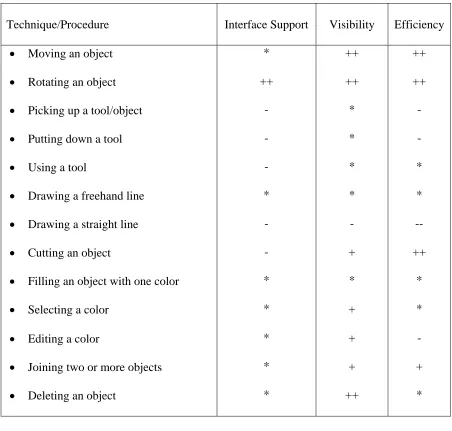
Table 1: A qualitative evaluation drawing environment interactions in HabilisDraw DT with respect to standard direct manipulation interfaces.
Technique/Procedure Interface Support Visibility Efficiency
• Moving an object * ++ ++
• Rotating an object ++ ++ ++
• Picking up a tool/object - * -
• Putting down a tool - * -
• Using a tool - * *
• Drawing a freehand line * * *
• Drawing a straight line - - --
• Cutting an object - + ++
• Filling an object with one color * * *
• Selecting a color * + *
• Editing a color * + -
• Joining two or more objects * + +
• Deleting an object * ++ *
Legend: -- - * + ++
From the observations made in this experiment, it becomes apparent that in some ways, the tool use model can improve both learnability and the efficiency of interaction. Table 1 shows a list of the actions supported by HabilisDraw DT along with a qualitative evaluation of its performance with respect to standard direct manipulation interfaces (i.e. paint programs) in three categories: interface support, visibility, and efficiency. Interface support evaluates the actual physical interface’s ability to support the action and whatever user interactions are required to execute it. Rotating an object scores highly in this field because most paint programs lack the degree of input required to rotate intuitively, while many actions differ minimally because using a tool by tapping a finger or clicking a mouse are effectively equivalent. Visibility describes the interface’s ability to intuitively convey the required procedure to perform the action. High visibility implies ease of learning an action. Drawing a straight line is ranked lower than the standard interface because in HabilisDraw DT, it requires tool composition while most programs have a specialized line tool. Finally, efficiency describes how quickly the user can satisfactorily perform the action. Actions that would otherwise require navigation through menus or use of composite or specialized tools rank low with respect to efficiency. As the table shows, HabilisDraw DT fares well in visibility and is fairly balanced in efficiency, but generally lacks good interface support due to the mapping from three-dimensional physical interactions to a two-dimensional input device. There are numerous benefits stemming from the application of the tool use metaphor to the drawing environment, but there are also several drawbacks to a tool-based model as well as one very important caveat concerning the implementation of such a model.
interface’s respect for physical rules such as persistence, visible object status, manipulability, and locality. Most users quickly adapted to the ability to partition tools and objects spatially. When tools respect the principle of locality, the user can rely on an object’s distanced position to have an appropriate effect towards preserving that object’s state; that is, when an object is set aside, it is relatively safe from accidental changes caused by actions outside of its locality. Many users also adjusted well to the dangers inherent to physical manipulability, preserving desired relative object orientations by taping them together as an intermediate step in the creation process. These actions are all completely consistent with real world behavior, supporting the claim that developing a strong physical-virtual interaction correlation can produce a relatively shallow learning curve, at least for actions that sufficiently parallel common real world interactions.
Besides false affordances, there are other aspects of the tool-based model that do not necessarily translate well to a virtual drawing environment. Due to the necessity of projecting the interface on a two-dimensional display, it is extremely difficult to input or output any information in the missing third dimension. This limitation creates difficulties in providing adequate feedback and necessitates approximated actions for such tasks as picking objects up, putting objects down, taping, and operating the cutting arm. As a result, several users had difficulty learning to use the cutting arm and mastering picking up and putting down objects.
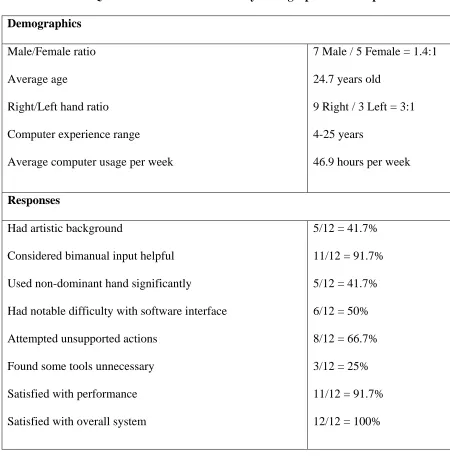
Table 2: Quantitative overview of survey demographics and responses Demographics
Male/Female ratio Average age
Right/Left hand ratio Computer experience range Average computer usage per week
7 Male / 5 Female = 1.4:1 24.7 years old
9 Right / 3 Left = 3:1 4-25 years
46.9 hours per week
Responses
Had artistic background
Considered bimanual input helpful Used non-dominant hand significantly
Had notable difficulty with software interface Attempted unsupported actions
Found some tools unnecessary Satisfied with performance Satisfied with overall system
5/12 = 41.7% 11/12 = 91.7% 5/12 = 41.7% 6/12 = 50% 8/12 = 66.7% 3/12 = 25% 11/12 = 91.7% 12/12 = 100%
7. CONCLUSION
a tool-based interaction model with respect to direct manipulation interfaces and simulations of real world environments. The results of the observational study urge further exploration of the benefits of a persistent, physically consistent user space in which objects respect the characteristics of tool use outlined in this paper. Additionally, the study shows some of the drawbacks and difficulties of applying the model to an interface.
With respect to the learnability and usability of an interface, HabilisDraw DT shows that careful application of a tool use model can help novice users develop skills within the interface quickly and naturally. This is consistent with the trend towards perfect simulation of an environment in that, given a theoretical system that emulates an environment perfectly and supports all physical interactions within that environment, any virtual task within that system is effectively reduced to the corresponding physical task and the time spent learning the interface is zero. As the tools and environment are simulated more and more realistically, the time required for a user to learn how to use those tools decreases and the user’s interaction style tends more towards the already familiar real world interaction style with which he or she is comfortable.
drawing task and provide functionality only available in a virtual domain. This functionality is entirely incompatible with direct simulation.
If a system does intend to simulate tool interactions, then it is important to enforce strict adherence to the principles implemented in the system. A violation of these basic principles can do more harm than good at times, such as the iconic displays in HabilisDraw DT that led many users to believe they could interact with the icon of objects in hand. Unfortunately, due to the nature of the tool model, this can limit the functionality of a given tool, depending on the style and strictness of simulation.
8. REFERENCE MATERIALS
1. Beaudouin-Lafon, M. (2000). Instrumental Interaction: An interaction model for designing post-WIMP user interfaces. Proceedings of the ACM Conference on Human Factors in Computing Systems (CHI '00), pp. 446-453, 2000.
2. B. B. Bederson, J. D. Hollan, A. Druin, J. Stewart, D. Rogers, and D. Proft (1996). Local tools: an alternative to tool palettes. In Proceedings of the 9th annual ACM symposium on User Interface Software and Technology, pp. 169-170. New York:
ACM Press, 1996.
3. Bier, E., Stone, M., Pier, K., Buxton, W., and DeRose, T. (1993). Toolglass and Magic Lenses: The See-Through Interface. Proceedings of Computer Graphics, (August 1993), pp. 73-80.
4. Buxton, W. and Myers, B. (1986). A study in two-handed input. Proceedings of the ACM Conference on Human Factors in Computing Systems (CHI '86), pp. 321-326.
5. Cutler, L., Fröhlich, B. and Hanrahan, P. (1997). Two-Handed Direct Manipulation on the Responsive Workbench. Proceedings of the Symposium on Interactive 3D Graphics, (April, 1997, Providence, RI).
6. Daughtry, J. M., & St. Amant, R. (2003). Power tools and composite tools: Integrating automation into direct manipulation interfaces. In Proceedings of the Ninth
International Conference on Intelligent User Interfaces, pp. 233–235.
7. Dietz, P. and Leigh, D. (2001). DiamondTouch: A Multi-user Touch Technology. In Proceedings of UIST '01, ACM Press, pp. 219-226.
9. Guiard, Y. (1987). Asymmetric division of labor in human skilled bimanual action: The kinematic chain as a model. Journal of Motor Behavior, 19(4):486-517.
10. Johnston J., Roberts T. L., Verplank W., Smith D. C., Irby C. H., Beard M., Mackey K. (1989). Xerox Star: A Retrospective. IEEE Computer, vol. 22, no. 9, pp. 11-29.
11. Norman, D. A. (1999). Affordance, conventions, and design. interactions, 6(3), pp. 38– 43.
12. Patten, J., Ishii, H., Hines, J., and Pangaro, G. (2001). Sensetable: A wireless object tracking platform for tangible user interfaces. Proceedings of Conference on Human Factors in Computing Systems (CHI '01), pp. 253-260.
13. Raisamo, R. (1999). An alternative way of drawing. Proceedings of Conference on Human Factors in Computing Systems (CHI ’99), pp. 175-182.
14. Schneiderman, B. (1983). Direct manipulation: A step beyond programming languages. IEEE Computer, vol. 16(8), pp. 57-69, August.
15. St. Amant, R., and Horton, T. E. (2002). A tool-based interactive drawing environment. Proceedings of the ACM Conference on Human Factors in Computing Systems (CHI
‘02) Extended Abstracts, pp. 762-763, 2002.