AT&T
PARTNER
®PagePac
®Copyright © 1993, AT&T All Rights Reserved Printed in U.S.A.
AT&T 518-455-016 0II722615-001 May 1993, Issue 2
NOTICE
Every effort was made to ensure that the information in this manual was complete and accurate at the time of printing. However, information is subject to change.
Federal Communications Commission (FCC) Information
For important FCC interference, registration, and repair information, see Appendix C of this book.
Trademarks
PARTNER is a registered trademark of AT&T.
PagePac and PageGuard are registered trademarks of HARRIS CORPORATION Dracon Division.
W a r r a n t y
AT&T provides a limited warranty to this product. Refer to “AT&T Limited Warranties and Limitation of Liability” in Appendix C.
Ordering Information
The order number for this book is 518-455-016. To order copies of this book, call 1 800 432-6600 in the U.S. or 1 800 255-1242 in Canada. For more information on how to order this and other system reference materials, refer to “Reference Materials” in the section entitled “About This Guide.” For information on ordering replacement parts, accessories, and other compatible equipment, refer to “Ordering Information” in the section entitled “Auxiliary Equipment”, page 1-4.
Support Telephone Numbers
In the U.S., AT&T provides a toll-free customer helpline 24 hours a day. Call the AT&T NTSC group at 1 800 552-3293 or the AT&T Helpline at 1800628-2888 if you need assistance when installing, programming, or using your system.
Contents
About This Guide
v
1.
Overview
■
Features and
1-1
Capabilities
1-2
■
Module Components
1-3
■
Auxiliary Equipment
1-4
■
Specifications
1-5
2.
Installation
■
Important Safety Instructions
■Before You Start
■
PARTNER PagePac Module
■Selecting the Interface Mode
2-1
2-2
2-3
Installation
2-4
2-11
3.
Page/Speaker Mode Installation
3-1
■
PARTNER PagePac Paging Access
3-2
4.
Doorspeaker Mode Installation
4-1
■
AT&T Doorspeaker
4-2
5.
Accessory Features
■
Installing a Music Source
■
Volume Adjustment (Page/Music)
■Using a Microphone with the PARTNER
■Night Bell Service
PagePac
5-1
5-2
5-3
System 5-4
5-5
6.
Programming
■ ■ ■ ■ ■
Overview
Programming
Programming
Night Bell
Ring Down
6-1
6-2
Options
6-2
Procedures
6-5
6-9
6-10
7.
Operating Procedures
7-1
■
Overview
7-2
■
Primary Paging Zones
7-2
■Auxiliary Paging Zone
7-6
■
Input Priorities
7-7
A.
Troubleshooting
A-1
B.
Secondary Circuit Protection
B-1
C.
FCC and Warranty Information
C-1
About This Guide
This manual provides all the necessary information for installing the PARTNER®
PagePac®
paging system with a PARTNER®
Plus or PARTNER®
II AT&T phone system. In addition, complete information covering product features and capabilities, as well as operation and test instructions, will be covered.
How to Use This Guide
If you are not familiar with the operation of your PARTNER Plus or PARTNER II AT&T phone system, take some time to review the accompanying user/installation manuals for those systems. This will provide a better foundation for installation of the PARTNER PagePac module with your AT&T phone system.
This manual should be read in its entirety before attempting to install the PARTNER PagePac module.
Section 1 provides an overview of the PARTNER PagePac module
FEATURES AND CAPABILITIES, along with a description of what has been included with your PARTNER PagePac module.
Section 2 covers INSTALLATION. This section provides necessary
information for installing the PARTNER PagePac module with your PARTNER Plus or PARTNER II AT&T phone system and connecting customer provided auxiliary equipment to the PARTNER PagePac module.
Section 3 continues with installation steps and wiring examples for
PAGE/SPEAKER MODE. This section contains Zone 1 and 2 remote amplifier configurations, Zone 3 auxiliary paging features, and a quick-test to ensure that your installation is operational at this point.
Section 4 provides DOORSPEAKER MODE information and installation
steps specifically for adding doorspeaker equipment to zones 1 and 2. Configuration information, wiring examples, and a quick-test are also covered.
Section 5 contains ACCESSORY FEATURES information for installing a
music source, a high fidelity microphone, adjusting music/page volume from a touch-tone phone, and connections for Night Bell service.
Section 6 has the necessary programming information; refer to this
section once the PARTNER PagePac module (and auxiliary equipment) have been installed and tested.
Section 7 contains OPERATING PROCEDURES information for each of
the PARTNER PagePac features and provides useful examples.
Appendixes cover TROUBLESHOOTING, SECONDARY CIRCUIT
PROTECTION, and FCC and WARRANTY INFORMATION.
Use the Contents and Index to locate specific items of interest.
Product Safety Labels
This book contains several safety labels, identified by a
CAUTION:
Indicates the presence of a hazard that will or can cause minor personal injury or properly damage if the hazard is not avoided.
WARNING
:Indicates the presence of a hazard that can cause severe or fatal personal injury if the hazard is not avoided.
Carefully read all WARNING labels. Opening the PARTNER PagePac module or phone system backplane will expose you to hazardous voltages, which can cause severe personal injury or death. Also read “Safety Instructions” on page 2-2 before performing any installation procedures.
Reference Materials
If you do not have the PARTNER Plus or PARTNER II “Communications System Installation and Use” guide, please order the appropriate manual from AT&T. This guide contains important information pertaining to the installation, programming, and operation of the PARTNER Plus phone system.
To order additional reference materials, call the AT&T Customer Information Center:
In the U.S.: 1-800-432-6600
In Canada: 1-800-255-1242
How to Comment on This Guide
A feedback form is located at the end of this guide, after the appendixes. If the feedback form is missing, send your comments and
Overview
1
Features and Capabilities
Programming is accomplished The PARTNER PagePac paging system can be installed with an AT&T
through your PARTNER system PARTNER Pius or PARTNER II communications system. Listed below is phone or a standard touch-tone an overview of the basic features of the PARTNER PagePac paging phone.
system along with some of the additional capabilities this module provides:
■
■
This port is also used to program ■
the PARTNER PagePac paging system.
■
■
■
*If you use equipment that ■
rebroadcasts music or other copyrighted materials, you may be required to obtain a license ■
from a third party such as ASCAP or BMI.
■
■
■
■
Primary Paging Zones (Zones 1 and 2) —Provides two independently
fully-programmable zones, each of which can be configured for speaker output, door control, or an auxiliary amplifier. in addition, adjustment of the two primary zones’ speaker volumes can be accomplished simply from any PARTNER system phone or any standard touch-tone phone on the PARTNER system.
Auxiliary Amplifier Zone (Zone 3) —provides a third, 0 dBm (600
ohms termination) output zone and a control closure suitable for connection to a remote amplifier.
Telephone Access —Connects to a PARTNER station port, a
PARTNER CO port (see trunk adapter below), or PARTNER Page port. Permits a user to page by dialing the telephone access port from a PARTNER system phone or a standard touch-tone phone.
Remote Volume Adjustment —Permits the customer/installer to adjust
the volume of each primary zone by means of the keys on any touch-tone telephone on the PARTNER system. This feature is especially useful for speakers which are hard to reach, such as high-ceiling locations (zones 1 and 2).
Microphone Attendant Access —Provides an interface input for
microphone access pages.
Night Bell —Connects to a PARTNER (station) port that has been
configured for night service. Generates tones over the paging system when an incoming call is detected.
Music Input* —Connects to a music source. Music will be routed to all
specified zones when paging is not active.
Paging Amplifier —Provides a maximum of 4 watts of power for each
of the two primary paging zones. Supports voice coil (3.4 Vrms) speakers only (zones 1 and 2).
Talkback —Allows specified paging speakers to be used as an
intercom (zones 1 and 2).
Door Control —Connects a paging zone up to two Doorspeakers.
Provides both Door Bell and Door Ajar inputs and a Door open output (zones 1 and 2).
Trunk Adapter —Permits the user to conserve PARTNER station ports
by connecting the paging system to a PARTNER CO port through an external Trunk Adapter.
Zone Overload Warning —Detects when one of the primary paging
Module Components
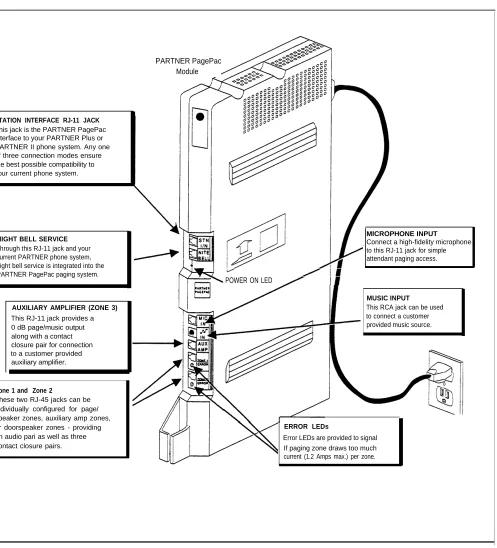
The PARTNER PagePac unit can be mounted directly to a wall or on a desk next to your current PARTNER Plus or PARTNER II phone system installation (see Section 2, Installation for complete information). The information key in Figure 1-1 below illustrates the location and description of the PARTNER PagePac features.
PARTNER PagePac Module
STATION INTERFACE RJ-11 JACK
This jack is the PARTNER PagePac interface to your PARTNER Plus or PARTNER II phone system. Any one of three connection modes ensure the best possible compatibility to your current phone system.
NIGHT BELL SERVICE
Through this RJ-11 jack and your current PARTNER phone system, night bell service is integrated into the PARTNER PagePac paging system.
MICROPHONE INPUT
Connect a high-fidelity microphone to this RJ-11 jack for simple attendant paging access.
POWER ON LED
AUXILIARY AMPLIFIER (ZONE 3)
This RJ-11 jack provides a 0 dB page/music output along with a contact closure pair for connection to a customer provided auxiliary amplifier.
MUSIC INPUT
This RCA jack can be used to connect a customer provided music source.
Zone 1 and Zone 2
These two RJ-45 jacks can be individually configured for page/ speaker zones, auxiliary amp zones, or doorspeaker zones - providing an audio pari as well as three contact closure pairs.
ERROR LEDs
Error LEDs are provided to signal If paging zone draws too much current (1.2 Amps max.) per zone.
Figure 1-1. PARTNER PagePac Paging System Features (Inputs / Outputs)
Auxiliary Equipment
Ordering Information
The PARTNER PagePac paging system provides full-paging capability to your small or large business. In addition, this module provides an interface for an AT&T Doorspeaker. Listed below are the various speakers,
amplifiers, and doorspeaker products recommended for use with the PARTNER PagePac.
IMPORTANT: Voice Coil (3.4V) ■
speakers only for direct connections to zones 1 and 2.
NOTE: The PagePac 6 Plus is ■
NOT supported.
■
IMPORTANT: The PARTNER ■
Plus Doorphone PEC 5324-003 is NOT compatible with the PARTNER PagePac paging system.
Speakers —a full range of speaker products is available for use with
the PARTNER PagePac module-from wall or ceiling mount speakers to horn-type speakers. Refer to Table 3-1 (page 3-4) for the speaker best suited for your application.
Amplifiers —Depending on your paging applications, several amplifiers
(auxiliary) are available. These include the PagePac 6 (PEC 5323-006), a 6-watt small amplifier, PagePac 20 (PEC 5323-005), a 20-watt small amplifier, or the PagePac Plus D20, D100, or D300 series AmpIiCenters (PECs 5328-020, 5328-100, 5328-300) designed for larger area paging demands.
Microphone —The AT&T Microphone (PEC 5335-400) is compatible
with the PARTNER PagePac module. This microphone provides excellent audio fidelity and has an On/Off contact closure.
Doorspeaker —The AT&T Doorspeaker (PEC 5330-120) is compatible
Specifications
Table 1-1 PARTNER PagePac System Specifications
Capacities PARTNER PagePac
■ Three-zone paging, doorspeaker, and AUX amp modes
■ Compatible with AT&T PARTNER Plus and PARTNER II Communications systems
Dimensions and PARTNER PagePac 11 “(D) x 17’’(H) x 1.5’’(W) or 4.8 lbs or
Weights 27.9 cm x 43.2 cm x 3.8 cm 2.2 kgs
Electrical ■ Door Latch: rated at ■ Contact Closures: Remote Amp = 1 amp contacts
Specifications 1 amp Door Latch contacts rated at 1 Amp 120 VAC/50 VDC
■ Primary Paging ■ Talkback Sensitivity: with 500 µVrms, 1 KHz, at spkr leads.
Output 4-watts per Compression threshold: -17dBm (measured at tip and ring) channel
■ AUX Port Output: ■ Electrostatic Discharge: per Bell Publication 48002,
0dBm Section 3.3.2.5
Extension Jack ■ Ringing voltage: +5 VDC, -140 VDC peak-to-peak; trapezoidal wave shaping
Specifications
(PARTNER ■ Talk battery: 35 to 38 Volts
S y s t e m )
■ Ringing frequency: 20 HzEnvironmental ■ Mount on a wall or study, level surface at least 2 feet (0.6 meters) from the floor. For
Requirements ventilation, wall mounting is required for 2-module systems (strongly recommended for 1-module systems)
■ Locate within 5 feet (1.5 meters) of an electrical outlet not controlled by a switch and within 5
feet (1.5 meters) of the network interface jacks, when using supplied 7-foot (2.1-meter) cords
■ Operating temperature 32” to + 104°F (0° to +40 o
C), not in direct sunlight
■ Humidity 15%–90%, noncondensing
■ For proper ventilation and easy replacement of modules, provide at least 1 foot (0.3 meters)
clearance at the top and sides and 2 feet (0.6 meters) at the front and bottom.
■ Locate in an area free of excess moisture, corrosive gases, dust, and chemicals
Electrical ■ 90-130 VAC, 50–60 Hz, 3-prong outlet separate ground, separately fused at 15 Amps
Requirements
■ Outlet must not be controlled by an on/off switch
■ Grounding to comply with Underwriters Laboratories (UL) 1459:
A. An insulated grounding conductor that is not smaller in size and equivalent in insulation material and thickness to the grounded and ungrounded branch circuit supply conductors, except that it is green with or without one or more yellow stripes, is to be installed as part of the circuit that supplies the product or system.
B. The ground conductor mentioned in item A is to be connected to ground at the service equipment.
C. The attachment-plug receptacles in the vicinity of the product or system are all to be of a grounding type, and the grounding conductors serving these receptacles are to be connected to earth ground at the service equipment.
Local Phone ■ Jack type: RJ11C and RJ-45
Company
Information ■ Loop start and Dry loop lines
■ FCC Registration Number: Pending
Installation
Important Safety Instructions
Always follow these basic safety precautions when using the PARTNER PagePac paging system and PARTNER Plus or PARTNER II phone system.
1.
2.
3.
4.
5.
6.
7.
Read and understand all instructions.
Follow all warnings and instructions marked on the product.
DO NOT block or cover ventilation slots and openings. They prevent the product from overheating. DO NOT place the product in an enclosure that does not have sufficient ventilation.
Never spill liquid on the product or drop objects into the ventilation slots and openings. Doing so may result in serious damage to the components.
Repair or service must be performed by a qualified repair person.
The product is provided with a three-wire grounded type plug. This is a safety feature. Do not defeat the safety purpose of the grounding type plug. DO NOT staple or otherwise attach the AC power supply cord to the building or surface.
DO NOT use the product near water or in a wet or damp place (such as a wet basement).
Additional Safety Instructions for Installation Personnel
Install the product to meet all the environmental and electrical requirements listed in the specifications (see page 1-5).
1.
2.
3.
4.
5.
DO NOT install telephone wiring during a lightning storm.
DO NOT install telephone jacks in a wet location unless the jack is specially designed for wet locations.
Never touch uninsulated telephone wires or terminals, unless the telephone line has been disconnected at the network interface.
Use caution when installing or modifying telephone lines.
The PARTNER PagePac unit must be securely wall mounted.
CAUTION:
If any wiring from the extension jacks leave the building premises, you must install AT&T 503A1 IROB protectors (see Appendix B).
Before You Start
Before installing your PARTNER PagePac paging system, read and understand the safety instructions on page 2-2. In addition, be sure to have the necessary parts. Provided below in Figure 2-1 are the contents of the shipping carton. In addition, you will need a screwdriver if you mount the paging system to a wall. For testing purposes, you will need a PARTNER system phone or a standard touch-tone phone.
PARTNER PAGEPAC MODULE
I
#8 WOOD SCREWS
RUBBER FEET
(7-FOOT) RJ-11 TELEPHONE
LINE CORD
(7-FOOT) RJ-45 TELEPHONE
LINE CORD
(7-FOOT) RJ-45 TELEPHONE
LINE CORD
INSTRUCTIONS (6-FOOT) AC LINE CORD
How is Your Phone System Configured?
The first step in the installation process is to determine how your
PARTNER Plus or PARTNER II is set up for your particular application. As explained fully in your PARTNER Communications System documentation, several types of modules are available—each of which provides specific features. For instance, a PARTNER Plus with eight telephone lines and 24 telephone extensions would have four 206 modules in addition to the required Processor module. Depending on how these extensions are organized within your business, you may need additional paging capability throughout a large building or even several buildings. The PARTNER PagePac module supports up to three independently controlled and programmed paging zones.
Important Configuration Information
Before actual hardware is installed, it is important to determine what specific components will be used and what options will be selected.
Take time now to make a check list of the parameters for your installation requirements. This will be a useful tool later when installing the hardware and programming parameters into the PARTNER PagePac module.
PARTNER PagePac Module Installation
lMPORTANT: Even if your PARTNER Plus/II has an open slot in the carrier, do NOT use it for the PARTNER PagePac module.
■
■
■
NOTE: Refer to Appendix B for Secondary Surge Protection Information.
You can install the PARTNER PagePac module on a wall or on a fiat sturdy surface above the floor (such as on a table or desk). Wall mounting is recommended. Complete step 1 below and continue as directed.
Two #8 screws—for mounting the system on a wooden surface—are included with the system. If you are mounting the system on wallboard, metal or masonry, use the proper fasteners for the wall type and weight of the system (approximately 11 lbs.) Purchase them at any hardware store. You will also need a screwdriver to mount the system. Complete step 1 below and continue as directed.
For testing the system, you will need a PARTNER system telephone.
CAUTION:
Do not connect the AC power cord until the system is fully installed. To prevent damage to the system or installation location, the environmental and electrical conditions must meet the specification on page 1-5.
Mounting the PARTNER PagePac Module
(Using Mounting Bracket)
PARTNER
PARTNER PAGEPAC
CARRIER MODULE
/
MOUNTING BRACKET
The PARTNER PagePac module provides a mounting bracket at the back of the unit. The bracket allowsthe PARTNER PagePac to be mounted to a wall, close to the PARTNER Communication System carrier. Although the PARTNER Pagepac can be mounted next to the carrier, the module cannot be installed directly into the carrier.
MOUNTING BRACKET
POSITION BRACKET ONTO SCREWS IN WALL
Use screws appropriate for the type of wall surface. Drive screws so head of screwisapprox.5/16“ from wall surface. Position mounting bracket key-hole openings over screw heads. Once bracket is in place onto screws, the PagePac unit should be secure and not easily moved side to side. You may need to tighten screws slightly to provide a better fit to the bracket.
I
Wall Mount Template 3.5*
Use the Wall Mount Template and the included instructions to mark the mounting screw locations on a wall. The Wall Mount Template is located at the end of this section.
Note: Mount the PARTNER PagePac within 5 feet of the PARTNER Plus or PARTNER II phone system.
For mounting the PARTNER PagePac FLAT onto a wall surface, continue to the next page . . . .
Mounting the PARTNER PagePac Module
(Flat onto Wall or Desk)
For either desk or wall mounting,
Hold the PARTNER PagePac in attach the 4 rubber feet to the mounting
tracks on the bottom side of the module.
MOUNTING FLAT
ONTO WALL . . . go to steps 2 and 3.
TABLE MOUNTING... skip steps 2 and 3. Place the module flat on the surface with the rubber feet down. The module should not slide easily.
Go to “Connecting to AC Power” on the next page.
Insert the screws into the screw Go to next page.
place on the wall with the telephone jacks facing left. Leave at least 1 foot clearance at the top, bottom and back, and at least 2 feet in front. This allows you to access the jacks and provides adequate ventilation.
Note: Mount the PARTNER PagePac within 5 feet of the PARTNER Plus or PARTNER II phone system.
holes at the top and bottom of the mod-ule. Tighten until the rubber feet are snug against the wall. There must be a 3/8”
gap between the wall and the rest of the module. Do not overtighten—the module
will warp and fail to operate.
Connecting to AC Power
CONNECTING AC POWER
A Connect the AC power cord to
the AC connector at the back of the PARTNER PagePac module. Press firmly until it clicks as it locks into place.
Plug the other end of the power cord into a grounded wall outlet. The outlet must not be controlled by a switch.
The green light below the night bell jack on the module should come
on (see Figure 2-2). If it does not, see "Troubleshooting” in Appendix A.
CONNECTING AC POWER (USING MOUTING BRACKET)
AC CORD
MOUNTING BRACKET
B If the PARTNER PagePac
Wall Mount Template
Using the Wall Mount Template
1. If you wish, remove the template from this booklet by cutting or tearing along this dotted line. (If you do not use the template, note that that screws should be installed on a verticle line, exactly 3.5 inches apart.) 2. Refering to the figure
below, hold the template against the place on the wall where you want to mount the base. Make
sure
you hold the template perfectly straight (use a level if needed).Wall Mount Template 3.5*
3. Using a nail, pencil, or other pointed object, push through each cross mark on the template to mark the spots where you drive the mounting screws.
I
I
I
Wall Mount Template
I
(for use with mounting bracket)
I
I
I
I
I
I
I
I
I
I
I
I
I
I
I
I
I
I
I
I
I
I
I
I
I
I
Selecting the Interface Mode
NOTE: Dry Loop Mode is the preferred interface method for connection to your PARTNER Plus/n communications system. Refer to pages 2-12 through 2-15 for complete connection
information.
IMPORTANT: When using Station Mode all CO lines for that extension must be REMOVED. Refer to your PARTNER Plus/Il manual for “Custom Line Assignment Feature” information.
For Station Mode, “Automatic Privacy” should be set for this extension to avoid accidental broadcast of phone
conversations.
Once the PARTNER PagePac module has been mounted, the PARTNER PagePac unit can be connected to the PARTNER Plus/n phone system. The PARTNER PagePac RJ-11 STN l/N jack provides for connection to one of the ports on the PARTNER Plus/II system. The PARTNER PagePac module is capable of operating in two primary modes: Station Mode or Dry Loop Mode.
Dry Loop Mode permits the PARTNER PagePac paging system to be
connected to the Page Port on the PARTNER II and PARTNER Plus system’s Processor Module. This option frees up one of the system station ports (extensions). See Table 2-1 and Figure 2-2 for cabling instructions.
Station Mode can be used when there is an available station port
(extension) that will not be needed by the PARTNER Plus or PARTNER II system. See Table 2-1 and Figure 2-2 for cabling instructions.
Trunk Adapter Mode can be used in the event that neither a Station Port
nor a Page Port is available. In this case connections are made to one of the PARTNER Plus or PARTNER II system trunk (line) ports and presents a dry loop interface to the PARTNER PagePac paging systems. This option requires the use of an AT&T PARTNER PagePac Trunk Adapter with included power supply (PEC 5335-301). Table 2-1 and Figure 2-2 provide cabling information. See further Trunk Adapter installation instructions on pages 2-13 through 2-15.
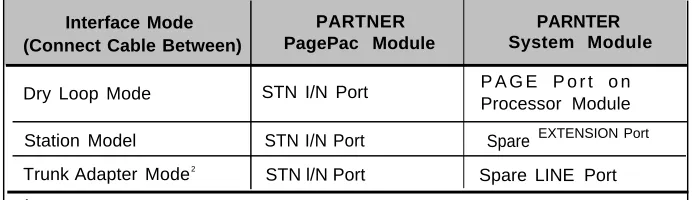
Table 2-1. Select One of the Following Interface Mode Cable
Connections
Interface Mode (Connect Cable Between)
PARTNER PagePac Module
PARNTER System Module
Dry Loop Mode STN I/N Port P A G E P o r t o n Processor Module Station Model STN I/N Port Spare EXTENSION Port Trunk Adapter Mode2
STN l/N Port Spare LINE Port
1
When using Station Mode all CO lines for that extension must be Removed; set “AUTO PRIVACY” to “Assigned.”
2
Requires an AT&T PARTNER PagePac Trunk Adapter (PEC 5335-301) to be connected between the PARTNER system and PARTNER PagePac cable connections.
(See Figure 2-3, page 2-14.) When using Trunk Adapter Mode, users should set “AUTO
IMPORTANT:
■ Dry Loop Mode is the preferred method of connection to the PARTNERDry Loop Mode
Plus or PARTNER II Communications system.Considerations
■ Once the PARTNER PagePac module has been accessed, the unit willremain active until the user takes some action, i.e. “hangs up.”
IMPORTANT:
To ensure full use of "PFT" (Power Failure Transfer) in your PARTNERStation Mode
Plus or PARTNER II phone system during an emergency or power outageConsiderations
conditions when selecting “Station Mode,” these extensions are NOTrecommended for use for primary paging access:■
■
■
■
PARTNER Plus system: Stations 10, 11, 16, 22, 28
PARTNER II system: Stations 10, 11, 16, 22, 28, 34, 40, 46, 52
Remove all CO lines using the “Line Assignment” feature. Refer to your PARTNER Plus/II Installation and Use manual.
For Station Mode “Automatic Privacy” should be set to “Assigned” for the station designated as the PagePac station interface. Refer to your
PARTNER Plus/II Installation and Use manual under “Automatic Privacy.”
During a page, if 30 seconds elapses without any activity, the PagePac system will automatically hang up.
All pages are limited to a maximum of 2 minutes in duration. The ■
■
PagePac system will automatically hang up once this time is exceeded.
IMPORTANT:
Do NOT use these Central Office lines for these systems:Trunk Adapter Mode
■ PARTNER Plus system: CO lines 1, 3, 5, 7Considerations
■ PARTNER II system: CO lines 1, 3, 5, 7, 9, 11, 13, 15
■ For Trunk Adapter Mode “Automatic Privacy” should be set to “Assigned.” This avoids users from bridging onto the paging system. Refer to your PARTNER Plus/II lnstallation and Use manual under “Automatic Privacy.”
■ A standard telephone can access the paging system by using Direct Line Pickup; refer to your PARTNER Plus/II lnstallation and Use manual.
■ If the PARTNER PagePac module has been accessed, the unit will remain active until the user takes some action, i.e. “hangs up.”
Interface Mode Connections
NOTE: Additional installation instructions are provided for Trunk Adapter Mode on page 2-10.
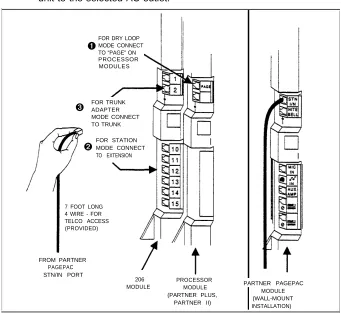
Once you have decided on the best interface mode for your PARTNER system configuration (Dry Loop Mode, Station Mode, or Trunk Adapter Mode), follow the steps below to make the appropriate interface connections:
1.
2.
3.
Use a standard 7-foot, 4-pin RJ-11 modular cable (provided) to connect the PARTNER Plus or PARTNER II system to one of the following PARTNER PagePac modules (refer to Table 2-1 and Figure 2-2). Connect the modular cable from the PARTNER PagePac module’s “STN I/N” port to:
➊
– Page Port on processor module (for Dry Loop Mode) or➋
– Station Port (for Station Mode), or➌
– Trunk Port (for Trunk Adapter Mode).Route cord through bracket at bottom of modules. Leave at least 2 feet of slack so that you can easily reconnect cord during replacement.
Plug the PARTNER power cord into the AC outlet, 110V/60 Hz. Use the special power cord (supplied) to connect the PARTNER PagePac unit to the selected AC outlet.
➊
FOR DRY LOOPMODE CONNECT TO “PAGE" ON PROCESSOR MODULES➌
FOR TRUNKADAPTER MODE CONNECT TO TRUNK➋
FOR STATIONMODE CONNECT TO EXTENSION7 FOOT LONG 4 WIRE - FOR TELCO ACCESS (PROVIDED)
FROM PARTNER PAGEPAC STN/IN PORT
206 PROCESSOR MODULE MODULE
(PARTNER PLUS, PARTNER II)
PARTNER PAGEPAC MODULE (WALL-MOUNT INSTALLATION)
Trunk Adapter Connections (Trunk Adapter Mode Only)
If Trunk Adapter Mode has been selected as the best interface connection for your requirements (pages 2-7 and 2-8), continue with the following procedure:
Required materials:
➊
– AT&T PARTNER PagePac Trunk Adapter (PEC 5335-301)➋
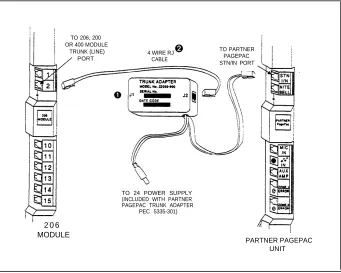
– Standard modular telephone cord (7 feet, provided)Follow the steps below to install the AT&T Trunk Adapter (see Figure 2-3):
1.
2.
4.
5.
Connect the PARTNER PagePac Trunk Adapter modular cord to the PARTNER PagePac module STN/lN port.
Connect the PARTNER PagePac Trunk Adapter jack J2 to the
available Trunk (Line) Port on the selected PARTNER system module.
Route cord(s) through bracket at bottom of modules. Leave at least two feet of slack so you can remove modules.
Connect the PARTNER PagePac Trunk Adapter 24 volt power supply (supplied) to AC power.
TO 206, 200 OR 400 MODULE
TRUNK (LINE) PORT
4 WIRE RJ CABLE
➋
TO PARTNER PAGEPAC STN/IN PORTTO 24 POWER SUPPLY (INCLUDED WITH PARTNER PAGEPAC TRUNK ADAPTER
PEC 5335-301)
2 0 6 MODULE
PARTNER PAGEPAC UNIT
Figure 2-3 Trunk Adapter Installation for PARTNER PagePac
Module
PARTNER PagePac Telephone Access
Continuing
Installation ...
NOTE: Once you have completed the Page/Speaker Mode installation steps in Section 3, you can use the Quick Test procedure at the end of that section.
Establishing telephone access provides a means to talk to the PARTNER PagePac unit for programming and accessing the various features.
If you have configured your PARTNER PagePac system:
For Dry Loop Mode (connection to Page Port) you will need to dial
[INTERCOM] [7] [0].
For Station Mode operation, you will need to dial the extension number
connected to the PARTNER PagePac paging system. For example, if you have configured the PARTNER PagePac paging system with a cable connecting from the PARTNER PagePac STN l/N port to
extension 20 of a PARTNER Plus system module, you would dial [INTERCOM] [2] [0] the first time you wish to access PARTNER PagePac features and
programming capabilities.
For Trunk Adapter Mode you will need to select the trunk which is
connected to the PARTNER PagePac unit by pressing the appropriate [LINE] button. For standard telephone access, use Direct Line Pickup.
Each input to the PARTNER PagePac module has its own priority. If more than one input is active at the same time, the signal with the highest priority will take precedence over all the others. In addition, if a
higher-priority input becomes active while a lower-priority input is being processed, the PARTNER PagePac module will abandon the lower-priority input in favor of a higher priority input.
The input priorities, from highest to lowest, are as follows:
■ Microphone input ■ Station input ■ Door input ■ Night Bell input ■ Music input
Your PARTNER PagePac should now be installed (mounted to a wall or placed onto a desk), and your PARTNER PagePac module has been connected directly to your PARTNER Plus or PARTNER II phone system.
Section 3 continues the installation steps for PAGE/SPEAKER MODE and covers Zone 1 & 2 remote amp configurations along with Zone 3 auxiliary paging features. At the end of Section 3 is a Quick Test to ensure your installation has been successful.
Page/Speaker Mode Installation
3
PARTNER PagePac Paging Access
Primary Paging
Zones
(Zones 1 and 2)
Refer to Section 4 for Doorspeaker Mode Installation.
Refer to Section 5 for adding Night Bell service.
The PARTNER PagePac can be configured differently depending on your particular situation. Two primary zones (Zone 1 and Zone 2) can be individually configured for Page/Speaker Mode, Doorspeaker Mode, or Remote Amplifier Mode.
Both zones 1 and 2 provide a 4 watt on-board amplifier power switch to drive voice coil (3.4V) speakers in Page/Speaker Mode and Doorspeaker Mode. Each zone provides a RJ-45 jack which supplies an audio pair (which is used in all modes), a contact closure pair (used for the Doorspeaker and Remote Amplifier Modes) and four wires for the Door Bell and Door Ajar inputs (used in Doorspeaker Mode). The primary paging zones provide paging, hands-free talkback (programmable), music, and tone output on the audio pair.
Talkback Capabilities
NOTE: Auxiliary paging zone will NOT support talkback.
See Table 3-1 for available speakers.
Remote Amplifier
The PARTNER PagePac has the unique ability to provide individuals with the ability to talkback over selected speaker zones 1 or 2. “Hands-Free” talkback is available in both Page/Speaker and Doorspeaker Modes. Refer to Section 6 for complete programming information for this feature.
Mode (Zones 1 and 2)
Refer to Figures 3-2 and 3-3. In “Remote Amplifier Mode,” the Audio Pair provides the signal inputs to
the amplifier. and the control closure pair is used to operate the
NOTE: PagePac 6 Plus cannot
Page/Music switch on the amplifier. The Door Bell and Door Ajar inputs
be used as a remote amplifier.
are ignored.
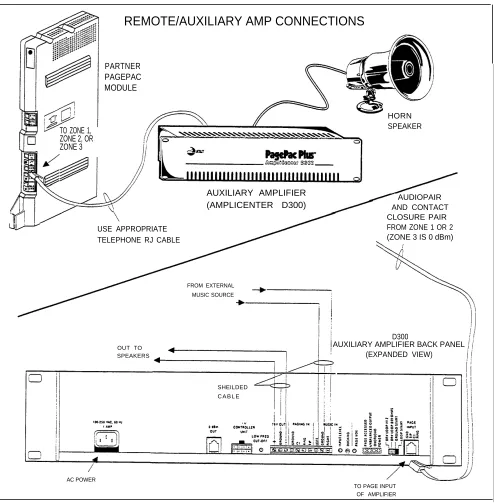
A Remote Amplifier zone provides the same paging features as a Page/Speaker zone. The chief difference is that the PARTNER PagePac module closes the relay on the control closure pair when it is presenting a signal (Page, Tone, or Music) on the audio pair, and opens the relay contacts when the zone is idle (see Figure 3-1 for example installation).
Auxiliary Paging Zone (Zone 3)
NOTE: Zone 3 provides a Zone 3 of the PARTNER PagePac module is called the Auxiliary Paging
0 dBm signal for a Remote Zone. This Zone is intended for connection to a paging amplifier, such as Amplifier,
the AT&T AmpIiCenter series. The Auxiliary Paging Zone operates in the
NOTE: The Auxiliary Paging same fashion as a Primary Paging Zones (zones 1 and 2) configured in Zone (Zone 3) cannot be Remote Amplifier mode. The chief difference is that, unlike Zones 1 and 2, configured in Doorspeaker Mode. Zone 3 does not provide an on-board 4-watt amplifier paging or the ability
to provide talkback.
CAUTION:
A remote amplifier can be within the same building as the PARTNERPagePac module or at a remote location. The auxiliary paging zone port isFor remote amplifier locations, a
located at the front of the PARTNER PagePac module and is a modular
PageGuard (P/N 22050-930) or
PARTNER IROB (PEC 60612) connector labeled AUX AMP (see Figure 1-1). This zone can be used for may be required for protection paging, background music, and tones. The 0 dBm output is suitable for from potential telephone network driving an amplifier, but is not suitable for direct connection of the speaker. electrical disruptions (refer to
The AUX AMP port provides two leads for the audio pair and two leads for
Appendix B)
contact closure (see Figure 3-1).
REMOTE/AUXILIARY AMP CONNECTIONS
PARTNER PAGEPAC MODULE
HORN SPEAKER
TO ZONE 1, ZONE 2, OR ZONE 3
AUXILIARY AMPLIFIER
(AMPLICENTER D300) AND CONTACTAUDIOPAIR
CLOSURE PAIR FROM ZONE 1 OR 2 (ZONE 3 IS 0 dBm) USE APPROPRIATE
TELEPHONE RJ CABLE
FROM EXTERNAL MUSIC SOURCE
D300
OUT TO AUXILIARY AMPLIFIER BACK PANEL
SPEAKERS (EXPANDED VIEW)
SHEILDED C A B L E
AC POWER
TO PAGE INPUT OF AMPLIFIER
Figure 3-1 PARTNER PagePac Connections ( Zones 1, 2, or 3) to a Remote Amplifier
Connecting Speakers
NOTE: Use Voice Coil speakers only. Paging Area Mounting Location Speaker Type (Voice Coil) AT&T Order No.
NOTE: In some situations you may be able to extend a run farther than 600 feet, by using fewer speakers and/or larger diameter wire.
NOTE: Listed speakers are capable of Talkback.
Front/Back Door*
NOTE: Speaker quantities to the right DO NOT apply to Zone 3, which can drive a remote amplifier which is only limited by the amplifier power output (wattage).
NOTE: 4 watts are available per zone.
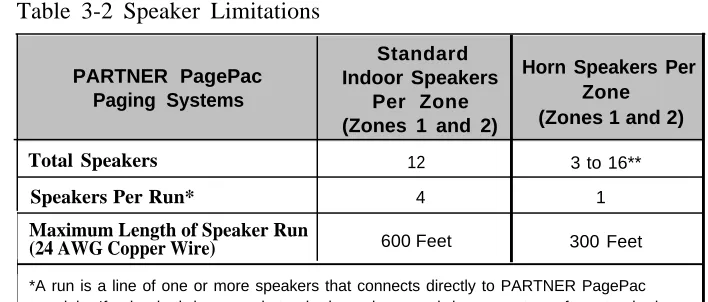
Standard voice coil ceiling speakers (indoor ceiling-type or P-Tec) and horn speakers may be used with the PARTNER PagePac module. Use only voice-coil 3.4 Vrms type speakers and use only the appropriate model speaker for your situation (see Table 3-1). It is important not to exceed the number of speakers or speaker run length maximums shown in Table 3-2 below.
Table 3-1 Recommended Speakers
Open or Closed
On Wall or Ceiling Universal Cabinet PEC 5330-105
Office Areas,
Conference or P-TEC PEC 5330-100
Room, Etc.
Above Ceiling Recessed Ceiling PEC 5330-215 or P-TEC PEC 5330-100 Universal Cabinet
Hallways On Wall or Ceiling PEC 5330-105
Private Office Placed on Desk Desktop PEC 5330-110
On Wall Door Speaker PEC 5330-120
Open Industrial On Wall or Pole at
Area or Least 15 ft. Above 1 Watt Horn
Outdoors PEC 5331-100
Ground w/ taps
*NOTE: Doorspeaker cable runs should use the “Home Run” method and should not exceed 1500 feet.
Table 3-2 Speaker Limitations
PARTNER PagePac Paging Systems
Standard Indoor Speakers
Per Zone (Zones 1 and 2)
Horn Speakers Per Zone (Zones 1 and 2)
Total Speakers 12 3 to 16**
Speakers Per Run* 4 1
Maximum Length of Speaker Run
(24 AWG Copper Wire) 600 Feet 300 Feet
*A run is a line of one or more speakers that connects directly to PARTNER PagePac module. If using both horns and standard speakers, each horn counts as four standard speakers.
Run Speaker
There are two methods of wiring speakers: from speaker-to-speaker andCable
Home Run (refer to Figure 3-2). When wiring speaker-to-speaker, cable isrun from the PARTNER PagePac module to the nearest speaker location, from that location to the next, and so on, until all locations are connected. When wiring Home Run, cable is run from the PARTNER PagePac module to each speaker location. A combination of both methods may be used, but the maximum distance for each cable run is 600 feet.
Recommended cable size is 24-22 AWG minimum with “shielded” cable for all speakers with Talkback.
Connect Speaker
When all speakers have been installed, connect speaker cable using oneCable
of the methods described above. Each zone must have its own dedicatedspeaker cable run. Refer to Figures 3-2 and 3-3, along with the installation Instructions provided with your speakers for specific installation procedures.
HOME RUN METHOD
TWO WIRES
66-TYPE CONNECTION
BLOCK
TWO WIRES
AT&T 103A CONNECTION
BLOCK TO ZONE 1 OR
ZONE 2 PORT WIRESTWO
SPEAKERS
SPEAKER-TO-SPEAKER METHOD
SPEAKERS
AUDIO PAIR
AT&T 103A CONNECTION
BLOCK TO ZONE 1 OR 2
ZONE 2 PORT
Figure 3-2 Speaker Run Methods
Connection Block
NOTE: Auxiliary Port can utilize Zones 1 and 2 on the PARTNER PagePac module have an RJ-45
an RJ-11 modular cable direct to modular jack interface. To connect the various audio pair wires (and PagePac or AmplCenter RJ-11
contact closure pair wires), it is recommended you use a standard
jack. No Connection block is
needed. full-modular 8-pin cable to connect from the PARTNER PagePac module
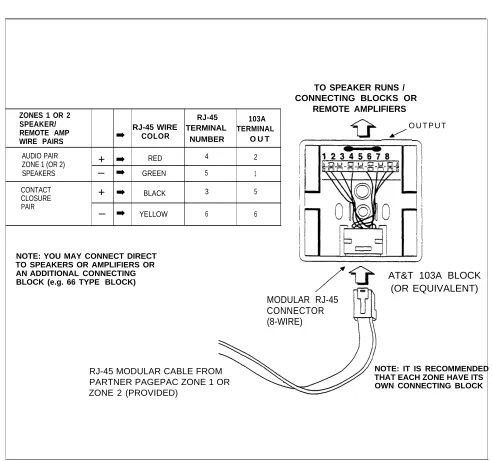
to an AT&T 103A block, which in turn can connect to a 66-type connection block if needed. Figure 3-3 provides a typical wiring example and includes the pinout connections for the RJ-45 cable, as well as the 103A block terminal pinouts.
TO SPEAKER RUNS / CONNECTING BLOCKS OR
REMOTE AMPLIFIERS
ZONES 1 OR 2 RJ-45
SPEAKER/ RJ-45 WIRE TERMINAL 103A
TERMINAL O U T P U T REMOTE AMP
➡
COLORNUMBER O U T WIRE PAIRS
AUDIO PAIR
+
➡
RED 4 2ZONE 1 (OR 2)
SPEAKERS
–
➡
GREEN 5 1CONTACT
CLOSURE
+
➡
BLACK 3 5PAIR
–
➡
YELLOW 6 6NOTE: YOU MAY CONNECT DIRECT TO SPEAKERS OR AMPLIFIERS OR AN ADDITIONAL CONNECTING
BLOCK (e.g. 66 TYPE BLOCK) AT&T 103A BLOCK
(OR EQUIVALENT) MODULAR RJ-45
CONNECTOR (8-WIRE)
RJ-45 MODULAR CABLE FROM NOTE: IT IS RECOMMENDED PARTNER PAGEPAC ZONE 1 OR THAT EACH ZONE HAVE ITS
ZONE 2 (PROVIDED) OWN CONNECTING BLOCK
Quick Test (Paging to Loudspeakers)
■ At this point your PARTNER PagePac module has been installed along side your PARTNER Plus or PARTNER II phone system. In addition, you should have installed the necessary speakers, connecting blocks, and wiring within your business.
■ The following test will ensure your PARTNER PagePac module is operating correctly by making a page over the loudspeakers to zone 1, zone 2, and zone 3 (remote amp).
You Will Need:
NOTE: If tests do not result in proper paging over loudspeakers, refer to “Troubleshooting” in Appendix A.
A Remote Amp zone, refers to a primary zone configured as a remote amp (with a separate amp). This is output (fixed) from AUX port.
A PARTNER System telephone (do NOT use a standard telephone).
To Access the PARTNER PagePac Module
For Dry Loop Mode (connection to Page Port) you will need to dial:
[INTERCOM] [7] [0].
For Station Mode operation, you will need to dial [INTERCOM],
followed by the extension number connected to the PARTNER PagePac paging system. For example, if you have configured your PARTNER PagePac paging system with a cable connecting from the PARTNER PagePac STN l/N port to extension 20 of the PARTNER Plus system module, you would dial [INTERCOM] [2] [0] the first time you wish to access
PARTNER PagePac features and programming
capabilities.
For Trunk Adapter Mode you will need to select the trunk which is
connected to the PARTNER PagePac unit by pressing the
appropriate [LINE] button. For standard telephone access, use Direct Line Pickup.
Zone 1 Test (For NON-remote amp configurations)
1.
2.
3.
Dial [1] (for zone 1 page).
You should hear the pre-announcement tone (3/4 second tone) out of the zone 1 loudspeakers. All other zones will be quiet.
Speak into the telephone transmitter.
You should hear your voice over the loudspeakers.
Dial [#] (to return to PARTNER PagePac dial tone).
You should hear the PARTNER PagePac dial tone in the receiver.
Zone 2 Test (For NON-remote applications)
4. Dial [2] (for zone 2 page).
You should hear the pre-announcement tone (3/4 second tone) out of the zone 2 loudspeakers. All other zones will be quiet.
5. Speak into the telephone transmitter.
You should hear your voice over the loudspeakers.
6. Dial [#] (to return to PARTNER PagePac dial tone).
You should hear the PARTNER PagePac dial tone in the telephone receiver.
Zone 3 Test (automatically is set for remote amp)
NOTE: Zone 3 will always be configured as a remote zone and does not need to be programmed as a remote zone.
7.
8.
9.
Dial [3] (for zone 3 page).
You should hear the pre-announcements tone (3/4 second tone) out of the zone 3 loudspeakers. All other zones will be quiet.
Speak into the telephone transmitter.
You should hear your voice over the loudspeakers.
Dial [#] (to return to PARTNER PagePac dial tone).
You should hear the PARTNER PagePac dial tone in the telephone receiver.
Zone 1 or 2 Test (Configured as a Remote Amp)
NOTE: If paging system does not If zones 1 and/or 2 have been configured as a remote amp zone, you will respond as indicated, refer to need to tell (program) this
to the PARTNER PagePac module before you
“Troubleshooting”, Appendix A.can page to those zones.
Quick Programming
1. Dial [*] [*] (to start programming).
You should hear a different dial tone in the telephone receiver.
2. Dial [6] [0] (for type of zone).
You should hear two beeps followed by the programming mode dial tone in the telephone receiver.
3. Dial the zone number you wish to program as a remote zone (1, 2). You should hear two beeps (again) in the telephone receiver.
4. Dial [3] (selecting a remote amp).
You should hear three beeps in the telephone receiver, followed by the programming mode dial tone.
Test
5.
6.
NOTE: If another zone has been 7. configured as a remote amp
zone (zone 1 or 2) repeat the above steps but change the zone number dialed in step 6.
Dial [#] (to return to PARTNER PagePac dial tone).
You should hear the PARTNER PagePac dial tone in the telephone receiver.
Dial the zone number you have configured as a remote amp (1 or 2). You will hear the pre-announcement tone over the selected zone’s loudspeakers.
Speak into the telephone transmitter.
Doorspeaker Mode Installation
4
AT&T Doorspeaker
The PARTNER PagePac module is compatible with the AT&T
Doorspeaker (PEC 5330-120) and will also provide door ajar*, electronic strikeplate* and door bell* support from either zone 1 or zone 2. The
NOTE: Zone 3 does not support AT&T Doorspeaker can be surface or flush mounted to a wall at the front Doorspeaker Mode. or rear entrance of your business.
*IMPORTANT: When the Doorspeaker button (see Figure 4-1) is pressed, the PARTNER
Electronic strikeplate and door PagePac module will alert inside personnel that the door needs attention
ajar equipment and installation by either ringing an extension (Ringdown Mode) or providing a tone over
is customer provided.
the paging system (Door Alert Mode). In addition, once communications have been made with the doorspeaker, the door can be remotely opened by inside personnel by entering the appropriate touch-tone code (refer to Section 7).
IMPORTANT:
Door Action
Considerations
Figure 4-1 AT&T Doorspeaker—PEC 5330-120
■ The PARTNER Plus Doorphone, PEC 5324-003, will not work.
■ Ringdown Mode is only supported in Station Mode configuration.
Connection Blocks
The PARTNER PagePac module provides an 8-pin (four pair) RJ-45 jack for both zone 1 and zone 2. To connect the various audio pair wires, contact closure pair wires, and door bell and door ajar pair wires to the PARTNER PagePac module’s RJ-45 jack, it is recommended you use a standard full-modular 8-pin cable to connect from the PARTNER PagePac module to an AT&T 103A block (see Figure 4-2). The 103A block can in turn be connected (via 22-24 AWG wire) to an AT&T 66-type block (see Figure 4-2 for an example Doorspeaker installation).
ZONE 1 AND 2 RJ-45 1 0 3 A DOOR WIRE RJ-45 WIRE TERMINAL TERMINAL PAIRS
➡
COLOR NUMBER OUTDOOR BELL +
➡
BROWN 8 8PAIR –
➡
SLATE 1 3DOOR AJAR* +
➡
BLUE 7 7PAIR –
➡
ORANGE 2 4AUDIO PAIR +
➡
RED 4 2ZONE 1 (OR 2)
SPEAKERS –
➡
GREEN 5 1CONTACT
CLOSURE +
➡
BLACK 3 5PAIR DOOR
UNLOCK (TO –
➡
YELLOW 6STRIKEPLATE) 6
*NOTE: IF DOOR AJAR IS NOT OPTIONED, YOU MUST JUMPER
OUTPUT LEADS 4 AND 7. IF A MODUCONN
STIKEPLATE DEVICE IS NOT USED
TO DOORSPEAKER AND DOOR DEVICES
103A BLOCK OUT
AT&T 103A BLOCK (OR EQUIVALENT
LAR RJ-45 AT&T COMCODE #) ECTOR
LEAVE THESE CONTACTS OPEN
8-WIRE RJ CABLE
RJ-45 MODULAR CABLE FROM
PARTNER PAGEPAC ZONE 1 NOTE: EACH ZONE REQUIRES
OR ZONE 2 PORT ITS OWN CONNECTING BLOCK
Figure 4-2 AT&T 103A Connection Block Used For Doorspeaker Installation
DOORSPEAKER CAN RING MULTIPLE EXTENSIONS (RINGDOWN MODE)
DOOR AJAR DEVICE (NOT PROVIDED)
(2 wire)
JUMPER IF NOT USED
“DOORSPEAKER #1 (PEC 5330-120)
PARTNER PAGEPAC MODULE
STRIKEPLATE CONTACT CLOSURE (NOT PROVIDED)
66 TYPE BLOCK
(2 wire)
PARTNER PAGEPAC UNIT ZONE 1/
ZONE 2 WIRE PAIRS
(2 wire)
DOOR AJAR
103A BLOCK DEVICE
(NOT PROVIDED)
66 TYPE BLOCK
RJ-45 TELEPHONE LINE CORD
JUMPER IF NOT USED *DOORSPEAKER #2
(PEC 53330-120)
STRIKEPLATE CONTACT CLOSURE (NOT PROVIDED)
103A BLOCK
*IMPORTANT ONLY THE DOORSPEAKER PEC 5330-120 IS COMPATIBLE WITH THE PARTNER PAGEPAC MODULE. DO NOT USE ATT PARTNER DOORPHONE PEC 5324-003
RJ-45 TELEPHONE LINE CORD
Quick Test (Doorspeaker Equipment)
■
NOTE: If tests are not as expected, refer to “Troubleshooting” in Appendix A.
IMPORTANT:
Only Doorspeaker PEC 5330-120 is compatible with the PARTNER PagePac module. Do NOT use AT&T PARTNER Plus Doorphone PEC 5324-003 (there should be NO LED on the doorspeaker face plate).
■
At this point your PARTNER PagePac module has been installed along side your PARTNER Plus or PARTNER II Phone system and you have completed the Page/Speaker installation steps outlined in Section 2. In addition, you should have installed the necessary Doorspeaker equipment (Doorspeaker, electronic strikeplate, door ajar device, connecting blocks, and wiring) within your business.
The following test will ensure your PARTNER PagePac is operating correctly by providing two-way communications with a Doorspeaker, opening a doors strikeplate contact closure and determining if a door ajar device has been activated.
You Will Need:
A PARTNER System telephone and another person to activate the Doorspeaker.
Zone 1 and/or Zone 2 (Configured for Doorspeaker Mode)
If zone 1 or 2 has been configured as a Doorspeaker Mode zone, you will need to tell (program) this to the PARTNER PagePac module.
To Access PARTNER PagePac Module
For Dry Loop Mode (connection to Page Port) you will need to dial:
[INTERCOM] [7] [0].
For Station Mode operation, you will need to dial [INTERCOM],
followed by the extension number connected to the PARTNER PagePac paging system. For example, if you have configured your PARTNER PagePac paging system with a cable connecting from the PARTNER PagePac STN l/N port to extension 20 of the PARTNER Plus system module, you would dial [INTERCOM] [2] [0] the first time you wish to access PARTNER PagePac features and programming capabilities.
For Trunk Adapter Mode you will need to select the trunk which is
connected to the PARTNER PagePac unit by pressing the appropriate [LINE] button. For standard telephone access, use Direct Line
Pickup.
You should hear the PARTNER PagePac dial tone in the telephone receiver.
Quick Programming
1. Dial [*] [*] (to start programming).
You should hear a different dial tone in the telephone receiver.
2. Dial [6] [0] (for type of zone).
You should hear two beeps in the telephone receiver.
To Program/Test a second Doorspeaker, repeat these steps with the appropriate zone number.
NOTE: The default Doorspeaker action is Door Alert Mode; refer to Section 6 for Ringdown Mode information.
NOTE: To access the PARTNER system, refer to the previous page.
Refer to Section 6 for programming options.
Refer to Section 7 for complete operating information.
3. Dial the zone number you wish to program as a Doorspeaker Mode zone (1, 2).
You should hear two beeps followed by the programming dial tone in the telephone receiver.
4. Dial [2] (to select Doorspeaker Mode).
You should hear three beeps followed by the programming dial tone.
Test
5.
6.
7.
8.
9.
Dial [#] (to return to PARTNER PagePac dial tone).
You should hear the PARTNER PagePac dial tone in the telephone receiver.
Hang up.
Have your assistant press the Doorspeaker button (for selected zone 1 or 2).
The person at the door should hear the door alert tone from the Doorspeaker.
You (the person at the telephone) should hear the door alert tone over the other zones’ loudspeakers.
Pick up the phone receiver and access the PARTNER system. You should hear in the telephone receiver 1 beep if the button at door 1 has been pressed, or 2 beeps if the button at door 2 has been pressed.
You should now have two-way communications with the Doorspeaker.
Dial [O] [P] [E] [N] (to open remote door; only if strikeplate is used).
The door’s electronic strikeplate should open so the person at the door can enter.
Accessory Features
5
Installing a Music Source
NOTE: If you use equipment The PARTNER PagePac module provides a music source interface that rebroadcasts music or other (impedance of 100k Ω) for background/foreground music applications. Use copyrighted materials, you may
be required to obtain a license a standard audio cable with RCA jacks. Connect the AT&T FM (PEC from a third patty such as 5335-510) or AM-FM (PEC 5335-505) music source from the music source ASCAP or BMI. output to the music input (RCA jack) on the PARTNER PagePac module
(see Figure 5-1).
PARTNER PAGEPAC MODULE
AM/FM MUSIC SOURCE (PEC 5335-505) or
FM MUSIC SOURCE (PEC 5335-510)
DIGITAL MESSAGE SYSTEM RCA CABLE TO (PEC 5335-600) MUSIC IN PORT
Volume Adjustment (Page/Music)
Refer to Section 6 for volume output levels.
NOTE: Music can be played over primary zones (zones 1 and 2) and the auxiliary zone (zone 3).
Volume level is adjusted from a PARTNER system telephone (Figure 5-2). Eight different volume levels can be selected by entering the proper DTMF code (3 dB per key stroke). The PARTNER PagePac default background music level is set at 4 and the default page level is set at 6 (refer to Table 6-3). Programming instructions for changing the music/page volume levels are provided in Section 6. Page/Music volume adjustment function will work only for zones 1 and 2. Volume levels for Zones 1 and 2, and for Page or Music, can be adjusted separately.
Figure 5-2. Volume Level Adjusted From PARTNER Phone
Using a Microphone with the PARTNER PagePac Module
Many installations, such as restaurants and retail stores, require microphone access for paging. The AT&T Microphone (PEC 5335-400) provides a switch activated ON/OFF contact closure, and will install easily to the modular port at the front of the PARTNER PagePac module labeled MIC IN. Microphone access can be configured for a per zone page or all call (all zone) page. Microphone enable/disable parameters are set in the PARTNER PagePac programming mode (see Section 6).
PARTNER PAGEPAC MODULE
HIGH-FIDELITY MICROPHONE (PEC 5335400)
RJ-11 CABLE TO MIC IN JACK
Night Bell Service
IMPORTANT:
Station Mode
Considerations
NOTE: Refer to Section 6 Night Bell programming instructions and Section 7 for Operation Information.
IMPORTANT:
All lines on the Night Bell extension should be set to “No Ring”. (Refer to Sections 6 and 7 for Programming and Operation.)
NOTE: Connect RJ-11 cable from PARTNER PagePac module Night Bell port to appropriate station port. (Refer to Sections 6 and 7 for
Programming/Operation.)
To ensure full use of ''PFT'' (Power Failure Transfer) in your PARTNER Plus or PARTNER II phone systems during an emergency or power outage conditions when selecting “Station Mode,” these extensions are NOT recommended for use for primary paging areas:
■ PARTNER Plus system: Stations 10, 11, 16, 22, 28
■ PARTNER II system: Stations 10, 11, 16, 22, 28, 34, 40, 46, 52
The PARTNER PagePac provides a NIGHT BELL port. This RJ-11 jack connects to a station port (Extension) on the PARTNER system that has been configured for night bell service (see Figure 5-4). Once configured, the PARTNER PagePac can detect an incoming ring signal and generate tones over the paging system until the incoming call is terminated or someone answers the call. The Night Bell feature has lower priority than Microphone access, Paging and Doorspeaker, but has a higher priority than background music.
2 0 6 M O D U L E
FROM PARTNER PAGEPAC NITE BELL PORT
PARTNER PAGEPAC MODULE (WALL-MOUNT INSTALLATION)
PARTNER PAGEPAC NIGHT BELL PORT
Figure 5-4. Night Bell Service Installation
Programming
Overview
After installing the Partner PagePac hardware as described in Sections 2 through 5, you can customize the system to meet the requirements of your business. This chapter describes available programming options and procedures.
Programming Options
There are two types of programming options. System Options affect the overall operation of the system. Zone Options affect the operation of a single zone.
System Programming Options
Disable this feature if operating in Silent Monitor mode (Dry Loop or Trunk Adapter Mode).
If Pre-Announcement Tone is disabled, the Talkback feature must be turned on for the Talkback Warning Tone to be heard.
■
■
■
■
■
Connect Password —Requires a user who dials in through the
telephone interface to enter the correct password before being permitted to use the system. A special dial tone indicates that the system is waiting for the Connect Password to be entered. This option is disabled by default.
Programming Password —Requires a user who dials in through the
telephone interface to enter the correct password when the programming mode is entered. A programming confirmation tone indicates a correctly entered programming password. This option is disabled by default.
Door Unlock Code —Specifies the sequence of digits a user must
enter in order to activate the contact closure (door strike plate) for the active door. The default value is 6736 (corresponding to the letters OPEN on the keypad).
Pre-Announcement Tone Enabled —Sends a tone to a zone (and to
the user’s station, for a telephone page) when the zone is selected. (Available in all zones.) This option is enabled by default.
(Automatically turned off when calling a doorspeaker.)
Talkback Warning Tone Enabled —Sends a tone to a zone (and to
the user’s station, for a telephone page) when the page is selected in talkback mode, advising anyone within range of the zone that
conversation is being monitored. (Available in Zones 1 and 2 only.) This option is enabled by default.
Confirmation Tone Enabled —Sends a tone to the user’s station (for a
■
telephone page) when a zone is selected. This is ignored if Pre-Announcement Tone or Talkback Warning Tone is enabled (available in all zones). This option is enabled by default.
Reset to Factory Defaults —Causes all System and Zone parameters
to revert to their factory default settings. (See Tables 6-1 and 6-2 for factory default settings.)
■
Zone Programming Options
■
Ring Down mode only available in Station Mode.
■
■
■
NOTE: Disabling for a doorspeaker zone keeps the zone from being selected as part of a group, but does not prevent it from being selected individually (in Silent Monitor mode—Dry Loop and Station Mode only).
■
■
■
Night Bell requires programming the PARTNER Plus/II system for Night Service. See page 6-9.
■
NOTE: The MLC-6 cordless phone (and some standard phones) cannot send continous DTMF tones.
■
■
The door sled tone can be sent to any zone, including zone 3.
Type of Zone —Specifies whether a primary paging zone is to be
operated in Page/Speaker, Doorspeaker, or Remote Amplifier mode. The default setting is Page/Speaker. Setting this parameter causes all other options for the zone to be set to the defaults for the specified zone type. (See Table 6-3 for default settings by zone type.)
Door Action —Valid only for a primary paging zone optioned as a
Doorspeaker. Specifies the alerting action taken when the Door Bell is pressed: Door Alert or Ring Down. The default setting is Door Alert.
Page/Tone Level —Specifies the volume of pages and tones sent to
the primary paging zone. (Available in Zones 1 and 2 only.) Settings range from 0.5 Vrms (Level 1) through 3.4 Vrms (Level 8). Default is 1.9 Vrms (Level 6). (See Tables 6-3 and 6-4.)
Music Level —Specifies the volume of background music sent to a
primary paging zone. (Available in Zones 1 and 2 only.) Settings range from 0.5 Vrms (Level 1) through 3.4 Vrms (Level 8). Default is
1.1 Vrms (Level 4). (See Tables 6-3 and 6-4.)
Station Page Enabled —Specifies whether the zone will be selected
when the user dials the zone number (or the number of a group that includes the zone) on the telephone keypad. This option is disabled by default for Doorspeaker, enabled otherwise.
Music Enabled —Specifies whether background music will be sent to
the zone when paging is not active. (Available in all zones.) This option is disabled by default.
Talkback Enabled —Allows talkback for a primary paging zone. This
option is enabled by default for Doorspeaker, disabled otherwise. (Available in Zones 1 and 2 only.) Talkback works only for a single-page zone.
Night Bell Enabled —Sends the night bell tone to the zone when there
is activity on the Night Bell input. (Available in all zones.) This option is disabled by default for Doorspeaker, enabled otherwise.
Pass DTMF to Zone- Routes DTMF tones which are entered during a
page to the zone without processing. (Available in all zones.) This option is disabled by default.
Microphone Page Enabled —Selects the zone when contact closure of
the microphone input is activated. (Available in all zones.) This option is disabled by default for Doorspeaker, enabled otherwise.
Door Alert Enabled —Routes the door alert tone to the zone when the
Door Bell is pressed or when Door Ajar is detected. (Available in all zones.) This option is disabled by default for Doorspeaker, enabled otherwise.
Table 6-1 Factory Default Settings—System Options
System Option Default
Reset to Factory Defaults —
Connect Password None
Programming Password None
Door Unlock Code 6736 (OPEN)
Confirmation Tone Enabled Yes
Pre-Announcement Tone Enabled Yes Talkback Warning Tone Enabled Yes
Table 6-2 Factory Default Settings—Zone Options
Zone Option Zones 1 and 2 Zone 3
Type of Zone Page/Speaker (1) Not supported
Door Action Not applicable Not supported
Page/Tone Level 1.9 Vrms (6) Not supported
Music Level 1.1 Vrms (4) Not supported
Station Page Enabled Yes (1) Yes (1)
Music Enabled No (0) No (0)
Talkback Enabled No (0) Not supported
Night Bell Enabled Yes (1) Yes (1)
Pass DTMF to Zone No (0) No (0)
Microphone Page Enabled Yes (1) Yes (1)
Door Alert Enabled Yes (1) Yes (1)
1 = DTMF digit 1 is ON (enabled) 0 = DTMF digit 0 is OFF (disabled)
Table 6-3 Default Settings By Zone Type
Primary Paging Zones (Zones 1 and 2) Zone Option
Auxiliary Zone (Zone 3)
Page/Speaker Doorspeaker Remote Amp Aux Amp
Door Action Not supported Door Alert (1) Not supported Not supported
Page/Tone Level 1.9 Vrms (6) 1.9 Vrms (6) 0.655 Vrms (2) Not supported
Music Level 1.1 Vrms (4) 1.1 Vrms (4) 0.655 Vrms (2) Not supported
Station Page Enabled Yes (1) Note 1 Yes (1) Yes (1)
Music Enabled No (0) No (0) No (0) No (0)
Talkback Enabled No (0) Yes (1) No (0) Not supported
Night Bell Enabled Yes (1) No (0) Yes (1) Yes (1)
PassDTMFtoZone No (0) No (0) No (0) No (0)
Microphone Page
Enabled Yes (1) No (0) Yes (1) Yes (1)
Door Alert Enabled