Integrated Solution II
for MERLIN LEGEND™ Communications System
System Manager’s Guide
responsibility for any errors. Changes and/or corrections to the information contained in this document may be incorporated into future issues.
Federal Communications Commission (FCC) Statement
NOTE:
This equipment has been tested and found to comply with the limits for a Class A digital device, pursuant to Part 15 of the FCC rules, These limits are designed to provide reasonable protection against such interference when operated in a commercial environ-ment. Operation of this equipment in a residential area is likely to cause interference in which case the user at his own expense will be required to take whatever measures may be required to correct the interference.
TRADEMARK NOTICE
UNIX is a registered trademark of Novell Corporation. AUDIX is a trademark of Lucent Technologies.
ORDERING INFORMATION
To order copies of this manual:
Contact: Your Lucent Technologies Account Team or your Lucent Technologies Authorized Dealer. or
Call: Lucent Technologies at 1-800-432-6600 or
Write: Lucent Technologies Customer Information Center 2855 North Franklin Road
P.O. Box 19901
Indianapolis, IN 46219-1385
Order: Document No. 555-600-726
Intellectual property related to this product and registered to AT&T Corporation has been transferred to Lucent Technologies Incorporated.
1
Introduction
1-1Using this Guide 1-1
Conventions Used in this Guide 1-2
Applications Supported by IS-II 1-2
Overview of Integrated Solution II (IS-II) 1-3
Chapters in this Guide 1-4
2
Master Controller II Features
■ Introduction
■ Master Controller II Processor Reset Button Power Button Drive Indicators Disk Drives Diskettes Tape Drive Tape Cartridge Video Monitor Keyboard Escape Key
Alphanumeric Key Group Shift Key
Caps Lock Key Enter Key Tab Key Backspace Key Ctrl Key Alt Key
Function Key Group
Numeric Keypad Indicator Lights
Keyboard Operating Procedures
Executing System Reset from the Keyboard Function Keys Screen Navigation 2-8 2-8 2-8 2-8 2-9 2-10
3
Getting Started
3-1■ Logging In 3-1
■ Main Menu 3-3
■ Setting Time and Date 3-4
4
Administering IS-II Applications
Administration Procedure
System Programming and Maintenance Utility (SPM) Synchronizing Time and Date
Programming MERLIN LEGEND Communications System with SPM
Exiting SPM
Related Documentation
■ AUDIX Voice Power (AVP) Accessing AUDIX Voice Power Administering AVP
Adding or Removing Names or Extensions Changing Subscriber Data
Moving a Subscriber Updating the Database Updating Forms
Printing or Displaying the Subscriber List Exiting AUDIX Voice Power
Related Documentation
■ Call Accounting System (CAS) Administering CAS
Adding or Removing Trunks
Adding or Removing Employees from a Cost Center Updating Forms
Generating Reports
Selecting a Standard Report Generating Selection Reports Scheduling Reports
Detail and Master Commands Backing Up the Database
Restoring the Database Exiting CAS Related Documentation 4-17 4-18 4-19 4-19 4-22 4-22 4-23 4-23 4-23 4-25 4-25 4-25 4-26 4-26 4-32 4-36 4-37 4-39 4-43 4 - 4 5 4-48
5
User Maintenance
■ Backing Up Files
Administrate Files Backup to Diskette Complete System Backup to Tape Displaying the Disk Usage Report Adding or Changing Passwords Restarting the Printer
Shutting Down the System Voice System Administration
5-1 5-2 5-4 5-6 5-6 5-10 5-12 5-12 5-13
6
Exiting From IS-II Applications
6-1Exiting IS-II 6-1
Exiting Applications 6-2
A
Appendix A Forms
A-1■ AUDIX Voice Power A-1
■ Automated Attendant A-27
■ Call Accounting System A-51
B
Appendix B: Ordering Information
B-12
Master Controller II Features
2-11
Introduction
1-11-1. IS-II Main Menu 1-4
2
Master Controller II Features
2-12-1. Relationship between Function Keys and Screen Labels 2-9
3
Getting Started
3-13-1. Login Screen 3-2
3-2. IS-II Main Menu 3-3
3-3. User Maintenance Menu 3-4
3-4. Set Time and Date Screen 3-5
3-5. Choices Menu 3-6
3-6. Confirm Time and Date Screen 3-7
4
Administering IS-II Applications
4-14-1. 4-2. 4-3. 4-4. 4-5. 4-6. 4-7. 4-8. 4-9. 4-10. 4-11. 4-12. 4-13. 4-14. 4-15. 4-16. 4-17.
IS-II Main Menu IS-II Main Menu SPM Main Menu System Setup Screen
System Programming Screen System Screen
Date Screen Time Screen IS-II Main Menu
Automated Attendant Menu Subscriber Administration Screen
Sample Subscriber List Printout or Display IS-II Main Menu
AUDIX Voice Power Menu Subscriber Administration Form
Sample Subscriber List Printout or Display Call Accounting System Menu
4-19. 4-20. 4-21. 4-22. 4-23. 4-24. 4-25. 4-26. 4-27. 4-28. 4-29. 4-30. 4-31. 4-32. 4-33.
Edit Telephone System Configuration - Site Screen
Edit Telephone System Configuration - Trunk Group Screen Edit Telephone System Configuration
- Dial Access Code Screen
Edit Telephone System Configuration - Trunk Line Screen Call Accounting System Menu
Organization Configuration Menu Edit Organization Table
Edit Organization Table - Site Screen (Detail) Call Accounting System (CAS) Main Menu CAS Reports Menu
ANI/Demographics Reports Menu
Area Code Summary Report for Incoming Calls Generate Selection Report Screen
Schedule Reports Screen
Schedule Reports - Report Details
4-28 4-29 4-30 4-31 4-32 4-33 4-34 4-35 4-37 4-38 4-41 4-46 4-49 4-40 4-43
5
User Maintenance
5-1. 5-2. 5-3. 5-4. 5-5. 5-6. 5-7. 5-8.
User Maintenance Menu Backup Files
Maintenance Log
Sample Disk Usage Report Password Protection Change/Add
Shutdown Screen
Voice System Administration
5-1 5-1 5-3 5-8 5-9 5-10 5-11 5-12 5-13
6
Exiting From IS-II Applications
6-1A
Appendix A: Forms
A-1. A-2. A-3. A-4. A-5. A-6. A-7. A-8. A-9. A-10. A-11. A-12. A-13. A-14. A-15. A-16. A-17. A-18. A-19. A-20. A-21. A-22. A-23. A-24. A-25. A-26. A-27. A-28. A-29. A-30. A-31. A-32. A-33.AUDIX Voice Power AUDIX Voice Power AUDIX Voice Power AUDIX Voice Power AUDIX Voice Power AUDIX Voice Power AUDIX Voice Power AUDIX Voice Power AUDIX Voice Power AUDIX Voice Power AUDIX Voice Power AUDIX Voice Power
Channel Assignments
Switch Interface Administration System Parameter Administration Subscriber Administration
Service Administrator Registration Outcalling Administration
Holiday Administration Service Hour Administration Edit Workspace
Speech Menu
Automated Attendant Announcements Custom Messages
Automated Attendant Channel Assignments
Automated Attendant Switch Interface Administration Automated Attendant System Parameter Administration Automated Attendant Subscriber Administration
Automated Attendant Administrator Registration Automated Attendant Holiday Administration Automated Attendant Service Hour Administration Automated Attendant Edit Workspace
Automated Attendant Speech Menu Automated Attendant Announcements Automated Attendant Custom Messages CAS Site Information Form
CAS Telephone System Configuration Form CAS Dialed Digit Processing Example CAS Dialed Digit Processing Form
CAS Call Record Collection Information Form CAS Organization Configuration Form
CAS Report Schedules Form CAS Cost Adjustments Example CAS Cost Adjustments Form CAS Account Code Table
1
Integrated Solution II (IS-II) allows you to update and maintain features of your telephone network by combining the power of your AT&T MERLIN LEGEND™ Communications System and a UNIX®-based computer with advanced telephony software. IS-II, in conjunction with the MERLIN LEGEND Communications System, allows you to easily make updates and changes to your telephone system by making selections from menus on your computer screen.
Using this Guide
At the time you are ready to use this guide, your IS-II system W-II already have been installed and initialized by AT&T personnel or your AT&T-authorized dealer.
Each application supported by IS-II has its own documentation detailing
administration and daily operation. This System Manager's Guide is not intended to replace those documents, but is designed to show you how to access those
applications via IS-II. Examples of frequently used procedures are included, and when necessary, you will be directed to other related documents.
Packaged with this System Manager's Guide is the AT&T Integrated Solution II
Installation and Maintenance Guide, which describes installation and maintenance
procedures for IS-II hardware, Platform Software, and applications. It is intended for your AT&T technician or your AT&T-authorized dealer.
Conventions Used in this Guide
The following conventions are used in this guide: ■
■
■
■
■
Commands and text you should type appear in this style of type.
Values, instructions, and prompts that appear on the screen are in this style of type.
Key names that are always located on the keyboard in the same place appear in boxes, as in [ENTER] .
Key combinations (holding down one key while pressing another key) are connected with hyphens; for example: [CTRL] — [ALT] — [DEL]
Function keys, with changeable names, appear in boxes, as in [SAVE] .
Applications Supported by IS-II
Your IS-II consists of one or more of the following applications: ■
■
System Programming and Maintenance Utility
System Programming and Maintenance Utility (SPM) allows you to add, move, and change your telephone features and assignments, and back up and restore the telephone switch system programming information.
Call Accounting System (optional)
With the Call Accounting System (CAS), you can track incoming and outgoing calls so that you can make informed decisions about your telephone needs. You can monitor the cost of calls, print reports of incoming and/or outgoing calls, track calls made on behalf of clients, and identify cases of
telephone abuse.
■ Automated Attendant (optional)
Automated Attendant (AA) is a low-cost solution for businesses requiring less features than those offered with AVP. Calls on specified lines are
automatically answered, and callers are directed to the extension number of the person or department they are calling. (YOU can have either AVP or AA,
but not both.)
AUDIX™ Voice Power (optional)
AUDIX Voice Power (AVP) combines features of the Automated Attendant (AA) with an information service, message drop, call answer, and voice mail to retrieve calls and take messages when a user is busy or does not answer. (You can have either AVP or AA, but not both.)
Overview of Integrated Solution II (IS-II)
Your IS-II consists of a processor called the Master Controller II (or II+), a video monitor (monochrome or color), a keyboard, an optional tape drive, IS-II Platform Software, and one or more software application packages. This entire system is connected to your telephone system allowing you to administer your entire telephone system from your keyboard.
NOTE:
Throughout this guide, references to the Master Controller II apply to the Master Controller II+ as well. Any information that differs between the two processors will be noted specifically for the Master Controller II+.
Administration is an ongoing process by which you make changes to the system (such as adding new employees or changing their extensions) and perform routine user maintenance functions via menus and screens. You can select the function(s) you need to perform from the main menu; then, using this guide in conjunction with the appropriate application guides, you can perform any function on any application.
Once you log in, the IS-II main menu is displayed listing all the applications available to you. A sample IS-II main menu follows.
NOTE:
Integrated Solution II
> AUDIX Voice Power (AVP) Call Accounting System (CAS)
System Programming & Maintenance Utility (SPM) User Maintenance
Exit
HELP
Screen 1-1. IS-II Main Menu
Chapters in this Guide
Chapter 1- Introduction
Chapter 2- Master Controller II Features
This chapter details system components; explains the keyboard arrangement, function keys, and indicator lights; and shows you how to use the diskettes and disk drive. .
Chapter 3- Getting Started
This chapter describes how to logon to the IS-II system and introduces the main menu.
Chapter 4- Administering IS-II Applications
This chapter shows you how to administer each application package and directs you to specific guides for additional information.
Chapter 5- IS-II User Maintenance
This chapter describes how to maintain the system through the User Maintenance menu on the system.
Chapter 6- Exiting from IS-II Applications
This chapter explains how to log off the system properly and exit menus and screens.
Appendix A - Forms
This appendix contains copies of the AVP, AA, and CAS forms that you need to administer these IS-II applications. Additional forms are required for the SPM application and are included in the appropriate Planning Guide for your telephone system.
Appendix B - Ordering Information
2
Introduction
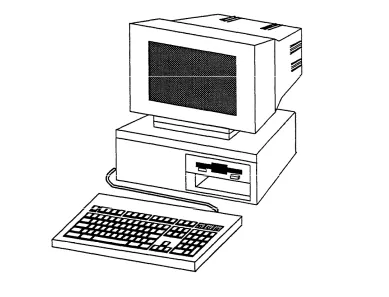
Your IS-II Master Controller II hardware consists of the following components: ■ Master Controller II processor (with hard disk and diskette drive) ■ Video monitor (monochrome or color)
■ Keyboard
■ Optional tape drive
Figure 2-1. The Master Controller II
Master Controller II Processor
The Master Controller II is an 80386SX-based processor that is delivered with the UNIX System V/386 Release 3.2.2 operating system and appropriate expansion boards already installed. This unit is equipped with a hard disk and a 3.5-inch diskette drive.
NOTE:
Reset Button
The reset button (brown) on the front panel resets the Master Controller II and causes the Power On Self-Test to execute. You can use it to restart the system without turning off the power.
For the Master Controller II+, the reset button is inside the door on the front panel (on the left side of the compartment behind the door).
Power Button
The power pushbutton is blue and located at the bottom center of the system module front panel; it turns the system power OFF and ON.
NOTE:
Resetting the Master Controller II or shutting the power OFF should always be preceded by a system shutdown as described in Chapter 5, “IS-II User Maintenance.”
The power indicator illuminates green when the system module power is on.
For the Master Controller II+, the power button is grey and located on the lower right of the system module; it also illuminates green when the power is on.
Drive Indicators
The fixed-disk drive access indicator (on the lower center panel) illuminates amber (green for the Master Controller II+ and located inside the door on the left) when a fixed-disk drive is in use.
The diskette drive access indicator illuminates amber (green for the Master Controller II+) when the drive is in use. The diskette drive has a release button; press it to eject the diskette.
Disk Drives
The Master Controller II uses diskettes and a hard disk drive to store information. The 3.5-inch diskettes are supported with IS-II. Fixed disk drives of 40MB, 80MB and 200MB storage capacity are available.
NOTE:
Diskettes
Preserve the life of diskettes by observing the following guidelines: ■ Do not put heavy objects on the diskettes.
■ Store diskettes in a temperature range between 50 and 125 degrees Fahrenheit (10 and 51 degrees Celsius).
■ Keep diskettes away from magnetic fields.
Write-protection prevents inadvertent writing or deleting of data on diskettes If a diskette is write-protected, the diskette drive cannot write to it. To write-protect a diskette, turn it over and slide the write-protect tab so the hole is visible.
To insert the diskette, hold it by the edge and insert it (label side up) into the disk drive until it clicks and locks into place. The release button pops out to indicate the diskette is inserted properly. The diskettes are protected by a hard plastic case. The spring-plate cover of the head aperture closes automatically when you remove the diskette from the disk drive.
C A U T I O N :
DO NOT remove a diskette from the drive when the access indicator light is on. Removing the diskette while the access indicator is on can damage the diskette.
To remove the diskette from the disk drive, press the release button after the access light goes out. The diskette pops out.
Tape Drive
The Tape Drive is optional for systems with 40MB and 80MB hard disk drives and is required for systems with 100MB or 200MB hard disks. It is used to save UNIX files, application program files, administrative files, and voice system files during backup. Removable tape cartridges are used for data storage. Each tape cartridge has the storage capacity of 125MB. If a voice application is installed, you will need two tape cartridges for system backup; otherwise one tape cartridge is sufficient.
■ Don’t store the tape cartridge in dusty environments. ■ Don’t remove the tape cartridge while the drive is moving.
■ Don’t leave the tape cartridge in the drive when you turn the system off. ■ Don’t expose the tape cartridge to magnetic or electrical fields or
extreme temperatures.
You can write-protect the tape cartridge to reduce the possibility of accidentally writing over or erasing important data. Using a small, non-magnetic, flat blade screwdriver, turn the write-protection screw until the arrow on the screw points to the word “SAFE” on the cartridge.
To load the tape cartridge, orient it with the metal plate down and with the long edge containing the write-protect screw to the left. Push the cartridge into the drive until you feel resistance and then press the cartridge further into the drive until you hear and feel a click. This is a latch. Release the cartridge and it will slide back out slightly and then lock into place.
To remove the tape cartridge, push it fully into the drive until it clicks, and then release it This causes the cartridge to disengage from the drive. You may then withdraw it from the tape drive.
Video Monitor
You have either a monochrome or color video monitor attached to your Master Controller II processor. When you log onto the system, information on the screen offers you prompting information, allows you to see information as you key it into the system, and indicates function key assignments (as described in the “Function Keys” section in this chapter).
Keyboard
The keyboard allows you to communicate with the system by entering data or commands. The keyboard contains a microprocessor that communicates with the system module. Each time a key is pressed or released, the keyboard sends a coded message to the system module. These messages are interpreted by software running in the Master Controller Il.
The following descriptions of the keys on the keyboard apply only to IS-II.
Documents that came with your applications describe the functionality of these keys within the application.
Escape Key
The software or operating system determines the function of the [ESC] key. Refer to
Alphanumeric Key Group
The alphanumeric keys are similar to the keys on a typewriter. They include alphabetic characters, numerals, punctuation marks, and the spacebar.
Shift Key
The keyboard has two [SHIFT] keys. Use these keys to select uppercase alphabetic
characters or the upper label on the numeric or character keys. To use, hold down the [SHIFT] key; then press the desired key.
Caps Lock Key
The [CAPS LOCK] key
again to unlock.
locks the alphabetic keys in uppercase mode. Press the key
Enter Key
After typing a command or a response to a prompt, press the [ENTER] key to the
right of the alphanumeric key group to execute the command or send the response to the system. Screen prompts and specific documentation will tell you when to use this key. Some software will prompt you to strike [RETURN] . Use the [ENTER] key in
these cases.
Tab Key
The [TAB] key moves the cursor forward to the next field on a line.
Backspace Key
Ctrl Key
The keyboard has two [CTRL] (control) keys. These keys are usually interchangeable,
but some software programs differentiate between the right control key and the left control key.
You will use the [CTRL] key in conjunction with the [ALT] (alternate) key and [DEL]
(delete) keys to reboot the system as described in “Executing System Reset From the Keyboard” later in this section.
Alt Key
The keyboard has two [ALT] (alternate) keys (right and left). Use the [ALT] key in
conjunction with the [CTRL] key and the [DEL] keys to reboot the system as described
in “Executing System Reset from the Keyboard on the next page.
Function Key Group
The software program or operating system determines the action of the twelve function keys ( [F1] to [F12] ), at the top of the keyboard. More detailed information
about these keys is located in the upcoming section, “Function Keys.”
Edit Key Group
The top three keys in this group perform software-defined control functions. These keys are [PRINT SCREEN] , [SCROLL LOCK] , and [PAUSE]
The six keys below the top three keys perform software-defined functions often related to data editing. These keys are [INSERT] , [DELETE] , [HOME] , [END] , [PAGE UP], and [PAGE DOWN] .
Cursor Control Key Group (Arrow Keys)
Numeric Keypad
You can use these keys whenever you need to enter numbers.
NOTE:
The [Num Lock] indicator must be on for the keypad to function in this manner.
Indicator Lights
Separate indicator lights on the keys show the current settings of the [Num Lock] , [Caps Lock] , and [Scroll Lock] functions. When a light is on, the corresponding function
is enabled.
Keyboard Operating Procedures
Some common keyboard operating procedures are described in the following paragraphs. Refer to your operating system and software documentation for more information about using the keyboard.
The keyboard sends all keystrokes to the system module as you type. Some
software collects these characters without processing them until you end the entry by pressing the [ENTER] key. You can correct typing errors by using the [BACKSPACE] key.
Executing System Reset from the Keyboard
NOTE:
There are two reset methods: from the keyboard by using the key combination of
[CTRL] — [ALT] — [DEL] ; or from the Master Controller II system module reset button. NOTE:
Be sure you use the [DEL] key, not the [DELETE] key.
To execute a system reset from the keyboard, hold down the [CTRL] and [ALT] keys
and then press the [DEL] key. This operation is sometimes called a soft reboot. A soft
reboot executes a subset of the normal power-on sequence. Use this operation to restart the system after a system shutdown or software failure. Some software failures prevent the soft reboot from working correctly. If the soft reboot does not work, or if the hardware has failed, press the reset button.
NOTE:
Use reset only when prompted with: You may reboot the system now.
Function Keys
When labels appear at the bottom of a screen, they correspond to function keys on the top row of the keyboard. The leftmost label identifies the function of the first function key, [F1] the key to the right is [F2] ; and so on. If the label on the screen is
blank, the corresponding function key has no functionality for that screen.
Set Time and Date
Date: Apr 24, 1990
Time: 02:10
AM/FM: FM
Is Daylight Savings time ever used? Yes
H E L P CHOICES SAVE CANCEL
It is important to remember that these keys do not always perform the same functions, either within the same application or across different applications. Before pressing a function key, check on the bottom of your screen to see which function key is assigned to the function you want to perform.
Screen Navigation
To select any item in a menu, you can use the arrow keys to move the cursor or type the first few characters of the menu item until the cursor moves to it.
3
This section discusses some of the procedures you will need to know before you begin to enter or make changes to the applications.
Logging In
At the console Login: prompt, type is and press [ENTER] . If a password is
MERLIN LEGEND Integrated Solution II
Main Menu
The IS-II main menu is then automatically displayed, listing all the applications that are currently installed. A sample IS-II main menu is shown below.
Integrated Solution II
>AUDIX Voice Power (AVP) Call Accounting System (CAS)
System Program and Maintenance Utility (SPM) User Maintenance
Exit
HELP
Screen 3-2. IS-II Main Menu
You can select items from the IS-II Main Menu by using one of two methods: ■ Press the [ ↑ ] or [ ↓ ] key to make your selection and then press [ENTER] .
■ Type the first few unique letters of your option and then press [ENTER] .
Setting Time and Date
The time and date for IS-II must be synchronized with the time and date for your system. To set the time and date for IS-II, perform the following procedure
1. Select User Maintenance from the IS-II Main Menu. A screen similar to the following appears:
User Maintenance
>Backup Files Set Time and Date Maintenance Log Password Protection System Shutdown
Voice System Administration
HELP CANCEL
2. Select Set Time and Date from the User Maintenance menu. The following screen appears.
NOTE:
The information in the fields reflects the most recent setting or the default setting of the time and date.
Set Time and Date
Date: Jul 06, 1991
Time: 03:42
AM/PM: PM
Is Daylight Savings Time ever used? Yes
HELP CHOICES SAVE CANCEL
Screen 3-4. Set Time and Date Screen
3. To change a field, use [TAB] , [ ↑ ] or [ ↓ ] to move to that field; then press [F2]
(CHOICES) to display the choices for that field. For the month field, the Choices menu appears as follows:
Choices
Jan May Sep Feb Jun Oct Mar Jul Nov Apr Aug Dec
CANCEL
Screen 3-5. Choices Menu
4. Press the arrow keys to move to the correct month; then press [ENTER] . The
Change Time and Date Screen reappears with the month you selected. 5. Press the [ ↓ ] key to move to the day of the month field and to advance to
each of the following fields. Use the [ ↑ ] key to move back to previous fields.
6. After you have entered the correct information, press [F3] (SAVE) to save
the information.
NOTE:
7. The Confirm Time and Date screen appears to confirm the settings you selected.
Confirm Time and Date
The date is July 6, 1991, time is 03:42 PM
You MUST exit Integrated Solution II for any change to take effect.
CONT CANCEL
Screen 3-6. Confirm Time and Date Screen
8. Press [F3] (CONT) to confirm the settings and return to the User
Maintenance menu.
9. Press [F6] (CANCEL) to return to the IS-II Main Menu.
10. Exit from the IS-II Main Menu; then log in again for your changes to take effect.
4
Administration Procedure
After you log in, the IS-II Main Menu appears listing all the applications available to you. A sample IS-II Main Menu is shown below:
Integrated Solution II
>AUDIX Voice Power (AVP) Call Accounting System (CAS)
System Programming and Maintenance Utility (SPM) User Maintenance
Exit
NOTE:
Although each application has its own documentation, which you will need, be sure to read the appropriate section(s) in this chapter before using the
application-specific documentation.
System Programming and Maintenance Utility (SPM)
System Programming and Maintenance Utility (SPM) allows you to add, move, and change your telephone features and assignments and back up and restore the telephone switch system programming information on IS-II.
Synchronizing Time and Date
Once you have set the time and date for IS-II (see Chapter 3, “Getting Started’), you must synchronize the settings with the MERLIN LEGEND Communications System as follows. A sample IS-II Main Menu is shown below.
Integrated Solution II
AUDIX Voice Power (AVP) Call Accounting System (CAS)
>System Programming and Maintnenace Utility (SPM) User Maintnenance
Exit
HELP
Screen 4-2. IS-II Main Menu
1. Select System Programming and Maintenance Utility (SPM) from the IS-II Main Menu.
— The System Programming and Maintenance Utility Main Menu appears.
QUIT MENU
Home E n d
SPM Main Menu Menu: Select Sys Program Backup Boards Print-Opts
Function Maint Mode Restore Pass-Thru Password
PgUp PgDn F6 F7 F8 F9 F10
MORE INSP
Screen 4-3. SPM Main Menu
— A System Setup Screen, similar to the following, appears. (The displayed information may differ depending on the configuration.)
QUIT
MENU HomeEnd F1 F2 F3 F4 F5
System Setup: Review and Exit Size: Small Type: Hybrid/PBX
Operator: 10 14 18 22
Exit
PgUp PgDn F6 F7 F8 F9 F10
MORE INSP
Screen 4-4. System Setup Screen
— The System Programming Screen appears.
QUIT MENU
Home E n d F1 F2 F3 F4 F5 System Programming: Make a selection System Sys Renumber Operator LinesTrunks Exit Extensions Options Tables AuxEquip NightSrvce > PgUp PgDn F6 F7 F8 F9 F 1 0
MORE INSP
Screen 4-5. System Programming Screen
— The System Screen appears.
QUIT MENU Home
E n d F1 F2 F3 F4
System:
Make a selection Restart Mainten Busy SProg Port Date
Mode Time Board Renum Exit
PgUp PgDn F6 F7 F8 F9 F10
MORE INSP
F5
Screen 4-6. System Screen
— The Date Screen appears.
QUIT MENU
Home E n d F1 F2 F3 F4 F5 Date:
Enter month (00-12) Day (00-31) Year (00-99) 092190 PgUp PgDn F6 F7 F8 F9 F10 MORE INSP Backspace
E x i t E n t e r
Screen 4-7. Date Screen
7. Use [F4] (BACKSPACE) to backspace over the date as shown; then enter the
date as month, day, year (no spaces).
8. Press [F10] (ENTER) to complete the date change.
9. Press [F5] (EXIT) to return to the System Screen. NOTE:
If you choose not to change the time, exit the program by pressing
[CTRL] — [F10] to return to the IS-II Main Menu.
— The Time Screen appears.
QUIT
MENU HomeE n d F1 F2 F3 F4 F5 Time:
Enter hour (00-23) and minutes (00-59) 1821 PgUp PgDn F6 F 7 F8 F9 F10 MORE INSP Backspace
Exit Enter
Screen 4-8. Time Screen
11. Use [F4] (BACKSPACE) to backspace
time as hour and minutes (no spaces).
12. Press [F10] (ENTER) to complete the time change.
over the time as shown; then enter the
13. To leave this screen, press [CTRL] — [F10] to return to the IS-II Main Menu.
Programming MERLIN LEGEND Communications System with SPM
To fully plan and program SPM, refer to the documents listed in the next selection.
Exiting SPM
Related Documentation
The following documents detail planning (for either key or PBX systems), system programming, and reference material; they can be ordered through the AT&T. Customer Information Center at 1-800-432-6600. When ordering, use the ordering number given after the document name:
■ AT&T MERLIN LEGEND™ Communications System Key System Planning
Guide and Key System Forms, Doc. # 555-610-112
■ AT&T MERLIN LEGEND™ Communications System PBX System Planning
Guide and PBX System Forms, Doc. # 555-610-113
■ AT&T MERLIN LEGEND™ Communications System: System Programming
Guide, Doc. # 555-610-111
■ AT&T MERLIN LEGEND™ Communications System: System Reference, Doc. # 555-610-110
Automated Attendant (AA)
Accessing AA
After you log in, the IS-II Main Menu appears. If Automated Attendant is installed, it appears as one of your menu selections as shown below:
Integrated Solution II
>Automated Attendant (AA) Call Accounting System (CAS)
System Programming & Maintenance Utility (SPM) User Maintenance
Exit
HELP
Screen 4-9. IS-II Main Menu
— The Voice Power Automated Attendant menu appears:
Voice Power Automated Attendant
>Automated Attendatn Administration Service Administration Registration Subscriber Administration
System Paremeter Administration
HELP PREV-FRM NEXT-FRM CANCEL FRM-MGMT CHG-EYS CHG-KEYS
Screen 4-10. Automated Attendant Menu
Administering AA
At this point, you are working within the AA application. The remainder of this section is intended to give you quick access to administrative functions you will perform frequently.
Follow the procedure on the next page if you are using subscriber
Adding or Removing Names or Extensions
Before you make any changes, write them on planning Form D1, Subscriber Administration.
To add or remove a name or an extension from Automated Attendant, use the following procedure:
1. From the Voice Power Automated Attendant menu, select
Subscriber Administration.
— The following screen appears:
Subscriber Administration
Extension: Name: Password: Name Addressing Identifier: TT Eqivalent of Name Addressing Identifier: Personal Operator: Does the Subscriber have Switch Call Coverage?: If No Call Aoverage, Enter Maximum Rings: Comments:
ADD
HELP DELETECHOICES CHANGEDB MGMT DISPLAYPREV-FRM NEXT-FRMMOVE CANCELCANCEL FRM-MGMTFRM-MGMT CHG-KEYSCHG-KEYS
Screen 4-11. Subscriber Administration Screen
2. Type the information and press [ENTER] after each field. (The “Name” and
3. Perform the appropriate procedure: a. To add a subscriber to AA:
— Press [F1] (ADD).
— AA will confirm the addition. b. To remove a subscriber from AA:
— Enter the employee’s extension number. — Press [F4] (DISPLAY) to display the record.
— If it is the correct record, press [F2] (DELETE) to remove it.
— AA will ask you to type n or y and then confirm the deletion.
NOTE:
If you make a mistake, use the arrow keys to move to the field with the error; then enter the correct information. If you have already pressed
[F1] (ADD), enter the extension, press [F4] (DISPLAY), make your
corrections, and press [F3] (CHANGE).
If you have added an incorrect extension, enter that extension and press [F4] (DISPLAY) to display the record. If it is the proper record,
press [F2] (DELETE). If you have mistakenly deleted an extension, you
must reenter all the information and press [F1] (ADD) again.
— The Confirm screen indicates that a subscriber has been added or removed.
4. Press [F6] (CANCEL) repeatedly until the IS-II Main Menu returns.
Changing Subscriber Data
You can change any subscriber data, except the extension, using the procedure below. To change an extension, use the Move Subscriber procedure that follows.
1. From the Voice Power Automated Attendant menu, select
Subscriber Administration.
4. Use the arrow keys to advance to the appropriate field(s), type the change; then press [F3] (CHANGE).
— The Confirm screen appears indicating the change has been made.
NOTE:
If you make a mistake, use the anew keys to move to the field with the error; then enter the correct information and press [F3] (CHANGE) again.
5. Press [F6] (CANCEL) repeatedly until the IS-II Main Menu returns.
Moving a Subscriber
At some time, you may need to move a subscriber from one extension to another. To move a subscriber, follow these steps:
1. 2. 3. 4. 5. 6. 7. 8. 9.
From the Voice Power Automated Attendant menu, select Subscriber Administration.
— The Subscriber Administration form appears.
Type the old extension number of the subscriber that you want to move. Press [F4] (DISPLAY) to display the subscriber information associated with
the specified extension number.
— AUDIX Voice Power fills in the remainder of the Subscriber Administration form with the associated subscriber data.
If this is the correct subscriber, press [F8] (MOVE) to begin the move. If this
is not the correct subscriber, return to step 2. — The Move Subscriber form appears. Enter the new extension and press [F3] (SAVE).
— A window appears requesting confirmation of the move. Type y to confirm the move (or n to cancel the move).
— A window appears confirming that the move has taken place. Press any key to continue.
— An empty Subscriber Administration form appears. Repeat steps 2 through 8 until all changes have been made. Press [F6] (CANCEL) repeatedly to return to the IS-II Main Menu.
NOTE:
Updating the
You cannot move the general mailbox mailbox (9998) to another extension.
Database
Once you have administered changes to AA,
(extension 9999) or the maintenance
perform the backup procedure
described in Chapter 5, “IS-II User Maintenance,” so that you have a backup of the most recent database.
Updating Forms
Any changes made through Subscriber Administration must be recorded on Form D1: Subscriber Administration, which is included in Appendix A of this guide as well as in the AT&T Integrated Voice Power Automated Attendant Planning Guide
and Forms.
Printing or Displaying the Subscriber List
If you have a working printer connected, you can print a list of the current subscriber database that you can refer to as you are administering the system. After you administer additions, changes, or deletions to the subscriber database, print a hard copy for your records. Then you can refer to the printout before you make further changes to the database.
Use the following procedure to print or display the subscriber list:
1. If you are going to print, make sure the printer is connected and turned on. 2. From IS-II the Main Menu, select Automated Attendant.
3. From the Voice Power Automated Attendant menu, select
Subscriber Administration.
4. Press [F8] (CHG-KEYS) and then [F3] (DB MGMT).
5. TO print, select Print Subscriber Database; to display, select Display Subscriber Database.
Ext. _______________________ 201 202 203 204 205 206 207 208 209 210 211 212 213 214 215 Name _____________-___________ L. Andrews J. Asay R. Bidgood B. Brown T. Frissora G. Jelliff J. Jenkins D. Jones S. Norton N. Nwobi C. Rafferty C. Smith M. Tetley Sales Dept. Message Drop Subscribers LIst Comments Sys. Admin. Name Recorded ________________________ Yes Yes Yes Yes Yes Yes Yes Yes Yes Yes Yes Yes Yes Yes Yes DGC Acc. Code
Total Number of Subscribers in the Database: 15
Screen 4-12. Sample Subscriber List Printout or Display
Exiting Automated Attendant
To exit Automated Attendant, press [F6] (CANCEL) repeatedly until the IS-II Main
Menu returns.
Related Documentation
The following documents were packaged with your Automated Attendant system and should be referred to for details on Automated Attendant administration, service administrator registration, subscriber and system parameter administration. If you need to order any of these documents, call the AT&T Customer Information Center at 1-800-432-6600 and use the document order numbers.
■ AT&T Integrated Voice Power Automated Attendant System Manager's Guide, Doc. # 555-600-728
AT&T Integrated Voice Power Automated Attendant Planning Guide and Forms, Doc. # 555-600-727
AUDIX
Voice Power (AVP)
AUDIX Voice Power offers five unique services: ■
■
■
Automated Attendant
Directs callers through a series of menu selections to reach a desired department, extension, or attendant. Announcements can also be recorded for callers.
Information Service
Allows the system administrator to record a message, such as providing business hours, to play to callers on specified lines. Once the message is played, callers are disconnected.
Message Drop
Allows callers on designated lines to leave a specific message, such as a response to a survey, without connecting them to a department or an individual.
Voice Mail
Enables subscribers within the system to retrieve messages left by callers and allows users to send messages to individuals and groups of people.
Call Answer Service
Acts as a personal answering machine for registered subscribers. Allows callers to leave messages for a department or person when the extension is busy or does not answer.
■
Accessing AUDIX Voice Power
After you log in, the IS-II Main Menu appears. If AUDIX Voice Power is installed, it appears as one of your menu selections as shown below:
Integrated Solution II
>AUDIX Voice Power (AVP) Call Accounting System (CAS)
System Programming & Maintenance Utility (SPM) User Maintenance
Exit
HELP
Screen 4-13. IS-II Main Menu
— The following AUDIX Voice Power menu appears:
AUDIX Voice Power
>Automated Attendant Administration Outcalling Administration
Service Administrator Registration Subscriber Administration
System Parameter Administration
HELP PREV-FRM NEXT-FRM CANCEL CHG-KEYS
CHG-KEYS FRM-MGMT
Screen 4-14. AUDIX Voice Power Menu
Administering AVP
At this point, you are working within the AVP application. The remainder of this section is intended to give you quick access to administrative functions you will perform frequently.
Follow the upcoming procedure if you are using subscriber administration to add or remove an employee or extension from AVP. To do AVP Automated Attendant, outcalling, service administrator, system parameter, and other subscriber
administration, refer to the AUDIX Voice Power documentation listed at the end of this section.
Adding or Removing Names or Extensions
Subscriber Administration
TT Equivalent of
Extension: Name: Password: Name Addressing Identifier: Name Addressing Identifier: Mode of Addressing: Mailbox Size: Personal Operator: Comments:
Class of Service:
min
Custom Class of Service Parameters Does the Subscriber have Seitch Call Coverage?: If No Call Coverage, Enter Maximum Rings: Coverage Service: Outcalling Allowed?:
ADD
H E L P DELETECHOICES CHANGEDB MGMT DISPLAYPREV-FRM NEXT-FRMMOVE CANCELCANCEL FRM-MGMTFRM-MGMT CHG-KEYSCHG-KEYS
Screen 4-15. Subscriber Administration Form
2. Type the information and press [ENTER] after each field. (The -“Name” and
3. Perform the appropriate procedure: a. To add a subscriber to AVP:
— Enter the subscriber information; press [ENTER] after each field.
— Press [F1] (ADD).
— AVP will confirm the addition. b. To remove a subscriber from AVP:
— Enter the subscriber’s extension number. — Press [F4] (DISPLAY) to display the record.
— If it is the correct record, press [F2] (DELETE) to remove it. — AVP will ask you to type n or y then AVP will confirm
the deletion.
NOTE:
If you make a mistake, use the arrow keys to move to the field with the error; then enter the correct information. If you have already pressed [F1] (ADD),
enter the extension, press [F4] (DISPLAY), make your corrections, and press [F3] (CHANGE) .
If you have added an incorrect extension, enter that extension and press [F4]
(DISPLAY) to display the record. If it is the proper record, press [F2]
(DELETE) . If you have mistakenly deleted an extension, you must reenter all the information and press [F1] (ADD) again. (The person whose extension
— The Confirm screen indicates that a subscriber has been added or removed.
4. Press [F6] (CANCEL) until the IS-II Main Menu returns.
Changing Subscriber Data
You can change any subscriber data, except the extension, using the procedure below. To change an extension, use the Move Subscriber procedure that follows.
1.
2. 3. 4.
5.
From the AUDIX Voice Power menu, select Subscriber Administration.
Enter the extension number of the record being changed. Press [F4] (DISPLAY) to display the record.
Use the arrow keys to advance to the appropriate field(s), type the change; then press [F3] (CHANGE).
— The Confirm screen appears indicating the change has been made.
NOTE:
If you make a mistake, use the arrow keys to move to the field with the error; then enter the correct information and press [F3] (CHANGE) again.
Press [F6] (CANCEL) repeatedly until the IS-II Main Menu returns.
Moving a Subscriber
At sometime, you may need to move a subscriber from one extension to another. To move a subscriber, follow these steps:
1. 2. 3. 4. 5. 6.
From the AUDIX Voice Power menu, select Subscriber Administration.
— The Subscriber Administration form appears.
Type the old extension number of the subscriber that you want to move. Press [F4] (DISPLAY) to display the subscriber information associated with
the specified extension number.
— AUDIX Voice Power fills in the remainder of the Subscriber Administration form with the associated subscriber data.
If this is the correct subscriber, press [F8] (MOVE) to begin the move. If this
is not the correct subscriber, return to step 2. — The Move Subscriber form appears. Enter the new extension and press [F3] (SAVE).
7.
8. 9.
— A window appears confirming that the move has taken place. Press any key to continue.
— An empty Subscriber Administration form appears. Repeat steps 2 through 7 until all changes have been made. Press [F6] (CANCEL) repeatedly to return to the IS-II Main Menu.
NOTE:
The new extension cannot already be in use within the database. On confirmation, the new extension will inherit voice mail, call-answer greeting, name, and other subscriber attributes of the old extension. The old extension will be deleted from the database.
You cannot move the general mailbox mailbox (9998) to another extension.
Updating the Database
(extension 9999) or the maintenance
Once you have administered changes to AVP, perform the backup procedure described in Chapter 5, “IS-II User Maintenance,” so that you have a backup of the most recent database.
Updating Forms
Any changes made through Subscriber Administration must be recorded on Form D: Subscriber Administration, which can be found in your AT&T AUDIX Voice Power
Planning Guide and Forms. A copy of this form is also provided in Appendix A of
this guide.
Printing or Displaying the Subscriber List
Use the following procedure to print the subscriber list: 1. Be sure the printer is connected and turned on.
2. From the IS-II Main Menu, select AUDIX Voice Power.
3. From the AUDIX Voice Power menu, select Subscriber Administration.
4. Press [F8] (CHG-KEYS) and then [F3] (DB MGMT).
5. TO print, select Print Subscriber Database; to display, select Display Subscriber Database.
The following represents a typical subscriber database printout or display:
Ext. 201 202 203 204 205 206 207 208 209 210 211 212 213 214 215 Name L. Andrews J. Asay R. Bidgood B. Brown T. Frissora G. Jelliff J. Jenkins D. Jones S. Norton N. Nwobi C. Rafferty C. Smith M. Tetley Sales Dept Message Drop Subscribers List Comments Sys. Admin. Name Recorded Yes Yes Yes Yes Yes Yes Yes Yes Yes Yes Yes Yes Yes Yes Yes DGC. Acc. Code
Total Number of Subscribers in the Database: 15
Exiting AUDIX Voice Power
To exit AUDIX Voice Power, press [F6] (CANCEL) repeatedly to return to the IS-II
Main Menu.
Related Documentation
The following documents were packaged with your AVP system and should be referred to for details on AVP Automated Attendant, outcalling, service administrator, subscriber administration, and system parameter administration. If you want to order a document, call the AT&T Customer Information Center at 1-800-432-6600 and give the order number shown after the document name:
■ AT&T AUDIX Voice Power System Manager’s Guide, Doc. # 555-600-723 ■ AT&T AUDIX Voice Power Planning Guide and Forms, Doc. # 555-600-721
Call Accounting System (CAS)
The Call Accounting System (CAS) allows you to track incoming and outgoing calls in order to provide costing reports and accurate records of phone usage. Using menus and screens, you can update and change the assignments and type of reports that CAS generates.
After you have read the documentation and are familiar with CAS, you can better understand the relationship of the various fields on the CAS screens. For example, if you want to track calls made by each member of your telemarketing group, you would first identify the department (telemarketing), the cost center (new account sales), and then each employee who is in that group. You can identify multiple departments, cost centers, and employees.
NOTE:
Administering CAS
At this point, you are working within the CAS application. The remainder of this section is intended to give you quick access to administrative functions you will perform frequently. To fully administer CAS, refer to the documents listed at the end of this section.
NOTE:
If you need assistance while performing any CAS procedure, press [CTRL] — [W]
for a help screen.
Adding or Removing Trunks
To add or remove a trunk from an existing site, select Call Accounting System
from the IS-II Main Menu.
— The CAS menu appears:
Call Accounting System
> Reports Menu
Site Configuration Menu
Organizing Configuration Menu CDR Collection Configuration Menu Costing COnfiguration Menu System Configuration Menu Exit
HELP
Screen 4-17. Call Accounting System Menu
— The following screen appears:
Site Configuration
>Edit Site Information
Edit Telephone System Configuration Edit Account Code Table
Change Account Code in Call Record Install a Site
Remove a Site Site Tables Menu
HELP CANCEL
Screen 4-18. Site Configuration Menu
— The first of four edit screens appears.
.
-Site Screen
COMMANDS: Query Next Previous Detail Exit Query for record
EDIT TELEPHONE SYSTEM CONFIGURATION - SITE
Site: YOUR COMPANY
3. Select Detail to advance to the second screen as shown:
Trunk Group Screen
COMMANDS: Query Next Previous Add Update Remove Master Detail Exit Find Detail Record
EDIT TELEPHONE SYSTEM CONFIGURATION - TRUNK GROUP
Site: YOUR COMPANY NAME Trunk Group:
Facility: Number of Trunks:
Screen 4-20. Edit Telephone System Configuration - Trunk Group screen
NOTE:
The trunk group ???? is a default that stores all unassigned calls; you cannot change this field.
4. Select Add to add the group (for example, 1), the facility (for example, CO), and the number of trunks in the group (for example, 3); or select Remove to remove information from these fields.
Press [ENTER] to advance to the next field.
5. Press [ESC] to save the change. NOTE:
6. Select Detail to advance to the third screen as shown:
-Dial Code Screen
COMMANDS: Query Next Previous Add Update Remove Master Detail Exit Find Detail Record
EDIT TELEPHONE SYSTEM CONFIGURATION - DIAL ACCESS CODE
Site: YOUR COMPANY NAME Trunk Group:
Facility: Number of Trunks: Dial Access Code: Rate (in cents):
Rate Type: Carrier: Incoming Calls:
Screen 4-21. Edit Telephone System Configuration - Dial Access Code Screen
7. Select Add to add the next five columns (for example, Dial Access Code 11, Rate -1, Rate Type not applicable, Carrier 0, Incoming Calls N), or select
Remove to remove information from these fields.
NOTE:
When you reach this step, you can have the system provide the following defaults by typing a: Dial Access Code [blank] (you must fill this in), Rate Type [-1] (tariff costing), Carrier [0], and Incoming Calls [N]. Use the default settings unless you are aware of a special need in your particular system.
8. Press [ESC] to save the change. NOTE:
9. Select Detail again to display the final screen. You can define the trunks associated with this dial access code. For example, select Add to add 11; then press [ESC] to save. Select Add again to add 12 and then press [ESC] .
Once more, select Add to add 13; then press [ESC] to save (or select Remove
to remove information from all of these fields).
-Trunk Line Screen
COMMANDS: Query Next Previous Add Update Remove Master Detail Exit Find Detail Record
EDIT TELEPHONE SYSTEM CONFIGURATION - TRUNK LINE Site: YOUR COMPANY NAME
Trunk Group: Facility: Number of Trunks: Dial Access Code: Rate (in cents): Rate Type: Carrier: Incoming Calls:
Trunk Line:
Screen 4-22. Edit Telephone System Configuration - Trunk Line Screen
10. When return
NOTE:
The trunk line must be entered exactly as reported to your telephone system’s call detail record. Also, repeat the facility access code in this field.
you have added all the trunk lines, select Exit to exit the screen and to the Site Configuration menu.
NOTE:
Adding or Removing Employees from a Cost Center
1. Select Call Accounting System from the IS-II Main Menu.
— After a welcome screen, the Call Accounting System Menu appears:
Call Acounting System
>Reports Menu
Site Configuration Menu
Organization Configuration Menu CDR Collection Configuration Menu Costing Configuration Menu
System Configuration Menu Exit
HELP
Screen 4-23. Call Accounting System Menu
Organization Configuration
Edit Company Information Edit Organization Table Load Organization Table
Move Cost Centers between Departments Move Extensions between Cost Centers Move Personnel between Extensions Directory Tables Menu
Organization Tables Menu
HELP CANCEL
Screen 4-24. Organization Configuration Menu
-Site Screen
COMMANDS: Query Next Previous Detail Exit Query for record
EDIT ORGANIZATION TABLE - SITE
Site: YOUR COMPANY NAME
Screen 4-25. Edit Organization Table
4. Select Detail to advance to the next field. The header will indicate which field is being edited. For example, when you advance to the department field, the header changes to EDIT ORGANIZATION TABLE- DEPARTMENT.
5. When you reach this step, the department name is UNATTACHED. Perform the appropriate step:
— Select Add to add a record.
— Select Update to update/change a record. — Select Remove to remove a record.
NOTE:
-Site Screen
COMMANDS: Query Next Previous Add Update Remove Master Detail Exit Find Detail Record
EDIT ORGANIZATION TABLE - SITE Site: YOUR COMPANY NAME Department: UNATTACHED Cost Center: UNATTACHED
Extension: 99999 Name: UNASSIGNED Authorization Code:
Credit Card Number: Carrier:
Screen 4-26. Edit Organization Table - Site Screen (Detail)
6.
7.
8. 9. 10.
When the appropriate information has been entered, press [ESC] . NOTE:
If you make a mistake, press [CTRL] — [C] .
To exit, select Exit.
— The Organization Configuration Menu appears. Press [F6] (CANCEL) to return to the CAS Menu.
Select Exit to exit CAS.
Updating Forms
Generating Reports
When you select the Reports Menu from the CAS Main Menu, you can generate many different types of standard CAS reports, specify selection criteria for specific reports that you want to generate, and schedule automatic report generation. Standard CAS reports are categorized as follows:
■ ANI/Demographics
■ Account Code
■ CDR Analysis
■ Organization By Site
To perform report generation activities, do the following:
1. From the IS- II Main Menu, select Call Accounting System and press
[ENTER] .
— The CAS Main menu appears.
MERLIN LEGEND Call Accounting System
>Reports Menu
Site Configuration Menu
Organization Configuration Menu CDR Collection Configuration Menu Costing Configuration Menu System Configuration Menu Exit
NOTE:
To cancel any activity, do one of the following:
■ Press [F6] (CANCEL) if displayed at the bottom of the screen.
■ Press [CTRL] — [C] (Cancel) if ^C is indicated at the top of the screen.
■ Type e if Exit is indicated at the top of the screen when ^C is no longer indicated.
2. Select the Reports
— The Reports
Menu and press [ENTER] .
Menu appears.
Reports
>ANI/Demographics Reports Menu Generate Selection Report
Organization By Site Reports Menu Account Code Reports Menu
CDR Analysis Reports Menu Schedule Reports
HELP CANCEL
3. From this screen, you have the following options:
— Select one of the standard report menus for updating or generating.
NOTE:
When you generate reports, you can send them to a printer, save them to files (overwrite or append), or display
them onscreen.
— Select Generate
generate them. — Select Schedule
any report.
Selecting a Standard Report
Selection Report to customize reports and
Reports to designate automatic generation for
To generate one of the CAS standard reports, follow this general procedure:
1. From the Reports Menu, select the standard report menu that you want and press [ENTER] . For example, select the ANI/Demographics
— A menu appears indicating the reports in the category that you selected. For example, the ANI/Demographics Reports Menu appears.
ANI/Demographics Reports
>Generate Area Code Summary Report for Incoming Calls Generate Area Code Summary Report for Outgoing Calls Generate City/State Report for Incoming Calls
Generate City.State Report for Outgoing Calls Generate Abandoned Call Selection Report
HELP CANCEL
Screen 4-29. ANI/Demographics Reports Menu
2. Select the report that you want and press [ENTER] . For example, select
— A screen appears for the report that you selected. For example, Area
Code Summary Report for Incoming Calls appears.
COMMANDS: Update Generate Exit
Update the displayed record
Area Code Summary Report for Incoming Calls
Reporting Period: A
Start of Period: Jan 1 1990 Output Method: P
Output Device: wide 570 I lp
Screen 4-30. Area Code Summary Report for Incoming Calls
Before generating the report (by pressing g for Generate), review the information onscreen. It indicates the reporting period, start date, and output specifications for the report you are about to generate. If you want to change it, press u (for Update) and then proceed as follows:
a. The cursor appears in the first field, Reporting Period. Type the code for the period that you want the report to reflect and then move the cursor to the next field.
NOTE:
If you do not know the code for this or any other field, read the prompts at the bottom of the screen or press [CTRL] — [W] for Help.
When you are finished using Help, press [CTRL] — [C] to return to
4. 5.
6.
7.
— terminal (type t to display the report onscreen) — file (type r to “redirect” or overwrite an existing file) — file (type a to “append” an existing file)
d. In the Output Device field, indicate the appropriate output device for the output method that you specified in the previous field.
— If you indicated a printer in the Output Method field, type the printer specifications and then move to the next field.
Example: wide 570 I lP
— If you indicated that you wanted the report displayed onscreen, skip this field. It will automatically be filled in as “Your Terminal.” — If you chose to send the report to a file (by typing r or a), type
the following path (with the filename of your choice):
/usr/cas/cas/errlogs/<filename>
NOTE:
By putting the files in /usr/cas/cas/errlogs, you will be able to access them via the View Logs option from the System Configuration screen.
Press [ESC] to save your entries (or [CTRL] — [C] to cancel them).
When — — When report —
you are ready to generate the report, type g.
The report is sent to the output device you specified.
Information appears briefly to confirm the information you just entered.
NOTE:
If you chose to display the report onscreen, press [ENTER] to
page through it.
you reach the end of the report, press [ENTER] to return you to the
menu. For example, the ANI/Demographics Reports Menu.
The report menu reappears.
Generating Selection Reports
Selection reports are reports that you customize to reflect all information in the database that matches your specifications.
To specify selection criteria for the generation of one or more reports, do the following:
1. From the Reports Menu, select Generate Selection Report and press [ENTER] .
— The Selection Report screen appears allowing you to generate a selection report for the data that meets all of the criteria in this screen. — The first field, Report Number, indicates that you are selecting criteria
for report number 1. To select criteria for another report, type n (Next).
COMMANDS: Next Previous Update Generate Exit Find next record
Selection Report
Report Number: 1
Date Range: Jan 1 1990 Time Range: 0:00 Duration Range: 0:00:00
Cost Range: $0.00 Extension Range: 0
Site: Department: Cost Center: Trunk: Carrier Type: Routing Code: Source Type: Call Type: Account Code: Dialed Digits:
Report Type: D
to Dec 31 1990 to 23:59 to 23:59:00 to $1000.00 to 99999
Screen 4-31. Generate Selection Report Screen
N O T E :
The first field, Report Number, is generated automatically. You cannot change that field. As indicated in step 1, the report number indicates the report that you are customizing. To change the report, you must cancel out of Update and type n
(for the next report) or type p (for the previous report).
a. With the exception of Report Number, you can move the cursor to any field and enter the selection criteria of your choice.
NOTE:
If you do not know the code for this or any other field, read the prompts at the bottom of the screen or press [CTRL] — [W] for Help.
When you are finished using Help, press [CTRL] — [C] to return to
the report screen.
b. When you are finished, press [ESC] to save your changes.
3. When you are ready to generate the report, type g.
4. Before generating the report (by pressing g for Generate), review the information onscreen. It indicates the output specifications for the report you are about to generate. If you want to change it, press u (for Update) and then proceed as follows:
a. In the Output Method field, indicate one of the following methods for report output and then move the cursor to the next field:
— printer (type p to print the report)
— terminal (type t to display the report onscreen) — file (type r to “redirect” or overwrite an existing file) — file (type a to “append’’ an existing file)
b. In the Output Device field, indicate the appropriate output device for the output method that you specified in the previous field.
— If you indicated a printer in the output Method field, type the printer specifications and then move to the next field.
Example: wide 570 I lP
— If you chose to send the report to a file (by typing r or a), type the following path (with the filename of your choice):
/usr/cas/cas/errlogs/<filename>
NOTE:
By putting the files in /usr/cas/cas/errlogs, you will be able to access them via the View Logs Option from the System Configuration screen.
5. Press [ESC] to save your entries (or [CTRL] — [C] to cancel them).
6. When you are ready to generate the report, type g.
— The report is sent to the output device you specified.
— Information appears briefly to confirm the information you just entered.