
Multi-Protocol Print Server NC-4100h USER’S GUIDE
168
0
0
Full text
(2) Trademarks Brother is a registered trademark of Brother Industries, Ltd. HP, HP/UX,JetDirect and JetAdmin are trademarks of Hewllet-Packard Company. DEC, DEC server, VMS, LAT, and ULTRIX are trademarks of Digital Equipment Corporation. UNIX is a trademarks of UNIX Systems Laboratories. Ethernet is trademark of Xerox Corporation. Postscript is trademark of Adobe Systems Incorporated. Netware is a trademark of Novell, Inc. Apple, Macintosh, LaserWriter, and AppleTalk are trademarks of Apple Computer, Inc. IBM, LAN Server, and AIX are trademarks of International Business Machines Corporation. LAN Manager, Windows, and MS-DOS are trademarks of Microsoft Corporation. VINES is a trademark of Banyan Systems Inc. NC-2010h, NC-2010p, NC-2100h, NC-3100h, NC-4100h and BRAdmin are trademarks of Brother Industries.,Ltd. All other brand and product names mentioned in this user’s guide are registered trademarks or trademarks of respective companies.. Compilation and Publication Under the supervision of Brother Industries Ltd., this manual has been compiled and published, covering the latest product descriptions and specifications. The contents of this manual and the specifications of this product are subject to change without notice. Brother reserves the right to make changes without notice in the specifications and materials contained herein and shall not be responsible for any damages (including consequential) caused by reliance on the materials presented, including but not limited to typographical and other errors relating to the publication. ©2000 Brother Industries Ltd.. Shipment of the print server If for any reason you must ship your print server, carefully package the print server to avoid any damage during transit. It is recommended that you save and use the original packaging. The print server should also be adequately insured with the carrier. WARNING When shipping the print server, put it into the unti-static bag to avoid a damage.. ii.
(3) Multi-Protocol Print Server. NC-4100h USER’S GUIDE For technical and operational assistance, please call: In USA In CANADA. 1-800-276-7746 1-800-853-6660 1-514-685-6464. (within Montreal). If you have comments or suggestions, please write us at: In USA. In CANADA. Printer Customer Support Brother International Corporation 15 Musick Irvine, CA 92618 Brother International Corporation (Canada), Ltd. - Marketing Dept. 1, rue Hôtel de Ville Dollard-des-Ormeaux, PQ, Canada H9B 3H6. BBS For downloading drivers from our Bulletin Board Service, call: Within CANADA only 1-514-685-2040 Please log on to our BBS with your first name, last name and a four digit number for your password. Our BBS supports modem speeds up to 14,400, 8 bits no parity, 1 stop bit. Brother fax-back system (For USA only) Brother Customer Service has installed an easy to use fax-back system so you can get instant answers to common technical questions and product information for all Brother products. This is available 24 hours a day, 7 days a week. You can use the system to send the information to any fax machine, not just the one from which you are calling. Please call 1-800-521-2846 and follow the voice prompts to receive faxed instructions on how to use the system and your index of fax-back subjects. DEALERS/SERVICE CENTERS (USA only) For the name of a Brother authorized dealer or service center, call 1-800-284-4357. SERVICE CENTERS (Canada only) For service center addresses in Canada, call (from within Canada) 1-800-853-6660.. INTERNET ADDRESS For technical questions and downloading drivers: http://www.brother.com. iii.
(4) TABLE OF CONTENTS. CHAPTER 1 UNIX PRINTING PRINTING FROM UNIX/LINUX USING TCP/IP Overview. 1-1. TCP/IP. 1-2. General TCP/IP UNIX Host Configuration. 1-3. Linux Configuration. 1-6. HP/UX Configuration. 1-7. IBM RS/6000 AIX Configuration. 1-8. Sun Solaris 2.x Configuration. 1-9. SCO UNIX Configuration. 1-10. DEC TCP/IP Servers for VMS(UCX). 1-11. TGV's Multinet. 1-11. Wollongong's PATHWAY. 1-11. IBM/AS4000. 1-11. Other Systems. 1-12. Other Sources of Information. 1-13. iv.
(5) CHAPTER 2 TCP/IP PRINTING PRINTING FROM WINDOWS NT OR WINDOWS 2000/LAN SERVER AND WARP SERVER Overview. 2-1. Windows NT 3.5x/NT 4.0/2000 (TCP/IP) Configuration. 2-2. Windows 2000 Printing (Printer Driver not yet installed) Standard TCP/IP Port Printing. 2-3 2-3. IPP Printing from Windows 2000 Clients IPP printing from Windows 95/98 Clients. 2-4 2-4. Windows 2000 Printing (Printer Driver already installed). 2-4. Windows NT 4.0 Printing. 2-5. Windows NT 4.0 Printing (Printer Driver not yet installed). 2-6. Windows NT 4.0 Printing (Printer Driver already installed). 2-7. Windows NT 3.5x Printing. 2-8. Windows NT 3.5x Printing (Printer Driver not yet installed). 2-8. LAN Server, OS/2 Warp Server Configuration Server Configuration Configuration of an OS/2 Server. 2-9 2-9 2-9. Other Sources of Information. 2-11. v.
(6) CHAPTER 3 PEER TO PEER PRINTING HOW TO PRINT IN A WINDOWS 95/98/ME PEER TO PEER NETWORK Overview. 3-1. TCP/IP Printing. 3-2. Installing the Brother Peer to Peer Software. 3-3. Associating to the printer. 3-4. Adding a Second Brother LPR Port. 3-4. Other Sources of Information. 3-5. CHAPTER 4 NETBIOS PEER TO PEER PRINTING HOW TO PRINTING USING NETBIOS ON WINDOWS 95/98/ME/NT, LAN SERVER AND OS/2 WARP SERVER Overview. 4-1. Print Server Configuration. 4-2. Changing the workgroup/domain name using TELNET or BRCONFIG or a web browser 4-3 NetBIOS Port Monitor for Windows 95/98/Me, NT4.0/2000. 4-4. Installing the Brother NetBIOS Port Monitor. 4-4. Associating to the printer Windows 95/98/Me Windows NT4.0/2000. 4-6 4-6 4-6. Adding a Second Network Direct Print Port Windows 95/98/Me Windows NT4.0/2000. 4-7 4-7 4-7. LAN Server/OS/2 Warp Server Configuration Server Configuration: Workstation Configuration:. 4-8 4-8 4-8. Other Sources of Information. 4-9 vi.
(7) CHAPTER 5 HOW TO CONFIGURE INTERNET PRINTING FOR WINDOWS 95/98 NT 4/WINDOWS 2000 INTERNET PRINTING INSTALLATION Overview. 5-1. Brother Internet Print General Information. 5-2. Brother Internet Print Configuring the Brother Print Server Print Server Configuration Checklist. 5-3 5-3. Brother Internet Print Using BRAdmin to Configure the Print Server. 5-4. Brother Internet Print Using a Web Browser to configure the Print Server. 5-6. Brother Internet Print Using TELNET to Configure the Print Server. 5-7. Brother Internet Print Installing the BIP software on Windows 95/98/Me/NT4.0 Setup from CD-ROM. 5-8 5-8. Adding a Second Brother Internet Port. 5-11. Windows 2000 IPP Printing. 5-12. Specifying a different URL. 5-13. Other Sources of Information. 5-14. vii.
(8) CHAPTER 6 NOVELL NETWARE PRINTING HOW TO CONFIGURE NOVELL NETWARE PRINTING Overview. 6-1. General Information. 6-2. Creating a NDPS Printer Using NWADMIN for NetWare5. 6-3. NDPS Manager. 6-3. NDPS Broker. 6-3. Creating a Printer Agent. 6-4. Configuring Netware 3 and NetWare 4 systems. 6-5. Configuring the Brother Print Server (Queue Server Mode in Bindery emulation mode) using BRAdmin 6-6 Configuring the Brother Print Server (Queue Server Mode in NDS mode) using BRAdmin 6-7 Configuring the Brother Print Server (Queue Server Mode in NDS mode) using Novell NWADMIN and BRAdmin 6-8 Configuring the Brother Print Server (Remote Server Mode in NDS mode) using Novell NWAdmin and BRAdmin 6-10 Configuring the Brother Print Server (Queue Server Mode in Bindery emulation mode) using PCONSOLE and BRCONFIG 6-12 Configuring the Brother Print Server (Queue Server Mode in NDS mode) using PCONSOLE and BRCONFIG 6-14 Configuring the Brother Print Server (Remote Printer Mode using PCONSOLE and BRCONFIG 6-16 Other Sources of Information. 6-19. viii.
(9) CHAPTER 7 MACINTOSH PRINTING PRINTING FROM A MACINTOSH. Overview. 7-1. Macintosh Configuration. 7-2. Operation. 7-3. How to Select the Print Server (AppleTalk/EtherTalk). 7-3. How to Select the Print Server (TCP/IP). 7-4. Changing the Configuration. 7-6. Other Sources of Information. 7-7. CHAPTER 8 DLC PRINTING PRINTING FROM WINDOWS NT OR WINDOWS 2000 Overview. 8-1. Configuring DLC on Windows NT/2000. 8-2. Windows 2000 Printer Setup. 8-3. Windows NT 4.0 Printer Setup. 8-4. Windows NT 3.5x Setup. 8-5. Configuring DLC on Other Systems. 8-5. Other Sources of Information. 8-6. ix.
(10) CHAPTER 9 LAT NETWORK CONFIGURATION PRINTING FROM DEC LAT SYSTEMS Overview. 9-1. LAT Concepts. 9-2. VMS LAT Host Configuration. 9-3. Eliminating Blank Pages. 9-6. PATHWORKS for DOS Configuration. 9-7. PATHWORKS for Windows 95/98/NT4.0. 9-8. PATHWORKS for Macintosh Configuration. 9-9. DECprint Supervisor Configuration Notes. 9-10. Installation on Other Host Computers. 9-13. CHAPTER 10 BANYAN VINES NETWORK CONFIGURATION PRINTING FROM BANYAN VINES SYSTEMS Overview. 10-1. Necessary items to use a Brother print server on a VINES network. 10-2. File Server User Console. 10-3. File Server Queue Configuration. 10-4. Print Server Configuration Using BRadmin. 10-6. Print Server Configuration Using the Print Server Console. 10-7. x.
(11) CHAPTER 11 WEB BASED MANAGEMENT HOW TO USE A WEB BROWSER TO MANAGE YOUR DEVICE Overview. 11-1. How to connect to your printer using a Browser. 11-2. Web Function Page. 11-2. Other Sources of Information. 11-3. CHAPTER 12 BRADMIN CONFIGURATION ASSIGNING TCP/IP INFORMATION Overview. 12-1. Using the printer front panel to allocate an IP address (printers with LCD panels only) 12-3 Changing the IP Address using the BRAdmin application. 12-4. Using BRAdmin and the IPX/SPX Protocol to change the IP address. 12-5. Using BRAdmin and the TCP/IP Protocol to change the IP address. 12-5. Using DHCP to Configure the IP address. 12-6. Using ARP to Configure the Print Server IP Address. 12-7. Using RARP to Configure the IP Address. 12-8. Using BOOTP to Configure the IP Address. 12-9. Configuring the IP Address with DEC NCP or BRCONFIG. 12-10. Changing the IP Address settings with the TELNET Console. 12-13. Other Sources of Information. 12-14. xi.
(12) CHAPTER 13 TROUBLESHOOTING Overview. 13-1. Installation problems. 13-2. Intermittent Problems. 13-5. TCP/IP Troubleshooting. 13-6. UNIX Troubleshooting. 13-7. Windows NT/LAN Server (TCP/IP) Troubleshooting. 13-9. Windows 95/98/Me Peer to Peer Print (LPR) Troubleshooting. 13-10. Windows 95/98 (or later) Peer-to-Peer (HP JetAdmin compatible method) Troubleshooting 13-11 Windows 95/98/Me/NT 4.0 Peer-to-Peer Print (NetBIOS) Troubleshooting 13-12 Brother Internet Print (TCP/IP) Troubleshooting. 13-13. Windows 95/98/Me/2000 IPP Troubleshooting. 13-14. Novell NetWare Troubleshooting. 13-15. AppleTalk Troubleshooting. 13-17. DLC/LLC Troubleshooting. 13-18. LAT Troubleshooting. 13-19. Banyan VINES Troubleshooting. 13-21. Web Browser Troubleshooting (TCP/IP). 13-22. xii.
(13) APPENDIX Appendix A General Information. Appendix-1 Appendix-1. Appendix B Using Services General. Appendix-3 Appendix-3. Appendix C Reloading the Print Server Firmware General Reloading firmware using BRAdmin Reloading process Reloading using the FTP Protocol from a command prompt Reloading using the FTP Protocol from a Web Browser. Appendix-4 Appendix-4 Appendix-5 Appendix-5 Appendix-7 Appendix-8. INDEX. xiii.
(14) IMPORTANT INFORMATION: REGULATIONS. Federal Communications Commission (FCC) Declaration of Conformity (For U.S.A. only) Responsible Party:. Brother International Corporation 100 Somerset Corporate Boulvard Bridgewater, NJ 09907-0911, USA TEL: (908) 704-1700. declares, that the products Product Name: Model Number:. Brother Network Card (BR-net) NC-4100h. complies with Part 15 of the FCC Rules. Operation is subject to the following two conditions: (1) This device may not cause harmful interference, and (2) this device must accept any interference received, including interference that may cause undersired operation.. This equipment has been tested and found to comply with the limits for a Class B digital device, pursuant to Part 15 of the FCC Rules. These limits are designed to provide reasonable protection against harmful interference in a residential installation. This equipment generates, uses, and can radiate radio frequency energy and, if not installed and used in accordance with the instructions, may cause harmful interference to radio communications. However, there is no guarantee that interference will not occur in a particular installation. If this equipment does cause harmful interference to radio or television reception, which can be determined by turning the equipment off and on, the user is encouraged to try to correct the interference by one or more of the following measures: - Reorient or relocate the receiving antenna. - Increase the separation between the equipment and receiver. - Connect the equipment into an outlet on a circuit different from that to which the receiver is connected. - Consult the dealer or an experienced radio/TV technician for help.. Important Changes or modifications not expressly approved by Brother Industries, Ltd. could void the user’s authority to operate the equipment.. xiv.
(15) Industry Canada Compliance Statement (For Canada only) This Class B digital apparatus complies with Canadian ICES-003. Cet appareil numérique de la classe B est conforme a la norme NMB-003 du Canada.. DECLARATION OF CONFORMITY (EUROPE) We,. Brother Industries, Ltd., 15-1, Naeshiro-cho, Mizuho-ku, Nagoya 467-8561, Japan. declare that this product is in conformity with the following normative documents. Safety: EMC:. EN 60950, EN 55022 Class B,. EN 55024. following the provisions of the Low Voltage Directive 73/23/EEC and the Electromagnetic Compatibility Directive 89/336/EEC (as amended by 91/263/EEC and 92/31/EEC). Issued by:. Brother Industries, Ltd. Information & Document Company. xv.
(16) CHAPTER 1 UNIX PRINTING. CHAPTER ONE. 1. Unix Printing Printing from Unix/Linux using TCP/IP Overview Brother print servers are supplied with the Transmission Control Protocol/Internet Protocol (TCP/IP) protocol suite. Since virtually all UNIX host computers support TCP/IP, this capability allows a printer to be shared on a UNIX Ethernet network. As with all protocols, TCP/IP communications can proceed concurrently whilst other protocols are active, this means that UNIX, NetWare, Apple, and other computers can share the same Brother Print Server over an Ethernet network. The Linux operating system uses the same setup procedures as standard Berkeley UNIX systems. Refer to this chapter for a typical GUI based Linux installation. Quick Tips: 1. The default IP address of Brother print servers is 192.0.0.192. To change it, use the print front panel (if applicable), the BRAdmin utility, the printer front panel, or let your DHCP server allocate an IP address to the printer. 2. Refer to chapter 12 of this user guide to learn how to configure the IP address on your printer. 3. The default password for Brother print servers is "access". 4. The default name for a Brother print server is always BRN_xxxxxx (where xxxxxx is the last six digits of the Ethernet address of the print server). Print servers found in Brother FAX/MFC products begin with the name BRFxxxxxx. Older Brother printers that use the NC-2000 series of print servers use the name BRO_xxxxxx 5. When configuring the PRINTCAP file, pay particular attention to the service names, BINARY_P1 and TEXT_P1. 1-1.
(17) CHAPTER 1 UNIX PRINTING. TCP/IP Brother Print Servers appear to the network as a UNIX host computer with a unique IP address running the lpd, line printer daemon, protocol. As a result, any host computer that supports the Berkeley remote LPR command can spool jobs to Brother Print Servers without the need for any special software on the host computer. For special applications, raw TCP ports are also available. The Brother NC-3100h and NC-4100h print servers also support the FTP protocol. This protocol can be used to send print jobs from Unix systems. The Brother print server is pre-configured to run on a TCP/IP network with a minimum of setup. The only mandatory configuration the print server is the allocation of an IP address, which can be either automatically assigned using DHCP, BOOTP etc., or manually assigned using the ARP command, BRAdmin, the printer front panel (if applicable), etc. For setting the IP address of the print server, refer to the quick print setup guide or to chapter 12 of this user guide.. 1-2.
(18) CHAPTER 1 UNIX PRINTING. General TCP/IP UNIX Host Configuration The configuration process for most UNIX systems is described in the following steps. As this process varies, we recommend that you refer to your system documentation (or man pages) for additional information. 1. Configure the /etc/hosts file on each UNIX host that needs to communicate with the print server. Use your favorite editor to add an entry to the /etc/hosts file containing the IP address and node name of the device. For example: 192.189.207.3. BRN_310107. The actual format of the entry may vary depending on your system, check your system documentation and also note the format of other entries in the etc/hosts file. The node name in this file does not necessarily need to be the same as the one that is actually configured into the Brother print server (the name that appears on the printer configuration page), however, it is good practice to make the names the same. Some operating systems, such as HP/UX, do not accept the "_" character in the default name, for these systems you must use a different name). In any case, the node name in the /etc/hosts file must match the node name in the /etc/printcap file. Some systems such as HP/UX and AIX allow you to enter the IP address as the host name when setting up the print queue. If this is the case, you do not need to configure the hosts file.. 1-3.
(19) CHAPTER 1 UNIX PRINTING. 2. Choose which print server service you want to use. There are several types of services available on Brother Print Servers. Binary services pass data through unmodified and are therefore required for PCL or PostScript rasterized graphics printouts. Text services add a carriage return at the end of each line for proper formatting of UNIX text files (which end in linefeed and do not have carriage returns). The text service can also be used for nonrasterized graphics, such as ASCII PostScript graphics or many types of PCL graphics. Choose one of the available services (a service name will be used in step 3): BINARY_P1 TEXT_P1. Binary data Text data (CR added). You may set up multiple print queues on your UNIX host computer for the same print server, each one with a different service name (for example, one queue for binary graphics jobs and one for text jobs). Refer to Appendix B for additional information on using services. 3. Configure the /etc/printcap file on each host computer to specify the local print queue, the print server name (also called remote machine or rm), and the print server service name (also called remote printer, remote queue, or rp), and the spool directory. This step applies to the majority of UNIX systems, including Linux, Sun OS (but not Solaris 2.xx), Silicon Graphics (lpr/lpd option required), DEC ULTRIX, DEC OSF/1, and Digital UNIX. SCO UNIX users should follow these steps, but should also refer to the SCO UNIX Configuration section. Users of RS/6000 AIX, HP/UX, Sun Solaris 2.xx, and other systems that do not use the printcap file should skip to section 3-a. SCO user’s should also skip to section 3a (SCO uses the printcap file, but this file is automatically configured via the rlpconf command). 1-4.
(20) CHAPTER 1 UNIX PRINTING. An example of a typical printcap file: laser1|Printer on Floor 1:\ :lp=:\ :rm=BRN_310107:\ :rp=TEXT_P1:\ :sd=/usr/spool/lpd/laser1: Make sure this information is added to the end of the printcap file. Also make sure that the last character in the printcap file is a colon ":" This will create a queue named laser1 on the host computer that communicates to a Brother print server with a node name (rm) of BRN_310107 and a service name (rp) of TEXT_P1 printing text files to a Brother printer through spool directory /usr/spool/lpd/laser1. If you are printing binary graphics files, you would use the service BINARY_P1 instead of TEXT_P1. The rm and rp options are not available on some UNIX systems, so if necessary check your documentation (or man pages) to determine the equivalent options. Users of Berkeley-compatible UNIX systems can use the lpc command to obtain the printer status: %lpc status laser1: queuing is enabled printing is enabled no entries no daemon present Users of AT&T-compatible UNIX systems can generally use the lpstat or rlpstat commands to obtain similar status information. Because this procedure varies from system to system, refer to your system documentation for the exact usage. 4. Skip this section if you have completed Step 3, unless you have an SCO UNIX system. If you have an HP/UX system, IBM RS/6000 AIX computer, or Sun Solaris 2.xx, there is no printcap file. This is also true for some other AT&T-based UNIX systems, as well as many VMS-based TCP/IP software packages (for example, UCX, TGV Multinet, etc.). On SCO systems, there is a printcap file, but it is automatically configured by the rlpconf command. Most of these systems generally use a printer setup program to define the service name (remote printer), the print server name (remote machine) or IP address, and the local queue name (spool directory). Refer to the appropriate section depending on your version of Unix.. 1-5.
(21) CHAPTER 1 UNIX PRINTING. Linux Configuration If you do not wish to use the command line interface to configure your Linux distribution, you may wish to use the Linux Printer System Manager application on your GUI. To do this, do the following: 1. From the Linux Printer System Manager screen, click the "Add" button. 2. You will now be asked to specify which Printer type you are using, select the "Remote Unix (lpd) Queue" option and click "OK". 3. You must now specify the remote host name, remote queue name and the input filter to use. 4. The "Remote Host" name is the IP address of the printer, or the name from the hosts file which corresponds to the IP address of the printer. 5. The "Remote Queue" name is the service name that the printer will use when processing the data. Generally we recommend that you use the name "BINARY_P1", however, if you are planning to send text documents that do not have a carriage return and a line feed, then use "TEXT_P1". 6. Select the appropriate "Input Filter" from the list of available printers on your particular build of Linux. In order to make your settings work, select the "Resart lpd" option. As soon as the lpd server restarts, you will be able to send printed documents from your server.. 1-6.
(22) CHAPTER 1 UNIX PRINTING. HP/UX Configuration In the case of HP/UX10.xx, the sam program is used to set up the remote printer. The steps are as follows: 1. 2. 3. 4. 5. 6. 7. 8. 9. 10.. Execute the sam program. From the list of options, select Printers and Plotters Select LP Spooler Select Printers and Plotters Select Actions and then Add Remote Printer/Plotter Enter any name as the Printer Name (this will be the name of the print queue) Enter the IP address of the print server as the Remote System Name Enter the desired print server service name as the Remote Printer Name Check the box next to Remote Printer is on BSD system You may accept the default values for the remaining items. Click OK to configure the printer. You should now be able to print using the lp-d command with the printer name. If you are using the HP distributed print service, the configuration procedure is slightly different because you are sending the print jobs to a file server, which in turn spools the job to the print server. You must therefore know the name of the file server (spooler host) in addition to the above information. You will add a physical and a remote printer and a remote printer, and then assign a logical printer to the remote printer (a unique name that does not match any other name). To print, use the lp -d command with the logical printer name. Earlier versions of HP/UX use similar procedures to 10.xx users: 1. Enter sam and select Peripheral Devices and then Add Remote Printer (not Networked printer) 2. Enter the following remote printer settings (the other settings do not matter): 3. Line printer name (user-selectable) 4. Remote system name (the print server name; must match what is in hosts file or use print server IP address) 5. Remote printer queue (Printserver binary or text service name, e.g. BINARY_P1 or TEXT_P1). 6. Remote Printer is on a BSD System (Yes). 1-7.
(23) CHAPTER 1 UNIX PRINTING. IBM RS/6000 AIX Configuration The RS/6000 AIX operating system uses the smit program to set up the remote printer. The procedure is as follows for AIX 4.0 and later: 1. 2. 3. 4. 5. 6.. Enter smit and select "devices" Select "Printer/Plotter" Select "Print Spooling" Select "Add a Print Queue" Select "Remote" Enter the following Remote Printer Settings: Name of queue (user selectable) Host name of Remote Printer (print server name; must match name in /etc/hosts file or use the print server IP address) Name of queue on remote printer (print server binary or text service name, eg. BINARY_P1 or TEXT_P1). Type of print spooler. BSD (press the LIST button and choose BSD). The procedure for pre-V4.0 systems is as follows. 1. 2. 3. 4. 5. 6. 7. 8. 9. 10.. Enter smit and select "devices" Select "printer/plotter" Select "manage remote printer subsystem" Select "client services" Select "remote printer queues" Select "add a remote queue" Enter the following remote queue settings: Name of queue to add (user selectable) Activate the queue (Yes) Destination host (print server name; must match name in /etc/hosts file or use the print server IP address) 11. Name of queue on remote printer (print server binary or text service name, eg. BINARY_P1 or TEXT_P1). 12. Name of device to add (user selectable; for example lp0). 1-8.
(24) CHAPTER 1 UNIX PRINTING. Sun Solaris 2.x Configuration Sun Solaris 2.x uses the lpsystem and lpadmin programs for remote printer configuration: lpsystem -t bsd prnservername lpadmin -p queue -s prnservername!prnserverservice accept queue (not required on newer Solaris systems) enable queue (not required on newer Solaris systems) Where queue is the name of the local print queue. prnservername is the name of the print server (must match the entry in the /etc/hosts file or IP address). prnserverservice is the print server BINARY_P1 or TEXT_P1 service. If this is the first printer configured, you must also use the lpsched command prior to the accept command. As an alternative, you may use Printer Manager in the Admintool utility under OpenWindows. Select Edit, Add, and Add Access to Remote Printer. Then enter the print server name in the format prnservername!\prnserverservice as described above. Make sure that the Printer Server OS is set to BSD (the default setting), and click Add. Note that we recommend that you use the /etc/hosts file for the printer name rather than NIS or other name services. Also note that due to a bug in the Sun lpd implementation on Solaris 2.4 and earlier releases, you may experience problems printing very long print jobs. If this is the case, a workaround is to use the raw TCP port software as described later in this chapter.. 1-9.
(25) CHAPTER 1 UNIX PRINTING. SCO UNIX Configuration To configure a printer in version Version 5.x of SCO Unix, use the SCOADMIN program. 1. Select Printers and then Print Manager 2. On the menu select Printer and then Add Remote followed by Unix… 3. Enter the IP address of the print server and type in the printer name to be used to spool to. 4. Deselect "Use External remote Printing Protocol…" 5. Edit the /etc/printcap file to include formfeed add the text rp=lpaf SCO UNIX requires TCP/IP V1.2 or later to work with Brother print servers. You must first configure the /etc/hosts and /etc/printcap files as described in step 2. Then run the sysadmsh program as follows: 1. 2. 3. 4. 5. 6. 7. 8. 9. 10. 11.. Select Printers. Select Configure. Select Add. Enter the name of the print queue you entered in the /etc/printcap file as the Printer name, Enter anything as the Comment, and Class name. For the Use printer interface select "Existing". Press the F3 key to get a list of available interface, and select the desired one as the Name of interface using the cursor keys ("Dumb" is a good choice). Select "Direct" as the Connection. Enter the desired Device name (/dev/lp generally works). Select "Hardwired" as the Device. Select "No" for the Require banner field.. Older SCO Unix Systems The Brother NC-3100h and NC-4100h print servers support the FTP protocol. Earlier SCO Unix systems are often configured to print using the FTP protocol.. 1-10.
(26) CHAPTER 1 UNIX PRINTING. DEC TCP/IP Servers for VMS(UCX) You need to run the sys$system:ucx:$lprsetup command, specify a printer name, and then enter the print server IP address as the remote system name. Specify one of the print server services (see beginning of this section for options) as the remote system printer name (accept the defaults for other questions).. TGV's Multinet TGV's Multinet requires you to run the MULTINET CONFIGURE /PRINTERS command, then use the ADD command to add a printer, specifying the print server IP address, a protocol type of LPD, and one of the service options described at the beginning of this section as the remote print queue.. Wollongong's PATHWAY First make sure that you have the Access option with lpd enabled. Then enter the print server name and IP address in the TWG$TCP:[NETDIST.ETC]HOSTS file, run the LPGEN program, and execute the command: add queue/rmachine=prnservername/rprinter=prnserverservice, where queue is the name of the queue, prnservername is the print server name from the hosts file, and prnserverservice is the print server service name.. IBM/AS4000 To use a Brother print server with an IBM AS/400 running IBM’s TCP/IP gateways services for OS/400 (the OS/400 system must be v3.1 or later) Use the CFGTCP command at your OS/400 prompt to add the print server’s TCP/IP address to the AS/400 host table. Use the following one-line OS/400 command to create the LPD queue: CRTOUTQ OUTQ(<queuename> RMSTSYS (*INTNETADR) RMTPRTO(<service>) AUTOSTRWTR(1) CNNTYPE(*IP) DESTTYPE (*OTHER) MFRTYPMDL (<driver>) INTNETADR(‘<ipaddress>’) TEXT (‘<description>’) where <queuename> is the new AS/400 print queue name, <service> is the print server service name, BINARY_P1 or TEXT_P1, <driver> is the OS/400 printer driver name (*HP4 is recommended if in doubt), and <ipaddress> is the IP address of the print server.Note that the IP address and description must be enclosed in single quotes.. 1-11.
(27) CHAPTER 1 UNIX PRINTING. Other Systems Other systems use similar programs to set up Print servers. These programs will generally ask for the following information: Requested information: remote printer remote host computer name. You should use: Binary or Text service name Any name (must match the name in the printcap file, if any) or in some cases, you may enter the print server IP address here IP address of print server.. remote host IP address. Technical support specialists for these companies can usually answer configuration questions if you provide them with the equivalent UNIX configuration information (tell them that the print server looks like a remote UNIX host computer running the lpd line printer daemon). If you have not created a spool directory for the Brother print server on your UNIX host computer, you will need to do so now (the printer setup utilities in HP/UX, AIX, Solaris 2.xx, and other systems will automatically create the spool directory). The lpd spool directory is usually located in the /usr/spool directory (check with your system manager to see if the location is different for your system). To create a new spool directory, use the mkdir command. For example, to create a spool directory for the queue laser1, you would enter: mkdir /usr/spool/lpd/laser1 On some systems it is also necessary to start the daemon. This is done on Berkeleycompatible UNIX systems with the lpc start command as shown in the following example: lpc start laser1. 1-12.
(28) CHAPTER 1 UNIX PRINTING. Other Sources of Information 1. Visit http://solutions.brother.com for more information on network printing. 2. Refer to chapter 12 of this user guide to learn how to configure the IP address of the printer.. 1-13.
(29) CHAPTER 2 TCP/IP PRINTING. CHAPTER TWO. 2. TCP/IP Printing. Printing from Windows NT or Windows 2000/LAN Server and Warp Server Overview Users of Windows NT can print directly to a network ready Brother using the TCP/IP protocol. Microsoft Windows NT 3.5x and NT 4.0 users must install Microsoft's "TCP/IP printing" protocol. Windows 2000 users are able to send print jobs directly to the printer without installing any additional software. Brother's Print Server also support transparent printing from IBM LAN Server and OS/2 Warp Server file servers, as well as from OS/2 Warp Connect workstations using the TCP/IP protocol. Quick Tips: 1. The default IP address of Brother print servers is 192.0.0.192. To change it, use the print front panel (if applicable), the BRAdmin utility, the printer front panel, or let your DHCP server allocate an IP address to the printer. 2. The default password for Brother print servers is "access". 3. Windows NT 3.51 and Windows NT 4.0 users must install the "Microsoft TCP/IP printing" protocol (available through the control panel applet) 4. Windows 2000 users can print using TCP/IP using the standard Network Printing software and IPP protocol software built into any Windows 2000 installation. 5. Windows 95/98/Me users can send print jobs using the IPP protocol via a Windows 2000 computer providing that the Microsoft Internet Print Services software is installed on the client PC, IIS is installed and running on the Windows 2000 computer and that the client PC is using version 4 or later of Microsoft Internet Explorer. 6. The default name for a Brother print server is always BRN_xxxxxx (where xxxxxx is the last six digits of the Ethernet address of the print server). Print servers found in Brother FAX/MFC products begin with the name BRFxxxxxx. Older Brother printers that use the NC-2000 series of print servers use the name BRO_xxxxxx. 2-1.
(30) CHAPTER 2 TCP/IP PRINTING. Windows NT 3.5x/NT 4.0/2000 (TCP/IP) Configuration If you have not already done so, install the TCP/IP protocol onto your Windows NT system. This is done via the Network icon in the Control Panel window of the Windows NT system (the Control Panel is in the Main window on NT 3.5x systems, or use the Start button on NT 4.0 to access the Settings/Control Panel menu). The default configuration of Windows 2000 automatically installs the TCP/IP protocol. Refer to the appropriate section in this chapter for more information.. 2-2.
(31) CHAPTER 2 TCP/IP PRINTING. Windows 2000 Printing (Printer Driver not yet installed) By default, Windows 2000 systems install with all the necessary software required for you to be able to print. This chapter describes the two most commonly used configurations, Standard TCP/IP Port printing and IPP (Internet Printing Protocol). If you have already installed the printer driver, jump to the printer driver already installed section.. Standard TCP/IP Port Printing 1. From the Printers Folder select "Add Printer", the "Add Printer Wizard" will now start. Click on "Next". 2. Now select the Local Printer option and deselect the "Automatically detect and install my Plug and Play printer" option. 3. Click on "Next". 4. You must now select the correct Network printing port. Select the "Standard TCP/IP Port" option as the port is installed by default on Windows 2000 systems. 5. When you have done that click "Next". 6. The "Add Standard TCP/IP Port Wizard" will now appear. Click the "Next" button. 7. Enter the IP address, or name of the printer you wish to configure. The Wizard will automatically enter the Port name information for you. 8. Click the "Next" button. 9. Windows 2000 will now contact the printer that you specified. If you did not specify the correct IP address or name then you will receive an error message. 10. Click the "Finish" button to complete the Wizard. 11. Now that you have configured the port, you must specify which printer driver you wish to use. Select the appropriate driver from the list of supported printers. If you are using a driver supplied with the printer on CDROM/Floppy then select the "Have Disk" option to browse to the CDROM/Floppy disk. You can also click the “Windows Update” button to connect directly to Microsoft’s support Web site to download printer drivers. 12. When the driver is installed, click the Next button. 13. Specify a name and click the “Next” button. 14. Now specify if you wish to share the printer, enter the share name and click “Next”. 15. Continue through the Wizard clicking the “Finish” button when complete.. 2-3.
(32) CHAPTER 2 TCP/IP PRINTING. IPP Printing from Windows 2000 Clients If you wish to print using the IPP protocol, follow these steps: 1. From the Printers Folder select "Add Printer", the "Add Printer Wizard" will now stat. Click on "Next" 2. Select "Network Printer" 3. Click the "Connect to a printer on the Internet or on your intranet" option 4. You must now enter a URL name, a typical example of a URL name for a printer that supports the IPP protocol is: http://ip_address:631/ipp (where ip_address is the IP address, NetBIOS name or DNS name of the print server). 5. Click the "Next" button 6. Windows 2000 will now connect to the device that you specified and determine the model number of the printer, if the appropriate driver is installed on the PC, it will be used, if the appropriate driver is not available you will be asked to insert the driver diskette that was supplied with the printer. 7. Follow the Wizard through to the end of the installation. 8. Click the "Finish" button to complete the Wizard.. IPP printing from Windows 95/98/Me Clients It is also possible to send a IPP print jobs from a Windows 95/98/Me client PC providing the PC has the ability to connect to and access Windows 2000 resources. Visit the Microsoft web site (www.microsoft.com) and download the Windows Internet Print Services support software for Windows systems. Once installed, this software will allow you to connect to a Windows 2000 system that is also running IIS and send print jobs using the IPP protocol. By using Microsoft’s IPP software you can also send jobs to other printers that do not support the IPP protocol.. Windows 2000 Printing (Printer Driver already installed) If you have already installed the printer driver and wish to configure it for network printing, follow these steps: 1. 2. 3. 4.. Select the printer driver you wish to configure Select File and then chose Properties Click the Ports tab of the driver and click “Add Port” Select the port that you wish to use, typically this would be “Standard TCP/IP Port”, then click the “New Port…” button. 5. The standard TCP/IP Port Wizard will start. Follow steps 6-10 of the “Standard TCP/IP Port Printing” section.. 2-4.
(33) CHAPTER 2 TCP/IP PRINTING. Windows NT 4.0 Printing If you did not install the TCP/IP protocol or the Microsoft TCP/IP Printing protocol during the installation of your Windows NT 4.0 system (either workstation or server) follow these steps. Please note that it is essential that you install the Microsoft TCP/IP Printing protocol if you wish to print over the network using the TCP/IP protocol. If you have already installed the TCP/IP protocol and Printing protocol proceed to step 2. Step 1: Running the Network applet, click on the Protocols tab. 1. Select Add, and double click on TCP/IP protocol. 2. Insert the requested disk(s), or CD-ROM, to copy the required files. 3. Click on the Services tab, click on Add and double click on Microsoft TCP/IP Printing. 4. Again insert the requested disk (s) or CD-ROM. 5. Click on the Protocols tab when then copying is finished. 6. Double click on the TCP/IP Protocol option and add the host IP address, subnet mask, and gateway address. Consult your system manager for these addresses. 7. Click OK twice to exit (your NT server will need to be re-booted).. 2-5.
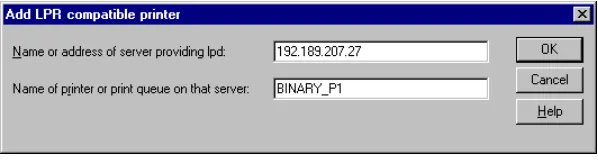
(34) CHAPTER 2 TCP/IP PRINTING. Windows NT 4.0 Printing (Printer Driver not yet installed) 1. Go to the Start button, choose Settings, and then select Printers. Double click the Add Printer icon to get the Add Printer Wizard. Click. Select My Computer (Not Network Printer) and click on Next. 2. Select Add Port, select LPR Port (LPR Port will not be displayed unless you install the "Microsoft TCP/IP Printing" protocol as described earlier) from the list of available ports and click on New Port. 3. Type in the IP address that you wish to assign to the print server in the Name or address of server providing lpd: box. If you have edited your HOSTS file are using Domain Name System, enter the name associated with the print server, instead of an IP address. As the print server supports TCP/IP and NetBIOS names, you can also enter the NetBIOS name of the print server. The NetBIOS name can be seen in your print configuration sheet. From default the NetBIOS name will appear as "BRN_xxxxxx" where xxxxxx is the last six digits of the Ethernet address. 4. Type in the print server service name in the Name of printer or print queue on that server: box. If you do not know which service name to use, enter BINARY_P1 and then click on OK:. Note Refer to Appendix B for more information on Service Names.. 5. Click on Close. The new print server IP address should be listed and highlighted as an available port. Click on Next. 6. Select the desired printer model. If the correct model is not displayed, click on the "Have Disk" option and insert the appropriate driver diskettes. 7. If the driver already exists, select Keep Existing Driver (if it does not, this step will be skipped), and then click on Next. 8. If desired, change the name of the printer then click on Next. 9. If desired, make the printer shared (so other users can access it), and select the operating system(s) that these other computers will be running. Click on Next. 10. Select Yes when you are asked "Would you like to print a test page?" Click on Finish to complete the installation. You may now print to the printer as if it were a local printer.. 2-6.
(35) CHAPTER 2 TCP/IP PRINTING. Windows NT 4.0 Printing (Printer Driver already installed) Follow these steps if the printer driver is already installed. 1. Click on Start then select Settings/Printers to display the currently installed printer drivers. 2. Double click the printer driver you wish to configure and select Printer menu and then choose Properties. 3. Select the Ports tab and click on Add Port. 4. Select LPR Port (LPR Port will not be displayed unless you install the "Microsoft TCP/IP Printing" protocol as described earlier) from the list of available ports and click on New Port. 5. Type in the IP address that you assigned to the print server in the Name or address of server providing lpd: box. If you have edited your HOSTS file or are using Domain Name System, you can enter the name associated with the print server, instead of an IP address. As the print server supports TCP/IP and NetBIOS names, you can also enter the NetBIOS name of the print server. The NetBIOS name can be seen in your print configuration sheet. From default the NetBIOS name will appear as "BRN_xxxxxx" where xxxxxx is the last six digits of the Ethernet address. 6. Type in the print server service name in the Name of printer or print queue on that server: box. If you do not know which service name to use, enter BINARY_P1 and then click on OK:. Figure 1 Add LPR compatible printer screen. 7. Click on the Close button. 8. You should now see that the printer driver is configured to print to the IP address (or name) that you specified. 9. If you wish to share the printer, click on the Share tab and share the driver.. 2-7.
(36) CHAPTER 2 TCP/IP PRINTING. Windows NT 3.5x Printing 1. Go into the Control Panel and run the Network applet. 2. Select Add Software and TCP/IP Protocol and related components. 3. Select the TCP/IP Network Printing Support check box. And then click on the Continue button. (This option will be unavailable if the TCP/IP Network Printing Support protocol is already installed. 4. Insert the requested disk(s) to copy the required files. Your NT server will need to be re-booted when the files are copied over.. Windows NT 3.5x Printing (Printer Driver not yet installed) If you have Windows NT 3.5 or 3.51, use the following procedure to configure the print server. 1. 2. 3. 4. 5. 6. 7. 8. 9.. Go to the Main window and select the Print Manager icon. Select Printer menu. Select Create Printer. Enter any name for the Printer Name. Select Driver. Choose the appropriate driver. Select Description. Enter anything for the description. Select Print to and then select Other. Select LPR Port. Type in the IP address that you assigned to the print server in the Name or address of host server providing lpd: box. If you have edited your HOSTS file or are using Domain Name System, enter the name associated with the print server, instead of an IP address. 10. Type in the print server service name in the Name of printer on that Machine. If you do not know which service name to use, enter BINARY_P1 and then click on OK. Note Refer to Appendix B for more information on Service Names. Share the printer if necessary.. 2-8.
(37) CHAPTER 2 TCP/IP PRINTING. LAN Server, OS/2 Warp Server Configuration Brother Print Servers will work with IBM LAN Server, OS/2 Warp Server networks that have IBM TCP/IP V2.0 or later installed on the file server (TCP/IP is supplied as standard with LAN Server V4.0 and later as well as Warp Server). Use the following procedure to configure the print server on an LAN Server or OS/2 Warp Server file server, or on a OS/2 Warp Connect workstation:. Server Configuration Make sure that TCP/IP software is installed on your OS/2 file server. If you have not already done so, open the TCP/IP folder on the desktop, and double click on the TCP/IP Configuration icon to add the IP address to the OS/2 file server (consult your system manager for this address). Refer to chapter 12 for information on how to assign an IP address to the printer.. Configuration of an OS/2 Server 1. From the OS/2 desktop open the Templates folder. Use the right mouse button to drag the Printer icon (not the Network Printer icon) onto the desktop. 2. The Create a Printer window should be open (if it is not, double click on the printer icon). 3. Type in any name for the printer. 4. Select the default printer driver. If the desired printer driver is not listed, click on the Install new Printer Driver button and add the driver. 5. Choose the output port. IBM TCP/IP automatically creates 8 named pipes called \PIPE\LPD0 through to \PIPE\LPD7. Pick an unused port and double click on it. Early versions of Warp Server have a bug in which the named pipes do not appear (the problem does not affect Warp Connect or LAN Server). This problem is fixed via a patch available from IBM. You will get the Settings window. Enter the following: LPD server LPD printer. Host name User. The Brother Print Server name (from the HOSTS file) or its IP address. For most applications, use the Brother Print Server 'binary' service BINARY_P1. However, if you are printing text files from the DOS or OS/2 command prompt, you should use the text service TEXT_P1, which will add carriage returns for proper formatting of the data (but will potentially distort graphics printouts). The IP name of the OS/2 file server The IP address of the OS/2 file server. 2-9.
(38) CHAPTER 2 TCP/IP PRINTING. You may leave the other entries blank. Click on the OK button. The pipe should be highlighted; if not click on it. Click on the Create button to create the printer. Open the LAN Services folder and execute the LAN Requester program: 1. 2. 3. 4.. Select Definitions Select Aliases Select Printers Select Create. Enter the following:. Alias. Should be same as the printer name previously defined Anything you want Name of OS/2 server Name of printer as defined previously Leave blank unless you want to limit the number of users. Description Server name Spooler queue Maximum number of users. 5. Exit the LAN Requester program. 6. You should now be able to print. To test the queue, type the following from either the OS/2 command prompt or from a DOS workstation: 7. COPY C:\CONFIG.SYS \\servername\alias 8. Where servername is the name of the file server and alias is the alias name that you specified during this configuration process. This should print the CONFIG.SYS file on the printer. Note that if you selected a binary service as the LPD printer name, the lines will be staggered; don't worry about this because normal DOS, Windows, and OS/2 applications will print OK. 9. The Brother Print Server will appear as a standard OS/2 printer to application programs. To make the print server operate transparently with DOS programs, execute the following command on each workstation: 10. NET USE LPT1: \\servername\alias 11. This will make the printer appear to the software as a printer that is directly connected to the parallel port of the workstation.. 2-10.
(39) CHAPTER 2 TCP/IP PRINTING. Other Sources of Information 1. Visit http://solutions.brother.com for more information on network printing and for documents on the IPP protocol and how to configure a Windows 2000/95/98/Me System. 2. Refer to chapter 12 of this user guide to learn how to configure the IP address of the printer.. 2-11.
(40) CHAPTER 3 TCP/IP PEER TO PEER PRINTING. CHAPTER THREE. 3. Peer to Peer Printing How to Print in a Windows 95/98/Me Peer to Peer network Overview Microsoft's Windows 95/98/Me operating systems features built-in networking capabilities. These capabilities allow a Windows PC to be configured as a client workstation in a file server based network environment. For smaller networks, Windows 95/98/Me also allows the PC to operate in a peer-topeer mode. In this mode, the PC can share resources with other PCs on the network without the need for a central file server. Quick Tips: 1. The default IP address of Brother print servers is 192.0.0.192. To change it, use the print front panel (if applicable), the BRAdmin utility, the printer front panel, or let your DHCP server allocate an IP address to the printer. 2. Refer to chapter 12 of this user guide to learn how to configure the IP address on your printer. 3. The default password for Brother print servers is "access". 4. Windows 95/98/Me users can send print jobs using the IPP protocol via a Windows 2000 computer providing that the Microsoft Internet Print Services software is installed on the client PC, IIS is installed and running on the Windows 2000 and that the client PC is using version 4 or later of Microsoft Internet Explorer. 5. Brother printers are also compatible with HP JetDirect software, this means that you can use HP utilities to manage and to print to your Brother printer.. 3-1.
(41) CHAPTER 3 TCP/IP PEER TO PEER PRINTING. TCP/IP Printing Our Peer to Peer printing software requires the TCP/IP protocol to be installed on your Windows peer-to-peer computers and an IP Address had to be defined for the print server. Refer to your Windows documentation for more information on how to configure the TCP/IP protocol on your Windows PC. If you haven’t already done so, configure the IP address of the printer, for more information on IP address configuration, refer to chapter 12 of this user guide.. 3-2.
(42) CHAPTER 3 TCP/IP PEER TO PEER PRINTING. Installing the Brother Peer to Peer Software 1. Start the CD-ROM installation menu program according to the Quick Setup Guide. 2. Select the proper Model and Software Installation menu. Then select the appropriate menu to start the Brother Print Software installation program. 3. Push the Next button in response to the Welcome message. 4. Select the Brother Peer to Peer Print (LPR) button 5. Select the desired directory to install the Brother Network Direct Print files and push Next. The installation program will create the directory for you if it does not already exist on your disk. 6. Enter the Port name that you wish to use and click OK. The default port name is BLP1. Whichever name you choose, it must be unique and it MUST begin with BLP. 7. You must now enter the actual IP address of the print server in the "Printer name or IP address" field. If you have edited the hosts file on your computer or are using Domain Name System, you can also enter the name of the print server. As the print server supports TCP/IP and NetBIOS names, you can also enter the NetBIOS name of the print server. The NetBIOS name can be seen in your print configuration sheet. From default the NetBIOS name will appear as "BRN_xxxxxx" where xxxxxx is the last six digits of the Ethernet address. The Brother NC-2000 series print servers such as the NC-2010h or the NC-2100h will appear as BRO_xxxxxx. Window 95/98/Me store the hosts file in the default Windows directory. By default, the Windows hosts file is called hosts.sam. If you wish to use the hosts file you must rename the file to hosts with no extension, the .sam extension stands for sample. 8. Click the OK button. When prompted you must re-boot your computer.. 3-3.
(43) CHAPTER 3 TCP/IP PEER TO PEER PRINTING. Associating to the printer You must now create a printer on your Windows system using the standard Windows printer setup procedure. 1. 2. 3. 4. 5. 6.. 7.. 8. 9.. To do this, go the Start button, select Setting and then Printers. Select Add Printer to begin the printer installation. Click Next when you get the add Printer Wizard window. Select Local Printer when you are asked how the printers are connected to your computer, and then push Next. Select the correct driver. Click Next when you are done. If you have selected a printer driver that is already being used, you have the option of either keeping the existing driver (recommended) or replacing it. Select the desired option and press Next. Select the Brother LPR port (port name you assigned in step 4 of the Installing the Brother Peer to Peer Print (LPR) Software section) and press Next. Enter any desired name for the Brother printer and press Next. For example, you could call the printer "Networked Brother Printer". Windows will now ask you if you wish to print out a test page, select Yes and then select Finish.. You have now finished installing the Brother Network Direct Print software.. Adding a Second Brother LPR Port You do not re-run the install program to add a new Brother LPR port. Instead, press the Start button, select Settings, and open the Printers windows. Click on the icon of the printer that you wish to configure, select File form the Menu bar, and then choose Properties. Click on the Details tab and push the Add Port button. In the Add Port dialog, select the Other radio button and then highlight "Brother LPR port". Click OK and enter the port name. The default port name is BLP1. If you have already used this name, you will get an error message if you try to use it again, in which case use BLP2, etc… Once you have specified the Port name, click the OK button. You will then see the Port Properties Dialog. Enter the IP address of the printer that you wish to print to and click OK. You should now see the port that you have just created in the "Print to the following port" setting of the printer driver.. 3-4.
(44) CHAPTER 3 TCP/IP PEER TO PEER PRINTING. Other Sources of Information 1. Visit http://solutions.brother.com for more information on network printing. 2. Refer to chapter 12 of this user guide to learn how to configure the IP address of the printer.. 3-5.
(45) CHAPTER 4 NETBIOS PEER-TO-PEER PRINTING. CHAPTER FOUR. 4. NetBIOS Peer to Peer Printing. How to Printing using NetBIOS on Windows 95/98/Me/NT/2000, LAN Server and OS/2 Warp Server Overview Brother's Print Server range supports SMB (Server Message Block) over the TCP/IP protocol via the NetBIOS interface. This means that just like regular Windows PC’s, Brother printers can appear in your network neighborhood. The main advantage of NetBIOS printing is that you are able to print from legacy DOS applications that are running on PC’s that are connected to Microsoft networks. Quick Tips: 1. The default IP address of Brother print servers is 192.0.0.192. To change it, use the print front panel (if applicable), the BRAdmin utility, the printer front panel, or let your DHCP server allocate an IP address to the printer 2. Refer to chapter 12 of this user guide to learn how to configure the IP address on your printer. 3. The default password for Brother print servers is "access". 4. The default domain name of the print server is WORKGROUP, to change it use your web browser or the BRAdmin application.. 4-1.
(46) CHAPTER 4 NETBIOS PEER-TO-PEER PRINTING. Print Server Configuration In order for this function to work, you must correctly change the DOMAIN name or WORKGROUP name to match that of your network. Once this is done, the print server will appear automatically in your network neighborhood and you will be able to send print documents to it without having to install additional software. However, in some instances you may find that your Windows 95/98/Me and Windows NT4.0/2000 systems may receive "Printer is busy" error messages when more that one person attempts to access the print. In this instance Brother have provided the "Brother NetBIOS Port Monitor" software which allows users to continue spooling print jobs while the printer is busy, down or out of paper. The port monitor will hold the jobs until the printer is again available When you install Windows 95/98/Me you are asked which workgroup you belong to, the default workgroup name for Windows 95/98/Me is "WORKGROUP", however you could change this to anything you want. With Windows NT, Microsoft introduced the concept of "Domains". A domain offers centralized security management where as a workgroup offers distributed security management. The print server does not care if your network consists of a Workgroup or a Domain, the only thing you must tell it is the name of the workgroup or domain. The Brother print server automatically has a default workgroup/domain name of "WORKGROUP". If you need to change name, you can configure the Brother print server to recognize this. There are four ways of doing this (If you are unsure about the name of your workgroup or domain, look in the identification tab in your network applet). • • • •. Use BRAdmin (This utility can use the TCP/IP protocol or Netware IPX protocol - no file server necessary.) Use a Web browser, (the print server must have a valid IP address and your computer must also have a valid IP address); you can configure the IP address by using BRAdmin. TELNET, again your computer and printer must have a valid IP address. Use BRCONFIG for DOS (this utility requires a Netware file server and the IPX protocol).. Because of the way that Microsoft networks work, the print server may take several minutes to appear in the network neighborhood. You will also find that the print server may take several minutes to disappear from the network neighborhood even if the printer is switched off. This is a feature of Microsoft workgroup and domain based networks.. 4-2.
(47) CHAPTER 4 NETBIOS PEER-TO-PEER PRINTING. Changing the workgroup/domain name using TELNET or BRCONFIG or a web browser If you are unable to use a BRAdmin utility or a web browser, you can use TELNET or the BRCONFIG Remote console program (BRCONFIG requires the IPX/SPX protocol to be installed on your PC). When you are connected to the print server, enter the default password "access" in response to the "#" prompt. Type in anything in response to the "Enter Username>" prompt, you will then be at the "Local>" prompt. Now enter the command: SET NETBIOS DOMAIN domainname EXIT Where domainname is the name of the domain or workgroup that you are on. If you are not sure what your domain name or workgroup name is look in the Identification tab in your Windows 95/98/Me/NT 4.0 network applet. You can also use a standard WWW browser to change the NetBIOS name, to do this connect to the print server using its IP address and then select the "Configure NetBIOS" option from the print server configuration screen, enter you workgroup/domain name into the "Domain Name" text box. Make sure you submit the changes.. 4-3.
(48) CHAPTER 4 NETBIOS PEER-TO-PEER PRINTING. NetBIOS Port Monitor for Windows 95/98/Me, NT4.0/2000 This software requires the TCP/IP transport protocols to be installed on your Windows 95/98/Me, NT4.0/2000 computer. To install those protocols refer to your Windows documentation. If you are using the TCP/IP protocol, the proper IP address should be defined on both the Brother print server and your client PC.. Installing the Brother NetBIOS Port Monitor 1. Start the CD-ROM installation menu program according to the Quick Setup guide. 2. Select the proper Model and Software Installation menu. Then select the Network Print Software menu to start the Brother Network Print Software installation program. 3. Push the Next button in response to the Welcome message. 4. Select Brother Peer-to-Peer Print (NetBIOS) installation 5. Select the desired directory to install the Brother Network Direct Print files and push Next. 6. Enter the Port name that you wish to use. The port name must start with "BNT". For example BNT1. Whichever name you choose, it must be unique. Then press "OK". The name must be unique on your PC, however other computers can use the same port name as the name you specify on your PC. 7. You must now enter the server name and port name for actual print server. You can use the Browse button for searching the print server, select the domain/workgroup name, and then the server is listed. If the print server does not automatically appear in your browse list, then you must ensure that the domain name is configured correctly. Otherwise you must enter the name manually. The name should be compliant with UNC (Universal Name Convention). For example "\\NodeName\ServiceName".. 4-4.
(49) CHAPTER 4 NETBIOS PEER-TO-PEER PRINTING. Where NodeName is the NetBIOS name of the Brother print server (the default name is BRN_xxxxxx, where "xxxxxx" is the last six digits of the Ethernet address), and ServiceName is the service name for NetBIOS of the Print server, by default it is BINARY_P1. For example: \\BRN_310107\BINARY_P1 NC-2000 series print servers such as the NC-2010h or NC-2100h have a default name of BRO_xxxxxx. In which case the above line would be entered as: \\BR0_213507\BINARY_P1 You can find the NetBIOS name and MAC address by printing out the printer configuration page. Refer to the Quick Setup Guide for information on how to print the configuration page on your print server. 8. Then press "OK". 9. Click the Finish button. You must now restart your computer before you can continue.. 4-5.
(50) CHAPTER 4 NETBIOS PEER-TO-PEER PRINTING. Associating the printer 1. You must now create a printer on your Windows 95/98/Me and NT4.0/2000 system using the standard Windows printer setup procedure. To do this, go the Start button, select Setting and then Printers.. Windows 95/98/Me 2. Select Add Printer to begin the printer installation. 3. Click Next when you get the add Printer Wizard window. 4. Select Local Printer when you are asked how the printer is connected to your computer, and then push Next. 5. Select the correct driver. Click Next when you are done. 6. If you have selected a printer driver that is already being used, you have the option of either keeping the existing driver (recommended) or replacing it. Select the desired option and press Next. 7. Select the Brother NetBIOS Port (Port name you assigned in step 6 of the Installing the Brother Peer-to-Peer Print (NetBIOS) section) and press Next. 8. Enter any desired name for the Brother printer and press Next. For example, you could call the printer "Networked Brother Printer". 9. Windows will now ask you if you wish to print out a test page, select Yes and then select Finish. You are now ready to print. If necessary, you can share the printer on your PC so that all print jobs are routed through your computer.. Windows NT4.0/2000 2. Select Add Printer to begin the printer installation. 3. Click Next when you get the add Printer Wizard window. 4. Select My Computer when you are asked how the printer is connected to your computer, and then push Next. 5. Select the Brother NetBIOS Port (Port name you assigned in step 6 of the Installing the Brother Peer-to-Peer Print (NetBIOS) section ) and press Next. 6. Select the correct driver. Click Next when you are done. 7. If you have selected a printer driver that is already used, you have the option of either keeping the existing driver (recommended) or replacing it. Select the desired option and press Next. 8. Enter any desired name for the Brother printer and press Next. For example, you could call the printer "Networked Brother Printer". 9. Select not Shared or Shared and Share Name and press Next. 10. Windows will now ask you if you wish to print out a test page, select Yes and then select Finish. You are now ready to print. If necessary, you can share the printer on your PC so that all print jobs are routed through your computer.. 4-6.
(51) CHAPTER 4 NETBIOS PEER-TO-PEER PRINTING. Adding a Second NetBIOS Print Port 1. You do not need to re-run the installation program to add a new NetBIOS port. Instead, press the Start button, select Settings, and open the Printers windows. Click on the icon of the printer that you wish to configure, select File from the Menu bar, and then choose Properties.. Windows 95/98/Me 2. Click on the Details tab and push the Add Port button. In the Add Port dialog, select the Other radio button and then highlight "Brother NetBIOS port". Click OK and enter the port name. The default port name is BNT1. If you have already used this name, you will get an error message if you try to use it again, in which case use BNT2, etc… Once you have specified the Port name, click the OK button. You will then see the Port Properties Dialog. Enter the print server and port name of the printer that you wish to print to and click OK. You should now see the port that you have just created in the "Print to the following port" setting of the printer driver.. Windows NT4.0/2000 2. Click on the Port/s tab and push the Add Port button. In the Add Port dialog, highlight "Brother NetBIOS port". Click New Port and enter the port name. The default port name is BNT1. If you have already used this name, you will get an error message if you try to use it again, in which case use BNT2, etc… Once you have specified the Port name, click the OK button. You will then see the Port Properties Dialog. Enter the print server and port name of the printer that you wish to print to and click OK. You should now see the port that you have just created in the "Print to the following port" setting of the printer driver.. 4-7.
(52) CHAPTER 4 NETBIOS PEER-TO-PEER PRINTING. LAN Server/OS/2 Warp Server Configuration As Brother print servers support the SMB protocol over TCP/IP via a NetBIOS interface, you can easily configure your printer to work with an IBM LAN Server and OS/2 Warp Server networks that have IBM TCP/IP V2.0 or later installed on the fileserver. Use the following procedure to configure the LAN Server, OS/2 Warp Server or OS/2 Warp connect workstation.. Server Configuration: 1. 2. 3. 4. 5. 6. 7.. Open the Templates folder on the OS/2 desktop. Using the right mouse button, drag the Printer template onto the desktop. Type in any desired name for the printer from the Create a Printer window. Choose an unused port (for example, LPT3) to connect to the printer. Choose the appropriate printer driver from the list. Click Create and then OK. If desired, indicate whether you want to share the printer.. Workstation Configuration: On each workstation that you wish to print from, execute the following step: Go to the DOS or OS/2 command prompt and enter the command: NET USE LPTx: \\NodeName\ServiceName Where "x" is the LPT port number (1 through 9), NodeName is the NetBIOS Name of the print server (BRN_xxxxxx by default, where "xxxxxx" is the last six digits of Ethernet address) and ServiceName is the service name of the Print Server (BINARY_P1 by default). For example: NET USE LPT2: \\BRN_310107\BINARY_P1 NC-2000 series print servers such as the NC-2010h or NC-2100h have a default name of BRO_xxxxxx. In which case the above line would be entered as: NET USE LPT2: \\BR0_234523\BINARY_P1 You can find the NetBIOS name and MAC address by printing out the printer configuration page. Refer to the Quick Setup Guide for information on how to print the configuration page on your print server.. 4-8.
(53) CHAPTER 4 NETBIOS PEER-TO-PEER PRINTING. Other Sources of Information 1. Visit http://solutions.brother.com for more information on network printing. 2. Refer chapter 12 of this user guide to learn how to configure the IP address of the printer.. 4-9.
(54) CHAPTER 5 BIP INTERNET PRINTING INSTALLATION. CHAPTER FIVE. 5. How to Configure Internet Printing for Windows 95/98/Me NT 4.0/Windows 2000. Internet Printing Installation Overview Brother's Brother Internet Print (BIP ) software, for Windows 95/98/Me/NT4.0, allows a PC user at one location, to send a print job to a Brother Printer at a remote location via the Internet. For example, a user on a PC in New York could print a document directly from his Microsoft Excel application program to a printer in Paris. Windows 2000 users can also use this BIP software, but are recommended to use the IPP protocol support that is part of the Windows 2000 operating systems. Skip to the “Windows 2000 IPP Printing” section of this document. Quick Tips: 1. The default IP address of Brother print servers is 192.0.0.192. To change it, use the print front panel (if applicable), the BRAdmin utility, the printer front panel, or let your DHCP server allocate an IP address to the printer. 2. Refer to chapter 12 of this user guide to learn how to configure the IP address on your printer. 3. The default password for Brother print servers is "access". 4. Windows 2000 users can print using TCP/IP using the standard Network Printing software and IPP protocol software built into any Windows 2000 installation. 5. Windows 95/98/Me users can send print jobs using the IPP protocol via Windows2000 computer providing that the Microsoft Internet Print Services software is installed on the client PC, IIS is installed and running on the server and that the client PC is using version 4 or later of Microsoft Internet Explorer.. 5-1.
(55) CHAPTER 5 BIP INTERNET PRINTING INSTALLATION. Brother Internet Print General Information The BIP software is installed using a standard Windows 95/98/Me/NT4.0 Installation Wizard. It creates a virtual port on the Windows 95/98/Me/NT4.0 PC that operates in a similar way to the standard LPT1 printer port from the Application program point of view. The user can use the Windows 95/98/MeNT4.0 Print Manager to create a printer that uses this port along with a standard Windows 95/98/Me, NT4.0compatible printer. Any Windows 95/98/Me/NT4.0 applications program can therefore print to this printer (and hence to the virtual port) without modification or operational procedure. When a job is printed to the BIP virtual port, it is actually MIME-encoded (converted to a standard Internet E-mail message) and sent out to a Brother print server at the remote location using Winsock This means that BIP is compatible with most common E-mail software packages. The only requirement is that the E-mail server be capable of sending E-mail message over the Internet. In more detail, the procedure works in the following way: •. If you are connected to a Local Area Network, the E-mail message is passed to the E-mail server, which in turn transmits the message out over the Internet using the SMTP protocol (Simple Mail Transport Protocol) to the remote print server.. •. If you are connecting via a modem directly to an Internet Service Provider (ISP), the ISP handles the routing of the E-mail to the remote print server.. •. At the remote site, an E-mail server receives the E-mail message. The remote print server, which has its own E-mail address, uses the POP3 protocol (Post Office Protocol 3) to download the E-mail message from the server. It then decodes the attachment and prints it out on the printer.. If an E-mail is received that has not been configured to use the BIP virtual port driver, the printer will print the e-mail out as a text document.. 5-2.
(56) CHAPTER 5 BIP INTERNET PRINTING INSTALLATION. Brother Internet Print Configuring the Brother Print Server The print server can be configured with BRAdmin configuration utility, by using a web browser, or by using the TELNET command.. Print Server Configuration Checklist Before configuring the print server to receive BIP jobs, be sure that the E-mail server at the remote site (the receiving end) is configured to handle the TCP/IP POP3, and SMTP protocols (SMTP is only required if the notification feature is enabled). 1. Configure the POP3 server on the E-mail server at the remote site with a mail account (Mailbox name) and password for the Brother print server (generally, the mail account name will be the first part of the Email address; for example, if you assign the Email address [email protected], then the mail account name would be emailprinter). 2. Make sure that the print server is installed and running with TCP/IP enabled and has a valid IP address assigned to it. Because access to the E-mail server on most networks is usually restricted, you may need to have your network administrator check the configuration and add the mail account.. 5-3.
(57) CHAPTER 5 BIP INTERNET PRINTING INSTALLATION. Brother Internet Print Using BRAdmin to Configure the Print Server Skip this section if you wish to use the print server remote console or Web Browser to configure the print server. Using the BRAdmin utility, you can configure the Brother print server using the TCP/IP protocol, or the IPX protocol. The steps required to configure the print server to receive print jobs from a Windows 95/98//Me/NT4.0. PC running the BIP software is as follows: 1. Start the BRAdmin program. 2. Select the node name of the desired Brother print server from the list and double clicking on it. (the default node name is BRN_xxxxxx, where "xxxxxx" is the last six digits of the Ethernet address (MAC address)). NC2000 series print servers begin with the letters BRO_xxxxxx. You will be prompted for a password, the default password is "access". You can find the node name and MAC address by printing out the printer configuration page. Refer to the Quick Setup Guide for information on how to print the configuration page on your print server.. 5-4.
Figure

+2
Outline
Related documents
At the end of each flooding event, zoosporangia were scored either as (i) viable and indirectly germinating (vesicles formed with subsequent germ tube production and/or swimming
If you installed the printer software for local printing and you select your printer driver name, the window asking you to print a test page appears.. To print a test page,
2.2 The respective thicknesses of the inner layers and outer layers of bulkhead with laminates of sandwich construction are not, not withstanding the requirements in
Client application, Remote Server and Diagnostics database are all distributed at different locations and connected to the public Internet, whereas vehicles which are extremely
Creating a Print Queue To begin the process of installing shared print queues from the main screen of all devices, select Print Queue Management from the drop-down list in the
Click the Print option from an application on the computer, and then select the print release queue from the list of installed printers.. Releasing a
In the new window that opens, if the local printer is listed, it is possible to print from the remote desktop.. Right-click on the local printer and select “Set as
Maputo, Mozambique, which uses other empirical data to present the context for the development of the Xikhelene market and the milieu in which the decision making concerning
