HP iLO 4 User Guide
Abstract
The HP iLO 4 firmware provides ways to configure, update, and operate HP ProLiant Gen8 servers remotely. This guide describes these features and how to use them with the iLO web interface and iLO RBSU.
This guide discusses HP iLO for HP ProLiant servers and HP ProLiant BladeSystem server blades. For information about iLO for Integrity servers and server blades, see the HP website athttp://www.hp.com/go/integrityiLO.
HP Part Number: 684918-005 Published: September 2013 Edition: 1
© Copyright 2011, 2013 Hewlett-Packard Development Company, L.P
Confidential computer software. Valid license from HP required for possession, use or copying. Consistent with FAR 12.211 and 12.212, Commercial Computer Software, Computer Software Documentation, and Technical Data for Commercial Items are licensed to the U.S. Government under vendor's standard commercial license.
The information contained herein is subject to change without notice. The only warranties for HP products and services are set forth in the express warranty statements accompanying such products and services. Nothing herein should be construed as constituting an additional warranty. HP shall not be liable for technical or editorial errors or omissions contained herein.
Acknowledgements
Microsoft®, Windows®, Windows NT® , and Windows Vista® are U.S. registered trademarks of Microsoft Corporation. Intel is a trademark of Intel Corporation in the U.S. and other countries.
Contents
1 Introduction to iLO...13
HP iLO features...13
iLO web interface...14
iLO RBSU...14
iLO Mobile application...14
iLO scripting and command line...15
2 Setting up iLO...16
Preparing to set up iLO...16
Connecting iLO to the network...18
Setting up iLO by using iLO RBSU...18
Configuring the network settings (static IP addresses only)...19
Setting up iLO user accounts by using iLO RBSU...20
Setting up iLO by using the iLO web interface...21
Logging in to iLO for the first time...21
Activating iLO licensed features...22
Installing the iLO drivers...22
Microsoft device driver support...23
Linux device driver support...23
VMware device driver support...24
3 Configuring iLO...25
Updating firmware...25
Updating firmware by using an online method...25
Performing an in-band firmware update...25
Performing an out-of-band firmware update...26
Updating firmware by using an offline method...26
Obtaining the iLO firmware image file...26
Obtaining supported server firmware image files...27
Updating firmware by using a browser...27
Using language packs...28
Installing a language pack...29
Selecting a language pack...30
Configuring the default language settings...31
Configuring the current language settings...31
Uninstalling a language pack...31
iLO licensing...32
Free iLO 60-day evaluation license...32
Installing an iLO license by using a browser...33
Administering users...33
Viewing local users...34
Viewing directory groups...35
Adding or editing local users...35
IPMI/DCMI users...37
Administering directory groups...37
Deleting a user or a directory group...39
Configuring iLO access settings...39
Configuring service settings...39
Configuring IPMI/DCMI settings...41
Configuring access options...41
Configuring access options by using the iLO web interface...41
Configuring global settings by using iLO RBSU...44
Configuring serial CLI options by using iLO RBSU...44
Logging in to iLO by using an SSH client...45
Configuring iLO security...46
General security guidelines...46
Passwords...46
iLO RBSU security...47
iLO Security Override Switch administration...48
TPM support...49
User accounts and access...49
User privileges...49
Login security...49
Administering SSH keys...50
About SSH keys...50
Authorizing a new key by using the iLO web interface...51
Authorizing a new key by using the CLI...52
Deleting keys...52
Authorizing keys from an HP SIM server...52
Administering SSL certificates...52
Viewing certificate information...53
Obtaining and importing a certificate...53
Configuring directory settings...55
Configuring authentication and directory server settings...56
Running directory tests...58
Viewing directory test results...60
Using the directory test controls ...62
Using encryption...62
Viewing encryption enforcement settings...63
Modifying the AES/DES encryption setting...64
Connecting to iLO by using AES or 3DES encryption...64
Enabling FIPS Mode...64
Disabling FIPS Mode...65
Configuring iLO for HP SSO...65
Configuring iLO for HP SSO...66
Adding trusted certificates...67
Extracting the HP SIM server certificate...68
Viewing trusted certificates...68
Removing trusted certificates...69
Configuring Remote Console security settings...69
Configuring Remote Console Computer Lock settings...69
Configuring Integrated Remote Console Trust settings (.NET IRC)...71
Configuring the Login Security Banner...71
Configuring iLO network settings...73
Viewing network settings...73
Configuring general network settings...76
Using the iLO Shared Network Port...78
Enabling the iLO Shared Network Port feature...79
Re-enabling the iLO Dedicated Network Port...81
Configuring IPv4 settings...81
Configuring IPv6 settings...83
Configuring SNTP settings...86
Configuring iLO Management settings...87
Installing AMS or the Insight Management Agents...88
Verifying the AMS installation...89
Verifying AMS installation: SUSE and Red Hat...90
Verifying AMS installation: VMware...90
Verifying AMS installation: Ubuntu...90
Configuring SNMP settings...90
Configuring SNMPv3 Users...92
Configuring the SNMPv3 Engine ID...93
Configuring SNMP alerts...93
Using the AMS Control Panel to configure SNMP and SNMP alerts (Windows only)...94
SNMP traps...95
Configuring Insight Management integration...97
Configuring AlertMail settings...98
Enabling AlertMail...98
Disabling AlertMail...99
Configuring Remote Syslog settings...99
Enabling iLO Remote Syslog...99
Disabling iLO Remote Syslog...100
Configuring Remote Support...100
Data collected by Insight Remote Support...101
Prerequisites...102
Registering for Insight Remote Support...102
Unregistering from Insight Remote Support ...104
Working with Insight Remote Support service events...104
Using maintenance mode...104
Sending a test service event...105
Viewing the Service Event Log...105
Clearing the Service Event Log...106
Viewing and sending Remote Support data collection information...106
Sending Data Collection information...106
Sending Active Health System reporting information...107
4 Using iLO...109
Using the iLO web interface...109
Browser support...109
Logging in to iLO...109
Handling an unknown authority...110
Using the iLO controls...111
Starting a remote management tool...111
Language pack support...111
Viewing iLO overview information...111
Viewing system information...111
Viewing status information...113
Viewing the active iLO sessions...114
Viewing iLO system information...114
Viewing health summary information...114
Viewing fan information...115
Viewing temperature information ...117
Viewing the temperature graph...117
Viewing temperature sensor data...118
Viewing power information...119
Viewing processor information...124
Viewing memory information...125
Advanced Memory Protection...125
Memory Summary...127
Memory Details...127
Viewing storage information...129
Controllers...131
Drive Enclosures...132
Logical Drives...132
Physical Drives...132
Viewing firmware information...132
Using the iLO Event Log...133
Viewing the iLO Event Log...133
Saving the iLO Event Log...135
Clearing the iLO Event Log...135
Using the Integrated Management Log...136
Viewing the IML...136
Marking a log entry as repaired...138
Adding a maintenance note to the IML...138
Saving the IML...138
Clearing the IML...139
Using the HP Active Health System...139
Downloading the Active Health System log for a date range...139
Downloading the entire Active Health System log...141
Extracting the Active Health System log by using curl...141
Clearing the Active Health System log...142
Using iLO diagnostics...142
Resetting iLO through the web interface...144
Using Location Discovery Services...144
Using the HP Insight Management Agents...146
Using the Integrated Remote Console...146
.NET IRC requirements...147
Microsoft .NET Framework...147
Microsoft ClickOnce...147
Java IRC requirements...148
Recommended client settings...148
Recommended server settings...149
Starting the Remote Console...149
Acquiring the Remote Console...150
Using the Remote Console power switch...151
Using iLO Virtual Media from the Remote Console...152
Using Shared Remote Console (.NET IRC only)...152
Using Console Capture (.NET IRC only)...153
Viewing Server Startup and Server Prefailure sequences...153
Saving Server Startup and Server Prefailure video files...154
Capturing video files...154
Viewing saved video files...154
Creating Remote Console hot keys...155
Creating a hot key...155
Resetting hot keys...156
Using the text-based Remote Console...156
Using the iLO Virtual Serial Port...157
Configuring the iLO Virtual Serial Port in the host system RBSU...157
Configuring the iLO Virtual Serial Port for Linux...160
Configuring the iLO Virtual Serial Port for the Windows EMS Console...161
Viewing the iLO Virtual Serial Port log...161
Using the Text-based Remote Console (Textcons)...161
Customizing the Text-based Remote Console...162
Using the Text-based Remote Console...163
Using iLO Virtual Media...163
Virtual Media operating system information...165
Operating system USB requirement...165
Using Virtual Media with Windows 7...165
Operating system considerations: Virtual Floppy/USB key...165
Changing diskettes...165
Operating system considerations: Virtual CD/DVD-ROM...166
Mounting a USB Virtual Media CD/DVD-ROM on Linux systems...166
Operating system considerations: Virtual Folder ...166
Using iLO Virtual Media from the iLO web interface...167
Viewing and modifying the Virtual Media port...167
Viewing and ejecting local media...168
Connecting scripted media...168
Viewing and ejecting scripted media...168
Using iLO Virtual Media from the Remote Console...169
Using a Virtual Floppy/USB key...169
Using a physical floppy disk or USB key drive on a client PC...169
Using an image file...169
Using an image file through a URL (IIS/Apache – .NET IRC only)...169
Using a Virtual CD/DVD-ROM...169
Using a physical CD/DVD-ROM drive on a client PC...170
Using an image file...170
Using an image file through a URL (IIS/Apache – .NET IRC only)...170
Using the Create Media Image feature (Java IRC only)...170
Creating an iLO disk image file...170
Copying data from an image file to a physical disk...171
Using a Virtual Folder (.NET IRC only)...172
Setting up IIS for scripted Virtual Media...172
Configuring IIS...172
Configuring IIS for read/write access...173
Inserting Virtual Media with a helper application...173
Sample Virtual Media helper application...174
Configuring Virtual Media Boot Order...175
Changing the server boot order...175
Changing the one-time boot status...176
Using the additional options...176
About server power...176
Powering on the server...176
Brownout recovery...177
Graceful shutdown...177
Power efficiency...177
Using iLO Power Management...177
Managing the server power...178
Configuring the System Power Restore Settings...179
Viewing server power usage...180
Viewing the current power state...181
Viewing the server power history...182
Configuring power settings...182
Configuring Power Regulator settings...182
Configuring power capping settings...184
Configuring SNMP alert settings...184
Configuring the persistent mouse and keyboard...185
Using iLO with Onboard Administrator...185
Toggling the enclosure UID light...186
Enclosure bay IP addressing...186
Dynamic Power Capping for server blades...187
iLO virtual fan...187
iLO option...187
IPMI server management...188
Using iLO with HP Insight Control server deployment ...189
Viewing remote management tool information...189
Starting a remote management tool...189
5 Integrating HP Systems Insight Manager...190
HP SIM features...190
Establishing SSO with HP SIM...190
iLO identification and association...190
Viewing iLO status in HP SIM...190
iLO links in HP SIM...191
Viewing iLO in HP SIM System(s) lists...191
Receiving SNMP alerts in HP SIM...191
HP SIM port matching...191
Reviewing iLO license information in HP SIM...192
6 Directory services...193
Directory integration benefits...193
Choosing a directory configuration to use with iLO...193
Kerberos support...194
Domain controller preparation...194
Realm names...194
Computer accounts...194
User accounts...195
Generating a keytab...195
Key version number...195
Windows Vista...196
Universal and global user groups (for authorization)...196
Configuring iLO for Kerberos login...196
Using the iLO web interface...196
Using XML configuration and control scripts...197
Using the CLI, CLP, or SSH interface...197
Time requirement...197
Configuring single sign-on...197
Internet Explorer...197
Firefox...198
Chrome...199
Verifying single sign-on (HP Zero Sign In) configuration...199
Login by name...199
Schema-free directory integration...199
Setting up schema-free directory integration...200
Active Directory prerequisites...200
Introduction to Certificate Services...200
Installing Certificate Services...200
Verifying Certificate Services...200
Configuring Automatic Certificate Request...200
Schema-free setup using the iLO web interface...201
Schema-free setup using scripts...201
Schema-free setup with HP Directories Support for ProLiant Management Processors...201
Schema-free setup options...202
Better login flexibility...202
Maximum login flexibility...202
Schema-free nested groups...202
Setting up HP extended schema directory integration...203
Features supported by HP schema directory integration...203
Setting up directory services...203
Schema documentation...204
Directory services support...204
Schema required software...204
Schema Extender...205
Schema Preview window...205
Setup window...206
Results window...206
Management snap-in installer...207
Directory services for Active Directory...207
Active Directory installation prerequisites...207
Installing Active Directory...208
For the schema-free configuration...208
For HP extended schema...208
Snap-in installation and initialization for Active Directory...209
Creating and configuring directory objects for use with iLO in Active Directory...209
Directory services objects...210
Active Directory snap-ins...211
Role Restrictions tab...212
Lights Out Management tab...214
Directory services for eDirectory...215
eDirectory installation prerequisites...215
Snap-in installation and initialization for eDirectory...215
Example: Creating and configuring directory objects for use with iLO devices in eDirectory...215
Directory services objects for eDirectory...219
Role Managed Devices...219
Members tab...219
Role Restrictions tab...220
Time restrictions...221
Enforced client IP address or DNS name access...221
eDirectory Lights-Out Management...222
User login using directory services...223
Directory-enabled remote management...223
Creating roles to follow organizational structure...224
Using existing groups...224
Using multiple roles...224
How directory login restrictions are enforced...225
Restricting roles...226
Role time restrictions...226
Role address restrictions...226
User restrictions...226
User address restrictions...226
User time restrictions...227
Creating multiple restrictions and roles...228
Using bulk import tools...229
HP Directories Support for ProLiant Management Processors utility...229
Compatibility...229
HP Directories Support for ProLiant Management Processors package...230
Upgrading firmware on management processors...232
Selecting a directory access method...234
Naming management processors...234
Configuring directories when HP extended schema is selected...235
Configuring directories when schema-free integration is selected...239
Setting up management processors for directories...239
7 Troubleshooting...241
Kernel debugging...241
Event log entries...242
Hardware and software link-related issues...244
Login issues...245
Login name and password not accepted...245
Directory user premature logout...245
iLO management port not accessible by name...246
iLO RBSU unavailable after iLO and server reset...246
Unable to access the login page...246
Secure Connection Failed error when using Firefox browser...246
Unable to return to login page after an iLO flash or reset...247
Unable to access Virtual Media or graphical Remote Console...247
Unable to connect to iLO after changing network settings...247
Unable to connect to iLO processor through NIC...247
Unable to log in to iLO after installing iLO certificate...248
Unable to connect to iLO IP address...248
Blocked iLO ports...248
Troubleshooting alert and trap issues...248
Unable to receive HP SIM alarms (SNMP traps) from iLO...249
Using the iLO Security Override Switch for emergency access...249
Troubleshooting license installation...249
Troubleshooting directory issues ...249
User contexts do not appear to work...250
Directory user does not log out after directory timeout has expired...250
Problems generating keytab by using ktpass.exe...250
Troubleshooting Remote Console issues...250
Java IRC applet displays red X when Firefox is used to run Java IRC on Linux client ...250
Unable to navigate single cursor of Remote Console to corners of Remote Console window...250
Remote Console text window not updated correctly...250
Mouse or keyboard not working in .NET IRC or Java IRC...251
.NET IRC sends characters continuously after switching windows ...251
Java IRC does not display correct floppy and USB-key device...251
Caps Lock out of sync between iLO and Java IRC...252
Num Lock out of sync between iLO and Shared Remote Console...253
Keystrokes repeat unintentionally during Remote Console session...253
Session leader does not receive connection request when .NET IRC is in replay mode...253
Keyboard LED does not work correctly...253
Inactive .NET IRC...253
.NET IRC failed to connect to server...254
File not present after copy from .NET IRC virtual drives to USB key...254
.NET IRC takes a long time to verify application requirements...254
.NET IRC fails to start...255
.NET IRC cannot be shared...255
Troubleshooting SSH issues...256
Initial PuTTY input slow...256
PuTTY client unresponsive...256
iLO Virtual Floppy media applet unresponsive...256
Troubleshooting text-based Remote Console issues...256
Unable to view Linux installer in text-based Remote Console...256
Unable to pass data through SSH terminal...256
VSP-driven selection during the serial timeout window sends output to BIOS redirect instead of VSP...257
Scrolling and text appear irregular during BIOS redirection...257
Troubleshooting Remote Support issues...257
SSL Bio Error during Insight RS registration...257
ProLiant Gen8 server identified in Insight Online as <product name>_<serial number> and in Insight RS as <serial number>...257
ProLiant Gen8 server OS name and version are not listed in Insight RS or Insight Online...258
Troubleshooting miscellaneous issues...258
Cookie sharing between browser instances and iLO...258
Shared instances...259
Cookie order...259
Displaying the current session cookie...259
Preventing cookie-related issues...260
Unable to get SNMP information from HP SIM...260
Unable to upgrade iLO firmware...260
iLO network Failed Flash Recovery...260
Testing SSL...261
Resetting iLO...262
Resetting iLO to the factory default settings by using iLO RBSU...262
Server name still present after System Erase Utility is executed...262
Certificate error when navigating to iLO web interface...263
Internet Explorer...263
Firefox...264
8 Support and other resources...265
Information to collect before you contact HP...265
How to contact HP...265
Registering for Software Technical Support and Update Service...265
How to use Software Technical Support and Update Service...265
HP Support Center...265
HP authorized resellers...266
Related information...266
9 Documentation feedback...268
A iLO license options...269
B FlexibleLOM support...271
C Directory services schema...273
HP Management Core LDAP OID classes and attributes...273
Core classes...273
Core attributes...273
Core class definitions...273
hpqTarget...273
hpqRole...274
hpqPolicy...274
Core attribute definitions...274
hpqPolicyDN...274
hpqRoleMembership...274
hpqTargetMembership...275
hpqRoleIPRestrictions...275
hpqRoleTimeRestriction...276
Lights-Out Management specific LDAP OID classes and attributes...276
Lights-Out Management classes...276
Lights-Out Management attributes...276
Lights-Out Management class definitions...276
hpqLOMv100...276
Lights-Out Management attribute definitions...277
hpqLOMRightLogin...277 hpqLOMRightRemoteConsole...277 hpqLOMRightVirtualMedia...277 hpqLOMRightServerReset...277 hpqLOMRightLocalUserAdmin...278 hpqLOMRightConfigureSettings...278
Glossary...279
Index...282
1 Introduction to iLO
The HP iLO Management Engine is a set of embedded management features that support the complete life cycle of the server, from initial deployment, to ongoing management, to service alerting and remote support. HP iLO is one feature of the HP iLO Management Engine.
The HP iLO subsystem is a standard component of HP ProLiant servers that simplifies initial server setup, server health monitoring, power and thermal optimization, and remote server administration. The HP iLO subsystem includes an intelligent microprocessor, secure memory, and a dedicated network interface. This design makes HP iLO independent of the host server and its operating system.
HP iLO enables and manages the Active Health System and also features Agentless Management. HP iLO monitors all key internal subsystems. When enabled, SNMP alerts are sent directly by HP iLO, regardless of the host operating system or whether a host operating system is installed. Embedded remote support software is available on HP ProLiant Gen8 servers with iLO 4, regardless of the operating system software and without installing OS agents on the server.
HP iLO features
Using HP iLO, you can do the following:
• Monitor server health. iLO monitors temperatures in the server and sends corrective signals to the fans to maintain proper server cooling. iLO also monitors firmware versions and the status of fans, memory, the network, processors, power supplies, and internal storage.
• Download the Active Health System log. You can send the log file to HP when you have an open support case.
• Access a high-performance and secure Integrated Remote Console to the server from anywhere in the world if you have a network connection to the server.
There are two versions of the Integrated Remote Console:
◦
.NET IRC◦
Java IRCGeneral references to the Remote Console apply to both the .NET IRC and Java IRC, unless otherwise specified.
• Use the shared .NET IRC to collaborate with up to four server administrators.
• Remotely mount high-performance Virtual Media devices to the server.
• Use Virtual Power and Virtual Media from the GUI, the CLI, or the iLO scripting toolkit for many tasks, including the automation of deployment and provisioning.
• Securely and remotely control the power state of the managed server.
• Monitor the power consumption and server power settings.
• Implement true Agentless Management with SNMP alerts from HP iLO, regardless of the state of the host server.
• Register a ProLiant Gen8 server for HP Insight Remote Support.
• Use local or directory-based user accounts to log in to iLO.
• Configure Kerberos authentication, which adds theHP Zero Sign Inbutton to the login screen.
• Use iLO language packs to switch between English and another supported language.
iLO web interface
The iLO web interface groups similar tasks for easy navigation and workflow. The interface is organized in a navigational tree view located on the left side of the page. The top-level branches areInformation,Remote Console,Virtual Media,Power Management,Network,Remote Support, andAdministration. If you have a ProLiant server blade, theBL c-Classbranch is included. When a remote management tool is used with iLO, the<Remote Management Tool Name>page is included.
When using the iLO web interface, note the following:
• Each high-level iLO branch has a submenu that you can display by clicking the + icon to the left of that branch. Each menu topic displays a page title that describes the information or settings available on that page. The page title might not reflect the name that is displayed on the menu option.
• Assistance for all iLO pages is available from the iLO help pages. To access page-specific help, click the ? icon on the upper right side of the page.
• Typical administrator tasks are available from the<Remote Management Tool Name>,Network,
Remote Support, andAdministrationbranches of the iLO web interface. These tasks are described in“Setting up iLO” (page 16)and“Configuring iLO” (page 25).
• Typical user tasks are available from theInformation,Remote Console,Virtual Media,Power Management, andBL c-Classbranches of the iLO web interface. These tasks are described in“Using iLO” (page 109).
For more information about iLO functionality and integration, see the following:
• “Integrating HP Systems Insight Manager” (page 190)
• “Directory services” (page 193)
• “Troubleshooting” (page 241)
iLO RBSU
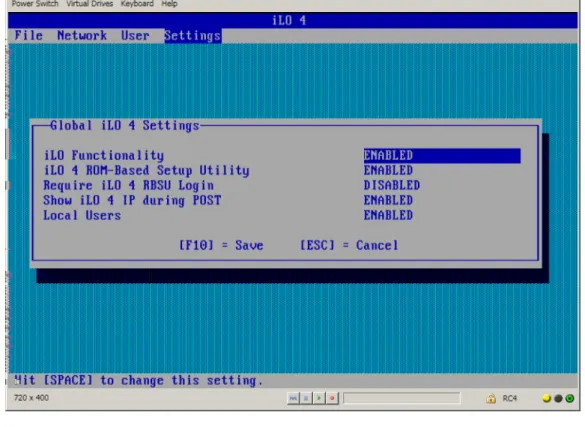
You can use the iLO ROM-based setup utility to configure network parameters, global settings, and user accounts. iLO RBSU is designed for the initial iLO setup, and is not intended for continued iLO administration. iLO RBSU is available whenever the server is booted, and can be run remotely using the Remote Console. PressF8during POST to enter iLO RBSU.
You can disable iLO RBSU in the iLO RBSU Global Settings preferences. Disabling iLO RBSU prevents reconfiguration from the host unless the iLO Security Override Switch is set.
For more information about using iLO RBSU, see the following:
• “Setting up iLO by using iLO RBSU” (page 18)
• “iLO RBSU security” (page 47)
iLO Mobile application
The HP iLO Mobile application provides access to the Remote Console of your HP ProLiant server from your mobile device. The mobile application interacts directly with the iLO processor on HP ProLiant servers, providing total control of the server at all times as long as the server is plugged in. For example, you can access the server when it is in a healthy state or when it is powered off with a blank hard drive. As an IT administrator, you can troubleshoot problems and perform software deployments from almost anywhere.
iLO scripting and command line
You can use the iLO scripting tools to configure multiple iLO systems, to incorporate a standard configuration into the deployment process, and to control servers and subsystems.
The HP iLO Scripting and Command Line Guide describes the syntax and tools available to use iLO 4 through a command line or scripted interface.
2 Setting up iLO
The iLO default settings enable you to use most features without additional configuration. However, the configuration flexibility of iLO enables customization for multiple enterprise environments. This chapter discusses the initial iLO setup steps. For information about additional configuration options, see“Configuring iLO” (page 25).
Complete the initial setup steps:
1. Decide how you want to handle networking and security. For more information, see“Preparing to set up iLO” (page 16). 2. Connect iLO to the network.
For more information, see“Connecting iLO to the network” (page 18).
3. If you are not using dynamic IP addressing, configure a static IP address by using iLO RBSU. For more information, see“Setting up iLO by using iLO RBSU” (page 18).
4. If you are using the local accounts feature, set up your user accounts by using iLO RBSU or the iLO web interface.
For more information, see“Setting up iLO by using iLO RBSU” (page 18)or“Setting up iLO by using the iLO web interface” (page 21).
5. Install an iLO license. For more information, see“Activating iLO licensed features” (page 22). 6. If required, install the iLO drivers.
For more information, see“Installing the iLO drivers” (page 22).
Preparing to set up iLO
Before setting up an iLO management processor, you must decide how to handle networking and security. The following questions can help you configure iLO:
1. How should iLO connect to the network?
For a graphical representation and explanation of the available connections, see“Connecting iLO to the network” (page 18).
Typically, iLO is connected to the network through one of the following:
• Acorporate networkthat both the NIC and the iLO port are connected to. This connection enables access to iLO from anywhere on the network and reduces the amount of
networking hardware and infrastructure required to support iLO. However, on a corporate network, traffic can hinder iLO performance.
• Adedicated management networkwith the iLO port on a separate network. A separate network improves performance and security because you can physically control which workstations are connected to the network. A separate network also provides redundant access to the server when a hardware failure occurs on the corporate network. In this configuration, iLO cannot be accessed directly from the corporate network.
2. How will iLO acquire an IP address?
To access iLO after connecting it to the network, the iLO management processor must acquire an IP address and subnet mask by using either a dynamic or static process.
• Adynamic IP addressis set by default. iLO obtains the IP address and subnet mask from DNS or DHCP servers. This method is the simplest.
• Astatic IP addressis used if DNS or DHCP servers are not available on the network. A static IP address can be configured by using iLO RBSU. For more information, see “Configuring the network settings (static IP addresses only)” (page 19).
IMPORTANT: If you plan to use a static IP address, you must have the IP address before starting the iLO setup process.
3. What access security is required, and what user accounts and privileges are needed?
iLO provides several options to control user access. You must use one of the following methods to prevent unauthorized access to corporate IT assets:
• Local accounts—Up to 12 user names and passwords can be stored in iLO. This is ideal for small environments such as labs and small-sized or medium-sized businesses.
• Directory services—Use the corporate directory to manage iLO user access. This is ideal for environments that have a large number of users. If you plan to use directory services, consider enabling at least one local administrator account for alternate access.
For more information about iLO access security, see“Configuring iLO security” (page 46). 4. How do you want to configure iLO?
iLO supports various interfaces for configuration and operation. This guide discusses the following interfaces:
• UseiLO RBSU when the system environment does not use DHCP, DNS, or WINS. For more information, see“Setting up iLO by using iLO RBSU” (page 18).
• Use the iLO web interfacewhen you can connect to iLO on the network by using a web browser. You can also use this method to reconfigure an iLO management processor. For more information, see“Setting up iLO by using the iLO web interface” (page 21). Other configuration options not discussed in this guide follow:
• HP Intelligent Provisioning—PressF10during POST to start HP Intelligent Provisioning. For information about the iLO settings you can configure, see the HP Intelligent Provisioning User Guide.
• HP Scripting Toolkit—This toolkit is a server deployment product for IT experts that provides unattended automated installation for high-volume server deployments. For more
information, see the HP Scripting Toolkit for Linux User Guide and the HP Scripting Toolkit for Windows User Guide.
• Scripting—You can use scripting for advanced setup of multiple iLO management processors. Scripts are XML files written for a scripting language called RIBCL. You can use RIBCL scripts to configure iLO on the network during initial deployment or from an already deployed host.
The following methods are available:
◦
HP Lights-Out Configuration Utility (HPQLOCFG)—The HPQLOCFG.EXE utility replaces the previously used CPQLOCFG.EXE utility. It is a Windows command line utility that sends XML configuration and control scripts over the network to iLO.◦
HP Lights-Out Online Configuration Utility (HPONCFG)—A local online scripted setup utility that runs on the host and passes RIBCL scripts to the local iLO. HPONCFG requires the HP iLO Channel Interface Driver.◦
Custom scripting environments—The iLO scripting samples include a Perl sample that can be used to send RIBCL scripts to iLO over the network.◦
SMASH CLP—A command-line protocol that can be used when a command line is accessible through SSH or the physical serial port.For more information about these methods, see the HP iLO 4 Scripting and Command Line Guide.
Connecting iLO to the network
You can connect iLO to the network through a corporate network or a dedicated management network.
• In acorporate network, the server has two network port types (server NICs and one iLO NIC) connected to the corporate network, as shown inFigure 1 (page 18).
Figure 1 Corporate network diagram Main NIC iLO Main NIC Hub/Switch Client PCs Corporate Network Management Client iLO
• In adedicated management network, the iLO port is on a separate network, as shown in Figure 2 (page 18).
Figure 2 Dedicated management network diagram
Hub/Switch Main NIC iLO iLO Main NIC Hub/Switch Client PCs Corporate Network Dedicated iLO Management Network Management Client
Setting up iLO by using iLO RBSU
HP recommends using iLO RBSU to set up iLO for the first time and to configure iLO network parameters for environments that do not use DHCP, DNS, or WINS.
Configuring the network settings (static IP addresses only)
This procedure is required only if you are using a static IP address. When you are using dynamic IP addressing, your DHCP server automatically assigns an IP address for iLO.
NOTE: To simplify installation, HP recommends using DNS or DHCP with iLO. To configure a static IP address:
1. Restart or power on the server.
2. PressF8when prompted during POST. iLO RBSU starts.
3. Disable DHCP:
a. SelectNetwork→DNS/DHCP, and then pressEnter. TheNetwork Autoconfigurationwindow opens. b. SelectDHCP Enable, as shown inFigure 3 (page 19).
Figure 3 iLO RBSU Network Autoconfiguration window
4. Enter an IP address and subnet mask:
a. SelectNetwork→NIC and TCP/IP, and then pressEnter. TheNetwork Configurationwindow opens.
b. Enter the appropriate information in theIP Address,Subnet Mask, andGateway IP Address
fields, as shown in Figure 4 (page 20).
Figure 4 iLO RBSU Network Configuration window
c. PressF10to save the changes. 5. SelectFile→Exitto exit iLO RBSU.
The changes take effect when you exit iLO RBSU.
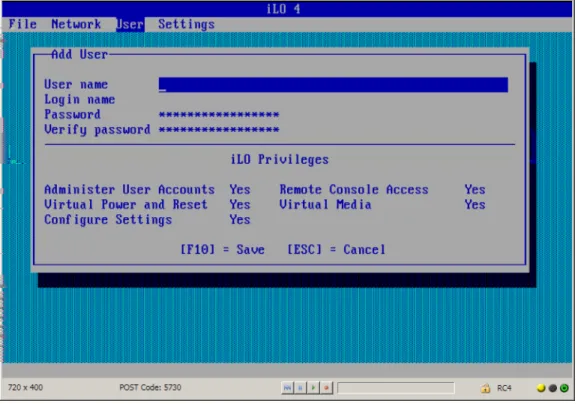
Setting up iLO user accounts by using iLO RBSU
1. Restart or power on the server.
2. PressF8when prompted during POST. iLO RBSU starts.
3. If prompted, enter a valid iLO user ID and password with the required iLO privileges (Administer User Accounts, Configure iLO Settings).
Default account information is located on the serial number/iLO information pull tab attached to the server that contains the iLO management processor.
NOTE: The login prompt is displayed only if iLO is configured to present a login challenge in iLO RBSU.
4. SelectAdd,Edit, orRemove from theUsermenu.
Figure 5 iLO RBSU Add User window
5. Follow the onscreen instructions to add, edit, or remove users. 6. SelectFile→Exitto exit iLO RBSU.
Setting up iLO by using the iLO web interface
You can set up iLO using the web interface if you can connect to iLO on the network by using a web browser. You can also use this method to reconfigure an iLO management processor. Access iLO from a remote network client by using a supported browser and providing the default DNS name, user name, and password. For information about the DNS name and default account credentials, see“Logging in to iLO for the first time” (page 21).
For information about the configuration procedures available in the iLO web interface, see “Configuring iLO” (page 25).
Logging in to iLO for the first time
The iLO firmware is configured with a default user name, password, and DNS name. Default user information is located on the serial number/iLO information pull tab attached to the server that contains the iLO management processor. Use these values to access iLO remotely from a network client by using a web browser.
NOTE: The serial number/iLO information pull tab is double-sided. One side shows the server serial number, and the other side shows the default iLO account information. The same information is printed on a label attached to the chassis.
The default values follow:
• User name—Administrator
• Password—A random eight-character alphanumeric string
• DNS name—ILOXXXXXXXXXXXX, where the Xs represent the serial number of the server If you enter an incorrect user name and password, or a login attempt fails, iLO imposes a security delay. For more information about login security, see“Login security” (page 49).
IMPORTANT: HP recommends changing the default values after you log in to iLO for the first time. For instructions, see“Administering users” (page 33).
Activating iLO licensed features
To activate iLO licensed features, install an HP iLO license. iLO licenses activate functionality such as graphical Remote Console with multi-user collaboration, video record/playback, and many more advanced features. For licensing information and installation instructions, see“iLO licensing” (page 32).
Installing the iLO drivers
iLO is an independent microprocessor running an embedded operating system. The architecture ensures that the majority of iLO functionality is available, regardless of the host operating system. The iLO drivers enable software such as HPONCFG and the Agentless Management Service to communicate with iLO. Your OS and system configuration determine the driver requirements. The iLO drivers are available from the HP Service Pack for ProLiant (Windows, Red Hat, and SLES) and the HP website (Windows, Linux, and VMware).
• For Windows, Red Hat, and SLES—Download the SPP fromhttp://www.hp.com/go/spp/ downloadand use it to install the iLO drivers.
For information about using the SPP, see the SPP documentation.
• For Windows, Red Hat, and SLES—Download the iLO drivers from the HP Support Center: 1. Navigate to the technical support page on the HP website:http://www.hp.com/support. 2. Select a country or region.
TheHP Supportpage opens. 3. Click theDrivers & Downloadslink.
4. In the search box, enter the server model that you are using (for example, DL360p). A list of servers is displayed.
5. Click the link for your server.
The HP Support Center page for the server opens. 6. Click the link for the server operating system. 7. Download the iLO drivers.
• For VMware—Download the iLO drivers from thevibsdepotsection of the Software Delivery Repository website athttp://downloads.linux.hp.com/SDR/index.html.
• For Ubuntu—Download the iLO drivers from themcpsection of the Software Delivery Repository at http://downloads.linux.hp.com/SDR/index.html.
Follow the installation instructions provided with the downloaded software. For OS-specific driver information, see the following:
• “Microsoft device driver support” (page 23)
• “Linux device driver support” (page 23)
Microsoft device driver support
When you are using Windows with iLO, the following drivers are available:
• HP ProLiant iLO 3/4 Channel Interface Driver for Windows—This driver is required for the operating system to communicate with iLO. Install this driver in all configurations.
• HP ProLiant iLO 3/4 Management Controller Driver Package for Windows—This package includes the following components:
◦
hpqilo3core.sys provides iLO Management Controller Driver support.◦
ProLiantMonitor.exeprovides the HP ProLiant Health Monitor Service and HP ProLiant System Shutdown Service.◦
hpqilo3whea.sysis a helper service for Windows Hardware Error Architecture, which passes information between iLO and the operating system in the event of a hardware fault.IMPORTANT: The Management Controller Driver Package is required to support Automatic Server Recovery and the HP Insight Management Agents or HP Insight Management WBEM Providers (if installed). For more information, see “Configuring iLO Management settings” (page 87).
Linux device driver support
When you are using Linux with iLO, the following drivers are available:
• HP ProLiant Channel Interface Device Driver(hpilo)—This driver manages agent and tool
application access to iLO.
• HP System Health Application and Command Line Utilities(hp-health)—A collection of applications and tools that enables monitoring of fans, power supplies, temperature sensors, and other management events. This RPM contains thehpasmd,hpasmlited,hpasmpld, andhpasmxlddaemons.
Loading and removing SLES and Red Hat drivers:
IMPORTANT: These drivers are standard for SLES 11, Red Hat 5, and Red Hat 6. Use the following commands to load the iLO drivers:
rpm -ivh hpilo-<d.vv.v-pp.Linux_version.arch>.rpm rpm -ivh hp-health-<d.vv.v-pp.Linux_version.arch>.rpm
Where d is the Linux distribution and version, <vv.v-pp> are version numbers, and <arch> is the architecture (i386 or x86_64).
Use the following commands to remove the iLO drivers:
rpm -e hpilo rpm -e hp-health
Loading and removing Ubuntu drivers:
HP recommends subscribing to the Management Component Pack repository to ensure that your Ubuntu systems have the latest HP software.
IMPORTANT: For open-source Linux distributions (Ubuntu, Debian, Fedora, and others), the
hpilo driver is part of the Linux kernel, so the driver is loaded automatically at startup.
1. Subscribe to the MCP.
For instructions, see the following HP website:http://downloads.linux.hp.com/SDR/project/ mcp/.
2. Enter the following command to update the repository cache:apt-get update.
3. Enter the following command to install the HP System Health Application and Command Line Utilities:apt-get install hp-health.
Use the following command to remove the HP System Health Application and Command Line Utilities:
apt-get remove hp-health
VMware device driver support
When you are using VMware with iLO, the following driver is available:
HP ProLiant Channel Interface Device Driver(hpilo)—This driver manages agent, WBEM provider, and tool application access to iLO. It is included in the customized HP VMware images. For raw VMware images, the driver must be installed manually.
3 Configuring iLO
Typically, an advanced or administrative user who manages users and configures global and network settings configures iLO. This guide provides information about configuring iLO by using the iLO web interface and iLO RBSU.
TIP: You can also perform many iLO configuration tasks by using XML configuration and control scripts or SMASH CLP. For information about using these methods, see the HP iLO 4 Scripting and Command Line Guide, HP Scripting Toolkit for Linux User Guide, and HP Scripting Toolkit for Windows User Guide.
Updating firmware
Firmware updates enhance server and iLO functionality with new features, improvements, and security updates.
Users who have the Configure iLO Settings privilege or host operating system Administrator/root privileges can update firmware. If the iLO Security Override Switch is set, any out-of-band user can update firmware.
You can update the following types of firmware on theFirmware Updatepage:
• iLO
• HP ProLiant System ROM
• System Programmable Logic Device
• SL Chassis Firmware
You can update firmware by using an online or offline method. For more information, see“Updating firmware by using an online method” (page 25)or“Updating firmware by using an offline method” (page 26)
Updating firmware by using an online method
When you use an online method to update the firmware, no server reboot is required. You can update the firmware and reset iLO without affecting the availability of the server host operating system. The online update method can be performed in-band or out-of-band.
Performing an in-band firmware update
When you use this method to update the iLO firmware, the iLO firmware is sent to iLO directly from the server host operating system. The HP ProLiant Channel Interface Driver is required for host-based iLO firmware updates. During a host-based firmware update, the iLO firmware does not verify login credentials or user privileges because the host-based utilities require a root login (Linux and VMware) or Administrator login (Windows).
You can use the following in-band firmware update methods:
• iLO Online ROM Flash Component—Use an executable file to update iLO while the server is operating. The executable file contains the installer and the firmware package. You can download an iLO Online ROM Flash Component from the following HP website:http:// www.hp.com/support/ilo4.
• HPONCFG—Use the HP Lights-Out Online Configuration Utility to configure iLO by using XML scripts. Download the iLO firmware image and theUpdate_Firmware.xmlsample script. Edit the sample script with your setup details, and then run the script.
Sample scripts are available athttp://www.hp.com/support/ilo4. For more information about scripting, see the HP iLO 4 Scripting and Command Line Guide.
For instructions about obtaining the iLO firmware image, see“Obtaining the iLO firmware image file” (page 26).
Performing an out-of-band firmware update
When you use this method to update the iLO firmware, you use a network connection to communicate with iLO directly.
You can use the following out-of-band firmware update methods:
• iLO web interface—Download the iLO Online ROM Flash Component and install it by using the iLO web interface. For instructions, see“Updating firmware by using a browser” (page 27).
• HPQLOCFG—Use the HP Lights-Out Configuration Utility to configure iLO by using XML scripts. Download the iLO firmware image and theUpdate_Firmware.xmlsample script. Edit the sample script with your setup details, and then run the script.
Sample scripts are available athttp://www.hp.com/support/ilo4. For more information about scripting, see the HP iLO 4 Scripting and Command Line Guide.
For instructions about obtaining the iLO firmware image, see“Obtaining the iLO firmware image file” (page 26).
• HPLOMIG(also called HP Directories Support for Management Processors)—Download the HP Directories Support for Management Processors executable file to access the directory support components. One of the components, HPLOMIG, can be used to discover multiple iLO processors and update their firmware in one step. You do not need to use directory integration to take advantage of this feature. For more information, see“Upgrading firmware on management processors” (page 232).
• SMASH CLP—Access SMASH CLP through the SSH port, and use standard commands to view firmware information and update the firmware.
For more information about SMASH CLP, see the HP iLO 4 Scripting and Command Line Guide.
Updating firmware by using an offline method
When you use an offline method to update the firmware, you must reboot the server by using an offline utility. Examples of offline firmware updates include the following:
• HP Service Pack for ProLiant—Use the HP Service Pack for ProLiant to install the firmware update. For more information, see the following website:http://www.hp.com/go/spp.
• Windows or Linux Scripting Toolkit—Use the Scripting Toolkit to configure several settings within the server and update firmware. This method is useful for deploying to multiple servers. For instructions, see the HP Scripting Toolkit for Linux User Guide or HP Scripting Toolkit for Windows User Guide.
Obtaining the iLO firmware image file
The.binfile from the iLO Online ROM Flash Component is required for some of the methods you can use to update the iLO firmware.
To download the iLO Online ROM Flash Component file, and then extract the.binfile: 1. Navigate to the technical support page on the HP website:http://www.hp.com/support. 2. Select a country or region.
TheHP Supportpage opens. 3. Click theDrivers & Downloadslink.
4. In the search box, enter the server model that you are using (for example, DL360p). A list of servers is displayed.
5. Click the link for your server.
The HP Support Center page for the server opens. 6. Click the link for your server operating system.
7. Follow the onscreen instructions to download the iLO Online ROM Flash Component file. 8. Double-click the downloaded file, and then click theExtract button.
9. Select a location for the extracted files, and then clickOK.
The firmware image is a file similar toilo4_<yyy>.bin, where<yyy>represents the firmware version.
Obtaining supported server firmware image files
To obtain the server firmware files to use for updating the server firmware by using a web browser: 1. Navigate to the technical support page on the HP website:http://www.hp.com/support. 2. Select a country or region.
TheHP Supportpage opens. 3. Click theDrivers & Downloadslink.
4. In the search box, enter the server model that you are using (for example, DL360p). A list of servers is displayed.
5. Click the link for your server.
The HP Support Center page for the server opens. 6. Click the link for the server operating system.
7. Follow the onscreen instructions to download the firmware Online ROM Flash Component file.
8. Double-click the downloaded file, and then click theExtract button. 9. Select a location for the extracted files, and then clickOK.
Updating firmware by using a browser
You can update firmware from any network client by using a supported browser. For a list of supported browsers, see“Using the iLO web interface” (page 109).
To update the server or iLO firmware:
1. Obtain the firmware image file. For instructions, see“Obtaining the iLO firmware image file” (page 26)or“Obtaining supported server firmware image files” (page 27).
2. Navigate to theAdministration→Firmware page.
Figure 6 Firmware Update page
3. ClickBrowse(Internet Explorer or Firefox) orChoose File (Chrome), and then specify the location of the firmware image file in theFilebox.
4. ClickUploadto start the update process.
The firmware update will not start if you navigate away from theFirmware Updatepage before the upload is complete.
The iLO firmware receives, validates, and then flashes the firmware image.
IMPORTANT: Do not interrupt a firmware update. If a firmware update is interrupted or fails, attempt it again immediately. Do not reset iLO before reattempting the update.
5. Do one of the following:
• For an iLO firmware update: To start working with the new firmware, clear your browser cache, and then log in to iLO.
• For a server firmware update: Some firmware updates require an iLO reset, a system reset, or both. For more information, see the server documentation.
If an error occurs during a firmware update, see “Unable to upgrade iLO firmware” (page 260). If an iLO firmware update is corrupted or canceled, and iLO is corrupted, see“iLO network Failed Flash Recovery” (page 260).
Using language packs
Language packs enable you to easily switch the iLO web interface from English to a supported language of your choice. Language packs currently provide translations for the iLO web interface, .NET IRC, and Java IRC.
Consider the following when using language packs:
• You must have the Configure iLO Settings privilege to install a language pack.
• You can install one additional language pack at a time. Uploading a new language pack replaces the currently installed language pack, regardless of the language pack version.
• The language pack firmware is independent of the iLO firmware. Setting iLO to the factory default settings does not remove an installed language pack.
• The Java IRC and .NET IRC use the language of the current iLO session.
• For localization support with the Java IRC on Windows systems, you must select the correct language in the Regional and Language Options Control Panel.
• For localization support with the Java IRC on Linux systems, make sure that the fonts for the specified language are installed and available to the JRE.
• If an installed language pack does not include the translation for a text string, the text is displayed in English.
• When you update the iLO firmware, HP recommends downloading the latest language pack to ensure that the language pack contents match iLO web interface.
iLO 4 firmware version 1.20 or later requires version 1.20 or later of the iLO language pack.
• iLO uses the following process to determine the language of your session:
1. If you previously logged in to the iLO web interface on the same computer using the same browser, and you have not cleared the cookies, the language setting of the last session with that iLO processor is used.
2. If there is no cookie, the current browser language is used if it is supported by iLO and the required language pack is installed. The supported languages are English (en), Japanese (ja), and Simplified Chinese (zh).
3. Internet Explorer only: If the browser language is not supported, the OS language is used if the language is supported by iLO, and the required language pack is installed. 4. If there is no cookie, and the browser or OS language is not supported, iLO uses the
configured default language. For more information, see“Configuring the default language settings” (page 31).
Installing a language pack
1. Navigate to the iLO software download website:http://www.hp.com/support/ilo4. 2. Download the language pack to your local computer.
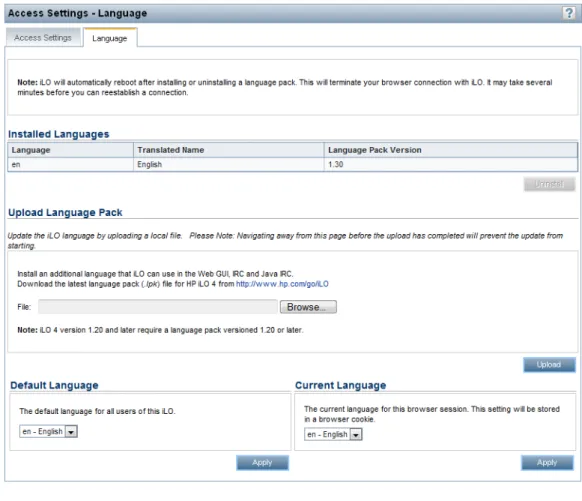
3. Navigate to theAdministration→Access Settings→Languagepage, as shown in Figure 7 (page 30).
Figure 7 Access Settings – Language page
4. ClickBrowse(Internet Explorer or Firefox) orChoose File (Chrome) in theUpload Language Packsection.
5. Select the downloaded language pack, and then clickOpen. The following message appears:
Only one language pack is supported at a time. If a language pack is already installed, it will be replaced with this upload. iLO will automatically reboot after installing the new language pack. Are you sure you want to install now?
6. ClickOKto continue.
If you have a previously installed language pack, this language pack will replace it. 7. ClickUpload.
iLO will automatically reboot after installing a language pack. This will end your browser connection with iLO.
It might take several minutes before you can re-establish a connection.
Selecting a language pack
After you have installed a language pack, you can select it in the following ways:
Figure 8 Login page Language menu
• From the toolbar located on the bottom right side of the iLO web interface, as shown inFigure 9 (page 31).
Figure 9 Toolbar Language menu
• From theAdministration→Access Settings→Languagepage. For instructions, see“Configuring the current language settings” (page 31).
Configuring the default language settings
To set the default language for the users of this instance of the iLO firmware:
1. Navigate to theAdministration→Access Settings→Languagepage, as shown in Figure 7 (page 30).
2. Select a value in theDefault Languagemenu.
The available languages are English and any other language for which a language pack is installed.
3. ClickApply.
Configuring the current language settings
To set the current language of this browser session:
1. Navigate to theAdministration→Access Settings→Languagepage, as shown in Figure 7 (page 30).
2. Select a value in theCurrent Languagemenu.
The available languages are English and any other language for which a language pack is installed.
3. ClickApply.
Uninstalling a language pack
1. Navigate to theAdministration→Access Settings→Languagepage, as shown in Figure 7 (page 30).
2. Click theUninstall button in theInstalled Languagessection. The following message appears:
Applying new settings requires an iLO reset.
3. ClickOKto continue.
iLO resets and closes your browser connection.
It might take several minutes before you can re-establish a connection.
iLO licensing
HP iLO standard features are included in every HP ProLiant server to simplify server setup, engage health monitoring, monitor power and thermal control, and promote remote administration. HP iLO licenses activate functionality such as graphical Remote Console with multiuser collaboration, video record/playback, and many more advanced features.
Unlocking iLO licensed features has never been easier. Simply choose and install the license that best suits your company's infrastructure.
The following license types are available:
• iLO Advanced—Enables the full set of iLO features. iLO Advanced is available for all HP ProLiant Gen8 servers.
◦
iLO Advanced Single Server License◦
iLO Advanced Electronic License◦
iLO Advanced Flexible Quantity License◦
iLO Advanced Volume License• iLO Essentials—Enables the iLO Integrated Remote Console, Virtual Media, and email alerts. HP iLO Essentials is available on all HP ProLiant Gen8 e-series servers.
• iLO Scale-Out—Enables the following iLO remote management features: Textcons, Power Management, Virtual Serial Port log, e-mail alerts, and Remote Syslog. HP iLO Scale-Out is available on all HP ProLiant Gen8 SL and BL servers.
For details on purchasing licenses, see the following website:http://www.hp.com/go/ilo/licensing. For a list of the features that are included with each license, see“iLO license options” (page 269). Consider the following about iLO licenses:
• iLO licenses are versionless, meaning, regardless of the version of iLO you have enabled (iLO 2, iLO 3, or iLO 4), an iLO license can be applied. For features that are specific to the version of iLO on your ProLiant server, see “iLO license options” (page 269).
• If you purchase an iLO license with any Insight Control software suite, HP provides the Technical Support and Update Service. For more information, see“Support and other resources” (page 265).
• If you purchase an iLO license as a one-time activation of licensed features, you must purchase future functional upgrades.
• One iLO license is required for each server on which the product is installed and used. Licenses are not transferable. You cannot license an HP ProLiant SL/ML/DL server by using a
BladeSystem license.
• HP will continue to provide maintenance releases with fixes, as well as iLO standard feature enhancements, at no extra charge.
Free iLO 60-day evaluation license
A free iLO evaluation license is available for download from the following HP website:http:// www.hp.com/go/tryinsightcontrol.
When using an evaluation license, note the following:
• The evaluation license activates and enables access to iLO licensed features.
• The evaluation license key is a 10-seat key, meaning it can be used on 10 different servers.
• When the evaluation period has expired, your iLO system will return to the standard functionality.
• Only one evaluation license can be installed for each iLO system. The iLO firmware will not accept the reapplication of an evaluation license.
• The evaluation license expires 60 days after the installation date. HP will notify you by email when your license is about to expire.
Installing an iLO license by using a browser
You must have the Configure iLO Settings privilege to install a license.
1. Navigate to theAdministration→Licensingpage in the iLO web interface. TheLicensingpage opens, as shown inFigure 10 (page 33).
Figure 10 Licensing page
2. Review the license agreement provided with your HP License Pack option kit. 3. Enter the license key in theActivation Keyboxes.
Press theTab key or click inside a box to move between boxes. The cursor advances automatically when you enter the license key in theActivation Keyboxes.
4. ClickInstall.
The EULA confirmation opens. The EULA details are available in the HP License Pack option kit.
5. ClickOK.
The license key is now enabled.
For tips on troubleshooting license installation, see“Troubleshooting license installation” (page 249).
Administering users
The iLO firmware enables you to manage user accounts stored locally in the secure iLO memory and directory group accounts. Use MMC or ConsoleOne to manage directory-based user accounts.
iLO supports up to 12 users with customizable access rights, login names, and advanced password encryption. Privileges control individual user settings, and can be customized to meet user access requirements.
To support more than 12 users, you must have an iLO license, which enables integration with an unlimited number of directory-based user accounts. For more information about iLO licensing, see the following website:http://www.hp.com/go/ilo/licensing.
The following privileges are required for user and directory group administration:
• Administer User Accounts—Required for adding, modifying, and deleting users. If you do not have this privilege, you can view your own settings and change your password.
• Configure iLO Settings—Required for adding, modifying, and deleting directory groups. If you do not have this privilege, you can view directory groups.
Viewing local users
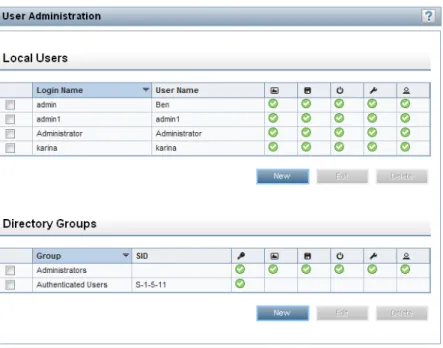
To view local users, navigate to theAdministration→User Administrationpage, as shown in Figure 11 (page 34).
Figure 11 User Administration page
TheLocal Userstable shows the login names, user names, and assigned privileges of each
configured user.Table 1 (page 34)lists the account privileges that can be activated for local users. Table 1 Local user account privileges
Privilege Icon
Remote Console
Virtual Media
Table 1 Local user account privileges(continued)
Privilege Icon
Configure iLO Settings
Administer User Accounts
Viewing directory groups
To view directory groups, navigate to theAdministration→User Administrationpage, as shown in Figure 11 (page 34).
TheDirectory Groupstable shows the group DN, group SID, and the assigned privileges for the configured groups.Table 2 (page 35)lists the account privileges that can be activated for directory groups.
Table 2 Directory user account privileges Login
Remote Console
Virtual Media
Virtual Power and Reset
Configure iLO Settings
Administer User Accounts
Adding or editing local users
Users who have the Administer User Accounts privilege can add or edit iLO users. To add or edit a local user:
1. Navigate to theAdministration→User Administrationpage, as shown inFigure 11 (page 34). 2. Do one of the following:
• ClickNewin the Local Userssection.
• Select a user in theLocal Users section, and then clickEdit.
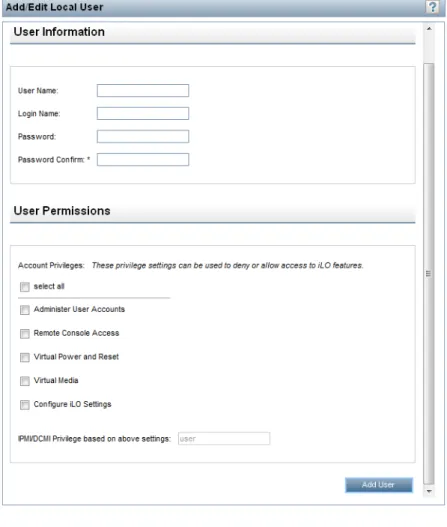
Figure 12 Add/Edit Local User page
3. Provide the following details in theUser Informationsection:
• User Nameappears in the user list on the User Administrationpage and on the iLO Overviewpage. It does not have to be the same as theLogin Name. The maximum length for a user name is 39 characters. The user name must use printable characters.
• Login Nameis the name that you must use when logging in to iLO. The maximum length for a login name is 39 characters. The login name must use printable characters.
• PasswordandPassword Confirmset and confirm the password that is used for logging in to iLO. The minimum length for a password is set on theAccess Settingspage (Figure 14). The maximum length for a password is 39 characters. Enter the password twice for verification.
4. Select from the following permissions.
TIP: Click theselect allcheck box to select all of the available user permissions.
• Administer User Accounts—Enables a user to add, edit, and delete local iLO user accounts. A user with this privilege can change privileges for all users. If you do not have this privilege, you can view your own settings and change your own password.
• Remote Console Access—Enables a user to remotely access the host system Remote Console, including video, keyboard, and mouse control.
• Virtual Power and Reset—Enables a user to power-cycle or reset the host system. These activities interrupt the system availability. A user with this privilege can diagnose the system by using theGenerate NMI to Systembutton.
• Virtual Media—Enables a user to use the Virtual Media feature on the host system.
• Configure iLO Settings—Enables a user to configure most iLO settings, including security settings, and to remotely update the iLO firmware. This privilege does not enable local user account administration.
After iLO is configured, revoking this privilege from all users prevents reconfiguration using the web interface, HPQLOCFG, or the CLI. Users who have access to iLO RBSU and HPONCFG can still reconfigure iLO. Only a user who has the Administer User Accounts privilege can enable or disable this privilege.
5. Do one of the following:
• ClickAdd Userto add a new user.
• ClickUpdate Userto edit a user.
IPMI/DCMI users
The iLO firmware follows the IPMI 2.0 specification. When you are adding IPMI/DCMI users, the login name must be a maximum of 16 characters, and the password must be a maximum of 20 characters.
When you select iLO user permissions, the equivalent IPMI/DCMI user privilege is displayed in theIPMI/DCMI Privilege based on above settings box.
• User—A user has read-only access. A user cannot configure or write to iLO, or perform system actions.
For IPMI User privileges: Disable all privileges. Any combination of privileges that does not meet the Operator level is an IPMI User.
• Operator—An operator can perform system actions, but cannot configure iLO or manage user accounts.
For IPMI Operator privileges: Enable Remote Console Access, Virtual Power and Reset, and Virtual Media. Any combination of privileges greater than Operator that does not meet the Administrator level is an IPMI Operator.
• Administrator—An administrator has read and write access to all features. For IPMI Administrator privileges: Enable all privileges.
Administering directory groups
iLO enables you to view iLO groups and modify settings for those groups. You must have the Configure iLO Settings privilege to add or edit directory groups. Use theAdd/Edit Directory Group
page to add or edit iLO directory groups. To add or edit a directory group:
1. Navigate to theAdministration→User Administrationpage, as shown inFigure 11 (page 34). 2. Do one of the following:
• ClickNewin the Directory Groupssection.
• Select a group in theDirectory Groupssection, and then clickEdit. TheAdd/Edit Directory Grouppage opens, as shown inFigure 13 (page 38).