© 2015 Marty Hall
Customized Java EE Training: http://courses.coreservlets.com/
Java 7, Java 8, JSF 2, PrimeFaces, Android, JSP, Ajax, jQuery, Spring MVC, RESTful Web Services, GWT, Hadoop.
Developed and taught by well-known author and developer. At public venues or onsite at yourlocation.
XHTML for JSF Developers:
A Very Quick Overview
JSF 2.2 Version
Originals of slides and source code for examples: http://www.coreservlets.com/JSF-Tutorial/jsf2/
Also see the PrimeFaces tutorial – http://www.coreservlets.com/JSF-Tutorial/primefaces/ and customized JSF2 and PrimeFaces training courses – http://courses.coreservlets.com/jsf-training.html
© 2015 Marty Hall
Customized Java EE Training: http://courses.coreservlets.com/
Java 7, Java 8, JSF 2, PrimeFaces, Android, JSP, Ajax, jQuery, Spring MVC, RESTful Web Services, GWT, Hadoop.
Developed and taught by well-known author and developer. At public venues or onsite at yourlocation.
For live training on JSF 2, PrimeFaces, or other
Java EE topics, email [email protected]
Marty is also available for consulting and development support
Taught by the author of Core Servlets and JSP, this tutorial, and JSF 2.2 version of Core JSF. Available at public venues, or
customized versions can be held on-site at your organization.
•Courses developed and taught by Marty Hall
–JSF 2, PrimeFaces, Ajax, jQuery, Spring MVC, JSP, Android, general Java, Java 8 lambdas/streams, GWT, custom topic mix
–Courses available in any location worldwide. Maryland/DC area companies can also choose afternoon/evening courses.
•Courses developed and taught by coreservlets.com experts (edited by Marty) –Hadoop, Spring, Hibernate/JPA, RESTful Web Services
Overview
•
Most JSF developers already know at least
the basics of HTML
– If you are one of them, skip this mini-tutorial entirely
• This covers barebones syntax basics only, is not
advanced HTML, and covers only syntax – it does not discuss HTML design strategies
•
But some are new to Web development
– I have been asked by several JSF students to give some introductory material on HTML (this section) and CSS (later section)
•
Far more details are available online
– Any of the online HTML tutorials give more details than this ultra-brief introduction
4
Topics in This Section
•
Differences between JSF and pure XHTML
•
Differences between XHTML and HTML 4
•
Differences between HTML 5 and HTML 4
•
Basic structure of an XHTML document
•
Block-level elements
•
Inline elements
•
Hypertext links and URLs
•
Tables
•
Forms
•
Element grouping
•
References
© 2015 Marty Hall
Customized Java EE Training: http://courses.coreservlets.com/
Java 7, Java 8, JSF 2, PrimeFaces, Android, JSP, Ajax, jQuery, Spring MVC, RESTful Web Services, GWT, Hadoop.
Developed and taught by well-known author and developer. At public venues or onsite at yourlocation.
Differences between
JSF and Pure XHTML
Main Differences
•
JSF adds extra declaration(s) to <html> tag
<html xmlns="http://www.w3.org/1999/xhtml"
xmlns:h="http://xmlns.jcp.org/jsf/html">
•
JSF replaces head and body with JSF tags
– head h:head
– body h:body
•
JSF uses its own tags for all form elements
– form h:form
– input type="text" h:inputText
– input type="submit" h:commandButton
– etc.
Basic Structure of JSF Pages
<!DOCTYPE html PUBLIC "-//W3C//DTD XHTML 1.0 Transitional//EN"
"http://www.w3.org/TR/xhtml1/DTD/xhtml1-transitional.dtd">
<html xmlns="http://www.w3.org/1999/xhtml"
xmlns:h="http://xmlns.jcp.org/jsf/html">
<h:head>
…
</h:head>
<h:body>
…
<h:form>
…
</h:form>
…
</h:body>
</html>
8
JSF 1 programmers: You use "facelets" – pages that use xhtml syntax – for all JSF 2 pages; you never use old-style JSP syntax. You always have xmlns:h…, h:head, h:body, and (for input forms) h:form. In later sections we will see that you sometimes also have xmlns:f... and/or xmlns:ui… Results pages that do not also contain input elements can omit the h:form part. No @taglib entries needed.
JSF 2.0 and 2.1 programmers: note that the host of java.sun.com has been replaced by xmlns.jcp.org, but the old name still works for backward compatibility.
All: remember that the URL does not match the real filename: you use blah.xhtml for the files, but blah.jsf for the URLs (or whatever ending matches the url-pattern in web.xml).
Finally, note that the “samples” folder of the jsf-blank project from the Web site has a simple template file that contains the code shown here. Use that as a starting point for your own .xhtml files, rather than typing this all in by hand.
© 2015 Marty Hall
Customized Java EE Training: http://courses.coreservlets.com/
Java 7, Java 8, JSF 2, PrimeFaces, Android, JSP, Ajax, jQuery, Spring MVC, RESTful Web Services, GWT, Hadoop.
Developed and taught by well-known author and developer. At public venues or onsite at yourlocation.
Differences between
XHTML: Case
•
In HTML 4, case does not matter for tag
names, attribute names, and predefined
attribute values
– <BODY>, <Body>, and <body> are equivalent
– <H1 ALIGN="..."> is equivalent to <H1 aLiGn="...">
– <INPUT TYPE="TEXT"> is equivalent to <INPUT TYPE="text">
•
In XHTML, use lower case for tag names,
attribute names, and predefined values
– <body>
– <h1 align="...">
– <input type="text"/> 10
XHTML: Quotes
•
In HTML 4, quotes are optional if attribute
value contains only alphanumeric values
– <H1 ALIGN="LEFT"> or
– <H1 ALIGN=LEFT>
•
In XHTML, you must always use single or
double quotes
– <h1 align="left"> or
– <h1 align='left'>
XHTML: End Tags
• HTML 4
– Some tags are containers
• <H1>...</H1>, <A HREF...>...</A>
– Some tags are standalone
• <BR>, <HR>
– Some tags have optional end tags
• <P>, <LI>, <TR>, <TD>, <TH>
• XHTML
– All tags are containers. End tags always required.
• <p>...</p>, <li>...</li>
– If there is no body content, start/end tags can be merged
• <br></br> <br/>
– An IE bug prevents this for script tags. Use <script ...></script> always.
– Some people use <br /> (space before slash) for compatibility with very old browsers. But these old browsers won’t support the JavaScript used by JSF 2 anyhow, so this space more a custom than a real benefit.
12
XHTML: Boolean Attributes
•
In HTML 4, you can use minimized notation
for boolean attributes
– <option value="1" selected>...</option>
– <dl compact>
•
In XHTML, you must write out the attribute
values
– <option value="1" selected="selected">...</option>
– <dl compact="compact">
XHTML Rules for JSF
•
Must be legal XML
– JSF uses an XML parser on the server, so your XHTML must follow the rules of XML or it will totally fail.
• End tags needed: </p>, </tr>, </li>, etc., even though most
browsers will work fine without those end tags.
• Use self-closing tags: <br/>, <hr/>, <img …/>
• Use lower case: <p>, not <P>
• Use quotes for attributes <img src="…"/>,
<div align="center">
•
Need not be legal XHTML
– Can use HTML5 DOCTYPE
14
© 2015 Marty Hall
Customized Java EE Training: http://courses.coreservlets.com/
Java 7, Java 8, JSF 2, PrimeFaces, Android, JSP, Ajax, jQuery, Spring MVC, RESTful Web Services, GWT, Hadoop.
Developed and taught by well-known author and developer. At public venues or onsite at yourlocation.
General Format of
XHTML Template
• Minimal pure-XHTML format
<!DOCTYPE html PUBLIC "-//W3C//DTD XHTML 1.0 Transitional//EN" "http://www.w3.org/TR/xhtml1/DTD/xhtml1-transitional.dtd">
<html xmlns="http://www.w3.org/1999/xhtml"> <head><title>Some Title</title></head> <body>
...
</body></html>
• Normal XHTML-with-JSF format
<!DOCTYPE html PUBLIC "-//W3C//DTD XHTML 1.0 Transitional//EN" "http://www.w3.org/TR/xhtml1/DTD/xhtml1-transitional.dtd">
<html xmlns="http://www.w3.org/1999/xhtml"
xmlns:h="http://xmlns.jcp.org/jsf/html">
<h:head><title>Some Title</title></h:head> <h:body>
...
</h:body></html>
16
Internet Explorer Bug
•
The XHTML specification recommends an
XML declaration at the top
<?xml version="1.0" encoding="UTF-8"?>
<!DOCTYPE html PUBLIC "-//W3C//DTD XHTML 1.0 Transitional//EN" "http://www.w3.org/TR/xhtml1/DTD/xhtml1-transitional.dtd">
<html xmlns="http://www.w3.org/1999/xhtml"> ...
</html>
•
IE runs in “quirks” mode if DOCTYPE is not
first line of document
– So always omit XML declaration
<!DOCTYPE html PUBLIC "-//W3C//DTD XHTML 1.0 Transitional//EN" "http://www.w3.org/TR/xhtml1/DTD/xhtml1-transitional.dtd"> <html xmlns="http://www.w3.org/1999/xhtml">
...
</html>
Legal DTDs
•
Transitional (non-stylesheet formatting like
<font> and <i> allowed)
– <!DOCTYPE html PUBLIC "-//W3C//DTD XHTML 1.0 Transitional//EN" "http://www.w3.org/TR/xhtml1/DTD/xhtml1-transitional.dtd">
• This is what is used for most JSF pages
•
Strict (no non-stylesheet formatting)
– <!DOCTYPE html PUBLIC "-//W3C//DTD XHTML 1.0 Strict//EN" "http://www.w3.org/TR/xhtml1/DTD/xhtml1-strict.dtd">
•
Frame (for top-level page that uses frames)
– <!DOCTYPE html PUBLIC "-//W3C//DTD XHTML 1.0 Frameset//EN" "http://www.w3.org/TR/xhtml1/DTD/xhtml1-frameset.dtd">
– Note that the pages that are the frame cells do not use this DTD. Only the top-level page that sets up the overall layout.
18
The head and body elements
•
head (or h:head for JSF pages)
– Must contain title
– May contain the following
• meta, script, style, base
•
body (or h:body for JSF pages)
– Contains main part of the page
• The part that you directly see in browser window
– Attributes
• bgcolor, background, text, link, vlink, alink
– E.g.: <body bgcolor="blue">
– Style sheets should usually be used instead. JSF pages with h:head allow style sheets only, and prohibit direct body attributes
• onload, onunload, onfocus, onblur
© 2015 Marty Hall
Customized Java EE Training: http://courses.coreservlets.com/
Java 7, Java 8, JSF 2, PrimeFaces, Android, JSP, Ajax, jQuery, Spring MVC, RESTful Web Services, GWT, Hadoop.
Developed and taught by well-known author and developer. At public venues or onsite at yourlocation.
HTML 5
Overview
• DOCTYPE and minimal document format
– Emphasis on simplicity
– Works in old browsers
• Uses conventions that browsers have alreadybeen using
– Does not strictly require the rules of XML
• But XML rules (close tags, lowercase, quotes) normally followed. You must follow these rules in JSF.
• New input elements
– <input type="number"/>, <input type="range"/>, <input type="date"/> etc.
• Reverts to normal textfield in old browsers • Canvas and new JavaScript APIs
– Gradually being introduced to new browsers.
– PrimeFaces (covered later) has many HTML5-enabled elements
HTML 5 Document Format
<!DOCTYPE html>
<html lang="en">
<head>
<meta charset="utf-8"/>
<link href="css/some-stylesheet.css"
rel="stylesheet"/>
<script src="scripts/some-script.js"></script>
</head>
<body>
...
</body>
</html>
22
Note the simple DOCTYPE, simplified meta tag, and omission of "type" in both the style sheet and script references. All of those work in old, pre-HTML5 browsers.
Although not very common, JSF allows use of the HTML 5 doctype as well as all HTML 5 constructs that follow XML rules. The file extension is still .xhtml, however.
JSF 2.2 also allows “passthrough” attributes that will be simply be sent through to the resultant HTML 5 markup.
© 2015 Marty Hall
Customized Java EE Training: http://courses.coreservlets.com/
Java 7, Java 8, JSF 2, PrimeFaces, Android, JSP, Ajax, jQuery, Spring MVC, RESTful Web Services, GWT, Hadoop.
Developed and taught by well-known author and developer. At public venues or onsite at yourlocation.
Block-Level Elements
Block-Level Elements
• Headings
– h1 ... h6
• align attribute
• Basic Text Sections
– p
– pre
• Tables
– Covered later in this lecture
• Forms
– Covered in later lecture
• Lists
– ol
• li
– ul
• li
– dl
• dt
• dd
• Misc.
– hr
– div
– center
24
Shared Attributes
• id
– A uniqueidentifier, usually used so that JavaScript can reference the tag later or for use by an internal hyperlink.
• <div id="placeholder-for-ajax"></div>
• <input type="text" id="firstNameField" name="..."/>
• class
– A stylesheet class name
– <p class="warning">...</p>
• style
– An inline style
– <p style="color: red; font-size: 18px;">Warning!</p>
• JavaScript event handlers
– onclick, onchange, ondblclick, onmousedown, onmouseup,
onmouseover, onmousemove, onkeypress, onkeydown, onkeyup
• See JavaScript sections in Ajax tutorial at coreservlets.com
Headings
•
Heading Types
– <h1 ...> ... </h1>
– <h2 ...> ... </h2>
– <h3 ...> ... </h3>
– <h4 ...> ... </h4>
– <h5 ...> ... </h5>
– <h6 ...> ... </h6>
•
Attributes: align
– Values: left (default), right, center
• But, style sheets usually preferred
•
Nesting tags
– Headings and other block-level elements can contain inline (text-level) elements, but not vice versa
26
Headings: Example
<!DOCTYPE html PUBLIC "-//W3C//DTD XHTML 1.0 Transitional//EN" "http://www.w3.org/TR/xhtml1/DTD/xhtml1-transitional.dtd"> <html xmlns="http://www.w3.org/1999/xhtml">
<head><title>Headings</title> </head>
<body bgcolor="#fdf5e6"> <p>
Samples of the six heading types: </p>
<h1>Level-1 (h1)</h1>
<h2 align="center">Level-2 (h2)</h2> <h3><i>Level-3 (h3) in italics</i></h3> <h4 align="right">Level-4 (h4)</h4> <h5>Level-5 (h5)</h5>
<h6>Level-6 (h6)</h6>
</body></html>
Headings: Result
28
p – The Basic Paragraph
•
Attributes: align
– left (default), right, center. Same as headings.
– Whitespace ignored (use <br/> for line break)
• Consecutive <p/>’s do not yield multiple blank lines
– But multiple <br/>'s do – XHTML: End tags required
29
<body>
<p>
Paragraph 1
</p> <p>
Paragraph 2
</p> <p>
Paragraph 3
</p>
</body>
<BODY>
Paragraph 1
<P>
Paragraph 2
<P>
Paragraph 3 </BODY>
XHTM L:
pre: Preformatted Paragraphs
•
Characteristics
– Line wrapping disabled
– Whitespace no longer ignored
– Fixed-width font used
•
Problem: special characters
<pre>
if (a<b) { doThis(); } else {
doThat(); }
</pre>
30
Desired Character Text Required
< < > >
& &
" " Non-breaking space
div
•
Purpose
– A container for enclosing other block-level elements
•
Attributes
– align, style, class, id
•
Usage
– Apply alignment or styles to multiple elements
– Make a placeholder where Ajax results will be placed
• Differs from span in that span can only enclose inline
elements, whereas div can enclose both block and inline
•
The center tag
– <div align="center">...</div> is equivalent to <center>...</center>
• div is allowed in both XHTML transitional and strict
• center is allowed only in XHTML transitional
div and span: Example (Code)
<body bgcolor="#fdf5e6">
<p>Some text before the div</p>
<div style="border: inset; background-color: #cccccc;" align="center">
<h2>Using div and span</h2> <p>A list inside the div:</p> <ol>
<li>List Item One</li>
<li><span style="background-color: yellow;">
List Item Two (inside span)</span></li> <li>List Item Three</li>
</ol>
</div>
<p>Some text after the div</p> </body>
32
div and span: Example (Result)
ol: Ordered (Numbered) Lists
•
OL Element
– <ol>
<li>…</li> <li>…</li> ...
</ol>
– Attributes: type, start, compact
•
List items: li
– Attributes: (When inside ol) value, type
34
<p>A sample list:</p> <ol>
<li>List Item One</li> <li>List Item Two</li> <li>List Item Three</li> </ol>
Nested Ordered Lists
<h2>Block-Level Elements in XHTML</h2> <ol type="I">
<li>Headings</li>
<li>Basic Text Sections</li> <li>Lists
<ol type="A"> <li>Ordered
<ol type="1"> <li>The ol tag
<ol type="a"> <li>type</li> <li>start</li> <li>compact</li> </ol></li>
<li>The li tag</li> </ol></li>
<li>Unordered <ol type="1">
<li>The ul tag</li> <li>The li tag</li> </ol></li>
<li>Definition <ol type="1">
<li>The dl tag</li> <li>The dt tag</li> <li>The dd tag</li> </ol></li>
</ol></li>
<li>Miscellaneous</li> </ol>
ul: Unordered (Bulleted) Lists
•
ul Element
– <ul> <li>… <li>… ... </ul>
•
Attributes: type, compact
– type is disc, circle, or square
•
List items: li (type)
– type is disc, circle, or square
36
<p>A sample list:</p> <ul>
<li>List Item One</li> <li>List Item Two</li> <li>List Item Three</li> </ul>
ul: Custom Bullets
<h2>Custom Bullets</h2> <ul type="disc">
<li>The ul tag
<ul type="circle"> <li>type <ul type="square"> <li>disc</li> <li>circle</li> <li>square</li> </ul></li> <li>compact</li> </ul></li>
<li>The li tag
© 2015 Marty Hall
Customized Java EE Training: http://courses.coreservlets.com/
Java 7, Java 8, JSF 2, PrimeFaces, Android, JSP, Ajax, jQuery, Spring MVC, RESTful Web Services, GWT, Hadoop.
Developed and taught by well-known author and developer. At public venues or onsite at yourlocation.
Inline (Text-Level)
Elements
(Font-Like Elements)
Inline Elements
•
Physical Character Styles
– b, i, tt, u, sub, sup, small, big, strike, s, blink
– font
• size
• color
• face
– basefont
– size
•
Logical Character Styles
– em, strong, code, samp, kbd, dfn, var, cite
Inline Elements (Continued)
•
Hypertext Links
– a– <a href="some-url">some text</a>
• href, name, target, ...
• See upcoming section on URLs and links
•
Images
– img– <img src="some-url" alt="some text"/>
• src (required), alt (technically required), align, width, height, hspace, vspace, border, usemap, ismap
•
Misc. Inline Elements
– span (arbitrary style wrapped around text)
– br (explicit line break)
– area (client-side image map)
– ...
40
Physical Character Styles:
Example
<body bgcolor="#fdf5e6">
<h2>Physical Character Styles</h2> <b>Bold</b><br/>
<i>Italic</i><br/>
<tt>Teletype (Monospaced)</tt><br/> <u>Underlined</u><br/>
Subscripts: f<sub>0</sub> + f<sub>1</sub><br/> Superscripts: x<sup>2</sup> + y<sup>2</sup><br/> <small>Smaller</small><br/>
<big>Bigger</big><br/>
<strike>Strike Through</strike><br/> <b><i>Bold Italic</i></b><br/>
<big><tt>Big Monospaced</tt></big><br/> <small><i>Small Italic</i></small><br/> <font color="gray">Gray</font><br/> <del>Delete</del><br/>
<ins>Insert</ins><br/> </body>
Physical Character Styles:
Result
42
Logical Character Styles:
Example (Code)
...
<h2>Logical Character Styles</h2> <em>Emphasized</em><br/>
<strong>Strongly Emphasized</strong><br/> <code>Code</code><br/>
<samp>Sample Output</samp><br/> <kbd>Keyboard Text</kbd><br/> <dfn>Definition</dfn><br/> <var>Variable</var><br/> <cite>Citation</cite><br/>
<em><code>Emphasized Code</code></em><br/>
<font color="gray"><cite>Gray Citation</cite></font><br/> <acronym title="Java Development Kit">JDK Acronym</acronym> ...
Logical Character Styles:
Example (Result)
44
img: Embedding Images
•
Example
<img src="Rover.gif" alt="My Dog" width="400" height="300"/>
•
Attributes:
– src (required)
– alt (technically required)
– align (see <br clear="all"/>)
– width, height
– hspace, vspace
– border
– usemap, ismap
Image Alignment: Example (Code)
<table border="1">
<tr><th>Alignment</th> <th>Result</th></tr>
<tr><th><code>left</code></th>
<td><img src="ajax.jpg" align="left"
alt="Ajax" width="50" height="87"/>
This positions the image at the left side,
with text flowing around it on the right.</td></tr> <tr><th><code>right</code></th>
<td><img src="ajax.jpg" align="right"
alt="Ajax" width="50" height="87"/>
This positions the image at the right side,
with text flowing around it on the left.</td></tr> <tr><th><code>top</code></th>
<td><img src="ajax.jpg" align="top"
alt="Ajax" width="50" height="87"/>
Here, the image runs into the paragraph and the line containing the image is aligned with the image top.</td></tr> ...
</table>
46
Image Alignment: Example (Result)
© 2015 Marty Hall
Customized Java EE Training: http://courses.coreservlets.com/
Java 7, Java 8, JSF 2, PrimeFaces, Android, JSP, Ajax, jQuery, Spring MVC, RESTful Web Services, GWT, Hadoop.
Developed and taught by well-known author and developer. At public venues or onsite at yourlocation.
Hypertext Links and
URLs
Hypertext Links
•
Usage
– Links can contain images and other inline elements (i.e., <a href…> ... </a>)
•
Link to Absolute URL
– Use a complete URL beginning with http://
Java is discussed in
<a href="http://host/path/chapter2.html"> Chapter 2</a>.
•
Link to Relative URL
– Use a filename or relative path to filename
• If no slash, interpreted wrt location of current file
Java is discussed in
<a href="chapter2.html">Chapter 2</a>.
Hypertext Links
(Continued)
•
Link to Section
– Use a section name (see below) preceded by #
Images are discussed in
<a href="#section2">Section 2</a>.
•
Link to Section in URL
– Use absolute or relative URL, then #, then section name
Images are discussed in
<a href="chapter1.html#section2"> Section 2 of Chapter 1</a>.
•
Marking a Section (to which to link)
– New: use the id attribute (do not include the pound sign)
<h2 id="section2">Images</h2>
– Old: use <a name="..."> (do not include the pound sign)
<h2><a name="section2">Images</a></h2>
50
Interpreting Relative URLs
• URLs starting with http:// (absolute URLs)
– Interpreted independently of the URL of current page
• URLs starting with .
– Interpreted with respect to the directory of current file
• Really with respect to the rightmost / in the URL, since URLs don’t necessarily refer to real folders or files
• URLs starting with ..
– Interpreted with respect to the parent directory of current file
• Again, based on the URL the browser sees, not necessarily the
real location of the resource
• URLs starting with /
– Interpreted with respect to the hostname of the URL
• Notes
– In addition to <a href...>, these URLs can apply to img, form, script,
style, and many other elements
Interpreting Relative URLs
(Examples)
• Assume URL of current page is
http://somehost.com/a/b/c/d/e/f.html
Link Result
<a href="http://otherhost.com/a/b.html"> ...</a>
http://otherhost.com/a/b.html
<a href="./g.html">...</a> http://somehost.com/a/b/c/d/e/g.html <a href="../h.html">...</a> http://somehost.com/a/b/c/d/h.html <a href="/i.html">...</a> http://somehost.com/i.html
52
© 2015 Marty Hall
Customized Java EE Training: http://courses.coreservlets.com/
Java 7, Java 8, JSF 2, PrimeFaces, Android, JSP, Ajax, jQuery, Spring MVC, RESTful Web Services, GWT, Hadoop.
Overview
•
Main purposes
– Tabular data• I.e., “real” tables
– Invisible alignment
• I.e., using borderless tables just to control the page layout. This is particularly useful with forms, especially to make sure that the textfields align even if the prompts and/or error messages are different sizes.
•
Main approaches
– JSF Shortcuts• h:panelGrid, p:panelGrid
– Briefly summarized in first slides in this section
– Normal HTML
• <table>, <tr> (table row), <th> (table heading>, <td> (table data) – Main part of this section
54
JSF Shortcut: h:panelGrid
• Idea
– h:panelGrid is a shortcut for making an HTML <table>.
• Syntax
– You specify number of columns (default is 1), then each element is
placed in a single cell. Any amount of regular HTML is considered a single element, but you can break it up by using h:outputText.
<h:panelGrid columns="3">
Prompt 1: <h:inputText…/> <h:message…/> Prompt 2: <h:inputText…/> <h:message…/> </h:panelGrid>
– Group multiple elements into single cell with h:panelGroup
• Rowspan and colspan
– Not supported with h:panelGrid, but is with p:panelGrid (covered in
PrimeFaces tutorial). But, you can achieve colspan for lastentry by
putting it below the table. And of course nested tables are possible.
h:panelGrid – Typical Usage
with Forms and Validation
<div align="center">
<h:panelGrid columns="3">
Enter field 1:
<h:inputText ... id="field1"/> <h:message for="field1" .../>
Enter field 2:
<h:inputText ... id="field2"/> <h:message for="field2" .../>
...
</h:panelGrid>
<h:commandButton value="Centered Button" .../> </div>
56
Many examples of h:panelGrid are shown in various JSF and PrimeFaces sections. See especially the section on validating form data.
Standard HTML: Basic Template
<table border="1">
<caption>Table Caption</caption>
<tr><th>Heading1</th> <th>Heading2</th></tr>
<tr><td>Row1 Col1 Data</td><td>Row1 Col2 Data</td></tr> <tr><td>Row2 Col1 Data</td><td>Row2 Col2 Data</td></tr> <tr><td>Row3 Col1 Data</td><td>Row3 Col2 Data</td></tr> </table>
57
Many developers omit "caption" and use normal HTML markup to make captions. Borders are usually on for real tabular data, but tables are used
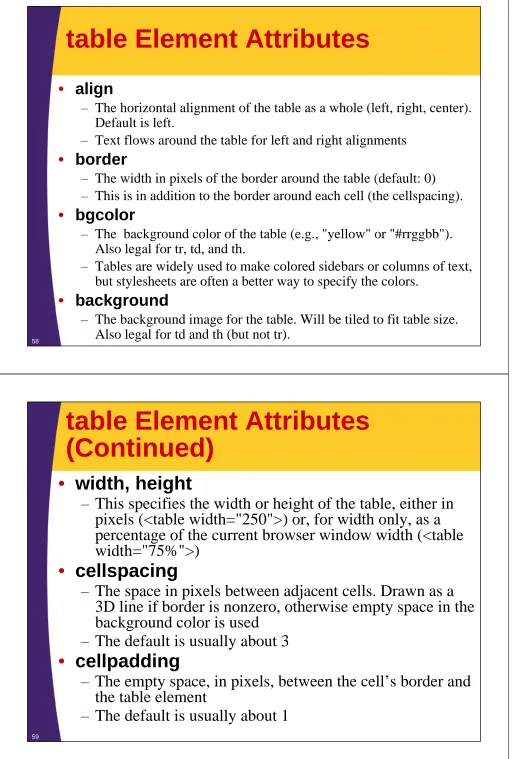
table Element Attributes
• align
– The horizontal alignment of the table as a whole (left, right, center).
Default is left.
– Text flows around the table for left and right alignments
• border
– The width in pixels of the border around the table (default: 0)
– This is in addition to the border around each cell (the cellspacing).
• bgcolor
– The background color of the table (e.g., "yellow" or "#rrggbb").
Also legal for tr, td, and th.
– Tables are widely used to make colored sidebars or columns of text,
but stylesheets are often a better way to specify the colors.
• background
– The background image for the table. Will be tiled to fit table size.
Also legal for td and th (but not tr).
58
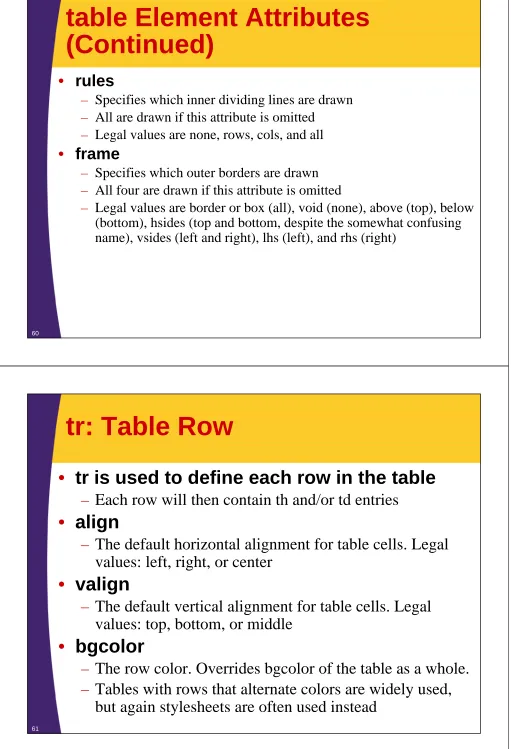
table Element Attributes
(Continued)
•
width, height
– This specifies the width or height of the table, either in pixels (<table width="250">) or, for width only, as a percentage of the current browser window width (<table width="75%">)
•
cellspacing
– The space in pixels between adjacent cells. Drawn as a 3D line if border is nonzero, otherwise empty space in the background color is used
– The default is usually about 3
•
cellpadding
– The empty space, in pixels, between the cell’s border and the table element
– The default is usually about 1
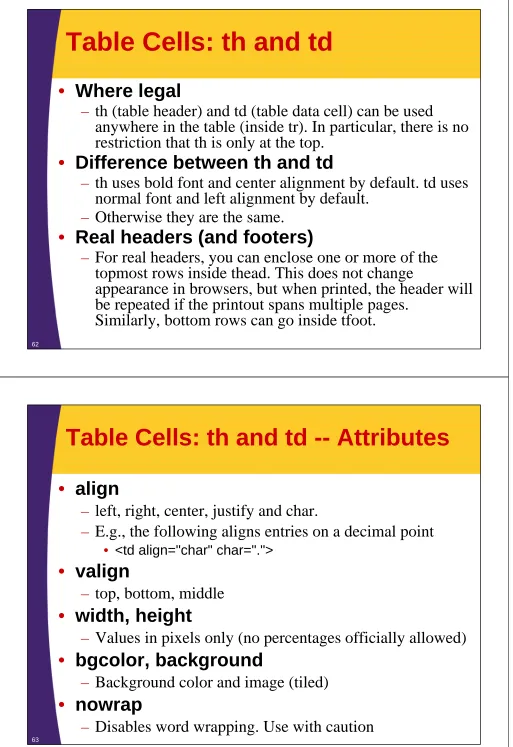
table Element Attributes
(Continued)
• rules
– Specifies which inner dividing lines are drawn
– All are drawn if this attribute is omitted
– Legal values are none, rows, cols, and all
• frame
– Specifies which outer borders are drawn
– All four are drawn if this attribute is omitted
– Legal values are border or box (all), void (none), above (top), below
(bottom), hsides (top and bottom, despite the somewhat confusing name), vsides (left and right), lhs (left), and rhs (right)
60
tr: Table Row
•
tr is used to define each row in the table
– Each row will then contain th and/or td entries
•
align
– The default horizontal alignment for table cells. Legal values: left, right, or center
•
valign
– The default vertical alignment for table cells. Legal values: top, bottom, or middle
•
bgcolor
– The row color. Overrides bgcolor of the table as a whole.
– Tables with rows that alternate colors are widely used, but again stylesheets are often used instead
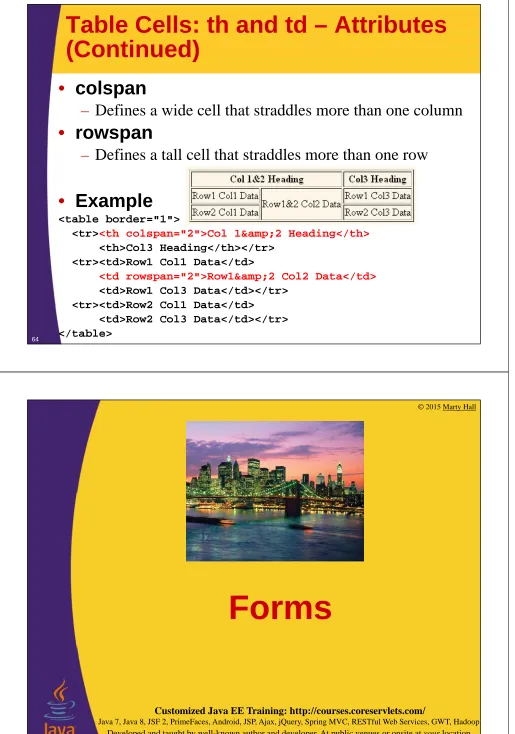
Table Cells: th and td
•
Where legal
– th (table header) and td (table data cell) can be used
anywhere in the table (inside tr). In particular, there is no restriction that th is only at the top.
•
Difference between th and td
– th uses bold font and center alignment by default. td uses normal font and left alignment by default.
– Otherwise they are the same.
•
Real headers (and footers)
– For real headers, you can enclose one or more of the topmost rows inside thead. This does not change
appearance in browsers, but when printed, the header will be repeated if the printout spans multiple pages.
Similarly, bottom rows can go inside tfoot.
62
Table Cells: th and td -- Attributes
•
align
– left, right, center, justify and char.
– E.g., the following aligns entries on a decimal point
• <td align="char" char=".">
•
valign
– top, bottom, middle
•
width, height
– Values in pixels only (no percentages officially allowed)
•
bgcolor, background
– Background color and image (tiled)
•
nowrap
Table Cells: th and td – Attributes
(Continued)
•
colspan
– Defines a wide cell that straddles more than one column
•
rowspan
– Defines a tall cell that straddles more than one row
•
Example
<table border="1">
<tr><th colspan="2">Col 1&2 Heading</th>
<th>Col3 Heading</th></tr> <tr><td>Row1 Col1 Data</td>
<td rowspan="2">Row1&2 Col2 Data</td>
<td>Row1 Col3 Data</td></tr> <tr><td>Row2 Col1 Data</td>
<td>Row2 Col3 Data</td></tr> </table>
64
© 2015 Marty Hall
Customized Java EE Training: http://courses.coreservlets.com/
Java 7, Java 8, JSF 2, PrimeFaces, Android, JSP, Ajax, jQuery, Spring MVC, RESTful Web Services, GWT, Hadoop.
Forms in JSF
•
<form> and form controls rarely used
– You normally use h:form and the associated JSF orPrimeFaces controls (h:inputText, p:calendar, etc.)
– Note that there is no “action” or “method” in the JSF h:form
• It automatically uses POST to the URL of the form page
•
You use <form> only for connections to
external sites
– So, if you are not doing this, skip this section entirely!
•
Extended input elements
– PrimeFaces (covered later) provides many controls that are not in standard HTML
• Sliders, number spinners, popup calendars, autocompleting
textfields, masked input fields, and many more
66
The form Tag
<!DOCTYPE html PUBLIC "-//W3C//DTD XHTML 1.0 Transitional//EN"
"http://www.w3.org/TR/xhtml1/DTD/xhtml1-transitional.dtd">
<html xmlns="http://www.w3.org/1999/xhtml">
<head>
<title>A Sample Form Using GET</title>
</head>
<body bgcolor="#fdf5e6">
<div align="center">
<h2>A Sample Form Using GET</h2>
<form action="http://localhost:8088/SomeProgram">
First name:
<input type="text" name="firstName" value="J. Random"/><br/> Last name:
<input type="text" name="lastName" value="Hacker"/><p/>
<input type="submit"/> <!-- Press button to submit form -->
</form>
</div>
</body></html>
67
GET Form: Initial Result
68
GET Form: Submission Result
(Data Sent to EchoServer)
Sending POST Data
<!DOCTYPE html PUBLIC "-//W3C//DTD XHTML 1.0 Transitional//EN" "http://www.w3.org/TR/xhtml1/DTD/xhtml1-transitional.dtd"> <html xmlns="http://www.w3.org/1999/xhtml">
<head>
<title>A Sample Form Using POST</title> </head>
<body bgcolor="#fdf5e6"> <div align="center">
<h2>A Sample Form Using POST</h2>
<form action="http://localhost:8088/SomeProgram"
method="post"> First name:
<input type="text" name="firstName" value="J. Random"/><br/> Last name:
<input type="text" name="lastName" value="Hacker"/><p/> <input type="submit"/> <!-- Press button to submit form --> </form>
</div>
</body></html>
70
The default method is GET. So, if a form says method="get" or it has no method at all, GET is used.
POST Form: Initial Result
POST Form: Submission Result
(Data Sent to EchoServer)
72
Text Controls
•
Textfields
– <input type="text" name="…" …/>
•value can give original value
•
Password Fields
– < input type="password" name="…" …/>
• Always use POST
•
Text Areas
– <textarea name="…"
rows="…" cols="…"> …
</textarea>
• Interpretation of regular HTML tags turned off between
<textarea…> and </textarea>
Push Buttons
•
Submit Buttons
– <input type="submit" …/>
• Use name if you have multiple buttons
• Use value to change button’s label
•
JavaScript Buttons
– <input type="button"
onclick="someJavaScriptFunction()" …/>
• Widely used with Ajax
•
Reset Buttons
– <input type="reset" …/>
•
Fancy Buttons
– <button type="submit" ...>
html
</button> 74
Multiple Submit Buttons
•
Button names
– Submit buttons don’t normally need a name attribute, but if you have more than one button and want the server to identify which one was pressed, give them names
• Used more with standard Web apps than with Ajax
Item:
<input type="text" name="Item" value="4 TeraByte iPod"/> <br/>
<input type="submit" name="Add"
value="Add Item to Cart"/> <input type="submit" name="Delete"
value="Delete Item from Cart"/>
Check Boxes
•
Format
– <input type="checkbox" name="…" …>
• Use checked="checked" to make it initially checked
• Name/value pair sent only if checkbox is checked when form is submitted
•
Example code
<p/><input type="checkbox" name="noEmail" checked="checked"/> Check here if you do <i>not</i> want to
get our email newsletter
•
Example result
76
Radio Buttons
•
Format
– <input type="radio" name="…" value="…"…>
• All radio buttons in a group should have same NAME
• Only one button in a group can be pressed; pressing a
different one causes previous one to pop out
•
Example
<dl>
<dt>Credit Card:</dt>
<dd><input type="radio" name="creditCard" value="visa"/> Visa</dd>
<dd>…
<dd><input type="radio" name="creditCard" value="java" checked="checked"/>
Java Smart Card</dd> …
</dl>
Combo Boxes
•
Format
– select gives name
– option gives value
•
Example
Favorite language:
<select name="language">
<option value="c">C</option> <option value="c++">C++</option>
<option value="java" selected="selected">Java</option> <option value="javascript">JavaScript</option>
<option value="perl">Perl</option> <option value="ruby">Ruby</option> </select>
78
List Boxes
•
Format
– Similar to combo boxes, but specify multiple
– Give size if you want to see all entries without scrollbars
•
Example
Languages you know:<br/>
<select name="language" multiple="multiple" size="6"> <option value="c">C</option>
<option value="c++">C++</option>
<option value="java" selected="selected">Java</option> <option value="javascript">JavaScript</option>
<option value="perl" selected="selected">Perl</option> <option value="ruby">Ruby</option>
</select>
Other Controls and Options
•
File upload controls
– <input type="file" …/>
– Lets user select a file and send it to the server
•
Server-side image maps
– User clicks on an image and form gets submitted.
– Form data gets sent as name.x=x-pos&name.y=y-pos
•
Hidden fields
– Preset name and valuesent with form submission..
•
Tab order control
– tabindex
80
© 2015 Marty Hall
Customized Java EE Training: http://courses.coreservlets.com/
Java 7, Java 8, JSF 2, PrimeFaces, Android, JSP, Ajax, jQuery, Spring MVC, RESTful Web Services, GWT, Hadoop.
Developed and taught by well-known author and developer. At public venues or onsite at yourlocation.
Miscellaneous
Grouping Elements:
fieldset and legend
•
fieldset and legend: idea
– Grouping all or part of a form inside fieldset draws attention to it and separates it from the rest of the page
– Using style sheets for the legend is particularly useful
– Not restricted to forms: you can surround arbitrary HTML with fieldset/legend to put the content in an etched box
•
fieldset and legend: syntax
<fieldset>
<legend>Title of the Etched Border</legend> … (stuff to put inside the box) …
</fieldset>
82
Also see the PrimeFaces section for the nice theme-aware p:fieldset tag.
Grouping Form Entries: label
•
label: idea
– If you use the label tag for prompts associated with fields, clicking on the label transfers focus to the input field
– You can either use the "for" attribute or enclose the field within the label
•
label: syntax
<label for="fname">First name:</label>
<input type="text" name="userFirstName" id="fname"/>
<label>First name:
<input type="text" name="userFirstName" </label>
Grouping Form Entries:
Example
• HTML
<fieldset>
<legend>ajax:updateField</legend>
<form ...>
<label for="f">Enter temperature in Fahrenheit:</label> <input type="text" id="f"/>
<input type="button" id="convertButton" value="Convert"/> <hr width="500" align="left"/>
<label for="c">Temperature in Celsius:</label> <input type="text" id="c"/>
<label for="k">Temperature in Kelvin:</label> <input type="text" id="k"/>
</form>
</fieldset>
• CSS
legend {
font-weight: bold; color: black;
background-color: white; border: 1px solid #cccccc; padding: 4px 2px;
}
84
More Miscellaneous Elements:
hr and br
•
<br/> – line breaks
– Forces a line break• You often want to break lines in the middle of paragraphs, or force line breaks after input elements in forms
• Multiple consecutive empty <p></p> pairs do not result in
multiple blank lines. But, multiple consecutive <br/> elements do.
– Examples
• <br/>
• <br clear="all"/> [skips past hanging images]
•
<hr/> – horizontal rule
– Draws a horizontal etched/shaded line
– Examples
• <hr/>
• <hr width="50%"/>
© 2015 Marty Hall
Customized Java EE Training: http://courses.coreservlets.com/
Java 7, Java 8, JSF 2, PrimeFaces, Android, JSP, Ajax, jQuery, Spring MVC, RESTful Web Services, GWT, Hadoop.
Developed and taught by well-known author and developer. At public venues or onsite at yourlocation.
Wrapup
References
•
Books
– HTML, XHTML, and CSS, Sixth Edition
by Elizabeth Castro
– Head First HTML with CSS & XHTML
by Eric Freeman and Elisabeth Freeman
•
Online References
– XHTML specification: http://www.w3.org/TR/xhtml1/
– XHTML cheat sheet (pocket reference):
https://cdburnerxp.se/csstidy/htmlcheatsheet.pdf
– XHTML reference: http://xhtml.com/en/xhtml/reference/
– XHTML tutorials:
http://www.w3schools.com/html/html_xhtml.asp
– Google for "HTML tutorial[s]" and adapt syntax for xhtml
Summary
•
Template
<!DOCTYPE html PUBLIC "-//W3C//DTD XHTML 1.0 Transitional//EN" "http://www.w3.org/TR/xhtml1/DTD/xhtml1-transitional.dtd">
<html xmlns="http://www.w3.org/1999/xhtml"> <head><title>Some Title</title></head> <body>
...
</body></html>
•
Differences from HTML 4
– Use lowercase for tag names, attribute names, predefined attribute values (<h1 align="center">)
– Always include end tags (<p></p> or <p/>)
– Always use quotes around attribute values (<table border="1">)
– Follow these rules for HTML inserted by Ajax 88
© 2015 Marty Hall
Customized Java EE Training: http://courses.coreservlets.com/
Java 7, Java 8, JSF 2, PrimeFaces, Android, JSP, Ajax, jQuery, Spring MVC, RESTful Web Services, GWT, Hadoop.
Developed and taught by well-known author and developer. At public venues or onsite at yourlocation.
Questions?
More info:
http://www.coreservlets.com/JSF-Tutorial/jsf2/ – JSF 2.2 tutorial http://www.coreservlets.com/JSF-Tutorial/primefaces/ – PrimeFaces tutorial http://courses.coreservlets.com/jsf-training.html – Customized JSF and PrimeFaces training courses