Progress Database
78-0606E MFG/PRO eB2.1 SP3 and higher August 2005
subject to change without notice.
QAD Inc. provides this material as is and makes no warranty of any kind, expressed or implied, including, but not limited to, the implied warranties of merchantability and fitness for a particular purpose. QAD Inc. shall not be liable for errors contained herein or for incidental or consequential damages (including lost profits) in connection with the furnishing, performance, or use of this material whether based on warranty, contract, or other legal theory.
QAD and MFG/PRO are registered trademarks of QAD Inc. The QAD logo is a trademark of QAD Inc.
Designations used by other companies to distinguish their products are often claimed as trademarks. In this document, the product names appear in initial capital or all capital letters. Contact the appropriate companies for more information regarding trademarks and
registration.
Copyright © 2005 by QAD Inc. QAD Inc. 6450 Via Real Carpinteria, California 93013 Phone (805) 684-6614 Fax (805) 684-1890 http://www.qad.com
About This Guide . . . 1
What Is in This Guide? . . . 2
Installation Checklists . . . 2
Audience . . . 3
Installation Documentation . . . 3
Related MFG/PRO Installation Documentation . . . 3
Additional Web Resources . . . 4
Document Conventions . . . 4
UNIX and Windows Conventions . . . 4
QAD Services and Support . . . 5
QAD Consulting and Technical Services . . . 5
QAD Support . . . 5
Chapter 1
Planning an MFG/PRO Progress Installation. . . 7
Planning an Installation . . . 8
Enhanced Controls Installation . . . 8
Security Plan . . . 9
Service Pack Installs . . . 10
DataSynchronization Users . . . 10
Deployment . . . 10
Database Server Installation . . . 12
File Server Installation . . . 15
Remote Client Installation . . . 17
Installation Utilities . . . 18
OID Generator Codes . . . 20
Installing Enhanced Controls . . . 21
Installing Multiple Languages . . . 22
Installing Shared and Compatible Code Page Languages . . . 22
Install a Single, Non-US English Language . . . 24
Edit MFG/UTIL for Multiple Languages . . . 26
Client CD Contents . . . 27
Installation Summary . . . 28
Chapter 2
System Requirements . . . 29
General Requirements . . . 30 Database Server . . . 30 Hardware Requirements . . . 30 Operating Systems . . . 31 Software Prerequisites . . . 31 File Server . . . 31 Hardware Requirements . . . 31 Software Prerequisites . . . 32 Remote Clients . . . 32 Hardware Requirements . . . 32 Software Prerequisites . . . 32 Network . . . 33
Chapter 3
Database Server Install . . . 35
Preliminary Steps . . . 36
Setup for Non-Western European Languages . . . 36
Windows Installation Setup (Windows Only) . . . 37
Create the Installation User and Group (UNIX Only) . . . 37
Permissions . . . 38
Modify the Services File . . . 38
Installing Server Files . . . 39
Mount the CD-ROM (UNIX Only) . . . 39
Installation Directory . . . 40
Install Database Server Files . . . 40
Install Language Files . . . 42
Modify mfgutpro.ini File (Single Non-US English Only) . . . 43
Modify the Workflow .ini Files . . . 43
Set Up MFG/UTIL Clients (Windows Only) . . . 45
Modify mfgutil.ini . . . 45
Creating Empty Databases . . . 46
Load Schema in Empty Databases . . . 50
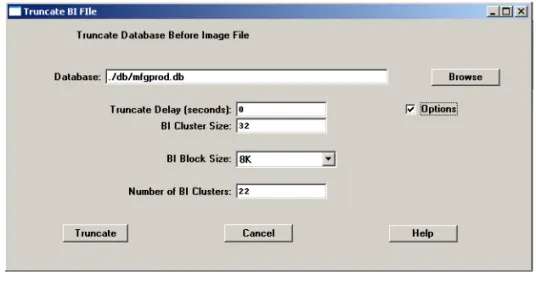
Truncate Before-Image Files . . . 52
Copy Empty Databases (Multi-Language Only) . . . 53
Load Translated Labels (Multi-Language Only) . . . 54
Creating Working Databases . . . 55
Edit the Structure Files . . . 56
Build the Main Databases . . . 58
Specify the Database OID Values . . . 58
Load Language-Specific System Data . . . 59
Load Language-Independent System Data . . . 60
Load Admin Data . . . 61
Truncate Before-Image Files . . . 62
Load Source Code System Cross-Reference (Optional) . . . 63
Creating the Remaining Databases . . . 63
Chapter 4
File Server and Host Client Installs . . . 67
Overview . . . 68
Preliminary Steps . . . 68
Installing UNIX Host Clients . . . 69
Additional UNIX Clients . . . 70
Installing Windows File Servers . . . 70
Preliminary Steps . . . 70
Installation Steps . . . 71
Setting Up Remote Clients . . . 72
Installation Steps . . . 72
Create Locales . . . 74
Chapter 5
Enhanced Controls Install . . . 75
Overview . . . 76
Preliminary Steps . . . 76
Add Enhanced Controls Services . . . 77
Modify and Copy Audit Database Structure Files . . . 77
Modify Workflow .ini Files . . . 80
Installing Enhanced Controls . . . 81
Populate OID Values . . . 81
Validate Database Tables . . . 82
Enable Enhanced Controls . . . 83
Creating Production Audit Databases . . . 85
Loading Enhanced Controls Data . . . 87
Starting Enhanced Controls from Batch . . . 88
Create a Batch Client Startup Script . . . 89
Create a CIM File . . . 90
Create a Progress Batch Launch File . . . 91
Running the Audit Process . . . 91
Chapter 6
Database Setup and Application Compile. . . 93
Configuring Database Sets . . . 94
Database Set Configuration Screen . . . 94
Set Up Database Sets . . . 95
Create an Enhanced Controls DB Set . . . 99
Compiling Application Code . . . 101
Non-US English Base Language Compiles . . . 102
Multiple Language Compiles . . . 102
Set the Correct PROPATH . . . 102
Multithreaded Compiles . . . 103
Compile MFG/PRO . . . 104
Generating Scripts and Shortcuts . . . 110
Create Language-Specific Windows Shortcuts . . . 112
Modify Windows Startup Parameters . . . 113
Test the Client Installation . . . 114
Express Setup for Remote Clients . . . 114
Setup Prerequisites for Remote Clients . . . 115
Use Express Setup . . . 115
Change Express Setup Settings . . . 116
Progress Initialization File . . . 116
Initialization File Entries . . . 117
Chapter 7
Setting Up MFG/PRO . . . 119
Starting and Registering MFG/PRO . . . 120
Register MFG/PRO . . . 120
Loading Online Help . . . 121
Test the Language Installation . . . 122
Exit MFG/PRO . . . 124
Backing Up the Database . . . 124
Next Steps . . . 124
Chapter 8
Additional Setup. . . 125
Creating Training Environments . . . 126
Training Prerequisites . . . 126
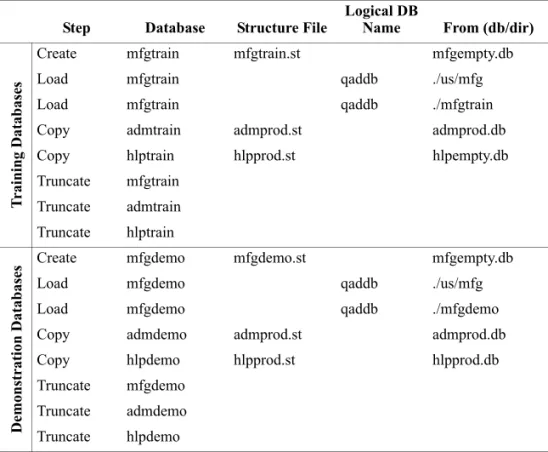
Creating Training Databases . . . 127
Changing Installation Script Commands . . . 129
Chapter 9
Storage Area Reference. . . 131
Storage Areas and Tables . . . 132
Appendix A Installation Checklists . . . 141
Standard US English Installation . . . 142
Enhanced Controls Installation . . . 149
Single Non-US Language Installation . . . 152
Glossary . . . 167
Index . . . 171
What Is in This Guide? 2 Installation Documentation 3 Document Conventions 4 QAD Services and Support 5
What Is in This Guide?
The instructions in this guide cover how to:
• Install the MFG/PRO server on either a UNIX or Windows server. • Install the MFG/PRO character client software.
• Install the MFG/PRO Windows client software.
• Configure a standard MFG/PRO environment including character and GUI clients.
• Install the optional Enhanced Controls module.
This installation covers the current service pack level of eB2.1. If you are installing only the service pack to upgrade an existing environment, use only Installation Guide: MFG/PRO eB2.1 Service Pack X, where X is the latest service pack level. The guide ships with the service pack CD. Use this guide to install production databases, as well as training, demonstration, and other MFG/PRO databases. It also enables you to install these databases with one or more user languages.
Installation Checklists
¶See Appendix A, “Installation Checklists,” on page 141.
For advanced users, or for less experienced users who want to track their progress on the installation, this guide includes an appendix that contains checklists for:
• Standard installation
• Optional Enhanced Controls installation • Single non-US English language installation • Multiple-language installation
These checklists provide the sequence, the tool set required, the default or recommended values if applicable, and the page reference for the more detailed description of the steps in the guide.
Audience
These instructions are for the MFG/PRO system administrator who is installing the MFG/PRO database and is familiar with the UNIX and Windows operating system, Progress software, and networking as necessary.
Installation Documentation
This document is available on the QAD ServiceLinQ Web site:
http://support.qad.com/
Before you start the installation, make sure you have the most recent version of this document.
This document supports the installation of the following CDs: • Database server
• Database server language files • Character client
• GUI client
Note CD item numbers are dependent on your purchased configuration. If you are doing this install as part of a conversion, you should also have the latest MFG/PRO eB2.1 Conversion Guide: Progress Database.
Related MFG/PRO Installation Documentation
The MFG/PRO installation creates your production and support databases, and any training, development, or pilot databases you need.• For information about planning for Enhanced Controls, see
Deployment Guide: Audit Trails.
• To install QAD Desktop, see Installation Guide: QAD Desktop. • To install QXtend Inbound, see Technical Reference: QXtend
Inbound.
• To install QXtend Outbound, see Technical Reference: QXtend Outbound.
Additional Web Resources
For Progress problems, use the Progress Knowledge Center accessed from their support Web site:
http://www.progress.com/support/index.ssp
For OS-related problems, use standard vendor support, or use other search engines on the Web.
Document Conventions
This guide uses the conventions listed in the following table.
UNIX and Windows Conventions
This document supports the installation of MFG/PRO on both UNIX and Windows platforms. The instructions use character screens and UNIX file and path conventions. In the few places where the two sets of instructions diverge, the headings and text state explicitly which operating system is the focus of the current set of instructions.
If you see: It means:
monospaced text A command, file name, or path. italicized
monospaced text
A variable name for a value you enter as part of an operating system command; for example, cdrom.
indented command line
A long command that you enter as one line although it appears in the text as two lines.
Note Exceptions or special conditions. Important Critical information.
Warning Situations where you can overwrite or corrupt data, unless you follow the instructions.
QAD Services and Support
During your implementation of QAD products, you should be aware of available service and support offerings.
QAD Consulting and Technical Services
MFG/PRO installations have a wide variety of configuration possibilities, are highly scalable, and are easily customized. While this guide provides basic installation information, it cannot consider every possible
computing environment or configuration.
To take full advantage of MFG/PRO’s flexibility and potential in your specific environment, QAD offers Consulting and Technical Services specializing in installations and customizations. These offerings include performance enhancements as well as technical and administration training. For more information, contact your nearest QAD office or go to:
http://www.qad.com/services/
QAD Support
Before beginning an installation, it is recommended that you contact QAD Support to notify them of your plans, schedule, and if you will have a consultant onsite to assist in the process. Be sure to identify who the consultant is, and how they can be reached. QAD Support provides a number of online resources to help you find answers to your questions and avoid problems beforehand. These include, but are not limited to, the following:
• QAD Knowledgebase • QAD Learning Portal • Customer Advisories • Platform Availability Guide • QVillage Discussion Forums
Go to QAD ServiceLinQ to access the full array of online Support resources at:
Planning an MFG/PRO
Progress Installation
This chapter presents basic topics that you should understand before beginning an MFG/PRO installation or conversion.Planning an Installation 8 Installing Enhanced Controls 21 Installing Multiple Languages 22
Important If you have experience installing MFG/PRO from previous versions, numerous significant changes have occurred to streamline the process. Review this chapter prior to starting the install, and read the instructions.
Planning an Installation
There are three types of installation: • A new installation
• A new installation including a service pack
• An installation to support a conversion from an earlier MFG/PRO version to the current release
If you are migrating from an earlier version of MFG/PRO, start your planning with the MFG/PRO eB2.1Conversion Guide: Progress
Database. The installation steps covered in this guide are treated as a step within the larger conversion process. Starting with eB2.1, there are several changes to the conversions, including the introduction of an in-place conversion option. The steps you complete to install your new MFG/PRO version in this guide depend on which conversion method you choose to follow.
Tip
For new terms see “Glossary” on page 167.
For the installation component of both new installs and conversions, you must plan for the following:
• An installation addressing:
• Pilot and production databases • Training databases
• The languages you are implementing
• Configuration of side databases including MFG/PRO administration and help databases, as well as custom and other side databases • The resulting network, disk, and client layouts
Enhanced Controls Installation
Separate steps are required by those sites implementing the optional Enhanced Controls module, which includes audit trail and electronic signature features. Complete your full eB2.1 installation or conversion, and then follow the steps in this guide to install Enhanced Controls. A discussion of key planning areas related to auditing can be found in
Deployment Guide: Audit Trails located on the QAD Global Support Web site:
Make sure you have reviewed the most recent copy of the deployment information before proceeding with the Enhanced Controls installation.
Security Plan
¶See the “Users and Security” chapter in User Guide:
MFG/PRO eB2.1 New Features.
A successful MFG/PRO installation includes a complete security plan. During an installation or conversion, full permissions are required for system and application tools that can be used to load, edit, or delete data. In addition, an installation results in at least one user, mfg, with full
administrative access to MFG/PRO. For these reasons, a security plan is essential. The basic components of a security plan are:
• Operating-system-level security for intrusive tools such as: • Progress Editor
• Progress Data Dictionary • Progress Data Administrator • QAD MFG/UTIL
• Operating-system log-in security
• Operating-system permissions and ownership set appropriately for: • Database files
• Before-image and after-image files • Log files
• Application source and compiled source files • Application startup and shutdown scripts • Log-in security for MFG/PRO
• Domain security for MFG/PRO
• Specific MFG/PRO security features such as menus, fields, and sites A security plan should address the tasks of the initial administrative user in setting up valid users and securing MFG/PRO by user and group prior to giving users access to the application.
Service Pack Installs
If you are installing or converting from a prior release of MFG/PRO to eB2.1 with a service pack, this guide covers all steps. If you are installing a service pack for an existing eB2.1 installation, use the instructions shipped with the service pack.
DataSynchronization Users
With eB2.1, DataSync no longer requires a separate installation; the DataSync database has been merged with the main MFG/PRO database.
Deployment
You can install MFG/PRO eB2.1 on UNIX or Windows servers with character or GUI clients, or a mix of these. MFG/PRO consists of three distinct components:
• A database server • A file server • Remote clients Database Server
The database server consists of the MFG/PRO databases. You build these databases as part of the installation. Clients connect to these databases directly or through a file server.
File Server
The file server is the location of the MFG/PRO source code, compiled specifically for this machine. The resulting .r code is run by the
connected clients.
If the file server is a UNIX machine, shown as the host client connecting to the database server in Figure 1.1, then additional UNIX character clients can connect to MFG/PRO on this machine using telnet startup scripts generated for the host client.
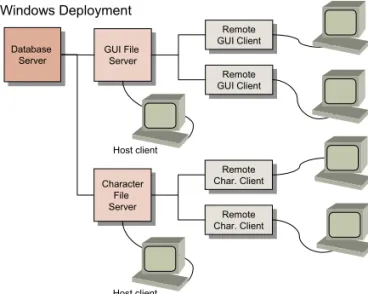
If the file server is a Windows machine using character or GUI clients as in Figure 1.2, or if you want to run GUI clients against a UNIX file server as in Figure 1.1, a remote client setup is required for each client PC.
Fig. 1.1 UNIX Deployment Remote Clients ¶For information on MFG/UTIL, see “Installation Utilities” on page 18.
A remote client setup is required for all GUI clients and for all character clients connecting to a Windows file server. The remote client setup creates a copy of MFG/UTIL on the client PC. You then run MFG/UTIL on the client, connected to the file server, to generate local startup scripts. The resulting client runs source code on the file server and accesses the databases on the database server.
Fig. 1.2 Windows Deployment Database Server Database Server Remote Char. Client Remote GUI Client Windows Character File Server Windows Character File Server Remote Char. Client Remote GUI Client
Host client Remote telnet
character client Remote telnet character client UNIX Deployment Database Server Database Server Remote GUI Client Remote GUI Client GUI File Server GUI File Server Remote GUI Client Remote GUI Client Host client Windows Deployment Remote Char. Client Remote Char. Client Character File Server Character File Server Remote Char. Client Remote Char. Client Host client
Database Server Installation
Working MFG/PRO databases are created in two stages. You first create empty databases, then use the empty databases as a template to build production, training, development, and other databases.
Create the Empty Databases
You create four empty databases during an MFG/PRO on Progress installation. The primary empty database is mfgempty; it is the template for your training, pilot, development, and production databases.
The other empty databases are:
• An administration database, admempty
• A help database, hlpempty
• An audit database, audempty
¶See “Installing Enhanced Controls” on page 21.
Important All standard eB2.1 SP2+ installations must create an empty audit database and include it in the Compile database set. The database is required for compiles only and has no other system impact unless you are using the optional Enhanced Controls module.
Each empty database is created in two steps. First, a structure file for the database—for example, mfgempty.st—is used by the installation script
to create a void database. The structure file defines disk locations and the size of database storage areas. A default structure file is shipped for each MFG/PRO database that requires one.
¶To see the default assignment of tables to storage areas, go to Chapter 9, “Storage Area Reference,” on page 131.
Once you have created the void database, you load data definitions into it that define each table, field, and index in the database. The data
definitions file—for example, mfgempty.df—also places each table and
index into a specific storage area as defined in the structure file.
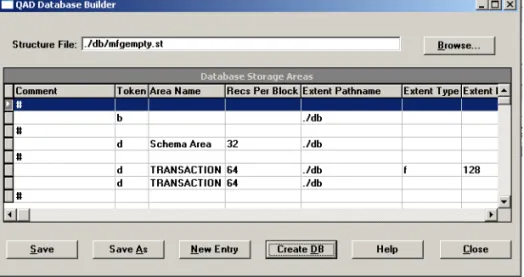
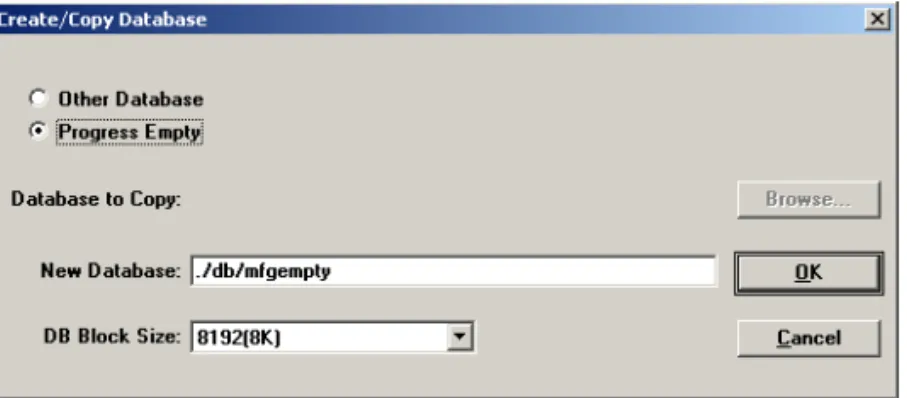
In Figure 1.3, the database is created using the mfgempty.st structure
file, which adds the storage area TRANSACTION to the disk. The storage area shown consists of two extents. One is a fixed-length extent of 256 MB (f 256000). The other is a variable-length extent that grows as needed during database use.
Fig. 1.3
Creating an Empty Database
R
Next, the tables, fields, and indexes are created in those extents by the data definition file (mfgempty.df). Note the Area line directly below the Add Table instruction in Figure 1.3.
The empty databases you created are now available to create the main and support databases.
Create the Full Databases
The main databases—production, pilot, training, and development—are created by copying the empty database into a structure you edit during the installation. The training database, for example, contains the data
structures (tables, fields, and indexes) from the empty database, but is mapped to specific, separate disk locations.
Files on Disk
When you create a database structure in Progress 9.1, your single logical database includes several physical files. The file components of an MFG/PRO database are:
Structure description files (.st). This is the structure file. It is a text
file used during the creation of a database to define the number, location, and size of the database extents. Use the default (QAD) structure files for mfgempty, mfgtrain, mfgdemo, admempty,
hlpempty, audempty, mfgprod, admprod, and hlpprod.
d “TRANSACTION”:7,64 i:\dewey\data01 f 256000 d “TRANSACTION”:7,64 i:\dewey\data01
mfgempty.st
Add TABLE “acd_det” Area TRANSACTION
DESCRIPTION “Account Total Detail” DUMP-NAME “acd_det” mfgempty.df 1 2 Drive i:\ mfgempty.db
Storage area extent (.db). This is the main database extent. It
contains the location of all of the extents that make up the database. During system administration activities, such as data dumps and loads, the database accesses database files by referring to this file. Database extents (.dn). These extents contain database records. The n is a sequential number; for example, .d1 and .d2.
Before-image (.bn). These extents contain before-image (BI)
records. The before-image extents should be stored on a separate disk drive with a different input/output (I/O) channel than the storage area and database extents. This guards against a single point of failure and improves system performance. The n is a sequential number.
The database can also include after-image (AI) and two-phase commit extents. The storage areas for these are controlled much like that of the BI file. These features are optional. For more information on implementing these features, see the Progress Database Administration Guideand Reference.
Load Default Data
Once your databases are created, you load default MFG/PRO data into them. The data is separated into independent and language-dependent data. Perform the load of the language-language-dependent data for each language you plan to implement.
The main databases you load data into are:
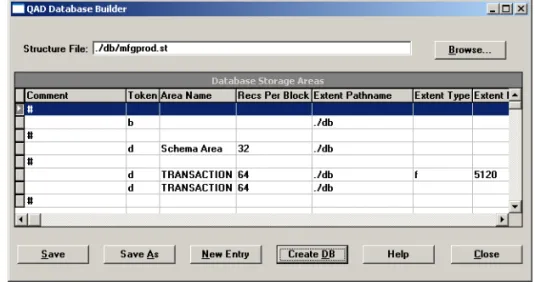
mfgprod. This is your production database. This database is a multi-volume database with the files and extents typically optimized across multiple disks to enhance performance and security and to take advantage of your existing contiguous disk space. The production database is grouped with its own administration database (admprod)
and its own help database (hlpprod). The production database is also typically used as the basis for a development database. mfgdemo. Optional. This is your conference-room pilot database. QAD supplies working data for mfgdemo that you can use to support
¶See “Creating Training Environments” on page 126.
mfgtrain. Typically, you create one mfgtrain database and use the
Progress PROCOPY tool to create copies of it for each user in individual training environments. QAD supplies data for this database specifically designed to support MFG/PRO training materials and scenarios. Each of these copies can share access to a single help database (hlpprod). However, as of MFG/PRO eB2, each database must have its own administration database (admprod).
seattle, chicago, newyork. These databases are used for multi-site implementation training. Like mfgtrain and mfgdemo, they have
their own data, they require help and administration databases, and you need as many copies as you have students in the training sessions.
Tip
You can modify your startup scripts after you complete your installation to launch additional side databases such as custom, shop floor, warehousing, or taxes.
All MFG/PRO on Progress implementations also require that at least two support databases be connected with any main database at startup. QAD ships the required support databases (administration and help). These are also built from empty databases during the installation.
admprod. The administration database contains system data used by MFG/PRO to manage displays, connections, and databases. Each database you implement must have its own administration database. hlpprod. The help database can be shared by all your databases depending on server mounts and access.
File Server Installation
The file server is often installed on the same machine as the database server, though this is not required. The creation of a file server consists of the following steps:
• Install MFG/PRO source code. • Install host client code.
• Configure database sets. • Compile the source code.
• Generate startup scripts for the host client (and for remote UNIX clients).
The file server is either a character server or a GUI server or both. You install the character file server from the character client CD and the GUI file server from the GUI client CD. If you plan to use both types of clients, both file servers are required.
Database Sets
Database sets are the group of databases launched by a startup script or stopped by a shutdown script from a client machine. The main database, the support databases, and any other side databases are all included in database sets, and startup and shutdown scripts are generated for each. Each set consists of a full database and two or more support databases. The installation process from empty database to completed startup scripts (or shortcuts for Windows) is shown in Figure 1.4 on page 17.
You define database sets as part of the installation. The typical sets are: • Demo
• TrainN (one for each student) • Development
• Production • Compile
Important One connected empty audit database during compile is required for all installations, regardless of whether you intend to use audit trails or not. Standard MFG/PRO code references tables in the audit database.
Once you have created the database sets, you generate the startup and shutdown scripts that launch or stop the databases within each set. Create Database Sets
Figure 1.4 summarizes the entire database creation process for one set of databases. Empty databases are created for the main and support
databases. The schema is then loaded into the empty databases (.df
files). The empty databases are combined with edited structure files to create the databases. Data is loaded into the databases (.d files). They are combined as database sets and scripts are generated to start and stop the servers and to start client sessions.
Fig. 1.4
Database Creation Work Flow
Note The production database set may include an audit database as well as other databases for other QAD products, such as the qxevents
database for QXtend Outbound.
Remote Client Installation
Installing remote clients for Windows character or GUI clients requires that you have first installed a file server for the specific interface— character or GUI. You then install remote clients by connecting to that file server and running the client installation routine on the remote machine. Online Help
The help database is loaded after the client install. You can add custom help to the database using Field Help Maintenance (36.4.13). Data is shipped translated when you order additional languages. The help database is accessible on GUI, character, and Desktop clients.
.st .df mfgempty .st mfgprod .d .st .df admempty .st admprod .d .st .df hlpempty .st hlpprod .d Production Database Set start.Production stop.Production single.Production client.Production Production Database Scripts
Network, Disk, and Client Layout
At the machine level, QAD recommends deployment of MFG/PRO on a single database server with the character client installed on the main server for administration and batch processes. On UNIX, this character client supports additional terminal connections to the database.
¶See “Installing Windows File Servers” on page 70.
If you are planning to use Windows clients—GUI or character—QAD recommends that you install the appropriate client files on a file server separate from the database server.
Installation Utilities
A large portion of the installation is managed by a QAD utility called MFG/UTIL. This product can be used for numerous database
management tasks. For the installation, several of these tasks are scripted together to guide you through the installation steps.
Guided Setup
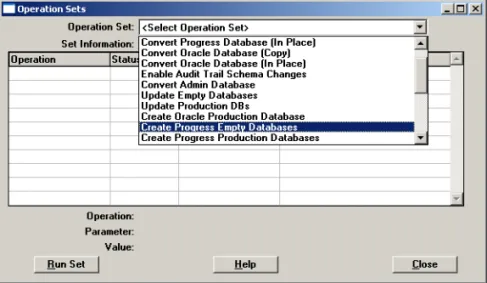
The entire installation process is semi-automated by a Guided Setup within MFG/UTIL. Guided Setup uses initialization files to control which install steps are followed in what order. The files step you through the creation of the empty databases, main and support databases, and database sets, and the generation of scripts.
This installation guide follows the installation method defined by the Guided Setup initialization files:
• Create Progress Empty Databases—wk0300.ini
• Create Progress Production Databases—wk0305.ini
• Create Progress Demo and Training DBs—wk0306.ini
• Create Progress Multi-Site Databases—wk0307.ini
• Configure Character Client—wk0400.ini
• Configure Windows Client—wk0410.ini
MFG/UTIL keeps track of where you are in the steps so that you can leave the installation and restart later. Text tokens for each group of steps are written to the initialization files to create this status: Not Run, Started, Error, and Done.
Important If you need to rerun the last set of steps from the beginning, the Guided Setup may not let you return to the initial entry screen to re-enter setup data. In this case, use a text editor to change the Status token back to Not Run for that set of steps in the initialization file. Editing Workflow .ini Files for US English Installs
You will probably need to edit the Guided Setup production database workflow, wk0305.ini. For each installation, review the workflow file
and determine which databases you are implementing. The default
wk0305.ini creates the production databases.
¶See the MFG/PRO eB2.1 Conversion Guide: Progress Database for details.
For example, if you are converting an existing MFG/PRO database using the buffer copy method, you must comment out the two data loads and the OID seed load program for the production database in wk0305.ini as shown in Figure 1.5. Use the semicolon (;) to comment lines out.
Fig. 1.5
Required Edits to wk0305.ini for Conversions
Note You do not need to edit the Guided Setup initialization files specifically for Windows installations. MFG/UTIL translates the UNIX path statements (./db) to Windows paths (c:\mfgsvr\db). This is true
for both .ini files and structure files (.st). MFG/UTIL Keyboard Commands
Keyboard commands for MFG/UTIL are listed in Table 1.1. Table 1.1
MFG/UTIL Character Interface Commands
Note In the character interface, buttons appear within angle brackets:
<OK>. To choose a button, Tab to the button and press Enter.
OID Generator Codes
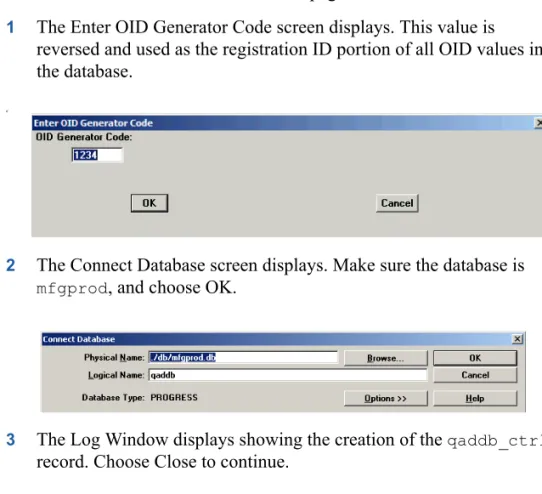
During a standard MFG/PRO eB2.1 installation, you must specify an OID generator code for each database. This code is used to create values that uniquely identify database records. If you are performing a conversion, the OID code is specified during the conversion process.
Note Currently, only some records take advantage of this new feature. However, it will be used more extensively in future QAD development. You can choose any numeric code you want. The OID generator code you enter is used by MFG/PRO as the registration ID of the full OID value written to database records as they are created. The generator code is stored and displayed in Database Control (36.24) in MFG/PRO and can be modified later, if necessary.
Keyboard Entry Command Name Description
F1 Go Moves to next frame or runs a program F2 Help Displays context-sensitive help (may not be
available for all functions)
F3 Menu Bar Accesses the menu bar
F4 End Exits a frame, program, or menu
Spacebar Select Selects check boxes and on/off options Enter or Tab Tab Moves to next field or command Shift+Tab or
Control+U
Once the OID generator code has been specified, OID fields in the database are populated using an algorithm that ensures uniqueness across all records, tables, and databases within the company. The value stored in the OID field for each record has the following decimal format:
<date><seq_value>.<registration_id>
Where:
<date> is the server date with format yyyymmdd.
<seq_value> is obtained from a Progress database sequence.
<registration_id> identifies the origin of the OID value.
The registration ID is derived from the OID generator code by reversing the digits of the generator code.
Installing Enhanced Controls
Enhanced Controls provides important security and tracking functionality in MFG/PRO. Enhanced Controls is an optional module that lets you configure your system to maintain audit trails on key transactions and to use electronic signatures.
Audit trail records are created and stored in an MFG/PRO audit database. They contain facts about changes made in the MFG/PRO primary database. The electronic signatures feature provides a means of attaching electronic signatures to automated processes. You can configure your system to require users of some MFG/PRO programs to enter a valid user ID and password before they can create or update records. Additionally, they must provide a reason code that defines the meaning of the signature; for example, Approved or Tested. Based on setup data, users may be able to enter a related remark as part of the signature.
These modules are part of an overall approach—including System Security and Enhanced Controls—to meeting the auditing requirements of MFG/PRO customers in regulated environments.
¶See Chapter 5, “Enhanced Controls Install,” on page 75.
Enhanced Controls is an optional module and is licensed separately. Both the audit trails feature and electronic signatures require additional installation steps, and both use the separate audit database. The installation of this module is described in this book.
Before beginning an Enhanced Controls installation, make sure you have carefully reviewed the planning information in Deployment Guide: Audit Trails located on the QAD Global Support Web site:
http://support.qad.com/documentation/mfgpro/eb2_1/install.html/
Installing Multiple Languages
All installs, including English-only installs, are language specific. You receive media for your database server and client installs, as well as separate media for each language you are implementing.
To create a US English-only install, no special steps are required. To create a single-language install that is not US English, you load your base language data, as well as a set of translated schema definitions. You then set your compile destination and client scripts to point to the language-specific directories.
To support multiple languages, you create empty database sets for each language, loading each with translated schema definitions. You then compile each language separately against these databases, setting the compile destination to point to the language-specific directory. You create one set of production databases from the empty databases and load the language-specific data files for each language you are implementing into them.
The steps you follow are documented in this guide. See the following checklists for a summary of steps:
• “Single Non-US Language Installation” on page 152 • “Multi-Language Installation” on page 159
Installing Shared and Compatible Code Page Languages
If all the languages you are implementing share the same code page—for example, English, French, German, Spanish that share the ISO-8859-1 code page; or Russian, Ukranian, and Romanian that share theIf you are installing multiple languages with a compatible code page, such as non-Western European languages like Japanese or Chinese and US English, you must first follow the instructions in the Progress
documentation for setting up Progress for a non-Western European language. Then the steps in this guide apply.
If you are installing a double-byte language such as Korean or Chinese, always install the double-byte language media before installing any other languages.
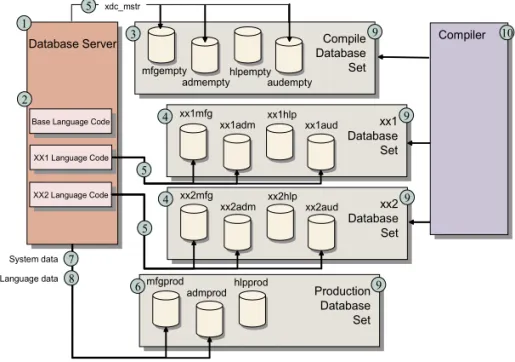
Figure 1.6 provides a graphic overview of a multi-language install. The numbered steps are described following the graphic.
Fig. 1.6
Multiple Language Installation Stages
A general overview of the required steps is as follows: 1 Install the MFG/PRO database server.
2 Install language media for each language. 3 Create base empty MFG/PRO databases.
mfgempty Database Server Database Server 1 2 3 9 XX1 Language Code XX1 Language Code XX2 Language Code XX2 Language Code
Base Language Code
Base Language Code
admemptyhlpemptyaudempty
Compile Database Set xx1mfg 4 xx1adm xx1hlp xx1aud xx1 Database Set xx2mfg 4 xx2adm xx2hlp xx2aud xx2 Database Set mfgprod
6 admprod hlpprod Production
Database Set 7 8 9 9 9 System data Language data xdc_mstr 5 Compiler 10 5 5
4 Copy the empty databases for each language you are implementing (XX1mfg, XX1adm, XX1hlp, XX1aud, XX2mfg, XX2adm, and so forth, where XX1 is the language code).
5 Load translated labels (xdc_mstr.d) into each set of language-specific empty databases. If you are not implementing US English, load the base language xdc_mstr into mfgempty, admempty, and
audempty.
6 Create one set of production databases from the base empty databases and structure files.
7 Load system data into the main and admin production databases. 8 Load language-specific data for each language into the main and
admin production databases.
9 Create database sets and generate scripts. You will need a compile database set pointing to the language-specific empty databases for each language.
10 Compile each language against a language-specific empty database set.
11 Install clients.
12 Generate client scripts and edit scripts for language specifics.
Note Each user can have a separate client script that sets language-specific components such as date format. Then in MFG/PRO, each user’s default language for menus, messages, and labels is set in User Maintenance (36.3.1).
Install a Single, Non-US English Language
The following describes the general steps to create a single-language installation that is not an English-language installation.
Important If the language code page is not ISO8859-1, follow the instructions for setting up Progress for a non-Western European language. Figure 1.7 provides a graphic overview of a single, non-US English language install. The numbered steps are described following the graphic.
Fig. 1.7
Single Language Install for a Non-US English Language
1 Install the MFG/PRO database server. 2 Install the language media.
3 Create empty MFG/PRO databases.
4 Load translated labels (xdc_mstr) into the empty databases.
5 Create production databases.
6 Load system data into the main and admin production databases. 7 Load language-specific data into the main and admin production
databases.
8 Create database sets and generate scripts. You will need a compile database set pointing to the language-specific empty databases for each language.
9 Compile against the empty compile database set. 10 Install clients.
11 Generate client scripts and edit for language specifics.
mfgempty Database Server Database Server 1 2 3 8
Base Language Code
Base Language Code
admemptyhlpemptyaudempty
Compile Database Set
mfgprod
5 admprod hlpprod Production
Database Set 6 7 8 Base Language Base Language Compiler 9 System data Language data 4 xdc_mstr US Language Code US Language Code
Edit MFG/UTIL for Multiple Languages
Not all steps in a multiple-language installation can be added to a workflow. The copy of empty databases and the subsequent load of translated schema labels is best accomplished using Progress and MFG/UTIL tools. You can, however, incorporate the language-specific data loads to the admprod and mfgprod databases.
To add languages to wk0305.ini, which loads the language-specific data into the production databases, search for all instances of the base language (/us) and copy the section where it is found. There will be two in the original: one for mfgprod, and one for admprod.
Paste the section below the copied section and modify the base language abbreviation to reflect the correct language abbreviation for the additional language. Figure 1.8 shows the addition of a French data load to a US English base.
Fig. 1.8
Language-Specific Load
The only change to the copied section is the change from \us to \fr. Add a section for each language you are implementing for the production database and the administration database.
;CREATE PRODUCTION DATABASES [CreateMSDB] Status=Not Run Program=crtpdbsa.w STName=c:\mfgsvr\db\mfgprod.st FromDB=c:\mfgsvr\db\mfgempty.db [LoadData] Status=Not Run Program=raploadd.p DataDir=c:\mfgsvr\us\mfg DBName=c:\mfgsvr\db\mfgprod.db LDBName=qaddb [LoadData] Status=Not Run Program=raploadd.p DataDir=c:\mfgsvr\fr\mfg DBName=c:\mfgsvr\db\mfgprod.db LDBName=qaddb [LoadData] Status=Not Run Program=raploadd.p DataDir=c:\mfgsvr\mfg DBName=c:\mfgsvr\db\mfgprod.db LDBName=qaddb
Loading Translated Labels Using a Workflow
If you want to load translated schema labels (xdc_mstr) in the empty
database workflow, you can add the following step into wk0300.ini for
mfgempty, admempty, and audempty. A French load would look like
the following: [LoadXlat] Status=Not Run Program=rapldlbl.p DBName=./db/mfgempty.db Language=fr [LoadXlat] Status=Not Run Program=rapldlbl.p DBName=./db/admempty.db Language=fr [LoadXlat] Status=Not Run Program=rapldlbl.p DBName=./db/audempty.db Language=fr
Client CD Contents
Each customer receives a printed Release Media Report as part of the product shipment. This is an important document. It is not available on the release media, so locate this and store it in a safe location.
The Release Media Report lists the MFG/PRO modules you are licensed to run. If you ordered source code for a module, an X appears under Src. On the release media are files with an .lst extension under the
mfgpro/dist/lst directory. These list the individual programs that are
licensed within each module. For example, valid Purchase Order module programs are listed in po.lst. The installation process places these lists
on your disk under MFGPROInstallDir/dist/lst.
The .rp files contain a list of reports and inquiries for each module. The
iv.lst file is a listing of shared include files.
If you attempt to run a program and get a message that says you are not licensed to run it, first check your Release Media Report to make sure the module is licensed. Then check the module list to make sure the program is in the module you expect it to be in.
Installation Summary
For a full checklist of the installation process, see “Installation Checklists” on page 141.
System Requirements
An MFG/PRO installation requires planning for adequate system resources. This chapter provides system requirements and software prerequisites for database server, file server, clients, and the network.General Requirements 30 Database Server 30 File Server 31 Remote Clients 32 Network 33
An MFG/PRO system consists of a database server, optionally a file server (for remote clients), and remote clients with an adequate network. For requirements for QAD Desktop, see Installation Guide: QAD Desktop.
General Requirements
The system administrator must be an experienced Progress database administrator with at least 1 to 2 years experience, and must know how to manage Progress client processes.
Before installing MFG/PRO, Progress must be installed following the product installation guide. The Progress install for each platform may include UNIX kernel changes and patches.
Database Server
The database server contains MFG/PRO and Progress server software, as well as your production data. You should estimate the eventual size of your production database and the demands placed on different
components of the database prior to starting an installation so that you can lay out your disks appropriately.
Hardware Requirements
• 2.0 GB of free disk space (includes Progress and MFG/PRO). • 700 MB for each additional language
• 100 MB of temporary space if installing from tape
• Approximately 10 GB disk space spread across three or more disks for data structures. This is an estimate based on a 5 to 7 GB production database.
• High-speed 100 mbps network card. • ISO9660 CD-ROM or tape drive. • 2 disk controller channels (minimum).
Operating Systems
• HPUX 11i 32- and 64-bit; HPUX 11.0 32-bit • AIX 5.1 and 5.2
• Solaris 7; Solaris 8 32- and 64-bit
• Red Hat Linux 7.2–8.0; Red Hat Linux Advanced Server 2.1 • SuSe Linux Enterprise Server 8.0
• Compaq Tru64 5.1A
• Microsoft Windows NT 4.0, Win2000, Win2003, XP
Software Prerequisites
• Operating system patches
• Progress 9.1D+ or OpenEdge 10+ Enterprise DB Server, licensed for the appropriate number of users
• Progress 9.1D+ or OpenEdge 10+ 4GL Development, one license required
Important On the required Progress products, select a Complete installation, not Typical or Custom.
• In a multi-language installation, Progress language-specific releases for each language
• Optionally, a Web browser (Netscape or Internet Explorer) to view MFG/UTIL help files in HTML format and access online support
File Server
The file server requirements cover shared remote client requirements, implemented on a separate server.
Hardware Requirements
• 1 GB of free disk space (includes Progress and MFG/PRO) • 700 MB for each additional language
Software Prerequisites
• Microsoft Windows Win2003, Win2000, XP, NT 4.0, 98 • Operating system patches
• Progress 9.1D+ or OpenEdge 10+ Client Networking • Progress 9.1D+ or OpenEdge 10+ Query/Results • Progress patches
Remote Clients
The requirements for remote client PCs assume that all shared files are on a file server.
Hardware Requirements
• 10 MB of disk space• 600 MHz or faster Intel Pentium (or compatible) processor • 128 MB of RAM
• Super VGA video
• 1 GB or larger hard drive for future data storage • 100 Mbps network card
Software Prerequisites
• Microsoft Windows Win2003, Win2000, XP, NT 4.0, 98 and/or current UNIX server software
• MFG/PRO GUI or Character client media • Progress 9.1D+ or OpenEdge 10+ software:
• Query/Results (one Query license per client required) • Client Networking
• Optionally, a Web browser (Netscape or Internet Explorer) to view MFG/UTIL help files in HTML format and to access online support resources
Network
Set up your network to support the Progress specifications. Minimum requirements from the MFG/PRO standpoint are:
Database
Server Install
Use this chapter to load the MFG/PRO database server and language media and build the MFG/PRO databases. This chapter supports both new and existing (conversion) installations. It includes the creation of the empty audit database since all installations of eB2.1 starting with SP2 require this for compiles.¶See Chapter 4, “Installing Windows File Servers,” on page 70 for instructions.
Note While setting up the database server, you can simultaneously load the MFG/PRO remote GUI or character client media onto the file server—provided it is a separate machine.
Preliminary Steps 36 Installing Server Files 39 Creating Empty Databases 46 Creating Working Databases 55 Creating the Remaining Databases 63
Preliminary Steps
Prior to install, review the following cautions and requirements: • For multi-language installations on Windows and SunOS, load any
OS-specific language files to support multi-language character displays. Other operating systems may have similar requirements; check with your operating system vendor.
• Set your $TERM variable to a standard terminal type such as vt100 or
vt200 while installing MFG/PRO. You can switch to a language-specific terminal if necessary when you launch the clients. • Determine the following information:
• The directory where you want to install the MFG/PRO database server files, referred to as MFGPROInstallDir
• The Progress directory
• The host name for the database server
Setup for Non-Western European Languages
If you are installing non-Western European languages:• Back up the startup.pf and empty.db in the database server
Progress directory.
• From the appropriate Progress language-code directory, copy the following files to the top level of the database server Progress directory:
• The parameter file (extension .pf) corresponding to the language you are installing
• The empty database file (empty.db) and associated files
• Edit the following startup.pf values to reflect your base language:
-cpinternal ISO8859-1 -cpstream ISO8859-1 -d mdy
-numsep 44 -numdec 46
Windows Installation Setup (Windows Only)
If you are installing on a Windows client, you will need to set up the Windows server as an application server.
1 Choose Start|Settings|Control Panel.
2 Double-click Network and Dial-Up Connections. 3 Right-click Local Area Connection and click Properties. 4 Click File and Print Sharing for Microsoft Networks, then click
Properties.
5 Click Maximize Throughput for Network Applications and click OK.
Create the Installation User and Group (UNIX Only)
MFG/PRO installations on UNIX require a group called qad and a user called mfg on the database server. All MFG/PRO installation and
maintenance programs store pertinent information under the mfg user home directory. This enables QAD scripts to find data about installed products automatically and reliably and lets you maintain your system without logging on as root.
• Create a group called qad with a group ID (gid) of 65535 with your UNIX system administration utility. (65535 is the user ID of the files on MFG/PRO media.)
• Create a user called mfg with a user ID of 65535.
• Assign the Korn shell to this user. All of the scripts delivered on QAD media use Korn shell (ksh) syntax.
• For the mfg user, set the $HOME environment to a user directory where working and temporary files can be written.
• Assign the standard umask of 022 to set permissions and security. • Update the mfg user .profile to include the PROPATH, DLC,
and PATH variables.
• Create directory cfg under the home directory of user mfg. This
directory is mandatory for storing installation and configuration information. The cfg directory must have read, write, and access
Permissions
The MFG/PRO installation uses or creates several directories. If you choose to use the default directories and they do not exist at the time of the install, they are created automatically. This applies the ownership and appropriate permissions for the installation user (mfg). However, if you choose to create or use other directories outside of the installation process, make sure these are owned by mfg and have read and write permissions for mfg assigned.
Modify the Services File
If you are implementing a client/server environment, tailor your
services files. If you add any new service names after installation, you
must modify your services file. All service names, host names, and
port numbers must match in the services files of each client and each database server on the network. The location of the UNIX services file
on the server is typically the /etc directory. On Windows it is located in: c:\winnt\system32\drivers\etc
Tip
The more users you expect to have, the more numbers you should leave open between port numbers.
Add the names of your database services to your services file. Add one
for each main database and support database you plan to connect to. Limit the service name to 16 characters. You can use any unused port numbers. Table 3.1 shows example service names and port numbers for a
production database set. Table 3.1
Service File
Example Service Name Port #/Protocol Comment
mfgprod-srv 5500/tcp # Production Database admprod-srv 5510/tcp # Admin Database hlpprod-srv 5520/tcp # Help Database
Installing Server Files
In this set of steps, you mount the Database Server media and copy the files to the server. Choose the steps for the media you received. For Windows servers, insert the CD and go to “Install Database Server Files” on page 40.
Mount the CD-ROM (UNIX Only)
For Windows installs, just insert the CD in the CD-ROM drive. For UNIX installations, use the following instructions:
1 Log on as mfg.
2 Mount the CD-ROM. Example commands are listed in Table 3.2.
Table 3.2
UNIX CD Drive Mount Commands
3 Continue with “Install Database Server Files” on page 40.
Load Tape Media (UNIX Only)
Load the tape media into a temporary directory, then extract the MFG/PRO files from there into a permanent installation directory. All MFG/PRO tapes are written using a block size of 5120 bytes.
1 Log on as mfg.
2 Create a temporary directory. Hardware Mount Command Sun volcheck cdrom
HP /etc/mount -F cdfs /dev/dsk/YourCDDevice /cdrom
Digital mount -r -o noversion -t cdfs /dev/YourCDDevice
/cdrom
AIX smitty mountfs
Then select file system, directory, and file system type (cdrfs). Linux mount /dev/hdb /mnt/cdrom
Where /hdb could be hdc or hdd among other possibilities. All others Refer to your operating system documentation or vendor for
requirements to mount a CD-ROM. You may be able to type man mount to determine the correct command.
3 Load your tape into the appropriate server drive. 4 Change to the temporary installation directory:
cd TemporaryTapeDir
5 Enter the applicable load command from Table 3.3. Table 3.3
UNIX Tape Extract Commands
6 Remove the tape and store it.
Installation Directory
Your selection of an installation directory for MFG/PRO can be important. If this is a new install, the easiest and simplest method to support is to accept the default. If this is a conversion from a previous version of MFG/PRO, install to a separate directory structure.
In addition, do not select a directory path that has spaces in it such as
C:\Program Files\mfgpro. Database scripts generated by
MFG/UTIL cannot locate a database in a path with spaces.
Install Database Server Files
Complete this section to install the MFG/PRO database server files on the server.
1 In UNIX, log on as user mfg under the group qad. For Windows, log in as a user with Administrator privileges.
2 On the CD, change to the directory containing the database server media. This is the temporary tape directory for tape installs. 3 Change to the install directory:
cd install On this type of
hardware... Enter this load command... HP 9000/800 Series,
1/4" cartridge tcio -i /dev/rct/cpio -iumvdBc YourTapeDevice | All others cpio -iumvdBc < /dev/YourTapeDevice
4 Launch the database server installation script in that directory: ./install.ksh
For Windows, run install.exe from Run on the Start menu. A welcome screen displays. Press Enter.
Welcome to QAD’s MFG/PRO eB2.1 Database Server installation. We are installing MFG/PRO eB2.1 Database Server for solaris. Press <Enter> to view license agreement.
5 Accept the MFG/PRO software license agreement. Press Ctrl+C to jump to the end of the agreement.
Do you accept all the terms of the preceding License Agreement? If you choose no, the install will stop.
To install MFG/PRO eB2.1 Database Server, you must accept this agreement. (y/n)?
Default is n ->y
6 Accept the default or enter a different installation log files location. Later installs (language files, host client, and others) look in this location for installation information. If you enter a different location, make note of it for later installations.
Please enter the location where the log file should be written.
Default is /users/mfg/instlog ->/users/mfg/instlog
On Windows systems, the default is c:\instlog.
The log directory is used to record information about this installation. That information is used during the installation of subsequent media. If you choose not to use the default location, remember the location that you choose so you can use the same location during installation of subsequent media.
7 Enter the Progress installation directory path or accept the default. The script verifies the location and version. Specify Yes to confirm. 8 Enter the path and directory where you want to install the MFG/PRO
database server files (MFGPROInstallDir). If this directory does not exist, it is created.
9 You are asked whether this is an Oracle data server installation. Respond No and press Enter.
10 On Windows, you are prompted to enter the folder name for the MFG/UTIL program icons. The default is MFG/PRO eB2.1 Database Server. Modify or accept the default, and press Enter.
11 Review the summary and confirm by entering y and pressing Enter. By default, the installation log is written to c:\instlog on
Windows and /users/mfg/instlog on UNIX.
12 Choose the Finish button and press Enter to begin copying the files. The log is written to /instlog/mfgdbsv.log.
Install Language Files
Complete these steps to install the MFG/PRO language files, which include the language-specific menu and message data files. This is a required step even if you are installing only one language.
The first language you install becomes the base language. This cannot be changed without a re-installation. If you are installing an MFG/PRO environment with multiple languages, you must repeat these language file installation steps for each language. Always install a double-byte
language first if you are installing any double-byte languages at all. The US language media is required for all installations, even if you are not implementing US English.
The language files for each language you purchased are installed in subdirectories below MFGPROInstallDir. The language subdirectories
are identified by the two-letter MFG/PRO language code. For example, for US-English the subdirectory is /us.
1 For Windows, insert the language CD. For UNIX, load the language media on your system using the instructions appropriate to the type of media you have:
• For tape media, use “Load Tape Media (UNIX Only)” on page 39.
• For CD-ROMs, use “Mount the CD-ROM (UNIX Only)” on page 39.
2 In UNIX, log on as user mfg under the group qad. For Windows, log
3 On the CD, change to the directory containing the language media. For tape installs, this is the temporary tape directory.
4 Change to the install directory:
cd install
5 Launch the database server installation script in that directory: ./install.ksh
For Windows, run install.exe from Run on the Start menu.
A welcome screen displays. Press Enter to continue. 6 Accept the MFG/PRO software license agreement.
7 Enter the log file location from step 6 in “Install Database Server Files” on page 40. If you used the default, accept the default here. 8 Enter the Progress installation directory.
9 Enter the MFGPROInstallDir from step 8 in “Install Database
Server Files” on page 40.
10 Review the summary and confirm by entering y and pressing Enter.
The log is written to /instlog/mfglang.log.
If you are installing multiple MFG/PRO languages, repeat steps 1 to 10 for each language. If you are installing a single non-US English version, you must load the base language media and the US English language media.
Modify mfgutpro.ini File (Single Non-US English Only)
To use MFG/UTIL in a language other than English, openmfgutpro.ini from the MFGPROInstallDir and alter all instances of
/us with the two-letter code for the installed language.
Modify the Workflow .ini Files
¶For more information, see “Guided Setup” on page 18.
The wk0300.ini file controls the MFG/PRO Guided Setup creation of
empty databases; wk0305.ini controls the creation of production
databases. In addition, there is a separate workflow to create the Train and Demo databases, and one to create the multi-site databases. Use a text editor to edit these files.
wk0300.ini
• Add language-specific loads of schema labels as necessary for multi-language installs.
wk0305.ini
• Change any path or database name references that do not match your intended installation.
• Modify all paths to reflect the correct language. For example, if you are installing French as the base language, you would change all instances of /us to /fr.
• Add additional language loads. For example, if you are installing French, you would add data loads for both /fr/mfg and
/fr/admin. ¶See MFG/PRO eB2.1 Conversion Guide: Progress Database for additional information.
• For buffer copy conversions, comment out the following sections: • [OIDSeed]
• [SysLoadDataOID] where DBName=mfgprod.db (two instances)
• [TruncBI] where DBName=mfgprod.db
• For in-place conversions, comment out the same sections as for buffer copy conversions above, and in addition, comment out the
[CreateMSDB] section where the STName=mfgprod.st.
wk0306.ini and wk0307.ini
These workflows create the train and demo databases, and the multi-site databases, respectively. The assumption for conversions is that you would be creating new databases for each of these scenarios. If not, you would follow the same instructions provided for wk0305.ini, commenting out the applicable production database sections.
For a standard installation:
• Edit out any databases you do not intend to create.
• Change any path or database name references that do not match your intended installation.
Set Up MFG/UTIL Clients (Windows Only)
If you are installing on a Windows machine, you must make some temporary settings to enable the tools and DOS windows to work correctly.
• The graphical interface does not perform some functions, such as compiling, at high screen resolutions. Reset your screen resolution to 800 x 600 prior to starting the graphical MFG/UTIL.
• The character interface requires resetting your DOS window layout. The symptoms of incorrect settings are deceptive; the screens do not refresh properly after tabbing through menu and button selections. To reset the DOS window for MFG/UTIL, complete the following steps: 1 Launch the character MFG/UTIL from the Start menu icon.
2 Right-click the DOS window title bar and select Properties. 3 Select the Layout tab.
4 Set Screen Buffer Size Width to 80 and Height to 25 and choose OK. 5 When you are prompted, select Modify Shortcut.
6 Restart MFG/UTIL to enable the change.
Reset the window to the defaults (Width 80, Height 300) after you have completed the Windows client installations to ensure adequate buffers for other applications.
Modify mfgutil.ini
After installing the MFG/PRO files to the server, modify the copy of
mfgutil.ini in the MFGPROInstallDir:
Creating Empty Databases
Tip
The audit database requirement is for eB2.1 SP2+ installations.
In the following section, you create the empty MFG/PRO production, administration, help, and audit databases from the default QAD structure files. You will then use the empty databases as a template to build your production, training, demonstration, and other main databases, as well as their administration and help support databases in the next section.
¶For information on MFG/UTIL keyboard commands, see page 20.
1 Launch MFG/UTIL from the MFGPROInstallDir using the
following command: ./mfgutil.
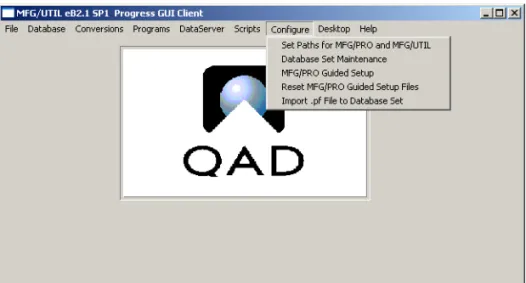
For Windows, launch MFG/UTIL from the icon on the Start menu. 2 Choose MFG/PRO Guided Setup from the Configure menu. Fig. 3.1
MFG/UTIL Configure Menu