EMC
®
Documentum
®
Application Connectors Software
Development Kit
Version 6.8
Development Guide
EMC Corporation
Corporate Headquarters:
Hopkinton, MA 01748-9103 1-508-435-1000 www.EMC.com
Legal Notice
Copyright © 2007-2014 EMC Corporation. All Rights Reserved.
EMC believes the information in this publication is accurate as of its publication date. The information is subject to change without notice.
THE INFORMATION IN THIS PUBLICATION IS PROVIDED "AS IS." EMC CORPORATION MAKES NO REPRESENTATIONS OR WARRANTIES OF ANY KIND WITH RESPECT TO THE INFORMATION IN THIS PUBLICATION, AND SPECIFICALLY DISCLAIMS IMPLIED WARRANTIES OF MERCHANTABILITY OR FITNESS FOR A PARTICULAR PURPOSE.
Use, copying, and distribution of any EMC software described in this publication requires an applicable software license. For the most up-to-date listing of EMC product names, see EMC Corporation Trademarks on EMC.com. Adobe and Adobe PDF Library are trademarks or registered trademarks of Adobe Systems Inc. in the U.S. and other countries. All other trademarks used herein are the property of their respective owners.
Documentation Feedback
Your opinion matters. We want to hear from you regarding our product documentation. If you have feedback about how we can make our documentation better or easier to use, please send us your feedback directly [email protected]
Table of Contents
Preface
...
9Chapter 1 Overview
...
11Introduction... 11
Architecture
...
11Configuring and customizing WDK and WDK applications
...
13Chapter 2 Installing and Setting Up the Documentum Application Connectors Software Development Kit
...
15Installing Documentum Application Connectors SDK... 15
Installed folders and files
...
15Chapter 3 Quick Start
...
17General procedure for creating and integrating an application connector with your application
...
17Creating an application connector... 19
Initializing and cleaning up your application connector
...
20Calling the application connector from your application
...
23Chapter 4 Implementing Your Application Connector Provider
...
25General procedure for implementing your MyAppIntegrationProviderBase class
...
26Implementing the InitializeAppIntegration method
...
26Implementing the ActiveDocumentArguments property... 28
Implementing the ActiveDocumentFilePath property
...
28Implementing the ActiveDocumentModifiedSinceLastSave property... 29
Implementing the ActiveDocumentObjectId property... 30
Implementing the ActiveWindowHandle property
...
30Implementing the Close method... 31
Implementing the CloseActiveDocument method... 31
Implementing the DefaultDocumentFormat property
...
32Implementing the DoAbout method
...
32Implementing the DoOpenDocument method... 33
Implementing the MenuBar property... 33
Implementing the OpenedRepositoryDocumentCount property... 34
Implementing the RefreshMenu method
...
34Implementing the SaveActiveDocument method
...
35Table of Contents
Implementing the ShowDefaultCursor method
...
37Implementing the UpdateActiveDocumentArguments method
...
37Chapter 5 Handling Events
...
39Overview
...
39AppConnectorEventServer scenarios
...
41Unanswered broadcast query event dispatch flow
...
41Answered broadcast query event dispatch flow
...
42Approved state transition broadcast event dispatch flow... 42
Vetoed state transition broadcast event dispatch flow... 43
WDK events... 44
Chapter 6 Creating and Modifying the Documentum Menu
...
47Introduction... 47
Building the Documentum menu... 50
Calling the SetCompanyMenuName and SetCompanyName methods
...
51Implementing the BuildMenu method
...
51Implementing the BuildMenuState method
...
54Implementing the DestroyMenu method... 56
Implementing the DestroyMenuState method
...
57Implementing the RebuildMenu method... 58
Implementing the RefreshMenu method
...
58Removing menu items from all applications... 60
Modifying menu items for all applications
...
60Adding custom menu items to all applications
...
62Restricting menu items to specific applications
...
62Chapter 7 Customizing and Creating Application Connector Components and Actions
...
65Overview
...
65List of Application Connectors components and actions... 65
Creating new application connector components and actions
...
66appintgcontroller component
...
68Client environment qualifier in the WDK application... 70
Sample... 71
Introduction... 71
Procedure
...
71Chapter 8 Deploying Your Application Connector
...
75Overview
...
75Installing with an MSI or InstallShield installer... 75
Installing with a non-MSI or non-InstallShield installer
...
76Chapter 9 Debugging Application Connector Execution
...
79Setting logging options
...
79Assembly Requirements
...
80Table of Contents
Chapter 11 Creating Application Connectors That Integrate with C++ or
Visual Basic 6 Applications
...
83Introduction... 83
Overview
...
83Creating application connectors that integrate with C++ applications
...
84Creating your application connector
...
85Creating your MyAppConnectorEventClient... 87
Modifying your main frame class
...
88Chapter 12 Executing Documentum Foundation Class Functionality from Your Application Connector
...
91Introduction... 91
Overview
...
91Procedure
...
92Appendix A Sample Applications
...
95Table of Contents
List of Figures
Figure 1. Documentum Application Connectors SDK Architecture
...
12Figure 2. Application Connector, Webtop, Repository Relationship... 12
Figure 3. DAC SDK .NET Runtime Assemblies and Runtime Service Structure... 13
Figure 4. Event Dispatching Interaction Diagram... 40
Figure 5. Unanswered Broadcast Query Event Dispatch Flow... 41
Figure 6. Answered (True) Broadcast Query Event Dispatch Flow
...
42Figure 7. Approved State Transition Broadcast Event Dispatch Flow... 43
Figure 8. Vetoed State Transition Broadcast Event Dispatch Flow
...
44Figure 9. Application Connector standard menu
...
49Table of Contents
List of Tables
Table 1. Application Connectors menu configuration elements
...
60 Table 2. Appintgcontroller <dispatchitems> elements...
68 Table 3. Required pages in appintgcontroller component definition...
69Preface
This document describes how to use the Documentum Application Connectors Software Development Kit to enable Windows desktop applications to access and manipulate objects in Documentum repositories.
Intended Audience
The audience of this manual is intended to be Windows developers who are not familiar with Documentum.
Revision History
Revision Date Description
Chapter 1
Overview
These topics are described: • Introduction, page 11 • Architecture, page 11
• Configuring and customizing WDK and WDK applications, page 13
Introduction
You use the Documentum Application Connectors Software Development Kit (DAC SDK) to create EMC Documentum Application Connectors that enable Windows applications, such as rich editors, to check in and check out files from Documentum repositories (as well as many other tasks, such as searching repositories) through a combination of a .NET client assemblies and runtime services, and components running on EMC Documentum WDK-based application server applications (for example, Webtop).
EMC Documentum has used the DAC SDK to create its application connectors for these Microsoft Office applications: Word, Excel, PowerPoint, and Outlook.
From version 6.7, DAC SDK supports Microsoft .NET Framework version 2.0 instead of Microsoft .NET Framework version 1.1.
Architecture
DAC SDK is a collection of .NET assemblies and runtime services that your application uses through an application connector that you develop. Your application initializes your application connector, which creates a Documentum menu in your application. From that point on, users can use the Documentum menu to check in files from their local machine into Documentum repositories as well as many other task, including checking out files from and searching repositories. When users choose menu items or your application posts events (such as when a file is opened), logic in your application connector is called.
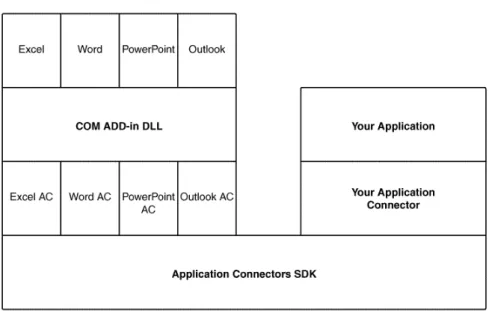
Figure 1, page 12shows that your application uses DAC SDK in the same way that Excel, Word, PowerPoint, and Outlook use DAC SDK. That is, DAC SDK is a generic layer of code that both your application connector and each Microsoft Office application connector use.
Overview
Figure 1. Documentum Application Connectors SDK Architecture
Figure 2, page 12shows that when your application needs to manipulate files in a repository, it calls the application connector you created, which then calls Webtop, which then calls the repository.
Figure 2. Application Connector, Webtop, Repository Relationship
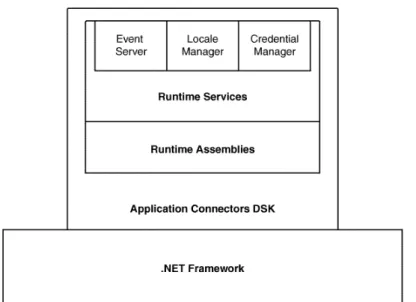
Figure 3, page 13shows that DAC SDK depends on the .NET framework; it also shows that DAC SDK consists of runtime assemblies and runtime services.
Overview
Figure 3. DAC SDK .NET Runtime Assemblies and Runtime Service Structure
Configuring and customizing WDK and WDK
applications
TheEMC Documentum Web Development Kit Development Guidecontains detailed information on configuring and customizing WDK and WDK applications.
Chapter 2
Installing and Setting Up the
Documentum Application Connectors
Software Development Kit
TheEMC Documentum Application Connectors SDK Release Notescontains the system requirements information.
Installing Documentum Application Connectors
SDK
To install DAC SDK, double-click the EMC Documentum Application Connectors SDK.msi file and follow the instructions.
Installed folders and files
.NET assemblies, supporting DLLs and runtime services that are shared across all installed application connectors are, by default, installed in:
C:\Program Files\Documentum\AppConnector These DAC SDK runtime services are installed. • Credential Manager
• Event Server • Locale Manager
The Credential Manager and Locale Manager processes are automatically started after installation completes. To view these processes, open the Task Manager’sProcessestab. The Event Server is started when an application connector is initialized.
To support application connector development, another set of .NET assemblies and supporting DLLs are installed, by default, into:
Installing and Setting Up the Documentum Application Connectors Software Development Kit
This folder contains the sample applications’ executables, assemblies, configuration files, and manifest files. It also contains these subfolders:
• Developer Help: contains theEMC Documentum Application Connectors SDK Development Guide. • Documentum: contains private assemblies and DLLs used by the application implementing
application connectors (which, in this case, is the sample application). • Source: contains the sample applications’ Visual Studio 2008 solution.
To test your installation:
1. Double-click the sample application executable. 2. ChooseDocumentum>Preferences.
3. On thePreferencesdialog box’sGeneraltab, type the URL to a Webtop installation in your company.
Note: The Webtop URL is saved to the application connector’s app.config filein the <host> element.
For example:
<wdkAppLocalSettings version="1.0"> <wdkAppLocalInfo... >
<host>http://webtop_machine:8100/webtop</host> ...
</wdkAppLocalSettings>
4. To log into a Documentum repository, chooseDocumentum>Login Asand enter your user name, password, and domain (if required).
5. To open a repository file, chooseDocumentum>Open.
If you can successfully log in to a repository and open a file, then you have successfully installed the Documentum Application Connectors SDK.
Chapter 3
Quick Start
This chapter includes these topics:
• General procedure for creating and integrating an application connector with your application, page 17
• Creating an application connector, page 19
• Initializing and cleaning up your application connector, page 20 • Calling the application connector from your application, page 23
General procedure for creating and integrating
an application connector with your application
To create and integrate an application connector with your application:
1. To create your application connector, create a new .NET assembly with these classes:• MyAppIntegrationProviderderive it from the AppIntegrationProviderBase class and implement all of the AppIntegrationProviderBase class’s abstract methods and properties.
• MyMenuProviderderive it from the MenuProviderBase class and implement all of the MenuProviderBase class’s abstract methods.
• MyConnectimplement logic for initialization and cleanup of the application connector. You can use your own names in place of theMyAppIntegrationProvider,MyMenuProvider,
MyConnectclass names.
SeeCreating an application connector, page 19andInitializing and cleaning up your application connector, page 20.
2. In the appropriate locations in your application, call the initialization and cleanup methods in yourMyConnectclass.
3. Copy the TextEditorApp.exe.config file to your application executable’s directory, and change the TextEditorAppportion of TextEditorApp.exe.config to your application’s name (for example, MyApp.exe.config)
Quick Start
Specify these values for yourMyAppIntegrationProviderandMyMenuProviderclasses: <appIntegrationSettings version="1.0">
1 <appIntegrationInfo name="MyCompanyAppConnectorForMyApp" 2 type="IntegrationProvider,
3 MyAppIntegrationProviderNamespace, 4 Version=1.0.0.0, 5 Culture=neutral, 6 PublicKeyToken=a289a5c6e19bab4f" clientSideEventHandlers="session,notification,component" canConnectTimerDuration="7000" contentSources="webtop" > </appIntegrationInfo> </appIntegrationSettings> ... <menuSettings version="1.0">
7 <menuInfo name="MyCompanyMenuProviderForMyApp" 8 type="MenuProvider,
9 MyMenuProviderNamespace, 10 Version=1.0.0.0,
11 Culture=neutral,
12 PublicKeyToken=a289a5c6e19bab4f" > ...
</menuSettings>
1 MyCompanyAppConnectorForMyAppis a string that identifies yourMyAppIntegrationProviderclass and matches the application connector constant value in your application connector’s constants file. For example: Documentum Application Connector for Text Editor.
2 IntegrationProvideris the fully qualified (including the namespace) class name for
MyAppIntegrationProvider. For example:MyCompany.AppConnector.TextEditorAppIntg. TextEditorAppIntegrationProvider.
3 MpAppIntegrationProviderNamespaceis the namespace ofMyAppIntegrationProvider. For example: MyCompany.AppConnector.TextEditorAppIntg
4 Version of your assembly that contains theMyAppIntegrationProviderclass.
5 Default culture of your assembly that contains theMyAppIntegrationProviderclass defines the default assembly language resources that are built into the assembly.
6 Your application connector assembly’s public key token that you generated using a private key. Do not use the sample application’s .sink file or the security of your application connector will be compromised.
7 MyCompanyMenuProviderForMyAppis a string that identifies yourMyMenuProviderclass and matches the menu provider constant value in your application connector’s constants file. For example: Documentum Menu System for Text Editor.
8 MenuProvideris the fully qualified (including the namespace) class name forMyMenuProvider. For example:MyCompany.AppConnector.TextEditorAppIntg.MenuProvider.
9 MyMenuProviderNamespaceis the namespace ofMyMenuProvider. For example: MyCompany.AppConnector.TextEditorAppIntg
10Version of your assembly that contains theMyMenuProviderclass.
11Default culture of your assembly that contains theMyMenuProviderclass.
12Your application connector assembly’s public key token that you generated using a private key. Do not use the sample application’s .sink file or the security of your application connector will be compromised.
Quick Start
4. Make a copy the TextEditorApp.exe.log4net.config file in the Documentum directory, change theTextEditorApp portion of its name to your application’s name, and change the param element’s file attribute value to an appropriate log file name for your application.
5. Copy the TextEditorApp.exe.manifest file to your application executable’s directory, change the TextEditorAppportion of its name to your application’s name, and change the <description> element value to an appropriate description of your application.
6. To enable adding and removing menu items from the Documentum menu (and other scoping uses) in your application onlyand not other application connectors create a string identifying your application name:
a. In your app.config file, add a string identifying your application name to the <wdkAppLocalInfo> element’s <clientenv> element.
For example: <wdkAppLocalInfo> ...
<clientenv>MyApp</clientenv> ...
</wdkAppLocalInfo>
b. In the app.xml file in the webtop\wdk directory of your Webtop installation, add the same application name string you specified inStep ato the <clientenv_structure> element as a <child> element of the appintg <parent> element.
For example:
<clientenv_structure> <branch>
<parent>appintg</parent> <children>
<child>MyApp</child> ...
</children> </branch>
...
</clientenv_structure>
Creating an application connector
1. Create a new application in Visual Studio 2008 or any other development tool that supports .NET 2.0-based development.
2. Copy the Documentum folder to your application’s directory.
The Documentum folder is in the DAC SDK installation directory, which is, by default: C:\Program Files\EMC Documentum Application Connectors SDK <version> 3. Add references to these DAC SDK assemblies:
• Documentum.AppConnector.Application
• Documentum.AppConnector.Application.Interfaces • Documentum.AppConnector.Logging
• Documentum.AppConnector.Provider
Quick Start
• Documentum.AppConnector.Utility • Documentum.Interop.AdvHosting • Documentum.Interop.EventServer • log4net
Except for the Documentum.Interop.EventServer assembly, which is located in the AppConnector folder, all these assemblies are located in the Documentum folder of your application’s executable folder.
4. Implement aMyConnectclass that contains the application connector initialization and cleanup methods that your application calls.
SeeInitializing and cleaning up your application connector, page 20.
5. Implement aMyAppIntegrationProviderclass that contains the core logic of your application connector.
SeeChapter 4, Implementing Your Application Connector Provider.
As a part of the initialization process, theMyAppIntegrationProviderclass expects an object that represents your application. This object is a bridge encapsulating your editor-specific programming model. For example, the Microsoft Office programming model has an Application object that allows access to other objects (for instance, menu bar, open documents) and events that fire based on user actions (for instance, window activate, document open, document close, new document). For a more specific example, see the TextEditorAppClass.cs and Connect.cs files of the TextEditorApp sample application.
If your application’s programming model does not have an object that represents your application and it is a C++ or Visual Basic 6 application, then you can use a COM bridge. SeeChapter 11, Creating Application Connectors That Integrate with C++ or Visual Basic 6 Applications. 6. Implement aMyMenuProviderclass that creates and manages the Documentum menu in your
application.
SeeChapter 6, Creating and Modifying the Documentum Menu.
Initializing and cleaning up your application
connector
You create aMyConnectclass that handles initializing and cleaning up your application connector.
To create a method that initializes your application connector:
1. To configure the .NET remoting service, which is required for the credential service, use the System.Runtime.Remoting.RemotingConfiguration.Configure method.
For example:
1 string configFile = System.AppDomain.CurrentDomain. SetupInformation.ConfigurationFile; try
{
// Required to communicate with Credential Service.
Quick Start
}
catch (Exception ex) {
logger.Fatal(".NET Remoting could not be configured: [" + ex.Message + "] " + ex.StackTrace);
return retVal; }
1 The System.AppDomain.CurrentDomain.SetupInformation.ConfigurationFile .NET method retrieves the configuration file name.
2 The System.Runtime.Remoting.RemotingConfiguration.Configure .NET method configures the remoting service, which is required for the credential service.
2. Declare a method prototype that returns a Boolean indicating whether the initialization succeeded, and creates and initializes an IAppIntegrationProvider instance.
For example:
1 public bool InitMyAppIntegration(object parent) {
2 bool retVal = false; try
{
3 MyAppIntegrationProvider = AppIntegrationProviderManager.
Current.Create(MyAppAppConstants.INTEGRATION_WITH_MY_APP); logger.Info("Application integration provider has been
successfully created."); }
catch (Exception ex) {
logger.Error("Application integration provider creation failed", ex); return retVal;
}
if (MyAppIntegrationProvider != null) {
try {
4 retVal = MyAppIntegrationProvider.InitializeAppIntegration(parent); logger.Info("Application integration provider has been
successfully initialized."); }
catch (Exception ex) {
logger.Error("Failed to initialize the application integration provider", ex); return retVal; } } return retVal; }
1 InitMyAppIntegrationis the name of the method that initializes your application connector provider class. Theparentobject represents your application object.
2 Initialize the retVal variable, which represents whether the method succeeded, to False.
3 To create an IAppIntegrationProvider instance, execute the Create method on the current AppIntegrationProviderManager factory indicated by the Current property. The Create method takes your application connector name as a parameter. Your application connector name is specified as anINTEGRATION_WITH_YOUR_APPconstant in yourMyAppAppConstantsclass for constants. TheINTEGRATION_WITH_YOUR_APPconstant value must be the same as the appIntegrationInfo element’s name attribute value in your application connector’s app.config file.
Quick Start
For example, the TextEditorAppConstants class (in the TextEditorAppConstants.cs file) has this constant defined:
public const string INTEGRATION_WITH_TEXT_EDITOR_APP = "Documentum Application Connector for TextEditorApp";
This constant matches the appIntegrationInfo element’s name attribute value in the TextEditorAppConnector’s app.config file:
<emc.com> <documentum> <appConnector> <actionSettings version="1.0"> .... </actionSettings> <appIntegrationSettings version="1.0"> ...
<appIntegrationInfo name="Documentum Application Connector for TextEditorApp" ...> </appIntegrationInfo> </appIntegrationSettings> ... </appConnector> </documentum> </emc.com>
4 Execute InitializeAppIntegration on your IAppIntegrationProvider instance (MyAppIntegrationProvider) to initialize your application connector.
3. To build your menu after initializing your application, call your overridden BuildMenu method. For example: try { MyAppIntegrationProvider.MenuProvider.BuildMenu( MyAppIntegrationProvider); }
catch (Exception e) {
logger.Error("Failed to build custom menu", e); return false;
}
Create a method that closes your application connector:
1. Destroy the Documentum menu, close yourMyAppIntegrationProviderinstance, and set the
MyAppIntegrationProviderinstance’s reference to null. For example:
public void CloseYourAppAppIntegration() {
if (MyAppAppIntegrationProvider != null) {
MyAppAppIntegrationProvider.MenuProvider.DestroyMenu(false); MyAppAppIntegrationProvider.Close();
MyAppAppIntegrationProvider = null; }
Quick Start
Calling the application connector from your
application
1. In your application, add a reference to your application connector. 2. Create an instance of theMyConnectclass.
3. Implement the code to initialize your application connector when your application starts by calling your initialization method in theMyConnectclass.
4. Implement the code to terminate and cleanup your application connector when your application terminates by calling your cleanup method in theMyConnectclass.
Chapter 4
Implementing Your Application
Connector Provider
This chapter includes these topics:
• General procedure for implementing your MyAppIntegrationProviderBase class, page 26 • Implementing the InitializeAppIntegration method, page 26
• Implementing the ActiveDocumentArguments property, page 28 • Implementing the ActiveDocumentFilePath property, page 28
• Implementing the ActiveDocumentModifiedSinceLastSave property, page 29 • Implementing the ActiveDocumentObjectId property, page 30
• Implementing the ActiveWindowHandle property, page 30 • Implementing the Close method, page 31
• Implementing the CloseActiveDocument method, page 31 • Implementing the DefaultDocumentFormat property, page 32 • Implementing the DoAbout method, page 32
• Implementing the DoOpenDocument method, page 33 • Implementing the MenuBar property, page 33
• Implementing the OpenedRepositoryDocumentCount property, page 34 • Implementing the RefreshMenu method, page 34
• Implementing the SaveActiveDocument method, page 35 • Implementing the ShowBusyCursor method, page 37 • Implementing the ShowDefaultCursor method, page 37
Implementing Your Application Connector Provider
General procedure for implementing your
MyAppIntegrationProviderBase class
To instantiate your application connector and respond to events:
1. You createMyAppIntegrationProviderand derive it from the AppIntegrationProviderBase class. 2. You implement these methods and properties:
• ActiveDocumentArguments seeImplementing the ActiveDocumentArguments property, page 28.
• ActiveDocumentFilePath seeImplementing the ActiveDocumentFilePath property, page 28. • ActiveDocumentModifiedSinceLastSave see Implementing the
ActiveDocumentModifiedSinceLastSave property, page 29.
• ActiveDocumentObjectId seeImplementing the ActiveDocumentObjectId property, page 30. • ActiveWindowHandle seeImplementing the ActiveWindowHandle property, page 30. • Close seeImplementing the Close method, page 31.
• CloseActiveDocument seeImplementing the CloseActiveDocument method, page 31. • DefaultDocumentFormat seeImplementing the DefaultDocumentFormat property, page 32. • DoAbout seeImplementing the DoAbout method, page 32.
• DoOpenDocument seeImplementing the DoOpenDocument method, page 33.
• InitializeAppIntegration seeImplementing the InitializeAppIntegration method, page 26. • MenuBar seeImplementing the MenuBar property, page 33.
• OpenedRepositoryDocumentCount seeImplementing the OpenedRepositoryDocumentCount property, page 34.
• RefreshMenu seeImplementing the RefreshMenu method, page 34.
• SaveActiveDocument seeImplementing the SaveActiveDocument method, page 35. • ShowBusyCursor seeImplementing the ShowBusyCursor method, page 37.
• ShowDefaultCursor seeImplementing the ShowDefaultCursor method, page 37.
• UpdateActiveDocumentArguments seeImplementing the UpdateActiveDocumentArguments method, page 37.
Implementing the InitializeAppIntegration
method
The InitializeAppIntegration method is used to initialize your application connector.
To implement the InitializeAppIntegration method:
Implementing Your Application Connector Provider
2. Make sure that the parent object passed to this method is the right kind of object. For example:
if (parent is MainForm) {
1 this.parent = (MainForm)parent; }
else {
logger.Error("InitializeAppIntegration -parent object is not of MainForm type"); return false;
}
1 Casts theparentas System.Windows.Forms.ApplicationContext.MainForm.
3. Create an instance of the IMenuProvider interface by calling the MenuProviderManager class (a factory class).
try {
1 menuManager = MenuProviderManager.Current.Create( MyAppConstants.MYCOMPANY_MENU_SYSTEM_MY_APP);
logger.Info("Menu provider has been successfully created."); }
catch (Exception e) {
logger.Error("Menu provider creation failed", e); return false;
}
1 The Current property gets the current MenuProviderManager factory; and the Create method returns the IMenuProvider instance. The constant that identifies the IMenuProvider interface isMYCOMPANY_MENU_SYSTEM_MY_APPandMyAppConstantsis your constants file. TheMYCOMPANY_MENU_SYSTEM_MY_APPconstant value is the same as the value of the <appIntegrationInfo> element’s name attribute in the app.config file.
4. To register for an event in which focus is changed, add code similar to this one after the end of the method after try-catch block in the previous step:
this.parent.txt.GotFocus += new EventHandler(Txt_GotFocus);
txt is a reference to a TextBox control that contains a document. This code registers the control’s System.EventHandler, GotFocus (which occurs when the control receives focus), with the Txt_GotFocus EventHandler.
5. In the Private Methods region, add the Txt_GofFocus EventHandler implementation: private void Txt_GotFocus(object sender, EventArgs e)
{
1 string objectId = ActiveDocumentObjectId; if (objectId.Equals(""))
{
2 this.RefreshMenu(ApplicationConstants.REPOSITORY_CONTENT, false); }
else {
3 this.RefreshMenu(ApplicationConstants.REPOSITORY_CONTENT, true); }
Implementing Your Application Connector Provider
5 base.RefreshAiConnectionMenuItem(); }
1 Retrieves the object ID of the document that was opened from the EventArgs parameter.
2 If the document does not have an object ID, then it is not a repository document; so the menu is refreshed and any menu item that applies to an opened repository document is disabled.
3 If the document has an object ID, then it is a repository document; so the menu is refreshed and any menu item that applies to an opened repository document is enabled.
4 Any menu item that applies to any contenteither a local or repository documentis enabled.
5 Any menu item that should be available when your application is connected to a repository is enabled.
6. Return true after code in the previous step to indicate that an instance of the IMenuProvider interface has been successfully created.
Implementing the ActiveDocumentArguments
property
The ActiveDocumentArguments property is used to return the active document’s arguments that are passed to your application connector when a repositoy document is opened.
To implement the ActiveDocumentArguments Property:
1. Override the ActiveDocumentArguments Property.2. Implement a get function to return the active document’s arguments. For example:
public override string ActiveDocumentArguments {
get {
1 return base.GetDocumentArguments(filePath); }
}
1 Using the AppIntegrationProviderBase GetDocumentArguments method, returns the file’s arguments based on its file’s path,filePath.
filePathis a class variable that holds the file path of the active document. When a repository
document is opened, the application connector provider saves its path. To retrieve that value, use the AppIntegrationProviderBase GetArgumentValue method. For example:
filePath = base.GetArgumentValue(eventArgs, ApplicationConstants. FILENAME_WITH_PATH);
Implementing the ActiveDocumentFilePath
property
Implementing Your Application Connector Provider
To implement the ActiveDocumentFilePath Property:
1. Override the ActiveDocumentFilePath Property.2. Implement a get function to return the active document’s path. For example:
public override string ActiveDocumentFilePath {
get {
1 return (filePath.Length == 0) ? documentName : filePath; }
}
1 Returns the file’s path or its file name, if it has not been saved.
filePathis a class variable that holds the file path of the active document. For more information about thefilePathclass variable, seeImplementing the ActiveDocumentArguments property, page 28.
Implementing the
ActiveDocumentModifiedSinceLastSave
property
The ActiveDocumentModifiedSinceLastSave property is used to determine whether the active document was modified since it was last saved.
To implement the ActiveDocumentModifiedSinceLastSave Property:
1. Override the ActiveDocumentModifiedSinceLastSave Property.2. Implement a get function to return a Boolean value indicating whether the active document has been modified.
For example:
public override bool ActiveDocumentModifiedSinceLastSave {
get {
1 return parent.dirty; }
}
1 dirtyis a variable, which represents a Boolean value, on theparentobject, which represents your application object. You must use a similar call that returns a Boolean that signifies whether the active document has been modified.
Implementing Your Application Connector Provider
Implementing the ActiveDocumentObjectId
property
The ActiveDocumentObjectId property is used to return the active documents repository object ID (r_object_id attribute value).
To implement the ActiveDocumentObjectId Property:
1. Override the ActiveDocumentObjectId Property.2. Implement a get function to return the active documents repository object ID. For example:
public override string ActiveDocumentObjectId {
get {
1 return base.GetObjectId(filePath); }
}
1 Using the AppIntegrationProviderBase GetObjectId method, returns the files object ID based on its files path,filePath. filePathis a class variable that holds the file path of the active document. For more information about thefilePathclass variable, seeImplementing the ActiveDocumentArguments property, page 28.
Implementing the ActiveWindowHandle
property
The ActiveWindowHandle property is used to retrieve your applications active window handle.
To implement the ActiveWindowHandle property:
1. Override the ActiveWindowHandle property.
2. Implement a get function to return your applications active window handle. For example:
public override IntPtr ActiveWindowHandle {
get {
1 return parent.Handle; }
}
1 Handleis a variable, which represents an IntPtr (a .NET data typebasically, a raw handlewhich could be an int or long), on theparentobject; and theparentobject represents your application object. You must use a call similar to this one that returns an object representing your applications active window handle.
Implementing Your Application Connector Provider
Implementing the Close method
The Close method is used to close your application.To implement the Close method:
1. Override the Close method.2. Call the AppIntegrationProviderBase Cleanup method to clean up resources allocated by the base implementation classes.
For example:
public override void Close() {
base.Cleanup(); }
3. Call your applications close and cleanup code after calling the AppIntegrationProviderBase Cleanup method.
Implementing the CloseActiveDocument
method
The CloseActiveDocument method is used to close the active document in your editor.
To implement the CloseActiveDocument method:
1. Override and implement the CloseActiveDocument method.
2. Call your applications close window code, decrement the counter that keeps track of how many repository documents are open, and delete the documents event arguments.
For example:
// Call your applications close window code here // to close the active document;
1 your_application_close_code; openedRepoDocumentCount--;
2 RemoveOpenDocumentArguments(filePath);
1 Decrement the openedRepoDocumentCount variable, which keeps track of how many repository documents are open in your application.
2 Call the RemoveOpenDocumentArguments method passing thefilePathparameter, which deletes all event arguments for the document specified by thefilePathparameter.
3. If this is the last window in your application, call the RefreshMenu method and set its first parameter to ApplicationConstants.REPOSITORY_CONTENT and the second parameter to False so that the menu is refreshed to disable all menu items related to repository content.
For example:
Implementing Your Application Connector Provider
Implementing the DefaultDocumentFormat
property
This property is used to return the default document format for your application’s documents. This default document format must be a format (dm_format object type) that exists in the repository.
To implement the DefaultDocumentFormat Property:
1. Override the DefaultDocumentFormat Property. 2. Implement a get function to return a value.
For example:
public override string DefaultDocumentFormat {
get {
1 return "crtext"; }
}
1 Returns the text, crtext, as the default format.
Implementing the DoAbout method
The DoAbout method is used to display your application connectors About dialog box.
When you create your application connectors About dialog box, its constructor must take the WDK application host name as a String parameter. For an example, see the sample application.
To implement the DoAbout method:
1. Override the DoAbout method.2. Create an instance of your application connectors About dialog box by calling its constructor and passing the current WDK applications host name, and then call System.Windows.Forms.Form.ShowDialog method on that instance.
For example:
public override void DoAbout() {
AboutAppConnectorDialog about =
1 new AboutAppConnectorDialog(base.CurrentWdkApplication.Host); about.ShowDialog();
}
1 Call the AppIntegrationProviderBase CurrentWdkApplication property to return an
IWdkAppLocalProvider object representing an interface to the current WDK application, and then call the IWdkAppLocalProviders Host property to return the URL of the WDK application host.
Implementing Your Application Connector Provider
Implementing the DoOpenDocument method
The DoOpenDocument method is called when a document is opened in your application; that is, an open-document event occurs.To implement the DoOpenDocument method:
1. Override the DoOpenDocument method.2. Retrieve the file path of the document that was opened in your editor. For example:
filePath = base.GetArgumentValue(eventArgs, ApplicationConstants.FILENAME_WITH_PATH);
3. Because repository documents can be opened using Webtop instead of your application and consequently, the args parameter might be empty. Set the documentOpenedViaIntegration field in your AppIntegrationProviderBase class to true, so that other methods can check to see if the documentOpenedViaIntegration field is False, and, if so, call GetLocalDocumentArguments to retrieve the document’s arguments.
For example:
documentOpenedViaIntegration = true; 4. Build and refresh the menu state. For example:
AddOpenDocumentArguments(eventArgs);
base.MenuProvider.BuildMenuState(eventArgs);
RefreshMenu(ApplicationConstants.REPOSITORY_CONTENT, true);
5. Increment the variable that keeps count of the number of open repository documents. For example:
openedRepoDocumentCount++;
Implementing the MenuBar property
The MenuBar property is used to retrieve your application’s menubar object.To implement the MenuBar property:
1. Override the MenuBar property.
2. Implement a get function to return your application’s menubar. For example:
public override object MenuBar {
get {
1 return parent.Menu; }
Implementing Your Application Connector Provider
1 Menuis a variable, which represents an object, on theparentobject; and theparentobject represents your application object. You must use a call similar to this one that returns an object representing your application’s menubar.
Implementing the
OpenedRepositoryDocumentCount property
The OpenedRepositoryDocumentCount property is used to return the number of repository documents that are open in your application.To implement the OpenedRepositoryDocumentCount property:
1. Override the OpenedRepositoryDocumentCount property.2. Implement a get function to return the number of repository documents that are open in your application.
For example:
public override int OpenedRepositoryDocumentCount {
get {
1 return openedRepoDocumentCount; }
}
1 openedRepoDocumentCountis a class variable that holds the number of open repository
documents. This variable is incremented by 1 every time a repository document is opened (in the DoOpenDocument method) and decremented by 1 every time a repository document is closed (in the CloseActiveDocument method).
Implementing the RefreshMenu method
The RefreshMenu method is used to set the active window’s Documentum menu item states.To implement the RefreshMenu method:
1. Override the RefreshMenu method.
2. Call the RefreshMenu method in your class that derives from the MenuProviderBase class. For example:
public void RefreshMenu(string context, bool enabled) {
1 base.MenuProvider.RefreshMenu(context, enabled); }
1 base.MenuProvider returns a reference to the IMenuProvider interface type. The RefreshMenu method is called on the IMenuProvider interface to refresh the state of the application menu bar. MenuProvider is a property type of the AppIntegrationProviderBase base class that returns the
Implementing Your Application Connector Provider
menu manager object (IMenuProvider interface type), which implements your custom menu and handles its events.
The context parameter specifies the context (for example, a repository document) of the document to which the menu applies. The valid values for the context parameter are specified in the <aidynamic> element of the <actionmenuitem> elements in the appintgmenubar_menugroup.xml file. The enabled parameter indicates whether the menu item is to be enabled.
If you application requires actions to occur before or after the refresh, you can code those actions to occur before or after this call.
Implementing the SaveActiveDocument
method
The SaveActiveDocument method is used to save the active document in your application to the local file system.
To implement the SaveActiveDocument method:
1. Override the SaveActiveDocument method.2. Check whether the caller has specified a folder called the target folder in which to save the document.
The target folder could be the current folder, in which case the caller will not have specified any value for the target folder.
For example:
1 if (targetFolder.Length == 0) {
try {
2 System.IO.StreamWriter sw = new System.IO.StreamWriter(filePath); sw.WriteLine(parent.txt.Text);
sw.Flush(); sw.Close();
3 parent.dirty = false; }
catch (UnauthorizedAccessException e) {
logger.Info("Cannot save the file because of an access violation", e); return filePath;
}
catch(Exception e) {
logger.Error("Failed to save active document", e); return string.Empty;
}
return filePath; }
4 else {
5 string activeDocumentName = System.IO.Path.GetFileName(filePath); if (activeDocumentName.Length == 0)
{
activeDocumentName = documentName; }
Implementing Your Application Connector Provider
6 filePath = System.IO.Path.Combine(targetFolder, activeDocumentName); int delimPos = filePath.IndexOf("_tmp_");
int dotPosition = filePath.LastIndexOf(ApplicationConstants.DOT); String part1 = "", part2 = "";
if (dotPosition > 0) {
if(delimPos > 0) {
part1 = filePath.Substring(0, delimPos); }
else {
part1 = filePath.Substring(0, dotPosition); }
part2 = filePath.Substring(dotPosition); }
else {
filePath = part1; }
filePath = part1 + "_tmp_0" + part2; try
{
System.IO.StreamWriter sw = new System.IO.StreamWriter(filePath); sw.WriteLine(parent.txt.Text);
sw.Flush(); sw.Close();
parent.dirty = false; }
catch(Exception e) {
logger.Error("Failed to save active document", e); return string.Empty;
}
7 return filePath; }
1 If the length of the string value passed in the targetFolder parameter is zero, then the target folder is the current folder.
2 Use the System.IO.StreamWriter object to save the active document to the path specified in the
filepathvariable.
3 dirtyis a variable, which represents a Boolean value, on theparentobject, which represents your application object. You must use a similar call that returns a Boolean signifying whether the active document has been modified.
4 Otherwise, the length of the string value passed in the targetFolder parameter is greater than zero, which indicates that a target folder was specified.
5 Get the file name of the active document by calling the System.IO.Path.GetFileName method on thefilepathclass variable.
6 Construct the target file path for the active document by calling the System.IO.Path.Combine method on the targetFolder parameter and the activeDocumentName variable.
7 Return the path to the saved document.
3. Since this document has just been saved, set the document’s property to be unmodified. For example:
Implementing Your Application Connector Provider
dirtyis a variable, which represents a Boolean value, on theparentobject, which represents your application object. You must use a similar call that returns a Boolean signifying whether the active document has been modified.
Implementing the ShowBusyCursor method
The ShowBusyCursor method is used to display a busy cursor when an operation is in progress.To implement the ShowBusyCursor method:
1. Override the ShowBusyCursor method, which takes a windowHandle parameter: public override void ShowBusyCursor(System.IntPtr windowHandle) 2. Call your applications busy cursor code.
For example: {
1 parent.Cursor = System.Windows.Forms.Cursors.WaitCursor; }
1 System.Windows.Forms.Curors.WaitCursor gets the busy cursor from the System.Windows. Forms.Cursors collection. The busy cursor is assigned to the parent objects cursor.
Implementing the ShowDefaultCursor method
The ShowDefaultCursor method is used to display the default cursor.To implement the ShowDefaultCursor method:
1. Override the ShowDefaultCursor method.2. Call your application’s default cursor code. For example:
{
1 parent.Cursor = System.Windows.Forms.Cursors.Default; }
1 System.Windows.Forms.Cursors.Default gets the default cursor from the System.Windows.Forms. Cursors collection. The default cursor is assigned to the parent object’s cursor.
Implementing the
UpdateActiveDocumentArguments method
The UpdateActiveDocumentArguments method is used to update the active document’s arguments. This method is called by the Application Connectors framework when a document’s repository state changes (for example, after checkin).
Implementing Your Application Connector Provider
To implement the UpdateActiveDocumentArguments method:
1. Override the UpdateActiveDocumentArguments method.2. Call the AppIntegrationProviderBase UpdateDocumentArguments method. For example:
public override void UpdateActiveDocumentArguments (string args) {
1 base.UpdateDocumentArguments(filePath, args); }
1 filePathis a class variable that references the file path of the active document. For more information about thefilePathclass variable, seeImplementing the ActiveDocumentArguments property, page 28.
Chapter 5
Handling Events
This chapter includes these topics: • Overview, page 39
• AppConnectorEventServer scenarios, page 41 • WDK events, page 44
Overview
Your application connector and WDK application rely on your application to dispatch events. Your application connector might also want to receive events from another part of the system.
The event server (EventServer.exe) contains the AppConnectorEventServer object that is responsible for registering and unregistering client interest in events and for dispatching events to specific or registered client event sinks. The AppConnectorEventServer object is created in the AppIntegrationProviderBase class during initialization and can be accessed through the NotificationServer property.
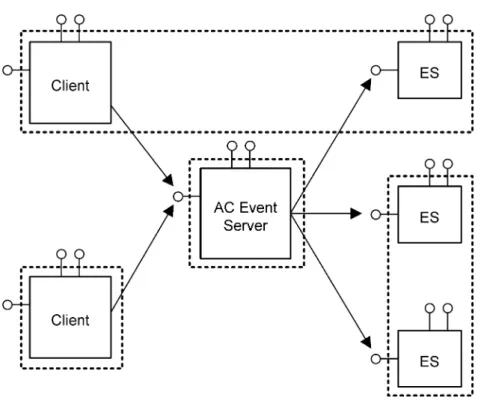
Figure 4, page 40shows the relationship between the AppConnectorEventServer (abbreviated as "AC Event Server), its clients, and event sinks. Each process (bounded by a dotted line) can contain multiple callers and multiple event sinks. An AppConnectorEventServer client can be a caller of its registered event sink (abbreviated as "ES) exposing a EventSink interface to be called by a AppConnectorEventServer worker thread, or both a caller and an event sink.
Handling Events
Figure 4. Event Dispatching Interaction Diagram
When a client registers an event sink with the AppConnectorEventServer, the
AppConnectorEventServer associates that sink with one or more event categories. Henceforth, the AppConnectorEventServer dispatches events to that event sink based on the event categories associated with that sink. A sink can be registered and unregistered multiple times. For example, your sink might initially be interested in only a few event categories, but once it receives a particular event code, the sinks interest grows and it registers for the additional categories of interest.
When an event sink is first registered with the AppConnectorEventServer, RegisterEventSink is called and a pointer to its EventSink implementation is passed. In return, the AppConnectorEventServer returns a cookie. This cookie should be stored as a data member by the client object. It must be passed to the AppConnectorEventServer in all subsequent calls to RegisterInterest and UnregisterInterest. You can also specify event sink cookies in both SendEvent and HandleEvent.
Types of AppConnectorEventServer-based events are:
• Notifications Sent to inform the system that a planned or unplanned event has occurred. • Cancellations Sent to inform the system that a planned event has not occurred.
• Queries Sent to ask the system if a condition is true.
• State transitions Sent to gather system approval for an event to occur. System elements can either veto the state transition or approve it. Once a system element approves a state transition, it plans for the actual event to occur (that is, puts itself into a pending state). Any event code that is associated with a state transition event type must also be associated with both notification and cancellation event types.
Figure 7, page 43andFigure 8, page 44illustrate the connection among these event types depending on the outcome of an event dispatch involving a state transition.
An event sink should react only to notifications and cancellations it receives. Therefore, the AppConnectorEventServer returns back to its caller following the creation of worker threads,
Handling Events
regardless of the interaction between a worker thread and its subject event sink interface. As a result, callers dispatching notifications or cancellations should not assume that the broadcast has fully completed (or even begun) before control returns to it from the AppConnectorEventServer. AppConnectorEventServer clients can expect the standard response message format returned by AppConnectorEventServer from SendEvent to be: "[who]what(for example, "[Microsoft Word] did not respond in time to the specified event.). The AppConnectorEventServer establishes
whofrom the sink name provided previously in RegisterEventSink. The sinkName parameter should have the same value as the Name property of the event sink being registered. If the response is internal or no sink name has been provided,whowould become "Documentum AppConnectorEventServer. whatis established either through the response string of the driving event sink or by the AppConnectorEventServer itself. For example, if a state transition times out, the AppConnectorEventServer would definewhatto be "did not respond in time to the specified event..
AppConnectorEventServer scenarios
The diagrams in this section illustrate the flow of control between a client, theAppConnectorEventServer, and registered event sinks during a broadcast event. Although there are more variations than those represented here, you should be able to deduce how the flows operate in other variations based on these diagrams.
SendEvent expects an input Long value for pid. Pid should be set by the caller to its process ID via the Win32 API GetCurrentProcessId. The AppConnectorEventServer passes pid from SendEvent to the HandleEvent method of the appropriate event sinks. A signaled event sink can then compare the incoming pid with its own process ID to see if the event came from the same process. Such information is usefulfor example, if process-specific caching is involved. All event sinks as well as the AppConnectorEventServer expose read-only PID properties that allow other elements of the event dispatching system to learn more about current system process distribution.
Unanswered broadcast query event dispatch flow
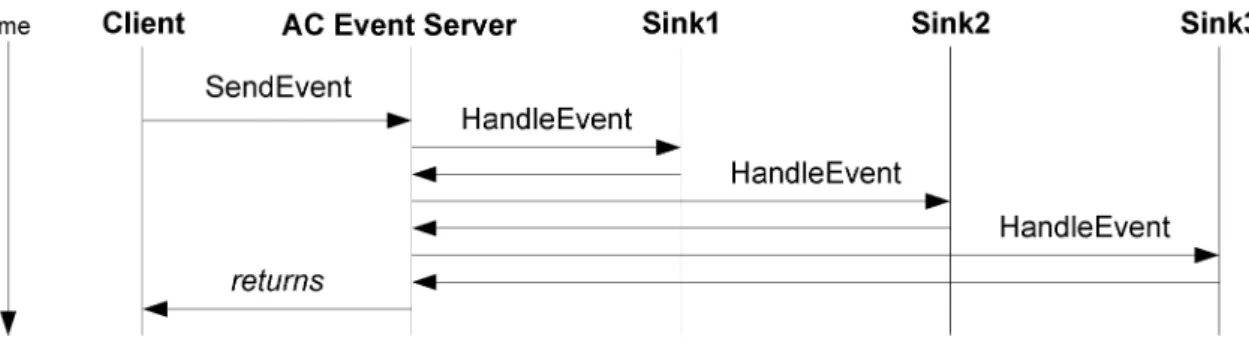
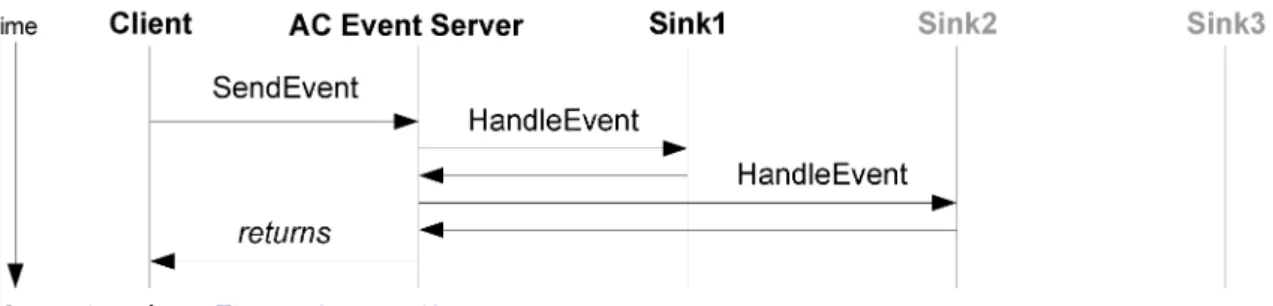
This section describes the flow of an unanswered (false) return to a broadcast query.
Handling Events
Key points fromFigure 5, page 41are:
• Event sinks answering false to a query should set their HandleEvent response output parameter to VARIANT_FALSE (False) before returning from HandleEvent.
• AppConnectorEventServer continues its broadcast until a sink answers true. — AppConnectorEventServer manages timeouts only to keep the ball rolling.
— Upon timeout detection, the AppConnectorEventServer no longer waits on the offending event sink. That is, the AppConnectorEventServer is not at the mercy of ill-behaved sinks.
• The Client should react based on SendEvent’s rv output. rv should always equal VARIANT_FALSE (False) in this broadcast case. The Client might optionally use responseMsg.
Answered broadcast query event dispatch flow
This section describes the flow of an answered (true) return to a broadcast query.
Figure 6. Answered (True) Broadcast Query Event Dispatch Flow
Key points fromFigure 6, page 42are:
• Sink2 answers true to the query by setting its HandleEvent response output parameter to VARIANT_TRUE (True) before returning from HandleEvent. Sink2 might also optionally define responseMsg for the Client to display additional information.
• AppConnectorEventServer stops its broadcast upon finding an answer of true and immediately returns information defined by Sink2 to the Clientresponse (HandleEvent) becomes rv
(SendEvent).
• The Client should react based on SendEvent’s rv output. The Client might optionally use responseMsg.
• Although Sink3 was not asked, it could have also answered true for this event.
Approved state transition broadcast event dispatch
flow
Handling Events
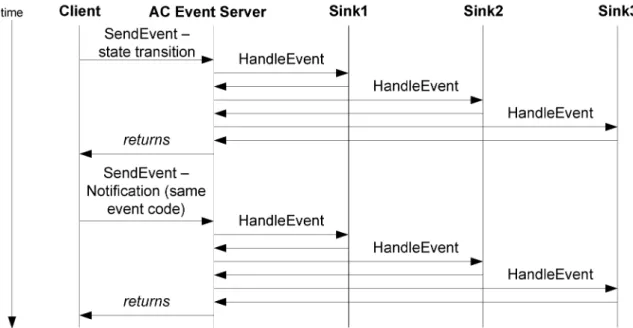
Figure 7. Approved State Transition Broadcast Event Dispatch Flow
Key points fromFigure 7, page 43are:
• Event sinks granting permission to transition their state should enter their own pending mode and set response to VARIANT_TRUE (True) before returning from HandleEvent.
• AppConnectorEventServer continues its broadcast until someone vetoes the event. Timeouts are treated as implicit vetoes.
• Based on SendEvent’s rv output of VARIANT_TRUE, the Client should perform its operation and then call SendEvent specifying the same event code as the original state transition but sent this time as a notification
• Follow-up notification initiated by the Client allows each sink to clear its pending mode (which indicates that the event has indeed occurred).
Vetoed state transition broadcast event dispatch flow
Handling Events
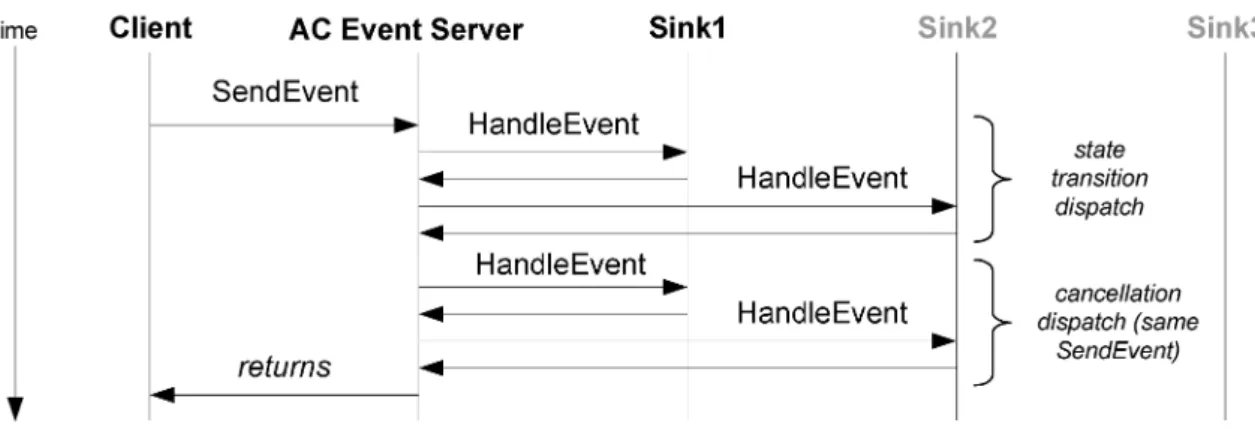
Figure 8. Vetoed State Transition Broadcast Event Dispatch Flow
Key points fromFigure 8, page 44are:
• Sink2 vetoes the state transition. It could have done so explicitly by setting response to
VARIANT_FALSE (False) before returning from HandleEvent or implicitly by not returning from HandleEvent before the AppConnectorEventServer times out on its HandleEvent call.
• AppConnectorEventServer stops its broadcast upon encountering a veto (explicit or implicit). • Upon timeout detection, the AppConnectorEventServer no longer waits on the offending event
sink. That is, the AppConnectorEventServer is not at the mercy of ill-behaved sinks.
• For each contacted event subscriber, AppConnectorEventServer invokes its HandleEvent method with the same event code as the original state transition but sent this time as a cancellation. • Follow-up cancellation initiated by AppConnectorEventServer allows each sink to clear its
pending mode (which indicates that the event has indeed not occurred).
• After the second broadcast, AppConnectorEventServer returns information defined by Sink2 to the Clientresponse (HandleEvent) becomes rv (SendEvent).
• Based on SendEvent’s rv output of VARIANT_FALSE (False), the Client should not perform its operation. It could optionally use responseMsg to return a reason to its user.
• Although not asked, Sink3 could have also vetoed this state transition (explicitly or implicitly).
WDK events
The browser control registers an event listener to respond to WDK component client events.
WDK components generate events for AppConnectors. The firing of events are configured in the JSP page using control tags. Thse types of WDK events can be fired:
• Browser events, which communicate client-side JavaScript execution
• WDK action completion events, which communicate server-side state changes The following controls fire AppConnectors browser events:
• <dmf:body showdialogevent=true...>
Fires the showdialogevent when a JSP page is rendered, to open a modal dialog window in the client application and display the component or container start page. This event is not
Handling Events
needed in the component JSP page if the container JSP page fires the event. For example, refer to /wdk/system/changepassword/changepassword.jsp.
• <dmf:fireclientevent>
Fires a client event on page rendering that is handled on the client. For events that are handled by AppConnectors, an aiEvent is fired and passed to the AppConnectors. The actual event name is passed in a <dmf:argument> element that is contained within <dmf:fireclientevent>. The AppConnectors handle the event in the Windows client application.
• <dmf:firepresubmitclientevent>
Fires an aiEvent before submitting the control onclick event to the server.
Application event handlers for showdialogevent and aiEvent are defined in a .js file. The file is included in the JSP page as follows:
<script language="JavaScript" src="
<%=strContextPath%>/wdk/include/appintgevents.js"> </script>
The following action completion events can be fired by WDK components: • Success: LoginSuccess, CheckinSuccess, CheckoutSuccess
• ShowMessage
• OpenDocument: arguments filenamewithpath, object Id, objectType, contentType, lockOwner, folderId, actionMap
Chapter 6
Creating and Modifying the
Documentum Menu
This chapter includes these topics: • Introduction, page 47
• Building the Documentum menu, page 50
• Removing menu items from all applications, page 60 • Modifying menu items for all applications, page 60 • Adding custom menu items to all applications, page 62 • Restricting menu items to specific applications, page 62
Introduction
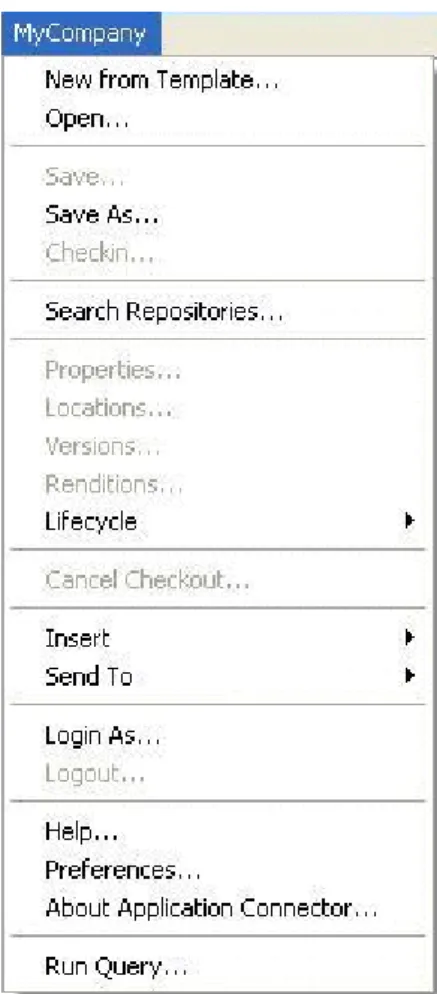
In your application, you create a Documentum menu with menu items that perform functions to access objects in repositories. DAC SDK provides a standard Documentum menu as shown in Figure 9, page 49. You can change the name of the top-level menu item, remove and modify these standard menu items as well as add your own custom menu items. Standard menu items and their functions include:
• New from Template: Create a new file from a template stored in a repository. • Open: Open a file from a repository.
• Save: Save the updated file to the repository—without prompting—and keep the file checked out (also known as silent checkin).
• Save As: Save a file with a different name or to a different location.
• Checkin: Check the updated file into the repository without keeping the file on the local machine. • Search Repositories: Search a repository.
• Properties: Display the attributes of a file.
• Locations: Display the locations of a file in a repository. • Versions: Display all the versions of a file in a repository. • Renditions: Display all the renditions of a file in a repository.
Creating and Modifying the Documentum Menu
• Lifecycle>Promote: Move a file to the next state in a lifecycle.
• Lifecycle>Demote: Move a file back to the previous state in a lifecycle. • Lifecycle>Attach: Add a file to the initial state in a lifecycle.
• Lifecycle>Suspend: Pause a file in a lifecycle by moving it to a Suspend state. • Lifecycle>Detach: Remove a file from a lifecycle.
• Lifecycle>Resume: Restart a file in a lifecycle by moving it from the Suspend state to the state it was in before it was suspended.
• Cancel Checkout: Cancel checkout of a file (unlock).
• Insert>Web Link: Insert a link to a file in the repository at the current cursor location. • Insert>Object: Insert a file from the repository at the current cursor location.
• Send to>Quick Flow: Send the file to a distribution list.
• Send>Email Recipient as Web Link: Send the file to single user (using a locator). • Send to>Workflow: Start a workflow and attach the file.
• Login As: Log in to a repository. • Logout: Log out of a repository.
• Help: Display online help for your application connector. • Preferences: Set application connector preferences for a user.
• About Application Connector: Display your application connector’s product and version information.
Creating and Modifying the Documentum Menu
Figure 9. Application Connector standard menu
The menu is constructed from a global menu, which is configured from your application connector’s app.config file, and the application connector menu definition file, appintgmenubar_menugroup.xml file, which resides in Webtop (and which is included with the Documentum Application Connectors SDK, for your convenience). At runtime, the appintgmenubar_menugroup.xml file is downloaded to the local machine when your application connector is initialized and is updated on demand; that is, the appintgmenubar_menugroup.xml file is downloaded whenever its content changes.
When a user chooses a menu item, a native modal dialog window that hosts a browser control is launched and the corresponding WDK component or action specified in the
appintgmenubar_menugroup.xml file is called. The browser control loads an action URL for the selected menu item. This URL consists of action ID, clientenv qualifer, theme, and repository. Webtop uploads an action map each time a repository document is opened. The action map is based on the user session and the selected object. This action map enables or disables menu items based on the user context. This dynamic menu structure is stored in client memory and is not persisted on the client.
• To build and add the Documentum menu to your application, seeBuilding the Documentum menu, page 50.
• To remove menu items from the Documentum menu, seeRemoving menu items from all applications, page 60.
• To modify menu items on the Documentum menu, seeModifying menu items for all applications, page 60.
Creating and Modifying the Documentum Menu
• To add custom menu items to the Documentum menu, seeAdding custom menu items to all applications, page 62
• To add or remove menu items to and from specific applications only, and apply menu item modifications to specific applications only, seeRestricting menu items to specific applications, page 62.
Building the Documentum menu
You build the Documentum menu by subclassing the MenuProviderBase class and implementing its abstract methods.
To build the Documentum menu:
1. Subclass the MenuProviderBase class.For example:
public class MyMenuProvider : MenuProviderBase whereMyMenuProvideris the name of your class.
You will need to write less code by subclassing the MenuProviderBase class, because the MenuProviderBase class implements many of the members of the IMenuProvider interface. 2. Add these Using statements:
using System; using log4net; using System.Text;
using System.Windows.Forms; using System.Collections; using System.Diagnostics;
using System.Runtime.InteropServices; using System.Xml;
using System.IO;
using Documentum.AppConnector.Application; using Documentum.AppConnector.Logging; using Documentum.Interop.EventServer; using Documentum.AppConnector.Utility;
3. InMyMenuProvider, override and implement these abstract methods from the MenuProviderBase class (see the corresponding section for instructions on implementing each method):
• SetCompanyMenuName and SetCompanyName: Sets the company name for the top-level menu name and the titles of message and dialog boxes.
SeeCalling the SetCompanyMenuName and SetCompanyName methods, page 51. • BuildMenu: Builds the custom menu bar.
SeeImplementing the BuildMenu method, page 51.
• BuildMenuState: Builds the data structure that represents menu item states for a newly opened repository file.
SeeImplementing the BuildMenuState method, page 54. • DestroyMenu: Destroys the custom menu bar.