Dynamic Menus and Interactive Elements
[ 140 ]
Getting Around IE's ActiveX Restrictions
Recently, the IE browser increased its security so that users have to validate content that shows up in the Flash player (or any other player). The animation will kick off, but there will be this grey outline around your Flash content area which may or may not mess up your design.
If your header content doesn't require anything clicked in it, then the grey box is the only problem. If you have content in your header, which can be clicked on or moused over, then the user will have to double-click in the Flash content area first before the content itself becomes clickable. This can confuse some users and make them think your content is broken. You can get around this validation issue by including your Flash content via a JavaScript include. The following two JavaScripts will call the JavaScript code and set the parameters for the code:
<script src="<?php echo $mosConfig_live_site;?>/js/flash/loadFlash.js" type="text/javascript"></script>
<!--// Globals
// Major version of Flash required
var requiredMajorVersion = 8;//or whatever version you'd like // Minor version of Flash required
var requiredMinorVersion = 0; // Revision of Flash required var requiredRevision = 0;
// the version of javascript supported var jsVersion = 1.0;
// --> </script>
You'll also need to add in this VB script which will do some "IE ActiveX magic" (and even I'm not entirely sure exactly what it does, but the loadFlash.js file won't work without it):
<script language="VBScript" type="text/vbscript">
<!-- // Visual basic helper required to detect Flash Player ActiveX control version information
Function VBGetSwfVer(i) on error resume next Dim swControl, swVersion swVersion = 0
if (IsObject(swControl)) then
swVersion = swControl.GetVariable("$version") end if
VBGetSwfVer = swVersion End Function
// --> </script>
You'll then call the embedded code above within a script like the following, which sets the file parameters and defines your alternative content (content that the user will see if they do not have the Flash Player or have the wrong Flash player version):
<script type="text/javascript">
<!--Set your alt content here for people who don't have flash--> var altContent = '<img src="<?php echo $mosConfig_live_site;?>
flash/StaticReplaceImage.jpg" border="0" width="240" height="311" />'; <!--Calls the actual flash file and passes parameters-->
loadFlash('<?php echo $mosConfig_live_site;?>/flash/mySwfname.swf', 240, 310, 'Hope Tree', 'FFFFFF', altContent); </script>
You included JavaScript (loadFlash.js), which will reference the Flash player version that you're testing for and the VB ActiveX script, write the Flash embed tag on the fly to DOM of your pages (very similar to how the SuckerFish menu works in IE), and bypass IE's ActiveX security restriction. The loadFlash.js will look like the following:
<!--function loadFlash(file, width, height, name, bgcolor, altContent){
var hasRightVersion = DetectFlashVer(requiredMajorVersion,
requiredMinorVersion, requiredRevision);
if(hasRightVersion) { // if we've detected an acceptable version
var oeTags = '<object classid=
"clsid:D27CDB6E-AE6D-11cf-96B8-444553540000"'
+ 'width="'+width+'" height="'+height+'"'
+ 'codebase="http://download.macromedia.com/pub/shockwave/
cabs/flash/swflash.cab">'
Dynamic Menus and Interactive Elements
[ 142 ]
<param name="movie" value="'+file+'" /> <param name="quality" value="high" />
<param name="bgcolor" value="#'+bgcolor+'" /> <param name="wmode" value="transparent" />'
+ '<embed src="'+file+'" quality="high" bgcolor="#'+bgcolor+'" '
+ 'width="'+width+'" height="'+height+'" name="'+name+'"
align="middle"'
+ 'play="true"'
+ 'loop="false"'
+ 'quality="high"'
+ 'wmode="transparent"'
+ 'menu="false"'
+ 'allowScriptAccess="sameDomain"'
+ 'type="application/x-shockwave-flash"'
+ 'pluginspage="http://www.macromedia.com/go/getflashplayer">'
+ '<\/embed>'
+ '<\/object>';
document.write(oeTags); // embed the flash movie
} else { // flash is too old or we can't detect the plugin
var alternateContent = altContent;
document.write(alternateContent); // insert non-flash content
}
}//end loadFlash
// -->
In a Joomla! Page
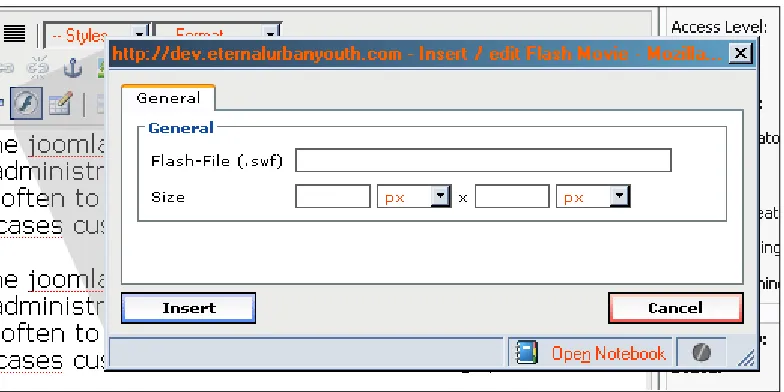
For content that's going to go into a specific Joomla! page, you're in luck. There's a Flash content wizard button in the TinyMCE WYSIWYG editor.
Figure 7.7 Adding the Flash wizard
There's one small problem: again, the button will directly place an object embed tag into the page with no version check and of course, if the user is browsing with IE, they will have to click in the grey box area. The good news is that the Javascript that we created above for the header can be leveraged anywhere on your site! You're already including it in the main template, so the script is available to any content on your site.
Dynamic Menus and Interactive Elements
[ 144 ]
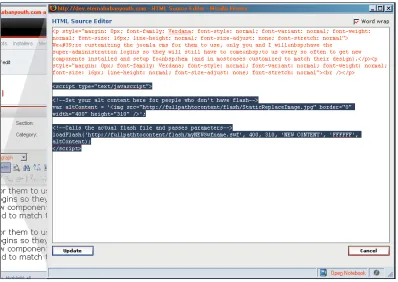
Once you have turned off the WYSIWYG editor, you'll be able to open any Joomla! content page, insert the player version, and loadFlash.js scripts above as follows. (The VB script is already in the index.php template and you're just referencing the loadFlash.js file so the only code you'll need to add is shown in Figure 7.8.)
Figure 7.8 The HTML view
Summary
AJAX / Dynamic and
Interactive Forms
AJAX is a buzzword that hit the Web in 2005, thanks to Jesse James Garrett, a user-experience expert who founded AdaptivePath.com. (Oddly enough, he's not a JavaScript or XML expert; you can ask him yourself!). If you're totally new to AJAX, I'll just point out that, at its core, AJAX is nothing that scary or horrendous. AJAX isn't even a new technology or language!
AJAX is an acronym for Asynchronous JavaScript And XML, and it is a technique for using JavaScript and XML to send and receive data between a web browser and a web server. Its biggest advantage is that you can dynamically update a piece of a web page or web form with data from the server (preferably formatted in XML) without forcing the entire page to reload. This technique has made possible for many web developers to make advanced web applications, sometimes called RIAs (Rich InterfaceApplications), that work and feel more like software applications than web pages.
However, AJAX is starting to have another meaning. For example, a Microsoft web developer may use VBScript instead of JavaScript to serve Access database data that is transformed into an XML stream using a .NET server-side script. Such a site would still be considered "Ajaxy".
In fact, it's getting to the point where just about anything on a website (other than Flash) that slides, moves, fades, or pops up without rendering a new browser
AJAX / Dynamic and Interactive Forms
[ 148 ]
We're going to look at the most popular methods so that you can get going with AJAX in Joomla! and create interactive and dynamic forms for your Joomla! site. We will also look at some cool JavaScripts and JavaScript toolkits that you can use to appear "Ajaxy".
Know nothing of this "AJAX" business? The W3Schools site has an excellent introduction to AJAX explaining it in straight-forward simple terms. They even have a couple of great tutorials that are fun and easy to accomplish even if you only have a little HTML, JavaScript, and server-side script (PHP or ASP) experience (no XML experience is required).
You can find it at http://w3schools.com/ajax/.
Preparing for Dynamic and Interactive
Forms
Gone are the days of clicking, submitting, and waiting for the next page to load. A web page using AJAX techniques (if applied properly) will give the user a smoother and leaner experience. If you click on a drop-down option and the checkbox menus underneath are updated immediately with the relevant choices: no submitting, no waiting. Complicated forms that, in the past, took two or three screens to process can be reduced to one convenient screen by implementing the form with AJAX.
As wonderful as this all may sound, I must again offer a quick disclaimer. I understand that, as with drop-down menus and Flash, many of your clients are demanding AJAX for their sites, but AJAX techniques are best used in situations where they truly benefit the user's experience of a page: for example, if they Cut a lengthy web-process form from three pages down to one. In a nutshell, using an AJAX technique simply to say that your site is an AJAX site is probably not a good idea.
You should be aware that, if not implemented properly, some uses of AJAX can
compromise the security of your site. You may inadvertently end up disabling key web browser features (like back buttons or the history manager). Then there are all the basic usability and accessibility problems that JavaScript in general can bring to a site.
You Still Want AJAX on Your Site?
OK! You are here and reading this chapter because you want AJAX in your Joomla! template. I'll only ask you to take the above into consideration and do one or more of the following to prepare.
Help your client to assess their site's target users first. If everyone is Web 2.0 aware, using new browsers, and fully able to use a mouse, then you'll have no problems, atleast not with AJAX. But if any of your users are inexperienced with RIA sites or have accessibility requirements, you will need to take some extra care. Again, it's not that you can't or shouldn't use AJAX techniques; just be sure to make allowances for these users. You can easily adjust your site's user expectations upfront by explaining how to expect the interface to act. Again, you can also offer alternative solutions and templates for people with disabilities or browsers that can't accommodate AJAX techniques.
Remember to check with Don't Make Me Think, the Steve Krug book that we recommended in Chapter 7 for help with any interface usability problems you may run into. Also, if you're really interested in taking on some AJAX programming yourself, I highly recommend AJAX and PHP
by Cristian Darie, Bogdan Brinzarea, Filip Chereches-Tosa, and Mihai Bucica. In this book you'll learn the ins and outs of AJAX development, including handling security issues. You'll also do some very cool stuff such as making your own Google-style auto-suggest form and a drag-and-drop sortable list (and that's just two of the many fun things to learn from this book).
You're now equally warned and armed with the knowledgeable resources about AJAX that I can think to throw at you. Let's see how to get something "Ajaxy" into your Joomla! site.
Joomla! Extensions
AJAX / Dynamic and Interactive Forms
[ 150 ]
Choosing an extension: Joomla! extensions are a great resource , and the most reliable place to start is at http://extensions.joomla. org. There are hundreds of thousands that do incredibly useful things and require no heavy programming experience on your part. When researching extensions, especially those that use techniques that may compromise security, be sure to read all the information about the extension before installing it, including any user reviews provided. As with most extensions offered on the Joomla.org site, you should be able
to go to the developer's site and probably contact them directly with any questions that you may have about the extension. Be aware that not all extensions are free or Open-Source like Joomla! itself. It will be up to you to decide if an extension is worth paying for.
The type of form that you'll most likely want to use on your site is a comment form. Comment forms are a great way to build a community around your site, not to mention beefing out your content base with user feedback. (This is something to think about if you'll be supplementing the site with Google or AdBrite
advertisements. The text that users leave via your comment forms will increase the keywords that will serve up advertisements via these two services creating an opportunity to make more PPC/PPI cash.) Using AJAX techniques within a comment form enables people to post without waiting for the entire page to reload again.
Joomla! Comment 2.40 is an extension that you can add to various pieces of Joomla! content (static pages or regular content pages). It doesn't rate quite as well as some other comment extensions that use AJAX techniques, but at the moment, it's the highest ranking one, and it is free using the GNU GPL license.
You can download it from here:
http://extensions.joomla.org/component/option,com_mtree/ task,viewlink/
link_id,677/Itemid,35/
(Forgive the long URL; you can also just go to http://extensiona.joomla.org and search for the extensions by name.)
Installing Joomla! Extensions
Is it a module or a component? You'll have to pay attention to the
extension's name and instructions to find out if it is a module or a
component. (For instance, the Extend Menu extension we worked with in Chapter 7 was a module, not a component). You'll know which installation screen to use. What's the difference? Generally, modules can appear on any page and are usually kept pretty simple. Components, on the other hand, usually load as their own page (or area of a page, the way the Banners component works) and can be more complex.
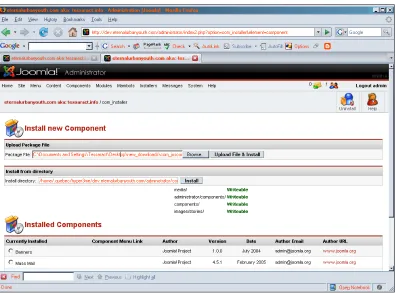
When you get the Upload component – Success screen, you can go to the
Components | Joomla! Comments | Edit Settings where you'll be able to see the General, Layout, and Security options available for the component.
AJAX / Dynamic and Interactive Forms
[ 152 ]
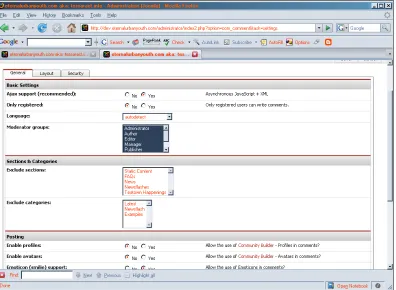
You'll notice that the component will appear on every page unless you specify that certain pages should exclude it.
Figure 8.2 Joomla! Comment 2.4 options and features
Using More Than One AJAX Extension Most AJAX Joomla! extensions make use of the XAJAX toolkit. There is a problem running multiple extensions that reference the toolkit—only one Joomla!
extension will work. If you're going to install multiple extensions that use this XAJAX toolkit, you'll need to download the solution from
http://www.xajax-joomla.com/.
Writing Your Own Extensions If you already have a little AJAX or PHP experience and you feel that it could be reused as an extension in other sites, I recommend that you check out Building Websites with Joomla!
Wrapping It Up
What if you're an AJAX/PHP pro and find it easy to build a simple form for a site, but do not thinks that it is worth taking the time to make your own extension? Perhaps the site you're upgrading to Joomla! already had a working AJAX form? Why mess around looking up other people's extensions hoping they come close to duplicating what you need?
Never fear, you don't need to reinvent the wheel by writing your own extension or worry about how you are going to get complicated XHTML markup that references JavaScripts and server-side scripts into a Joomla! content page. Enter the wrapper. The Wrapper Menu Item creates a content page that wraps an external web page in an iFrame. The iFrame content appears as a "page within a page". Hence, if your content is an external website (such as the joomla.org wrapper sample in the "out of the box" installation of Joomla!), then all the site's functions, menus and so on, will be operable from within the wrapper.
There's really no good reason to load someone else's website into your own.
However, displaying content that uses non-Joomla! scripts (like your own or existing AJAX scripts), galleries or directories, within your Joomla! template has just got a whole lot easier. You can also use the Wrapper Menu Item to load a page that houses a Flash SWF. (If you don't want to paste the object embed and JavaScript check tags we discussed in Chapter 7, into a content page.) You can also display pages written in specialized web languages that most Joomla! text editors can't accommodate. The wrapper is indeed a wonderful thing.
AJAX / Dynamic and Interactive Forms
[ 154 ]
Using the Wrapper Menu Item
Take a look at this tutorial from W3Schools.com. It's a great AJAX script that can be used to keep track of a simple CD collection:
http://w3schools.com/php/php_ajax_xml.asp.
Watch out! The script above and many scripts that support AJAX nowadays require your server to be running one of the newest versions of PHP (we're using PHP 5.12). If the script doesn't work for you, it gives you an Unexpected T_OBJECT_OPERATOR error, and upgrading your version of PHP may be in order.
You may find that a client already has this kind of script in place before choosing to upgrade a site to the Joomla! CMS. Is so, you'll be able to get the AJAX scripts looking and working great with just a minimal amount of work to the front-end XHTML. (Just make sure that you remove the old site's header, nav, and footer includes from the page.) Remember, this is an independent page loading into an iFrame! You'll need to add a style sheet to it, since it will not pick up your Joomla! template's CSS file automatically.
You'll be able to easily integrate many perfectly good existing AJAX applications into their new Joomla! page using the Wrapper Menu Item.
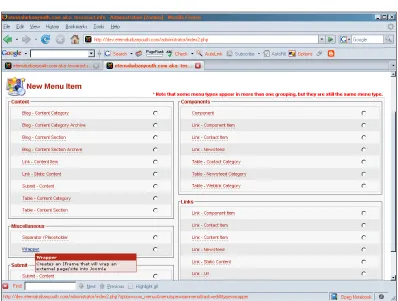
2. In your Joomla! Administration Panel, go to Menu | mainmenu (or any other menu you want the wrapper to be accessible from), and then click New.
Figure 8.3 Adding a new menu item
AJAX / Dynamic and Interactive Forms
[ 156 ]
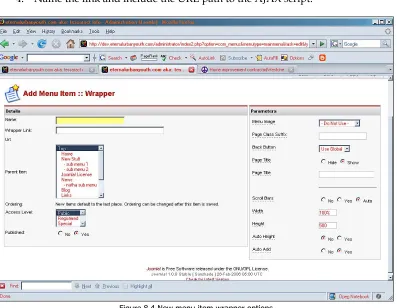
4. Name the link and include the URL path to the AJAX script.
Figure 8.4 New menu item wrapper options
5. In the right panel you can set several different parameters for the wrapper component: height, width, scrollbars, and more.
6. Hit Save and your new item should be in the menu you specified.
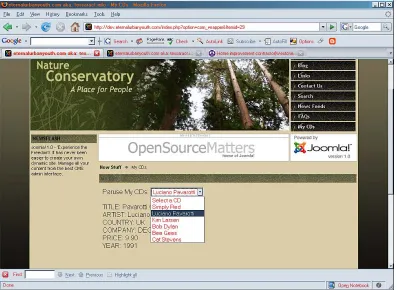
In Figure 8.5, you can see our XML-driven CD lister loaded into Joomla! via the Wrapper module.
Figure 8.5 AJAX, auto update CD view form
The AJAX Factor
As we mentioned, it's easy to give your site an "Ajaxy" feel regardless of
asynchronously updating it with server-side XML, just by sprucing up your interface with some snappy JavaScripts. The easiest way to get many of these effects is to reference a JavaScript toolkit or framework. The two leading favorites in the AJAX community are:
Prototype: http://www.prototypejs.org/ Script.alico.us: http://script.aculo.us/
Prototype is more of a base framework and Script.alico.us is more of a set of libraries for neat effects. In fact, Script.alico.us references the Prototype framework, so your best bet is probably to use Script.alico.us, but be sure to check out Prototype's site and try to understand what the framework does.
AJAX / Dynamic and Interactive Forms
[ 158 ]
By using toolkits or frameworks such as those above, you will be able to implement their features and effects with simple calls into your Joomla! pages. (Again you will need to turn off the WYSIWYG editor to add custom HTML code that references these toolkits.)
Review the above and choose the one that suits your needs best. Then download and reference it within your Joomla! template's index.php header tags:
<script src="javascripts/prototype.js" type="text/javascript">
</script> <script src="javascripts/scriptaculous.js" type="text/javascript"> </script>
JavaScript Components and Libraries
The fun doesn't stop there! There are many other JavaScript-effect components and libraries that are built using the two above. One of the most popular scripts out there that make a big hit on any website is Lightbox JS, which can be found at http://www.huddletogether.com/projects/lightbox2/.
This is an extremely easy-to-implement script. After downloading it, add the key scripts to your Joomla! template's index.php header file:
<script type="text/javascript" src="js/prototype.js"></script>
<script type="text/javascript" src="js/scriptaculous.js?load=effects"> </script> <script type="text/javascript" src="js/lightbox.js"></script>
Be sure to add the required CSS sheet to the index.php file as well!
<link rel="stylesheet" href="css/lightbox.css" type="text/css"
media="screen" />
Then, you can create a page in the Joomla! CMS, turn off the WYSIWYG editor for your user, and add in basic href links around your image tags as follows:
AJAX / Dynamic and Interactive Forms
[ 160 ]
Figure 8.6 Shots of JS Lightbox on http://Fransozo.com/home. Site built by http://mediaetc.com
More Joomla! Extensions!
Again, if you have a feature that you think you'd like to use across multiple Joomla! projects, someone else has probably thought of the need too. Don't forget to review the extension's library at Joomla.org to see what's available before cooking up something from scratch.
Here are a couple of good GNU GPL license extensions that can be used to give your site some instant "Ajaxy" slickness (and hopefully "stickyness")
SmoothGallery+Lightbox Joomla Mambot: If you thought that adding your own Lightbox JS galleries to pages wasn't easy enough, then this is a great extension to help out with the easy creation of full gallery slide shows. http://extensions.joomla.org/component/option,com_mtree/
Content Items Fading Scroller: This extension will take multiple published items (under any section or category) and let you display them with a very slick scrolling animation fading on the edges. (It is like a "super-ticker" of the articles and stories you'd like to push traffic to on your site.)
http://extensions.joomla.org/component/option,com_mtree/ task,viewlink/link_id,1003/Itemid,35/
Both of these items are components, so you'll install them as we installed the Joomla! Comment 2.4 component earlier. Again, both of these extensions aren't true AJAX, but the slick factor is bound to impress your users.
Summary
In this chapter, we reviewed the most common ways to get Ajaxy with your site, and we downloaded and installed two extensions and looked at how to use the wrapper in detail to house an existing, fully-working AJAX application. Up next: some final design tips for working with Joomla!.
Design Tips for Working with
Joomla!
In this last chapter, let's sum things up by giving you a few final design tips, tricks, and troubleshooting ideas that you can use in your future Joomla! template designs. As we've gone through this book, quite a few tips have been given to you, and here are the top four to remember:
1. Create and keep lists: Check lists, color lists, font lists, image-treatment lists from your initial design phase should be kept handy. You'll find them to be useful and an excellent inspiration for your designs to come.
2. Design for Firefox first and then fix for IE: Firefox is more than a browser preference; it's a true web designer and developer's tool.
3. Validate your XHTML and CSS often: The more stable your markup and CSS, the less hacks and fixes you'll need to make.
4. Consider usability issues when implementing site enhancements: Steve Krug is a cool guy.
With that said, let's just go over a few last design techniques that any good designer wants in his or her arsenal these days.
The Cool Factor
Design Tips for Working with Joomla!
[ 164 ]
Rounded Corners
Rounded corners have been pretty popular in the past few years, to the point that many sites have been accused of incorporating them just so that they seem "Web 2.0-ish". Fads aside, rounded corners are occasionally just going to work well with a design. (They're great for implying happy-friendly-ish tones or retro styles.) So you might as well know how to incorporate them into your Joomla! template.
The Classic: All Four Corners
The classic way to handle rounded corners with CSS is to make sure the module is using the -3 $style selector (discussed in Chapters 3 and 6) and then use the divs Joomla! outputs to set the four corners of the box in place.
Really understanding rounded corners in a table-less design? If you haven't noticed by now, I'm a fan of aListApart.com, so I'll leave it
to these trusted experts to give you the complete lowdown on the ins and outs of making rounded-corner boxes with pure CSS:
http://www.alistapart.com/articles/customcorners/.
Also, there are many rounded-corner-generator sites out there that will do a lot of the work for you. If you're comfortable with CSS and XHTML markup, you'll be able to take the generated code from one of these sites and massage the CSS into your Joomla! CSS. RoundedCornr. com is my favorite:
http://www.roundedcornr.com/.
Use Photoshop or your favorite graphic editor to make four rounded-corner images. This is usually best done by using the square-shaped drawing tool, which also has the option of letting you set the amount of roundedness for your corners. You'll then make slices of each corner and output them as GIF files. You can also generate your images by using the following URL: http://roundedcornr.com. Name your new images: left-bot.gif, right-bot.gif, left-top.gif, right-top.gif and reference them in the following CSS, which will place each image into a corner of each of your Joomla! output module divs:
module {
background: #cccccc;
background: url(../images/left-top.gif) no-repeat top left; /*be sure to set your preferred font requirements*/
}
.module div {
}
module div div {
background: url(../images/left-bot.gif) no-repeat bottom left;
}
module div div div {
background: url(roundedcornr_170953_br.png) no-repeat bottom right; }
module div div div, .module div div, .module div, .module { width: 100%;
height: 30px; font-size: 1px; }
module {
margin: 0 30px; }
The markup Joomla! outputs with a -3 $style looks something like this. (I've added comments so that you can see which div will have which image associated with it. These comments will not be in your Joomla! output.)
<div class="module"> <!--//left-top.gif-->f <div> <!--//right-top.gif-->
<div> <!--//left-bot.gif-->
<div bot right> <!--//right-bot.gif--> <h3>Header</h3>
Content goes in here </div>
</div> </div> </div>
Using Two Images Instead of Four
Design Tips for Working with Joomla!
[ 166 ]
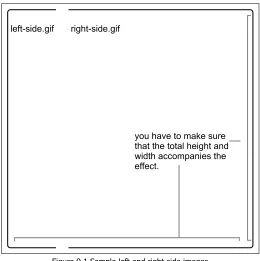
Create two images: left-side.gif and right-side.gif following the guidelines in Figure 9.1. Make sure that when the left-side.gif and right-side.gif are placed together (side by side), the whole rounded-corner image is as large as you would expect any area that uses this effect to be. For example, if the largest rounded-corner area you're expecting to accommodate is 400 pixels wide by 500 pixels tall, make sure that the total of left-side.gif and right-side.gif equals 400 pixels wide by 500 pixels tall; otherwise, you'll end up with gaps in your rounded-corner effect.
left-side.gif right-side.gif
you have to make sure that the total height and width accompanies the effect.
Figure 9.1 Sample left and right side images
You'll then reference these two images in the following CSS, which again, places each image as a background for the module divs that Joomla! outputs:
module{
background: url(../images/right-side.gif) top right no-repeat; padding:0;
margin:0 0 10px 0;
/*be sure to set your preferred font requirements*/
}
margin:0;
padding:0 0 4px 0;
border-bottom:#ccc 1px solid; }
module div {
background: url(../images/left-side.gif) top left no-repeat; margin:0;
padding:6px 0 0 0; }
module div div{
background: url(../images/left-side.gif) bottom left no-repeat; padding:0 0 0 5px;
}
.module div div div{
background: url(../images/right-side.gif) bottom right no-repeat; padding:0 5px 5px 0;
height:auto !important; height:1%;
}
The Two-Image "Cheat"
I'll be honest. I'm on the cheater's bandwagon when it comes to rounded corners. I often create locked-width designs, so I always know exactly how much room my columns can take up. Moreover, I really like using the -2 module $style instead of the -3 $style, as I feel that the less markup the better.
More A List Apart: Again aListApart.com comes in with a great take on this two-image process along with some great tips for creating the corners in your favorite graphic program:
http://www.alistapart.com/articles/mountaintop/.
Design Tips for Working with Joomla!
[ 168 ]
So, if you know the width of your columns and just need the height to expand, you can perform this two-image cheat by only making a top image and an extended bottom image as shown below:
top-side.gif
bot-side.gif make sure this height is a bit longer than what you think the div may need to expand to
Figure 9.2 sample top and bottom images
Next, reference the images in your CSS so that they are associated with the Joomla! module divs:
module {
margin:0 0 10px 0; padding:0 0 10px 0; width: 150px;
background:url(../images/bot-side.gif) bottom left no-repeat; /*be sure to set your preferred font requirements*/
}
module h3 {
padding:8px 10px 6px 15px; margin-bottom:8px;
/*be sure to set your preferred font requirements*/ background:url(../images/top-side.gif) top left no-repeat; }
Great for block quotes! I also use this technique to handle the custom block quotes that are used inside static pages and articles (a great way to spice up pages so that they look "magazine-ish"). Again, the block quotes must be a set width, but I then only need to make sure I place my
<blockquote> and <h3> tags to have an effective style with minimal
(and semantic) markup. Just replace the .module{... mentioned
I Don't Want Rounded Corners on all My Modules!
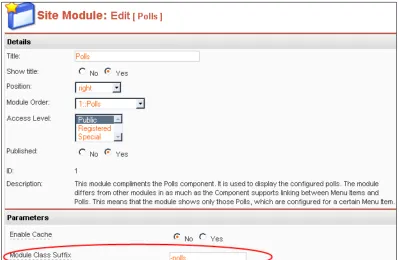
You can customize each type of module by adding its own suffix, allowing you to draw attention to a particular module with rounded corners (or any other special CSS).In the Joomla! Administrator's Panel, go to Modules | Site Modules and select the module that you want to focus on in your design (in our case, Polls).
Underneath the module's Details area, you'll see the Parameters area. There, you can create a Module Class Suffix to append to that module.
Design Tips for Working with Joomla!
[ 170 ]
You'll now be able to target that module (and any others that you customized with a suffix) using the specific module-suffix name that you created for it as follows:
module-polls {
margin:0 0 10px 0; padding:0 0 10px 0; width: 150px;
background:url(../images/bot-side.gif) bottom left no-repeat; }
module-polls h3 {
padding:8px 10px 6px 15px; margin-bottom:8px;
/*be sure to set your preferred font requirements*/
background:url(../images/top-side.gif) top left no-repeat; }
Now only our Polls module has rounded corners on it, drawing attention to it, while the rest of our site modules have our existing module standards.
Sizeable Text
Sizable text is a fun feature to provide your users with. I'm not big on this feature as being able to size screen text is built in with all browsers. However, many people don't know this and the occasional low vision user will love you as well as the design purist who wishes every website was set in pretty, little 8 pixel type. (Who says you can't make everyone happy?)
First, set a default font size on your CSS body rule. By default, most browsers will set all your text to be medium sized. This is roughly like setting your font size to about 16px, which I find quite big.
You'll get around this by setting your initial font size in the body tag to a percentage less than 100% (which again, is about 16px). It turns out that the "atypical" visual designer in me prefers those layouts with tiny type as well (but I try to stop at 10px, not 8px), so I find setting the body tag to about 62.5% works well. (If it's too small, they can resize it; that's the whole point!) Many sample tutorials on the Web like to start you off at 76%, but in reality, you can set it to any percentage you like so long as your basic font size is sensible. (If you like the big type, then go ahead and set it to 100%).
Next, you will need to stop referencing your font sizes in pixels (or points or
anything absolute) from here on out and use the em size unit. By setting your initial size using the relative percentage, you will then be able to accurately size your text up and down from that percentage using the em size unit.
div { font-size: .8 em; }
What's so great about em sizing? The em size unit refers to the length-size (a.k.a. the horizontal-size) of the font (or other horizontal/length-sized elements you can apply it to). Whether you are offering sizable text or locking your text size in, be sure to pick a size method (em and % or px and points) and then stay consistent. You should not be mixing absolute (points or pixels) and relative (em and percentage) sizes together in your CSS. This will cause layout issues down the road. For more information, check out Eric Meyer's article: Font Sizing. http://meyerweb.com/ eric/articles/webrev/199912.html.
Last, you need to ensure that your layout grows and shrinks with your sized text. You've removed the absolute sizes from your fonts, so be sure not to have any absolute fixed heights on your content div containers. The easiest way to check for this is to view your layout in the browser and using the browser's controls, make the text size bigger and smaller and ensure that your divs grow and shrink with the new text size. You can also do a "Find and Replace" in your CSS for px and pt to make sure that you didn't accidentally leave anything as a fixed font or div height.
Once your template is accommodating all of the above, you will need some graphics indicating that you can make text larger and smaller i.e.: "A+" and "A-", and a "Reset" graphic. You will then need to download the following script. (I'll tell you what to do with it in a second.)
http://forum.joomla.org/Themes/joomla/md_stylechanger.js
You will need to place that file in the template directory you are using. (As it's a JavaScript file you should have a js directory in your template folder. Also, make sure to update your templateDetails.xml file.)
Design Tips for Working with Joomla!
[ 172 ]
Keeping the templateDetails.xml file updated If you have not updated it, you should be updating it! Each time you create a new graphicnew graphic that is going to be used by the index.php template and CSS file(s), or add a new JavaScript or CSS file, you must be sure to update yourmust be sure to update your be sure to update your
templateDetails.xml file. Getting in the habit of keeping this filefile. Getting in the habit of keeping this file
maintained will make your life much easier when it is time to package the template and hand it over to the client!
Next, paste this bit of code (based on r0tt3n's Joomla! forum FAQ: http://forum. joomla.org/index.php/topic,36474.0.html) in your template's index.php file in the location where you want the sizers to be visible.
This code will display your new text-sizing graphics and when they are clicked, execute the JavaScript code, which resizes the text and makes it smaller and bigger. Be sure to update the bold areas with the correct path and file names:
<script type="text/javascript" language="javascript"
xsrc="<?php echo $mosConfig_live_site;?>/templates/ <?php echo $mainframe->getTemplate();?>
/js/md_stylechanger.js"> </script>
<a xhref="index.php" title="Increase size"
onclick="changeFontSize(1);return false;"> <img xsrc="<?php echo $mosConfig_live_site;?>/templates/
<?php echo $mainframe->getTemplate(); ?> /images/ name of your A+ image here" alt="" border="0" /> </a>
<a xhref="index.php" title="Decrease size"
onclick="changeFontSize(-1);return false;"> <img xsrc="<?php echo $mosConfig_live_site;?>/templates/
<?php echo $mainframe->getTemplate(); ?> /images/ name of your A- image here" alt="" border="0" /> </a>
<a xhref="index.php" title="Revert styles to default"
onclick="revertStyles(); return false;"> <img xsrc="<?php echo $mosConfig_live_site;?>/templates/
Figure 9.4 Resizable Text Buttons As Seen On Joomla.org
Graphic Header Text
Now here's something that's a total pain for all web designers. There are only three or at the most maybe five truly safe fonts for the Web. You can be fairly sure that every PC and Mac (and maybe Linux) computer has these fonts natively installed. All other fonts tend to be off-limits for web design. This is a shame as typography is a huge element of great design. Nonetheless, if you want these fonts, you have to create them as graphics and include the images in your layout.
The problem with using graphics instead of text—it is usually the headers that you want in the pretty font. However, if you use inline image tags, your semantic markup gets thrown off and your SEO will fall, because SE bots really like to find these header tags to help them assess the real keywords in your page. Also, if your style aesthetic changes, you not only have to change the template but also update individual content pages with new images.
The solution is to use text in your header tags and set up custom classes in your style sheet that will move the text out of the way and insert your graphic font as a background image instead. So your XHTML markup will look like this:
<h3 class="newsFlash">Newsflash 3</h3>
Design Tips for Working with Joomla!
[ 174 ] Say you've made a few of these graphic headers:
Figure 9.5 Font Graphic
In your CSS, set up the following class rules, which will set up your standard placement and position your graphic-font images:
.textMove{ /*this is your standard for each header*/ height: 23px;
margin-top:10px; width: 145px;
text-indent: -2000px;/*This pushes your text back so it's invisible*/ }
.flash3{ /*specific header-text image*/
background: url("../images/flash3.jpg") no-repeat left top;
}
In your Joomla! Administration Panel, for the content pages you'd like to apply this technique, apply the appropriate class to the header(s) that you place in the body text area of the editor. (Again, turn off the WYSIWYG editor to do this.)
<h2 class="noHead flash3">Newsflash 3</h2>
Assign more than one class rule to an XHTML markup object. As you can see from our sample above, you can assign more than one class rule to a markup object. Simply separate each class rule with a space (not a comma) e.g.: class="rule1 rule2". This comes in handy when you
need to customize many elements, but don't want to repeatedly copy similar properties across all of them. (Also, you can easily change the
main properties in just one place instead of having to fix them all.) In the
Figure 9.6 Header Graphic In Page
What about my Module headers? You need to be able to control an id or class attribute in a table or div tag, in order to call in a background graphic via CSS. That's why it's so easy for us to place consistent
background images behind our module headers, but targeting them to place actual graphic text takes a little extra effort. To use this trick with
module headers you will need to give each module a special suffix (please
refer to the Rounded Corners section) and then target the h3 tag under that module-suffix: .module-suffixName h3 {.... Of course, you
can't target your module headers with two classes as we did in our above example but you will still get your graphic-font in there.
Note: This technique can get a little complicated if you want rounded corners on the module and a graphic header, but as you're creative, you'll quickly see how to accommodate that (please refer The Two-Image "Cheat"
section). For headers used in page content, I just turn off the Show Title
feature available for many module and content items and add the header manually to the content text area.
Using PHP to Make Graphic Headers Easy
Design Tips for Working with Joomla!
[ 176 ]
This technique is very useful if your site is going to be mainly controlled by a client, as they will probably have to let you know every time they make a new header that needs to be a graphic loaded in via CSS. You will be able to accommodate them on the fly (or even better, teach them how to do it) as opposed to having them wait for you to generate the graphic with Photoshop or Gimp and then implement the CSS.
Heads up: This PHP code requires the standard ImageGD library to
be installed with your PHP configuration. (Contact your website host
administrator to ensure the ImageGD library is installed.)
You can place this script's file anywhere you like. I usually place a script like this in my template's image directory as I will be referencing them as images (again, update your templateDetails.xml file).
imgtxt.php: <?php
/*Basic JPG creator by Tessa Blakeley Silver. Free to use and change. No warranty.
Author assumes no liability, use at own risk.*/
header("Content-type: image/jpeg");
$xspan = $_REQUEST[‘xspan'];//if you want to adjust the width $wrd = $_REQUEST[‘wrd'];//what the text is
if (!$xspan){//set a default width $xspan = 145;
}
$height = 20;//set a default height
$image = imagecreate($xspan, $height);
//Set your background color.
//set to what ever rgb color you want if(!$bckCol){
//make text color, again set to what ever rgb color you want if (!$txtCol){
$txtCol = imagecolorallocate($image, 20, 50, 150); }
//fill background
imagefilledrectangle($image, 0, 0, $xspan, $height, $bckCol);
//set the font size on the 2nd parameter in
//set the server path (not the url path!) to the font location at the //7th parameter in:
imagettftext($image, 15, 0, 0, 16, $txtCol,
"home/user/sitename/fonts/PLANE___.TTF", "$wrd");//add text
imagejpeg($image,'',80);//the last number sets the jpg compression
//free up the memory allocated for the image. imagedestroy($image);
?>
This script only works with TrueType fonts. This PHP script is written to generate an image with a background color of your choice and the TrueType font you specify, in the color of your choice. Upload the TrueType font and directory location that you referenced in the script to the matching location on the server.
From here on, you will only need to reference this PHP script in your CSS, passing your text to it via a query string instead of the images that you were generating:
flash3{
Design Tips for Working with Joomla!
[ 178 ]
Each time you have a new graphic to generate, you can do it entirely via the template's style sheet and the Joomla! Administration Panel.
Figure 9.7 Header Graphic In Page. Looks the same. But it's not!
Additional Template Tricks and Tutorials: Compass Designs (the
creator of the first two-image technique) makes professional, commercial
Joomla! templates. (You pay for them, but they are really nice templates.) Compass Designs is also great in that they share knowledge liberally with the community. If you'd like to learn more design tricks for Joomla! check out their site's tutorial section:
http://www.compassdesigns.net/tutorials/ joomla-tutorials/.
Advanced Tips
At this point you can get just about anything you can imagine into your Joomla! template and site. In this last section we will just go over a few final advanced tips and tricks, and some troubleshooting items you are bound to run into (eventually, anyway).
Common WYSIWYG Editor Issue
Basically, the Tiny MCE editor that comes with Joomla! and the third-party editor, JCE (Joomla! Content Editor), both pull the template_css.css sheet so that content editors can style their text with a pull-down menu of CSS style. The style sheet is also applied to the edit area window. On the whole, this makes the What-You-See-Is-What-You-Get, a little more accurate (which is a good thing). This is fine if you have a white or very, very light background color assigned to your CSS body rule, but if you have a dark background color or repeating image assigned to the body rule, the background of your WYSIWYG edit pane takes on that color, or image repeat (which is a bad thing).
This gets particularly troublesome as you will generally have the text inside a content container div that has a lighter background color assigned to it, with a dark font color over that. This content container div isn't present in the editing window and the general result is a dark background color with dark text over it in the edit pane:
Figure 9.8 Impossible To Edit!
There's an easy fix for this, the TinyMCE editor, which only sniffs out the
Design Tips for Working with Joomla!
[ 180 ]
Once you made this fix, be sure that your templateDetails.xml file
is updated to accommodate the additional style sheet! Also, a developer's comment in the main template_css.css sheet would be nice in case the Joomla! site ever has another designer or developer working with it.
What About SEO?
At this point you've gone through the trouble to create a semantic, user-friendly, accessible XHTML template structure and one of the benefits of this structure is that it helps with SEO (Search Engine Optimization, if you haven't guessed by now). You might as well go all out and take advantage of the built-in SEO features Joomla! has to offer.
URLs
Joomla! URLs are dynamic by default. This means they are a query string of the index.php page: index.php?option=com_poll&task=results&id=14.
In the past, dynamic URLs had been known to break SE bots that either didn't know what to do when they hit a question mark or ampersand or started indexing entire sites as "duplicate content" because everything looked like it was coming from the same page (the index.php page). Generally, this is no longer the case, at least not with the "big boy" search engines but you never know who is searching for you using what service.
Also, by changing the dynamic string URL to a more SEF (Search Engine Friendly) URL, its a little harder for people to directly manipulate your URLs because they can't clearly see which variable they're changing once it's in an SEF URL.
Joomla! has this SEF URL feature built-in (but only if you're running PHP on Apache). First, you have to go into the root of your Joomla! installation and change the name of your htaccess.txt file to just .htaccess.
Next, in your user administration panel go to Site | Global Configuration and click on the SEO tab. Under Search Engine Friendly URLS, select Yes. You'll notice that your URLs now display something more along the lines of:
index.php/com_poll/results/14/.
SE bots will think the forward slashes are directories and not freak out about
Forget the SE bots! What about People Friendly URLs? Yes, that is a problem with the current 1.0.x version. It's not exactly easy to just tell someone where your hot new article is, if it's a series of forward slashes, bizarre abbreviated words, and numbers. Also clearly named URLs greatly boost your link trust (that's what I call it anyway). If the link you've emailed people or posted in your blog doesn't appear to clearly have any indication of what you have promised to be in it, people are much less likely to click on it. Even though the impact of keywords in URLs seems to be waning, there are SEO experts who still swear that your URLs should contain the top keywords in your document. ARTIO JoomSEF is a third-party component that's helpful in cleaning up Joomla! URLS into "PF" URLs.
http://www.artio.cz/en/joomla-extensions/artio-joomsef
Keywords and Descriptions
The effectiveness of placing keywords into your meta-tags is now widely disputed. (Since it's so easily subject to misuse and manipulation, there's even speculation that perhaps the big search engines don't reference this meta tag at all anymore.) I therefore feel that it's still wise to place your major keywords into a tag. (Again if nothing else, the smaller, lesser-known search engines may still use them.) I'm not so big on targeting misspellings anymore as the major search engines compensate for misspellings but some people still say it's important. (Don't you just love the "exact science" of SEO?)
However, I do find a well-written meta description useful as it seems search engines may randomly choose to display your meta description instead of the relevant bit of text on the page that pertains to the keyword search someone just performed.
When it comes to these two meta tags, I'm an advocate of "less is more". Do not drop in 200 keywords and a four paragraph description into your meta tags. Simply put in the top 5 to 10 keywords used in your article or page, as well as a one sentence description (or possibly two sentences) that contains at least 3 to 5 of those keywords. Anything more than that, and I believe the GoogleMonster will assume you're trying to pull some SEOBlackHat stunt and ignore fully indexing your pages.
Design Tips for Working with Joomla!
[ 182 ]
If you click the Meta Info tab, you'll have two areas to include your content page's description and keywords.
Figure. 9.9 Meta Info Panel in Edit Content Screen
For advanced SEO control over your content and help with generating keywords and meta tags (which is always a pain to do), there's an excellent plug-in
extension that I've found useful called JoomlaSEO. You can get it from here: http://www.joomseo.com/.
Ways to Remove More Tables from Joomla!
Throughout the course of this book, we've showed you how to remove as many tables as possible from your Joomla! design. At this point, there are probably no tables in your template at all, however, anything that is output in the mainBody(); tag is still going to be wrapped in several tables.Warning: If you're going to open this file and muck around in it, do
the following:
1. Back up the file so that you can revert back to it if you break it.
2. Make sure that you are comfortable and understand the difference between HTML markup and PHP code.
3. Only touch the HTML markup and not any of the PHP code (unless you're also a PHP wizard and intentionally want to change it, in which case, make sure that you did Step 1 before you change it).
4. Remember, any changes you make to these files will probably
be lost if you ever upgrade your Joomla! installation (so have an upgrade plan if the changes are crucial).
In your Joomla! root directory, locate the following directory and file: /components/com_content/content.html.php.
In this file you'll see the entire table code that Joomla! uses to wrap content in. Here you can strip and replace table tags for div tags as you see fit. For example, the following code comes from the content.html.php file (starting on line 41 and continuing to line 64):
if ( $params->get( ‘page_title' ) ) { ?>
<div class="componentheading<?php echo $params->
get( ‘pageclass_sfx' ); ?>"> <?php echo $title->name; ?>
</div> <?php }
?>
<table width="100%" cellpadding="0" cellspacing="0" border="0" align="center"
class="contentpane<?php echo $params-> get( ‘pageclass_sfx' ); ?>">
<tr>
<td width="60%" valign="top"
class="contentdescription<?php echo $params-> get( ‘pageclass_sfx' ); ?>" colspan="2"> <?php
if ( $title->image ) {
Design Tips for Working with Joomla!
[ 184 ] ?>
<img src="<?php echo $link;?>" align="
<?php echo $title->image_position;?> " hspace="6" alt="
<?php echo $title->image;?>" /> <?php
}
echo $title->description; ?>
</td> </tr> <tr>
<td>(... code continues)(... code continues)
By leaving the PHP in place, you can see how to remove the table and table cells to insert more friendly XHTML structures.
More Ways to Edit Joomla's XHTML Markup
While we're here poking around the /components/ directory, you will find many other com_componentName folders: from com_banners to com_wrapper. Inside each of these directories, you may or may not find a componentName.html.php file. The files that have html in their name are output files that contain the HTML markup that Joomla! uses to wrap content in. You can edit these files just like the content.html.php file that we described earlier.
Remember, everything in the /compontents/ folder only affects items
output by the mainBody(); code. For example, if you edit the polls. html.php file, the Polls displayed in your side bar will not be affected.
Only the Polls Results display (which shows up in your mainBody();)
will change. Again, unless you are a bonafide PHP wiz and know exactly what you're doing, be careful with these files, follow the steps in
the information box above, and only work with components that offer
componentName.html.php files.
Final Note On Customizing the mainBody();
instance, if your site's editors and contributors are going to be heavily reliant on the WYSIWYG editor (which is very likely), keep in mind that some of the markup produced by the editor may not look good if it's not contained in a table. Be prepared to do lots of testing if you customize any of these files to make sure that the content display and site features continue working and look as everyone expects them to.
Summary
This appendix contains the CSS and XHTML code used to generate the two designs created in Chapter 3. Rhuk Redesign is just the template_css.css style sheet as none of the XHTML in the index.php file needs to be touched. Table-less CSS contains the template_css.css as well as the XHTML and PHP code placed in the main index.php file.
Rhuk Redesign
Appendix A
[ 188 ]
The CSS
html {
height: 100%; }
body {
height: 100%; margin: 15px; margin-bottom: 1px; padding: 0px;
font-family: Arial, Helvetica, Sans Serif; line-height: 120%;
font-size: 11px; color: #333333;
background: #070706 url(../images/main_bg.jpg) repeat-x fixed top left; }
clr {
clear: both; }
outline {
border: 1px solid #586230; background: #e3dabd; padding: 2px;
}
#buttons_outer { width: 635px; margin-bottom: 2px; margin-right: 2px; float: left;
}
#buttons_inner { height: 21px;
background: #586230;
background-image: url(../images/subhead_bg.png); }
overflow: hidden; display: block; height: 25px;
line-height: 25px !important; line-height: 22px;
padding-left: 4px; margin-bottom: 2px; }
#pathway_text img { margin-left: 5px; margin-right: 5px; margin-top: 6px; }
#buttons { float: left; margin: 0px; padding: 0px; width: auto; }
ul#mainlevel-nav{ list-style: none; padding: 0; margin: 0;
font-size: 0.8em; }
ul#mainlevel-nav li{ padding-left: 0px; padding-right: 0px; float: left;
margin: 0;
font-family: Trebuchet MS, Helvetica, Arial; font-size: 14px;
line-height: 21px; white-space: nowrap;
border-right: 1px solid #e3dabd; background-image: none;
}
Appendix A
[ 190 ] display: block;
padding-left: 15px; padding-right: 15px; text-decoration: none; color: #e3dabd;
background: transparent; }
#buttons>ul#mainlevel-nav li a { width: auto; }
ul#mainlevel-nav li a:hover{ color: #586230;
background: #e3dabd; }
#search_outer { float: left; width: 165px; }
#search_inner {
border: 1px solid #586230; padding: 0px;
height: 21px !important; height: 23px;
overflow: hidden; }
#search_inner form { padding: 0;
margin: 0; }
#search_inner .inputbox { border: 0px;
padding: 3px 3px 3px 5px;
font-family: arial, helvetica, sans-serif; font-size: 11px;
color: #2C2014; }
border: 0px; margin: 0px; }
#header {
float: left; padding: 0px; margin-right: 2px; width: 635px; height: 250px;
background: url(../images/my_nature_header.jpg) no-repeat; }
#top_outer{ float: left; width: 165px; }
#top_inner { padding: 2px;
height: 250px !important; height: 256px;
overflow: hidden; float: none !important; float: left;
}
#left_outer { float: left; margin-top: 2px; width: 165px; }
#left_inner { padding: 2px;
float: none !important; float: left;
}
#content_outer { padding: 0px; margin-top: 0px; margin-left: 2px;
Appendix A
[ 192 ] float: left;
width: 635px; }
#content_inner{
float: none !important; float: left;
padding: 0; padding-top: 2px; margin: 0;
}
table.content_table { width: 100%;
padding: 0px; margin: 0px; }
table.content_table td { padding: 0px;
margin: 0px; }
#banner_inner { float: left; padding: 0px; height: 70px; }
#poweredby_inner { float: right; padding: 0px; margin-left: 0px; height: 70px; }
#right_outer {
#right_inner {
float: none !important; float: left;
padding: 2px; }
.user1_inner {
float: none !important; float: left;
margin: 0px; padding: 2px; }
.user2_inner {
float: none !important; float: left;
margin: 0px; padding: 2px; }
table td.body_outer { padding: 2px; }
maintitle {
color: #ffffff; font-size: 40px; padding-left: 15px; padding-top: 20px; }
.error {
font-style: italic;
text-transform: uppercase; padding: 5px;
color: #cccccc; font-size: 14px; font-weight: bold; }
/** old stuff **/
Appendix A
[ 194 ] float: left;
text-align: center; font-size: 11px; font-weight: bold;
border: 3px double #586230; width: auto;
background: url(../images/button_bg.png) repeat-x; padding: 0px 10px;
line-height: 20px; margin: 1px; }
.pagenav {
text-align: center; font-size: 11px; font-weight: bold;
border: 3px double #586230; width: auto;
background: url(../images/button_bg.png) repeat-x; padding: 0px 10px;
line-height: 20px; margin: 1px; }
.pagenavbar {
margin-right: 10px; float: right; }
#footer {
text-align: center; padding: 3px; }
ul{
margin: 0; padding: 0; list-style: none; }
li{
background-image: url(../images/arrow.png); background-repeat: no-repeat;
background-position: 0px 2px; }
td {
text-align: left; font-size: 11px; }
/* Joomla core stuff */ a:link, a:visited {
color: #586230; text-decoration: none; font-weight: bold;
}
a:hover {
color: #918B73; text-decoration: none; font-weight: bold;
}
table.contentpaneopen { width: 100%;
padding: 0px;
border-collapse: collapse; border-spacing: 0px; margin: 0px;
}
table.contentpaneopen td { padding-right: 5px; }
table.contentpaneopen td.componentheading { padding-left: 4px;
}
Appendix A
[ 196 ] border-collapse: collapse; border-spacing: 0px; margin: 0px;
}
table.contentpane td { margin: 0px; padding: 0px; }
table.contentpane td.componentheading { padding-left: 4px;
}
table.contentpaneopen fieldset { border: 0px;
border-bottom: 1px solid #eee; }
.button {
color: #586230;
font-family: Arial, Hevlvetica, sans-serif; text-align: center;
font-size: 11px; font-weight: bold;
border: 3px double #586230; width: auto;
background: url(../images/button_bg.png) repeat-x; padding: 0px 5px;
line-height: 18px !important; line-height: 16px;
height: 26px !important; height: 24px;
margin: 1px; }
.inputbox { padding: 2px;
border:solid 1px #34300A; background-color: #e3dabd; }
.componentheading {
color: #666666; text-align: left; padding-top: 4px; padding-left: 4px; height: 21px; font-weight: bold; font-size: 10px;
text-transform: uppercase;
}
.contentcolumn {
padding-right: 5px; }
.contentheading { height: 30px;
font-family: Trebuchet MS, Helvetica, Arial; color: #586230;
font-weight: bold; font-size: 20px; white-space: nowrap; }
.contentpagetitle { font-size: 13px; font-weight: bold; color: #cccccc; text-align:left; }
table.searchinto { width: 100%; }
table.searchintro td { font-weight: bold; }
table.moduletable { width: 100%;
Appendix A
[ 198 ] padding: 0px;
border-spacing: 0px; border-collapse: collapse; }
div.moduletable { padding: 0;
margin-bottom: 2px; }
table.moduletable th, div.moduletable h3 {
background: url(../images/subhead_bg.png) repeat-x; font-family: Trebuchet MS, Helvetica, Arial;
color: #34300A; text-align: left; padding-left: 4px; height: 21px; line-height: 21px; font-weight: bold; font-size: 12px;
text-transform: uppercase; margin: 0 0 2px 0;
}
table.moduletable td { font-size: 11px; padding: 0px; margin: 0px;
font-weight: normal; }
table.pollstableborder td { padding: 2px;
}
.sectiontableheader { font-weight: bold; background: #f0f0f0; padding: 4px;
}
.sectiontablefooter {
.sectiontableentry1 {
background-color : #eee9db; }
.sectiontableentry2 {
background-color : #e3dabd; }
.small {
color: #999999; font-size: 11px; }
.createdate { height: 15px;
padding-bottom: 10px; color: #999999; font-size: 11px; }
.modifydate { height: 15px; padding-top: 10px; color: #999999; font-size: 11px; }
table.contenttoc { padding: 2px; margin-left: 2px; margin-bottom: 2px; }
table.contenttoc td { padding: 2px; }
table.contenttoc th {
background: url(../images/subhead_bg.png) repeat-x; color: #666666;
Appendix A
[ 200 ] font-weight: bold;
font-size: 10px;
text-transform: uppercase; }
a.mainlevel:link, a.mainlevel:visited { display: block;
background: url(../images/menu_bg.png) no-repeat; vertical-align: middle;
font-family: Trebuchet MS, Helvetica, Arial; font-size: 12px;
font-weight: bold; color: #ccc; text-align: left; padding-top: 5px; padding-left: 18px; height: 20px !important; height: 25px;
width: 100%;
text-decoration: none; }
a.mainlevel:hover {
background-position: 0px -25px; text-decoration: none;
color: #2C2014; }
a.mainlevel#active_menu { color:#fff;
font-weight: bold; }
a.mainlevel#active_menu:hover { color: #fff;
}
a.sublevel:link, a.sublevel:visited { padding-left: 1px;
vertical-align: middle; font-size: 11px;
}
a.sublevel:hover { color: #900;
text-decoration: none; }
a.sublevel#active_menu { color: #333;
}
.highlight {
background-color: Yellow; color: Blue;
padding: 0; }
.code {
background-color: #ddd; border: 1px solid #bbb; }
form {
/* removes space below form elements */ margin: 0;
padding: 0; }
div.mosimage {
border: 1px solid #ccc; }
.mosimage { margin: 5px }
.mosimage_caption { margin-top: 2px; background: #efefef; padding: 1px 2px; color: #666; font-size: 10px;
Appendix A
[ 202 ] span.article_seperator {
display: block; height: 1.5em; }
Table-Less Design
The second half of Chapter 3 covered creating a table-less, all CSS design from scratch using the same theme and images from the rhuk_solarflare_ii redesign. The final semantic, SEO-friendly, and user-friendly design looks like this:
Figure A.2: The final table-less design
The CSS
/* css */margin-top: 0px; margin-bottom: 30px;
background-color: #070706;
background-image: url("../images/main_bg.jpg"); background-repeat: repeat-x;
background-position: top left; background-attachment: fixed;
font-family: "Trebuchet MS", Arial, Helvetica, sans-serif; }
#container { width: 850px; margin: 0 auto; margin-top: 20px;
font-family: Verdana, Arial, Helvetica, sans-serif; font-size: 11px;
color: #666666;
background-color: #e3dabd; }
#container2 { width: 850px; margin: 0 auto;
font-family: Verdana, Arial, Helvetica, sans-serif; font-size: 11px;
line-height: 1.6em; color: #666666; }
#container3 { width: 635px; float: left;
font-family: Verdana, Arial, Helvetica, sans-serif; font-size: 11px;
line-height: 1.6em; color: #666666; }
h1 {
Appendix A
[ 204 ] h2 {
font-weight: bold; color: #586230; font-size: 16px; }
h3 {
font-weight: bold; font-size: 14px; color: #2c2014; }
a {
color: #2c2014;
text-decoration: none; font-weight: bold; }
a:hover {
color: #586230; font-weight: bold;
text-decoration: underline; }
/*////////// HEADERS //////////*/ #header {
width: 830px; height: 226px;
border: 1px solid #ff6600; padding-bottom: 10px; padding-top: 10px; clear: both;
background: url("../images/my_nature_header.jpg") no-repeat left top; border: 10px solid #e3dabd;
border-bottom: none; }
#header p, #header h1{ display: none;
}
width: 400px; padding-left: 10px; padding-right: 10px; padding-top: 10px; float: right; }
/*////////// NAV //////////*/
/*this is the top navtab layout*/
#top_navlist {
position: absolute; padding0px;
top: 30px;
margin-left: 10px; width:830px;
}
#mainlevel-nav{ padding: 0; margin: 0;
background-color: #586230;
background: url(../images/subhead_bg.png); color: #fff;
float: left; width: 100%;
font-family: Trebuchet MS, Helvetica, Arial; font-weight: bold;
font-size: 14px; line-height: 21px;
border-bottom: 5px solid #e3dabd; }
#mainlevel-nav li { display: inline; }
#mainlevel-nav li a { padding: 0.2em 1em; background-color: #586230;
background: url(../images/subhead_bg.png); color: #e3dabd;
Appendix A
[ 206 ] border-right: 1px solid #e3dabd; }
#mainlevel-nav li a:hover{ ba