ANSYS, Inc. Licensing
Guide
9.0 Release 002092 November 2004 ANSYS, Inc. is a UL registered ISO 9001: 2000 Company.ANSYS, Inc. Licensing
Guide
9.0 Release
ANSYS, Inc. Southpointe 275 Technology Drive Canonsburg, PA 15317 [email protected] http://www.ansys.com (T) 724-746-3304 (F) 724-514-9494May 2003 001791 October 2003 001904 April 2004 001977 November 2004 002092
*The information in this guide applies to all ANSYS, Inc. products (including the ANSYS and ANSYS Workbench Products) released on or after this date, until superceded by a newer version of this guide.
Copyright and Trademark Information
Copyright © 2004 SAS IP, Inc. All rights reserved. Unauthorized use, distribution or duplication is prohibited.
ANSYS, DesignSpace, CFX, DesignModeler, DesignXplorer, ANSYS Workbench environment, AI*Environment, CADOE and any and all ANSYS, Inc. product names referenced on any media, manual or the like, are registered trademarks or trademarks of subsidiaries of ANSYS, Inc. located in the United States or other countries. ICEM CFD is a trademark licensed by ANSYS, Inc. All other trademarks and registered trademarks are property of their respective owners.
ANSYS, Inc. is a UL registered ISO 9001: 2000 Company. ANSYS Inc. products may contain U.S. Patent No. 6,055,541.
Microsoft, Windows, Windows 2000 and Windows XP are registered trademarks of Microsoft Corporation. Inventor and Mechanical Desktop are registered trademarks of Autodesk, Inc.
SolidWorks is a registered trademark of SolidWorks Corporation.
Pro/ENGINEER is a registered trademark of Parametric Technology Corporation.
Unigraphics, Solid Edge and Parasolid are registered trademarks of Electronic Data Systems Corporation (EDS). ACIS and ACIS Geometric Modeler are registered trademarks of Spatial Technology, Inc.
ACIS® Geometric Modeler and ACIS InterOp from Spatial Technology, Inc. Parasolid and Parasolid IGES from EDS.
Parasolid Bodyshop from Unigraphics Solutions 2D DCM from D-Cubed Ltd.
GHS3D meshing technology by P. L. George, INRIA, France. Visual MainWin®
Copyright 2002 Mainsoft Corporation. All rights reserved. Mainsoft, Mainwin, the software porting company, e-porting, the e-porting company, and Visual MainWin are trademarks or registered trademarks of Mainsoft Corporation in the United States and/or foreign countries.
ZLIB 1.1.3 Copyright (C) 1995-1998 Jean-loup Gailly and Mark Adler
Meschach Library Copyright (C) 1993 David E. Steward & Zbigniew Leyk, all rights reserved. DesignSpace contains Simulation Wizard, Patent Pending.
FLEXlm License Manager is a trademark of Macrovision Corporation.
This ANSYS, Inc. software product and program documentation is ANSYS Confidential Information and are furnished by ANSYS, Inc. under an ANSYS software license agreement that contains provisions concerning non-disclosure, copying, length and nature of use, warranties, disclaimers and remedies, and other provisions. The Program and Documentation may be used or copied only in accordance with the terms of that license agreement.
Table of Contents
Preface ... ix 1. Supported Products ... ix 1. Introduction ... 1–1 1.1. ANSYS and FLEXlm ... 1–1 1.1.1. The Licensing Process ... 1–2 1.1.2. Compatibility with Other FLEXlm-Licensed Software ... 1–2 1.1.3. Links to FLEXlm ... 1–2 1.2. Communications Requirements ... 1–3 1.2.1. Configuring TCP/IP ... 1–3
1.2.1.1. Determining Whether TCP/IP Is Installed on a Microsoft Windows System ... 1–4 1.2.2. Changing the Default Port Number ... 1–4 1.3. Explanation of Licensing Terms ... 1–4 1.3.1. The License Manager Daemon (lmgrd) ... 1–5 1.3.2. The Vendor Daemon (ansyslmd) ... 1–5 1.3.3. The License File ... 1–5 1.3.4. The Application Programs ... 1–6 2. License Servers ... 2–1 2.1. What Are License Servers? ... 2–1 2.2. Selecting License Servers ... 2–1 2.2.1. Redundant Server Options ... 2–2 2.2.2. Registering License Server Information ... 2–3 3. License Files ... 3–1 3.1. Installing License Files ... 3–1 3.2. Specifying the License Server and License Files ... 3–1 3.2.1. Setting the Path with an Environment Variable ... 3–3 3.2.2. License Files Settings Precedence ... 3–4 3.3. License Files Format ... 3–4 3.3.1. SERVER Lines ... 3–4 3.3.2. VENDOR Lines ... 3–5 3.3.3. INCREMENT Lines ... 3–6 3.3.4. Sample License Files ... 3–7 3.3.5. Recognizing an ANSYS License File ... 3–8 3.4. Product Variable Table ... 3–9 4. The ANSYS License Manager ... 4–1 4.1. License Manager Daemon ... 4–1 4.1.1. Modifying License Manager Startup Options ... 4–1 4.1.2. Starting the License Manager Manually ... 4–2 4.1.3. Starting the License Manager at System Boot Time ... 4–2
4.1.4. Shutting Down the License Manager ... 4–4 5. The Licensing Environment ... 5–1 5.1. Designating Server(s) for License Check-out ... 5–1 5.1.1. Sample Scenario ... 5–2 5.2. Establishing User Privileges ... 5–2 5.2.1. Editing the Licensing Options File ... 5–3 5.2.2. Sample Options File ... 5–6 5.3. Other Environment Variable Settings ... 5–6 5.4. Creating the lmadmin Group ... 5–8 5.4.1. HP AlphaServer (Compaq), HP, SGI, Sun, Linux ... 5–8 5.4.2. IBM RS/6000 ... 5–8 5.5. Setting Up License Queuing ... 5–9 5.6. Using License Borrowing ... 5–10 5.6.1. Setting up License Borrowing ... 5–10 5.6.2. Running the License Borrowing Utility ... 5–10 6. License Administration ... 6–1 6.1. Using the ANSLIC_ADMIN Utility ... 6–1 6.1.1. Register License Server Information ... 6–2 6.1.2. Display the License Server Hostid ... 6–3 6.1.3. Run the License Wizard ... 6–3 6.1.4. Install the License File ... 6–3 6.1.5. Start the License Manager ... 6–4 6.1.6. Stop the License Manager ... 6–4 6.1.7. Reread the License File ... 6–5 6.1.8. Specify the License Server ... 6–5 6.1.9. Edit the FLEXlm Options File ... 6–5 6.1.10. Modify Startup Options ... 6–6 6.1.11. Remove a Client License ... 6–6 6.1.12. Run the ANSYS Borrow Utility ... 6–7 6.1.13. View Status/Diagnostic Options ... 6–7 6.1.13.1. Display the License Status ... 6–7 6.1.13.2. Display the Customer Number ... 6–7 6.1.13.3. View the License File ... 6–8 6.1.13.4. View the License Log File ... 6–8 6.1.13.5. Gather Diagnostic Information ... 6–8 6.1.14. Uninstall the License Manager ... 6–8 6.2. Using the LMTOOLS Utility ... 6–9 7. Troubleshooting ... 7–1 7.1. Getting Additional License Debug Information ... 7–1 7.2. Using the ansys_pid Utility ... 7–3 7.3. Problem Situations ... 7–3
7.3.1. License Manager Will Not Start ... 7–3 7.3.2. License Manager Will Not Stop in a Three-Server Environment ... 7–5 7.3.3. Unable to Check Out Licenses ... 7–5 7.3.4. Jobs Abort When License Manager Goes Down in Three-Server Envir-onment ... 7–5 7.3.5. Ethernet Address Shows All Zeroes ... 7–6 7.3.6. Licensing Log File Not Created ... 7–6 7.3.7. Queuing Does Not Work ... 7–7 7.3.8. The FLEXlm Utility lmcksum May Give Misleading Information ... 7–7 7.3.9. The Launcher is Excessively Slow to Start ... 7–7 7.4. Licensing-Related Launcher Error Messages ... 7–7 7.5. Licensing Error Messages ... 7–9 7.6. ANSYS License Borrowing Errors ... 7–16 7.7. ANSYS License Log File Errors ... 7–17 Glossary ... G–21 Index ... Index–1
List of Tables
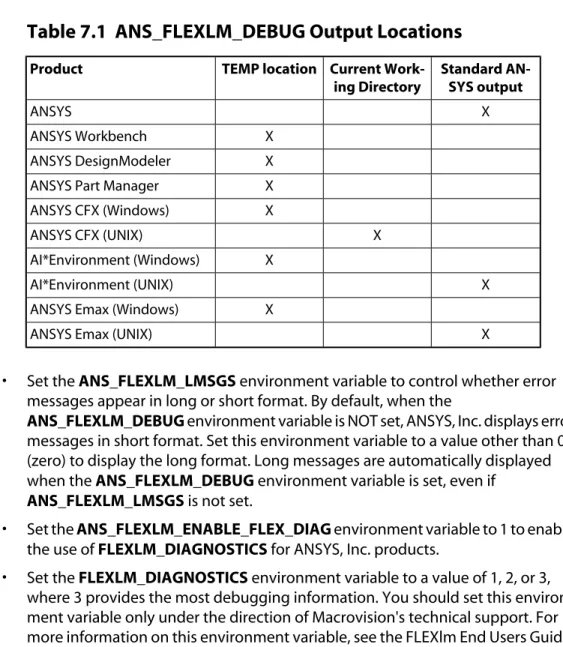
1.1. Configuring TCP/IP ... 1–3 3.1. Product/Feature Names for Licensed Products ... 3–9 4.1. License Manager Automatic Startup Instructions ... 4–3 7.1. ANS_FLEXLM_DEBUG Output Locations ... 7–2 ANSYS, Inc. Licensing Guide
Preface
1. Supported Products
This document contains information for running the FLEXlm License Manager with all ANSYS, Inc. products, including ANSYS, ANSYS Workbench, ANSYS ICEM CFD, and ANSYS CFX products. However, some information may pertain only to specific products/licensing levels, such as ANSYS or DesignSpace.
Supported Hardware Platforms
This document details information about licensing ANSYS, Inc. products on the hardware platforms listed below. Not all products support all platforms listed below. Please refer to the installation documentation for the platforms on which your specific product runs. The name in parenthesis indicates the directory name for each platform (referred to as
<platform> throughout this document). • HP AlphaServer (alpha)
• HP PA8000 64-bit (hp64) • HP Itanium2 64-bit (hpia64) • IBM RS/6000 AIX 5L (aix64) • SGI 64-bit (sgi64)
• Sun UltraSPARC 64-bit (sun64) • Sun UltraSPARC III+ 64-bit (usIII) • Fujitsu SPARC64 IV 64-bit (fjpp)
• Intel IA-32 Linux (linia32) (RH AS 2.1, Kernel 2.4.9) • Intel IA-64 Linux (linia64) (RH AS 2.1, Kernel 2.4.18) • AMD Opteron Linux 64-bit (linop64)
• Windows XP 64-bit (win64) • Windows XP (intel)
• Windows 2000 (intel)
For specific operating system requirements, refer to the installation guide for the product and platform you are running.
Intended Audience
The ANSYS Licensing Guide is intended for the person responsible for licensing adminis-tration of all ANSYS, Inc. products at a site. This person is typically the system administrator.
Product Definitions
This guide applies to all licensed ANSYS, Inc. products, including ANSYS, ANSYS Work-bench, ANSYS ICEM CFD, and ANSYS CFX products, unless otherwise noted.
Summary of New and Changed Features
Listed below is a summary of those licensing items that are either new or have been changed since the last release. For a list of all major new and changed features of any product, see the Release Notes document for that product.
• The ANSLIC_ADMIN utility has been updated and reorganized for easier use. • A license borrowing capability has been added.
Conventions Used in This Document
Computer prompts and responses and user input are printed using this font:
/ansys_inc/shared_files/licensing/lic_admin/anslic_admin
Lengthy user input lines that exceed the width of the page are listed in multiple lines, with the second and subsequent lines indented:
exec_path <drive>:\Program Files\Ansys Inc\ansys90\ac4 \bin\pro\<platform>\ac4pro90.exe
Wild card arguments and variables are italicized. Commands appear in bold face.
Note — Note paragraphs are introduced by the text Note. A note contains inform-ation that supplements the main topic being discussed.
Caution: Paragraphs that begin with the word “Caution” in bold, with the rest of the text in normal type, warn you about actions or situations that potentially may cause problems or unexpected behavior or results in ANSYS, Inc. products.
Warning: Paragraphs that begin with the word “Warning” in bold warn you about actions or situations that can shut down ANSYS, Inc. products, damage files, etc.
Chapter 1: Introduction
1.1. ANSYS and FLEXlm
ANSYS, Inc. uses the FLEXlm (FLEXnet Publisher Licensing Module) license manager for all of its licensed products. FLEXlm, the most popular license manager used in the software industry, is best known for its ability to allow software licenses to be available (or float) anywhere on a network. Floating licensing benefits both users and license administrators. Users can make more efficient use of fewer licenses by sharing them on the network. Li-cense administrators can control who uses the liLi-censed application and the machine(s) where the licenses will be available. The format of the traffic between the ANSYS product(s) and the license manager is machine independent, allowing for heterogeneous networks. This means the license server and the computer running an application can be either different hardware platforms or even different operating systems (Windows and UNIX, for example).
The license manager, daemons or services, and license utility files are installed during the installation process.
A typical installation on a Unix machine allows you to install the product anywhere on the system. The installation then creates a symbolic link from the installation directory to /ansys_inc. All licensing files and utilities are provided in the /ansys_inc/shared_files/li-censing subdirectory.
If you installed the product elsewhere on your system, replace all references to /ansys_inc
in this guide with the name of the installation directory you used. Any reference throughout this manual to the licensing directory on Unix platforms means /an-sys_inc/shared_files/licensing.
A typical installation on a Windows machine (choosing the default installation directory) installs the products in the product subdirectory in \Program Files\Ansys Inc, located on the same drive as the operating system. The \Shared Files\Licensing subdirectory is also created in this installation directory. If you installed the product in a different dir-ectory, replace all references to \Program Files\ANSYS Inc\<product> in this guide
with the name of the installation directory you used. However, the licensing directory will still remain in the default location; you cannot change this location. The licensing components are shared across all ANSYS, Inc. products and need to reside in a fixed location.
Any reference throughout this manual to the licensing directory on Windows platforms means \Program Files\Ansys Inc\Shared Files\Licensing, located on the same drive as the operating system.
1.1.1. The Licensing Process
The licensing process for ANSYS, Inc. products is as follows:
1. Select the license server(s). See Section 2.2: Selecting License Servers.
2. Install and configure TCP/IP. See Section 1.2: Communications Requirements for information on configuring TCP/IP.
3. Install the software. See the appropriate installation manual for your product and platforms.
4. Register the license server(s). See Section 2.2.2: Registering License Server Inform-ation.
5. Run the License Wizard. See Section 6.1.3: Run the License Wizard
6. Set up the licensing environment. See Chapter 5, “The Licensing Environment”.
1.1.2. Compatibility with Other FLEXlm-Licensed Software
Because of FLEXlm's popularity, you may have FLEXlm licenses from more than one vendor.The ANSYS License Manager uses FLEXlm 9.2. If you do have other FLEXlm-licensed products running FLEXlm 9.2 or higher, you can run them in conjunction with ANSYS products with no intervention or special configuration requirements.
However, if you want to combine ANSYS, Inc. license files with other license files and use one lmgrd license manager, please refer to the FLEXlm End Users Guide for information on how to administer multiple products using the FLEXlm license manager. If you need technical assistance when running multiple products under the same license manager, please contact Macrovision Corporation for technical support.
1.1.3. Links to FLEXlm
For more information on using FLEXlm, please visit the FLEXlm web site at http://www.mac-rovision.com/products/flexnet_publisher/licensing_module.shtml. You can refer to the FLEXlm End Users Guide for the most current information on all FLEXlm features. You can also access this document from the ANSLIC_ADMINHelp menu option View the FLEXlm End Users Guide.
1.2. Communications Requirements
1.2.1. Configuring TCP/IP
TCP/IP needs to be configured and started for any ANSYS, Inc. product and the license manager to be able to run. You should consult your network administrator for assistance with this configuration. The TCP/IP protocol must be installed on any machine on which you want to run an ANSYS product.
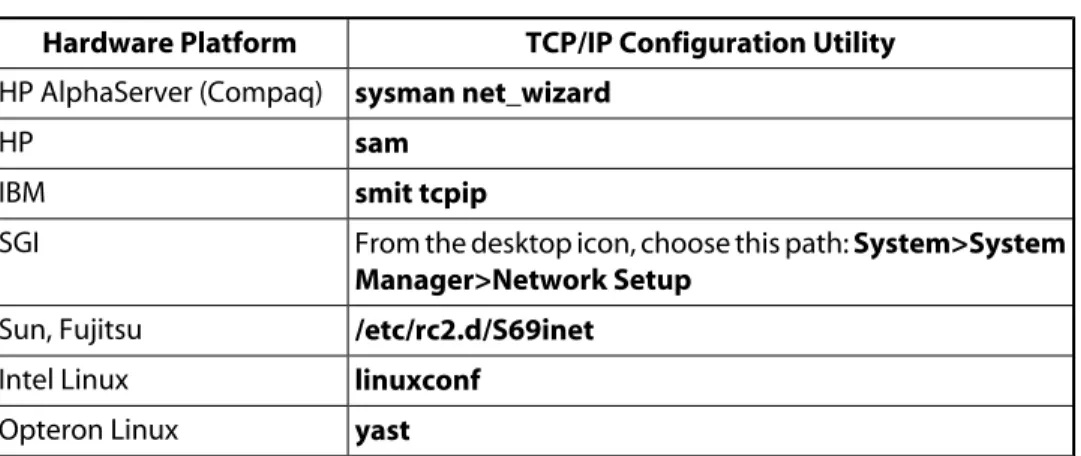
TCP/IP is supplied as part of the UNIX operating system. Table 1.1: “Configuring TCP/IP” specifies the system utility used to configure TCP/IP on the various hardware platforms. You should consult your network administrator for assistance with this configuration.
Note — HP AlphaServer and Intel Linux systems require an Ethernet card.
Table 1.1 Configuring TCP/IP
TCP/IP Configuration Utility Hardware Platform sysman net_wizard HP AlphaServer (Compaq) sam HP smit tcpip IBM
From the desktop icon, choose this path: System>System Manager>Network Setup SGI /etc/rc2.d/S69inet Sun, Fujitsu linuxconf Intel Linux yast Opteron Linux
For Windows systems, the TCP/IP protocol is included as part of the operating system and is typically installed by default. If you do need to install TCP/IP, remember that it must be bound to a network adapter.
On machines that are connected to an internal network, TCP/IP must be bound to a network card such as an Ethernet adapter. The vast majority of systems using TCP/IP will fall into this category.
On machines that connect to the Internet or corporate intranet through a modem, TCP/IP can be bound to a dial-up connection.
1.2.1.1. Determining Whether TCP/IP Is Installed on a Microsoft
Windows System
To determine if TCP/IP is installed on your system, open the Control Panel. Continue as follows based upon the machine's operating system:
• Windows XP -- Open Network Connections, highlight Local Area Connection and right-mouse click. Select Properties. Internet Protocol (TCP/IP) should be listed. • Windows 2000--Open Network and Dial-Up Connections, open Local Area Network,
and then click on the Properties button. Internet Protocol (TCP/IP) should be listed. If TCP/IP is installed, you must determine whether it is bound to a network adapter card or a dial-up connection. A network card or a Dial-Up Adapter will be shown under “Connect Using:”.
Caution: If your computer is connected to a network, it is highly recommended
that you contact your Information Technology Department before installing or modifying TCP/IP on your machine.
1.2.2. Changing the Default Port Number
A port number specifies the communications channel by which two or more processes can communicate. ANSYS uses 1055 as the default port number for the ANSYS FLEXlm license manager. If you encounter a conflict in port numbers, you can change the default by modifying all of the following files:
• On the server machine(s): the port number listed on the SERVER line in the license file (license.dat) on the license server(s).
• On the client machine(s): the port number listed in the ansyslmd.ini file or the port number specified in the LM_LICENSE_FILE or the ANSYSLMD_LICENSE_FILE
environment variables, if set.
1.3. Explanation of Licensing Terms
The four main components of FLEXlm are: • License manager daemon (lmgrd) • Vendor daemon (ansyslmd) • License files
• Application program (e.g., ANSYS)
These components are explained in more detail in the following sections. Note that the term daemon is used throughout this document. A daemon on Unix systems is the same as a service on Windows systems.
1.3.1. The License Manager Daemon (lmgrd)
The license manager daemon (lmgrd) handles the initial contact with the client applica-tion programs (ANSYS, etc.), passing the connecapplica-tion on to the appropriate vendor daemon (ansyslmd for ANSYS products). It also starts and restarts ansyslmd. Although not re-commended, FLEXlm permits redundant license manager daemons on three server machines, allowing you to make your license available if any two of the three server machines is running. Redundancy can be achieved with three-server redundant servers or by using multiple single-license servers. See Section 2.2.1: Redundant Server Options for more information.
1.3.2. The Vendor Daemon (ansyslmd)
In FLEXlm, licenses are granted by running processes. There is one process for each vendor who has a FLEXlm-licensed product on the network. This process is called the vendor daemon. The vendor daemon keeps track of how many licenses are checked out, and who has them. If the vendor daemon terminates for any reason, all users lose their licenses. The ANSYS vendor daemon is ansyslmd.
Client programs communicate with ansyslmd, usually through TCP/IP network commu-nications. The vendor daemon (ansyslmd) is started by the license manager daemon (lmgrd).
1.3.3. The License File
Licensing data is stored in a text file called the license file. The license file is created by ANSYS, Inc. and is installed by the license administrator. It contains information about the server machines and vendor daemon, and at least one line of data (called INCREMENT lines) for each licensed product. Each INCREMENT line contains a license key based on the data in that line, the hostids specified in the SERVER line(s), and other vendor-specific data.
The default location for the ANSYS license file (license.dat) is in the licensing directory. End users can override this location by setting the environment variable ANSYSLMD_LI-CENSE_FILE to point elsewhere. License files need to reside only on license servers.
1.3.4. The Application Programs
Application programs are software programs such as ANSYS, CFX, etc. ANSYS application programs containing FLEXlm need to be able to communicate with the ANSYS license manager. All ANSYS, Inc. products use the same license manager.
Chapter 2: License Servers
2.1. What Are License Servers?
License administration is controlled by specific computers on the network called license servers. License servers monitor what products are being run, who is running them, and from what computer system. They grant or deny permission to run products. When an ANSYS product begins, it requests permission to execute from a server. The server checks the pool of available license tasks and grants the request only if the required tasks are available. For each request that is granted, the required license tasks are removed from the pool. As each ANSYS product execution ends, these license tasks are returned to the pool of available tasks.
The server machine or machines are designated by you--the end user. You have the option of designating one server or three servers. In a one-server network, if the server machine goes down, the licenses are no longer available for use until the server machine is back in service. In a three-server network, as long as two of the three machines are still running, the licenses are still available for use.
The master server actually controls the license administration. If a network has only one server, then that server is automatically the master server. In a three server environment, the order of the SERVER lines in the license file determines which server is the master.
The order of the servers must match on all machines in a three server environment. The first is the master, the second is the first backup, etc. If the order of the SERVER lines does not match on the three servers, then the servers will attempt to determine the master server; however, this attempt may not be successful. In a three-server network, if the master server is unavailable, then the first backup acts as the master.
You must make sure the order of the SERVER lines is consistent between redundant servers; otherwise, reconnections may fail.
2.2. Selecting License Servers
Before running any FLEXlm-licensed program using floating licenses, you will need to set up your license server machine (or machines). You must select which machine(s) will be license servers, and provide the hostid and hostname of those machines to ANSYS, Inc. Use the Register License Server Information option of the ANSLIC_ADMIN utility to generate the licserver.info file, which then needs to be forwarded to your ANSYS sales representative.
You need to select the computer systems that will act as servers before we can supply you with the licenses that are required to activate your licensed product(s). Information about the servers is used to generate the necessary license key(s).
Consider the following points when deciding which computer(s) will be used as server(s): • All files used in conjunction with the license software must be located on a disk
that is physically local to the server computer(s).
• Computers must have a high-speed, reliable Ethernet connection.
• Computers that experience extremely high levels of network traffic or processing lags due to high CPU and/or I/O usage are poor candidates for servers.
• Do not use computers that are frequently rebooted as servers. • The license server must have a static IP address.
• We do not allow the use of wide area networks (WANs) for license servers (with the standard ANSYS contract).
• You cannot use DHCP for license servers.
• If using a three-server network, we recommend that you choose three machines that are of the same platform type (that is, three HPs, three SGIs, etc.).
• If using a three-server network, we highly recommend that all three servers be on the same subnet in the same physical location.
If these guidelines are not followed, the ability of the license software to perform consist-ently will be compromised.
Caution: Do not change the date on the license server machine. Doing so will prohibit the ANSYS product from running. Restoring the system to its original state prior to the date change may require significant effort.
2.2.1. Redundant Server Options
Throughout this document, we use the term “three-server network” when referring to redundant servers. Redundant server setup is a network configuration where multiple systems are designated as license servers. Redundancy can be achieved in two ways:
• Three different systems can be selected to work together in tandem, whereby two of the three must be running at all times. These three license servers work from a single set of licenses.
• Any number of license servers can be running independently. The total number of licenses is split between each license server. For example, if you are licensed for 20 tasks of a certain product, and you have two license servers, each license server will serve ten licenses. In this example, if one of these systems fails, only ten licenses will be available.
We recommend the second option if your site requires redundancy. Be sure to review Section 2.2: Selecting License Servers for guidelines and special considerations when choosing license servers. Single license server networks are usually sufficient for most sites.
2.2.2. Registering License Server Information
The Register License Server Information option of the ANSLIC_ADMIN utility creates a file named licserver.info in the licensing directory. The content of this file is generated by prompting you for information about your company and you (the person running the utility). This is important so that we know to which of our customers this information belongs and to whom we may speak if we have questions about the data. The option also pulls necessary information from your license server (such as computer type, oper-ating system level, and hostid) and places it in the file. Create this file on each system that will be a license server. Return the licserver.info file(s) to your ANSYS sales repres-entative so that licenses can be supplied to you.
Chapter 3: License Files
All ANSYS, Inc. programs use a single, common license file. The license file contains all site-specific information required by FLEXlm. This information includes:
• Server names and hostids • Vendor daemon name • Feature information
In general, the license file must exist on every machine designated as a license server. If the license file contains counted (also called "floating") licenses, you have to start the li-cense manager daemon (lmgrd) before you can use the application on Unix systems. On Windows systems, the license manager daemon is installed as a service named ANSYS FLEXlm License Manager.
You can use the License Wizard available from the ANSLIC_ADMIN utility to install or update a license file, specify the license server, and start or reread the license file. The wizard will prompt you for the necessary information at each step.
3.1. Installing License Files
Use the Install the License File option of the ANSLIC_ADMIN utility to install the license file. The license file will be named license.dat and will be created in the licensing directory. If this file does not exist in the licensing directory or does not have the expected name, ANSYS products may not run.
If you are running in a three-server environment, the license file must reside on all three servers and must match on all three servers.
If you make any changes to the license file, you must either restart the license manager or reread the license file. You can accomplish both tasks by using the ANSLIC_ADMIN
utility. Note that Install the License File is also the first step of the Run the License Wizard option.
3.2. Specifying the License Server and License Files
ANSYS products expect the license file to be named license.dat and reside in the licensing directory.The license file must reside on the license servers but does not have to be on the machines where the ANSYS product is run. If you are running ANSYS products on
multiple machines, you have these options for making your license available on all the client machines:
• Choose the Specify the License Server option of the ANSLIC_ADMIN utility to create a file named ansyslmd.ini in the licensing directory. Each server's specific-ation entry in this file must begin with SERVER=. This option is highly recommen-ded. The format of the ansyslmd.ini file created by ANSLIC_ADMIN follow. On a single server:
SERVER=<port>@<host>
On redundant or multiple single servers on UNIX platforms:
SERVER=<port>@<host1>:<port>@<host2>:<port>@<host3>
Windows platforms use semicolons (;) instead of colons:
SERVER=<port>@<host1>;<port>@<host2>;<port>@<host3>
The ANSYS default port number is 1055 and the host is the license server hostname. For example, if the license server name is alpha1:
SERVER=1055@alpha1
This specification can also be set to the path and filename of a valid license file:
SERVER=<full path to the license file>
The order of the SERVER lines in the ansyslmd.ini file specifies the order in which the requested license will be granted.
• Set the ANSYSLMD_LICENSE_FILE environment variable to port@host, where host and port come from the SERVER line in the license file. The ANSYS default
port number is 1055. This environment variable can also be set to the path and filename of a valid license file. This option is NOT recommended.
• Set the LM_LICENSE_FILE environment variable to port@host. This environment
variable can also be set to the path and filename of a valid license file. Be aware that setting this environment variable can be disruptive to other software com-panies' products that use FLEXlm as their license manager. This option is NOT re-commended.
The license file path specified in the ANSYSLMD_LICENSE_FILE or the LM_LICENSE_FILE
environment variables can be port@host, a directory name, a file, or a list of files
separ-ated by colons on UNIX or semi-colons on Windows. If there is a directory name in this list, all files named *.lic in that directory are used.
You can only start the license manager on the server machine specified in the license file.
Note — If you are running redundant servers, you should have the license file (as well as the entire licensing directory) installed locally on each license server. If you do not, you lose all the advantages of having redundant servers, since the file server holding these files becomes a single point of failure.
3.2.1. Setting the Path with an Environment Variable
ANSYS products expect the license file to reside in the licensing directory and be named
license.dat. You should rarely, if ever, want to specify where the license file is located with an environment variable. However, you can change the license file location with the ANSYSLMD_LICENSE_FILE or the LM_LICENSE_FILE environment variables. Use the environment variable ANSYSLMD_LICENSE_FILE to set the location of the license file. For example, in the UNIX C shell:
% setenv ANSYSLMD_LICENSE_FILE license_file_path
Using the earlier example of a license server named alpha1, the line would look like this:
setenv ANSYSLMD_LICENSE_FILE 1055@alpha1
or
setenv ANSYSLMD_LICENSE_FILE /ansys_inc/shared_files/licensing/license.dat
The second example above would look only in the specified directory on the local ma-chine.
In the UNIX Korn and Bourne shells:
# ANSYSLMD_LICENSE_FILE=license_file_path
# export ANSYSLMD_LICENSE_FILE
On Windows, use the Control Panel to change the system environment, setting AN-SYSLMD_LICENSE_FILE to license_file_path, where license_file_path is the
full path to the license file. This can also be a port@host setting, where port and host
are the port number and host name from the SERVER line in the license file. The ANSYS default port number is 1055.
With lmgrd and lmutil (lmstat, lmdown, etc.), the -c option overrides the setting of the
ANSYSLMD_LICENSE_FILE environment variable (UNIX only).
3.2.2. License Files Settings Precedence
License file settings have precedence in the following order:1. ANSYSLMD_LICENSE_FILE environment variable
2. The FLEXlm resource file: ~/.flexlmrc (UNIX) or the Windows registry 3. LM_LICENSE_FILE environment variable
4. Settings in the ansyslmd.ini file in the licensing directory
5. The license file license.dat. Be aware that the license.dat file is not always used. If you have an ansyslmd.ini file with at least one SERVER line in it, the license.dat
file will not be used.
3.3. License Files Format
License files usually begin with a SERVER line (or three SERVER lines for redundant servers) followed by a VENDOR line, followed by one or more INCREMENT lines.
You can modify only these data items in the license file: • system host names on the SERVER line(s)
• Port numbers on the SERVER line(s)
• Vendor daemon file paths on the VENDOR line(s) • Options file paths on the VENDOR line(s)
• Optional port numbers on the VENDOR line(s) (for firewall support only)
Long lines normally use the "\" line-continuation character to break up long lines. A space character must precede the line-continuation character.
Note — Everything else is used to compute the license key and should be entered exactly as supplied. All data in the license file is case sensitive, unless otherwise indicated.
3.3.1. SERVER Lines
The SERVER line specifies the hostname and hostid of the license server and the port number of the license manager daemon (lmgrd). Normally a license file has one SERVER line. Three SERVER lines mean that you are using redundant servers. License administrators
do not have the option of deleting SERVER lines from a license file because the hostids from the SERVER lines are computed into the license keys on every INCREMENT line. The format of the SERVER line is:
SERVER host hostid 1055
where:
host is the license server host name or IP address; a string returned by the UNIX hostname or uname -n command. On Windows systems, ipconfig /all returns the host name. This can also be an IP address (nnn.nnn.nnn.nnn format).
hostid is usually the string returned by the Display the License Server Hostid option of the ANSLIC_ADMIN utility.
1055 is the TCP port number to use. ANSYS' port number is 1055. This can be changed if port 1055 is already in use on your system.
Example:
SERVER enterprise 0122345 1055
Note — If you change the port number, then you must also change the port number that is specified in the ansyslmd.ini file, or in the ANSYSLMD_LI-CENSE_FILE or the LM_LICENSE_FILE environment variables to match the port number specified in the SERVER line.
3.3.2. VENDOR Lines
The VENDOR line specifies the vendor daemon's name and path. lmgrd uses this line to start the vendor daemon, and the vendor daemon reads it to find its options file. The format of the VENDOR line is shown below.
VENDOR ansyslmd [vendor_daemon_path]
[[options=]options_file_path] [[port=]port]
where:
ansyslmd is the name of the ANSYS vendor daemon.
vendor_daemon_path is the path to the executable for this daemon. This path is optional. ANSYS, Inc. does not supply this field because lmgrd will look for the vendor daemon
ansyslmd executable in the directory where lmgrd is located and all ANSYS products install both of these daemons into the same directory.
Note — If you do supply this path and the path includes spaces, enclose the entire directory path in double quotes, as in the following example:
VENDOR ansyslmd "c:\program files\ansys inc\Shared Files\Licensing \Intel"
options_file_ path is the full path to the end-user options file for this daemon. FLEXlm does not require an options file. The options file need not be specified on this line. As long as the options file ansyslmd.opt is located in the same directory as the license file (the licensing directory), the vendor daemon will automatically find and use it. The Edit the FLEXlm Options File option of the ANSLIC_ADMIN utility will put the options file in the correct directory location.
If the directory path includes spaces, enclose the entire directory path in double quotes, as in the following example:
VENDOR ansyslmd options="c:\program files\ansys inc\Shared Files\ Licensing\ansyslmd.opt"
port is the vendor daemon port number. Note: This is for firewall support only and is otherwise not recommended. In the following example, #### would be replaced with the port number you choose:
VENDOR ansyslmd options=/ansys_inc/shared_files/licensing /ansyslmd.opt port=####
3.3.3. INCREMENT Lines
An INCREMENT line describes the license to use a product. The syntax of the INCREMENT line is:
INCREMENT feature ansyslmd feat_version
exp_date #lic key [HOSTID=feat_hostid]
[VENDOR_STRING="vendor_str"] [BORROW=n] [PLATFORMS="..."] [SUPERCEDE="..."] [ISSUED="..."] [START="..."]
[ISSUER="..."] [NOTICE="..."] [OVERDRAFT=nnn] [DUP_GROUP=NONE|SITE|[UHDV]] [TS_OK]
where:
feature is the name representing the product/capability being licensed.
ansyslmd is the name of the ANSYS vendor daemon; also found in the VENDOR line. The specified daemon serves this feature.
feat_version is the latest build date of this feature that is supported by this license.
For paid-up customers, this is usually set to the expiration date of the maintenance agreement. The value of 9999.9999 is used when this field is not applicable.
exp_date is the expiration date of license, e.g., 7-may-2004.
#lic is the number of concurrent licenses for this feature. key is the encryption key for this INCREMENT line.
Many optional fields may follow. For example, the BORROW field indicates that borrowing is enabled for that license feature. n is the maximum number of hours that a license can
be borrowed. The maximum is 336 hours (two weeks). See the FLEXlm End Users Guide for more information.
3.3.4. Sample License Files
A sample license file is shown here. This file is for 15 ANSYS Mechanical tasks and 12 ANSYS DesignSpace tasks.
SERVER gagh 690daec6 1055 VENDOR ansyslmd
INCREMENT ansys ansyslmd 9999.9999 30-sep-2004 15 8C59A481BA50 \ VENDOR_STRING=customer:00012345 ISSUED=10-sep-2003 \
START=10-sep-2003
INCREMENT dspi ansyslmd 9999.9999 30-sep-2004 12 424290D68B3D \ VENDOR_STRING=customer:00012345 ISSUED=10-sep-2003 \ START=10-sep-2003
INCREMENT caewbpl3 ansyslmd 9999.9999 30-sep-2004 12 535301E79C4E \ VENDOR_STRING=customer:00012345 ISSUED=10-sep-2003 \
START=10-sep-2003
INCREMENT deba ansyslmd 9999.9999 30-sep-2004 12 646412F80D5F \ VENDOR_STRING=customer:00012345 ISSUED=10-sep-2003 \ START=10-sep-2003
where:
• gagh is the hostname of the license server • 690daec6 is the hostid
• 1055 is the port number
• ansyslmd is the vendor daemon
• ansys, dspi, caewbpl3, and deba are the features representing ANSYS Mechanical and ANSYS DesignSpace.
• 9999.9999 indicates that the maintenance agreement is not applicable. Otherwise, this the highest supported build date for the product. For ANSYS only, you can view the build date by running ANSYS with the -v command option.
• 30-sep-2004 is the expiration date
• 15 and 12 are the number of tasks for ANSYS Mechanical and ANSYS DesignSpace, respectively
• 8C59A481BA50, 424290D68B3D, 535301E79C4E, and 646412F80D5F, are encryption keys for ANSYS Mechanical and ANSYS DesignSpace, respectively
• customer:00012345 is the customer number
• ISSUED=10-sep-2003 is the date the license was created • START=10-sep-2003 is the start date
3.3.5. Recognizing an ANSYS License File
If you receive a license file and are not sure if it is an ANSYS license file, you can determine if it is by looking at the contents of the license file. If it is an ANSYS license file, then:
• In the line beginning with the word VENDOR, the next field/item is ansyslmd. • In the line(s) beginning with the word INCREMENT, the third field/item is ansyslmd. ANSYS, Inc. supplies some licenses for CFX products that use the CFX license manager. Those CFX license files are not compatible with the ANSYS license manager. You can re-cognize CFX license files in two ways:
• In the line beginning with the word DAEMON, the second field/item is CFDS. • In the line(s) beginning with the word INCREMENT, the third field/item is CFDS. Please use the CFX license manager utility to administer CFX licenses.
ANSYS, Inc. also supplies some licenses for ICEM CFD products that use the ICEM license manager. Those ICEM license files are not compatible with the ANSYS license manager. You can recognize ICEM license files in two ways:
• In the line beginning with the word VENDOR, the second field/item is ICEM_CFD. • In the line(s) beginning with the word FEATURE, the third field/item is ICEM_CFD. Please use the ICEM license manager tools to administer ICEM licenses.
3.4. Product Variable Table
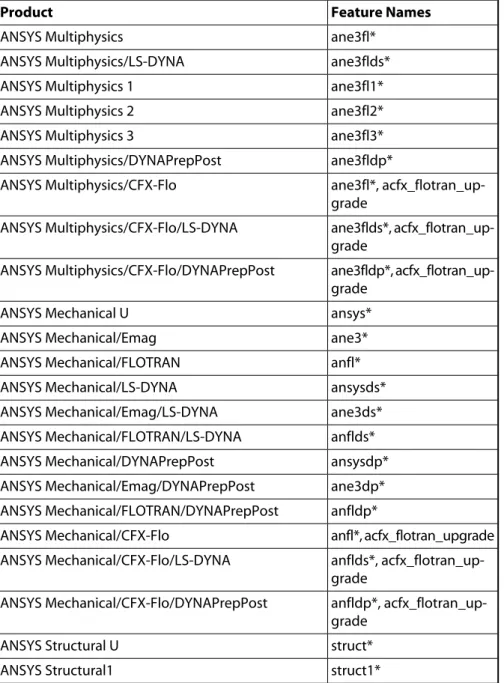
The following table shows all ANSYS, Inc. products and their associated feature name as used in the INCREMENT lines.
Table 3.1 Product/Feature Names for Licensed Products
Feature Names Product ane3fl* ANSYS Multiphysics ane3flds* ANSYS Multiphysics/LS-DYNA ane3fl1* ANSYS Multiphysics 1 ane3fl2* ANSYS Multiphysics 2 ane3fl3* ANSYS Multiphysics 3 ane3fldp* ANSYS Multiphysics/DYNAPrepPost ane3fl*, acfx_flotran_up-grade ANSYS Multiphysics/CFX-Flo ane3flds*, acfx_flotran_up-grade ANSYS Multiphysics/CFX-Flo/LS-DYNA ane3fldp*, acfx_flotran_up-grade ANSYS Multiphysics/CFX-Flo/DYNAPrepPost ansys* ANSYS Mechanical U ane3* ANSYS Mechanical/Emag anfl* ANSYS Mechanical/FLOTRAN ansysds* ANSYS Mechanical/LS-DYNA ane3ds* ANSYS Mechanical/Emag/LS-DYNA anflds* ANSYS Mechanical/FLOTRAN/LS-DYNA ansysdp* ANSYS Mechanical/DYNAPrepPost ane3dp* ANSYS Mechanical/Emag/DYNAPrepPost anfldp* ANSYS Mechanical/FLOTRAN/DYNAPrepPost anfl*, acfx_flotran_upgrade ANSYS Mechanical/CFX-Flo anflds*, acfx_flotran_up-grade ANSYS Mechanical/CFX-Flo/LS-DYNA anfldp*, acfx_flotran_up-grade ANSYS Mechanical/CFX-Flo/DYNAPrepPost struct* ANSYS Structural U struct1* ANSYS Structural1
Feature Names Product struct2* ANSYS Structural2 struct3* ANSYS Structural3 ste3* ANSYS Structural/Emag stfl* ANSYS Structural/FLOTRAN ste3fl* ANSYS Structural/Emag/FLOTRAN structds* ANSYS Structural/LS-DYNA ste3ds* ANSYS Structural/Emag/LS-DYNA stflds* ANSYS Structural/FLOTRAN/LS-DYNA ste3flds* ANSYS Structural/Emag/FLOTRAN/LS-DYNA structdp* ANSYS Structural/DYNAPrepPost ste3dp* ANSYS Structural/Emag/DYNAPrepPost stfldp* ANSYS Structural/FLOTRAN/DYNAPrepPost ste3fldp* ANSYS Structural/Emag/FLOTRAN/DYNAPrepPost stfl*, acfx_flotran_upgrade ANSYS Structural/CFX-Flo ste3fl*, acfx_flotran_up-grade ANSYS Structural/Emag/CFX-Flo stflds*, acfx_flotran_up-grade ANSYS Structural/CFX-Flo/LS-DYNA ste3flds*, acfx_flotran_up-grade ANSYS Structural/Emag/CFX-Flo/LS-DYNA stfldp*, acfx_flotran_up-grade ANSYS Structural/CFX-Flo/DYNAPrepPost ste3fldp*, acfx_flotran_up-grade ANSYS Structural/Emag/CFX-Flo/DYNAPrepPost prf* ANSYS Professional prfe3* ANSYS Professional/Emag prffl* ANSYS Professional/FLOTRAN prfe3fl* ANSYS Professional/Emag/FLOTRAN emag* ANSYS Emag emaghf* ANSYS Emag HF emagfl* ANSYS Emag/FLOTRAN flotran* ANSYS FLOTRAN preppost* ANSYS PrepPost
Feature Names Product
prpostdy* ANSYS PrepPost/DYNAPrepPost
ansysul* ANSYS University Introductory
ansysuh* ANSYS University Intermediate
ansysrf* ANSYS University Advanced
aunivres* ANSYS University Research
dyna* ANSYS LS-DYNA dynapp* ANSYS DYNAPrepPost dynapc* ANSYS LS-DYNA PC mpba* ANSYS Multiphysics Batch
meba* ANSYS Mechanical Batch
prba* ANSYS Professional Batch
stba* ANSYS Structural Batch
flba* ANSYS FLOTRAN Batch
e3ba* ANSYS Emag Batch
debach ANSYS DesignSpace Batch Child
e3bach ANSYS Emag Batch Child
flbach ANSYS FLOTRAN Batch Child
mebach ANSYS Mechanical Batch Child
mpbach ANSYS Multiphysics Batch Child
prbach ANSYS Professional Batch Child
stbach ANSYS Structural Batch Child
caewbpl1, dspi, deba ANSYS DesignSpace Entra
dsstruct, deba ANSYS DesignSpace Structural
caewbpl3, dspi, deba ANSYS DesignSpace
caewbplh, caetmpl, custg-ate
ANSYS Workbench SDK
cad2mesh, aimed, aiout-put, aiprism, aitetra, agppi CFX-CAD2Mesh
cad2mesh ANSYS CFX-Mesh
acfx_flotran_upgrade ANSYS CFX FLOTRAN Upgrade
acfx_anymodule ANSYS CFX Flo
acfx_anymodule ANSYS CFX-5 PrepPost
Feature Names Product
acfx_pre, acfx_solver, acfx_nolimit, acfx_parallel ANSYS CFX-5 Basic Capability Solver
acfx_mfr ANSYS CFX-5 Multiple Frames of Reference
acfx_multiphase ANSYS CFX-5 Multi-Phase Flows
acfx_combustion ANSYS CFX-5 Reacting and Combusting Species
acfx_radiation ANSYS CFX-5 Radiation Models
acfx_advanced_turbu-lence, acfx_turbu-lence_transition ANSYS CFX-5 Advanced Turbulence Models
acfx_par_proc ANSYS CFX-5 Parallel Computing
acfx_pre, acfx_solver acfx_nolimit, acfx_mfr, acfx_multiphase, acfx_combustion, acfx_ra-diation, acfx_parallel, acfx_advanced_turbu-lence, acfx_turbu-lence_transition ANSYS CFX-5 Full Capability Solver
acfx_post ANSYS CFX-Post acfx_turbogrid ANSYS CFX-TurboGrid acfx_pre, acfx_solver, acfx_nolimit, acfx_mfr, acfx_multiphase, acfx_combustion, acfx_ra-diation, acfx_advanced_tur-bulence, acfx_turbu-lence_transition, acfx_par-allel, acfx_post
ANSYS CFX Academic Research
acfx_pre, acfx_solver, acfx_mfr, acfx_multiphase, acfx_combustion, acfx_ra-diation, acfx_advanced_tur-bulence, acfx_turbu-lence_transition, acfx_post ANSYS CFX Academic Teaching Kit
aihexa ICEM Hexahedral Mesher
aienv, aienvsub ANSYS AI*Environment
aipicat ANSYS ICEM CFD Direct Interface for CATIA V4
aipiidea ANSYS ICEM CFD Direct Interface for I-DEAS
Feature Names Product
aipips ANSYS ICEM CFD Reader for Parasolid
aipipro ANSYS ICEM CFD Direct Interface for Pro/ENGINEER
aipise ANSYS ICEM CFD Direct Interface for Solid Edge
aipisw ANSYS ICEM CFD Direct Interface for SolidWorks
aipiug ANSYS ICEM CFD Direct Interface for UG
batmesh, bmeshsub Batch Meshing Module
aiprism, aioutput, aioutcfd CFD Utilities Add-on for AI*Environment
concatia ANSYS Connection for CATIA V4
concatv5 ANSYS Connection for CATIA V5
conpara ANSYS Connection for Parasolid
conproe ANSYS Connection for Pro/ENGINEER
consat ANSYS Connection for SAT
conug ANSYS Connection for Unigraphics
advmesh ANSYS Advanced Structural Meshing Module
agppi ANSYS DesignModeler dsdxm ANSYS DesignXplorer femxstr ANSYS DesignXplorer VT (-FXS) caetmpl CAE Templates colleng Collaboration Engine dfatigue Fatigue Module wbunix Workbench Interface for UNIX
int4nas Interface for Nastran
wbframe ANSYS Workbench Framework
motionb ANSYS Motion Basic
motionf ANSYS Motion Full
aiemax, emaghf, freqsw, aiautmdl, aiautmsh, aiiges, aioutans, aitetra, aivis3 ANSYS Emax
aiemax, aiautmdl, aiautm-sh, aiiges, aioutans, aitetra, aivis3
ANSYS Emax PrepPost
emaxupp, aiautmdl, aiautm-sh, aiiges, aioutans, aitetra, aivis3
ANSYS University Emax PrepPost
Feature Names Product
emaxuppr, emaghf, aiautm-dl, aiautmsh, aiiges, aioutans, aitetra, aivis3 ANSYS University Emax PrepPost Research
solveug ANSYS Solver for Unigraphics
dysmp ANSYS LS-DYNA SMP
dydtm Drop Test Module for ANSYS LS-DYNA (-DTM)
freqsw ANSYS Frequency Sweep VT (-FS)
lsmat161 LS-DYNA MAT_161
perfpar Parallel Performance for ANSYS ( -PP )
piautoin Geometry Interface for Autodesk Inventor
picatia Geometry Interface for CATIA V4
picatv5 Geometry Interface for CATIA V5
pimedesk Geometry Interface for Mechanical Desktop
rdpara Geometry Interface for Parasolid
piproe Geometry Interface for Pro/ENGINEER
rdacis Geometry Interface for SAT
pisoledg Geometry Interface for SolidEdge
pisolwor Geometry Interface for SolidWorks
piug Geometry Interface for Unigraphics
pdmiman iMan PDM System
paramesh ANSYS ParaMesh
pmeshuni ANSYS ParaMesh University
pmeshgeo ANSYS ParaMesh Geometry Add-on
aioutput, aiiges, aiacis, aiedgeom, aioutcfd ANSYS ICEM CFD Basic with Advanced Geometry
Support
aioutput, aiiges, aiacis, aipiug, aioutcfd ANSYS ICEM CFD Basic with Unigraphics Direct
Inter-face
aioutput, aiiges, aiacis, aipicat, aioutcfd ANSYS ICEM CFD Basic with CATIA V4 Direct Interface
aioutput, aiiges, aiacis, aipipro, aioutcfd ANSYS ICEM CFD Basic with Pro/Engineer Direct
Inter-face
aioutput, aiiges, aiacis, aipiidea, aioutcfd ANSYS ICEM CFD Basic with SDRC-IDEAS Direct
Feature Names Product
aioutput, aiiges, aiacis, aip-isw, aioutcfd
ANSYS ICEM CFD Basic with SolidWorks Direct Inter-face
aioutput, aiiges, aiacis, aip-ise, aioutcfd
ANSYS ICEM CFD Basic with SolidEdge Direct Interface
aimed, aihexa ANSYS ICEM CFD Hexa
aimed, aitetra, aiprism, ANSYS ICEM CFD Tetra/Prism
aimed, aiquad ANSYS ICEM CFD Quad
aimed, aiglobal ANSYS ICEM CFD Global
aimed, aiautmdl, aiautmsh ANSYS ICEM CFD Autohexa
aihexct5, aihexct5e ANSYS ICEM CFD Hexa CAA V5 Based (for CATIA V5)
aiiges, aiacis, aimed, aitetra, aimshprt
ANSYS ICEM CFD Mesh Prototyper
aivis3, aiiges, aiacis ANSYS ICEM CFD Environment for CART3D
aimed, aimshcrt, aiflowcrt, aiflowcrtp
ANSYS ICEM CFD Cart3D Product
aicabin ANSYS ICEM CFD Cabin Modeler Add-on
aimed, aitetra, aiprism, aicabin
ANSYS ICEM CFD Cabin Modeler Stand-alone
aiic3m, aiic3msb ANSYS ICEM CFD IC3M Add-on
aimed, aitetra, aihexa, aiic3m, aiic3msb, ANSYS ICEM CFD IC3M Stand-alone
aimed, aicomak ANSYS ICEM CFD Comak
aivis3 ANSYS ICEM CFD Visula3 / PV3
aioptmsh ANSYS ICEM CFD OptiMesh
An * after a feature name indicates that an item is a product variable and can be used on a stand-alone basis to start a product run.
Products listed here use the ANSYS license manager. ANSYS, Inc. does supply licenses for ICEM CFD and CFX products not listed above; however, those licenses will use the ICEM or CFX license manager. To determine if the license is for the ANSYS, ICEM, or CFX license manager, see Section 3.3.5: Recognizing an ANSYS License File.
Chapter 4: The ANSYS License
Manager
In order to run ANSYS products and then perform standard administration/operation tasks, you must make sure that the license manager is running.
4.1. License Manager Daemon
Most ANSYS products use a small program that runs in the background on the server machine(s) to perform standard licensing operations. This program is called a daemon. The license manager daemon lmgrd and the vendor daemon ansyslmd perform license manager functions such as processing requests for clients. Both of these daemons must be running on the license server. On Windows systems, the license manager daemon is installed as a service named ANSYS FLEXlm License Manager.
4.1.1. Modifying License Manager Startup Options
Although we do recommend using the default settings when starting the license manager, you may find the need to change one of the options.
On UNIX systems, use the Modify Startup Options option of the ANSLIC_ADMIN utility to modify the directory path to the license file and the directory path to the license.log
file.
You can also set FLEXlm's -2 -p or -local options. The -2 -p restricts the ability to
shut down the license manager, reread the license file, or remove a client to a FLEXlm administrator (who is by default root) or a member of the lmadmin group, if one exists. If the root administrator is not a member of this group, then he does not have permission to use any of the above utilities. The -local option further restricts the ability to shut
down the license manager to only an administrator running on the same machine where the license manager was started. Both options are off by default. See the FLEXlm End Users Guide for more information on using these options.
This ANSLIC_ADMIN utility option writes an ansyslmd.ini file in the licensing directory. This file contains modified settings. If the file does not exist, the defaults are used. This option will also update boot_ansflex with any changes. Follow the procedure in Table 4.1: “License Manager Automatic Startup Instructions” to make sure these new options are used at system boot.
Warning: The license.log file for each server should be located on a local disk. Writing to an NFS-mounted disk or remote file server creates a situation where the license server(s) may fail. If the remote system containing the license.log file crashes, the license manager would be unable to log license transaction data. This would create a fatal error condition.
On Windows systems, run the FLEXlm LMTOOLS utility in the ANSYS FLEXlm License Manager folder to configure the service. See the documentation provided with LMTOOLS for more information.
4.1.2. Starting the License Manager Manually
The lmgrd program must be running on a quorum of systems designated to be servers. In a one-license server system, lmgrd must be started on that server and in a three server system, lmgrd must be started on at least two of the three servers before an ANSYS product can be run.
You can start the license manager manually via the Start the License Manager option of the ANSLIC_ADMIN utility. This option starts the lmgrd license manager daemon, which in turn will automatically start the ansyslmd vendor daemon.
4.1.3. Starting the License Manager at System Boot Time
Table 4.1: “License Manager Automatic Startup Instructions” details the steps for each UNIX hardware platform that must be performed on each license server to start the license manager automatically when the system is rebooted. You should substitute your platform name (see Supported Hardware Platforms) wherever you see <platform>. On Windows systems, the license manager is set to start up automatically at system reboot.Note — The procedure described in this section starts the license manager at boot time as root. It is not essential that the license manager be started by the root user; it may be run by a non-privileged user, depending on your preference. If you do not want the license manager to be started by root, you need to manually start the license manager by a non-privileged user each time the system is rebooted.
Table 4.1 License Manager Automatic Startup Instructions
Instructions Platform cd /ansys_inc/shared_files/licensing/<platform> cp boot_ansflex /sbin/init.d chmod 750 /sbin/init.d/boot_ansflex ln -s /sbin/init.d/boot_ansflex /sbin/rc3.d/S90ansysflex HP Alpha cd /ansys_inc/shared_files/licensing/<platform> cp boot_ansflex /sbin/init.d chmod 750 /sbin/init.d/boot_ansflex ln -s /sbin/init.d/boot_ansflex /sbin/rc2.d/S900FLEX HP cd /ansys_inc/shared_files/licensing/<platform> cat boot_ansflex >> /etc/inittabIBM RS/6000
cd /ansys_inc/shared_files/licensing/<platform> cat boot_ansflex >> /etc/rc2.d/S40FLEX
chmod 750 /etc/rc2.d/S40FLEX
SGI
cd /ansys_inc/shared_files/licensing/<platform> cat boot_ansflex >> /etc/rc3.d/S40FLEX
chmod 750 /etc/rc3.d/S40FLEX
Sun, Fujitsu
cd /ansys_inc/shared_files/licensing/<platform> cat boot_ansflex >>/etc/rc.d/rc.local
Intel Linux
cd /ansys_inc/shared_files/licensing/<platform> cat boot_ansflex >>/etc/rc.d/boot.local
AMD Opteron Linux
Once the procedure is in place for starting the license manager automatically at boot time, reboot the system.
When the system comes back up, check to see that the license manager is running by typing the appropriate ps command and looking for ansyslmd in the resulting display under the column labeled COMMAND.
For SYS V UNIX systems:
ps -ef
Next, check the license.log file in the licensing directory for error messages. This file contains a history of ANSYS product activity across the network when this computer is chosen as the master license server by the licensing software. It will also contain start-up messages and possibly error messages.
4.1.4. Shutting Down the License Manager
You can shut down the license manager via the Shutdown the License Manager option of the ANSLIC_ADMIN utility (see Chapter 6, “License Administration”). This option will shut down all three servers of a redundant setup, unless the license manager was stored with the -local option.
The license manager must be running to be able to run ANSYS products.
Warning: Do not use kill -9 (on UNIX systems) to shut down the li-cense manager. Use the ANSLIC_ADMIN utility option or lmdown.
Chapter 5: The Licensing
Environment
We recommend that you set up your licensing environment after installing an ANSYS product. The tasks that we recommend performing include:
• Designating Server(s) for License Check-out • Establishing User Privileges
• Creating the lmadmin Group • Setting Up License Queuing
These tasks are described in the following sections.
5.1. Designating Server(s) for License Check-out
You are not limited to designating one set of license server machines for your network. You can have multiple single-server or three-server licensing systems on your network. In this situation, you would have certain licenses connected to a set of server machines (one or three) on the network, and other licenses connected to a different set of server machines (one or three) on the network.
To designate license servers, run the Specify the License Server option of the ANSLIC_AD-MIN utility on every machine where you installed an ANSYS product. With this option, you can specify single servers, multiple single servers, or redundant servers. Using this option creates or updates the ansyslmd.ini file in the licensing directory. We recommend using this method for specifying your license server preference.
If you want to override the settings in the ansyslmd.ini file, you can do so by setting the
ANSYSLMD_LICENSE_FILE environment variable. This environment variable is useful if you want to temporarily point to a different license server without disrupting the ma-chine's configuration.
If you set the ANSYSLMD_LICENSE_FILE environment variable on a three-server (re-dundant) system, specify all three systems, in the same order as the SERVER lines are listed in the license file. If you specify only the master and it is down, you could see a “License Server Down” or “No License Found” message and the search for a license could fail. Join redundant or multiple single server systems by separating the system names with colons on Unix and semicolons on Windows systems.
To have your license server preference known each time you log in, set the environment variable ANSYSLMD_LICENSE_FILE (both Windows and Unix systems). On Unix systems, place this environment variable in your login startup file (i.e., .cshrc file).
5.1.1. Sample Scenario
Suppose that you have a company with two departments, Design and Engineering. The Design Department has one license of ANSYS Mechanical and one license of DesignSpace with the server DES1, and all users in the Design Department run on DES1. The second department, Engineering, has two licenses of ANSYS Multiphysics with the server ENG1, and all users in the Engineering Department run on ENG1. The ansyslmd.ini file states SERVER=1055@DES1 for the Design Department and SERVER=1055@ENG1 for the Engin-eering Department, limiting users in each department to work only on their own server. If individual users in the Design Department need to run on the engineering server, ENG1, they could set the following environment variable:
setenv ANSYSLMD_LICENSE_FILE 1055@ENG1
For more information on using the license options file, please see Section 5.2: Establishing User Privileges.
5.2. Establishing User Privileges
To set specific user privileges with FLEXlm, you need to use the options file. The options file allows you, the license administrator, to control various operating parameters of FLEXlm:
• Allow or deny the use of features based on user, hostname, display name, group, etc.
• Reserve licenses based on user, hostname, display name, group, etc. • Control the amount of information logged about license usage.
By using the options file, you can be as secure or as open with licenses as you like. The default location of the options file, ansyslmd.opt, is in the licensing directory. If you have a three-server system, the options file must match exactly on all three servers. If you are using an options file, you must specify the pathname to the file on the VENDOR line in the license file, unless it resides in the same directory as the license file, which is the default when using the ANSLIC_ADMIN utility. On UNIX systems, the VENDOR line would look like this for an options file named my.opt:
On Windows systems, if the path has spaces in it, you must enclose it in quotes:
VENDOR ansyslmd options="c:\Program Files\Ansys Inc\Shared Files\Licensing\my.opt"
5.2.1. Editing the Licensing Options File
Use the Edit the FLEXlm Options File option of the ANSLIC_ADMIN utility to edit the license options file.
The maximum line length is 2048 characters. FLEXlm allows the "\" character as a continu-ation character in options file lines. You can include comments in your options file by starting each comment line with a pound sign "#." Everything in an options file is case sensitive. Be sure that user names and feature names, for example, are entered correctly. Some commonly used lines in the options file are shown below. See the FLEXlm End Users Guide for information on additional options.
Deny a user access to a feature. EXCLUDE
Deny a user access to all features served by this vendor daemon. EXCLUDEALL
Define a group of users for use with any options. GROUP
Define a group of hosts for use with any options. HOST_GROUP
Allow a user to use a feature. INCLUDE
Allow a user to use all features served by this vendor daemon. INCLUDEALL
Reserve licenses for a user. RESERVE
Sets the number of licenses for a BORROW feature that cannot be borrowed.
BORROW_LOWWATER
Excludes a user or predefined group of users from the list of who is allowed to borrow licenses for a BORROW feature.
EXCLUDE_BORROW
Includes a user or predefined group of users in the list of who is allowed to borrow a BORROW feature.
INCLUDE_BORROW
Changes the maximum period for which a license can be bor-rowed. The new period must be less than that specified in the li-cense file. If multiple MAX_BORROW_HOURS keywords appear in the options file, only the last one is applied to the license feature. MAX_BORROW_HOURS
When creating an options file, you must understand the options file precedence. INCLUDE and EXCLUDE statements can be combined in the same options file and control access to the same features. When doing so, keep in mind the following:
• If there is only an EXCLUDE list, everyone who is not on the list will be allowed to use the feature.
• If there is only an INCLUDE list, only those users on the list will be allowed to use the feature.
• If neither list exists, everyone is allowed to use the feature.
• The EXCLUDE list is checked before the INCLUDE list; someone who is on both lists will not be allowed to use the feature.
• EXCLUDE_BORROW supersedes INCLUDE_BORROW.
• Anyone not in an INCLUDE_BORROW statement is not allowed to borrow licenses. Once you create an INCLUDE or EXCLUDE list, everyone else is implicitly "outside" the group. This feature allows you, as an administrator, the ability to control licenses without having to explicitly list each user that you wish to allow or deny access to. In other words, there are two approaches; you can either give most users access and list only the excep-tions, or you can severely limit access and list only the those users that have access privileges.
The format for these keywords follow:
RESERVE number feature {USER | HOST | DISPLAY | PROJECT | GROUP | HOST_GROUP | INTERNET} name
INCLUDE feature {USER | HOST | DISPLAY | PROJECT | GROUP | HOST_GROUP | INTERNET} name
EXCLUDE feature {USER | HOST | DISPLAY | PROJECT | GROUP | HOST_GROUP | INTERNET} name
GROUP name list_of_users
INCLUDEALL {USER | HOST | DISPLAY | PROJECT | GROUP | HOST_GROUP | INTERNET} name
EXCLUDEALL {USER | HOST | DISPLAY | PROJECT | GROUP | HOST_GROUP | INTERNET} name
HOST_GROUP name host_list
BORROW_LOWWATER feature number
EXCLUDE_BORROW feature {USER | HOST | DISPLAY | PROJECT | GROUP | HOST_GROUP | INTERNET} name
INCLUDE_BORROW feature {USER | HOST | DISPLAY | PROJECT | GROUP | HOST_GROUP | INTERNET} name
MAX_BORROW_HOURS feature num_hours
Above, number is the number of tasks; feature is the license feature name (see
Sec-tion 3.4: Product Variable Table for a list of license feature names for all ANSYS products);
name is the user's login name or group; list_of_users is a blank-separated list of group
num_hours is the number of hours for which a license can be borrowed, up to the limit
specified in the license file. On UNIX systems, DISPLAY requires the tty device name, and not the DISPLAY environment variable name. Also, PROJECT refers to the LM_PROJECT
environment variable.
Note — You can make groups arbitrarily large by listing the GROUP more than once; FLEXlm concatenates such entries.
You can also specify feature as follows:
feature:name=value
You can specify a feature by any of the following fields, found in the license file INCRE-MENT lines:
VERSION HOSTID EXPDATE KEY VENDOR_STRING ISSUER NOTICE dist_info user_info asset_info
If your license file has multiple INCREMENT lines of the same feature and any of these fields (such as VENDOR_STRING and VERSION) differ between the INCREMENT lines, and you are reserving licenses for this feature, FLEXlm will reserve the same number of licenses from each INCREMENT line. This can result in more licenses being reserved than expected. Specify the differing field to reserve licenses from a single INCREMENT line.
For example, the following license contains two INCREMENT lines that differ only by the version date:
INCREMENT struct ansyslmd 2001.0331 permanent 1 AA1DE4A0E7BB \ VENDOR_STRING=customer:12345678 \
ISSUED=01-Jan-2001 START=01-Jan-2001
INCREMENT struct ansyslmd 2001.0430 permanent 1 3D967A3ECF4E \ VENDOR_STRING=customer:12345678 \
ISSUED=01-Jan-2001 START=01-Jan-2001
If you create the following entry in the options file:
RESERVE 1 struct USER smith
then you will reserve two licenses, one from each INCREMENT line, for user smith. To reserve only one license, create an entry that contains the differing information:
RESERVE 1 struct:VERSION=2001.0430 USER smith
For a complete list of license features, see Section 3.4: Product Variable Table. For more information on the options file, see the FLEXlm End Users Guide.