AT&T
MERLIN™
COMMUNICATIONS SYSTEM
ADMINISTRATION MANUAL:
MODELS 1030 AND 3070
WITH FEATURE MODULE 1
Your MERLIN™ communications system gives you telephone service previously available only with much larger systems. In addition to all the conveniences you have come to expect from your business telephones, the MERLIN system provides inter-coms at every telephone, return of unanswered calls to an attendant, and several forms of backup call coverage, to name just a few of its advantages. You can even choose different features for each telephone, and change them when necessary, to make sure that the telephone meets the needs of the person using it.
This manual is for the use of the person in charge of overseeing the initial setting up and the day-to-day operation of the MERLIN system. It describes the system features and provides instructions for assigning them so that you can customize the
Table of Contents
MERLIN System Features Fixed Features
Custom Features
Optional Features and Equipment Important Information for Administrators
Arranging Your Outside Lines: Pooled or Square About Pooled Systems
About Square Systems
The Administrator/Attendant Console
Customizing Your MERLIN System
The Forms and Labels You Need Customizing Sequence
The Control Unit
Setting Your Control Unit
Administering Your System at the Administrator/Attendant Console
Specifying Touch-Tone or Rotary Dialing Creating a Line Pool
Assigning Individual Lines and Call Restrictions to Voice Terminals Establishing Night Service
Programming Voice Terminals for Office Priorities
Assigning Line Ringing for Incoming Calls Assigning Cover Buttons
Assigning an Automatic Line Selection Sequence
Programming Voice Terminals for Personal Priorities
Assigning Features to Programmable Buttons
Using Pause, Stop, and Flash for Outside Auto Dial Buttons Assigning Speed Dial Codes to 5- and 10-Button Voice Terminals Selecting a Personal Ring
Programming Voice Announcement Disable
Special Information About Attendant Consoles Special Information About Square Systems Appendix
System Administration Diagrams and Forms
Get a free line without hav-ing to push a button or inter-rupt someone else’s call. In addition, the lights next to line buttons make it easy to keep track of calls.
● ●
Red light indicates line you are on. Green light indicates
AVAILABLE
FEATURES. . .
if line is free, busy, or on hold.
Fast flashing = you put call on hold Slower flashing = someone else put call on hold
Have access to a “pool” or group of outside lines through a single button. This frees buttons for program-mable features.
Touch Intercom-Ring or Intercom-Voice to contact others connected to your MERLIN system.
Test functions of your voice terminal and program its features using the T/P switch.
Control the volume of both your speaker and ringer.
Program buttons so that custom features, such as Do Not Disturb and Outside Auto Dial, are yours with just one touch.
Using Conference, connect with up to two outside lines and two inside lines at once.
Transfer a call to another voice terminal with or without voice announce-ment.
Put calls on Hold.
Drop one party from a con-ference call.
Touch Speaker for on-hook dialing, group listening, and on-hook monitoring for the other person’s return when you are put on hold.
Touch Recall to disconnect a call without hanging up the handset. With Centrex or PBX service, use Recall in-stead of a switchhook flash. Dial special codes for
addi-tional features.
Call your attendant for messages when light is lit.
. . .AND THERE ARE EVEN MORE
MERLIN System Features
The MERLIN communications system Models 1030 and 3070 with Feature Module 1 offers a wealth of features that provide exceptional telephone service both on a business-wide and personaI basis. As system administrator, you will make decisions about how the system operates as a whole and about some of the features that should appear at each voice terminal. (The advanced telephones in the MERLIN system are called voice terminals.) The charts on the next few pages describe all of the features of your system. They are grouped alphabetically in three categories:
●
●
●
FIXED FEATURES are built into the system. Those that have permanently labeled buttons appear in bold type in the chart.
CUSTOM FEATURES can be changed in accordance with company priorities and personal needs. Those that you, the system administrator, should assign are coded with the symbol [A] in the chart. Those that may be assigned by the individual user are coded with the symbol [U] . Features that maybe assign-ed by the user but which you may want to approve to meet the overall neassign-eds of your business are coded with both symbols. A page reference under the name of each custom feature in the chart directs you to the place in this manual where you will find instructions on how to assign this feature.
OPTIONAL FEATURES AND EQUIPMENT are not included with the system but may be added at any time.
Fixed Features
FEATURE DESCRIPTION BENEFITS
Call Park A special kind of hold that permits ● Attendant trying to locate
calls to be parked and retrieved someone parks call and from any voice terminal. Useful in pages person to pick up call. pooled systems. (See also Call Person takes call at nearby Pickup, Loudspeaker Paging.) voice terminal by means of
Call Pickup.
● Park a call and pick it up
again at another voice terminal.
Call Pickup Makes it possible for someone ● Answer another person’s
who hears another person’s voice phone without leaving your terminal ringing to answer from desk.
another voice terminal. Call Pickup ● People who move around
is also used to retrieve parked from one place to another calls and to pick up Night Service can answer calls conveniently. calls. (See also Call Park, Loud- ● Employees who work late can
speaker Paging, Night Service.) answer incoming Night Ser-vice calls without leaving desks.
Call Waiting Provides brief ring or voice ● Employees do not have to
announcement from speaker and worry about missing important flashing green light to indicate that calls while on telephone. another call has come in. ● Need for taking messages is
reduced.
Conference Enables person to make confer- ● Have a question answered by
ence calls that include as many as adding another person to five people—the originator of the call—no need for time-wasting call, two people from inside, and callbacks.
two people from outside. ● Pass incoming calls to
ap-propriate people outside your system. Conference the call-ing person to someone out-side system, put them on hold, and be free to do other business.
● Employee who is working at
Fixed Features (continued)
FEATURE DESCRIPTION BENEFITS
Distinctive Ringing Provides different ringing patterns ● Know where call is coming
for incoming, transferred, and inter- from and answer accordingly. com calls.
Drop Makes it possible to disconnect a ● Drop a person from a
confer-person from a conference call. ence call while maintaining contact with others in privacy.
● Drop a busy or unanswered
line that has been added to a conference call.
Feature Status Inquiry Makes it possible to find out ● Checks status of buttons that
whether Automatic Answering On do not have lights. Intercom, Automatic Answering On ● Easy troubleshooting.
Outside Lines, Do Not Disturb, and Privacy have been programmed or are activated on a voice terminal.
Group Listening Person can turn on speaker so ● Other people in office can
Speaker that voice of person on other end hear both sides of
conversa-can be heard in office. (See also tion. Hands-Free Unit.)
Hold Makes it possible to keep some- ● Answer a second call or
one on line without communica- attend to another matter. tion. Green light next to line button ● Have confidential conversation
on which you are holding call without person on hold flashes rapidly. Green lights next hearing it.
to line buttons on which others are ● Distinguish line button on
holding calls flash at slower rate. which you are holding a call (See also Music-on-Hold.) from buttons on which other
people are holding calls.
Automatic Hold Release Automatically opens line when ● Know immediately when
per-held person hangs up. Green light son on hold hangs up. next to button goes off. ● Unused line is not kept busy
unnecessarily.
Automatic Hold Reminder Beeps every minute when person ● Held calls are not forgotten.
Fixed Features (continued)
FEATURE DESCRIPTION BENEFITS
Intercom Makes it possible for people in ● Call any person in office
same system to call each other. using an abbreviated number.
● Signal others by ringing or
voice without interrupting active calls.
Intercom-Ring Used to make a regular “ringing” ● Recognize distinctive intercom
call. ring and act accordingly.
Intercom-Voice Used to make short announce- ● Attendant can announce calls
ments. (See also Voice Announce- before transferring them. ment Disable.)
Line Request Makes it possible to request a line ● Allows more efficient use of
that is busy. lines.
● No need to keep checking
line. Hear beep when line becomes available.
Message Waiting Green light at voice terminal lets ● Learn of message
immedi-Message person know that message is ately upon return to desk.
waiting. (See also Send ● Can be turned off by
atten-Message.) dant or person receiving
message.
● Messages are not lost.
Monitor-on-Hold If put on hold, turn on speaker ● No need to hold handset. Be
Speaker and hang up handset until other free to do other work.
person returns to call. This is also a feature of the Hands-Free Unit. (See also Hands-Free Unit.)
On-hook Dialing Person can turn on speaker and ● Keep both hands free until
Speaker dial an outside or intercom call called person answers.
without lifting handset. This is also ● Keep trying busy number
a feature of the Hands-Free Unit. without lifting handset. (See also Hands-Free Unit.)
Recall Provides a timed switchhook flash ● Access features of Centrex or
for use of MERLIN system with PBX system without having to Centrex or PBX systems. learn how to perform a timed
“flash”.
● When system is not
Fixed Features (continued)
FEATURE DESCRIPTION BENEFITS
Ringing Line Selection Automatically selects ringing line ● Just lift handset to answer
when call comes in. any call. No need to touch any buttons.
Send Message Enables attendant to notify person ● Attendant does not have to
that a message is waiting. call or leave console to give people messages.
● Attendant can keep track of
who has a message at a glance.
Transfer Makes it possible to pass outside ● Attendant can pass incoming
calls to any voice terminal in the calls to the right people effi-system. Person to whom call is ciently.
transferred hears a distinctive ring ● Attendant can screen calls on
indicating a transferred call. Calls intercom as part of transfer. may be transferred either with or
without an intercom announcement.
Transfer Return If transferred call is not answered, ● Transferred calls are not lost.
it rings again at voice terminal where it was received.
Voice Terminal Programming Makes it possible to program voice ● Customize each voice
termi-terminal for custom features. nal in accordance with priorities of business and needs of individual.
Voice Terminal Testing Makes it possible to determine ● Easy troubleshooting.
whether all visual and audible indi- ● Verify that voice terminal has
caters are working by moving a been installed properly. switch on the side of the voice
terminal.
Volume Control Makes it possible to adjust sound ● Each person can control
loud-Ievel of voice terminal ring and ness of ring and speaker.
Custom Features
FEATURE DESCRIPTION BENEFITS
Automatic Line Selection Automatically selects a free line ● No need to find a free line or
(See Page 32) when you lift handset to make call. touch a button.
● Program voice terminal to
select long distance lines in
[A] [ U ] most economical order—for
example, WATS line first, then regular service.
Call Coverage Makes it possible for people to ● Calls never go unanswered.
(See Pages 31 - 32, 33 - 34) cover calls for others with whom ● One person can cover as
they do not share lines. Person many as five telephones. covering calls does so by means
[A] [U] of Cover button that takes care of
all lines on covered voice terminal. Voice terminals may be pro-grammed for either primary or secondary coverage and imme-diate, delayed, or no ring. (See also Programmable Line Ringing.)
Primary Coverage Assigned to someone who screens ● Secretary can answer all
another person’s calls or answers calls to a manager’s tele-calls when person is away. phone, whether a regular
out-side line, a personal line, or intercom.
Secondary Coverage Assigned to someone who pro- ● Flexible, programmable
ring-vides a second backup for ing assignments fit any cover-covered voice terminal. age situation.
Call Restriction Enables administrator to adjust any ● Prevents telephone abuse.
(See Pages 27 - 29) voice terminal for call restriction if ● Voice terminals in public
necessary. places, such as lobbies and
halls, to which visitors have
[ A ] access can be restricted from
all outside calls or only toll calls.
Outward Call Restriction Voice terminal is adjusted so that ● Gives management ability to
no outside calls can be made on control telephone costs. it.
Toll Call Restriction Voice terminal is adjusted so that no toll calls can be made on it.
NOTE: [A] means that administrator should assign the feature. [U] means that user may assign the feature.
Custom Features (continued)
FEATURE DESCRIPTION BENEFITS
Do Not Disturb Makes it possible to prevent voice ● Work or have business
meet-(See Page 33) terminal from ringing for a tempo- ing in office without being rary period. While Do Not Disturb interrupted by ringing tele-is in effect, callers get busy phone.
[ U ] signal.
Intercom Auto Dialing Makes it possible to program ● Dial a frequently called
inter-(See Pages 33 - 34) buttons with intercom numbers for com number easily.
quick dialing. ● No need to remember
inter-com numbers — buttons can be labeled with names.
● Green light next to button lets
attendant know when a per-son is busy on a call. Atten-dant therefore takes
messages instead of transfer-ring calls.
Manual Signaling Touching an Intercom Auto Dial ● Buttons can be used to signal
button causes a beep at the voice other people. For example, terminal represented by the button. boss and secretary may
signal each other.
Last Number Redial Automatically stores last number ● No need to keep redialing an
(See Page 33) user dials. Person can redial outside number that is busy number by pressing button. People or doesn’t answer.
having voice terminals with few or ● No need to remember or look
no programmable buttons can up number each time. [ U ]
access this feature by dialing #24.
Line Administration Makes it possible for administrator ● Line assignments can be
cus-(See Pages 25 - 29) to assign any combination of tomized to control costs. pooled, personal, and special- ● Personal lines can be
purpose lines to any voice ter- assigned to appropriate
[ A ] minal. people.
● Lines can be reassigned
easily.
Outside Auto Dialing Makes it possible to program a ● Saves time in dialing.
(See Pages 33 - 34) button on the voice terminal so ● Dial a frequently called
out-that touching the button will auto- side number with one-touch matically dial a certain outside
[ U ]
convenience.
number. ● No need to remember or look
up numbers.
Custom Features (continued)
FEATURE DESCRIPTION BENEFITS
Personalized Ringing Makes it possible to select one of ● Employees who work close to
(See Page 36) eight ringing signals for voice ter- one another can distinguish minal.
[U]
ringing of their own voice terminals.
Privacy Prevent others from joining calls ● Make confidential calls in
(See Page 33) on a personal line or a shared line private. in a “square” system. This feature
[ U ]
is automatic on pooled lines and intercom.
Programmable Line Ringing Makes it possible to program voice ● Flexible call coverage.
(See Pages 30 - 31) terminal to ring immediately, after ● Program a second voice
ter-a delter-ay, or not ter-at ter-all on incoming minal to ring when the person calls. This does not apply to trans- to whom the call is directed
[A] [U] ferred or intercom calls. does not answer.
● Voice terminals in lobby and
conference rooms can be pro-grammed not to ring at all on incoming calls.
● Program voice terminals to
ring according to personal preference and needs of business.
Saved Number Redial Makes it possible to store a dialed ● No need to keep redialing an
(See Page 33) number for later redialing by outside number that is busy touching a button. The stored or doesn’t answer.
number remains the same until [ U ]
● Comes in handy when person
replaced with another number. is trying to make outside call Person can redial number after and gets busy signal or no making other calls by touching answer.
button again. People having voice ● Make other calls and try
num-terminals with few or no program- ber later simply by touching mable buttons can access this button.
feature by dialing #23. Any voice ● No need to remember or look
terminal may be equipped with up number again.
more than one Saved Number ● Store several numbers on
dif-button. ferent buttons.
Speed Dialing Makes it possible to store outside ● Saves time in dialing.
(See Page 35) numbers so that each number can ● Employees whose voice
terrni-be dialed by using a three- nals have no room for Auto character code. Numbers are
[ U ]
Custom Features (continued)
FEATURE DESCRIPTION BENEFITS
Touch-Tone Enable Makes it possible for system to ● People in businesses hooked
(See Page 33) generate Touch-Tone signals when up to rotary lines can access connected to rotary lines. alternate long distance
ser-[ U ]
vices, banking-by-phone, credit card authorization, and other electronic services that require Touch-Tone dialing.
Touch-Tone/Rotary Option Makes is possible for MERLIN ● System flexibility—some voice
(See Page 26) system to work with either Touch- terminals can be connected to Tone or rotary lines or both. Touch-Tone lines, others to
rotary lines.
[A] ● Certain voice terminals can
have both kinds of lines.
Voice Announcement Disable Makes it possible to program voice ● People who do not wish to be
(See Page 36) terminals to block intercom voice interrupted by voice
announcements and ring auto- announcements can receive matically to signal intercom calls. intercom ringing instead.
[ A ] [ U ] ● Administrator may program
Optional Features and Equipment
FEATURE DESCRIPTION BENEFITS
Attendant Intercom Selector Makes it possible for attendant to ● Attendant can dial intercom
handle system having up to 70 numbers easily.
voice terminals using only 30 lnter- ● Attendant has Intercom Auto
com Auto Dial buttons. (See also Dial button for everyone in Intercom Auto Dialing.) office.
● Attendant can use buttons for
manual signaling.
● No need for attendant to
remember intercom numbers — buttons can be labeled with names.
● Green light next to each
but-ton lets attendant know when person is busy on a call.
Automatic Multipurpose Adapter Makes it possible to connect ● Modem can be added for
manually and automatically oper- manual and automatic data ated accessories to any MERLIN communication with computer. system voice terminal. Requires ● Answering machine can be
programmable button on voice ter- connected for automatic minal. (See also Manual Multi- answering of outside lines
purpose Adapter.) and recording messages.
● Cordless telephone can be
added.
Basic Telephone Module Allows connection of basic Touch- ● Your business can use old
Tone and rotary telephones to telephones.
MERLIN system. ● Cost savings.
Diagnostics Module Enables testing of memory and ● Quick identification of
mal-troubleshooting of individual line functioning components. and voice terminal modules.
Extra Alert Makes it possible to provide audi- ● Used to alert people in noisy
ble or visual signal by means of areas that telephone is ring-Required Equipment: alerting devices such as bells, ing.
● Services Module in control horns, or strobe lights. System can ● Used with Night Service to
unit. accommodate alerting devices in alert people who are working
up to three different areas of build- Iate to pick up incoming calls ing. Your business must supply by means of Call Pickup. alerting devices. (See also Night
Optional Features and Equipment (continued)
FEATURE DESCRIPTION BENEFITS
Hands-Free Unit Provides full speakerphone capa- ● Hands-free telephone
conver-bility. Requires programmable sation from any place in button on voice terminal. room.
● Hands-free answering on
intercom.
● One-touch answering of
out-side calls.
● On-hook dialing. ● Monitor-on-hold.
● Teleconferencing—other
peo-ple in room can participate in conversation.
Headset and Headset Adapter Enable attendant to handle calls ● Hands-free speaking and
without lifting handset. listening.
Loudspeaker Paging Makes it possible to page others ● Attendant can quickly locate
(See Pages 33 - 34) on loudspeaker system. MERLIN people who are away from
[ A ] system can accommodate apaging system with three zones their desks or normal workareas. Required Equipment: that can be paged individually or ● Can be used to provide
back-● Services Module in control together. Your business must ground music throughout
unit. supply paging system. office or plant.
Manual Multipurpose Adapter Makes it possible to connect man- ● Modem can be added for
ually operated accessories to any manual data communication
MERLIN system telephone. (See with computer.
also Automatic Multipurpose ● Cordless telephone can be
Adapter.) added.
Music-On-Hold Makes it possible for business to ● People on hold know they
provide callers with music when have not been forgotten. They Required Equipment: they are put on hold. Your busi- are willing to hold on longer.
● Services Module in control ness must provide music source, ● Projects pleasant company
unit. such as tape player or FM radio. image.
Night Service Provides extra alert in up to three ● People who are working late
(See Page 29) different areas of building after are alerted to incoming calls hours when no attendant is on that ring only in one place, duty. This feature is turned on and such as the attendant
[ A ] off by a button on the attendant console.
console. (See also Extra Alert.) ● Employees can answer from
Required Equipment: any location by means of Call
Optional Features and Equipment (continued)
FEATURE DESCRIPTION BENEFITS
Off-Premises Telephone Interface Makes it possible to have tele ● Telephones in remote
loca-phones off premises connected to tions may be connected to Required Equipment: MERLIN system. Auto-dial tele MERLIN system.
● Basic telephone off premises. phones such as the TOUCH-A- ● Owner of business may have
MATlC®
7104 are recommended telephone at home connected for this purpose. User instructions to system.
are supplied with Off-Premises Interface.
Power Failure Transfer Service Permits connection of four basic ● Telephone service continues
modular telephones to which the during power failure. Required Equipment: system automatically switches if
● Services Module in control power fails.
Important Information for
Administrators
Familiarity with two basic concepts of system design will help you tailor the MERLIN system to get the best fit for your business. You will need to know the difference between pooled and square line configuration, as well as the importance of the unique administrator/attendant console.
ARRANGING YOUR OUTSIDE LINES: POOLED OR SQUARE
The MERLIN system gives you two options for arranging your outside lines: pooled or square configuration. In a pooled arrangement, several outside lines are grouped together and represented by just two buttons on every voice terminal. Pooled opera-tion does not confine you exclusively to the lines in the pool; telephones that need individual lines can have them in addition to the pool. In a square arrangement, every outside line is normally represented by a separate button on every voice terminal in the system, except for those voice terminals with too few buttons to accommodate all the lines. It is possible in a square system, however, to assign private lines to peo-ple who have a special need for them.
About Pooled Systems
For most businesses large enough to need the Model 1030 or Model 3070 MERLIN system, pooled operation is more efficient than square because:
●
●
●
●
The more pooling you do, the fewer outside lines you need. Since the lines in the pool can be shared by many people, each line gets more use.
Only two buttons on each voice terminal are necessary to represent up to thirty interchangeable lines, so you can use more of the smaller, less expensive voice terminal models.
Voice terminal buttons that would otherwise represent lines can be used for custom features—a substantial advantage in systems with a large number of outside lines or many 5- and 10-button voice terminals.
All your lines do not have to be in the pool — any voice terminal can have separate lines in addition to the pool. These may be special-purpose lines such as personal or WATS lines. Assigning a special line to a button on one voice terminal in no way affects the use of the corresponding button on other voice terminals.
About Square Systems
In general, square systems are recommended only if you have fewer than eight out-side lines. This is because each button used for a line could otherwise be assigned a MERLIN system custom feature, and also because some voice terminals may not have enough buttons to accommodate all of your lines. If your business has fewer than eight outside lines, little need for many custom features, and you do not expect this to change in the next year or two, a square system may be best for you. Here are some of its advantages:
● Many people are accustomed to using a square-type system, such as
COM KEY®
, and therefore require minimal training to adapt to a square MERLIN system.
● All lines appear on exactly the same line buttons at every voice terminal.
● People can join in on calls simply by pressing the appropriate line button.
● A person can pick up a held call at any voice terminal.
calls coming in on any line other than these three cannot be answered on or transferred to a 5-button voice terminal. Before doing any administration on a square system, see “SPECIAL INFORMATION ABOUT SQUARE SYSTEMS," page 38, for more information.
THE ADMINISTRATOR/ATTENDANT CONSOLE
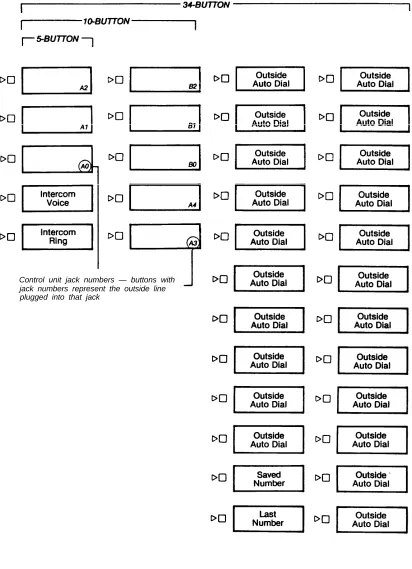
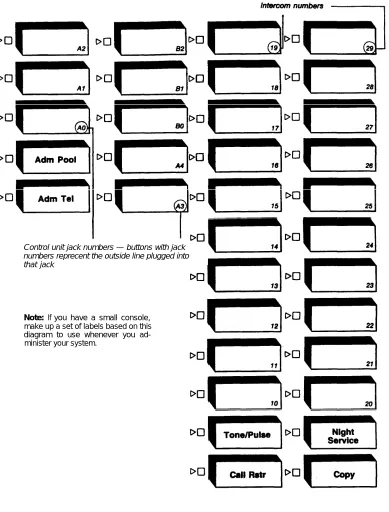
The administrator/attendant console is a dual-purpose voice terminal and is different from all others in the MERLIN system. It is always the Intercom 10 voice terminal, and under ordinary day-today operating conditions, it functions as your primary at-tendant console. In addition, it serves a unique administrative purpose — you use it to administer the lines on the voice terminals throughout your business. Administering lines means giving the system information about which lines should appear on each voice terminal and how the lines should work (for example, whether they are Touch-Tone or rotary, or part of a line pool). To put the administrator/attendant console into administration mode so you can use it in this way, you simply set a switch on the control unit and another switch on the console itself. After doing this, you insert a special set of administration mode button labels (see the Appendix) into the console itself, so you know which buttons to touch when you administer lines.
Customizing Your MERLIN System
Before customizing your system, you must have firm plans about how the system should operate and about which components should be in place. The Installation
Plan-ning Guide: Models 1030 and 3070 contains instructions for planPlan-ning your system,
and the Installation Guide: Models 1030 and 3070 can help you make certain that ail components are installed and connected properly.
THE FORMS AND LABELS YOU NEED
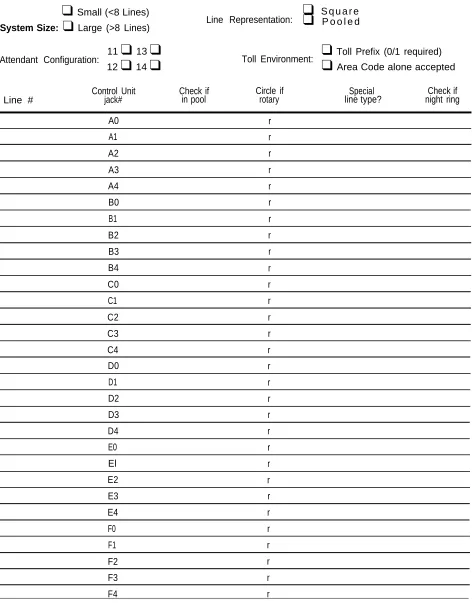
It is important that you complete the following system information forms before you begin customizing:
● A System Configuration Form to keep a record of how your system is configured.
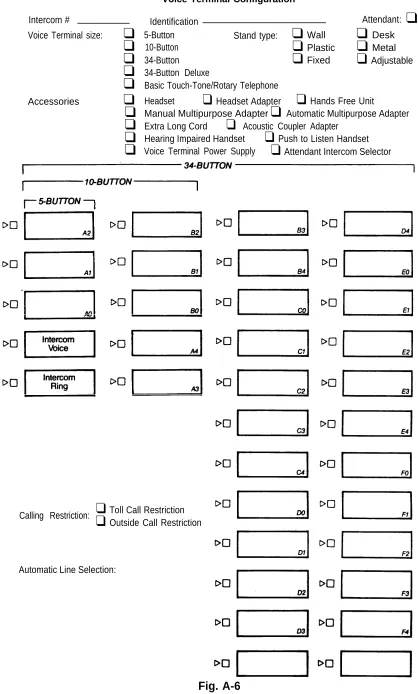
● Voice Terminal Configuration Forms to record the features assigned to all voice
terminals. You should fill out one of these forms for each voice terminal. You will find a System Configuration form and a Voice Terminal Configuration Form in the Appendix. Make as many copies of them as you need. You will also find in the Appendix two diagrams showing button labels for a small and a large ad-ministrator/attendant console when the console is in the administration mode. Make up a set of labels based on one of the diagrams (depending on which console you have) and use the labels whenever you administer your system.
CUSTOMIZING SEQUENCE
It is easy to customize the MERLIN system to meet the needs of your business and easy to change features or line assignments if your needs change. Most systems require their most extensive customization just after installation.
At The Control Unit
Position switches to set the operating conditions for the entire system:
● Turn control unit on and off
● Set the administrator/attendant console to Administer or Attendant
● Set optional attendant voice terminals to Attendant or Normal
● Set system to Toll Prefix or Area Code
● Set system to Pooled or Square
● Set system size to 1-8 Lines or > 8 Lines
● Adjust Music-On-Hold volume
● Adjust Loudspeaker Paging volume
● Set system to record any changes made at the control unit
At The Administrator/Attendant Console
With the control unit switch for the administrator/attendant console set to Administer, touch buttons on the administrator/attendant console to customize your lines to con-form to the needs of your business:
● Add or remove the lines in a line pool
● Assign and remove lines for individual voice terminals
● Assign calling restrictions
● Specify Touch-Tone or rotary signaling
● Set up Night Service extra alerting
At Individual Voice Terminals
Use simple codes to program features for each voice terminal that serve the needs of your business as a whole, as well as some features primarily for the convenience of the person using that voice terminal:
● Programmable Line Ringing (immediate, delayed, no ring)
● Personalized Ringing
● Intercom signal (ring only or ring and voice)
● Automatic Line Selection
● Speed Dialing codes
● Button features:
- Cover
- Auto Answer on Intercom - Auto Answer on Outside Lines - Do Not Disturb
- Privacy
The Control Unit for Models 1030 and 3070
The Control Unit
The control unit for the Models 1030 and 3070 is pictured on page 22. The model 1030 control unit is the lower half of the unit shown. Addition of the Expansion Unit, or top half of the unit shown, makes the 1030 control unit a 3070 control unit. The numbers on the diagram match the numbers on the following descriptions of control unit parts.
Power Module: Reduces ac power to a level the system
can handle. ● ● ● ● ●
Circuit Breakers. Automatically cut the power to the control unit if an overload occurs.
Ring Generator. Optional Ring Generator Unit plugs in here if you have basic Touch-Tone or rotary telephones.
Auxiliary Power. Auxiliary Power Unit plugs in here to provide the auxiliary power you need if you have an unusual number of optional accessories. Power. Green light indicates power is on.
Off/On Switch. Turns the power to the control unit
● ● ● ● ● ● ●
off and on.
Processor Module: Works in conjunction with the
Feature Module. Switch settings on this module control system operating conditions.
● Switches A, B, C, D, E, F, G, H. Select system operating
options provided by Feature Module 1.
● Warning. Red light warns of problem in control unit.
Feature Module 1: Contains the software that enables
you to customize your system.
● Attendant/Administer (10) Switch. Selects attendant
or administer mode for the administrator/attendant console.
● Normal/Attendant (11,12,13,14) Switches. Select
nor-mal or attendant configuration for these four voice terminals.
● Pooled/Square Switch. Selects mode of operation for
the system so that line buttons on voice terminals are associated with either a group of lines (line pool) or separate lines (square).
● Toll Prefix/Area Code Switch. Sets the system to
ex-pect either a prefix digit before the area code on long distance calls, or just the area code alone.
● 1-8 Lines/ >8 Lines Switch. Sets the system size to
eight or fewer lines or greater than eight lines.
Diagnostics Module: An optional module that
deter-mines which component is faulty if the system malfunctions.
Module A: Reserved for future use.
Services Module B: An optional module that allows
con-nection of the following optional equipment:
● PFTT (Power Failure Transfer Telephone) Jack.
Per-mits connection of four basic modular telephones for use as backup during commercial power outage; system automatically switches service to them if power fails.
Extra Alert Jacks. Allow connection of lights or loud bells or horns for noisy or remote locations where the regular voice terminal ring cannot be heard. Page Jack. Permits connection of a loudspeaker paging system for up to three paging zones. Music In Jack. Permits connection of a music source for Music-On-Hold or background music through a paging system.
MOH Vol (Music-On-Hold Volume) Control. Allows volume adjustment for Music-On-Hold.
Bkgd Vol (Background Volume) Control. Allows volume adjustment for background music.
Tone. Position 1 provides a short tone before loudspeaker paging announcements; position 0 eliminates the signal.
Level. Sets amplification for music source. Lo is for sources with their own amplifiers; Hi for those without.
Line Module: Provides jacks for up to five outside lines.
You may have one or two Line Modules.
● 0,1,2,3,4. Modular jacks that connect outside lines to
the MERLIN system.
Voice Terminal Module: Provides jacks for ten voice
ter-minals. You can have up to three Voice Terminal Modules. A different module that adds jacks for 9 basic Touch-Tone or rotary telephones is also available.
● 0 begins the numbering of the first set of voice
ter-minal jacks on the module. These jacks determine the intercom number of the voice terminals plugged into them (0 is intercom 10, 1 is intercom 11, etc.).
● 5 begins the numbering of the second set of voice
terminal jacks on the module.
Module C: Off-Premises Telephone Interface to support
off-premises telephones.
Expansion Unit: Transforms the Model 1030 control unit
Setting Your Control Unit
The first step in customizing the MERLIN system is to set the control unit to conform to certain operating conditions of your system. Follow these steps to set your control unit:
1. Turn the Off/On switch in the Power Module to Off.
2. Locate the switches on the Processor Module labeled A through H.
3. Set switch A. Switch A controls the operating mode for the administrator/atten-dant console.
● If you are customizing the system for the first time after installation, you need
to administer your lines; set switch A to Administer (down). Put switch A in this position whenever you need to change Touch-Tone or rotary specifica-tion, line assignments, Call Restrictions, or Night Service assignments.
● If you are not administering lines, set switch A to Attendant (up). This is the
position for normal day-today operation.
4. Set switches B through E. Switches B through E control intercom numbers 11 through 14, respectively. You can designate any of these four voice terminals as either attendant or regular. These four plus the administrator/attendant console provide a maximum of five attendant consoles, should you need them.
● For those voice terminals that will function as attendant consoles, set the switch
to Attendant (down).
● For those voice terminals that will function as regular telephones, set the switch
to Normal (up). 5. Set switch F.
● If you have elected the line pool option, set switch F to Pooled (up).
● If you have every outside line on a separate button, set switch F to Square
(down). 6. Set switch G.
● If you have to dial a prefix (usually a 1 or 0) before the area code to place
a long distance call, set switch G to Toll Prefix (up).
● If you have only to dial an area code to place a long distance call, set switch
G to Area Code (down). 7. Set switch H.
● If you have eight or fewer outside lines and twenty or fewer voice terminals,
set switch H to 1-8 Lines (up). However, set the switch to 1-8 only if you do not expect to grow beyond this limit in the next year or so, because in chang-ing its settchang-ing, you also cancel any customization you may have done in your system.
● If you have more than eight outside lines or more than twenty voice terminals,
or expect to grow to this size within the next year or so, set switch H to >8
Lines (down).
8. Locate the Services Module. The Services Module connects optional equipment. If you do not have this module, go to Step 9.
● If you have background music through a loudspeaker paging system, you can
adjust its volume by turning the Bkgd Vol control clockwise to raise, or counterclockwise to Iower, the volume.
● If you have Music-On-Hold, you can adjust its volume by turning the MOH
Vol control clockwise to raise, or counterclockwise to lower, the volume.
● If you have a music source with its own amplifier, set the Level switch to Lo
(down); otherwise, set it to Hi (up).
● If you have a loudspeaker paging system, and want a short tone to precede
loudspeaker announcements, set the Tone switch to 1 (up). Otherwise, set the switch to 0 (down).
Administering Your System at the
Administrator/Attendant Console
Once your control unit is properly set to the operating conditions of your system, you can use the administrator/attendant console for line administration. That is, you can specify Touch-Tone or rotary signaling for each line, create a line pool, assign individual lines or remove them from your voice terminals, and specify the lines you want to activate extra-alerting night service devices. In addition to line administration, call restrictions for each voice terminal in your business are assigned from the administrator/attendant console.
In most cases, the lines and voice terminals that you are administering must be free while you perform these operations, so choose a time when people are not using their voice terminals. Once you begin using the administrator/attendant console for the line administration described in this section, the system blocks incoming and outgo-ing calls on the lines or voice terminals with which you are workoutgo-ing. Blocked voice terminals generate soft, periodic beeps to alert the people in your business that they cannot use their voice terminals.
To carry out these instructions for administering your lines, you need the System Con-figuration and Telephone ConCon-figuration Forms as well as the special administration mode button labels for the administrator/attendant console. (See the Appendix for these forms and labels.)
Before you can administer lines from the administrator/attendant console, it must be in administration mode. The boxed instructions below tell you how to put the console into administration mode.
Setting the Administrator/Attendant Console to Administration Mode
1. Go to the control unit and set switch A on the Processor Module to Administer (down).
2. Go to the administrator/attendant console and slip the set of administration mode button labels into it (see the Appendix).
3. Set the T/P switch on the left side of the administrator/attendant console to the P position by sliding it towards you.
● Red and green lights flash beside the buttons labeled Adm Pool, Adm
Tel, Tone/Pulse, and Night Service. These buttons indicate the various
types of system administration that you can do.
SPECIFYING TOUCH-TONE OR ROTARY DIALING
When you specify Touch-Tone or rotary signaling at the administrator/attendant con-sole, you are simply telling the MERLIN system what kind of lines you have. When your system is installed, all lines are set to Touch-Tone, so if some of your lines are rotary, you will need to change them. If you don’t know what type of lines you have, call your telephone company.
Follow these steps to specify Touch-Tone or rotary dialing:
1. If you have not already done so, set the administrator/attendant console for system administration by following the boxed instructions on page 25.
2. Touch the button labeled Tone/Pulse.
● The green light beside the button stops flashing and remains steadily lit.
3. One by one, touch the line buttons for each line in your system until the green light beside it shows the appropriate code. Each successive touch gives you one of these codes:
STEADY GREEN ON = Touch-Tone signaling GREEN OFF = Rotary signaling
4. If you have no further system administration to do, slide the T/P switch of the ad-ministrator/attendant console to the center position and set switch A on the Pro cessor Module to Attendant (up) to return to the normal operation. Otherwise, con-tinue to administer your system.
CREATING A LINE POOL
If your system will have a line pool, you can designate the lines that are to be part of the pool. Whenever you turn on the power to your control unit with switch F set to Pooled, the system automatically assigns all your lines to the pool, so if you have lines you do not want to be part of the pool, you must remove them. The system also assigns the pool to all the voice terminals in your business automatically, and you must assign any lines in addition to the pool to the individual voice terminals that should have them. (See "ASSIGNING INDIVIDUAL LINES AND CALL RESTRIC-TIONS TO VOICE TERMINALS," page 27.) Also, if you add new lines to your system after the pool has been established, you have to assign to the pool any of them that you want to be included.
Here are some tips that may help you decide which lines should be in your line pool:
●
●
●
Do not mix different types of lines in the pool. For example, don’t put both regular telephone company lines and a WATS line in the pool. All the lines in the pool must be interchangeable, since people cannot tell which lines they are on when they use the pool.
Assign the type of line most commonly used throughout your business to the pool. Usually these will be regular telephone company lines, but sometimes they will not. For example, if most of the calling in your business is long distance, you may want to compose the pool of your WATS lines instead.
Follow these steps to add and remove lines of the pool:
1. If you have not already done so, set the administrator/attendant console for line administration by following the boxed instructions on page 25.
2. Touch the button labeled Adm Pool.
● The green light beside the button stops flashing and remains steadily lit and
the console gives a two-beep signal for you to begin. (If the light flashes rapidly instead, your lines are in use and you must wait until the system signals you to begin, or you may try again later.)
3. Look at the line buttons on the console. A steady red light next to any line button means the line is currently assigned to the line pool. Using your completed System Configuration Form as a guide, touch the button of any line showing a steady red
light that you do not want in the pool.
● The red light turns off, confirming that the line is no longer part of the pool.
4. Touch the line button of each line you want to be in the pool, but is not now show-ing a steady red light.
● A steady red light comes on next to the line button, confirming that the line is
now in the pool.
5. If you have no further system administration to do, slide the T/P switch of the ad-ministrator/attendant console to the center position and set switch A on the Pro-cessor Module to Attendant (up) to return to normal operation. Othewise, con-tinue to administer your system.
ASSIGNING INDIVIDUAL LINES AND CALL RESTRICTIONS TO VOICE TERMINALS
You can control the lines and call restrictions on each voice terminal in your business. In a pooled system, everyone automatically gets two pool buttons that give access to all the lines in the pool. If you want a line that is not in the pool to appear on its own button on any voice terminal, you must specifically assign it to that voice ter-minal. In a square system, all lines are automatically assigned to every voice terminal, so you have to remove any lines that should not appear on individual voice terminals. As for call restrictions, when your system is installed, all voice terminals have full call-ing capability, and it is up to you to restrict them if necessary.
Here are some tips to consider when you assign the lines and call restrictions to voice terminals in your business:
Line Assignment Tips
● Some people may need special-purpose lines, such as personal or WATS lines,
while others may not.
● People with personal lines may not want these lines to appear on an attendant
console.
● If someone regularly covers calls that come in on another person’s line (for
exam-ple, a secretary who answers a boss’ personal line) try to assign that line to both people. (If you can’t, use a Cover button, described on page 31.)
● If you have a line pool, but don’t want the pool to appear on a particular voice
ter-minal, you can remove the pool; however, the two pool buttons are wasted — you cannot use them for other lines or features.
● 5-button voice terminals are limited to three line buttons because of the two fixed
Intercom buttons. If your system is square and you have 5-button voice terminals
Call Restriction Tips
● You may want to restrict some voice terminals to intercom calling only. For
exam-ple, you may want to restrict telephones used by employees who never need to call outside your business, or telephones in public places, such as a lobby.
● You can restrict employees who never need to make long distance calls as part
of their jobs to intercom and local calling without interfering with their efficiency.
● To assign lines or call restrictions you need a completed Voice Terminal
Configura-tion Form for each voice terminal you intend to administer. You assign lines and call restrictions one voice terminal at a time.
Follow these steps to assign lines and call restrictions:
Assigning Lines
1. If you have not already done so, set the administrator/attendant console for system administration by following the boxed instructions on page 25.
2. Touch the button labeled Adm Tel.
● The green light beside the button stops flashing and remains steadily lit.
● If your system is pooled, red lights come on next to the buttons of each line
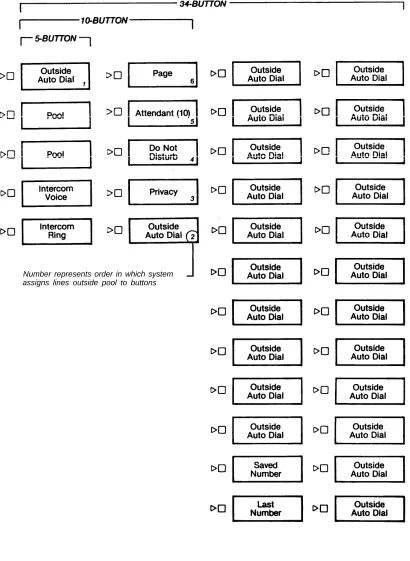
in the pool. The system automatically assigns the pool lines to the two but-tons immediately above the Intercom butbut-tons on every voice terminal except the attendant console, as shown in the diagram.
3. Dial the intercom number of the voice terminal whose lines you want to assign (or press the Intercom Auto Dial button).
● A steady green light comes on next to the Intercom Auto Dial button for the
voice terminal whose lines you are assigning, and the voice terminal gives a two-beep signal for you to begin. (If the green lights beside both the incom Auto Dial and the Adm Tel buttons flash rapidly instead, the voice ter-minal whose lines you want to assign is in use, and you must wait until the green lights become steady, or you may try again later.)
● Steady green lights come on next to the buttons of any lines already
assign-ed to this voice terminal.
4. Refer to the Voice Terminal Configuration Form to see which lines you plan to have this voice terminal use. Make sure that the green lights are off next to line buttons that you do not want this voice terminal to use. If any are on, press the buttons for the lines you want to remove.
● The green light turns off, confirming that the line will no longer appear at the
voice terminal to which you are assigning lines.
5. Using the Voice Terminal Configuration Form as a guide, touch any line button that is not showing a green light, but that you want assigned to this voice terminal.
● The green light goes on, confirming that the line now appears at the voice
terminal.
assigning determines what buttons they occupy on the voice terminal whose lines you are setting up. The numbers in the diagram show the order in which the system assigns additional lines to a voice terminal in a pooled system.
Assigning Calling Restrictions
6. Touch the button labeled Call Rstr until the green light beside it shows the code for the calling privileges you want this voice terminal to have. Each successive touch gives you one of the codes:
STEADY GREEN ON = All calls permitted FLASHING GREEN = Local calls only GREEN OFF = Intercom calls only
7. Follow Steps 3 through 6 of this procedure until all your voice terminals are set up. If you want to give a voice terminal the same assignments as one that has already been set up, there is a short-cut:
●
●
●
Dial the intercom number (or touch the Intercom Auto Dial button) of the new voice terminal that you want to have the same lines and calling privileges as the voice terminal you intend to copy.
Touch the Copy button.
Dial the intercom number (or touch the Intercom Auto Dial button) of the voice terminal whose assignments you want to copy.
8. If you have no further system administration to do, slide the T/P switch to the center position and set switch A on the Processor Module to Attendant (up) to return to normal operation. Otherwise, continue to administer your system.
ESTABLISHING NIGHT SERVICE
You can have up to three optional extra-alerting devices connected to your MERLIN system. If you have such devices, you can use them to provide Night Service for your business when the person who usually answers calls is not available. You can assign individual lines to ring at any of the three extra-alerting devices.
Follow these steps to assign lines for Night Service:
1. If you have not already done so, set the administrator/attendant console for line administration by following the boxed instructions on page 25.
2. Touch the button labeled Night Service.
● The green light beside the button becomes steady.
3. One by one, touch the button for each line that you want to activate a Night Ser-vice extra-alerting deSer-vice until the green light beside the line button shows the appropriate code. Each successive touch gives you one of these codes:
STEADY GREEN ON = Line rings at alerting device 1 FLASHING GREEN = Line rings at alerting device 2 RAPIDLY FLASHING GREEN = Line rings alerting device 3 GREEN OFF = Line does not ring at an alerting device
Pro-Programming Voice Terminals For
Office Priorities
People in your business can customize their own voice terminals by changing some of the features that come on the voice terminals when they are installed. Most of the features that can be assigned at individual voice terminals are designed primarily for the convenience of the person using them, but some have a broader application because they support the calling patterns of your business as a whole. This last category of features includes Programmable Line Ringing and Call Coverage, two features that ensure efficient answering of incoming calls. It also includes Automatic Line Selection, a feature that lets you specify, for each telephone, the order in which free lines are selected for placing calls or, in other words, the lines to be used most frequently. Because these features do have a business-wide influence, you may want to oversee their assignment.
Each time you change or assign features at an individual voice terminal, it must be in program mode. The boxed instructions below tell you how to set a voice terminal to program mode.
Setting a Voice Terminal to Program Mode
1. Go to the voice terminal you want to program.
2. Set the T/P switch on the left side of the voice terminal to P by sliding it towards you.
● The voice terminal rings quietly every five seconds to remind you it is in
the program mode.
ASSIGNING LINE RINGING FOR INCOMING CALLS
You can customize the lines and Cover buttons on your voice terminals to ring in one of three different ways for incoming calls: immediate ring, delayed ring, and no ring. When your system is first installed, all lines are set to ring, except for the two pool lines in a pooled system. The ringing assignment for outside calls in no way affects internal calls — transferred calls (even transferred calls that originally came in on an outside line) and intercom calls continue to ring in the normal manner. Here are some tips for programming Line Ringing assignments:
● Immediate ring. Assign immediate ringing of a line to anyone responsible for
answering that line first (for example, the attendant, a secretary, or a receptionist). This option is also good for personal lines that should not be screened.
● Delayed ring. Delayed ring provides backup coverage on shared lines. The
telephone assigned delayed ringing for a certain line does not ring unless some-one else fails to answer after two rings. Assign delayed ringing of a line to anysome-one responsible for answering a shared line only if someone else doesn’t pick it up. A delayed ring backup is useful for a secretary on the boss’s personal line. It is also useful to anyone whose calls are normally screened by a person who has no backup (for example, a boss whose secretary is the only person who shares the line), or on a line that is always screened, to provide coverage by a second secretary if the primary secretary doesn’t answer. Delayed ring may also be used on an attendant console as a backup for a different attendant. (If you want to provide coverage for inside or transferred calls, or for lines that are not shared, use the Cover feature described on page 31.)
● No ring. Assign no ring to lines on a telephone that are always answered first
Follow these steps to program line ringing:
1. Set the voice terminal to program mode by following the boxed instructions on page 30.
2. Touch the outside line button that you want to program until the red light beside it shows the appropriate code. Each successive touch gives you one of these codes:
STEADY RED ON = Ring FLASHING RED = Delayed ring RED OFF = No ring
3. Repeat Step 2 for each line that you want to program.
4. If you have more options to program on this voice terminal, do so. Otherwise, slide the T/P switch to the center position to return to normal operation.
ASSIGNING COVER BUTTONS
The Call Coverage feature is useful for people who cover calls for others with whom they do not share lines. A Cover button permits coverage of inside, transferred, and outside calls, and takes care of all lines on the covered telephone. The lights next to a Cover button work just like the lights next to any line button, but you cannot use a Cover button to make a call.
A Cover button maybe programmed for primary or secondary coverage. Secondary coverage provides a second backup. Suppose, for example, that you assign Jim primary coverage for Susan’s telephone. Then each time a call rings at Susan’s phone it will also ring at Jim’s phone. You can program Jim’s phone to ring immediately or after a delay on Susan’s calls. But to make certain that Susan’s calls are answered when both Susan and Jim are away from their desks, you assign secondary coverage with delayed ring for Susan’s telephone to Dick. This means that when a call comes in for Susan, it will ring twice at Susan’s telephone and twice at Jim’s telephone (either immediately or after a delay) and then start ringing at Dick’s telephone. Jim’s calls will not ring at Dick’s telephone, however, unless you assign primary coverage for Jim’s calls to Dick. With this system, up to five people can have Cover buttons for a single telephone.
Here are some suggestions for programming Cover buttons:
● Primary coverage. Assign primary coverage to someone who must screen
some-one else’s calls, but does not share all lines with that person. A secretary who answers a boss’s calls, for example, would be assigned primary coverage of the boss’s telephone. You may program a primary Cover button for either immediate or delayed ring, depending upon the situation and personal preferences.
● Secondary coverage. Assign secondary coverage to anyone who is a second
●
backup for the covered telephone, such as a personal secretary who covers calls for a group secretary when the group secretary doesn’t answer calls for which he or she has a primary Cover button. In most cases, a secondary Cover but-ton would be programmed for delayed ring.
Follow these steps to program a Cover button:
1. Label the Cover button with the name of the person whose calls it will cover (for example, “Cover Stanley”).
2. Set the voice terminal to program mode by following the boxed instructions on page 30.
3. Touch the button you want to be the Cover button. You should use a program-mable button with lights, and you may program no more than five Cover buttons on any one voice terminal.
4. Dial ✱ 4 to program primary Cover, or dial ✱ 5 to program secondary Cover. 5. Dial the two-digit intercom number of the voice terminal the button will cover. 6. If you want to program line ringing options, touch the Cover button until the red
light beside it shows the appropriate code. Each successive touch gives you one of these codes:
STEADY RED ON = Ring FLASHING RED = Delayed ring RED OFF = No ring
If the green light comes on, you have not performed the procedure correctly. Repeat steps 3 through 5.
7. If you have more options to program on this voice terminal, you can do so. Other-wise, slide the T/P switch to the center position to return to normal operation.
ASSIGNING AN AUTOMATIC LINE SELECTION SEQUENCE
Automatic Line Selection is a feature of the MERLIN system that gives you a free line whenever you pick up the handset — you do not have to touch a line button. If you like, you can program the order in which the system selects the lines for each telephone. A maximum of eight lines maybe included in an Automatic Line Selection sequence. Here are some tips for selecting a sequence:
●
●
●
●
If all the outside lines on a telephone are part of a line pool, or if they are all interchangeable with one another (for example, all regular telephone company lines), you may prefer not to program this feature at all. If a telephone has two or more types of lines, such as a line pool plus a personal line or a WATS line, it may be wise to program the order for Automatic Line Selection.
As a general rule, it is wise to include only one type of line in the Automatic Line Selection sequence.
In general, the most frequently used line should be programmed to appear first in the selection sequence.
How a line is used influences its most efficient place in the selection sequence. Placing it first ensures that most outgoing calls are billed to that line, while plac-ing it last means that it will usually be free for incomplac-ing calls.
Follow these steps to program Automatic Line Selection:
1. Set the voice terminal to program mode by following the boxed instructions on page 30.
2. Touch the ✱ button on the dial pad twice.
3. Touch the line buttons in the order you want them to be selected. NOTE: Never place both intercom and outside lines in the automatic selection sequence for any voice terminal.
4. Touch the ✱ button on the dial pad twice.
Programming Voice Terminals For
Personal Priorities
By programming their own voice terminals, people can change the features on all but the fixed feature buttons and the line, pool, and Intercom buttons. This allows almost everyone to have features that provide personal convenience, such as an Out-side Auto Dial button for calling home.
ASSIGNING FEATURES TO PROGRAMMABLE BUTTONS
You may want to advise users who program their own voice terminals of the following:
● In order to give information as to whether they are on or off, these features
re-quire buttons with lights: Do Not Disturb, Privacy, Auto Answer on Intercom, and Auto Answer on Outside Lines.
● A button with a light is recommended, but not required, for the following features:
Intercom Auto Dial and Touch-Tone Enable.
● Features that require optional equipment may also require a button (for
exam-ple, Loudspeaker Paging, Automatic Answering on Intercom and Automatic Answering on Outside Lines).
Follow these steps to assign a feature to a programmable button: 1. Label the button.
2. Set the voice terminal to program mode by following the boxed instructions on page 30.
3. Touch the button that you want to represent the feature. 4. Dial the appropriate code from the chart below.
5. If you have more features to assign, you can do so. Otherwise, slide the T/P switch to the center position to return to normal operation.
PROGRAMMING CODES FOR CUSTOM FEATURES
Custom Dial This Suggested
Feature Information Button Label
Automatic Answer-Intercom ✱ 70 Auto Answer-Intercom
Do Not Disturb ✱ 71 Do Not Disturb
Privacy ✱ 72 Privacy
Last Number Redial ✱ 73 Last Number
Saved Number Redial ✱ 74 Saved Number
Automatic Answering On
Outside Lines ✱ 75 Auto Answer-Outside
PROGRAMMING CODES FOR CUSTOM FEATURES
Custom Dial This Suggested
Feature Information Button Label
Intercom Auto Dial ✱ 6 + lnter- Person’s Name com Code
Outside Auto Dial ✱ 90 + out- Person’s Name or Telephone
side Number Number (16-digit
max-mum)
Primary Cover ✱ 4 + lnter- Person’s Name or Location com Code
Secondary Cover ✱ 5 + lnter- Person’s Name or Location com Code
Loudspeaker Paging ✱ 680 Page All
Page Zone 1 ✱ 681 Page Zone 1
Page Zone 2 ✱ 682 Page Zone 2
Page Zone 3 ✱ 683 Page Zone 3
USING PAUSE, STOP, AND FLASH FOR OUTSIDE AUTO DIAL BUTTONS
An Outside Auto Dial button can store up to sixteen digits. For some types of calls, though, you need to program an automatic pause, stop, or switchhook flash with the number. For example, if your MERLIN system will be working in combination with a PBX system where you have to dial 9 to get an outside line, you must program a pause after the 9 on your MERLIN system Outside Auto Dial button. Or, when you dial an additional long distance service sequence or call in a credit card authoriza-tion code, you need to program an automatic stop.
Follow these steps to program a pause for PBX systems: 1. Label the button.
2. Set the voice terminal to program mode by following the boxed instructions on page 30.
3. Touch the button you want for Outside Auto Dial. 4. Dial ✱ 90.
5. Dial 9.
6. Touch Hold (pause) to program the 1.5-second pause. 7. Dial the outside number you want the button to represent.
Follow these steps to program a stop for an alternate long distance service:
Normally, when you use an alternate long distance service, you program one Out-side Auto Dial button for the special service number and a separate OutOut-side Auto Dial button for each person you use the service to call.
1. Label the button.
2. Set the voice terminal to program mode by following the boxed instructions on page 30.
3. Touch the button you want to represent the special service number. 4. Dial ✱ 90.
5. Dial the local telephone number (7 digits).
6. Touch Drop (stop) to program in a stop. NOTE: If your long distance company usually answers within a few seconds, it may be more convenient to program 2 or 3 pauses (by touching Hold (pause) 2 or 3 times) in place of the stop. Keep in mind, however, that the maximum number of digits that you can program in any stored number is 16.
7. Dial the authorization code (5 or 6 digits).
8. If you have more features to assign, you can do so. Otherwise, slide the T/P switch to the center position to return to normal operation.
In programming Outside Auto Dial buttons, there are times when you need the Auto Dial sequence to stop until you press the button again, such as when calling in a credit card authorization code. You can program an automatic stop into any auto dial sequence by touching the Drop (stop) button. Then, to use the Outside Auto Dial button, you touch it, wait until the connection is made, then touch it again.
You can also program a switchhook flash onto a MERLIN system Outside Auto Dial button to activate certain PBX or Centrex features. Just touch Recall and then touch
Hold (pause) to enter a flash into the sequence.
ASSIGNING SPEED DIAL CODES TO 5- AND 10-BUTTON VOICE TERMINALS
On 5- and 10-button voice terminals, you can program speed dialing codes instead of Outside Auto Dial buttons for frequently used numbers.
Follow these steps to program speed dial codes:
1. Set the voice terminal to program mode by following the boxed instructions on page 30.
2. Dial the code you want to represent the telephone number (available codes are #01 through #22).
3. Dial the telephone number (16-digit maximum).
4. If you have more speed dial numbers to assign, you can do so. Otherwise, slide the T/P switch to the center position to return to normal operation.
SELECTING A PERSONAL RING
The MERLIN system offers a choice of eight different ringing sounds for any voice terminal. This feature is particularly useful in offices where many people sit in the same room because it enables people to distinguish the ringing of their voice ter-minals from others. The personalized part of the ring occurs at the end of the ringing pattern, so it does not interfere with the distinctive ringing patterns that signal whether a call is transferred, intercom, or from the outside.
Follow these steps to program a personal ring:
1. Set the voice terminal to program mode by following the boxed instructions on page 30.
2. Touch Speaker repeatedly until you hear the ring you want. There are eight choices. 3. If you have more features to assign, you can do so. Otherwise, slide the T/P switch
to the center position to return to normal operation.
PROGRAMMING VOICE ANNOUNCEMENT DISABLE
When your system is installed, all voice terminals can receive either voice an-nouncements or ringing to signal intercom calls. However, some people may not want their intercom calls signaled by a voice announcement. There may also be some voice terminals, such as those in public locations, for which voice announcements are impractical. The Voice Announcement Disable feature makes it easy to suppress voice signals for intercom calls. Voice terminals may be programmed to block inter-com voice messages and automatically ring to signal interinter-com calls. When this is done, the caller hears ringing instead of the beep that sounds to prompt an announcement.
Follow these steps to program the Voice Announcement Disable feature:
1. Set the voice terminal to program mode by following the boxed instructions on page 30.
2. Touch the Intercom-Voice button until the green light next to it shows the ap-propriate code. Each successive touch activates one of these codes:
STEADY GREEN ON = Voice signals permitted GREEN OFF = Voice signals blocked
Special Information About
Attendant Consoles
When the MERLIN system is installed, your attendant consoles come with features that are convenient for most businesses. The Attendant's Guide: Models 1030 and
3070 with Feature Module 1 shows these initial features and describes how to use
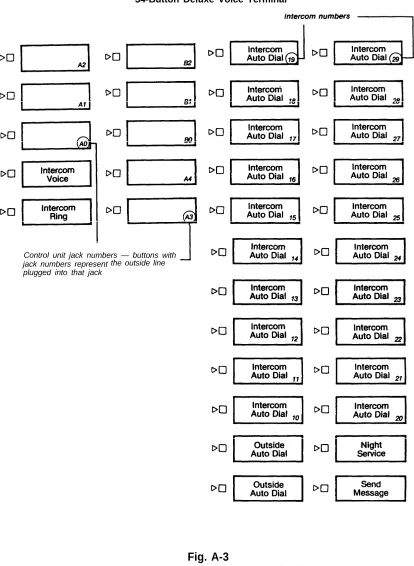
them as well as other features important for attendants. (You can also see the initial feature assignments on illustrations in the Appendix, Figures A-3 and A-4.) Your at-tendant consoles serve you best, though, when they are customized to handle the calling patterns of your business. Procedures for line administration and feature pro-gramming are the same for attendant consoles as for the other voice terminals in your system, except that attendant consoles always have square line arrangement, even in pooled systems. Here are some tips that may help you set up your attendant consoles:
● Attendant consoles should be 34-button deluxe voice terminals to give the
at-tendant the benefit of status lights beside every line and Intercom Auto Dial button.
● Attendants in systems with more than eight outside lines can benefit from an
Attendant Intercom Selector to provide the requisite n