© 2015 Marty Hall
Customized Java EE Training: http://courses.coreservlets.com/
Java 7, Java 8, JSF 2, PrimeFaces, Android, JSP, Ajax, jQuery, Spring MVC, RESTful Web Services, GWT, Hadoop.
Developed and taught by well-known author and developer. At public venues or onsite at yourlocation.
PrimeFaces:
Themes (Skins)
Originals of slides and source code for examples: http://www.coreservlets.com/JSF-Tutorial/primefaces/
Also see the JSF 2 tutorial – http://www.coreservlets.com/JSF-Tutorial/jsf2/
and customized JSF2 and PrimeFaces training courses – http://courses.coreservlets.com/jsf-training.html
© 2015 Marty Hall
Customized Java EE Training: http://courses.coreservlets.com/
Java 7, Java 8, JSF 2, PrimeFaces, Android, JSP, Ajax, jQuery, Spring MVC, RESTful Web Services, GWT, Hadoop.
Developed and taught by well-known author and developer. At public venues or onsite at yourlocation.
For live training on JSF 2, PrimeFaces, or other
Java EE topics, email [email protected]
Marty is also available for consulting and development support
Taught by the author of Core Servlets and JSP, this tutorial, and JSF 2.2 version of Core JSF. Available at public venues, or
customized versions can be held on-site at your organization.
•Courses developed and taught by Marty Hall
–JSF 2, PrimeFaces, Ajax, jQuery, Spring MVC, JSP, Android, general Java, Java 8 lambdas/streams, GWT, custom topic mix
–Courses available in any location worldwide. Maryland/DC area companies can also choose afternoon/evening courses. •Courses developed and taught by coreservlets.com experts (edited by Marty)
–Hadoop, Spring, Hibernate/JPA, RESTful Web Services
Topics in This Section
•
Installing and specifying a default theme
– Standard themes – Custom themes
•
Changing themes at runtime with
p:themeSwitcher
•
Looking up current theme
•
Changing themes at runtime without using
p:themeSwitcher
•
Best practices for making your apps adapt
to themes
5
Overview of Themes
• All PrimeFaces components follow themes
– Font families, font sizes, colors, borders, icons, etc.
• PrimeFaces provides many pre-built themes
– 37 themes as of PrimeFaces release 3.4. This includes the RichFaces and Trinidad themes, for easy migration.
• Installing a theme is simple
– Download the JAR. Set a context-param in web.xml.
• You can customize themes (with effort)
– Use ThemeRoller. Edit several files. Save JAR.
• You can change themes at runtime
– Use p:themeSwitcher
– Call PrimeFaces.changeTheme('theme-name') in JavaScript
• CSS class names documented
– So you can write standard HTML that follows theme
© 2015 Marty Hall
Customized Java EE Training: http://courses.coreservlets.com/
Java 7, Java 8, JSF 2, PrimeFaces, Android, JSP, Ajax, jQuery, Spring MVC, RESTful Web Services, GWT, Hadoop.
Developed and taught by well-known author and developer. At public venues or onsite at yourlocation.
Setting the Default
Theme
Installing a Theme: Summary
•
Browse themes and choose name
– http://www.primefaces.org/themes.html or
– http://apps.jsf2.com/primefaces-themes/themes3.jsf
•
Download and install corresponding JAR
– http://repository.primefaces.org/org/primefaces/themes/
•
Specify theme as default in web.xml
<context-param>
<param-name>primefaces.THEME</param-name> <param-value>theme-name</param-value>
Installing a Theme: Details
•
Browse themes and choose name
– http://www.primefaces.org/themes.html
• Click on magnifying glass at bottom, then browse to various showcase sections to see components displayed in that theme.
– http://apps.jsf2.com/primefaces-themes/themes3.jsf
• Choose theme from dropdown at top, and see many components all at once.
9
Installing a Theme: Details
•
Download JAR corresponding to name
– http://repository.primefaces.org/org/primefaces/themes/
• Click on theme name, then latest version number, then click on
JAR file (top entry) to download.
– This tutorial uses version 1.0.8 of each of the themes, the latest version as of 12/2012.
• Put JAR file in the WEB-INF/lib folder of your app, as with all
JAR files.
– Note: default is “aristo”
• So, if your choice is aristo, you neither need to download the
JAR nor specify it in web.xml
– Customizing a theme
• You can also use the jQuery UI “ThemeRoller” to interactively
customize a theme, then save the results. It is a bit tedious, but far better than editing CSS files. For details, see Section 7.2 of the PrimeFaces 3.4 User’s Guide.
Installing a Theme: Details
•
Specify theme as default in web.xml
– PrimeFaces looks for a context-param named primefaces.THEME
– If that context-param exists and there is a JAR file with the required theme info, that theme is used. Otherwise “aristo” is used.
– Example: make bluesky (the RichFaces theme) the default
<context-param>
<param-name>primefaces.THEME</param-name> <param-value>bluesky</param-value>
</context-param>
– This assumes that http://repository.primefaces.org/org/primefaces/ themes/bluesky/1.0.8/bluesky-1.0.8.jar installed in WEB-INF/lib
11
Example: Sample Elements
Using glass-x
•
Made a page with several PrimeFaces
components
– Accordion panels, tabbed panels, tables, panels, spinners, sliders, calendars, textfields, buttons, dialogs,
confirmation dialogs, growl, etc. All components were described in earlier sections of this tutorial.
•
Set glass-x as default
– Set the primefaces.THEME context-param to glass-x – Installed the glass-x JAR file in WEB-INF/lib
Project Layout in Eclipse
13
Downloaded from http://repository.primefaces.org/org/primefaces/themes/bluesky/1.0.8/ (start at http://repository.primefaces.org/org/primefaces/themes/and browse from there). JARs for the other themes are also installed because later examples will let user interactively choose among all available themes.
<?xml version="1.0" encoding="UTF-8"?> <web-app …>
<context-param>
<param-name>primefaces.THEME</param-name> <param-value>glass-x</param-value>
</context-param>
<servlet>
<servlet-name>Faces Servlet</servlet-name>
<servlet-class>javax.faces.webapp.FacesServlet</servlet-class> </servlet>
<servlet-mapping>
<servlet-name>Faces Servlet</servlet-name> <url-pattern>*.jsf</url-pattern>
</servlet-mapping> …
</web-app>
Results
Main Page: Facelets
<p:accordionPanel>
<p:tab title="Sample Elements"> <p:tabView>
<p:tab title="Main Tab"> <h:panelGrid columns="4">
<ui:include src="/snippets/calendar.xhtml"/>
<ui:include src="/snippets/table-and-panel.xhtml"/> <ui:include src="/snippets/form-elements.xhtml"/> <ui:include src="/snippets/popups.xhtml"/>
</h:panelGrid> </p:tab>
<p:tab title="More">
<ui:include src="/snippets/filler.xhtml"/> </p:tab>
...
</p:tabView> </p:tab>
<p:tab title="More Content">
<ui:include src="/snippets/filler.xhtml"/> </p:tab>
...
</p:accordionPanel>
15
All four of these content sections contain elements that were covered in earlier parts of this PrimeFaces tutorial. And, none of them have any real server-side behavior. So, if you have already gone through earlier parts of this tutorial, you probably want to skip or skim the next few slides in this sub-section that show the code for the four content regions.
Calendar: Facelets
<h:panelGrid>
<h3 align="center">Calendar</h3> <h:form>
<p:calendar mode="inline"/> </h:form>
</h:panelGrid>
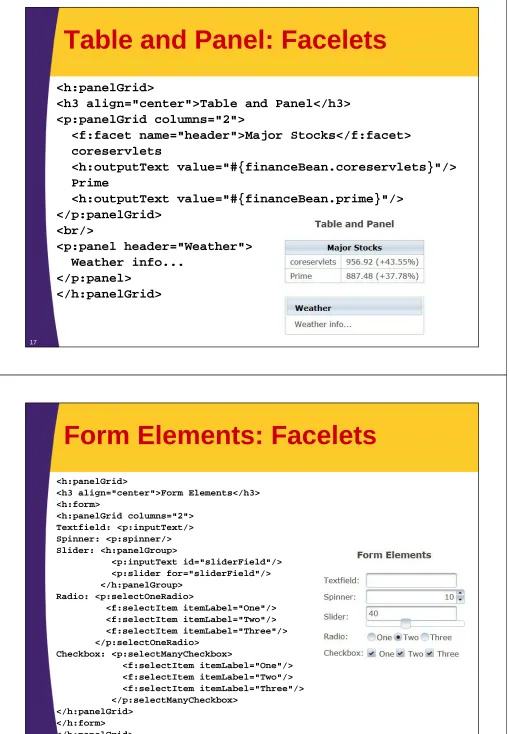
Table and Panel: Facelets
<h:panelGrid>
<h3 align="center">Table and Panel</h3> <p:panelGrid columns="2">
<f:facet name="header">Major Stocks</f:facet> coreservlets <h:outputText value="#{financeBean.coreservlets}"/> Prime <h:outputText value="#{financeBean.prime}"/> </p:panelGrid> <br/> <p:panel header="Weather"> Weather info... </p:panel> </h:panelGrid> 17
Form Elements: Facelets
<h:panelGrid>
Popups: Facelets
<h:panelGrid>
<h3 align="center">Popups<br/>(and Buttons)</h3> <h:form> <div align="center"> <p:commandButton value="Growl" action="#{growlBean.makeMessages}" update="growl"/> <p:growl id="growl"/> <br/><br/>
<p:commandButton value="Dialog" onclick="dlg.show()"/> <p:dialog header="Dialog Title" widgetVar="dlg"> Blah, blah, blah.<br/>
Yadda, yadda, yadda.<br/> Foo, bar, baz.
</p:dialog> <br/><br/>
<p:commandButton value="Confirm Dialog" onclick="confirmation.show()"/> <p:confirmDialog header="Please Confirm"
message="Are You Sure?" severity="info"
widgetVar="confirmation">
<p:commandButton value="Yes" onclick="confirmation.hide()"/> <p:commandButton value="No" onclick="confirmation.hide()"/> </p:confirmDialog> </div> </h:form> </h:panelGrid> 19
Popups: GrowlBean
@ManagedBeanpublic class GrowlBean {
public String makeMessages() {
FacesContext context = FacesContext.getCurrentInstance(); FacesMessage message1 =
new FacesMessage("Something happened"); // Default severity is INFO
context.addMessage(null, message1); FacesMessage message2 =
new FacesMessage("You were naughty");
message2.setSeverity(FacesMessage.SEVERITY_ERROR); context.addMessage(null, message2);
return(null); }
© 2015 Marty Hall
Customized Java EE Training: http://courses.coreservlets.com/
Java 7, Java 8, JSF 2, PrimeFaces, Android, JSP, Ajax, jQuery, Spring MVC, RESTful Web Services, GWT, Hadoop.
Developed and taught by well-known author and developer. At public venues or onsite at yourlocation.
p:themeSwitcher –
Changing Theme at
Runtime
Idea
•
Install JARs for several themes
– I installed JARs for all 36 non-default themes
• aristo is built in
•
Use p:themeSwitcher
– Syntax is almost identical to that of h:selectOneMenu except no bean property for the user selection (handled by JavaScript on the client). Very simple to use.
– f:selectItems refers to the themes.
• String[] – Should contain the theme names in lower case
• List<String> – again, theme names in lower case
• Map<String,String> – the keys are arbitrary display values and the values are the theme names in lower case
• SelectItem[] or List<SelectItem> – Display part of each SelectItem is arbitrary, values are theme names
Issue: Theme Switcher Fires on
Change (like h:selectOneMenu)
•
Problem
– Themes changed only when menu selection changes
• So, if top entry is a theme that does not match the current theme, there is no way to select it without changing to another theme in between.
•
Solution 1
– Put dummy value (e.g., “—Choose Theme—”) as top value of menu. If value is empty string, p:themeSwitcher will ignore it if selected. This means that any initial
selection of a theme will be a change.
• This point was also discussed in general JSF2 tutorial when discussing h:selectOneMenu.
•
Solution 2
– Put current theme first in the list. (Next section)
23
Example: Facelets
<div align="center"> <h:form>
<p:themeSwitcher>
<f:selectItem itemLabel="--Choose Theme--" itemValue=""/>
<f:selectItems value="#{themeChoices.themes}"/> </p:themeSwitcher>
</h:form> </div>
<ui:include src="/snippets/theme-body.xhtml"/>
Returns an array of the theme names. Dummy value so that any theme name
Example: Bean
@ManagedBean
public class ThemeChoices {
public static final String[] POSSIBLE_THEMES =
{ "afterdark", "afternoon", "afterwork", "aristo", "black-tie", "blitzer", "bluesky", "casablanca", "cruze", "cupertino", "dark-hive", "dot-luv", "eggplant", "excite-bike", "flick", "glass-x", "home", "hot-sneaks", "humanity", "le-frog",
"midnight", "mint-choc", "overcast", "pepper-grinder", "redmond", "rocket", "sam", "smoothness",
"south-street", "start", "sunny", "swanky-purse", "trontastic", "twitter bootstrap", "ui-darkness", "ui-lightness", "vader" };
public String[] getThemes() { return(POSSIBLE_THEMES); }
}
25
Example: Results
26
© 2015 Marty Hall
Customized Java EE Training: http://courses.coreservlets.com/
Java 7, Java 8, JSF 2, PrimeFaces, Android, JSP, Ajax, jQuery, Spring MVC, RESTful Web Services, GWT, Hadoop.
Developed and taught by well-known author and developer. At public venues or onsite at yourlocation.
Looking up
the Default Theme
Idea
•
Default theme is stored as a context-param
– Using the ExternalContext, there is a standard way of reading a context-param.
•
Last example required a dummy value at the
top of the p:themeSwitcher list
– But, if you know the current theme and put it first in the list, you can skip the dummy value.
Example: Facelets
<div align="center"> <h:form>
<h:panelGrid columns="2"> Choose a theme:
<p:themeSwitcher>
<f:selectItems value="#{smartThemeChoices.themes}" /> </p:themeSwitcher>
</h:panelGrid> </h:form>
</div>
<ui:include src="/snippets/theme-body.xhtml"/>
29
Returns a List of the theme names, with default theme first. No dummy value.
Example: Bean
@ManagedBean
public class SmartThemeChoices { public List<String> getThemes() {
List<String> themes = new LinkedList<>();
for(String theme: ThemeChoices.POSSIBLE_THEMES) { themes.add(theme);
}
String currentTheme = ThemeUtils.currentTheme();
themes.remove(currentTheme); themes.add(0, currentTheme);
return(themes); }
}
Example: Helper Class
public class ThemeUtils {
public static final String DEFAULT_THEME = "aristo";
public static String currentTheme() { String theme = DEFAULT_THEME;
ExternalContext externalContext =
FacesContext.getCurrentInstance().getExternalContext();
String param =
externalContext.getInitParameter("primefaces.THEME");
if (param != null) { theme = param; }
return(theme); }
private ThemeUtils() {} // Uninstantiatable class }
31
© 2015 Marty Hall
Customized Java EE Training: http://courses.coreservlets.com/
Java 7, Java 8, JSF 2, PrimeFaces, Android, JSP, Ajax, jQuery, Spring MVC, RESTful Web Services, GWT, Hadoop.
Developed and taught by well-known author and developer. At public venues or onsite at yourlocation.
Changing Theme at
Runtime (without
p:themeSwitcher)
Idea
•
How p:themeSwitcher works
– It calls PrimeFaces.changeTheme, which uses jQuery to find the “link” tag that loads the theme’s CSS file, and changes the “href” attribute.
• Although not documented, this is a PrimeFaces function that is in core.js, and is unlikely to change in future releases.
•
So, no need to reproduce functionality
– Just call PrimeFaces.changeTheme('theme-name')
• Caveat 1: the appropriate JAR must be in WEB-INF/lib
• Caveat 2: this does not change the default; it is a pure client-side change. So, next time page is reloaded, it will revert to previous theme. But this is the same behavior as with p:themeSwitcher. You could easily use a View
Parameter to make this persistent.
Example:
Runtime Theme Changes
<div align="center"> <h:form>
<h:panelGrid columns="4">
<p:commandButton value="Light Theme"
onclick="PrimeFaces.changeTheme('glass-x')"/>
<p:commandButton value="Med-Light Theme"
onclick="PrimeFaces.changeTheme('sunny')"/>
<p:commandButton value="Med-Dark Theme"
onclick="PrimeFaces.changeTheme('overcast')"/>
<p:commandButton value="Dark Theme"
onclick="PrimeFaces.changeTheme('midnight')"/>
</h:panelGrid> </h:form> </div>
<ui:include src="/snippets/theme-body.xhtml"/>
35
© 2015 Marty Hall
Customized Java EE Training: http://courses.coreservlets.com/
Java 7, Java 8, JSF 2, PrimeFaces, Android, JSP, Ajax, jQuery, Spring MVC, RESTful Web Services, GWT, Hadoop.
Developed and taught by well-known author and developer. At public venues or onsite at yourlocation.
Best Practices
for Using Themes
Plan Ahead for Changes to the
Theme
•
Use CSS class names, not element names
– Yes: class selectors like .blah { … }
• <table class="blah"> or <p:panelGrid class="blah">
– No: element selectors like table { … }
• <table> or <p:panelGrid>
•
Minimize use of hard-coded colors
– Colors change frequently with the theme
•
Use relative, not absolute font sizes
– I.e., use 110% or 90%, not 18px
•
Customize components with placeholders
– Each class defines placeholder class names for you to use to add additional customization. These are clearly listed in the “Skinning” entry under each component in the User’s Guide. E.g., p:slider has .ui-slider, .ui-slider-handle, etc.
Know the Most Important
PrimeFaces CSS Classes
Selector Applies To
.ui-widget All PrimeFaces components .ui-widget-header Header section of a component .ui-widget-content Content section of a component
.ui-corner-all Makes corners rounded .ui-state-default A clickable in its default state
.ui-state-hover A clickable when the mouse is hovering over it .ui-state-active A clickable when it is selected
.ui-state-disabled Disabled elements .ui-state-highlight Highlighted elements
.ui-icon Predefined icon for that component
39 More classes and detail: http://docs.jquery.com/UI/Theming/API#The_jQuery_UI_CSS_Framework
CSS Classes: Samples
41
Theme Gotcha: Style Sheets
Being Superseded
•
Problem
– You define
• .ui-growl { right: 50px; top: 100px }
but settings appear to be ignored
•
Reason
– PrimeFaces dynamically inserts <link> tag in head section, and it is placed at the bottom of the head, i.e.,
after yours.
•
Solutions
– Mark settings as !important
• .ui-growl { right: 50px !important; top: 100px !important}
– Or, use h:outputStyleSheet
• Your style sheet will be loaded after the PrimeFaces one
– h:outputStyleSheet covered in Page Templating section
Theme Gotcha: Everything in
Theme is Too Large
•
Problem
– Many people feel that most themes make components slightly too large for most professional apps
•
Solution
– Change default font size, leave everything else the same
.ui-widget, .ui-widget .ui-widget { font-size: 90% !important; }
– As discussed on previous slide, if you use h:outputStyleSheet, then you do not need the !important above.
43
Theme Gotcha: Not All Styles
Well Documented
•
Problem
– Main styles are documented clearly. Placeholder styles for each element also well documented. But, some of the minor styles used throughout the themes are not
documented.
•
Solution
– Find the CSS file in the JAR file
• META-INF/resources/primefaces-aristo/theme.css
– Open it in TopStyle or another CSS editor that shows previews.
Theme Gotcha: None of the
Themes Fit Your Needs
•
Problem
– None of the 37 builtin themes is exactly what you want
•
Solution
– Roll your own. But don’t start from scratch. Choose the theme that is nearest to what you want, then use
ThemeRoller to tweak it.
• http://jqueryui.com/themeroller/
– The output of ThemeRoller has to be edited in several ways to be compatible with PrimeFaces, but this is moderately well documented in Section 7.2 of
PrimeFaces User’s Guide, and is much easier than editing CSS by hand.
45
© 2015 Marty Hall
Customized Java EE Training: http://courses.coreservlets.com/
Java 7, Java 8, JSF 2, PrimeFaces, Android, JSP, Ajax, jQuery, Spring MVC, RESTful Web Services, GWT, Hadoop.
Developed and taught by well-known author and developer. At public venues or onsite at yourlocation.
Summary
• Browse themes and choose name
– http://www.primefaces.org/themes.html or
– http://apps.jsf2.com/primefaces-themes/themes3.jsf
• Download and install corresponding JAR
– http://repository.primefaces.org/org/primefaces/themes/
• Specify theme as default in web.xml
<context-param>
<param-name>primefaces.THEME</param-name> <param-value>theme-name</param-value>
</context-param>
• Change themes at runtime
– Use p:themeSwitcher or call PrimeFaces.changeTheme
• Plan ahead for changes to themes
– Learn most important CSS names. Avoid hard-coded fonts and colors.
Don’t define your own CSS for HTML elements, only classes.
• See http://docs.jquery.com/UI/Theming/API 47
© 2015 Marty Hall
Customized Java EE Training: http://courses.coreservlets.com/
Java 7, Java 8, JSF 2, PrimeFaces, Android, JSP, Ajax, jQuery, Spring MVC, RESTful Web Services, GWT, Hadoop.
Developed and taught by well-known author and developer. At public venues or onsite at yourlocation.
Questions?
More info:
http://www.coreservlets.com/JSF-Tutorial/jsf2/ – JSF 2.2 tutorial http://www.coreservlets.com/JSF-Tutorial/primefaces/ – PrimeFaces tutorial http://courses.coreservlets.com/jsf-training.html – Customized JSF and PrimeFaces training courses