Gibson
Shelve in Programming Languages/Java User level: Intermediate
SOURCE CODE ONLINE
Swing for Jython
This book shows you how to use Swing to add a GUI to your Jython scripts, with an emphasis on the WebSphere Application Server wsadmin utility. In fact, we’re going to teach you Swing using Jython, and we’re going to do it in a way that makes your scripts easier for people to use, more robust, more understandable, and therefore easier to maintain.
• How to add Swing APIs to your Jython scripts
• How to work with components, containers, layouts, input/output fields,
lists, menus, trees, frames, tables, event handling and more
• How to build a simple global security application with a graphical UI • How to create an instant messaging UX
• How to monitor and indicate progress
• How to create a simple graphical help application • How to build a security configuration report application • How to port over to WebSphere for middleware deployment
RELATED
For your convenience Apress has placed some of the front
matter material after the index. Please use the Bookmarks
Contents at a Glance
About the Author ���������������������������������������������������������������������������������������������������������������
xix
About the Technical Reviewers �����������������������������������������������������������������������������������������
xxi
Introduction ���������������������������������������������������������������������������������������������������������������������
xxiii
Chapter 1: Components and Containers
■
����������������������������������������������������������������������������
1
Chapter 2: Interactive Sessions vs� Scripts
■
�����������������������������������������������������������������������
9
Chapter 3: Building a Simple Global Security Application
■
�����������������������������������������������
15
Chapter 4: Button Up! Using Buttons and Labels
■
�������������������������������������������������������������
21
Chapter 5: Picking a Layout Manager Can Be a Pane
■
������������������������������������������������������
35
Chapter 6: Using Text Input Fields
■
�����������������������������������������������������������������������������������
65
Chapter 7: Other Input Components
■
��������������������������������������������������������������������������������
79
Chapter 8: Selectable Input Components
■
������������������������������������������������������������������������
99
Chapter 9: Providing Choices, Making Lists
■
������������������������������������������������������������������
105
Chapter 10: Menus and MenuItems
■
�������������������������������������������������������������������������������
121
Chapter 11: Using JTree to Show the Forest: Hierarchical Relationships of
■
Components �������������������������������������������������������������������������������������������������������������������
137
Chapter 12: Motion to Take from the Table: Building Tables
■
�����������������������������������������
153
Chapter 13: Keystrokes, Actions, and Bindings, Oh My!
■
�����������������������������������������������
193
Chapter 14: It’s the Event of the Year: Events in Swing Applications
■
����������������������������
205
Chapter 15: Nuts to Soup: Using Jsoup to Enhance Applications
■
����������������������������������
231
Chapter 16: Conversing with a User with Dialog Boxes
■
������������������������������������������������
263
Chapter 17: Specialized Dialog Boxes
Chapter 18: Monitoring and Indicating Progress
■
���������������������������������������������������������
�297
Chapter 19: Internal Frames
■
������������������������������������������������������������������������������������������
317
Chapter 20: Building a Graphical Help Application
■
��������������������������������������������������������
355
Chapter 21: A Security Configuration Report Application
■
���������������������������������������������
385
Chapter 22: WASports: A WebSphere Port Application
■
��������������������������������������������������
419
Introduction
A long time ago, in a galaxy far, far away...
Okay, maybe not so long ago, unless you are thinking in terms of “web years.” In 1995, Java was introduced into the world. At that time, it included a Graphical User Interface (GUI) framework called the Abstract Window Toolkit (AWT). Unfortunately, the AWT contained many native widgets that depended on the underlying operating system. It didn’t take long to realize that the AWT approach was limited, and unfortunately, unreliable. So, in 1997, the Java Foundation Classes (JFC) was introduced and included the Swing component classes.1
Late in 1997, Jython was created to combine the performance provided by the Java Virtual Machine (JVM) with the elegance of Python. In so doing, the entire collection of existing Java classes were added to the ones available from Python. What this means to a software developer is that the rapid prototyping and iteration of Python can be combined with the impressive class hierarchy of Java to provide an amazing software development platform.
In 2002, Samuele Pedroni and Noel Rappin wrote a book titled Jython Essentials which, interestingly enough, uses an example similar to the one shown in Listing 1.
Listing 1. Welcome to Jython Swing wsadmin>from javax.swing import JFrame
wsadmin>win = JFrame( "Welcome to Jython Swing" ) wsadmin>win.size = ( 400, 100 )
wsadmin>win.show()
The output of this interactive wsadmin code snippet is shown in Figure 1.
Figure 1. Welcome to Jython Swing application output
At the time of this writing, the first chapter of Jython Essentials was (still) available on the O’Reilly website.2 So, it has been obvious, at least to some people, just how valuable and powerful Jython can be as a Swing development environment.
1I hadn’t realized, at least until I looked at Java Foundation Classes in a Nutshell by David Flanagan, just how much of the JFC was
composed of Swing classes and components. Most of Part I of that book documents the GUI Application Programming Interfaces (APIs) used in client-side Java programs.
Why Read This Book?
You may ask, if the Jython Essentials book has been around for more than a decade and talks about using Swing with Jython, is this book really necessary? The answer to that question is yes, because Jython Essentials, as well as the other Jython books, talk a little about using Swing with Jython and provides occasional example programs, but this topic is mentioned only in passing.
There are some other books about Jython, most notably The Definitive Guide to Jython: Python for the Java Platform by Jim Baker, Josh Juneau, Frank Wierzbicki, Leo Soto, and Victor Ng (Apress, ISBN 978-1-4302-2527-0). It too has some examples of using Swing with Jython. Unfortunately for the person interested in learning how to write Jython Swing applications, the amount of information is limited.
What Does This Book Cover?
The focus of this book, on the other hand, is to show you how to use Swing to add a GUI to your Jython scripts, with an emphasis on the WebSphere Application Server wsadmin utility. In fact, we teach you Swing using Jython and do it in a way that will make your scripts easier for people to use, more robust, more understandable, and therefore easier to maintain.
The Swing hierarchy is a huge beast.
How do you eat an elephant? One bite at a time.
That’s what you’re going to do with Swing in this book—consume it in a lot of small bytes.
In order to make it more easily consumable, the book uses lots of examples, with most of them building on earlier ones. In fact, by the time you’re done, you’ll have touched on the almost 300 scripts that were written during the creation of this book.
Additional challenges exist, for example, event handling and threads. These too require some clarifying
examples and explanation. We will also be dealing with concurrency, especially in the context of using threads in the applications that are created.
As you progress, you’ll see that there are often a number of different ways to do things. We try to point some of these different approaches, depending on the context. Why only some? Well, unfortunately, we are rarely able to identify them all. As I found after reading lots of different programs, there is often yet another way to do something. So, we admit that we don’t know everything. In fact, that’s one of the things that we find neat and interesting about writing code. We love to learn and hope that you do too.
Swing development is a “target rich” environment.
These days, it’s a challenge to find command-line only programs. Wherever you look, programs have a graphical interface and allow the users to use their mouse to make selections. Frequently, you can use the mouse to completely specify the information required by a program to perform the user-desired operations. How many times have you been able to use a mouse to make all of the selections from the displayed information? I bet you don’t have to think too hard to come up with a number of examples of this kind of interaction.
Unfortunately, this has not been the case for most WebSphere Application Server (WSAS) administrative scripts. When using wsadmin to execute one of these WSAS administrative scripts, developers have been forced to do one of the following:
Provide command-line options as input. •
Use some kind of input file (such as a properties file, Windows
• .ini file, and so on).
This book is going to help you change all that. We’re going to cover all of the information that you need to help you add a Graphical User Interface (GUI) to your WSAS Jython scripts. Does that mean that we cover each and every Java Swing class, method, and constant? No, unfortunately not. Take a look at Java Swing by Robert Eckstein, Marc Loy, and Dave Wood (ISBN 1-56592-455-X); it’s more than 1,000 pages long! And, it’s not the only huge book on Java Swing. Unfortunately, this is part of the problem. Many people are intimidated by the amount of information and are unsure of how and where to start.
One thing that you should realize is that we don’t have to create a huge tome about each and every aspect on this subject in order to make it useful. For one, we don’t duplicate information that is available elsewhere. What we do need to do is show you:
What is possible •
What is required •
How to make use of existing information •
How to take Java examples and produce equivalent (possibly even better) Jython scripts that •
do the same kind of thing
And that is what we intend to do with this book. How does that sound?
What You Need
What is required?This book is all about using the Java Swing classes in your Jython scripts. The fact that a number of examples use the IBM WebSphere Application Server (WSAS) to demonstrate different things does not mean that you must have WSAS in order to use Swing in your Jython scripts. I happen to use the WSAS environment to demonstrate some of the more complete applications. So it is important to note that some, but not all, of the scripts included with this work depend on information that is provided by a WSAS environment. If you are interested in using the information in this book in your own Jython scripts, I encourage you to do so.
All of the book’s scripts have been tested using WSAS versions 8.5, 8.0, and 7.0. Some of them are also usable on version 6.1, but there are some things that don’t exist in that version of wsadmin.3 When these issues pop up, they are addressed.
Most contemporary software programs have a graphical user interface. In fact, some people (like my kids) would be stymied by something like a Windows or UNIX command prompt.
They would likely ask something like, “What am I supposed to do now? There’s nothing to click on!” That’s what this book is all about—helping you create user-friendly Jython scripts using Java Swing classes.
3Most notably, any scripts that depend on the SwingWorker class won’t work on version 6.1 of WSAS since that class is not
Components and Containers
Before you begin your exploration of Swing objects and classes, I need to first explain how I am going to describe these things. For the most part, the objects that you use on your graphical applications are called components. In some places, they may be referred to as widgets. I’ll try to be consistent and stick with components in hope of minimizing confusion.
In this chapter, you get your first exposure to the Swing hierarchy and see how a Jython application can use the Swing classes to create a Graphical User Interface (GUI). You’ll begin with top-level container types and see what makes them special. Then you will see how Jython can help you to investigate and understand the class hierarchy. Next, you create a trivial application using an interactive session. You also get your first exposure to some of the challenges associated with the positioning of components on an application when you aren’t aware of class default values. Finally, you’ll see how users can impact the way that things are displayed should they resize the application window.
Another thing that you need to realize is that the Java Swing classes are not a complete replacement of the AWT. There are a number of places, as you will see, where AWT features continue to be used. For example, the AWT event-handling elements and mechanisms are an integral part of the user interface that most people consider “Java Swing.” When AWT features are needed, they are identified accordingly.
As you will soon see, you will be building applications using Swing components placed in a way to convey information to the users. Sometimes the users can interact with these components in order to provide information to the application. At other times, the components are used only to provide information to the users. An example of this kind of component is text placed on the application near an input field to direct users as to what kind of information, or input, is expected.
Sometimes, multiple components or objects are grouped together and associated with one another. An example of this is a list of some sort that’s used to make a selection. This grouping of components will be associated with, and contained within, a collection. One of the many concepts explained in this book is how to tell the Swing classes how a collection should be displayed. In fact, in order for a component to be visible, it must be associated with a container of some sort. Because of this, a hierarchy of containers and components exists in every Swing application. At the top of the hierarchy there needs to be a root, or top-level, container that holds the complete collection of application components.1 This might make a little more sense when you see some examples.
Top-Level Containers
Some Swing containers are special. The main difference between these and other containers in the Swing hierarchy is that none of the top-level containers are descended from the javax.swing.JComponent class. In fact, each of them is a descendant of an AWT class. Because of this, these containers may not be placed into any other container. All of these special containers are called “top-level” containers because they are at the top (relatively speaking) of the application hierarchy.
1The biggest difference between collections and components is that a collection is a kind of component that can hold other
What are these container classes, and what does it mean that they aren’t descended from javax.swing. JComponent?
Take a look at the Java class documentation (i.e., the output of the Javadoc tool that’s used to generate API documentation in HTML).2 In this documentation, you need to locate the top-level containers. Table 1-1 shows the top portion of the class hierarchy for each of the top-level containers.
Table 1-1. Top-Level Containers
Container Type
Class Hierarchy
JApplet3 java.lang.Object
java.awt.Component java.awt.Container java.awt.Panel java.applet.Applet javax.swing.JApplet
JDialog4 java.lang.Object
java.awt.Component java.awt.Container java.awt.Window java.awt.Dialog javax.swing.JDialog
JFrame5 java.lang.Object
java.awt.Component java.awt.Container java.awt.Window java.awt.Frame javax.swing.JFrame
JWindow6 java.lang.Object
java.awt.Component java.awt.Container java.awt.Window javax.swing.JWindow
2See http://www.oracle.com/technetwork/java/javase/documentation/index-jsp-135444.html. 3See http://docs.oracle.com/javase/8/docs/api/javax/swing/JApplet.html.
4See http://docs.oracle.com/javase/8/docs/api/javax/swing/JDialog.html. 5See http://docs.oracle.com/javase/8/docs/api/javax/swing/JFrame.html. 6See http://docs.oracle.com/javase/8/docs/api/javax/swing/JWindow.html.
Looking at these top-level components might make you wonder about the difference between a window (JWindow) and a frame (JFrame). Listing 1-1 shows a trivial interactive wsadmin session7 that can be used to display a JWindow instance of a specific size.8
Listing 1-1. Simple JWindow example
wsadmin>from java.awt import Dimension wsadmin>from javax.swing import JWindow wsadmin>win = JWindow()
wsadmin>win.setSize( Dimension( 400, 100 ) ) wsadmin>win.show()
Wait a minute. How did I know that I needed to import the Dimension class from the java.awt library and then instantiate one of them in order to invoke the setSize() method?
The answer is I cheated. I first tried to do it without importing the Dimension class, as in Listing 1-2.
Listing 1-2. The setSize() exception
wsadmin>from javax.swing import JWindow wsadmin>win = JWindow()
wsadmin>win.setSize( ( 400, 100 ) )
WASX7015E: Exception running command: "win.setSize( ( 400, 100 ) )"; exception information: com.ibm.bsf.BSFException: exception from Jython: ... setSize(): 1st arg can't be coerced to java.awt.Dimension
Did you notice how the exception tells you exactly what you need to use to resolve the issue? This demonstrates just how easy it is to use an interactive wsadmin (or Jython) session to develop and test your applications.9
Now, getting back to the JWindow. If you execute the steps shown in Listing 1-1, you'll notice how empty it is. It is a completely blank slate. This provides you with the opportunity to completely define how your application will look. The tradeoff though is that you have to define each and every aspect of the application. For this reason, however, I prefer to use the JFrame as a starting point (at least for now), since it does a lot of the work for me. In fact, the vast majority of scripts in the remainder of the book use the JFrame class.
Getting Help from Jython
You just looked at the Java class documentation for the top-level containers. Do you really have to use the documentation, or is there any way to get to this kind of information from Jython? Let’s take a quick look at what Jython can do to help you. Listing 1-3 shows an interactive wsadmin session that includes the definition of a simple Jython class function (called classes) that can display information about the class definition hierarchy. In this case, this function is used to show information about the JFrame class.
7To start an interactive session, execute either the wsadmin.bat or wsadmin.sh shell script and identify the scripting language
to be used as Jython. For example, "./wsadmin.sh -conntype none -lang Jython".
8I did not include a figure of the result because it is simply a plain white rectangle displayed in the top-left corner of the screen. Go
ahead and try it for yourself, and you’ll see what I mean.
Listing 1-3. The classes function
wsadmin>from javax.swing import JFrame wsadmin>
wsadmin>def classes( Class, pad = '' ) : wsadmin> print pad + str( Class ) wsadmin> for base in Class.__bases__ : wsadmin> classes( base, pad + '| ' ) wsadmin>
wsadmin>classes( JFrame ) javax.swing.JFrame | java.awt.Frame | | java.awt.Window | | | java.awt.Container | | | | java.awt.Component | | | | | java.lang.Object
| | | | | java.awt.image.ImageObserver | | | | | java.awt.MenuContainer | | | | | java.io.Serializable | | | javax.accessibility.Accessible | | java.awt.MenuContainer
| javax.swing.WindowConstants | javax.accessibility.Accessible | javax.swing.RootPaneContainer wsadmin>
How does this information compare with what you saw earlier from the Java class documentation? One difference is that the information that is displayed is from the specified class, which in this case is JFrame, down toward its ancestor components. It is also more complete. The really neat thing about this is that you are using the power of Jython to understand what is available from the Java Swing hierarchy.
How and Why Are You Able to Do This?
Java includes some properties that allow objects and classes to be dynamically “queried” to determine information about what the objects and classes can do. These properties are called reflection and introspection. The classes function in Listing 1-3 illustrates one way to use these properties. I won’t get into this too much, at least at this point, but you will be seeing more about how to use some of the properties later.10
What’s Next?…Starting Simple
After starting with a frame, you need to decide what your application should display. Let’s start by adding the ubiquitous "Hello World!" message. How do you go about doing that? First, you have to figure out what kind of object you need to display text.
Swing has a component for that, called a JLabel. (You will soon realize that many of the Java Swing components start with a capital J).
10One important point to mention is that the output produced by the classes function when Jython (not wsadmin) is used is much
Before you create a JLabel object, you need to tell Jython where it can obtain details about this class, just like you did for the JFrame class. Again, you use a variation of the Jython import statement. Listing 1-4 shows one way to do exactly this.
Listing 1-4. Adding a JLabel to the application wsadmin>from javax.swing import JFrame wsadmin>from javax.swing import JLabel wsadmin>
wsadmin>frame = JFrame( 'Hello world' )
wsadmin>label = frame.add( JLabel( 'Hello Swing world' ) ) wsadmin>frame.pack()
wsadmin>frame.setVisible( 1 ) wsadmin>
The steps used in this example can be described as follows:
1. Instantiate (create) a JFrame object (supply the title). This is done by calling the JFrame constructor.
2. Instantiate a JLabel object (supply the label text). This is done by calling the JLabel constructor.
3. Add the JLabel object to the JFrame (application) object. This is done by calling the JFrame add() method and passing the JLabel object to it.11
The result of executing the code in Listing 1-4 is a small application window located in the top-left corner of the screen. first image in Figure 1-1
Figure 1-1. The “Hello Swing world” window
The shows what this window looks like. It’s interesting to note, however, that the application title, which is normally on the title bar, is obscured by the application icons. The second image in Figure 1-1 shows what happens when you grab the right side of the window and drag it to the right, thereby increasing the window width and making the application title visible.
Adding a Second Label
Hopefully, that seems pretty straightforward to you. Let’s add another label just to see what happens. Listing 1-5 shows a different interactive wsadmin session that does just that.
Listing 1-5. Adding a second JLabel to the application wsadmin>from javax.swing import JFrame
wsadmin>from javax.swing import JLabel wsadmin>
wsadmin>frame = JFrame( 'Hello world' )
wsadmin>label = frame.add( JLabel( 'Hello Swing world' ) ) wsadmin>label = frame.add( JLabel( 'Testing, 1, 2, 3' ) ) wsadmin>frame.pack()
wsadmin>frame.setVisible( 1 ) wsadmin>
Figure 1-2 shows the output. Unfortunately, it probably doesn’t look like you expected it to. What happened? The simple answer is that you didn’t tell the frame where to add the second label, so it put both labels in the same place, and Swing can’t show both labels in the same place. This chapter isn’t the best place get into details about Layout Managers; you’ll learn about them in Chapter 5. You’ll do just enough to get by here.
Figure 1-2. After adding the second JLabel
Is there a something simple that you can do make this example work? Yes there is! Listing 1-6 shows how you can change the default Layout Manager used by the JFrame objects.12
Listing 1-6. Changing the default JFrame Layout Manager wsadmin>from java.awt import FlowLayout
wsadmin>
wsadmin>from javax.swing import JFrame wsadmin>from javax.swing import JLabel wsadmin>
wsadmin>frame = JFrame( 'Frame title' ) wsadmin>frame.setLayout( FlowLayout() )
wsadmin>label = frame.add( JLabel( 'Hello Swing world' ) ) wsadmin>label = frame.add( JLabel( 'Testing, 1, 2, 3' ) ) wsadmin>frame.pack()
wsadmin>frame.setVisible( 1 ) wsadmin>
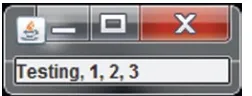
Unfortunately, as you can see in the image on the left in Figure 1-3, the two labels are side by side on the same line. If you drag the corner of the window to narrow the application window a little bit, you’ll get better results. The image on the right in Figure 1-3 shows how the two labels are separate and distinct.
Summary
Interactive Sessions vs. Scripts
It shouldn’t take long for you to realize that you don’t want to be using interactive wsadmin sessions for your applications. What does it take? Well, there are some things of which you must be aware.
This chapter begins with some additional interactive scripts to help illustrate some of the important differences between the interactive environment and what is needed for your Jython Swing scripts to be successful. Part of this process includes using the Java compiler to understand that some methods have been deprecated. Unfortunately Jython doesn't warn you about this when the scripts using those methods are executed. Finally, you’ll take a look at thread safety and the challenge that it presents to developers.
Running Your First Script from a File
Let’s start by putting the trivial script from the previous chapter into a text file and then execute it using wsadmin.1 Listing 2-1 shows the contents of the Welcome.py script file.
Listing 2-1. The Welcome.py Script File from javax.swing import JFrame
win = JFrame( 'Welcome to Jython Swing' ) win.size = ( 400, 100 )
win.show()
What happens when you execute this script using wsadmin?2 Nothing, that’s what. The question is, why don’t you see anything? The simple answer is that the call to the show() method returns immediately, and the script exits. There isn’t time for the Swing framework to display the instantiated window. To verify this, you can add a statement that causes the script to wait. The easiest and simplest way to do this is to use the raw_input() function to display a message and then wait for user input. Listing 2-2 shows the contents of the modified Welcome1.py script file.
Listing 2-2. The Welcome1.py Script File from javax.swing import JFrame
win = JFrame( 'Welcome to Jython Swing' ) win.size = ( 400, 100 )
win.show()
if 'AdminConfig' in dir() :
raw_input( '\nPress <Enter> to terminate the application: ' )
That’s better! When you execute this script, the wsadmin utility stays around long enough for the application window to be displayed. Even though the application isn’t too exciting, it is interesting enough as a starting point.
The next question you should ask at this point is, “What happens when you use (click on) the application close icon in the top-right corner of the application window?” The application exits, right? No, it doesn’t. Look at the interactive wsadmin command prompt window. It continues to show the "Press <Enter> to terminate the application:" message. If you press the Enter key at this point, wsadmin exits and the operating system command prompt is displayed.3
How do you fix this behavior? How do you get wsadmin to exit when you use the application’s close icon? The simple answer is that you have to tell it to. If you take a moment to think about it, you’ll realize that the close icon is part of the JFrame. If you take a look at the JFrame online documentation,4 you’ll find the following:
Unlike a Frame, a JFrame has some notion of how to respond when the user attempts to close
the window. The default behavior is to simply hide the JFrame when the user closes the window.
To change the default behavior, you invoke the setDefaultCloseOperation(int) method.
Listing 2-3 shows the revised script, Welcome2.py. The only change from the previous script is the addition of a call to the setDefaultCloseOperation() method. What happens when you run this script and click on the close icon? The application window is removed, and the wsadmin utility terminates.
Listing 2-3. The Welcome2.py Script File from javax.swing import JFrame
win = JFrame( 'Welcome to Jython Swing' )
win.setDefaultCloseOperation( JFrame.EXIT_ON_CLOSE ) win.size = ( 400, 100 )
win.show()
if 'AdminConfig' in dir() :
raw_input( '\nPress <Enter> to terminate the application: ' )
This is perfect, right? No, not really. There are a couple of things that aren’t as they should be.
Depending “Too Much” on Limited Information
The first problem with the trivial script in Listing 2-3 isn’t very obvious. In fact, to figure out this problem, you can either:
Look closely at the JFrame documentation.
•
Write and compile an equivalent Java application.
•
Listing 2-4 shows an equivalent Java application.
Listing 2-4. Welcome3.java import javax.swing.JFrame;
public class Welcome3 {
public static void main( String args[] ) {
JFrame win = new JFrame( "Welcome to Java Swing" ); win.setDefaultCloseOperation( JFrame.EXIT_ON_CLOSE ); win.setSize( 400, 100 );
win.show(); }
}
What happens when you compile this? The warning messages (notes) shown in Figure 2-1 are generated.
Figure 2-1. Welcome3 warning messages
Figure 2-2. Welcome3 detailed deprecation message
If you recompile Welcome3 using the specified option, you get a more detailed explanation of the problem, as shown in Figure 2-2.
Looking at the documentation for this show() method,5 you’ll find that you should be using setVisible(boolean) instead.
This shows6 you a challenge that you’ll encounter when using Jython to call Java methods. The Java compiler informs the users when a method has been deprecated, but the Jython environment does not. I’m not suggesting that you should avoid using calls to Java methods in your Jython scripts. Far from it’ I’m just letting you know that you should check to see if a method has been deprecated before using it in your scripts. This situation is most likely to occur, at least from my experience, if you obtain an existing Java Swing program and translate, or convert, it to the equivalent Jython without checking for this kind of issue.
Swing Threads
Deprecated methods aren’t the only kind of issue of which you need to be aware. One of the most significant differences between simple applications and ones where the developer needs to be able to interact with users and respond to events is related to threads of control (aka threads). Articles have been around for quite some time that discuss issues related to the fact that Swing developers should be aware of the fact that most Swing components are not thread-safe,7 and techniques exists for performing long-running operations.8
One technique is to define the application in a separate class and then wrap the instantiation of this class in a Java Runnable class. The calling of this Runnable class is deferred until the Swing environment is ready for it. This slight delay is performed by the Swing Event Dispatch thread and is initiated by a call to the invokeLater() method call of the SwingUtilities, or EventQueue class. This concept can be hard to follow. Take a look at an example of this technique, as shown in Listing 2-5.
Listing 2-5. Template1.py 1|import java
2|import sys
3|from java.awt import EventQueue 4|from javax.swing import JFrame 5|class Template1 :
6| def __init__( self ) : 7| frame = JFrame( 'Title' )
8| frame.setDefaultCloseOperation( JFrame.EXIT_ON_CLOSE ) 9| frame.pack()
10| frame.setVisible( 1 )
11|class Runnable( java.lang.Runnable ) : 12| def __init__( self, fun ) : 13| self.runner = fun 14| def run( self ) : 15| self.runner()
16|if __name__ in [ '__main__', 'main' ] :
17| EventQueue.invokeLater( Runnable( Template1 ) ) 18| if 'AdminConfig' in dir() :
19| raw_input( '\nPress <Enter> to terminate the application: ' ) 20|else :
21| print '\nError: This script should be executed, not imported.\n' 22| if 'JYTHON_JAR' in dir( sys ) :
23| print 'jython %s.py' % __name__ 24| else :
25| print 'Usage: wsadmin -f %s.py' % __name__ 26| sys.exit()
A detailed description for this code can be found in Table 2-1.
A roughly equivalent approach is shown in Listing 2-6.
Listing 2-6. Template2.py 1|import java
2|import sys
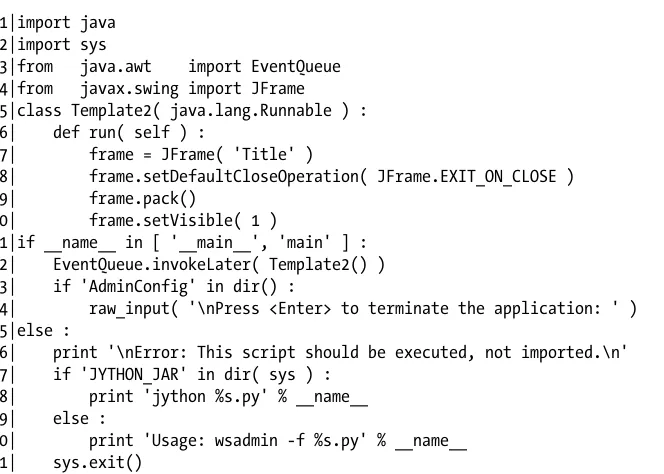
3|from java.awt import EventQueue 4|from javax.swing import JFrame 5|class Template2( java.lang.Runnable ) : 6| def run( self ) :
7| frame = JFrame( 'Title' )
8| frame.setDefaultCloseOperation( JFrame.EXIT_ON_CLOSE ) 9| frame.pack()
10| frame.setVisible( 1 )
11|if __name__ in [ '__main__', 'main' ] : 12| EventQueue.invokeLater( Template2() ) 13| if 'AdminConfig' in dir() :
14| raw_input( '\nPress <Enter> to terminate the application: ' ) 15|else :
16| print '\nError: This script should be executed, not imported.\n' 17| if 'JYTHON_JAR' in dir( sys ) :
18| print 'jython %s.py' % __name__ 19| else :
20| print 'Usage: wsadmin -f %s.py' % __name__ 21| sys.exit()
Looking closely at these two listings, you should notice the differences. Instead of defining a separate user application class that creates the Swing application components in the class constructor, this code places all of the Swing component-creation operations in the class run() method.
The example scripts provided and described in this book tend to use the second template since it requires a little less code. It also makes a bit more sense, at least to me. While writing the example scripts in this book I found it extremely easy to start with the Template script and add the code that was required to demonstrate the topic being discussed. One useful feature of this technique is the fact that it should help you focus on the important differences and hopefully spend less time with the script as a whole.
Table 2-1. Template1.py Details
Lines
Detailed Description
1-4 Statements used to add class names to the Jython namespace. 5-10 User-defined application class (i.e., Template1).
11-15 Wrapper class, descended from java.lang.Runnable, that saves a class reference in the constructor and delays the instantiation of the class until the run() method is called (on the Swing Event Dispatch thread). 16-22 This is the (apparent) script-entry point. This code determines if the script was executed or imported.
Summary
Building a Simple Global Security
Application
In my experience, learning a programming topic is much easier when good examples are included. Throughout this book, you’re going to go through the process of building simple Jython Swing applications from scratch. As you do so, you will be learning about some of the available Swing components and using them to make your application useful. In this chapter, you take a quick look at a simple graphical application that displays whether the WebSphere Global Security has been enabled or not. This will lead you to the topics of panes and layers, which are so very important to Swing applications.
Adding Text to the Application Using a JLabel
At this point, you haven’t learned how to build a non-trivial, fully functional application. However, you do have information eno ugh to get started. How so? Well, you’ll start simple by building a simple application that displays the status of the global security. For those who may be unfamiliar with it, global security is simply a setting that determines whether a username and password is required to administer the application server environment. Listing 3-1 shows a complete Jython script to do just this.
Listing 3-1. SecStatus.py 1|import java
2|from java.awt import EventQueue 3|from javax.swing import JFrame 4|from javax.swing import JLabel 5|class SecStatus( java.lang.Runnable ) : 6| def run( self ) :
7| frame = JFrame( 'Global Security' )
8| frame.setDefaultCloseOperation( JFrame.EXIT_ON_CLOSE ) 9| security = AdminConfig.list( 'Security' )
10| status = AdminConfig.showAttribute( security, 'enabled' ) 11| frame.add( JLabel( 'Security enabled: ' + status ) ) 12| frame.pack()
13| frame.setVisible( 1 )
14|if __name__ in [ '__main__', 'main' ] : 15| EventQueue.invokeLater( SecStatus() )
16| raw_input( '\nPress <Enter> to terminate the application: ' ) 17|else :
The statements that make use of wsadmin scripting objects are shown in lines 9 and 10. This application doesn’t require a graphical user interface. In fact, it can easily be performed using a single wsadmin command with a print statement to display the status. Listing 3-2 shows a simple wsadmin command line that can be used to display the same security status information.1
Listing 3-2. wsadmin Command that Displays the Global Security Status wsadmin -conntype none -lang jython -c "print 'Security enabled: ' + AdminConfig.showAttribute( AdminConfig.list( 'Security' ), 'enabled' )"
However, you will quickly see that scripts that interact with users are often good candidates for graphical user interface, and so that is what you will be learning to do.
No “Pane,” No Gain
When your application creates one of the top-level containers (e.g., a JFrame), a number of things are created by that container to help it perform its role. One of the things created by the JFrame constructor is a RootPane (which happens to be of type JRootPane).2
What does this RootPane do? It is composed of, and is used to manage, the following panes, each of which will be described in the following sections:
A glass pane
•
A layered pane
•
A content pane
•
An optional menu bar
•
When You Live in a Glass House, Everything Is a Pane
The glass pane can be used to intercept events.3 For most applications, it is a transparent pane that doesn’t get in the way of your visible application components. However, there may be a time when you want to have something made visible on the glass pane that covers an existing component on the content pane. There is an interesting example in the Java Swing Tutorial, on the :How to Use Root Panes” page,4 that demonstrates one possible use of the glass pane. A section about the glass pane can be found on that same page.5
At this point, I haven’t discussed enough of using Swing with Jython for the novice user to understand this particular example. However, someone with some knowledge of Java Swing and Jython might be interested in how an equivalent Jython script would look. For those folks, I have included a translated version of the GlassPaneDemo.py script to read and play with. Figure 3-1 shows some sample images that can be created using this script. The complete script is available in the source code for this chapter.
1Thecontents of Listing 3-2 must be entered as a single line / statement.
2See http://docs.oracle.com/javase/8/docs/api/javax/swing/JRootPane.html.
3Which have not yet been defined. For the time being, you can think of things like mouse clicks as events, the first discussion of which appears in Chapter 4.
4See http://docs.oracle.com/javase/tutorial/uiswing/components/rootpane.html.
Figure 3-1. GlassPaneDemo.py sample images
The Layered Look Can Also Be a Pane
I’m certain that you have used an application that includes components that involve different layers. One of the most common instances of layers occurs when a pop-up menu is displayed. It is important that this menu isn’t obscured by any of the existing components. The layered pane is used to great effect for component positioning. Right now, you don’t have to worry about this pane. It is discussed in Chapter 19.
The Optional MenuBar
Almost every graphical application that you can think of has some kind of menu. The MenuBar is a collection of MenuItems that are displayed to allow users to make selections. The applications that you create are likely to use MenuBars. In fact, many of the complete scripts that are developed in the last few chapters of this book use MenuBars and MenuItems. Since this is an important topic, the book spends all of Chapter 10 on menu-related issues.
The Content Pane Will Contain Most of the Visible Items
All Swing applications have at least one top-level container. Each of these top-level containers is the top, or root, of the application containment hierarchy (i.e., all of the visible components that appear in the container). In this book, almost all of the example applications will have a JFrame as the top-level container.
Additionally, just about every application will place the components to be displayed on the JFrame content pane. So, one of the most common things that needs to be done with a JFrame instance is to obtain a reference to its content pane. This is typically done using syntax like that shown in Listing 3-3.
Listing 3-3. Getting a JFrame Content Pane Reference contentPane = frame.getContentPane()
What kind of object is returned by this call? The simple answer is that a java.awt.Container6 is returned. What, exactly, is a java.awt.Container? It certainly is a lot easier to comprehend than it is to describe. In fact, I described Swing containers as components that can hold a group of zero or more components.
Looking at the documentation,7 you can see that it has six dozen methods. Granted, seven of these have been deprecated and another five are protected, which means that you really shouldn’t be using them from your Jython scripts. Another seven have multiple overloaded variations (e.g., there are five different add() methods). These add() methods are shown in Table 3-1.
Table 3-1. Component add() methods
Modifier and Type
Method and Description
Component add(Component comp)
Appends the specified component to the end of this container. Component add(Component comp, int index)
Adds the specified component to this container at the given position. void add(Component comp, Object constraints)
Adds the specified component to the end of this container. void add(Component comp, Object constraints, int index)
Adds the specified component to this container with the specified constraints at the specified index.
Component add(String name, Component comp)
Adds the specified component to this container.
I won’t be digging too deeply into these various methods, but I will be making good use of a number of them. In fact, you have already seen some example uses of the add() method (see line 11 of Listing 3-1, for example).
Did you catch that? I snuck one in on you there. If you were watching closely, you may have wondered why Listing 3-1 doesn’t include a call to the getContentPane() method, as shown in Listing 3-3. How does this work? Well, the Swing developers realized that some method calls are very common, so they have provided a convenience. Instead of writing a statement like you see in Listing 3-4, you are allowed to leave out the call to the getContentPane() method.
Listing 3-4. Calling getContentPane() to add() Something frame.getContentPane().add( something )
Where is this documented? Right on the JFrame documentation,8 where you’ll find the paragraph shown in Figure 3-2.9
Can you still include the call to the getContentPane() method in your code? Certainly. You aren’t forced to use this convenience. If this makes your code easier and more understandable, that is your choice. Don’t be surprised when most of the sample Java Swing code found in the wild10 uses this convenience.
Summary
In this chapter, you saw a simple Jython Swing application that displays the current WebSphere global security status as the text of a JLabel component. Even though it is trivial in nature, it demonstrates the structure of the applications to be found throughout the book. Additionally, you had your first exposure to the layering that exists in the JFrame class, which will be used in almost every example application found in this book.
... As a conveniance add and its variants, remove and setLayout have been overridden to forward to the contentPane as necessary. This means you can write:
frame.add( child );
And the child will be added to the contentPane.
Figure 3-2. JFrame conveniences from the JFrame documentation
Button Up! Using Buttons and Labels
Up to this point, the applications you built in this book have been kind of boring.1 They really haven’t done anything except display a message. But now it’s time to change that. In this chapter, you’re going to add a button to your application and then have it react when the user presses it. How does that sound?
To do this you’ll first take a look at the JButton class hierarchy and see the Java way to create a button and add it to the application frame. Then you’ll see a verbose way, in Jython, to do the same thing. Then you’ll see a more concise way to put a button on the frame and have an event handler update another component when the user presses the button. This technique will allow your applications to react when the users click one of the buttons.
JButton Class Hierarchy
Before you start making buttons, it seems appropriate to take a look at this class. In Chapter 1, you saw a function named classes that displayed the class hierarchy for a given type from the inside out. Listing 4-1 shows this simple function again.2
Listing 4-1. classes.py
def classes( Class, pad = '' ) : print pad + str( Class ) for base in Class.__bases__ : classes( base, pad + '| ' )
Using this function, you can display the JButton class hierarchy. Listing 4-2 shows an interactive wsadmin session that does just that.3
Listing 4-2. JButton class hierarchy
wsadmin>from javax.swing import JButton wsadmin>
wsadmin>classes( JButton ) javax.swing.JButton
| javax.swing.AbstractButton | | javax.swing.JComponent | | | java.awt.Container | | | | java.awt.Component
1Except,of course, for the GlassPaneDemo.py script mentioned in Chapter 3, which was converted from the original Java.
But it doesn’t count since I haven’t covered the concepts used in that code.
| | | | | java.lang.Object
| | | | | java.awt.image.ImageObserver | | | | | java.awt.MenuContainer | | | | | java.io.Serializable | | | java.io.Serializable | | java.awt.ItemSelectable | | javax.swing.SwingConstants | javax.accessibility.Accessible wsadmin>
What are you going to do with this information? Well, the first thing that you need to do is to create, or instantiate, a button instance. Then you’ll add it to the frame. To begin, take a quick look at a trivial Java application to do this. Listing 4-3 contains the relevant code snippet.4
Listing 4-3. The Java Code to Create a Button and Add It to a Frame JFrame frame = new JFrame( "ButtonDemo" );
frame.setDefaultCloseOperation( JFrame.EXIT_ON_CLOSE ); JButton button = new JButton( "Press me" );
frame.add( button ); frame.pack();
frame.setVisible( true );
What would this look like in Jython? Listing 4-4 shows the equivalent Jython code.
Listing 4-4. The Verbose Jython Way to Do the Same Thing frame = JFrame( 'ButtonDemo_01' )
frame.setDefaultCloseOperation( JFrame.EXIT_ON_CLOSE ) button = frame.add( JButton( 'Press me' ) )
button.addActionListener( ButtonPressed() ) frame.pack()
frame.setVisible( 1 )
They certainly do look similar, don’t they? What if you use an interactive wsadmin session to execute these steps? Listing 4-5 shows what happens when you try to do this.
Listing 4-5. The wsadmin interactive session to create and add a button wsadmin>from javax.swing import JFrame, JButton
wsadmin>frame = JFrame( 'ButtonDemo_01' ) wsadmin>button = JButton( 'Press me' ) wsadmin>frame.add( button )
javax.swing.JButton[,0,0,0x0,invalid,alignmentX=0.0,alignmentY=...
The figure ends when some output is generated by the frame.add() method call. What was returned by the add() method call? Listing 4-6 shows a slightly different interactive session. This time, the value returned by the add() method call is saved into a variable named result. Then you determine if the value returned by add() is the same one passed in. Why? Well, the JFrame class5 inherits five different add() methods from the java.awt.Container. This Jython statement is calling the Container add() method6 that returns the same value that was passed in.
Listing 4-6. The wsadmin interactive JButton session 2 wsadmin>from javax.swing import JFrame, JButton wsadmin>
wsadmin>frame = JFrame( 'ButtonDemo' ) wsadmin>button = JButton( 'Press me' ) wsadmin>result = frame.add( button ) wsadmin>result == button
1 wsadmin>
You can use this fact to simplify your code. Listing 4-7 shows this simplification. Instead of instantiating the JButton instance and saving the returned value in a variable (e.g., button), you can combine the add() call with the JButton constructor call and save the value returned from the add() call.
Listing 4-7. The wsadmin interactive JButton session 3 wsadmin>from javax.swing import JFrame, JButton wsadmin>
wsadmin>frame = JFrame( 'ButtonDemo' )
wsadmin>frame.setDefaultCloseOperation( JFrame.EXIT_ON_CLOSE ) wsadmin>button = frame.add( JButton( 'Press me' ) )
wsadmin>...
Note
■
this technique doesn’t work for every
Container add()method call, since not every
addmethod returns
a value.
The application found in Button_01.py contains a button that says “Press me!” that can be pressed. Unfortunately, it doesn’t do anything yet, but you’ll get there right after a short digression. At this point it is appropriate to address an important question: How does Swing know where to put things on the application?
The Layout of the Land
One of the many parts of a Container is something called the Layout Manager. I touched on this a little in Chapter 1, and I will be going into detail about it in Chapter 5. For the moment, you’ll simply take a quick peek “under the covers,” so to speak.
For the time being, you’re going to use JFrame as the top-level container. One way that you can learn more about the JFrame class hierarchy is to use the Java documentation. Figure 4-1 shows this relationship, at least the portion covered by the Java documentation.
5See http://docs.oracle.com/javase/8/docs/api/javax/swing/JFrame.html.
The root of this class hierarchy is an Object, which isn’t too surprising. The class hierarchy for the JFrame Swing class can be seen in Listing 4-8. Note, however, that unlike the JFrame Javadoc class hierarchy shown in Figure 4-1, the output of the classes function starts at the JFrame class and works its way up the hierarchy. So this is kind of an inside-out view of the hierarchy. One of the things that I found interesting about this view is the presence of additional classes that don’t show up in the Javadoc.
Listing 4-8. Another look at the JFrame class hierarchy wsadmin>from javax.swing import JFrame
wsadmin>
wsadmin>classes( JFrame ) javax.swing.JFrame | java.awt.Frame | | java.awt.Window | | | java.awt.Container | | | | java.awt.Component | | | | | java.lang.Object
| | | | | java.awt.image.ImageObserver | | | | | java.awt.MenuContainer | | | | | java.io.Serializable | | | javax.accessibility.Accessible | | java.awt.MenuContainer
| javax.swing.WindowConstants | javax.accessibility.Accessible | javax.swing.RootPaneContainer wsadmin>
This diagram is kind of nice, but it would be more useful if it also allowed you to see the methods and attributes that exist at each level of the hierarchy. Better yet, it would be really nice if you had a way to filter the list of methods and/or attributes based on some text. Listing 4-9 contains a function that includes these additional capabilities.
java.lang.Object
java.awt.Component
java.awt.Container
java.awt.Window
java.awt.Frame
javax.swing.JFrame
Listing 4-9. classInfo.py
1|def classInfo( Class, meth = None, attr = None, pad = '' ) : 2| print pad + str( Class )
3| prefix = pad + ' '
4| if type( meth ) == type( '' ) : 5| comma, line = '', '' + prefix 6| methods = [
7| n for n, v in vars( Class ).items()
8| if n.lower().find( meth.lower() ) > -1 and callable( v ) 9| ]
10| methods.sort() 11| for m in methods :
12| if len( line + comma + m ) > 65 : 13| print line.replace( '|', '>' ) 14| comma, line = '', '' + prefix 15| line += comma + m
16| comma = ', '
17| if not line.endswith( ' ' ) : 18| print line.replace( '|', '>' ) 19| if type( attr ) == type( '' ) : 20| comma, line = '', '' + prefix 21| attribs = [
22| n for n, v in vars( Class ).items()
23| if n.lower().find( attr.lower() ) > -1 and not callable( v ) 24| ]
25| attribs.sort() 26| for a in attribs :
27| if len( line + comma + a ) > 65 : 28| print line.replace( '|', '*' ) 29| comma, line = '', '' + prefix 30| line += comma + a
31| comma = ', '
32| if not line.endswith( ' ' ) : 33| print line.replace( '|', '*' ) 34| for b in Class.__bases__ :
35| classInfo( b, meth, attr, pad + '| ' )
How do you use it? Well, when you call the classInfo() function, you must specify at least one parameter, which is a class (e.g., JFrame). In addition, you can als provide one or two parameters to show the methods and/or attribute names at each level of the class hierarchy. I find it best to include the parameter keyword (i.e., meth or attr) to indicate which parameter is being provided.
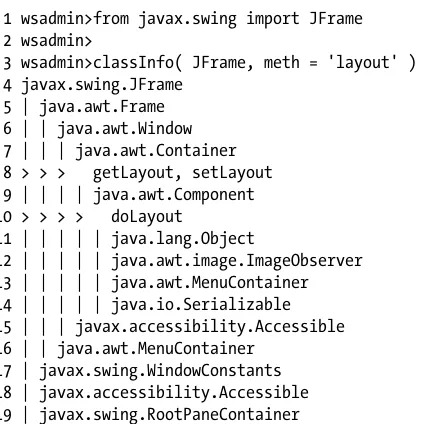
Listing 4-10. JFrame class hierarchy showing the “layout” methods. 1 wsadmin>from javax.swing import JFrame
2 wsadmin>
3 wsadmin>classInfo( JFrame, meth = 'layout' ) 4 javax.swing.JFrame
5 | java.awt.Frame 6 | | java.awt.Window 7 | | | java.awt.Container 8 > > > getLayout, setLayout 9 | | | | java.awt.Component 10 > > > > doLayout
11 | | | | | java.lang.Object
12 | | | | | java.awt.image.ImageObserver 13 | | | | | java.awt.MenuContainer 14 | | | | | java.io.Serializable 15 | | | javax.accessibility.Accessible 16 | | java.awt.MenuContainer
17 | javax.swing.WindowConstants 18 | javax.accessibility.Accessible 19 | javax.swing.RootPaneContainer
I wasn’t too surprised by the presence of getter and setter methods in the layout (i.e., getLayout and setLayout), but I didn’t expect to see the doLayout method in the java.awt.Component class. Looking at the Javadoc for the java.awt.Component class, you’ll find the information about the doLayout() method7 shown in Figure 4-2.
7See http://docs.oracle.com/javase/8/docs/api/java/awt/Container.html#doLayout%28%29.
public void doLayout()Causes this container to lay out its components. Most programs should not call this method directly, but should invoke the validate method instead.
That’s kind of neat, but I don’t intend to be calling that method in any of my code. Let’s stick with the recommendation and avoid using it.
Since you looked for the layout methods, it’s wise to take a moment to see if any attributes exist that refer to “layout”. Listing 4-11 shows how to specify the attr keyword argument for the classInfo() function. The generated output of the JFrame class hierarchy shows that only one attribute exists in this hierarchy that contains the string "layout". It occurs in the java.awt.Container class.
Listing 4-11. JFrame class hierarchy showing “layout” attributes wsadmin>from javax.swing import JFrame
wsadmin>
wsadmin>classInfo( JFrame, attr = 'layout' ) javax.swing.JFrame
| java.awt.Frame | | java.awt.Window | | | java.awt.Container * * * layout
| | | | java.awt.Component | | | | | java.lang.Object
| | | | | java.awt.image.ImageObserver | | | | | java.awt.MenuContainer | | | | | java.io.Serializable | | | javax.accessibility.Accessible | | java.awt.MenuContainer
| javax.swing.WindowConstants | javax.accessibility.Accessible | javax.swing.RootPaneContainer wsadmin>
What does this mean? Well, if you look at the Javadoc for java.awt.Container,8 you might expect to see a “field”9 called layout. So why isn’t one there? Well, you can thank Jython for that. It automatically recognizes a property for which a getter (i.e., getPropertyName or isPropertyName) and a setter (i.e., setPropertyName) method are defined. This allows you to use the PropertyName as an expression or in an assignment statement. You’ll use this feature throughout the examples in this book. Let’s take a quick look at the example interactive wsadmin session shown in Listing 4-12.
Listing 4-12. Huh? What’s goin’ on, Lucy?
1 wsadmin>from java.awt import FlowLayout 2 wsadmin>from javax.swing import JFrame 3 wsadmin>
4 wsadmin>fLayout = FlowLayout() 5 wsadmin>frame = JFrame( 'Title' ) 6 wsadmin>frame.layout
7 java.awt.BorderLayout[hgap=0,vgap=0] 8 wsadmin>frame.layout = fLayout 9 wsadmin>frame.layout
10 java.awt.BorderLayout[hgap=0,vgap=0] 11 wsadmin>frame.getLayout()
12 java.awt.BorderLayout[hgap=0,vgap=0] 13 wsadmin>frame.getContentPane().getLayout() 14 java.awt.FlowLayout[hgap=5,vgap=5,align=center] 15 wsadmin>frame.getContentPane().getLayout() == fLayout 16 1
17 wsadmin>
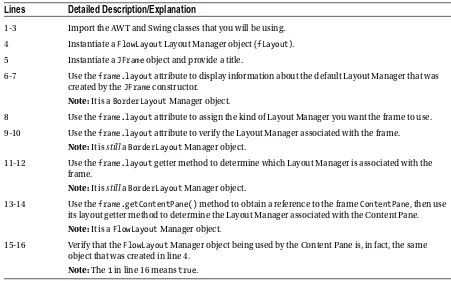
Wait a minute! What’s going on here? This demonstrates one situation where you have to be mindful of what Jython is trying to do with the “automatic” attribute when it finds getter and setter methods. Table 4-1 describes each line of the wsadmin interactive session shown in Listing 4-12.
Table 4-1. What’s Goin’ on Lucy, Explained
Lines
Detailed Description/Explanation
1-3 Import the AWT and Swing classes that you will be using. 4 Instantiate a FlowLayout Layout Manager object (fLayout). 5 Instantiate a JFrame object and provide a title.
6-7 Use the frame.layout attribute to display information about the default Layout Manager that was created by the JFrame constructor.
Note: It is a BorderLayout Manager object.
8 Use the frame.layout attribute to assign the kind of Layout Manager you want the frame to use. 9-10 Use the frame.layout attribute to verify the Layout Manager associated with the frame.
Note: It is still a BorderLayout Manager object.
11-12 Use the frame.layout getter method to determine which Layout Manager is associated with the frame.
Note: It is still a BorderLayout Manager object.
13-14 Use the frame.getContentPane() method to obtain a reference to the frame ContentPane, then use its layout getter method to determine the Layout Manager associated with the Content Pane. Note: It is a FlowLayout Manager object.
15-16 Verify that the FlowLayout Manager object being used by the Content Pane is, in fact, the same object that was created in line 4.
The code you are seeing here is due to a special convenience provided by the JFrame class developers. The sentence from the Javadoc is shown in Figure 4-3.
As a convenience add and its variants, remove and setLayout have been overridden to forward to the contentPane as necessary.
Figure 4-3. JFrame “convenience”
I’m bringing this to your attention now so that you are less likely to be surprised when you stumble upon it while you are developing and maintaining your Jython Swing scripts.
Buttons! Labels! Action!
You’ve looked at how to create a button and add it to your application. The next thing that you need to figure out is how to make the button do something when it’s clicked. When a button is clicked, something called an “event” occurs. A button click is one of many events that can occur in a Swing application. For the time being, I’m going to focus10 on this specific kind of event. You will learn about other events as they occur in the book.
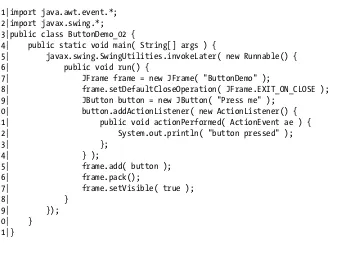
Listing 4-13 shows a trivial Java application that prints a message (using the System.out.println() method call) when the button is pressed.
Listing 4-13. ButtonDemo_02.java : Reacting to a Button Press 1|import java.awt.event.*;
2|import javax.swing.*; 3|public class ButtonDemo_02 {
4| public static void main( String[] args ) {
5| javax.swing.SwingUtilities.invokeLater( new Runnable() { 6| public void run() {
7| JFrame frame = new JFrame( "ButtonDemo" );
8| frame.setDefaultCloseOperation( JFrame.EXIT_ON_CLOSE ); 9| JButton button = new JButton( "Press me" );
10| button.addActionListener( new ActionListener() { 11| public void actionPerformed( ActionEvent ae ) { 12| System.out.println( "button pressed" ); 13| };
14| } );
15| frame.add( button ); 16| frame.pack();
17| frame.setVisible( true ); 18| }
19| }); 20| } 21|}
Listing 4-14 shows the first attempt at implementing this application in Jython. One of the things that Java includes is the concept of anonymous classes. Lines 10–14 of Listing 4-13 show how an anonymous class can be used to define an ActionListener, which contains an actionPerformed() method to be invoked when the button-pressed event occurs. Jython doesn’t allow anonymous classes. Listing 4-14 shows (in lines 7–9) one way to define a ButtonPressed descendent of the ActionListener class. In line 15, an instance of this class is instantiated and added as an action listener to the button. Many (most?) programmers, especially those new to Java, find the use of anonymous inner classes cumbersome and hard to read and write.
Listing 4-14. ButtonDemo_01.py: Reacting to a Button Press 1|import java
2|import sys
3|from java.awt import EventQueue 4|from java.awt.event import ActionListener 5|from javax.swing import JButton 6|from javax.swing import JFrame 7|class ButtonPressed( ActionListener ) : 8| def actionPerformed( self, e ) : 9| print 'button pressed'
10|class ButtonDemo_01( java.lang.Runnable ) : 11| def run( self ) :
12| frame = JFrame( 'ButtonDemo_01' )
13| frame.setDefaultCloseOperation( JFrame.EXIT_ON_CLOSE ) 14| button = frame.add( JButton( 'Press me' ) )
15| button.addActionListener( ButtonPressed() ) 16| frame.pack()
17| frame.setVisible( 1 )
18|if __name__ in [ '__main__', 'main' ] : 19| EventQueue.invokeLater( ButtonDemo_01() ) 20| if 'AdminConfig' in dir() :
21| raw_input( '\nPress <Enter> to terminate the application:\n' ) 22|else :
23| print '\nError: This script should be executed, not imported.\n' 24| which = [ 'wsadmin -f', 'jython' ][ 'JYTHON_JAR' in dir( sys ) ] 25| print 'Usage: %s %s.py' % ( which, __name__ )
26| sys.exit()
Another approach is shown in Listing 4-15. This example, instead of defining a separate class, uses multiple inheritance. The class defined in line 8 is a descendent of the java.lang.Runnable and the java.awt. event.ActionListener classes. This means that it includes the run() method from the Runnable class and the actionPerformed() method from the ActionListener class. So all you need to do is identify the current class instance as the ActionListener, as shown in line 13.
Listing 4-15. ButtonDemo_02.py: Using Multiple Inheritance 1|import java
2|import sys
8|class ButtonDemo_02( Runnable, ActionListener ) : 9| def run( self ) :
10| frame = JFrame( 'ButtonDemo_02' )
11| frame.setDefaultCloseOperation( JFrame.EXIT_ON_CLOSE ) 12| button = frame.add( JButton( 'Press me' ) )
13| button.addActionListener( self ) 14| frame.pack()
15| frame.setVisible( 1 ) 16| def actionPerformed( self, e ) : 17| print 'button pressed'
18|if __name__ in [ '__main__', 'main' ] : 19| EventQueue.invokeLater( ButtonDemo_02() ) 20| if 'AdminConfig' in dir() :
21| raw_input( '\nPress <Enter> to terminate the application:\n' ) 22|else :
23| print '\nError: This script should be executed, not imported.\n' 24| which = [ 'wsadmin -f', 'jython' ][ 'JYTHON_JAR' in dir( sys ) ] 25| print 'Usage: %s %s.py' % ( which, __name__ )
26| sys.exit()
Although this is pretty interesting, it’s not the only way that this feat can be accomplished. Next, you’ll take advantage of another Jython feature called “keyword arguments.”
Listing 4-16 shows that you don’t even have to declare the class as a descendent of the ActionListener class in order to use it as one (see line 7). You can simply use the implied setter (in line 12) to identify another class method as the ActionListener event handler. The really neat part of this, at least to me, is that you don’t have to call the method actionPerformed(); you can call it something more intuitive, like buttonPressed().
Listing 4-16. ButtonDemo_03.py: Multiple Inheritance Isn’t Required 1|import java
2|import sys
3|from java.awt import EventQueue 4|from java.lang import Runnable 5|from javax.swing import JButton 6|from javax.swing import JFrame 7|class ButtonDemo_03( Runnable ) : 8| def run( self ) :
9| frame = JFrame( 'ButtonDemo_03' )
10| frame.setDefaultCloseOperation( JFrame.EXIT_ON_CLOSE ) 11| button = frame.add( JButton( 'Press me' ) )
12| button.actionPerformed = self.buttonPressed 13| frame.pack()
14| frame.setVisible( 1 ) 15| def buttonPressed( self, e ) : 16| print 'button pressed'
17|if __name__ in [ '__main__', 'main' ] : 18| EventQueue.invokeLater( ButtonDemo_03() ) 19| if 'AdminConfig' in dir() :
21|else :
22| print '\nError: This script should be executed, not imported.\n' 23| which =