2.1
Introduction
For many mobile computers, there is little difference between their text input and the methods for text input on the typewriters of over a hundred years ago. The keyboards used by many notebook comput-ers have more keys and functions than the original typewritcomput-ers, but the layout and interaction methods are essentially the same, despite a century of progress. On the other hand, many handheld computers, like the PalmPilot, have forsaken the keyboard in favour of the much more portable stylus input, but this introduces an entirely new set of limitations.
Unlike text input devices, pointers have varied widely in the past decade alone. In many mobile systems mice have been replaced by trackballs, trackpads and other novel and more mobile pointers. All of these new devices are small, but still large enough to impose limits on the size of the device.
New input devices need to be built which are more portable and can free the computer from their constraints on its size and shape, allowing it to take a more comfortable and efficient form. In order to design these new devices, we need to review existing and historical input devices focusing on their design criteria, the extent of their portability, and their performance. By observing the factors which went in to building these devices we intend to develop an encompassing set of design criteria that we can use to cre-ate new devices in order to make them as ergonomic and efficient as possible. The portability of existing devices is examined in order to determine what the limiting factors are. By finding these constraints we hope to avoid such limitations in the new devices. Examining the performance of existing devices should provide a basis for comparison by which we can judge the new devices.
2.2
An Overview of Text Input
2.2.1
Conventional and Alternative Keyboards
The keyboard is by far the most common text input for computers. The momentum built up from over a century of use has guaranteed its dominance despite the problems with both the layout and the basic keyboard shape. Over the years, several alternatives to the QWERTY keyboard have been developed which claim to solve some its problems. The first alternative keyboards simply redesigned the key layout for maximum touch-typing efficiency. More recent ones have reshaped the keyboard in an attempt to make it more comfortable to use.
The QWERTY Keyboard
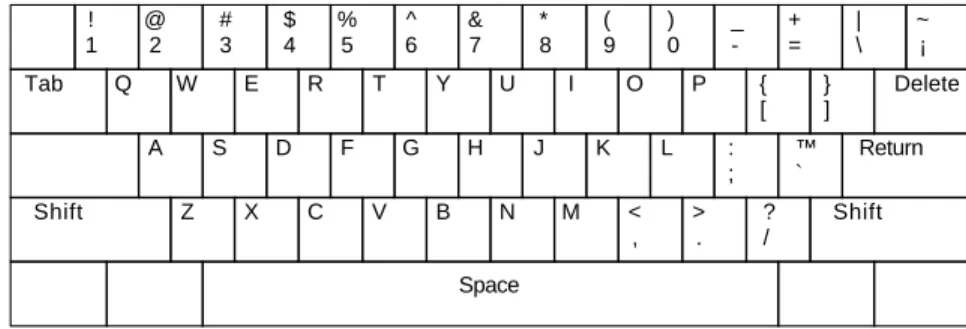
Figure 2.1: The QWERTY layout
! 1 @ 2 # 3 $ 4 % 5 ^ 6 & 7 * 8 ( 9 ) 0 _ -+ = Delete Tab Q W E R T Y U I O P { [ ~ ` | \ } ] A S D F G H J K L : ; “ ‘ Return Shift Z X C V B N M < , > . ? / Space Shift
The first typewriter keyboard was patented in 1868 by Sholes, Glidden, and Soul´e. Since there were no data to choose one layout over another, they chose an alphabetic layout. It soon became evident that because of frequent typebar jams, this layout was impractical. Ten years later Sholes patented the QW-ERTY layout, which was developed to solve the jamming problem. The QWQW-ERTY physically separates frequent letter pairs, or digrams. Since the keys are further apart, the chance of jamming is reduced, al-lowing the user to type longer and faster without problems.
The common belief that the QWERTY layout was intended to slow down typists is not true. In fact, modern studies comparing alphabetic and QWERTY keyboards show that typing on the QWERTY is as fast or even faster than the alphabetic layout it replaced (Noyes, 1983). However, spacing digrams fur-ther apart requires the fingers to travel longer distances, and consequently do more work. The seemingly random placement of the keys on the QWERTY keyboard requires frequent, erratic motions of the fingers over a small area. These motions are difficult to learn and require a long time for proficiency. Expert-level typing takes even longer to achieve and quickly decays with disuse (Gopher & Raij, 1988).
The shape of the QWERTY keyboard is ergonomically unsound. The hands are held close together with the wrists bent outward (ulnar deviation or adduction), and often upwards as well (extension). Ex-cessive finger use with bent wrists has been linked with Repetitive Strain Injuries (RSI) like tenosynovitis (Ilg, 1987). Back and shoulder muscle problems can arise from the slouching and hunched shoulders of-ten caused by poor typing posture.
The Dvo˘r ´ak Simplified Keyboard
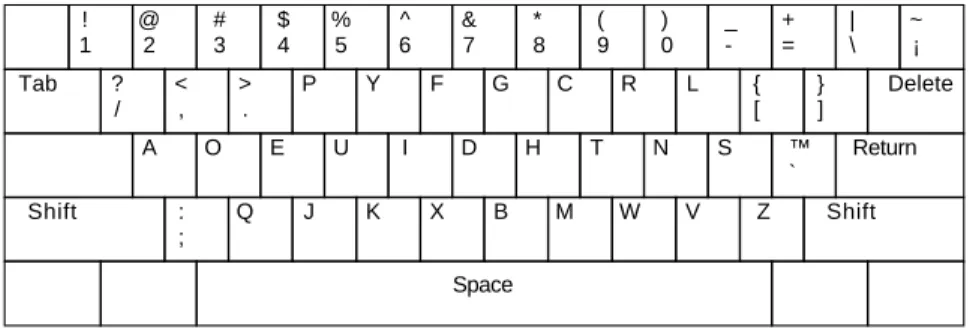
Figure 2.2: The Dvo˘r´ak Simplified Keyboard layout
! 1 @ 2 # 3 $ 4 % 5 ^ 6 & 7 * 8 ( 9 ) 0 _ -+ = Delete Tab ? / < , > . P Y F G C R L { [ ~ ` | \ } ] A O E U I D H T N S “ ‘ Return Shift : ; Q J K X B M W V Z Space Shift
One of the first alternatives to the QWERTY was the Dvo˘r´ak Simplified Keyboard. August Dvo˘r´ak developed the Simplified Keyboard in 1936 as a solution to the problems of the outdated QWERTY. Sev-eral design principles were used to solve the problems he saw with the QWERTY keyboard. While these principles were intended for a keyboard, they can easily be applied to many kinds of input devices.
One design principle was to minimise the distance travelled by the fingers. The QWERTY layout requires fingers to move large distances because the digrams are placed far apart. The DSK places digrams close together, reducing the distance fingers travel by as much as 90% (Potosnak, 1988). The QWERTY was designed for use by two fingers, even though by 1936 touch-typing was standard practice. Dvo˘r´ak attacked this problem by distributing the work amongst the fingers, giving the strongest ones the most work. Also, by noting that simple motions are easier to learn than complex ones, Dvo˘r´ak was able to
exploit the frequent use of certain letter sequences, using simple motions to type them. He hoped that these easier motions would be easier to learn and less tiring than the seemingly random finger motions of the QWERTY.
There have been several experiments which compare the performances of the DSK and QWERTY. In general, most of these show that the DSK is on the order of 2%-5% faster than the QWERTY (Potosnak, 1988), which is a minimal improvement. If there is any real advantage it is not that the user types faster, but that the user does less work. Judging by comments made by users of the DSK, the reduction of finger work does help reduce typing injuries.
Split Keyboards
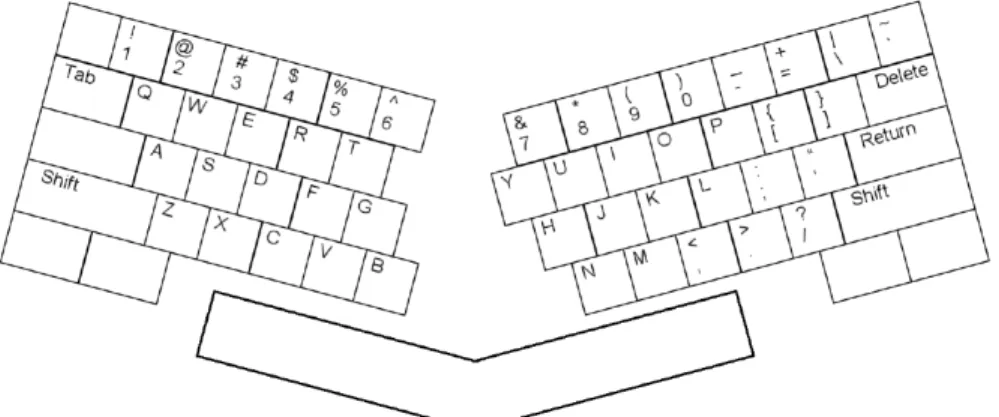
Figure 2.3: A generalised split keyboard
Split keyboards are designed to tackle the problem of ulnar deviation when touch typing, in an at-tempt to reduce typing-related injuries. On a standard keyboard, touch typing is performed by placing the fingers on the home keys, which are fairly close together. In order to align the fingers on these keys, the wrists must be bent, with the hands facing outward. A split keyboard straightens the wrists by splitting the keyboard down the middle (usually along the line between theT-G-BandY-H-N) and bending the sides back to make a shape. Some split keyboards are jointed and allow the user to control the angle between halves. However, most split keyboards have a fixed angle. It has been confirmed experimen-tally that a split keyboard with a wrist rest can significantly reduce ulnar deviation and wrist extension (Rempel et al., 1996).
With the rising media interest in RSI, split keyboards have become more common. The Microsoft Natural Keyboard alone has sold over a million units worldwide (Microsoft Corporation, 1997). Experi-ments were performed using people with hand and wrist pains on three different kinds of split keyboards when used over a period of 3 months. The Apple Adjustable and Comfort HealthCare Keyboards showed a decrease of 18% and 11% in the level of pain, while the Microsoft Natural Keyboard showed a 48% de-crease in pain levels (Tittiranonda et al., 1996).
While the split keyboard solves some of the ergonomic problems of a standard keyboard, only trained touch typists benefit from its use. Touch typing assigns each half of the keyboard exclusively to one hand. A split keyboard physically separates these halves. Touch typists can easily adjust to this because of their
training. Non-trained typists often will have their own way of typing which does not split the keyboard in the same manner. These people might find the split keyboard inconvenient to use, thus reducing their productivity.
Tilt Keyboards
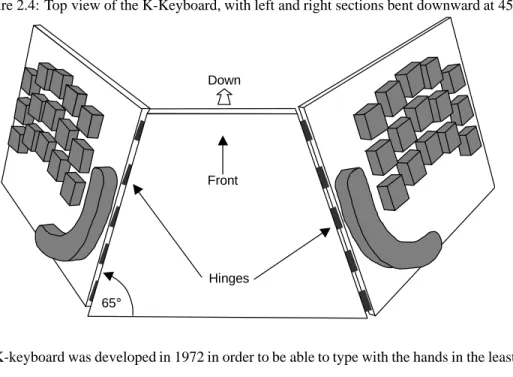
Figure 2.4: Top view of the K-Keyboard, with left and right sections bent downward at 45
Front
Hinges Down
65
The K-keyboard was developed in 1972 in order to be able to type with the hands in the least stress-ful position, minimising the strain on the wrists, fingers, and shoulders. In this position, the fingers are slightly curled, the wrists are straight, and the palms face inward and are tilted at an angle of approxi-mately to vertical (Kroemer, 1972).
The K-keyboard is split into two boards, one for each hand (Figure 2.4). The boards are tilted down-ward at an adjustable angle between 0 and 90 , to minimise pronation. Most users preferred an angle of 45 . Note that at 0 the device effectively becomes a split keyboard. The hinges are tilted forward at a fixed angle of 25 to minimise wrist extension. Keys are offset to match the length of the fingers. There is one large curved space bar for the thumb. This arrangement allows the user to hold their hands in a more comfortable position: with wrists straight and no unnecessary pronation. This is opposed to the QWERTY keyboard which has the wrists extended, adducted, and fully pronated.
Experiments done on the K-keyboard show some improvement over the QWERTY keyboard. While there is no significant difference in typing speed, subjects made fewer errors (7.7% vs. 12.7% for QW-ERTY). In the experiments, subjects were told to type until they were unable to do so. The subjects who used the QWERTY keyboard tended to stop because of physical pain. Users of the K-keyboard tended to stop because they could no longer concentrate.
Keyboard Summary
The research carried out on the above keyboards has generated a mass of data on the options for keyboard design. Many of these have been adopted into national or international standards (International Organiza-tion for StandardizaOrganiza-tion, 1994). The rest are just good ideas to keep in mind when designing a keyboard.
In our analysis of keyboards we have uncovered nine important factors for efficient keyboard design.
1. Hand position The least stressful hand position for typing is with the thumbs facing up and inward
at around 45 –60 , palms facing together, and fingers slightly curled (Kroemer, 1972). Reducing extension and adduction of the wrists has been shown to reduce pain levels up to 48% in people who suffer from hand or wrist pain (Tittiranonda et al., 1996).
2. Keyboard layout According to ISO9995-3 (International Organization for Standardization, 1994),
the QWERTY is the international standard keyboard with the DSK being the standard alternative layout. Changes in the layout have little effect on the speed of the device, but minimising finger travel tends to reduce work and the number of errors (Potosnak, 1988).
3. Keyboard slope (Figure 2.5) Most users prefer a keyboard sloped towards them at an angle of at least
15 (Potosnak, 1988). The preferred slope is related to the user’s hand length and stature. While the slope of the keyboard affects how much the user likes it, the slope does not affect the users performance.
Figure 2.5:The preferred slope of a keyboard
15
Figure 2.6: Diagram of a key showing preferred sizes and spacing
19.1mm 12.7mm
Concave top >30mm radius of
curvature
4. Number of keys There is not enough data to know the upper and lower limits for the number of keys
on a keyboard. The only guidelines are the obvious. Too few keys slows typing by requiring mul-tiple keystrokes to make some characters. Too many keys slows typing by making it harder to find a specific key (Potosnak, 1988).
5. Key size and shape Keys should be rectangular so they fit well together without large gaps between
them. A square shape is the most preferred design. To guide the finger to the centre of the key, the tops should be concave, with a radius of at least 30mm (Ilg, 1987). While there is no data for the upper limit of key size, the lower reasonable limit is 12.7mm square for the key tops, with 19.1mm between centres (Potosnak, 1988) (Figure 2.6) The typing speed is dependent on the key size. A square key with a width of 20mm is between 50% and 100% faster than a key width of 5mm (Sears et al., 1993).
6. Key force and travel Keys should require somewhere between 20cN (0.7oz) and 70cN (2.5oz) of
7. Tactile feedback Some sort of tactile feedback is preferred. This can be done by some kind of change
in the resistance force of the key once it has been pressed (Potosnak, 1988). Experienced typists, however, may not need tactile feedback or key travel (Guggenbuehl & Krueger, 1991).
8. Auditory feedback Auditory feedback is not as good as tactile, but if the keys are silent and there is
no tactile feedback, auditory feedback helps. Some users find it annoying and there should be the option to turn it off (Potosnak, 1988).
9. Key colour Keys which perform a similar function should have the same colour. This aids in finding
the keys on a large keyboard. The keys should also have a matte surface, to reduce glare (Potosnak, 1988). The colour of the character on the key should highly contrast the colour of the key itself (Ilg, 1987).
Despite its problems, the QWERTY remains a fast and relatively efficient method for casual as well as intensive desktop text entry. Alternative keyboards, in general, tend to be over-ergonomically de-signed. That is to say, their design goals of maximising touch typing efficiency has the side effect of being even more difficult to use for untrained typists. On a standard keyboard, operators can develop their own typing style uniquely suited to themselves. This is more difficult to do on some ergonomic keyboards which force the typist into one particular style. The biggest market for a alternative keyboards is formally trained touch typists who perform intensive text entry tasks, requiring a more efficient key-board.
While quite appropriate for desktop use, the keyboard loses its advantages when shrunk down to a more portable size. The poor ergonomics, which are just noticeable with casual use on a desktop, become quite obvious and limiting on a mobile system. Ergonomic keyboards do not help since they tend to solve the standard keyboard’s problems by being bigger. A split keyboard requires extra space for the empty middle and a tilt keyboard takes up even more three dimensional space. While conventional keyboards make poor mobile text input devices, recent advances in touchscreen technology and miniaturisation has produced a new style of keyboard which is more appropriate for a mobile environment: the soft keyboard.
2.2.2
Soft Keyboards
A soft keyboard is not really a keyboard at all, it is just an interesting application of touchscreen technol-ogy. A touchscreen can be set up to mimic a keyboard by placing the keys on the screen, which can be operated as if it were a normal keyboard. Since the keyboard exists only in software, the size, shape and even the layout can be adjustable on the fly.
A soft keyboard on a desktop computer or tablet computer has the most potential for flexibility. The keyboard can be enlarged to the size of a standard one, or even larger, allowing the user to interact almost as efficiently as a real keyboard. A 24.6cm soft keyboard has an input rate of 20.3wpm for novice users and 32.5wpm for expert users (Sears et al., 1993). The novice speed is around what one would expect for a standard keyboard, but the expert speed is considerably less. The soft keyboard does has one distinct advantage over a standard keyboard: it can be interactively changed to fit the user’s personal preferences. Given enough screen space, there is nothing which would prevent using it as a split keyboard, or even a
chord keyboard (see Section 2.2.3). This is a flexibility impossible on any “hard” keyboard.
The smaller displays of notepad-size computers prove to be quite limiting to the flexibility of the soft keyboard. There is not enough space to resize it to a convenient size or shape. The best one could hope for is to be able to get rid of the keyboard when not using it. Input speeds for a 6.8cm soft keyboard are 9.9wpm for a novice and 21.1 for an expert (Sears et al., 1993), significantly less than the speed on the large keyboard, but the room for improvement is much larger. On the smaller keyboard an expert will type 113% faster, as compared to the large keyboard where the expert only types 60% faster. The wide proliferation of mobile computers begs the question of what percentage of users can possibly be experts. The benefits of expert use may not be applicable to the majority of users.
The limitations in typing speed due to the cramped space of a smaller keyboard can be offset by us-ing a stylus to tap on the keys instead of typus-ing with the fus-ingers. A theoretical analysis of upper and lower bounds to the input speed yields a range of 8.9wpm to 30.1wpm for any reasonably sized soft keyboard (Soukoreff & MacKenzie, 1995). Experimental results show that a novice user should expect around 21.1wpm (MacKenzie et al., 1997). This means that, as a keyboard size decreases, typing becomes more difficult, but tapping with a stylus remains just as effective. While this has no benefits for a desktop com-puter, a small handheld computer would benefit greatly.
There are two major problems of a soft keyboard which have not been addressed so far. The first is the lack of tactile feedback. The lack of feedback requires the user be constantly looking at the screen to know if they hit the correct key. This can be compensated somewhat by audible feedback, which can be performed by a beep from the computer whenever a key is hit. However some users find this rather annoying and it should not be depended upon (Potosnak, 1988).
The other major problem is that a soft keyboard takes up valuable screen real-estate. This is espe-cially a problem for miniaturised computers where the keyboard must take up most of the screen to be usable, even with a stylus. As a result, the soft keyboard really cannot be used as a primary text input device for a mobile computer. However, it can make a useful secondary, backup text input for when the primary input (e.g. handwriting recognition) fails.
The soft keyboard solves the size problem by squeezing the keys into as small a space as possible. This exacerbates the problems of the poor ergonomics of the standard keyboard to the point where normal typing is impossible. Typing with a stylus does improve the interaction, but there is still the problem of the keyboard taking up much of the screen space. This leaves us with a text input device which can be used efficiently with a mobile computer, but may not be appropriate for significant amounts of text input. We still need a primary text input device which is designed to be small, not shrunk down as an afterthought. In the following sections we will discuss input devices which do not suffer the same size limitations of keyboards.
2.2.3
Chord Keyboards
All the keyboard alternatives discussed above are just modified versions of the standard keyboard. A character is made by pressing one key, or one key in combination with one (or more) shift keys. This allows any number of characters, as long as there is room on the keyboard. A chord keyboard takes a
different approach. There is one key for each finger. Multiple keys are pressed simultaneously to create characters, in the same way that a chord is made on a piano. Pressing combinations of keys in this way is called chording.
Chord keyboards were first used by the US Post Office in the 1960’s for entering numbers for mail sorting (Potosnak, 1988). Most early research on chord keyboards concentrated on limited applications, such as entering numeric data. In the 1980’s chord keyboards were reevaluated and applied towards a general text keyboard. The first thing which needed to be solved before this could happen was the limited number of characters. A one handed chord keyboard has only five keys. This translates to 31 possible combinations. This is enough for all the letters, with room for a few more characters, like Space
and Return . There are numerous ways to increase the number of characters beyond just 31. The following are just some of them:
Two handed chording A ten key chord keyboard has 1023 possible characters. This more than enough
for general text input.
Thumb keys One or more extra keys can be added in reach of the thumb. Sixteen more characters are
added per thumb key. More combinations are possible if the thumb keys can be pressed simulta-neously. This is the most common solution.
Sticky shift keys A sticky shift, when pressed once, acts on the next one chord. When double-pressed
(like double-clicking a mouse) it acts on all chords until the shift is hit again. For each shift, the number of possible characters doubles.
Multiple state keys Instead of an on/off key like most keyboards, it is possible to have a three or more
state key. A three state keyboard uses keys which can be pushed up, down, or not at all. This gives 243 combinations for one hand.
Additional finger keys It is possible to have more than one key per finger, such as an extra row, above
or below the base row. This is effectively the same as using multiple state keys.
By using one or more of these combinations it is possible to create all the same characters that can be made on a standard keyboard. With this problem removed, it is possible to use a chord keyboard as a general text input device.
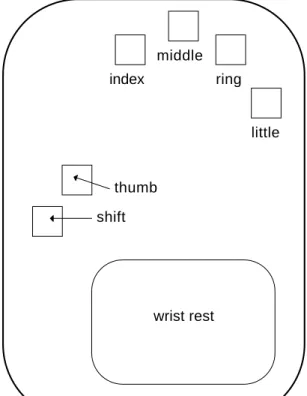
The biggest advantage of chord keyboards is that they can be made significantly smaller than a stan-dard keyboard. Each finger presses only one key, so that key can be placed in the keyboard in the most efficient position. In practice, most chord keyboards are around the size of the hand. The palm rests on an empty base, while the fingers press keys located radially around it (Figure 2.7). This setup permits a full range of text input, but at a fraction of the size, with no real loss of comfort.
The chord keyboard suffers from a similar problem to the split keyboard. Arranging each half of a split keyboard for each hand leaves an empty gap in the middle (Figure 2.3). The size of a chord keyboard is not limited by the size of the keys, since half a dozen or so small keys cannot take up much space. The problem is space between the keys. In the chord keyboard shown in Figure 2.7, most of the device is
index middle ring little wrist rest thumb shift
Figure 2.7: A generalised chord keyboard
covered by the hand or the fingers, making the device unnecessarily big. One solution to this problem is to put the keys on a small box which is held or strapped to the palm of the hand. This style of chord keyboard takes up much less space, but it can also hinder the user’s interactions when performing real-world tasks. Extra time must be spent putting the device down, or, if strapped in, it might get in the way of the user’s actions.
Another disadvantage of chord keyboards is that the fastest typists will always type faster on a stan-dard keyboard. The reason for this is key overlap. On a stanstan-dard keyboard, one often presses more than one key at a time. The key which is pressed first is entered first, but another key is in the process of be-ing pressed. That means up to ten characters can simultaneously be in the process of bebe-ing made. A one handed chord keyboard can make only one character at a time. There is no overlap. For the novice typist, this is not a problem. Novices can chord faster on a chord keyboard with less training. After twenty hours of training a one-handed chord keyboard user averages around 29wpm, while a QWERTY user averages around 20wpm. After 35 hours of use a chord keyboard levels off around 36wpm (Gopher & Raij, 1988). A further disadvantage is that it is not possible to type without training on a chord keyboard, although it is possible is on a standard one. On the other hand, learning to type on a chord keyboard is easier because the chord shapes can have some physical correspondence to the letter being created. For example, holding out only the thumb and little finger makes aYshape. If the chord forYis made with the thumb and little finger, it becomes much easier to remember. The chords for an entire character set can usually be learned within an hour (Gopher & Raij, 1988).
on a chord keyboard does not have any effect on the ability to type on a standard one. A person can switch back and forth without any problem. Touch-typing on a standard keyboard is difficult because the large number of keys and movements make it easy to miss a key. This problem is partly alleviated by most alternative keyboards. With a chord keyboard each finger uses only one key, since almost no movement is involved, it is impossible to miss a key. This is especially useful for blind, or otherwise disabled users. The benefits of reduced motion are reflected in the smaller error rates for chord keyboards.
2.2.4
Handwriting Recognition
Handwriting recognition is a particularly attractive method for text input, given the extremely wide pro-ficiency of writing in the population. In the ideal case a handwriting recognition system would be as easy to use as writing on paper. Anyone who can write could pick up the device for the first time and bypass all the time normally spent learning to use the interface. Input speeds are comparable to novice QWERTY speeds, with printing speeds ranging from 12wpm to 23wpm. Speeds for cursive writing are higher rang-ing from 16wpm to over 30wpm (Soukoreff & MacKenzie, 1995), but character recognition, even by a human, is much more difficult.
C u r i o u s e r a n d
(a) Text input by writing sequentially on the screen
Curiouser and curiouser! cried Alice (she wa
(b) Text input by writing each character in a special block
Figure 2.8: Two methods for handwriting recognition
Most handwriting recognition systems use one of two methods for input. The first is writing on the screen itself. In this method, input area is set up as a series of blanks, which are filled in sequentially, one character per blank (Figure 2.8(a)), much like filling out a form on paper. This method requires the stylus to be positioned over each character. While this may not take up much space, it may cause problems since the hand might cover up parts of the screen. It also has the disadvantages of requiring constant visual supervision. If the stylus is slightly offset from where the user thinks it is, a character could be incorrectly recognised or printed in the wrong place. Finally, the sequential method of writing translates poorly to a heads-up display, since it would require a full sized pad to write on, in addition to the display. The second method for handwriting recognition is writing in place. This consists of writing on a special block outside the main part of the screen (Figure 2.8(b)). Each character is written in the block, one on top of the next. The character is inserted on the screen at the location of the cursor, just as it is done with a keyboard. The cursor can be positioned by using the stylus as the graphic input device as well. This simplifies the recognition by adding a constraint on the position . It also avoids the problem of hand occluding the display while writing. There is the added benefit of causing less fatigue by minimising hand motions (Goldberg & Richardson, 1993). As long as the stylus starts out in the correct position, visual
supervision is unnecessary. In fact, the handwriting recognition block need not even be on the screen at all. Writing in place would translate well to a heads-up display, where characters could be written on very small pad outside of the field of vision and displayed on a monitor in front of an eye.
In addition to the two methods for handwriting recognition, many systems also include a soft key-board which can be displayed to allow an alternative to writing. This is especially useful when enter-ing less frequently used punctuation or other hard-to-recognise characters. While a soft keyboard allows faster text entry than handwriting, it is not sufficient for primary use because of the possibility of fatigue with long-term use (MacKenzie et al., 1997).
At the time of writing, handwriting recognition is far from perfect. The general agreement is that to be widely accepted, a handwriting recognition system would have to have 97% or higher accuracy (MacKenzie & Zhang, 1997). For isolated printed characters, human recognition is 96.8%, just short of what we would require from a computer. One advantage a handwriting recognition system has over a human reader in that it has temporal information as well. For example, the computer would know the difference between two very closely spacedv’s and awbecause it would have seen the stylus lift from the tablet in between characters. This could help a handwriting recognition system achieve the desired levels of accuracy.
The current state of the art for handwriting recognition yields an accuracy between 87% and 93% (MacKenzie & Chang, 1997). This falls short of the 97% needed to be widely accepted. In addition, these figures were more effected by the user’s adaptations to the quirks of device, rather than the device’s recognition techniques.
The underlying problem with handwriting recognition is that Roman characters are not well suited for computer recognition. Next two sections will discuss two handwriting recognition systems which bypass this problem by reshaping the alphabet to a much simpler form.
Unistrokes
Figure 2.9: The five basic strokes in the unistroke alphabet
Unistrokes were designed to provide a fast, easy to recognise alternative to the standard Roman char-acter set (Goldberg & Richardson, 1993). The charchar-acters are generated from a basic set of 5 different strokes, each one made by up to 3 simple motions (Figure 2.9). Each of the 5 strokes has 4 possible ori-entations and can be drawn from 2 different directions. This yields 40 possible characters that are different enough to be easily differentiated by a computer. The entire printable ASCII character set can be covered by using shift keys, or some of the other methods mentioned in Section 2.2.3 for increasing the character range for chord keyboards. Another key design factor is that unistrokes are designed specifically to use the writing in place method for character entry. This further facilitates writing for the user and character
differentiation for the device.
Unistrokes can be entered quite quickly, with a novice input speed of 34wpm. It is expected that entry rates can go as high as 41wpm for expert users. The novice rate is faster than normal printed text (12–23wpm) and is around the same speed as the upper end of the cursive entry rate (30+wpm). The unistroke character set can be learned within 10 minutes of use, but it takes a week of practice to achieve the novice input rate of 34wpm. No error rates were mentioned in the literature.
Unistrokes were intended for “power” users who would use a stylus input enough to benefit from the extra time spent learning the system. Since the handheld market was risky enough to begin with, the manufacturers of these systems had little inclination to cater to a small section of an already specialised market. While it was acknowledged that unistrokes were a good idea, there was little desire to try it.
Graffiti
Graffiti was introduced as an attempt to bring the unistroke idea of a simplified alphabet to a mass market. Instead of simplifying all the letters to the extent where text more resembles Cuniform than English, the letters of the alphabet are simplified just far enough to make them easily differentiated by a computer, but remain recognisable to a human. All but five of Graffiti’s letters have a strong resemblance to the Roman Character, and even the remaining five still retain an obvious relationship.
The benefit of Graffiti’s approach is that it is very easy to learn. The initial accuracy for the system is 86%. After five minutes of practice the accuracy goes up to 97%, which meets the above-mentioned requirements for an acceptable handwriting recognition system. With continued use recognition levels may reach up to 99%. The accuracy after one week without using the system at all is 97%, implying that the Graffiti alphabet is retained in long-term memory (MacKenzie & Zhang, 1997). Text entry rates are claimed by the manufacturer to be around 30wpm (US Robotics, 1996).
Graffiti was developed by Palm Computing as a commercial text entry system for handheld com-puters. While the Graffiti software is available for several different systems, it comes standard with Palm Computing’s PalmPilot personal organiser. The PalmPilot currently enjoys 66% of the handheld market (McCall, 1997) which shows that Graffiti has been rather successful at its intended job. However it is generally thought that Graffiti must be a short term solution to allow handheld computers to get off the ground while effective general handwriting recognition systems can be developed.
2.2.5
Glove-Based Text Entry
One of the more novel text input methods is text input via a glove-based device. These devices use one or both hands to input text by either sensing the motion involved with gestures or by detecting contact between the fingers and other fingers or a special pad. These devices tend to be quite portable because the glove is worn instead of held and consequently is lightweight and takes up very little space.
Hand Gestures
Several systems have been developed to recognise sign language. The first such device was the Digi-tal Data Entry Glove (Grimes, 1983), which was developed to recognise the letters in American Sign Language to provide a more portable and comfortable text input device. This glove used three kinds of
sensors: flex sensors on the joints to measure finger flexion, inertial sensors to detect orientation, and contact sensors to detect finger adduction and contact between parts of the hand. The basic theory was sound, but it turned out to be impractical since the contact sensors required excessively precise finger po-sitions in order to be recognised. In addition, the recognition was hard-coded into the device, preventing any adaptation to the user. While a commercial device was never built, this glove did pave the way for the DataGlove (Zimmerman & Lanier, 1987) which was partly influenced by this design.
A second system based on both Grimes (1983) and the DataGlove used sign language recognition for computer mediated communication (Kramer et al., 1991). The primary intention was to use the com-puter to help facilitate communication by deaf people by translating the hand motions of sign language into characters, which could then be spoken by a synthesised voice. However, there is nothing to prevent this system from being used purely for text input. The glove in this system, the CyberGlove, improved upon the DataGlove’s optical fibre joint sensors by using strain gauges which give more accurate joint angles over a wider range. Strain gauges on the joints of each finger and the wrist measure the flexion angles. Additional strain gauges are positioned between the fingers, and on the thumb and wrist to mea-sure adduction, abduction and opposition. This system uses an adaptive pattern recognition system to recognise the sign language characters and has been released commercially as the GesturePlusTM. An experienced user can reach input speeds of over 40wpm (Virtual Technologies Inc, 1997). Unfortunately, this requires top-of-the-line equipment at a cost of over US$10,000 (Burdea & Coiffet, 1994). Despite its high portability, the high cost of this system prevents its use as an everyday text input system.
The GloveTalk uses a DataGlove to convert the gestures of a specialised sign language into speech (Fels & Hinton, 1993). The number of words is limited, with 66 root words and 5 possible suffixes (‘-s’, ‘-ly’, etc.), but these can be created in near-real time by one hand. Since each motion is a word which must be recognised by the computer before it can be spoken, it is possible to do away with the vocal aspect of the system and use it for text input only. The major problems with such a system is low vocabulary and high cost, which limit its usability as a text input device. A later version of this device, the GloveTalkII, uses two gloves and a foot-peddle to create individual formants which can be combined to speak at a third to nearly half of the normal rate. While the speed is fast for text input, the learning time is over 100 hours, which makes it unlikely to be a widely usable text input device (Fels & Hinton, 1995).
Contact Gestures
Contact gloves are a somewhat cheaper and computationally simpler alternative to gesture recognition. These devices sense contact between fingers and either the hand, other fingers, or a special tablet. Touch-ing contacts completes a circuit between the two sensors, which is detected by the computer. The gestures which make these contacts can be converted into characters or act as function keys.
Hartwig (1978) describes a contact glove used to enter numbers. The glove has contacts on each fin-ger. These are touched against a special tablet, which is divided into 3 sections. Each section can produce one of five characters, depending on the finger which touches it. The first section contains the numbers
1–5, the second section contains the numbers6–9and0, and the third section contains the symbols+ - and=. This style of contact glove is equivalent to a keyboard which produces a different
charac-ter depending on which finger is used to press the key. There is no research indicating the performance of such devices. However, it is clear that hitting the tablet in the correct place requires visual supervi-sion. This limits the position of the tablet to where it can be easily viewed and also prevents the use of a heads-up display. As a consequence this system would be less mobile than a glove-only system.
Another contact glove, the Pinch glove makes gestures by touching fingers against each other (Holands, 1996). This is more mobile than Hartwig’s glove, since it does not require a tablet. Unfor-tunately, it can only be used for function input, since there are too few combinations to enter a decent fraction of the 100 printable ASCII characters. Using two gloves, or increasing the number of contacts on one might allow enough gestures to enter the alphabet, but it could suffer similar problems to the Dig-ital Data Entry Glove, where the finger combinations were too complex to be easily made.
In summary, glove-based text entry is extremely well suited for use in a mobile environment. The biggest drawback is the difficulty is recognising enough separate gestures to allow useful text input. Dif-ferentiation between the large number of gestures necessary for text input on a contact glove requires excessive precision, limiting their usefulness. Contact with a separate tablet allows easier gestures, but at a loss of mobility. Gloves like the CyberGlove, which sense the full orientation of the hand, can be used to recognise existing sign language for text input, but the prohibitive cost of these devices precludes their everyday use.
2.2.6
Voice
In some ways voice is the ideal text input device. A microphone takes up practically no space, has neg-ligible weight, and is completely hands-free. It can be used just as easily in almost any environment and conditions. It is also much faster than most other text input devices, with an input speed on the order of 150wpm (Dragon Systems, 1998). However, the technology is based on pattern recognition, which limits its usefulness.
Speech recognition systems perform a number of steps in converting an individual utterance into a word (Scahill et al., 1996). First, the utterance is divided into individual sound units called phonemes. The phonemes are then decorrelated to extract certain features. This simplified model of the utterance is compared to a known vocabulary, from which the most appropriate match is selected.
The last step of this process shows the two main sources of trouble for speech recognition systems: vocabulary and accuracy (Hunt, 1997). The vocabulary size needed to use a speech recognition system as a general text input is between 5000 and 60,000 words. One existing commercial system, the Dragon NaturallySpeakingTMDeluxe, can maintain a 30,000–50,000 word active vocabulary, and a total
vocab-ulary of 230,000 words (Dragon Systems, 1998). The need to change vocabularies and the potentially high memory use are relatively minor problems brought about by the size of the active vocabulary. The main problem is the difficulty of recognition: the more words there are to choose from, the more difficult it is to differentiate between them.
A high accuracy is essential for a speech recognition system. Not only does the system need to cor-rectly recognise the words, but it also needs to reject invalid input (coughs, “um”s, etc.). Consequently, a system must have a rejection threshold. This is the point at which, if the match is not good enough, the
utterance is ignored. This leads to three different kinds of recognition errors. The first is a substitution
error, which is made when a valid utterance is incorrectly interpreted as a different word. A second error
is an insertion error, which is made when an invalid utterance is mistakenly identified as valid input. The last error is a deletion error, which is made when the quality of a valid utterance is below the threshold, and it is considered invalid (Johnston, 1996).
Setting the rejection threshold too low will cause more false acceptances (substitution and rejection errors), allowing potentially harmful events to occur, e.g. confusing “(cough) read file” for “delete file”. Alternatively, setting the threshold too high will cause more false rejections (deletion errors), annoying the user either by ignoring their input or by constantly asking them to repeat themselves. Consequently, for speech recognition systems, high accuracy is not enough. The systems must also have a good method for safely handling errors.
Another problem with speech recognition system is the issue of privacy. Privacy is not much of an issue in a working environment. In a work environment, a mobile computer would be mostly used for in-put tasks such as inventory or damage control, or communication tasks, such as accessing an information database to assist in performing some work. In either case, voice control is useful, and allows the user to work hands free. Vocal text input is ideal for these situations.
The problem arises in personal computing. The nature of mobile computing means the computers are just as likely to be used in a public environment as not. In general, one is unlikely to want to write sensitive work-related or personal documents in public. Even if the speech recognition was performed flawlessly, people would still want some private way of interacting with the computer. For a computer which is likely to be used in public, the option of non-vocal input is necessary, even if it is only used as a backup.
2.2.7
Summary of Text Input Devices
The QWERTY keyboard is extremely popular as a text input device due to the momentum built up from over a hundred years of use. However, the QWERTY’s design is not ergonomically sound. The hands are held close together with the wrists extended and bent outward. This has been linked to cases of RSI in full sized keyboards. If the QWERTY is shrunk, the strained conditions are made even worse, giving more potential for injury. The poor ergonomics of the QWERTY and the rising popularity of mobile computers has caused a surge of alternative methods for text entry.
Ergonomically designed keyboards tend to solve the QWERTY’s problems by repositioning the keys for maximum efficiency when touch typing. This is usually done by separating the keys in some manner, which has the side effect of making the keyboard bigger. While this might be a great benefit for people working in office conditions, it makes the problem of mobile computing even worse.
Part of the problem of the poor ergonomics of a shrunken QWERTY can be solved by using a soft keyboard. These devices can be adjusted on the fly to fit the ergonomic needs of the user. However, this is rarely done in practice, and instead the more popular solution is to use a stylus to tap the keys, one at a time. This reduces the strain of touch typing in such a small area, but text entry speeds are significantly reduced. These facts lead to the conclusion that conventional keyboards are undesirable for mobile
com-puter inputs. Soft keyboards, on the other hand, are adaptable enough to make them a useful backup text input.
Chord keyboards have a comparatively small number of keys, allowing touch-typing in confined areas without reduced comfort. A chord keyboard is not as fast as a desktop keyboard for an expert, but it can achieve quite reasonable speeds for novice users, and with less training than a keyboard. The 36wpm expert speed on a chord keyboard is roughly the same as the higher end of expected speeds on most handwriting systems. Chording does have the advantage of being potentially less fatiguing than handwriting systems since there is minimal movement and no stylus needs to be held. The biggest hurdle to overcome with chord keyboards is that the keymap must be learned before it can be used, even though the alphabet can usually be learned within an hour. But, if we can learn anything from unistrokes it is that the market is very hesitant to embrace such a technology.
Modern handwriting recognition systems are not flexible enough to analyse general handwriting. Instead the most effective systems require the user to learn a simplified alphabet, like Graffiti. Writing in place at the end of the workspace removes the need for moving the wrist and minimises the finger work. While this is slower than a desktop keyboard, it is less fatiguing, and remains one of the best options for a mobile interface.
Glove-based gesture systems are also highly portable, but they suffer from excessive cost or poor accuracy. Contact gloves are affordable enough for everyday use, but they are might not be accurate enough to recognise the large number of gestures needed for text entry. Gloves which can sense the full orientation of the hand can learn to recognise enough gestures for text entry, but these are too expensive for casual use.
Speech recognition systems provide an extremely portable, hands-free text input method. As of this writing the widespread use is limited primarily by the vocabulary size and accuracy of these systems. These are purely technological constraints which may be solved in the near future. However, even with near-perfect accuracy, recognition errors are inevitable, thus necessitating a safe method for avoiding po-tentially damaging misinterpretations. While speech recognition is a useful text input method, there are situations in which vocal input is inconvenient or undesirable. Consequently, it is a good idea to back up voice input with a silent text input alternative.
As it stands, a handwriting system using a simplified alphabet, speech recognition, a contact glove with a tablet, or a chord keyboard, are the text inputs most suited for use with a mobile computer. The handwriting system, speech interface, and chord keyboard are effective on a heads-up style system while conventional handwriting and the contact glove are more effective on a notepad-style system. The next step in designing a mobile input is to look at the options for graphic input devices and determine which of them can work effectively in a mobile environment.
2.3
An Overview of Pointer Input
Numerous pointer input devices have been developed over the last few decades as a result of the trend in computers to a more graphically oriented interface. Most of the more recent developments with pointers take advantage of the advancements in computing power and miniaturisation. But the most recent spurt
in novel pointers has grown from the need for a device which works effectively in a mobile environment. Many of the design criteria for text input devices also apply to graphic input devices. For example, the ideas of minimising work and using tactile or auditory feedback make as much sense for pointing as the do for typing. Consequently, in this section, we will be concentrating more on the factors which limit portability, and the performances of the devices.
With text input devices, performance was judged quantitatively, primarily by a device’s input speed. It is necessary to use a similar quantitative method for comparing the performance of graphic input de-vices. In the early 1950’s Fitts developed a method for measuring the performance of human motion. While this was originally applied to ergonomics and kinematics, Fitts’ law has been adopted into the field of Human Computer Interaction as a tool for comparing graphic input devices.
2.3.1
Fitts’ Law
Fitts’ law is an application of information theory to motor coordination which provides a metric for com-paring various graphic input devices in simple pointing tasks (MacKenzie, 1992). The model is based on Shannon’s Theorem 17, which describes the information capacity of a channel with a finite bandwidth
in terms of signal power and noise power :
(2.1) The bandwidth is measured in Hz and the capacity is measured in bits per second.
Fitts applied this law to human motor coordination by finding the appropriate analogues for the terms. Channel capacity becomes the index of performance, IP. The inverse of the bandwidth ( ) becomes the movement time, MT, which is the time it takes to perform a specific motion. The strength of the signal becomes the amplitude of the motion . The noise in the signal becomes the width of the destination of the motion. The yields the modified equation:
(2.2) where Fitts’ logarithmic term of replaces Shannon’s logarithmic term. The 2 is an arbitrary constant to ensure that IP is positive when the motion starts outside the destination region.
The term in the numerator is the log of the ratio of the size of the motion to the size of region in which it ends. This is called the index of difficulty (ID):
(2.3) Using this term, Fitts’ law can be rewritten as:
(2.4) Since ID and MT are known terms, this equation can be solved directly. However the results are somewhat lacking as it does not provide a term for reaction time, which turns out to be necessary.
Equation 2.4 can be rewritten, solving for MT, as:
which can, in turn, be solved by performing a linear least squares fit on the known variables, ID and MT:
(2.6)
where is the reaction time and IP = .
By using Equation 2.6, the index of performance of a graphic input device can be found. IP, as we recall, is measured in bits/s. Applying this to an input device tells us how fast information can be sent from user to computer. This yields a useful method for comparing effectiveness of various graphic input devices.
Note that the term in ID is unitless, and is unchanged under any scaling. This means that the time it takes to perform a motion (MT) is independent of the scale of the device. This is limited to situations involving the same Index of Performance. If the system is scaled up to the point where new muscles are involved in the action, a new IP is involved. This is why tapping on a soft keyboard with a stylus is equally fast, regardless of the size of the keyboard. A small soft keyboard would require motions from only the wrist, while a large one would require motion mostly at the elbow. These actions have differing IPs (Balakrishnan & MacKenzie, 1997) and thus would take different amounts of time to perform.
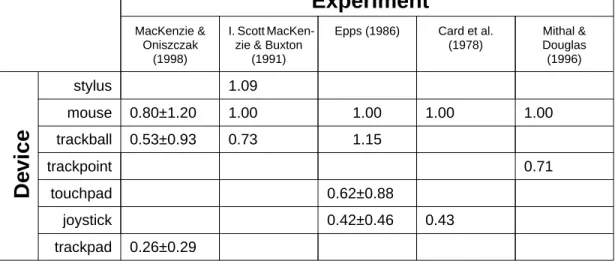
Unfortunately there are some problems of consistency from experiment to experiment when using Fitts’ Law. Different experimental setups can give widely ranging values for the same device. For exam-ple, in different experiments, the mouse has been found to have an IP as low as 2.6 and as high as 10.4 (MacKenzie, 1992). Fortunately, the ratio of IPs is more or less constant from experiment to experiment. For example, in the experiments above the joystick was found to have IPs of 1.2 and 4.5 respectively. This gives joystick to mouse IP ratios of 0.46 and 0.43, which are very close. As a consequence of this, ratios of IPs should be used to compare the performances of devices checked in different experimental setups. In this thesis we will be using a “normalised” version of Fitts’ law in which the performance is calculated by the IP of the device divided by the median value of the IP for the mouse, as calculated in the same experimental setup. In other words:
mouse
(2.7)
The mouse was chosen because of its widespread use and relatively high performance. This method is used in Table 2.1 to rate the performances of various common graphic input devices.
It is obvious that a consistent standard for rating graphic input devices is necessary. At the time of this writing, the International Organisation of Standardization is working on ISO 9241-9: “Requirements for non-keyboard input devices”. This is still in the committee draft stage, but it is expected to propose a method based on Fitts’ Law for comparing graphic input devices (MacKenzie & Oniszczak, 1998). In this proposal, the Index of Performance (IP) is renamed Throughput (TP), and a set of consistent rules for measuring it are laid out. Unfortunately, nothing official has been published. As a consequence it is only included here as a reference for future research. All comparisons of graphic input devices in this thesis will be based solely on Fitts’ law as described above.
Experiment
MacKenzie &Oniszczak (1998)
I. Scott MacKen-zie & Buxton
(1991)
Epps (1986) Card et al. (1978) Mithal & Douglas (1996) stylus 1.09 mouse 0.80–1.20 1.00 1.00 1.00 1.00 trackball 0.53–0.93 0.73 1.15 trackpoint 0.71 touchpad 0.62–0.88 joystick 0.42–0.46 0.43
De
vice
trackpad 0.26–0.29Table 2.1: A comparison of the normalised performance of six graphic input devices. The performance value is the ratio of the device’s IP to the median IP calculated for the mouse in the same experiment.
2.3.2
Arrow Keys
The earliest personal computers were almost entirely text-based and had little graphic capability. Arrow keys located on the keyboard were used for pointer control. There are various methods for interaction with arrow keys, the most common of which is step keys. These move the cursor up or down one line and back or forward one character. In a graphic environment step keys move the pointer one or more pixels, the size of the step often changeable by either another set of keys, or as a function of the duration of the key press. Jump keys are designed for a more specific type of environment. Jump keys move the cursor to one of a series of predefined areas on the screen. This is often used in hypertext applications to jump between links. It has been shown that jump keys are faster and more preferable than using a mouse in a text-only hypertext system (Greenstein & Arnaut, 1988). This has not been proven for complicated text and graphic windows-based environments.
The simplicity of arrow keys makes them a very versatile graphic input method. Arrow keys can be made very small to fit various sized devices, while still retaining the same level of usability. While arrow keys are not terribly fast nor efficient for general graphic interaction, they do make a decent backup pointer control. There is no Fitts Law data for the performance of arrow keys.
2.3.3
Joystick
A joystick is a vertical handle mounted on a base, usually with one or more buttons used for selection. A displacement joystick uses potentiometers or similar technology to measure the displacement of the handle from the normal position. This is translated to a magnitude and direction. Springs are often used to move the handle back into its normal position. An isometric joystick uses strain gauges to measure the force on the handle. The handle itself does not move. A switch activated joystick or joyswitch uses a set of switches, evenly spaced around the handle, when the handle is moved in one of the directions, one or more switches are activated determining the direction, but not the magnitude of the motion.
The popularity of video games in the late 70’s and early 80’s brought joysticks to a mainstream au-dience. Joysticks were occasionally used on home computers, usually for games since there were very
few other graphical applications. Joysticks work best for navigation and low-precision pointing (Green-stein & Arnaut, 1988) which, while excellent for games and visualisation, compare poorly to mice when performing higher precision tasks such as drawing. As a consequence, joysticks for personal computers remains a primarily niche market.
Standard joysticks are not easily used in a mobile environment because the shaft needs a large enough base to provide leverage. If the base is too light compared with the forces required to operate the joystick, the base will simply move with the joystick, preventing any motion. One solution to the miniaturisation problem which has become popular in recent years is the microjoystick, one common version of which is called the trackpoint. This device is a finger-controlled isometric joystick shrunk down to the size and shape of a pencil eraser. This is embedded in a board and operated with the thumb or index finger. Its small size makes it more difficult to use and beginners may have a very hard time using it. Part of the difficulty stems from the high gain of the device. Since it is so small, the forces applied to the device need to be amplified by a large amount to be turned into pointer motion. This does not just amplify the motion, but also the natural vibrations, or tremors, in the finger, which are too small to be seen using most other input devices (Mithal & Douglas, 1996). Despite these problems, the trackpoint has a large advantage in that it takes up only around a square centimeter of work space. As a consequence, the trackpoint has recently become widely available as a graphic input for notebook computers. Note that the IP for the trackpoint is different from the IP of a normal-sized joystick since different muscles are used (Table 2.1).
2.3.4
Trackball
A trackball is a small ball placed inside a fixed housing. The ball is free to rotate in the socket and is usually manipulated by the thumb, index finger, or the whole hand, depending on the size of the device. Rotating the ball causes the pointer to move in the direction of rotation. Switches located near the trackball are used for selection.
The most commonly used trackballs allow all the work to be done by the fingers. This tends to be more comfortable than devices such as the mouse or full-sized touchpads because the hand does not move. Tactile feedback is provided by the motion of the trackball itself. The fingers can feel the speed and di-rection of the rotation, giving them better control of the pointer than visual supervision alone. Trackballs work best for pointing and selection as well as manipulating symbols (Greenstein & Arnaut, 1988). This makes them appropriate for operating a menu and desktop style GUI.
Trackballs are well suited to a mobile environment. They can be made very small, allowing them to be embedded in a handheld computer sized base. One drawback is the relation between the selection switches and the trackball. If the same finger is used to move the ball and press the buttons, it is possible that these actions might interfere, since the same muscles are used for both (MacKenzie & Oniszczak, 1998). This is especially a problem with click-and-drag tasks, where holding the button down might get in the way of moving the ball.
2.3.5
The Mouse
A mouse is a small, hand-held device which is dragged along a surface. Moving the mouse causes the pointer on the screen to perform a corresponding motion. Selection is performed by one or more buttons
at the end of the mouse. There are two basic kinds of mice: optical and mechanical. A mechanical mouse has a small ball on the underside. Dragging the mouse across a surface rotates the ball, determining the motion of the pointer. The moving parts in a mechanical mouse make it prone to errors by picking up lint or other small particles. An optical mouse requires a special mouse pad imprinted with a fine grid. The mouse counts the number of lines it passes horizontally and vertically, usually by means of an LED and optical sensor. The rate at which it passes lines on the grid determines the pointer motion. An optical mouse has no moving parts and is much less prone to errors (Greenstein & Arnaut, 1988).
Much research has been done on the ergonomics of the mouse. A mouse must be textured to avoid the hand slipping (Abernethy & Hodes, 1987). The mouse must also have buttons which require enough activation force that the fingers can easily rest on them without accidently pressing them. The mouse should also be broader at the end with the buttons to accommodate finger spread (Greenstein & Arnaut, 1988).
A mouse cannot be made effectively smaller than it is. The device itself can be shrunk, but the space needed to use it cannot without a loss in performance. Excessive amplification of a mouse can lead to a tremor problem similar to that found in the trackpoint (see Section 2.3.3). As a consequence the mouse will remain usable as desktop input device only, and cannot be made suitable for a mobile environment.
2.3.6
Trackpad
Trackpads have evolved from graphic tablets, which have been around since the 70’s. These were never very widespread until they were applied to portable computers, where they found their niche. A trackpad is a small, touch sensitive region a few square inches in area, usually located just below the keyboard. It works by measuring the change in capacitance caused by the user’s finger on a grid of electrodes . The finger’s touch can be detected at each node, which works out to 250 points per inch resolution (Andrews, 1994). Other input methods exist, such as conductive devices, or infrared or acoustic (Greenstein & Ar-naut, 1988). The former uses two conductive layers made of electrode grids, which work by touching when pressure is applied. This can be made with the highest resolution and detects any pressure, not just a finger. Infrared and acoustic devices tend to be low resolution and are not very common for mobile devices.
Selection with touchpads is commonly done by one of two methods. The first is to have an external button which is pressed with another finger, or by moving the pointing finger from the trackpad. This method tends to be slower and suffers similar problems to the trackball of muscle interference. The sec-ond method is often called lift and tap. After the finger moves the pointer over the proper location, the finger is quickly lifted and returned to the pad. This is faster than using an external button (MacKenzie & Oniszczak, 1998). Both methods suffer from jitter. Lifting the finger from the pad can be interpreted as a slight motion, meaning that the selected point is not exactly where the user wants it to be. If selection is performed by using another finger on a separate button, the jitter problem is avoided. Another prob-lem touchpads suffer from is the lack of tactile feedback. This can be compensated for in software by an audible or visual indicator, so the user knows selection has been occurred. Alternative selection methods exist, but are not as common. One method uses pressure deviations to differentiate between light touches
(dragging the pointer) and hard touches (selection) (Greenstein & Arnaut, 1988). This can be adapted to provide a tactile “click” when pressed, thus providing tactile feedback. The tactile version has been shown have 25% higher IP than the lift-and-tap method (MacKenzie & Oniszczak, 1998).
Trackpads have the advantage of having no moving parts. This makes them less prone to collecting dirt, easier to clean, and more adaptable to the hostile environments one is likely to encounter with a mobile computer (Greenstein & Arnaut, 1988).
2.3.7
Touch Screens
A touch screen is just a transparent trackpad overlaid on top of a display. This is a very common in-put method for tablet and handheld comin-puters. Both touch screens and trackpads tend to be both just as easy to use, with certain advantages and disadvantages for each. Trackpads have the advantage over touchscreens that the finger or hand does not obscure the display, allowing interaction with no visual su-pervision. On the other hand, separating the display and input pad takes up valuable workspace, and a device with integrated input and output is more intuitive to use. CRT-based monitors have trouble with drift, which would make a touch screen very difficult to use (Greenstein & Arnaut, 1988). However, this is not a problem with mobile systems since they tend to use liquid crystal displays, which do not suffer from drift.
2.3.8
Stylus
The problem of occluding the display of a touch screen is magnified by the small size of mobile displays. One solution to this problem is to use a stylus instead of a finger. The stylus tends not to occlude the display as much, and gives a sharper point for more accurate pointing. Using a stylus is less work than moving a finger or hand, making interacting faster and less tiring (Greenstein & Arnaut, 1988). Using a stylus also allows one to merge the graphic and text input into one device simplifying interaction (see Section 2.2.4). A stylus can also be effectively used on a trackpad with a heads-up display. This tends to lead to the conclusion that, in a mobile environment, it is more efficient to operate a touch screen or a trackpad with a stylus than with a finger.
2.3.9
Gesture, Eye Tracking, and Voice
There are other, less common, graphic input techniques which can easily be adapted for use in a mobile environment. In this section we will focus on gesture, eye tracking and voice as graphic input. These are not very popular at the moment, usually due to expense or poor usability, but advances in technology may make them cheap and usable enough to provide a viable input method.
Gesture
Gesture input is usually done via glove or body-based motion trackers. This generates 3D position data, which are recognised as gestures which manipulate 3D objects. The nature of the input devices makes gesture input very mobile. In addition, glove-based devices which can be used as graphic input can also be used to interpret gestures as text input (See Section 2.2.5).
Most body-based or glove based motion trackers are too expensive to be used for the 2D GUIs com-mon on modern mobile computers. Until a virtual reality GUI becomes feasible for mobile computers,
using these devices for graphic input is overkill. However, a simplified glove system may be more suit-able to 2D output. Instead of full 6 degree of freedom (DoF) tracking with wrist and finger joint recogni-tion, one could only measure the motion of one or two fingers or just the wrist. This would make a glove interface much more suited for a conventional 2D environment.
Eye Tracking
Most eye tracking uses sensors to recognise and track features on the surface of the eyes to determine the viewing direction. Selection is performed either by a separate button or dwell time (Greenstein & Arnaut, 1988). Selection by dwell time is done by leaving the pointer in roughly the same place for a specific short period of time. This can have problems in a windows-style or hypertext GUI. The user cannot look at a hot area such as an icon, button, or menus for too long without activating it. In a windows or hypertext environment, there are usually many such hot areas all over the display, This means that the user can only glance at these objects to avoid risk of accidental selection. This is sometimes referred to as the “Midas Touch” problem (Gips & Oliveri, 1996). Selection with dwell time also prevents click-and-drag and double-click options.
Eye tracking also tends to have problems with locating small targets because of involuntary eye mo-tion. In general, because of the potentially small size and low encumbrance, eye tracking is well suited to a mobile environment, but since it is less accurate and more expensive than the alternatives it would only suffice when no other graphic input is an option.
Voice
Voice input is very common with wearable computers because of the small amount of unintrusive hard-ware required. Speech recognition is well adapted to be usable as a text input, but is not nearly as well suited to general graphic manipulation (Hunt, 1997). It tends to work best for menu selection, or other constrained tasks. Drawing and similar activities are rather difficult (a picture is worth a thousand words), making speech-based input graphic devices rather inefficient.
2.3.10
Bioelectric-Controlled Input Devices
A bioelectrically controlled device would be especially convenient as a graphic interface for a mobile system. One advantage is that the sensors can be remote from the motions they detect. For example, finger motions can be sensed by electrodes on the forearm (Hiraiwa et al., 1993). This, plus the small size of the sensors, allows such a system to be discrete, even possible to be hidden underneath clothing. Another benefit is that one can learn to interact with the device through biofeedback. By this process, the computer effectively becomes an extension of the user’s body. In order to understand how these devices can work, we must go into detail on the physiology, methods for measuring, and safety issues involved with bioelectric signals.
The most common bioelectric signals which can used for input devices are the electromyogram (EMG), electroencephalogram (EEG), electro-oculogram (EOG) and Galvanic Skin Response (GSR). These are not the only options, but just the most common. In this section we will describe these sig-nals, focusing particularly on their usability for controlling a graphic input device. Special attention will
be paid to Electromyography.
Electromyography
0mV Resting membrane potential After-potentials Positive Pre-potential Spike NegativeOvershoot
-+
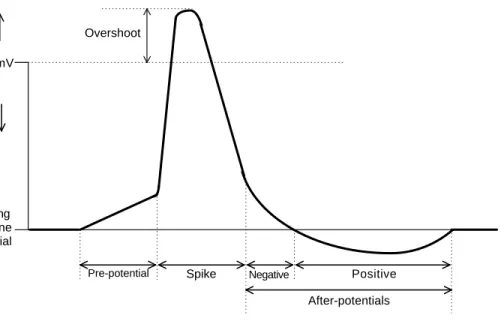
Figure 2.10: Diagram of an action potential and its important features. Based on a diagram in Geddes (1972)
Electromyography is the reading of action potentials generated by muscle use. When a single muscle fibre is excited, a wave of charge propagates down the cell membrane, causing the muscle to contract. When the potential of a point on the fibre is measured, it yields a curve of the form seen in Figure 2.10.
The action potential starts at a small negative voltage called the resting potential. In the pre-potential period, the voltage slowly increases until it shoots up during the spike. The maximum potential of the spike is usually a small positive voltage called the overshoot. The period after the spike and before the membrane potential returns to its resting potential is called the after-potentials which can have two parts. The negative part of the after-potential is the slow decrease from the end of the spike to the resting po-tential. Sometimes the after-potential falls below the resting potential for a short period. This is called the positive.
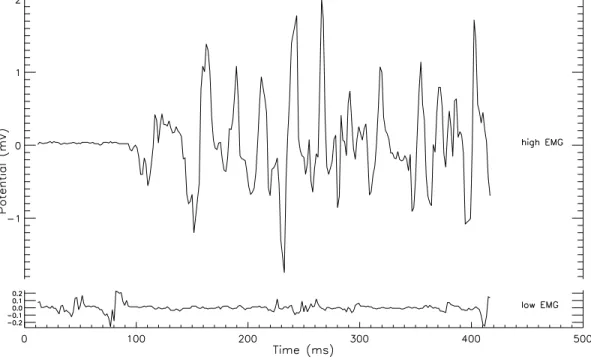
A muscle is made up of many fibres and its EMG is generated from the sum of the action potentials of all the excited fibres. Light muscle use excites only a small number of fibres, yielding a few clear action potentials. A fully contracted muscle uses many fibres, generating several overlapping action potentials, yielding a seemingly random, cluttered, complex waveform (Figure 2.11).
Reading signalsElectromyograms can be read either directly via depth electrodes or through the skin via surface electrodes. Depth electrodes are inserted subdermally and come into direct contact with the muscle. These have a clear, well defined EMG, requiring less amplification and filtering. However, the health and safety issues involved with the daily application of needle electrodes preclude their use as a casual computer input device. Surface electrodes are placed on the skin directly above a muscle. The EMG is weaker and noisier than from depth electrodes due to signal damping from the skin. It is also harder to read the EMG of deeper muscles with surface electrodes. The problems with surface electrodes