Avnet Programming Utility
User Manual
Table of Contents
1.0
Introduction ... 4
2.0
Installation... 5
2.1
Installing Host Software ... 5
2.2
Installed Files... 8
2.3
Uninstalling the Avnet Programming Utility... 9
2.4
Installing the USB Driver ... 9
2.5
Updating an existing USB Driver ... 14
3.0
AvProg Host Interface... 20
3.1
Default Interface and Common Controls ... 20
3.1.1
Main Menu – File ... 20
3.1.2
Main Menu – Options ... 21
3.1.3
Main Menu – Mode... 22
3.1.4
Main Menu – Help ... 22
3.1.5
Serial Console Controls ... 22
3.2
Configure FPGA Mode Controls ... 23
3.2.1
Bit File Controls ... 23
3.2.2
Configure FPGA ... 23
3.3
Program SPI Flash Controls ... 25
3.3.1
SPI File Controls... 26
3.3.2
ID Check... 27
3.3.3
Bulk Erase ... 27
3.3.4
Program... 28
3.3.5
Read ... 28
3.3.6
Verify ... 29
3.4
Program Parallel (BPI) Flash Controls... 29
3.4.1
BPI File Controls... 30
3.4.2
Load Server ... 31
3.4.3
ID Check... 32
3.4.4
Bulk Erase ... 33
3.4.5
Program... 33
3.4.6
Read ... 34
3.4.7
Verify ... 34
4.0
Known Issues... 35
5.0
Appendix I – File Format for Serial Flash Device Specification... 36
6.0
Appendix II – AvProg Spartan-3A Eval Quick Start Guide ... 38
6.1
Configure the FPGA ... 39
6.2
Program the Spansion SPI Flash ... 40
6.3
Program the Spansion BPI Flash ... 41
Figures
Figure 1 – AvProg Installation Welcome Dialog ... 5
Figure 2 – AvProg Installation Setup Dialog ... 6
Figure 3 – AvProg Installation Group Dialog ... 6
Figure 4 – AvProg Installation Completion Dialog ... 7
Figure 5 – AvProg Default Installation Folder ... 7
Figure 6 – Found New Hardware Wizard Dialog ... 9
Figure 7 – Hardware Wizard for Avnet_Sp3A_Demo Dialog ... 10
Figure 8 – Hardware Wizard Search and Installation Dialog ... 10
Figure 9 – Hardware Wizard Type Dialog... 11
Figure 10 – Hardware Wizard Have Disk Dialog ... 11
Figure 11 – Hardware Wizard Install From Disk Dialog ... 12
Figure 12 – Hardware Wizard Locate File Dialog ... 12
Figure 13 – Hardware Wizard Install From Disk Dialog ... 13
Figure 14 – Hardware Wizard Device Driver Select Dialog ... 13
Figure 15 – Hardware Wizard Completion Dialog ... 14
Figure 16 – Windows Found New Hardware Message ... 14
Figure 17 – AvProg Initial Interface ... 20
Figure 18 - Communication Properties Dialog... 21
Figure 19 – Board not connected Warning Dialog... 22
Figure 20 – Bit File Controls ... 23
Figure 21 – Bit File ready to Configure ... 23
Figure 22 – FPGA Device Warning Dialog ... 24
Figure 23 – AvProg SPI Mode... 25
Figure 24 – SPI File Controls ... 26
Figure 25 – SPI File Ready for Programming... 26
Figure 26 – SPI Program Erase Warning Dialog ... 28
Figure 27 – SPI Read Overwrite Warning Dialog ... 28
Figure 28 – SPI Read Byte Count Warning Dialog... 29
Figure 29 – AvProg BPI Mode... 29
Figure 30 – BPI File Controls ... 30
Figure 31 – BPI Server ready for Loading ... 31
Figure 32 – BPI Server Banner ... 32
Figure 33 – BPI Server ID Check ... 32
Figure 34 – BPI Server Bulk Erase... 33
Figure 35 – BPI Program Erase Check Dialog ... 33
Figure 36 – BPI Server File Program Confirmation ... 33
Figure 37 – BPI Read Overwrite Warning Dialog ... 34
Figure 38 – BPI Byte Count Warning Dialog ... 34
Figure 39 – BPI Server Read ... 34
1.0 Introduction
This manual describes the installation, components (installed files) and operation of the Avnet Programming Utility (AvProg). The Avnet Programming Utility allows an operator to connect a host computer to the Spartan-3A Evaluation Board using a standard USB cable. Once the connection is made, the AvProg host interface (GUI) can be used to program the:
1. Xilinx FPGA
2. Spansion Serial Flash Memory 3. Spansion BPI Flash Memory
The utility communicates with the board via a USB cable, using a standard Windows USB driver. The driver must be associated with the USB device (the Avnet Spartan-3A Eval board) whenever it is plugged in to a new USB port on the Windows host. This procedure is covered in the Installation section.
Following the installation section is a detailed description of all of the AvProg controls. You may want to read through this section to familiarize yourself with all the capabilities of the program, or you can simply refer to this section later as needed. If you would like to get started quickly with your new board, refer to the Quick Start Guide in the Appendix. This section covers only the steps and controls needed to program the FPGA or flash memory.
For board specifications and documentation, as well as reference designs, please refer to the Avnet Design Resource Center at:
2.0 Installation
The software installation package for the Avnet Programming Utility is delivered as a single compressed file. Initial installation is a two step process, consisting of first running the self-extracting executable installer program, and then plugging the Spartan-3A Evaluation board into a host USB port to activate the Windows New Hardware Wizard to install the USB driver. The installer package includes all of the required software components for the utility. The naming convention for this file is:
AvProg_vnnn_setup.zip
The “vnnn” sequence represents the version number of the installation package, and at the time of writing the current version is 340, corresponding to AvProg version 3.4.0. New releases of the software package will be posted to the Avnet Design Resource Center as they become available, so it is good practice to check the website periodically to ensure you are working with the latest software. The Avnet DRC can be accessed at:
http://em.avnet.com/drc
Installation of the software is supported on Windows XP and Windows Vista Operating Systems.
2.1 Installing Host Software
1. Copy the compressed installation file to a folder on your Windows host that does not have any spaces in the entire path name. This path restriction applies only to the installation software, and not the program itself. 2. Extract the installation files from the archive using the Windows built-in compress/uncompress utility, or a
third-party package such as Winzip.
3. Double-click on the self-extracting executable (setup.exe) and follow the installation instructions as shown below. It is highly recommended that you accept all the installation defaults.
A. Click the OK button to begin the installation. If you wish to cancel the install at this time, click the Exit Setup
button.
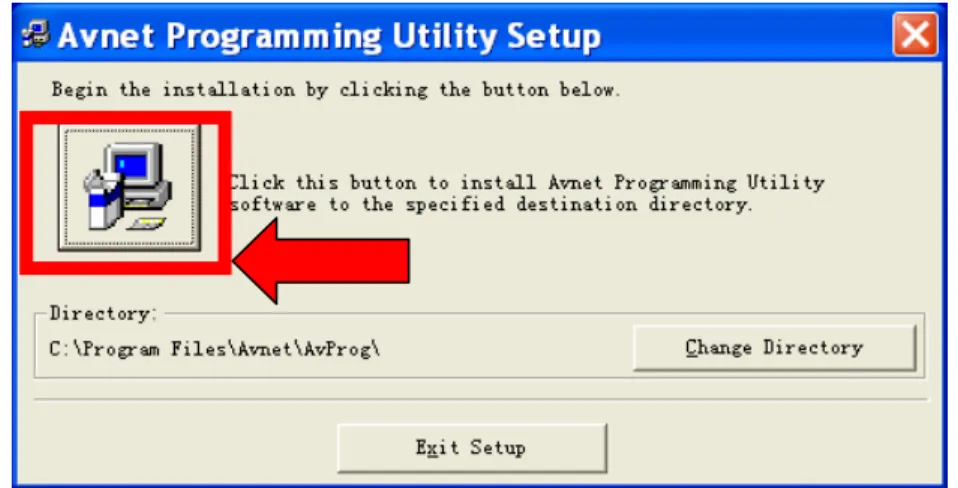
B. It is highly recommended that you accept the default installation directory, so that all Avnet programs will be found in the same location on your host machine. However, if you do wish to change the target folder, click the Change Directory button.
To cancel the installation at this point, click the Exit Setup button. To proceed with the installation, click the button highlighted below.
Figure 2 – AvProg Installation Setup Dialog
C. Click the Continue button to accept Avnet as the Program Group.
D. The installer will copy the required files from the package to your target folder. Once installation is complete, click OK to exit the installer program.
Figure 4 – AvProg Installation Completion Dialog
E. If you accepted the default installation folder, you will find the installed files located at:
C:\Program Files\Avnet\AvProg
2.2 Installed Files
This section contains a description of the files and folders in the installation directory
Appface.dll
A third-party library providing skinning services to the host interface. This library is bound to the host interface executable, and cannot be used with any other program. Skins allow a standard Windows application to be customized by applying non-standard colors and controls, such as gel-style buttons.
AvProg.exe
The Avnet Programming Utility executable file. The application can be launched by double-clicking the file in windows explorer, or by using the Windows Start menu to select:
Programs | Avnet | AvProg
Avt_s25fl128p_64kb.sfhThis is a text file containing specifications for the Spansion serial flash used on the Spartan-3A Evaluation Board. The AvProg program can access any .sfh file in the installation directory to obtain the device-specific parameters necessary for serial flash programming. This file can be used as a template for creating a new file to support a different serial flash device, without the need to modify the AvProg executable.
Blink4.bit
A pre-built reference design for the Spartan-3A 400 FPGA. On download, this design simply blinks the 4 user LEDs on the Spartan-3A Evaluation board. Use AvProg to download this simple bitfile (hardware only, no processor) to test the USB connection between the host and the board.
Bpi_server_v036.bit
This is a MicroBlaze design that is loaded into the FPGA when AvProg is placed in the BPI Programming Mode. In this mode the host program acts as the client and communicates with the server to perform BPI operations such as ID check, Erase and Programming. AvProg will check the version of the server once it is running to ensure it is compatible with the version of the host software you are using.
Ledflash4_cclk_6.bin
The Blink4.bit design, formatted for programming in the BPI flash.
Spartan3AEval_PSoc_Firmware_v101.hex
This is the software that runs on the Cypress PSoC. It is pre-loaded to the device, so there should be no need to use this file. If at any time you change the firmware in the PSoC, you can use this file to restore the original factory settings, which are required to communicate with AvProg. The host program will verify that the correct version of the firmware is installed before any communication with the board can be initiated by the operator.
ST6UNST.LOG
This is a log file created by the installation package, to be used by the Windows Add/Remove Programs Utility when uninstalling this package. Do not modify this file in any way. However, if you experience issues with the installation – such as missing files – you can look at the contents of this file to determine the cause of the problem.
Driver\USBcdc_XP_Vista.inf
This is an installation file for the USB driver for Windows XP or Windows Vista. You will point the Windows Hardware Wizard to this file during the driver installation, initiated the first time you plug the board into a new USB port on your host.
Driver\usbser_AvProg.sys1
This is the driver file for Windows XP. This file is referenced by the .inf file during the installation.
Skins\*.urf
The Skins folder contains files used by the Appface.DLL library to customize the look of the AvProg interface. Do not change the location of this folder, and do not modify, rename or delete any of the files contained therein.
2.3 Uninstalling the Avnet Programming Utility
To remove the Avnet Programming Utility from your host system, activate the Control Panel from the Windows Start menu and select the Add/Remove Programs Utility.
From the list of installed programs, highlight Avnet Programming Utility, click the Change/Remove button and follow the dialog instructions.
2.4 Installing the USB Driver
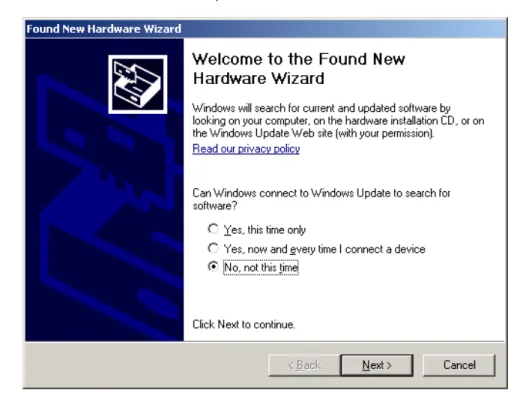
The first time the Spartan-3A Evaluation Board is plugged into a new USB port on a host system, the new hardware will be detected and the Windows New Hardware Wizard will activate. This device uses a standard USB driver that is already installed on the Windows host, but it must be associated with the device using an installation file. The installation file has been provided in the Drivers folder in the installation directory.
The following items show the steps for activating the USB driver on a Windows XP system. If you are using a Windows Vista host, the steps are not identical, but are similar enough that there should be no problems.
To associate the USB driver with the board, plug the small USB connector into the receptacle on the board, and the standard USB connector into any USB port on your host system. Follow the Wizard dialogs to associate the driver with the board:
1. New HW wizard activates. Select No, not this time. Click Next.
2. Select Install from a list or specific location. Click Next.
Figure 7 – Hardware Wizard for Avnet_Sp3A_Demo Dialog
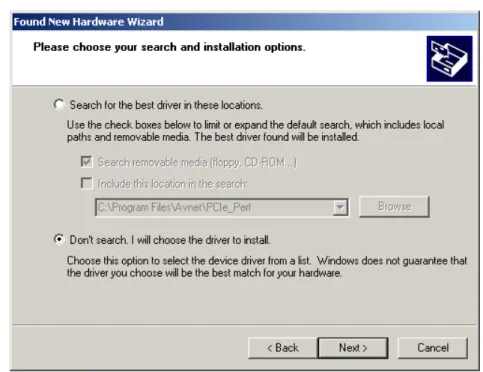
3. Select Don’t search. I will choose the driver to install. Click Next.
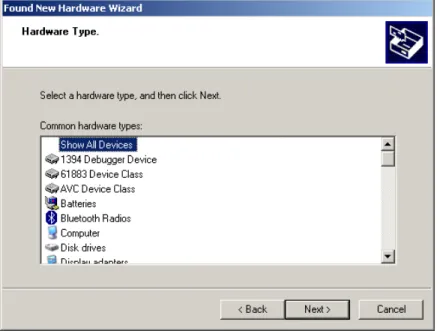
4. Click Next.
Figure 9 – Hardware Wizard Type Dialog
5. Click Have Disk.
6. Click Browse.
Figure 11 – Hardware Wizard Install From Disk Dialog
7. Browse to the
Driver
folder under the installation directory. If you installed in the default location, this will be:C:\Program Files\Avnet\AvProg\Driver
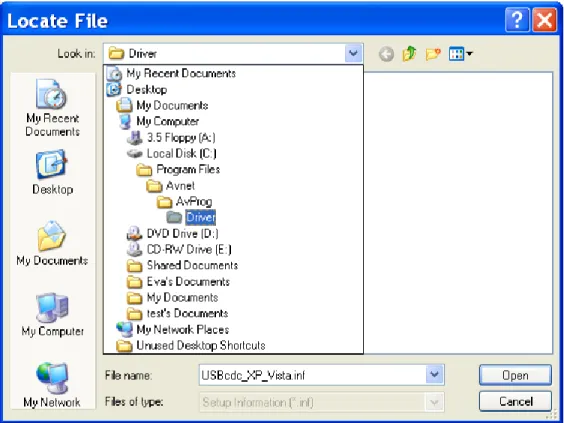
Select
USBcdc_XP_Vista.inf
and click Open.8. Click OK.
Figure 13 – Hardware Wizard Install From Disk Dialog
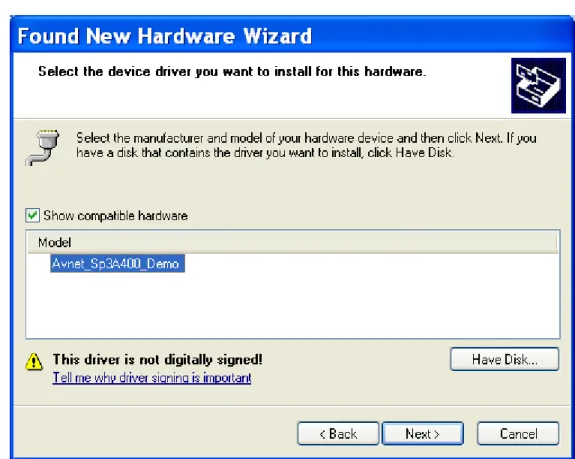
9. Click Next.
10. If you get any warning screens, accept the “risks” and click through to the screen shown below. Click Finish.
Figure 15 – Hardware Wizard Completion Dialog
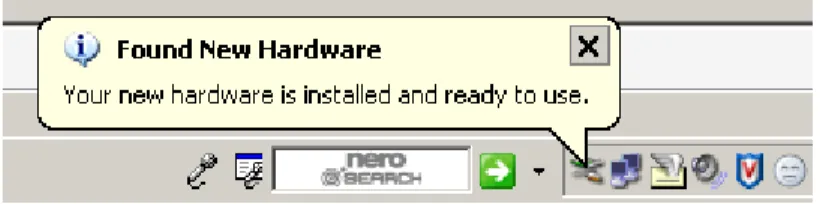
Once installation is complete, you will see a new hardware message in the Windows taskbar.
Figure 16 – Windows Found New Hardware Message
Your Avnet Programming Utility software is now fully installed and ready to use.
2.5 Updating an existing USB Driver
If it is necessary to update the USB driver in your system after you have installed AvProg, you can use the following steps.
2. In Windows Explorer, right-click on My Computer and click Manage in the drop-down menu.
3. Click Device Manager and expand the Ports entry to show the current driver installation (highlighted).
5. Select “No, not this time” and click Next.
7. Select “Don’t search, I will choose the driver to install” and click Next.
9. Browse to the location of the new device installation file (.inf) and select it. The file must be located in the same folder as the new driver you wish to install. Click the Open and OK buttons until you return to the Have Disk dialog. This dialog will now show the name of the new device you are installing. Click the Next button.
11. Once the new driver has been installed, a screen similar to the one below will appear with the name of your new device. Click Finish.
12. Your new device will now be listed in the Device Manager. Close the Device Manager.
13. The last step is to unplug the Spartan-3A Evaluation Board from the USB port, and then plug it back in. This will allow Windows to associate the new driver with your hardware.
3.0 AvProg
Host
Interface
The Avnet Programming Utility package includes a Windows GUI to allow programming of the FPGA, SPI and BPI flash on a USB-connected board. The interface can also send and receive serial data over the USB connection, so that once an application starts running on the MicroBlaze processor, the output can be immediately viewed on the Receive console.
The GUI operates in one of three modes, depending on whether you are working with the FPGA, the SPI flash or the BPI flash. The USB connection looks to the user interface like a standard Windows Comm port.
3.1 Default Interface and Common Controls
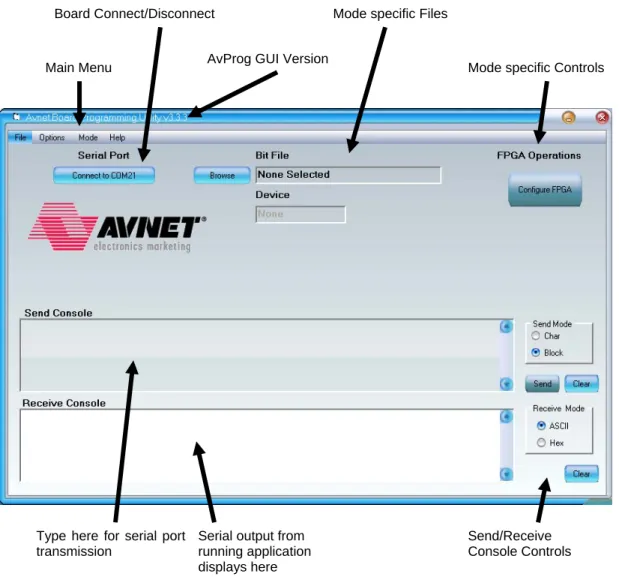
The start-up mode for AvProg is Configure FPGA, but there are a number of controls that are common to all modes. The standard interface as it is seen at launch time is shown below, with the major control areas indicated with labels.
Figure 17 – AvProg Initial Interface 3.1.1 Main Menu – File
Select File – When programming the FPGA, SPI or BPI, a host file containing the source data is required. This item can be used to open a mode-sensitive file selection dialog. In normal operation, however, it is expected that most operators will use the Mode-specific file controls.
AvProg GUI Version
Type here for serial port transmission
Serial output from running application displays here
Mode specific Controls
Send/Receive Console Controls Main Menu
3.1.2 Main Menu – Options
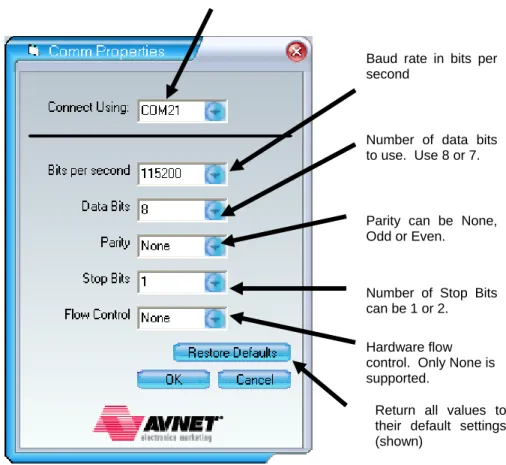
Comm – Activate the Comm Properties dialog to change the serial communication parameters between the host and the board. These parameters are used only for serial communication with a running FPGA application. For programming the FPGA and SPI, a low level driver is used to communicate with the PSoC, independent of the serial values set. For indirect programming of the BPI, AvProg automatically downloads a special server platform to the FPGA, which communicates at 115200, again independent of the values set in the Comm Properties dialog.
The Comm Properties dialog and its control functions are shown below.
Figure 18 - Communication Properties Dialog
Select a Comm Port from the dropdown list. If the board is plugged in, the first port shown will be the one connected to the board. Only ports registered on the host will be shown in the dropdown list.
Baud rate in bits per second
Number of data bits to use. Use 8 or 7.
Parity can be None, Odd or Even.
Number of Stop Bits can be 1 or 2.
Hardware flow control. Only None is supported.
Return all values to their default settings (shown)
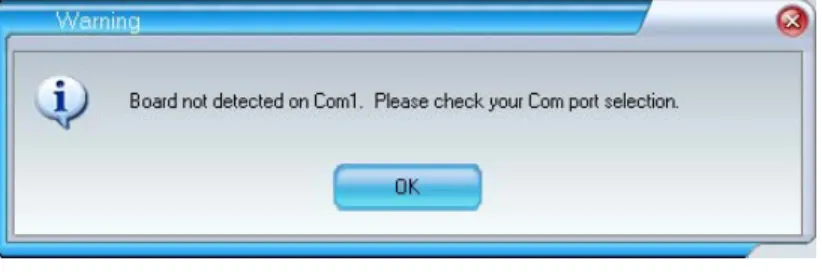
Disable Board Check / Enable Board Check - When the Board Connect button is pressed on the initial interface, AvProg will attempt to communicate with the PSoC on the board, since normally AvProg will be in communication with the PSoC to perform programming functions. If the PSoC does not respond, a warning is issued to the operator indicating that the board was not plugged into the indicated Comm port.
Figure 19 – Board not connected Warning Dialog
In some cases, however, it is desirable to use AvProg strictly as a serial communications device, so you may use this menu selection to disable the check for a connected board. Once the board check is disabled, the menu item changes to Enable Board Check.
3.1.3 Main Menu – Mode
There are three possible operational modes for AvProg. The active mode will have a checkmark to the left of the menu item. Changing the mode will also update the Mode-specific File and Mode-specific Control areas on the interface.
Configure FPGA – The startup mode for AvProg, used to download a bitstream to the FPGA on the board.
Program SPI Flash – Use this mode to program the onboard serial flash.
Program Parallel Flash – Use this mode to program the onboard BPI flash.
3.1.4 Main Menu – Help
About – Displays a dialog box with the current version of the AvProg GUI, plus the versions of the PSoC firmware and BPI server which are designed to work with the particular GUI version. From time to time software updates may be created, and it may be necessary to update one or more components of the installed package. In this event, software will be available for download on the Avnet Design Resource Center.
http://em.avnet.com/drc
3.1.5 Serial Console Controls
The serial controls are located at the bottom right of the GUI. The Send Mode block affects communication in the Send Console, while the Receive Mode block affects the Receive Console display.
Send Mode Block – the PSoC firmware can respond to textual commands, but they must be transmitted as a block of text followed by a null character. In this mode you may type a command, and then press the Send button to transmit it to the PSoC.
Send Char Mode – each character is transmitted over the USB serial link as it is typed. This is the normal mode for communication with an interactive application running on the FPGA
Receive Mode ASCII – incoming characters on the serial interface are displayed in the ASCII character set.
3.2 Configure FPGA Mode Controls
To program the FPGA, you must:
1. Connect to the PSoC on the board (Click the Connect button). 2. Specify a bitstream file to download.
3. Press the Configure FPGA button.
3.2.1 Bit File Controls
To specify a bit file you must activate the Select Bitfile dialog. This can be done from the File menu, by clicking on the Browse button, or by double-clicking in the Bit File text box.
Figure 20 – Bit File Controls
When the Select Bit file dialog displays, navigate to the desired file, select it in the window and click the
Open button. If the file is a valid bit file, the FPGA Device will automatically be filled in, as shown below.
Figure 21 – Bit File ready to Configure
3.2.2 Configure FPGA
The Configure FPGA button will not activate until a bit file has been selected, and the connection between AvProg and the board has been activated via the Connect button. However, once the button is active, simply click it to initiate the programming sequence.
To display the Select Bitfile dialog, click the
Browse button, or
Double-click in the text box. Alternately, you can use File | Select File in the main menu.
Bit file selected. Bit file is for a Spartan-3A 400
The following dialog will appear to allow you to confirm that the bit file was created for the device on your connected board. If this is not the case, click No to abort the programming sequence. Click Yes to program the FPGA. It is entirely up to the operator to verify that the bit file is correct for the device on the connected board.
Figure 22 – FPGA Device Warning Dialog
In most cases, the FPGA will program and start running immediately. AvProg writes a success message in the Receive Console and automatically switches from its default USB connection mode to a standard USB-serial driver, using the communications parameters specified earlier. All output from the application will appear in the Receive Console.
If there is a failure during the programming sequence, it is probably due to one of the following conditions: 1. Programming succeeded, but Done did not go high. This is generally an indication that the
wrong clock was used to generate the bitstream. Please ensure that CCLK, and not JTAG clock, has been used.
2. FPGA programming failed! This is typically an indication that there is a problem with the design. It could be a bit file created for another device, or it could have marginal timing that causes it to fail on download. If you cannot determine the problem, contact your local FAE for assistance. 3. No value for Done pin. In this case, contact with the board may have been lost immediately after
programming. The FPGA may actually have programmed correctly in this case. This is very unusual, and is likely caused by a faulty USB cable, or a reconfiguration of the host Comm ports during the programming sequence.
4. Init value is not high. This is a warning message that indicates that AvProg expected a status value from the PSoC, and it did not arrive in the specified time. In most cases this will not affect the programming of the FPGA. If you see this message repeatedly, and the FPGA does not program, contact your FAE for assistance.
3.3 Program SPI Flash Controls
To program the SPI Flash, you must:
1. Connect to the PSoC on the board (Click the Connect button). 2. Specify a flash device.
3. Specify a file to program.
4. Optionally, you may specify a hexadecimal offset from the start address to begin programming. 5. Optionally, select a byte count less than the total number of bytes in the file.
3.3.1 SPI File Controls
To specify a file you must activate the Select SPI File dialog. This can be done from the File menu, by clicking on the Browse button, or by double-clicking in the Flash File text box.
Figure 24 – SPI File Controls
When the Select Flash file dialog displays, navigate to the desired file, select it in the window and click the
Open button.
Select a supported Flash Device from the dropdown list.
To display the Select Flash File dialog, click the Browse button, or
Double-click in the text box. Alternately, you can use File | Select File in the main menu.
Optional. Select a hex offset from the Flash Base Address to begin programming.
Optional. Select a byte count shorter than the file length.
Flash file selected. This can be any file type, not just a bit file.
Flash device selected is the Spansion SPI flash used on the Avnet Spartan-3A Eval board.
The offset value must begin on a SPI sector boundary. It is the responsibility of the operator to be aware of the sector sizes and addresses in the device.
The byte count is automatically set to the size of the selected file, but this value can be changed to program only part of the file if desired.
3.3.2 ID Check
The ID Check button will not activate until communication between AvProg and the board has been established via the Connect button, and a Flash Device has been selected. Each flash family has a unique ID, so it is always good practice to click the ID Check button once to verify that there is a good communication path between AvProg and the SPI device, and that the expected device is present.
If the operation is successful, the flash ID will print in the receive console. If a failure occurs, a message dialog will display to indicate the reason.
1. ID code does not match expected value – The flash device specified does not match the hardware on the board. Either you have connected the wrong board, or you have selected the wrong device from the dropdown list. If you are using a custom .sfh file, you may have a syntax error in the text file. See the .sfh File Format Appendix for details.
2. Connection with PSoC lost – This is most likely caused by a faulty USB cable, or a loss of power to the board if you are not using USB power. In rare cases it is possible that the USB driver has locked up. To correct this condition, follow this sequence:
a. Disconnect the USB cable from the host computer. b. Click the Disconnect button on the AvProg interface
c. Reconnect the USB cable to the host. You may want to try a different USB port. d. Click the Connect button on the AvProg interface.
3.3.3 Bulk Erase
The Bulk Erase button will not activate until communication between AvProg and the board has been established via the Connect button, and a Flash Device has been selected.
To erase the entire flash, click the Bulk Erase button. AvProg sends an appropriate command sequence to the PSoC, which initiates the device erase. AvProg then polls the PSoC every second to determine when the erase is finished. During the polling process, a progress bar indicating the time to maximum poll count is displayed. Under normal operation, the device will erase before polling is complete, so you will never see the progress bar reach 100%.
If the device does not erase in the maximum time allowed, it is possible to increase the poll count by editing the .sfh file. See the .sfh File Format Appendix for details.
3.3.4 Program
The Program button will not activate until communication between AvProg and the board has been established via the Connect button, a Flash Device has been selected, and a Flash file has also been specified.
Once the Program button is activated, simply click to begin writing the file at the specified offset.
Valid programming can only occur when the sectors to be written have been previously erased. It is entirely the responsibility of the operator to ensure this condition exists prior to programming.
Figure 26 – SPI Program Erase Warning Dialog
If the sectors have been erased, click Yes. To abort the programming operation, click No. Possible error conditions that may occur during programming are:
1. File is too large to program from offset 0x – The combination of the offset and the number of bytes to program is greater than the number of bytes available in flash, from the offset position. Change the offset value or specify a smaller number of bytes to correct.
2. Unexpected ack detected in RDSR loop. Attempting to resynchronize. – This warning message can occur if there is a glitch in the serial communication and the client-server exchange gets out of sync. In virtually all cases, the application will recover and programming will complete successfully.
3. SPI programming failed – This message indicates that the write to the SPI flash failed. This is very rare and if it is persistent, it likely indicates a physical problem with the memory.
4. Timed out: no PSoC echo in state n – This warning message indicates that an expected response from the PSoC firmware was lost. In most cases the client-server exchange will recover and programming will complete successfully. If this message persists, and programming is affected, contact your local FAE for assistance.
3.3.5 Read
The Read button will not activate until communication between AvProg and the board has been established via the Connect button, a Flash Device has been selected, and a Flash file has also been specified.
This command reads the contents of the SPI memory for bytecount bytes from the specified offset and copies the data into your file. A warning message will post each time this command is activated to alert the operator that the specified file is about to be overwritten.
If you fail to specify the number of bytes to read, you will receive the following message.
Figure 28 – SPI Read Byte Count Warning Dialog
Enter a byte count in the Bytes to Read/Write field and try the operation again.
3.3.6 Verify
The Verify button will not activate until communication between AvProg and the board has been established via the Connect button, a Flash Device has been selected, and a Flash file has also been specified.
This command reads the contents of the SPI memory for bytecount bytes from the specified offset and compares the data read with your file. No data is overwritten in this operation, but you must specify a byte count or you will receive the same warning message as seen above in the Read command.
Verify will report success if the data compares identically, or will report the first byte at which the comparison failed.
3.4 Program Parallel (BPI) Flash Controls
To program the BPI Flash, you must:
1. Connect to the PSoC on the board (Click the Connect button).
2. Load the MicroBlaze BPI server to the FPGA (Click the Load Server button). 3. Specify a file to program.
4. Optionally, you may specify a hexadecimal offset from the start address to begin programming. 5. Optionally, select a byte count less than the total number of bytes in the file.
The BPI server is actually an interactive program originally designed for command line input. The output, including interactive prompts, are displayed in the Receive Console of AvProg. However, rather than typing commands into the AvProg send console, all interaction can be made using the BPI Operation buttons on the AvProg console. This eliminates entry errors, and provides more reliable operation.
3.4.1 BPI File Controls
To specify a file you must activate the Select BPI File dialog. This can be done from the File menu, by clicking on the Browse button, or by double-clicking in the Flash File text box.
Figure 30 – BPI File Controls
To display the Select Flash File dialog, click the Browse button, or
Double-click in the text box. Alternately, you can use File | Select File in the main menu.
Optional. Select a hex offset from the Flash Base Address to begin programming..
Optional. Select a byte count less than or equal to the file length.
The BPI server for the Spartan-3A Eval board is selected by default. To change the server, first click on the Custom button.
When the Select Flash file dialog displays, navigate to the desired file, select it in the window and click the
Open button.
Note: A standard .bit or .bin bitstream is created with the most-significant bit located in the upper-most
position of the file. In the case of parallel flash, the configuration connection in BPI mode uses the least-significant bit of the byte as the most-least-significant bit into the configuration engine. Therefore, all bytes have to be bit-reversed before programming to the flash. Furthermore, our server is a x16 interface to the flash while the BPI interface is x8. Therefore, the bytes in each 16-bit word have to be swapped. A utility to perform the necessary conversion is included on the Avnet DRC as part of the BPI reference design for the Spartan-3A Eval board.
Figure 31 – BPI Server ready for Loading
The byte count is automatically set to the size of the selected file, but this value can be changed to program only part of the file if desired.
3.4.2 Load Server
The BPI flash is programmed indirectly from the AvProg GUI, by directing a MicroBlaze program (the BPI Server) running in the FPGA. The BPI Server receives instructions and data from AvProg, but it is the server that performs the actual programming.
The server included with the package has been written for the Spartan-3A Eval board, and is the default server selected for the FPGA. You can write your own BPI server for a custom board, and it will appear in the BPI Server dropdown list if:
1. you place the bit file in the AvProg installation folder, and
2. name the file in the same format as shown above, with a different version number. (bpi_server_vNNN.bit)
To change the BPI server used, you must first click on Custom radio button to the left of the BPI Server dropdown list.
When using the Spartan-3A Eval Board, the version of the BPI server has been matched with the AvProg GUI, and if the versions are incompatible an error message will be issued when you try to load the server. In this case you will need to update the software from the Avnet DRC.
Offset specified in hexadecimal by operator. Default is 0x0.
Byte count defaults to the file size.
Flash file selected. This file must be of .bin type.
BPI Operation buttons are not enabled until the BPI server has been Loaded.
To load the BPI server, simply click the Load Server button. The interface will change to FPGA Configuration mode for the load process, and when the download has finished, it will revert back to BPI Programming mode with the BPI Operations buttons enabled. If you are using the Spartan-3A Eval board, you will see output from the BPI server in the Receive Console.
Figure 32 – BPI Server Banner
If you encounter any issues with the download process, consult the Configure FPGA section of this document for potential solutions.
3.4.3 ID Check
The ID Check button will not activate until the BPI Server has been successfully downloaded.
Each flash family has a unique ID, so it is always good practice to click the ID Check button once to verify that there is a good communication path between AvProg, the BPI server and the Flash device.
The BPI server reports the result of the ID check in the receive console. If the ID returned was not the value expected, the message would indicate “ID Test failed”.
3.4.4 Bulk Erase
The Bulk Erase button will not activate until the BPI Server has been successfully downloaded.
To erase the entire flash, click the Bulk Erase button. AvProg issues the command to the BPI server, and results are displayed in the Receive Console. During the erase process, the console will scroll as it indicates the sector number in the flash that was just erased. In the illustration below, the “63” at the top indicates the highest sector that was erased for the Spansion BPI flash on the Spartan-3A Eval board.
Figure 34 – BPI Server Bulk Erase
3.4.5 Program
The Program button will not activate until the BPI Server has been successfully downloaded, and a Flash file has been specified.
Once the Program button is activated, simply click to begin writing the file at the specified offset.
Valid programming can only occur when the sectors to be written have been previously erased. It is entirely the responsibility of the operator to ensure this condition exists prior to programming.
Figure 35 – BPI Program Erase Check Dialog
If the sectors have been erased, click Yes. To abort the programming operation, click No.
If programming proceeds, AvProg transfers the data file to the BPI server running on the board, and it performs the programming operation at the specified location. The results are summarized in the receive console, shown highlighted in the illustration below.
3.4.6 Read
The Read button will not activate until the BPI Server has been successfully downloaded, and a Flash file has been specified.
This command reads the contents of the SPI memory for bytecount bytes from the specified offset and copies the data into your file. A warning message will post each time this command is activated to alert the operator that the specified file is about to be overwritten.
Figure 37 – BPI Read Overwrite Warning Dialog
Click OK to continue, and Cancel to abort the operation.
If you fail to specify the number of bytes to read, you will receive the following message.
Figure 38 – BPI Byte Count Warning Dialog
Enter a byte count in the Bytes to Read/Write field and try the operation again. A progress bar displays to show the status of the operation. Once the read is complete, the results are written to the Receive Console, shown highlighted in the illustration below.
Figure 39 – BPI Server Read
3.4.7 Verify
A progress bar displays to show the status of the operation. Results are reported in the Receive Console, highlighted in the illustration below.
Figure 40 – BPI Server Verify
4.0 Known
Issues
1. On Windows systems utilizing a Unicode character set, serial communication is disrupted since the control characters are modified by the operating system before transmission. The result is that AvProg is unable to communicate with the Cypress PSoC device on the Spartan-3A Eval board.
To correct this problem, you must temporarily change the default character set on the host system to English. Follow the instructions below to do this on a Windows XP system:
a. Launch the Control Panel from the Start Menu. b. Double-Click Regional and Language Options. c. Select the Advanced tab.
d. Select English in the list box, as shown below. e. Click the OK button.
5.0 Appendix I – File Format for Serial Flash Device Specification
In SPI Flash mode, AvProg will populate the device dropdown list with one element for each .sfh file located in the installation directory. The example file supplied with this package supports the Spartan-3A Eval board.
avt_s25fl128p_64kb.sfh
This file can be used as a template for supporting additional flash devices. It can be opened using any standard text editor, and each line contains a comment describing the purpose of the entry. If you create your own .sfh file, it is recommended that you name the file to reflect the device type, part number and size as has been done for the Spansion SPI flash used on the Spartan-3A Eval board.
If you follow the guidelines below, you will be able to create a file to support a new flash device in AvProg. 1. The file must be placed in the installation directory, where the AvProg.exe file is located.
2. The file must have a .sfh extension.
3. Pneumonics for Flash opcodes begin in column 1, and are all four characters long, all uppercase. Do not change the four charcter pneumonics.
4. Actual hexadecimal device codes begin in column 9, and all start with “0x”. You will need to edit the existing hex values to reflect the actual opcodes used with the new device.
The opcodes to support the Spansion S25FL128P serial flash with 64 KB sectors on the Spartan-3A board are shown on the following page:
// Op-Codes
WREN 0x06 // Write Enable Flash
WESR 0x06 // Write Enable Status Register WRDI 0x04 // Write Disable
WDSR 0x04 // Write Disable Status Register RDID 0x9F // Read Identification
RDSR 0x05 // Read Status Register WRSR 0x01 // Write Status Register READ 0x03 // Read Data Bytes
FAST 0x0B // Read Data Bytes at Higher Speed PGPM 0x02 // Page Program
SECE 0xD8 // Sector Erase BLKE 0xC7 // Bulk Erase DEEP 0xB9 // Deep Power-down
REDS 0xAB // Read 8-bit Electronic Signature and/or Release from Deep power-down
// SF Status Register masks
ESTM 0x01 // Erase status mask ESST 0x00 // Erase success state PSTM 0x01 // Program status mask PSST 0x00 // Program success state WELM 0x02 // Write enable latch mask WEST 0x01 // Write enable state BPRM 0x3C // Block protect mask UABL 0x00 // Unprotect all blocks
// RDID options
NIDB 0x05 // Number of ID bytes IDM0 0xFF // ID byte 0 mask
IDV0 0x01 // ID byte 0 expected value IDM1 0xFF // ID byte 1 mask
IDV1 0x20 // ID byte 1 expected value IDM2 0xFF // ID byte 2 mask
IDV2 0x18 // ID byte 2 expected value IDM3 0xFF // ID byte 3 mask
IDV3 0x03 // ID byte 3 expected value IDM4 0xFF // ID byte 4 mask
IDV4 0x01 // ID byte 4 expected value
// FAST_READ options
DBAC 0x01 // Dummy bytes after command // Page Program options
MBPP 0x100 // Max bytes during Page Program // Device parameters
DEVI S25FL128P_64KB // Device part number MFCG SPANSION // Manufacturer ABSZ 0x03 // Address byte size
SECT 0x100 // Number of sectors per device PPRS 0x100 // Pages per sector
BPRP 0x100 // Bytes per page
BPRD 0x1000000 // Total number of bytes per device MEPI 0xC8 // Max erase poll iterations MPPI 0x0A // Max program poll iterations DUMB 0xAA
6.0 Appendix II – AvProg Spartan-3A Eval Quick Start Guide
Once AvProg and the USB driver have been installed, you can use this section to quickly perform basic functions. For details on all the program features, please consult the AvProg Host Interface section.
For the simplest operation, configure the board jumpers as follows:
J3 1-2 (USB Power) JP5 2-3 (Suspend On) JP6 1-2 (SPI Select)
There should be no other jumpers installed on the board.
Plug the USB cable between the Spartan-3A Eval board and a port on the host that has previously been used with the board. Launch AvProg from the Windows Start menu.
6.1 Configure the FPGA
1. If you need to see output from an application in Receive Console, you must first change the
communication parameters to match your bitstream. By default, AvProg communications over the
serial link at 115200,n,8,1. To change the settings, select
Options | Comm
from the main menu.
2. Click
the
Connect
button.
3. Click
the
Browse
button and select a bit file to download.
4. Click
the
Configure
FPGA
button.
5. Results of the FPGA download appear in the Receive Console.
1. (optional) Change comm settings
2. Click Connect
3. Select Bit file
4. Click Configure FPGA
5. Download status message + optional application output appears in Receive console.
6.2 Program the Spansion SPI Flash
1. Click
the
Connect
button.
2. Select
Mode | Program SPI Flash
from the main menu.
3. The flash sectors you are about to program must be erased before successful programming can occur.
If you are unsure, click the
Bulk Erase
button to erase the entire serial flash.
4. Select the Spansion Flash Device (avt_s25fl128p_64kb).
5. Click
the
Browse
button and select a flash file to program.
6. Optionally change the offset from 0x0 to a location starting at a sector boundary.
7. Optionally change the number of bytes to program. By default, the entire file is programmed.
8. Click
the
Program
button.
To load the FPGA from the SPI flash location 0x0, place jumpers on JP4 (MODE) in positions 3-4 and 5-6.
Cycle power to the board and the FPGA will program and execute any BRAM application included. If your
application has serial output, it will be displayed in the Receive Console (as long as your communication
parameters match – see the first item under the Configure the FPGA section for details).
1. Click Connect
4. Select Flash Device
2. Select SPI Mode 3. Optionally Erase Flash
5. Select Flash file
6. Optionally change the offset
6.3 Program the Spansion BPI Flash
1. Click
the
Connect
button.
2. Select
Mode | Program Parallel Flash
from the main menu.
3. Click
the
Load Server
button.
4. The flash sectors you are about to program must be erased before successful programming can occur.
If you are unsure, click the
Bulk Erase
button to erase the entire parallel flash.
5. Click
the
Browse
button and select a binary file to program.
6. Optionally change the offset from 0x0.
7. Optionally change the number of bytes to program. By default, the entire file is programmed.
8. Click
the
Program
button.
To load the FPGA from the BPI flash location 0x0, place jumpers on JP4 (MODE) in positions 1-2 and 5-6.
Cycle power to the board and the FPGA will program and execute any BRAM application included. If your
application has serial output, it will be displayed in the Receive Console (as long as your communication
parameters match – see the first item under the Configure the FPGA section for details).
1. Click Connect
3. Load the BPI server 2. Select Parallel Flash Mode 4. Optionally Erase Flash
5. Select Flash file
6. Optionally change the offset
7.0 Revision
History
Date Version Revision
6/6/08 1.0 Initial Version: AvProg 3.3.3
2/9/09 1.1 Windows XP SP3 / Vista Driver: AvProg 3.4.0