EARTHQUAKE ANALYSIS SOFTWARE
FOR WINDOWS, SOLARIS, LINUX and MACOSX
Version 9.0.1
Editors
Lars Ottem¨oller(1) [email protected] Peter Voss(2) [email protected]
Jens Havskov(1) [email protected]
(1) Department of Earth Science (2) Geological Survey of Denmark and Greenland University of Bergen Øster Voldgade 10
Allgaten 41 1350 Copenhagen K
5007 Bergen Denmark
Norway
2
Cover
The seismograms on the cover show the devastating earthquake in Haiti, January 12, 2010. Note how the broad band bodywave magnitude of 7.2B gives a better estimate than the old Mb.
Citiation
If you need to cite this manual : Ottem¨oller, Voss and Havskov, SEISAN EARTHQUAKE ANALYSIS SOFTWARE FOR WINDOWS, SOLARIS, LINUX and MACOSX , 2011.
1 Introduction 1
1.1 Latest changes . . . 2
1.2 Information about SEISAN online . . . 5
2 STRUCTURE OF SEISAN 7 2.1 Directories . . . 7
2.2 The database . . . 7
2.2.1 Phase data and hypocenters . . . 9
2.2.2 Waveform data and formats . . . 10
2.2.3 Continuous waveform data . . . 12
2.3 File types used with SEISAN . . . 14
2.4 Upper and lower case . . . 15
2.5 Moving data between Sun, Linux, MacOSX and Windows . . . 15
3 INSTALLATION 17 3.1 Unix (SOLARIS and Linux) . . . 18
3.2 MacOSX . . . 21
3.3 Cygwin . . . 22
3.4 Windows (95, 98, 2000, NT, XP and Vista) . . . 23
3.5 Database directories for your own system, MAKEREA . . . 24
3.6 Default parameter files for the main programs . . . 25
3.7 Color settings . . . 25
3.8 Compiling SEISAN programs . . . 27
3.9 Program Version . . . 28
3.10 Setting general SEISAN defaults,SEISAN.DEF . . . 28
3.11 Format description in parmater files . . . 32 i
ii CONTENTS
3.12 Using SEISCONF to modify parameter files . . . 32
4 USING SEISAN 37 4.1 SEISAN TRAINING COURSE . . . 37
4.2 Short user guide . . . 38
4.3 Getting data into the database . . . 41
4.3.1 System with digital data . . . 41
4.3.2 System without digital data . . . 42
4.3.3 Database security . . . 42
4.3.4 Data base tools, content and checks . . . 43
4.3.5 High accuracy in SEISAN . . . 43
4.4 Interactive work with earthquake locations, EEV command . . . 44
4.5 How EEV works . . . 44
4.5.1 EEV driver program: JSEISAN . . . 55
4.5.2 EEV Windows driver program: SEISAN . . . 67
4.6 System response . . . 69
4.7 Working with catalogs . . . 71
4.7.1 Explosions in SEISAN . . . 71
4.8 Printing . . . 72
4.9 General Work with SEISAN . . . 72
4.10 Graphics in SEISAN . . . 73
5 SEISAN TRAINING COURSE 75 6 DESCRIPTION OF PROGRAMS AND COMMANDS 77 6.1 Hypocenter location programs: HYPOCENTER, HYPO71 and HYPOINVERSE . . . 77
6.1.1 The hypocenter program, HYP . . . 77
6.1.2 HYPO71 (Sun only) . . . 91
6.1.3 The Hypoinverse program, HYPINV (SUN and PC) . . . 95
6.1.4 HYP ISC (Unix and Linux only) . . . 96
6.2 Trace plotting, phase picking and spectral analysis, MULPLT . . . 97
6.2.1 MULPLT main functions . . . 97
6.2.2 Use of MULPLT from EEV . . . 99
6.2.3 Continuous plotting of one channel . . . 99
6.2.5 Registering new events into SEISAN . . . 112
6.2.6 Adding BUD archive waveform data to nordic file, WAV2BUD . . . 113
6.2.7 Phase picking, amplitude, weight and polarity . . . 113
6.2.8 Theoretical arrival times for global and local phases and location . . . 114
6.2.9 Instrument correction and magnitudes Ml, mb and Ms . . . 115
6.2.10 Determine azimuth of arrival (3 comp or array) and component rotation . . . 117
6.2.11 Data manipulation commands . . . 118
6.2.12 Spectral analysis, s(Spec) . . . 123
6.2.13 Particle motion plots . . . 129
6.2.14 TheMULPLT.DEFandSEISAN.DEF files . . . 129
6.2.15 Distance trace plot with GMT, TRACE PLOT (Unix only) . . . 136
6.3 Plotting epicenters . . . 137
6.3.1 EPIMAP . . . 137
6.3.2 W EMAP, Version Windows based map program . . . 143
6.3.3 GMAP, Plotting epicentres with Google maps or Google Earth . . . 147
6.3.4 SEIS2VIEWER, Plotting hypocentres in 3D . . . 153
6.4 Searching in the database, SELECT . . . 155
6.4.1 Searching for text string in nordic files, SELECTC . . . 161
6.5 Extracting events from the database, COLLECT . . . 161
6.6 Inserting events into the database, SPLIT . . . 162
6.7 Updating final locations in database, UPDATE and UPD . . . 163
6.8 Using filenr.lis, DIRF and DELF . . . 165
6.9 Making a bulletin, BUL . . . 165
6.10 Reports and statistics . . . 166
6.11 Waveform file management tools . . . 171
6.12 File conversion and modification programs . . . 183
6.13 Signal processing programs . . . 201
6.13.1 PITSA . . . 201
6.13.2 SAC2000 . . . 202
6.13.3 Degtra A4 . . . 202
6.14 Calculating b-value, BVALUE . . . 204
6.15 Automatic phase picking, AUTO, AUTOPIC, AUTOSIG, CONDET . . . 206
6.15.1 AUTO and AUTOPIC . . . 206
iv CONTENTS
6.15.3 Detection program for continuous data, CONDET . . . 214
6.16 Fault plane solution . . . 216
6.16.1 FOCMEC . . . 216
6.16.2 FPFIT . . . 221
6.16.3 HASH . . . 223
6.16.4 Moment tensor inversion program, INVRAD . . . 232
6.16.5 Moment tensor inversion program, PINV . . . 232
6.17 Calculation of coda q, CODAQ . . . 233
6.18 Merge events near in time ASSOCI . . . 240
6.19 Making synthetic seismograms . . . 240
6.20 Calculation and plotting of travel times . . . 248
6.20.1 IASPEI travel time software, program TTIM . . . 248
6.20.2 Calculation of travel times for layer and gradient model, TTLAYER . . . 250
6.20.3 Plotting of travel times, TTPLOT . . . 250
6.20.4 IASP, travel times for MULPLT . . . 251
6.21 Inversion forQLg, QLG . . . 252
6.22 Wadati . . . 253
6.23 Calculating spectra, the SPEC program . . . 255
6.24 Seismic risk related programs . . . 260
6.25 Magnitude relations, MAG . . . 275
6.26 ML inversion, MAG2 . . . 280
6.26.1 MAGSTAT . . . 282
6.27 Explosion filtering, EXFILTER . . . 282
6.28 Inversion of travel time data and joint hypocenter determination . . . 284
6.28.1 VELEST . . . 284
6.28.2 NOR2DD . . . 289
6.28.3 NOR2JHD PUJOL . . . 289
6.29 Analysis of volcanic earthquakes . . . 290
6.30 FK Analysis . . . 293
6.31 Surface wave analysis (SUN) . . . 295
6.32 Instrument response . . . 295
6.32.1 Create instrument response files, RESP . . . 295
6.32.2 Examples of main response files from seismometers and accelerometer . . . 305
6.32.4 SEED response to GSE, SEEDRESP2GSE . . . 310
6.32.5 GSE response to SEED, GSERESP2SEED . . . 310
6.33 Macroseismic data in SEISAN . . . 311
6.34 Correlation of waveform signals, CORR and detection of event clusters XCLUST . . . 313
7 Programming in SEISAN and list of files in SEISAN distribution 319 7.1 Programmers guide and some test programs . . . 319 7.2 CONTENTS OF PRO, LIB, INC, INF, COM, DAT, SUP, ISO and PIC DIRECTORIES 321
8 Acknowledgments 323
A The Nordic format 329
B The Seisan waveform file format 339
Chapter 1
Introduction
The SEISAN seismic analysis system is a complete set of programs and a simple database for analyzing earthquakes from analog and digital data. With SEISAN it is possible using local and global earthquakes to enter phase readings manually or pick them with a cursor, locate events, edit events, determine spectral parameters, seismic moment, azimuth of arrival from 3-component stations and plot epicenters. The system consists of a set of programs tied to the same database. Using the search programs it is possible to use different criteria to search the database for particular events and work with this subset without extracting the events. Most of the programs can operate both in a conventional way (using a single file with many events), or in a database manner. Additionally, SEISAN contains some integrated research type programs like coda Q, synthetic modeling and a complete system for seismic hazard calculation. The data is organized in a database like structure using the file system. The smallest basic unit is a file containing original phase readings (arrival times, amplitude, period, azimuth, and apparent velocity) for one event. The name of that file is also the event ID, which is the key to all information about the event in the database. Although the database in reality only consists of a large number of sub-directories and files (all of which the user has access to), the intention is that by using the surrounding software, the user should rarely need to access the files directly, but rather do all work from the user’s own directory. Test data and a tutorial (see chapter 5) are supplied with the system.
The programs are mostly written in Fortran, a few in C and almost all source codes is given, so the user should be able to fix bugs and make modifications. The programs have been compiled and linked with system compilers and linkers on SUN, GNU compiler on Linux Windows and MaxOSX. SEISAN runs under Sun Solaris, Linux, MacOSX, Windows95/98/NT/2000/XP/Vista/Windows7. For graphics, X is used on Unix systems and DISLIN (www.dislin.de) used under Windows. No format conversion is needed to move data files (binary and ASCII) between the systems if one of the standard formats (SEISAN, GSE, SEED, SAC ASCII) is used.
This manual resides in the directory INF (see below), when the system has been implemented on your computer. The file is calledseisan.pdf(Adobe PDF).
The SEISAN system is built of programs made by many different individuals without whom it would never have been possible to make SEISAN. Acknowledgement is made throughout this manual where appropriate or in the acknowledgement section at the end. SEISAN now contains so many programs that when a new version is released, it is not possible to check all the options in all programs and we rely on the user to help finding the bugs, please report!
SEISAN is freely available for all non-commercial use.
In this manual names of computer programs are given with capital letters, names of files and command line options are given by typewriter font.
1.1
Latest changes
Changes in version 9.0.1
• Fixed some minor bugs in version 9.0.
• New options and changes in EEV: IFP: Input munually fault plane solution, INPUTFPS: input complete fault plane solution line, COML: Input geographical location line, COMF: Input felt event comments, U: Update event (was UPDATE, UP: Update event list (was U), M: Input model indicator on header line.
• program FOC now also makes rose diagrams. Changes in version 9.0
• New compiler and graphics system for Windows: This is the largest change. Windows now uses Gfortran and gcc and the graphics library is DISLIN. This has stabilized the graphics on Windows end enabled to use the same compiler on most platforms. However, the gfortran on Windows has created new problem in some programs most of which probably has been solved.
• SEISAN can now extract and plot data from a BUD and a SEISCOMP archive, read more at page 12.
• EEV has several new options: CM: Copy many files, DD: Duplicate header, FH: HASH fault plane solution, FP: FPFIT fault plane solution, FO: Plot all fault plane solutions, IFP: Input munually fault plane solution, INPUTFPS: input complete fault plane solution line, COML: Input geographical location line, COMF: Input felt event comments.
• FOC: A program to plot and analyze fault plane solutions.
• FPFIT: FPFIT fault plane solution program with SEISAN driver program FPFIT SEISAN. • HASH SEISAN: HASH fault plane solution program.
• GETPDE - A new program that grap the PDE from the USGS web page and add the events in a database, see page 184.
• SEIS2VIEWER - A new program for plotting earthquakes on a map, command smap, see page 153. • EPIMAP: Can now plot fault plane solutions.
• MULPLT: Has a three component option facilitating working with three component data. • AVQ: new program to average Q-relations.
• MAG2: new program to invert amplitudes for ML scale.
• Individual size of graphics windows for different programs can now be set in COLOR.DEF. • The following programs do not work with Gfortran: HYPINV, HYP ISC, NORHYP, ARCSEI
1.1. LATEST CHANGES 3
Changs in Version 8.3
• Manual now written in Latex, html version is available
• Unix setup files were remamed to SEISAN.csh and SEISAN.bash to make them visible
• MULPLT: Plot hour and minute on time axis, show shortcut keys on menu, select picked traces from trace selection, new keyboard shortcuts when reading amplitudes, also shortcut keys for the first 10 traces in trace selection (these changes were put in by Wayne Crawford)
• Two events are now included in the SEISAN software, so that one can plot data after unpacking SEISAN, both events are found by typingeev 199606 TEST(Note : in unix one must first source theCOM/.SEISANfile)
• PINV, new program for estimation of fault plane solution using polarities, see page 232 • 64 bit, have only been tested on Linux
• SEISAN can now use SAC PAZ response as created with rdseed • code now compiles with gfortran
• AUTOREG has new option for moving waveform file to WAV, see page 171. • EEV accept SEED orientation codes : A,B,C,1,2,3,U,V,W,S and Z,N,E
• MULPLT orientation code 1 and 2 are read as N and E, respectively. 1 and 2 are used if orientation is different from N and E. (This still requires a more general solution)
• ASCSEI, A bug in in the reading of the input file was found and fixed, the first sample was lost if data was not PSN data.
• ISCNOR : A bug in the reading of surface wave amplitudes was fould and fixed.
• The problem with extracting time windows on the last page in MULPLT continous mode has been fixed, page 100.
• EEV copies the name and path of the current s-file to a file namedeev.cur.sfile, when the system command’o’is used.
• Plot STATION?.HYP and SEISAN polygon files with Google Earth using GMAP, see page 147. • The Herrmann modeling programs finally work under Windows.
• FOCMEC: Use of amplitudes has been improved and bugs fixed in amplitude section. • New broadband body wave and surface wave magntudes have been implemented. • New conversions programs: AHSEI, DIMASSEI, DATABASE2MSEED
• Noise spectra from continuouis data, CONNOI and EVANOI.
Codes for reporting amplitude readings
Magnitude Old SEISAN ISC Old IASPEI NEW IASPEI
Local AMP AMPL AML IAML IAML
mb AMB IAmb IAmb
mB AMP AMB AMpb AMb AMPB IAmB IVmB BB
Ms AMP AMS IAMS20 IAMs 20
MS IAMSBB IVMs BB
Version 8.2.1
• Improved handling of continous data bases, particularly with SEED data • New and expanded training document
• Several bug fixes reported after version 8.2
• Mistakes in manual reported after releases of version 8.2 • More examples of making response files
• Improved filtering in MULPLT by introducing tapering Version 8.2
• Improved SEED reading and writeing (still not perfect, sometimes problem with Steim2) • SEED channel naming convention now used
• SAC reading and writing also under windows • New conversion programs
• Improved WAVETOOL
• SEISEI use all formats for input and SEISAN and MiniSEED for output
• Store waveform data in memory for faster plotting (see MULPLT section, page 97)
• Array processing of teleseismic P- arrival on regional network using plane wave approach, PFIT • Plot of arrival times using EEV
• Epicenter plotting using GoogleMap or GoogleEarth (program GMAP) • Spectral analysis also of teleseismic events
• Particle motion plot in MULPLT
• In MULPLT from continuous plot with one channel, it is possible to extract out time windows in a data file, page 100.
• SEISAN has been tested on Vista and there are problems with some graphic programs like LSQ. • EDRNOR, conversion program for USGS parametric data
• GSERESP2SEED, prorgam to create dataless SEED volumes from GSE response files, using GSE2SEED
• QLg program has new features to test effect of noise and source perturbation • Instructions on how to use SEISAN under Cygwin have been added
1.2. INFORMATION ABOUT SEISAN ONLINE 5
1.2
Information about SEISAN online
SEISAN homepage
The URL address where SEISAN and related software can be found is:
https://www.uib.no/rg/geodyn/artikler/2010/02/software
Here you can find information on the latest changes in SEISAN, access the online manual, download the software and much more.
SEISAN anonymous ftp server
Seisan is available from the following ftp server:
ftp.geo.uib.no( or129.177.55.28) Login: ftp
Password: <your email address>
The files are stored in the directory/pub/seismo/SOFTWARE/SEISAN. SEISAN mailing lists
There is a mailing list, which is set-up to improve the exchange of information and questions on SEISAN. We strongly recommend that all users subscribe to the SEISAN list. The list is:
The purpose of the list is:
To subscribe to the list, send an email to [email protected] or to [email protected] with subject/body subscribe.
Subscription can also be done online viahttp://mailman.uib.no/listinfo/seisan. As a member of the list, it is possible to look through the archive (since 2008) for questions and answers on SEISAN. Anyone is welcome to reply to questions and a response to a question should be send to the complete mailing list.
Chapter 2
STRUCTURE OF SEISAN
2.1
Directories
The whole SEISAN system is located in subdirectories residing under the main directory SEISMO. For more details, see chapter 3 on installation. The system contains the following main subdirectories:
REA: Earthquake readings and full epicenter solutions in a database WOR: The users work directory, initially empty
TMP Temporal storage of files, initially empty PRO: Programs, source code and executables LIB: Libraries and subroutines
INC: Include files for programs and subroutines in PRO and LIB COM: Command procedures
DAT: Default and parameter files, e.g. station coordinates WAV: Digital waveform data files
CAL: System calibration files
INF: Documentation and information ISO: Macroseismic information
SUP: Supplementary files and programs
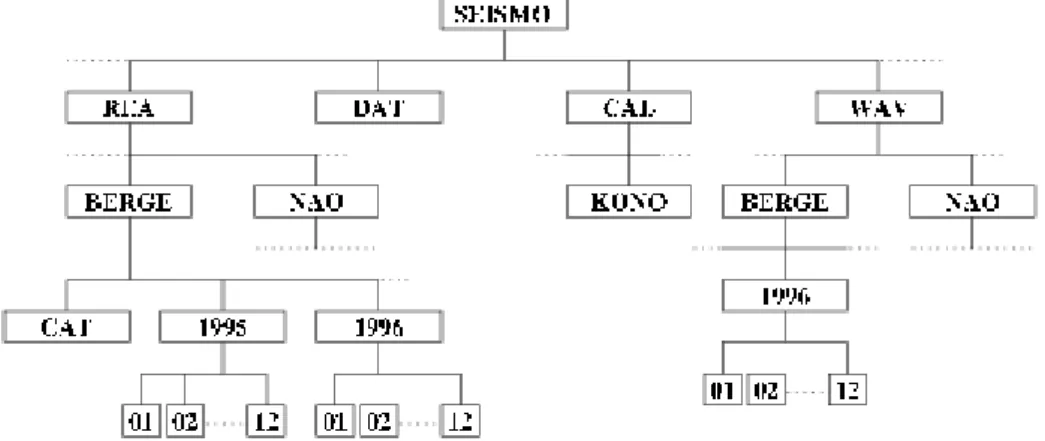
In the following, the above subdirectories will mostly be called directories to avoid always referring to SEISMO. All directories use capital letters, however this only makes a difference in the Unix versions. The directory structure is used as a tree like structure for quick access to individual files in the REA directory, which therefore will appear as a simple database to the user. The next section is a description of the database directories; the other directories are described in chapter 7. Figure 2.1 shows the tree structure of SEISAN.
2.2
The database
The database of SEISAN consists of the two directories REA and WAV. The REA directory and its subdirectories contain readings and source information while all waveform data is normally in the directory WAV (see 2.2.2) with no subdirectories. Optionally WAV can also be divided into a similar subdirectory structure, see 2.2.2, which is useful when storing continuous data in particular. The DELET database
Figure 2.1: Structure of SEISAN. Note that BERGE under WAV is optional and DELET (not shown) under REA has a similar directory structure as e.g. NAO.
2.2. THE DATABASE 9
contains all events deleted from any of the databases (here BERGE/BER and NAO). Filenames are identical between all platforms.
2.2.1
Phase data and hypocenters
The REA directory contains phase readings and derived source information like hypocenters, fault plane solutions etc. The REA directory has one or several subdirectories corresponding to separate databases (see Figure 2.1 for an example with two databases). The database names can have between 3 and 5 characters. If less than 5 characters are used, the character ‘ ’ is added in the file system to make it 5. The user does not have to put the ‘ ’ when running a program, they will be added by the software. If a directory is made manually, the ‘ ’ must be put in. It is assumed that a database is always present in the system. The name of the default database is given by an environmental variable (see section 3.1), however if not set, it will default to AGA for agency. Here, BER will be used as an example throughout the manual. A database has a duplicate storage of the events. For quick reference and interactive work the events are stored in single files (S-files) in yearly directories and monthly subdirectories. When new data is entered into the database, it comes in as individual event files. However, once the interactive work has finished, the single event files are overwritten with the final location and additionally stored in monthly files, which are only changed when updating (UPDATE command, see section 6.7). The monthly files, called CAT-files for catalog, are stored separately in the CAT directory and primarily used for quick searching and backup for the single files. In addition to the event data, there is also a LOG directory in each database to keep a log of the data processing, see section 6.7.
S-file database structure
The structure for the single file storage is as follows (Windows example):
\REA\BER \ Main readings directory, all data
\REA\BER \1999\ Data for 1999
\REA\BER \1999\01\ Data for January 1999, each event in one file On Unix, the last line would have been /REA/BER /1999/01
Each event contains original phase readings in the Nordic format ( Appendix A. ) which includes file names of all corresponding waveform files. One event is one file. Each event has an ID line. The ID line contains a unique ID, which will follow the event through all COLLECT and SPLIT operations (see section 6.5 and 6.6). The ID line also contains status information about the event like last action, when it was updated etc. The ID-number can be fixed, which is useful if data is taken out from the database, processed on another computer and later put back into the database, since otherwise the ID of an event might be changed and the existing file would not be overwritten. An example of an S-file name is :
27-1112-11L.S199401
The S-files are used as input for the location program and, when making a permanent update, also for output, see 6.1. The letter in front of the ”.” indicates the event type and can be L, R or D for local, regional or distant event respectively. It is the same indicator as given in the header line of the S-file, see the Nordic format page 329. The remaining numbers give (in order) day, hr, min, sec, year and month. As mentioned above, the system can contain many other databases, which may function exactly like the BER directory. A data base can be used to store a subset of data or data from different networks. Data can be moved between databases or in and out of the databases, for details, see description on EEV (4.4 and 4.5).
Events located in monthly files are in a directory called /SEISMO/REA/BER /CAT in addition to the individual S-files. Additional databases like e.g. NAO will have epicenters stored under
/SEISMO/REA/NAO /CAT. The monthly epicenter files are called texttt199901.CAT for e.g. January 1999. Although the files generated by SEISAN normally are monthly files, the CAT directory can also contain yearly files or any other time interval. The only rule is that the name of the file must give the year and month of the first event in the file. This is because the search program SELECT uses the file names to search requested time intervals. If a user has a historical catalog, this can be added as an individual file. If the historical catalog starts in 1820, the file name would be182001.CAT. The files in CAT do not need to be continuous in time, but they must not have overlaps in time and each file must have data in chronological order. The format of the CAT files is the same as for the S-files. Additionally, CAT files can also be compact files, meaning just the header lines of the S-files (see also section 2.3).
2.2.2
Waveform data and formats
SEISAN works with various waveform formats including SEISAN, GSE, SEED/MINISEED and SAC binary and SAC ASCII. The SEISAN format is described in Appendix B, while for a format description of GSE and SAC the user is referred to GSETT-3 [1997] and Goldstein [1999], respectively. The SEED format is described in IRIS Consortium [1993]. The GSE reading routines are based on the codeco routines written by Urs Kradolfer, Klaus Stammler and Karl Koch. The different formats can be used in parallel by several programs. With MULPLT for example it is possible to plot data in the four formats at the same time. Other formats can be added by adding reading routines and adding the respective calls to LIB/wave.for. Note that SAC binary files can also be used on Windows from SEISAN version 8.2. To use other formats, a conversion program must be used first, see section 6.12.
In general it is recommended to keep the waveform data in one format only, mainly for simplicity and maintenance reasons. There may be different arguments for or against one or the other format depending on the user’s preferences and requirements. SAC and GSE are widely used formats and therefore may be attractive. SEISAN is a multi-trace binary format with direct read access to individual traces. The SEISAN format is probably your best choice if your main processing system is SEISAN and because it is easily used on all computer platforms. SAC is a single trace binary or ASCII format with a large number of header parameters. The SAC format is widely used in research-oriented programs. GSE is a multi-trace ASCII waveform format that includes various sub-formats. It is widely used for data exchange. Although the GSE format can keep any number of traces, it is recommended to include no more than 3 traces in a single file depending on the number of samples, since when reading a particular trace, the whole file may have to be read.
For the future, the SEED/MINISEED format might be the best option since most data centers use it. However, the SEISAN implementation should probably be tested a bit more. SEISAN cannot read SEED files using all options possible in SEED, but data from the largest data centers as well as many observatories have been used for testing. With respect to MINISEED, there are probably less problems since MINISEED is simpler than SEED. SEISAN can also write MININSEED (program WAVETOOL), but cannot write SEED (unless GSE2SEED is used). The WAV directory contains files with digital waveform data. The directory normally has no subdirectories or any other organization. However, in case of large databases, WAV can be subdivided, see below. In addition any directory can contain waveform data, it has to be specified in SEISAN.DEF (section 3.10). The amount of data that can be stored is only limited by the disk size. The analysis system will always look in WAV for particular files if they are not in the user’s own directory. Waveform files will automatically be transferred to WAV on initial registration into the database (see MULPLT). Registration is the process of automatically creating an S-file in the database with the name of the waveform file and header information. Phase pickings are done later. See section 6.2.
2.2. THE DATABASE 11
There is normally no requirement for particular filenames for the waveform files in WAV or elsewhere, however many programs will make file names like:
yyyy-mm-dd-hhmm-ssT.NETWO nnne.g. 1995-01-23-1230-20T.BERGE 013
With the abbreviations yyyy: year, mm: month, dd: day, hh: hour, mm: minute, ss: second, T: file type indicator (normally S), NETWO: maximum 5 letter network code and nnn: number of channels. Recommended file type indicators are: S: Standard SEISAN, R: Resampled, A: Appended, M: Miniseed/SEED
WAV database: In case a large number of waveform data is stored, it might be an advantage to also split up the WAV directory in subdirectories. This is done in the same way as in the REA directory, e.g. waveform files for BER from July 1994 would be found inWAV/BER /1994/07. Programs that use waveform files will automatically search, in order, the current directory, TMP, WAV and the monthly WAV directory. How it is a requirement for all programs running outside EEV that the waveform data is in the default data base since only that one is searced. When storing in the WAV database, it is a requirement that the waveform names start with either yymm (like 9902) ,yyyymmdd (like 19990101) or yyyy-mm (like 1999-02).
Waveform files created on Windows and Linux SEISAN version 7 or newer cannot be read on older SEISAN versions.
The SEISAN binary waveform format is explained in Appendix B. The files are written and read with the same Fortran statements on all platforms, however the internal structure and byte order are different. As of SEISAN version 5.1, files written on either machine can be read on the other and there is no need for any conversion when the binary waveform files are moved between Sun, Linux, MaxOSX and Windows. Compression of waveform data
Waveform files can be stored in compressed format. The compression must be done by the user. Programs that access the compressed waveform files copy the file to the TMP directory, and uncompress there. The uncompressed file remains afterwards and will be found the next time one of the programs is looking for the same waveform file. The content of the TMP directory has to be deleted manually. On Unix, you may automatically delete the content of the TMP directory by a cronjob, see manual pages on crontab. On Unix the compression formats supported include gzip, compress, bzip2 and zip. So far, no automatic decompression is supported on Windows (will be put in). With the introduction of SEED format, there is less need for external compression since the SEED data usually is compressed and therefore decompressed on the fly when read.
Component codes
The SEISAN waveform format until version 8.2 has used 4 characters for the component code. The first character indicates the type of sensor, for example ‘B’ for broadband, ‘S’ for short-period or ‘L’ for longperiod. For acceleration data the first character has to be ‘A’ because SEISAN assumes that the corresponding response has been given as acceleration response. The fourth character has to give the channel orientation, ‘Z’ is used for vertical, ‘E’ for east-west and ‘N’ for north-south. Other orientation of the horizontal components is possible in GSE, SEED and SEISAN are not understood by SEISAN. If data are rotated, ‘T’ is used for transverse and ‘R’ for radial. The second and third characters can be chosen by the user. From SEISAN version 8.2, only 3 characters are used, the first 2 and the last. These 3 characters are then defined according to the SEED standard. SEED location codes and network codes are now also stored in the SEISAN format and are displayed when plotting the traces with MULPLT. No other programs, except some conversion programs, use network and location codes The component code is part of the response filename and is used to find the response corresponding to a given station and component. The network code is not part of the response files (except for SEED format) and not used,
so it is up to the user to put in the correct response which cannot be the same for two location codes at the same site. Program WAVFIX can be used to change station and/or component codes as written in SEISAN format files, but will not handle location or network codes.
The Nordic format only has space for two characters for the component code. The definition in SEISAN is that these are the first and fourth character of the waveform component code. This means that the relation between the component code in the Nordic file and the waveform data is non-unique.
The GSE and SEED waveform formats have three characters for the channel code, see GSETT-3 [1997] and IRIS Consortium [1993] for the detailed definition of the component codes. SEISAN, when reading waveform data in either GSE or SEED format internally keeps the first two characters and moves the third to fourth, so for example ‘BHZ’ becomes ‘BH Z’, however the user will only see the name as BH. Data files in SEED also have a location code, which allows to distinguish for example between two ‘BHZ’ components (for example a 30 second and 120 second sensor with the same sampling rate and high gain) at the same site. Z. When converting between SEISAN and SEED/MiniSEED, station, network and location codes are preserved while SAC and GSE only partly can store this information.. SAC has more than four characters for the component code and sacsei.def has to be used to define the conversion. However, normally SAC data will have three character component codes as well. Conversion of component codes from SEISAN to SAC is also defined in sacsei.def.
When converting between SEISAN and other waveform formats, component conversion is defined in the respective definition files, see section on conversion programs.
2.2.3
Continuous waveform data
In SEISAN one can plot or extract continous data from either a standard SEISAN database or from a BUD or a SeiscomP archive.
Continous data in a BUD or SeiscomP archive SEISAN reading BUD and SeisComp archives
We are working on implementing archive reading in SEISAN and a first version is now being tested. The reading routines using Chad Trabant software have been implemented by Ruben Luis. Reading continuous data:
This works just like reading SEISAN continuous data, except there are no S-files, only the archive files. All the same functions are available:
Plotting, zooming and extracting segments and registering events. Read archive data as an event from eev:
A reference to a segment is made in the s-file and it is treated as if it was a file. When a keyword for archive type (BUD or SCP) is found, the reading is directed to the archive instead of to a file. The archive reference is e.g.
ARC STAT COM NT LO YYYY MMDD HHMM SS DUR
BUD ROSA BHZ PM 2010 1011 0100 00 14400 6
where ARC is archive type, STAT is station code, COM is component, LO is location code YYYY MMDD HHMM SS is start time and DUR is duration in secs.
Thus the segment in archive with given start time and duration is considered a file. If later plots require less data than the segment referenced, the whole segment is still read, like reading the whole trace in a file in archive with given start time and duration. A mixture of archive references and file names can be used.
2.2. THE DATABASE 13
ARC_CHAN PMOZ BHNPM
ARC_CHAN PMOZ BHEPM
ARC_ARCHIVE /uibsan/home/s2000/BUDARC
where each channel is defined as well as the location of the archive. The specification is the same for both BUD and SeisComp archives, and only when reading S-files or starting mulplt will the information about archive types be given. ONLY one archive type can be used at the same time when, maybe something to change.
Current it has only been tested on Linux but the plan is to also make it work on Windows. Continous data in a SEISAN database
In SEISAN continuous data has no special format. Continuous data is simply ordinary waveform files that follow each other in time. In order to treat the data as continuous, the data can be put into a SEISAN continuous data base. Such a data base is made as follows:
- For each waveform file from a station or network, an S-file is created. The S-files only contain reference to the waveform file(s). Program AUTOREG can be used to create the S-files.
- The waveform data is optionally put into the corresponding waveform station directories, however they can also be in WAV or working directory. For large data sets it is strongly recommended to use the WAV database structure.
- The continuous databases are defined in SEISAN.DEF in DAT.
If e.g. data is to be stored from 3 different stations (three componet files), create 3 databases under WAV and REA with the name of the stations (program MAKEREA). If the continuous data consist of 20-minute files, this would mean about 2200 files pr month, which is a reasonable number. It is now possible for some programs (MULPLT, WAVETOOL) to get access to any or all of the traces in the continuous data base and plot and extract data. If the continuous data is archived from a real-time system it is best to have one database per station as it will at times be necessary to backfill gaps as data may not have arrived in real-time.
It is also possible to store the data without having a database for each station:
• Alternative 1: If the 3 stations have waveform files starting at about the same time and the same duration, they can be merged to 9 channel files and only one continuous data base is made. This may work well for data from a temporary deploymeny where all data is there when the data is put into database.
• Alternative 2: If the 3 stations have waveform files starting at about the same time and the same duration, the 3 waveform files can be listed in the S-file and only one data base is needed.
• Alternative 3: If the files are in individual channel files, 9 waveform files can be listed in the S-file and only one continuous database is needed.
The waveform files in a continuous data base can have different formats for different stations and one S-file can refer to more than one waveform file, provided they start at about the same time and have the same duration.
A simpler way to use smaller quantities of continuous data is to make a list of these files with DIRF and an application program can then use that list to work with the data. Currently two programs have
special options for this kind of continuous data. The MULPLT program will plot data from several files as if it was one file in one continues trace the RESAMP program will resample the data from several files and put it into one output file.
2.3
File types used with SEISAN
A description of the different file types is given below with typical names. Most names must be exactly as specified, others can be given names. However it is VERY important that no name including full path is more than 80 characters long. Until now this has not been a problem, however it has to be considered when SEISAN is installed.
The basic unit is a file in the Nordic format, (see Appendix A). For practical purposes 3 descriptive names are used for Nordic files:
S-file: Single event file with phase readings, with or without source parameters such as location and magnitude. In the database these files are named with the extension: .Syyymm This is the standard type of file in e.g. the BER /1998/08/. An example is11-1234-11L.S199808.
CAT-file: A catalog file containing many S-files with location or just a catalog of hypocenters, a compact file, see below. This is the standard type of file in e.g. the /REA/BER/CAT directory. An example is
199801.CAT. This file format is also output from several programs like SELECT and COLLECT. There is a blank line between events.
Compact file: This is a CAT-file with only the source information. One event is represented with one line, (the header line in the S-file). There is no blank line between events. A compact file can be generated by either COLLECT or NORHEAD ( earlier called COMPACT).
In addition there are the following types of files:
SEISAN waveform file: Waveform data can be stored in SEISAN, GSE and SAC format, see section 2.2.2. An example of a name is 1992-01-11-2233-22S.BERGE 011.
Response file: File giving the response of a given channel at a given station. They are typically generated with the RESP program, see description of CAL directory, section 6.32. This is the standard type of file in the CAL directory. An example of a name isODDA S Z. 1999-05-01-0000 SEI. However, SEED and SAC response files extracted with rdseed can be used.
File listing: This is just a file with a list of numbered files. The file name is alwaysfilenr.lis, and it is generated with the DIRF program, see 6.8.
Index file: This file contains a listing of absolute paths to a series of S-files. The index file can be used as input instead of the CAT-files to several programs. Several programs generate index files as e.g. select and eev. The index file has the same format as thefilenr.lisfiles described above and can be generated with the dirf command using S-files. The index file name must contain a ‘.’. An example is shown below:
1. \SEISMO\REA\TEST\1993\09\29-2228-26D.S199309
2. \SEISMO\REA\TEST\1994\06\16-1841-57D.S199406
2.4. UPPER AND LOWER CASE 15
2.4
Upper and lower case
Upper and lower case file names only makes a difference on SUN, Linux and MacOSX. The intention is that all permanent data file names used by SEISAN should be in upper case (e.g. S-files, crustal model file, directories (e.g. REA) while temporary files should be in lower case (e.g. print.out). Programs are also in lower case. It should then be a bit more difficult to delete the permanent files. NOTE THAT THROUGHOUT THIS MANUAL, PROGRAM NAMES ARE GIVEN IN UPPER CASE TO INDICATE THAT THEY ARE NAMES, HOWEVER WHEN USING THE PROGRAMS, LOWER CASE MUST BE USED ON SUN. In program MULPLT, commands are case dependent.
2.5
Moving data between Sun, Linux, MacOSX and Windows
All S-files and file names are identical on the three platforms. To move many events (S-files) from one system to another, make a COLLECT (section 6.5) on the original system and a SPLIT (section 6.6) on the receiving system. As mentioned in section 2.3, the SEISAN binary waveform files have different internal structure if written on Sun, Linux, MacOSX or Windows, but this is corrected for in the reading routine, so files can be copied directly. GSE files can be copied directly since they are ASCII files. SAC binary files are different between Linux and Solaris; SEISAN can only read files that were written on the same platform. SEED/MINISEED files can be used directly on all platforms.
The only other files that are different are the binary earth model filesIASP91 platform.HEDand
IASP91platform.TBL in the DAT directory (where platform is either sun, linux, macosx or windows). The platform is included in the filename so that possibly SEISAN can be used on different platforms with only one file system. For example the data may be kept on a Sun file system, but you also want to share the disks from a Windows system and process the data using the Windows version of Seisan. Otherwise, the files cannot be moved, but are easily regenerated with the IASP91 programs, see section 6.20 and 8.8 in the Hypocenter manual.
Chapter 3
INSTALLATION
SEISAN has been tested and compiled for Windows 2000/XP, Solaris, Redhat Linux and MacOSX. Upgrade from version 7.0 or higher
Before you start, take a backup copy of your DAT directory. Note that when you upgrade, many parameter files will be overwritten so make sure old parameter files are copied before putting in a new version of SEISAN. The most important are in DAT:STATION0.HYP, SEISAN.DEF, MULPLT.DEF. Also the Unix setup file SEISAN.csh and SEISAN.bash is overwritten. You may also want to keep copies of PRO, LIB and INC to keep a copy of the old source code, especially if you have done any modifications to the code. You can keep almost all of your parameter files, onlySEISAN.DEF has been changed. Check this file and change to your system. Some individual program parameter files like for SPEC have changed.
How to get SEISAN
SEISAN can be copied fromftp.geo.uib.no(129.177.55.4), login is ftp and password is your email address or fromhttps://www.uib.no/rg/geodyn/artikler/2010/02/software On the AFTP server go to/pub/seismo/SOFTWARE/SEISAN. Use binary mode for the compressed files (tar and zip). Before copying, check the readme file for latest updates, changes and current content of the directory. The directory will at least contain the following files:
seisan X.Y .unix.tar.gz a compressed tar file, whole distribution with executables and test data, X.Y stands for the latest distribution number and Unix for the respective Unix system (solaris or linux).
seisan. X.Y.exe Windows distribution an install file
seisan X.Y.pdf The SEISAN manual, Adobe PDF
seitrain X Y.pdf SEISAN training course
testdata X.Y.tar.gz SEISAN data for the training course
Alternatively SEISAN might be obtained on a CD with the same content as above (write to
Section 3.8 gives additional information about modifications and recompilation.
3.1
Unix (SOLARIS and Linux)
Solaris: The SEISAN programs have been compiled on Solaris 7 using Sun Workshop 5, which means you have to recompile if you use an earlier version of the operating system or compiler. If you can recompile on Solaris, please do so! The programs on Solaris are compiled dynamically, which means not all system and compiler libraries are included in the executables. If you are running Solaris, the system libraries are normally installed, but the Sun system compilers might not be installed. If the compilers are not installed, you have the following options: (1) you install the Sun workshop compilers, license is not needed, since only the libraries are required; (2) you install the required libraries, which are part of the Solaris SEISAN distribution (instructions below).
Linux: The programs have been compiled under Redhat Linux7.2 using the GNU compilers gcc and g77. It is recommended to recompile the programs, since otherwise the programs might not run on your Linux distribution. In the Redhat distribution of Linux the Fortran compiler is not part of the standard distribution, it has to be installed (see your Linux manual for instructions). THE USER ACCOUNT MUST BE SET UP TO USE csh, tcsh (use SEISAN.csh) or bash (use SEISAN.bash), in order for the SEISAN scripts to work. Note that in the following SEISAN.csh stands for both SEISAN.csh and SEISAN.bash. Otherwise the scripts need to be adopted to the shell used.
Instructions
The first step is to install the distribution, the procedure is the same for all Unix platforms. 1. Get tar file
Copy the distribution file for your platform from CD or transfer it through FTP or from the web site to the SEISAN top directory, this could be a directoryseismounder the home directory.
2. Decompress
gunzip seisan version system.tar.gz
There should now be the uncompressed file in your directory (without.gz). 3. Install SEISAN
tar xvf seisan.tar
Check that the SEISAN directories have been created.
If SEISAN has been installed without executable files, they can all be generated with the command ‘make all’ from the PRO directory. On Sun this requires that the Sun compilers be installed, on Linux/MacOSX it requires the GNU Fortran compilers (g77, only gcc before version 4.0; now gfortran). See also section on compilation (3.8).
Install Workshop libraries
In the SUP directory of the Solaris distribution the filesun ws lib.tar.Zincludes the libraries that are needed to run SEISAN on Solaris in case the compilers are not installed. The file is a compressed tar file. The files can be extracted withuncompress sun ws lib.tar.Zand thentar xvf sun ws lib.tar. The library files can be stored in any directory in the system, but the environmental variableLD LIBRARY PATH
has to be set accordingly. If you are using the C-shell, this can be done by adding to the.cshrcfile the linesetenv LD LIBRARY PATH /path/:$LD LIBRARY PATH. This would add/path/(which is the path to where the libraries are) to LD LIBRARY PATH, which normally is already defined.
4. Set system parameters
3.1. UNIX (SOLARIS AND LINUX) 19
Activate SEISAN: csh/tcsh shell:
In your .cshrc file, the aliases and paths used by SEISAN are defined by adding the line
source ../seismo/COM/SEISAN.csh
where../seismo is the directory below which SEISAN has been installed. TheSEISAN.csh script file assumes that you are running either csh or tcsh as your shell.
bash shell:
If you are using the bash shell add this line to your.bashrcfile :
. ../seismo/COM/SEISAN.bash
bash might include a select program, if that is the case on your pc you also need to add this line in your texttt.bashrc file :
alias select="/home/seismo/PRO/select"
to use the SEISAN SELECT program.
If you are using another shell you need to modify the script accordingly or change the shell. It is assumed that X-windows is installed.
SEISAN path for programs:
In order for programs and subroutines to know the path to the SEISAN program directory, this must be defined in the file .SEISAN in COM. Edit that file and set the environmental variable SEISAN TOP to the name of the top directory, meaning the directory structure below and including seismo e.g. /top/users/seismo. This variable is then used to set the path to SEISAN directories.
Search path for libraries:
To run the NANSEI conversion program under Solaris, the SEISAN LIB directory needs to be included in the environmental variable LD LIBRARY PATH. The LIB directory as default is already added to the library search path in the SEISAN.csh file.
SEISAN path for databases, parameter files etc:
The SEISAN database can be under the same top directory as programs, however it can also be different. This is practical if several users have their own databases, but use the same software. Set environmental variable SEISAN TOP to top directory e.g. /top/users/seismo.
Java settings:
Aliases are defined to run the Java tools jseisan, seisconf and sformat. The setup in the SEISAN.csh file as default is:
alias jseisan ’java -DSEISAN\_TOP=\$SEISAN\_TOP -classpath \$SEISAN\_TOP/PRO/jseisan.jar SEISAN’ alias seisconf ’java -DSEISAN\_TOP=\$SEISAN\_TOP -classpath \$SEISAN\_TOP/PRO/jseisan.jar SEISCONF’ alias sformat ’java -DSEISAN\_TOP=\$SEISAN\_TOP -classpath \$SEISAN\_TOP/PRO/sformat.jar Sformat’ These settings may have to be changed in case you want to keep the jar files in some other directory. The CLASSPATH (which is used to search for classes) is also modified to include PRO and PRO/jseisan.jar, although this is not needed when using the aliases.
SEISAN agency:
In SEISAN.csh also set the environmental variable AGENCY (upper case) to your 3-letter agency code (upper case). This variable is only used by program MACROIN from EEV in connection with entering macroseismic data so for most users ignore this setting.
SEISAN default database:
To locate the default database directory (here BER) set environmental variable DEF BASE in SEISAN.csh. If not set, the name AGA is used. The data bases are found under SEISAN TOP.
The default editor is vi, any other editor can be set with the environmental variable SEISAN EDITOR. SEISAN calibration file directory:
By default, calibration files are in CAL, but they can be in a directory set with variable LOCAL CAL. The directory name must be complete like /home/users/calibration/
SEISARCH
Gives the architecture, can be either solaris, linux or windows. Used in Makefile when compiling. SACAUX
Path to SAC aux directory, required by the SAC routines for reading and writing, although not really used.
SACLIB
Specify path and filename to SAC libraries, only needed when you compile programs (Unix) and you have the libraries installed on your system.
Printer for Postscript plots:
The hard copy files from programs are sent to the printer from within the programs using the standard lpr command. In the SEISAN.csh file, define lpr using the standard environmental variable PRINTER. Remember that the printer must accept Postscript. PostScript files can also be viewed and printed on most printers outside SEISAN using GhostView, however in that cases files cannot be printed from within a program.
Scaling for Postscript plots:
By default, plots will be in A4 size. This can be changed by setting the environmental variables
SEISAN PSSCALE X and SEISAN PSSCALE Y. The default for A4 size is 1.0 for both variables. For Letter size the Y-scaling can be set to 0.9.
Seisan Extension:
User specific code can be implemented by making use of the environmental variable SEISAN EXTENSION. The idea is that programs read this variable, if set to the user specific string, the user’s source code will be used instead of the default. An example could be the computation of error ellipses. Currently used codes are: BGS.
4. Testdata The testdata set can be extracted from the filetestdata X.Y.tar.Z. Use programs uncom-press and tar to extract the data in the SEISAN top directory (keep subdirectory structure).
Dimensions
Most dimensions are set in file seidim.inc in the INC directory. In order to change dimensions, first change in the include file and then recompile the whole SEISAN distribution. The most important dimensions are:
Number of points in one trace 1 900 000 (1 200 000 on PC) Number of points in memory buffer 30 000 000 (8 000 000 on PC) Number of lines in NORDIC format file 4 000
Maximum number of traces in one plot 1 000 Maximum number of events in one month 90 000 Maximum number of calibration files 1 500 Maximum number of epicenters in epimap 90 000 Maximum number of lines in index file made with dirf: 9 999
The maximum number of points used by the SEED reading routine are set in seed internal.in.f. Currently its is set to 1 900 000.
3.2. MACOSX 21
SEISAN has been tested with much larger dimensions, like 10 000 000 for number of points in one trace, however large dimensions might slow down the speed due to swapping (particularly if memory is not large) so a smaller dimension has been chosen. For continuous data, SEISAN works with many files so smaller dimensions can be used. For the PC version, dimensions may be different from above, check
seidim.inc.
Note: In case programs don’t work, you might have to recompile, see section 3.8.
Some Ubuntu users are missing thelibg2c.so.0library file, it can be installed with the command (you might need to be online):
sudo apt-get install gcc
If this does not work, also try:
sudo apt-get install libg2c0
On at 64 bit computer the IASP files in DAT must be regenerated if you have the files from a 32 bit computer, with the programsREMODLandSETBRNotherwiseHYPwill crash.
Graphics problem: On Solaris, if no colors, make sure color setting is 8 bit. Can be set with command m64config -depth 8. See Solaris manual.
3.2
MacOSX
The MacOSX version does not come pre-compiled, and will have to be compiled by the user. The installation is basically the same as for Solaris/Linux, but compilation needs to be done, see section 3.8. in SEISAN.bash or .SEISAN.csh, set SEISARCH to ’macosx’ (Intel-based=newer Macs) or ’macosxppc’ (PowerPC based).
You may also need to change the line $(fc) seed.for to $(fc) -fno-range-check seed.for in LIB/Makefile If you have gcc/gfortran 4+ installed (see below) and your Mac is Intel-based, you should now be able to compile. You also need X-windows, which should be preinstalled or on the installation disk for OSX 10.5 and higher (for earlier versions, they can be downloaded and installed).
Additional hints on MacOSX 10
In order to compile and link Seisan off the source distribution, you need to have gcc/gfortran installed. The simplest way to do this is to install the Apple Developer Tools. These come on an extra CD together with the OS. If you dont have access to that extra CD, DevTools can be downloaded from Apple (its a fairly major download, around 600 MB), but you need to go through a registration process before. The steps are:
1. Go tohttp://developer.apple.com
2. Click the Join Now link in the Partner with Apple section and follow the instructions to join Apple Developer Connection.
3. Once your Apple Developer Membership is confirmed, log in and click the Download Software link.The Mac OS X 10.0 Developer Tools are available for download there.
3.3
Cygwin
As alternative to running SEISAN directly under Windows, it can also be compiled and used under Cygwin. The cygwin websitehttp://www.cygwin.comexplains:
“Cygwin is a Linux-like environment for Windows. It consists of two parts:
• A DLL (cygwin1.dll) which acts as a Linux API emulation layer providing substantial Linux API functionality.
• A collection of tools which provide Linux look and feel. The Cygwin DLL currently works with all recent, commercially released x86 32 bit and 64 bit versions of Windows, with the exception of Windows CE.”
It is attractive to use SEISAN with Cygwin as it looks like the Unix version. Under Cygwin SEISAN uses X graphics, which requires the Cygwin X server (part of Cygwin). This is likely to work better than the native Windows graphics, which has seen some problems with recent versions of Windows. The compilation under Cygwin is like Solaris and Linux, which means on the software side there are fewer differences to take care of.
Cygwin can be downloaded and installed from the website. However, to be able to compile SEISAN a number of non-default packages have to be included:
• Devel: gcc-g++ (and associated packages) • Devel: g77 • Devel: make • Libs: libncurses-devel • Shells: tcsh • X11: xorg-x11-base • X11: xorg-x11-deve We also recommend to install:
• Editors: vim • Utils: diffutils
The choice of packages is done through the Cygwin installation tool. With some of the packages, additional required packages will be selected by default and must be installed.
To install SEISAN under Cygwin, use the Linux distribution and set SEISARCH to ‘linux’. You have to compile as described for Linux below.
Under Cygwin, you can use csh or tcsh, which will allow to use the SEISAN.csh. If your default is bash, ‘(t)csh’ can be started from the command line. The X server is started using command ‘startx’ from the Cygwin prompt. See the Cygwin documentation for more details.
3.4. WINDOWS (95, 98, 2000, NT, XP AND VISTA) 23
3.4
Windows (95, 98, 2000, NT, XP and Vista)
It is assumed that you transferred the Windows distribution, copied from CD or decompressing directly from CD. In the following, it is assumed that you install on disk drive C. The windows graphics work with any resolution, small fonts should be used, however, SEISAN is designed to work with 1024x768. This version of SEISAN has not been tested on 95, 98, 2000 or NT. Vista has problems with some graphics programs.
Using install script
Click on seisan 8.2.1.exe and follow the instructions, use all defaults. If you later want to change some environmental variables, see instructions below. If SEISAN already is installed, a window comes up for a possible upgrade or removal of SEISAN. A new version cannot be installed witout removing the old one. SEISAN is now completely installed. Optionally, some parmeters can be set, se below.
OPTIONAL: Change environmental variables SEISAN EDITOR, SEISAN PSSCALE X,
SEISAN PSSCALE Y and DEF BASE (see UNIX section for definition) using control panel system -advanced and select environmental variables. The defaults are respectively
SEISMO, notepad, A4 and AGA. SEISAN TOP would be set asset SEISAN TOP=\SEISMO, but could also be e.g. test\best\analysis ord:\seisan. Note there is one blank character at the end and the first character MUST be “\” or the second “:”. If no seismo directory, it could e.g. be just E:. The Unix variable AGENCY is not used on the PC.
Optional: If you want to recompile, you need the Fortran compilers installed. Printer:
It is assumed that a Postscript printer is connected to the PC, either directly or by a network. When a program sends a plot to the printer, it issues the command SEISANPR. In the COM directory, there is a file called SEISANPR.BAT containing the print command. Several suggestions are made in that file, the default is to useCOPY filename PRN. If you do not have a PostScript printer, it is possible to view and print PostScript files with GhostViev, a public domain software available from many sites, e.g.
http://www.seas.ucla.edu/~ee5cta/ghostView/ http://www.cs.wisc.edu/~ghost/gsview/get47.htm http://www.geo.uib.no/Seismologi/SOFTWARE/
Testdata:
The testdata set can be extracted from the file seisan test data.tar.gz with for example the WinZIP program. Extract the data to the SEISAN top directory. To use the test data base as the default DEF BASE must be set to TEST (done by default during installation).
Installing Windows SEISAN interface
The program is called SEISAN.EXE and located in the PRO directory. To install it on the desktop, do the following steps:
1. Right mouse click with cursor on the desktop 2. Select New/Shortcut
3. On the command line box, typec:\seismo\pro\seisan.exe, press Next 4. Type a name for the shortcut, e.g. SEISAN
In this installation example, SEISAN is installed under c:\seismo.
During installation, a file seisan.ini is created in the [c:\] directory (if, it does not exist) and thereby the configuration variables are set from this file. If you want to work with different configuration, the file has to be changed. In particular if you want to work with a data base on a different disk drive.
Example of seisan.ini file :
[Seisan] SeisanDirectory=c:\seismo\ WorkDirectory=c:\seismo\work\ ProgDirectory=c:\SEISMO\PRO\ DatabaseDirectory=c:\seismo\REA\ [Database] LastDatabase=CUB2\_ LastYear=1998 LastMonth=04 IndexFile=[None]
Running SEISAN on a PC with data on a Unix system, or the other way around.
With SAMBA, a disk can be mounted between different platforms, for example a Unix file system under Windows. The SEISAN TOP must then be set to the name of the Unix disk a seen on the PC. All files can be read directly from the Unix disk, however the files IASP91 platform.HED and IASP91 platform.TBL must be present. SEISAN works out which of these files to use. With SAMBA, PC users can then access a Unix SEISAN data base directly using the programs on the PC.
Running SEISAN on networked PC’s
SEISAN on one PC can be accessed from another PC. This can be an advantage if several users share the same data base. On the client PC, name the server PC disk where seisan is installed e.g. Z:. Then
set seisan top=z:\.
Potential problems
Program takes a long time to load: If the program is large, it might use disk swap files, which can take a lot of time. Reduce array size (seidim.inc in INC) and recompile.
Commands like P or L do not work in EEV. If swapping takes place, some damaged swap files or other files might remain which prevents the program from starting. Clean disk with command SCANDISK. Digital Fortran seems to be very sensitive to viruses. If you get memory problems or programs will not run, particularly under EEV, check for virus.
Graphics problem: Graphics programs write text to a console window. If there is a program crash, the error message goes to the console window, which then disappears.
3.5
Database directories for your own system, MAKEREA
When you want to use SEISAN with your own data, the necessary directory structure must first be created and your own station coordinates and crustal model must be defined. Both REA and WAV directory structures are created with the program MAKEREA. The program asks for database name
3.6. DEFAULT PARAMETER FILES FOR THE MAIN PROGRAMS 25
(must be 1-5 letters and UPPER CASE), start time (year and month), end time (year and month) and the structure to create (REA or WAV). An output will then show the names of directories created. If a directory already exists, a message will be given. It is possible to create both structures at a time, since the program after finishing asks if the respective other structure should be created.
3.6
Default parameter files for the main programs
Once you start locating events, the location program HYP will look for an input file with station co-ordinates, location parameters and crustal model. This file is located in the DAT directory and called
STATION0.HYP. To edit the file, move to the DAT directory by using command DA and edit the file. For more information about this file, see section 6.1. If you want to keep the original file for test purposes, first copy it to a file with another name.
When plotting epicenters (command EPIMAP) input files with map-contours for the EPIMAP program are used (type *.MAP). These files are also located in the DAT directory. If you want to use more detailed map contours, you must get hold of your own data and put them into file called e.g. MYMAP.MAP. In the DAT directory there are two sets of contours: WORLD.MAP and EUROPE.MAP, a more detailed European map than found in WORLD.MAP. Detailed map files in SEISAN format for the whole world is found at the SEISAN ftp site and the SEISAN CD.
The plotting program MULPLT can use a default file for those stations, which are to be routinely plotted, as well as other default information. This is defined inMULPLT.DEFin DAT, see example file.MULPLT.DEF
also defines which keys are assigned to which phases and what character is used for the mouse. An example is given in DAT, see also example in 6.2.
Both the MULPLT.DEF and STATION0.HYP can also be in the working directory. Programs always look there first and on a multi-user system, this enables different users to have their own setup. It also makes it possible to work with different setups by just changing directory.
The AUTOPIC PROGRAM requires AUTOPIC.INP in the DAT directory.
Most SEISAN program use theSEISAN.DEFfile (in DAT, see section 3.10) where many general parameters are set.
The bulletin program requires a front page with whatever you like and some set for fonts can be made. The text of this page is located in the BUL.INP file in the DAT directory.
3.7
Color settings
All programs using color can use a color definition file called COLOR.DEF. The file can be located in the current working directory or in DAT. Programs will first look in the working directory, then in DAT. If no COLOR.DEF file is given, default is used. Be careful with color setting, unexpected results might occur, like getting a blank screen when plotting white traces on a white background. Several color settings are universal like setting colors for titles, however several color settings are specific for particular programs, see example file below. Since colors can also be used for the Postscript file, there is an option for using color on the screen but not for Postscript, since it is more likely that the user will have a color screen than a color Postscript plotter. Sending a color plot file to a black and white laser printer results in a plot with gray tones.
This file is for defining SEISAN color objects and for setting the size(of full screen) of the graphics window for individual programs. If no file available, default colors, as given at end of line below, will be used. The entries can come in any order, however the keyword MUST appear as shown below. If an object color is not defined, it will retain its default value. If a black or white background and no colors are chosen, all colors will be reset accordingly.
This file is for defining SEISAN color objects. If no file available, default colors will be used. The entries can come in any order, however the keword MUST appear as shown below. If a object color is not defined,
it will retain its default value. If a black or white background and no colors are chosen, all colors will be reset accordingly.
Since verison 9.0, the size of the window (% of full screen) for most graphics programs is also set in this file.
The color codes are:
1: blue 2: green 3: red 4: yellow 5: white 6: black
color_screen 1 ! 0: no colors, 1: colors color_hard_copy 0 ! ---color_back 5 ! background color
color_trace 6 ! seismic traces, map contours color_pic 3 ! phase picking
color_zoom 2 ! zoo lines in mulplt color_def 6 ! default color
color_frame 1 ! frames like epimap map frames, mulplt color_title 6 ! titles on top of plots
color_spec 1 ! spectras color_axis_not 3 ! axis notations color_epi 3 ! epicenters color_station 3 ! seismic stations color_map_contour 1 ! epimap contours color_map_grid 6 ! Lat-long/(x,y) grid color_label_grid 6 ! Grid labels for map color_symbol_key 6 ! Diagram key.
color_prompt 1 ! Prompt text.
color_section 3 ! section outline in epimap color_bval_np 2 ! bvalue, number of events color_bval_ac 1 ! , accumulated ---color_bval_line 1 ! ---, lsq line
color_box 5 ! box for interactive input color_box_letter 6 ! letters in ---color_foc_dilat 3 ! focmec dilatation
color_foc_comp 1 ! focmec compression color_foc_p 2 ! focmec P-axis color_foc_t 3 ! focmec T-axis color_foc_plane 1 ! focmec fault planes color_syn 1 ! synthetic picks, blue size_bvalue 50
3.8. COMPILING SEISAN PROGRAMS 27
size_catstat 60 size_codaq 70
size_corr 0 ! not implemeted size_epimap 70
size_fk 60
size_focmec 70 size_lsq 60 size_mag 60
size of mulplt 0 ! set in MULPLT.DEF size_presp 65
size_rmsdep 50 size_spec 80 size_ttplot 60 size_wad_plot 60
3.8
Compiling SEISAN programs
The SEISAN distribution for all platforms includes the executables. Therefore in general it is not neces-sary to recompile. However, you may have the source distribution or you might want to modify some of the programs for your own needs or remove bugs and will have to compile programs.
The SEISAN programs on all platforms can be compiled using the make utility On all platforms there is a ‘Makefile’ in both the PRO and LIB directories and the make file is the same for all operating systems supported. The file might not need any modification, however the following parameters must be set correctly:
SEISARCH (environmental variable): This variable is used as keyword for the compilation, and can be solaris, g77, gfortran, macosx, macosxppc or windows. While the gfortran option should work on all platforms, the other keywords allow to have specific compile options. The keywords are also used to define which programs are compiled and installed in addition to the default list of programs. See chapter 7 for differences between the platforms. (Note: Without setting SEISARCH, the compilation will not work since make will not know what SEISARCH is). On Linux/Unix system SEISARCH is set in the seisan.csh or seisan.bash in COM while on Windows it is set in the Makefile itself or it can be set manually as an environmental variable. Most of the programs are the same on all platforms, but not all.
After you have changed the Makefile according to your system, additional libraries/software must be installed.
(a) On all platforms the Chad Trabant MiniSeed library is used (new from version 9.0). In the distri-bution they are located in file libmseed-*.tar.gz in SUP. The files must be uncompressed and placed in ../LIB/libmeseed, e.g. gunzip libmseed*gz and tar xvf libmseed.tar. This must be done in LIB directory since libmseed directory is part of tar file.
(b) For the Windows platform, a graphics library and an include file is needed for the DISLIN software (new from version 9.0). The two files dislin.h and dismg.a are located in SUP and must be copied to ../LIB/dislin. The files are for 32 bit Windows so if running on a 64 bit system, different files must be used, seehttp://www.dislin.de/.
The compilation can now be started from the PRO directory (for windows, see compiler installation below) by starting ‘make all’. From the Makefile in the PRO directory, the Makefile in the LIB directory is started to create the object libraries. A SEISAN archive in LIB for SEISAN routines is created,
![Figure 4.1: The linear fit of P-arrival times to a plane wave. For more details, see Havskov and Ottem¨ oller [2010].](https://thumb-us.123doks.com/thumbv2/123dok_us/1958142.2789891/58.892.186.795.359.826/figure-linear-arrival-times-plane-details-havskov-ottem.webp)