ReportsNow Designer Training 1/8/2013
Copyright 2012 iLearnERP 1
REPORTSNOW DESIGNER
TRAINING GUIDE
ReportsNow Designer Training 1/8/2013
Copyright 2012 iLearnERP 2
© 2013 iLearnERP All rights reserved.
No part of this publication (hardcopy or electronic format) may be reproduced or transmitted, in any form or by any means, electronic, mechanical, photocopying, recording or otherwise without the prior written consent of iLearnERP.
ReportsNow® and No fuss design, extraordinary results™ are registered trademarks of ReportsNow, Inc. used with permission.
www.iLearnERP.com
Designed and printed in the United States of America 1/2/2013 D54
ReportsNow Designer Training 1/8/2013
Copyright 2012 iLearnERP 3
www.iLearnERP.com
• eLearning videos cover core DAS concepts in short engaging
videos
• Read our FAQ or Ask A Trainer your questions, from getting
started to advanced “How To’s”
• DAS trainers share insightful solutions and best practices in the
Training Blog
• Find your own answers with the online repository of “cheat
sheets” in Training Resources
• Join us each month for Webinars on advanced topics, or get started with DAS Fundamentals and Intermediate sessions
ReportsNow Designer Training 1/8/2013
Copyright 2012 iLearnERP 4
Table of Contents
JDE Basics 5
Commonly Used Tables 12
DAS Basics 16
DAS Home Page 21
Create a Basic Layout 27
Grouping & Summarizing 44
Report Parameters 51
Quick Calculations 56
Trending 64
Working with excel 79
Publishing 88
Data from Other Tables 100
Quick Reports 111
Scheduling 127
Drill Down 134
Bursting 139
Global Variables 147
Performance 152
Access Non JDE data 156
ReportsNow Designer Training 1/8/2013
Copyright 2012 iLearnERP 5
ReportsNow Designer Training 1/8/2013
Copyright 2012 iLearnERP 6
JDE Facts
• JD Edwards has more than 6,000 tables • All data lives in a table
• Financial data is NOT in one table (nor is Sales, HR, Payroll, Manufacturing, etc.)
• JDE has 13,000+ business views that join data from multiple
tables (you can create your own in DAS)
• JDE reports and applications access data via business views • A table contains all possible data columns in the table
• A business view might contain data columns from more than
one table, or it might only have 50 of the 200 columns from a table
ReportsNow Designer Training 1/8/2013
Copyright 2012 iLearnERP 7
F0411 Voucher Detail
• Voucher # (doc #)
• Voucher Type (doc type) • Supplier # • Gross Amount • GL Date
• Voucher Date • Due Date • Pay Status
F0413
Payment Header
• Payment # • Gross
Payment Amount • Payee #
F0414 Payment Detail
• Payment # • Voucher #’s
Paid
• Voucher Amounts
ReportsNow Designer Training 1/8/2013
Copyright 2012 iLearnERP 8
Application
Business View
Report
Table
Data Dictionary
Data Dictionary
Table
P
R
F
V
F
Where DAS
ReportsNow Designer Training 1/8/2013
Copyright 2012 iLearnERP 9
JDE Naming Convention
A BB CC
A = Type of Object
BB = System Code
CC = Type of file
Putting it together ... F4311 = PO Detail F4101 = Item Master F0902 = GL Balances
ReportsNow Designer Training 1/8/2013
Copyright 2012 iLearnERP 10
JDE Naming Convention
A JDE objects start with a letter defining the type of Object:
• F= Table/File
(where the data is stored)
• V= Business View
(pre-defined columns from one or more tables - gets data from tables)
• P= Application/Program
(interactive program that displays data or allows data entry)
• W= Form/Screen
(specific screen within an app)
• R= Report (batch application)
BB Sample system codes:
• 03B= Accounts Receivable (E1) • 04= Accounts Payable
• 06= Human Resources
• 07= Payroll
• 09= General Ledger
• 12= Fixed Assets
• 41= Inventory
• 42= Sales Order
• 43= Purchasing/ Procurement
• 48= Work Orders
CC After the system code come more numbers, which may be one of the following … 01= Master 02= Balances 11= Detail
ReportsNow Designer Training 1/8/2013
Copyright 2012 iLearnERP 11
What’s in a Table or Business View?
• To see what columns are available in a table • Open the table using JDE Data (cylinder)
• Get Sample Data, scroll to see columns • or click Design, Columns, review list
• To see what tables and columns are in a business view • Open the business view
• Click Design, Table Joins
• Review the tabs for tables, joins, and columns
ReportsNow Designer Training 1/8/2013
Copyright 2012 iLearnERP 12
ReportsNow Designer Training 1/8/2013
Copyright 2012 iLearnERP 13
Finance
• F0911 – General Ledger Detail • F0902 – Account Balances • F0901 – Chart of Accounts
& Account Cat Codes • F0006 – BU Category Codes • F0010 – Companies
• F0008 – Date Patterns • F0012 – AAIs
• F0011 – Batch Header • F0411 – A/P Detail
• F0413 – Payment Header • F0414 – Payment Detail • F0401 – Supplier Master • F03B11 – A/R Detail (E1) • F0311 – A/R Detail (World)
• F03B13 – Receipts Header • F03B14 – Receipts Detail • F03012 – Customer Master • F1201 – Fixed Asset Master • F1204 – Location Tracking • F1202 – Equipment
& Asset Account Balances • F1212 – Parent History
• F1205 – License Master
• F1207 – Maintenance Schedule • F5108 – Job Master
• F1501 – Lease Master
• F15017 – Lease Master Detail • F1501B – Lease Master Header • F1507 – Unit Master
ReportsNow Designer Training 1/8/2013
Copyright 2012 iLearnERP 14
Supply Chain & Manufacturing
• F4301 – Purchase Order Header• F4311 – Purchase Order Detail
• F43121 – Purchase Order Receiver
• F4101 – Inventory Master
• F4111 – Inventory Transaction Detail
• F4102 – Item B/P Master
• F41021 – Location Master
• F4105 – Item Cost Ledger
• F41113 – Lot Ledger
• F4201 – Sales Order Header
• F4211 – Sales Order Detail
• F42119 – Sales Order History
• F4229 – Sales Order Summary
• F4801 – Work Order Master
• F4802 – Work Order Instructions
• F30006 – Work Center Master
• F30008 – Work Center Rates
• F3102 – Production Costs
• F3111 – Work Order Parts List
• F3112 – Work Order Routing
• F3002 – Bill of Material Master
• F3003 – Routing Master
• F31122 – Work Order Time Transactions
• F1207 – Maintenance Schedule Master
• F13411 – PM Projections
ReportsNow Designer Training 1/8/2013
Copyright 2012 iLearnERP 15
HR & Payroll
• F060116 – Employee Master • F060120 – Employee Master
Additional Information
• F0101 – Address Book Master • F0115 – Phone Number
• F0116 – Physical Address • F0111 – Who’s Who
• F01151 – Email Address • F0719 – DBA Transaction
• F0618 – Timecard Transactions • F08330 – Benefits Enrollment • F06106 – Employee DBA
Instructions
• F06116 – Employee Current Timecards
• F06116Z1 – Employee Batch Timecards
• F0709 – One Time Overrides • F08001 – Job Information • F08101 – Position Master • F08102 – Requisition Master • F06166 – Tax Detail History • F06156 – Payment History • F08042 – HR History
ReportsNow Designer Training 1/8/2013
Copyright 2012 iLearnERP 16
ReportsNow Designer Training 1/8/2013
Copyright 2012 iLearnERP 17
DAS Facts
• DAS uses your JDE Sign On and Password • DAS displays real-time JDE live data
(if you enter a JE it immediately displays when you run the report)
• You cannot update any JDE data with DAS
• Once you build a report it is immediately ready to share
and use. No waiting!
• Uses your JDE security
• Security settings can be added within DAS by the DASADMIN
ReportsNow Designer Training 1/8/2013
Copyright 2012 iLearnERP 18
DAS Terminology
• ReportsNow – the company that makes DAS • DAS – Data Access Studio
• Layout – the design, specification, object that produces the report
• Report – the output of a layout with real JDE data
• Designer – a full DAS license with the ability to design and
publish layouts
• Subscriber – a limited DAS license with the ability to run a
published layout
• Administrator – an identified support person who sets user
ReportsNow Designer Training 1/8/2013
Copyright 2012 iLearnERP 19
• Columnar Logic
• Calculations always create a new column
• Only two kinds of columns: Data & Calculated
• Filtering on Data columns improves performance; filtering on Calculated columns is for informational or display purposes only • It’s all about FOCUS
• Column Header – right-click to work with the column
• Filter Box – to limit the data; 3-Dots and Filter Assistant (funnel) • Row – working with grouping levels
ReportsNow Designer Training 1/8/2013
Copyright 2012 iLearnERP 20
DAS report writing is an art. It is the art of playing with raw data, thinking through the heart of the objective and
combining the calculations into a masterpiece.
• Calculations – conditionals, table look-up, relative period • Table Joins – size of files, many to many, how many
travels
• Trends – aging, organized dates, rolling or month, year
ReportsNow Designer Training 1/8/2013
Copyright 2012 iLearnERP 21
ReportsNow Designer Training 1/8/2013
Copyright 2012 iLearnERP 22
DAS Home Page
Access to onlineuser manual
Access to online video tutorials
Access reports published to you Layouts you have written and saved
Search (Google-Like)
Direct access to JDE data (tables) and Non-JDE Data
through an ODBC connection
Create a New Report starting with a table through a table join
Reporting Templates available with
ReportsNow Designer Training 1/8/2013
Copyright 2012 iLearnERP 23
Getting Assistance
Locate version, environment, user,
and date format information
Click to import a DAS license. A browser will open
for you to locate and open the folder.
Use to launch email to
Launches the online ReportsNow manual.
To turn on the DAS Log click the link, then click Open DAS Log to read the
log in the DAS – Notepad. After you are done click
ReportsNow Designer Training 1/8/2013
Copyright 2012 iLearnERP 24
Search (Google-Like)
• Use when you don’t know the Table or the Business View • Fill in known information such as the table name, the
application name, key words
• Collapse sections by double-clicking on the section
header (Applications, Tables, etc.), or by clicking the +/-sign
• To open, double-click the selection; note, you are opening
the business view or table not the report, application, etc. Note: This field references multiple JDE sources and must be regenerated if custom tables are created for your system (for example, F55-59s).
ReportsNow Designer Training 1/8/2013
Copyright 2012 iLearnERP 25
But I know where it is in JDE…
• In EnterpriseOne (E1), hover over the JDE menu item
• Record the application number
(P____) and Form (W____)
• Type the P and W numbers in
the Google-like search field
• The Business View (V____) will
be at the end of the object name
• Double-click the business view; it should contain the fields
you found in the JDE application
Note: In E1, click the “i” button to identify the P and W. Use F1 or Item Help button to identify field aliases.
ReportsNow Designer Training 1/8/2013
Copyright 2012 iLearnERP 26
Templates
• Templates are automatically
visible via the Google-like search (RT);
hide them by checking the Hide Templates’ checkbox
• To access you must have a template license from
• All templates have directions on how to use and
customize them located under View, How To Use
• Upon purchase, all 200+ templates are owned along with
all new templates as they are added
• When you open a template it automatically places a copy
in your My Reports
• Templates with are standard DAS reports; those with
ReportsNow Designer Training 1/8/2013
Copyright 2012 iLearnERP 27
ReportsNow Designer Training 1/8/2013
Copyright 2012 iLearnERP 28
Basic Layout Actions
• Open a Table or Business View• Get Sample Data vs. Run Report
• Working with Columns (Hide/Show) • Resize Column Widths
• Rearrange, Rename, and Sort Columns • Associated Descriptions and Concatenation • Filtering Data
o 3-Dots and Filter Assistant (funnel) for Valid Values and Calendar
• Technical Syntax for Filters • Viewing and Clearing Filters
• Additional Criteria for “Hidden Filters” • View, Design Notes vs. How to Use • Save and Rename Layouts
• Grid Styles
ReportsNow Designer Training 1/8/2013
Copyright 2012 iLearnERP 29
Open a Table or Business View
• When you know the table or business view to open, Click
JDE Data (cylinder) on the home page or in the toolbar
• Type the business view or table name in the Open field • Click Open
• If you click Find or press Enter on your keyboard, look for
ReportsNow Designer Training 1/8/2013
Copyright 2012 iLearnERP 30
Adding Data to your Report
• Running a report performs a full run of the report over
the database
• Get Sample Data shows the first 100 rows
• Get More Data displays an additional 100 rows
• Refresh updates calculations within the current report
Note: File, Default Preferences are where Get Sample Data (100 records) and Valid Values’ list length (20) are set.
ReportsNow Designer Training 1/8/2013
Copyright 2012 iLearnERP 31
Get Sample Data vs. Run Report
Run
Sample Data: 100 Records Partially Loaded
Get More Data: 100 More Records
Partially Loaded
Progress Bar for completed
report.
Progress Bar for partially run
ReportsNow Designer Training 1/8/2013
Copyright 2012 iLearnERP 32
Working with Columns
To Add/Show Columns:
• To add columns to your report, click Design, Columns to display the Hide/Show Columns’ window. Click Hide All. Click desired column checkboxes to show, and click OK.
• The Hide and Show Columns window can also be opened from the top Design menu, or by right-clicking a column. • You can also multi-select desired columns, and right-click to
select Show Only Columns; all other columns will be hidden. • To show columns that contain filters, click Show Columns
With Filters.
To Hide Columns:
• To hide column(s), right-click the column(s), and select Hide Column(s).
ReportsNow Designer Training 1/8/2013
Copyright 2012 iLearnERP 33
Resize Column Widths
• To auto-resize column widths:• A single column can be quickly resized by right-clicking the individual column and choosing Best Fit Column
• All columns can be auto-resized with right-click, Best Fit All Columns • To manually resize column widths:
• Hover over the gridline separator between two column headers
• When you see the double-arrow button, drag to resize the column width, as desired
• To enable manually column-width resizing for the active layout you have open, click top-level Design, Grid Styles and uncheck the box for Auto-Width On Find and click OK. Manual sizing is now enabled for the entire report
Note: The Auto-Width on Find checkbox option also exists in your File, Default Preferences, if you want to manually resize columns in every layout going forward.
ReportsNow Designer Training 1/8/2013
Copyright 2012 iLearnERP 34
Rearrange, Rename, and Sort Columns
Rearrange Columns:
• To reorder columns in a report, drag and drop them to the desired
location. Press Ctrl or Shift to move multiple columns
• If the report is grouped (+ plus signs next to rows), you cannot
move a column to the left of that grouping
Rename a Column:
• Right-click a column caption/header, and select Rename
• Type the new column name, and press Enter or click OK
Sort Columns:
• Right-click the column header, and select Sort Ascending or Descending
• To sort multiple columns, hold the Ctrl key as
you apply each sort; complete sort order as desired Note: Grouping column(s) overrides manual sorting.
ReportsNow Designer Training 1/8/2013
Copyright 2012 iLearnERP 35
Associated Descriptions and
Concatenation
• There are often data columns that you’ll want the
description for, such as Address Book (AN8), Business Unit (MCU), Item Number (ITM, LITM), etc.
• Double-click these columns to create calculated columns
containing their Associated Descriptions
• Right-click and Rename the new column
• To concatenate (“bring together”) two or more columns into
one new calculated column:
o Highlight the columns in the desired order
o Right-click, Quick Calculations, Text, Concatenate o Rename the new concatenated column
ReportsNow Designer Training 1/8/2013
Copyright 2012 iLearnERP 36
Filtering Data
• For each column you can add a filter for the report • Click in the filter box directly under
the column header
• 3-dot provides a list of Valid Values for that field, you
can select values from this list. For a date field you will get a calendar that can be expanded to select date ranges.
• Funnel list of options to help filter data • Note once you have created a filter and
you click to another column the filter will read in text format. For example,
ReportsNow Designer Training 1/8/2013
Copyright 2012 iLearnERP 37
Technical Syntax for Filters
• Greater Than >
• Greater Than and Equal To >=
• Less Than <
• Less Than and Equal To <=
• Range (colon) :
• List of values (semicolon) ;
• Not in List or Exclude <> is the same as !
• Literal value in carets or tags <TODAY> or <TODAY-1D)
Note: Some “hot key” or keyboard combos work, such as Ctrl+Vto paste a cell value into a filter field. Students often find some during class, so feel free to play.
ReportsNow Designer Training 1/8/2013
Copyright 2012 iLearnERP 38
Viewing and Clearing Filters
• If a column has a filter, you can see it in the filter box as
long as the column is showing (not hidden)
• To display all columns with filters, click Design, Columns,
and click
• To see a list of all filters used in the report, click View,
Design Notes
• To clear a filter in one field, click the Filter Assistant (funnel),
and click
• To clear ALL filters in the report, click View, Clear Filter
• For Additional Criteria or “hidden filters,”
ReportsNow Designer Training 1/8/2013
Copyright 2012 iLearnERP 39
Additional Criteria
• Additional Criteria is used to create an “Or” statement
using two or more filter criteria sets
• Click Design, Additional Criteria
• Complete first line with your first criteria set • On the second line select “Or”
• Complete the third line with your second criteria set
Note: The ways to see that Additional Criteria exists are to go back to reopen that option, or open the Design Notes.
ReportsNow Designer Training 1/8/2013
Copyright 2012 iLearnERP 40
Design Notes vs. How To
• Under the View menu there are two options to record of
notes and directions on the reports
• Use “How To” to include directions for the user on how to
filter, run, and interpret the report. Note: “How To” is not visible in the Published Report if it is blank.
• Use the top section of the “Design Notes” to record the
background, purpose, and design details for the report
• “Design Notes” also contains the build detail for the report
including your filters, grouping, visible columns, and calculations. It will show you your last query or select statement as well as the runtime performance of your calculations.
ReportsNow Designer Training 1/8/2013
Copyright 2012 iLearnERP 41
Save and Rename Layouts
• Click File, Save to name your report • Click File, Save As if it’s already been
named
• Save often, there is not an auto-save!
• If you click File, Save and have not yet
named your report, the Save Private Report As window enables you to do so
ReportsNow Designer Training 1/8/2013
Copyright 2012 iLearnERP 42
Grid Style Features
Disable counting the database prior to
launch of report
Smart Column Filters automatically populates fields such
as G/L Date when using calculations such as Relative Date
Turn off auto-width to manually size the columns in your report
Design, Grid Styles applies to the report your have open. Use
File, Default
Preferences to change global settings for your
User ID.
Use Spreadsheet look to have Excel-style presentation; Report Look for basic layout.
Show calculator icon to show calculation
columns
Change Column Header to change the style of all columns, to
ReportsNow Designer Training 1/8/2013
Copyright 2012 iLearnERP 43
Default Preferences
Additional tabs provide options for setting Print, Export and
other settings for your user profile.
Default Preferences apply to all future report layouts, not
to any current or past My Reports or Published Reports.
To change their formats, open them
and edit their Grid Styles.
Grid Styles tab is the same under default preferences.
ReportsNow Designer Training 1/8/2013
Copyright 2012 iLearnERP 44
GROUPING &
SUMMARIZING
ReportsNow Designer Training 1/8/2013
Copyright 2012 iLearnERP 45
About Grouping
• Objective of grouping is to make your data useful • Other terms for grouping include roll-up, drill-down,
collapse, organize
• Creates automatic subtotals and grand totals
• Remember after you group, no data is gone it is just
collapsed with drill-down capability
• Right-click near a subtotal to
suppress unwanted subtotals in a column
ReportsNow Designer Training 1/8/2013
Copyright 2012 iLearnERP 46
Grouping Steps
• Right-click the column header you want to group the data
by, and select Group by Column(s)
• You can multi-select columns by holding the Ctrl key while
highlighting each column in the desired grouping order
• Expand and collapse sections using the + and - signs • Right-click a grouped row
to select grouping options
• To ungroup, right-click any
column header, and select Ungroup Column, or right-click and select Clear All Grouping
ReportsNow Designer Training 1/8/2013
Copyright 2012 iLearnERP 47
About Summarizing
• Summarizing is used to display what you want to be
visible at the grouped level
• Right-click the column, and select Summarize and the
appropriate choice (e.g., Max)
• Grand Totals automatically
display at the bottom;
to remove, right-click near total and choose None
• To suppress or un-suppress
Subtotals, right-click on any subtotal, and select
ReportsNow Designer Training 1/8/2013
Copyright 2012 iLearnERP 48
Grouping & Summarizing Tips
• Right-click to fully expand or collapse the view of your report
• To preserve your layout at a
certain grouped level, right-click and choose Set Grouping Level
• Consider hiding additional grouped columns to gain space • Try concatenating key values before grouping
• Make a consistent grouped value visible by using Summarize, Max
ReportsNow Designer Training 1/8/2013
Copyright 2012 iLearnERP 49
Concatenation Calculation
• After creating an Associated Description column, you can combine the data column containing the number or code with the description column into one new column
• The concatenation calculation combines multiple columns and/or literal values together into a single new column
• Steps: Hold the Ctrl key and highlight the columns to combine. Right-click and select Quick Calculation, Text, Concatenation
• To modify the concatenation, such as the default delimiter or separator of “space-dash-space,” open the Edit Calculations’ window
• Modify or rename the Column Caption, as desired
ReportsNow Designer Training 1/8/2013
Copyright 2012 iLearnERP 50
Group Summary Calculation
• To write logic off of group subtotals, you need the Group
Summary calculation
• Group Summary takes the subtotal (or grand total value, if
selected) and places it in a new column, so that it can be used with other calculations, like division to create percentages
• To change the subtotal being
displayed change the “Column to group by”
• To use grand totals, check the
ReportsNow Designer Training 1/8/2013
Copyright 2012 iLearnERP 51
ReportsNow Designer Training 1/8/2013
Copyright 2012 iLearnERP 52
Report Parameters
• Report Parameters provide filter field(s) above the grid to
prompt the user to enter values before running the report
• Report Parameters can be mandatory, or allowed to be left
blank using the “Allow Blank Entry” checkbox
• Use Report Parameters as a “header” for filter criteria • The Report Parameter establishes a link between the
parameter header and grid column(s) you used to create them; those filters apply to the entire report
ReportsNow Designer Training 1/8/2013
Copyright 2012 iLearnERP 53
Report Parameter Steps
• Click Design, Parameters
• Add parameters by dragging and dropping grid columns
into the parameter rows (OK if columns have filters)
• Make a parameter mandatory by unchecking the “Allow
blank entry” checkbox
• Click the Back or Accept Parameters’ button to save
ReportsNow Designer Training 1/8/2013
Copyright 2012 iLearnERP 54
Report Parameter Tips
• When you see a parameter name
bracketed by carets or tags
(“alligator clips”) in the filter box,
that column filter is linked to a <Parameter>
• If you “break” the link between the
parameter and its grid column,
click the Filter Assistant (funnel) in that grid column, and select Variables to re-connect the appropriate parameter
• To re-order parameters, click
the blue box to the left of a parameter, and drag it to the desired location
ReportsNow Designer Training 1/8/2013
Copyright 2012 iLearnERP 55
Create Your Own Parameter
• To create your own parameter, click Design, Parameters
• Type the parameter Name • Check the “Visible” checkbox
• Update the Editor Type to the appropriate choice
• Uncheck “Allow blank entry” to make mandatory, if desired
• Click Back or Accept Changes, depending on your DAS version • Link the new parameter to the appropriate grid column by
clicking the Filter Assistant (funnel) in the target column, and clicking Variables to select the correct parameter; verify the
ReportsNow Designer Training 1/8/2013
Copyright 2012 iLearnERP 56
ReportsNow Designer Training 1/8/2013
Copyright 2012 iLearnERP 57
About Quick Calculations
• Quick Calculations are calculations that can easily be
processed by DAS when it only knows the column(s) you highlight within the report
• Quick Calculations display by right-clicking the desired
column header(s)
• Quick Calculation options
only show those calculations that are relevant to the type of column(s) you right-clicked (e.g., date, currency,
ReportsNow Designer Training 1/8/2013
Copyright 2012 iLearnERP 58
Editing Calculations
• To display and edit all calculations: • Click Design, Calculations
• Right-click a data column header, and click Calculations, Editor
• Click the top-level menu Design, Edit Calculations
• To edit one specific calculation: • Double-click the calculated column’s
header
• Right-click a column header, and select Calculations, Edit (pencil icon)
• To view all calculations in the Edit Calculations’ window, click the “Show All Calculations” button
ReportsNow Designer Training 1/8/2013
Copyright 2012 iLearnERP 59
Quick Calculations - Date
Offsets the date by a specific number of days, years, etc. Calculates the difference between two date columns Day of Month and Day of Year provide the corresponding numeric value for the day of the month or year. Day of Week provides the text description, e.g. Wednesday Provide the first day of month or year relative to the identified date
Numeric representation of the day
Pulls the month off of a calendar date
Provides the two digit month with text description for sorting months in sequence, e.g. 06.June
Pulls the year off of a calendar date
Creates a column with the current system date Creates the text description of the month
ReportsNow Designer Training 1/8/2013
Copyright 2012 iLearnERP 60
Quick Calculations - Math
• All standard math functions are available
inside of DAS; using these calculations often means you do not need to export or embed to Excel
• To use multiple columns, highlight the
columns in the order to be processed
• If you only highlight one column and use
a calculation such as multiplication or division, DAS will multiple or divide by a value of one (1)
ReportsNow Designer Training 1/8/2013
Copyright 2012 iLearnERP 61
Quick Calculations - JDE
JDE Calculation Description
Account Category Brings Automatic Account Instruction (AAI)
information, use within a table with Object Account, Subsidiary, and Company
Associate Description Get text description for a code
Current mailing address Brings in the current effective address of the address number
JDE email address Returns the first e-mail address for the address number. You can edit the e-mail address calculation to choose other e-mail
JDE phone number Locates the first phone number associated with the address number. You can edit the phone calculation to choose other phone numbers or phone types JDE user name Returns the JDE user name for the address
number. For E1 this is the E1 sign on name, for World this is the World sign on name.
ReportsNow Designer Training 1/8/2013
Copyright 2012 iLearnERP 62
Quick Calculations - Text
Use to combine multiple columns into one new column. To edit the delimiter use Design, Calculations. Note you can combine columns and literal values as needed.
Provides the numeric value of the string length of the specified column. Use to compare columns from different tables or identify data issues.
Removes the identified delimiter from the left, right or both sides of the column. By default the calculation removes spaces from both sides, useful for Business Units.
Compares the string in two identified columns. If the string is the same then the output is 0, if they are not the same then -1 shows field 1 is less than field 2 and a 1 shows that field 1 is greater than field 2. You can then use these values to filter.
ReportsNow Designer Training 1/8/2013
Copyright 2012 iLearnERP 63
Quick Calculations - System
JDE Calculation Description
De-duplicate Data is often duplicated with left and right outer joins, use de-duplicate to manage the data. There are three types of duplication that can be used, First Value in Group is the default from the Quick Calculation
Group Rank Ranks the values in the specified column
Group Row Index Numbers the rows within a grouped section, if you have multiple groupings the level referenced can be changed
Row Index Get the sequence of the rows when not grouped, in other words this calculation numbers the rows
Type Converter Convert a column from one data type to another, by default the system will convert to a String, edit as needed
ReportsNow Designer Training 1/8/2013
Copyright 2012 iLearnERP 64
ReportsNow Designer Training 1/8/2013
Copyright 2012 iLearnERP 65
Trending (BI) Functions
• Aging: Summarizes data into defined aging buckets
• Day Trend: Sorts data into individual day columns
• Cross Tabular: Flips row values into column values to do
side by side comparisons
• Month Trend: Totals data into 12 months, and naturally
rolls up data by month regardless of the fiscal year
• Year Trend: Ages data across years
• Organize Dates: Summarizes data into months, quarters,
YTD and compares to previous
• Rank Bottom & Top Ten: Ranks a group of data and
ReportsNow Designer Training 1/8/2013
Copyright 2012 iLearnERP 66
Trending Wizard Basics
• Wizards create calculations for you
• You can edit/delete calculations created by the wizard • You can add and copy calculations to the layout
• You can modify your report with other DAS functions such
as grouping, summarizing, additional columns, associated descriptions, calculations, etc.
• Trends are available on any table
---• To start a wizard, right-click a column header, and select
ReportsNow Designer Training 1/8/2013
Copyright 2012 iLearnERP 67
Trending Calculations
Trend Calculations Created
Displayed: Behind the Scenes:
Month Conditionals Month
Year Conditionals Year
Day Conditionals Day of Month
Aging Conditionals Date Difference
Organize Dates Relative Dates
Top 10 / Bottom 10 Group Rank Group Summary, Pad,
Concatenation
ReportsNow Designer Training 1/8/2013
Copyright 2012 iLearnERP 68
Trend Steps: Organize Dates
• First, select the column tobe organized
• Second, enter the date parameters; selecting Control Panel Date will create a Report Parameter that can be filled in when running the report
• Fill in the rollup fields with
the type of rollup (e.g., Sum) and field to be used
• Last, select Date
Organization values; if necessary, fill in a Number for any “Last” months, years, etc. that are desired
ReportsNow Designer Training 1/8/2013
Copyright 2012 iLearnERP 69
Relative Date Calculation
• The Relative Date calculation is a dynamic column that is
defined by a date you identify in the report that will be compared to a reference date, which is typically a report parameter
• The Organize Date trend creates Relative Date
calculations based on the “Date Organization” selections made in the trend
• To edit the Relative Date calculation(s) created by the wizard, click Design, Calculations, or double-click the column header
ReportsNow Designer Training 1/8/2013
Copyright 2012 iLearnERP 70
Relative Date Calculation Steps
To create a Relative Date calculation without using the wizard:1. Create a Report Parameter for your reference date
2. Click Design, Calculations, and select Relative Date
3. Do not change the Column Caption information; this will
remain dynamic and automatically update as you run the report over time (click the 3-Dot to see available values)
ReportsNow Designer Training 1/8/2013
Copyright 2012 iLearnERP 71
Relative Date Calculation Steps (cont’d)
5. Fill in “Date” with the table column to use in the calculation 6. Fill in “Compare to date” with the link to the report parameter
that you created; this will be the “current date” to the system
7. Fill in “Offset Measure” with Months, Years, etc.
8. Fill in “Relative Offset” to look forward or backward by your
offset. For example, to go back one month, fill in -1
9. Fill in “Value to roll up”
with the amount to use in the new column
10.Fill in “Only rollup if”
with conditional criteria for the calculation
ReportsNow Designer Training 1/8/2013
Copyright 2012 iLearnERP 72
Trend Steps: Month / Year / Day
• Create Associated Description(s), and filter and run the
report to limit data to the desired year or month, as needed
• Highlight the desired column header, and right-click to select
Trending and Month, Day, or Year per examples:
• Month: For each “Address Number” show month columns for “G/L Date” rollup “Sum” of “Gross Amount”
• Year: For each “Address Number” show year columns for “G/L Date” from year “XXXX” through “YYYY” and rollup “Sum” of “Gross Amount” • Day: For each “Address Number” show day columns for “Order Date”
to rollup “Sum” of “Estimated Price”
• Click OK and review the calculations • Create Report Parameters, if desired
ReportsNow Designer Training 1/8/2013
Copyright 2012 iLearnERP 73
ReportsNow Designer Training 1/8/2013
Copyright 2012 iLearnERP 74
Trend Steps: Aging
• First, select the column to
age
• Next, fill in the date
parameters; selecting Control Panel Date will create a Report Parameter that can be filled in when running the report
• Fill in the rollup information with type of rollup (e.g., Sum) and field to roll up
• Last, fill in the desired
numeric ranges for your aging buckets (e.g., blank to 30 days, 30 to 60 days, etc.)
ReportsNow Designer Training 1/8/2013
Copyright 2012 iLearnERP 75
Trend Steps: Cross Tabular
• Cross Tabular ‘pivots’ therows to be columns on the report
• First select the item to be organized, this is the rows
• Next select the columns to be created, distinct values
• Last select the type of roll
up and value to be included in the columns
• Note columns will be
created for distinct values visible in the report, create additional columns if
required using Copy Column
ReportsNow Designer Training 1/8/2013
Copyright 2012 iLearnERP 76
Conditional Calculations
• The Conditional calculation copies the values (or copies
and multiplies / adds) from one column to another based on identified criteria
• Conditionals allow you to “pivot” data in rows into separate
columns, or create logical “if/then” statements to show or hide information
• To edit conditional calculations created by the wizard, click
Design, Calculations to open the Edit Calculations’ window
• Often, additional conditional calculations are needed after
the use of a trending wizard; click Copy and edit the parameters, as needed
ReportsNow Designer Training 1/8/2013
Copyright 2012 iLearnERP 77
• Click Design, Calculations
Conditional Calculations
First , choose Conditional as the Type of Calculation.
The Column Caption will default to the “Value if true” value or column name. Edit as
necessary
Change Output Type to match your resulting values
Fill in all criteria for the condition; this can include multiple columns and literal
values
Designate a column or value if the condition is true. You can also have the calculation multiple or add values /
columns if the condition is true
The same columns, values, and logic can be applied if the condition is false. Note: If you
don’t change, then a 0 will default for false conditions; you can replace with <BLANK>
ReportsNow Designer Training 1/8/2013
Copyright 2012 iLearnERP 78
• Enter parameter filters, and create Associated
Descriptions and concatenate them, as needed
• Highlight a column header, and right-click to select
Trending, Rank Top 10 or Rank Bottom 10. For example:
• Rank the top/bottom “XX” “Address Number” based on the “Sum” of “Gross Amount”
• Click OK
• Hide/Show columns,
and add parameters, as desired
• To reverse the order
edit the calculation
(e.g., Largest to Smallest)
ReportsNow Designer Training 1/8/2013
Copyright 2012 iLearnERP 79
WORKING WITH EXCEL
Export to Excel Embed Excel
ReportsNow Designer Training 1/8/2013
Copyright 2012 iLearnERP 80
Exporting vs. Embed Excel
Export to Excel
•
Snapshot of JDE Data
“What-you-see-is-what-you-get”
•
Saved on a local
workstation
•
Full Excel functionality
•Outside of DAS
Embed Excel in DAS
•
Live Data link to
JDE Data
•
Saved centrally
•
Full Excel functionality
•Inside of DAS
•
Do not edit DASLink
ReportsNow Designer Training 1/8/2013
Copyright 2012 iLearnERP 81
Export to Excel Steps
•Run Report
•
To export a specific selection:
• Highlight the rows for the selection
• Click Export, Selected Grid Data, To Excel
•
To export entire report click Export, All Grid Data,
To Excel
•
Remember, column headers will automatically be
exported with your report
•
To export with headers and footers export to PDF,
to edit headers and footers click Design on the
menu bar and Headers and Footers
ReportsNow Designer Training 1/8/2013
Copyright 2012 iLearnERP 82
Other Export Options
All columns must be Pad
calculations to produce a fixed with text file
Exports report data to a notepad format to be imported
into Access or other similar third party software To Excel and PDF – the most
common Export outputs.
Exports report as an HTML file viewable as a web page
Exports report data in XML format ready for use with Oracle BI Publisher or similar
third party software Exports report data to a notepad format to be imported
into Access or other similar third-party software
ReportsNow Designer Training 1/8/2013
Copyright 2012 iLearnERP 83
Embed Excel Steps
• Determine columns to map to Excel
• Highlight all the columns you want to see in Excel • Right-click, Presentation
• Review mapping columns • If desired, select graphs/chart type
• If desired, check the box to map Report Parameters • Click double blue arrows
• Click Presentation, Spreadsheet Look
ReportsNow Designer Training 1/8/2013
Copyright 2012 iLearnERP 84
Advanced Edit
• To edit advanced settings for your Embed Excel, click
Presentation, Advanced Edit
• With Advanced Edit you can – • Add Report Parameters
• Create a Filter from Excel
ReportsNow Designer Training 1/8/2013
Copyright 2012 iLearnERP 85
Add Report Parameters
• If you report has parameters you will see a checkbox for
‘Report Parameters’ at the bottom of the Embed Excel wizard, check the box to map your parameters to excel
• If you forget to map your parameters or have added
them later, click Presentation, Advanced Edit.
• On the left hand side
(Type of Mapping column), use the three dots to select “Map report control….”
• Complete Mapping Parameters
on the right side – be sure to fill in the Excel column and Excel Row fields to a location that is not yet occupied
ReportsNow Designer Training 1/8/2013
Copyright 2012 iLearnERP 86
Filter From Excel
If you would like to populate a filter box using a list you maintain in Excel you can add this through Advanced Edit:
1. Click Design (from the menu bar), Embed Excel 2. Fill in data in Excel (note Excel is blank)
3. Go to Presentation, Advanced Edit
4. Go to the first blank line under Type of Mapping 5. Use the 3-Dots to select “Filter from Excel”
6. On the left-side Parameters, complete the following: a. Filter Mapping Option – chose a single cell, range, a list, etc. b. Input from Excel – the location of where you are going to define
your input
ReportsNow Designer Training 1/8/2013
Copyright 2012 iLearnERP 87
Embed Excel Cautions
• Without grouping, Sheet1 view is limited to 1000 rows.
For more rows, Embed Excel then copy links from DASLink.
• With one grouping level and set to Group Level 1, there
is no limit on rows but you do need to put total number of possible grouped rows in Advanced Edit, Padding
• With one grouping level, set to Group Level 2 (fully
expanded), you are limited to 200 rows
• With two grouping levels, set to Group Level 2, you are
limited to 50 rows
• With two grouping levels, set to Group Level 3
ReportsNow Designer Training 1/8/2013
Copyright 2012 iLearnERP 88
ReportsNow Designer Training 1/8/2013
Copyright 2012 iLearnERP 89
Publishing
All Users: all DAS users
Group: by named group / security group Individual: select individuals by user name Publishing
ReportsNow Designer Training 1/8/2013
Copyright 2012 iLearnERP 90
Publishing Steps
After creating and saving your report, from inside the
report
1.
File, Publish As Report…
2.Locate user(s), groups
• Can designate that no data selection can be changed at the user level, un-check the box
3.
Excel Presentation Options
1. Show Excel Presentation Only – No DAS Data tab 2. Make Excel Read Only – Cannot edit Excel cells 3. Hide Excel Menus – Excel toolbars not visible
4. Hide these Excel sheets – can list DAS Link
ReportsNow Designer Training 1/8/2013
Copyright 2012 iLearnERP 91
Publishing Tips
• Manage Subscribers under Published Reports will allow
you to do assign a group of reports to multiple people
• DAS lists your user ID first so that you can publish to
yourself, recommended to see what you have published and how it is viewed by others
• To make parameter values required when others run your
published report remember to uncheck the ‘Allow blank entry’ box in Parameters
• If you have checked the box for Save filter values when
you first save your report those values will be included in your published report
ReportsNow Designer Training 1/8/2013
Copyright 2012 iLearnERP 92
Publish with Embed Excel
• When you publish a report with Excel Embedded you can
click on the Excel Presentation button to hide work sheets, make the Excel read only, or set the report to only show the presentation
ReportsNow Designer Training 1/8/2013
Copyright 2012 iLearnERP 93
Folders & Subscribing
• Folders can be created by the ReportsNow administrator • Folders are global for all users in both My Reports &
Published Reports
• When publishing you can assign the report to a folder
• You can ‘Unsubscribe’ from a report which will remove it from your Published Reports view
• To Re-subscribe, click the Re-subscribe button and
choose the report to retrieve the version you unsubscribed from
ReportsNow Designer Training 1/8/2013
Copyright 2012 iLearnERP 94
Copy & Rename Reports
• To make a copy of your own report, click File, Save As
and rename
• To make a copy / change a report published to you, from
the Published reports list highlight the report you wish to copy and click Save to Private Report.
• You will get a confirmation pop up and the report will open;
a version of the report with the same name will be in your My Reports
• To rename a report you must actually save a new report,
ReportsNow Designer Training 1/8/2013
Copyright 2012 iLearnERP 95
Move Your Report to a Folder
• If your Administrator has created folders, you can now go
to your My Reports to move your saved report to a specific folder location
• Click the My Reports icon on the tool bar or go to the
home page and click My Reports
• Highlight the report(s) • Click Move to Folder
• Highlight the appropriate folder • Click Save
ReportsNow Designer Training 1/8/2013
Copyright 2012 iLearnERP 96
Export DAS Object(s)
To export a .das file to your desktop to email to another person:
• From any location in DAS, click
File, Export Reports to open the Export DAS Objects’ window.
• Click the plus signs and check
the .das file(s) you want to export
• Click the Export button
• Name the file(s) and choose the
save-to location (e.g., desktop)
ReportsNow Designer Training 1/8/2013
Copyright 2012 iLearnERP 97
Import DAS Object(s)
• Open DAS and from any page, click File, Import Reports
to open the Import User Settings’ window.
• Navigate to the .das file on your desktop, and open it
(click Open button).
• Click OK on the Import Successful button.
• DAS automatically opens the report for you; filter and Get
Sample Data, or run the report, as appropriate.
• To rename the report, click File, Save As and give it
another name. Then you can delete the one that you imported from inside you’re My Reports’
ReportsNow Designer Training 1/8/2013
Copyright 2012 iLearnERP 98
Report Admin Functions
Manage Subscribers
Publish multiple reports to multiple people. Highlight report selection first and click button.
Delete for all
To remove the report for all
users highlight and click button.
Export Links
Click appropriate choice to
export links and tags that can be
used to link reports from
ReportsNow Designer Training 1/8/2013
Copyright 2012 iLearnERP 99
Steps for Manage Subscribers
• First, publish the desired reports
• Open the Published Reports list, and highlight the reports
you want to publish
• Click Report Admin, Manage Subscribers (this option is
secured through the regular Admin, Security checkboxes)
• In the Manage Subscribers window, you’ll see users listed
on the left. Add your new user to this list; the list will be the aggregate of all users associated with the reports that you have selected. The reports are listed on the right
• If the lists is OK, click the blue arrows to “Assign
Subscribers to Reports”
ReportsNow Designer Training 1/8/2013
Copyright 2012 iLearnERP 100
DATA FROM OTHER
TABLES
Table Joins Table Look ups
ReportsNow Designer Training 1/8/2013
Copyright 2012 iLearnERP 101
Joins
• Brings in all records from primary table and matching records from secondary table(s)
• EnterpriseOne – up to 3 tables using any Left Outer joins • Use for one-to-many or many-to-many relationships
Left Outer
• Brings in only records that exist in both tables
• EnterpriseOne – up to 5 tables using all simple joins
Simple
• Used primarily for development purposes • Used for many-to-one relationships
ReportsNow Designer Training 1/8/2013
Copyright 2012 iLearnERP 102
Table Joins
F0101
•
Address Name•
Address Number•
Search TypeF0115
•
Address Number•
Phone Number•
Phone # TypeSimple
(records that are in BOTH tables)
Left Outer
(all records from primary table & matching from secondary table(s))
Das View
Address Name, Number, Search Type, Phone Number and Type
ReportsNow Designer Training 1/8/2013
Copyright 2012 iLearnERP 103
Join Steps
• Tile Tables• Determine fields to “match”
• Decide what columns you want from each table
• Search for existing Business View with Google-like search • Use wizard to create new layout
• Tables tab: Fill in tables to be used
• Suggested Joins tab: DAS recommended joins, double-click to select
• Actual Joins tab: review selected join(s) or create your own
• Columns tab: select columns, must pick at least one from each table • Save & Close, Get Sample Data
• To return to the Join wizard to update / retrieve additional fields: Design / Table Joins
• The ‘My Reports’ view shows the ‘Based On’ table as ‘DASVIEW’
ReportsNow Designer Training 1/8/2013
Copyright 2012 iLearnERP 104
De-duplication
• A many-to-many join will produce duplications in the data • Duplications are easier to locate if you first narrow your
data to a small set, concatenate and group on the data items in your join (in other words what makes the records unique).
ReportsNow Designer Training 1/8/2013
Copyright 2012 iLearnERP 105
De-duplicate Parameters
• First identify “Column to de-duplicate”
• Next input what value to use as a “filler“ – blank is default • De-duplication methods:
• First value in group - Applies the first value in group once and uses the “filler" value for the rest
• Up to first level break - Applies all the values until the first group level break occurs.
• Distinct values - Applies a value if it is distinct within the group. Otherwise it applies the “filler"
• Group Column – blank uses the lowest level group; if filled
in, de-duplication will use that grouping as its reference for groups and level breaks
ReportsNow Designer Training 1/8/2013
Copyright 2012 iLearnERP 106
Table Lookup Calculation
• Table Lookup is a calculation; use as many as needed • Use Table Lookup to map to the correct table or business
view and fetch one or more columns of data
• Choose Table Lookup when:
• Data in “matched” fields are not exact e.g., match a padded F0911.SBL (Subledger) to F4801.DOCO (WO #) to fetch that number
• To display a summary of the data versus transaction detail
• When you want to add a filter column, although Table Lookup columns fetch data more slowly being calculated columns
Example: The F0911 contains Subledger #, which could be a Business Unit #, Work Order #, Address Number, etc. Get that description with a Table Lookup.
ReportsNow Designer Training 1/8/2013
Copyright 2012 iLearnERP 107
Table Lookup Steps
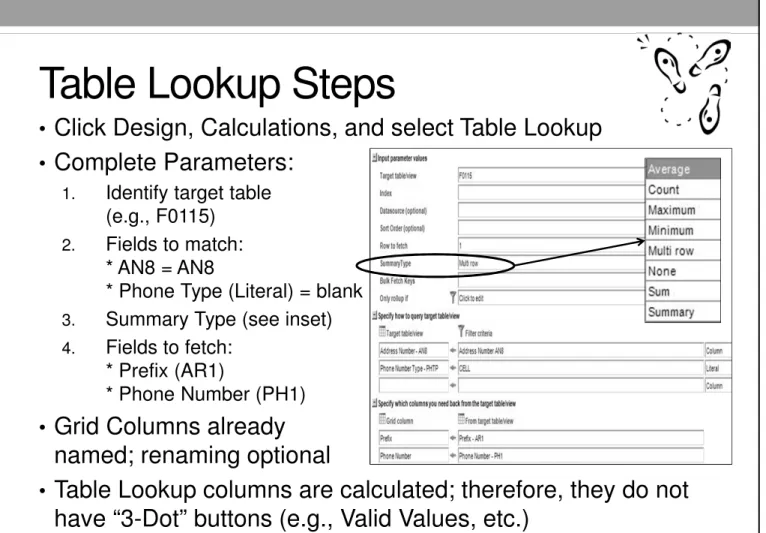
• Click Design, Calculations, and select Table Lookup • Complete Parameters:
1. Identify target table (e.g., F0115)
2. Fields to match:
* AN8 = AN8
* Phone Type (Literal) = blank
3. Summary Type (see inset)
4. Fields to fetch:
* Prefix (AR1)
* Phone Number (PH1)
• Grid Columns already named; renaming optional
• Table Lookup columns are calculated; therefore, they do not
ReportsNow Designer Training 1/8/2013
Copyright 2012 iLearnERP 108
Pad Calculation
If you are using a Table Lookup because you do not have an exact match, Pad and Trim (next slide) are helpful calculations. Padding adds characters and/or numbers to a columnar value. It is often used to create a new column that has a specific length to then match to another column in another table.
• Fill in the “Input” or source column • Select “Left or right side”
• Fill in “Padding character” (0 for example)
• Fill in “Total width” of new
column
• Add a conditional rollup,
ReportsNow Designer Training 1/8/2013
Copyright 2012 iLearnERP 109
Trimming Column Values
• Trim
• Shorten values using delimiter(s)
• Can trim from the left, right, or both sides
• Substring
• Splits values based on Start Index (starting position) and
Length, from X position and X characters long
• Split
• Splits the value into multiple columns based on a
delimiter(s)
• Number of columns for output is specified as the ‘Split Number’, fill in 1 on the first line, then 2, etc. for the total number of columns of split
ReportsNow Designer Training 1/8/2013
Copyright 2012 iLearnERP 110
How do I know – Join or Lookup?
• If you can do a join – do! Table Lookups have more limitations
(e.g., no Associated Descriptions), and Joins run faster
• Table Lookups do solve the problem of not having exact matches or needing to manipulate the returned data.
• Always tile the tables first to compare data coming from multiple
locations. You should know the following before doing either:
• What tables?
• What fields you want from each tables?
• What fields match?
• Simple or Left? Left Outers are common, because of the “Master or Header-to-Detail” scenario; Simple Joins are often overlooked, because of the “One-to-One” relationship
• Review the data to help decide the best join; you can always modify the Join Type later
ReportsNow Designer Training 1/8/2013
Copyright 2012 iLearnERP 111
QUICK REPORTS
Financials
ReportsNow Designer Training 1/8/2013
Copyright 2012 iLearnERP 112
Quick Reports
A tool that enables the creation of finance and asset reports answering real business questions with only having business knowledge (not technical knowledge)!
• Report Writing Wizard: makes complicated calculations
easy through predefined formulas
• Reports on Posted Balances: reports over F0902 or
F1202...but you can add tables using Table Lookup
• Does some work for you: creates parameters and
calculations, hides columns, joins tables and can automatically map to excel
ReportsNow Designer Training 1/8/2013
Copyright 2012 iLearnERP 113
F0902 - Account Balances (F1202 – Asset Account Balances)
ReportsNow Designer Training 1/8/2013
Copyright 2012 iLearnERP 114
Quick Report - Financials
The Finance Quick Report will automatically do the following:
• Creates Relative Period calculations and if selected a List Calculations
• Adds Parameters: Fiscal Period, Fiscal Year, Company,
Business Unit
• Fills in Ledger Type (LT) = AA, additional LT if added while splitting columns, and Object Account range if filled in on the Special tab
• Joins F0902 and if selected the F0901 for COA Cat Codes and the F0006 for BU Cat Codes
ReportsNow Designer Training 1/8/2013
Copyright 2012 iLearnERP 115
Quick Report – Capital Asset Mgmt.
The CAM Quick Report will automatically do the following:• Relative Period and, depending on selections, Conditional
and List Calculations
• Parameters: Fiscal Period, Fiscal Year, Company,
Business Unit
• Fills in Ledger Type (LT) = AA, additional LT if added while
splitting columns
• Joins F1202 and if selected the F1201
for the Asset Master and the F0006 for BU Cat Codes
ReportsNow Designer Training 1/8/2013
Copyright 2012 iLearnERP 116
Quick Reports Steps
1. Click File, Quick Report, Financials or Capital Asset
Management
• The Quick Reports Wizards from any screen in DAS
2. On the Main tab Name your report and check the
appropriate boxes for category codes and Asset Master
• Checking these boxes indicates that the wizard will complete the necessary joins to include the additional information
ReportsNow Designer Training 1/8/2013
Copyright 2012 iLearnERP 117
Quick Reports Steps
3. Create your columns on thePeriods tab by selecting the checkboxes for Fiscal
Period, YTD Fiscal Period, etc.
• If you are creating a Balance Sheet DAS will select YTD Fiscal Period for you
• You can add additional columns by using ‘Compare to previous’ – select the duration such as Fiscal Period and the number of
months/years/quarters for comparison
• Customize the headings by changing the ‘Caption’ field