by Rick Faulk and Maureen Condon
WebEx
®WebOffice
™Workgroup
FOR
WebEx®WebOffice™Workgroup For Dummies®
Published by Wiley Publishing, Inc. 111 River Street Hoboken, NJ 07030-5774 www.wiley.com
Copyright © 2006 by Wiley Publishing, Inc., Indianapolis, Indiana Published by Wiley Publishing, Inc., Indianapolis, Indiana
No part of this publication may be reproduced, stored in a retrieval system or transmitted in any form or by any means, electronic, mechanical, photocopying, recording, scanning or otherwise, except as permitted under Sections 107 or 108 of the 1976 United States Copyright Act, without the prior written permission of the Publisher. Requests to the Publisher for permission should be addressed to the Legal Department, Wiley Publishing, Inc., 10475 Crosspoint Blvd., Indianapolis, IN 46256, (317) 572-3447, fax (317) 572-4355, or online at http://www.wiley.com/go/permissions. Trademarks:Wiley, the Wiley Publishing logo, For Dummies, the Dummies Man logo, A Reference for the Rest of Us!, The Dummies Way, Dummies Daily, The Fun and Easy Way, Dummies.com, and related trade dress are trademarks or registered trademarks of John Wiley & Sons, Inc. and/or its affiliates in the United States and other countries, and may not be used without written permission. WebEx and WebOffice are registered trademarks of WebEx Communications, Inc. All other trade-marks are the property of their respective owners. Wiley Publishing, Inc., is not associated with any product or vendor mentioned in this book.
LIMIT OF LIABILITY/DISCLAIMER OF WARRANTY: THE PUBLISHER AND THE AUTHOR MAKE NO REPRESENTATIONS OR WARRANTIES WITH RESPECT TO THE ACCURACY OR COMPLETE-NESS OF THE CONTENTS OF THIS WORK AND SPECIFICALLY DISCLAIM ALL WARRANTIES, INCLUDING WITHOUT LIMITATION WARRANTIES OF FITNESS FOR A PARTICULAR PURPOSE. NO WARRANTY MAY BE CREATED OR EXTENDED BY SALES OR PROMOTIONAL MATERIALS. THE ADVICE AND STRATEGIES CONTAINED HEREIN MAY NOT BE SUITABLE FOR EVERY SITU-ATION. THIS WORK IS SOLD WITH THE UNDERSTANDING THAT THE PUBLISHER IS NOT ENGAGED IN RENDERING LEGAL, ACCOUNTING, OR OTHER PROFESSIONAL SERVICES. IF PRO-FESSIONAL ASSISTANCE IS REQUIRED, THE SERVICES OF A COMPETENT PROPRO-FESSIONAL PERSON SHOULD BE SOUGHT. NEITHER THE PUBLISHER NOR THE AUTHOR SHALL BE LIABLE FOR DAMAGES ARISING HEREFROM. THE FACT THAT AN ORGANIZATION OR WEBSITE IS REFERRED TO IN THIS WORK AS A CITATION AND/OR A POTENTIAL SOURCE OF FURTHER INFORMATION DOES NOT MEAN THAT THE AUTHOR OR THE PUBLISHER ENDORSES THE INFORMATION THE ORGANIZATION OR WEBSITE MAY PROVIDE OR RECOMMENDATIONS IT MAY MAKE. FURTHER, READERS SHOULD BE AWARE THAT INTERNET WEBSITES LISTED IN THIS WORK MAY HAVE CHANGED OR DISAPPEARED BETWEEN WHEN THIS WORK WAS WRIT-TEN AND WHEN IT IS READ.
For general information on our other products and services, please contact our Customer Care Department within the U.S. at 800-762-2974, outside the U.S. at 317-572-3993, or fax 317-572-4002. For technical support, please visit www.wiley.com/techsupport.
Wiley also publishes its books in a variety of electronic formats. Some content that appears in print may not be available in electronic books.
ISBN-13: 978-0-471-77954-4 ISBN-10: 0-471-77954-7
Manufactured in the United States of America 10 9 8 7 6 5 4 3 2 1
1O/QU/QR/QW/IN
About the Authors
Rick Faulk is President of the Small Business Division of WebEx Communications, Inc. and former President and CEO of Intranets.com, which was acquired by WebEx in 2005.
Together the combined company provides a full range of online collaboration solutions for the SMB and Enterprise markets.
As President and CEO of Intranets.com, Rick was named a 2004 “Best Boss” by FORTUNE Small Business Magazine (FSB) and Winning Workplaces. Under his leadership, Intranets.com was selected by both Deloitte and Touche and Inc. Magazine
as one of the fastest growing companies in 2004.
Rick has more than 30 years of distinguished leadership in high technology and has served as Vice President of Corporate Marketing at PictureTel, Vice President of Worldwide Sales and Marketing at Shiva Corporation, and Vice President of Corporate Marketing at Lotus Development Corporation. Before that, Rick founded First Software, a software distribu-tion company, which grew to more than $175 million in rev-enue in less than four years.
Maureen Condon is Marketing Programs Manager for the Small Business Division of WebEx Communications, Inc., and was Customer Relationship Marketing Manager for Intranets.com. She has 25 years’ experience in marketing for Fortune 500 companies, small businesses, and technology companies in the fields of online collaboration services, real-time database services, IBM DB2 database management tools, Windows Utilities, Peer-to-Peer technology, PC software, and fault-tolerant supercomputers. Her bylined articles on tech-nology and business have been published in more than 30 trade magazines and newspapers, including IBM eServerand
Publisher’s Acknowledgments
We’re proud of this book; please send us your comments through our online registra-tion form located at www.dummies.com/register/. For information about a custom
Dummiesbook for your business or organization, contact BrandedRights&Licenses@ Wiley.com.
Some of the people who helped bring this book to market include the following:
Acquisitions, Editorial, and Media Development
Senior Project Editor:Zoë Wykes
Business Development Representative:
Sue Blessing
Editorial Manager:Rev Mengle
Cartoons:Rich Tennant (www.the5thwave.com)
Composition Services
Project Coordinator: Kristie Rees
Layout and Graphics: Julie Trippetti, Heather Ryan
Proofreaders: Betty Kish, Jessica Kramer
Indexer:Joan Griffitts
Special Help
From Wiley: Gabriele McCann
From the Small Business Division of WebEx Communications, Inc.:
Christine Bataille, Corrine Battle, Frank Brander, Roberta Burton, John Carroll, Jeff Cody, Meredith Kench, Karen Leavitt, Patrick Moran,
Derek Peplau, Greg Shenk
Publishing and Editorial for Technology Dummies
Richard Swadley,Vice President and Executive Group Publisher
Andy Cummings,Vice President and Publisher
Mary Bednarek,Executive Acquisitions Director
Mary C. Corder,Editorial Director
Publishing for Consumer Dummies
Diane Graves Steele,Vice President and Publisher
Joyce Pepple,Acquisitions Director
Composition Services
Gerry Fahey,Vice President of Production Services
Debbie Stailey,Director of Composition Services
Table of Contents
Introduction ...1
About This Book ...1
Who Should Read This Book ...2
How to Use This Book ...2
Foolish Assumptions ...2
How This Book Is Organized...3
Part I: WebOffice Workgroup...3
Part II: Real-Time and Asynchronous Collaboration....3
Part III: The Part of Tens ...3
Icons Used in This Book...4
Where to Go from Here ...4
Part I: WebOffice Workgroup...5
Chapter 1: Working Together Just Got Easier . . . 7
What Is WebOffice? ...8
Group Calendar...8
Document Manager ...9
Database Manager ...9
WebEx Meetings...10
Task Manager ...10
Announcements ...11
Discussion Forums ...11
Opinion Polls ...12
Contact Directories ...12
Expense Reports ...13
Administration Tools...13
Realizing You’re Never Alone ...13
Chapter 2: Taking Advantage of Hosted
Collaboration. . . 15
Choosing a Hosted Service ...15
Okay, What’s the Business Value?...17
Financial Services firms ...17
Healthcare firms ...17
Marketing and PR agencies ...18
Real estate agencies ...18
Nonprofit agencies and community activist groups ....19
Technology firms ...19
Building Business Bridges ...20
So Really, What’s All This about Web Touch? ...20
Putting WebOffice to the Test...21
Part II: Real-Time and Asynchronous
Collaboration...23
Chapter 3: Using Your Group Calendar . . . 25
Creating Meetings and Events ...25
Getting Real Business Value ...29
Setting Your Calendar Preferences ...30
Syncing Your Calendar with a PDA or Microsoft Outlook ....32
Chapter 4: Sharing and Organizing Documents . . . 33
Gaining Business Value ...34
Posting Your Documents in One Place Online ...35
Creating a New Folder ...35
Setting up permissions-based access ...37
Adding documents ...38
Updating documents: Check in, check out...40
Renaming a file...42
Notifying members of new documents ...42
Discovering Web Folders ...43
Searching for Documents...45
Performing a simple search...45
Performing an Advanced Search ...45
Doing a Full-Text Search ...46
Chapter 5: Creating Web Databases . . . 47
Sharing Information ...47
Working with Customized Databases ...48
Building Your Custom Databases from Scratch ...50
Using Existing Database Templates...51
Customizing existing templates...53
Entering data ...53
Importing and Exporting Data...54
Importing data ...55
Mapping data...55
Exporting data...57
WebEx WebOffice Workgroup For Dummies
vi
Setting up Permissions-based Access ...58
Using Activity Logs ...59
Creating and Using Calculated Fields ...61
Editing calculated fields...64
Using calculated fields ...64
Chapter 6: Real-Time Collaboration
with WebEx Meetings . . . 65
So Tell Me, What Exactly Is a WebEx Meeting? ...66
Appreciating the Business Value of WebEx Meetings...66
Launching a WebEx Meeting...67
Viewing your WebEx Meetings ...68
Meeting spontaneously...69
Scheduling a WebEx Meeting in advance ...71
Starting Your WebEx Meeting ...74
Chatting with meeting attendees...75
Presenting to attendees ...75
Passing the Presenter’s Ball ...75
Sharing applications...76
Sharing your desktop ...77
Polling participants ...77
Scheduling a call ...79
Joining a meeting ...80
Chapter 7: Working with the Task Manager,
Discussion Forums, and Other Tools . . . 83
Discovering the Task Manager ...84
Making Company-wide Announcements...86
Organizing and displaying Announcements...86
Adding new announcements ...88
Brainstorming with Discussion Forums...90
Creating Discussion Forums...91
Starting a new discussion topic in an existing forum ...92
Replying to a topic...92
Editing messages ...93
Deleting messages ...93
Notifying members of new messages...93
Getting Feedback through Opinion Polls...94
Creating a poll ...94
Making changes to a poll ...95
Closing a poll...97
Part III: The Part of Tens ...99
Chapter 8: Ten (Plus) Ways to Customize
Your WebOffice. . . 101
Adopting New Color Schemes ...101
Customizing Your Home Page ...102
Customizing Your Home Page Menu ...103
Customizing Navigation ...104
Customizing Your Locale Settings ...105
Customizing Your Applications...105
Customizing Applications Settings ...106
Setting Feature Permissions ...106
Enabling Full-Text Search...107
Customizing the Group Calendar...108
Customizing Expense Reports ...108
Changing Your Site URL ...108
Chapter 9: Ten Top Items to Post on
Your WebOffice. . . 111
Posting Your Company’s Holiday Schedule...111
Uploading Company Forms ...112
Creating Links to Key Web Sites ...112
Creating an Employee Suggestion Box...112
Building an Employee Directory ...113
Posting Policies, Procedures, and Training Materials ...113
Creating an Employee Bulletin Board ...113
Starting a Company Meetings and Events Calendar ...114
Creating an Employee Newsletter...114
Posting a Poll for Employees...114
Index ...115
WebEx WebOffice Workgroup For Dummies
viii
Introduction
S
mall businesses face faster-paced, more demanding busi-ness environments than ever before. So do project teams within corporations and workgroups that cut across multiple organizations.No matter where you work, getting “the job” done requires teamwork and collaboration that’s up-to-the-minute among colleagues whose offices may span the globe. “On-demand” is the watchword. The most current information must be avail-able 24/7 — anywhere in the world.
Historically, business collaboration challenges have been met, progressively, by means of business travel, mail, telephone, fax, overnight delivery services, teleconferencing, and most recently e-mail. Today, WebEx WebOffice Workgroup provides a far more cost-effective immediacy for sharing work and man-aging projects through a business model we call Web Touch. We touchon that topic in just a few minutes.
By offering hosted collaboration services, WebEx WebOffice Workgroup provides its users with the technology that many tech-savvy businesses enjoy — without the expenses these businesses incur developing and maintaining these services in-house.
In WebEx WebOffice Workgroup For Dummies,we put you on the fast track for making these powerful, yet simple-to-use, online collaboration tools your own.
(And speaking of fast track, we’ve opted from this point for-ward to refer to WebEx WebOffice Workgroup as simply WebOffice. Once we get beyond the Introduction, that is.)
About This Book
WebEx WebOffice Workgroup For Dummies
2
meet their collaboration needs. This book also gives you ideas on how you can gain real business value by using WebOffice.
Who Should Read This Book
Forward-thinking individuals and groups that want to focus on growing their businesses, without growing costly technology infrastructures, should read this book. That would include business owners and executives, and IT managers and office administrators in any industry, at any location. That would also include anyone who wants to solve the time, distance, and money problems of interacting remotely with other busi-ness people — be they coworkers, busibusi-ness partners, cus-tomers, sales prospects, vendors, and so on.
In short, any business that needs to be up and running fast with low cost, secure, private collaboration services available anywhere, anytime, that require no IT expertise or in-house support can benefit from reading this book about WebOffice.
How to Use This Book
You can use this book just about any way you like. You can read it like a novel from front to back to understand how to use WebOffice and the value it can bring to your business or organization. You can use it as a reference book, since that’s truly what it is, for getting the most out of your WebOffice. You can even use it as a paper weight (a light-weight paper weight, that is) if you’re so inclined. In fact, you’ll have a lot less paper to weigh down when you manage your documents, your databases, schedules, and communications — in short, your business — online with WebOffice.
Foolish Assumptions
In writing this book, we made some assumptions about you:
⻬You use a PC or a Mac and a browser, and you know how to use the Internet.
⻬You’re looking for a way to work efficiently online with others, anywhere, anytime.
⻬You sometimes have urgent business to conduct in real time with a remote colleague, business partner, or client.
How This Book Is Organized
WebEx WebOffice Workgroup For Dummies is broken into three parts. If you’re new to the technology, you may find it helpful to read the parts in sequential order. If you simply want to get into the nuts and bolts of a specific topic, feel free to check out the table of contents or the index, find what you’re look-ing for, and turn right to the page that covers that topic. Here’s a quick rundown of what you’ll find in each part.
Part I: WebOffice Workgroup
Chapters 1 and 2 in this section give you an overview of what WebOffice is and how it can solve many common collaboration problems for businesses — as well as workgroups, departments, and cross-organizational teams. And, we tell you about the new business model that WebOffice embodies — Web Touch.
Part II: Real-Time and
Asynchronous Collaboration
In Chapters 3 through 7, we show you how to set up and use the WebOffice online collaboration suite of applications. You can read about how WebOffice is being used in a wide range of industries. And, we show you how easy it is to use WebOffice. (And why you really don’t even need to read this book from front to back, except to get ideas about all the really cool things your business can do with WebOffice.)
Part III: The Part of Tens
A standard feature for all For Dummiesbooks, each Part of Tens chapter provides ten useful bits of information for your consumption. Chapter 8 gives you ten ways to customize your WebOffice; Chapter 9 shows you the ten top items to post on your WebOffice to jump start usage.
Icons Used in This Book
Throughout this book, you find icons in the margins, marking specific paragraphs. Here’s what the icons indicate:
Whenever you see this icon, you’re being signaled that the information is especially important to know.
This icon alerts you to shortcuts or other valuable hints related to the topic at hand.
Should you see this icon, run for cover. No, seriously. What this icon points out is information that’s, well, really technical. You may want to skip it (or read it when no one else is looking).
Where to Go from Here
As interesting as this book is, you won’t hurt our feelings if you don’t read it from cover to cover. In fact, we wrote this book with the thought that after you read a few chapters and see how easy WebOffice is to use, you probably would get so excited about it, you would just dive in and start using WebOffice like a pro. So, feel free to simply leave this book next to your coffee cup and use it as a handy reference.
WebEx WebOffice Workgroup For Dummies
4
Part I
In this part . . .
W
e wax existential. What is WebEx WebOffice Workgroup? Why is it here? Where can you go with it? What does it all mean? In Chapter 1, we tell you what each of the applications in the WebOfffice suite can do for you. In Chapter 2, you get the scoop on why a hosted col-laboration service, like WebOffice, meets the needs of small businesses and workgroups.Chapter 1
Working Together
Just Got Easier
In This Chapter
䊳Finding out about WebOffice
䊳Exploring online collaboration
W
hether you run a small business, a project team, a cross-disciplinary workgroup, or a department, the Internet and all of its accompanying technology have pro-foundly impacted your world. Your work pace is faster. Your work force is geographically scattered. Your clients/ customers are demanding new products and services at an increasingly rapid rate. And of course, in today’s economy, your costs are skyrocketing.You wanta new way to work! You want a way to enable your workgroup — whatever its mission or scope — to work better, faster, and more cost-effectively to turn out products and services to keep you competitive in today’s business technol-ogy matrix.
WebOffice is the wayto go.
Part I: WebOffice Workgroup
8
What Is WebOffice?
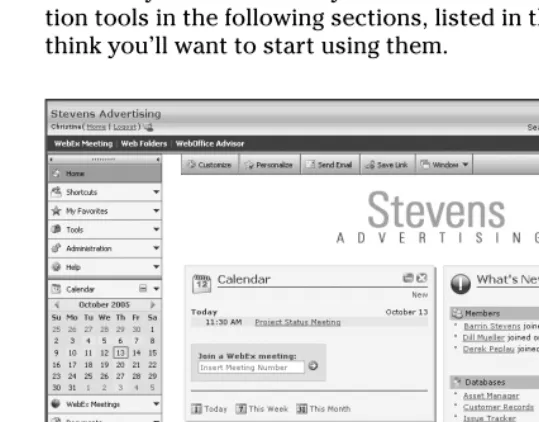
WebOffice (check out Figure 1-1 for a look at a sample Home page) is a suite of online collaboration tools that allow you and your team to share information and work together more effectively from wherever you are. We discuss these collabora-tion tools in the following seccollabora-tions, listed in the order we think you’ll want to start using them.
Figure 1-1: Sample WebOffice Home page.
Group Calendar
The Group Calendar allows you to schedule meetings, WebEx Meetings, events, appointments, and recurring meetings with e-mail reminders to participants. You can
⻬Share your calendar with colleagues while maintaining the privacy of your personal appointments and events.
⻬Coordinate your workgroup’s schedules from one place.
⻬Schedule meetings and WebEx Meetings.
⻬Check participant availability online for meetings and WebEx Meetings.
⻬Send meeting invitations via e-mail, attaching relevant documents, agendas, or directions.
⻬Reserve conference and meeting rooms.
⻬Sync with Palm and Outlook.
Document Manager
Whether you’re at the office, on the road, or working from home, the Document Manager allows you and your colleagues to manage and share all of your documents and files from any-where. You can
⻬Organize and access your files online.
⻬Publish documents company-wide.
⻬Drag and drop files for easy uploading.
⻬Protect access to documents and files through a permissions-based and password-protected system.
⻬Create folders and subfolders for each department, project, remote workgroup, and so on.
⻬Create a central repository for all your company’s impor-tant documents, so that all employees can access them, anywhere, anytime.
⻬Use the Full-Text Search upgrade to pinpoint information you need in seconds.
Database Manager
The Database Manager allows you to organize, store, and share your important business information with ease. Finally, sales reports, client records, project deadlines, knowledge bases, and inventory reports are located in one centralized place. You can
⻬Build databases quickly and easily
⻬Share information with remote or mobile workers
⻬Sort, group, and filter your data
⻬Access your data instantly, 24 hours a day, 365 days a year
⻬Format database reports for printing
⻬Import and export data to save time and increase accuracy
⻬Use calculated fields for deriving new information from your database
WebEx Meetings
WebEx Meetings is a powerful meeting tool that lets you meet online with participants you choose worldwide —whenever and wherever you happen to be at the moment. You can
⻬Improve business relationships with partners, customers, vendors, remote employees, and other colleagues through Web Touch — the new business model embodied in WebEx Meetings. (We talk more about Web Touch in Chapter 2.)
⻬Save time and money on business travel for training, partnering, sales, and marketing by meeting in real time, online instead.
⻬Peak prospects’ interest and close deals more quickly by sharing presentations, applications, and your desktop in real time.
⻬Engage meeting attendees and get your ideas across more effectively through online chats, polling, teleconfer-encing, and passing the presentation ball (see Chapter 6) to attendees.
⻬Receive faster feedback from meeting invitees, through e-mail RSVPs.
⻬Easily retrieve participant contact data for follow-up pur-poses, through WebEx Meetings Event Registration.
Task Manager
The Task Manager allows you to manage multiple projects, coordinate local and remote project teams, and track progress to deliver results. You can
⻬Delegate tasks to other WebOffice members, or keep the tasks on your own to-do list.
Part I: WebOffice Workgroup
10
⻬Monitor the status of tasks associated with various proj-ects, tracking by project, owner, and date.
⻬Assign permissions so that team members only see tasks that relate to their project.
⻬Synchronize tasks with your Palm handheld or Microsoft Outlook so that action items are always at your fingertips.
Announcements
Announcements allow you to post important information on your WebOffice Home page using simple text, graphics, and photos. You can
⻬Use colors and font changes to create online newsletters for your organization.
⻬Automatically notify members of new announcements.
⻬Mark a new announcement as “urgent.”
⻬Link Announcements to documents, databases, and Web pages.
⻬Set an automatic expiration date so that the announce-ment does not display on the Home page after the expira-tion date.
Discussion Forums
Discussion Forums allow you to create online ongoing discus-sions. Discussion Forums are more comprehensive than chat sessions or e-mail because you can keep a permanent history of conversations among all users. You can
⻬Brainstorm effectively with colleagues, even if you can’t get together in the same place at the same time.
⻬Protect confidential information by controlling, through secure permissions, which individuals or groups have the right to read or contribute to a particular discussion.
⻬Keep everyone up-to-date by notifying forum members when you make changes to a discussion topic or create a new forum.
⻬Illustrate your points to colleagues more effectively by attaching documents and files to individual discussion contributions.
⻬Sort, expand, and collapse topics within Discussion Forums for easy reading.
⻬Search efficiently for a discussion thread by title or keyword.
Opinion Polls
Opinion Polls allow you to create single-answer or multiple-answer polls. You can
⻬Poll with anonymous or open voting.
⻬Share poll results with respondents.
⻬Notify participants automatically that a poll has been created and requires response.
⻬See response progress with real-time graphs.
⻬Let members view a running tally of votes, or hold the results until the poll is closed.
⻬Activate, deactivate, or purge surveys.
⻬Set response limits and cut-off dates.
⻬View reports and publish results.
Contact Directories
Contact Directories allow you to manage information for con-tacts both inside and outside your company. The Contact Directories application allows you to
⻬List all of your WebOffice members along with their job titles, photographs, phone and fax numbers, and e-mail and street addresses.
⻬Store all of your information about outside suppliers, clients, partners, vendors, and so on.
Part I: WebOffice Workgroup
12
⻬Grant access to member information for remote employ-ees so that they can identify or reach co-workers.
⻬Keep your outside contact information private or share it with others in your organization.
Expense Reports
Expense Reports provide a standard interactive form for employees to submit all work-related expenses for reimburse-ment. You can customize the Expense Reports application to meet your company’s needs by defining expense categories, mileage reimbursement rates, and local currency. Expense Reports allow you to
⻬Manage your travel and entertainment reporting for employees and accounting personnel.
⻬Keep an accurate record of all expense reports filed.
⻬Retain the privacy of your expense information and access it instantly, no matter where you are.
Administration Tools
Administration Tools allow you to customize the look and feel, control access, and monitor usage of your WebOffice, so that you can easily integrate WebOffice into your daily operations. Administration Tools allow you to
⻬Customize your WebOffice to match your company’s identity.
⻬Configure the layout of your Home page by turning appli-cations on or off.
⻬Set permissions to limit access to specific content areas.
⻬Create member groups for efficient communication.
Realizing You’re Never Alone
WebOffice members are never alone. After all, what is collabora-tion if it isn’t about sharing? It’s certainly not about being alone.
WebOffice members can be in touch with each other, any-where, anytime. And, even though the WebOffice suite of tools is really easy to use, WebOffice offers an extensive system of Online Help — to keep you from ever being lonely. That’s right, help that’s always there for you, the perfect companion — the strong, silent type — and only a click away.
That’s not all. WebOffice users have other sources of help. They’re called WebOffice administrators and are typi-cally the lucky members who subscribe to the service first. Administrators’ responsibilities are few but their powers are plentiful. Future administrators, feel free to jump ahead to Chapter 8 in particular and discover all the fun you can have customizing your WebOffice to suit the style and needs of your company or organization.
And, of course, WebOffice users can always contact WebEx Customer Service for help via e-mail or telephone. You can find our contact information on our Web site, www.weboffice.com.
Part I: WebOffice Workgroup
14
Chapter 2
Taking Advantage of
Hosted Collaboration
In This Chapter
䊳Discovering the online advantage
䊳Gaining real business value
䊳Finding out about Web Touch
䊳Putting WebOffice to the test
M
any companies often consider custom building their own collaboration services in-house. Such a strategy requires dedicated human resources, substantial funding, and lengthy ramp-up times. Most businesses, and small businesses in particular, would find this route prohibitive.So, instead, many businesses are opting to use hosted collabora-tion services. That way, a third party vendor takes on the responsibility of keeping the service up and running seamlessly.
In this chapter, we discuss in detail the reasons for choosing a hosted collaboration service, available online, rather than custom building such a service in-house. We review the busi-ness value of hosted services for a wide range of busibusi-nesses. We also give you a quick quiz that reveals whether you can benefit from having a hosted collaboration service.
Choosing a Hosted Service
Part I: WebOffice Workgroup
16
inexpensively, and with an eye to effectiveness are all paramount.
In such a situation, a ready-made solution that can be quickly customized offers much greater business value than a solution that may take months to implement in-house and requires a budget that’s bulging at the seams.
Here are six reasons for choosing a hosted collaboration serv-ice versus building a collaboration servserv-ice in-house:
⻬Zero hardware or software to buy.You don’t have to buy, install, or maintain any hardware or software. Flexible monthly or annual pricing plans provide predictable costs.
⻬Rapid setup and deployment. You can set up WebOffice in five minutes and have it fully operational the very same day.
⻬Global access.You leverage the power and flexibility of the Internet to obtain anytime, anyplace access for remote workers without having to build in-house custom firewalls and VPNs.
A VPN (virtual private network ) uses a public telecommunica-tion infrastructure, such as the Internet, to provide remote offices or individual users with secure access to their organi-zation’s network.
⻬Product enhancements.WebEx leverages feedback from WebOffice users worldwide to add new applications and features to WebOffice on an ongoing basis. WebOffice users don’t have to worry about downloading large soft-ware files in order to get new upgrades to the service. This hosted service makes all service upgrades automati-cally and seamlessly. As a user, you can sit back and relax.
⻬Reliability, performance, and security.WebEx monitors its data center 24/7 to ensure high availability, and nightly backs up all customer data. Without a hosted service, this level of security and support would require dedicated IT resources, dramatically increasing the total cost of ownership.
⻬Customization.You can control a rich set of configuration and customization options for your company’s WebOffice site, using only a Web browser. If you need more customiza-tion, you can do so with the help of WebOffice developers.
Okay, What’s the Business
Value?
Small businesses, project teams, cross-disciplinary teams, and departments in corporations, use WebOffice to keep their work flowing freely, smoothly, and quickly. Doing so saves money, creates efficiencies, and increases overall productivity among business users.
The variety of companies and work groups using WebOffice is broad. The following is a sampling of usages for WebOffice by businesses across many industries.
Financial Services firms
You can use WebOffice for a wide range of activities. You can
⻬Present quarterly reports to investors and train branch personnel on compliance regulations using WebEx Meetings.
⻬Make large confidential financial documents available immediately — securely, via PC/browser, 24/7, using the Document Manager.
⻬Track and manage the progress of thousands of sales leads using the Database Manager.
⻬Schedule board meetings using the Group Calendar.
⻬Notify bank tellers and sales reps about rate changes, fee schedules, and new products with the WebOffice
Announcements Board.
⻬Keep employees up-to-date on federal, state, and local banking regulations with the Document Manager.
Healthcare firms
You can share policies, procedures, and programs inter-departmentally and with remote facilities. You can also do the following:
⻬Share patient information using the Database Manager.
⻬Share medical imaging with remote consultants for diag-nostic purposes using WebEx Meetings.
⻬Schedule coverage of doctors and other medical person-nel in multiple facilities using the Group Calendar.
Marketing and PR agencies
WebOffice allows you to run offices and work with clients worldwide. You can
⻬Review ad copy and layouts online with the Document Manger.
⻬Archive logos and artwork in a central repository using the Document Manager and Database Manager.
⻬Track print collateral and print, TV, and radio ad produc-tion with the Database Manager.
⻬Brainstorm creative ideas with Discussion Forums.
Consulting firms
Using WebOffice, you can manage projects with the Group Calendar, Document Manager, Task Manager, and Database Manager. Here’s a couple more things you can do:
⻬Build Customer Relationship Management systems, using the Database Manager.
⻬Profile customers using the Database Manager and Document Manager.
⻬Access critical customer information and materials via WebOffice while onsite at your client’s location.
Real estate agencies
You can use WebOffice to coordinate offices from coast to coast. You can
Part I: WebOffice Workgroup
18
⻬Schedule appointments and closings using the Group Calendar.
⻬Share real estate forms using the Document Manager.
⻬Share client information using the Database Manager.
Nonprofit agencies and community
activist groups
Using WebOffice, you can manage schedules and activities of large numbers of volunteers with the Group Calendar. You also can
⻬Maintain interest in issues in between meetings using Discussion Forums.
⻬Track members, volunteers, donors, and so on, using the Database Manager or the Members Directory.
⻬Maintain current procedure and policy documents using the Document Manager.
Technology firms
You can utilize WebOffice to manage projects with the Task Manager. You can also
⻬Deliver software updates and releases to clients via the WebOffice Document Manager, eliminating the need for overnight delivery or on-site visits.
⻬Build customer-relationship management systems via the Database Manager.
⻬Use WebEx Meetings to train your sales force in the use of your product.
Okay, you get the idea. Virtually any business can improve internal productivity and save money with a hosted service like WebOffice, versus custom building a collaboration service in-house.
Building Business Bridges
Beyond the uses for WebOffice inside a company, a wide range of companies use WebOffice as their Business-to-Business (B2B) bridge. These companies use WebOffice as an extranet to collaborate with clients, customers, partners, and so on.
For example, advertising agencies use WebOffice to revise marketing materials with their clients. Agencies can post drafts of brochures, catalogues, advertisements, direct-mail pieces, and more on WebOffice. In turn, clients can review and revise these materials and post their changes on WebOffice at their leisure. Many agencies also use WebOffice to share advertising files with their clients’ other vendors, such as PR firms and direct-mail houses.
We could give you many more examples of how business users are extending their business reach with WebOffice, but you get the idea.
So, instead, right now, we want to turn your attention to the business model behind WebOffice — the Web Touch business model — and tell you just a little bit about that.
So Really, What’s All This
about Web Touch?
Web Touch is a new business model that describes the Internet-enabled process that allows companies to develop and maintain more effective business relationships than ever before possible through traditional means.
Traditionally, the strongest business relationships were main-tained by high-touch(face-to-face) interactions, such as sales and customer service calls, executive on-site meetings, and so on. These interactions, while fruitful, were expensive, time consuming, and probably not always productive enough to justify the cost or time on the road spent away from family.
Today, the Web Touch business model allows its practitioners to develop and maintain more effective business relationships — without the hassle and expense of hopping in a car, train, or
Part I: WebOffice Workgroup
20
plane — by utilizing cost-effective, Web-based collaboration technology.
With the Web Touch business model, embodied in WebOffice, and in particular in the WebEx Meetings application, business users can have it all — high quality and high quantity — in their business interactions. They can schedule Web-based meetings in advance, or spontaneously, and share presenta-tions, documents, spreadsheets, and other files, whenever they need to — with dozens of business contacts each week.
As a result, WebOffice users can get the benefit of the old high-touch model — stronger business relationships — and they also can reap these additional benefits: accelerated busi-ness velocity, increased customer reach, improved productiv-ity, and lower costs.
Putting WebOffice to the Test
To see whether you can gain business value from using a hosted service like WebOffice inside your company or organi-zation, or outside with partners, customers, and vendors, all you need to do is answer the following questions:
⻬Could your company use an online group calendar for scheduling appointments?
⻬Could your company use a central online repository for file sharing and editing? A repository that all or desig-nated employees can access anywhere, anytime?
⻬Do you need online databases that all or designated employees can access whenever and wherever?
⻬Would you like to spend less on travel for training, sales, customer support, or product development?
⻬Could you improve task management and project man-agement operations?
⻬Could you improve employee communications with a new company-wide announcement system and a new online system for getting employee input?
⻬Could you communicate better with business partners, clients, vendors, suppliers, and so on?
If you answered “yes” to any of these questions, you could gain real business value by having your own WebOffice. In the following chapters, we show you how easy it is to use the WebOffice suite to do just that.
Part I: WebOffice Workgroup
22
Part II
Real-Time and
Asynchronous
In this part . . .
W
e get down and dirty. We show you how to start using WebEx WebOffice applications, step by step. We show you how small businesses and corporate work-groups use WebOffice to meet their day-to-day business challenges. And, we give you lots of really cool ideas about how you can use WebOffice to make your work life easier.Chapter 3
Using Your Group Calendar
In This Chapter
䊳Getting an overview of your Online Calendar
䊳Scheduling meetings, WebEx Meetings, and company-wide events
䊳Sharing your schedule while maintaining privacy
䊳Synchronizing your Online Calendar with a PDA or Microsoft Outlook
T
he WebOffice Online Calendar helps you and your team keep track of personal appointments, group meetings, WebEx Meetings, recurring meetings, company-wide events and more.Whether you’re in the office, on the road, or working at home, you always have access to the latest scheduling information for yourself and your co-workers. And, you can always sched-ule, launch, or join a WebEx Meeting (see details in Chapter 6).
In this chapter, we show you how to use WebOffice to sched-ule both the old-fashioned on-site meetings and events, and WebEx Meetings that allow you to meet online with anyone, anywhere, in real time. You find out how to send invitations, check for conflicts in invitees’ schedules, and even check for the availability of your meeting room for on-site meetings. We also show you how to set up meeting reminders, check RSVPs, schedule company meetings, and log personal events that show up only on your calendar. Finally, we show you how to sync your calendar with two systems — a Palm handheld device and Microsoft Outlook.
Creating Meetings and Events
Part II: Real-Time and Asynchronous Collaboration
26
location, regardless of where you are. You can create on-site meetings and events, and you can launch WebEx Meetings with participants anywhere in the world. You can check participant availability, send meeting invitations, and reserve a conference room right from your desktop — resting assured that you’ve chosen a time when your specified meeting participants are not already booked. You can also make any event you create a recurring event, such as weekly staff meetings, biweekly meet-ings, or monthly team update meetings.
The following steps show you how to set up an on-site meeting or event and also how to set up a WebEx Meeting.
1. On the left menu of your WebOffice Home page, click Calendar. The Events for (Today’s Date) Calendar page appears.
The Events for (Today’s Date) page is the default view. To change the default view, click Settings in the top menu bar and choose your default view as Events for (This Week) or Events for (This Month). Click Save. The Events for (your choice of view) appear.
2. Click New. The New Event page appears.
3. Fill in the event details in the fields, as shown in Figure 3-1.You can attach a file of any kind — agenda, plans, budgets, directions, and so on — and that attachment is available to participants when they view the e-mail invitation.
Figure 3-1: Fill in the event details on the New Event page.
4. Click the Participants tab. A screen appears in which you select the members and groups you want to invite to your meeting. You can also check the avail-ability of invitees who are members of your WebOffice.
5. Click the drop-down menu to select members of your WebOffice to invite to your meeting.
6. Click the Check Availability box, as shown in Figure 3-2. You see a calendar that shows your WebOffice participants as free, busy, or out of the office for the time slot you designated.
Figure 3-2: You can check your WebOffice participants’ availability, as shown here.
7. After you select all members and confirm their avail-ability, you can also invite people outside your WebOffice members to your meeting.
•To invite anyone in your WebOffice Contacts group:Scroll down the Participants tab. In the Choose a Contact drop-down menu, highlight the name of the first contact you want to add to your invitee list and then click the Add button. Continue adding each contact individually until you have invited everyone you want.
•To invite people who are neither WebOffice members nor contacts: Type the e-mail addresses in the Enter Email Addresses input box, separat-ing the addresses by commas, semicolons, or spaces, and then click the Add button beside the input box to invite them to your meeting.
8. To make your meeting a recurring event, click the Recurrence tab on the New Event screen.
The Recurrence tab comes to the foreground.
9. Enter the information required to define how often you want your event to recur. Don’t click Save yet.
10. Click the Reminder tab on the New Event page. You can choose to send an e-mail reminder to yourself only or to specific invitees.
11. To send a reminder to specific invitees, choose Just the People Specified Below. In the drop-down menu below, select the invitees and click the Add button. All the invitees you select will receive an e-mail reminder for the meeting or event.
12. In the Send Reminder drop-down menu, select the timing of the e-mail reminder (from 15 minutes to 2 weeks prior to the meeting) and, unless you want to make your meeting a WebEx Meeting, click Save.
If you want your meeting to be a WebEx Meeting, do not click Save yet, but instead follow these optional steps.
a. If you want your meeting to be a WebEx Meeting, click the WebEx Meeting tab.The WebEx Meeting tab comes to the foreground.
b. Check the box for WebEx Meeting.The tab expands with a list of check boxes.
c. Select your desired options on the New Event page WebEx Meeting tab. (Refer to Chapter 6 to read all about WebEx Meetings.)
13. After you set all the specifics for your meeting, click Save. A Notify pop-up box appears giving you a choice of Send an Invitation (Response Required), Send a Notification (No Response Required), or Don’t Notify.
14. Make your selection, then click OK. Your Meeting Details tab appears. This tab contains the name of the meeting and important details about the meeting.
Part II: Real-Time and Asynchronous Collaboration
28
Getting Real Business Value
Businesses worldwide use the WebOffice group calendar to schedule and track appointments, meetings, WebEx Meetings, and events.
From financial services firms and real estate companies to nonprofit agencies and consultants, WebOffice users employ the group calendar to schedule important meetings and events from wherever they are. All you need is a computer and an Internet connection, and you can coordinate a meeting on the Web, or down the hall, in a matter of minutes. Here are examples of how some of these companies and organizations get business value from using the WebOffice Calendar.
⻬Real estate companies: Maintain master schedule for closings for multiple agents. Individual agents manage schedules for home showings and open houses.
⻬Consultants:Replace Microsoft Exchange and save on maintenance effort and cost. Schedule client meetings, including off-site and on-site visits, and WebEx Meetings.
⻬Advertising and PR agencies:Use Group Calendar as the hub of operations for multi-site agencies, scheduling resources and personnel for assignments, and scheduling on-location and WebEx Meetings.
⻬Pharmaceutical and medical device firms: Schedule client visits and WebEx Meetings, and track trade shows.
⻬Nonprofit agencies: Manage the work schedules of hun-dreds of employees and volunteers.
⻬Election campaign management firms: Make notations and briefs for candidates on the online calendar for upcoming speaking events. Schedule volunteers.
⻬Retail store chains:Track multiple schedules and meet-ings for personnel managing remote stores and schedule WebEx Meetings for training remote employees.
⻬University departments: Schedule department personnel working on thousands of projects each year.
⻬Event and meeting planning firms:Track staff and event schedules. Track vendor meetings and delivery of sup-plies for events.
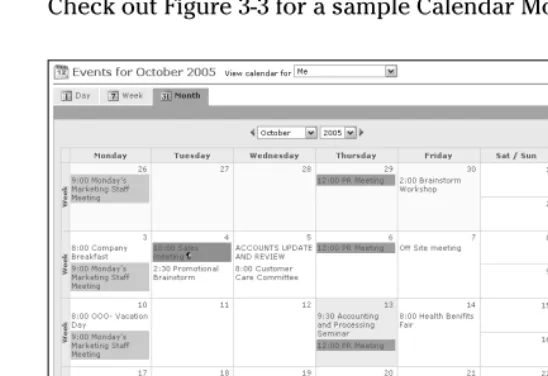
Check out Figure 3-3 for a sample Calendar Month View.
Figure 3-3: A Calendar Month View.
Setting Your Calendar
Preferences
You can set your own preferences for sharing, or not sharing, your calendar with colleagues. Here’s how:
1. In the menu at the left of your WebOffice Home page, click Calendar.The Events for (Today’s Date) screen appears.
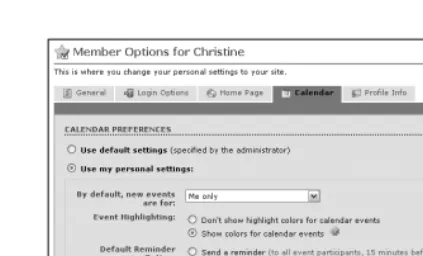
2. Click the Settings button. The Member Options screen appears with the Calendar tab showing.
3. Enter requested information in the boxes to suit your own Calendar Preferences, as shown in Figure 3-4.
4. Scroll down the page to the Calendar Sharing sec-tion and check your preference for sharing your cal-endar or keeping it private. You can specify different levels of access for individual members.
Part II: Real-Time and Asynchronous Collaboration
30
Figure 3-4: The Calendar Preferences section on the Calendar tab.
5. Highlight the names in the Member list box and use the arrow to place names in the Access Level box, as shown in Figure 3-5.
Figure 3-5: The Calendar Sharing section on the Calendar tab.
Syncing Your Calendar with a
PDA or Microsoft Outlook
With Intellisync for WebEx, you can synchronize your calen-dar appointments with Palm handheld or Microsoft Outlook so that you and your colleagues can access your schedule at all times from any location.
Intellisync for WebEx, a downloadable application, lets you:
⻬Carry wherever you go an up-to-date copy of your con-tacts and members lists on your Palm Pilot.
⻬Maintain your complete calendar online, including per-sonal appointments and tasks.
⻬Download your WebOffice calendar events to your Palm or Microsoft Outlook.
⻬Populate your WebOffice contacts list instantly by uploading contacts from Outlook or your Palm.
You may import, export, and synchronize data with the follow-ing WebOffice applications: Calendar, Contacts, Members (export from), and Task Manager.
Intellisync for WebEx works with Microsoft Outlook 97, 98, 2000, 2002, 2003, or a Palm Pilot III, V, VII connected to your computer with Palm HotSync. Your PC’s operating system must be Microsoft Windows 95, 98, 2000, NT 4.0, or XP.
To download Intellisync for WebEx,
1. Click Tools in the left menu on your WebOffice Home page.The Tools page appears.
2. Click the Utilities link.The WebOffice Utilities page appears.
3. Click the Synchronization link.The Synchronize page appears with instructions for downloading Intellisync for WebEx.
Part II: Real-Time and Asynchronous Collaboration
32
Chapter 4
Sharing and Organizing
Documents
In This Chapter
䊳Gaining real business value by managing your documents online
䊳Using check in, check out when updating documents
䊳Informing members about new documents
䊳Working with Web folders
䊳Looking for documents
T
he WebOffice Document Manager lets you share files with other members of your WebOffice site: text documents, spreadsheets, PowerPoint presentations, you name it — files both large and small. You can post these files in an online folder just like you do in any Windows-based environment and share them anytime, anywhere, with your WebOffice members.Part II: Real-Time and Asynchronous Collaboration
34
Gaining Business Value
With WebOffice, you can create individual and/or shared file and document folders to suit your needs, no matter what business, industry sector, or part of an organization you work in. The industry applications list is virtually unlimited.
Whether you’re in sales, marketing, human resources, research and development, or any other part of an organization, you can create one place to share and organize all your files. Within your WebOffice Document Manager, you can create folders and sub-folders to better organize company documents. You can create a folder for each department, project, or workgroup for logical, easy access by any authorized user. For example, you can create a Sales Team folder containing the latest price sheets, electronic marketing and sales brochures, sales presentations, contracts, and order forms. Or, you can create a Human Resources folder containing the latest job requisitions, postings, and so on.
Remote workers or traveling employees always have access to the right file and timely information because these are available online.
Here’s a sampling of how assorted types of organizations use the WebOffice Document Manager in a wide variety of applications:
⻬Sales organizations: Keep their sales force up-to-date by posting the latest version of constantly changing market-ing literature.
⻬PR and ad agencies: Share, develop, edit, and review marketing literature with clients, vendors, freelancers, and other agencies and partners.
⻬Consultants: Create central repositories of critical docu-ments that need to be accessed both at headquarters and during client on-site visits. IT consultants create client pro-files of hardware and software. Management consultants share plans, budgets, organizational charts, and so on.
⻬Manufacturing companies: Manage product specifica-tions and certificaspecifica-tions in a central repository.
⻬Human resources departments:Share company policies, benefits, handbooks, organizational charts, and other employee-related documents.
⻬Educational institutions:Share course curriculum and course content.
⻬Photo departments of magazine publishers:Upload and share large digital files.
⻬Nonprofit organizations:Share, review, update organiza-tional documents, by-laws, meeting minutes, and budgets.
⻬Banks and credit unions:Post and share internally: com-pliance regulations, other operating documents, and human resources documents.
⻬Healthcare organizations:Post and share patient data and medical imagery, standard documents, best practices, training materials, funding proposals, and marketing materials.
⻬Real estate agencies:Post operating procedures and standardized forms to be used with clients so that they can be downloaded anywhere — at an open house, pri-vate home showing, or at a closing.
⻬Financial services firms:Post sales presentations, latest financial news, and company data for sales team uses. Sales reps log in remotely and update presentations; everyone has access to the most current version.
Posting Your Documents
in One Place Online
To find out how to create your centralized document repository and fill it with documents, check out the following sections, which walk you through the steps for creating a new folder, set-ting up permissions, and adding documents to your new folder.
Creating a New Folder
Creating folders is a great way to keep everything organized. You can have a single folder function as your central docu-ment repository and then have subfolders within it. You can also have additional folders outside your central document repository for any number of other topics. The WebOffice Document Manager lets you name and layer your folders to meet your business’s or organization’s needs.
Here’s how to create a new folder.
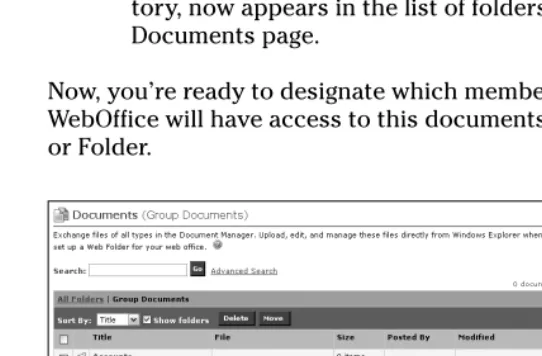
1. In the Menu at the left of your Home page, click Documents. The Documents (Group Documents) page, as shown in Figure 4-1, appears.
2. Click the arrow on the New button in the top menu bar. A submenu appears.
3. Select New Folder. The New Folder page appears.
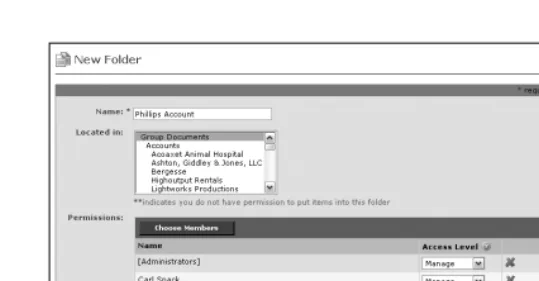
4. Type the name of your New Folder, or documents repository in the Name box.
5. In the Located In box, highlight the folder in which you want to place your New Folder.
Note:You must place your first New Folder in the
Group Documents Folder. You can put all subsequent folders either in the Group Documents Folder or in subfolders within the Group Documents Folder.
6. Click Save. Your New Folder, or centralized reposi-tory, now appears in the list of folders on the Group Documents page.
Now, you’re ready to designate which members of your WebOffice will have access to this documents repository, or Folder.
Figure 4-1: The Documents (Group Documents) page.
Part II: Real-Time and Asynchronous Collaboration
36
Setting up permissions-based
access
When you post a file or document in the Group Documents folder or any of its subfolders, you can control who has access to it.
By default, all members of your WebOffice have Read and Add access to all folders and documents. That means that they can access all folders and documents and read them, and add more documents to any given folder.
By setting Permissions, you can designate which members of your WebOffice can see any given folder and the files in it, which members can edit those files, and which members have no access.
If your site’s administrator allows guests to access your site, guests may see only documents posted in the Public Documents folder and its subfolders. They do not see files posted in the Group Documents folder or any of its subfolders.
Follow these steps to set up permission levels for members to Manage, Read and Add, Read, or have No Access to a given folder and its documents.
1. On the New Folder page, click Choose Members to select the members of your WebOffice who are to have access to this particular folder or documents repository.The Choose Members page appears.
2. Highlight the members’ names you want to include by holding down the Shift key and dragging your mouse across their names, then click the left-facing arrow.Doing so puts all the names in the Special Permissions box.
3. Click OK. The New Folder page, shown in Figure 4-2, reappears.
4. In the Permissions box, use the drop-down list after each member’s name to select the level of access you want that member to have: Manage, Read and Add, Read, or No Access.
5. When you are done, click Save.
Figure 4-2: The New Folder page.
You’re now ready to start adding documents to your central-ized documents repository.
Adding documents
You can post and share virtually any type of file in your WebOffice by uploading the file and entering some basic details to help other WebOffice members find the file later. Some examples of the files you can post include
⻬Project plans and reports
⻬PowerPoint presentations
⻬Form letter templates
⻬Policy and procedure guides
⻬Graphics and photographs
⻬Meeting minutes
⻬Audio files
⻬Video files
To upload any of these file types:
1. In the menu on the left of the Home page, click the Documents arrow. A submenu appears.
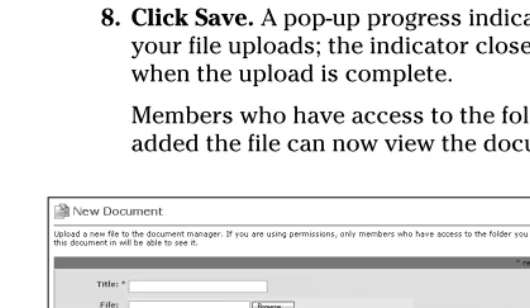
2. Choose New Document. The New Document page, shown in Figure 4-3, appears.
Part II: Real-Time and Asynchronous Collaboration
38
3. In the Title input box, type a title for the document or file.
4. Click the Browse button, select the file you want to upload, and then click Open.
5. In the Folder input box, select the folder where you want to file the document.Or, you can add a New Folder and choose your own permissions settings (refer to “Setting up permissions-based access” earlier in this chapter) to control who sees the document filed there.
6. In the Keywords input box, type keywords that you think other WebOffice members might use to search for the document.
7. In the Description input box, type a brief description of the document. You can also write, for example, a revision history for the document or include a link to any Web site.
8. Click Save. A pop-up progress indicator appears as your file uploads; the indicator closes automatically when the upload is complete.
Members who have access to the folder where you added the file can now view the document.
Figure 4-3: The New Document page.
To find out how to notify members of the new document by sending a link via e-mail, see “Notifying members of new docu-ments” later in this chapter.
You can add to the Document Manager any type of file you want. However, the members of your WebOffice need the cor-rect software to view certain types of files. For example, mem-bers will need Microsoft Excel or an Excel viewer installed on their computer to view an Excel spreadsheet that you post to your site.
You can make changes to a document if you initially added the document, if you’re a Manager for the folder where the docu-ment is filed, or if you are the administrator (see Chapter 8).
If several members typically need to be able to edit a set of files, your WebOffice administrator can create a member group for them so that you can give them all Manage access to a folder.
Updating documents:
Check in, check out
You can make changes to files at any time by downloading the file from your WebOffice site, making your changes, and then uploading the new file to your WebOffice.
When you edit a document, you “check out” the file so that no other members can edit it while you’re working on it. After you complete your editing, you “check in” the file to make your new version available to others.
To make changes to a file:
1. Find the document in your WebOffice by browsing through the Documents list or by searching for it. Then click the title of the document to display the document details.The document page appears, and includes Edit, Check Out, Move, and Delete buttons.
2. Click Check Out. The Check Out page, shown in Figure 4-4, appears.
3. In the Comments box, type a message to indicate to other members that you are in the process of editing the file and to explain why you’ve checked it out and when you’ll be checking it back in.
Part II: Real-Time and Asynchronous Collaboration
40
4. Click OK.The Download file page appears.
Note:When you click OK, you prevent others from
attempting to edit the file at the same time.
5. To download the file to your computer, right-click the filename. The browser dialog box appears.
6. Choose Save Target As (Internet Explorer) or Save Link As (Netscape), and then click Save.
7. Make your changes to the file and save them to your computer. For example, if you’re working with a Word document, save the document in the Word files on your PC in whatever folder is appropriate. 8. To check the document back into your Folder in
WebOffice, find the document title in your WebOffice Document Manager and then click the title of the document. The Document details page appears and says that the document is currently checked out.
9. Click the Check In button at the top of the page.
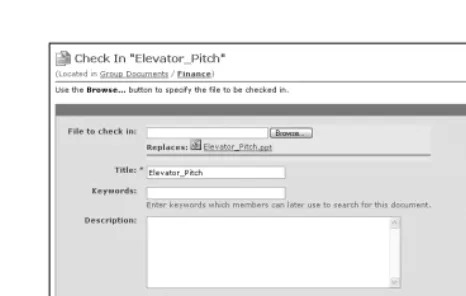
The Check In page, shown in Figure 4-5, appears.
10. Click the Browse button to upload the updated file and then click Open.
11. In the input boxes provided, type the title of the updated document and keywords to help other mem-bers find the file. You also can write comments in the Description box to inform others of any information relevant to your editing changes.
12. Click Save.A pop-up progress indicator box appears as your document is uploading to the WebOffice site; the indicator closes automatically when the upload is complete.
Figure 4-4: The Check Out page lets you edit a document and inform other members of your WebOffice that you are doing so.
Figure 4-5: The Check In page lets you post an edited document or file back on your WebOffice and inform other members that you have done so.
Renaming a file
You can easily change the filename for a document from inside your WebOffice site. Here’s how.
1. Find the document in your WebOffice by browsing through the Documents list or by searching for it. Then click the title of the document. The Document Details page appears.
2. Click the Pencil icon beside the filename.The Rename File Attachment page appears.
3. Type the name you want in the New File Name text box. Filenames within each folder must be unique.
Note: This operation cannot be undone.
4. Click OK.
Notifying members
of new documents
When you add a new document to a folder, the title of the doc-ument appears in the What’s New section of your WebOffice Home page by default. However, you can change the default setting so that the document title does not appear on your Home page.
You can also send members an e-mail notification about your new document or a document update. The e-mail message contains a link that goes directly to the document.
Part II: Real-Time and Asynchronous Collaboration
42
Here’s how to send a link to a document:
1. Find the document in your WebOffice by browsing through the Documents list or by searching for it. Then click the title of the document to display the document details page.
2. Click Send Link in the top menu bar. The Send Link page appears.
3. Fill in the information on the Send Link page. 4. From the names in the Addressee box, select the
names of the people you want to send the link to, and then click the To, Cc, or Bcc buttons to add the names to the appropriate groups.The Subject line fills in automatically with the document title, but you can change the Subject line, if you’d like. A link is auto-matically inserted in the message area for members to use for accessing the document.
5. Type your personal message above or below the link in the text box and then click Send. E-mail notification of the new document will be sent to all the members you have specified.
Discovering Web Folders
The Web Folders feature of the Document Manager allows you to use the familiar Windows environment to manage all the files and folders in your WebOffice. You don’t even need to go to your Web browser or to your WebOffice to see and/or make changes to the documents posted there.
With Web Folders, you can
⻬Drag and drop files from your computer to your WebOffice site in Windows Explorer.
⻬Post multiple files at once to your WebOffice.
⻬Open files in WebOffice for editing directly from Microsoft Word (or any other Microsoft Office 2000 or XP application).
⻬Back up your entire Document Manager to your com-puter or to a CD.
To begin using Web Folders, follow this one-time setup process.
1. Verify that you have Web Folders (or “WebDAV” for Macintosh) on your system.If necessary, run the short installation program.
In Windows 2000 or XP, Web Folders is called My Network Places and comes set up on the system. In Windows ME, Web Folders is called My Network Places. Windows ME typically comes with Web Folders already installed. On your computer desktop, you see the My Network Places icon.
If you do not see the My Network Places icon on your desktop, please download and re-install Internet Explorer 6 (or above) from the Microsoft Web site.
2. Create a Web Folder for your WebOffice.Using Windows Explorer, create a Web Folder through which you can access files on your WebOffice.
Windows users and Macintosh users can find step-by-step instructions on the Web Folder and WebDAV setup process in the online Help about Web Folders in WebOffice.
After the Web Folders integrate with your Document Manager, you can edit a document or any file without even going to your WebOffice site. For example, to edit a Microsoft Excel file in your WebOffice using Web Folders, follow these steps.
1. Open the Microsoft Excel file you want to edit directly from its Web Folder location.The file is automatically “checked out” from your site. While you’re working in the file, other members can view it, but they can’t make any changes. (Refer to the section “Updating documents: Check in, check out” earlier in this chapter.)
2. Make your edits and then save your changes in Microsoft Excel.
Your edits are automatically updated on your WebOffice site. You can use the same process for any other Microsoft Office 2000 or above application — such as PowerPoint.
Part II: Real-Time and Asynchronous Collaboration
44
Searching for Documents
If you’re looking for a specific document, you can search for it by using any of the document properties, including the title, keyword(s), filename, and author. You can even do a Full-Text Search on all the contents of your uploaded files. You can begin your search from the Search drop-down feature in the upper-right side of your WebOffice Home page, from the Documents page, or from the Advanced Search page.
Performing a simple search
You can begin a simple search from one of two places in your WebOffice, as follows.
⻬In the Search box, shown in Figure 4-6, in the upper-right side of every page in your WebOffice, select Documents from the drop-down list. Enter a search term in the input box next to the Go button and click Go. The Search Results page appears.
⻬In the Search box at the top of any Documents list page, enter any word or combination of words and then click Go. The Search Results page appears.
Figure 4-6: Search box allows you to perform a simple search.
Performing an Advanced Search
If you have a large number of documents stored in your Document Manager and you know just what you’re looking for, perform an Advanced Search — by filename, date created, or author, for examp