PassageWay™ Solution
For PARTNER
®NOTICE:
While reasonable effort was made to ensure that the information in this document was complete and accurate at the time of printing, AT&T cannot assume
responsibility for any errors. Changes and/or corrections to the information contained in this document may be incorporated into future issues. Check the Readme file enclosed with the software to ensure you are aware of any last minute modifications to this documentation.
FEDERAL COMMUNICATIONS COMMISSION (FCC) STATEMENT
This equipment has been tested and found to comply with the limits for a Class B digital device, pursuant to Part 15 of the FCC rules. These limits are designed to provide reasonable protection against harmful interference in a residential
installation. This equipment generates, uses, and can radiate radio frequency energy and, if not installed and used in accordance with the instructions, may cause harmful interference to radio communications. However, there is no guarantee that interference will not occur in a particular installation. If this
equipment does cause harmful interference to radio or television reception, which can be determined by turning the equipment off and on, the user is encouraged to try to correct the interference by one or more of the following measures:
— — —
—
Reorient or relocate the receiving antenna.
Increase the separation between the equipment and the receiver.
Connect the equipment into an outlet on a circuit different from that to which the equipment is connected.
Windows is a trademark of Microsoft Corporation.
Hayes is a registered trademark of Hayes Microcomputer Products, Inc. IBM and PS/2 are registered trademarks of International Business Machines Corporation.
HP and LaserJet are registered trademarks of Hewlett-Packard Company.
SECURITY
As a customer of new telecommunications equipment, you should be aware of the significant and growing problem of theft of long distance services by third parties, known commonly as "toll fraud." It is particularly important that you understand and take appropriate steps to deal with this crime because under applicable tariffs, you will be responsible for payment of associated toll charges. AT&T can not be responsible for such charges and will not make any allowance or give any credit resulting from toll fraud.
Toll fraud can occur despite the preventive efforts of network providers and equipment manufacturers. Toll fraud is a potential risk for every customer with telecommunications equipment having one or more of the following features: (1)
Call: AT&T at 1-800-432-6600 or
Write: AT&T Customer Information Center P.O. Box 19901
Indianapolis, IN 46219
1
Introduction
1-1■ What is PassageWay Solution? 1-1
■ User Responsibilities 1-3
■ Conventions Used in this Guide 1-3
■ Getting Help 1-4
2
Installing and Setting Up PassageWay Solution
■ Overview
■ PassageWay Components
■ PassageWay Requirements
■ lnstalling the PassageWay Adapter
2-1
2-1
2-2
2-5
■ Installing the PassageWay Software
■ Setting Up AT&TBuzz
Setting the Run Mode Option
No Matching Mode
Match to AT&TCall File Mode
Export via Paste Link DDE Mode
Setting User Options
3
Using AT&TBuzz
■ Overview ■ ■ ■ ■ ■What is AT&TBuzz?
Using Caller ID Information
Running AT&TBuzz
Helpful Hints
Tasks
Accessing the Log Viewer
Answering a Call
Changing the AT&TCall File Associated with AT&TBuzz
Creating a New Card in the Associated AT&TCall File
Exiting AT&TBuzz
Resetting the Size of the AT&TBuzz Window
Selecting a Call Record
Setting AT&TBuzz for Auto-Hold
Setting AT&TBuzz for Auto-Drop
Setting AT&TBuzz to Show the
Associated AT&TCall Card Automatically
Setting the AT&TBuzz Window to Appear Automatically
Setting the Area Code
be on Top of Other Windows
Setting Automatic Inspect Mode 3-18
Setting the Run Mode for AT&TBuzz 3-19
Setting AT&TBuzz to Log Incoming Calls 3-20
Showing the Card of an Incoming Call
on Demand 3-21
Using the Timer 3-21
■ AT&TBuzz Menu Bar Options 3-23
4
Using AT&TCall
■ Overview
■ What Is AT&TCall?
■ Getting Started
■ Helpful Hints
■ Running AT&TCall
■ Tasks
File Tasks
Accessing the Log Viewer
Changing How Cards are Sorted in an AT&TCall File
Creating a File Template
Creating a New AT&TCall File
Dialing a Phone Number with the Dialpad
Exporting AT&TCall Information 4-44
Importing Files into AT&TCall 4-45
Opening an Existing AT&TCall File 4-48
Printing a Card List 4-49
Printing an AT&TCall File or Card 4-50
Protecting an AT&TCall File with a Password 4-53
Removing the Password from an AT&TCall File 4-54
Saving an AT&TCall File 4-55
Setting the Account Code Options 4-55
Setting the AT&TCall Window To Always
Be on Top of Other Windows 4-56
Setting the Dial Options 4-57
Specifying an AT&TCall File To Be Loaded Automatically 4-58
Card Tasks 4-60
Accessing the Notes Field 4-60
Changing the Field Labels in the Cards 4-60
Creating a New Card 4-61
Deleting a Card 4-61
Dialing a Phone Number from a Card 4-62
Editng an Existing Card 4-63
Entering Telephone Numbers in a Card 4-64
Using the Timer
Quick Dial Tasks
Accessing Information for a Quick Dial
Assigning a Phone Number to a Quick Dial
Changing the Number of Quick Dials Displayed
Changing the Setup of the Quick Dial Labels
Dialing a Phone Number from a Quick Dial
Erasing a Quick Dial
Re-Assigning an Existing Quick Dial
■ AT&TCall Menu Bar Options
4-65 4-66 4-66 4-67 4-69 4-69 4-70 4-71 4-71 4-73
5
Using AT&TSet
■ Overview
■ What Is AT&TSet?
System Administration Capabilities
■ Helpful Hints
■ Running AT&TSet
■ Extension Programming Tasks
Changing Button Labels
Exiting AT&TSet
Identifying How a Button is Programmed
Opening an Existing File
Printing Button Labels
Printing the Personal Speed Dial List
Printing the System Speed Dial List
Programming a Button
Programming the Extension Name
Programming the Personal Speed Dial List
Programming the System Speed Dial List
Programming Your Telephone
Reading the Current Programming from your Telephone
Saving a File
Saving a New File
Modifying an Existing File and Saving It as a Different File
Saving Changes to an Existing File
Selecting Buttons to be Programmed to Your Telephone
Entering Centralized Telephone
Programming 5-36
Setting the Automatic Line Selection 5-41
Setting the Line Ringing Options
for Line Buttons 5-42
■ AT&TSet Menu Bar Options 5-44
6
Using Log Viewer
■ Overview
■ What Is Log Viewer?
■ Helpful Hints
■ Running Log Viewer
■ Tasks
Deleting Entries from the Call Log
Printing Log Entries
Setting the Log Viewer Preferences
Sorting Call Log Entries
Specifying the Calls to be Displayed
■ Log Viewer Menu Bar Options
7
Using AT&TConnect
■ ■ ■ ■ OverviewWhat Is AT&TConnect?
Running AT&TConnect
Tasks
Accessing the Events Log
Changing the COM Port
Specifying the Version of Your PARTNER System
Changing the Labels of the Line Buttons
Programming a Caller ID Inspect Button
Testing the PassageWay Adapter
■ AT&TConnect Menu Bar Options
7-1 7-1 7-2 7-2 7-4 7-4 7-6 7-7 7-8 7-11 7-13 7-15
8
Using Autodialing Applications
with PassageWay Solution
8-1■ Overview 8-1
■ Using Autodialing Applications 8-1
■ Setting Up PassageWay Solution 8-2
■ Setting Up Your Application 8-3
9
Troubleshooting
■ Overview
■ Troubleshooting AT&TConnect
■ Troubleshooting AT&TCall
■ Troubleshooting AT&TSet
■ Troubleshooting AT&TBuzz
9-1 9-1 9-2 9-11 9-13 9-16
A
Appendix A: Menu Trees
A-1B
Appendix B: PC Serial Ports
B-1■ ■ ■ ■ ■ Overview B-1 Background
Serial Ports Under Windows 3.1
Workarounds and Solutions to the IRQ Conflict Problem
Selecting an Add-In Serial Port Card
B-2
B-6
B-7
B-10
C
Appendix C: Running AT&TBuzz in Export via
Paste Link DDE Mode
C-1Glossary
GL-12
Installing and Setting Up PassageWay Solution
2-1 2-1. 2-2. 2-3. 2-4. 2-5. 2-6. 2-7. 2-8. 2-9. 2-10. 2-11. 2-12. 2-13. 2-14. 2-15. 2-16. 2-17. 2-18. 2-19. 2-20. 2-21. 2-22. 2-23. 2-24.PassageWay Solution Components Components of the PassageWay Adapter
Connecting the Line Cord to the PassageWay Adapter Connecting the Modular Phone Cord to the PassageWay
Adapter
AT&T PassageWay Setup Window AT&T PassageWay Setup Dialog Box Sample Installation Status Message Box Setup Complete Message Box
COM Port Dialog Box
AT&TConnect Dialog Box
AT&TConnect Setup - System Configuration Dialog Box AT&TConnect Setup - Caller ID Inspect Feature Dialog
Box When No Caller ID Inspect Button is Programmed AT&TConnect Setup - Caller ID Inspect Feature Dialog
Box with Caller ID Inspect Button Programmed AT&TConnect Setup - Line Labels Dialog Box AT&TConnect Setup Dialog Box
AT&T PassageWay Window
AT&TBuzz Initialization Dialog Box Run Mode Dialog Box
AT&TBuzz Running in No Matching Mode
2-3 2-4 2-8 2-10 2-12 2-13 2-14 2-14 2-15 2-15 2-16 2-18 2-19 2-20 2-21 2-23 2-26 2-27 2-29
Area Code Dialog Box 2-31
Match to AT&TCall File Mode 2-38 2-26. Options Dialog Box when AT&TBuzz is Running in
No Matching or Export via Paste Link DDE Modes 2-39
3
Using AT&TBuzz
3-13-1. Sample AT&TBuzz Window 3-2
3-2. Components of the AT&TBuzz Window 3-3
4
Using AT&TCall
4-14-1. 4-2. 4-3. 4-4. 4-5. 4-6. 4-7. 4-8. 4-9. 4-10. 4-11. 4-12. 4-13. 4-14. 4-15. 4-16.
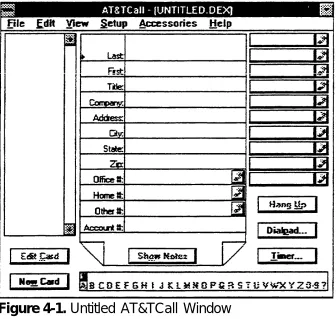
Untitled AT&TCall Window
Components of an AT&TCall Window
Desktop with 10/20 Quick Dials and Card Shown Desktop with 10/20 Quick Dials and Card Hidden Desktop with 25/50 Quick Dials and Card Displayed Desktop with 25/50 Quick Dials and Card Hidden Untitled AT&TCall Window
Components of an AT&TCall Window Card Display
Edit Card Window Modified Card New Card Window New Card
Note Pad
4-18. 4-19. 4-20. 4-21. 4-22. 4-23. 4-24. 4-25. 4-26. 4-27. 4-28. 4-29. 4-30. 4-31. 4-32. 4-33. 4-34. 4-35. 4-36. 4-37. 4-38.
Edit Labels Dialog Box Modified Card Labels
Create Quick Dial Dialog Box Sort Dialog Box
Export Dialog Box Import Dialog Box AT&TCall Dialog Box Print List Dialog Box
Printed Cards With and Without the Notes Print Cards Dialog Box
Password Dialog Box
Confirm Password Dialog Box Account Code Options Dialog Box
Dial Options Dialog Box
Sample File to be Loaded Automatically Delete Card Dialog Box
Timer Window
Quick Dial Information Dialog Box Create Quick Dial Dialog Box Quick Dial Label Setup Dialog Box Change Quick Dial Dialog Box
4-31 4-32 4-34 4-39 4-45 4-47 4-48 4-49 4-51 4-52 4-53 4-54 4-56 4-57 4-59 4-62 4-66 4-67 4-68 4-70 4-72
5
Using AT&TSet
5-15-1. AT&TSet File for an MLS-18D Telephone 5-3 5-2. Components of the AT&TSet Window 5-4
5-3. AT&TSet Dialog Box 5-9
5-6. 5-7. 5-8. 5-9. 5-10. 5-11. 5-12. 5-13. 5-14. 5-15. 5-16. 5-17. 5-18. 5-19. 5-20.
Sample Change Button Label Dialog Box Button Information Dialog Box
Print Speed Dial List Dialog Box Extension Name Dialog Box
Personal Speed Dial List Dialog Box System Speed Dial List Dialog Box Write to Telephone Dialog Box
Sample Write to Telephone Status Dialog Box Read from Telephone Dialog Box
Reading Telephone Status Dialog Box Program Another Extension Dialog Box Read from Telephone Dialog Box
Sample AT&TSet File for Another Extension Automatic Line Selection Dialog Box
Line Ringing Options Dialog Box
5-12 5-16 5-20 5-24 5-25 5-27 5-29 5-30 5-31 5-32 5-38 5-39 5-40 5-42 5-43
6
Using Log Viewer
6-16-1. Log Viewer Window 6-3
6-2. Sample PassageWay Log Viewer Dialog Box 6-6 6-3. Sample PassageWay Log Viewer Dialog Box 6-7
6-4. Preferences Dialog Box 6-9
7
Using AT&TConnect
7-1 7-1. 7-2. 7-3. 7-4. 7-3 7-5 7-6 7-7 7-9 7-10 7-12 7-13 7-5. 7-6. 7-7. 7-8. AT&TConnect Window Events Log Dialog BoxSample COM Port Dialog Box
Sample AT&TConnect Setup - System Configuration Dialog Box
Sample AT&TConnect Setup - Line Labels Dialog Box Sample AT&TConnect Setup - Edit Line Label Dialog Box Sarnple AT&TConnect Setup - Caller ID Inspect Feature
Dialog Box
AT&TConnect Adapter Test Dialog Box
9
Troubleshooting
9-19-1. AT&TConnect - Communications Error Dialog Box 9-5
A
Appendix A: Menu Trees
A-1A-1. AT&TBuzz Menu Tree A-2
A-2. AT&TCall Menu Tree A-3
A-3. AT&TSet Menu Tree A-4
A-4. Log Viewer Menu Tree A-5
What is PassageWay Solution?
AT&T PassageWay™ Solution is a collection of software applications that runs with Microsoft Windows™ operating system version 3.1 or later. These
applications provide you with an interface between your lBM®-compatible personal computer and a PARTNER®
Communications System via your system or standard telephone. PassageWay Solution increases your
telecommunication capabilities by providing the following applications:
■
■
AT&TBuzz
AT&TBuzz is an application that notifies you of incoming calls and enables you to view call origination information (referred to as Caller ID in this document), if available. AT&TBuzz enables you to handle
incoming calls from your PC.
AT&TCall
■
■
■
AT&TSet
AT&TSet is an extension programming application that enables you to program user features and the personal speed dial list for your MLS-34D®
, MLS-18D®
, or MLS-12D®
telephone from your PC. With AT&TSet, you can create and save multiple button programming files for your telephone. You can also exchange these AT&TSet files with other AT&TSet users. If you are the System Manager, you can use AT&TSet to perform Centralized Telephone Programming from your PC for any telephone type and to program the system speed dial list.
Log Viewer
Log Viewer is an application that enables you to access information from the call log, which stores a record of calls you make using AT&TCall and receive while AT&TBuzz is running.
AT&TConnect
AT&TConnect is the management software that provides the basis for the other PassageWay software applications, and the diagnostic
features to troubleshoot these applications. AT&TCall, AT&TSet, and AT&TBuzz require AT&TConnect to be running to connect these
applications with the PARTNER system, enabling you to fully use these applications.
PassageWay Solution also provides the following features:
■ autodialing using the Hayes® command set, which is the same command set used by most modems
User Responsibilities
Before using any of the PassageWay applications, you should be familiar with basic Windows functions and procedures. If not, consult your Microsoft
Windows User's Guide.
You also may need to contact your PC vendor for information on configuring your PC to meet PassageWay Solution requirements.
Conventions Used in this Guide
The following conventions are used in this guide:
■ ■ ■ ■ ■ ■
Throughout this guide, telephones are grouped into two different categories: system telephones and standard telephones. System
telephones refer to AT&T telephones specifically designed to work with the PARTNER system. These include the 34D, 18D, MLS-12D, MLS-12®
, MLS-6®
, and MLC-6 model telephones. Standard telephones refer to industry-standard single-line rotary or touch-tone telephones, including feature phones with built-in feature buttons and lights.
Commands and text you should enter appear in this style of type.
Values, instructions, and prompts that appear on the screen are in this style of type.
Key names that are always located on the keyboard in the same place appear in boxes, as in [ ENTER ↵ ↵ ].
Key combinations (holding down one key while pressing another key) are connected with hyphens; for example: [ SHIFT ]-[ TAB ➡❘ ].
Getting Help
Overview
This chapter provides the procedures for installing PassageWay Solution. Installation of PassageWay Solution consists of the following steps:
1. Installing the PassageWay adapter, which provides an interface between your PC and telephone
2. Installing the PassageWay software onto the hard disk of your PC
3. Setting up AT&TBuzz
✏
Before installing PassageWay, make sure you have the PassageWay components and an available serial (COM) port on your PC.
NOTE:
PassageWay Components
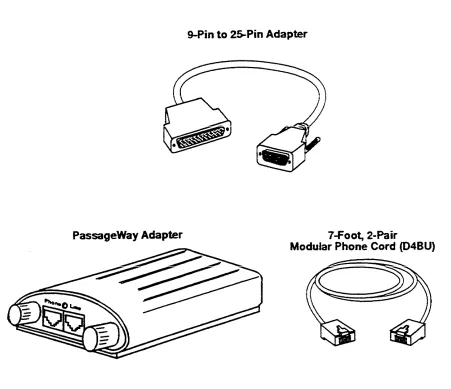
the PassageWay adapter
The PassageWay adapter provides an interface between your telephone and an available serial (COM) port on your PC. The PassageWay PassageWay consists of the following components:
■
■
■
■
■
adapter connects to the Line jack on your telephone.
software (one 3.5-inch, 1.44 MB, high-density diskette). However,
PassageWay Solution is also available on a 5.25-inch, 1.2 MB diskette. To receive the software on a 5.25-inch diskette, complete the
registration card, specify that you want the software on a 5.25-inch diskette, and return the registration card.
this user's manual and a quick reference
a 9-pin to 25-pin adapter for 9-pin serial ports
If your PC has a 9-pin serial port, connect the 9-pin to 25-pin adapter to the serial port. The PassageWay adapter has a 25-pin connector.
a 7-foot, 2-pair, modular phone cord (D4BU)
This modular phone cord connects the PassageWay adapter to your telephone.
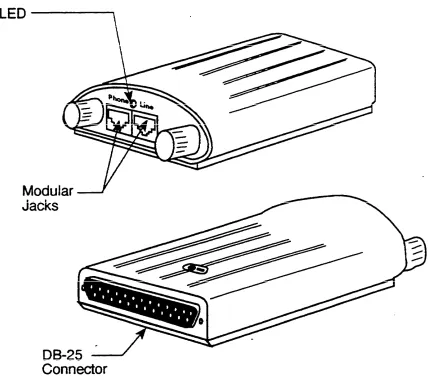
Figure 2-2 shows the components of the PassageWay adapter.
PassageWay Requirements
To use the PassageWay applications, you must have the following components:
■
■
■
an IBM-PC compatible or PS/2®
-compatible PC with the following hardware:
— an 80286 or higher processor (an 80386 or higher model number is recommended)
— an available serial port
—
—
—
—
—
a minimum of 2 MB of RAM (4 MB is recommended)
a 3.5-inch, 1.44 MB, high-density drive
a hard disk with 2 MB of space available
a Windows-compatible color video monitor
a Windows-compatible pointing device (a mouse or trackball is recommended)
Microsoft Windows 3.1 or later release running in standard or enhanced mode
a system or standard telephone connected to a PARTNER system that is configured and operating properly. The functionality of the
PassageWay applications depends on the type of telephone you are using. Any differences in functionality are noted throughout this document.
NOTE:
If all the serial ports in your PC are already in use, you may wish to purchase
✏
Before installing the PassageWay software, you must know the following information:
■
■
the type and release number of the PARTNER system you are using (for example, PARTNER II Release 3.0). You can obtain this information from the administrator of your PARTNER system. (The cover of the
Programming and Use manual for your PARTNER system displays the
type and release number of your system.)
the COM port (that is, COM1, COM2, COM3, or COM4) to which you are connecting the PassageWay adapter.
✏
NOTE:PassageWay applications can run on a network, but they are not network
Installing the PassageWay Adapter
The PassageWay adapter provides an interface between the serial port on your PC and the Line jack on your telephone, enabling you to access the PARTNER system from your PC. The PassageWay adapter has a DB-25 connector for 25-pin serial ports. If you have a 9-pin serial port on your PC, use the 9-pin to 25-pin adapter included with PassageWay.
✏
NOTE:Do not install the PassageWay adapter while you are active on a call.
To install the PassageWay adapter, perform the following steps:
1. Turn off your PC.
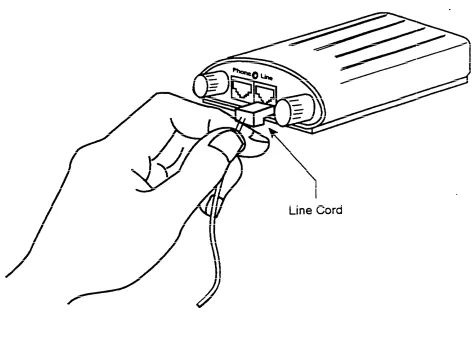
2. Unplug the line cord from your telephone.
4. Connect the DB-25 connector on the PassageWay adapter to the serial (COM) port on your PC. If your PC has a 9-pin serial (COM) port,
connect the 9-pin to 25-pin adapter to the DB-25 connector on the PassageWay adapter, and then connect the 9-pin to 25-pin adapter to the 9-pin serial (COM) port.
✏
NOTE:You can use an RS-232 cable to connect the adapter to the PC if you do not want to connect the adapter directly to the PC.
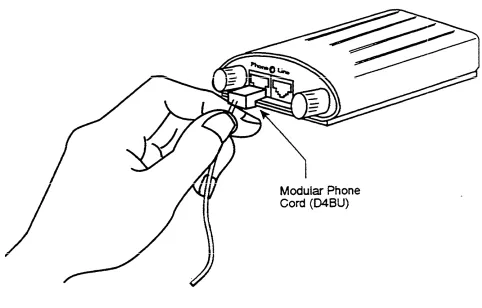
5. Connect one end of the 7-foot, 2-pair, modular phone cord (D4BU) to the jack labeled "Phone" on the PassageWay adapter.
Figure 2-4. Connecting the Modular Phone Cord to the PassageWay Adapter
6. Connect the other end of the 7-foot, 2-pair, modular phone cord (D4BU) to the Line jack on your telephone.
Installing the PassageWay Software
The PassageWay software includes an installation program that automatically installs the PassageWay applications onto the hard disk of your PC. To install the PassageWay software, perform the following steps:
1. Insert the PassageWay diskette into the diskette drive of your PC.
2 . Access Windows.
3 . From Program Manager, select Run . . . in the File menu.
The Run dialog box appears.
4 . Depending on the diskette drive in which you inserted the PassageWay diskette, perform one of the following steps:
—
—
If the diskette is in the A: drive, type a:\setup in the Command Line box and select the OK button.
If the diskette is in the B: drive, type b:\setup in the Command Line box and select the OK button.
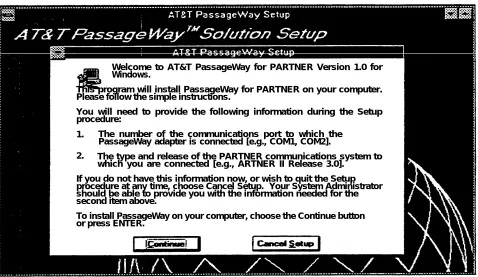
Welcome to AT&T PassageWay for PARTNER Version 1.0 for Windows.
This program will install PassageWay for PARTNER on your computer. Please follow the simple instructions.
You will need to provide the following information during the Setup procedure:
1. The number of the communications port to which the PassageWay adapter is connected [e.g., COM1, COM2].
2. The type and release of the PARTNER communications system to which you are connected [e.g., ARTNER II Release 3.0].
If you do not have this information now, or wish to quit the Setup procedure at any time, choose Cancel Setup. Your System Administrator should be able to provide you with the information needed for the second item above.
To install PassageWay on your computer, choose the Continue button or press ENTER.
Figure 2-5. AT&T PassageWay Setup Window
5. Select the Continue button.
Figure 2-6. AT&T PassageWay Setup Dialog Box
This dialog box displays the name of the directory in which the
PassageWay applications will reside. If you want to change the default directory for these applications, specify the directory where you want to place these applications.
6. Select the Continue button.
Figure 2-7. Sample Installation Status Message Box
After all of the files are loaded, the following message box appears.
Figure 2-8. Setup Complete Message Box
7. Select the OK button.
Figure 2-9. COM Port Dialog Box
Only available COM ports can be selected; other choices are "grayed."
8. Select the option button of the COM port to which you connected the PassageWay adapter, and then select the OK button.
The following dialog box appears.
Figure 2-10. AT&TConnect Dialog Box
9 . Select the Continue button.
The AT&TConnect Setup - System Configuration dialog box appears.
Figure 2-11. AT&TConnect Setup - System Configuration Dialog Box
10. Select the option button of your PARTNER system, and then select the Continue button.
AT&TConnect verifies the connection between the PassageWay adapter and the COM port you selected, and then "reads" your telephone.
If you do not have a PARTNER II Release 3.0 or later system, the AT&TConnect Setup - Line Labels dialog box appears when
If you have a PARTNER II Release 3.0 or later system, the
AT&TConnect Setup - Caller ID Inspect Feature dialog box appears when AT&TConnect finishes reading your telephone. If you do not have a Caller ID Inspect button already programmed on your telephone, the AT&TConnect Setup - Caller ID Inspect Feature dialog box prompts you to enter one (Figure 2-12). If you do have a Caller ID Inspect button already programmed, the AT&TConnect Setup - Caller ID Inspect Feature dialog box shows where the Caller ID inspect button is programmed (Figure 2-1 3).
Figure 2-13. AT&TConnect Setup - Caller ID Inspect Feature Dialog Box with Caller ID) Inspect Button Programmed
11. Perform one of the following steps:
■ If a Caller ID Inspect button is not programmed, and you want to program one, select the button that you want to program as the Caller ID Inspect button.
"Inspect" appears on the label of the button you selected.
■ If a caller ID Inspect button is not programmed, and you do not want to program one, proceed to step 12.
■ If a Caller ID inspect button is already programmed, proceed to step 12.
12. Select the Continue button.
The AT&TConnect Setup - Line Labels dialog box appears.
Figure 2-14. AT&TConnect Setup - Line Labels Dialog B o x
AT&TBuzz uses the Line Labels to identify where calls are appearing on your telephone. You may customize the labels to something that will be more meaningful to you (for example, the last four digits of the
13. Perform one of the following steps:
— If you want to customize the Line Labels, perform the following steps:
a. Select the label that you want to change.
The AT&TConnect Setup - Edit Line Label dialog box appears.
b. Enter a new label and select the OK button.
c. Proceed to step 14.
— If you do not want to modify the Line Labels, proceed to step 14.
14. Select the Continue button.
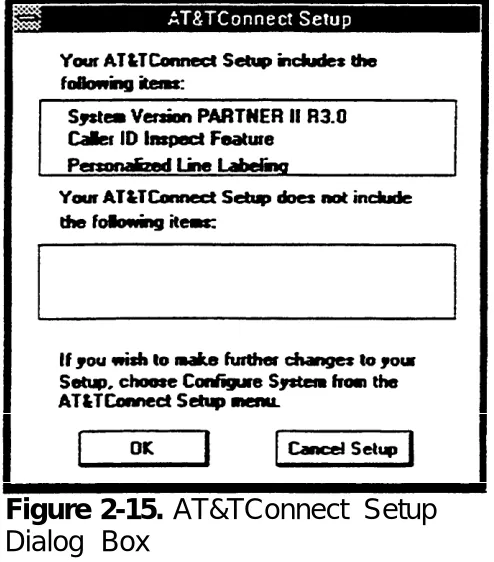
The AT&TConnect Setup - Line Label dialog box closes, and the AT&TConnect Setup dialog box appears.
This dialog box lists the following information:
■
■
■
the version of your PARTNER system
whether you programmed a Caller ID Inspect button (only if your system is PARTNER II Release 3.0 or later)
whether or not you customized the line labels
15. Select the OK button.
Figure 2-16. AT&T PassageWay Window
The installation program puts the AT&TConnect icon in the StartUp group (if the StartUp group already exists). If the StartUp group does not already exist,
PassageWay Solution creates it and places the AT&TConnect icon in it.
If AT&TConnect is in the StartUp group, every time you invoke Windows the AT&TConnect software is automatically loaded, and the AT&TConnect icon appears at the bottom of the screen.
window. (See your Microsoft Windows User’s Guide.) However, if you remove the AT&TConnect icon from the StartUp group window, you must remember to execute AT&TConnect manually before using other PassageWay applications. AT&TConnect provides the communication interface between your PC and your telephone. If AT&TConnect is not running, the other PassageWay applications on your PC are unable to communicate with your telephone.
Setting Up AT&TBuzz
AT&TBuzz is a software application that enables you to manage incoming calls (answer, hold, or drop) and view Caller ID (when available) for each incoming call appearing at your telephone. Unlike AT&TCall and AT&TSet, AT&TBuzz runs all of the time in the background. When you receive a call, the AT&TBuzz window appears, notifying you of the call. The AT&TBuzz window displays the state of all incoming calls that are currently present on your telephone. If you want AT&TBuzz to be automatically initiated every time that you enter
Windows, add AT&TConnect and AT&TBuzz to your StartUp group.
Before you can start using AT&TBuzz, you must first setup the application. AT&TBuzz provides several options that enable you to tailor AT&TBuzz to your needs. Setting up AT&TBuzz consists of the following procedures:
1 . Select the Run Mode option that best suits the way you will use AT&TBuzz.
To set up AT&TBuzz initially, perform the following steps:
1. Double-click on the AT&TBuzz icon.
The AT&TBuzz Initialization dialog box appears.
Figure 2-17. AT&TBuzz Initialization Dialog Box
2. Select the Continue button.
Figure 2-18. Run Mode Dialog Box
✏
NOTE:If you have a PARTNER II Release 3.0 or later system, and no Caller ID Inspect button is programmed on your telephone, the No Caller ID Inspect dialog box appears. If you do not want to program a Caller ID Inspect button, select the Continue button to access the Run Mode dialog box.
However, to use Caller ID, you must have a PARTNER II Release 3.0 or later system that has lines subscribed to Caller ID from your local telephone
company. In addition, these lines must be plugged into a PARTNER 206EC or 400EC module on your PARTNER system. If your system does not meet these requirements, it is unnecessary for you to program a Caller ID Inspect button. If your system does meet these requirements, you should program a Caller ID Inspect button after setting up AT&TBuzz. (Consult "Programming a Caller ID Inspect Button" in Chapter 7.)
3 . Proceed to "Setting the Run Mode Option."
Setting the Run Mode Option
AT&TBuzz can run in one of the following modes:
■ No Matching
■ Match to AT&TCall File
■ Export via Paste Link DDE
Review the descriptions of all three modes to determine which mode would best fit your needs.
No Matching Mode
When running in No Matching mode, AT&TBuzz displays on your PC the Line, State, and Caller ID (if available) for each incoming call. From the AT&TBuzz window, you can answer, place on hold, or hang up incoming calls. You would probably use this option if your system does not support Caller ID or if you do not plan on using the Caller ID information for database look-up. (Only
PARTNER II Release 3.0 or later supports Caller ID.)
To configure AT&TBuzz to run in No Matching mode, perform the following steps:
A message box states that the initialization process is complete.
2 . Select the OK button.
The AT&TBuzz icon appears at the bottom of your screen.
Figure 2-19. AT&TBuzz Running in No Matching Mode
Match to AT&TCall File Mode
The Match to AT&TCall File mode integrates AT&TBuzz with AT&TCall, giving
you a direct link between the Caller ID of incoming calls and an AT&TCall file. In this mode, you associate AT&TBuzz with an AT&TCall file. When you
receive an incoming call, AT&TBuzz automatically searches the telephone numbers on every card in the AT&TCall file. If the Caller ID from the incoming call matches a telephone number in one of the cards in the AT&TCall file, AT&TBuzz displays the text from the primary and secondary sort fields from the card as the Call Label for the call. This gives you the ability to know the
identity of the caller before answering the call. For example, if the primary sort field is Last Name, and the secondary sort field is First Name in the associated AT&TCall file, AT&TBuzz displays Last Name, First Name for the Call Label. If a match is found, you can have AT&TCall display the associated card. If a match is not found, you can create a new card for this call and add the new card to the card bank of the associated AT&TCall file.
In this mode, AT&TBuzz displays on your PC the Line, State, Caller ID (if available), and Call Label (if available) for each incoming call. From the
AT&TBuzz window, you can answer, place on hold, or hang up incoming calls. You should use this option if your system supports Caller ID, and you want to
match the Caller ID to an AT&TCall file. (Only PARTNER II Release 3.0 or later supports Caller ID.)
To configure AT&TBuzz to run in Match to AT&TCall File mode, perform the following steps:
1. Select the Match to AT&TCall File option in the Run Mode dialog box.
2. Click the mouse in the AT&TCall File box and type sample.dex.
This associates AT&TBuzz with the sample AT&TCall file that was copied to the hard disk of your PC when you installed the PassageWay applications. After you finish setting up AT&TBuzz, you must run
create a new AT&TCall file. Refer to Chapter 3 to associate a new AT&TCall file with AT&TBuzz.
3 . Select the Continue button.
The Area Code dialog box appears.
Figure 2-20. Area Code Dialog Box
4 . Enter the area code for the local area and select the OK button.
AT&TBuzz displays a message box indicating that the initialization process is complete.
5 . Select the OK button.
Figure 2-21. AT&TBuzz Running in Match to AT&TCall File Mode
6 . Proceed to "Setting User Options."
Export via Paste Link DDE Mode
The Export via Paste Link DDE mode enables AT&TBuzz to export the Caller ID and the line label to another Windows application that supports Paste Link DDE. In turn, AT&TBuzz may receive a string from that other Windows
To use this option, you must meet the following requirements:
■ The application that receives the Caller ID must support paste link DDE.
■ You must have a user-customized interface in the application that receives the Caller ID. Examples are provided in the Readme file for AT&TBuzz.
■ Your PARTNER system must support Caller ID.
For more information on Export via Paste Link DDE mode, refer to Appendix C.
✏
To configure AT&TBuzz to run in Export via Paste Link DDE mode, perform the following steps:
NOTE:
When you configure AT&TBuzz to run in Export via Paste Link DDE mode, the contents of the Windows clipboard are
overwritten. Therefore, if you have information in the clipboard that you want to save, go to another application and paste this information into a file before initializing AT&TBuzz to run in Export via Paste Link DDE mode. However, this only occurs when you first configure AT&TBuzz to run in Export via Paste Link DDE
mode or select the Initialize Paste Link DDE option from the File menu. The contents of the clipboard are not affected during operation.
1 . Select the Export via Paste Link DDE option in the Run Mode dialog box and select the Continue button.
AT&TBuzz displays a dialog box indicating that the initialization process is complete.
2 . Select the OK button.
Figure 2-22. AT&TBuzz Initialization Dialog Box
3 . Select the Yes button.
The following message box appears.
Figure 2-23. AT&TBuzz Information Dialog Box
4 . Select the OK button.
Figure 2-24. AT&TBuzz Running in Export via Paste Link DDE Mode
Setting User Options
The AT&TBuzz user options enable you to further tailor AT&TBuzz to your needs. You can set the following user options:
■
■
■
Show AT&TBuzz on Ringing
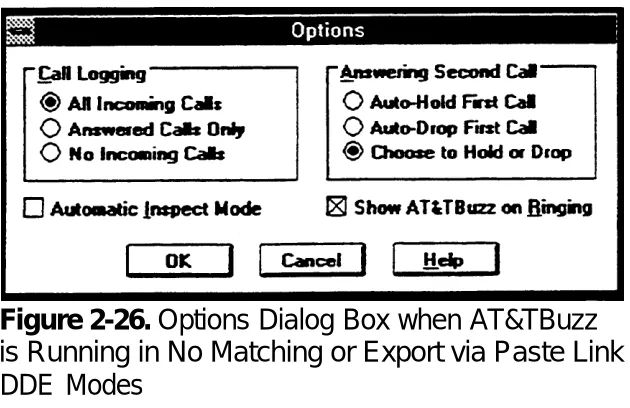
You can set the AT&TBuzz window to appear automatically when a call rings at your telephone. However, if you do not want to be distracted by this window "popping up" every time your phone rings, you can set the AT&TBuzz window to be opened manually (that is, you must double-click on the AT&TBuzz icon when you want to access the AT&TBuzz window and answer a call). By defaut the AT&TBuzz window appears automatically when a call rings at your telephone.
Show AT&TCall Card
If you are running AT&TBuzz in Match to AT&TCall File mode, you can set whether you want AT&TBuzz to show automatically the card that is associated with an incoming call. By default, you must select the Show Card button in the AT&TBuzz window to view the associated card. If you want AT&TBuzz to automatically show the associated card, you may specify whether you want the card displayed when the call rings at your telephone, or when you answer the call.
Automatic Inspect Mode
You can specify whether you want AT&TBuzz to automatically inspect every incoming call that rings at your telephone. In Automatic Inspect mode, AT&TBuzz provides the Caller ID automatically for every
incoming call (if available). By default, Automatic Inspect Mode is disabled.
✏
NOTE:telephone. This prevents you from interrupting an "inspection" in progress and answering a call other than the one you are
expecting to answer.
■
■
Call Logging
AT&TBuzz enables you to turn call logging on or off for incoming calls. if you turn on call logging, you have the option of logging all incoming calls (that is, calls that were answered and calls that were unanswered) or only those calls that were answered. Unanswered calls include those calls that were answered at another extension or by voice mail. By default, AT&TBuzz logs all incoming calls.
Answering Second Call
AT&TBuzz enables you to specify what should be done automatically y to an active (incoming) call when you attempt to answer another call. By default, AT&TBuzz prompts you to specify what should be done with the active call every time you attempt to answer another call. You can set AT&TBuzz to either automatically place the active call on hold or drop the active call when you attempt to answer another call. For example, if you know that you always want to place the active call on hold and answer the next call, select Auto-Hold First Call. You may want to keep the default setting to determine whether you want to automate this process.
If you are active on an outgoing call and you attempt to answer a second call, AT&TBuzz will always prompt you to place the active call on hold. This operation is not affected by the Answering Second Call option.
Local Area Code
When running in Match to AT&TCall File mode, AT&TBuzz requires your local area code.
To set the user options, perform the following steps:
1. Double-click on the AT&TBuzz icon to open the AT&TBuzz window.
The AT&TBuzz window appears.
2. Select Options. . . from the Setup menu.
The Options dialog box appears. The contents of the Options dialog box depend on whether you are running AT&TBuzz in Match to AT&TCall File mode.
Figure 2-26. Options Dialog Box when AT&TBuzz is Running in No Matching or Export via Paste Link DDE Modes
3 . Select the appropriate options.
4. When you are finished, select the OK button.
5. Minimize the AT&TBuzz window.
✏
PassageWay is now installed and configured. Refer to Chapters 3 through 7 for information on how to use the PassageWay applications.
NOTE:
Overview
This chapter provides the following information:
■ a description of AT&TBuzz
■ helpful hints describing how to use AT&TBuzz
■ the procedures for running AT&TBuzz
■ the tasks you will perform regularly while using AT&TBuzz
What Is AT&TBuzz?
AT&TBuzz is a software application that enables you to manage incoming calls (answer, hold, or drop) and view Caller ID (when available) for each incoming call appearing at your telephone.
✏
NOTE:AT&TBuzz will only provide Caller ID for outside calls (when passed from the telephone network) on PARTNER II Release 3.0 or 3.1 systems that have lines subscribed to Caller ID from your local telephone company. In addition, these lines must be
plugged into a PARTNER 206EC or 400EC module on the PARTNER system. AT&TBuzz does not support Caller ID for internal (intercom) calls on any of the PARTNER systems.
Figure 3-1 shows the AT&TBuzz window running in No Matching mode.
The AT&TBuzz window consists of the following components:
■ call record list box
■ menu bar
■ tool bar
Figure 3-2 shows the components of the AT&TBuzz window.
Figure 3-2. Components of the AT&TBuzz Window
The call record list box displays the call records for each incoming call
currently appearing at your telephone (that is, calls that are ringing, active, or on hold). A call record consists of the following components:
■
■
Line label, which indicates the specific line button that the call is on. You can customize these labels in AT&TConnect to identify each line button on your telephone.
■
■
Caller ID (if available), which is the call origination information that may be delivered with the incoming call. In addition, the following messages may appear in this column:
— Inspecting
— Private
— Out of Area
— Not Available
If this column is blank, you may initiate an inspection of the Caller ID if you have a Caller ID Inspect button programmed. To perform an
inspection, select the record in the list box and select the Inspect button from the Tool bar. (Refer to "Using Caller ID information" for more
information regarding the messages that may appear in the Caller ID column.
Call Label (if available), which is present if AT&TBuzz is operating in Match to AT&TCall File mode or Export via Paste Link DDE mode. Depending on the run mode, this field may contain information from an AT&TCall file or another Windows application.
When you want to answer a call, hang up a call, or place a call on hold, you must select the related call record in the call record list box (using the mouse or the arrow keys on your keyboard) and then select the appropriate button from the Tool bar. The Tool bar may contain either two or three buttons
(depending on the run mode in which AT&TBuzz is operating) and a count of the number of currently active incoming calls. The meanings of these buttons depend on the call state of the selected call record. Using these buttons, you can answer a ringing or held call, hang up an active call, inspect for caller information for a call, or show the associated AT&TCall card (if available).
You can set AT&TBuzz to run in one of the following three modes:
■
■
No Matching
When running in No Matching mode, AT&TBuzz displays the Line,
State, and Caller ID for each incoming call. In this mode, the AT&TBuzz window does not display a Call Label for each call.
Match to AT&TCall File
The Match to AT&TCall File mode integrates AT&TBuzz with AT&TCall In this mode, you associate an AT&TCall file with AT&TBuzz. When you receive an incoming call, AT&TBuzz automatically searches the
telephone numbers on every card in the AT&TCall file. If the Caller ID from the incoming call matches a telephone number in one of the cards in the AT&TCall file, AT&TBuzz displays the primary and secondary sort fields from the card as the Call Label for the call. For example, if the primary sort field is Last Name, and the secondary sort field is First Name in the associated AT&TCall file, AT&TBuzz displays the text from the Last Name, First Name fields for the Call Label. If a match is found, you can have AT&TCall display the associated card automatically from AT&TBuzz. If a match is not found, you can create a new card for this caller and add the new card to the card bank of the associated
When running in Match to AT&TCall File mode, AT&TBuzz enables you to specify how and when the card associated with an incoming call appears. You can select one of the following options for displaying the associated card (via the Options item from the Setup menu):
—
—
—
On Button Selection
Sets AT&TBuzz to display the associated card when you select the Show Card button in the Tool bar or the Show Card option from the Controls menu. If you perform either action, the
associated card appears.
Automatically on Answer
Sets AT&TBuzz to display the associated card automatically after you answer the call. As soon as you answer the call, the
associated card appears.
Automatically on Ringing
Sets AT&TBuzz to display the associated card automatically while the incoming call rings at your telephone. The PARTNER system receives the Caller ID from the local telephone network between the first and second ring. AT&TBuzz then takes the Caller ID and searches for a match in the associated AT&TCall file. The
associated card appears as soon as a match is found.
■ Export via Paste Link DDE
The Export via Paste Link DDE mode enables AT&TBuzz to export the Caller ID and the line label to another Windows application that supports Paste Link DDE. In turn, AT&TBuzz may receive a string from that other Windows application and use that string as a Call Label. Export via Paste Link DDE mode requires that you write a macro in the other application. Refer to Appendix C for more information.
Regardless of the run mode you select, AT&TBuzz also enables you to specify whether or not you want to log incoming calls in the calll log. This call log is the same one used by AT&TCall. You can set AT&TBuzz to keep a record of
To help you handle your incoming calls more quickly and easily, AT&TBuzz enables you to set the following options:
■
■
■
what should be done with the active call when you attempt to answer another incoming call. You can manually select to place on hold or drop the active call every time or you can set AT&TBuzz to either drop the active call automatically or place the call on hold automatically.
whether AT&TBuzz automatically inspects every incoming call that rings at your telephone (that is, try to get Caller ID). If you set AT&TBuzz to automatically inspect every incoming call, you should always answer calls directly from AT&TBuzz, instead of answering calls directly from the telephone. This prevents you from interrupting an "inspection" in progress and answering a call other than the one you are expecting to answer.
whether the AT&TBuzz window appears when your phone rings.
Using Caller ID Information
As mentioned previously, PARTNER II Release 3.0 or later systems support Caller ID. Caller ID is call origination information (that is, the telephone number of the telephone line from which the call is made) that may be delivered with an incoming call. Whether or not an incoming call has Caller ID depends on the telephone network. Unfortunately, all parts of the public telephone network do not yet support Caller ID. As a result you may not be able to take
advantage of this feature yet You may receive the following information in the Caller ID field:
■
■
the telephone number of the phone from which the call was made.
■
■
■
or an area that does not pass Caller ID to your area, you will not
receive Caller ID for this call. Instead, you will receive the message "Out of Area."
the message "Private," which indicates that there was no Caller ID for the associated call. This message appears when you receive a call from a telephone number that has instructed the telephone company to block Caller ID. This is common for people who have unlisted telephone numbers and do not want other people to find out their telephone
numbers via Caller ID.
the message "-Inspecting-," which indicates that the application is
inspecting the line for Caller ID. You should not answer any calls directly from the telephone if a call is in this state.
the message "Not Available," which indicates that the Caller ID was inspected successfully, and there is no Caller ID information associated with this call. This message could be caused by any of the following circumstances:
— The call was answered before the Caller ID was delivered (that is, you answered the call before the second ring).
— An error occurred in the transmission of the Caller ID from the telephone network.
— The line the call appeared on is not properly equipped for Caller ID (that is, it is not in a PARTNER II Release 3.0 or later system with a 206EC or 400EC module).
— This line is not subscribed for Caller ID).
— The call is an intercom call.
If you are using AT&TBuzz in Match to AT&TCall File mode, it is important to realize that the Caller ID you receive from a caller does not always match the telephone number that you may dial for that person. For example, suppose
you have a friend whose company has a telephone system with more than one outside line. You know that this, person’s phone number is 555-8888, and you have this information in a card in the associated AT&TCall file. Since this person’s company has more than one outside line, the Caller ID for calls
coming out of that company can be different from the number you would dial to call that company. When this person calls you, the Caller ID you receive may not match the number you dial to call this person. For example, this person calls you, and the Caller ID is 555-8889 (even though the telephone number you dial for this person is 555-8888). AT&TBuzz will search all of the dialable fields in the AT&TCall file to find a match. Since the Caller ID for this call does not match this person’s telephone number, AT&TCall will be unable to show this person’s call label or card. In this example, you could help prevent this situation from occurring by including this other Caller ID in one of the dialable fields in this person’s card. This way, when this person calls you again,
AT&TCall will be able to find a match.
When running AT&TBuzz in Match to AT&TCall File mode, AT&TBuzz will display "xxxx Matches" (where xxxx is the number of matches) in the Call Label field if a dialable field in more than one card in your AT&TCall file
Running AT&TBuzz
In order to run AT&TBuzz, you must access Windows and open the program group that contains the AT&T PassageWay applications. To run AT&TBuzz, just double-click on the AT&TBuzz icon. The AT&TBuzz icon appears on the bottom of your PC screen.
Helpful Hints
When using AT&TBuzz, keep in mind the following information:
■
■
■
■
If you have programmed a Caller ID Inspect button, do not answer calls until the PARTNER system has completed inspecting them. If you pick up the handset before the system finishes inspecting a call, you may not be connected to the call you expect.
Answer all incoming calls via the AT&TBuzz window.
If you run AT&TBuzz in Match to AT&TCall File mode, you must update your area code if it changes.
Tasks
This section provides the tasks that you will perform while using AT&TBuzz.
Accessing the Log Viewer
To access the Log Viewer from AT&TBuzz:
1. Select Accessories from the controls menu.
A submenu appears.
2. Select Call Log.
The Log Viewer window appears.
For information on Log Viewer tasks, refer to Chapter 6.
Answering a Call
To answer a call:
System Phone
1. Select the call record of the call you want to answer in the call record list box.
The selected call record is highlighted.
2. Select the Answer button from the Tool bar.
Shortcut:
Standard Phone
✏
NOTE:For standard phones, it is important for you to select the Select button from the Tool bar when multiple calls are present at the extension. This is the only way for you to make sure you will answer the call that you want.
1. Select the call record of the call you want to answer in the call record list box.
The selected call record is highlighted.
2. Select the Select button from the Tool bar.
A dialog box appears, instructing you to lift the handset.
3. Lift the handset of your phone.
Shortcut:
1. Double-click on call record of the call you want to answer.
Changing the AT&TCall File Associated
with AT&TBuzz
You can change the AT&TCall file that is associated with AT&TBuzz while you are running AT&TBuzz in Match to AT&TCall File mode.
✏
NOTE:You can only change the AT&TCall file associated with AT&TBuzz when no calls are appearing at the phone.
To change the file:
1. Select Run Mode. . . from the Setup menu.
The Run Mode dialog box appears.
2 . Click the mouse in the AT&TCall File box and enter the name of the file that you want to associate with AT&TBuzz or use the Browse button to display files.
3. When you are finished, select the OK button.
Creating a New Card in the Associated
AT&TCall File
To add a new card:
1.
2.
Select the call for which you want to create a new card in the associated AT&TCall file.
The selected call record is highlighted.
Select the New Card button in the Tool bar or New Card from the Control menu.
The AT&TCall New Card window appears. If there is Caller ID
information in the currently selected call record, that information appears in the bottom telephone number field in the card.
Exiting AT&TBuzz
To exit AT&TBuzz, select Exit from the Setup menu.
Resetting the Size of the AT&TBuzz Window
As in other Windows applications, you can resize the AT&TBuzz window. For example, if you want to view more than three call records (which is the default) in the AT&TBuzz window, you can extend the size of the window vertically. If some of the call labels exceed the call record list box and you want to view the entire call label, you can extend the size of the AT&TBuzz window horizontally. If you want the AT&TBuzz window to return to its default size, select Reset Default Window from the Setup menu.
Selecting a Call Record
In order to handle a call (for example, answer, hang up, or place on hold), you must select the related call record in the call record list box. You can select any call record by performing one of the following procedures:
■ clicking on the call record in the call record list box
Setting AT&TBuzz for Auto-Hold
You can set AT&TBuzz to automatically place on hold the current incoming call and answer another incoming call when you select another call and then select the Answer button. To set Auto-Hold:
1. Select Options. . . from the Setup menu.
The Options dialog box appears.
2. Select the Auto-Hold First Call in the Answering Second Call group.
3. Select the OK button.
✏
NOTE:Auto-Hold only applies if you answer the call from the AT&TBuzz window. If you answer the second call from the telephone, you will drop the first call. Auto-Hold only applies if the first call is incoming. if you place an outgoing call via AT&TCall and then receive an incoming call, Auto-Hold will not apply.
lf you want to be prompted for Hold or Drop on each attempt select the Choose to Hold or Drop option in the Answering Second Call group.
Setting AT&TBuzz for Auto-Drop
You can set AT&TBuzz to automatically drop the current incoming call and answer another incoming call when you select another call and then select the Answer button. To set Auto-Drop:
1 . Select Options. . . from the Setup menu.
The Options dialog box appears.
3. Select the OK button.
If you want to be prompted for Hold or Drop on each attempt select the Choose to Hold or Drop option in the Answering Second Call group.
Setting AT&TBuzz to Show the
Associated AT&TCall Card Automatically
When running in Match to AT&TCall File mode, AT&TBuzz enables you to specify whether you want AT&TBuzz to display automatically the AT&TCall card associated with the Caller ID of the incoming call. If you want AT&TBuzz to display the card automatically, you must then specify whether you want the card to appear when the call rings at your telephone or when you answer the call. If you do not want AT&TBuzz to automatically display the card, set the On Button Selection option in the Options dialog box. You can then show the card manually using the Show Card button in the Tool bar or the Show Card option in the Controls menu.
To set when the AT&TCall card is displayed:
1.
2.
3.
Select Options . . . from the Setup menu.
The Options dialog box appears.
Select the appropriate option in the Show AT&TCall Card section of the dialog box.
Setting the AT&TBuzz Window to
Appear Automatically
You can set the AT&TBuzz window to be brought to the front or restored from its icon automatically when a call rings. To set the AT&TBuzz window to
appear automatically when a call rings:
1. Select Options. . . from the Setup menu.
The Options dialog box appears.
2. Click on the Show AT&TBuzz on Ringing check box to enable or disable the automatic appearance of the AT&TBuzz window when your
telephone rings. An "x" in the check box indicates that the AT&TBuzz window will automatically appear when your telephone rings.
3. When you are finished, select the OK button.
Setting the Area Code
If you are running AT&TBuzz in Match to AT&TCall File mode, AT&TBuzz requires the local area code. If your area code changes, you must update the area code in AT&TBuzz. To change the area code:
1. Select Options. . . from the Setup menu.
The Options dialog box appears.
2. Enter your area code in the Local Area Code field.
Setting the AT&TBuzz Window to Always
be on Top of Other Windows
AT&TBuzz enables you to specify that you want the AT&TBuzz window to be located on top of all the other open windows, including the active window. To specify that the AT&TBuzz window is always on top of other windows, select
Always on Top from the Setup menu. A check mark appears next to the Always on Top option, indicating that the option is activated. The AT&TBuzz window will now remain in front of all the other windows you open, even if it is not the active window.
Setting Automatic Inspect Mode
AT&TBuzz enables you to specify whether you want to enable Automatic Inspect Mode. If you enable Automatic Inspect Mode, AT&TBuzz automatically inspects each call as soon as the call appears at the extension. When
Automatic Inspect Mode is disabled (which is the default), AT&TBuzz only receives Caller ID for the first call that starts ringing at your telephone. If
another call rings at your telephone, you must select the call record for the call and then select the Inspect button. If you enable Automatic Inspect Mode, you should always answer calls from the application so that you do not interrupt the inspect operation.
✏
NOTE:Automatic Inspect Mode is disabled if you are using a PARTNER system that does not support Caller ID or if you do not have a Caller ID Inspect button programmed on your telephone.
To enable or disable Automatic Inspect Mode:
1. Select Options. . . from the Setup menu.
2. Click on the Automatic Inspect Mode check box to enable or disable Automatic Inspect Mode. An "x" in the check box indicates that Automatic Inspect Mode is enabled.
3. When you are finished, select the OK button.
Setting the Run Mode for AT&TBuzz
You can set AT&TBuzz to operate in one of the following three modes:
■
■
■
No Matching, where AT&TBuzz displays the Caller ID for each call (if available), but does not display an associated Call Label.
Match to AT&TCall File, which enables you to associate AT&TBuzz with an AT&TCall file.
Export via Paste Link DDE, which enables AT&TBuzz to export the Caller ID and the line label to another Windows application that supports Paste Link DDE. in this mode, AT&TBuzz may receive a string from the other Windows application and use that string as a Call Label.
✏
NOTE:You can change the run mode only when no calls are in the call record list box.
To set the run mode:
1. Select Run Mode. . . from the Setup menu.
The Run Mode dialog box appears.
2. Select the appropriate Run Mode option.
If you select the Match to AT&TCall File option, you must enter the path and filename of the AT&TCall file that you want to associate with
3. Select the OK button.
When you select the Match to AT&TCall File option for the first time, AT&TBuzz will prompt you to enter your area code.
When you select the Export via Paste Link DDE Mode option, you will display two dialog boxes.
Setting AT&TBuzz to Log Incoming Calls
AT&TBuzz enables you to specify whether you want incoming calls logged in the Call Log. However, incoming call logging is only done while AT&TBuzz is
running. If you want incoming calls logged, you must then specify which calls. You may select one of the following choices:
■
■
■
All Incoming Calls
When this option is selected, every incoming call is logged in the call log.
Answered Calls Only
When this option is selected, only the incoming calls that you answer at your extension are logged in the call log.
No Incoming Calls
When this option is selected, none of the incoming calls are logged in the call log.
To set which incoming calls are logged in the call log:
1. Select Options. . . from the Setup menu.
The Options dialog box appears.
2. Select the appropriate option in the Call Logging section of the dialog box.
Showing the Card of an Incoming Call
on Demand
When running in Match to AT&TCall File mode, AT&TBuzz enables you to view on demand the associated card of an incoming call. However, you can only perform this procedure if the Caller ID for that call matches the contents of a dialable number field of one or more cards in the associated AT&TCall file. You can view the associated card using either the Show Card button in the Tool bar of the AT&TBuzz window or the Show Card option from the Controls menu. Both of these options are active if the Caller ID of the incoming call matches one or more cards.
To view the card associated with an incoming call:
1. Select the call record whose card you want to view from the call record list box.
The selected call record is highlighted.
2. Select the Show Card button from the Tool bar.
The associated card appears.
Using the Timer
AT&TBuzz provides a stopwatch that enables you to time anything that you want. You can use the Timer to time the length of a call, but you need to manually start and stop the Timer. The Timer is not tied to the call.
To use the Timer:
1. Select Accessories from the Controls menu.
2. Select Timer.
The Timer window appears and immediately starts keeping time. The Timer measures time in hours, minutes, and seconds. To reset the Timer, select the Reset button. To stop the Timer, select the Stop button. To restart the timer after it has been stopped, select the Start button.
AT&TBuzz Menu Bar Options
AT&TBuzz provides the following options in the menu bar:
■ Setup
■ Controls
■ Help
This section describes the options contained in each AT&TBuzz menu.
Setup
The Setup menu contains the following options:
■
■
■
■
■
■
Run Mode...
Options...
Initialize Paste Link DDE (only available when AT&TBuzz is running in Export via Paste Link DDE mode)
Reset Default Window
Always on Top
Exit
Run Mode. . .
Options...
Enables you to set the following options:
■
■
■
■
■
■
Show AT&TCall Card (if AT&TBuzz is operating in Match to AT&TCall File mode)
Answering Second Call
Call Logging
Automatic Inspect Mode
Show AT&TBuzz on Ringing
Local Area Code (if AT&TBuzz is operating in Match to AT&TCall File mode)
Initialize Paste Link DDE
Initializes AT&TBuzz for exporting via Paste Link DDE. This option overwrites the contents of the clipboard and is only available when AT&TBuzz is
operating in Export via Paste Link DDE mode.
Reset Default Window
Restores the AT&TBuzz window to its default size.
Always on Top
Exit
Closes the AT&TBuzz application.
Controls
The Controls menu contains the following options:
■ Answer
■ Hang Up
■ Hold
■ Show Card
■ New Card
■ Accessories
Answer
Enables you to answer the selected call if it is ringing or on hold.
Hang up
Enables you to hang up the selected call if it is active.
Hold
Enables you to place the active call on hold.
Show Card
New Card
Enables you to create a new card in the