A Glossary of Commonly-Used
Computer Terms
This appendix is a short glossary of the commonly-used computer terms that you may encounter while working with the Z-1 00 Computer.Acoustic coupler (Modem) – One of the two types of modems: a device you can connect between a standard telephone handset and a computer to communicate with other computers. A modem will translate the normal digital signals of the computer into tones that are transmitted over standard telephone lines and will translate the received tones back into digital signals. By using an acoustic coupler modem, you can use any telephone with a standard handset on a temporary basis and avoid a permanent connection to the telephone lines. See Modem; and Direct-Connect Modem.
Acronym – A word formed from letters found in a name, term, or phrase. For example, FORTRAN is formed from the words FORmula TRANslator,
Address -- The label, name, or number identifying a register, location or unit where data is stored. In most cases, address refers to a location in computer memory.
Algorithm – A defined set of instructions that will lead to the logical conclusion of a task.
Alpha – The letters of the English alphabet.
Alphanumeric -- Letters, numbers, punctuation, and symbols used to represent information or data.
ALU – Arithmetic Logic Unit. This section of the computer performs the arithmetic, logical, and comparative functions of an operation.
ANSI -- American National Standards Institute. This organization publishes standards used by many industries, including the computer industry. Most noted are those standards established for computer languages such as FORTRAN and COBOL.
Application program – A program or set of programs designed to accomplish a specific task such as word processing.
Argument – A term used to describe a value in a variable, statement, command, or element of an array or matrix table.
Array – A series of items arranged in a pattern. In computing, this term is used to describe a table with one or more dimensions.
Artificial intelligence – A term used to describe the capability of a machine that can perform functions normally associated with human intelligence: reasoning, creativity, and self-improvement.
ASCII – American Standard Code for Information Interchange. A code used by most computers, including those sold by Zenith Data Systems. €t is the industry standard used to transmit information to printers, other computers, and other peripheral devices. The most notable exception is some IBM equipment which uses EBCDIC code. See EBCDIC.
Assemble – A term that means to prepare a machine-usable code from a symbolic code.
Assembler – A computer program used to assemble machine code from symbolic code.
Assembly language – A computer programming language that is machine-oriented and makes use of mnemonics for instructions, operands, and pseudo-operations.
Asynchronous – A mode of operation where the next command is started and stopped by special signals. In communication, the signals are referred to as start and stop bits. See Synchronous.
Backup – A disk copy of data and/or programs that is retained in case the original is damaged or destroyed.
Batch processing – An operation where large amounts of data is processed by a computer with little or no operator supervision. See Interactive processing.
Baud rate – The rate at which information is transmitted serially from a computer. The baud rate is expressed in bits per second.
BCD – Binary Coded Decimal. The method of encoding four bits of computer memory into a binary representation of one decimal digit (number).
Binary – A numbering system with a base of two rather than ten (decimal). See bit.
Bit – 1. A single binary element or digit. 2. The smallest element in computer memory.
Bit density – A measure of the number of bits recorded in a given area.
Block diagram – 1. A graphic representation of the logical flow of operations in a computer program, usually more general than a flowchart. 2. A graphic representation of the electronic configuration of computer hardware and/or peripherals.
Board – A printed circuit board assembly that mounts onto the physical chassis of a computer, peripheral, or other device. Other cards (assemblies) may or may not be "plugged" into this board. See Card.
Boolean algebra – A symbolic system (algebra) named after its developer, George Boole. It is concerned with computer and binary processes and includes logical operators.
Boot – The process of initializing (or loading) a computer operating system. Also referred to as "booting up."
Bootstrap – A program used by a computer to initialize (or load) the operating system of the computer.
temporarily) a sequence of operations, as in a computer program.
Buffer – An auxiliary storage area for data. Many peripherals have buffers which are used to temporarily store data that the peripheral will use as time permits.
Bug – A term that is widely used to describe the cause of a computer misoperation. The "bug" may be either in the hardware design or in the software (programs) used by the computer.
Bus – A circuit or line used to carry data or power between two or more locations. The S-100 bus, used in the Z-100 Computer, is composed of one hundred separate bus lines.
Byte – A term used to describe a number of consecutive bits. In microcomputers, a byte usually refers to eight bits and is used to represent one ASCII or EBCDIC character.
Cable – An assembly of one or more conductors used to transmit power or data from a source to a destination and, in some cases, vice versa.
Card – A printed circuit board assembly that "plugs" into another card or board and is (usually) held in place by an assembly called a "card cage." See Board.
Centronics-type interface – A parallel printer interface which has become accepted as "quasi-standard" through common usage by a number of manufacturers. See Parallel; Printer; and Interface.
Character – A letter, number, punctuation, operation symbol, or any other single symbol that a computer may read, store, or process.
Checksum – A method of checking the accuracy of characters transmitted, manipulated, or stored. The checksum is the result of the summation of all the digits involved.
Circuit – A system of electronic elements and connections through which current flows.
Class A – One of two classes established for computers by the Federal Communications Commission regulating the allowable amount of radio frequency interference (RFI) radiation. At one time class A type computers referred to personal computers installed in commercial environments. See Class B.
Class B – One of two classes established for computers by the Federal Communications Commission regulating the allowable amount of radio frequency interference (RFI) radiation. At one time class B type computers referred to personal computers designed for home or residential use. Now all personal computers must meet class B requirements. See Class A.
COBOL – COmmon Business Oriented Language. This common highlevel language is used in a wide number of applications, most notably those dealing with financial transactions.
Code – A method of representing data in some form, as in an ASCII or EBCDIC form.
Command – A code that represents an instruction for the computer.
Communication – The process of transferring information from one point to another.
Compile – The process of producing machine code or pseudo-operational code from a higher level code or language, such as COBOL or FORTRAN.
Compiler – The program that compiles machine code from a higher level code. See Compile.
Composite video – A signal which contains all the elements needed by a video monitor to produce a display. It may be either a color or monochrome signal. See Video; Monitor; RGB video; and CRT.
based operating system commonly used by many microcomputers. CP/M is a registered trademark of Digital Research, Inc.
CPS – Characters Per Second. This term is sometimes used in relating transmission speed, and is more commonly used in rating a printer's in, stantaneous printing speed.
CPU – Central Processing Unit. The circuitry that actually processes the information and controls the storage, movement, and manipulation of data. The CPU contains the ALU and a number of registers for this purpose.
Crash – A term that refers to a computer or peripheral failure.
CAT – Cathode-Ray Tube. This term is used interchangeably with display, screen, and video monitor. It refers to the television-like screen in _ computer, terminal, or monitor.
Cursor – A character (usually an underline) that is used to indicate a pos ition on the screen.
Cylinder – A term used to describe the tracks in disk systems with multiple read-write heads which can be accessed without mechanical movement of the heads.
Daisy wheel printer – A "hard copy" device that produces images on Caper when a "hammer" strikes an arm or projection of the print wheel.
Data – The general term used to describe information that can be processed by a computer. Although the term is plural, it is commonly used in .-re singular form to denote a group of datum.
Data base – A large file of information that is produced, updated, and manipulated by one or more programs.
Data processing – The action taken by a computer to receive, manipulate, store, and/or print information.
Debug – The process of locating and removing any bugs in a computer system; usually as it applies to software.
Decimal – A numbering system with a base of ten consisting of the digits 0 through 9.
Delete – A term that means to remove or eliminate.
Density – A term that refers to the amount of information that can be stored in a given area.
Descenders – That portion of a character which descends below the base line of printed material. Most notably, the lower case g, j, p, q, and y have descenders.
Device – A mechanical or electronic unit, such as a printer, disk drive, terminal, and so on.
Digit – A single element or sign used to convey the idea of quantity, either by itself or with other numbers of its series.
Digital computer – A computer in which numbers are used to express data and instructions.
Direct-connect modem – One of the two types of modems; a device you can connect between a telephone line and a computer to communicate with other computers. A modem will translate the normal digital signals of the computer into tones that are transmitted over standard telephone lines and will translate the received tones back into digital signals. By using a direct-connect modem, you avoid problems associated with high levels of noise and make a more permanent connection to the telephone lines. See Modem; and Acoustic coupler.
Directory – A disk file, listing all of the other files on the disk and pertinent information about each file.
onto disks. Diskette – See Disk.
Disk operating system – See DOS.
Display – The television-like screen used by the computer to present information to the operator.
DOS – Disk Operating System. A program or programs that provide basic utility operations and control of a disk-based computer system.
Dot-matrix printer – A "hard copy" printer that works by forming the printed character through the selection of wires which strike the paper.
Double-density – This term is most often applied to the storage characteristics of disks, and generally refers to the density of the storage of bits on the disk surface on each track. It also refers to the density of the disk tracks, though this is not the common usage.
DTE – Data Terminal Equipment. The DTE connector is a serial connector resigned to be used with a terminal device, which also includes printers. Terminal; and Printer.
EBCDIC – Expanded Binary Coded Decimal Interchange Code. This code, used primarily in IBM equipment, is used to transmit information to peripheral equipment and other computers. It is similar to ASCII code which is the computer industry's standard and is similar. See ASCII.
Edit – A term that means to change data, a program, or a program
EPROM – Erasable Programmable Read-Only Memory. It is similar to PROM, except that this memory is erased by exposing it to a high-intensity ultraviolet light after which it may be reprogrammed. An EPROM is nonvolatile. See Volatile; RAM; ROM; PROM; and EEPROM.
Execute – A term that means to perform a command.
Field – A set of related characters that make up a piece of data such as a field of characters that spell a person's first name.
File – A collection of related records that are treated as a unit. A file may contain data or represent a computer program. See Field and Record.
Firmware – A computer program that is part of the physical makeup of the computer. See Software; and Hardware.
Flowchart – A symbolic representation of the logical flow of operations. It is usually very detailed when it represents a computer program.
Formatting – The process of organizing the surface of a disk to accept files of data and programs.
FORTRAN – FORmula TRANslator. A popular high-level programming language used primarily in scientific applications.
Graphics – This term generally refers to special characters which may be displayed or printed. In other uses, it indicates that the specified device may be able to reproduce any type of display, from photographs to line and bar charts. Often, graphics capabilities are expressed in pixels, points, or dots.
Hard copy – Typewritten or printed characters on paper, produced by a peripheral, such as a printer or plotter.
Hard-sectored – This term applies to disks which have multiple timing holes that mark sector boundaries, as well as the beginning of a track.
consisting of the digits 0 through 9 and A (10) through F (15). A single byte of data may be represented by two hexadecimal digits.
Hidden file – A file that may be accessed (read) but will not appear on a disk directory. See Disk; Directory; and File.
High-level language – A programming language which uses symbol and command statements that an operator can read. Each statement represents a series of computer machine language instructions. Examples of high-level languages are BASIC, COBOL, and FORTRAN.
Home – This term usually refers to the upper left-hand corner of the display screen, and specifically to the first displayable character location.
I/O – Input/Output. This term refers to the devices which enter and/or store data, and/or the paths through which such data passes. See Port.
IC – Integrated Circuit. See Chip.
Ink jet printer – A "hard copy" device that works by forming printed characters from tightly controlled jets of ink. These printers are often capable of producing multicolored copy and screen images.
Input – 1. Information or data transferred into the computer. 2. The route through which such information passes. 3. The devices which supply a source of input data, such as the keyboard or disk drive.
Instruction – A code that tells a computer to perform a particular operation.
Integer – A whole number.
Interactive processing – An operation where data is processed by a computer under the supervision of an operator, often requiring many keyboard entries. See Batch processing.
Interpreter – A special program that interprets the code in a high-level language for use by the computer. It performs an interpretation each time an instruction is executed; usually this results in slower operation as compared to a compiled computer language. However, the process of testing and debugging an interpreted computer program is much easier and faster. BASIC is an example of an interpreter. However, it is not always found in this form.
Interrupt – A temporary suspension of processing by the computer (and possible override by a high priority routine) caused by input from another part of the computer or a peripheral.
Jump – A departure from the normal sequential line-by-line flow of a program. A jump may be either conditional, based upon the outcome of a test, or unconditional (i.e., absolute).
Justify – To adjust exactly; the perfect alignment of a margin. Text is normally left justified; that is, the left margin is always aligned. A feature of many word processors is right justification; extra spaces between words or increments in spaces between letters are added to perfectly align the right margin.
K – Abbreviation for kilo. 1. A mathematical symbol used to represent 1000. 2. A unit of measurement of capacity in computers that represents the power of 2 closest to 1000 (210 or 1024 = 1K). See Binary; Kilo; and Kilobyte.
Keyboard – A device used to enter information into a computer. It is made up of two or more keys, often arranged like those of a typewriter and/or calculator.
Keyword – One or two words in a high-level language that define the primary type of operation to be performed.
Kilo – A prefix meaning: (1) 1000 when used in a mathematical expression; or (2) 1024 when used as a unit of measurement in computers. See K; and Kilobyte.
1,024 bytes. See K; Kilo; and Byte.
Language – A defined set of characters which, when used alone or in combinations, form a meaningful set of words and symbols. In a computer language, it refers to a set of words and operators and the rules governing their usage. Examples of computer languages are machine Ianguage, assembler language, BASIC, COBOL, and FORTRAN.
Load – The process of entering information (data or a program) into a computer, from a keyboard, disk, or other source.
Logical line – Continuous text, instructions, commands, or other material from its beginning to its end, regardless of any breaks imposed upon it by line length limitations of display or printing devices. Logical lines are terminated by the ASCII character CR, which is generated when you press the RETURN key. See Physical line.
M – An abbreviation for mega. 1. A mathematical symbol used to represent 1,000,000. 2. A unit of measurement of capacity in computers that equals 1000K or 1,024,000. See K; Mega; and Megabyte.
Machine language – A programming language consisting only of numbers or symbols that the computer can understand without translation. See Machine Glossary.
Mainframe – 1. The actual central hardware of a computer, containing the Central Processing Unit (CPU). 2. The largest type of computer, usually associated with financial and government institutions and having the ability process very large amounts of data in a batch processing mode.
Matrix – 1. A rectangular array of data usually numeric, subject to mathematical operations or manipulation; any table is a matrix. 2. A rectangular array of elements that form symbols and/or characters in a dot-matrix printer or video display.
Mega – A prefix meaning: (1) 1,000,000 when used in a mathematical expression; or (2) 1,024,000 when used as a unit of measurement in computers. See M; and Megabyte.
Megabyte – A unit of measurement in computers that equals 1,024,000 bytes. See M; Mega; and Byte.
Memory – That part of a computer that is used to electronically store information (either data or programs). The amount of memory in a microcomputer is often used to imply the size or capability of that computer. See RAM; ROM; PROM; EPROM; and EEPROM.
Microcomputer – A term that (usually) applies to smaller, desktop and personal computer systems. See Minicomputer; and Mainframe.
Minicomputer – A term that applies to medium-sized computer systems. See Microcomputer; and Mainframe.
Mnemonic – A term applying to an abbreviation or acronym that is easy to remember.
Mode – Method of operation. For instance, BASIC has two modes of operation: direct mode and indirect mode.
Modem – MOdulator DEModulator. A device that converts the digital signals from a computer into a form compatible with transmission facilities and vice versa. Most commonly used with telephone communications.
Modulus – The result of modular arithmetic which deals with whole numbers, where the numbers are replaced by their remainders after division by an integer.
and green, or black and amber) display.
Mouse – A peripheral device with one or two switches that is connected to a computer or terminal and used as an input device. It can serve as a graphics entry device or as a control for (relative) cursor positioning on the screen. See Graphics and Cursor.
Multiprocessing – A term that means doing two or more processes at the same time. This usually applies to computers with more than one CPU.
Multitasking – The ability to do two or more tasks at the same time. This term is often used synonymously with multiprocessing. In computers that have only one active CPU, multitasking is accomplished by "timesharing" the CPU between the tasks. See Timeshare; Multiprocessing; and Multiuser.
Multiuser – The ability to accommodate two or more operators on one computer system at the same time, usually through two or more terminals. See Multi-processing; Multitasking; and Network.
Network – 1. The interconnection of a number of stations by means of a common interface or communications facility, such as a telephone. 2. Two or more computer systems, physically linked together through a common data channel, that are serviced by one or more of the computer systems in that network.
Numeric – Denoting a number or a system of numbers.
OS – Operating System. A program or programs that provide basic utility operations and control of a computer system.
Operator – 1. The person who actually manipulates the computer controls, places the disk into the disk drive, removes printer output, etc. 2. A symbol that designates a mathematical operation such as plus (+), minus (-), and so on. 3. A symbol or keyword that designates a logical comparison or operation such as greater than (>), less than (<), NOT, and so on.
Output – The results of computer operations. This may be in the form of displayed or printed information, data stored on (for example) a disk, or data transmitted to another computer.
Parallel – In computers, this refers to information sent as a group, rather than serially. For example, eight bits (or a byte) are transmitted simultaneously over eight channels or wires. See Serial.
Parameter – A specification or value used in an operation or statement.
Parity – Refers to a method used to check the validity of data that is stored, transmitted, or manipulated. The value of a parity bit (which is added to the number of bits which make up one character) will be determined by the desired outcome of the sum of the bits for that character (i.e., to be either an odd or even number).
Peripheral – A device that is connected to the computer for the purpose of supplying input and/or output capability to that computer. A peripheral may or may not be under direct control of the computer; it may be capable of some independent operation (self-test, etc.).
Physical line – Text, instructions, commands, or other material that resides on one line. If the material is broken into two or more lines by line length limitations of a display or printing device, then each line is considered to be one physical line. See Logical line.
Port – The path through which data is transferred into and/or out of the computer or CPU.
form of written, typed, or printed characters and symbols on paper. The output of a printer is called "hard copy," or a "computer printout."
Problem – A situation where an unknown exists among a given set of knowns. The objective of a program or task in a computer might be the finding of an unknown.
Process – The act of completing or executing an instruction or set of instructions. It may include the capability to compute, assemble, compile, interpret, generate, and so on.
Processor – A computer or its CPU. See CPU.
Program – A set of computer instructions which, when followed, will result in the solution to a problem or the completion of a task.
Program language – Any one of a number of languages created for a computer. Examples include BASIC, COBOL, FORTRAN, and assembly language.
Programmer – A person who prepares and writes a computer program.
PROM – Programmable Read-Only Memory. Memory which is similar to ROM but which can be programmed (data written to it) by special methods. A PROM is nonvolatile. See Volatile; ROM; EPROM; and EEPROM.
Prompt – A symbol, character, or other sign that indicates that the computer is waiting for some form of operator input. The prompt may request specific data and be made up of text. In other instances, the prompt may simply mean that the computer is finished executing the latest command and is waiting for new instructions in the form of a command.
Pseudo – A prefix meaning imitative.
RAM – Random Access Memory. Volatile read-write memory in which data may be written to (stored) or read from (retrieved) directly. See Random access; and Volatile.
Random access – The ability to access locations without regard to sequential position; access may be accomplished by going directly to the location. On occasion, this is called "direct access."
Read – The process of obtaining data from some source, such as a disk.
Read/write head – A magnetic recording/playback head similar to those used by tape recorders. The function of the head is to read (playback) and write (record) information on magnetic material such as a disk surface.
Real time clock – A part of the computer that maintains the actual time of day which may be used in a computer program. In many small computers, this is a function of software rather than hardware, and may be subject to timing interrupts caused by certain operations.
Reset – The process of restoring the equipment to its initial state; the state it was in when power was applied and the system turned on.
RGB video – A high-resolution color monitor which utilizes separate red, green, and blue signals rather than a combination, or "composite," of the same. See Monitor; Composite video; CRT; and Display.
ROM – Read-Only Memory. Memory which is similar to RAM, except that data cannot be written to it. Data can be read from it directly, as in the case of RAM, but ROM is nonvolatile; that is, it will retain the information stored in it whether power is applied or not. It is most often used for special programs such as the monitor program in your computer. See Volatile; RAM; PROM; EPROM; and EEPROM.
Electronic Industries Association (EIA) to ensure uniformity of interfacing signals between computers and peripherals. This capability is built into most computer devices. See Interface.
Search – The systematic examination of data to locate a specific item. Searches are characterized by several different methods including sequential (items are examined in a specific sequence) and binary (ordered data containing the desired item is repeatedly halved until the desired stem is found).
Sector – A portion of a disk track. The location of a particular sector on the track is a matter of timing. In a disk, timing is handled by timing holes. Disks containing only one timing hole are said to be soft-sectored because the timing is handled by software. Disks containing many timing holes are said to be hard-sectored because the timing is handled by hardware. See Track.
Sequential – The order in which things follow one after the other.
Serial – A term that usually refers to the treatment and handling of information. That is, the data is broken down into its component parts, which could be either characters (bytes) or bits. The resulting bytes or bits are then handled (processed, transmitted, or received) in a sequential manner. The term "serial device" refers to the method in which data is passed through or to that device.
Sign – A symbol that indicates whether the value is greater than zero or less than zero. The dash or hyphen sign (-) is used to indicate a negative (less than zero) value. The absence of the dash or a plus sign (+) indicates a value greater than zero (positive).
Single-density – This term is most often applied to the storage characteristics of disks, and generally refers to the density of the storage of bits on the disk surface on each track. It also refers to the density of the disk tracks, though this is not the common usage.
Software – A general term that applies to any program (set of instructions) that can be loaded into a computer from any source. See Firmware; and Hardware.
Sort – To arrange (or place in order) data according to a predefined set of rules.
Synchronous – To be controlled by and synchronized (timed) with equally spaced timing signals. See Asynchronous.
Syntax -The rules governing the use of a language.
System – An assembly of components into a whole. A computer system is made up of the computer plus one or more peripherals.
Table – A collection of related data which is in a form suitable for easy reference. See Matrix.
Task – A job, usually performed by following a specific set of instructions to solve a problem.
Telecommunications – The transmission and/or reception of signals by wire, radio, light beam, telephone, or any other electronic means.
Terminal – An input/output device, usually consisting of a keyboard and a display screen. A terminal also may consist of a printer and a keyboard; this is referred to as a "printing terminal." Either type may include a modem (either the acoustic-coupled type or the direct-connect type) for remote operation.
Thermal printer – A "hardcopy" device that works: (1) by forming printed characters by heating tiny elements near or on heat-sensitive paper; or (2) by etching or "burning" printed characters on paper by the use of a low-power laser.
Track – The portion of a disk that one read/write head passes over while in a stationary position. Track density is measured in tpi (tracks per inch).
Utility – A program that accomplishes a specific purpose, usually quite commonly needed by a wide range of applications. Most utilities are furnished with a computer system while some, like sort routines, may be sold separately.
Variable – This term applies to a symbol or name that represents an assigned memory location where a value is stored by a program. The maintenance of the variable and its location is handled by the program.
Verify – To examine and substantiate the results of a computer operation.
Volatile – A characteristic of becoming lost or erased when operating power is removed from the hardware. See RAM.
Winchester – A term applied to most forms of high-density, nonremovable rigid disk storage devices.
Word processing – An application, widely used in microcomputers for entering, manipulating, correcting, deleting, formatting, and printing various types of text: correspondence, reports, legal documents, articles, manu-scripts, and books. These application programs often include a spelling checker and other aids to the writer: punctuation checker, thesaurus, and indexer.
Symbols and Codes
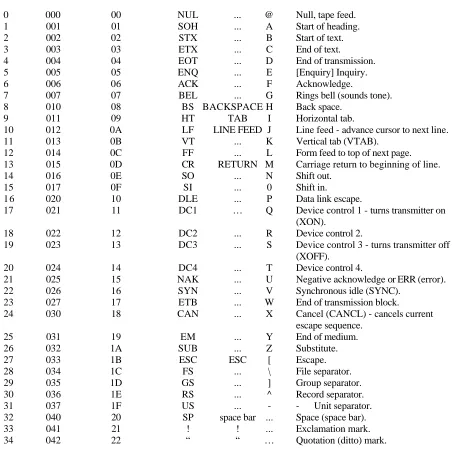
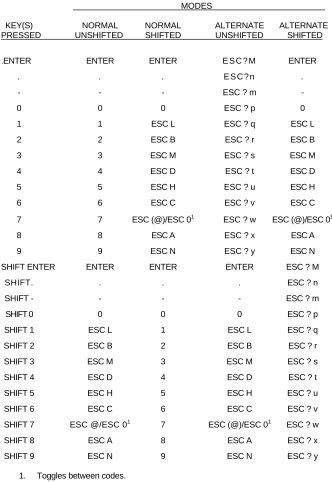
This appendix contains a number of tables: a decimal/octal/hexadecimal ASCII conversion table; three key code tables; and five control code tables.
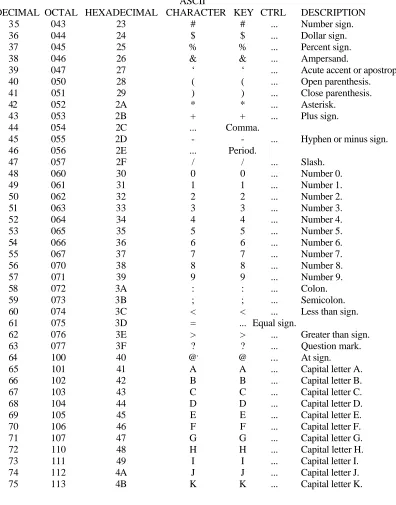
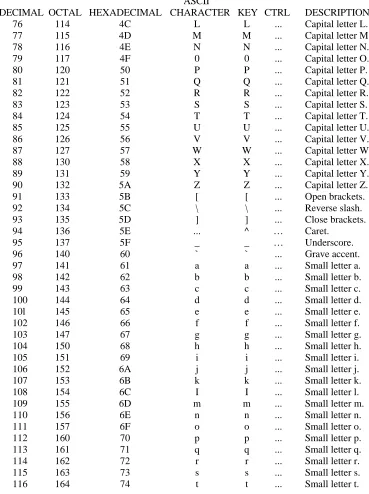
Table B-1 describes the entire ASCII character set as implemented in the Z-100. The Z-19 graphics characters and foreign characters are not illustrated in the table.
If you want to see the graphics or foreign characters, use the FONT utility of MS-DOS to load the appropriate CHR file from MS-DOS distribution disk #2. The font utility provides you with the means to view and the characters to suit your own needs. Refer to the MS-DOS documentation for complete instructions.
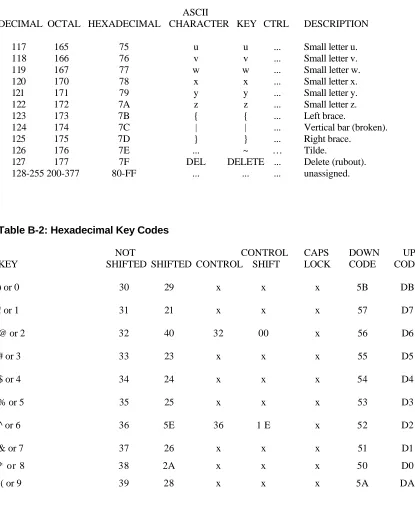
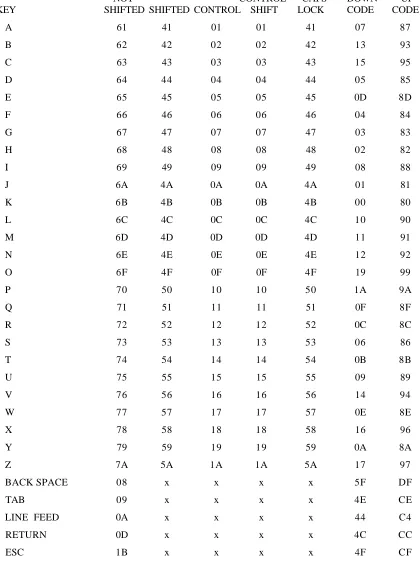
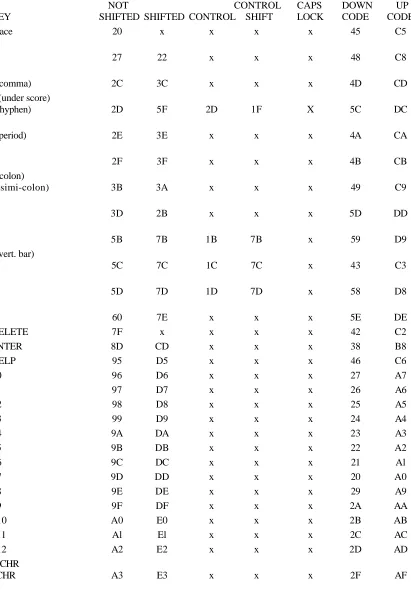
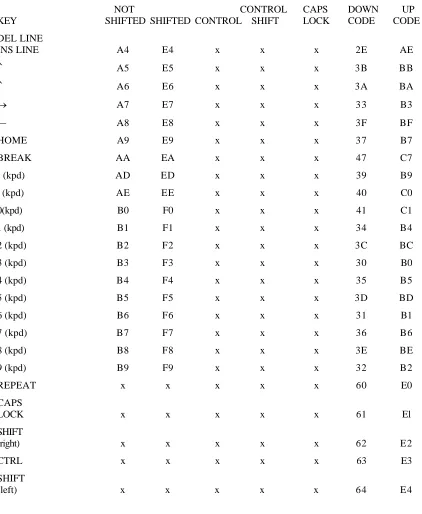
Tables B-2 through B-4 contain the hexadecimal or ASCII codes sent by the keyboard for each key you press (and release) under different conditions. The conditions in Table B-2 are represented by the following: (1) normal or default keyboard operation with no extra keys pressed, (2) either SHIFT key pressed, (3) the CTRL key pressed, (4) both the CTRL and either SHIFT key pressed, (5) the CAPS LOCK key locked down, (6) the keyboard in the event-driven mode when a key is pressed, and (7) the keyboard in the event-driven mode when a key is released.
Table B-1: The ASCII Character Set
ASCII
DECIMAL OCTAL HEXADECIMAL CHARACTER KEY CTRL DESCRIPTION
0 000 00 NUL ... @ Null, tape feed. 1 001 01 SOH ... A Start of heading.
2 002 02 STX ... B Start of text.
3 003 03 ETX ... C End of text.
4 004 04 EOT ... D End of transmission.
5 005 05 ENQ ... E [Enquiry] Inquiry.
6 006 06 ACK ... F Acknowledge.
7 007 07 BEL ... G Rings bell (sounds tone). 8 010 08 BS BACKSPACE H Back space.
9 011 09 HT TAB I Horizontal tab.
10 012 0A LF LINE FEED J Line feed - advance cursor to next line. 11 013 0B VT ... K Vertical tab (VTAB).
12 014 0C FF ... L Form feed to top of next page. 13 015 0D CR RETURN M Carriage return to beginning of line.
14 016 0E SO ... N Shift out.
15 017 0F SI ... 0 Shift in.
16 020 10 DLE ... P Data link escape.
17 021 11 DC1 … Q Device control 1 - turns transmitter on (XON).
18 022 12 DC2 ... R Device control 2.
19 023 13 DC3 ... S Device control 3 - turns transmitter off (XOFF).
20 024 14 DC4 ... T Device control 4.
21 025 15 NAK ... U Negative acknowledge or ERR (error). 22 026 16 SYN ... V Synchronous idle (SYNC). 23 027 17 ETB ... W End of transmission block.
24 030 18 CAN ... X Cancel (CANCL) - cancels current escape sequence.
25 031 19 EM ... Y End of medium.
26 032 1A SUB ... Z Substitute.
27 033 1B ESC ESC [ Escape.
28 034 1C FS ... \ File separator.
29 035 1D GS ... ] Group separator.
30 036 1E RS ... ^ Record separator.
31 037 1F US ... - - Unit separator.
32 040 20 SP space bar ... Space (space bar).
33 041 21 ! ! ... Exclamation mark.
Table B-1 (continued): The ASCII Character Set
ASCII
DECIMAL OCTAL HEXADECIMAL CHARACTER KEY CTRL DESCRIPTION
3 5 043 23 # # ... Number sign.
36 044 24 $ $ ... Dollar sign.
37 045 25 % % ... Percent sign.
38 046 26 & & ... Ampersand. 39 047 27 ‘ ‘ ... Acute accent or apostrophe. 40 050 28 ( ( ... Open parenthesis.
41 051 29 ) ) ... Close parenthesis.
42 052 2A * * ... Asterisk.
43 053 2B + + ... Plus sign.
44 054 2C ... Comma.
45 055 2D - - ... Hyphen or minus sign.
46 056 2E ... Period.
47 057 2F / / ... Slash.
48 060 30 0 0 ... Number 0.
49 061 31 1 1 ... Number 1.
50 062 32 2 2 ... Number 2.
51 063 33 3 3 ... Number 3.
52 064 34 4 4 ... Number 4.
53 065 35 5 5 ... Number 5.
54 066 36 6 6 ... Number 6.
55 067 37 7 7 ... Number 7.
56 070 38 8 8 ... Number 8.
57 071 39 9 9 ... Number 9.
58 072 3A : : ... Colon.
59 073 3B ; ; ... Semicolon.
60 074 3C < < ... Less than sign.
61 075 3D = ... Equal sign.
62 076 3E > > ... Greater than sign.
63 077 3F ? ? ... Question mark.
64 100 40 @, @ ... At sign.
ASCII
DECIMAL OCTAL HEXADECIMAL CHARACTER KEY CTRL DESCRIPTION 76 114 4C L L ... Capital letter L. 77 115 4D M M ... Capital letter M. 78 116 4E N N ... Capital letter N. 79 117 4F 0 0 ... Capital letter O. 80 120 50 P P ... Capital letter P. 81 121 51 Q Q ... Capital letter Q. 82 122 52 R R ... Capital letter R. 83 123 53 S S ... Capital letter S. 84 124 54 T T ... Capital letter T. 85 125 55 U U ... Capital letter U. 86 126 56 V V ... Capital letter V. 87 127 57 W W ... Capital letter W. 88 130 58 X X ... Capital letter X. 89 131 59 Y Y ... Capital letter Y. 90 132 5A Z Z ... Capital letter Z.
91 133 5B [ [ ... Open brackets.
92 134 5C \ \ ... Reverse slash.
93 135 5D ] ] ... Close brackets.
94 136 5E ... ^ … Caret.
95 137 5F _ _ … Underscore.
96 140 60 ` ` ... Grave accent.
97 141 61 a a ... Small letter a. 98 142 62 b b ... Small letter b. 99 143 63 c c ... Small letter c. 100 144 64 d d ... Small letter d. 10l 145 65 e e ... Small letter e. 102 146 66 f f ... Small letter f. 103 147 67 g g ... Small letter g. 104 150 68 h h ... Small letter h. 105 151 69 i i ... Small letter i. 106 152 6A j j ... Small letter j. 107 153 6B k k ... Small letter k. 108 154 6C I I ... Small letter l.
109 155 6D m m ... Small letter m.
Table B-1 (continued): The ASCII Character Set
ASCII
DECIMAL OCTAL HEXADECIMAL CHARACTER KEY CTRL DESCRIPTION
117 165 75 u u ... Small letter u.
118 166 76 v v ... Small letter v.
119 167 77 w w ... Small letter w.
120 170 78 x x ... Small letter x.
121 171 79 y y ... Small letter y. 122 172 7A z z ... Small letter z.
123 173 7B { { ... Left brace.
124 174 7C | | ... Vertical bar (broken).
125 175 7D } } ... Right brace.
126 176 7E ... ~ … Tilde.
127 177 7F DEL DELETE ... Delete (rubout). 128-255 200-377 80-FF ... ... ... unassigned.
Table B-2: Hexadecimal Key Codes
NOT CONTROL CAPS DOWN UP
KEY SHIFTED SHIFTED CONTROL SHIFT LOCK CODE CODE
) or 0 30 29 x x x 5B DB
! or 1 31 21 x x x 57 D7
@ or 2 32 40 32 00 x 56 D6
# or 3 33 23 x x x 55 D5
$ or 4 34 24 x x x 54 D4
% or 5 35 25 x x x 53 D3
^ or 6 36 5E 36 1 E x 52 D2
& or 7 37 26 x x x 51 D1
* or 8 38 2A x x x 50 D0
NOT CONTROL CAPS DOWN UP KEY SHIFTED SHIFTED CONTROL SHIFT LOCK CODE CODE
A 61 41 01 01 41 07 87
B 62 42 02 02 42 13 93
C 63 43 03 03 43 15 95
D 64 44 04 04 44 05 85
E 65 45 05 05 45 0D 8D
F 66 46 06 06 46 04 84
G 67 47 07 07 47 03 83
H 68 48 08 08 48 02 82
I 69 49 09 09 49 08 88
J 6A 4A 0A 0A 4A 01 81
K 6B 4B 0B 0B 4B 00 80
L 6C 4C 0C 0C 4C 10 90
M 6D 4D 0D 0D 4D 11 91
N 6E 4E 0E 0E 4E 12 92
O 6F 4F 0F 0F 4F 19 99
P 70 50 10 10 50 1A 9A
Q 71 51 11 11 51 0F 8F
R 72 52 12 12 52 0C 8C
S 73 53 13 13 53 06 86
T 74 54 14 14 54 0B 8B
U 75 55 15 15 55 09 89
V 76 56 16 16 56 14 94
W 77 57 17 17 57 0E 8E
X 78 58 18 18 58 16 96
Y 79 59 19 19 59 0A 8A
Z 7A 5A 1A 1A 5A 17 97
BACK SPACE 08 x x x x 5F DF
TAB 09 x x x x 4E CE
LINE FEED 0A x x x x 44 C4
RETURN 0D x x x x 4C CC
Table B-2 (continued): Hexadecimal Key Codes
NOT CONTROL CAPS DOWN UP
KEY SHIFTED SHIFTED CONTROL SHIFT LOCK CODE CODE
space 20 x x x x 45 C5
“
‘ 27 22 x x x 48 C8
<
, (comma) 2C 3C x x x 4D CD
_ (under score)
- (hyphen) 2D 5F 2D 1F X 5C DC
>
. (period) 2E 3E x x x 4A CA
?
/ 2F 3F x x x 4B CB
: (colon)
; (simi-colon) 3B 3A x x x 49 C9
+
= 3D 2B x x x 5D DD
{
[ 5B 7B 1B 7B x 59 D9
| (vert. bar)
\ 5C 7C 1C 7C x 43 C3
}
] 5D 7D 1D 7D x 58 D8
~
` 60 7E x x x 5E DE
DELETE 7F x x x x 42 C2
ENTER 8D CD x x x 38 B8
HELP 95 D5 x x x 46 C6
F0 96 D6 x x x 27 A7
F1 97 D7 x x x 26 A6
F2 98 D8 x x x 25 A5
F3 99 D9 x x x 24 A4
F4 9A DA x x x 23 A3
F5 9B DB x x x 22 A2
F6 9C DC x x x 21 Al
F7 9D DD x x x 20 A0
F8 9E DE x x x 29 A9
F9 9F DF x x x 2A AA
F10 A0 E0 x x x 2B AB
F11 Al El x x x 2C AC
F12 A2 E2 x x x 2D AD
D CHR
NOT CONTROL CAPS DOWN UP KEY SHIFTED SHIFTED CONTROL SHIFT LOCK CODE CODE
DEL LINE
INS LINE A4 E4 x x x 2E AE
↑ A5 E5 x x x 3B BB
↑ A6 E6 x x x 3A BA
→ A7 E7 x x x 3 3 B3
← A8 E8 x x x 3F BF
HOME A9 E9 x x x 3 7 B7
BREAK AA EA x x x 47 C7
- (kpd) AD ED x x x 39 B9
. (kpd) AE EE x x x 40 C0
0(kpd) B0 F0 x x x 41 C1
1 (kpd) B1 F1 x x x 34 B4
2 (kpd) B2 F2 x x x 3C BC
3 (kpd) B3 F3 x x x 30 B0
4 (kpd) B4 F4 x x x 35 B5
5 (kpd) B5 F5 x x x 3D BD
6 (kpd) B6 F6 x x x 31 B1
7 (kpd) B7 F7 x x x 36 B6
8 (kpd) B8 F8 x x x 3E BE
9 (kpd) B9 F9 x x x 32 B2
REPEAT x x x x x 60 E0
CAPS
LOCK x x x x x 61 El
SHIFT
(right) x x x x x 62 E2
CTRL x x x x x 63 E3
SHIFT
Table B-3: ASCII Keypad Codes - Key Expansion Mode Enabled
MODES
KEY(S) NORMAL NORMAL ALTERNATE ALTERNATE PRESSED UNSHIFTED SHIFTED UNSHIFTED SHIFTED
.ENTER ENTER ENTER E S C ? M ENTER
. . . E S C ? n .
- - - ESC ? m -
0 0 0 ESC ? p 0
1 1 ESC L ESC ? q ESC L 2 2 ESC B ESC ? r ESC B 3 3 ESC M ESC ? s ESC M 4 4 ESC D ESC ? t ESC D
5 5 ESC H ESC ? u ESC H 6 6 ESC C ESC ? v ESC C
7 7 ESC (@)/ESC 01 ESC ? w ESC (@)/ESC 01 8 8 ESC A ESC ? x ESC A 9 9 ESC N ESC ? y ESC N SHIFT ENTER ENTER ENTER ENTER ESC ? M
SHIFT. . . . ESC ? n
SHIFT - - - - ESC ? m
SHIFT 0 0 0 0 ESC ? p
SHIFT 1 ESC L 1 ESC L ESC ? q SHIFT 2 ESC B 2 ESC B ESC ? r SHIFT 3 ESC M 3 ESC M ESC ? s SHIFT 4 ESC D 4 ESC D ESC ? t SHIFT 5 ESC H 5 ESC H ESC ? u SHIFT 6 ESC C 6 ESC C ESC ? v SHIFT 7 ESC @/ESC 01 7 ESC (@)/ESC 01 ESC ? w SHIFT 8 ESC A 8 ESC A ESC ? x SHIFT 9 ESC N 9 ESC N ESC ? y
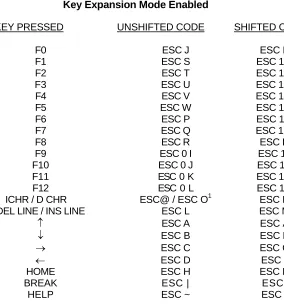
Table B-4: ASCII Function Key Codes – Key Expansion Mode Enabled
KEY PRESSED UNSHIFTED CODE SHIFTED CODE
F0 ESC J ESC E
F1 ESC S ESC 1 A
F2 ESC T ESC 1 B
F3 ESC U ESC 1 C
F4 ESC V ESC 1 D
F5 ESC W ESC 1 E
F6 ESC P ESC 1 F
F7 ESC Q ESC 1 G
F8 ESC R ESC H
F9 ESC 0 I ESC 1 I
F10 ESC 0 J ESC 1 J
F11 ESC 0 K ESC 1 K
F12 ESC 0 L ESC 1 L
ICHR / D CHR ESC@ / ESC O1 ESC N
DEL LINE / INS LINE ESC L ESC M
↑ ESC A ESC A
↓ ESC B ESC B
→ ESC C ESC C
← ESC D ESC D
HOME ESC H ESC H
BREAK ESC | ESCI
HELP ESC ~ ESC -
1
Toggles between codes.
Table B-5: Escape Codes - Cursor Functions ASCII HEXADECIMAL
SEQUENCE SEQUENCE DESCRIPTION
ESC A 1B 41 Move the cursor up one line. ESC B 1B 42 Move the cursor down one line. ESC C 1B 43 Move the cursor right one position. ESC D 1B 44 Move the cursor left one position.
ESC H 1B 48 Move the cursor to the upper-left corner of the screen (home position).
ESC I 1B 49 Reverse index (reverse line feed). ESC Y 1B 59 Direct cursor addressing.
ESC j 1B 6A Save the current cursor position. ESC n 1B 6E Return the cursor position report.
Table B-6: Escape Codes- Erasing and Editing ASCII HEXADECIMAL
SEQUENCE SEQUENCE DESCRIPTION
ESC E 1B 45 Clear the display and move the cursor to the home position. ESC J 1B 4A Erase to the end of the page (screen)
ESC K 1B 4B Erase to the end of the current line. ESC L 1B 4C Insert line.
ESC M 1B 4D Delete line. ESC N 1B 4E Delete character.
ESC 0 1B 4F Exit the insert character mode. ESC @ 1B 40 Enter the insert character mode. ESC b 1B 62 Erase to the beginning of the display. ESC I 1B 6C Erase the current line.
ESC o 1B 6F Erase to the beginning of the current line.
Table B-7: Escape Codes - Modes of Operation
ASCII HEXADECIMAL
SEQUENCE SEQUENCE DESCRIPTION
ESC F 1B 46 Enter the graphics mode. ESC G 1B 47 Exit the graphics mode.
Table B-8: Escape Codes - Configuration
ASCII HEXADECIMAL
SEQUENCE SEQUENCE DESCRIPTION
ESC r x 1B 72 xx Modify the baud rate
x xx BAUD RATE
A 41 110
B 42 150
C 43 300
D 44 600
E 45 1200
F 46 1800
G 47 2000
H 48 2400
I 49 3600
J 4A 4800
K 4B 7200
L 4C 9600
ESC x yy 1B x yy Set modes
x yy ACTION
1 31 Enable the 25th line. 2 32 Disable key click. 3 33 Enter the hold screen mode. 4 34 Enable block cursor. 5 35 Turn cursor off.
6 36 Enter keypad shifted mode. 7 37 Enter alternate keypad mode.
8 38 Enable automatic line feed when carriage return (CR) is received.
9 39 Enable automatic carriage return when line feed (LF) is received.
3B Enable solid (nonblinking) cursor. < 3C Disable keyboard automatic repeat. ? 3F Enable key expansion mode.
Table B-8 (continued): Escape Codes- Configuration
ASCII HEXADECIMAL
SEQUENCE SEQUENCE DESCRIPTION
ESC y x 1B 79 xx Reset modes
x xx ACTION
1 31 Disable 25th line. 2 32 Enable key click. 3 33 Exit hold screen mode. 4 34 Enable underscore cursor. 5 35 Enable cursor. 6 36 Exit shifted keypad mode. 7 37 Exit alternate keypad mode. 8 38 Disable automatic line feed. 9 39 Disable automatic carriage return. 3B Enable blinking cursor.
< 3C Enable keyboard automatic repeat. ? 3F Disable key expansion mode.
(6> 40 Disable event-driven mode (key up/down).
Table B-9: Escape Codes - Additional Functions
ASCII HEXADECIMAL
SEQUENCE SEQUENCE DESCRIPTION
ESC Z 1B 5A Identify as a VT52 terminal (1B 2F 4B). ESC # 1B 23 Transmit the page.
ESC ] 1B 5D Transmit the 25th line. ESC ^ 1B 5E Transmit the current line.
ESC _ 1B 5F Transmit the character at the cursor. [SC i 0 1B 69 30 Identify as Zenith terminal.
ESC m f b 1B 6D xxxx Set foreground (f) and background (b) colors. ascii hex COLOR
0 30 Black
1 31 Blue 2 32 Red
3 33 Magenta
4 34 Green
5 35 Cyan
6 36 Yellow
7 37 White
ESC { 1B 7B Enable keyboard. ESC } 1B 7D Disable keyboard.
Monitor Program Command
Summary
The monitor program can perform several functions. One of its primary uses is the load (boot) the disk operating system from disk into memory. The boot command can automatically be activated (autoboot) when the system is turned on if the switch settings in the computer are set appropriately (see Appendix I). Most factory assembled computers are shipped with autoboot activated.
Table C-1 is a summary of the monitor program commands.
Table C-1: Monitor Program Command Summary
COMMAND NAME DESCRIPTION
B Boot Use this command to load the operating system from a disk. C Color bar Use this command to display a color bar pattern on the screen. D Dump Use this command to display the contents of a block or portion of
memory in hexadecimal and ASCII.
E Examine Use this command to examine and/or change the contents of memory location(s).
F Fill Use this command to fill a specified range of memory locations with data.
H Help Use this command or the HELP key to display the list of monitor program commands.
HELP key Help See the H command.
I Input Use this command to get the contents of a port. O Output Use this command to sends a value to a port.
S System Use this command to display the system parameters (memory size, video RAM devices, video type: color or monochrome).
T Test Use this command to activate the diagnostic test menu.
V Version Use this command to display the version number of the ROM program installed in your computer.
The Monitor Program Commands
To use any monitor program command (except for autoboot), the computer must be in the manual mode. If the computer is set for autoboot, press the DELETE key to disable it right after you turn the computer on or reset it. The hand prompt will be displayed when the computer is in the manual mode.
The monitor program commands, like MS-DOS have a specific syntax which must be followed or the command may not be executed as you intend. In the following material, the syntax notation in Table C-2 is used. if you make a mistake when you enter a command, the computer will beep and wait for you to enter the correct syntax.
Table C-2: Monitor Program Syntax Notation
SYNTAX
NOTATION DESCRIPTION
nnnn A two-byte value that expresses the start segment address. mmmm A two-byte value that expresses the start offset address.
oooo A two-byte value that expresses the end offset address. A single byte. […] Indicates an optional entry.
x | y Either a choice of x or y.
Boot
The boot command is used to load the operating system from a disk. The following line illustrates the form of the command.
B[F1IF2|F3][0|1|2|3][:partition name]
The following procedure illustrates the use of the boot command.
Make sure the computer is on and the hand prompt is showing on the screen.
Press the B key. The computer will display the following.
Boot
Use one of the following three procedures to complete the operation.
1. Press the RETURN key. The computer will examine switch S101 on the main board and boot from the device selected by switch section 0, 1, and 2 (see Appendix I). If the device is a floppy disk drive, the computer will attempt to boot the system from the disk in drive zero (drive A or drive C).
2. Press either the F1, F2, or F3 key and then the RETURN key. The computer will ignore switch S101 and boot from the specified drive type. F1 specifies the 5.25-inch floppy disk drives, F2 specifies the 8-5.25-inch floppy disk drives, and F3 specifies the Winchester disk drive. If the device is a floppy disk drive, the computer will attempt to boot the system from the disk in drive zero (drive A or drive C).
You can boot from any drive by entering the drive number (0, 1, 2, or 3) after specifying the drive type by pressing the F1, F2, or F3 key. Number 0 indicates the first drive, 1 indicates the second drive, 2 indicates the third drive, and 3 indicates the fourth drive. However, MS-DOS supports only two drives for each drive type.
To boot the computer from the second 8-inch floppy disk drive, press the B key, the
3. You can boot the computer from any partition of the Winchester drive by entering the partition name. Like a floppy disk, the partition must contain an operating system on it or the No system message will be displayed. To boot from a partition, press the B key, the F3 key, the : (colon) key, and enter the partition name. Then press the
RETURN key.
Color Bar
The color bar command is used to display a color bar pattern on the screen. To execute this command, press the C key. The screen will clear and a color bar pattern will be displayed along the top half of the screen.
Use this pattern to adjust a color monitor that may be attached to your computer.
If your computer does not have a color monitor attached to it, the monochrome display will show a gray-scale pattern with black on the left side of the screen gradually increasing in brightness to white on the right side of the screen.
If your computer does not have the color option installed or selected, a white box will fill the upper-right quarter of the screen.
Dump
The dump command is normally used by machine language programmers to display the contents of a block (256 bytes) or portion of memory in hexadecimal and ASCII. Use the following format for the dump command.
D[nnnn:mmmm-oooo]
It you do not enter the addresses, the computer will display a block of 256 bytes,
Examine
The examine command is used by machine language programmers to examine and/or change the contents of memory location(s). Use the following format for the examine command.
E[nnnn:mmmm]
When you enter an address, the computer will display the hexadecimal value that is stored at that memory location. If you do not enter a number at this point, but press the RETURN key, no changes to memory are made and the next address and value will be displayed. If you do enter a number, it will be stored in the memory location specified by the displayed address and then the next address and the value stored there will be displayed. To exit the command, press the DELETE key.
Fill
The fill command is used by machine language programmers to fill a specified range of memory locations with data. Use the following format for the fill command.
Fnnnn:mmmm-oooo,nn
When you enter this command, the entire memory range will be filled with the
Help
This command is used to display the list of monitor program commands. When you press either the H key or the HELP key, the following will be displayed:
Boot Color Bar Dump Examine Fill Help
<HELP Key> Input
Output System Test Version Xecute
Input
This command is used to retrieve a byte of data at a port. Use the following format to execute the input command.
Iport
The single byte at port nn will be returned as a hexadecimal value.
Output
This command is used to send a value to a port. Use the following format ;to execute the output command.
Oport,nn
System
This command is used to display the system parameters (memory size, video RAM devices, and video type: color or monochrome). To use the command, press the S key. The computer will display a message similar to the following.
128Kb of contiguous RAM 32Kb Video memory Monochrome
The memory capacity (RAM) is measured in 64Kb increments. The video memory may be either 32Kb or 64Kb. The video type may be either monochrome (as shown) or color.
Test
This command is used to display the diagnostic test menu. The tests can help you isolate a problem or make sure that the various sections of the computer are operating correctly. To display the test menu, press the T key. The computer will display the following menu.
CHOOSE ONE OF THE FOLLOWING
1. DISK READ TEST 2. KEYBOARD TEST 3. MEMORY TEST 4. POWER-UP TEST 5. EXIT
ENTER YOUR CHOICE:
Press the key that corresponds to the test you want to run. The following describes each test.
• Keyboard test - This test fills the screen with the character that you enter on the keyboard. If you press a key that does not correspond to a printable character (for instance, if you press the RETURN key or LINE FEED key), the screen will display the message NON-DISPLAYABLE CHARACTER.
• Memory test - This test performs a moving inversion test on the first two banks of memory and the green bank of video memory if 64-kilobit parts are installed. If 32-kilobit parts are installed, a different test is used. If an error occurs, the test is halted. Otherwise, you will hear a tick, which indicates the test is running. The test is rather lengthy and so the counter displayed on the screen will be updated about every five minutes.
• Power-up test - This test repeats the initial self-tests that the computer performs each time it is turned on. The test will continue until an error is detected.
If you want to stop any test, press the DELETE key. However, if you are running the memory test, up to five minutes may pass before the system will respond. To stop the memory test in less time, press the CTRL and RESET keys to reset the computer.
Version
This command is used to display the version number of the ROM program installed in your computer. To use the command, press the V key. The computer will display the version number of the ROM.
Execute
MS-DOS Command Summary
This appendix contains a summary of the control key combinations and commands that are available while you are using MS-DOS on the Z-100 Computer.
In addition, it contains instructions for using these commands if you only have one disk drive in your computer.
Table D-1 is a summary of the control key functions active while using MS-DOS.
Table D-1: Control Key Functions
KEY(S) PRESSED ACTION
BACK SPACE Back space and delete character. CTRL-C Exit from the current function. CTRL-N Disable printer echo. CTRL-P Enable printer echo.
CTRL-S Suspend all operation. Press any key to continue. CTRL-X Cancel current line.
LINE FEED Extend current logical line to next physical line. RETURN Execute current command line.
TAB Move cursor to next tab column.
Command Summary
Table D-2 is a summary of the filename conventions.
Table D-2: File Name Conventions
NAME DESCRIPTION EXAMPLES
[...] Optional parameter [comment][filename] <...> Specified parameter <filename>
filespec device with filename B: BIN\ABODE. MAC d: drive name A: B: C: D:
pathname name of directory path BIN\ DEV\ DEVEL\
filename name of file MYPROG OLDFILE
Commands
<filename>.BAT[<parameters>]
Execute a file with a.BAT extension as a batch processing file.
APPLY [d:]<filespec><command>[/switch]
Execute a given command multiple times, substituting a selected parameter.
Switch: /S Silent - suppress the display of command lines executed through the APPLY command.
ASSIGN [<hardware unit:>][<partition name>[<;system name>] d:] Assign a logical drive name to a Winchester disk partition.
BACKUP [filespec[ + filespec ... ]] [d :][filename][/switch] Create a single archive file from one or more active files.
Switches: /A Back up files with date after that specified. /B Back up files with date before that specified. /D Display (as a directory) all master backup
files.
/E Back up files except those specified. /F Format destination disks automatically. /G Backup files in all subdirectories as well as
the current directory.
/L List directory of the backup file. /N Do not format destination disks.
/0 Query yes/no for each file to be backed up. /R Review selected files before backing them up. /T Back up files with current system date.
/V Verify backup files after copy.
/W Back up files that have been written since last backed up.
BREAK [ONIOFF]
Turn on or off "check for CTRL-C" whenever system access is performed.
CD
CHDIR [d:][pathname]
Change or display the current directory.
CHKDSK [d:][filename][/switch]
Examine directory and file allocation table and report status. Switches /F Fix any common disk errors.
/V Display status messages and disk directory.
CIPHER <keyword> >j< filespec[1] [> filespec[2]] Encrypt or decrypt a file.
CLS
Clear the screen.
COMMAND [d:][pathname][ctty device][/switch] Execute the command processor.
Switches: /C Execute specified string as a command. /D Disable time and date prompt.
/P Place COMMAND.COM in system memory.
CONFIGUR
Configure system input/output parameters.
COPY <filespec> [d :] <filenamelpathname>[/switch] Copy one or more files.
Switches: /VVerify copy operation.
CREF
Build a cross reference file.
CTTY <device>
Change command input/output device to AUX or CON.
DATE [M/D/Y]
Display and/or change current system date.
DEBUG
DEL
See ERASE.
DIR [d:][<filespec>I<pathname>][/switch]
Display all or selected entries of the current or specified directory. Switches: /P Page mode.
/W Wide display mode.
DISKCOMP [d: [d:]] Compare two disks. DISKCOPY[/switch] [d: [d:]]
Duplicate a disk.
Switch: /V Verify duplication operation.
ECHO [ON |OFF| message]
Control display during batch processing.
EDLIN
Create and maintain ASCII text file.
ERASE <filespec>l<[d:]<pathname>[\<filespec>] Delete (erase) one or more files/paths.
EXE2BIN <filespec> [filespec]
Convert.EXE file to binary format (.COM). EXIT
Exit the command processor to previous level. FC[/switch] <filespec1 > <filespec2>
Compare two files.
Switches: /B Binary comparison.
FIND[/switch] string [filespec...]
Search for a string in one or more files.
Switches: /C Count lines (display number of lines that have string).
/I Ignore upper- and lowercase differences. /N Display line number(s) where string was found.
/V Display lines that do not have string.
FONT [filespec]
Enable font editor or load alternate character set.
FOR ... IN ... DO ...
Loop processing feature of batch processor.
FORMAT [d :][/switch] Formats disk surface.
Switches: /A Format 8-inch disk as sided, single-density
/C Do not format disk, but initialize directory only /9 Format 5.25-inch disks using 9 sectors per track
/M Format disk as single-sided /N Suppress operator prompts /S Record system files on disk
/V Verify format and lock out bad sectors
GOTO ...
Unconditional branch feature of batch processor.
IF [NOT]
Conditional feature of batch processor.
LIB
The library manager.
LINK
Creates executable files from object code.
MAP [d:u [...]]
MD
See MKDIR
MKDIR [d:]pathname Create a directory.
MORE
Send output one screen at a time.
PATH [d:][pathname[;[d:]pathname]...]
Specify directory or directories to be searched to execute external MS-DOS commands.
PAUSE [comment]
Suspend action of batch processor.
PRINT <filespec[/switch]> [filespec[/switch]]... Initiate background printing of file(s).
Switches: /A Do not print specified files in the queue until /S is encountered. /Cn Print n copies of specified file(s).
/F Form feed at end of specified file(s.) /Ln Set left margin to n.
/Pn Set page length to n. /Rn Set right margin to n.
/S Turn spooler back on (after /A switch). /T Terminate printing.
PROMPT [$][text]
Change MS-DOS system prompt.
PSC[printer name]
Load screen dump utility into memory.
RDCPM [DIR d:[filespec][/switch]<filespecl >[filespec2][/switch] Read CP/M directories or copy CP/M files to MS-DOS.
Switch: /Z Copy from Zenith CP/M formatted disk.
RECOVER d:|filespec
REM [remark]
Display message during batch processing.
REN
See RENAME.
RENAME <filespec> <filename> Rename a file.
RESTORE [filespec[filespec[+filespec...]]][/switch] Restore archived files.
Switches: /A Restore files with date after that specified. /B Restore files with date before that specified. /D Display all archive files.
/E Do not restore specified files. /F Restore all files to current directory. /L List directory of archive file contents. /M Restore files to specified drive.
/0 Overwrite existing files on destination disk. /Q Query yes/no for each file in archive file to be restored.
/R Review selected files.
/T Restore only files with current system date. /V Verify files after restoration.
RD
See RMDIR.
RMDIR [d:]pathname
Remove specified directory.
SEARCH [filespec][/switch] Locate a file.
Switches: /C Search current directory only.
/D List directories as they are searched. /T Display directory structure as searched.
SET [string = (string = string]
SHIFT
Allows more than 10 parameters in batch processor.
SORT [/switch]
Displays results in sorted order.
Switches: /R Reverse order (Z to A). /+n Start sort key at column n.
SYS d:
Transfer MS-DOS system files from default drive disk to destination disk.
TIME [h:m:s.c]
Display and/or change current system time.
TYPE <filespec>
Display contents of specified file.
VER
Display the version numbers of MSDOS.SYS and IO.SYS.
VERIFY [ON|OFF]
Display or change condition of verify function.
VOL [d:]
Display volume name of disk in default or specified drive.
MS-DOS With Single Drive Computers
In the "Disk Operating System" chapter of this manual, we explained in detail how to use some of the MS-DOS commands with computers that have two disk drives. If your system has only one floppy disk drive, there are some things you need to know.
• All instructions are identical for single-drive and two-drive systems.
• Your computer "thinks" it has two 5.25-inch floppy disk drives even if it has only one.
As long as you remember that you must insert the proper disk into the single 5.25-inch disk drive when prompted, everything will be fine. If you insert the wrong disk, you may have problems (such as incomplete copies and/or damaged files).
The two prompts you will see follow.
Place disk B in drive A. Place disk A in drive A.
Press any key when ready. Press any key when ready.
Any command that can access more than one drive will be affected. These commands include: DIR, RENAME, ERASE, COPY, TYPE, CHKDSK, FORMAT, and DISKCOPY.
A sample of handling the DISKCOPY command to duplicate a disk follows. The computer will show the following, after you turn it on and boot MS-DOS.
A>
Enter the following command line.
DISKCOPY/V A: B:
Press the RETURN key. The computer will read the utility into memory from the disk. Then, it will show a display similar to the following.
DISKCOPY version 2.20
Copyright(C) 1984 Zenith Data Systems Corporation
Place source disk in drive A and destination disk in drive B. Press RETURN when ready.
Since you don't have drive B, place the source disk in your only drive and press the RETURN key. The computer will display a message similar to the following.
Remove the source disk from your disk drive.
Insert the destination disk in the drive and press any key (most people use the RETURN key). After about a minute, the computer will display the following message.
Copy... Place disk A in drive A. Press any key when ready.
Now remove your destination disk and insert your source disk in the disk drive and press any key. The computer will sound a tone and display the following message.
Place disk B in drive A. Press any key when ready.
Swap disks and press any key. Again the computer will sound a tone and display the message to exchange disks.
Here is what is happening: the computer is reading sections of the source disk into memory. When it has finished reading a section of the source disk, the computer will attempt to write (record) that same information onto the destination disk. Since you have only one drive, the computer senses this and prompts you to exchange disks. You must exchange disks because the operating system will not check to make sure you did.
Swap disks each time the computer prompts you to exchange disks. After you have swapped disks all of the times needed to duplicate the disk, the computer will start the verification
The operation is complete. If you want to copy a file which contains a lot of information or if you want to copy more than one file, you will be prompted to change disks more than once.
BASIC Command Summary
This appendix contains a summary of Z-BASIC and GW-BASIC, version 2. Included are the control characters, commands, statements, functions, and characteristics for these two versions of BASIC.
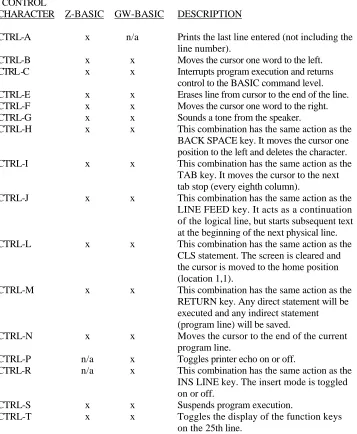
Table E-1 provides a list of the control character combinations recognized by BASIC.
Table E-1: Control Characters
CONTROL
CHARACTER Z-BASIC GW-BASIC DESCRIPT