Release 5.0
The ownCloud developers
1 Admin Documentation 1
1.1 Introduction . . . 1
1.2 Installation . . . 1
1.3 Configuration. . . 2
1.4 Maintenance . . . 2
1.5 Indices and tables . . . 2
2 Installation 3 2.1 Appliances . . . 3
2.2 Linux Distributions. . . 3
2.3 Mac OS X . . . 5
2.4 Windows 7 and Windows Server 2008. . . 6
2.5 Univention Corporate Server. . . 11
2.6 Manual Installation. . . 16
2.7 Other Web Servers . . . 18
3 Configuration 23 3.1 3rd-Party Configuration . . . 23
3.2 Apps Configuration . . . 23
3.3 Automatic Configuration . . . 24
3.4 Database Configuration . . . 26
3.5 Knowledge Base Configuration . . . 29
3.6 Logging Configuration . . . 30
3.7 Mail Configuration . . . 31
3.8 Reverse Proxy Configuration. . . 35
3.9 Custom Mount Configuration . . . 36
3.10 Custom User Backend Configuration . . . 41
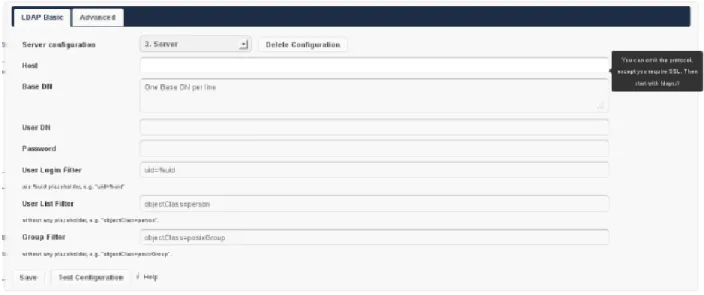
3.11 User Authentication with LDAP . . . 42
3.12 Serving static files via web server . . . 50
3.13 Background Jobs . . . 52
4 Maintenance 55 4.1 Migrating ownCloud Installations . . . 55
4.2 Updating ownCloud . . . 55
ONE
ADMIN DOCUMENTATION
1.1 Introduction
This is the administrators manual for ownCloud, a flexible, open source file sync and share solution. It comprises of the ownCloud server, as well as client applications for Microsoft Windows, Mac OS X and Linux (Desktop Client) and mobile clients for the Android and Apple iOS operating system.
1.1.1 Target audience
This guide is targeted towards people who want to install, administer and optimize ownCloud Server. If you want to learn how to use the Web UI, or how to install clients on the server, please refer to theUser Manualor theDesktop Client Manualrespectively.
1.1.2 Structure of this document
The next chapters describes how to set up ownCloud Server on different platforms and operating systems, as well as how to update existing installations.
Further chapters will then detail on integrating ownCloud into your existing environment, e.g. how to setup LDAP or how to mount your storage.
1.2 Installation
This chapter will introduce you to the installation of ownCloud in different scenarios.
If you want to just try ownCloud in a virtual machine without any configuration, check the sectionAppliances, where you will find ready-to-use images.
• Appliances • Linux Distributions • Mac OS X
• Windows 7 and Windows Server 2008 • Univention Corporate Server • Manual Installation
1.3 Configuration
This chapter covers ownCloud and Webserver configuration. • 3rd-Party Configuration
• Apps Configuration • Automatic Configuration • Database Configuration • Knowledge Base Configuration • Logging Configuration • Mail Configuration
• Reverse Proxy Configuration • Custom Mount Configuration • Custom User Backend Configuration • User Authentication with LDAP • Serving static files via web server
1.4 Maintenance
This chapter covers maintenance tasks such as updating or migrating to a new version. • Migrating ownCloud Installations
• Updating ownCloud
1.5 Indices and tables
TWO
INSTALLATION
2.1 Appliances
If you are looking for virtual machine images, check the Software Appliances section. The Hardware Appliances section is of interest for people seeking to run ownCloud on appliance hardware (i.e. NAS filers, routers, etc.).
2.1.1 Software Appliances
There are number of pre-made virtual machine-based appliances:
• SUSE Studio, ownCloud on openSuSE, runnable directly from an USB stick. • Ubuntu charm, ownCloud 4.5
• PCLinuxOS based appliance • Fedora based appliance
2.1.2 ownCloud on Hardware Appliances
These are tutorials provided by the user communities of the respective appliances: • QNAP Guidefor QNAP NAS appliances
• OpenWrt Guidefor the popular embedded distribution for routers and NAS devices.
Todo
Tutorials for running owncloud on Synology and Dreamplug.
2.2 Linux Distributions
This section describes the installation process for different distributions. If there are pre-made packages from own-Cloud, you are encouraged to prefer those over the vendor-provided ones, since they usually are more up-to-date.
2.2.1 Archlinux
There are two AUR packages for ownCloud: • stable version
• development version
2.2.2 openSUSE
Note: ready-to-use SLES and openSUSE RPM packages are available in the openSUSE Build ServiceownCloud repository.
1. Copy ownCloud to Apache’s server directory :/srv/www/htdocs
2. Give the web server the necessary permissions: sudo chown -R wwwrun owncloud
3. Open the folder in a browser and complete the setup wizard
If have followed the steps above and want to try it out, run this command in a terminal to start Apache if it’s not already running:
sudo /etc/init.d/apache2 start
Go tohttp://servername/owncloudand walk through the setup.
2.2.3 Fedora
Note: ready-to-use RPM packages are available in the openSUSE Build ServiceownCloud repository. Make sureSELinux is disabledor else the installation process will fail with the following message: Config file (config/config.php) is not writable for the webserver
Configure Apache:
1. If you already have a website running from Document Root but would still like to install OwnCloud you can use a Name-based virtual host entry and subdomain.
2. Edit your DNS record following this example:point owncloud.foo.com > ip.ip.ip.ip
2.2.4 CentOS 5 & 6
Note: ready-to-use CentOS RPM packages are available in the openSUSE Build ServiceownCloud repository. 1. Create a new file in/etc/httpd/conf/and call itowncloud.conf.
<IfModule mod_alias.c>
Alias /owncloud /var/www/owncloud/ </IfModule>
<Directory /var/www/owncloud/> Options None
Order allow,deny allow from all </Directory> <VirtualHost *:80> ServerAdmin [email protected] DocumentRoot /var/www/html/owncloud ServerName owncloud.foo.com ErrorLog logs/owncloud.foo.info-error_log
CustomLog logs/owncloud.foo.info-access_log common
</VirtualHost>
3. Now edit your httpd.conf file which is usually located in/etc/httpd/conf/httpd.conf 4. Add the following to the bottom
Include /etc/httpd/conf/owncloud.conf
5. Restart apache and now when you point your browser tohttp://owncloud.foo.comit should properly load without affectinghttp://foo.com
2.2.5 Gentoo
Set up a standard web server (see instructions above). Then change permissions: chown -R apache:apache owncloud
Allow .htaccess, modify/etc/apache2/vhosts.d/00_default_vhost.confand make sure it contains the following section
<Directory /var/www/localhost/htdocs/owncloud> Options Indexes FollowSymLinks MultiViews AllowOverride All
Order allow,deny allow from all </Directory>
2.2.6 PCLinuxOS
Follow the TutorialownCloud, installation and setupon the PCLinuxOS web site.
2.2.7 Ubuntu / Debian
Go to thelinux package sourcespage and execute the steps as described there for your distribution.
2.3 Mac OS X
1. Install MAMP and run it.
2. Go to ‘Preferences‘, open the ‘Apache’ tab and set ‘Document Root’ to/Users/<YOUR USER NAME>/Sites, so your Sites directory will be used as Apache root.
3. DownloadownCloud 4. Extract it
unzip owncloud-latest.zip -d ~/Sites/
5. Now you can set it up by going tohttp://localhost:8888/owncloud
2.4 Windows 7 and Windows Server 2008
Note: You must move the data directory outside of your public root (See advanced install settings) This section describes how to install ownCloud on Windows with IIS (Internet Information Services).
It assumes that you have a vanilla, non-IIS enabled Windows machine – Windows 7 or Server 2008. After enabling IIS, the steps are essentially identical for Windows 7 and Windows Server 2008.
For installing ownCloud physical access or a remote desktop connection is required. You should leverage MySQL as the backend database for ownCloud. If you do not want to use MySQL, it is possible to use Postgres or SQLite instead. Microsoft SQL Server is not yet support.
Enabling SSL is not yet covered by this section.
Note: If you make your desktop machine or server available outside of your LAN, you must maintain it. Monitor the logs, manage the access, apply patches to avoid compromising the system at large.
There are 4 primary steps to the installation, and then a 5th step required for configuring everything to allow files larger than the default 2MB.
1. Install IIS with CGI support – enable IIS on your Windows machine. 2. Install PHP – Grab, download and install PHP.
3. Install MySQL – Setup the MySQL server manager and enable ownCloud to create an instance. 4. Install ownCloud – The whole reason we are here!
5. Configure upload sizes and timeouts to enable large file uploads – So that you can upload larger files.
2.4.1 Activate IIS with CGI Support
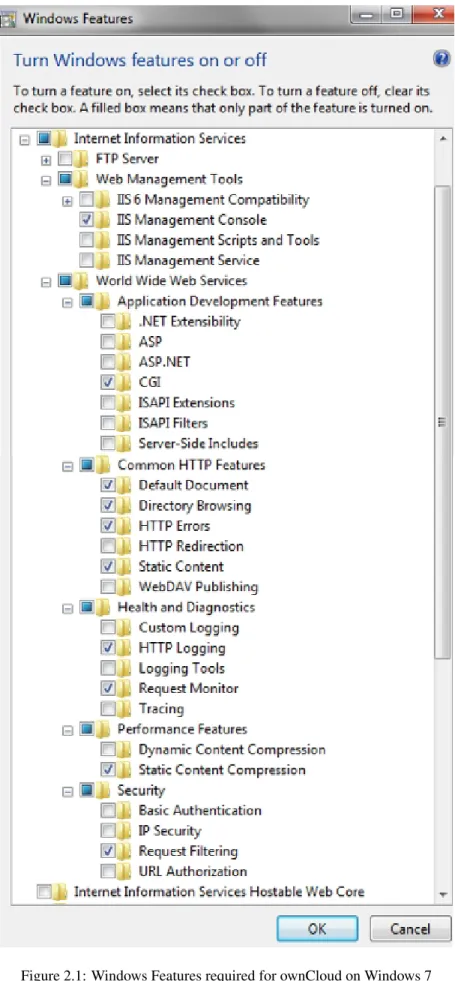
Windows 71. Go toStart –> Control Panel –> Programs.
2. Under Programs and Features, there is link titledTurn Windows Features on and Off. Click on it. 3. There is a box labeled Internet Information Services, expand it.
4. Expand World Wide Web Services and all the folders underneath.
You do not need an FTP server running, so you should tune that feature off for your server. You definitely need the IIS Management Console, as that is the easiest way to start, stop, restart you server, as well as where you change certificate options and manage items like file upload size. You must check the CGI box under Application Development Features, because CGI is how you enable PHP on IIS.
You have to turn off WebDAV publishing or the Windows WebDAV conflicts with the ownCloud WebDAV interface. This might already be turned off for you, just make sure it stays that way. The common HTTP features are the features you would expect from a web server. With the selections on this page, IIS will now serve up a web page for you. Restart IIS by going to the IIS manager (Start –> IIS Manager).
Select your website, and on the far right side is a section titledManage Server. Make sure that the service is started, or clickStartto start the services selected. Once this is complete, you should be able to go to a web browser and navigate tohttp://localhost.
This should open the standard IIS 7 splash page, which is just a static image that says your web server is running. Assuming you were able to get the splash page, it is safe to say your web server is now up and running.
Windows Server 2008
1. Go toStart –> Control Panel –> Programs.
2. Under Programs and Features, there is link titledTurn Windows Features on and Off. Click on it. 3. This will bring up the Server Manager.
4. In the server manager, Click on Roles, and then click Add Roles. 5. Use theAdd Roles Wizardto add the web server role.
6. Make sure that, at a minimum, the same boxes are checked in this wizard that are checked in the Windows 7 Section. For example, make sure that the CGI box is checked under Application Development Features, and that WebDAV Publishing is turned off. With Remote Desktop Sharing turned on, the detailed role service list looks like the figure “Role Services”.
7. Restart IIS by going to the IIS manager (Start –> IIS Manager).
8. Select your website, and on the far right side is a section titled Manage server. Make sure that the service is started, or click “Start” to start the services selected.
9. Once this is complete, you should be able to go to a web browser and type “localhost”. This should open the standard IIS 7 splash page, which is just a static image that says your web server is running.Assuming you were able to get the splash page, it is safe to say your web server is now up and running. The next part of this “how to” installs PHP on the server.
2.4.2 Installing PHP
This part is also straightforward, but it is necessary to remind you that this is for IIS only.
1. Go to the following link and grab thePHP installerfor version “VC9 Non Thread Safe” 32 or 64 bit based on your system.
Note: If you are using Apache, make sure you grab VC6 instead, lower on the page. 2. Once through that login, select the location that is closest to you geographically.
3. Run that install wizard once it is downloaded. Read the license agreement, agree, select an install directory. 4. Then select IIS FastCGI as the install server.
5. Take the default selections for the items to install, and click next. Then click install. 6. And, after a few minutes, PHP will be installed. On to MySQL.
2.4.3 Installing MySQL
This part installs MySQL on your Windows machine.
1. Point your browser tohttp://dev.mysql.com/downloads/and download the latest community edition for your OS – the 32 or 64 bit version. Please download theMSI Installeras it will make life easier.
2. Once downloaded, install MySQL (5.5 at the time of writing). Select the Typical installation.
3. When that finishes, check the box to launch the MySQL Instance Configuration Wizard and click Finish. 4. Select a standard configuration, as this will be the only version of MySQL on this machine.
5. Select to install as a windows service, and Check the Launch the MySQL Server Automatically button. 6. Select the modify security settings box on the next page, and enter a password you will remember. You will
need this password when you configure ownCloud.
7. Uncheckenableroot access from remote machines” for security reasons. 8. Click execute, and wait while the instance is created and launched. 9. Click Finish when this is all complete.
Take particular note of your MySQL password, as the user namerootand the password you select will be necessary alter on in the ownCloud installation. As an aside, this link is an excellent resource for questions on how to configure your MySQL instance, and also to configure PHP to work with MySQL. This, however, is not strictly necessary as much of this is handled when you download ownCloud.
More information in this topic can be found in atutorial on the IIS web site.
2.4.4 Installing ownCloud
1. Download the latest version of ownCloud fromhttp://owncloud.org/download.
2. It will arrive as a tar.bz2 file, and I recommend something like jZip for a free utility to unzip it.
3. Once you have the ownCloud directory unzipped and saved locally, copy it into your wwwroot directory (prob-ablyC:\inetpub\wwwroot).
Note: You cannot install directly into the directorywwwrootfrom jzip, as only the administrator can unzip into the
wwwrootdirectory. If you save it in a different folder, and then move the files intowwwrootin windows explorer, it works. This will install ownCloud locally in your root web directory. You can use a subdirectory called owncloud, or whatever you want – the www root, or something else.
4. It is now time to give write access to the ownCloud directory to the ownCloud server: Navigate your win-dows explorer over toinetpub/wwwroot/owncloud (or your installation directory if you selected something different).
5. Right click and select properties. Click on the security tab, and click the button “to change permissions, click edit”.
6. Select the “users” user from the list, and check the box “write”. 7. Apply these settings and close out.
8. Now open your browser and go to http://localhost/owncloud (or localhost if it is installed in the root www directory). This should bring up the ownCloud configuration page.
9. At this page, you enter your desired ownCloud user name and password for the administrator, and expand the little arrow.
10. Select MySQL as the database, and enter your MySQL database user name, password and desired instance name – use the user name and password you setup for MySQL earlier in step 3, and pick any name for the database instance.
Note: The owncloud admin password and the MySQL password CANNOT be the same in any way.
11. Click next, and ownCloud should have you logged in as the admin user, and you can get started exploring ownCloud, creating other users and more!
2.4.5 Configuring ownCloud, PHP and IIS for Large File Uploads
Before going too nuts on ownCloud, it is important to do a couple of configuration changes to make this a useful service for you. You will probably want to increase themax upload size, for example. The default upload is set to
2MB, which is too small for even most MP3 files.
To do that, simply go into yourPHP.inifile, which can be found in yourC:\Program Files (x86)\PHPfolder. In here, you will find aPHP.inifile. Open this in a text editor, and look for a few key attributes to change:
• upload_max_filesize– change this to something good, like 1G, and you will get to upload much larger files. • post_max_size– also change this size, and make it larger than the max upload size you chose, like 1G. There are other changes you can make, such as the timeout duration for uploads, but for now you should be all set in thePHP.inifile.
Now you have to go back to IIS manager and make one last change to enable file uploads on the web server larger than 30MB.
1. Go to the start menu, and typeiis manager.
2. Open IIS Manager Select the website you want enable to accept large file uploads. 3. In the main window in the middle double click on the iconRequest filtering.
4. Once the window is opened you will see a bunch of tabs across the top of the far right, SelectEdit Feature Settingsand modify theMaximum allowed content length (bytes) 5. In here, you can change this to up to 4.1 GB.
Note: This entry is in BYTES, not KB.
You should now have ownCloud configured and ready for use.
2.5 Univention Corporate Server
2.5.1 Prerequisites
The ownCloud integration relies on the MySQL database. Since “PostresSQL” is more in a experimental state and “SQLite” is not very well suited for multi-user installations, MySQL is the only way first of all. As of UCS 3.0 MySQL is not part of the maintained repository. Hence you you should install it first and probably deactivate the unmaintained repository eventually:
ucr set repository/online/unmaintained="yes" univention-install mysql-server
ucr set repository/online/unmaintained="no"
Note: If MySQL is already installed and/or a password for the user root is set, please make sure it is saved in /etc/mysql.secret, otherwise you will experience problems.
In case you want to install ownCloud from the repository, it is already enough to enable the unmaintained repository for MySQL. You can skip the rest of this section and read on atPre configuration. ownCloud has further dependencies, which all belong to the maintained repository. Install them as well:
univention-install php5-mysql php5-ldap php5-gd
The package manager is going to removelibgd2-noxpm, which is not a problem and nothing to worry about. Pre configuration
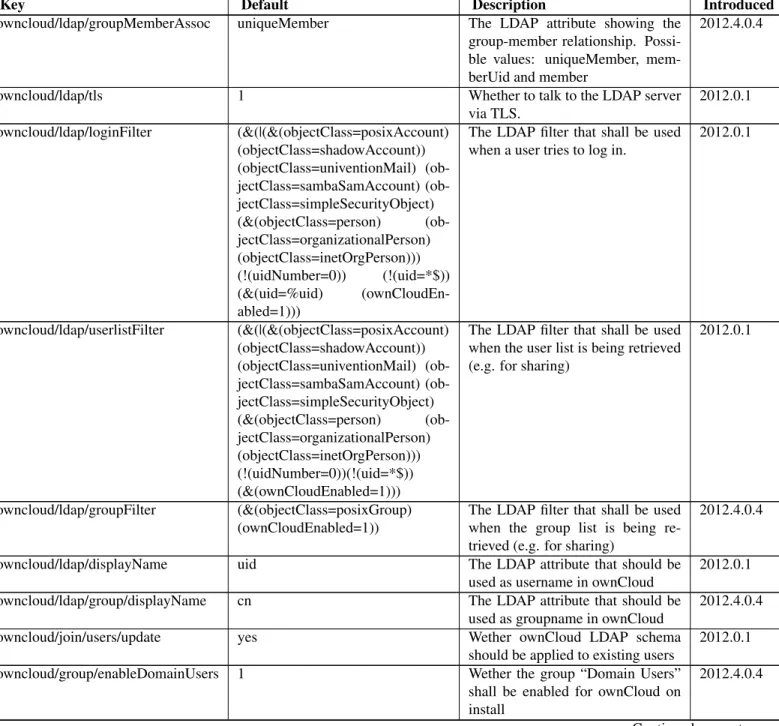
ownCloud makes use of the UCR, the Univention Configuration Registry. At the moment, the values are being read during installation only. So you might want to change them here, but you can do it later from within ownCloud. For a later version we plan to provide an own ownCloud module for the UMC (Univention Management Console). We think we found sane defaults, nevertheless you might have your own requirements. The installation script will listen to those UCR keys:In case you want to override any default setting, simply add the key in question to the UCR and assign your required value.
Key Default Description Introduced
owncloud/directory/data /var/lib/owncloud Specifies where the file storage will be placed
2012.0.1
owncloud/db/name owncloud Name of the MySQL database.
ownCloud will create an own user for it.
2012.0.1
owncloud/user/quota (empty) The default quota, when a user is being added. Assign values in hu-man readable strings, e.g. “2 GB”. Unlimited if empty.
2012.0.1
owncloud/user/enabled 0 Wether a new user is allowed to use ownCloud by default.
2012.0.1 owncloud/group/enabled 0 Wether a new group is allowed to be
used in ownCloud by default.
2012.4.0.4 owncloud/ldap/base/users cn=users,$ldap_base The users-subtree in the LDAP
di-rectory. If left blank it will fall back to the LDAP base.
2012.4.0.4
owncloud/ldap/base/groups cn=groups,$ldap_base The groups-subtree in the LDAP di-rectory. If left blank it will fall back to the LDAP base.
2012.4.0.4
Table 2.1 – continued from previous page
Key Default Description Introduced
owncloud/ldap/groupMemberAssoc uniqueMember The LDAP attribute showing the group-member relationship. Possi-ble values: uniqueMember, mem-berUid and member
2012.4.0.4
owncloud/ldap/tls 1 Whether to talk to the LDAP server
via TLS. 2012.0.1 owncloud/ldap/loginFilter (&(|(&(objectClass=posixAccount) (objectClass=shadowAccount)) (objectClass=univentionMail) jectClass=sambaSamAccount) (ob-jectClass=simpleSecurityObject) (&(objectClass=person) (ob-jectClass=organizationalPerson) (objectClass=inetOrgPerson))) (!(uidNumber=0)) (!(uid=*$)) (&(uid=%uid) (ownCloudEn-abled=1)))
The LDAP filter that shall be used when a user tries to log in.
2012.0.1 owncloud/ldap/userlistFilter (&(|(&(objectClass=posixAccount) (objectClass=shadowAccount)) (objectClass=univentionMail) jectClass=sambaSamAccount) (ob-jectClass=simpleSecurityObject) (&(objectClass=person) (ob-jectClass=organizationalPerson) (objectClass=inetOrgPerson))) (!(uidNumber=0))(!(uid=*$)) (&(ownCloudEnabled=1)))
The LDAP filter that shall be used when the user list is being retrieved (e.g. for sharing)
2012.0.1
owncloud/ldap/groupFilter (&(objectClass=posixGroup) (ownCloudEnabled=1))
The LDAP filter that shall be used when the group list is being re-trieved (e.g. for sharing)
2012.4.0.4
owncloud/ldap/displayName uid The LDAP attribute that should be used as username in ownCloud
2012.0.1 owncloud/ldap/group/displayName cn The LDAP attribute that should be
used as groupname in ownCloud
2012.4.0.4
owncloud/join/users/update yes Wether ownCloud LDAP schema
should be applied to existing users
2012.0.1 owncloud/group/enableDomainUsers 1 Wether the group “Domain Users”
shall be enabled for ownCloud on install
2012.4.0.4
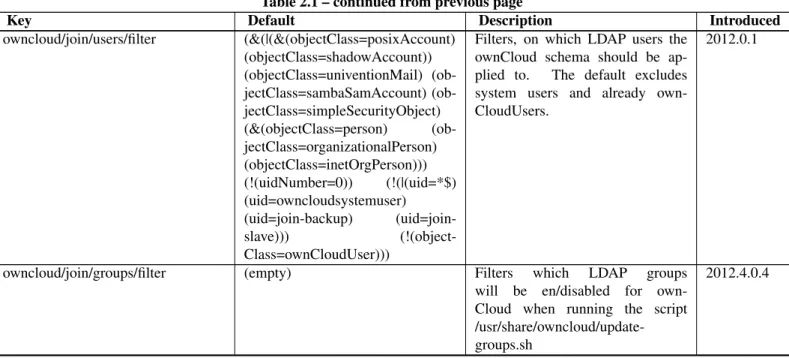
Table 2.1 – continued from previous page
Key Default Description Introduced
owncloud/join/users/filter (&(|(&(objectClass=posixAccount) (objectClass=shadowAccount)) (objectClass=univentionMail) jectClass=sambaSamAccount) (ob-jectClass=simpleSecurityObject) (&(objectClass=person) (ob-jectClass=organizationalPerson) (objectClass=inetOrgPerson))) (!(uidNumber=0)) (!(|(uid=*$) (uid=owncloudsystemuser) (uid=join-backup) (uid=join-slave))) (!(object-Class=ownCloudUser)))
Filters, on which LDAP users the ownCloud schema should be ap-plied to. The default excludes system users and already own-CloudUsers.
2012.0.1
owncloud/join/groups/filter (empty) Filters which LDAP groups will be en/disabled for own-Cloud when running the script /usr/share/owncloud/update-groups.sh
2012.4.0.4
If you want to override the default settings, simply create the key in question in the UCR and assign your required value, for example:
ucr set owncloud/user/enabled=1 or via UMC:
Installation
Now, we are ready to install ownCloud. This can be either done through the ownCloud UCS repository or by down-loading the packages.
Repository
To include the ownCloud UCS repository, you need to configure it using the UCR. To do so, just use the following command:
ucr set update/secure_apt="no" \
repository/online/component/owncloud/description="ownCloud" \ repository/online/component/owncloud/server=download.owncloud.com \ repository/online/component/owncloud/prefix=ucs \ repository/online/component/owncloud/defaultpackages=owncloud \ repository/online/component/owncloud/version=current \ repository/online/component/owncloud=enabled
Subsequently, install the ownCloud package. It will auto-install owncloud-schema as well. univention-install owncloud
If you want to make use of commercially unsupported packages, install the unsupported package: univention-install owncloud-unsupported
Manually by download
Download the integration packages (from our website or with wget as below) and install them from within your download folder (note: the package owncloud-unsupported is optional):
wget http://download.owncloud.com/download/ucs/owncloud_2012.0.1-0_all.deb
wget http://download.owncloud.com/download/ucs/owncloud-schema_2012.0.3-0_all.deb wget http://download.owncloud.com/download/ucs/owncloud-unsupported_2012.0.3-0_all.deb dpkg -i owncloud*.deb
ownCloud will be configured to fully work with LDAP. There is only one local admin user “owncloudadmin”, you can find his password in/etc/owncloudadmin.secret. Use this account, if you want to change basic ownCloud settings.
Postconfiguration (optional)
In the installation process a virtual host is set up (Apache is required therefore). If you want to modify the settings, edit /etc/apache2/sites-available/owncloudand restart the web server. You might want to do it to enable HTTPS connections.Besides that, you can edit the.htaccess-File in /var/www/owncloud/. In the latter file there are also the PHP limits for file transfer specified.
Using ownCloud
If you decided to enable every user by default to use ownCloud, simply open uphttp://myserver.com/owncloud/and log in with your LDAP credentials and enjoy.
If you did not, go to the UMC and enable the users who shall have access (see picture below). Then, login at http://myserver.com/owncloud/with your LDAP credentials.
Updating users can also be done by the script/usr/share/owncloud/update-users.sh. It takes the fol-lowing UCR variables as parameters:owncloud/user/enabledfor enabling or disabling,owncloud/user/quotaas the Quota value andowncloud/join/users/filteras LDAP filter to select the users to update.
Groups 2012.4.0.4
Since ownCloud Enterprise 2012.4.0.4 group support is enabled. Groups, that are activated for ownCloud usage, can be used to share files to instead of single users, for example. It is also important to note, that users can only share within groups where they belong to. Groups can be enabled and disabled via UCM as shown in the screen shot below.
Another way to enable or disable groups is to use the script/usr/share/owncloud/update-groups.sh. Currently, it takes an argument which can be 1=enable groups or 0=disable groups. The filter applied is being taken from the UCR variableowncloud/join/groups/filter. In case it is empty , a message will be displayed.
2.6 Manual Installation
If you do not want to use packages, here is how you setup ownCloud on from scratch using a classic LAMP (Linux, Apache, MySQL, PHP) setup:
2.6.1 Prerequisites
To run ownCloud, your webserver must have the following installed: • php5 (>= 5.3)
• php5-gd • php-xml-parser
And asoptionaldependencies: • php5-intl
• php5-sqlite (>= 3) • php5-mysql • smbclient • curl • libcurl3 • php5-curl
You have to install at least one of php5-sqlite or php5-mysql, depending on which of the two database systems you want to use.
smbclient is only used if you want to mount SMB shares to your ownCloud. The curl packages are needed for some apps (e.g. http user authentication)
Commands for Ubuntu and Debian (run as root):
apt-get install apache2 php5 php5-gd php-xml-parser php5-intl
apt-get install php5-sqlite php5-mysql smbclient curl libcurl3 php5-curl If you are running Ubuntu 10.04 LTS you will need to update your PHP from thisPHP PPA: sudo add-apt-repository ppa:ondrej/php5
sudo apt-get update sudo apt-get install php5
Todo
Document other distributions.
You don’t need any WebDAV support of your webserver (i.e. apache’s mod_webdav) to access your ownCloud data via WebDAV, ownCloud has a WebDAV server built in. In fact, you should make sure that any built-in WebDAV module of your webserver is disabled (at least for the ownCloud directory), as it can interfere with ownCloud’s built-in WebDAV support.
2.6.2 Extract ownCloud and Copy to Your Webserver
tar -xjf path/to/downloaded/owncloud-x.x.x.tar.bz2 cp -r owncloud /path/to/your/webserver2.6.3 Set the Directory Permissions
The owner of your webserver must own the apps/, data/ and config/ directories in your ownCloud install. You can do this by running the following command for the apps, data and config directories.
For debian based distros like Ubuntu, Debian or Linux Mint and Gentoo use: chown -R www-data:www-data /path/to/your/owncloud/install/data
For ArchLinux use:
chown -R http:http /path/to/your/owncloud/install/data Fedora users should use:
chown -R apache:apache /path/to/your/owncloud/install/data
Note: Thedata/directory will only be created after setup has run (see below) and is not present by default in the tarballs.
2.6.4 Enable .htaccess and mod_rewrite if Running Apache
If you are running the apache webserver, it is recommended that you enable .htaccess files as ownCloud uses them to enhance security and allows you to use webfinger. To enable .htaccess files you need to ensure that
AllowOverride is set to All in the Directory /var/www/ section of your virtual host file. This is usually in /etc/apache2/sites-enabled/000-default. If your distro supportsa2enmod run the following com-mands:
a2enmod rewrite
In distros that do not come with a2enmod the /etc/httpd/httpd.conf needs to be changed to enable
mod_rewrite
Then restart apache. For Ubuntu systems (or distros using updstart) use: service apache2 restart
For systemd systems (fedora, ArchLinux, Fedora, OpenSuse) use: systemctl restart httpd.service
In order for the maximum upload size to be configurable, the .htaccess file in the ownCloud folder needs to be made writable by the server.
2.6.5 Follow the Install Wizard
Open your web browser and navigate to your ownCloud instance. If you are installing ownCloud on the same machine as you will access the install wizard from, the url will be:http://localhost/(orhttp://localhost/owncloud).
For basic installs we recommend SQLite as it is easy to setup (ownCloud will do it for you). For larger installs you should use MySQL or PostgreSQL. Click on the Advanced options to show the configuration options. You may enter admin credentials and let ownCloud create its own database user, or enter a preconfigured user. If you are not using apache as the webserver, please set the data directory to a location outside of the document root. See the advanced install settings.
2.6.6 Test your Installation
Login and start using ownCloud. Check your web servers errror log. If it shows error, you might have missed a dependency or hit a bug with your particular configuration.
If you plan on using the Webfinger app and your ownCloud installation is not in the webroot then you’ll have to manually link/var/www/.well-knownto/path/to/your/owncloud/.well-known.
2.7 Other Web Servers
The most popular server choice for ownCloud is Apache, which is why it is also the combinations tested best. However, it is also possible to run ownCloud on other web servers. This section does not cover Microsoft Internet Information
Services (IIS), it is covered in theWindows 7 and Windows Server 2008section.
2.7.1 Nginx Configuration
• You need to insert the following code intoyour nginx config file.
• Adjustserver_name,root,ssl_certificateandssl_certificate_keyto suit your needs.
• Make sure your SSL certificates are readable by the server (seehttp://wiki.nginx.org/HttpSslModule). server {
listen 80;
server_name cloud.example.com;
return https://$server_name$request_uri; # enforce https
} server { listen 443 ssl; server_name cloud.example.com; ssl_certificate /etc/ssl/nginx/cloud.example.com.crt; ssl_certificate_key /etc/ssl/nginx/cloud.example.com.key;
# Path to the root of your installation root /var/www/;
client_max_body_size 10G; # set max upload size fastcgi_buffers 64 4K;
rewrite ^/caldav(.*)$ /remote.php/caldav$1 redirect; rewrite ^/carddav(.*)$ /remote.php/carddav$1 redirect; rewrite ^/webdav(.*)$ /remote.php/webdav$1 redirect; index index.php; error_page 403 = /core/templates/403.php; error_page 404 = /core/templates/404.php; location ~ ^/(data|config|\.ht|db_structure\.xml|README) { deny all; } location / {
# The following 2 rules are only needed with webfinger
rewrite ^/.well-known/host-meta /public.php?service=host-meta last;
rewrite ^/.well-known/host-meta.json /public.php?service=host-meta-json last;
rewrite ^/.well-known/carddav /remote.php/carddav/ redirect; rewrite ^/.well-known/caldav /remote.php/caldav/ redirect;
rewrite ^(/core/doc/[^\/]+/)$ $1/index.html;
try_files $uri $uri/ index.php; }
location ~ ^(.+?\.php)(/.*)?$ { try_files $1 = 404;
fastcgi_param PATH_INFO $2; fastcgi_param HTTPS on; fastcgi_pass 127.0.0.1:9000;
# Or use unix-socket with ’fastcgi_pass unix:/var/run/php5-fpm.sock;’ }
# Optional: set long EXPIRES header on static assets location ~* ^.+\.(jpg|jpeg|gif|bmp|ico|png|css|js|swf)$ {
expires 30d;
# Optional: Don’t log access to assets access_log off;
} }
Note: You can use Owncloud without SSL/TLS support, but we strongly encourage you not to do that: • Remove the server block containing the redirect
• Changelisten 443 ssltolisten 80;
• Removessl_certificateandssl_certificate_key. • Removefastcgi_params HTTPS on;
Note: If you want to effectively increase maximum upload size you will also have to modify yourphp-fpm con-figuration(usually at /etc/php5/fpm/php.ini) and increaseupload_max_filesizeandpost_max_sizevalues. You’ll need to restart php5-fpm and nginx services in order these changes to be applied.
2.7.2 Lighttpd Configuration
This assumes that you are familiar with installing PHP application on lighttpd.
It is important to note that the.htaccessfiles used by ownCloud to protect thedatafolder are ignored by lighttpd, so you have to secure it by yourself, otherwise yourowncloud.dbdatabase and user data are publicly readable even if directory listing is off. You need to add two snippets to your lighttpd configuration file:
Disable access to data folder:
$HTTP["url"] =^ "^/owncloud/data/" { url.access-deny = ("")
}
Disable directory listing:
$HTTP["url"] =^ "^/owncloud($|/)" { dir-listing.activate = "disable" }
Note: Thecheck-localoption of lighttpd’sfastcgimust be enabled. It is sometimes disabled for security reasons. For example, the PHP process can run as a different user than lighttpd. Then, lighttpd might not be able to read/check the PHP files which the PHP process is able to read. Disablingcheck-localresults in an incorrectPATH_INFOin PHP which produces a strange behavior of owncloud (such as incompletely loaded pages).
2.7.3 Yaws Configuration
This should be in youryaws_server.conf. In the configuration file, thedir_listings = falseis important and also the redirect from/datato somewhere else, because files will be saved in this directory and it should not be accessible from the outside. A configuration file would look like this
<server owncloud.myserver.com/> port = 80
listen = 0.0.0.0
docroot = /var/www/owncloud/src allowed_scripts = php
php_handler = <cgi, /usr/local/bin/php-cgi> errormod_404 = yaws_404_to_index_php access_log = false dir_listings = false <redirect> /data == / </redirect> </server>
The apache.htaccessfile that comes with ownCloud is configured to redirect requests to nonexistent pages. To emulate that behaviour, you need a custom error handler for yaws. See thisgithub gist for further instructionson how to create and compile that error handler.
2.7.4 Hiawatha Configuration
AddWebDAVapp = yesto the ownCloud virtual host. Users accessing WebDAV from MacOS will also need to add
AllowDotFiles = yes. Disable access to data folder: UrlToolkit {
ToolkitID = denyData Match ^/data DenyAccess }
2.7.5 PageKite Configuration
THREE
CONFIGURATION
3.1 3rd-Party Configuration
ownCloud resorts to some 3rd-party PHP components to provide its functionality. These components are part of the software package and are usually shipped in the/3rdpartyfolder.
3.1.1 Parameters
If you want to change the default location of the 3rd-party folder you can use the3rdpartyrootparameter to define the absolute file system path to the folder. The3rdpartyurlparameter is used to define the http web path to that folder, starting at the ownCloud web root.
<?php
"3rdpartyroot" => OC::$SERVERROOT."/3rdparty", "3rdpartyurl" => "/3rdparty",
3.2 Apps Configuration
After you have installed ownCloud you might realize that it would be nice to provide an additional function on top of the core functionality in your ownCloud installation.
The first step should be to check out theownCloud apps store. There you will find a lot of ready-to-use apps provided by the ownCloud community.
3.2.1 Parameters
Parameters are set in theconfig/config.phpinside the$CONFIGarray. Use custom app directories
Use theapps_pathsarray to set the apps folders which should be scanned for available apps and/or where user specific apps should be installed.The keypathdefines the absolute file system path to the app folder. The keyurldefines the http web path to that folder, starting at the ownCloud web root. The keywritableindicates if a user can install apps in that folder.
Note: If you want to make sure that the default/apps/folder only contains apps shipped with ownCloud, you should follow the example and set-up a/apps2/folder which will be used to store all apps downloaded by users
<?php
"apps_paths" => array (
0 => array (
"path" => OC::$SERVERROOT."/apps", "url" => "/apps",
"writable" => false, ),
1 => array (
"path" => OC::$SERVERROOT."/apps2", "url" => "/apps2",
"writable" => true, ),
),
Use your own appstore
If you want to allow the installation of apps from the apps store you have to setappstoreenabledparameter, but this can only be done if at least one of the configured apps directories is writeable.
Theappstoreurlis used to set the http path to the ownCloud apps store. The appstore server has to use OCS (Open Collaboration Services).
<?php
"appstoreenabled" => true,
"appstoreurl" => "http://api.apps.owncloud.com/v1", Guard against malicious 3rdparty code
Finally you can enable checks for malicious code fragments of 3rd-party apps by setting theappcodechecker param-eter.
<?php
"appcodechecker" => false,
3.3 Automatic Configuration
If you need to install ownCloud on multiple servers you normally do not want to set-up each instance separately as described in theDatabase Configuration. For this reason the automatic configuration feature has been introduced. To take advantage of this feature you need to create a configuration file, called ../owncloud/config/autoconfig.phpand set the parameters as required. The file will automatically be removed after the initial configuration has been applied.
3.3.1 Parameters
You need to keep in mind that two parameters are named differently in this configuration file compared to the normal config.php. autoconfig.php config.php directory datadirectory dbpass dbpassword SQLite Database <?php $AUTOCONFIG = array( "dbtype" => "sqlite", "dbname" => "owncloud", "dbtableprefix" => "", "directory" => "/www/htdocs/owncloud/data", ); MySQL Database
Keep in mind that the automatic configuration does not unburden you from creating the database user and database in advance, as described inDatabase Configuration.
<?php $AUTOCONFIG = array( "dbtype" => "mysql", "dbname" => "owncloud", "dbuser" => "username", "dbpass" => "password", "dbhost" => "localhost", "dbtableprefix" => "", "adminlogin" => "root", "adminpass" => "root-password", "directory" => "/www/htdocs/owncloud/data", ); PostgreSQL Database
Keep in mind that the automatic configuration does not unburden you from creating the database user and database in advance, as described inDatabase Configuration.
<?php $AUTOCONFIG = array( "dbtype" => "pgsql", "dbname" => "owncloud", "dbuser" => "username", "dbpass" => "password", "dbhost" => "localhost", "dbtableprefix" => "", "adminlogin" => "root", "adminpass" => "root-password", "directory" => "/www/htdocs/owncloud/data", );
3.4 Database Configuration
To get ownCloud up-an-running it is necessary to choose a database in which all administrative data should be held. Three different database type are currently supported,SQLite,MySQLandPostgreSQL. By default SQLite is choosen because it is a file based database with the least administrative overhead.
Note: Because SQLite handles multiple users not very well sqlite is only recommended for single user ownCloud installations
3.4.1 Requirements
If you decide to use MySQL or PostgreSQL you need to install and set-up the database first. These steps will not be covered by this description.
3.4.2 Parameters
SQLite DatabaseIf you decide to use a SQLite database make sure that you have installed and enabled the SQLite extension in PHP. The PHP configuration in/etc/php5/conf.d/sqlite3.inicould look like this:
# configuration for PHP SQLite3 module
extension=pdo_sqlite.so extension=sqlite3.so
It is not necessary to create a database and a database user in advance because this will automatically be done by ownCloud when you login for the first time.
In the ownCloud counfiguration inconfig/config.phpyou need to set at least thedatadirectoryparameter to the directory where your data and database should be stored. No authentication is required to access the database therefore most of the default parameters could be taken as it:
<?php "dbtype" => "sqlite", "dbname" => "owncloud", "dbuser" => "", "dbpassword" => "", "dbhost" => "", "dbtableprefix" => "", "datadirectory" => "/www/htdocs/owncloud/data", MySQL Database
If you decide to use a MySQL database make sure that you have installed and enabled the MySQL extension in PHP and that themysql.default_socketpoints to the correct socket (if the database runs on same server as ownCloud). The PHP configuration in/etc/php5/conf.d/mysql.inicould look like this:
# configuration for PHP MySQL module
extension=pdo_mysql.so extension=mysql.so
[mysql] mysql.allow_local_infile=On mysql.allow_persistent=On mysql.cache_size=2000 mysql.max_persistent=-1 mysql.max_links=-1 mysql.default_port= mysql.default_socket=/var/lib/mysql/mysql.sock mysql.default_host= mysql.default_user= mysql.default_password= mysql.connect_timeout=60 mysql.trace_mode=Off
Now you need to create a database user and the database itself by using the MySQL command line interface. The database tables will be created by ownCloud when you login for the first time.
To start the get into the mysql command line mode use: mysql -uroot -p
Then amysql>prompt will appear. Now enter the following lines and confirm them with the enter key:
CREATE USER ’username’@’localhost’ IDENTIFIED BY ’password’;
CREATE DATABASE IF NOT EXISTS owncloud;
GRANT ALL PRIVILEGES ON owncloud.* TO ’username’@’localhost’ IDENTIFIED BY ’password’; You can quit the prompt by entering:
quit
In the ownCloud configuration you need to set the hostname on which the database is running and a valid username and password to access it.
<?php "dbtype" => "mysql", "dbname" => "owncloud", "dbuser" => "username", "dbpassword" => "password", "dbhost" => "localhost", "dbtableprefix" => "", PostgreSQL Database
If you decide to use a PostgreSQL database make sure that you have installed and enabled the PostgreSQL extension in PHP. The PHP configuration in/etc/php5/conf.d/pgsql.inicould look like this:
# configuration for PHP PostgreSQL module
extension=pdo_pgsql.so extension=pgsql.so [PostgresSQL] pgsql.allow_persistent = On pgsql.auto_reset_persistent = Off pgsql.max_persistent = -1 pgsql.max_links = -1 pgsql.ignore_notice = 0 pgsql.log_notice = 0
Now you need to create a database user and the database itself by using the PostgreSQL command line interface. The database tables will be created by ownCloud when you login for the first time.
To start the get into the postgres command line mode use: psql -hlocalhost -Upostgres
Then apostgres=#prompt will appear. Now enter the following lines and confirm them with the enter key:
CREATE USER username WITH PASSWORD ’password’;
CREATE DATABASE owncloud TEMPLATE template0 ENCODING ’UNICODE’;
ALTER DATABASE owncloud OWNER TO username;
GRANT ALL PRIVILEGES ON DATABASE owncloud TO username;
You can quit the prompt by entering: \q
In the ownCloud configuration you need to set the hostname on which the database is running and a valid username (and sometimes a password) to access it. If the database has been installed on the same server as ownCloud a password is very often not required to access the database.
<?php "dbtype" => "pgsql", "dbname" => "owncloud", "dbuser" => "username", "dbpassword" => "password", "dbhost" => "localhost", "dbtableprefix" => "",
3.4.3 Trouble Shooting
How can I find out if my MySQL/PostgreSQL server is reachable? Use the ping command to check the server availability:
ping db.server.dom
PING db.server.dom (ip-address) 56(84) bytes of data.
64 bytes from your-server.local.lan (192.168.1.10): icmp_req=1 ttl=64 time=3.64 ms 64 bytes from your-server.local.lan (192.168.1.10): icmp_req=2 ttl=64 time=0.055 ms 64 bytes from your-server.local.lan (192.168.1.10): icmp_req=3 ttl=64 time=0.062 ms
How can I find out if a created user can access a database?
The easiet way to test if a database can be accessed is by starting the command line interface:
SQLite:
sqlite3 /www/htdocs/owncloud/data/owncloud.db sqlite> .version
SQLite 3.7.15.1 2012-12-19 20:39:10 6b85b767d0ff7975146156a99ad673f2c1a23318 sqlite> .quit
MySQL:
mysql -uUSERNAME -p
mysql> SHOW VARIABLES LIKE "version"; +---+---+
| Variable_name | Value |
+---+---+
| version | 5.1.67 |
+---+---+ 1 row in set (0.00 sec) mysql> quit
PostgreSQL:
psql -Uusername -downcloud postgres=# SELECT version();
PostgreSQL 8.4.12 on i686-pc-linux-gnu, compiled by GCC gcc (GCC) 4.1.3 20080704 (prerelease), 32-bit (1 row)
postgres=# \q
Useful SQL commands
Show Database Users:
SQLite : No database user is required.
MySQL : SELECT User,Host FROM mysql.user;
PostgreSQL: SELECT * from pg_user;
Show available Databases:
SQLite : .databases (normally one database per file!)
MySQL : SHOW DATABASES;
PostgreSQL: \l
Show ownCloud Tables in Database:
SQLite : .tables
MySQL : USE owncloud; SHOW TABLES;
PostgreSQL: \c owncloud; \d
Quit Database:
SQLite : .quit
MySQL : quit
PostgreSQL: \q
3.5 Knowledge Base Configuration
The usage of ownCloud is more or less self explaining but nevertheless a user might run into a problem where he needs to consult the documentation or knowledge base. To ease access to the ownCloud documentation and knowledge base, a help menu item is shown in the settings menu by default.
3.5.1 Parameters
If you want to disable the ownCloud help menu item you can use theknowledgebaseenabledparameter inside the config/config.php. Theknowledgebaseurlparameter is used to set the http path to the ownCloud help page. The server should support OCS.
<?php
"knowledgebaseenabled" => true,
"knowledgebaseurl" => "http://api.apps.owncloud.com/v1",
Note: Disabling the help menu item might increase the number of support request you have to answer in the future
3.6 Logging Configuration
To get an idea of how the current status of an ownCloud system is or to solve issues log information is a good point to start with. ownCloud allows to configure the way how and which depth of information should be logged.
3.6.1 Parameters
First you need to decide in which way logging should be done. You can choose between the two optionsowncloud
andsyslog. Then you need to configure the log level which directly influences how much information will be logged. You can choose between:
• 0: DEBUG • 1: INFO • 2: WARN • 3: ERROR
The most detailed information will be written if0(DEBUG) is set, the least information will be written if3(ERROR) is set. Keep in mind that it might slow down the whole system if a too detailed logging will has been configured. By default the log level is set to2(WARN).
This parameters can be set in theconfig/config.php
ownCloud
All log information will be written to a separate log file which can be viewed using the log menu in the admin menu of ownCloud. By default a log file namedowncloud.logwill be created in the directory which has been configured by thedatadirectoryparameter.
<?php
"log_type" => "owncloud", "logfile" => "owncloud.log", "loglevel" => "3",
syslog
All log information will be send to the default syslog deamon of a system. <?php
"log_type" => "syslog", "logfile" => "",
"loglevel" => "3",
3.7 Mail Configuration
ownCloud does not contain a full email program but contains some parameters to allow to send e.g. password reset email to the users. This function relies on thePHPMailer library. To take advantage of this function it needs to be configured properly.
3.7.1 Requirements
Different requirements need to be matched, depending on the environment which you are using and the way how you want to send email. You can choose betweenSMTP,PHP mail,Sendmailandqmail.
3.7.2 Parameters
All parameters need to be set inconfig/config.php
SMTP
If you want to send email using a local or remote SMTP server it is necessary to enter the name or ip address of the server, optionally followed by a colon separated port number, e.g. :425. If this value is not given the default port 25/tcp will be used unless you will change that by modifying themail_smtpportparameter. Multiple server can be entered separated by semicolon:
<?php "mail_smtpmode" => "smtp", "mail_smtphost" => "smtp-1.server.dom;smtp-2.server.dom:425", "mail_smtpport" => 25, or <?php "mail_smtpmode" => "smtp", "mail_smtphost" => "smtp.server.dom", "mail_smtpport" => 425,
If a malware or SPAM scanner is running on the SMTP server it might be necessary that you increase the SMTP timeout to e.g. 30s:
<?php
If the SMTP server accepts unsecure connections, the default setting can be used: <?php
"mail_smtpsecure" => ’’,
If the SMTP server only accepts secure connections you can choose between the following two variants:
SSL
A secure connection will be initiated using the outdated SMTPS protocol which uses the port 465/tcp: <?php
"mail_smtphost" => "smtp.server.dom:465", "mail_smtpsecure" => ’ssl’,
TLS
A secure connection will be initiated using the STARTTLS protocol which uses the default port 25/tcp: <?php
"mail_smtphost" => "smtp.server.dom", "mail_smtpsecure" => ’tls’,
And finally it is necessary to configure if the SMTP server requires authentication, if not, the default values can be taken as it.
<?php
"mail_smtpauth" => false, "mail_smtpname" => "", "mail_smtppassword" => "",
If SMTP authentication is required you have to set the required username and password and can optionally choose between the authentication typesLOGIN(default) orPLAIN.
<?php "mail_smtpauth" => true, "mail_smtpauthtype" => "LOGIN", "mail_smtpname" => "username", "mail_smtppassword" => "password", PHP mail
If you want to use PHP mail it is necessary to have an installed and working email system on your server. Which program in detail is used to send email is defined by the configuration settings in thephp.inifile. (On *nix systems this will most likely be Sendmail.) ownCloud should be able to send email out of the box.
<?php
"mail_smtpmode" => "php", "mail_smtphost" => "127.0.0.1",
"mail_smtpport" => 25, "mail_smtptimeout" => 10, "mail_smtpsecure" => "", "mail_smtpauth" => false, "mail_smtpauthtype" => "LOGIN", "mail_smtpname" => "", "mail_smtppassword" => "", Sendmail
If you want to use the well known Sendmail program to send email, it is necessary to have an installed and working email system on your *nix server. The sendmail binary (/usr/sbin/sendmail) is ususally part of that system. ownCloud should be able to send email out of the box.
<?php "mail_smtpmode" => "sendmail", "mail_smtphost" => "127.0.0.1", "mail_smtpport" => 25, "mail_smtptimeout" => 10, "mail_smtpsecure" => "", "mail_smtpauth" => false, "mail_smtpauthtype" => "LOGIN", "mail_smtpname" => "", "mail_smtppassword" => "", qmail
If you want to use the qmail program to send email, it is necessary to have an installed and working qmail email system on your server. The sendmail binary (/var/qmail/bin/sendmail) will then be used to send email. ownCloud should be able to send email out of the box.
<?php "mail_smtpmode" => "qmail", "mail_smtphost" => "127.0.0.1", "mail_smtpport" => 25, "mail_smtptimeout" => 10, "mail_smtpsecure" => "", "mail_smtpauth" => false, "mail_smtpauthtype" => "LOGIN", "mail_smtpname" => "", "mail_smtppassword" => "",
3.7.3 Send a Test Email
The only way to test your email configuration is, to force a login failure, because a function to send a test email has not be implemented yet.
First make sure that you are using a full qualified domain and not an ip address in the ownCloud URL, like: http://my-owncloud-server.domain.dom/owncloud/
Next you need to enter your login and aninvalidpassword. As soon as you press the login button the login mask reappears and aI’ve forgotten my passwordlink will be shown above the login field. Click on that link, re-enter your login and press theReset passwordbutton - that’s all.
3.7.4 Trouble shooting
How can I find out if a SMTP server is reachable? Use the ping command to check the server availability: ping smtp.server.dom
PING smtp.server.dom (ip-address) 56(84) bytes of data.
64 bytes from your-server.local.lan (192.168.1.10): icmp_req=1 ttl=64 time=3.64 ms 64 bytes from your-server.local.lan (192.168.1.10): icmp_req=2 ttl=64 time=0.055 ms 64 bytes from your-server.local.lan (192.168.1.10): icmp_req=3 ttl=64 time=0.062 ms
How can I find out if the SMTP server is listening on a specific tcp port?
A SMTP server is usually listening on port25/tcp(smtp) and/or in rare circumstances is also listening on the outdated port465/tcp(smtps). You can use the telnet command to check if a port is available:
telnet smtp.domain.dom 25
Trying 192.168.1.10...
Connected to smtp.domain.dom. Escape character is ’^]’.
220 smtp.domain.dom ESMTP Exim 4.80.1 Tue, 22 Jan 2013 22:28:14 +0100
How can I find out if a SMTP server supports the outdated SMTPS protocol?
A good indication that a SMTP server supports the SMTPS protocol is that it is listening on port465/tcp. How this can be checked has been described previously.
How can I find out if a SMTP server supports the TLS protocol?
A SMTP server usually announces the availability of STARTTLS right after a connection has been established. This can easily been checked with the telnet command. You need to enter the marked lines to get the information displayed: telnet smtp.domain.dom 25
Trying 192.168.1.10...
Connected to smtp.domain.dom. Escape character is ’^]’.
220 smtp.domain.dom ESMTP Exim 4.80.1 Tue, 22 Jan 2013 22:39:55 +0100
EHLO your-server.local.lan # <<< enter this command
250-smtp.domain.dom Hello your-server.local.lan [ip-address] 250-SIZE 52428800
250-8BITMIME 250-PIPELINING
250-STARTTLS # <<< STARTTLS is supported! 250 HELP
QUIT # <<< enter this command
221 smtp.domain.dom closing connection Connection closed by foreign host.
How can I find out which authentication types/methods a SMTP server supports?
A SMTP server usually announces the available authentication types/methods right after a connection has been es-tablished. This can easily been checked with the telnet command. You need to enter the marked lines to get the information displayed:
telnet smtp.domain.dom 25
Trying 192.168.1.10...
Connected to smtp.domain.dom. Escape character is ’^]’.
220 smtp.domain.dom ESMTP Exim 4.80.1 Tue, 22 Jan 2013 22:39:55 +0100
EHLO your-server.local.lan # <<< enter this command
250-smtp.domain.dom Hello your-server.local.lan [ip-address] 250-SIZE 52428800
250-8BITMIME 250-PIPELINING
250-AUTH PLAIN LOGIN CRAM-MD5 # <<< available Authentication types
250-STARTTLS 250 HELP
QUIT # <<< enter this command
221 smtp.domain.dom closing connection Connection closed by foreign host.
Enable Debug Mode
If you are still not able to send email it might be useful to activate further debug messages by setting the following parameter. Right after you have pressed theReset passwordbutton, as described before, a lot ofSMTP -> get_lines(): ...messages will be written on the screen.
<?php
"mail_smtpdebug" => true;
3.8 Reverse Proxy Configuration
The automatic hostname, protocol or webroot detection of ownCloud can fail in certain reverse proxy situations. This configuration allows to manually override the automatic detection.
3.8.1 Parameters
If ownCloud fails to automatically detected the hostname, protocol or webroot you can use theoverwriteparameters inside theconfig/config.php. Theoverwritehostparameter is used to set the hostname of the proxy. You can also specify a port. Theoverwriteprotocolparameter is used to set the protocol of the proxy. You can choose between the two optionshttpandhttps. Theoverwritewebrootparameter is used to set the absolute web path of the proxy
to the ownCloud folder. When you want to keep the automatic detection of one of the three parameters you can leave the value empty or don’t set it. Theoverwritecondaddrparameter is used to overwrite the values dependent on the remote address. The value must be aregular expressionof the IP addresses of the proxy. This is useful when you use a reverse SSL proxy only for https access and you want to use the automatic detection for http access.
3.8.2 Example
Multiple Domains Reverse SSL Proxy
If you want to access your ownCloud installationhttp://domain.tld/owncloudvia a multiple domains reverse SSL proxyhttps://ssl-proxy.tld/domain.tld/owncloudwith the IP address10.0.0.1you can set the following parameters inside theconfig/config.php.
<?php $CONFIG = array ( "overwritehost" => "ssl-proxy.tld", "overwriteprotocol" => "https", "overwritewebroot" => "/domain.tld/owncloud", "overwritecondaddr" => "^10\.0\.0\.1$", );
Note: If you want to use the SSL proxy during installation you have to create theconfig/config.phpotherwise you have to extend to existing$CONFIGarray.
3.9 Custom Mount Configuration
Todo
This is outdated - since ownCloud 5.0 the data is stored in a JSON format and not anylonger as PHP array. Since ownCloud 4.0 it is possible to configure the filesystem to mount external storage providers into ownCloud’s virtual file system. You can configure the file system by creating and editingconfig/mount.php, the configuration file holds a PHP array configuring 2 types of entries:
• Group mounts:each entry configures a mount for each user in group. • User mounts:each entry configures a mount for a single user or for all users.
For each type, there is an array with the user/group name as key, and an array of configuration entries as value. Each entry consist of the class name of the storage backend and an array of backend specific options. The template$user
can be used in the mount point or backend options. As of writing the following storage backends are available for use: • Local file system
• FTP • SMB • WebDAV • Amazon S3 • Dropbox • Google Drive
• OpenStack Swift
3.9.1 Example
<?php return array( ’group’=>array( ’admin’=>array( ’/$user/files/Admin_Stuff’=>array( ’class’=>’OC_Filestorage_Local’, ’options’=>array(...) ), ), ), ’user’=>array( ’all’=>array( ’/$user/files/Pictures’=>array( ’class’=>’OC_Filestorage_DAV’, ’options’=>array(...) ), ), ), ’someuser’=>array( ’/someuser/files/Music’=>array( ’class’=>’OC_Filestorage_FTP’, ’options’=>array(...) ), ), ) );3.9.2 Backends
Local FilesystemThe local filesystem backend mounts a folder on the server into the virtual filesystem, the class to be used is
OC_Filestorage_Localand takes the following options: • datadir: the path to the local directory to be mounted Example
<?php
array( ’class’ => ’OC_Filestorage_Local’,
’options’ => array( ’datadir’=>’/mnt/additional_storage’ ) );
FTP
The FTP backend mounts a folder on a remote FTP server into the virtual filesystem and is part of the ‘External storage support’ app, the class to be used isOC_Filestorage_FTPand takes the following options:
• host: the hostname of the ftp server
• user: the username used to login on the ftp server • password: the password to login on the ftp server
• secure: whether to use ftps:// to connect to the ftp server instead of ftp:// (optional, defaults to false) • root: the folder inside the ftp server to mount (optional, defaults to ‘/’)
Example
<?php
array( ’class’=>’OC_Filestorage_FTP’, ’options’=>array ( ’host’=>’ftp.myhost.com’, ’user’=>’johndoe’, ’password’=> ’secret’, ’root’=>’/Videos’ ) );
Note: PHP needs to be build with FTP support for this backend to work.
SMB
The SMB backend mounts a folder on a remote Samba server, a NAS appliance or a Windows machine into the virtual file system. It is part of the ‘External storage support’ app, the class to be used isOC_Filestorage_SMBand takes the following options:
• host: the host name of the samba server
• user: the user name used to login on the samba server • password: the password to login on the samba server • share: the share on the samba server to mount
• root: the folder inside the samba share to mount (optional, defaults to ‘/’)
Note: The SMB backend requiressmbclientto be installed on the server.
Example
<?php
array( ’class’=>’OC_Filestorage_SMB’, ’options’=>array (
’user’=>’johndoe’, ’password’=> ’secret’, ’share’=>’/test’, ’/Pictures’ ) ); WebDAV
The WebDAV backend mounts a folder on a remote WebDAV server into the virtual filesystem and is part of the ‘External storage support’ app, the class to be used isOC_Filestorage_DAVand takes the following options:
• host: the hostname of the webdav server.
• user: the username used to login on the webdav server • password: the password to login on the webdav server
• secure: whether to usehttps://to connect to the webdav server instead ofhttp://(optional, defaults to false) • root: the folder inside the webdav server to mount (optional, defaults to ‘/’)
Example
<?php
array( ’class’=>’OC_Filestorage_DAV’, ’options’=>array( ’host’=>’myhost.com/webdav.php’, ’user’=>’johndoe’, ’password’=>’secret’, ’secure’=>true ) ); Amazon S3
The Amazon S3 backend mounts a bucket in the Amazon cloud into the virtual filesystem and is part of the ‘External storage support’ app, the class to be used isOC_Filestorage_AmazonS3and takes the following options:
• key: the key to login to the Amazon cloud • secret: the secret to login to the Amazon cloud • bucket: the bucket in the Amazon cloud to mount Example
<?php
array( ’class’=>’OC_Filestorage_AmazonS3’, ’options’=>array(
’key’=>’key’, ’secret’=>’secret’, ’bucket’=>’bucket’
) );
Dropbox
The Dropbox backend mounts a dropbox in the Dropbox cloud into the virtual filesystem and is part of the ‘External storage support’ app, the class to be used isOC_Filestorage_Dropboxand takes the following options:
• app_key: the app key to login to your Dropbox • app_secret: the app secret to login to your Dropbox Example
<?php
array( ’class’=>’OC_Filestorage_Dropbox’, ’options’=>array( ’configured’=>’#configured’, ’app_key’=>’key’, ’app_secret’=>’secret’, ’token’=>’#token’, ’token_secret’=>’#token_secret’ ) ); Google Drive
The Google Drive backend mounts a share in the Google cloud into the virtual filesystem and is part of the ‘External storage support’ app, the class to be used isOC_Filestorage_Googleand is done via an OAuth request.
Example
<?php
array( ’class’=>’OC_Filestorage_Google’, ’options’=>array(
’configured’=>’#configured’, ’token’=>’#token’,
’token_secret’=>’#token secret’ )
);
OpenStack Swift
The Swift backend mounts a container on an OpenStack Object Storage server into the virtual filesystem and is part of the ‘External storage support’ app, the class to be used isOC_Filestorage_SWIFTand takes the following options:
• host: the hostname of the authentication server for the swift storage. • user: the username used to login on the swift server
• secure: whether to use ftps:// to connect to the swift server instead of ftp:// (optional, defaults to false) • root: the container inside the swift server to mount (optional, defaults to ‘/’)
Example
<?php
array( ’class’=>’OC_Filestorage_SWIFT’, ’options’=>array( ’host’=>’swift.myhost.com/auth’, ’user’=>’johndoe’, ’token’=>’secret’, ’root’=>’/Videos’, ’secure’=>true ) );
3.10 Custom User Backend Configuration
Starting with ownCloud 4.5 is possible to configure additional user backends in ownCloud’s configuration config/config.phpusing the following syntax:
<?php "user_backends" => array ( 0 => array ( "class" => ..., "arguments" => array ( 0 => ... ), ), ),
Currently the “External user support” (user_external) app provides the following user backends:
3.10.1 IMAP
Provides authentication against IMAP servers • Class:OC_User_IMAP
• Arguments:a mailbox string as definedin the PHP documention • Example: <?php "user_backends" => array ( 0 => array ( "class" => "OC_User_IMAP", "arguments" => array ( 0 => ’{imap.gmail.com:993/imap/ssl}’ ), ), ),