
ownCloud User Manual
Release 4.5
The ownCloud developers
CONTENTS
1 Introduction 1
2 The ownCloud Web Interface 3
2.1 Overview . . . 3
3 Mounting ownCloud via WebDAV 5 3.1 Windows . . . 5
3.2 Mac OS X . . . 7
3.3 Linux . . . 7
4 Accessing your Files 11 4.1 Desktop. . . 11
4.2 Mobile . . . 11
5 Calendars 13 5.1 Creating a calendar . . . 13
5.2 Synchronising Calendars with CalDav. . . 13
5.3 Creating events . . . 13
5.4 Exporting / Importing events . . . 15
5.5 Why is the calendar app asking for my current location? . . . 15
6 Using the Contacts App 17 6.1 Adding contacts . . . 17
6.2 Creating new address books . . . 20
6.3 Keeping your address book in sync . . . 21
7 Using the Bookmarks App 23 7.1 The main interface:. . . 23
7.2 The bookmarklet . . . 24
8 Desktop Synchronisation 25 9 Synchronizing with KDE SC 27 10 Synchronizing with OS X 33 10.1 Setup synchronisation with Mountain Lion (10.8). . . 33
10.2 Installation directions for Snow Leopard (10.6) . . . 35
11 iOS - Synchronize iPhone/iPad 37 11.1 Synchronizing the Calendar . . . 37
12 Native Media Player Support 39
13 Version Control 41
14 Indices and tables 43
Index 45
CHAPTER
ONE
INTRODUCTION
Welcome to ownCloud, your self-hosted file sync and share solution.
OwnCloud is open source file sync and share software for everyone from individuals operating the free Community Edition, to large enterprises and service providers operating ownCloud Enterprise Edition. ownCloud provides a safe, secure and compliant file sync and share solution on servers you control.
With ownCloud you can share one or more folders on your PC, and sync them with your ownCloud server. Place files in your local shared directories, and those files are immediately synced to the server, and then to other PCs via the desktop client. Not near a desktop client? No problem, simply log in with the web client and manage your files there. The Android and iOS mobile apps allow you to browse, download and upload photos and videos. On Android, you may also create, download, edit and upload any other files, with the correct software installed.
Whether using a mobile device, a workstation, or a web client, ownCloud provides the ability to put the right files in the right hands at the right time on any device in one simple-to-use, secure, private and controlled solution. After all, with ownCloud, it’s Your Cloud, Your Data, Your Way.
CHAPTER
TWO
THE OWNCLOUD WEB INTERFACE
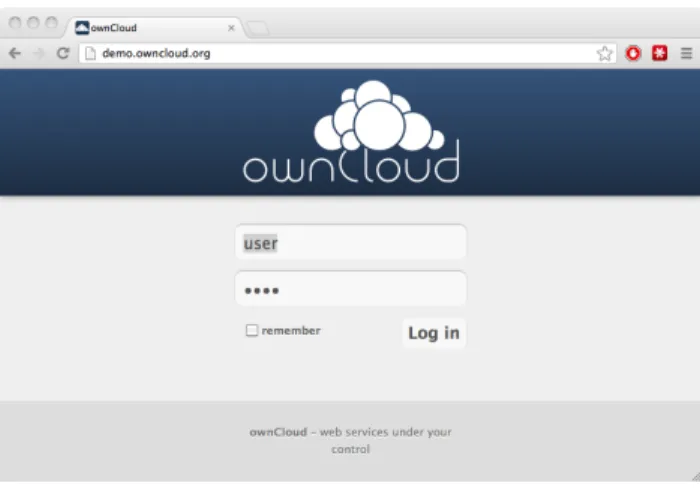
You can connect to ownCloud with your web browser by pointing it to the address that you have received from your service provider. In case you are administering the server yourself, have a look at ownCloud Administrators Manual. When you enter the URL, you will receive a page that is similar to the one depicted below:
Figure 2.1: The ownCloud login screen
Login with the user name and password with you have received from your service provider. If you have set up the server yourself, log in with the user name which you have created during the setup process. You can add further users through the settings, or by hooking up a user backend, such as LDAP.
2.1 Overview
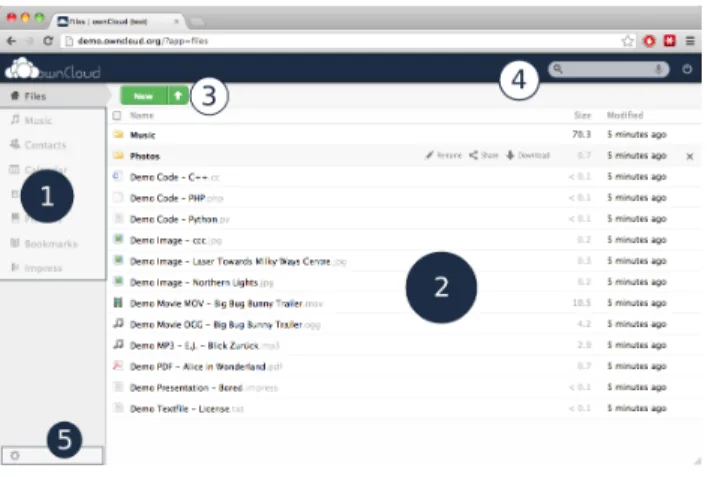
After clicking theLog inbutton, you will be redirected to ownCloud’s main web interface: The web interface comprises of the following items:
1. Navigation bar: Allows navigation between different parts of ownCloud, provided by apps. Not all apps depicted in this screen shot are installed and enabled by default.
2. Application view: This is where apps show their content. By default, this will show the files and directory (file view) of your user on the ownCloud installation.
3. Upload/Create button: This allows you to create new files or upload existing ones from your device. Note that you can also drop files from Explorer or Finder onto the ownCloud file view and they will get uploaded to ownCloud.
Figure 2.2: The ownCloud main interface with the essential elements numbered
4. Search/Logout: Search allows you to look for files and directories. Currently, ownCloud does not provide a full text search, but this may change in future releases.
5. Settings: This button provides access to the settings menu, where you can change your personal settings, such as the interface language or your password. You can also retrieve the WebDAV URL (see next chapter) and show your quota. Administrators will also get access to user management (Users), the apps settings (Apps) and administrative settings (Admin) including access to ownCloud’s log.
CHAPTER
THREE
MOUNTING OWNCLOUD VIA WEBDAV
All major operating systems allow for mounting a users ownCloud via WebDAV, a HTTP extension as specified in
RFC 2518. This chapter describes how to setup WebDAV on different operating systems.
3.1 Windows
On Windows, you can assign ownCloud a drive letter. This allows you to browse files stored on an ownCloudserver the way you would files stored in a mapped network drive.
Using this feature requires network connectivity. If you want to store your files offline, use the ownCloud Client to sync all files on your ownCloud to one or more directories of your local hard drive.
Note: Prior to mapping your drive, you will need to permit the use of Basic Authentication in the Windows Registry. The procedure is documented inKB841215and differs between Windows XP/Server 2003 and Windows Vista/7. Please follow the Knowledge Base article before proceeding, and follow the Vista instructions if you run Windows 7.
3.1.1 Mapping via the command line
Suppose your ownCloud is installed athttps://www.yourserver.com/owncloud, that is, entering this URL in your webbrowser will bring up the login screen. Running
net use Z:https://www.yourserver.com/owncloud/remote.php/webdav/user:youruser yourpassword will map the files of your ownCloud account to the drive letter Z:. An alternative syntax is:
net use Z: \[email protected] /user:youruser yourpassword Appending/persistentmakes the connection persistent across reboots.
You can also mount your ownCloud via HTTP, leaving the connection unencrypted. Use either of the following syntaxes:
net use Z: http://www.yourserver.com/owncloud/remote.php/webdav /user:youruser yourpassword net use Z: \\www.yourserver.com\owncloud\remote.php\webdav /user:youruser yourpassword
Please note that this allows anyone to sniff your ownCloud data with ease, especially on public WiFi hotspots. Plain HTTP should therefore only be used in conjunction with a VPN tunnel when used on Laptops.
3.1.2 Using Windows Explorer
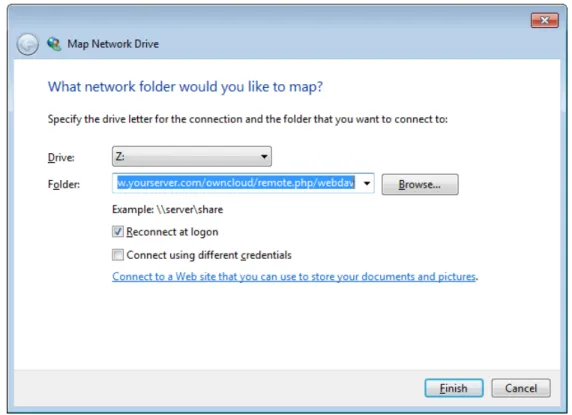
Right-click on Computer entry and select Map network drive.... Choose a local network drive to map ownCloud to. Finally, enter the address to your ownCloud instance, followed by/remote.php/webdav, e.g.
https://www.yourserver.com/owncloud/remote.php/webdav
for an SSL protected server. CheckReconnect at logonto make this mapping persistent across reboots. If you want to connect as another user, checkConnect using different credentials.
Figure 3.1: Mapping WebDAV on Windows Explorer.
After pressingFinish, Windows Explorer will map the network drive and your ownCloud instance should be avail-able
3.1.3 Using Cyberduck (4.2.1)
Specify a server without any leading protocol information. e.g.:
Server owncloudhost.com
The port depends on whether your ownCloud server supports SSL or not. Cyberduck requires that you select a different connection type depending on whethr SSL is to be used (‘WebDAV’ or ‘WebDAV (HTTPS/SSL)’):
Port 80 (for WebDAV) 443 (for WebDAV (HTTPS/SSL))
Use the ‘More Options’ drop-down menu to add the rest of your webdav URL into the ‘Path’ field. e.g.:
Path remote.php/webdav
ownCloud User Manual, Release 4.5
3.1.4 Known Problems
Problem Windows refuses to connect via HTTPS
Solution The Windows WebDAV Client does not support Server Name Indication (SNI) on encrypted connections. If you encounter an error mounting an SSL-encrypted ownCloud instance, please contact your provider about assigning a dedicated IP address for your SSL-based server.
Problem I receive the error Error 0x800700DF: The file size exceeds the limit allowed and cannot be saved.
Solution Windows limits the maximum size a file transferred from or to a Web-DAV share may have. You can increase the value FileSizeLimitInBytes in
HKEY_LOCAL_MACHINE\SYSTEM\CurrentControlSet\Services\WebClient\Parameters. by clicking onModify. In order to increase the limit to the maximum value of 4GB, pickDecimaland enter
4294967295as value. Afterwards, reboot Windows or restart theWebClientservice.
Todo
document registry keys on file size limit and not complaining in no network cases
3.2 Mac OS X
Assuming your owncloud instance is installed athttps://www.yourserver.com/owncloud:
In the Finder, chooseGo > Connect to Server, type the address of the server in theServer Address
field, and clickConnect. The server address should be in a form similar to this:ADDRESS/files/webdav.php. For our example, it would be:
https://www.yourserver.com/owncloud/files/webdav.php
For details, check the respectivevendor documentationat the Apple website.
3.3 Linux
3.3.1 KDE/Dolphin
Assuming your owncloud instance is installed athttp://www.yourserver.com/owncloud: 1. Open Dolphin and click on where it says Network in the left hand Places column.
2. Click on the icon labeledAdd a Network Folder.
3. It should come up with WebDAV already selected. Make sure it is and then clickNext. 4. Enter the following settings:
• Name: The name you’ll see in thePlacesbookmark, for example ownCloud • User: Your ownCloud username you use to log in, for example admin
• Server: Your ownCloud domain name, for examplewww.yourserver.com(withouthttp://before or directories afterwards).
• Folder: Enterowncloud/files/webdav.php.
5. Create icon checkbox: Tick to get a bookmark in the Places column
6. Port & Encrypted checkbox: Leave as it is unless you have special settings or an SSL certificate.
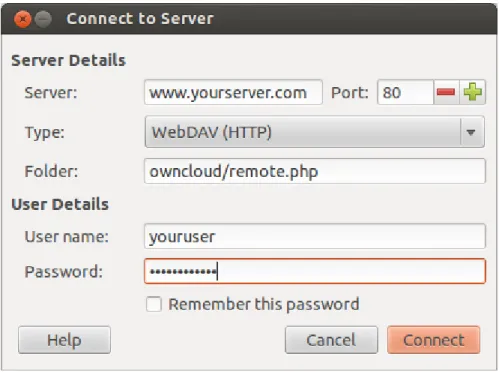
3.3.2 Ubuntu/Gnome (Nautilus)
Figure 3.2: Nautilus WebDAV mounting dialog
3.3.3 Mounting from command line
1. Install the WebDAV support using the davfs package. On Debian/Ubuntu, you can use: sudo apt-get install davfs2.
2. Reconfigure davfs2 to allow access to normal users: sudo dpkg-reconfigure davfs2 (select Yes when prompted). 3. Add the users you want to be able to mount the share to the davfs2 group: sudo usermod -aG davfs2
<user>
4. Edit/etc/fstab, and add the following line for each user who wants to mount the folder (with your de-tails where appropriate): ADDRESS/files/webdav.php /home/<username>/owncloud davfs user,rw,noauto 0 0.
Then, as each user who wants to mount the folder:
1. Create the foldersowncloudand.davfs2in your home directory
2. Create the file secrets inside.davfs2, fill it with the following (with your credentials where appropriate)
ADDRESS/files/webdav.php <username> <password>
3. Ensure the file is only writable by you either through the file manager, or via chmod 600 ~/.davfs2/secrets
4. Run the command:mount ~/owncloud
5. To automatically mount the folder on login, add the command you used in step 4 to~/.bashrc
ownCloud User Manual, Release 4.5
Known Issues
Problem:Resource temporarily unavailable
Solution:If you experience trouble when you create a file in the directory, edit/etc/davfs2/davfs2.confand adduse_locks 0‘
Problem:Certificate warnings
Solution:If you use a self-signed certificate, you will get a warning. If you are willing to take the risk of a man in the middle attack, run this command instead:echo "y" | mount ~/owncloud > /dev/null 2>&1.
CHAPTER
FOUR
ACCESSING YOUR FILES
4.1 Desktop
Your ownCloud instance can be accessed on every platform via the web interface. There are also options to integrate it with your desktop:
In most cases, accessing ownCloud using your file manager will be sufficient:
• Connect to Server...in your file manager:webdav://ADDRESS/files/webdav.php
• Change the protocol todav://in Nautilus orhttp://in Finder
However, some applications only allow you to save to a local folder. To get around this issue, you can: • Sync your ownCloud folders and local folders
• Mount ownCloud to a local folder without sync
The Desktop Syncing Client called Mirall is now released for Linux and Windows. You can follow the current changes at theownCloud Mirall repository. We work on porting this to Mac OS and packaging for all major linux distributions.
4.2 Mobile
To connect to your ownCloud server with the ownCloud mobile apps, use the base URL and folder only:
example.com/owncloud
No need to add remote.php/webdav as you do for any other WebDAV client.
There are also apps in development for bothAndroidandwebOS. Feel free to contribute, if you can!
You may also connect to ownCloud from your phone or tablet via WebDAV:WebDAV Navigatoris a good (proprietary) app forAndroid App,iPhone&BlackBerry. The URL for these is:
example.com/owncloud/remote.php/webdav
CHAPTER
FIVE
CALENDARS
5.1 Creating a calendar
If you use the calendar the first time, there will be already a calendar called “Default calendar”. You can manage your calendars with a click on the “Calendar” button in the top right corner. In the dialog, which will appear, you can add, edit, export, enable, disable and delete your calendars. There will be also a link for CalDav access.
5.2 Synchronising Calendars with CalDav
Assuming you access your web interface via an address like this:
http://ADDRESS
Then you can access your calendars with CalDAV-compatible programs like Kontact, Evolution, Thunderbird using the following URL:
http://ADDRESS/remote.php/caldav
To use the ownCloud calendar with Apple iCal you will need to use the following URL, including the trailing slash:
http://ADDRESS/remote.php/caldav/principals/username/
Mozilla Lightning users need to this URL scheme:
https://ADDRESS/remote.php/caldav/calendars/USERNAME/CALENDARNAME
Note: The calendar name must alway be specified inURL-encoding.
5.3 Creating events
To create an event just click on the date in the month view or choose the timeframe in the weekview. In the dialog which will appear you can enter your information like title, category, etc.
Figure 5.1: Example for a simple calendar: The default calendar is always called “defaultcalendar”, and the users’ name here is “test”. The full URL (which on the picture can’t be seen because of the short edit field) is then:
https://localhost/owncloud/remote.php/caldav/calendars/test/defaultcalendar
ownCloud User Manual, Release 4.5
With the advanced options you can set the description, the location and the repetition rate of an event. If the repeating should end you can choose between setting the end by date or by occurrences. If you choose in the weekview all days from Monday to Friday it will automatically set the repeat rule to “every weekday”. If the interval of the weekview can be devided by two it automatically set the repeat rule to “Bi-Weekly”.
5.4 Exporting / Importing events
5.4.1 Export
You can export either a single event or a whole calendar. If you want to export a single event click on it and press the export button in the bottom right corner. If you want to export a whole calendar use the “Calendar” button as described in the chapter “Creating a calendar”.
5.4.2 Import
Import your calendar as ical file using the files app. Just click on the calendar file to open the import dialog. You can import the calendar into a new calendar or into an already existing calendar.
Note: If the progressbar does not work properly, the folderapps/calendar/import_tmp/has probably no write permission.
5.5 Why is the calendar app asking for my current location?
The calendar needs your current position in order to detect your timezone. Without the correct timezone there will be a time offset between the events in ownCloud and your desktop calendar you synchronise with ownCloud. You can
also set the timezone manually in the personal settings.
CHAPTER
SIX
USING THE CONTACTS APP
The contacts app of ownCloud is like any other mobile contact app but with more functionality. Just as you open your account you will get the a default addressbook available. We will see later that Of course you can always add and remove addressbooks in here.
6.1 Adding contacts
There are two ways in which you can add contacts 1. Add them manually
2. Import a VCF file
6.1.1 Importing
So first well check out how to import all the VCF files as they are a lot more faster way of creating contacts. Just below the contact list, 3 buttons: The middle one let you upload files.
Once you’ve clicked it, the upload window let you choose your files. We can upload the files one by one or upload all of them at one go.
Let me demonstrate. Open the directory in which you store all the files and then do the following Keep pressing CTRL and select the files to upload. After you are done just click on the open button After the upload it should look something like this in which all the names and contacts will be sorted alphabetically
Then, the interface ask you where to put your imported contacts. You have the ability to choose an existing addressbook or to create a new one. Then click on “OK” and that’s all for the import of contacts.
6.1.2 Create contacts manually
In the picture of the bottom bar, you could see the new contact button (first one). Click on it. You can now see an empty contact in the main part of the interface. You have the ability to add all your informations about the contact: the name, the address, the e-mail, the telephone nr, ...
Just click on a field and start typing the information. You can use the “Add Field” button to add another types of information for this contact.
ownCloud User Manual, Release 4.5
When you want to remove an information of your contact, just click on little delete icon at the right of the field you want to remove.
6.1.3 Adding picture to the contact
There are two methods in which you can give a picture id to the specific contact
1. Direct upload
2. Select pics already uploaded in ownCloud files.
After you have selected the picture for the contact you get an option to crop the picture to suit your requirements
You can crop the picture however you wish and then press OK.
As you can see it is really easy to set things right in this app. It automatically pics up the First name, Middle name (if any) and the last name You may add or delete any section you want for your own convenience.
6.2 Creating new address books
When you click on the third button of the bottom bar, you will have access to the application’s settings. Then, press on the “More button” to access the options of your Addressbooks.
ownCloud User Manual, Release 4.5
You have there the ability to add, delete, download or share your addressbooks. Hover your cursor on every icon to see what they mean.
6.3 Keeping your address book in sync
One of the most important thing in any contact app is to keep it in Sync. You can sync this contact app to your phone which has the following OS’s- Android and IOS
6.3.1 Syncing with Android
1. Install cardDav- Sync free from Google play store by visiting this
link-https://play.google.com/store/apps/details?id=org.dmfs.carddav.sync
2. This app supports auto- configuration which is a Boon- after installing visit this link- card-davs://owncloud.example.net/remote.php/carddav/ to auto configure the app.
3. Enter your login details
4. After the app has checked your login details you may just select- Sync server to phone option 5. That’s it there is nothing else to do for Android :)
6.3.2 Syncing your IOS device
Synchronizing the Address book1. Open the settings application. 2. Select Mail, Contacts, Calendars. 3. Select Add Account.
4. Select other as account type. 5. Select Add CardDAV account.
6. For server, typehttp://owncloud.example.net/remote.php/carddav/principals/username
7. Enter your user name and password. 8. Select Next.
9. If your server does not support SSL, a warning will be displayed. Select Continue. 10. If the iPhone is unable to verify the account information perform the following:
• Select OK.
• Select advanced settings.
• Make sure Use SSL is set to OFF. • Change port to 80.
• Go back to account information and hit Save.
Now should now find your contacts in the address book of your iPhone
6.3.3 Other Syncing options provided by ownCloud
1. For android you may use their official android app-https://owncloud.com/overview/mobileapps
2. And for IOS(Iphone and Ipad) use their app -https://owncloud.com/overview/mobileapps
CHAPTER
SEVEN
USING THE BOOKMARKS APP
To add a bookmark to the application, you have 2 possibilities: use the main interface or the bookmarklet or use the bookmarklet.
7.1 The main interface:
The main owncloud interface contains 3 fields at the top where you can enter the website address (or URL), the title of your bookmark and a serie of tags separated by a space.
Here, we’ve added the page :http://wikipedia.orgwith the title “Wikipedia” and some tags describing what wikipedia is (for an easyier search later on).
7.1.1 Edition
You also have the possibility to edit or delete your bookmark. For that, just hover your mouse’s cursor over one bookmark and click on the little pencil to edit or the cross the delete.
The bookmark will then be filled into the 3 fields at the top of the screen. Modify your bookmark to your need then hit the save button to persist the change.
7.1.2 Search
If you click on a tag, ownCloud will only display the bookmarks that are described with this tag. You can also use the search bar of owncloud in the top right of your screen.
Simply click on the “Bookmarks” menu in the sidebar to come back to the default view.
7.2 The bookmarklet
The creator of this app understand that people won’t come, open the ownCloud page to add the bookmark when the see a cool site. This is why they have made this cool “bookmarklet”.
A bookmarklet is small button that you can drag and drop in your bookmarks. The next time you see a cool new site, press on this special bookmark, it will add the site to your ownCloud bookmarks.
To find this bookmark go to your personnal preference and search for the “Bookmarklet” item.
CHAPTER
EIGHT
DESKTOP SYNCHRONISATION
For synchronizing files with your desktop computer, we recommend using theownCloud Clientfor Windows, Mac OS X and Linux. Its usage is documented separately in theownCloud Desktop Client Manual.
Furthermore, It is possible to synchronize your ownCloud calendar and address book with a variety of different oper-ating systems and devices. It is also possible to mount your ownCloud storage via WebDAV, which is also documented in the next chapters.
CHAPTER
NINE
SYNCHRONIZING WITH KDE SC
From KDE SC 4.8 and forward setting up ownCloud is very easy.From System Settings Personal Information/Akonadi Resources Configuration select DAV Groupware resource.
Enter your ownCloud username and password and click “Next”.
Select ownCloud in the drop down list and click “Next”.
ownCloud User Manual, Release 4.5
Enter the host name and installation path. If you do not use SSL remember to de-select “Use secure connection”.
Test the connection. If everything went well you should see a message like the one below.
Click “Finish” and you will be able to change the display name and refresh interval.
Now you should see the Akonadi resource doing the first synchronization.
You can find the Contacts and Calendars in Kontact (or KOrganizer/KAddressbook if you run the programs separately.)
ownCloud User Manual, Release 4.5
CHAPTER
TEN
SYNCHRONIZING WITH OS X
10.1 Setup synchronisation with Mountain Lion (10.8)
Note: Although these steps belong to Mountain Lion (10.8), they should be similar with Lion (10.7)
Open theSystem Preferences, chooseMail, Contacts & Calendarsand scroll down to selectAdd Other Account....
10.1.1 Synchronising the Calendar
SelectAdd a CalDAV account.Enter your ownCloud-username, your password and the full URL-path to your ownCloud-installation:
ADDRESS/remote.php/caldav/principals/USERNAME/(Replace ADDRESS and USERNAME.)
10.1.2 Synchronising the Addressbook
SelectAdd a CardDAV account.ownCloud User Manual, Release 4.5
Enter your ownCloud-username, your password and the full URL-path to your ownCloud-installation:
ADDRESS/remote.php/carddav/principals/USERNAME/ (Replace ADDRESS and USERNAME, note the url is slightly different to the URL in the previous step.)
10.2 Installation directions for Snow Leopard (10.6)
While OS X Lion and Mountain Lion work fine, OS X Snow Leopard (10.6) and older needs some fiddling to work. A user contributed the following:
1. Make sure, Addressbook is not running. If it is, select the windows and press Command + Q to terminate it. 2. Navigate to/Users/YOUR\_USERNAME/Library/Application Support/AddressBook/Sources.
If you have all ready some kind of address book setup, it is likely you will see some folders named like this
BEA92826-FBF3-4E53-B5C6-ED7C2B454430. Note down what folders there are now and leave the window open.
3. Open addressbook and try to add a new CardDav addressbook. At this point, it does not matter what information you enter. It will come up with the same error message you mentioned before when you click “Create”. Ignore it and click “Create” again. A non-functional address book will be added.
4. Close Address-Book again using Command + Q
5. Go back to the folder window from step 2. You will now see a newly created folder with another long string as its name.
6. Navigate to the newly created folder and edit theConfiguration.plistwith your favorite text editor. 7. Search for a section looking like this:
<key>servername</key> <string>http://:0(null)</string>
<key>username</key> <string>Whatever_you_entered_before</string>
8. Make it look like this. Please note the :80 afterYOUR_DOMAINit is important:
<key>servername</key <string>http://YOUR_DOMAIN:80/owncloud/remote.php/carddav/principals/username</string> <key>username</key <string>username</string>
9. Save the file and open Address Book again. It will not work yet.
10. Open the preferences for your ownCloud CardDAV-Account and enter your password. 11. You may have to restart Address Book once more. After this, it should work.
There is also an easyHOWTOin the forum.
CHAPTER
ELEVEN
IOS - SYNCHRONIZE IPHONE/IPAD
11.1 Synchronizing the Calendar
1. Open the settings application. 2. Select Mail, Contacts, Calendars. 3. Select Add Account.
4. Select Other as account type. 5. Select Add CalDAV account.
6. For server, typeADDRESS/remote.php/caldav/principals/username(Important: Don’t include
http://orhttps://)
7. Enter your username and password. 8. Select Next.
9. If your server does not support SSL, a warning will be displayed. Select Continue.
10. If the iPhone is unable to verify the account information, read the Troubleshooting paragraph on this page. If that doesn’t help, try to turn off SSL (not recommended):
• Select OK.
• Select advanced settings.
• Make sure Use SSL is set to OFF. • Change port to 80.
• Go back to account information and hit Save.
Your calendar should now be visible in the Calendar application (may take a few moments).
11.2 Synchronizing the Address book
1. Open the settings application. 2. Select Mail, Contacts, Calendars. 3. Select Add Account.
4. Select Other as account type. 5. Select Add CardDAV account.
6. For server, typeADDRESS/remote.php/carddav/principals/username(Important: Don’t include
http://orhttps://)
7. Enter your username and password. 8. Select Next.
9. If your server does not support SSL, a warning will be displayed. Select Continue.
10. If the iPhone is unable to verify the account information, read the Troubleshooting paragraph on this page. If that doesn’t help, try to turn off SSL (not recommended):
• Select OK.
• Select advanced settings.
• Make sure Use SSL is set to OFF. • Change port to 80.
• Go back to account information and hit Save.
Now should now find your contacts in the address book of your iPhone (may take a few moments).
11.3 Troubleshooting
1. Check that you didn’t includehttp://orhttps://in the server address.
2. Depending on your server setup the username-part of the server-address may be case sensitive. So for user Username the server-address may need to be ADDRESS/remote.php/caldav/principals/Username instead of
ADDRESS/remote.php/caldav/principals/username
3. If you need to change the server-address and want to use SSL you’ll have to cancel the setup process and enter your data again from the very beginning, as iOS would prependhttps://to the server-address automatically. 4. Problems have been reported for CardDAV and iOS 4.X. A possible solution is at theforum.
CHAPTER
TWELVE
NATIVE MEDIA PLAYER SUPPORT
You can access your music stored in ownCloud with every Ampache-compatible media player. You can find the URL for your specific ownCloud installation in your personal settings, or replace ADDRESS with the URL of your ownCloud installation yourself.
Ampache-URL: http://ADDRESS/apps/media/
Ampache-compatible players that work with ownCloud include: • amaroK, standard KDE music player
• tomahawk, cross platform player • justplayer, music player for android
You can find more information about Ampache and other players at theAmpache wikipedia article
The current maintainer of the Media Player is Robin Appelman.
CHAPTER
THIRTEEN
VERSION CONTROL
ownCloud supports simple version control for files. Versioning is enabled by default, and creates backups of files which are accessible via the history tab. This tab also links to the history page, where you can roll back a file to any previous version.Changes made at intervals greater than two minutes are saved in data/[user]/versions, and made accessible using the above pages.
CHAPTER
FOURTEEN
INDICES AND TABLES
• genindex
INDEX
R
RFC
RFC 2518,5

![{1,1′ Bis[(pyridin 2 yl)methyl] 2,2′ bipiperidyl}(perchlorato)copper(II) perchlorate](data:image/gif;base64,R0lGODlhAQABAIAAAP///wAAACH5BAEAAAAALAAAAAABAAEAAAICRAEAOw==)