Manual
Release 9.1
The ownCloud developers
1 ownCloud 9.1 Server Administration Manual Introduction 1
1.1 Introduction . . . 1
1.2 ownCloud Videos and Blogs . . . 1
1.3 Target Audience . . . 1
2 ownCloud 9.1 Release Notes 3 2.1 Changes in 9.0 . . . 3
2.2 Enterprise 9.0. . . 3
2.3 Changes in 8.2 . . . 3
2.4 Changes in 8.1 . . . 4
2.5 Enterprise 8.1 Only. . . 5
2.6 ownCloud 8.0. . . 5
2.7 Enterprise 8.0 Only. . . 7
2.8 ownCloud 7 Release Notes. . . 7
2.9 Enterprise 7 Only. . . 9
3 What’s New for Admins in ownCloud 9.1 11 3.1 Enterprise Only. . . 11
4 Installation 13 4.1 System Requirements . . . 13
4.2 ownCloud Deployment Recommendations . . . 14
4.3 Preferred Linux Installation Method . . . 21
4.4 Installation Wizard . . . 23
4.5 Installing ownCloud From the Command Line . . . 28
4.6 Changing the web route . . . 29
4.7 Installing and Managing Apps . . . 29
4.8 Supported Apps in ownCloud . . . 32
4.9 Manual Installation on Linux . . . 33
4.10 ownCloud Community Appliance . . . 39
4.11 Installing PHP 5.4 on RHEL 6 and CentOS 6 . . . 41
4.12 Installing PHP 5.5 on RHEL 7 and CentOS 7 . . . 42
4.13 SELinux Configuration. . . 44
4.14 Nginx Example Configurations . . . 45
4.15 Nginx Configuration for the ownCloud 9.x Branches . . . 50
5 ownCloud Server Configuration 55 5.1 Warnings on Admin Page . . . 55
5.2 Using the occ Command . . . 57
5.3 Configuring the Activity App . . . 77
5.7 Config.php Parameters . . . 86
5.8 Email Configuration . . . 105
5.9 Linking External Sites . . . 112
5.10 Custom Client Download Repositories . . . 114
5.11 Knowledge Base Configuration . . . 116
5.12 Language Configuration . . . 116
5.13 Logging Configuration . . . 116
5.14 Hardening and Security Guidance . . . 117
5.15 Reverse Proxy Configuration. . . 120
5.16 Using Third Party PHP Components. . . 121
5.17 JavaScript and CSS Asset Management . . . 122
5.18 Automatic Configuration Setup . . . 122
5.19 ownCloud Server Tuning. . . 124
6 User Management 127 6.1 User Management . . . 127
6.2 Resetting a Lost Admin Password . . . 131
6.3 Resetting a User Password . . . 132
6.4 User Authentication with IMAP, SMB, and FTP . . . 132
6.5 User Authentication with LDAP . . . 134
6.6 LDAP User Cleanup . . . 148
6.7 User Provisioning API . . . 149
7 File Sharing and Management 163 7.1 File Sharing . . . 163
7.2 Configuring Federation Sharing . . . 166
7.3 Uploading big files > 512MB . . . 170
7.4 Configuring the Collaborative Documents App . . . 173
7.5 Providing Default Files. . . 175
7.6 Configuring External Storage (GUI) . . . 177
7.7 Configuring External Storage (Configuration File) . . . 196
7.8 External Storage Authentication mechanisms . . . 197
7.9 Encryption Configuration . . . 197
7.10 Transactional File Locking . . . 205
7.11 Previews Configuration . . . 207
7.12 Controlling File Versions and Aging . . . 208
8 Database Configuration 211 8.1 Converting Database Type . . . 211
8.2 Database Configuration . . . 212
9 Mimetypes Management 219 9.1 Mimetype Aliases . . . 219
9.2 Mimetype mapping. . . 219
9.3 Icon retrieval . . . 220
10 Maintenance 221 10.1 Maintenance Mode Configuration . . . 221
10.2 Backing up ownCloud . . . 221
10.3 How to Upgrade Your ownCloud Server. . . 222
10.4 Upgrade ownCloud From Packages . . . 223
10.5 Upgrading ownCloud with the Updater App. . . 225
11 Operations 233
11.1 Considerations on Monitoring . . . 233
11.2 Scaling Across Multiple Machines. . . 234
11.3 Theming ownCloud . . . 238
12 Issues and Troubleshooting 239 12.1 General Troubleshooting . . . 239
12.2 Code Signing . . . 244
13 Enterprise Edition Only 249 13.1 Enterprise Edition Installation . . . 249
13.2 Creating Branded ownCloud Clients (Enterprise only) . . . 255
13.3 Enterprise Server Branding (Enterprise only) . . . 256
13.4 External Storage (Enterprise only) . . . 258
13.5 User Management (Enterprise only) . . . 278
13.6 Enterprise File Management (Enterprise Only) . . . 287
13.7 Enterprise Logging Apps (Enterprise only) . . . 294
13.8 Enterprise Firewall (Enterprise only) . . . 295
ONE
OWNCLOUD 9.1 SERVER ADMINISTRATION MANUAL
INTRODUCTION
1.1 Introduction
Welcome to the ownCloud Server Administration Guide. This guide describes administration tasks for ownCloud, the flexible open source file synchronization and sharing solution. ownCloud includes the ownCloud server, which runs on Linux, client applications for Microsoft Windows, Mac OS X and Linux, and mobile clients for the Android and Apple iOS operating systems.
Current editions of ownCloud manuals are always available online atdoc.owncloud.organddoc.owncloud.com. ownCloud server is available in three editions:
• The free community-supported Server. This is the core server for all editions.
• The Standard Subscription for customers who want paid support for the core Server, without Enterprise appli-cations.
• The Enterprise Subscription provides paid support for the Enterprise Edition. This includes the core Server and Enterprise apps.
SeeWhat’s New for Admins in ownCloud 9.1for more information on the different ownCloud editions.
1.2 ownCloud Videos and Blogs
See theofficial ownCloud channelandownClouders community channelon YouTube for tutorials, overviews, and conference videos.
VisitownCloud Planetfor news and developer blogs.
1.3 Target Audience
This guide is for users who want to install, administer, and optimize their ownCloud servers. To learn more about the ownCloud Web user interface, and desktop and mobile clients, please refer to their respective manuals:
• ownCloud User Manual
• ownCloud Desktop Client
• ownCloud Android App
TWO
OWNCLOUD 9.1 RELEASE NOTES
2.1 Changes in 9.0
9.0 requires .ico files for favicons. This will change in 9.1, which will use .svg files. SeeChanging faviconin the Developer Manual.
Home folder rule is enforced in the user_ldap application in new ownCloud installations; seeUser Authentication with LDAP. This affects ownCloud 8.0.10, 8.1.5 and 8.2.0 and up.
The Calendar and Contacts apps have been rewritten and the CalDAV and CardDAV backends of these apps were merged into ownCloud core. During the upgrade existing Calendars and Addressbooks are automatically mi-grated. As a fallback for failed upgrades or an option to test a migration dav:migrate-calendars and/or
dav:migrate-addressbooksscripts are available via theocccommand. SeeUsing the occ Command. Updates on systems with large datasets will take longer, due to the addition of checksums to the oC database. See
https://github.com/owncloud/core/issues/22747.
Linux packages are available from ourofficial download repository. New in 9.0: split packages.owncloudinstalls ownCloud plus dependencies, including Apache and PHP.owncloud-filesinstalls only ownCloud. This is useful for custom LAMP stacks, and allows you to install your own LAMP apps and versions without packaging conflicts with ownCloud. SeePreferred Linux Installation Method.
New option for the ownCloud admin to enable or disable sharing on individual external mountpoints (see Mount Options). Sharing on such mountpoints is disabled by default.
2.2 Enterprise 9.0
owncloud-enterprise packages are no longer available for CentOS6, RHEL6, Debian7, or any version of Fedora. A new package, owncloud-enterprise-files, is available for all supported platforms, including the above. This new package comes without dependencies, and is installable on a larger number of platforms. System administrators must install their own LAMP stacks and databases. Seehttps://owncloud.org/blog/time-to-upgrade-to-owncloud-9-0/
2.3 Changes in 8.2
New location for Linux package repositories; ownCloud admins must manually change to the new repos. SeeHow to Upgrade Your ownCloud Server
PHP 5.6.11+ breaks the LDAP wizard with a ‘Could not connect to LDAP’ error. See
filesystem_check_changesinconfig.phpis set to 0 by default. This prevents unnecessary update checks and improves performance. If you are using external storage mounts such as NFS on a remote storage server, set this to 1 so that ownCloud will detect remote file changes.
XSendFile support has been removed, so there is no longer support forserving static filesfrom your ownCloud server. LDAP issue: 8.2 uses thememberofattribute by default. If this is not activated on your LDAP server your user groups will not be detected, and you will see this message in your ownCloud log: Error PHP Array to string conversion at /var/www/html/owncloud/lib/private/template/functions.php#36. Fix this by disabling thememberofattribute on your ownCloud server with theocccommand, like this example on Ubuntu Linux:
sudo -u www-data php occ ldap:set-config "s01" useMemberOfToDetectMembership 0
Runsudo -u www-data php occ ldap:show-configto find the correctsNNvalue; if there is not one then use empty quotes,"". (SeeUsing the occ Command.)
Users of the Linux Package need to update their repository setup as described in thisblogpost.
2.4 Changes in 8.1
Use APCu only if available in version 4.0.6 and higher. If you install an older version, you will see aAPCu below version 4.0.6 is installed, for stability and performance reasons we recommend to update to a newer APCu versionwarning on your ownCloud admin page.
SMB external storage now based onphp5-libsmbclient, which must be downloaded from the ownCloud soft-ware repositories (installation instructions).
“Download from link” feature has been removed.
The.htaccessandindex.htmlfiles in thedata/directory are now updated after every update. If you make any modifications to these files they will be lost after updates.
The SabreDAV browser at/remote.php/webdavhas been removed.
Using ownCloud without atrusted_domainconfiguration will not work anymore.
The logging format for failed logins has changed and considers now the proxy configuration inconfig.php. A default set of security and privacy HTTP headers have been added to the ownCloud.htaccessfile, and ownCloud administrators may now customize which headers are sent.
More strict SSL certificate checking improves security but can result in “cURL error 60: SSL certificate problem: unable to get local issuer certificate” errors with certain broken PHP versions. Please verify your SSL setup, update your PHP or contact your vendor if you receive these errors.
The persistent file-based cache (e.g. used by LDAP integration) has been dropped and replaced with a memory-only cache, which must be explicitly configured. SeeUser Authentication with LDAP. Memory cache configuration for the ownCloud server is no longer automatic, requiring installation of your desired cache backend and configuration in
config.php(seeConfiguring Memory Caching.)
The OC_User_HTTP backend has been removed. Administrators are encouraged to use theuser_webdavauth
application instead.
ownCloud ships now with its own root certificate bundle derived from Mozilla’s root certificates file. The system root certificate bundle will not be used anymore for most requests.
Encryption can no longer be disabled in ownCloud 8.1. It is planned to re-add this feature to the command line client for a future release.
It is not recommended to upgrade encryption-enabled systems from ownCloud Server 8.0 to version 8.1.0 as there is a chance the migration will break. We recommend migrating to the first bugfix release, ownCloud Server 8.1.1. Due to various technical issues, by default desktop sync clients older than 1.7 are not allowed to connect and sync with the ownCloud server. This is configurable via theminimum.supported.desktop.versionswitch in
config.php.
Previews are now generated at a maximum size of 2048 x 2048 pixels. This is configurable via thepreview_max_x
andpreview_max_yswitches inconfig.php.
The ownCloud 8 server is not supported on any version of Windows.
The 8.1.0 release has a minor bug which makes app updates fail at first try. Reload the apps page and try again, and the update will succeed.
Theforcessloption within the config.phpand theEnforce SSLoption within the Admin-Backend was removed. This now needs to be configured like described inUse HTTPS.
WebDAV file locking was removed in oC 8.1 which causes Finder on Mac OS X to mount WebDAV read-only.
2.5 Enterprise 8.1 Only
The SharePoint Drive app does not verify the SSL certificate of the SharePoint server or the ownCloud server, as it is expected that both devices are in the same trusted environment.
2.6 ownCloud 8.0
2.6.1 Manual LDAP Port Configuration
When you are configuring the LDAP user and group backend application, ownCloud may not auto-detect the LDAP server’s port number, so you will need to enter it manually.
2.6.2 No Preview Icon on Text Files
There is no preview icon displayed for text files when the file contains fewer than six characters.
2.6.3 Remote Federated Cloud Share Cannot be Reshared With Local Users
When you mount a Federated Cloud share from a remote ownCloud server, you cannot re-share it with your local ownCloud users. (SeeConfiguring Federation Sharingto learn more about federated cloud sharing)
2.6.4 Manually Migrate Encryption Keys after Upgrade
2.6.5 Windows Server Not Supported
Windows Server is not supported in ownCloud 8.
2.6.6 PHP 5.3 Support Dropped
PHP 5.3 is not supported in ownCloud 8, and PHP 5.4 or better is required.
2.6.7 Disable Apache Multiviews
If Multiviews are enabled in your Apache configuration, this may cause problems with content negotiation, so disable Multiviews by removing it from your Apache configuration. Look for lines like this:
<Directory /var/www/owncloud>
Options Indexes FollowSymLinks Multiviews
DeleteMultiviewsand restart Apache.
2.6.8 ownCloud Does Not Follow Symlinks
ownCloud’s file scanner does not follow symlinks, which could lead to infinite loops. To avoid this do not use soft or hard links in your ownCloud data directory.
2.6.9 No Commas in Group Names
Creating an ownCloud group with a comma in the group name causes ownCloud to treat the group as two groups.
2.6.10 Hebrew File Names Too Large on Windows
On Windows servers Hebrew file names grow to five times their original size after being translated to Unicode.
2.6.11 Google Drive Large Files Fail with 500 Error
Google Drive tries to download the entire file into memory, then write it to a temp file, and then stream it to the client, so very large file downloads from Google Drive may fail with a 500 internal server error.
2.6.12 Encrypting Large Numbers of Files
2.7 Enterprise 8.0 Only
2.7.1 Sharepoint Drive SSL Not Verified
The SharePoint Drive app does not verify the SSL certificate of the SharePoint server or the ownCloud server, as it is expected that both devices are in the same trusted environment.
2.7.2 No Federated Cloud Sharing with Shibboleth
Federated Cloud Sharing (formerly Server-to-Server file sharing)does not work with Shibboleth .
2.7.3 Direct Uploads to SWIFT do not Appear in ownCloud
When files are uploaded directly to a SWIFT share mounted as external storage in ownCloud, the files do not appear in ownCloud. However, files uploaded to the SWIFT mount through ownCloud are listed correctly in both locations.
2.7.4 SWIFT Objectstore Incompatible with Encryption App
The current SWIFT implementation is incompatible with any app that uses direct file I/O and circumvents the own-Cloud virtual filesystem. Using the Encryption app on a SWIFT object store incurs twice as many HTTP requests and increases latency significantly.
2.7.5 App Store is Back
The ownCloud App Store has been re-enabled in oC 8. Note that third-party apps are not supported.
2.8 ownCloud 7 Release Notes
2.8.1 Manual LDAP Port Configuration
When you are configuring the LDAP user and group backend application, ownCloud may not auto-detect the LDAP server’s port number, so you will need to enter it manually.
2.8.2 LDAP Search Performance Improved
Prior to 7.0.4, LDAP searches were substring-based and would match search attributes if the substring occurred any-where in the attribute value. Rather, searches are performed on beginning attributes. With 7.0.4, searches will match at the beginning of the attribute value only. This provides better performance and a better user experience.
Substring searches can still be performed by prepending the search term with “*”.For example, a search fortewill find Terri, but not Nate:
occ ldap:search "te"
If you want to broaden the search to include Nate, then search for*te:
Refine searches by adjusting theUser Search Attributesfield of the Advanced tab in your LDAP configura-tion on the Admin page. For example, if your search attributes aregivenNameandsnyou can find users by first name + last name very quickly. For example, you’ll find Terri Hanson by searching forte ha. Trailing whitespaces are ignored.
2.8.3 Protecting ownCloud on IIS from Data Loss
Under certain circumstances, running your ownCloud server on IIS could be at risk of data loss. To prevent this, follow these steps.
In your ownCloud server configuration file,owncloud\config\config.php, setconfig_is_read_only
to true.
Set theconfig.phpfile to read-only.
When you make server updatesconfig.phpmust be made writeable. When your updates are completed re-set it to read-only.
2.8.4 Antivirus App Modes
The Antivirus App offers three modes for running the ClamAV anti-virus scanner: as a daemon on the ownCloud server, a daemon on a remote server, or an executable mode that callsclamscanon the local server. We recommend using one of the daemon modes, as they are the most reliable.
2.8.5 “Enable Only for Specific Groups” Fails
Some ownCloud applications have the option to be enabled only for certain groups. However, when you select specific groups they do not get access to the app.
2.8.6 Changes to File Previews
For security and performance reasons, file previews are available only for image files, covers of MP3 files, and text files, and have been disabled for all other filetypes. Files without previews are represented by generic icons according to their file types.
2.8.7 4GB Limit on SFTP Transfers
Because of limitations inphpseclib, you cannot upload files larger than 4GB over SFTP.
2.8.8 “Not Enough Space Available” on File Upload
Setting user quotas to unlimitedon an ownCloud installation that has unreliable free disk space reporting– for example, on a shared hosting provider– may cause file uploads to fail with a “Not Enough Space Available” error. A workaround is to set file quotas for all users instead ofunlimited.
2.8.9 No More Expiration Date On Local Shares
2.8.10 Zero Quota Not Read-Only
Setting a user’s storage quota should be the equivalent of read-only, however, users can still create empty files.
2.9 Enterprise 7 Only
2.9.1 No Federated Cloud Sharing with Shibboleth
Federated Cloud Sharing (formerly Server-to-Server file sharing) does not work with Shibboleth .
2.9.2 Windows Network Drive
Windows Network Drive runs only on Linux servers because it requires the Samba client, which is included in all Linux distributions.
php5-libsmbclientis also required, and there may be issues with older versions oflibsmbclient; see Using External Storage > Installing and Configuring the Windows Network Drive App in the Enterprise Admin manual for more information.
By default CentOS has activated SELinux, and the httpdprocess can not make outgoing network connections. This will cause problems with curl, ldap and samba libraries. Again, see Using External Storage > Installing and Configuring the Windows Network Drive App in the Enterprise Admin manual for instructions.
2.9.3 Sharepoint Drive SSL
The SharePoint Drive app does not verify the SSL certificate of the SharePoint server or the ownCloud server, as it is expected that both devices are in the same trusted environment.
2.9.4 Shibboleth and WebDAV Incompatible
Shibboleth and standard WebDAV are incompatible, and cannot be used together in ownCloud. If Shibboleth is enabled, the ownCloud client uses an extended WebDAV protocol
2.9.5 No SQLite
SQLite is no longer an installation option for ownCloud Enterprise Edition, as it not suitable for multiple-user instal-lations or managing large numbers of files.
2.9.6 No App Store
The App Store is disabled for the Enterprise Edition.
2.9.7 LDAP Home Connector Linux Only
THREE
WHAT’S NEW FOR ADMINS IN OWNCLOUD 9.1
See theownCloud 9.1 Features pageon Github for a comprehensive list of new features and updates. ownCloud has many improvements. Some of our new features are:
• New occ option, --unscanned, to scan only previously unscanned files (https://github.com/owncloud/core/pull/24702)
• Newocccommand to disable/enable users
• Newocccommand to disable/enable two-factor auth for specific users
• New group tags for system file tags (https://github.com/owncloud/enterprise/issues/1208) • Cleaner internal file URLs (https://github.com/owncloud/core/issues/11732)
• Google Drive/Dropbox configuration dropdown; easier configuration for shared hosters (https://github.com/owncloud/core/pull/22214)
•
FOUR
INSTALLATION
4.1 System Requirements
4.1.1 Memory
Memory requirements for running an ownCloud server are greatly variable, depending on the numbers of users and files, and volume of server activity. ownCloud needs a minimum of 128MB RAM, and we recommend a minimum of 512MB.
4.1.2 Recommended Setup for Running ownCloud
For best performance, stability, support, and full functionality we recommend: • Red Hat Enterprise Linux 7
• MySQL/MariaDB • PHP 5.4 +
• Apache 2.4 with mod_php
4.1.3 Supported Platforms
• Server: Linux (Debian 7, SUSE Linux Enterprise Server 11 SP3 & 12, Red Hat Enterprise Linux/Centos 6.5 and 7 (7 is 64-bit only), Ubuntu 12.04 LTS, 14.04 LTS, 14.10)
• Web server: Apache 2 with mod_php
• Databases: MySQL/MariaDB 5.5+; Oracle 11g (ownCloud Enterprise edition only); PostgreSQL • PHP 5.4 + required
• Hypervisors: Hyper-V, VMware ESX, Xen, KVM
• Desktop: Windows XP SP3 (EoL Q2 2015), Windows 7+, Mac OS X 10.7+ (64-bit only), Linux (CentOS 6.5, 7 (7 is 64-bit only), Ubuntu 12.04 LTS, 14.04 LTS, 14.10, Fedora 20, 21, openSUSE 12.3, 13, Debian 7 & 8). • Mobile apps: iOS 7+, Android 4+
4.1.4 Database Requirements for MySQL / MariaDB
The following is currently required if you’re running ownCloud together with a MySQL / MariaDB database: • Disabled or BINLOG_FORMAT = MIXED configured Binary Logging (See:MySQL / MariaDB with Binary
Logging Enabled)
• InnoDB storage engine (MyISAM is not supported, see:MySQL / MariaDB storage engine)
• “READ COMMITED” transaction isolation level (See:MySQL / MariaDB “READ COMMITED” transaction isolation level)
4.2 ownCloud Deployment Recommendations
What is the best way to install and maintain ownCloud? The answer to that is“it depends”because every ownCloud customer has their own particular needs and IT infrastructure. ownCloud and the LAMP stack are highly-configurable, so we will present three typical scenarios and make best-practice recommendations for both software and hardware.
4.2.1 General Recommendations
Note: Whatever the size of your organization, always keep one thing in mind: the amount of data stored in ownCloud will only grow. Plan ahead.
Consider setting up a scale-out deployment, or using Federated Cloud Sharing to keep individual ownCloud instances to a manageable size.
• Operating system: Linux. • Web server: Apache 2.4. • Database: MySQL/MariaDB.
• PHP 5.5+. PHP 5.4 is the minimum supported version; note that it reached end-of-life in September 2015 and is no longer supported by the PHP team. Some Linux vendors, such as Red Hat, still support PHP 5.4. 5.6+ is recommended.mod_phpis the recommended Apache module because it provides the best performance.
4.2.2 Small Workgroups or Departments
• Number of users Up to 150 users. • Storage size 100 GB to 10TB.
• High availability level Zero-downtime backups via Btrfs snapshots, component failure leads to interruption of service. Alternate backup scheme on other filesystems: nightly backups with service interruption.
Recommended System Requirements
One machine running the application server, Web server, database server and local storage. Authentication via an existing LDAP or Active Directory server.
• Components One server with at least 2 CPU cores, 16GB RAM, local storage as needed.
• SSL Configuration The SSL termination is done in Apache. A standard SSL certificate is needed, installed according to the Apache documentation.
• Load Balancer None.
• Database MySQL, MariaDB or PostgreSQL. We currently recommend MySQL / MariaDB, as our customers have had good experiences when moving to a Galera cluster to scale the DB.
• Backup Install owncloud, ownCloud data directory and database on Btrfs filesystem. Make regular snapshots at desired intervals for zero downtime backups. Mount DB partitions with the “nodatacow” option to prevent fragmentation.
Alternatively, make nightly backups with service interruption:
– Shut down Apache.
– Create database dump.
– Push data directory to backup.
– Push database dump to backup.
– Start Apache.
Then optionally rsync to a backup storage or tape backup. (See theMaintenancesection of the Adminis-tration manual for tips on backups and restores.)
• Authentication User authentication via one or several LDAP or Active Directory servers. (SeeUser Authenti-cation with LDAPfor information on configuring ownCloud to use LDAP and AD.)
• Session Management Local session management on the application server. PHP sessions are stored in a tmpfs mounted at the operating system-specific session storage location. You can find out where that is by running grep -R ’session.save_path’ /etc/php5 and then add it to the /etc/fstab file, for example: echo "tmpfs /var/lib/php5/pool-www tmpfs defaults,noatime,mode=1777 0 0" >> /etc/fstab.
• Memory Caching A memcache speeds up server performance, and ownCloud supports four memcaches; refer toConfiguring Memory Cachingfor information on selecting and configuring a memcache.
• Storage Local storage.
• ownCloud Edition Standard Edition. (See ownCloud Server or Enterprise Edition for comparisons of the ownCloud editions.)
4.2.3 Mid-sized Enterprises
• Number of users 150 to 1,000 users. • Storage size Up to 200TB.
Recommended System Requirements
2 to 4 application servers. A cluster of two database servers. Storage on an NFS server.
Authentication via an existing LDAP or Active Directory server.
• Components
– 2 to 4 application servers with 4 sockets and 32GB RAM.
– 2 DB servers with 4 sockets and 64GB RAM.
– 1 HAproxy load balancer with 2 sockets and 16GB RAM.
– NFS storage server as needed.
• Operating system Enterprise grade Linux distribution with full support from OS vendor. Red Hat Enterprise Linux or SUSE Linux Enterprise Server 12 are recommended.
• SSL Configuration The SSL termination is done in the HAProxy load balancer. A standard SSL certificate is needed, installed according to theHAProxy documentation.
• Load Balancer HAProxy running on a dedicated server in front of the application servers. Sticky session needs to be used because of local session management on the application servers.
• Database MySQL/MariaDB Galera cluster with master-master replication.
• Backup Minimum daily backup without downtime. All MySQL/MariaDB statements should be replicated to a backup MySQL/MariaDB slave instance.
– Create a snapshot on the NFS storage server.
– At the same time stop the MySQL replication.
– Create a MySQL dump of the backup slave.
– Push the NFS snapshot to the backup.
– Push the MySQL dump to the backup.
– Delete the NFS snapshot.
– Restart MySQL replication.
• LDAP Read-only slaves should be deployed on every application server for optimal scalability
• Session Management Session management on the application server. PHP sessions are stored in a tmpfs mounted at the operating system-specific session storage location. You can find out where that is by running grep -R ’session.save_path’ /etc/php5 and then add it to the /etc/fstab file, for example: echo "tmpfs /var/lib/php5/pool-www tmpfs defaults,noatime,mode=1777 0 0" >> /etc/fstab.
• Memory Caching A memcache speeds up server performance, and ownCloud supports four memcaches; refer toConfiguring Memory Cachingfor information on selecting and configuring a memcache.
• Storage Use an off-the-shelf NFS solution, such as IBM Elastic Storage or RedHat Ceph.
• ownCloud Edition Enterprise Edition. (See ownCloud Server or Enterprise Editionfor comparisons of the ownCloud editions.)
4.2.4 Large Enterprises and Service Providers
• Number of users 5,000 to >100,000 users. • Storage size Up to 1 petabyte.
• High availabily level Every component is fully redundant and can fail without service interruption. Backups without service interruption
Recommended System Requirements
4 to 20 application/Web servers.
A cluster of two or more database servers.
Storage is an NFS server, or an object store that is S3 compatible. Cloud federation for a distributed setup over several data centers.
Authentication via an existing LDAP or Active Directory server, or SAML. • Components
– 4 to 20 application servers with 4 sockets and 64GB RAM.
– 4 DB servers with 4 sockets and 128GB RAM
– 2 Hardware load balancer, for example BIG IP from F5
– NFS storage server as needed.
• Operating system RHEL 7 with latest service packs.
• SSL Configuration The SSL termination is done in the load balancer. A standard SSL certificate is needed, installed according to the load balancer documentation.
• Load Balancer A redundant hardware load-balancer with heartbeat, for exampleF5 Big-IP. This runs two load balancers in front of the application servers.
• Database MySQL/MariaDB Galera Cluster with 4x master – master replication.
• Backup Minimum daily backup without downtime. All MySQL/MariaDB statements should be replicated to a backup MySQL/MariaDB slave instance.
– Create a snapshot on the NFS storage server.
– Create a MySQL dump of the backup slave.
– Push the NFS snapshot to the backup.
– Push the MySQL dump to the backup.
– Delete the NFS snapshot.
– Restart MySQL replication.
• Authentication User authentication via one or several LDAP or Active Directory servers, or SAML/Shibboleth. (SeeUser Authentication with LDAPandShibboleth Integration.)
• LDAP Read-only slaves should be deployed on every application server for optimal scalability. • Session Management Redis should be used for the session management storage.
• Caching Redis for distributed in-memory caching (seeConfiguring Memory Caching).
• Storage An off-the-shelf NFS solution should be used. Examples are IBM Elastic Storage or RedHAT Ceph. Optionally, an S3 compatible object store can also be used.
• ownCloud Edition Enterprise Edition. (See ownCloud Server or Enterprise Editionfor comparisons of the ownCloud editions.)
4.2.5 Hardware Considerations
• Solid-state drives (SSDs) for I/O.
• Separate hard disks for storage and database, SSDs for databases.
• Multiple network interfaces to distribute server synchronisation and backend traffic across multiple subnets.
Single Machine / Scale-Up Deployment
The single-machine deployment is widely used in the community. Pros:
• Easy setup: no session storage daemon, use tmpfs and memory caching to enhance performance, local storage. • No network latency to consider.
• To scale buy a bigger CPU, more memory, larger hard drive, or additional hard drives. Cons:
• Fewer high availability options.
• The amount of data in ownCloud tends to continually grow. Eventually a single machine will not scale; I/O performance decreases and becomes a bottleneck with multiple up- and downloads, even with solid-state drives.
Scale-Out Deployment
Provider setup:
• DNS round robin to HAProxy servers (2-n, SSL offloading, cache static resources) • Least load to Apache servers (2-n)
• Memcached/Redis for shared session storage (2-n)
• GPFS or Ceph via phprados (2-n, 3 to be safe, Ceph 10+ nodes to see speed benefits under load) Pros:
• Components can be scaled as needed. • High availability.
• Test migrations easier. Cons:
• More complicated to setup.
• Network becomes the bottleneck (10GB Ethernet recommended).
• Currently DB filecache table will grow rapidly, making migrations painful in case the table is altered.
What About Nginx / PHP-FPM?
Could be used instead of HAproxy as the load balancer. But on uploads stores the whole file on disk before handing it over to PHP-FPM.
A Single Master DB is Single Point of Failure, Does Not Scale
When master fails another slave can become master. However, the increased complexity carries some risks: Multi-master has the risk of split brain, and deadlocks. ownCloud tries to solve the problem of deadlocks with high-level file locking.
4.2.6 Software Considerations
Operating System
We are dependent on distributions that offer an easy way to install the various components in up-to-date versions. ownCloud has a partnership with RedHat and SUSE for customers who need commercial support. Canonical, the parent company of Ubuntu Linux, also offers enterprise service and support. Debian and Ubuntu are free of cost, and include newer software packages. CentOS is the community-supported free-of-cost Red Hat Enterprise Linux clone. openSUSE is community-supported, and includes many of the same system administration tools as SUSE Linux Enterprise Server.
Web server
Taking Apache and Nginx as the contenders, Apache with mod_php is currently the best option, as Nginx does not support all features necessary for enterprise deployments. Mod_php is recommended instead of PHP_FPM, because in scale-out deployments separate PHP pools are simply not necessary.
Relational Database
More often than not the customer already has an opinion on what database to use. In general, the recommendation is to use what their database administrator is most familiar with. Taking into account what we are seeing at customer deployments, we recommend MySQL/MariaDB in a master-slave deployment with a MySQL proxy in front of them to send updates to master, and selects to the slave(s).
What about the other DBMS?
• Sqlite is adequate for simple testing, and for low-load single-user deployments. It is not adequate for production systems.
• Microsoft SQL Server is not a supported option.
• Oracle DB is the de facto standard at large enterprises and is fully supported with ownCloud Enterprise Edition only.
4.2.7 File Storage
While many customers are starting with NFS, sooner or later that requires scale-out storage. Currently the options are GPFS or GlusterFS, or an object store protocol like S3 (supported in Enterprise Edition only) or Swift. S3 also allows access to Ceph Storage.
4.2.8 Session Storage
• Redis: provides persistence, nice graphical inspection tools available, supports ownCloud high-level file locking. • If Shibboleth is a requirement you must use Memcached, and it can also be used to scale-out shibd session
storage (seeMemcache StorageService).
4.2.9 References
Database High Availability
Performance enhancements for Apache and PHP
How to Set Up a Redis Server as a Session Handler for PHP on Ubuntu 14.04
4.3 Preferred Linux Installation Method
4.3.1 Changes in 9.0
Linux distribution packages (fromOpen Build Service) have been divided into multiple packages for ownCloud 9:
owncloud-depsandowncloud-files.
Theowncloud-filespackage installs only ownCloud, with no Apache, database, or PHP dependencies.
The owncloud-depspackages install all dependencies: Apache, PHP, and MySQL. owncloud-depsis not intended to be installed by itself, but rather is pulled in by the metapackageowncloud.
Installowncloudto get a complete installation with dependencies. Split packages are available for the following Linux distributions:
• CentOS 7 • Debian 8 • RHEL 7 • SLES 12
• openSUSE 13.2, Leap 42.1
owncloud-filesis available for the following distributions, but notowncloud-deps. You will have to install your own LAMP stack first. This allows you to create your own custom LAMP stack without dependency conflicts with the ownCloud package. Browsehttp://download.owncloud.org/download/repositories/9.0/owncloud/to find the
owncloud-filespackage for your distro: • CentOS 6
• Debian 7 • RHEL 6
• Ubuntu 12.04, 14.10
Repositories for Fedora, openSUSE Tumbleweed and Ubuntu 15.04 were dropped. If you use Fedora, install
owncloud-filesover your own LAMP stack. openSUSE users can rely on LEAP packages for Tumbleweed, and Ubuntu 15.04 users can use the 15.10 packages.
Follow the instructions on the download page to install ownCloud. Then run the Installation Wizard to complete your installation. (seeInstallation Wizard).
Warning: Do not move the folders provided by these packages after the installation, as this will break updates.
See theSystem Requirementsfor the recommended ownCloud setup and supported platforms.
4.3.2 Repos: Stable or Version?
You may use either of the following repositories for ownCloud 9:
• https://download.owncloud.org/download/repositories/stable/owncloud/
• https://download.owncloud.org/download/repositories/9.0/owncloud/
When you use the Stable repo, you never have to change it as it always tracks the current stable ownCloud version through all major releases: 8.2, 9.0, and so on. (Major releases are indicated by the second number, so 8.0, 8.1, 8.2, and 9.0 were all major releases.)
If you wish to track a specific major release, such as 8.2 or 9.0, then use that repo. That way you won’t accidentally find yourself looking at an upgrade to the next major release before you’re ready.
4.3.3 Installing ownCloud Enterprise Edition
SeeInstalling & Upgrading ownCloud Enterprise Editionfor instructions on installing ownCloud Enterprise edition.
4.3.4 Downgrading Not Supported
Downgrading is not supported and risks corrupting your data! If you want to revert to an older ownCloud version, install it from scratch and then restore your data from backup. Before doing this, file a support ticket (if you have paid support) or ask for help in the ownCloud forums to see if your issue can be resolved without downgrading.
4.3.5 BINLOG_FORMAT = STATEMENT
An unhandled exception has been thrown: exception ‘PDOException’ with message 'SQLSTATE[HY000]: General error: 1665 Cannot execute statement: impossible to write to binary log since BINLOG_FORMAT = STATEMENT and at least one table uses a storage engine limited to row-based logging. InnoDB is limited to row-logging when transaction isolation level is READ COMMITTED or READ UNCOMMITTED.'
SeeMySQL / MariaDB with Binary Logging Enabled.
4.3.6 Additional Installation Guides and Notes
SeeInstallation Wizard for important steps such as choosing the best database and setting correct directory permis-sions.
SeeSELinux Configurationfor a suggested configuration for SELinux-enabled distributions such as Fedora and Cen-tOS.
If your distribution is not listed, your Linux distribution may maintain its own ownCloud packages, or you may prefer to install from source code (seeManual Installation on Linux).
Archlinux:The currentstable versionis in the official community repository, and more packages are in theArch User Repository.
Mageia:TheMageia Wikihas a good page on installing ownCloud from the Mageia software repository.
Running ownCloud in a subdirectory: If you’re running ownCloud in a subdirectory and want to use CalDAV or CardDAV clients make sure you have configured the correctService discoveryURLs.
Note for MySQL/MariaDB environments: Please refer toMySQL / MariaDB with Binary Logging Enabledon how to correctly configure your environment if you have binary logging enabled.
4.4 Installation Wizard
4.4.1 Quick Start
When ownCloud prerequisites are fulfilled and all ownCloud files are installed, the last step to completing the instal-lation is running the Instalinstal-lation Wizard. This is just three steps:
1. Point your Web browser tohttp://localhost/owncloud
2. Enter your desired administrator’s username and password. 3. ClickFinish Setup.
You’re finished and can start using your new ownCloud server.
Of course, there is much more that you can do to set up your ownCloud server for best performance and security. In the following sections we will cover important installation and post-installation steps. Note that you must follow the instructions inSetting Strong Permissionsin order to use theocc Command.
• Data Directory Location
• Database Choice
• Trusted Domains
4.4.2 Data Directory Location
ClickStorage and Databaseto expose additional installation configuration options for your ownCloud data directory and database.
You should locate your ownCloud data directory outside of your Web root if you are using an HTTP server other than Apache, or you may wish to store your ownCloud data in a different location for other reasons (e.g. on a storage server). It is best to configure your data directory location at installation, as it is difficult to move after installation. You may put it anywhere; in this example is it located in/var/oc_data. This directory must already exist, and must be owned by your HTTP user (seeSetting Strong Directory Permissions).
4.4.3 Database Choice
SQLite is the default database for ownCloud Server (it is not available and not supported in the ownCloud Enterprise edition), and it is good only for testing and lightweight single-user setups without client synchronization. Supported databases are MySQL, MariaDB, Oracle 11g (ownCloud Enterprise edition only), and PostgreSQL, and we recom-mendMySQL/MariaDB. Your database and PHP connectors must be installed before you run the Installation Wizard. When you install ownCloud from packages all the necessary dependencies will be satisfied (seeManual Installation on Linuxfor a detailed listing of required and optional PHP modules). You will need the root database login, or any administrator login that has permissions to create and modify databases, and then enter any name you want for your ownCloud database.
After you enter your root or administrator login for your database, the installer creates a special database user with privileges limited to the ownCloud database. Then ownCloud needs only the special ownCloud database user, and drops the root dB login. This user is named for your ownCloud admin user, with anoc_prefix, and then given a random password. The ownCloud database user and password are written intoconfig.php:
'dbuser' => 'oc_molly',
'dbpassword' => 'pX65Ty5DrHQkYPE5HRsDvyFHlZZHcm',
Now we will look at some important post-installation steps.
4.4.4 Trusted Domains
All URLs used to access your ownCloud server must be whitelisted in your config.php file, under the
trusted_domains setting. Users are allowed to log into ownCloud only when they point their browsers to a URL that is listed in the trusted_domains setting. You may use IP addresses and domain names. A typical configuration looks like this:
'trusted_domains' => array (
0 => 'localhost',
1 => 'server1.example.com', 2 => '192.168.1.50',
),
The loopback address,127.0.0.1, is automatically whitelisted, so as long as you have access to the physical server you can always log in. In the event that a load balancer is in place there will be no issues as long as it sends the correct X-Forwarded-Host header. When a user tries a URL that is not whitelisted the following error appears:
4.4.5 Setting Strong Directory Permissions
For hardened security we recommend setting the permissions on your ownCloud directories as strictly as possible, and for proper server operations. This should be done immediately after the initial installation and before running the setup. Your HTTP user must own theconfig/,data/andapps/directories so that you can configure ownCloud, create, modify and delete your data files, and install apps via the ownCloud Web interface.
You can find your HTTP user in your HTTP server configuration files. Or you can usePHP Version and Information
(Look for theUser/Groupline).
• The HTTP user and group in Debian/Ubuntu iswww-data. • The HTTP user and group in Fedora/CentOS isapache. • The HTTP user and group in Arch Linux ishttp.
• The HTTP user in openSUSE iswwwrun, and the HTTP group iswww.
act of mounting the drive will set proper permissions for ownCloud to write to the directory. Changing ownership as above could result in some issues if the NFS mount is lost.
The easy way to set the correct permissions is to copy and run this script. Replace theocpathvariable with the path to your ownCloud directory, and replace thehtuserandhtgroupvariables with your HTTP user and group:
#!/bin/bash
ocpath='/var/www/owncloud' htuser='www-data'
htgroup='www-data' rootuser='root'
printf "Creating possible missing Directories\n" mkdir -p $ocpath/data
mkdir -p $ocpath/assets mkdir -p $ocpath/updater
printf "chmod Files and Directories\n"
find ${ocpath}/ -type f -print0 | xargs -0 chmod 0640 find ${ocpath}/ -type d -print0 | xargs -0 chmod 0750
printf "chown Directories\n"
chown -R ${rootuser}:${htgroup} ${ocpath}/ chown -R ${htuser}:${htgroup} ${ocpath}/apps/ chown -R ${htuser}:${htgroup} ${ocpath}/assets/ chown -R ${htuser}:${htgroup} ${ocpath}/config/ chown -R ${htuser}:${htgroup} ${ocpath}/data/ chown -R ${htuser}:${htgroup} ${ocpath}/themes/ chown -R ${htuser}:${htgroup} ${ocpath}/updater/
chmod +x ${ocpath}/occ
printf "chmod/chown .htaccess\n" if [ -f ${ocpath}/.htaccess ]
then
chmod 0644 ${ocpath}/.htaccess
chown ${rootuser}:${htgroup} ${ocpath}/.htaccess fi
if [ -f ${ocpath}/data/.htaccess ] then
chmod 0644 ${ocpath}/data/.htaccess
chown ${rootuser}:${htgroup} ${ocpath}/data/.htaccess fi
If you have customized your ownCloud installation and your filepaths are different than the standard installation, then modify this script accordingly.
This lists the recommended modes and ownership for your ownCloud directories and files:
• All files should be read-write for the file owner, read-only for the group owner, and zero for the world
• All directories should be executable (because directories always need the executable bit set), read-write for the directory owner, and read-only for the group owner
• Theapps/directory should be owned by[HTTP user]:[HTTP group]
• Theconfig/directory should be owned by[HTTP user]:[HTTP group]
• Thethemes/directory should be owned by[HTTP user]:[HTTP group]
• Thedata/directory should be owned by[HTTP user]:[HTTP group]
• The[ocpath]/.htaccessfile should be owned byroot:[HTTP group]
• Thedata/.htaccessfile should be owned byroot:[HTTP group]
• Both.htaccessfiles are read-write file owner, read-only group and world
These strong permissions prevent upgrading your ownCloud server; seeSetting Permissions for Updatingfor a script to quickly change permissions to allow upgrading.
4.5 Installing ownCloud From the Command Line
It is now possible to install ownCloud entirely from the command line. This is convenient for scripted operations, headless servers, and sysadmins who prefer the command line. There are three stages to installing ownCloud via the command line:
1. Download and install the ownCloud code via your package manager, or download and unpack the tarball in the appropriate directories. (SeePreferred Linux Installation MethodandManual Installation on Linux.)
2. Change the ownership of yourownclouddirectory to your HTTP user, like this example for Debian/Ubuntu. You must runoccas your HTTP user; seeRun occ As Your HTTP User:
$ sudo chown -R www-data:www-data /var/www/owncloud/
3. Use theocccommand to complete your installation. This takes the place of running the graphical Installation Wizard:
$ cd /var/www/owncloud/
$ sudo -u www-data php occ maintenance:install --database
"mysql" --database-name "owncloud" --database-user "root" --database-pass "password" --admin-user "admin" --admin-pass "password"
ownCloud is not installed - only a limited number of commands are available ownCloud was successfully installed
Note that you must change to the root ownCloud directory, as in the example above, to run occ maintenance:install, or the installation will fail with a PHP fatal error message.
Supported databases are:
- sqlite (SQLite3 - ownCloud Community edition only) - mysql (MySQL/MariaDB)
- pgsql (PostgreSQL)
- oci (Oracle - ownCloud Enterprise edition only)
SeeCommand Line Installationfor more information.
Finally, apply the correct strong permissions to your ownCloud files and directories (see Setting Strong Directory Permissions). This is an extremely important step. It helps protect your ownCloud installation, and ensures that it will run correctly.
4.5.1 BINLOG_FORMAT = STATEMENT
If your ownCloud installation fails and you see this in your ownCloud log:
uses a storage engine limited to row-based logging. InnoDB is limited to row-logging when transaction isolation level is READ COMMITTED or READ UNCOMMITTED.'
SeeMySQL / MariaDB with Binary Logging Enabled.
4.6 Changing the web route
This admin manual assumes that the owncloud server shall be accessible under the web route/owncloud– this is also where the Linux packages make the server appear.
Basic system administrator and apache configuration knowledge is prerequisite. Several configuration files need to be kept in sync, when changing the web route location.
On an Ubuntu-14.04 system the following files are typically involved: • /etc/apache2/conf-enabled/owncloud.conf
• /var/www/owncloud/config/config.php • /var/www/owncloud/.htaccess
4.6.1 Example: Moving from /owncloud to /
Edit the file /etc/apache2/conf-enabled/owncloud.conf to say:
Alias / "/var/www/owncloud/"
Edit /var/www/owncloud/config/config.php to say:
'overwrite.cli.url' => 'http://localhost/',
Edit the file /var/www/owncloud/.htaccess to say:
...
#### DO NOT CHANGE ANYTHING ABOVE THIS LINE #### ...
<IfModule mod_rewrite.c> RewriteBase /
...
Optionally also set your document root – Generally not needed or recommended. Edit the file /etc/apache2/sites-enabled/000-default.conf to say:
DocumentRoot /var/www/owncloud
Note: Since owncloud version 9.0.2 we support short url’s without index.php. The rewrite mechanisms involved a RewriteBase rule in .htaccess which is autogenerated when owncloud is first started. Depending on the exact way how owncloud was installed (upgrade or fresh, plain tar archive, or packages) you may or may not yet find a RewriteBase in your .htaccess files. If it is not yet there, make sure to double check once the ownCloud server is up and running.
4.7 Installing and Managing Apps
4.7.1 Supported Apps
SeeSupported Apps in ownCloudfor a list of supported Enterprise edition apps.
4.7.2 Viewing Enabled Apps
During the ownCloud installation, some apps are enabled by default. To see which apps are enabled go to your Apps page.
You will see which apps are enabled, not enabled, and recommended. You’ll also see additional filters, such as Multimedia, Productivity, and Tool for finding more apps quickly.
4.7.3 Managing Apps
In the Apps page you can enable or disable applications. Some apps have configurable options on the Apps page, such asEnable only for specific groups, but mainly they are enabled or disabled here, and are configured on your ownCloud Admin page, Personal page, or inconfig.php.
4.7.4 Adding Third Party Apps
Some apps are developed and supported by ownCloud directly. These have anOfficialtag. Apps with theApproved
tag are community-developed and supported; they are maintained by trusted developers, and are under active develop-ment. OnlyOfficialandApprovedapps are linked on the Apps page by default.
Click the gear icon on the lower left to browse experimental apps in theownCloud Apps Store. Install experimental apps at your own risk.
Sometimes the installation of a third-party app fails silently, possibly because’appcodechecker’ => true,is enabled inconfig.php. Whenappcodecheckeris enabled it checks if third-party apps are using the private API, rather than the public API. If they are then they will not be installed.
Note: If you would like to create or add your own ownCloud app, please refer to thedeveloper manual.
4.7.5 Using Custom App Directories
Use theapps_pathsarray in config.phpto set any custom apps directory locations. The keypathdefines the absolute file system path to the app folder. The keyurl defines the HTTP web path to that folder, starting at the ownCloud web root. The keywritableindicates if a user can install apps in that folder.
Note: To ensure that the default/apps/ folder only contains apps shipped with ownCloud, follow this example to setup an/apps2/folder which will be used to store all other apps.
<?php
"apps_paths" => array ( 0 => array (
"path" => OC::$SERVERROOT."/apps", "url" => "/apps",
"writable" => false, ),
1 => array (
"path" => OC::$SERVERROOT."/apps2", "url" => "/apps2",
"writable" => true, ),
),
4.7.6 Using Your Own Appstore
You can enable the installation of apps from your own apps store. This requires that you can write to at least one of the configured apps directories.
To enable installation from your own apps store: 1. Set theappstoreenabledparameter to “true”.
This parameter is used to enable your apps store in ownCloud. 2. Set theappstoreurlto the URL of your ownCloud apps store.
This parameter is used to set the http path to the ownCloud apps store. The appstore server must use OCS (Open Collaboration Services).
<?php
"appstoreenabled" => true,
4.8 Supported Apps in ownCloud
4.8.1 AGPL Apps
• Activity • AntiVirus
• Collaborative Tags • Comments • Encryption • External Sites • External Storage
• ownCloud WebDAV Endpoint (handles old and new webdav endpoints) • Federated File Sharing (allows file sharing across ownCloud instances) • Federation (allows usernname auto-complete across ownCloud instances) • Files (cannot be disabled)
• Files PDF Viewer • Files Sharing • Files TextEditor • Files Trashbin • Files Versions • Files VideoPlayer • First Run Wizard • Gallery
• Notifications
• Object Storage (Swift) • Provisioning API
• Template Editor (for notification emails) • Update Notifications
• User External • User LDAP
4.8.2 Enterprise-Only Apps
• Enterprise License Key • Files Drop
• File Firewall
• LDAP Home Connector
• Object Storage (S3) • SharePoint
• Shibboleth (SAML)
• Windows Network Drives (requires External Storage) • Workflow
4.9 Manual Installation on Linux
Installing ownCloud on Linux from our Open Build Service packages is the preferred method (seePreferred Linux Installation Method). These are maintained by ownCloud engineers, and you can use your package manager to keep your ownCloud server up-to-date.
Note: Enterprise customers should refer toInstalling & Upgrading ownCloud Enterprise Edition
If there are no packages for your Linux distribution, or you prefer installing from the source tarball, you can setup ownCloud from scratch using a classic LAMP stack (Linux, Apache, MySQL/MariaDB, PHP). This document pro-vides a complete walk-through for installing ownCloud on Ubuntu 14.04 LTS Server with Apache and MariaDB, using
the ownCloud .tar archive. • Prerequisites
• Example Installation on Ubuntu 14.04 LTS Server
• BINLOG_FORMAT = STATEMENT
• Apache Web Server Configuration
• Pretty URLs
• Enabling SSL
• Installation Wizard
• Setting Strong Directory Permissions
• SELinux Configuration Tips
• php.ini Configuration Notes
• php-fpm Configuration Notes
• Other Web Servers
Note: Admins of SELinux-enabled distributions such as CentOS, Fedora, and Red Hat Enterprise Linux may need to set new rules to enable installing ownCloud. SeeSELinux Configuration Tipsfor a suggested configuration.
4.9.1 Prerequisites
The ownCloud .tar archive contains all of the required PHP modules. This section lists all required and optional PHP modules. Consult thePHP manualfor more information on modules. Your Linux distribution should have packages for all required modules. You can check the precense of a module by typingphp -m | grep -i <module_name>. If you get a result, the module is present.
Required:
• PHP module ctype • PHP module dom • PHP module GD • PHP module iconv • PHP module JSON
• PHP module libxml (Linux package libxml2 must be >=2.7.0) • PHP module mb multibyte
• PHP module posix • PHP module SimpleXML • PHP module XMLWriter • PHP module zip
• PHP module zlib
Database connectors (pick the one for your database:)
• PHP module sqlite (>= 3, usually not recommended for performance reasons) • PHP module pdo_mysql (MySQL/MariaDB)
• PHP module pgsql (requires PostgreSQL >= 9.0)
Recommendedpackages:
• PHP module curl (highly recommended, some functionality, e.g. HTTP user authentication, depends on this) • PHP module fileinfo (highly recommended, enhances file analysis performance)
• PHP module bz2 (recommended, required for extraction of apps)
• PHP module intl (increases language translation performance and fixes sorting of non-ASCII characters) • PHP module mcrypt (increases file encryption performance)
• PHP module openssl (required for accessing HTTPS resources) Required for specific apps:
• PHP module ldap (for LDAP integration)
• PHP module smbclient (SMB/CIFS integration, seeSMB/CIFS) • PHP module ftp (for FTP storage / external user authentication) • PHP module imap (for external user authentication)
Recommended for specific apps (optional):
• PHP module exif (for image rotation in pictures app) • PHP module gmp (for SFTP storage)
For enhanced server performance (optional) select one of the following memcaches: • PHP module apc
• PHP module apcu • PHP module memcached
SeeConfiguring Memory Cachingto learn how to select and configure a memcache. For preview generation (optional):
• PHP module imagick • avconv or ffmpeg
• OpenOffice or LibreOffice For command line processing (optional):
• PHP module pcntl (enables command interruption by pressingctrl-c)
You don’t need the WebDAV module for your Web server (i.e. Apache’smod_webdav), as ownCloud has a built-in WebDAV server of its own, SabreDAV. Ifmod_webdavis enabled you must disable it for ownCloud. (SeeApache Web Server Configurationfor an example configuration.)
4.9.2 Example Installation on Ubuntu 14.04 LTS Server
On a machine running a pristine Ubuntu 14.04 LTS server, install the required and recommended modules for a typical ownCloud installation, using Apache and MariaDB, by issuing the following commands in a terminal:
apt-get install apache2 mariadb-server libapache2-mod-php5 apt-get install php5-gd php5-json php5-mysql php5-curl apt-get install php5-intl php5-mcrypt php5-imagick
• This installs the packages for the ownCloud core system. libapache2-mod-php5 provides the fol-lowing PHP extensions: bcmath bz2 calendar Core ctype date dba dom ereg exif fileinfo filter ftp gettext hash iconv libxml mbstring mhash openssl pcre Phar posix Reflection session shmop SimpleXML soap sockets SPL standard sysvmsg sysvsem sysvshm tokenizer wddx xml xmlreader xmlwriter zip zlib. If you are planning on running additional apps, keep in mind that they might require additional packages. See
Prerequisitesfor details.
• At the installation of the MySQL/MariaDB server, you will be prompted to create a root password. Be sure to remember your password as you will need it during ownCloud database setup.
Now download the archive of the latest ownCloud version: • Go to theownCloud Download Page.
• Go toDownload ownCloud Server > Download > Archive file for server ownersand download either the tar.bz2 or .zip archive.
• This downloads a file named owncloud-x.y.z.tar.bz2 or owncloud-x.y.z.zip (where x.y.z is the version number). • Download its corresponding checksum file, e.g. owncloud-x.y.z.tar.bz2.md5, or owncloud-x.y.z.tar.bz2.sha256. • Verify the MD5 or SHA256 sum:
md5sum -c owncloud-x.y.z.tar.bz2.md5 < owncloud-x.y.z.tar.bz2 sha256sum -c owncloud-x.y.z.tar.bz2.sha256 < owncloud-x.y.z.tar.bz2 md5sum -c owncloud-x.y.z.zip.md5 < owncloud-x.y.z.zip
sha256sum -c owncloud-x.y.z.zip.sha256 < owncloud-x.y.z.zip
• You may also verify the PGP signature:
wget https://download.owncloud.org/community/owncloud-x.y.z.tar.bz2.asc wget https://owncloud.org/owncloud.asc
gpg --import owncloud.asc
• Now you can extract the archive contents. Run the appropriate unpacking command for your archive type:
tar -xjf owncloud-x.y.z.tar.bz2 unzip owncloud-x.y.z.zip
• This unpacks to a singleownclouddirectory. Copy the ownCloud directory to its final destination. When you are running the Apache HTTP server you may safely install ownCloud in your Apache document root:
cp -r owncloud /path/to/webserver/document-root
where/path/to/webserver/document-rootis replaced by the document root of your Web server:
cp -r owncloud /var/www
On other HTTP servers it is recommended to install ownCloud outside of the document root.
4.9.3 BINLOG_FORMAT = STATEMENT
If your ownCloud installation fails and you see this in your ownCloud log:
An unhandled exception has been thrown: exception ‘PDOException’ with message 'SQLSTATE[HY000]: General error: 1665 Cannot execute statement: impossible to write to binary log since BINLOG_FORMAT = STATEMENT and at least one table uses a storage engine limited to row-based logging. InnoDB is limited to row-logging when transaction isolation level is READ COMMITTED or READ UNCOMMITTED.'
SeeMySQL / MariaDB with Binary Logging Enabled.
4.9.4 Apache Web Server Configuration
On Debian, Ubuntu, and their derivatives, Apache installs with a useful configuration so all you have to do is create a
/etc/apache2/sites-available/owncloud.conffile with these lines in it, replacing theDirectoryand other filepaths with your own filepaths:
Alias /owncloud "/var/www/owncloud/"
<Directory /var/www/owncloud/> Options +FollowSymlinks AllowOverride All
<IfModule mod_dav.c> Dav off
</IfModule>
SetEnv HOME /var/www/owncloud SetEnv HTTP_HOME /var/www/owncloud
</Directory>
Then create a symlink to/etc/apache2/sites-enabled:
ln -s /etc/apache2/sites-available/owncloud.conf /etc/apache2/sites-enabled/owncloud.conf
Additional Apache Configurations
a2enmod rewrite
Additional recommended modules aremod_headers,mod_env,mod_dirandmod_mime:
a2enmod headers a2enmod env a2enmod dir a2enmod mime
If you’re runningmod_fcgiinstead of the standardmod_phpalso enable:
a2enmod setenvif
• You must disable any server-configured authentication for ownCloud, as it uses Basic authentication internally for DAV services. If you have turned on authentication on a parent folder (via e.g. anAuthType Basic
directive), you can turn off the authentication specifically for the ownCloud entry. Following the above example configuration file, add the following line in the<Directorysection:
Satisfy Any
• When using SSL, take special note of the ServerName. You should specify one in the server configuration, as well as in the CommonName field of the certificate. If you want your ownCloud to be reachable via the internet, then set both of these to the domain you want to reach your ownCloud server.
• Now restart Apache:
service apache2 restart
• If you’re running ownCloud in a subdirectory and want to use CalDAV or CardDAV clients make sure you have configured the correctService discoveryURLs.
4.9.5 Pretty URLs
Pretty URLs are created automatically when .htaccess is writable by the HTTP user, mod_env and
mod_rewriteare installed, and’overwrite.cli.url’in yourconfig.phpis set to any non-null value.
4.9.6 Enabling SSL
Note: You can use ownCloud over plain HTTP, but we strongly encourage you to use SSL/TLS to encrypt all of your server traffic, and to protect user’s logins and data in transit.
Apache installed under Ubuntu comes already set-up with a simple self-signed certificate. All you have to do is to enable the ssl module and the default site. Open a terminal and run:
a2enmod ssl
a2ensite default-ssl service apache2 reload
4.9.7 Installation Wizard
After restarting Apache you must complete your installation by running either the graphical Installation Wizard, or on the command line with theocccommand. To enable this, temporarily change the ownership on your ownCloud directories to your HTTP user (seeSetting Strong Directory Permissionsto learn how to find your HTTP user):
chown -R www-data:www-data /var/www/owncloud/
Note: Admins of SELinux-enabled distributions may need to write new SELinux rules to complete their ownCloud installation; seeSELinux Configuration Tips.
To useoccseeInstalling ownCloud From the Command Line. To use the graphical Installation Wizard seeInstallation Wizard.
4.9.8 Setting Strong Directory Permissions
After completing installation, you must immediately set the directory permissions in your ownCloud installation as strictly as possible for stronger security. Please refer toSetting Strong Directory Permissions.
Now your ownCloud server is ready to use.
4.9.9 SELinux Configuration Tips
SeeSELinux Configurationfor a suggested configuration for SELinux-enabled distributions such as Fedora and Cen-tOS.
4.9.10 php.ini Configuration Notes
Keep in mind that changes tophp.inimay have to be configured on more than one ini file. This can be the case, for example, for thedate.timezonesetting.
php.ini - used by the Web server:
/etc/php5/apache2/php.ini or
/etc/php5/fpm/php.ini or ...
php.ini - used by the php-cli and so by ownCloud CRON jobs:
/etc/php5/cli/php.ini
4.9.11 php-fpm Configuration Notes
Security: Use at least PHP => 5.5.22 or >= 5.6.6
Due toa bug with security implicationsin older PHP releases with the handling of XML data you are highly encour-aged to run at least PHP 5.5.22 or 5.6.6 when in a threaded environment.
System environment variables
Here are some example root paths for these ini/config files: Ubuntu/Mint CentOS/Red Hat/Fedora
/etc/php5/fpm/ /etc/php-fpm.d/
In both examples, the ini/config file is calledwww.conf, and depending on the distro version or customizations you have made, it may be in a subdirectory.
Usually, you will find some or all of the environment variables already in the file, but commented out like this:
;env[HOSTNAME] = $HOSTNAME
;env[PATH] = /usr/local/bin:/usr/bin:/bin ;env[TMP] = /tmp
;env[TMPDIR] = /tmp ;env[TEMP] = /tmp
Uncomment the appropriate existing entries. Then runprintenv PATHto confirm your paths, for example:
$ printenv PATH
/home/user/bin:/usr/local/sbin:/usr/local/bin:/usr/sbin:/usr/bin: /sbin:/bin:/
If any of your system environment variables are not present in the file then you must add them.
When you are using shared hosting or a control panel to manage your ownCloud VM or server, the configuration files are almost certain to be located somewhere else, for security and flexibility reasons, so check your documentation for the correct locations.
Please keep in mind that it is possible to create different settings for php-cliandphp-fpm, and for different domains and Web sites. The best way to check your settings is withPHP Version and Information.
Maximum upload size
If you want to increase the maximum upload size, you will also have to modify yourphp-fpmconfiguration and increase the upload_max_filesizeandpost_max_sizevalues. You will need to restartphp5-fpmand your HTTP server in order for these changes to be applied.
.htaccess notes for Apache
ownCloud comes with its own owncloud/.htaccess file. Because php-fpm can’t read PHP settings in
.htaccessthese settings and permissions must be set in theowncloud/.user.inifile.
4.9.12 Other Web Servers
Nginx Example Configurations
Other HTTP servers
Univention Corporate Server installation
4.10 ownCloud Community Appliance
ownCloud has a publicly developed community applianceon GitHub. Download the latest release from the Appliances tab on theownCloud server installation page. The easiest way to get the VM up and running is by usingVirtualBox
4.10.1 Instructions for VirtualBox and OVA
Follow these steps to get the appliance working:
1. Download the Virtual Machine image zip file and unpack it.
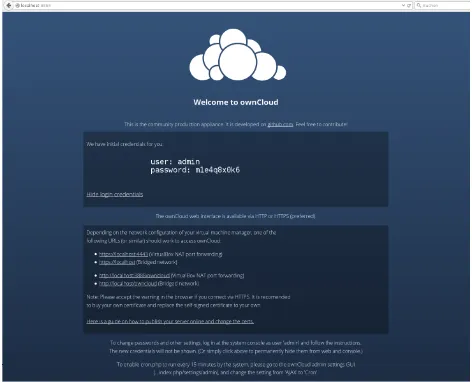
2. Start VirtualBox and click onFile ...>Import Applianceand import your new ownCloud image. 3. Click the green Start arrow. After a minute you should see the console greeting message.
4. Note the username and password here. It is a random password that we generate for you on first boot. If you log in at the console, you’ll be prompted to change the password. This is optional.
5. With your Web browser try http://localhost:8888 or http://localhost:80 or the address printed on the console. One of them should work. If not, please review and adjust the network setup of