Volume 2, No. 4, July-August 2011
International Journal of Advanced Research in Computer Science
RESEARCH PAPER
Available Online at www.ijarcs.info
Mouse for Handless Human
V. Pradeep
Assistant ProfessorDepartment of Computer Science and Engineering JCT College of Engineering and Technology
Coimbatore, India [email protected]
Abstract: The keyboard and mouse are input devices that allow us to communicate with the computer. A virtual keyboard is a software component that is designed for anyone with a disability that prevents him or her from typing on a physical computer keyboard. With the help of Virtual Keyboard, the input device Mouse is sufficient to operate the computer. The main operations of the mouse are Cursor movement, Left Click and Right Click. This paper gives an alternative system for the Physically Disabled Persons especially for those without Hands. The mouse operations are controlled by the Head Movement (Cursor movement), blinking left eye (Left mouse click) and blinking right eye (Right mouse click). The system works with the computer's webcam to detect the user's head movements, left eye blink and right eye blink that replaces the mouse signals: cursor movements, left mouse click and right mouse click respectively.
This paper brings out an idea for an adaptive technology that can be used by the “mobility-impaired” people those who are prevented from moving the mouse or any pointing device.
Keywords: Assistive technology, alternative mouse, hands-free computing, gesture recognition, user interface, disabled users
I. INTRODUCTION
The world today is largely dependent on computers; therefore not being aware of the tricks of this trade is bound to make a person feel left out [1]. Computers changed the world a lot. It helped man step forward into the future. Thanks to computers, space exploration came true, new designs of vehicles and other transportation were made; entertainment became more entertaining, medical science made more cures for diseases, etc. The computers impacted our lives in many ways. They did make life a lot easier. Without computers, the world would be a harder place to live in. Thanks to the computers, everyday life is easier for us [2]. There are many people who find the standard computer input devices—the keyboard and mouse—difficult to use due to a motor disability. The mobility impairment prevents them from moving the mouse or typing on a keyboard. A number of keyboard and mouse configuration options designed to overcome physical difficulties exist so-called adaptive or assistive technology – hardware or software that eliminates barriers to using a computer [3]. The “mobility-impaired” people have trouble using the hardware of their computers rather than understanding or interpreting information [4].
II. HUMAN – COMPUTER INTERACTION
Computer programming is an important activity occupying a large number of students in our society. Disabled people have reduced opportunities in a lot of areas, and the field of education is no exception. A virtual environment offers the possibility to control or operate in the real world partly alleviating physical limitations. Most people use their arms, hands, and fingers when using a computer, namely a keyboard and/or mouse. Nevertheless,
for people with motor disabilities, the need for controlled movements can be an obstacle for them to be able to interact with the computer.
There are many types of physical disabilities that affect a pleasant human-computer interaction. Several diseases cause muscle deterioration and/or neurological disorders that can result in physical weakness, loss of muscle control, paralysis, and amputation. The main problem for people with physical disabilities is the capacity to access computer controls (i.e. power switch, disk drives, monitor adjustments) and the ability to type on the standard keyboard or move pointing devices like a mouse [5].
With today's Graphic User Interface (GUI) - based PC software, most of the human-to-computer interaction is based on selectionoperations, such as;
A. Pointing
Positioning the cursor at the desired location of the screen, over the appropriate area or icon.
B. Clicking
Executing the Mouse Down/Up function that is interpreted by the computer's operating system as an indication to complete the selection of the item associated to the icon at the location of the screen cursor [6].
III. ASSISTIVE TECHNOLOGIES
“area pointing”, occurs countless times in the course of regular computer use. Accordingly, where it is difficult or impossible, it can pose a serious barrier to computer and information access for some people. Prior research has clearly demonstrated the difficulty people with motor impairments may have with area pointing. Both parts of the process—moving to within a target and clicking it—can be distinctly troublesome [7].
The General Medical Council lists several types of computer assistance. An over-sized trackball has a roller ball on top of the mouse to make it easier to move and control. Adaptive keyboards help motor-impaired individuals use computers. These keyboards come in a number of varieties, including over-sized, compact, on-screen and ABC formats. Eye tracking technology follows the eye movements of the disabled person to aid in website navigation. Voice recognition software allows users to enter and control computers through a microphone. Slow keys prevent mistakes on keyboards by requiring the user to hold down a key for a period of time before it registers. Slow keys are beneficial for individuals who have a hard time controlling their motions. Sticky keys use modifier keys, such as Command, Shift and Control, to automatically apply the next keystroke [8].
A. Replacements for Keyboard
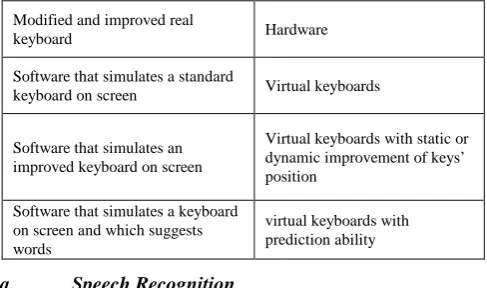
[image:2.595.319.555.52.153.2]In order to assist people with special needs, four kinds of keyboard-like systems can be found as shown in Table 1[9]. A virtual keyboard is a software component that is designed for anyone with a disability that prevents him or her from typing on a physical computer keyboard[10].
Table 1: Keyboard-like Systems
Modified and improved real
keyboard Hardware
Software that simulates a standard
keyboard on screen Virtual keyboards
Software that simulates an improved keyboard on screen
Virtual keyboards with static or dynamic improvement of keys’ position
Software that simulates a keyboard on screen and which suggests words
virtual keyboards with prediction ability
a. Speech Recognition
By using any virtual keyboard only the physical keyboard can be replaced. This paper brings out an idea for an adaptive technology that can be used by the “mobility-impaired” people those who are prevented from moving the mouse or any pointing device. One such technique that replaces the mouse is speech recognition. Probably the most hailed user interface, speech recognition is now at a stage where it can be successfully deployed in limited domains. But careful estimates suggest that 100% recognition rates for large vocabularies will not be possible in the near future. Noisy environments, speaker particularities (accents, speech impediments) worsen the situation [11]. The table below briefs the limitations of speech recognition system [12].
Table 2 Limitations of Speech Recognition System
Speech Recognition System
Inaccurate
Requires special high-quality headsets with microphones
Always have to make your voice clear and easy to understand
Cannot use this system in noisy environments
May not work well for people who have very heavy accents
IV. REPLACING MOUSE
[image:2.595.316.547.246.418.2]This paper brings out an innovative idea called as Mouse for Handless Human (MHH) to use the camera as an alternative to the mouse. The mouse operations are controlled by the head movement and the eyes-blink captured by the camera. The components of MHH are shown in the figure 1.
Figure. 1 Components of MHH
V. UNDERSTANDING MOUSE
A computer mouse is widely used as a pointing device for a personal computer. A mouse typically controls the motion of a interface (GUI). Clicking or hovering (stopping movement while the cursor is within the bounds of an area) can select files, programs or actions from a list of names, or (in graphical interfaces) through small images called "icons" and other elements [13]. The mouse includes a tracking device for measuring the movement of the mouse across the surface. The cursor is controlled by moving a mouse containing a movement sensor across a surface. This movement is relayed to the computer where it is translated into a corresponding movement of the cursor on the display.
Depressing or clicking a mouse button, signals the computer to initiate a function. The function is determined by the operating system and application program in use with the computer. The movement of the mouse in an X-Y plane typically actuates a mechanical, optical or electrical device within the mouse which produces X and Y position signals which are conveyed to the computer.
Table 3: Mouse Operation
Moving Moving the mouse Changes the position of the
[image:2.595.36.280.437.581.2]Clicking Pressing and releasing the left mouse button
Selects or activates the object beneath the pointer.
Double-clicking
Clicking the left mouse button twice in rapid succession without moving the mouse
Used to select larger units (for example, to select a word in a text field) or to select and open an object.
Triple-clicking
Clicking the left mouse button three times in rapid succession without moving the mouse
Used to select even larger units (for instance, to select an entire line in a text field).
Pressing Holding down the left
mouse button
Used to display drop-down menus, including those marked by menu indicators on buttons.
Dragging
Pressing the left mouse button, moving the mouse, and releasing the mouse button
Used to select a range of objects, to choose items from drop-down or contextual menus, or to move objects in the interface.
Right-clicking
Pressing and releasing the right mouse button
activates a program-specific pop-up menu
High-lighting
Hold down the left mouse button and drag the mouse over one or more lines of text
Used to highlight text on the screen, so that it can be copied
The computer typically uses the mouse X and Y position signals to manipulate the display of the computer screen, allowing a user to control a program [14]. Different ways of operating the mouse cause specific things to happen in the GUI as shown in the Table 3 [15][16].
[image:3.595.38.280.54.357.2]The function of the middle button of a three-button mouse can be simulated with two-button mouse itself and the example of the same is shown in the Table 4[17].
Table 4: Middle Button Operation
Paste
Properly position the cursor and press the middle mouse button
Properly position the cursor and right click for the menu to appear. Then choose paste from the menu by left click.
Scrolling
Use the scroll wheel to scroll forward or backward
Left click any of the four arrow keys in the virtual keyboard.
VI. REPLACING MOUSE OPERATIONS
Figure. 2 Operations of MHH
Today, the mouse is an integral part of the graphical user interface of any personal computer. As the ball is moved over the surface in any direction, a sensor sends impulses to the computer that causes a mouse-responsive
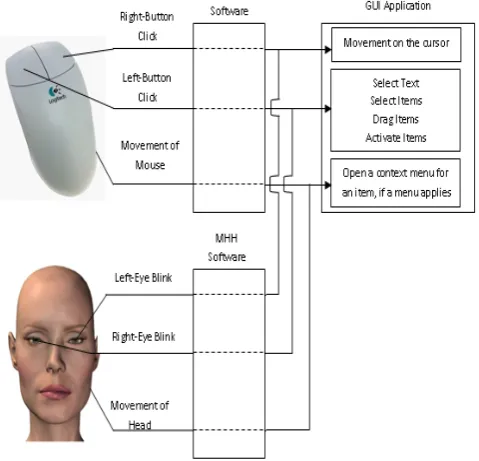
program to reposition a visible indicator (called a cursor) on the display screen. The most conventional kind of mouse has two buttons on top: the left one is used most frequently. In the Windows operating systems, it lets the user click once to send a "Select" indication that provides the user with feedback that a particular position has been selected for Fig. 3 Block Diagram of MHHfurther action. The next click on a selected position or two quick clicks on it causes a particular action to take place on the selected object. The second button, on the right, usually provides some less-frequently needed capability. For example, when viewing a Web page, you can click on an image to get a popup menu that, among other things, lets you save the image on your hard disk[18]. MHH replaces the operations as head movement (mouse move), left-eye blink (left-button click) and right-eye blink (right-button click) as shown in the figure 2[19].
VII. INTERFACING COMPUTER AND
HANDLESS HUMAN
[image:3.595.321.561.471.701.2]The innovative idea is to achieve the interaction between the computer and the “mobility-impaired” people those who are prevented from using any physical input devices. The mouse operations are replaced by the head movement and the eyes-blink captured by the camera. The head movement controls the motion of dimensions in a graphical user interface that can be used to select files, programs or actions from a list of names. Left-eye blink replaces the action of the left-click of the mouse that can be used to select text, select items, drag items and activate items. Right-eye blink replaces the action of the right-click of the mouse that can be used to open a context menu for an item, if a menu applies. The block diagram of MHH is shown in the figure 3.
Figure. 3 Block Diagram of MHH
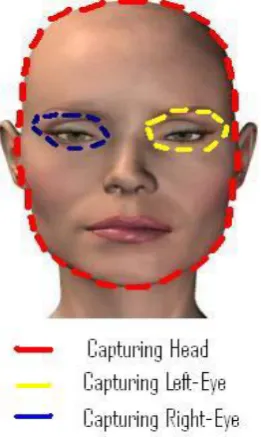
[image:3.595.32.276.497.713.2]The initial operation of the MHH is to capture the head, left eye and right eye of the user. Necessary action is taken if the camera finds more than one users. See figure 4. The movement of the head and blinking of left and right eyes are captured with the regular time interval and the respective actions are triggered in the GUI. The events of
Figure. 4 MHH Capturing the Head, Left-Eye and Right-Eye
[image:4.595.324.544.51.250.2] [image:4.595.102.233.136.355.2]MHH that replaces the events of a mouse is shown it the table 5.
Table 5 MHH events replacing Mouse
Action Mouse MHH
Cursor Move Move Mouse Move Head
Left-Click Click Left Button Blink Left Eye
Right-Click Click Right Button Blink Right Eye
Figure 5 [20] shows the comparison between the mouse action and the MHH action. The eye value of the MHH replaces the button value of the mouse. The events ‘closed’, ‘opened’ and ‘blinked’ of the eye replace the ‘pressed’, ‘released’ and ‘clicked’ events of the mouse.
(a)
(b)
Figure. 5 Comparisons of (a) Mouse and (b) Head Action
The table 6 summarizes that during the head movement the left and right eyes should be opened. In order to not to confuse with the normal eye blink, right eye should be closed during the left click and left eye should be closed during the right click.
Table 6 MHH component values
Action Move Head Left Eye Right-Eye
Cursor Move Yes open open
Left-Click No close open
Right-Click No open close
IX. CONCLUSION
To the person who only knows how a hammer works, every problem is some kind of nail. This is to say, getting the right tool can make the difference between a successful task and a smashed-up effort. Since you can't always get it all done with a blunt object, it pays to know what else is available [20]. This paper is an innovative idea to provide the advantage of mouse GUI operations available to the “mobility impaired” people.
X. REFERENCE
[2] http://tatooine.fortunecity.com/vonnegut/320/history. htm. [3] Trewin, S. and Pain, H. 1999. Keyboard and mouse errors due
to motor disabilities. Int. J. Human-Comput. Stud. 50, 2, 109– 144.
[4] http://joeclark.org/book/sashay/serialization/Chapter03 .html. [5] St´ephane Norte, Fernando G. Lobo, A Virtual Logo
Keyboard for People with Motor Disabilities, ITiCSE’07, June 23–27, 2007.
[6] Barreto A. B., Scargle S. D., and Adjouadi M, “A Real-Time Assistive Computer Interface for Users with Motor Disabilities,” ACM SIGCAPH Computers and the Physically Handicapped, 1999., pp. 6-16.
[7]
[image:4.595.313.552.350.428.2] [image:4.595.38.275.417.471.2] [image:4.595.43.268.542.747.2][8] physical_impairments.asp.
[9]
Keyboard Arrangement for Disabled People,
[10]http://www.lakefolks.org/cnt/.
[11]Kölsch, M. and Turk, M., Keyboards without Keyboards: A Survey of Virtual Keyboards, Workshop on Sensing and Input for Media-centric Systems, Santa Barbara, CA, June 20-21, 2002.
[12] http://www.evengrounds.com/blog/hands-free-computing-voice-recognition-systems.
[13]
[15]
470-13728-4.
[16]
ISBN: 978-0-7645-8407-7, 2004
[17]
1st Edition, September 1999, 1-56592-705-2, O’Reilly Online Catalog.
[18]
[19]http://artzone.daz3d.com/