@ptitude Observer Database Adminstrator
Copyright © 2014 by SKF Reliability Systems All rights reserved.
Aurorum 30, 977 75 Luleå Sweden
Telephone: +46 (0)31 337 1000, Fax: +46 (0) 920 134 40
Part No. 32170600 Revision E Observer 9.1
SKF Reliability Systems
SKF Condition Monitoring Center Aurorum 30977 75 Luleå Sweden
Telephone: +46 (0)31 337 1000 FAX: +46 (0)920 134 40 For technical support, contact: [email protected]
for customers in Europe, Middle East and Africa. Telephone: +46 (0)31 337 6500
or
for customers in North America, South America and Asia. Telephone: +1 800 523 7514
Telephone in Latin America: +55 11 4448 8620 Visit us at our web site
www.skf.com/cm
Table of Contents
Introduction
1 - 4
...1 - 4 Overview
...1 - 4 Installation
...1 - 4 Starting
SQL Server Interfaces
2 - 5
...2 - 6 Server Operations
...2 - 6 Install Database from DVD
...2 - 7 Create New Database
...2 - 7 Attach Database
...2 - 8 Manage Logins
...2 - 9 Database Transfer
...2 - 10 Restore Database
...2 - 10 Hide System Databases
...2 - 10 Update Database List
...2 - 11 Database Operations
...2 - 11 Upgrade Selected Databases
...2 - 12 Update Diagnoses
...2 - 12 Update Bearing Library
...2 - 12 Update to UTC
...2 - 13 Update Seeds
...2 - 13 Manage Users
...2 - 14 Manage Backup
...2 - 14 Backup Now
...2 - 14 Detach Database
...2 - 14 Shrink Database
...2 - 15 Run SQL Script
Introduction Overview
@ptitude Observer Database Administrator User Manual 1-4
Observer 9.1, Revision E
Introduction
1
Overview
The SKF @ptitude Observer Database Administratior is an invaluable tool when working with SKF @ptitude Observer system. It has many features which are necessary to use in order to have a complete and updated system. The SKF @ptitude Observer Database Administrator has tools for working with the SKF @ptitude Observer database which currently supports SQL Server versions from 2005 to 2012.
SKF @ptitude Observer is shipped with SQL Server Express 2012 which is a free version of the SQL Server engine but with the limitation of storing ten Gigabytes per database.
Installation
The SKF @ptitude Observer Database Administrator tool is installed from the auto run menu of the SKF @ptitude Observer DVD. It is included in the SKF @ptitude Monitoring Suite package as an option. For detailed information on how to install SKF @ptitude Monitoring Suite, refer to "@ptitude Observer Installation Manual".
The default installation path for is C:\Program files\SKF\Observer\.
Starting
To start @ptitude Observer Database Administrator tool, click the shortcut on the start menu under Programs\SKF @ptitude Monitoring Suite X.Y \@ptitide Observer Database administrator.
SQL Server Interfaces
SQL Server Interfaces
2
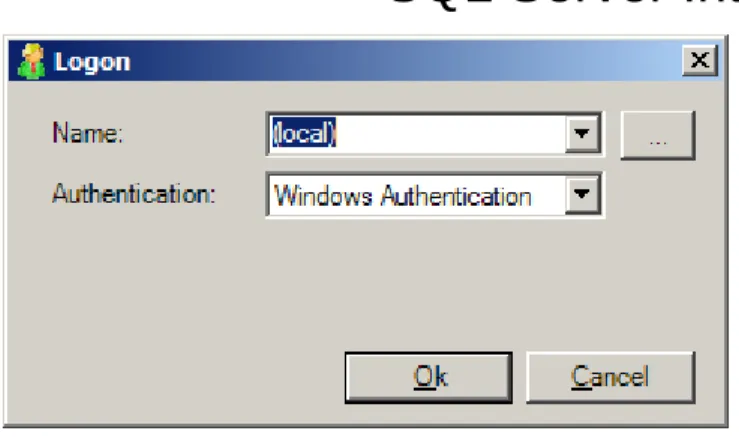
Figure 2-1: Example of Logon to SQL server
· Name specifies which computer holds the database server. It is possible to specify either an IP address or a computer name, if you wish to connect to a different database server. The default value is (Local) which specifies the computer you are working with at the moment.
· Authentication defines whether to use Windows authentication or SQL Server
authentication.
· User name is required for SQL Server authentication. The user name "sa" is frequently used. However, user name can be changed along with the password if you wish to login with different criteria.
· Password is required for SQL Server authentication.
After a successful login, a screen opens up with a list of available SQL databases. The following is an example.
Figure 2-2: Example of Overview of SQL Databases
SQL server interfaces are grouped into two operations; Server operations and Database operations.
SQL Server Interfaces Server Operations
@ptitude Observer Database Administrator User Manual 2-6
Observer 9.1, Revision E
Server Operations
The server operations are, as the name suggests, operations related to the server rather than any specific database.
The following are the available server operations.
· Install database from dvd · Create new database · Attach database · Manage logins · Database transfer · Restore database · Hide system databases · Update database list
Install Database from DVD
Install database from DVD allows to install available @ptitude Observer databases from the @ptitude Observer DVD.
Figure 2-3: Example of Install a SQL database
· Select database you wish to install.
SQL Server Interfaces Server Operations
Create New Database
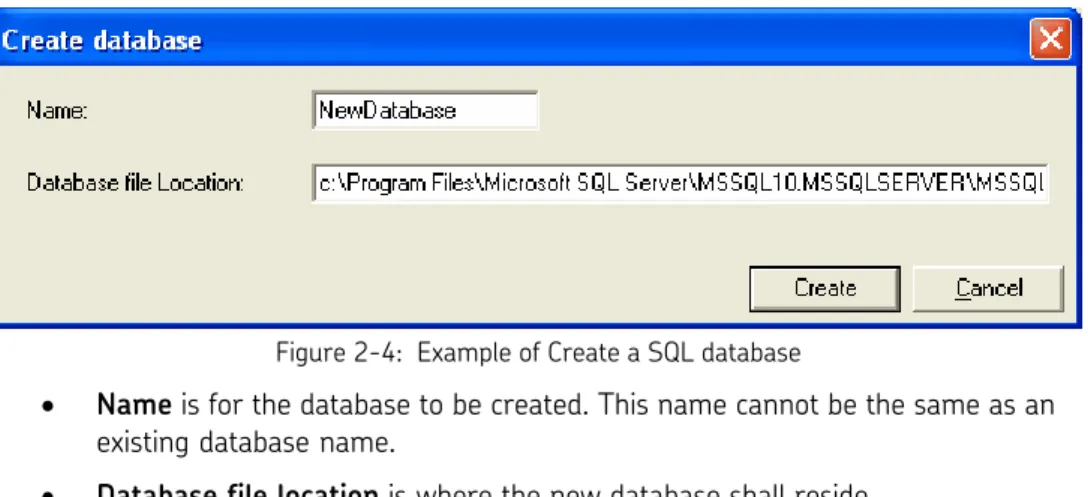
Figure 2-4: Example of Create a SQL database
· Name is for the database to be created. This name cannot be the same as an existing database name.
· Database file location is where the new database shall reside.
Attach Database
Attach database is used to attach a detached database to the SQL server.
Figure 2-5: Example of Attach a SQL database
· Name is the database to be attached.
· Database file is the .mdf file of the database to be attached.
· Transaction log file is the SQL server log file of the database to be attached. You may select to attach an existing log file or create a new one.
Ø Attach log file allows to attach an existing log file from the location stated at Transaction log file.
SQL Server Interfaces Server Operations
@ptitude Observer Database Administrator User Manual 2-8
Observer 9.1, Revision E
Manage Logins
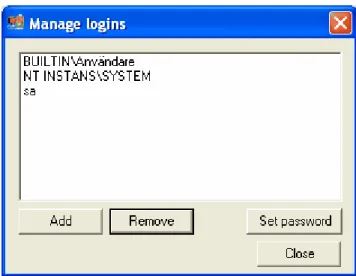
Manage logins operation allows to add or remove SQL Server logins. Later, these logins can be added to the list of the Manage Users in order to access specific databases. Note that the logins and users you manage in @ptitude Observer Database Administrator tool are for the SQL server and the databases only. They are not the users who can configure in @ptitude Observer.
Figure 2-6: Example of Manage longins on SQL server
· Add allows you to add a user with name and password to the SQL Server logins.
· Remove eliminates the selected user from the SQL Server logins.
SQL Server Interfaces Server Operations
Database Transfer
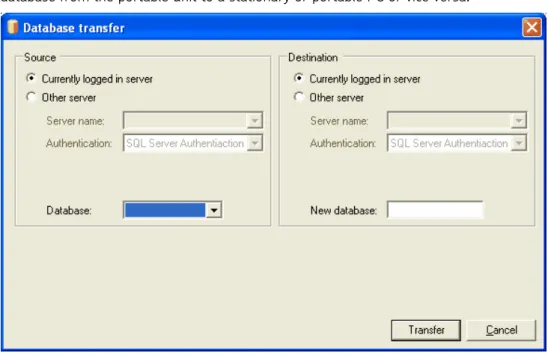
Database transfer enables the user to transfer a database from one location to another.This feature is often used by MasCon48 portable unit users to transfer the database from the portable unit to a stationary or portable PC or vice versa.
Figure 2-7: Example of SQL server database transfer
· Source refers to the source location from which the database should be copied. - Currently logged in server is the SQL Server that @ptitude Observer
Database Administrator tool has been connected to when starting the software.
- Other server refers to a server located in a different location rather than the current location. In this case, you are to enter additional information such as the server name, authentication and database. In addition, login and
password are required if the authentication has been set to SQL Server authentication.
· Destination refers to the target location to which the database should be copied.
- Currently logged in server is the SQL Server that @ptitude Observer Database Administrator tool has been connected to when starting the software.
- Other server refers to a server located in a different location than the current location. In this case, you are to enter additional information such as the server name, authentication and new database name. In addition, login and password are required if the authentication has been set to SQL Server authentication. The new database name can not be an already exiting name in the destination server.
SQL Server Interfaces Server Operations
@ptitude Observer Database Administrator User Manual 2-10
Observer 9.1, Revision E
Restore Database
Restore database operation restores databases from the backup files, if necessary. Backup files are handled by Manage Backup interface under Database Operations.
Hide System Databases
Hide system databases operation is a toggle button that shows or hides system databases from the list of databases.
Update Database List
SQL Server Interfaces Database Operations
Database Operations
The database interfaces are, as the name suggests, the interfaces that are related to databases. The specific database on which the interface is to be performed is selected from the database list. Most interfaces support the selection of multiple databases if more than one is installed. To select multiple databases, hold the [Ctrl-key] or the [shift-key] and click on the databases in the list. Remember to double check which databases you have selected. Model, Master, msdb, pubs and tempdb databases should never, under any circumstances be selected for modification.
The following are the available database operations.
· Upgrade selected databases · Update diagnoses
· Update bearing library · Update to UTC · Update Seeds · Manage users · Manage backup · Backup now · Detach database · Shrink database · Run SQL script
Upgrade Selected Databases
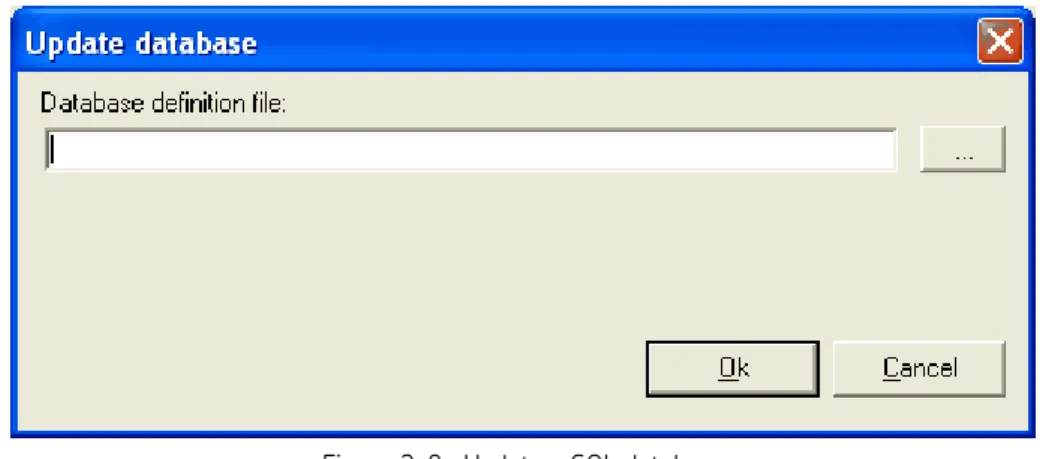
Upgrade selected databases operation upgrades the selected databases according to definition files. A definition file specifies how the database structure should look like in a @ptitude Observer database. This feature is used when upgrading the system to the new version of @ptitude Observer. The definition file is located in the @ptitude Observer DVD under the directory NewVer\Database administrator and has the extension .DEF.
The interface can take from 10 seconds up to two minutes depending on the speed of the CPU and the available memory at the moment. When the interface is completed, the user will receive a message stating that the upgrade has been finished. Otherwise, the user will receive an error message.
Figure 2-8: Update a SQL database
· Database definition file is a text file with .DEF extension. It is used to upgrade the selected database(s) to the latest version. The database definition file can be found in the directory where Observer is installed or on the Observer DVD in the
SQL Server Interfaces Database Operations
@ptitude Observer Database Administrator User Manual 2-12
Observer 9.1, Revision E
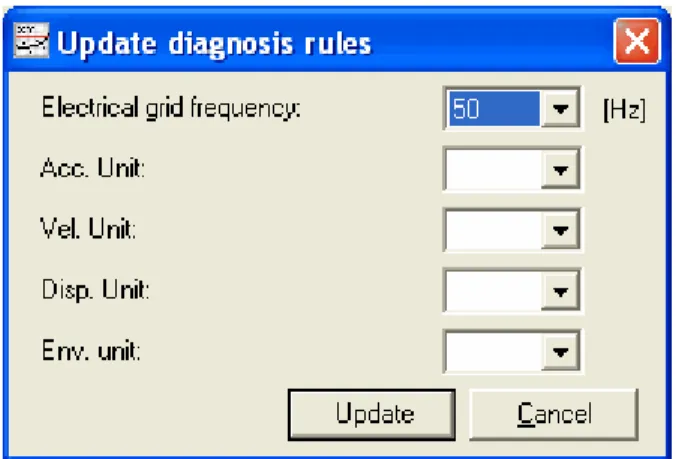
Update Diagnoses
Update diagnoses updates the standard diagnosis rules with the latest released rules for the selected database(s). You may change any of the displayed unit values.
Figure 2-9: Example of Update diagnosis rules on a SQL database
Update Bearing Library
Update bearing library updates the bearing information in the selected @ptitude Observer database(s) with new bearings as new bearings become available on the market.
The update contains information from 20 different bearing manufactures including SKF. The bearing information file has the extension .brg, and is located in the directory NewVer\Database administrator in the @ptitude Observer DVD.
It is recommended that you update the bearing database when you update @ptitude Observer to a newer version.
Figure 2-10: Update a bearing library on a SQL database
Update to UTC
Update to UTC (universal time) converts the local time to the universal time. In order to have the time converted correctly, you need to enter the local time zone of @ptitude Observer Monitor computer. Note that @ptitude Observer 8 and later versions use the universal time. Therefore, this function is mainly useful for the older databases which were converted to the latest version.
SQL Server Interfaces Database Operations
Update Seeds
This function should be executed on the database if the database had previously been set up as a destination for an SQL Server replication procedure (configured in SQL Server Enterprise Manager). This will restore the Seed.
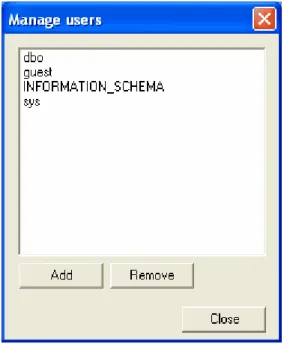
Manage Users
The manage users can be used to add or remove a user for the selected database. However, this is not to be confused with the users in @ptitude Observer.
Figure 2-11: Example of Manage users on a SQL database
· Add brings you to Edit user screen as shown below and allows you to add a user.
· Remove allows you to remove a selected user from the list.
Figure 2-12: Edit a user on a SQL database
· Login name is a name that was created by Manage Logins under Server Interfaces.
· User name is the name to be used which is optional. If user name is omitted, the login name becomes user name.
SQL Server Interfaces Database Operations
@ptitude Observer Database Administrator User Manual 2-14
Observer 9.1, Revision E
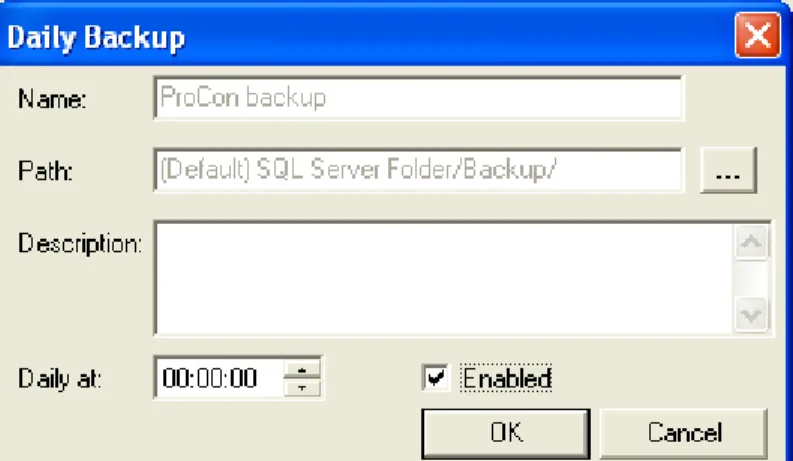
Manage Backup
It is important that you make sure that the system performs backups frequently. The manage backup allows you to create backup jobs inside the SQL Server. The backup job creates a .bak file and places the file in the path directory specified with the form below. The backups can be performed daily at a specific time. It is recommended that the backups are configured to run when the computer or network environment has low workload. This is a complete backup which backs up everything in the @ptitude Observer database each time it runs and overwrites existing backup files if they exist. After the .bak file has been created, it is up to you/customer to move or copy this file to a backup media such as a backup tape, CD or DVD. It is common that the backup is performed directly to a network resource which is regularly backed up.
To temporarily disable backups, the user can uncheck Enabled field.
Figure 2-13: Example of Daily Backup on a SQL database
Important- This feature is available only with SQL Server full version and not with the SQL Server Express version which is included in the @ptitude Observer DVD.
Backup Now
It performs a backup of the selected database immediately.
Detach Database
Detaching a database is an effective way to disconnect a database from the SQL Server and move it to a different location. Detaching a database will free up the .ldf file and the .mdf file for the specific database and the user can freely copy, rename or move the files. If you intend to touch the database files, it is crucial that you first detach the database or else you might risk a danger of database becoming corrupted.
Shrink Database
Shrink database allows each file within the selected database(s) to be shrunk to remove unused pages and tries to minimize fragmentation. Both data and transaction log files can be shrunk. This activity occurs in the background and does not affect any user activity within the database. As @ptitude Observer database grows, this interface becomes more resourceful.
SQL Server Interfaces Database Operations
Run SQL Script
Run SQL script allows the user to execute advanced Structured Query Language scripts directly on the specific database.
Important - Use it with caution. Improper usage of this function may cause loss of data and database corruptions.