by Dan Gookin
Buying a
Computer
FOR
DUMmIES
‰2005
EDITION
Buying a
Computer
FOR
DUMmIES
‰2005
EDITION
by Dan Gookin
Buying a
Computer
FOR
DUMmIES
‰2005
EDITION
About the Author
Dan Gookinhas been writing about technology for 20 years. He has con-tributed articles to numerous high-tech magazines and written more than 90 books about personal computing technology, many of them accurate. He combines his love of writing with his interest in technology to create books that are informative and entertaining, but not boring. Having sold more than 14 million titles translated into more than 30 languages, Dan can attest that his method of crafting computer tomes does seem to work.
Perhaps Dan’s most famous title is the original DOS For Dummies,published in 1991. It became the world’s fastest-selling computer book, at one time moving more copies per week than the New York Timesnumber-one best seller (although, because it’s a reference book, it could not be listed on the
NYT best seller list). That book spawned the entire line of For Dummiesbooks, which remains a publishing phenomenon to this day.
Dan’s most recent titles include PCs For Dummies,9th Edition; C All-in-One Desk Reference For Dummies; Troubleshooting Your PC For Dummies; Dan Gookin’s Naked Windows XP;and Dan Gookin’s Naked Office.He also pub-lishes a free weekly computer newsletter, “Weekly Wambooli Salad,” full of tips, how-tos, and computer news. He also maintains the vast and helpful Web page www.wambooli.com.
Dan holds a degree in communications and visual arts from the University of California, San Diego. He lives in the Pacific Northwest, where he enjoys spending time with his four boys in the gentle woods of Idaho.
Publisher’s Acknowledgments
We’re proud of this book; please send us your comments through our online registration form located at www.dummies.com/register/.
Some of the people who helped bring this book to market include the following:
Acquisitions, Editorial, and Media Development
Project Editor:Rebecca Whitney
Acquisitions Editor:Gregory Croy
Technical Editor:Mark L. Chambers
Editorial Manager:Carol Sheehan
Media Development Manager:Laura VanWinkle
Media Development Supervisor:
Richard Graves
Editorial Assistant:Amanda M. Foxworth
Cartoons:Rich Tennant (www.the5thwave.com)
Composition
Project Coordinator: Maridee Ennis
Layout and Graphics:Andrea Dahl, Lauren Goddard, Denny Hager, Joyce Haughey, Stephanie D. Jumper, Lynsey Osborn, Heather Ryan
Proofreaders: Laura Albert, John Greenough, Charles Spencer, TECHBOOKS Production Services
Indexer: TECHBOOKS Production Services
Publishing and Editorial for Technology Dummies
Richard Swadley,Vice President and Executive Group Publisher
Andy Cummings,Vice President and Publisher
Mary Bednarek,Executive Acquisitions Director
Mary C. Corder,Editorial Director
Publishing for Consumer Dummies
Diane Graves Steele,Vice President and Publisher
Joyce Pepple,Acquisitions Director
Composition Services
Gerry Fahey,Vice President of Production Services
Contents at a Glance
Introduction ...1
Part I: Understanding the Whole Ordeal ...3
Chapter 0: Some Questions to Get Out of the Way ...5
Chapter 1: Buying a Computer (Step-by-Step)...9
Chapter 2: The Nerd’s-Eye View ...19
Chapter 3: Computers from A to Z ...29
Chapter 4: Introduction to Hardware and Software...45
Part II: Hardware and Software Overview...51
Chapter 5: All about Mr. Microprocessor ...53
Chapter 6: Memory Stuff (Temporary Storage)...63
Chapter 7: Disks of Every Type (Permanent Storage) ...73
Chapter 8: Monitor and Graphics Stuff...87
Chapter 9: Keyboard, Mouse, and Gamepad ...99
Chapter 10: Expansion Options ...107
Chapter 11: Modems and Sound...115
Chapter 12: Networking Your Computer ...123
Chapter 13: Scanners and Digital Cameras ...131
Chapter 14: Special Issues for Notebook and Laptop Computers ...143
Chapter 15: Your Computer’s Operating System...151
Chapter 16 Everything You Wanted to Know about Software (But Were Afraid to Ask) ...161
Part III: Finding Your Perfect Computer ...175
Chapter 17: Shopping for Software ...177
Chapter 18: Matching Hardware to Your Software...189
Chapter 19: Surveying the Shopping Landscape...199
Chapter 20:0 Tips for Online Shopping ...211
Chapter 21: Searching for Service and Support ...217
Chapter 22: Buying the Computer...223
Part IV: Living with Your Computer...229
Chapter 23: Helpful Hints for Computer Setup...231
Chapter 24: Time to Get a Printer ...245
Chapter 25: From the Old Computer to the New One...255
Chapter 26: Selecting an ISP...263
Chapter 27: When to Buy, When to Sell, When to Upgrade ...269
Part V: The Part of Tens ...275
Chapter 28: Ten Common Mistakes Made by First-Time Computer Buyers ...277
Chapter 29: Ten Warning Signs ...281
Chapter 30: Ten Other Things You Should Buy ...285
Chapter 31: Ten Tips and Suggestions...291
Index ...295
Buying a Computer For Dummies, 2005 Edition
viii
Table of Contents
Introduction...1
About This Book...1
And Just Who Are You? ...2
Icons Used in This Book...2
Where to Go from Here...2
Part I: Understanding the Whole Ordeal...3
Chapter 0: Some Questions to Get Out of the Way . . . .5
“Just Tell Me Which Type of Computer I Need!” ...5
“Why Not Let Me Have One of Your Computers?” ...6
“Where Can I Buy a Computer Really Cheap?”...6
“Which Brands Do You Recommend?” ...6
“Which Brands Do You Recommend Staying Away From?”...6
“How Much Will My Computer Cost?”...6
“Shouldn’t I Just Buy the Most Expensive Computer I Can Afford?”...7
“Then Shouldn’t I Buy the Fastest Computer I Can Afford?” ...7
“Should I Get a Used Computer?” ...7
“What about Refab Computers?” ...7
“Will the Computer Store Offer Me Deals? How Much Should I Expect to Pay Below the ‘Sticker Price?’ “...7
“Where Can I Get More Information Beyond What’s Covered in This Book?” ...8
“Does This Book Offer a Buyer’s Guide?”...8
“Can You Recommend Any Buyer’s Guides?” ...8
“Isn’t There an Easy Way to Do This? Can’t I Just Go Buy a Computer?” ...8
Chapter 1: Buying a Computer (Step-by-Step) . . . .9
Relax — You Have Nothing to Fear ...9
The Five Steps to Buying a Computer ...10
Step 1: Figure out what you want to do with your computer ...11
Step 2: Look for software...12
Step 3: Find hardware ...14
Step 4: Shop for service and support ...14
Step 5: Buy your computer ...16
Don’t Sit Around Waiting to Buy!...17
Chapter 2: The Nerd’s-Eye View . . . .19
Basic Parts ...20
Console ...20
Monitor ...21
Keyboard ...22
Beyond the Basic Parts ...23
Mouse...23
Speakers ...24
Modem ...25
Printer ...25
Scanner and digital camera...26
Network options ...27
Peripherals and other expansion alternatives, various and sundry ...27
Chapter 3: Computers from A to Z . . . .29
What Is a Computer?...30
The traditional desktop computer ...30
The Macintosh PC ...32
Laptops for every kind of lap...33
The Tablet PC...36
Palmtop and handheld computers...37
WebTV...38
Gaming consoles ...39
Workstations and servers ...39
Mainframes...41
“How Much Will This Cost?” ...42
Chapter 4: Introduction to Hardware and Software . . . .45
Hardware: The Hard Stuff...46
The microprocessor (the main piece of hardware) ...46
The motherboard ...46
Software: The Other Hard Stuff ...48
The operating system ...48
Applications and other programs ...50
Putting It All Together ...50
Part II: Hardware and Software Overview ...51
Chapter 5: All about Mr. Microprocessor . . . .53
The Microprocessor Rules...53
The name game...54
Families, names, and flavors ...54
The measure of power ...56
Buying a Computer For Dummies, 2005 Edition
x
Chapter 8: Monitor and Graphics Stuff . . . .87
The Graphical System...87
The Monitor Part...88
CRT or LCD? ...89
Judge me by my size, will you?...92
I’ll take two, please...93
The Graphics Adapter Part...93
Video RAM...94
How it plugs in ...95
The GPU ...96
Life on the high end ...96
When You’re Reading an Advertisement, Beware the Blech! ...97
Chapter 9: Keyboard, Mouse, and Gamepad . . . .99
Clackity-Clack-Clack Goes the Keyboard ...99
Pointing Devices...101
Eeek! ...101
Optical mice versus mechanical mice ...102
Wireless mice versus wired mice ...103
The mouse wears buttons...104
Nonmousy pointing devices ...104
Gamepads (Joysticks) ...105
Chapter 10: Expansion Options . . . .107
Expanding Your High-Tech Universe by Using Ports...107
The USB port...108
The FireWire, or IEEE, port...109
The Ethernet port...110
The printer port...110
The serial port ...111
The monitor port...112
Mouse and keyboard ports ...112
Modem port ...112
A Full House of Cards ...113
Why you may need expansion slots ...113
Types of expansion slots ...114
Chapter 11: Modems and Sound . . . .115
Say Hello to Mr. Modem ...115
Modems are measured by their speed ...116
Your typical, everyday dial-up modem...116
Faster modems: broadband ...117
Do you really need a modem?...119
Buying a Computer For Dummies, 2005 Edition
xii
Sound Off! ...120
The bleeping circuitry ...120
Tweeting and woofing (speakers) ...120
Adding a microphone...121
Talking to your computer...122
Chapter 12: Networking Your Computer . . . .123
Networking Overview ...124
St. NIC (Networking Hardware) ...124
Going wireless...125
Networking speed...126
Other Networking Hardware...126
Networking cable...126
The hub, switch, or router ...127
Adding your high-speed modem ...128
Networking Software...129
Chapter 13: Scanners and Digital Cameras . . . .131
Scanning the Scanner Horizon ...131
Price scanning...132
Scanners big and scanners little...133
The image sensor ...133
Resolution and image-quality issues ...134
How does the scanner connect to the computer? ...135
Optional scanner goodies ...136
Scanner software ...137
Getting a Digital Camera...137
What exactly is a digital camera? ...138
Things worth noting when you’re choosing a digital camera ...139
Getting the image into the computer...141
Chapter 14: Special Issues for Notebook and Laptop Computers . . . .143
Laptop Considerations ...144
Special (expensive) microprocessors...145
Disk drives...145
A battery of issues...146
The skinny on laptop weight ...147
The anti-mouse ...147
Laptop communications...148
Security issues ...148
Laptop Expansion Options ...149
“I’ve seen these ports before!”...149
The PCMCIA port...149
xiii
Table of Contents
Chapter 15: Your Computer’s Operating System . . . .151
Understanding Operating Systems ...152
Working with you...152
Controlling the software ...153
Controlling the hardware ...154
Operating System Survey...154
Windows XP, Home, and Professional...155
Mac OS ...156
Linux...157
Palm OS...159
The antique, the immortal, and the dead...159
Chapter 16: Everything You Wanted to Know about Software
(But Were Afraid to Ask) . . . .161
Doing the Internet ...162
Browsing the Web...162
Getting your e-mail ...162
Doing AOL ...163
Productivity Software ...163
Word processing...163
Databases ...164
Home-budgeting software ...165
Spreadsheets...165
Graphics ...166
Recreation and Education...168
Games ...168
Education ...169
Utility Programs ...169
Programming ...171
Software for Nothing and Almost Free ...171
Public domain software ...172
Freeware or open source...172
Shareware ...172
Demo software ...173
Beware of Illegal or Pirated Software...173
Part III: Finding Your Perfect Computer ...175
Chapter 17: Shopping for Software . . . .177
How to Buy Software ...177
Taking a test drive ...178
Other sources for test-driving ...179
Buying a Computer For Dummies, 2005 Edition
xiv
How Helpful Is the Software? ...180
Types of help you find in software ...180
Don’t forget support!...181
After You Find What You Want. . . . ...182
Stuff you find on the software box ...182
Filling in the form: Example 1 ...183
Filling in the form: Example 2 ...185
At last: The software worksheet...188
Chapter 18: Matching Hardware to Your Software . . . .189
The Hardware Worksheet...189
Filling in the worksheet (step by step)...191
Choose an operating system...191
Pick a microprocessor ...191
Calculate your memory needs...192
Calculate your hard drive storage...193
More storage decisions ...194
Other hardware stuff...195
A Sample for You to Review ...196
Chapter 19: Surveying the Shopping Landscape . . . .199
Reading a Computer Ad ...199
Finding computer advertisements ...200
Dissecting an ad...200
Recognizing common tricks used to make an advertised price look really cheap...202
The myth of the free (or almost free) computer ...202
Some Q&A before You Rush Out to Buy...203
“Should I get a quote?” ...203
“Can I haggle?” ...204
“Should I get a discount off the manufacturer’s suggested retail price?” ...204
“Isn’t there any way to get a deal on a computer?” ...204
“Is it better to buy from a noncommissioned salesperson?”...204
“What about buying a used computer?” ...205
“What about refurbished stuff?”...205
“You didn’t say anything about the swap meet” ...205
Where to Buy ...205
Your locally owned and operated computer store ...206
National chains ...207
The megastore ...207
Mail-order brand names ...208
xv
Table of Contents
Chapter 20: Tips for Online Shopping . . . .211
Buying on the World Wide Web...211
Finding a place to buy...212
Placing your order...213
Comparison shopping...215
Sleazy tricks used by online retailers ...215
Tracking Your Order ...216
Chapter 21: Searching for Service and Support . . . .217
How to Find Service and Support ...217
Service Questions ...218
“How long is your warranty?” ...218
“Do you fix the computers at your shop?”...218
“Can you fix my computer at my home or office?” ...219
Support Questions ...219
“Can I phone someone to ask questions?” ...220
“Do you offer classes?” ...220
Support Issues for Buying on the Internet...221
Chapter 22: Buying the Computer . . . .223
A Review of the Five Steps ...223
What to Spend “Extra” Money On...224
“When Do I Get My Computer?” ...225
Don’t Ever Put a Deposit on a Computer! ...226
Hey, Bud! You’re Ready to Buy ...226
A few last-minute buying tips ...227
The final step is to . . ...228
Part IV: Living with Your Computer ...229
Chapter 23: Helpful Hints for Computer Setup . . . .231
Check the Shipment...231
Setting Up the Computer...232
Open the boxes...232
“What can I toss out?”...233
“Should I keep the boxes?”...234
“Do I have to read the manuals?” ...235
Putting It Together ...235
Where will Mr. Computer live?...235
Preparing to plug things in...236
Setting up the console ...237
Attaching the mouse and keyboard ...237
Attaching other devices ...238
Buying a Computer For Dummies, 2005 Edition
xvi
Chapter 26: Selecting an ISP . . . .263
What You Need in Order to “Do” the Internet ...263
What you need ...264
What the ISP gives you ...264
How much should it cost? ...266
Finding an ISP ...267
The S Means Service...268
Chapter 27: When to Buy, When to Sell, When to Upgrade . . . .269
Unlike Wine and Cheese, Computers Don’t Age Well ...269
Should You Upgrade?...270
Which hardware to upgrade first ...270
My $.02 on upgrading your microprocessor...271
Upgrading software ...272
Upgrading your operating system...272
Should You Sell Your Beloved Computer? ...273
Buying a Used Computer...274
Part V: The Part of Tens ...275
Chapter 28: Ten Common Mistakes Made by First-Time
Computer Buyers . . . .277
Buying Hardware before Software ...277
Dropping Brand Names ...278
Shopping for the Cheapest Computer System ...278
Being Unprepared for the Sale...278
Forgetting Some Extra Items...278
Not Paying by Credit Card ...279
Not Reading the Setup Manuals ...279
Forgetting That Software Can Be Expensive...279
Buying Too Much ...279
Not Counting Learning Time...280
Chapter 29: Ten Warning Signs . . . .281
Industry “Standards” versus the Ads ...281
Out-of-Date Stock ...282
Money Down Required ...282
Missing Pieces ...283
No Address in the Mail-Order Ad ...283
Salespeople Too Busy to Help ...283
Salespeople in the Store Ignore You ...283
No Classroom ...284
No Software Documentation...284
Buying a Computer For Dummies, 2005 Edition
xviii
Chapter 30: Ten Other Things You Should Buy . . . .285
Mousepad and Wristpad ...285 Power Strip ...286 Surge Protector...286 UPS ...287 Printer Cable...287 Printer Paper ...288 More Inky Stuff...288 Removable Disks ...288 CD Caddy...289 A Roll of Paper Towels...289
Chapter 31: Ten Tips and Suggestions . . . .291
Your Computer Has a Clock...291 Get a Second Phone Line...292 After a While, Reread the Manuals...292 Put a Timer on That Internet ...292 Get Defensive Software...293 Subscribe to a Computer Magazine ...293 Join a Computer Users’ Group ...293 Buy a Great Book...294 Remember That You’re in Charge ...294 Don’t Let the Computer Run Your Life ...294
Index...295
xix
Table of Contents
Buying a Computer For Dummies, 2005 Edition
xx
Introduction
W
elcome to Buying a Computer For Dummies— a book which assumes that you know nothingabout a computer but are strangely compelled to buy one. If that’s you, you have found your book!This book is not a buyer’s guide. In it, you won’t find endless, boring lists of prices and products and useless part numbers. Instead, this book assumes that you need a computer for some reason. You’ll discover that reason and then read about how to find software to carry out that task. From there, you’ll match hardware to your software and end up with the computer that’s perfect for you.
Because this is a For Dummiesbook, you can expect some lively and entertain-ing writentertain-ing — not borentertain-ing computer jargon. Nothentertain-ing is assumed. Everythentertain-ing is explained. The result is that you’ll have your own computer and enjoythe buying process.
About This Book
Buying a computer is a five-step process, which this book fully explains. Along the way, you’ll read about computer hardware and software and fill in some worksheets that help you configure a computer just for you.
The five steps to buying a computer are outlined in Chapter 1. Based on that information, the book is divided into several parts, each of which occurs at a different stage in the buying process:
Part I overviews the entire process.
Part II discusses computer hardware and software: what it is and why you need it.
Part III details the buying process: where to buy, how to read a computer ad, and how to find service and support before the sale.
Part IV deals with setting up your new computer.
Part V is the traditional For Dummies“Part of Tens” — various lists for review or to help you get on your way.
And Just Who Are You?
Let me assume that you’re a human being who wants to own a computer. You probably don’t have one now, or, if you do, it’s very, veryold and you desire a new one. Other than that, your experience with a computer is very limited. You have heard the jargon and know some brand names, but that’s about it. If that’s you, this is your book.
This book concentrates on buying a computer, which can be either a PC, Macintosh, handheld, laptop, or game console. Although all the information applies to buying anycomputer, the main thrust involves buying a desktop computer.
Icons Used in This Book
Lets you know that something technical is being mentioned. Because the information is technical and written primarily as nerd trivia, you can freely skip it if you want.
Flags useful information or a helpful tip. When you’re visiting the computer store, for example, make sure that you leave with the same number of children you had when you arrived.
Something to remember, like all computers need a monitor or else you’ll never see what it is you’re doing.
Oops! Better watch out. You have lots of warnings to heed when you’re buying a computer. This icon lets you find them right quick.
Where to Go from Here
Steadily grab this book with both hands, and start reading at Chapter 1. Then continue reading. Occasionally, you may be asked to visit a computer store or find a computer advertisement. Do so when asked. Fill in the worksheets that are offered. Then get ready to go out and buy yourself a computer.
2
Buying a Computer For Dummies, 2005 Edition
Part I
Understanding the
Whole Ordeal
In this part . . .
B
uying a computer can be an ordeal. Even when I return to the store to replace my older computers after a few years, I face new technology and ugly terms. And, despite the fact that prices come down, I still have to pay quite a bit to get what I want.Fortunately, whenever I visit the store, I don’t have any feelings of dread or doubt. That’s because I understand the buying process. I know what’s important. That vital information is what you will find in this part of the book. So kiss your fear and doubt goodbye, and be prepared to get the computer that’s just right for you.
Chapter 0
Some Questions to
Get Out of the Way
In This Chapter
Quick questions you may be pondering
Nothing more
I
f you’re like me, you hate to wade through page after page of mindless drivel about this or that — you just want to get to the meat of the situation. In this case, you probably have some questions you want answered right away. Well, here are the answers. (The mindless drivel starts in the next chapter.)“Just Tell Me Which Type
of Computer I Need!”
Sorry — can’t do that. Everyone is different, so everyone needs something a little different in their computers. Although it’s true that you could get by with just about any computer, why settle for something less than what you need? This book shows you how to find a computer especially for you. Think of it like a car. You may say “I want a new car.” Which type of car? A sedan? A truck? How big of an engine do you want? What about good gas mileage? Do you want to pay extra for power seats or heated outside mirrors? And — most important — what colordo you want? Computers are more complex than cars, so you have even more personal decisions to make.
“Why Not Let Me Have
One of Your Computers?”
I can’t send you any of my old computers because I’m fresh out of stamps.
“Where Can I Buy a Computer
Really Cheap?”
All over. But, do you wantcheap? How about getting service and support instead? You need that more than you need to save a few bucks off the pur-chase price.
“Which Brands Do You Recommend?”
None. Brands are irrelevant to buying a computer. And, brand names and part numbers change all the time. Looking at a brand name for a computer should be the lastthing you do when you buy one. This book explains why, though, if you feel better buying a major brand-name computer, by all means, go ahead.
“Which Brands Do You Recommend
Staying Away From?”
Specifically, those companies that would take me to court for mentioning their names right here! Seriously, brand names are irrelevant. Some do have ugly reputations. Ask around; read reviews; or check the paper to find some companies that produce crap, if that’s what you’re trying to avoid.
“How Much Will My Computer Cost?”
Anywhere from $200 up to several thousand dollars, depending on which options you need or the size of your credit limit. Obviously, if you’re spend-ing someone else’s money, you want to pay more for your computer.
6
Part I: Understanding the Whole Ordeal
“Shouldn’t I Just Buy the Most Expensive
Computer I Can Afford?”
No. Why pay for something you don’t use? Expensive computers tend to fall into a category known as “file server.” These beefed-up monsters are designed to run full computer networks for small- to medium-size businesses. You probably don’t need one.
“Then Shouldn’t I Buy the Fastest
Computer I Can Afford?”
Yes, but speed is only a small part of the overall computer equation. You also have to consider storage, compatibility, and other options, plus all the soft-ware you need to get your work done. This question of speed doesn’t need to be answered until just before you’re ready to buy. The advertisements boast of a computer’s speed, but you need to ignore that for now.
“Should I Get a Used Computer?”
I don’t recommend getting a used computer as a first computer purchase.
“What about Refab Computers?”
They’re okay, as long as they come with a warranty and proper service and support.
“Will the Computer Store Offer Me Deals?
How Much Should I Expect to Pay
Below the ‘Sticker Price?’ “
The days of wheeling and dealing computers are long over — unless you’re buying several dozen of them at a time. Most often, the advertised price is the price you pay, though if you can find a competitor who offers a lower price, some dealers give you a discount. But, you really shouldn’t be shop-ping price. This book tells you why.
7
Chapter 0: Some Questions to Get Out of the Way
“Where Can I Get More Information
Beyond What’s Covered in This Book?”
Many places. First, ask your friends or co-workers who are into computers. Second, look in your paper for local computer user group meetings. These meetings are geared toward beginners and not technical people (which is what you would expect). Third, pick up a good magazine to find what’s new and gather some how-tos. A good magazine to try is SmartComputingmagazine. Try to avoid the techy magazines for now, and the large magazines that are all ads don’t help you until you’re ready to buy. Finally, check out the Internet. Even if you don’t have a computer, you can get online at any public library.
“Does This Book Offer a Buyer’s Guide?”
Nope.
“Can You Recommend
Any Buyer’s Guides?”
Not really. Buyer’s guides are for the old hands at buying a computer — folks who really care about part numbers and bolt sizes. Unless you know of a buyer’s guide that says “Hey! I’m perfect for you” after one of the entries, you don’t really need one.i
“Isn’t There an Easy Way to Do This?
Can’t I Just Go Buy a Computer?”
Sure, why not? But, you got this book because you want to buy the best per-sonal computer for you — not just an off-the-shelf unit that may not meet your needs or (worse) a computer packed with stuff you pay for and never use.
8
Part I: Understanding the Whole Ordeal
Chapter 1
Buying a Computer (Step-by-Step)
In This Chapter
The five steps to buying a computer
Step 1: Decide what you want the computer to do
Step 2: Find software to get that job done
Step 3: Find hardware to make the software go
Step 4: Shop for service and support
Step 5: Buy that computer!
W
hether you’re just walking through the door of the computer age or angrily returning to the store to purchase your sixth system this year, there are definitely good ways and bad ways to buy computers. This chapter shows you the good ways.Relax — You Have Nothing to Fear
It’s easy to understand why buying a computer can be a scary thing. It’s a big investment. Not only that, but lots of scary terms and frightening technology are involved. Are you getting the right thing? Is the salesperson baffling you with b.s.?
Unlike snakes, spiders, fire, and nearly bald guys with bad combovers, humans don’t have a natural fear of technology. You have no need to worry about slipping into The Twilight Zone;no need to confirm that you’re in a Fellini movie. As with buying anything, the more you know about what you’re buying, the better you can make your decision.
A well-informed shopper is a smart shopper. The key to becoming a smart computer shopper is to follow the five easy steps outlined in this chapter.
I should tell you up front that the biggest mistake people make in buying a computer is shopping for price rather than service. Although lots of places can sell you the cheapest computer in the galaxy, don’t expect them to offer much after-sale support.
Yes, you need support.
The second-biggest mistake is shopping for hardware before shopping for software, including shopping for brand-name computers. Just because the TV has trained you into thinking that such-and-such a company makes computers doesn’t mean that you have to buy one.
I explain the difference between hardware and software in Chapter 4. That’s where I also inform you why software is more important.
Though you can use this book to help you find a nice used computer, I don’t recommend buying one as your first computer. Why? No support (see Chapter 21).
You can also build your own computer, although I don’t recommend this route for your first-time foray into the world of high tech. Why? Same reason: no support.
The Five Steps to Buying a Computer
If you want to buy the perfect computer, the one Santa would have given you had you been good all year, you should follow these five simple steps:
1. Decide what you want the computer to do.
When you know what you want to do with the computer, the rest of the steps fall neatly into place. That’s because the computer is a device that can do many, many things; you have more reasons to buy a computer than could possibly be listed by a computer! Getting a good idea of what you need the computer for — e-mail, digital photography, music, video, writing, education, or entertainment, for example — is that vital first step.
2. Find the software that can get you the result you want.
It’s the software that does the work.
3. Find the hardware to run your software.
Most people confuse this step with Step 2, finding software. Despite all the advertising out there, software is really more important; the hardware merely obeys the software. To put it another way, you don’t buy a home gym to own all that fancy metal and those pulleys and cushions. No, you buy a home gym to get into shape. You buy an oboe to play oboe music, not because it makes a unique vase. Likewise, you buy a computer to run software. Therefore, the software is more important, and you should look for it first. (I tell you more on this topic in Chapter 4.)
10
Part I: Understanding the Whole Ordeal
4. Shop for service and support.
This step is the most important one — more important than knowing whether to push or pull the computer store’s front door. Too many shop-pers overlook service and support and regret it later. I rant about this subject at length later in this chapter.
5. Buy that computer!
Although this statement seems obvious, I know lots of folks who put off the purchase, holding out for a better deal or newer technology that’s just “moments away.” Bah! When you’re ready to buy, buy. ’Nuff said. I use these steps myself and have touted them for years. They work. Especially when you’re buying something high-ticket like a computer, you don’t want to make a simple mistake.
If you haven’t already decided what a computer can do for you, flip through Chapter 16 to see what the little beasties are capable of.
The softwaregets the work done. You buy hardware to support the soft-ware you have chosen.
Servicemeans getting the computer fixed. Supportmeans getting H-E-L-P when you need it. Everyoneneeds service and support with a new computer. Everyone.
Step 1: Figure out what you want
to do with your computer
Believe it or not, knowing what you want to do with the computer before you buy it is really helpful. Even if your only reason for buying one is that it would match the décor of your high-tech office, that’s a good enough reason. Other folks, though, usually have some inkling in mind about why the Emperor of All Gadgets would be useful to them.
The first step toward buying your own computer is to decide what you want to do with it. As with other handy devices you own — a telephone, a car, a refrigerator, and that lava lamp — you need a reason to have a computer. Well? What do you see yourself doing on a computer?
The number-one reason to buy a computer now is “to do the Internet.” With your computer, you can exchange e-mail, browse the Web, view news and sports, entertain yourself, chat, shop, trade stocks, mind your finances, or just plain goof off. Hey! That’s a greatreason to own a com-puter! If that’s you, bravo!
11
Chapter 1: Buying a Computer (Step-by-Step)
Some people know instantly what they want a computer to do. I want a computer to help me write. My son is into film, and he wants a digital video studio. My younger kids want to play games and send e-mail.
If you ever work with lists, numbers, 3-x-5 cards, home finances, stocks, bonds, or Swiss bank accounts, or if you trade in plutonium from the former Soviet Union, you need a computer.
If you’re buying a computer to complement the one at your office, you probably need something similar at home.
If you’re buying a computer for your kids in school, ask their teachers what types of computers best run the software the school uses. Buy something similar for home.
A survey was taken a while back to find out why some people do not yet own a computer. The number-one reason? (Can you guess?) No, it wasn’t that computers are too expensive. The number-one reason that people don’t buy computers is that they haven’t yet figured out what to do with one!
If you’re really stuck, it helps to picture yourself in the future, working on a computer. What are you doing (besides swearing at it)?
Step 2: Look for software
After you know what you want the computer to do, you go out and look for software to get the job done. Softwarerefers to those computer programs that make the computer behave in a certain way. The programs are also called applicationsin that they apply the computer’s power to help you accomplish some task.
You need to visit some software stores to hunt down the software to make your computer do what you need it to do. Or, if you already have a computer, you can browse the software selection on the Internet and visit online software stores as well as the developers who make the software. Finally, you can ask around and see what kinds of software your friends use or what your accountant rec-ommends or what that brilliant 14-year-old Chess Club genius down the block thinks you need. Advice is good!
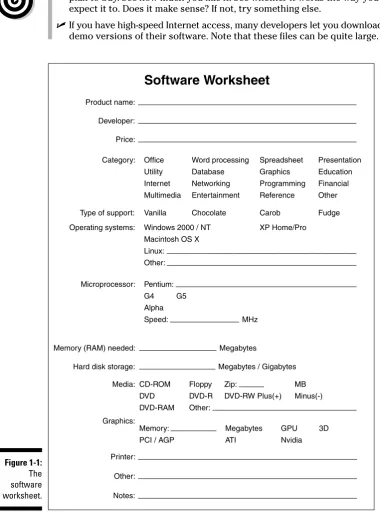
When you have found the software you need, take notes. Each software package has its hardware requirements listed right on the box — like the nutritional contents on a box of cereal. Write that information down, using a form similar to the one shown in Figure 1-1.
Chapter 17 shows you how to fill out the form. That’s your ticket for the next step: Buy hardware to run your software.
12
Part I: Understanding the Whole Ordeal
No, you’re not buying anything in this step. You’re just looking at various software packages that you may purchase later and jotting down their hardware appetite. That information — the stuff on the side of the box — helps you assemble your perfect computer system.
Software-store people don’t mind if you’re “just looking.”
After you find something you like, you fill in the Software Worksheet. Fill in one worksheet for each program you plan on buying.
Step 3: Find hardware
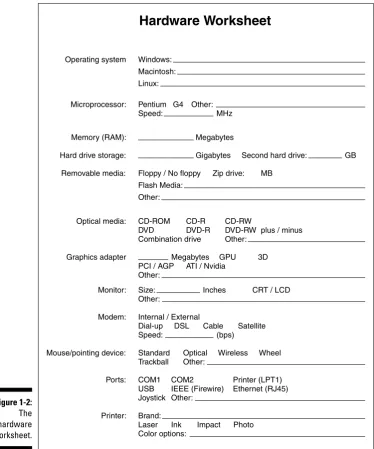
After reviewing your software lineup, your next step is to match the software’s requirements with a suitable computer. The idea is to find the hardware that can run your software. The software knows what it needs (it’s on the side of the box), and you have collected all that information on the Software Worksheet, so this next step is simple: Fill the order.
Figure 1-2 shows a sample of this book’s Hardware Worksheet. The informa-tion you find there may look intimidating now, but after you do your software research, filling in the worksheet is a snap.
Thanks to the worksheet, you know exactly what type of computer hardware you need. You’re never steered to the wrong machine.
Don’t buy anything yet!
Most people make the mistake of shopping for hardware first and soft-ware second. After all, what you’re buying is a computer.But now you know that what the computer doeswith software is more important.
By matching your software needs to your computer hardware, you avoid a perilous fate: You do notbecome one of the sorry people who have to return to the computer store weeks later to upgrade their memory or hard drive or something else they should have had in the first place.
Step 4: Shop for service and support
Crazy Omar and Discount Dave may have deals on computers, and you can pick up a computer at the massive warehouse or membership store along with a six-month supply of pop and a vat of peanut butter — but what kind of
14
Part I: Understanding the Whole Ordeal
You can easily forget service and support because they’re not mentioned prominently in most ads. Instead, you see prices and deals and sales. Ignore them!
Serviceis the ability to fix your computer if something goes wrong with it. The best service is on-site, where someone comes to you and fixes your little electronic friend right where it lives. The worst service is when you have to pack up your computer and ship it to some overseas factory.
Supportis help. It can be in the form of classes, phone support, or training.
The trade-off for a cheap computer is little service and no support.
Chapter 19 goes into more detail about shopping for service and sup-port. That chapter is very important! Read it! I’m not being funny!
Step 5: Buy your computer
When you’re ready to buy your computer, buy it. You know what you need the computer for, you know what software to buy, you know what hardware to buy, and you have found a proper dealer with service and support. So, buy it!
The buying process is covered in Part III of this book.
16
Part I: Understanding the Whole Ordeal
Have a little class
I don’t steer any of my friends to a localcom-puter store unless it has a classroom attached. It’s wonderful to know that a store is so dedi-cated to happy users that it devotes floor space to a classroom.
Some people take classes beforethey buy their computers. I recommend buying the computer
first and taking the classes afterward. That way, you have something to go home and practice on. Also, with the computer in your possession, you know specifically which questions to ask. (If you have already attended this type of class, you know that new computer owners ask more detailed and useful questions.)
Although it’s true that the next generation of computers will be better, faster, and probably less expensive, it’s also true that waiting . . . gets you nowhere. It’s like not catching a bus because you assume that the next bus will have fewer people on it or be cleaner. That may be the case, but while you’re wait-ing, you’re going nowhere.
The bottom line is when you’re ready to buy, buy.
18
Part I: Understanding the Whole Ordeal
Chapter 2
The Nerd’s-Eye View
In This Chapter
The consoleThe monitor
The keyboard
The mouse
The speakers
The modem
The printer
The scanner or digital camera
The network card
Other peripherals and options
W
hen you think of a “computer,” an image pops into your head of what the prototype computer looks like. This image is unique to the person, of course. Psychologists tell us that each individual has a prototype image of basic things in his or her brain.For example, think of the basic dog image. I say “dog,” and you immediately have an image of the prototypical dog inside your head. The same goes for “girl” or “car” or “huge monthly annuity.”
The prototype image you have in your head of a computer could be anything. It could be the computer on the old Star TrekTV show. It could be the antique Eniac or Multivac computers of the 1960s “space age.” It could be the typical fawn white desktop computer box of the 1990s, the colorful translucent origi-nal iMac, or a handheld palmtop computer. A computer can be all those things.
The purpose of this chapter is to acquaint yourself with what’s commonly known as the generic computer image. You find out what all the big pieces are and the proper terms to describe them. This chapter is your basic training for tagging the most elementary parts of a computer.
Basic Parts
The basic parts of all computers are
The console
The monitor
The keyboard
This section helps familiarize you with each item.
Console
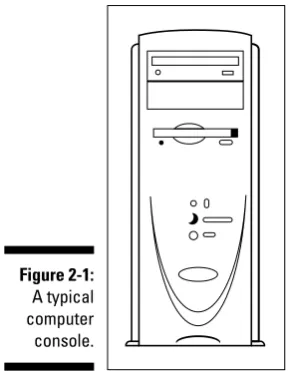
The main part of any computer system is its console.It’s a box that contains the computer’s innards — all the electronics that make the computer go. Fig-ure 2-1 illustrates a type of console.
Figure 2-1: A typical computer console.
20
Part I: Understanding the Whole Ordeal
Some consoles are mere boxes, usually with slots for inserting disks plus a host of buttons. Other consoles, such as those used in computer laptops, may contain everything.Whatever. The name for the box is console.
That’s “CON-sole,” not “con-SOLE,” which means to comfort someone who’s expressing sorrow.
The console is where the computer reallyis. My aunt thinks that the computer is in the monitor (covered next). But, that’s just where you look. The real computer is in the console. Everything else is an add-on.
Some computers, such as the iMac, combine the console and the monitor. Your typical laptop or notebook computer combines the monitor and the keyboard into the console.
Tabletcomputers are combination console–monitor systems, though they appear to be more monitor than console.
A palmtopcomputer is basically its own console. Ditto for game machines, which are merely computer consoles that you plug into a TV set.
Monitor
To see a computer’s output, you need a monitor. In the old days, and it’s still true for some game machines, a TV set was used rather than a monitor. But, as computer graphics grew more and more sophisticated, people preferred separate computer monitors (see Figure 2-2).
Figure 2-2: A typical computer monitor.
21
Chapter 2: The Nerd’s-Eye View
The monitor displays information on the screen,which is the glassy part of the monitor. (The monitor itself is the entire box.) The screen shows you information generated by the computer, usually telling you what the com-puter is up to or giving you some other form of entertaining (or frustrating) feedback.
Chapter 8 discusses monitors in depth.
Because laptop and palmtop computers don’t have a separate monitor box, the monitor on those systems is often referred to as just “the screen.”
Game consoles produce sophisticated graphics, yet don’t display as much text as a desktop computer does. Therefore, although a TV set is okay for a game console’s monitor, for a full-on computer, a TV set has too low a resolution to make it practical.
Future digital televisions will most likely be fully compatible with your computer, allowing you to use your TV as an alternative form of com-puter monitor.
Keyboard
Computers lack ears. You would never know this fact by the way people con-tinually yell at computers. Even so, that’s not the main way you communicate with a computer. For most of us, typing is the key. For that, you need a key-board, such as the one shown in Figure 2-3.
The type of keyboard a computer has depends on the computer’s purpose. Most computers have a full, typewriter-size keyboard connected to the con-sole with a curly cable. Some computers, laptops, and handhelds have a
Figure 2-3: A fancy type of computer keyboard.
22
Part I: Understanding the Whole Ordeal
built-in keyboard. Some computers, such as palmtops and game consoles, lack keyboards altogether.
If a computer lacks a keyboard, you generally communicate with the computer in some other way. For palmtops, you use a pen (or your finger) to enter information, by either punching buttons or touching the screen directly. For game consoles, you use a game pad or high-tech joystick for input.
Despite most keyboards’ similar look, a variety of them are available. Chapter 9 has more information on keyboards.
Beyond the Basic Parts
The console, monitor, and keyboard comprise a computer’s basic parts — the big things you notice right away.
Beyond the basic parts, a world of smaller parts is hovering around the PC, like moons around Uranus. These external add-ons, or peripherals,were once considered bonus parts to the main computer system. Now, however, they’re more or less considered standard equipment. Being able to identify them is a necessary skill.
Mouse
The keyboard’s pal is the mouse.
No, not that kind of mouse. It’s a computer mouse (see Figure 2-4), used with most computers to help you mess with graphical information. (And, everything is graphics these days.)
Figure 2-4: A modern computer mouse.
23
Chapter 2: The Nerd’s-Eye View
All computers sold now come with their own mouse. Even so, you can opt to toss that mouse out and buy yourself a better one — or you can order a better mouse with your computer when you make your buying decision.
Chapter 9 explains more about your computer mice choices.
It’s called a mouse because it kind of looks like a mouse — well, a fat, plastic mouse, anyway. (At least they didn’t call it the “bar of soap.”)
The mouse is officially known as a pointing device. That’s because not every pointing device is a mouse. For example, most laptops use what’s called a mouse pad, though it’s really a pointing device and has nothing to do with a real mouse per se.
Palmtop and game consoles don’t need computer mice.
Speakers
All computers make noise. They hum. They chirp. They warble. But, the real sounds a computer makes are possible only through speakers. Sometimes, these speakers are buried inside the console; at other times, you may find them on the monitor; or they could be separate speaker boxes, left and right, just like on a stereo.
Fortunately, unlike visiting the stereo store, you don’t need to bone up that much on computer speakers. Generally, speakers are options for only some types of computers. Even then, your options are Basic, Very Good, and Overpriced. If you’re into audio in any way, you probably care enough to know the proper terms, so this part of the computer isn’t an issue to you. Otherwise, Chapter 11 goes into all the detail you should care to know.
Most computers come with a set of cheapie speakers, though you often have the choice of upgrading to something more swanky.
Some laptops have external speaker options, but most laptop computers have tiny built-in speakers, designed merely to scare your seatmates when you play a DVD movie too loudly on an airplane. (Laptops also sport a headphone jack, to help keep you from annoying your seatmates.)
Smaller, handheld, and palmtop computers lack true speakers, though they do have the ability to beep and bleep and may, in some cases, be able to play music. (The point is that you don’t buy that type of computer specifically to hear opera.)
Game consoles usually have left and right sound outputs, which you can either plug into a TV or directly into your home stereo.
24
Part I: Understanding the Whole Ordeal
Modem
Once an option on most computers, modems are now pretty much standard. What they do is allow your computer to use phone lines to communicate with other computers or the Internet. How computers do this is covered briefly in Chapter 11, but that’s not important. The issue is that modems are necessary if you want to use your computer to cruise the Internet.
Chapter 11 covers everything you need to know about choosing a modem.
The type of modem that comes with a computer is the standard dial-up modem. If you plan to use DSL, cable, or satellite access to the Internet, you must buy a separate modem for that service. In that case, your PC doesn’t need a dial-up modem (unless you want to use it as a backup).
Dial-up modems are also used to send and receive faxes.
Modems are generally included in laptop computers, though some of the less-expensive models may not have them. You should always ask.
Printer
Every computer needs a printer, though the printer itself isn’t really thought of as part of the core computer system. That’s because, unlike the other gizmos mentioned in this chapter, the printer is an extra purchase. Even so, that doesn’t make it any less necessary.
A printer is used to put information on paper, to create a “hard copy” of the stuff you see on the screen, as shown in Figure 2-5. That copy is the final result of your computing efforts.
Computer printers come in a variety of styles, sizes, and abilities, all of which are covered in Chapter 3.
Most computers need a printer, but keep in mind that printers don’t come with computers. You must purchase printers separately.
You can share one printer among several computers. You have a number of ways to do this, which are all covered in Chapter 24.
You can use a printer with a laptop computer, as long as the laptop com-puter has a printer connection (a printer port).
Printers aren’t required for handheld computers or game machines.
25
Chapter 2: The Nerd’s-Eye View
Scanner and digital camera
Another once-optional item that’s becoming more and more common is the
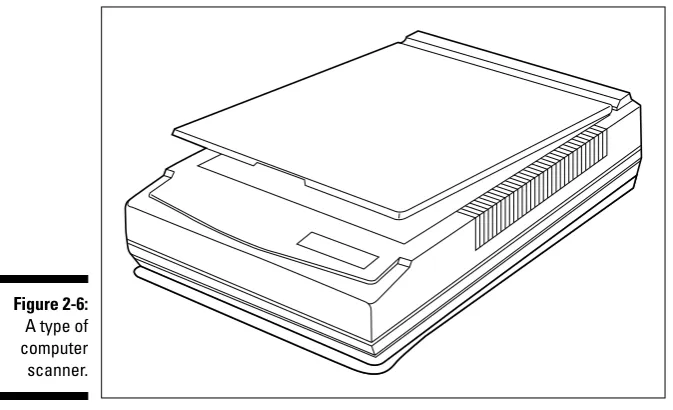
scanner(see Figure 2-6).This device works like a photocopier, although, rather than make a duplicate, the scanner creates a graphical image of whatever you scan and saves that information inside the computer. That’s how you can send out all those baby pictures via e-mail.
Along with the scanner comes the digital camera, another whiz-bang device that most computer folks can’t live without. In one way, the digital camera is merely a portable version of the scanner, one that allows you to take pictures of the real world, like the scanner lets you duplicate flat images.
Scanners and digital cameras aren’t required parts of the computer system, though they’re popular and cheap enough that most people toss one or both in as part of their first-time computer purchase.
If you’re serious about digital imaging, you probably want to get a nice, expensive, feature-laden scanner. Otherwise, any cheap old scanner will do.
More information on selecting a scanner or digital camera (or both) can be found in Chapter 13.
Paper feed
Paper output tray
Control panel
Ink cartridges under cover
Figure 2-5: A type of computer printer.
26
Part I: Understanding the Whole Ordeal
Network options
What was once an option for businesses is now a common feature on most computers: the network interface card (NIC), or Ethernet adapter. This cir-cuitry allows your computer to connect to a network of other computers, printers, and even modems.
Although you may not think that a network option is needed on a single com-puter that you want to use in your home or office, DSL, cable, and satellite modems need that network connection in order to give you high-speed Internet access. That makes it a nice built-in feature to have.
Network options can come in the form of expansion cards, or they’re often built into the computer’s main circuitry, the motherboard.
The telltale sign of a network card, or network circuitry, is the RJ45 jack,
or hole in the back of the PC. See Chapter 12 for more information on that item as well as other networking options.
Peripherals and other expansion
alternatives, various and sundry
The list of devices you can add to your computer system is endless. You’re likely to pick up most of these items after you buy a computer, but you may want to have some of them installed at the time of purchase, especially if they’re necessary to run your software.
Figure 2-6: A type of computer scanner.
27
Chapter 2: The Nerd’s-Eye View
Anything beyond the basic computer unit (console, monitor, keyboard, and mouse) is considered a peripheral.These devices expand or enhance your computer and what it can do.
For example, a printer is really a peripheral device. Another common periph-eral is a scanner or digital camera.
Beyond peripherals, expansionoptions are added to the inside of a computer. For example, you can add a special TV card that lets you view TV or edit videotape on your computer. The possibilities are limitless.
Just about anything hanging off a computer’s main box is a peripheral. You can use the term peripheralto impress the people at the computer store.
Peripherals are usually found in the domain of desktop computers. Laptops and smaller systems lack the expansion options of their larger cousins, mostly because laptops are all about portability, and having a lot of cables and external options doesn’t properly fit into that equation.
28
Part I: Understanding the Whole Ordeal
Chapter 3
Computers from A to Z
In This Chapter
Traditional PC computers
The Macintosh
Laptops
Tablet PCs
Handheld and palm computers
Web TV
Game machines
Workstations, servers, and mainframes
The so-called “free” computers
Y
ou think nothing now of having a telephone that looks like Elvis Presley, Mickey Mouse, or the starship Enterprise.Fifty years ago? No way! Phones back then were black, heavy desktop models. Some were mounted on the wall, but all phones were basically alike. Choices were few. Heck, folks back then would probably fear a phone that looked like a Coke-drinking polar bear. Computers don’t all look alike any more, either. There are different makes and models, from the ancient, boxy dinocomputers that weigh several tons apiece to the slender Palm handheld that weighs 4 ounces. This chapter provides a swift introduction to the various makes, models, and styles of computers, from A to Z.Refer to Chapter 2 for information on what the various computer compo-nents are.
What Is a Computer?
I suppose that in the book Heart Transplants For Dummies(Wiley Publishing, Inc.), one of the first chapters is titled “What Is a Heart?” The idea is that not everyone attempting to buy a computer (or install a new heart) is really all that comfortable with the concept. That’s why For Dummiesbooks are written: to remove the fear and put some fun into understanding difficult concepts!
A computer is an electronic device. It consists of two parts: hardware and software. Say that out loud:
Hardware and software.
The hardwareis the physical part of the computer: the console plus all the electronics inside and outside the console. In fact, everything described in Chapter 2 is hardware. It’s the more familiar part of the computer, but that doesn’t make it more important than software.
The softwareis more important than hardware because it’s the brains of the operation. Software consists of special instructions (programs) that tell the hardware exactly what to do. Unlike hardware, software is tough to describe. Sure, it comes in boxes and lives on shiny discs, but the software is actually the instructions on those discs and not the discs themselves.
When you buy a computer, you’re buying both hardware and software. Even though the emphasis is usually on the hardware (Dell-this, IBM-that), the soft-ware is more important.
I discuss hardware and software in more detail in Chapter 4 and in Part II of this book. For now, however, know that computers or any number of similar computing devices consist of hardware and software. You need both to have a computer.
The traditional desktop computer
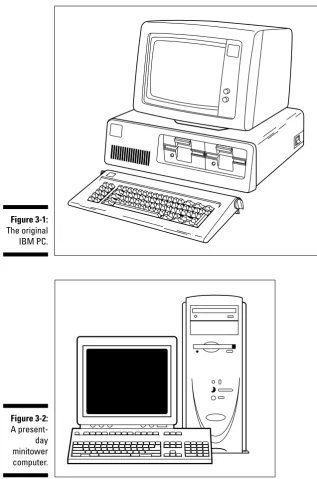
The original IBM PC (see Figure 3-1) is the prototype for all desktopcomputers. The main box, the console,sits flat and square on the desktop. The monitor perches on top of the console, and the keyboard sits in front. Despite this historical tradition, most PCs no longer resemble the IBM desktop original. The most popular computer configuration now is the minitower model, which is like a desktop model turned on its side (see Figure 3-2). The minitower is more versatile than the old desktop style; you can set the console right next to the keyboard and monitor (as shown in Figure 3-2), or you can set the mini-tower on the floor and out of view.
30
Part I: Understanding the Whole Ordeal
Figure 3-2: A present-day minitower computer. Figure 3-1: The original IBM PC.
31
Chapter 3: Computers from A to Z
PCis an acronym for personal computer.This name comes from the first IBM model, the IBM PC (International Business Machines Personal Computer).
Before the IBM PC, personal computers were called microcomputers.It was a disparaging term because other computers of the day were much larger. They were called minicomputers and mainframes. Powerful things.
The minitower is named that way because the original on-its-side PC was dubbed the towermodel. Minitowers are more compact than full-size towers, and they lack much of the internal expansion room in larger models.
Smaller desktop models are still available. They’re usually called small-footprintcomputers. The footprint in this case is the amount of space the computer occupies on your desk.
Small-footprint computers lack expandability options. For example, if you want AGP graphics, you may not find that expansion option in a small-footprint computer case.
Some new-model PCs have both the console and the monitor in the same box. These systems don’t yet have an official nickname.
The Macintosh PC
A Macintoshis a personal computer made by Apple, and it has an enthusiastic following. Even though the Mac (as it’s called) is still a personal computer, its owners don’t like referring to it as a “PC.” That’s because PC more tradition-ally means the IBM type of computer system, as discussed in the preceding section.
The Macintosh computer stands apart from the rest of the personal computer flock on purpose. The Mac is known to be the irreverent computer, usually adored by creative types or people just wanting to be different.
The most popular Macintosh model sold now is the iMac (see Figure 3-3), where the imay stand for Internet or Intelligent or any of a number of Interesting things. The iMac is an all-in-one package — monitor and console — and it comes with everything you need to get started comput-ing or uscomput-ing the Internet. It’s the top-sellcomput-ing individual computer model. A more powerful and expandable alternative to the iMac is the Power Mac G5, which is more on par with a high-end minitower PC. This Mac model is much more expandable than the iMac, which makes it well suited to power users.
32
Part I: Understanding the Whole Ordeal
Truly, the Macintosh is the easiest computer to set up and use.
Generally speaking, the Mac excels at doing graphics and music. Most graphics production facilities prefer Macintoshes over PCs. In Hollywood, the Mac is the most popular computer model for just about everything.
There’s a myth that Macintosh computers are more expensive than your typical PCs. Although on a dollar-per-dollar basis, this statement is true, it’s nottrue when you compare a Mac with an equally equipped PC. In that case, the Mac is a bargain.
Laptops for every kind of lap
Portable computers are available for people on the go or anyone who wants a smaller computer than the traditional desktop model. For example, if you take your work home with you, it’s just easier to have a laptop you can lug back and forth than to try to share information between home and office computers.
Figure 3-3: The iMac.
33
Chapter 3: Computers from A to Z
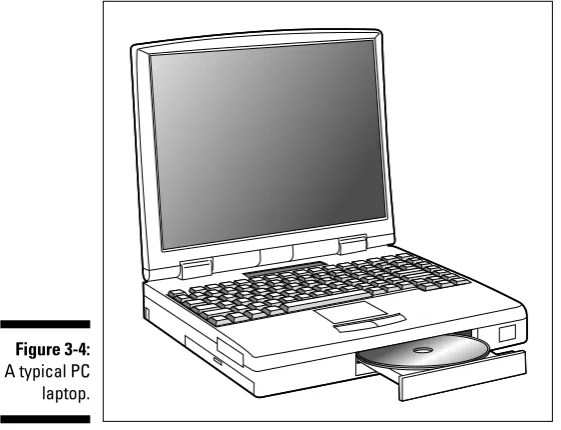
Laptops have the same features as desktop computers, but they’re smaller. Figure 3-4 shows a typical PC laptop, which has everything a desktop computer has, but all shoved into the space of a typical three-ring binder. Because of laptops’ smaller components, they usually run more than twice the cost of a comparable desktop system.
Figure 3-4: A typical PC laptop.
34
Part I: Understanding the Whole Ordeal
Be mindful of the case design!
Although some computer boxes look sleekerthan others — and that’s a purchase deci-sion — you have to make more practical decisions in choosing a case — noise, for example.
Some case designs are quieter than others. Computers do make noise, mostly from their internal fans. Some manufacturers take care with their designs to make their computers qui-eter. For example, most Macintoshes make
hardly a sound, whereas some mom-’n’-pop custom computers tend to be noisier than a room full of 8-year-olds playing video games.
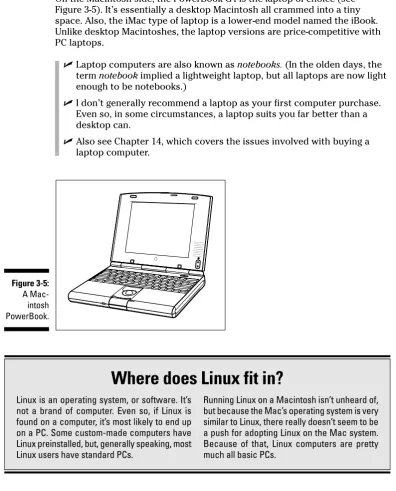
On the Macintosh side, the PowerBook G4 is the laptop of choice (see Figure 3-5). It’s essentially a desktop Macintosh all crammed into a tiny space. Also, the iMac type of laptop is a lower-end model named the iBook. Unlike desktop Macintoshes, the laptop versions are price-competitive with PC laptops.
Laptop computers are also known as notebooks.(In the olden days, the term notebookimplied a lightweight laptop, but all laptops are now light enough to be notebooks.)
I don’t generally recommend a laptop as your first computer purchase. Even so, in some circumstances, a laptop suits you far better than a desktop can.
Also see Chapter 14, which covers the issues involved with buying a laptop computer.
Figure 3-5: A Mac-intosh PowerBook.
35
Chapter 3: Computers from A to Z
Where does Linux fit in?
Linux is an operating system, or software. It’snot a brand of computer. Even so, if Linux is found on a computer, it’s most likely to end up on a PC. Some custom-made computers have Linux preinstalled, but, generally speaking, most Linux users have standard PCs.
Running Linux on a Macintosh isn’t unheard of, but because the Mac’s operating system is very similar to Linux, there really doesn’t seem to be a push for adopting Linux on the Mac system. Because of that, Linux computers are pretty much all basic PCs.
36
Part I: Understanding the Whole Ordeal
The Tablet PC
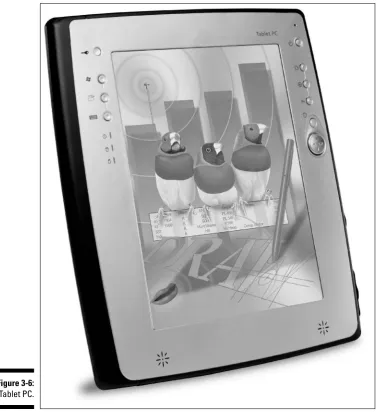
The newest thing in computers is the Tablet PC, which mostly resembles a laptop computer minus the keyboard, as shown in Figure 3-6. The Tablet PCis basically one large monitor on which you write directly using a special pen, or stylus. The styluscontrols the graphical gizmos displayed on the screen, and the Tablet PC’s software translates your chicken scratches into readable text.
Figure 3-6: A Tablet PC.
Though they’ve been available for some time now, Tablet computers really haven’t taken off. Their relatively high price is an issue, and I believe that the lack of a keyboard is also holding back these unique and fun devices.
Tablet PCs have an option to allow you to plug in an external keyboard, if you want.
Some Tablet PCs are merely laptops where the flip-top screen can bend all the way around and the unit can be held like a clipboard.
Palmtop and handheld computers
A palmtop,or handheld,computer isn’t really as much a computer as it is a data-gathering device. Basically, the system is about the size of a pad of paper, with a large screen and a few handy buttons, as shown in Figure 3-7. A stylus is used to write directly on the screen, which serves as both the display and the input device.
The palmtop computer is more ideally a replacement for the old organizer. It’s good for taking notes, scheduling, doodling, and playing games, plus some versions can play music or even take digital pictures. But, overall, this type of computer works best as an on-the-go extension of a desktop computer system.
Figure 3-7: The Palm computer.
37
Chapter 3: Computers from A to Z
On the plus side, WebTV and similar gadgets don’t carry the cost or learning curve that a traditional computer does. If all you need to do is access e-mail and browse the Web, the WebTV setup may be all you need.
On the minus side, the WebTV system lacks the expandability and power of a true computer. Many Web pages aren’t properly displayed on a TV set. And, if you ever decide to expand your high-tech universe — for example, to include digital photography — you still need to buy a computer system.
Gaming consoles
Another example of a specific computer device is the gaming console. Just as WebTV is a customized, set-top device designed specifically for e-mail and the Web, a gaming consoleis a computer specifically designed to play computer games, often with much better and more sophisticated graphics and sound technology than can be found in a typical desktop computer. Several manufacturers make game consoles: For example, the Sony PlayStation II (see Figure 3-8), Nintendo Game Cube, Microsoft Xbox, and other variations. Each of these consoles has lots of technology built into it. Sure, it may not crunch numbers or process words, but it does one thing and does it very well: plays games.
As with buying any computer, the key here is software.Your choice of one of the game consoles will most likely depend on which games you want to play — not on the technical “specs” of the console itself. (This lesson is an obvious one for game consoles, but one that people buying PCs and Macintoshes need to learn.)
Some game consoles have graphics and computing technology that blow away anything you find in a desktop computer.
Workstations and servers
The term workstationis loosely defined when it comes to computers. In one point of view, a workstation is any high-powered computer with the latest microprocessor, lots of memory, tons of hard disk storage, and a huge price tag.
Hey! That sounds like what I just bought!
Workstations can be targeted to people doing specific tasks that require lots of computing power. For example, you could configure a standard PC with lots of memory and graphics horsepower and stir in the proper software, and you would have a graphics workstation capable of doing Hollywood-style video effects.
39