Chapter 3
Graphics and Image Data Representations
3.1 Graphics/Image Data Types
3.2 Popular File Formats
3.1 Graphics/Image Data Types
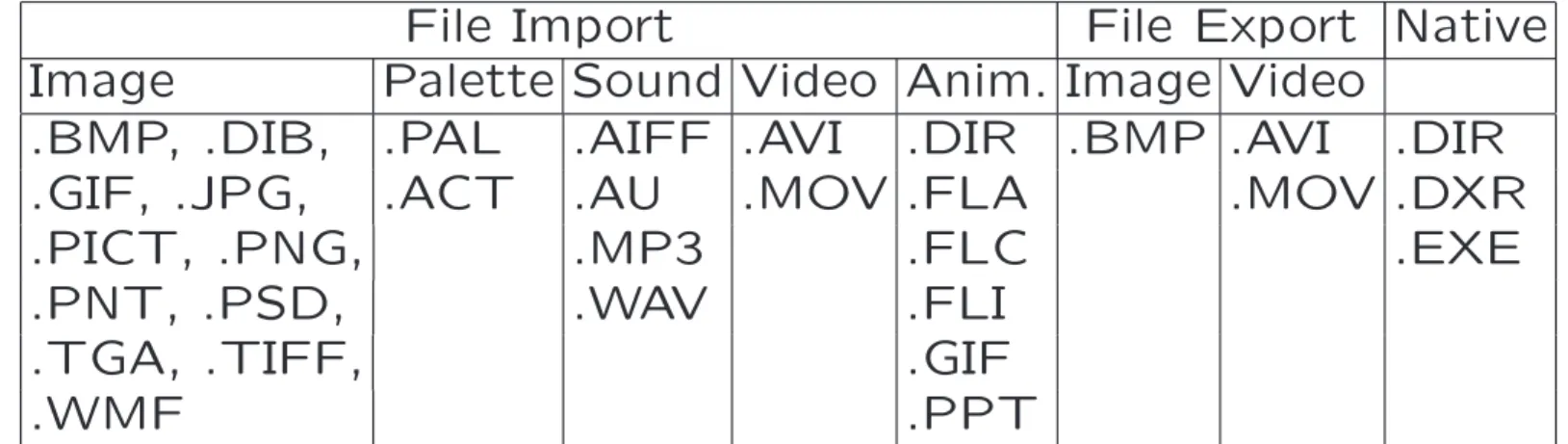
• The number of file formats used in multimedia continues to proliferate. For example, Table 3.1 shows a list of some file formats used in the popular product Macromedia Director.
Table 3.1: Macromedia Director File Formats File Import File Export Native Image Palette Sound Video Anim. Image Video
.BMP, .DIB, .PAL .AIFF .AVI .DIR .BMP .AVI .DIR .GIF, .JPG, .ACT .AU .MOV .FLA .MOV .DXR
.PICT, .PNG, .MP3 .FLC .EXE
.PNT, .PSD, .WAV .FLI
.TGA, .TIFF, .GIF
.WMF .PPT
1-bit Images
• Each pixel is stored as a single bit (0 or 1), so also referred to as binary image.
• Such an image is also called a 1-bit monochrome image since it contains no color.
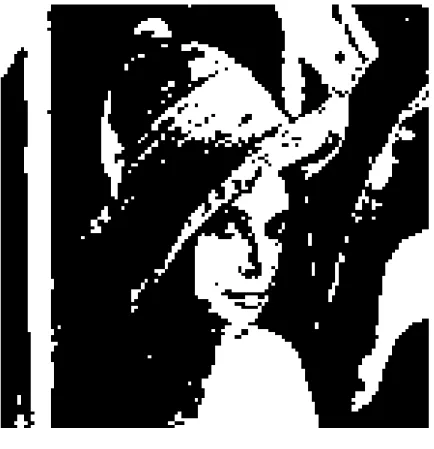
• Fig. 3.1 shows a 1-bit monochrome image (called “Lena” by multimedia scientists — this is a standard image used to illustrate many algorithms).
8-bit Gray-level Images
• Each pixel has a gray-value between 0 and 255. Each pixel is represented by a single byte; e.g., a dark pixel might have a value of 10, and a bright one might be 230.
• Bitmap: The two-dimensional array of pixel values that
rep-resents the graphics/image data.
• Image resolution refers to the number of pixels in a digital
image (higher resolution always yields better quality).
– Fairly high resolution for such an image might be 1,600× 1,200, whereas lower resolution might be 640 × 480.
• Frame buffer: Hardware used to store bitmap.
– Video card (actually a graphics card) is used for this
purpose.
– The resolution of the video card does not have to match the desired resolution of the image, but if not enough video card memory is available then the data has to be shifted around in RAM for display.
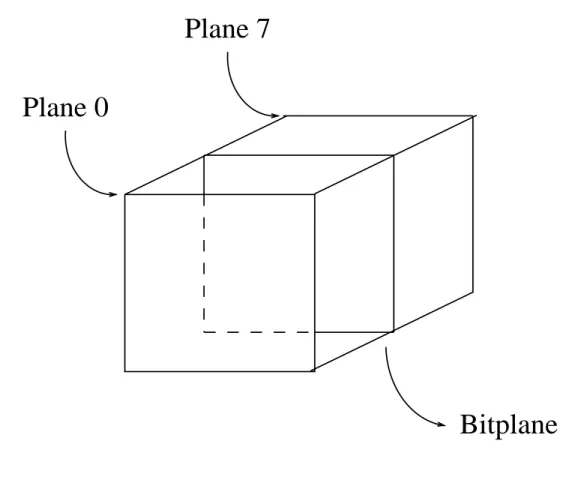
• 8-bit image can be thought of as a set of 1-bit bit-planes, where each plane consists of a 1-bit representation of the image at higher and higher levels of “elevation”: a bit is turned on if the image pixel has a nonzero value that is at or above that bit level.
Plane 0
Plane 7
Bitplane
Multimedia Presentation
• Each pixel is usually stored as a byte (a value between 0 to 255), so a 640 × 480 grayscale image requires 300 kB of storage (640 × 480 = 307,200).
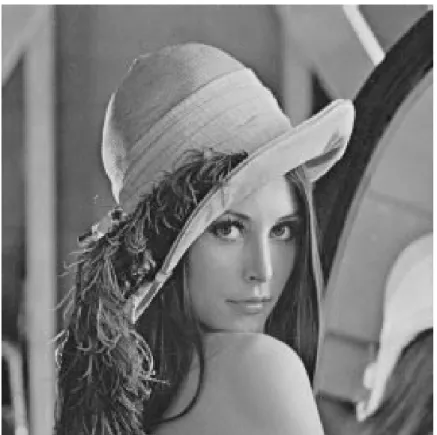
• Fig. 3.3 shows the Lena image again, but this time in grayscale.
• When an image is printed, the basic strategy of dithering is used, which trades intensity resolution for spatial resolution to provide ability to print multi-level images on 2-level (1-bit) printers.
Dithering
• Dithering is used to calculate patterns of dots such that
values from 0 to 255 correspond to patterns that are more and more filled at darker pixel values, for printing on a 1-bit printer.
• The main strategy is to replace a pixel value by a larger pat-tern, say 2×2 or 4×4, such that the number of printed dots approximates the varying-sized disks of ink used in analog, in
halftone printing (e.g., for newspaper photos).
1. Half-tone printing is an analog process that uses smaller or larger filled circles of black ink to represent shading, for newspaper printing.
2. For example, if we use a 2 × 2 dither matrix
0 2 3 1
we can first re-map image values in 0..255 into the new range 0..4 by (integer) dividing by 256/5. Then, e.g., if the pixel value is 0 we print nothing, in a 2 × 2 area of printer output. But if the pixel value is 4 we print all four dots.
• The rule is:
If the intensity is > the dither matrix entry then print an on dot at that entry location: replace each pixel by an n × n matrix of dots.
• Note that the image size may be much larger, for a dithered image, since replacing each pixel by a 4 × 4 array of dots, makes an image 16 times as large.
• A clever trick can get around this problem. Suppose we wish to use a larger, 4 × 4 dither matrix, such as
0 8 2 10 12 4 14 6 3 11 1 9 15 7 13 5
• An ordered dither consists of turning on the printer
out-put bit for a pixel if the intensity level is greater than the particular matrix element just at that pixel position.
• Fig. 3.4 (a) shows a grayscale image of “Lena”. The ordered-dither version is shown as Fig. 3.4 (b), with a detail of Lena’s right eye in Fig. 3.4 (c).
• An algorithm for ordered dither, with n × n dither matrix, is as follows:
BEGIN
for x = 0 to xmax // columns for y = 0 to ymax // rows
i = x mod n j = y mod n
// I(x, y) is the input, O(x, y) is the output, //D is the dither matrix.
if I(x, y) > D(i, j) O(x, y) = 1; else
O(x, y) = 0; END
(a) (b) (c) Fig. 3.4: Dithering of grayscale images.
(a): 8-bit grey image “lenagray.bmp”. (b): Dithered version of the image. (c): Detail of dithered version.
Image Data Types
• The most common data types for graphics and image file formats — 24-bit color and 8-bit color.
• Some formats are restricted to particular hardware/operating system platforms, while others are “cross-platform” formats.
• Even if some formats are not cross-platform, there are con-version applications that will recognize and translate formats from one system to another.
• Most image formats incorporate some variation of a
com-pression technique due to the large storage size of image
files. Compression techniques can be classified into either
24-bit Color Images
• In a color 24-bit image, each pixel is represented by three bytes, usually representing RGB.
– This format supports 256×256 × 256 possible combined colors, or a total of 16,777,216 possible colors.
– However such flexibility does result in a storage penalty: A 640×480 24-bit color image would require 921.6 kB of storage without any compression.
• An important point: many 24-bit color images are actually
stored as 32-bit images, with the extra byte of data for each pixel used to store an alpha value representing special effect information (e.g., transparency).
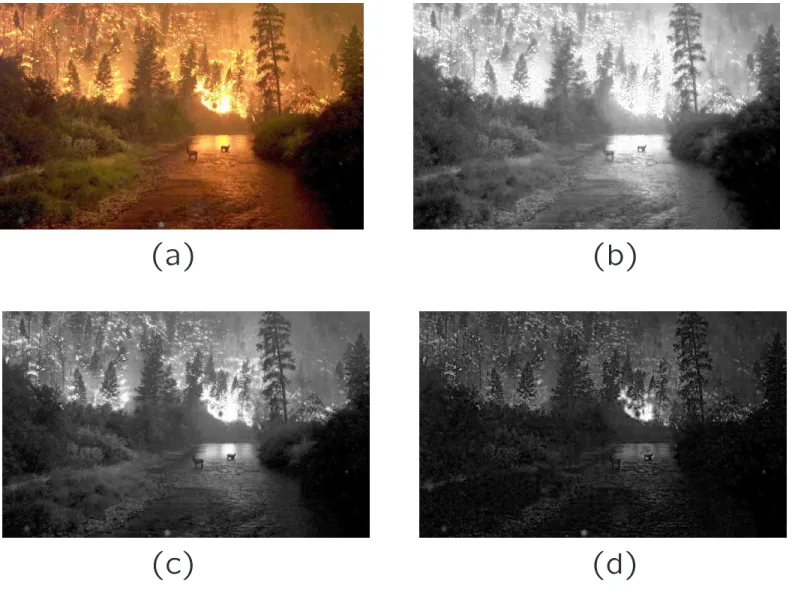
• Fig. 3.5 shows the image forestfire.bmp., a 24-bit image in Microsoft Windows BMP format. Also shown are the grayscale images for just the Red, Green, and Blue channels, for this image.
(a) (b)
(c) (d)
Fig. 3.5 High-resolution color and separate R, G, B color channel images. (a): Example of 24-bit color image “forestfire.bmp”. (b,
8-bit Color Images
• Many systems can make use of 8 bits of color information (the so-called “256 colors”) in producing a screen image.
• Such image files use the concept of a lookup table to store color information.
– Basically, the image stores not color, but instead just a set of bytes, each of which is actually an index into a table with 3-byte values that specify the color for a pixel with that lookup table index.
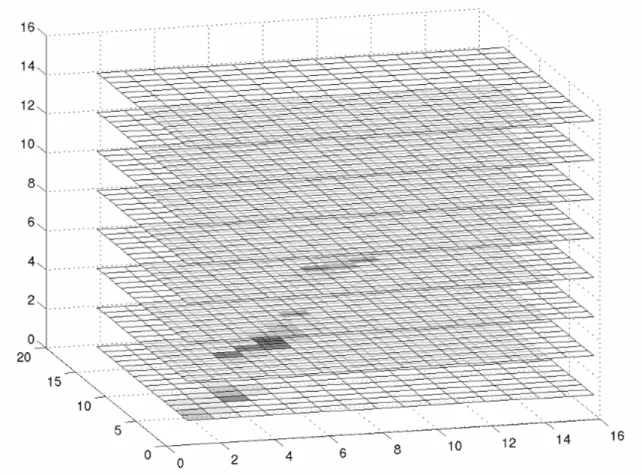
• Fig. 3.6 shows a 3D histogram of the RGB values of the pixels in “forestfire.bmp’.
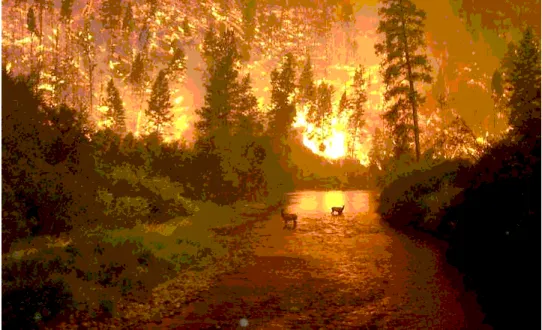
• Fig. 3.7 shows the resulting 8-bit image, in GIF format.
Fig. 3.7 Example of 8-bit color image.
• Note the great savings in space for 8-bit images, over 24-bit ones: a 640 × 480 8-bit color image only requires 300 kB of storage, compared to 921.6 kB for a color image (again, without any compression applied).
Color Look-up Tables (LUTs)
• The idea used in 8-bit color images is to store only the index, or code value, for each pixel. Then, e.g., if a pixel stores the value 25, the meaning is to go to row 25 in a color look-up table (LUT). 00011110 10111110 00111100 y B = 60 G = 190 R = 30 Memory value 25 0 25 255 B G R Pixel value 0 0 N−1 y 0 0 N−1 M−1 x x M−1
• A Color-picker consists of an array of fairly large blocks of color (or a semi-continuous range of colors) such that a mouse-click will select the color indicated.
– In reality, a color-picker displays the palette colors associ-ated with index values from 0 to 255.
– Fig. 3.9 displays the concept of a color-picker: if the user selects the color block with index value 2, then the color meant is cyan, with RGB values (0,255,255).
• A very simple animation process is possible via simply chang-ing the color table: this is called color cycling or palette
R G B Cyan 0 1 2 3 4 0 255 255 255 1 1 1 1 1 1 1 1 1 1 1 1 1 1 1 1 2 2 2 2 2 2 2 2 2 2 2 2 2 2 2 2 0 0 0 0 0 0 0 0 0 0 0 0 0 0 0 0 4 4 4 4 4 4 4 4 4 4 4 4 4 4 4 4 5 5 5 5 5 5 5 5 5 5 5 5 5 5 5 5 3 3 3 3 3 3 3 3 3 3 3 3 3 3 3 3 7 7 7 7 7 7 7 7 7 7 7 7 7 7 7 7 8 8 8 8 8 8 8 8 8 8 8 8 8 8 8 8 6 6 6 6 6 6 6 6 6 6 6 6 6 6 6 6 . . .
Fig. 3.9: Color-picker for 8-bit color: each block of the color-picker corresponds to one row of the color LUT
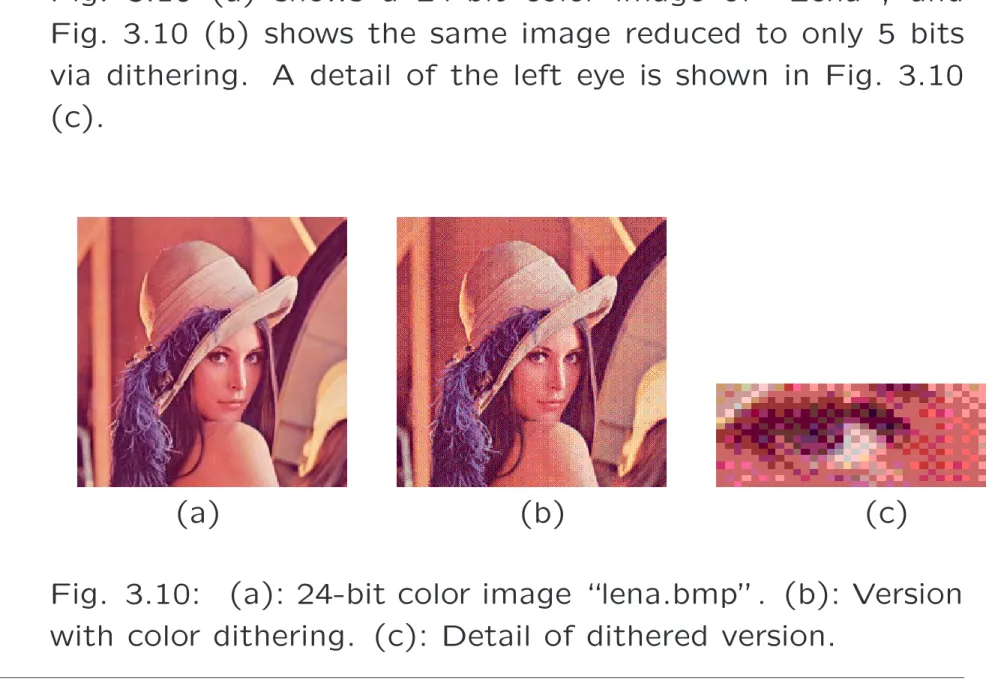
• Fig. 3.10 (a) shows a 24-bit color image of “Lena”, and Fig. 3.10 (b) shows the same image reduced to only 5 bits via dithering. A detail of the left eye is shown in Fig. 3.10 (c).
(a) (b) (c)
Fig. 3.10: (a): 24-bit color image “lena.bmp”. (b): Version with color dithering. (c): Detail of dithered version.
How to devise a color look-up table
• The most straightforward way to make 8-bit look-up color out of 24-bit color would be to divide the RGB cube into equal slices in each dimension.
(a) The centers of each of the resulting cubes would serve as the entries in the color LUT, while simply scaling the RGB ranges 0..255 into the appropriate ranges would generate the 8-bit codes.
(b) Since humans are more sensitive to R and G than to B, we could shrink the R range and G range 0..255 into the 3-bit range 0..7 and shrink the B range down to the 2-bit range 0..3, thus making up a total of 8 bits.
(c) To shrink R and G, we could simply divide the R or G byte value by (256/8)=32 and then truncate. Then each pixel in the image gets replaced by its 8-bit index and the color LUT serves to generate 24-bit color.
• Median-cut algorithm: A simple alternate solution that does a better job for this color reduction problem.
(a) The idea is to sort the R byte values and find their median; then values smaller than the median are labelled with a “0” bit and values larger than the median are labelled with a “1” bit.
(b) This type of scheme will indeed concentrate bits where they most need to differentiate between high populations of close colors.
(c) One can most easily visualize finding the median by using a histogram showing counts at position 0..255.
(d) Fig. 3.11 shows a histogram of the R byte values for the forestfire.bmp image along with the median of these val-ues, shown as a vertical line.
Green bit 2, for red bit 1 == 0 0 50 100 150 200 250 0 200 400 600 800
Green bit 2, for red bit 1 == 1
0 50 100 150 200 250 0 200 400 600 800 0 50 100 150 200 500 1000 1500
Fig. 3.11 Histogram of R bytes for the 24-bit color image “forestfire.bmp” results in a “0” bit or “1” bit label for every pixel. For the second bit of the color table index being built, we take R values less than the R median and label just those pixels as “0” or “1” according as their G value is less than or greater than the median of the G value, just for the “0” Red bit pixels. Continuing over R, G, B for 8 bits gives a color LUT 8-bit index
3.2 Popular File Formats
• 8-bit GIF : one of the most important format because of
its historical connection to the WWW and HTML markup language as the first image type recognized by net browsers.
GIF
• GIF standard: (We examine GIF standard because it is so
simple! yet contains many common elements.)
Limited to 8-bit (256) color images only, which, while pro-ducing acceptable color images, is best suited for images with few distinctive colors (e.g., graphics or drawing).
• GIF standard supports interlacing — successive display of pixels in widely-spaced rows by a 4-pass display process.
• GIF actually comes in two flavors:
1. GIF87a: The original specification.
2. GIF89a: The later version. Supports simple animation
via a Graphics Control Extension block in the data, pro-vides simple control over delay time, a transparency index, etc.
GIF87
• For the standard specification, the general file format of a GIF87 file is as in Fig. 3.12.
GIF signature Raster area Repeated 1 to n times . . . . . . GIF terminator Local color map Image descriptor Global color map Screen descriptor
• Screen Descriptor comprises a set of attributes that belong to every image in the file. According to the GIF87 standard, it is defined as in Fig. 3.13.
m = 1 cr + 1 pixel + 1
Background = color index of screen background (color is defined from the global color map or if none specified, from the default map) Background 6
7
Screen height Raster height in pixels (LSB first) Raster width in pixels (LSB first) Bits Screen width Byte # 1 2 3 4 5 0 7 6 5 4 3 2 1 0 0 0 0 0 0 0 0
Global color map follows descriptor # bits of color resolution
# bits/pixel in image m cr 0 pixel
• Color Map is set up in a very simple fashion as in Fig. 3.14. However, the actual length of the table equals 2(pixel+1) as given in the Screen Descriptor.
Bits 7 0 Red intensity Green intensity Blue intensity Red intensity Green intensity Blue intensity Byte # 1 3 4 5 2 6
Red value for color index 0 Green value for color index 0 Blue value for color index 0 Red value for color index 1 Green value for color index 1 Blue value for color index 1 (continues for remaining colors) 6 5 4 3 2 1
. . .
• Each image in the file has its own Image Descriptor, defined as in Fig. 3.15. Bits Image left Image top Image width Image height Byte # 1 3 4 5 6 7 8 9 10
Image separator character (comma)
Width of the image in pixels (LSB first) Start of image in pixels from the
top of the screen (LSB first)
Height of the image in pixels (LSB first)
i = 0 i = 1 pixel + 1 m = 0 m = 1 7 06 5 4 3 2 1 0 00 1 0 1 1 0
Use global color map, ignore ‘pixel’ Local color map follows, use ‘pixel’ Image formatted in Sequential order Image formatted in Interlaced order # bits per pixel for this image
2 Start of image in pixels from the left side of the screen (LSB first)
m i 0 0 0 pixel
• If the “interlace” bit is set in the local Image Descriptor, then the rows of the image are displayed in a four-pass sequence (Fig.3.16). Image row 0 1 2 3 4 5 6 7 8 9 10 11 12 *2b* *2a* *3a* *3c* *3b* *1a* *1b* *4a* *4b* *4c* *4d* *4e* *4f* Result *4b* *4f* *4d* *4e* *4c* *4a* Pass 4 *3a* *3c* *3b* Pass 3 *2b* *2a* Pass 2 *1a* *1b* Pass 1 . . .
• We can investigate how the file header works in practice by having a look at a particular GIF image. Fig. 3.7 on page is an 8-bit color GIF image, in UNIX, issue the command:
od -c forestfire.gif | head -2
and we see the first 32 bytes interpreted as characters:
G I F 8 7 a \208 \2 \188 \1 \247 \0 \0 \6 \3
\5 J \132 \24 | ) \7 \198 \195 \ \128 U \27 \196 \166
& T
• To decipher the remainder of the file header (after “GIF87a”), we use hexadecimal:
od -x forestfire.gif | head -2
with the result
4749 4638 3761 d002 bc01 f700 0006 0305 ae84 187c 2907 c6c3 5c80 551b c4a6 2654
JPEG
• JPEG: The most important current standard for image com-pression.
• The human vision system has some specific limitations and JPEG takes advantage of these to achieve high rates of com-pression.
• JPEG allows the user to set a desired level of quality, or compression ratio (input divided by output).
• As an example, Fig. 3.17 shows our forestfire. image, with a quality factor Q=10%.
– This image is a mere 1.5% of the original size. In comparison, a JPEG image with Q=75% yields an image size 5.6% of the original, whereas a GIF version of this image compresses down to 23.0% of
PNG
• PNG format: standing for Portable Network Graphics
→ meant to supersede the GIF standard, and extends it in important ways.
• Special features of PNG files include:
1. Support for up to 48 bits of color information — a large increase.
2. Files may contain gamma-correction information for cor-rect display of color images, as well as alpha-channel in-formation for such uses as control of transparency.
3. The display progressively displays pixels in a 2-dimensional fashion by showing a few pixels at a time over seven passes through each 8 × 8 block of an image.
TIFF
• TIFF: stands for Tagged Image File Format.
• The support for attachment of additional information (re-ferred to as “tags”) provides a great deal of flexibility.
1. The most important tag is a format signifier: what type of compression etc. is in use in the stored image.
2. TIFF can store many different types of image: 1-bit, grayscale, 8-bit color, 24-bit RGB, etc.
3. TIFF was originally a lossless format but now a new JPEG tag allows one to opt for JPEG compression.
4. The TIFF format was developed by the Aldus Corporation in the 1980’s and was later supported by Microsoft.
EXIF
• EXIF (Exchange Image File) is an image format for digital cameras:
1. Compressed EXIF files use the baseline JPEG format. 2. A variety of tags (many more than in TIFF) are
avail-able to facilitate higher quality printing, since information about the camera and picture-taking conditions (flash, ex-posure, light source, white balance, type of scene, etc.) can be stored and used by printers for possible color cor-rection algorithms.
3. The EXIF standard also includes specification of file for-mat for audio that accompanies digital images. As well, it also supports tags for information needed for conversion to FlashPix (initially developed by Kodak).
Graphics Animation Files
• A few dominant formats aimed at storing graphics animations (i.e., series of drawings or graphic illustrations) as opposed to video (i.e., series of images).
• Difference: animations are considerably less demanding of
resources than video files.
1. FLC is an animation or moving picture file format; it was originally created by Animation Pro. Another format, FLI, is similar to FLC.
2. GL produces somewhat better quality moving pictures. GL animations can also usually handle larger file sizes. 3. Many older formats: such as DL or Amiga IFF files, Apple
PS and PDF
• Postscript is an important language for typesetting, and
many high-end printers have a Postscript interpreter built into them.
• Postscript is a vector-based picture language, rather than pixel-based: page element definitions are essentially in terms of vectors.
1. Postscript includes text as well as vector/structured graph-ics.
2. GL bit-mapped images can be included in output files. 3. Encapsulated Postscript files add some additional
docu-4. Postscript page description language itself does not pro-vide compression; in fact, Postscript files are just stored as ASCII.
• Another text + figures language has begun to supersede or at least parallel Postscript: Adobe Systems Inc. includes LZW compression in its Portable Document Format (PDF) file format.
– PDF files that do not include images have about the same compression ratio, 2:1 or 3:1, as do files compressed with other LZW-based compression tools.
Some Other JPEG Formats
• Microsoft Windows: WMF: the native vector file format
for the Microsoft Windows operating environment:
1. Consist of a collection of GDI (Graphics Device Interface) function calls, also native to the Windows environment. 2. When a WMF file is “played” (typically using the
Win-dows PlayMetaFile() function) the described graphics is rendered.
3. WMF files are ostensibly device-independent and are un-limited in size.
• Microsoft Windows: BMP: the major system standard graphics file format for Microsoft Windows, used in Microsoft Paint and other programs. Many sub-variants within the BMP standard.
• Macintosh: PAINT and PICT:
1. PAINT was originally used in the MacPaint program, ini-tially only for 1-bit monochrome images.
2. PICT format is used in MacDraw (a vector-based drawing program) for storing structured graphics.
• X-windows: PPM: the graphics format for the X Window
system. PPM supports 24-bit color bitmaps, and can be manipulated using many public domain graphic editors, e.g., xv.
Further Exploration
−→ Link to Further Exploration for Chapter 3.
• More information including a complete up-to-date list of cur-rent file formats can be viewed on the textbook website in Chapter 3 of the “Further Exploration” directory.
• Other links include:
– GIF87 and GIF89 details. Again, these file formats are not so inter-esting in themselves, but they have the virtue of being simple and a useful introduction to how such bitstreams are set out.
– A shareware program (that is consequently very popular) for devel-oping GIF animations.
– JPEG considered in detail.
– PNG details.
– The PDF file format.