DataDirector
Instructional Design Package
5/18/2009
Created for San Diego State University – Masters in Educational Technology (EDTEC 544) Eric J. Smith
Eric J. Smith – SDSU/EDTEC 544 Page 2
Table of Contents
Introduction
3
Rationale
4
Objectives
5
Materials
5
Module 1: Introduction to DataDirector
6
Module 2: Creating a Formative Assessment from Test Items
10
Module 3: Using DataScanner to Collect Data
12
Eric J. Smith – SDSU/EDTEC 544 Page 3
Introduction
The San Dieguito Union High School District (SDUHSD) has recently purchased a data management system called DataDirector. DataDirector stores information for each student in allowing individual teacher to run analysis reports, store assessment information, share exams, and other data processing features. The school district wants teachers to use this program to collect data and increase
collaboration within departments at the site and district level. SDUHSD would like to see an increase in collaboration to assist with the increase in student achievement.
Formative assessments, and the data collected, should be used to assist teachers in making decisions about instruction and help increase student performance in the core subject areas of Mathematics, Science, Social Science and English. The Western Accreditation School Committee (WASC) has recommended to all schools in the district to collect formative assessment data for analysis. This instructional package includes the discussion of the following features of DataDirector:
Logging in for the first time Navigate DataDirector
Creating exams using DataDirector’s existing test bank Uploading data to DataDirector
These features will allow the learner (teachers) access and use the most relevant features of DataDirector to start the collaboration process.
Eric J. Smith – SDSU/EDTEC 544 Page 4
Rationale
DataDirector is a new program to the 600 teachers in the district. All teachers have a computer in their classroom (or access to a computer in their office) because each teacher is required to take attendance using the online AERIES Student Information System. There are many similarities between the AERIES system and DataDirector. The similarities are:
Contain student information
Run on any computer with Internet access and Web Software (Internet Explorer, Mozilla, etc.) Tabbed browsing with submenu features
These similarities will allow for the instructor to use analogies to existing software (AERIES) and the new software (DataDirector).
It is often difficult to teach a new program interface without showing the audience what it can do and how to navigate through the material. The program is separated into three different modules:
1. Introduction to DataDirector and Navigation 2. How to Create Exams from Test Bank Items
3. Recording Data into DataDirector from Created Exams
Module 1: Introduction and Navigation of DataDirector
Because this is an introduction to the DataDirector program such as logging in and navigating, a PowerPoint presentation will be the main form of instruction. The students will login to the
DataDirector program and navigate as the instructor explains the different features of DataDirector. Prior knowledge will be tapped by having the learners think back to the use of AERIES. This part of the module is focused on basic knowledge level information.
Module 2: Creating Exams in DataDirector from Test Bank
The instructor will use an Interactive Whiteboard to assist the learners in creating an exam using DataDirector. The use of the Interactive Whiteboard will allow the instructor to show the use of the DataDirector program and point out navigation and selections needed to create the exam. Along with the instructor showing the process, the learners will be logged into DataDirector and perform the same tasks as the instructor on the Interactive Whiteboard. This is focusing on procedural items and will be supplemented with a job-aid for the learner.
Module 3: Uploading Data from Exam to DataDirector
In module 3 the instructor will demonstrate, using the Interactive Whiteboard and other peripheral items, and show the how to perform the task of uploading data from an exam to DataDirector. As the instructor is going through the process, the students are performing the same task. They will then perform the task on their own with the use of a job-aid.
In conclusion, the idea of the instruction is to:
1. Build the knowledge level information (Module 1)
2. Show how to perform the desired tasks using an Interactive Whiteboard (Module 2 and 3) 3. Learners follow the tasks (procedure) being performed by the instructor (Module 2 and 3) 4. Learners perform the task on their own with the use of a job-aid
Eric J. Smith – SDSU/EDTEC 544 Page 5
Objectives for this Instructional Package:
Given the login, password and computer with access to DataDirector, the learner will be able to change the "given" password to a new password with at least eight characters (numbers, letters or combination) of their own creation.
Given a computer with access to DataDirector and a check list of destinations, the learner will be able to navigate (using the mouse) to each item listed as a destination.
Given a job aid, computer access to DataDirector, printer, and test bank items in DataDirector, the learner will be able to create a California Standards Based formative assessment for a middle or high school class taught by the learner.
Given a printer, computer with access to DataDirector, and a completed formative assessment, the learner will be able to print the following assessment items: Answer Sheet with and without names, Answer Key, Exam for Students, and Exam for Teacher.
Given a job aid, a computer with access to DataDirector and DataScanner, scanner, formative assessments completed by students, the learner will be able to calibrate the scanner to collect and record assessment data for upload to DataDirector.
Given a job aid, a computer with access to DataDirector and DataScanner, scanner, and formative assessments the learner will be able to scan and upload assessment information to DataDirector.
Materials:
Interactive Whiteboard (SMARTBoard, Promethean Board, etc.) PowerPoint (DataDirector)
Computers with Internet Access (Each learner needs an operational computer) Handouts of PowerPoint (With space for notes)
Login for site computers LCD Projector
Eric J. Smith – SDSU/EDTEC 544 Page 7
Method of Instruction (Module 1):
The key to this instructional section is to make sure to answer ALL questions posed by the audience/learners. Make them feel comfortable to ask questions at any point.
1. Make sure each and every computer is on and every person can log on to the network at their computer (Have temporary logins available for those who do not remember or do not have access to the Intranet Novell login)
2. Have every person verify the Internet is working on their computer by opening up Internet Explorer (Troubleshoot any computers that may not have Internet access by examining the Ethernet cable is securely connected to the computer as well as at the junction box). 3. Begin the PowerPoint using an Interactive White Board and projector.
Slide #1 Introduction
Introduce yourself and your background with the District and the DataDirector program. Emphasize the importance of asking questions for clarification. If there is any need to ask a question do not hesitate to answer the question immediately. Slide #2 What is DataDirector?
The key is DataDirector is web-based. It means that it can be accessed from any Internet connection to a tremendous amount of resources. Point out the similarity with the current Student Information System (AERIES).
Slide #3 The Goal of the District
Collaboration and the increase use of not just a single teacher will change the school, but all of the teachers on campus will change the school working together. Start within departments and trickle outward to interdisciplinary activities. (Get the teachers working together rather than individually)
Slide #4 How To Access DataDirector?
Have all the learners enter in the address as shown on the Interactive whiteboard. Click on the link or show the DataDirector snapshot on the slide.
Slide #5 How To Login To DataDirector
Emphasize the login on the left hand side of the page and explain where in they can find their username and password. Each individual will be asked to change their password. Make sure they all change their password and emphasize that it should be different from their e-mail, network, or Aeries password for security reasons. The password should contain at least 6 characters (a sequence of letters and numbers). Point out this type of login is similar to that of Aeries the Student Information System
used by the district. Slide #6 Now What?
Point out how similar the beginning screen is to Aeries. The top is the main navigation as with the Aeries Student Information System (As highlighted in red on the slide).
Eric J. Smith – SDSU/EDTEC 544 Page 8
You will then go through each slide to give a simple explanation for each part of the navigation.
Remember each person will need to be able to navigate by themselves to each of these pages located in the main navigation heading. Answer any and all questions about each function of the tabs for the DataDirector system.
Slide #7 Assessment
Point out that each navigation tab will change to a red color when selected. This allows the user the ability to know where they are on the site at all times.
o Other Important features for Assessment:
View data that has been shared with you by clicking a blue title.
Upload your students’ data for storing and reporting by clicking Create a New Assessment on the left.
Store data about one test or multiple tests in a single assessment (similar to a grade book)
Perform calculations of assessment data, e.g. averages, sums, multipliers, percentages, and differences.
Slide #8 Exams
Point out that each navigation item selected will also have a submenu of options which will appear on the left hand side of the window.
THIS SECTION IS THE MOST IMPORTANT BECAUSE IT IS THE BASIS FOR CREATING ASSESSMENTS (EXAMS)
o Other Important features for Exams:
Put your students’ test data in Exams for scoring and reporting by clicking Create a New Exam.
Build tests from a question bank prealigned to state standards with the acquisition of ItemBank.
Scan studenet tests with the acquisition of scanning software called DataScanner.
Once student results are in an exam, immediately access district, school, classroom and stundet level reports on personal or district administered tests.
Slide #9 Assessment vs. Exams
Again point out this will be the main focus of the presentation. (Creation of Exams and Recording of the Data)
Slide #10 Reports
Other Important feature for Reports
o Allows you to create a variety of report types. For example, you can develop …
Benchmark and state test comparison reports.
Reports based on student groups, e.g. gifted, Spanish, middle range performing and/or grade levels containing local and state test data.
Reports using virtually any combination of assessment and demographic information.
o Contains numerous graphic Pre-Built Reports based around state and local data.
Reports is divided into 4 sections …
My Most Recent Reports are custom reports you create.Most Recent Shared Reports are reports other
Eric J. Smith – SDSU/EDTEC 544 Page 9 people have made and shared with you.
District Focus Reports are typically grade, teacher, course and/or schedule histories.
PreBuilt Reports are colorful, graphic and robust reports based on state and local data.
Slide #11 Standards
State Standards for each subject area and grade level for California Slide #12 Students
Other Important features for Students:
o Access a group of student to begin a custom report.
o Access an individual student to view their Student Profile Report or search for individual test results.
o Search for students by selecting a combination of the following: academic year or term, grade or term, course type or teacher, various demographic criteria
Slide #13 Programs
Other Important features for Programs:
o Open an existing program by clicking the program title.
o Start a new program by clicking Create a New Program in the left navigation bar.
o Set up a variety of programs including… Interventions, After school tutoring, Math and reading centers, Labs, Enrichment groups, AVID, Underperforming students, Criteria based intervention (far below basic students on a state test)
o Give teachers access to students who are not on their schedules. This could include… RSP, Speech, PE, The math department, etc.
Slide #14 Data
Other Important features for Data:
o Access pertinent student demographic information quickly and easily by clicking a particular file.
o Sort demographic information by clicking the column header.
Assessment
Handout the worksheet titled, “Can You Get There?” to the learner. If the learners are having difficulty find the locations and navigating to the particular items, assist them as necessary.
Eric J. Smith – SDSU/EDTEC 544 Page 11
Method of Instruction (Module 2):
Ask the following questions to the audience:
"How many people have ever written a quiz or exam before?" "How many people enjoy making and grading those quizzes?"
“How many people would like an easier way to determine what each student “really” knows?” This introduction will allow you to tap their prior knowledge and think back to all the work that could be made easier with DataDirector’s “Creating Exam” feature.
Using an Interactive Whiteboard and each student logged into a computer, walk the learners through the process of “Creating an Exam Using Item Test Bank”.
1. Make sure all learners are logged into their DataDirector account. If necessary review the login procedure from Module 1.
2. Using the Interactive Whiteboard and the Job Aid as a guide, demonstrate to the learners how to create an exam using the item bank in DataDirector.
a. Do not give the learners the Job-Aid (Create and Exam Using Item Test Bank). Reduction of the cognitive load is important. Too much information will allow the learner to go off task and cause confusion. Presenting the material using the Interactive Whiteboard will make it simple.
b. Show each selection as a step, making sure to answer questions from individuals. Create an open atmosphere of freely asking questions for clarification.
i. Step 1, explain each box and let the learners put in their own information based upon their subject matter specialty
Title: This is the Title of the test Examid:
This is an optional section, and will only accept numbers. It allows the user to look up an exam faster if you know the number.
Description: A more thorough explanation of the exam and topics to be covered.
Date Type: User can setup a range to collect data for the exam or make a finite date for data collection
Test Date: When the exam is administered Academic Year: School year exam was administered Grades: The grade level for the exam Subject Area: Subject area for the exam
Type: Test type (Most of the tests the learners will create are “User-Created”
ii. Step 2, Choose “Yes” for “Will you be using the ItemBank to create this exam?” At this time to do not change the performance bands or share to other users or schools.
iii. Step 5, explain each box/section (see the chart below).
Publisher: Choose the publishing company to use for the questions selection process
Eric J. Smith – SDSU/EDTEC 544 Page 12 Category Select the particular field of choice
Item Keywords This will limit the types of items selected by questions, answers and passages
Standard Keywords Put in keywords for the particular California Standard Show Results By Review it by either the Standard or Item
Item Selection Allows the user to select a particular item based on each Standard or a randomized selection
Grade Select the grade category to look for questions Disciplines Select the appropriate set of Standards for the
questions
iv. Step 6, Select the items for the Exam the learner wants to create. If there are no questions that come up, then the learner will need to click on the back button and change the Item or Standard Keywords, or broaden the Disciplines. The learners need to read over the questions and choose the most appropriate questions for the particular exam being created.
v. Step 7, The point value and order can be changed for each question. Exam questions can also be added or deleted from this exam.
vi. Step 8, Once the exam has been created the learner can print the exam which is located on the bottom of the page “Exam Booklet (Student Version)”. Up to nine different versions of the exam can be created as well as the printing of the Answer Documents (pre-labeled or non student specific).
Assessment
Upon completion of the exam, hand out the Job-Aid entitled “Create an Exam Using Item Bank”. Have the learners go through the job-aid and create anther exam on their own with no help. Verify they have completed a new exam using the Item Bank.
Eric J. Smith – SDSU/EDTEC 544 Page 14
Method of Instruction (Module 3)
Hand out the quiz titled, “Are You a Fascinating Person?” for all learners to take. This quiz will be used as the example for the collection of assessment data. In preparation for collection of the data:
1. Set up a test titled, “Interesting Person” with the exam date for the date you are performing instruction
a. Make sure to choose “Share” when setting up the test
b. Making the date set to the day of instruction will make it easier for those to find the exam.
c. Setup the exam with an ID number to locate the exam faster for data collection. d. When printing the answer document make sure they have the six T’s present.
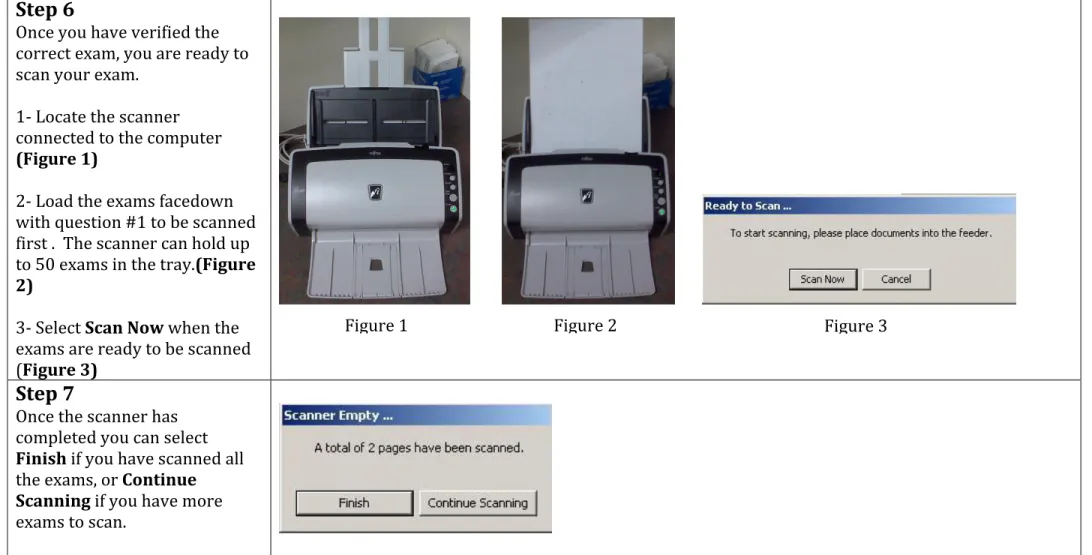
Using the Interactive Whiteboard, demonstrate to the learners the procedure of scanning and uploading the data to DataDirector using DataScanner.
2. Make sure all learners know their DataDirector login information.
a. Do not give the learners the Job-Aid (How to Scan Answer Documents Using
DataScanner). Reduction of the cognitive load is important. Too much information will allow the learner to go off task and cause confusion. Presenting the material using the Interactive Whiteboard will make it simple.
Items to point out for the scanning and printing of answer documents: Make sure all the T’s are present (6 total (3 top; 3 bottom)) All answers clearly marked
Does not need to be a #2 pencil
Make sure to properly select the exam being recorded Important Items for Particular Steps:
Step 1
Login to DataScanner with the same password and username for DataDirector. Select the icon for DataScanner. Make sure to show the differences between the DataDirector icon and the DataScanner icon.
Step 2
Select the appropriate exam “Are You a Fascinating Person?” Step 3
Do not click on finish until all the tests have been scanned (Click on “Continue”). When all exams have been scanned then select “Finish”.
Step 4
Most individuals know how to correctly fill in the bubble for an exam, however things do happen. Specifically target those exams that did not scan and describe the techniques for manually correcting the problem or how to adjust the scanner sensitivity to remedy problems with all of the exams.
o Before moving on, make sure the data has been recorded by selecting “Commit Results”
Eric J. Smith – SDSU/EDTEC 544 Page 15 Using DataScanner is only for collecting the information from the completed test. No analysis of
the data can be completed until the information is looked at through DataDiretor.
Discuss the most common errors which can occur during scanning and there causes. (This is focused in the Troubleshooting Tips)
Bubbles filled too lightly
Incomplete bubbles
Multiple responses in a question
Questions not bubbled at all (blank)
Missing information (Student ID, Teacher ID)
Scanner has skewed or twisted the sheet during scanning
DataScanner did not recognize the scan sheet (could not locate the 6 registration marks)
Assessment
Handout the Job-Aid titled “How to Scan Answer Documents using DataScanner” and Task #3. The data upload will be verified by the instructor.
Eric J. Smith – SDSU/EDTEC 544 Page 17
Task #1: Can You Get There?
Navigate to the following destinations listed below. Make sure to check off
each destination you have visited. If you need help navigating to a particular
destination please raise your hand for assistance from the instructor.
Assessment Exam Reports Standards Students Data
Eric J. Smith – SDSU/EDTEC 544 Page 18
Task #2: Makin’ the Test…
Develop a formative assessment using DataDirector’s existing test bank. Use
your expertise, in your subject matter area, to choose the appropriate
questions for the formative assessment. Print the completed assessment and
ancillary items (answer sheet, exam for teacher, exam for student, and answer
key) give it to the instructor.
Eric J. Smith – SDSU/EDTEC 544 Page 19
Task #3: Scan and Upload
With the following items listed below, scan assessment data and upload to
DataDirector
Job aid (DataDirector)
Scanner
Formative Assessments (Answer Sheets)
Computer with DataDirector and DataScanner
Eric J. Smith – SDSU/EDTEC 544 Page 20
Are You a Fascinating Person?
Instructions- Using the Answer Document provided by your instructor, answer the following questions. (There is technically no right or wrong answer…it is just for fun!)
1. Are you updated on current affairs? Do you follow the latest news? a. Yes
b. No
2. In a one on one conversation, do you talk more or do you listen more? a. Listen more
b. Talk more
3. Do you like trying out new things like visiting a new restaurant, trying out a new sport, etc? a. Yes, totally
b. Not so much
4. Do you devote time to your dress and appearance before you go out? a. Most of the time
b. Only when the occasion demands
5. Are there any secrets about you that you have not shared with, even close friends? a. Yes
b. No
6. Are you game for adventurous stuff? a. Most of the time
b. Rarely
7. Do you manage to get introduced to new people at parties and indulge in ling conversations? a. Many times
b. Rarely
8. Are you a well read person? a. Maybe
b. Maybe not
9. Are you a well travelled person? a. Ummm, yes