Application of a Visual Computer
Simulator into Collaborative Learning
Yoshiro Imai
1, Keiichi Kaneko
2and Masaki Nakagawa
21Kagawa University, Hayashi-cho, Takamatsu-shi, Kagawa, Japan 2Tokyo University of Agriculture and Technology, Koganei-shi, Tokyo, Japan
A visual simulator has been developed for understanding computer structure and behavior. It is written in the Java programming language, downloaded from a Web server, and executed on major browsers. It has been designed to illustrate how a computer works visually and runs not only as a Java stand-alone application, but also as a Java applet. Our visual simulator reads program files written in an assembly language, executes them in step-by-step manner as well as in automatic(i.e., continuous)manner and demonstrates how those programs are processed graphically by computer.
In order to improve functionality of the simulator, some modules have been newly added, which are designed to perform, for example, on-line message service, guideline display and built-in e-mail handler. In this paper, new facilities of our simulator will be mainly explained. They improve its user interface and provide communication support between teachers and students for the purpose of distance education.
Keywords: visual simulator, collaborative learning, graphical user interface, built-in e-mail handler, commu-nication support.
1. Introduction
People have already recognized the importance of information technology-based education in every respect. It is indispensable to understand the intrinsic function of a computer and to learn the expanding capability of information tech-nology. Many universities and technical col-leges have been suffering from the lack of effi-cient teaching systems to educate the intrinsic function of a computer for a long time. Sev-eral teaching systems have been proposed and developed all over the world[1][2][3].
It is very important not only to understand a computer efficiently, but also to excel in the
availability of computer-related teaching sys-tems. Namely, teaching systems must be eval-uated through their practical usage in terms of whether it can be used efficiently or not by uni-versities and/or technical colleges.
In this paper, the outline of a visual simulator is introduced, which is developed for the pur-pose of illustrating the structure of a computer and its behavior. Its online message function, guideline function and built-in e-mail handler, which are adopted in the revised version of the simulator as its communication support facili-ties, are explained. Finally, it is reported how effectively its built-in e-mail handler may per-form inper-formation interchange between users. It is discussed whether such communication sup-port facilities are useful for distance learning between teachers and students.
2. Outline of Visual Computer Simulator
In this section, a visual computer simulator called “VisuSim” [4] is introduced. Its facili-ties are summarized as follows:
• It is used as a teaching system to teach com-puter science, namely, from Comcom-puter Ar-chitecture to Assembly Programming Exer-cise.
• It graphically illustrates the internal struc-ture and register-transfer level behavior of von Neumann type computer.
• It simulates a computer, which receives an assembly program into its memory, reads each instruction of the program from the memory, processes it with registers and ALU and stores the result into register and/or memory.
• It has a single source code which can be ex-ecuted as a Java stand-alone application as well as a Java applet.
• It is delivered by means of download from a Web server, upon the request from a client PC.
• It can run on the major Web browsers with Java Virtual Machine.
• It is absolutely independent from a particu-lar environment, such as specific Operating System and Hardware, because its code is written in pure Java language.
Fig. 1.Practical Education with “VisuSim”
Figure 1 shows a photo of real usage of a visual computer simulator, “VisuSim” in our class. It is displayed on the screen between whiteboards of the lecture room. Students in our class can understand computer behavior and struc-ture while operating “VisuSim” step by step. It is one of the most popular ways a teacher of Computer Science can utilize “VisuSim” as a teaching system to illustrate how the computer works. With a projector and a large screen, the teacher can directly show his students the output of PC where “VisuSim” is operating.
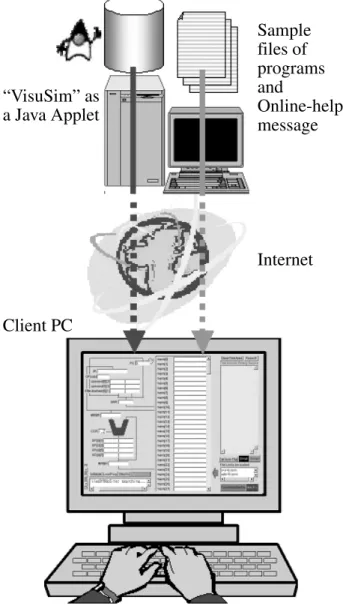
In another case, students can download “Visu-Sim” from the specific Web server, utilize it on their PCs, compute (or simulate)their pro-grams and, by means of stepwise and/or contin-uous executing facilities of “VisuSim”, investi-gate whether their programs work correctly or not. In such a case, “VisuSim” is distributed to
a client as a form of Java applet. Some sam-ple assembly programs are prepared and down-loadable from the same Web server. They are stored into the specific area of “VisuSim” and transferred into its memory by an easy button operation. Figure 2 shows a typical usage of “VisuSim” as a Java applet.
With adjustment of description for the HTML file, some kinds of sample programs are easily selectable based on clients’ requests and, more-over, the online help message of “VisuSim” can be also provided according to the understand-ing level of clients. In order to use “VisuSim” properly, it is possible to provide efficient sam-ple programs and suitable online help messages for the aim of using “VisuSim”, for example, in teaching information literacy, supporting as-sembly programming, and so on.
Fig. 2.Usage of “VisuSim” as a Java Applet
“VisuSim” as a Java Applet
Sample files of programs and
Online-help message
Client PC
3. Communication Support Facilities for Computer Simulator
As a teaching system, it is very important to provide useful user interface and efficient com-munication facilities between users, such as stu-dents and teachers. GUI and E-mail handling facilities of our visual computer simulator are described in this section.
3.1. GUI of Visual Computer Simulator
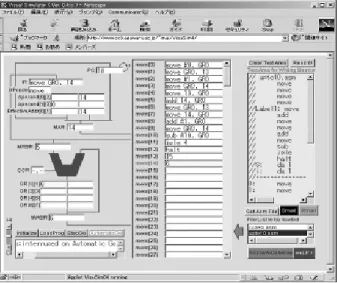
The visual simulator, “VisuSim”, provides the graphical user-interface shown in Figure 3. In this case, the simulator is invoked as a Java applet on the browser, namely, Netscape Navi-gator.
Fig. 3.GUI of “VisuSim” as a Java Applet
“VisuSim” has 4 major buttons on the left side of the bottom of its GUI for operating itself interactively. From left to right, those buttons are for initializing(or resetting)system, loading assembly program into memory, executing the program step by step (called “stepwise execu-tion mode”), and running the program continu-ously(called “automatic go mode”). On the left from the buttons, there is a vertical slide bar for speed control in the automatic go mode. Below the 4 buttons, there is a text area for displaying the internal state of “VisuSim”.
On the left side of the GUI, there is a CPU area including program counter, instruction reg-ister, memory address regreg-ister, ALU, general-purpose registers, condition-code register, and
so on. In the center of the GUI, there is a mem-ory area. Its capacity is 128 words. In order to be more convenient for assembly programming and illustration of instruction set, an assembly mnemonic code can be directly described in the content of memory.
Users sometimes want to check the state of “Vi-suSim” or modify value of the content of a spe-cific register, although it is running in the au-tomatic go mode. Users can click again the button labeled “Automatic Go” for running pro-gram continuously. After the button turns into reverse color, namely red characters “Automatic Go” on the white background, “VisuSim” stops executing and waits for checking and/or modi-fying. This function is very useful for interac-tive program debugging. Figure 3 shows that “VisuSim” has stopped by clicking again the button labeled “Automatic Go” while it is run-ning the program continuously.
On the right side of the GUI, there is a spe-cial text area for writing an assembly program in the conversational mode of “VisuSim”. And below that text area, there are 3 important but-tons for getting sample files in the local disk(or Web server where “VisuSim” is stored as a Java applet), invoking an SMTP-client and a POP3-client, from left to right. The latter two buttons will be described precisely in the next subsec-tion. After clicking the button for getting sam-ple files, the text area below the 3 buttons can indicate the suitable programs to be loaded into memory, for example, from the local disk. On the right side of the bottom, there are 2 buttons for selecting direction of input source program into memory and invoking online help message from the local disk(or the Web server). Online help message mechanism will be explained later in this subsection.
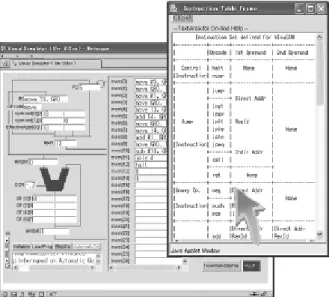
Fig. 4.Guideline Function of “VisuSim” as a Java Stand-alone Application
A help message function is necessary to utilize any system properly. “VisuSim” can display a content of the selected file as an online help message if it is located as a specific name. A teacher or administrator of “VisuSim” can se-lect the suitable file for his students so that such a file will be read and displayed as a help msage of the system. In a teaching system, es-pecially, it is very useful to display an effective help message according to the intelligibility of users. Figure 5 shows a help message generated from “VisuSim”.
Fig. 5.Online-Help Message Function of “VisuSim” as Java Applet
By means of clicking the “HeLP” button, “Vi-suSim” can read and display the specific help message file from local disk(when it is invoked as a Java stand-alone application)or from the Web server (otherwise, invoked as a Java ap-plet). With such an online-help message facil-ity users can utilize “VisuSim” by themselves and make good use of improved user interface. It reduces unnecessary responses among users so that it performs qualitative repletion of com-munication between users.
3.2. E-Mail Handling Facilities of Visual Computer Simulator
“VisuSim” has two e-mail handlers as its built-in modules, which are both written built-in pure Java language. One of the mail handlers is an e-mail sending module as an SMTP-client and the other is an e-mail receiving module as a POP3-client. When users utilize “VisuSim” and want to correspond with others, they can invoke e-mail sending or receiving module of “VisuSim”. These handlers are available when-ever “VisuSim” is invoked as a Java stand-alone application as well as a Java applet.
An SMTP-client is a simple mail transfer protocol-based sending module shown in Figure 6, which has two characteristics as follows:
• By an easy operation, it can transfer all the contents of registers and memory of “Visu-Sim” into another.
• It can allow users to specify the target e-mail address that not only includes a domain name, but is also based on the IP address.
Fig. 6.Invocation of built-in SMTP-client
SMTP-client
sending e-mail to server
On the other hand, a POP3-client is a post of-fice protocol-based receiving module. It has also the following functions according to the above characteristics of the SMTP-client. The SMTP-client is a special e-mail sender whose facilities are as follows. First of them is useful to share with the internal state and contents of registers in the specific “VisuSim” between some users. For example, when a user of “VisuSim” meets problems and resolves them with the help of a teacher or friends, he/she can invoke the SMTP-client, store the internal state and contents of “VisuSim” registers as a mail text, and transfer such information to his/her teacher or friends through an e-mail message. Another user can receive the mail text and gain a resurgence of duplicated image of “VisuSim” with such a mail text. With the function of POP3-client, this is the most suitable mecha-nism which can provide a smart facility to share the internal state and contents of “VisuSim” among a group of users. This is a powerful facil-ity to check the remote state of “VisuSim” with a local “VisuSim” by a teacher and/or Teaching Assistants.
In the SMTP-client, “VisuSim” provides a spe-cial function called “Snap Shot”, which can du-plicate the internal state and contents of registers into the mail text. In other words, users can store the internal image of “VisuSim” and insert it in the mail content as a backup copy by means of clicking a button labeled “Get Snap Shot”. Figure 6 illustrates invoked SMTP-client which includes the internal image of “VisuSim” to be sent.
Second of the facilities is to permit specification of e-mail address with IP address. In a normal case, an e-mail address is represented with do-main name. Using “VisuSim” as a teaching sys-tem seems to be necessary to acquire the Web server and e-mail server with domain name. In real use of “VisuSim”, however, a teacher or ad-ministrator cannot acquire such a server, has no time to ask a server to be entered in the domain name system, and then might have to use an experimental server without the formal domain name (FQDN: fully qualified domain name). In such a case, general e-mail handlers do not transfer any mails into the mail server with no FQDN described above.
This is why we must develop a special SMTP-based e-mail handler to transfer mails into an experimental mail server with no domain name.
With our SMTP-client, users can represent not only normal notation, but also an IP-based spe-cial one as an e-mail address. The former is like [email protected] and the latter is likeimai@\#192.168.1.1, for example. It is very convenient to utilize an experiment server with no domain name and begin a very easy trial(or short-term)service of “VisuSim” with-out complex and time-consuming adjustment of the LAN manager.
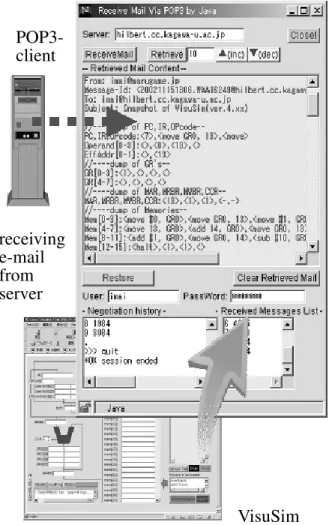
On the other hand, just like SMTP-client, the functions of POP3-client of “VisuSim” are read-ing the e-mail from other “VisuSim” and spec-ifying the mail server with its IP address only. The POP3-client can receive the e-mail text with an internal state and contents of registers from another “VisuSim”, restore such information to the internal state and contents of registers of the receiving “VisuSim” itself, and gain a resur-gence of the remote “VisuSim” in the local one. Such operations are easily carried out by click-ing a button labeled “Restore” only. Both the STMP-client and the POP3-client are designed
Fig. 7.Invocation of built-in POP3-client
POP3-client
receiving e-mail from server
to work in cooperation with each other, send the internal image of “VisuSim” through the for-mer, and receive it as another duplicate image of “VisuSim” through the latter. Figure 7 shows invocation of the POP3-client and reading of an e-mail with an image of another “VisuSim”.
4. Application to Collaborative Learning
An application of “VisuSim” to collaborative learning is introduced as follows;
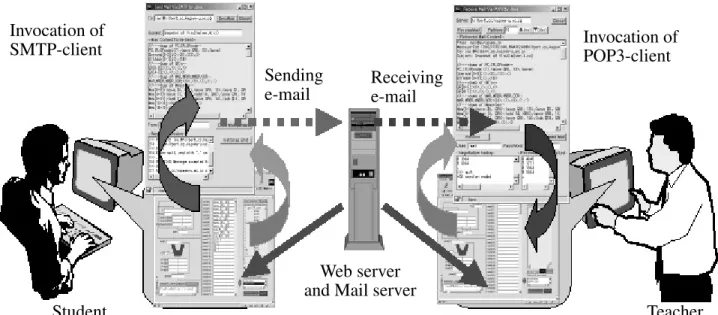
A student wants to do his homework after school, uses “VisuSim” downloaded from the Web server, and meets some problems which he cannot re-solve by himself. He decides to correspond with his teacher about his problems, invokes the SMTP-client to utilize the “Snap Shot” fa-cility for storing the current state and contents of registers of “VisuSim” onto the e-mail text. It is transferred to the mail server (the same of Web server)through an STMP-client for asking his teacher, as shown on the left side of Figure 8.
A teacher checks his e-mails through a POP3-client, finds such a mail text and tries to gain a resurgence of internal image of his student’s “VisuSim” on his own “VisuSim” by means of “Restore” facility. The teacher can resolve the problem, transfer the result through SMTP-client and teach his student how to resolve and/or how to think about such a problem.
Without such a teaching system, there might be some difficult problems between a teacher and his students, namely, how to transfer the identi-cal situation from one to another, how to recreate the same image on the remote site, how to com-municate the real result with comments from a teacher to students and so on. In such a case, a teacher and his student can be blessed with collaborative learning with the communication support facilities and smart GUI of “VisuSim”. The above case seems to be a fruitful sam-ple with “VisuSim” for collaborative learning and/or distance learning which has been estab-lished between teacher and student. There is another case to learn assembly programming as group meeting with “VisuSim” through net-work. It will be almost limit free by location and occasion.
5. Conclusion
Our visual simulator called “VisuSim” has been used to educate computer science lectures of Computer Architecture to Assembly Program-ming. Communication support and user inter-face of “VisuSim” are reported in this paper and its application to collaborative learning is pro-posed and demonstrated by means of a practical usage with “VisuSim” through network.
It is summarized as follows:
• “VisuSim” is available in the classroom lec-ture to illustrate the internal struclec-ture and
Fig. 8.Scheme of Collaborative Learning with “VisuSim” on the Network Environment
Invocation of SMTP-client
Sending
e-mail Receivinge-mail
Invocation of POP3-client
Student
Web server and Mail server
behavior of a computer and to explain how a computer works.
• Online help message and guideline display are useful for beginners who utilize “Vis-uSim” by themselves.
• Built-in mail handlers are effective for users who want to communicate closely with each other during operation of “VisuSim”.
• The scheme is proposed of a collaborative learning which is performed with commu-nication support facilities and smart GUI of “VisuSim” on the network environment.
Acknowledgements
The authors would like to express sincere thanks to Prof. Shinji Tomita of Kyoto University for his supervising support. This study was partly supported by grant-in-aid for scientific re-search from the Ministry of Education, Culture, Sports, Science and Technology under contract No. 12040107.
References
[1] KIT K. R. YIP, K.-CHUN LI, A Web-Based CAL
System on Computer Architecture and Assembly Language Programming,Proc. Int’l Conf. Comput-ers in Education(ICCE2002); 2002. pp. 202–205.
[2] Y. MIURA, K. KANEKO, M. NAKAGAWA,
Develop-ment of an Educational Computer System Simulator Equipped with a Compilation Browser,Proc. Int’l Conf. Computers in Education(ICCE2003); 2003. pp. 140–143.
[3] A. JUTMAN, A. SUDNITSON, R. UBAR, H-DWUTTKE, E-learning Environment in the Area of Digital Mi-croelectronics, Proc. Int’l Conf. IT-based Higher Education & Training (ITHET2004); 2004. pp. 28–33.
[4] Y. IMAI, S. TOMITA, A Visual Simulator for Under-standing Internal Structure and Behavior of Com-puter System (in Japanese), Technical Report of IEICE, ET99-110(2000-3); 2000. pp. 113–120.
Received:June, 2006
Accepted:September, 2006
Contact addresses:
Yoshiro Imai Kagawa University 2217-20 Hayashi-cho Takamatsu-shi, Kagawa, 761-0396 Japan e-mail:[email protected]
Keiichi Kaneko Tokyo University of Argiculture and Technology 2-24-16 Nakacho, Koganei-shi Tokyo 184-8588 Japan e-mail:[email protected]
Masaki Nakagawa Tokyo University of Argiculture and Technology 2-24-16 Nakacho, Koganei-shi Tokyo 184-8588 Japan e-mail:[email protected]
YOSHIROIMAIwas born on 23 July 1955 in Japan. He received his B.Eng. degree from Kyoto University in 1980. He worked at Takuma National College of Technology from 1980 to 1993. Since April 1993, he has been working at Kagawa University as an Associate Professor. He is interested in computer architecture, systems programming and e-learning design for these subjects.
KEIICHIKANEKOwas born on 13 November 1962 in Japan. He received B.E., M.E., and Ph.D. degrees from the University of Tokyo in 1985, 1987 and 1994, respectively. He is an Associate Professor at Tokyo University of Agriculture and Technology. His main research areas are functional programming, parallel and distributed computation, partial evaluation, fault-tolerant systems, and pedagogical systems. He is a member of ACM, IEICE, IPSJ and JSSST.